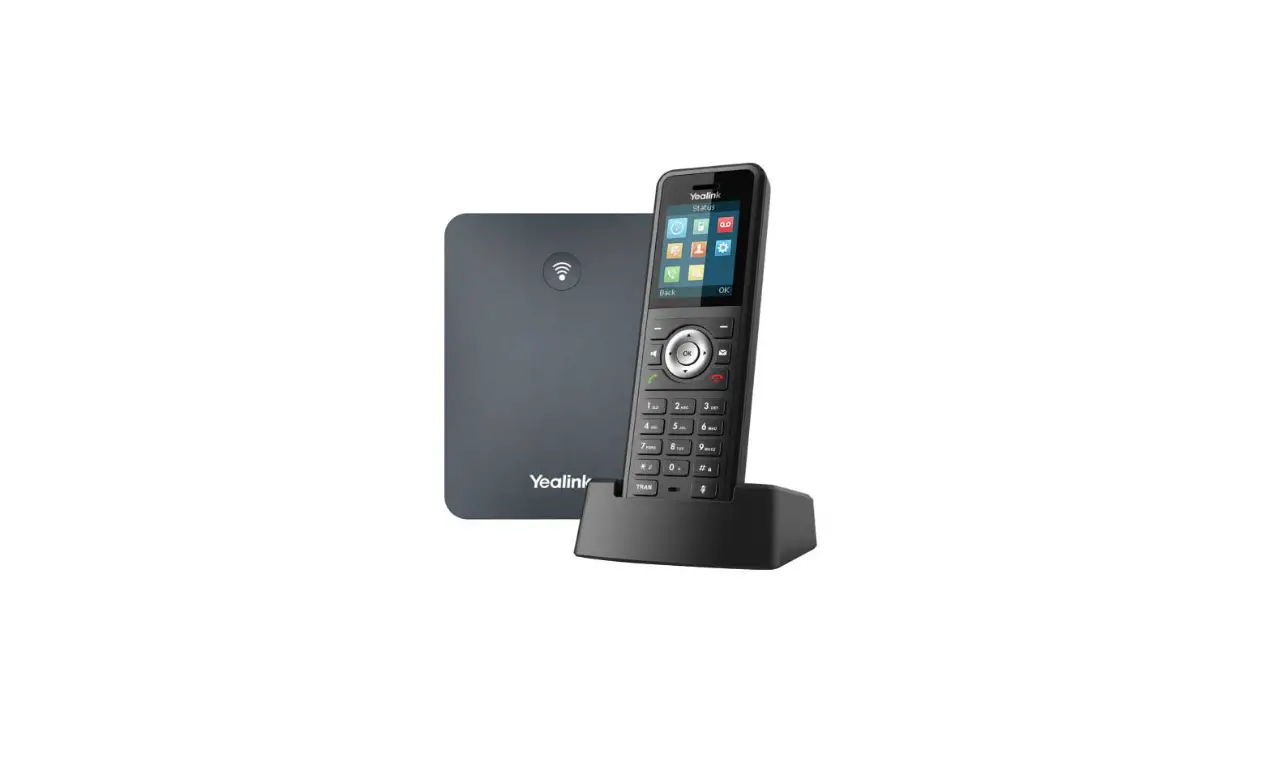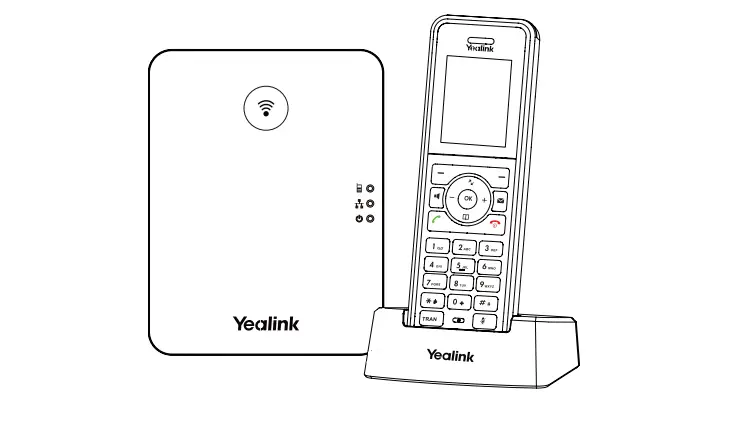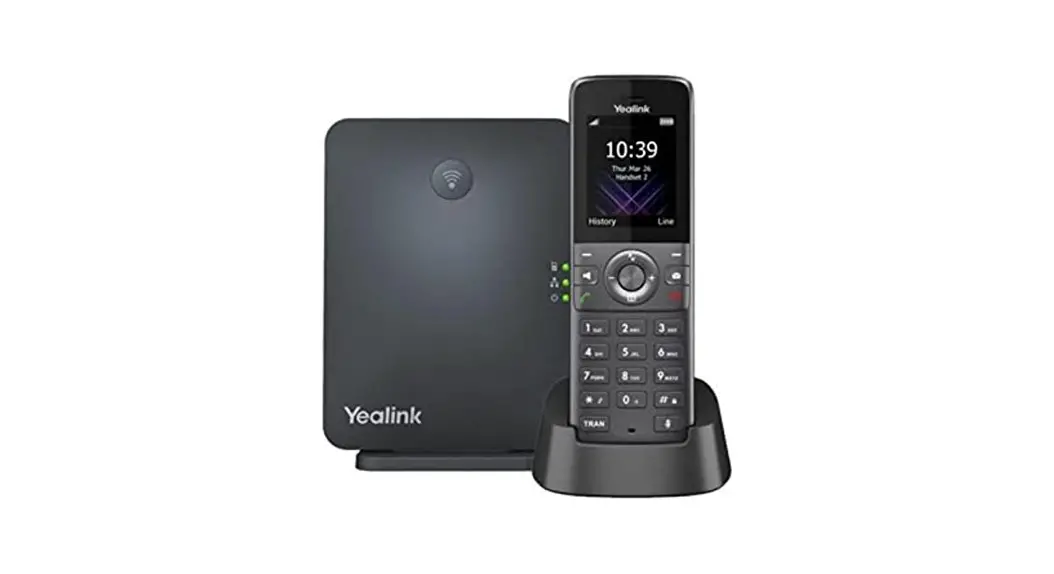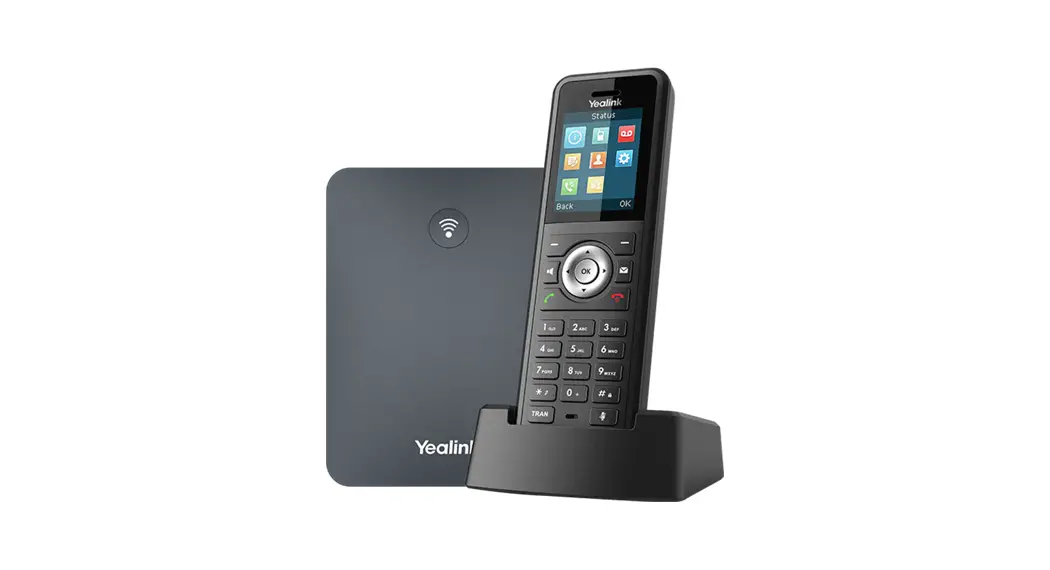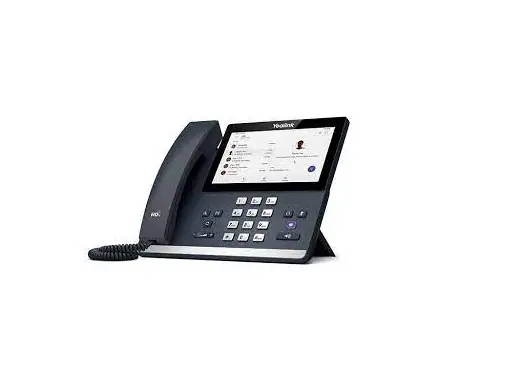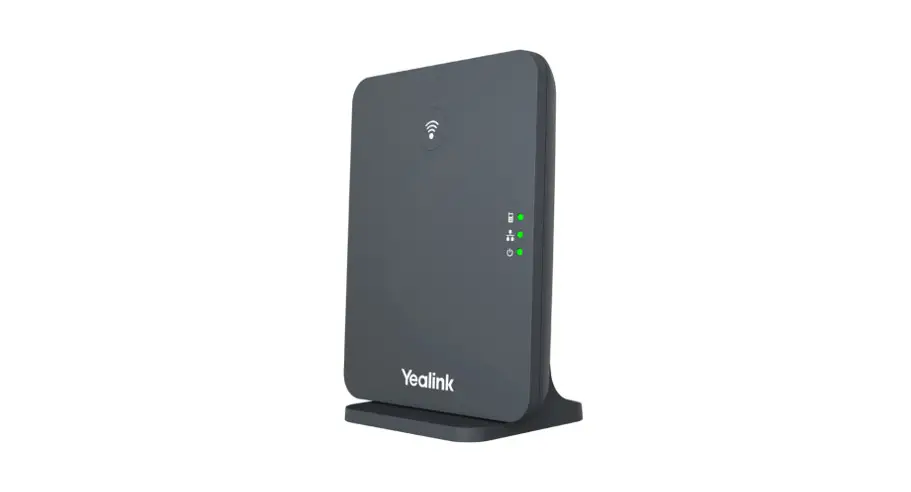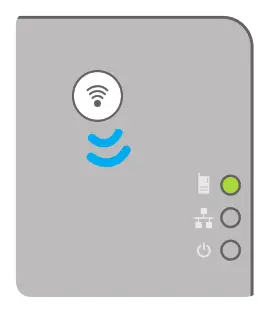

Yealink W76P Professional Business DECT Phone System
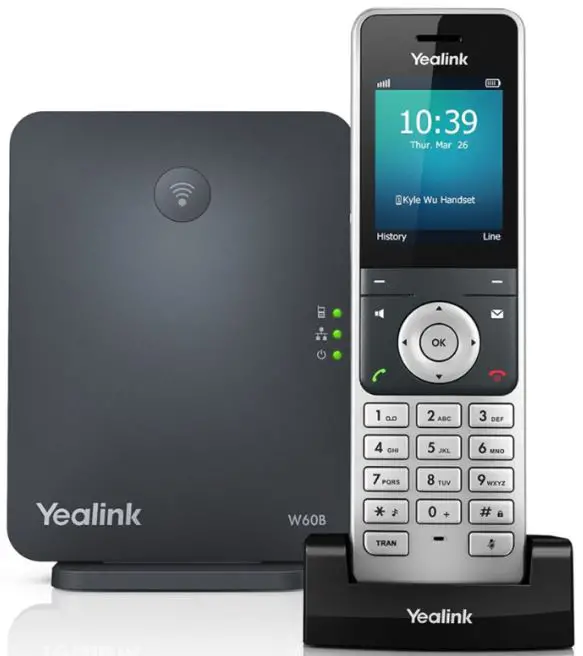
Product Information
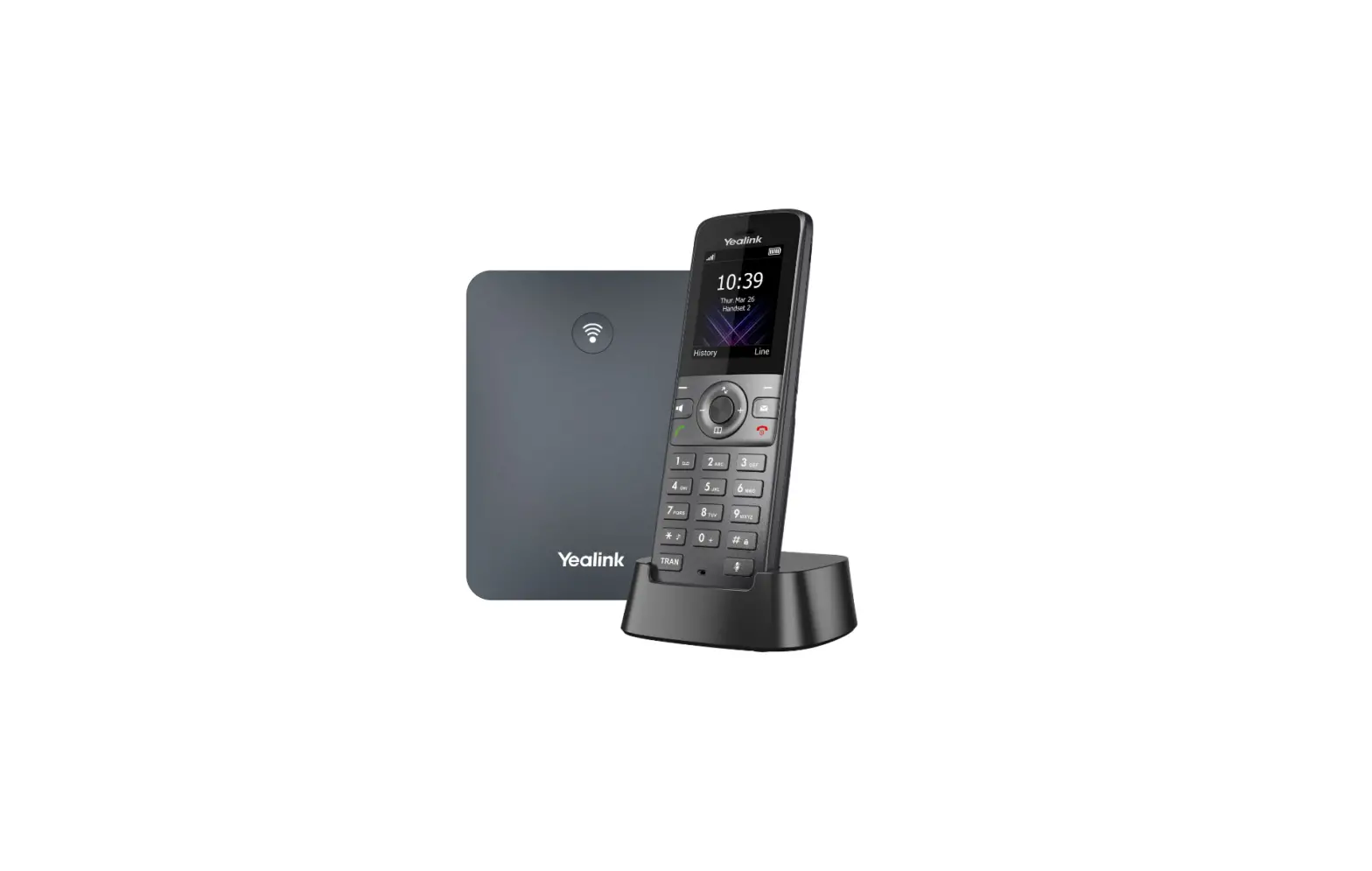
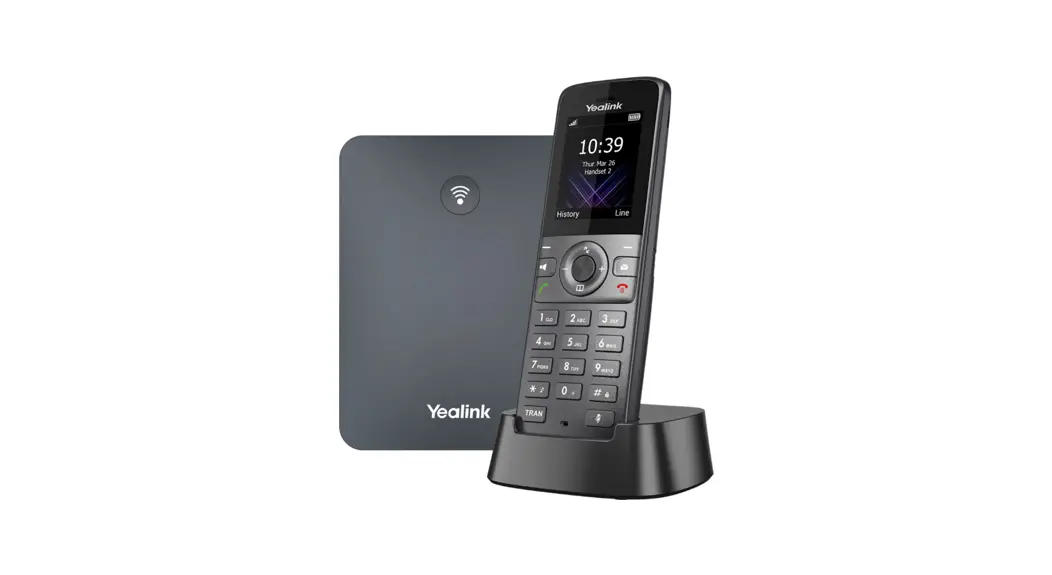
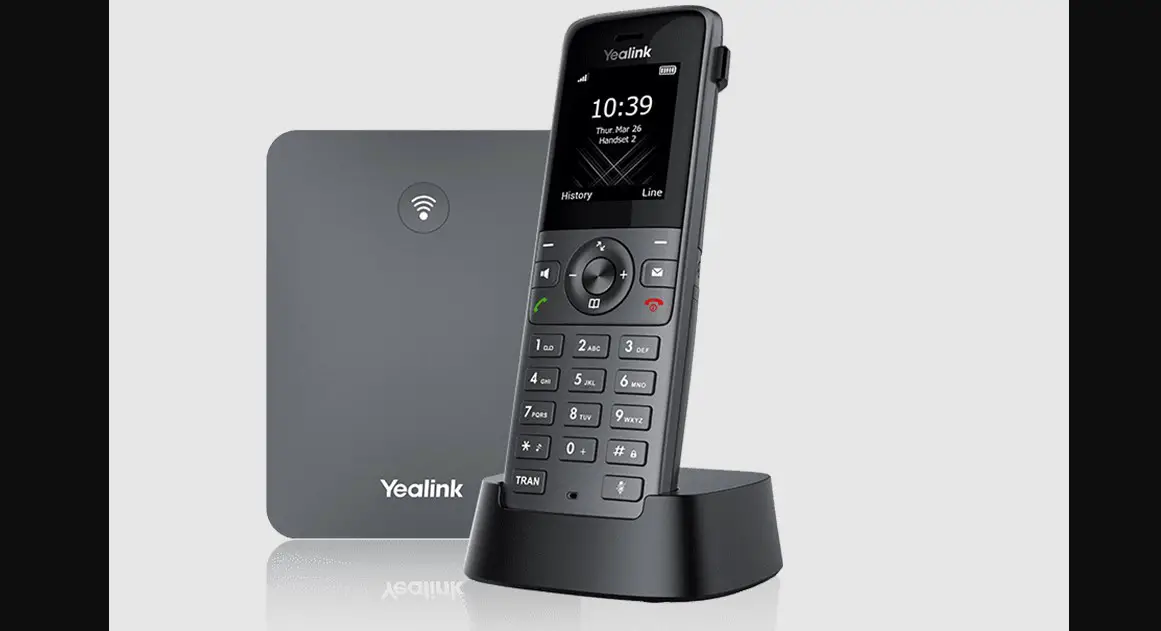
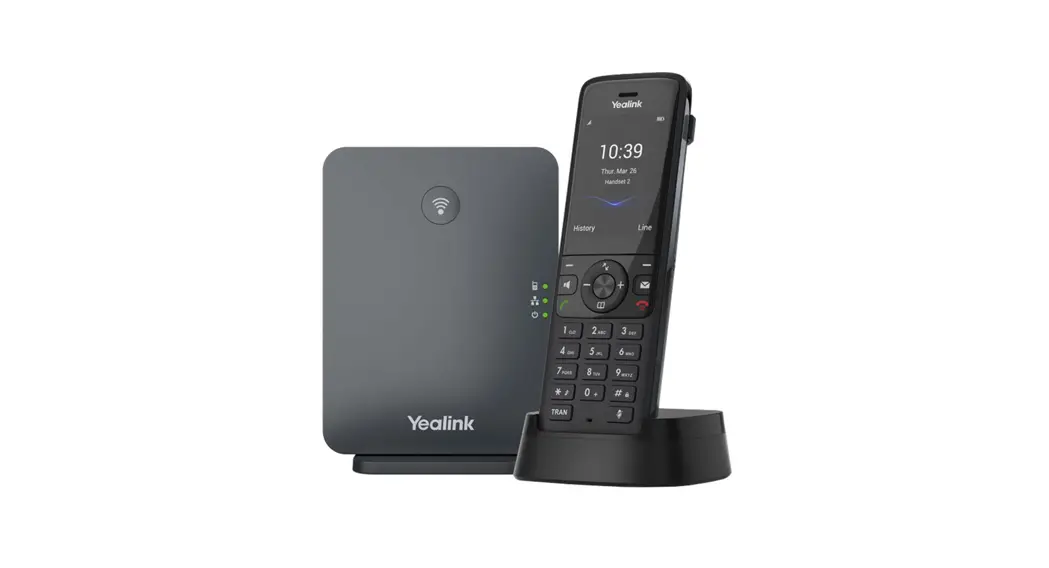
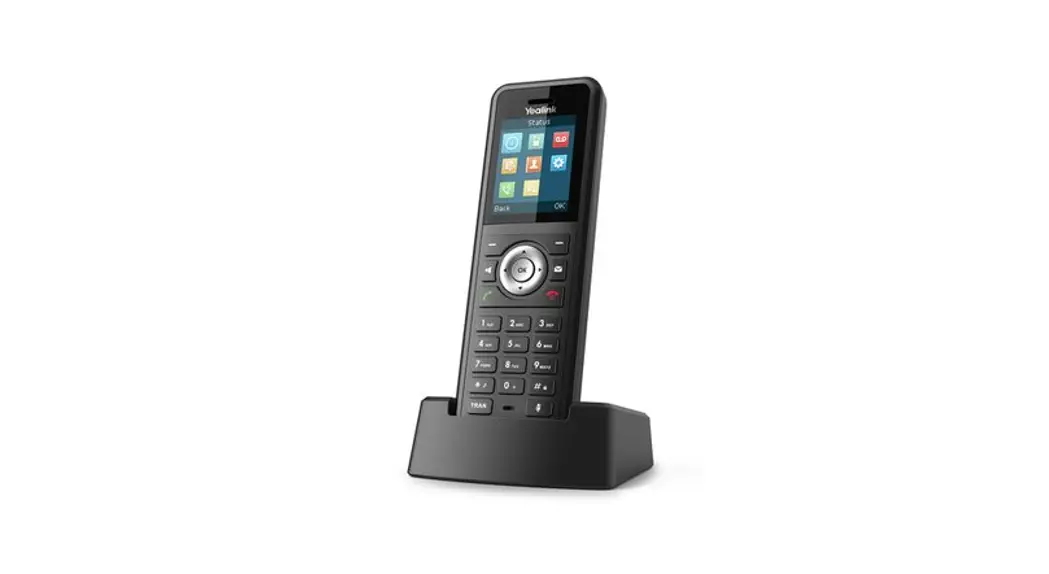
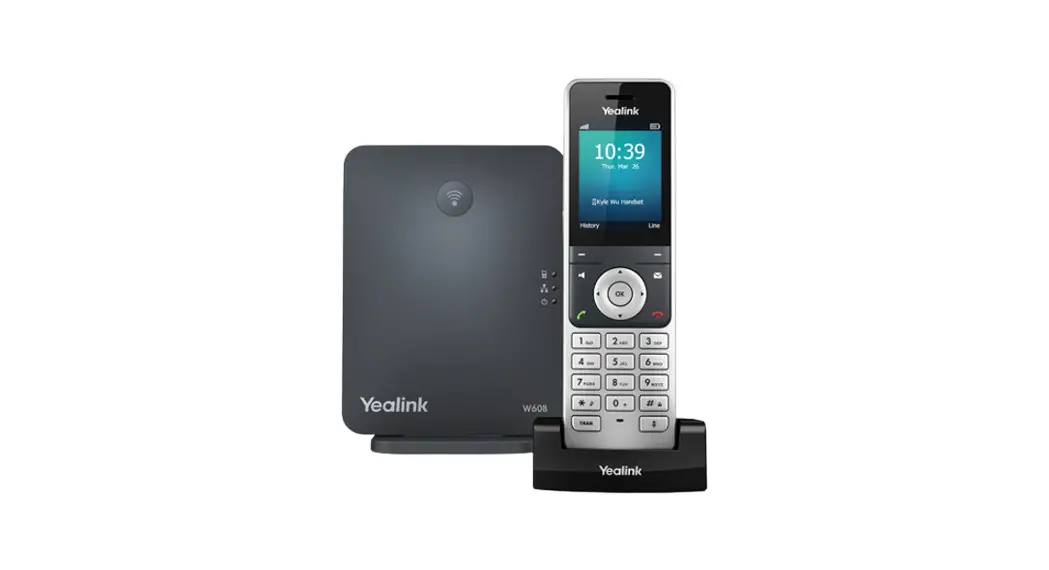
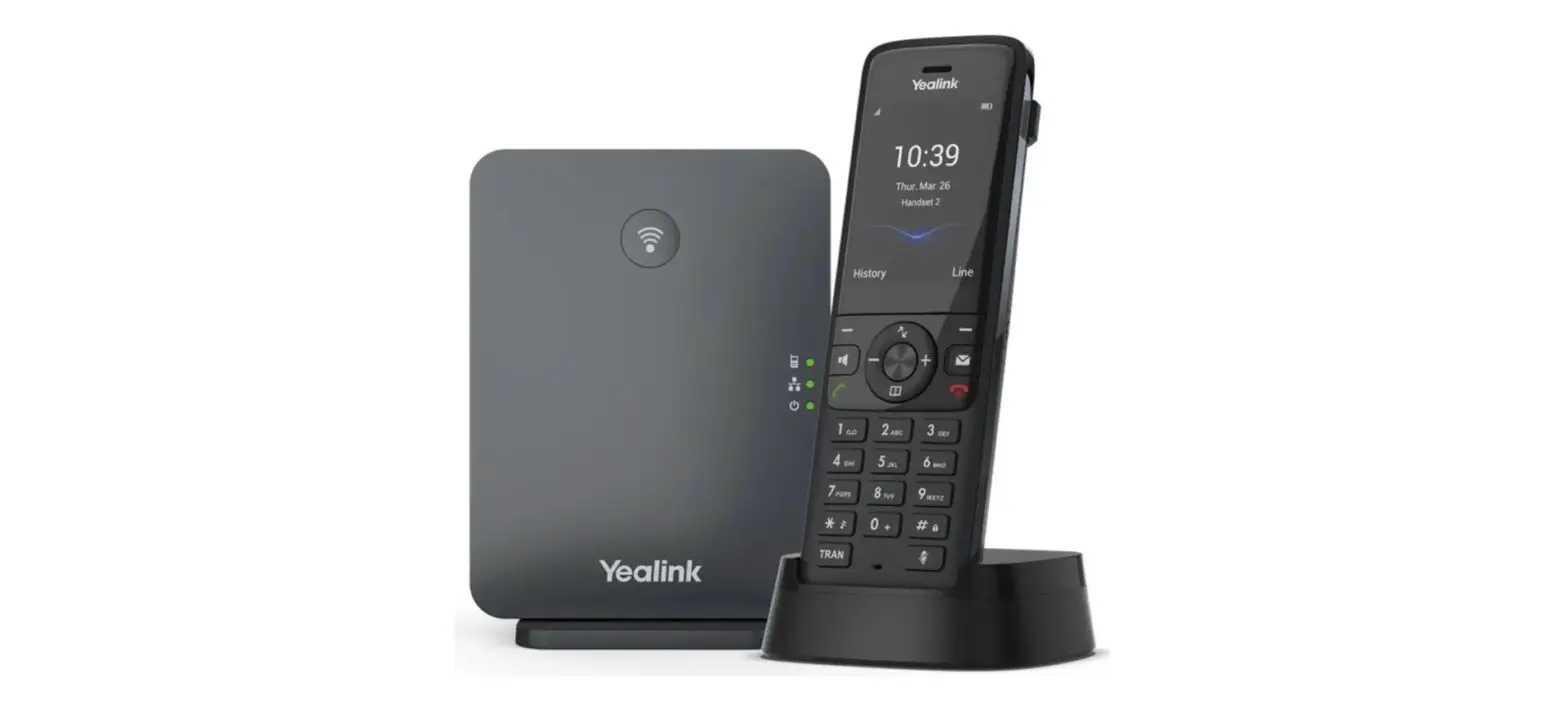
Yealink W76P Cordless Phone
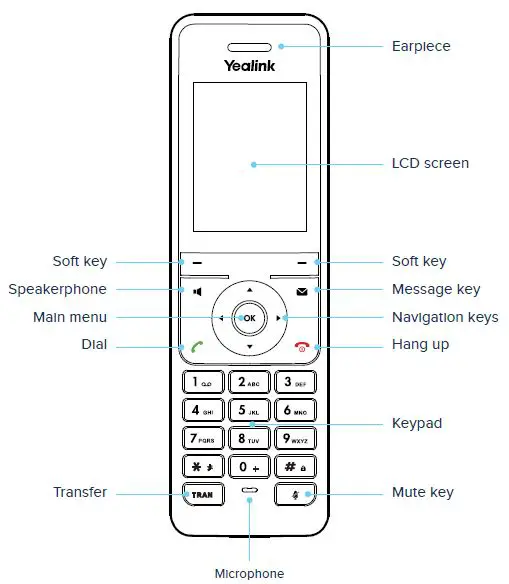
The Yealink W76P is a cordless phone that offers a range of calling options and features. It has an earpiece, LCD screen, soft keys, speakerphone, main menu dial, transfer button, microphone, message key, navigation keys, hang-up button, keypad, mute key, signal strength indicator, battery status indicator, missed call indicator, do not disturb function, call forward status indicator, voicemail indicator, call features, settings menu, call history, power hold on/off function, and more.
Get to Know Your Yealink Cordless Phone

- Signal strength
- Battery status
- Missed call
- Do not disturb
- Call forward
- Status

- Voicemail
- Call features
- Settings
- Call history
- Power hold on/off
Calling Options
Dial Phone Numbers or Extensions
Enter the desired number when the handset is idle.
- Local and Long distance – dial the 10-digit phone number (area code + local number)
- International – dial 011 + country code + city code + number
- Internal extension – dial the extension
Answer Calls
- To answer a call, press the Accept soft key or press

- Other options are to press Speakerphone button
 , or press OK
 - To answer a new call while on an active call, press down arrow
 to navigate to new call and then press the Accept soft key (the current call will be held)

 , or press OK
 to navigate to new call and then press the Accept soft key (the current call will be held)
Hold Calls
- Place a call on hold by pressing the Options soft key, and then select Hold. The held party will hear music/ message while holding
- To resume a held call, press the Resume soft key
Transfer Calls
Transfer Call to an Extension or Other Number
- During a live call, press Options, then Transfer and dial the ext/number
- When you hear the ring back sound, or after you have talked with the other party, press Transfer and hang up
NOTE
- If you press Transfer or hang up directly after hearing the ring back sound, the call will automatically transfer without having to announce the caller.
Transfer Call Directly to Voicemail
- During a live call, press Options, then Transfer and dial *55 followed by the ext/number
- Press Transfer again
Conference Calling
To Conduct a Conference Call
- Call the first party. After party answers, press Options, then Conference
- Dial the extension or phone for the second party and press Conf. When party answers, press Conf again; all three parties are joined together in conference
Muting a Call
- To mute an active call, press
 . The call is muted and the icon is displayed on the LCD screen.
 - To un-mute a call, press again. The disappears from the LCD screen
 . The call is muted and the icon
Do Not Disturb
- To enable do not disturb, press OK. Select Call Features > Do Not Disturb > OK> Enabled > Save. The icon on the status bar indicates that DND mode is activated and any incoming calls will be directed to voicemail
- To disable do not disturb, press OK. Select Call Features > Do Not Disturb > OK> Disabled > Save.
Changing Volume
- To change call volume, press
 or during a call.
 - To change the ringer volume, press or when the phone is idle or ringing
 or
or  during a call.
Directory
- To access the directory, press OK and then navigate to the directory icon. Select Network Directory > All Contacts > OK. Navigate to and highlight the desired contact. Press the dial button and OK to call the highlighted contact
Group Call Park
- While on an active call, press Options and then navigate down to Group Call Park. Press OK. Listen to the message which identifies the extension the call is parked on.
Unpark
- To unpark a call, dial *88 followed by the park extension and then press the Call button or #
Quick Dial Guide
Easy Dialing Options
| On | Off | |
| Call forward | ||
| All calls | ✱ 72 | ✱ 73 |
| All calls to voicemail | ✱ 21 | # 21 |
| When no answer to voicemail | ✱ 41 | # 41 |
| Not reachable (For business continuity plan. Requires set-up) | ✱ 94 | ✱ 95 |
| Check not reachable status | ✱ 63 ✱ | |
| Call return (last inbound number) | ✱ 69 | |
| Call waiting | ✱ 73 | # 41 |
| Cancel call waiting for a single call | ✱ 70 | |
| Access voicemail | ✱ 86 | |
| Music on hold deactivation (Per-call deactivation) | ✱ 60 | (Music returns next call) |
| Clear message waiting indicator | ✱ 99 | |
| Change number of rings before voicemail picks up | ✱ 610 |
Voicemail
Accessing Voicemail
- Press and hold the 1 button
 or dial *86
 - Follow prompts to play messages, record greetings, etc.
 or dial *86
Voice Messaging Main Menu
| 1 | Listen to Messages |
| 2 | Busy Greeting Menu |
| 3 | No Answer Greeting Menu |
| 4 | Extended Away Greeting Menu |
| 5 | Compose Message Menu |
| 7 | Delete All Messages |
| 8 | Message Deposit Settings Menu |
| ✱ | Voice Portal Main Menu |
| # | Repeat Menu |
| “Play Message” options | |||
| While listening to message | Between messages | ||
| 1 | Skip Back | # | Save |
| 2 | Pause/Resume | 7 | Delete |
| 3 | Skip Forward | 2 | Repeat |
| 4 | Jump to Beginning | 5 | Envelope Info |
| 6 | Jump to End | 6 | Play Next Message |
| Any time | 8 | Callback Caller | |
| ✱ | Return to Previous Menu | 9 | Additional Options 1 Reply to Message 2 Forward Message ✱ Return to Previous Menu # Repeat |
CONTACT
TelNet Worldwide, Inc
- telnetww.com
- (800) 508-1254
 Communication Solutions for Your Business | TelNet Worldwide