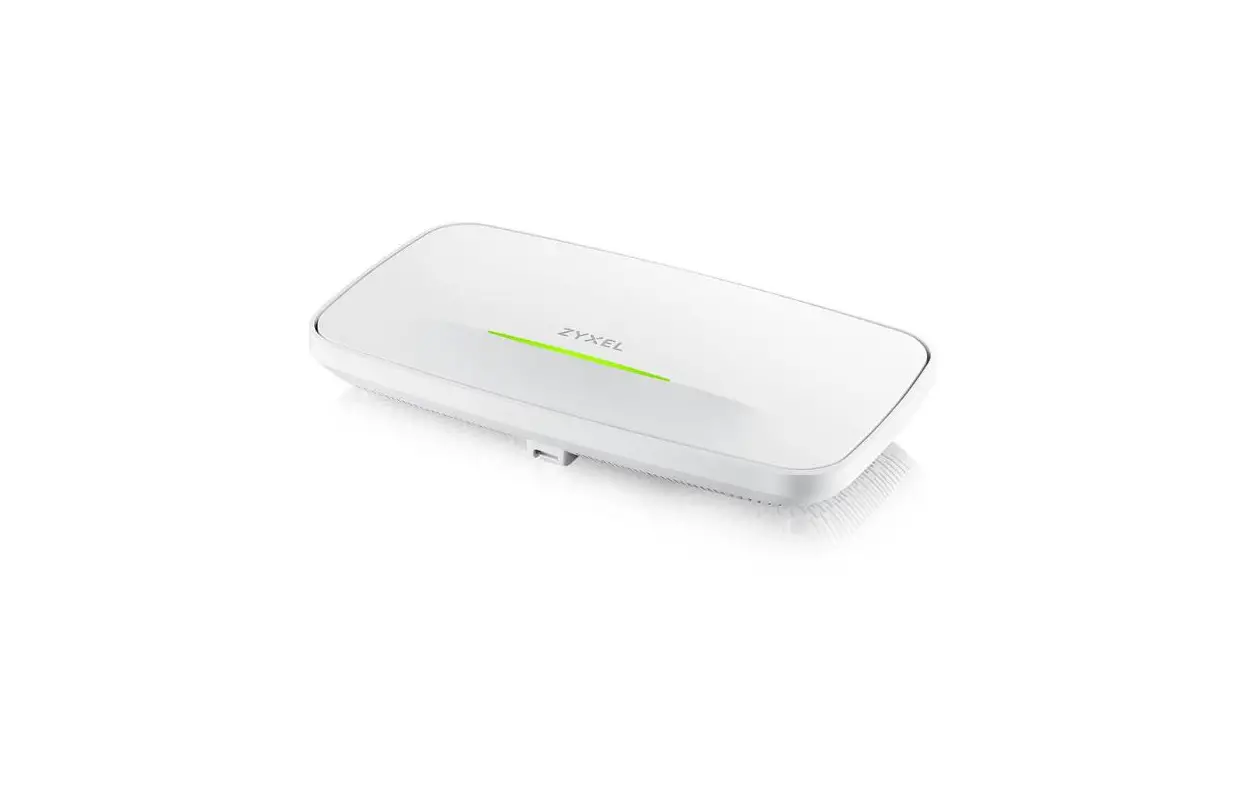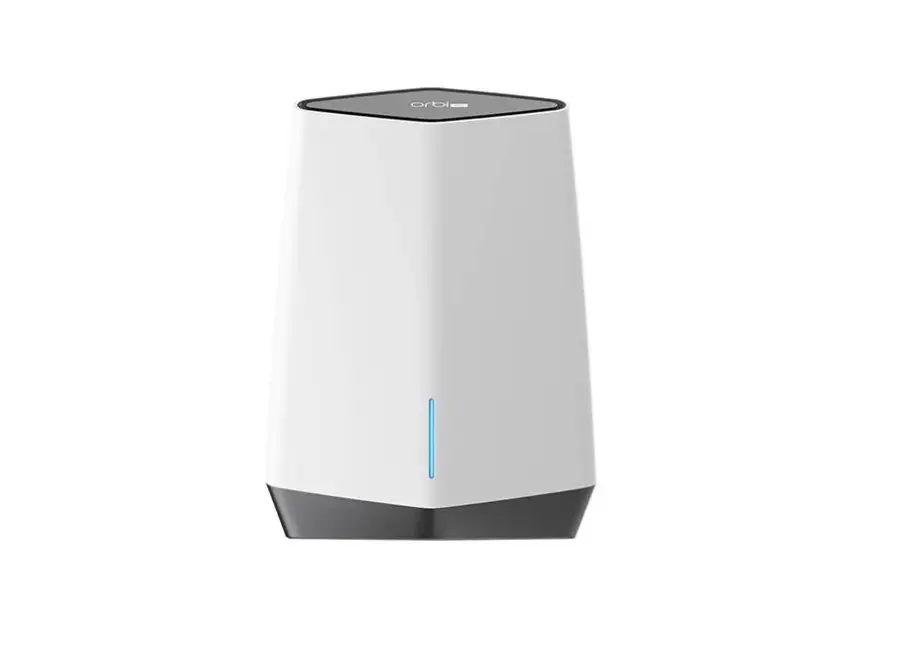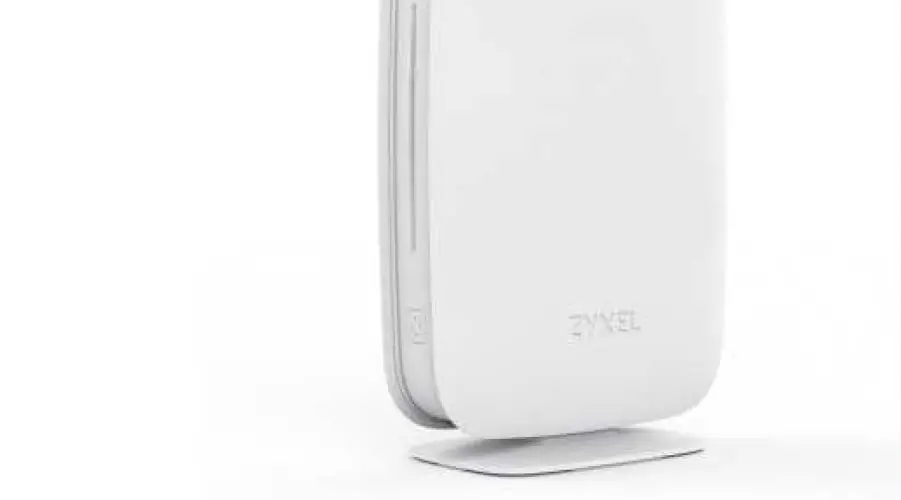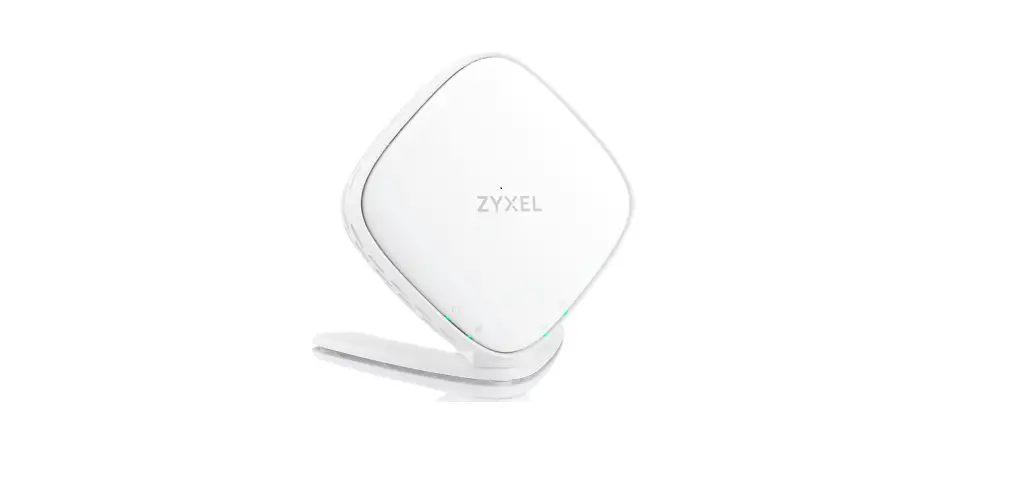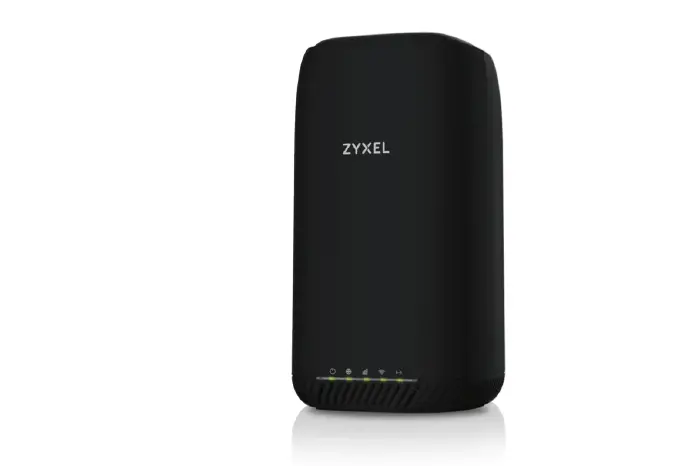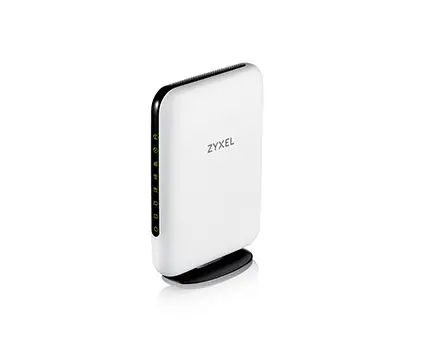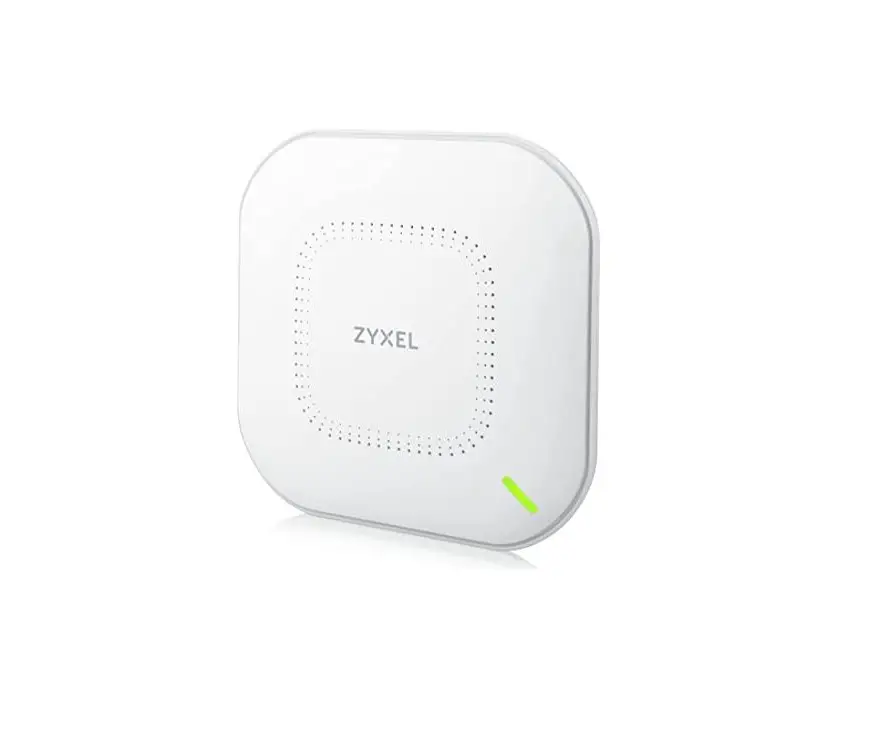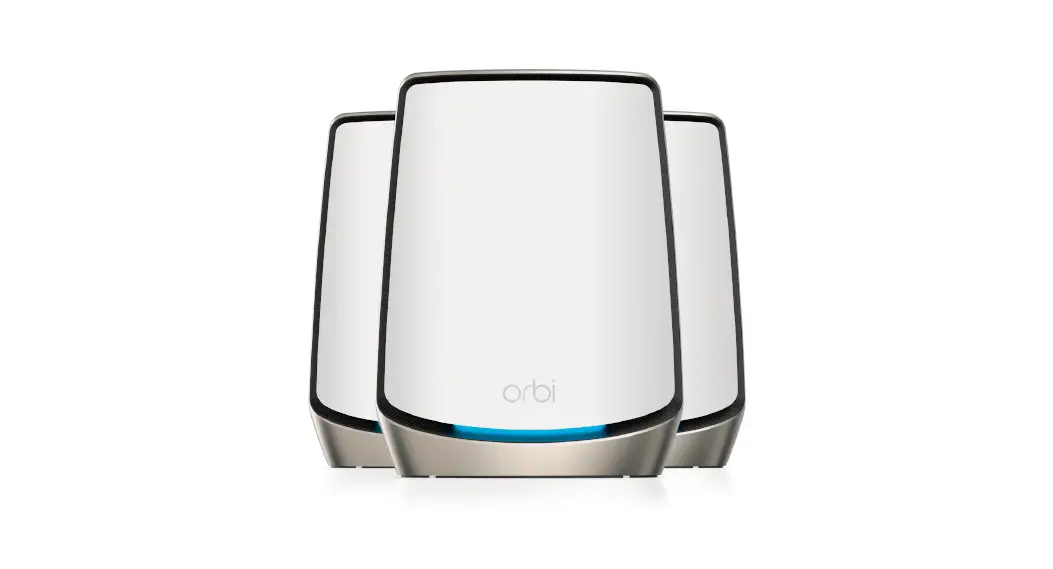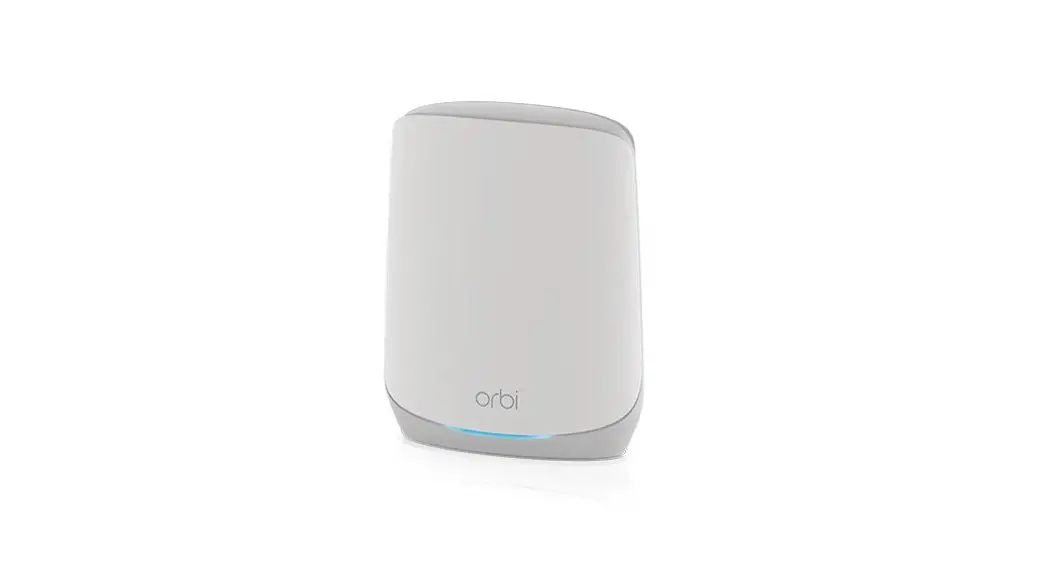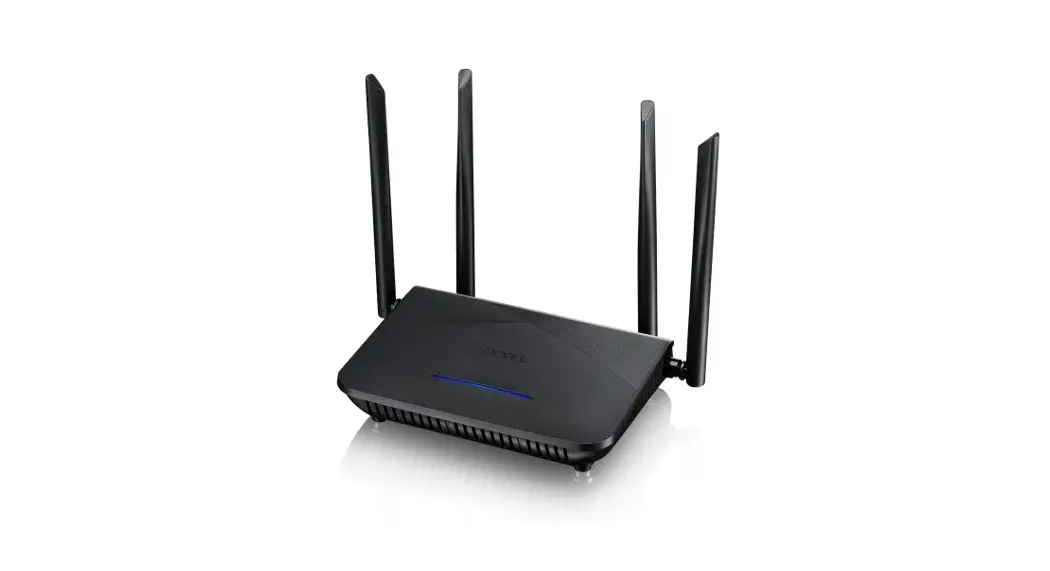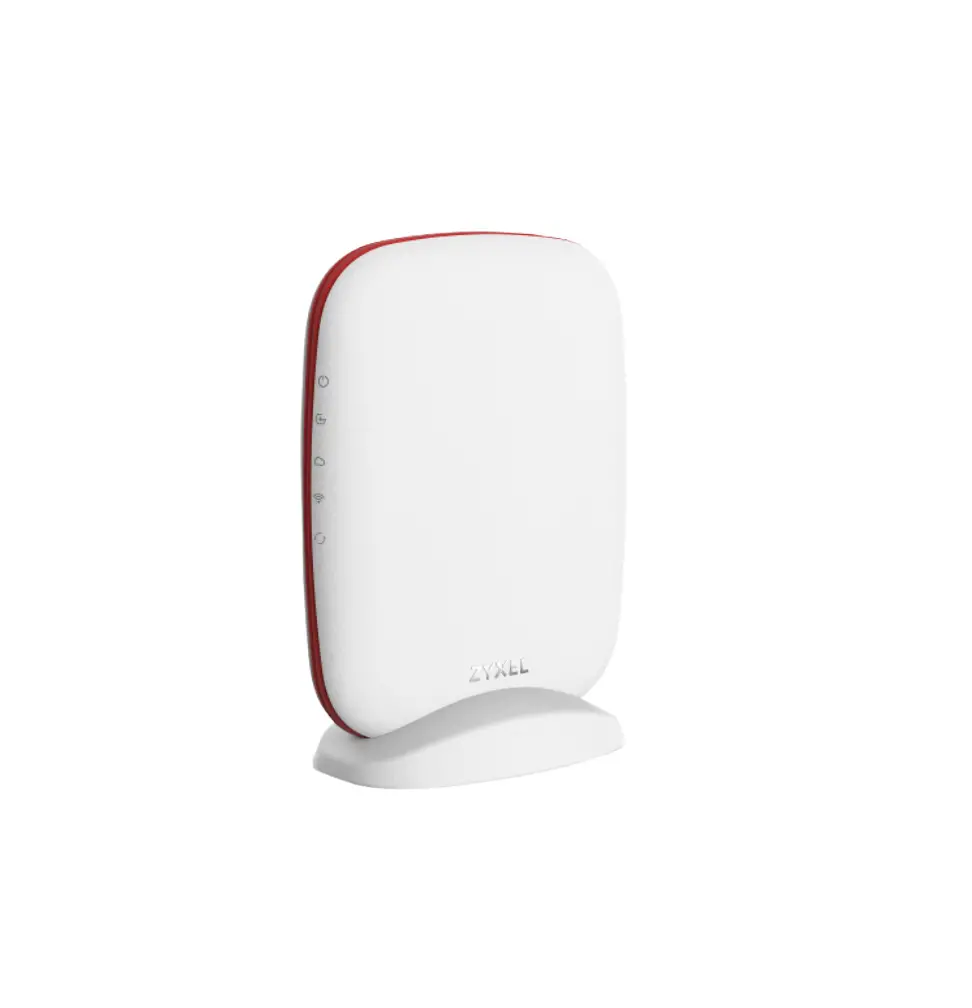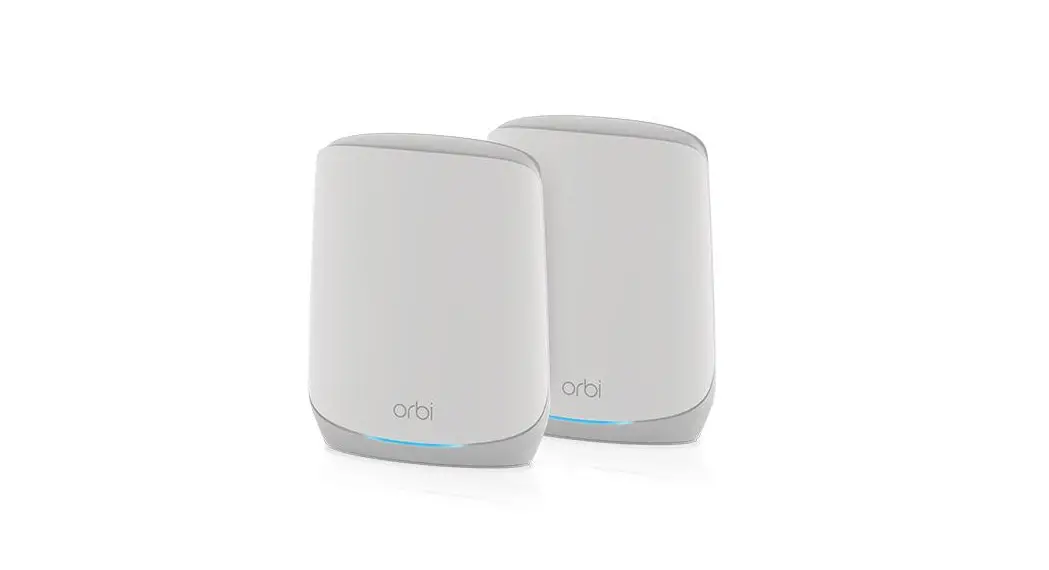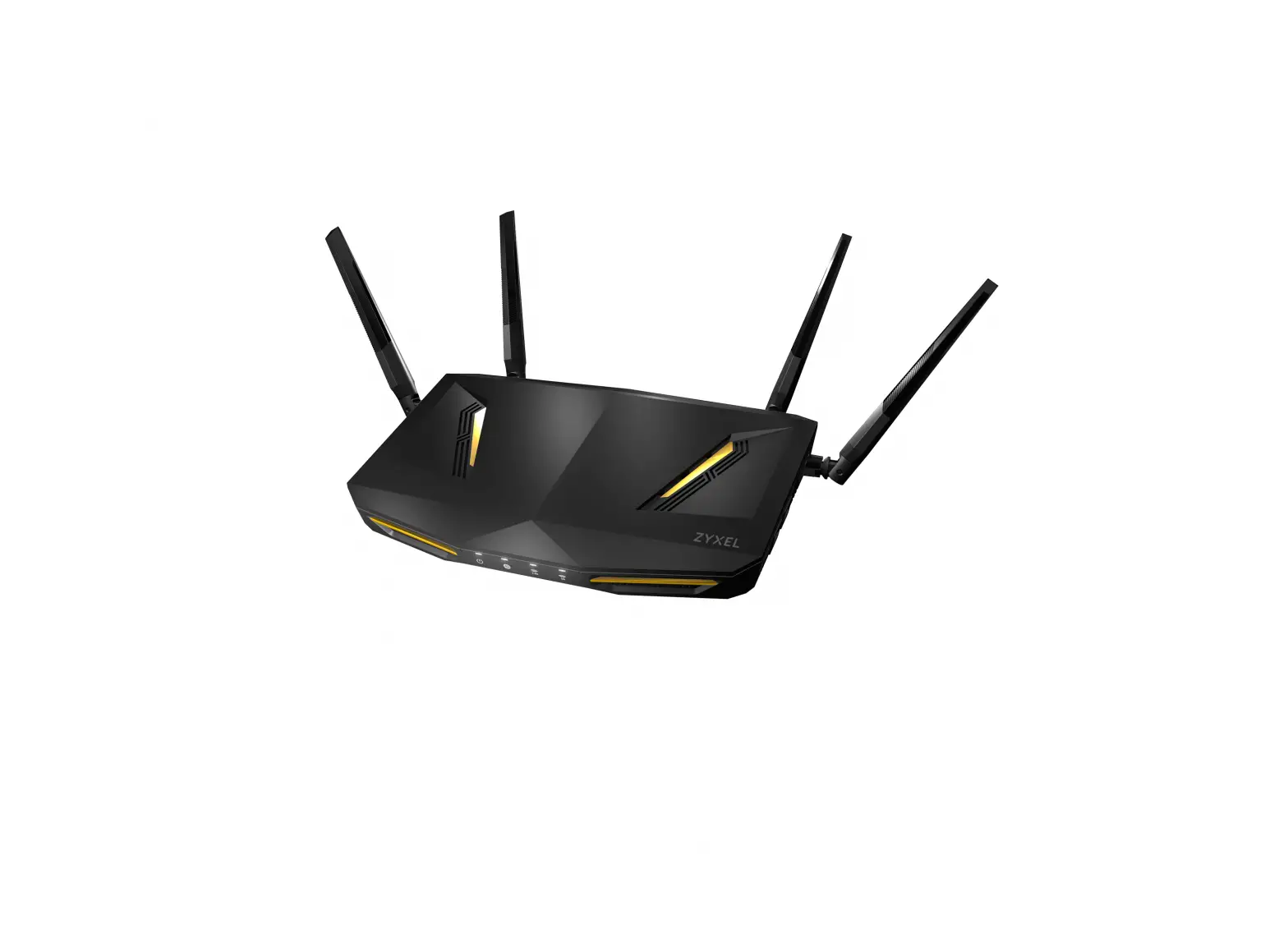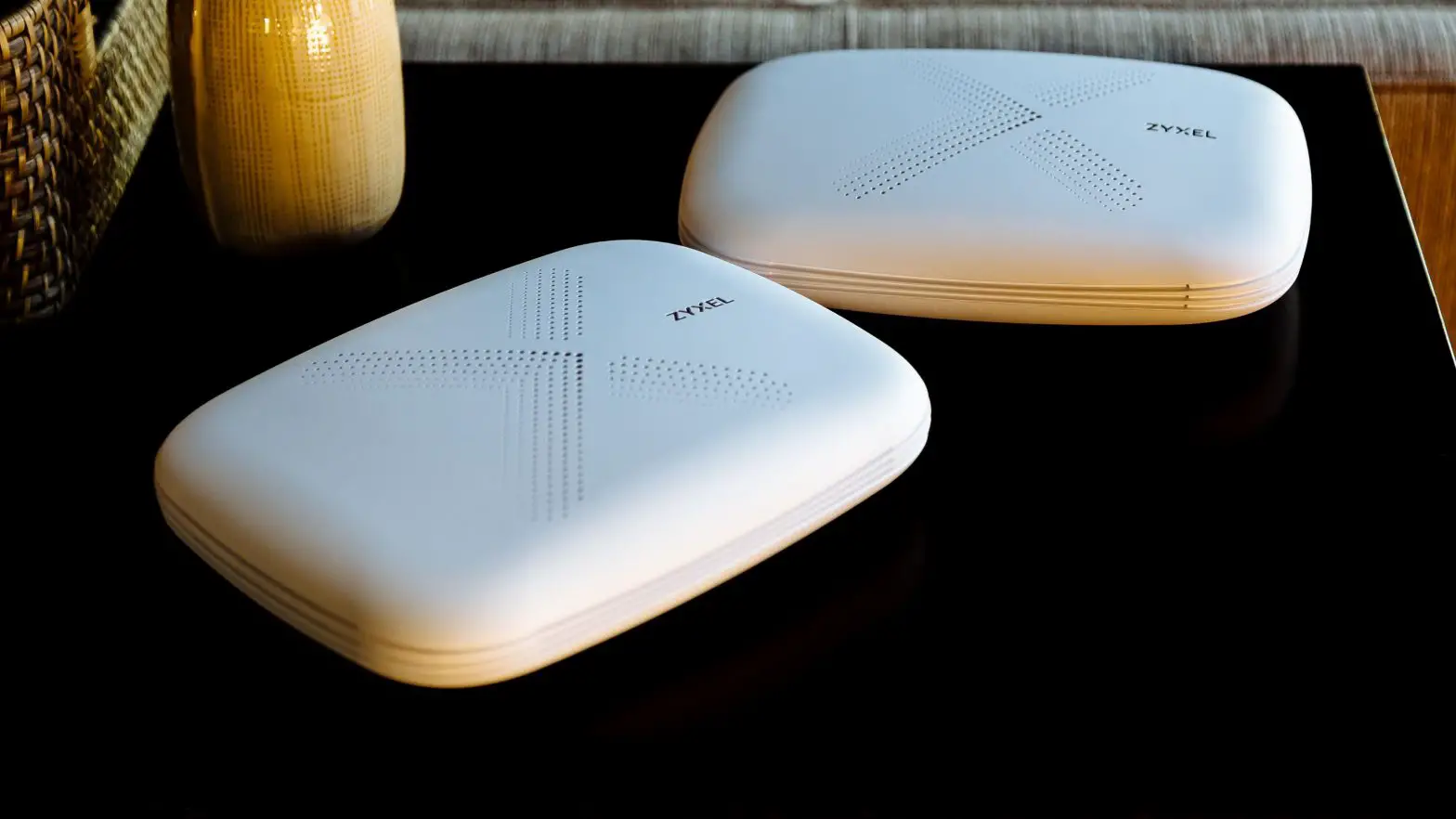
ZYXEL Multy Plus Tri-Band WiFi System
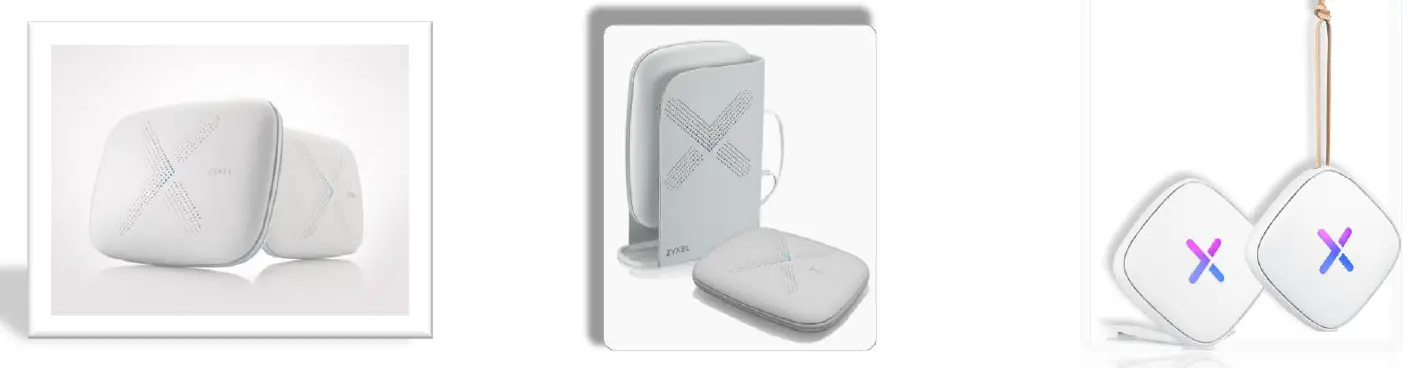
For Model:
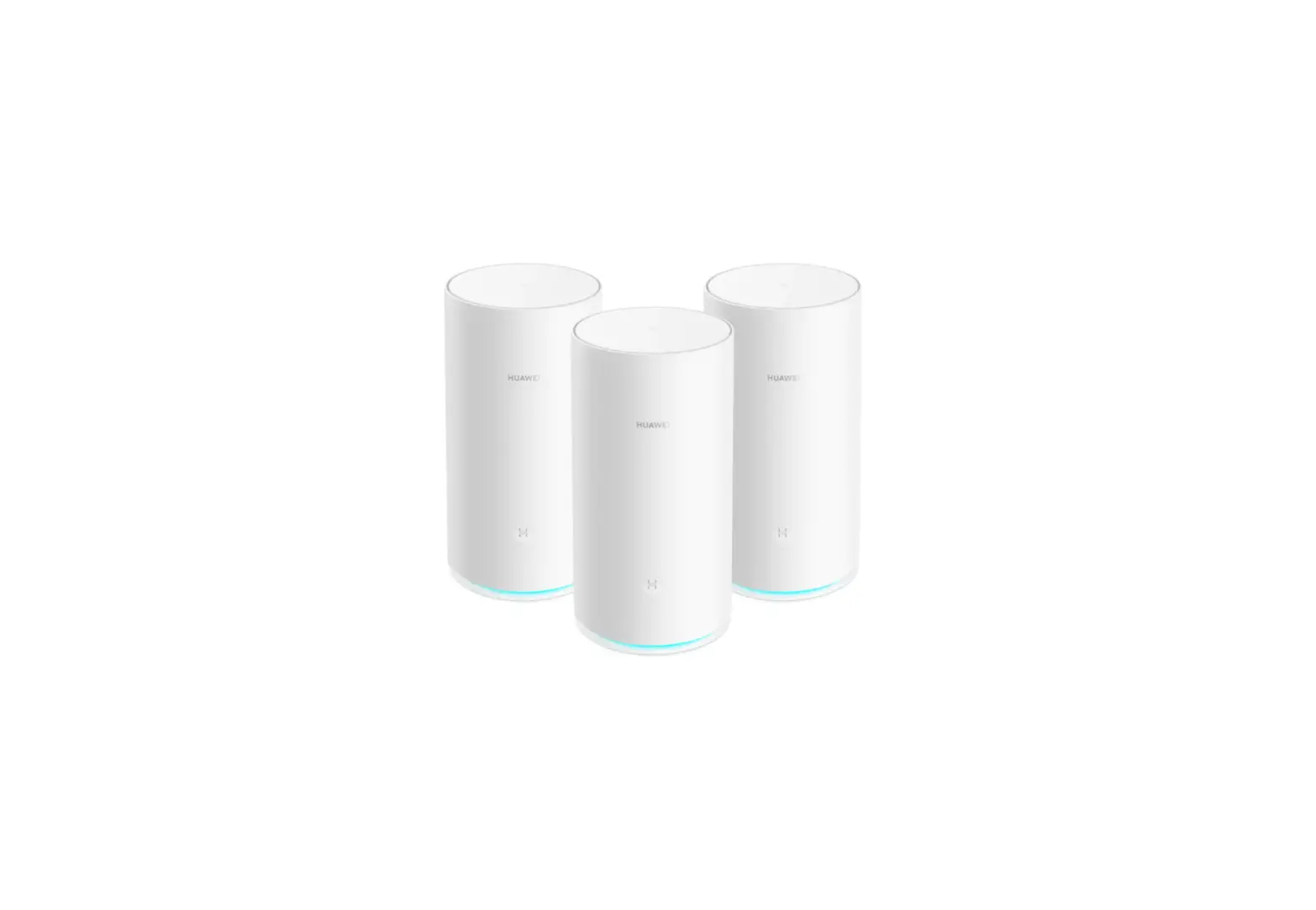
Multy X(WSQ50) AC3000 Tri-Band WiFi System
Multy Plus(WSQ60) AC3000 Tri-Band WiFi System
Multy U(WSR30) AC2100 Tri-Band WiFi System
Introduction
Zyxel Multy app helps you install Multy Devices and manage the Multy WiFi System directly with your Android or iOS device.
Compatibility
- Android 5.0 or later
- iOS 9 or later.
How to use the Multy App
You can log in and use the Multy app with or without a myZyxelCloud account.
With a myZyxelCloud account, all your configurations will be stored in the myZyxelCloud server. You then can log in and use the app on any mobile device to manage your Multy X WiFi System once it has been set up. Moreover, the Multy X Devices can work with Amazon Alexa after the myZyxel account is linked to Alexa.
Let’s get start to set up your WiFi System !!
Step 1:
Install the Multy app from Google Play or the Apple App store.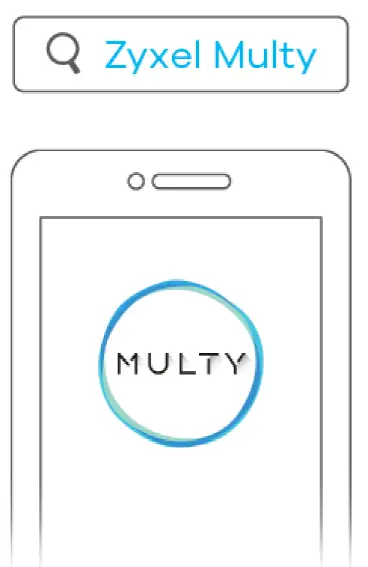
Step 2:
Install and open the Multy App. Follow the App instructions to set up your WiFi system.
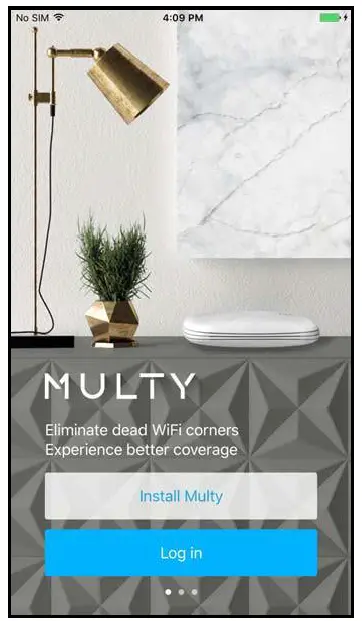
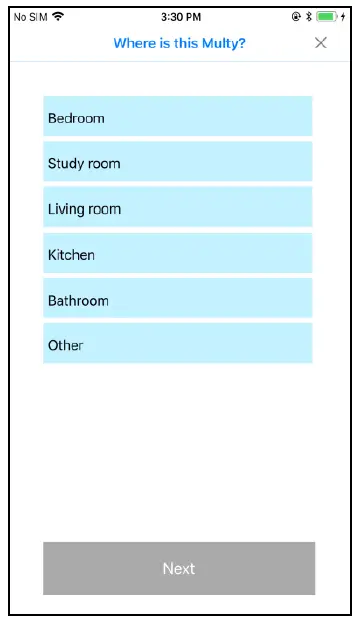
Step 3: Where is this Multy?
Select the location where you want to place your Multy Device, tap Next and follow the on screen instructions.
Step 4
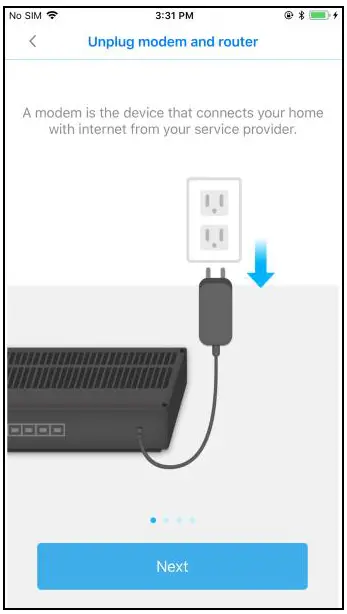
Unplug modem and router A modem is the device that connects your home with internet from your service provider.
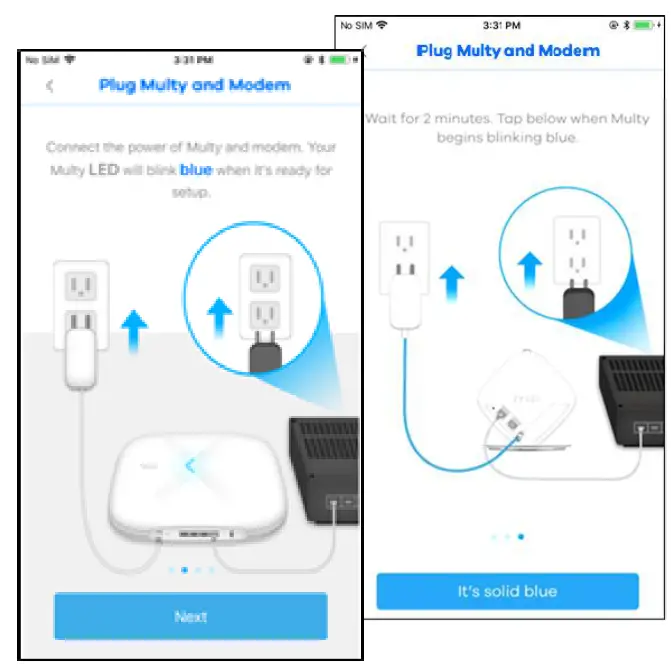
Step 5: Plug Multy and Modem
Wait for 2 minutes. Tap below when Multy begins blinking blue.
Step 6
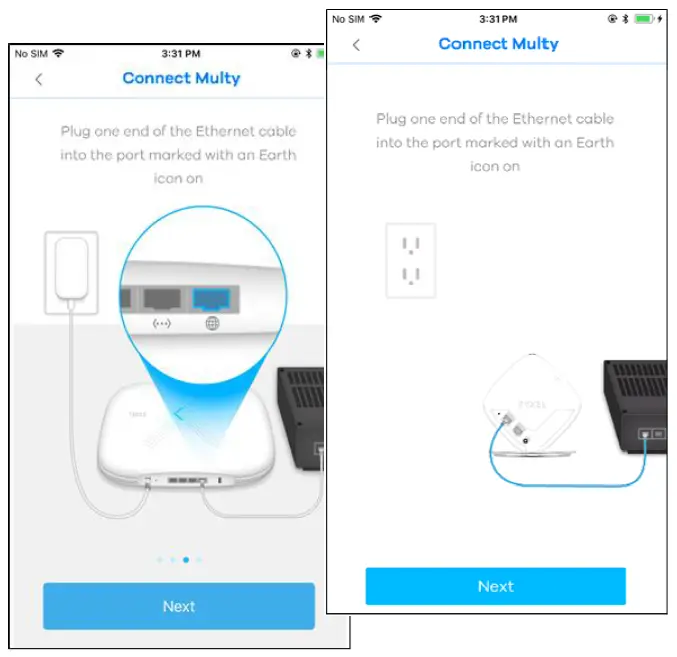
Connect Multy Plug one end of the Ethernet cable into the port marked with on Earth icon on
Step 7 & 8
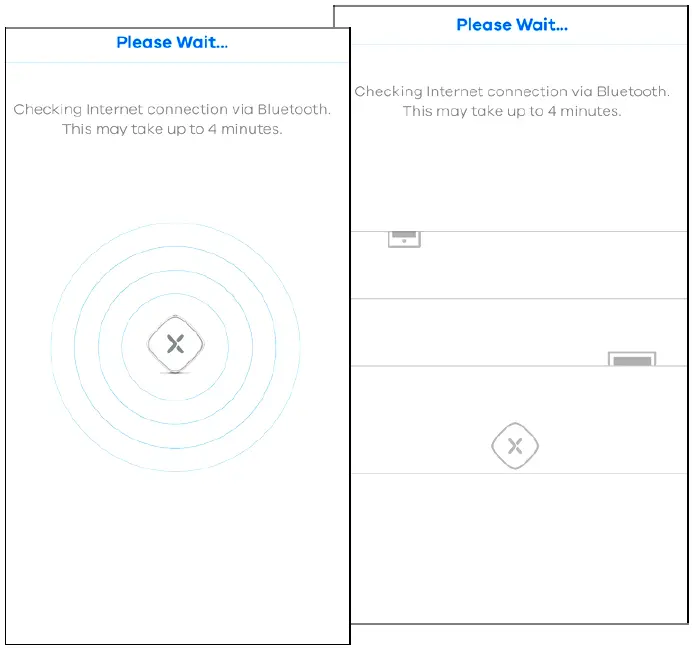
Checking Internet connection via Bluetooth. This may take up to 4 minutes.
Step 9
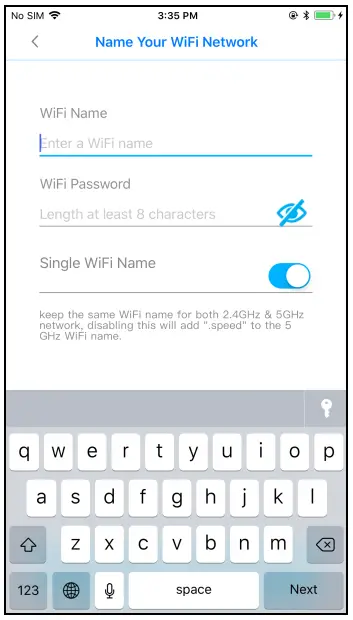
Name Your WiFi Network
Step 10
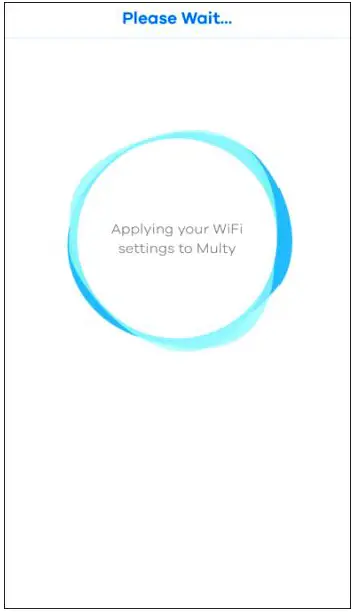
Please Wait…
Applying your WiFi settings to Multy
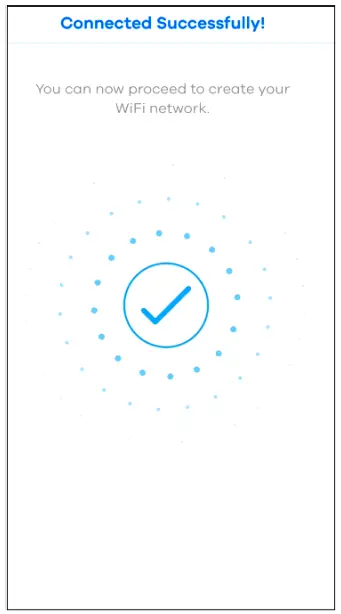
Step 11: Connected Successfully!
You can now proceed to create your WiFi network.
Step 12
Wifi network created!
Congratulations! Your WiFi is now up and running.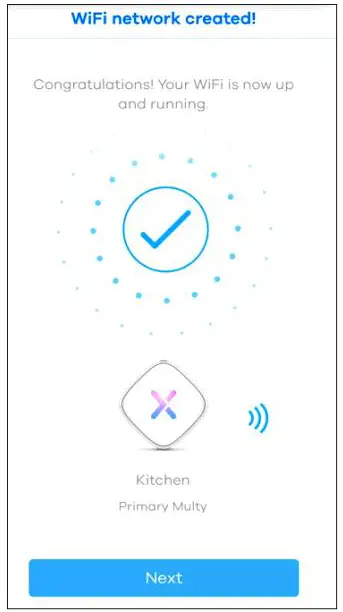
Step 13
Add another Multy?
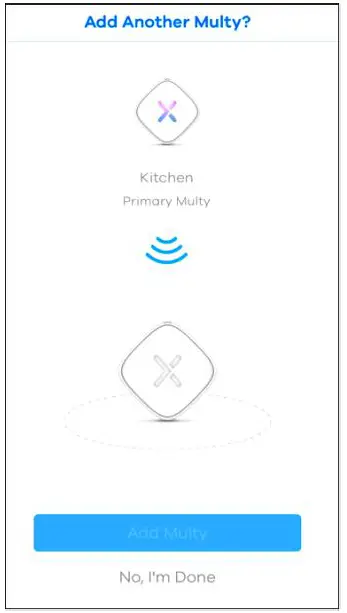
Step 14
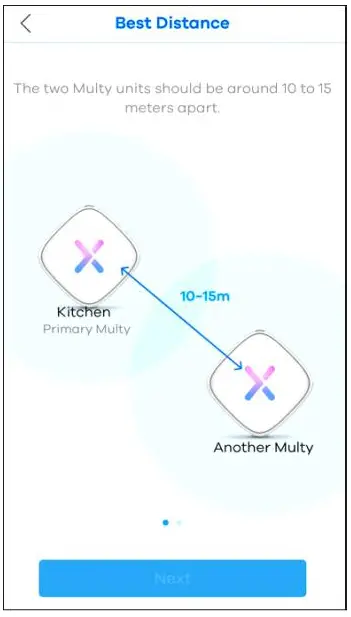
Best Distance
The two Multy units should be around 10 to 15 meters apart.
Step 15
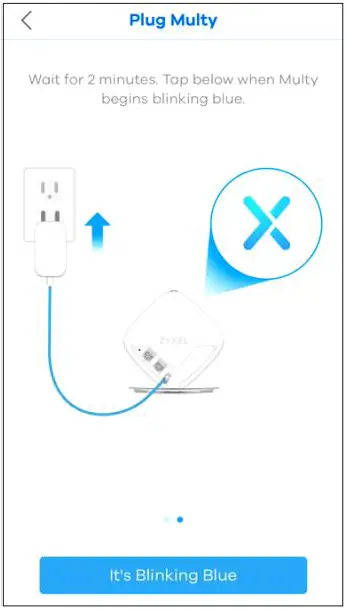
Plug Multy
Wait for 2 minutes. Tap below when Multy begins blinking blue.
Step 16
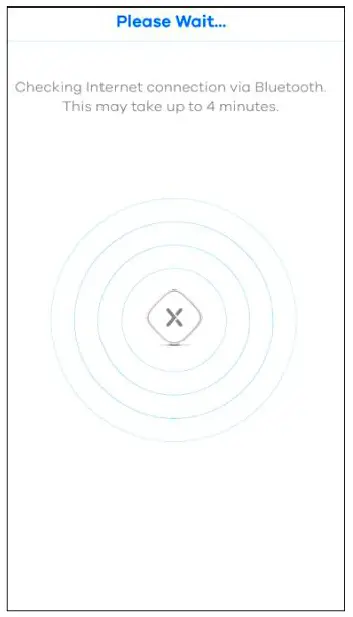
Please Wait…
Checking Internet connection via Bluetooth. This may take up to 4 minutes.
Step 17
Connected Successfully!
You can now proceed to create your WiFi network.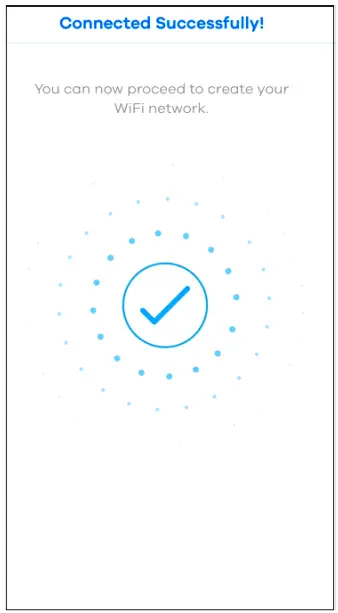
Step 18
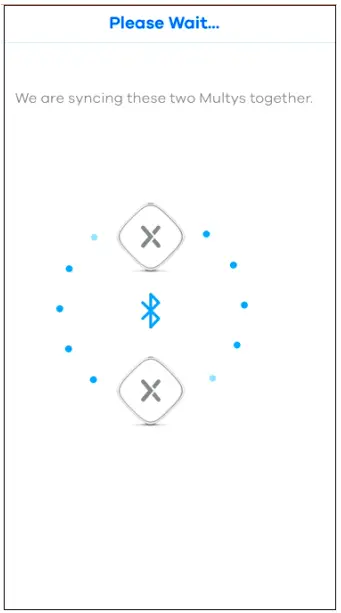
Please Wait…
We are syncing these two Multys together.
Step 19
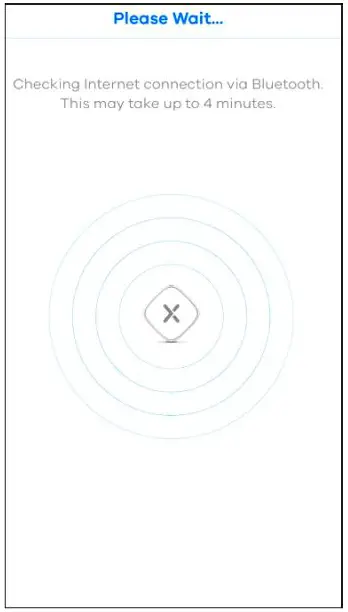
Please Wait…
Checking Internet connection via Bluetooth. This may take up to 4 minutes.
Step 20
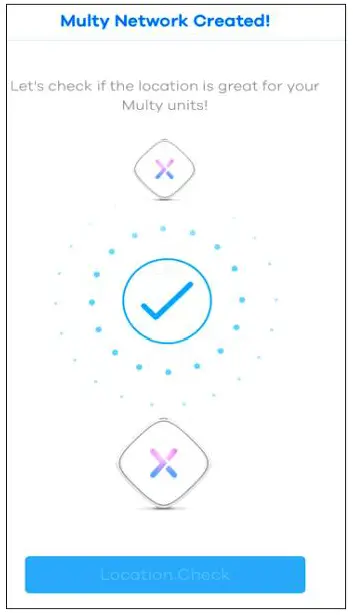
Multy Network Created!
Let’s check if the location is great for your Multy units!
Step 21
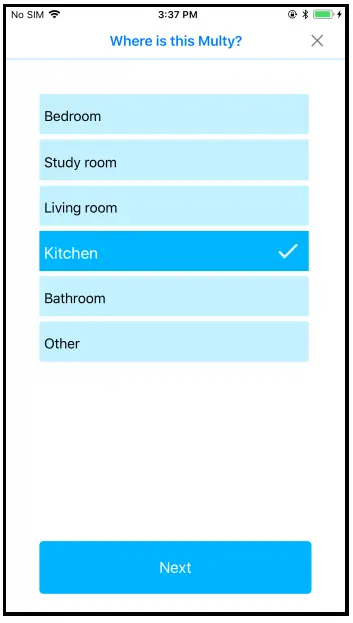
Where is this Multy?
Select the location where you want to place your Multy Device, tap Next and follow the on screen instructions.
Step 22
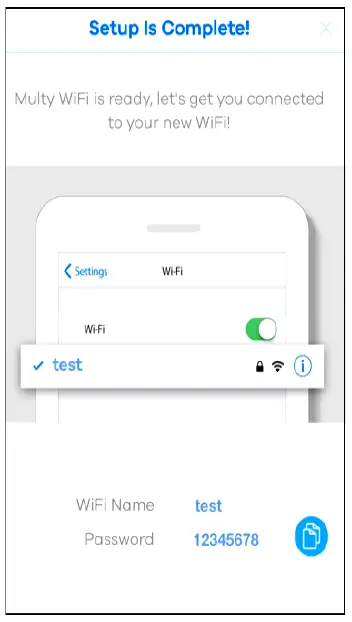
Setup Is Complete!
Multy WiFi is ready, let’s get you connected to your new WiFi!
Step 23
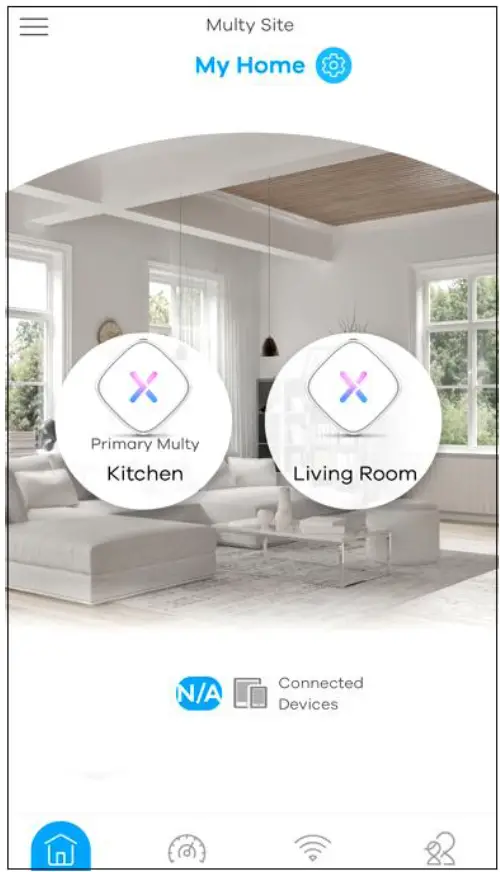
Go to the main page
Your Multy Devices will display on this page. You can monitoring or set up the Multy Devices and Multy WiFi System here. It also shows how many wireless clients are currently connected to the Multy Devices and upstream / downstream data rates.
Well done !
You complete the installation.
 Zyxel Networks, Your Networking Ally | Zyxel Networks