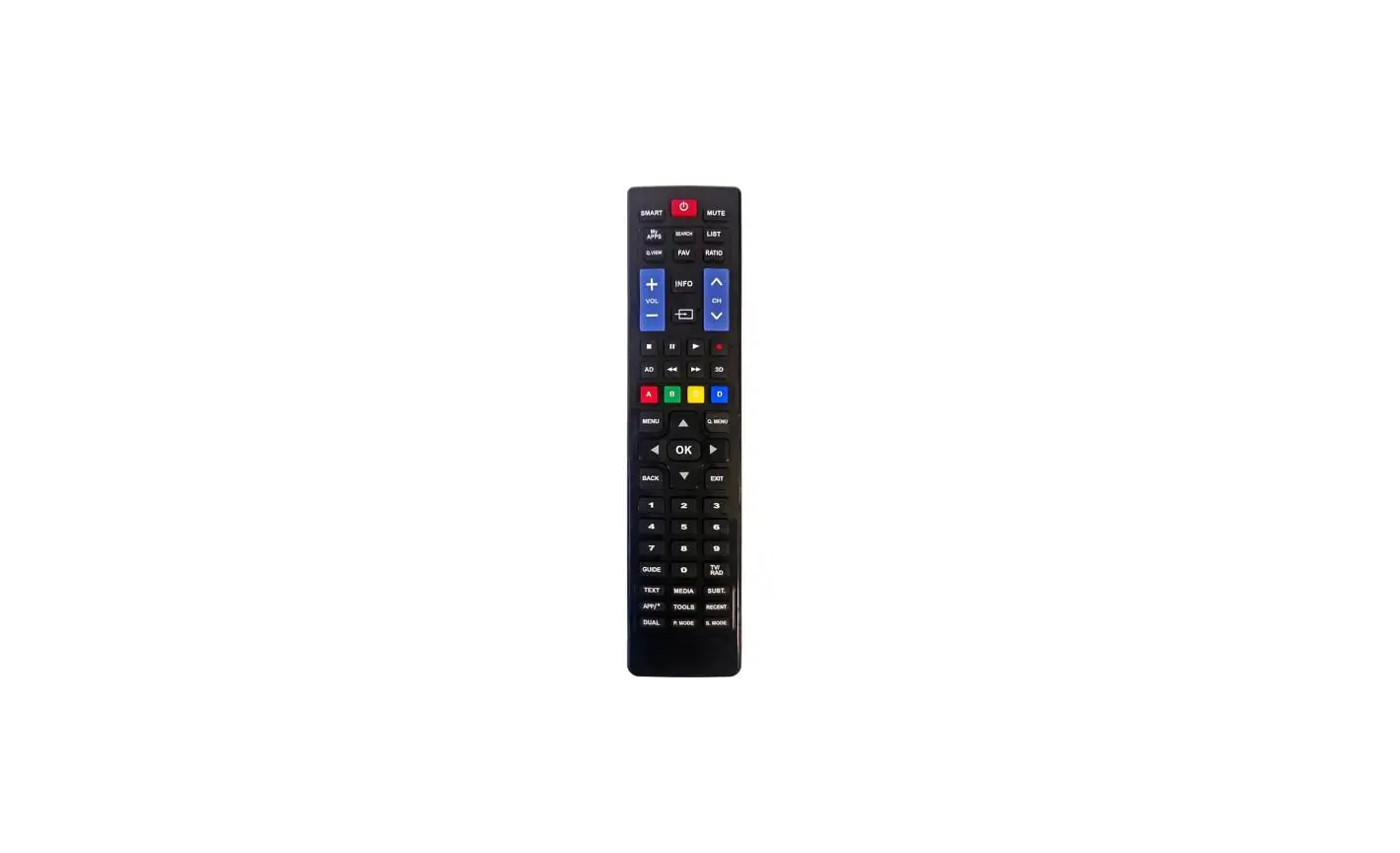
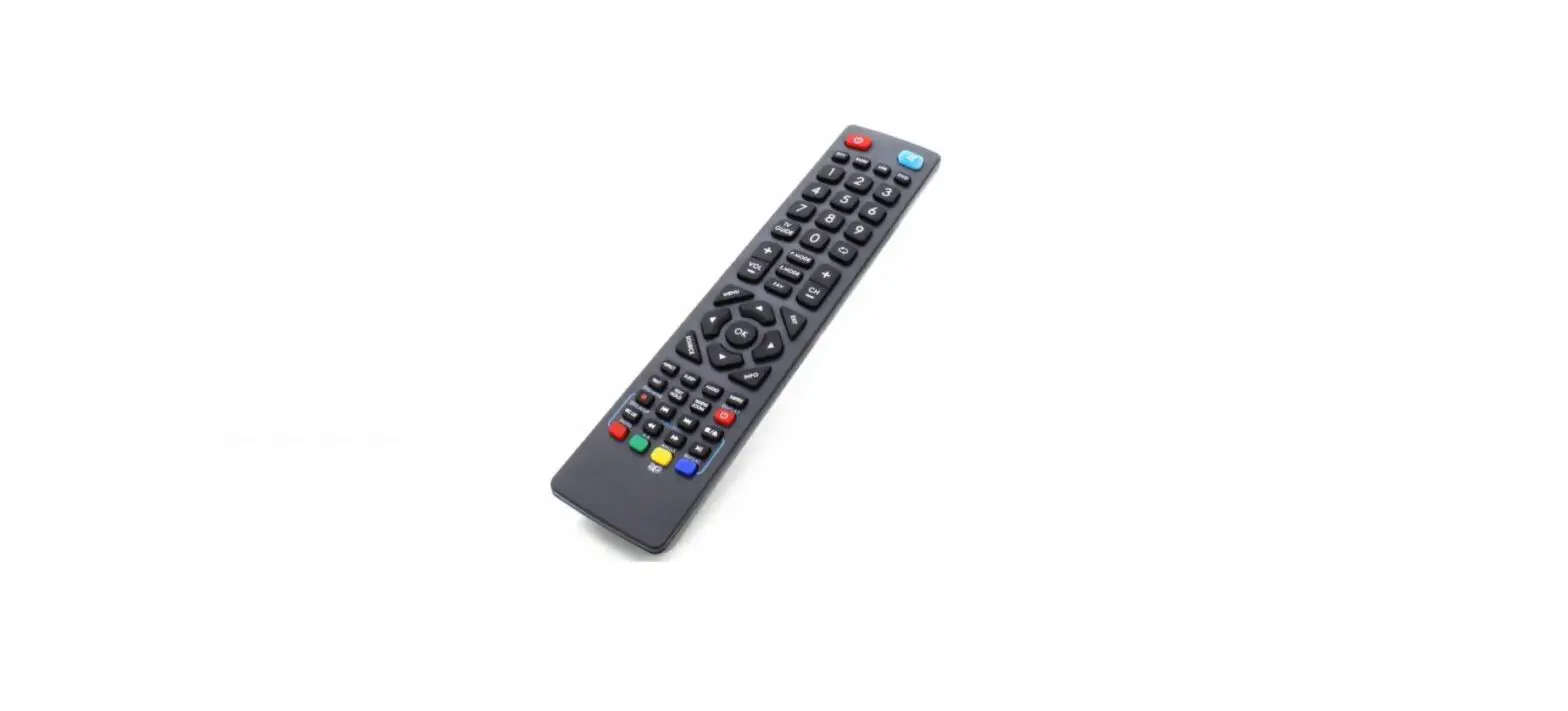
CR3BCB Remote Control
Product Information:
The CR1R and CR3BCB are remote control devices designed for use
with various TV brands, including Samsung, LG, RCA Commercial TVs,
and other TV brands. The remote control requires 2 AAA batteries
for operation.
Product Usage Instructions:
- Battery Installation:
- Looking at the keypad, slide the dark lens cover away from you
and lift the lid from the back. - Install 2 AAA batteries, ensuring that the + and – symbols on
the metal hinge of the battery compartment correspond with the +
and – ends of each battery.
- Looking at the keypad, slide the dark lens cover away from you
- Testing Battery Installation:
- Test the remote by pressing the power button. The LED should
light up, indicating that the batteries are inserted correctly. If
the LED fails to light up, check if the batteries are incorrectly
inserted or dead. - Close the cover by gently pressing it down and sliding it until
it aligns with the front (keypad) of the device.
- Test the remote by pressing the power button. The LED should
- TV Setup:
Note: No setup is required for Samsung, LG, or RCA Commercial
TVs. For all other TV brands, follow the one-touch setup
instructions below.- With the TV ON, point the remote at the TV’s front panel (stand
at least 5 feet away for best results). - Press and firmly hold down the SETUP button. The LED on the
remote will blink once and then begin searching for your TV’s code
after 7 seconds. The LED will blink every few seconds as it
searches. - Release the SETUP button when your TV shuts OFF to lock in the
code.
- With the TV ON, point the remote at the TV’s front panel (stand
- Testing the Remote:
Note: Different instructions apply for TV only and TV + Cable
Box setups.- TV Only: Test power, volume, and channel functions. If
they work correctly, setup is complete. If not, repeat the search
process to advance to the next code for your TV brand and retest
the remote. - TV + Cable Box: Test power and volume functions without
changing channels. If these functions operate correctly, refer to
Page 2 for further instructions.
- TV Only: Test power, volume, and channel functions. If
- Troubleshooting TV Code Settings:
Note: Resetting the remote is necessary if you passed the
code for your TV model or intend to use the remote on a different
TV brand.- To reset the remote, press and hold the SETUP and CC buttons
down simultaneously until the LED on the remote blinks 3 times,
then release both buttons. - Complete the TV setup before proceeding to any other
steps.
- To reset the remote, press and hold the SETUP and CC buttons
- Cable Box Setup:
- Start with the cable box ON. Press and hold down the SETUP and
ENTER buttons on the remote simultaneously until the LED light
remains ON. - Enter the three-digit direct access number for your cable box
brand from the provided list. The LED light will turn off,
confirming the entry. - Test the remote by pointing it towards the Cable Box and TV.
Try the CH+ and CH- buttons, as well as the channel numbers. Verify
if VOL+, VOL-, and TV power (ON and OFF) functions work. If they
do, setup is complete. If not, repeat these steps with all the
access numbers listed for your brand before trying the numbers
listed as Other.
- Start with the cable box ON. Press and hold down the SETUP and
- Resetting Remote to Work with TV Only:
Note: This step is applicable if you want to use the remote
without a cable box.Reset the remote by following the reset instructions mentioned
in the troubleshooting section above.
INSTRUCTIONS FOR CR1R AND CR3BCB
BATTERY INSTALLATION
1
2
Looking at the keypad, slide the dark lens cover away from you (STEP 1) and lift the lid from the back (STEP 2).
Install 2 AAA batteries. Make sure the + and symbols on the metal hinge of the battery compartment correspond with the + and – end of each battery.
3
4 Test The Remote by
pressing the power button.
The LED should light up, indicating the batteries are in correctly. If the LED fails to light up, the batteries are either incorrectly inserted or dead.
With the keypad facing away from you, close the cover by gently pressing it down (STEP 1) and sliding it until it aligns with the front (keypad) of the device (STEP 2).
Notice: The optional screw for the battery compartment is taped to the box lid. Take care not to discard with packaging.
No Setup required for ANY Samsung, LG or RCA* TV’s
FOR ALL OTHER TV BRANDS, FOLLOW THE ONE-TOUCH SETUP INSTRUCTIONS BELOW
*RCA Commercial TVs Only
With the TV ON, point the remote at the TVs front panel. (Note: For best results, stand at least 5 feet from the TV)
Press and firmly hold down the SETUP button. Do not release. The LED on the remote will blink once and then after 7 seconds begin searching for your TV’s code. The LED on the remote will blink every few seconds as it
searches. The moment your TV shuts OFF, release the SETUP button to lock in the code.
TESTING THE REMOTE:
TV Only
Test power, volume, and channel functions. If all work correctly, setup is complete. If not, you may not have an exact code match for your TV model. Repeat the search process (above) to advance to the next code for your TV brand and retest the remote.
TV + Cable Box
Test power and volume functions, DO NOT CHANGE CHANNELS. If these functions operate correctly, please turn to Page 2.
TROUBLESHOOTING TV CODE SETTINGS
Important: If you accidentally passed the code for you TV model or intend to use the remote on a different TV brand, RESET the remote and then follow the one-touch setup instructions above.
RESET: Press and hold the SETUP and CC buttons down simultaneously until the LED on the remote blinks 3 times, then release both buttons. Your remote is now reset.
Copyright© 2022, Starlight Electronics LLC, Command In Hand Inc.
PAGE 1
rev.08-09-2022
You must complete the TV setup before proceeding (see page 1).
CABLE BOX SETUP
Start with the cable box ON. Press and Hold Down
1 the SETUP and ENTER buttons on the remote at the same time until the LED light remains ON.
Enter the three-digit direct access number for
2 your brand from the list below. The LED light will then turn off, confirming the entry.
Now Test The Remote
Point the remote toward the Cable Box and TV. Try the CH+ and CH- buttons as well as the channel numbers. If the channels change correctly, make sure VOL+, VOL-, and TV power (ON and OFF) work. If they do, you are done. If not, repeat these steps with all the access numbers listed for your brand before trying the numbers listed as Other.
NOTE: If your cable box has a power button, use the CBL button on your Clean Remote to power it ON or OFF.
Other:
Hint: If your cable provider is not listed, please search by the manufacturer of your cable box
Cable Box Code Search: If you could not find the correct direct access number for your cable box, please try this: Press and firmly hold down the button while pointing the remote at the cable box (not the TV). The LED will blink once and then, after 10 seconds, will start the code search. The remote’s LED will continue to blink every few seconds. When the cable box turns off, immediately release the button, and the code automatically locks in. Now, turn the CABLE box on by pressing the CBL button on the remote once (Not the TV power button or the button). Next, test the channel up and down and the channel numbers. If the channels change correctly, make sure volume and TV power on and off operate. If they do, you’re done. If not, repeat this step.
Reset remote to work TV only, without a cable box
If you’ve already set up the remote to work both a TV and a Cable Box and now wish to only operate the TV: Hold down the remote’s button and SETUP button together until the remote’s LED blinks 3 times. The remote will now only operate your TV.
Important: If you think you missed the code or you wish to use the remote on a different brand of TV, see TROUBLESHOOTING at the bottom of page 1.
Copyright© 2022, Starlight Electronics LLC, Command In Hand Inc.
PAGE 2
rev.08-09-2022