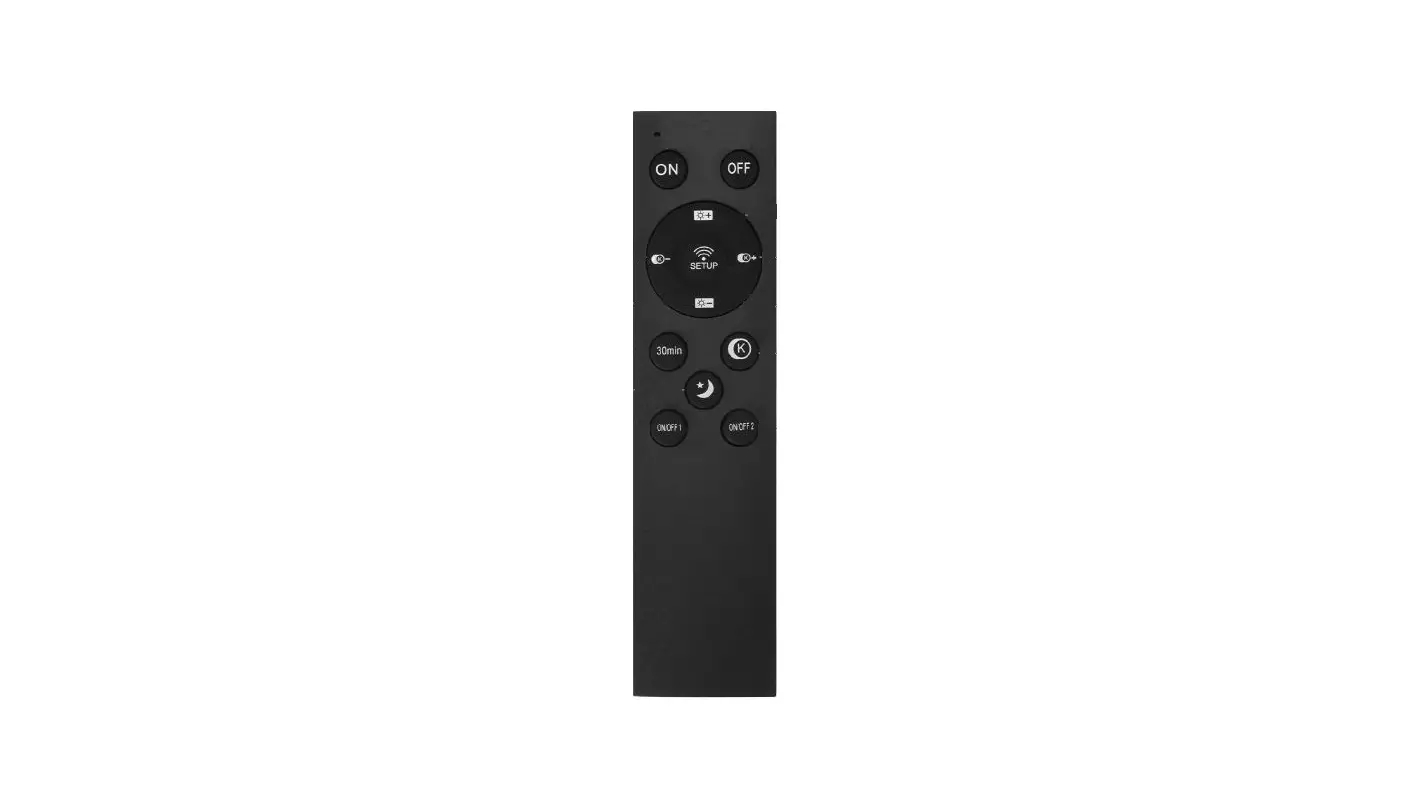
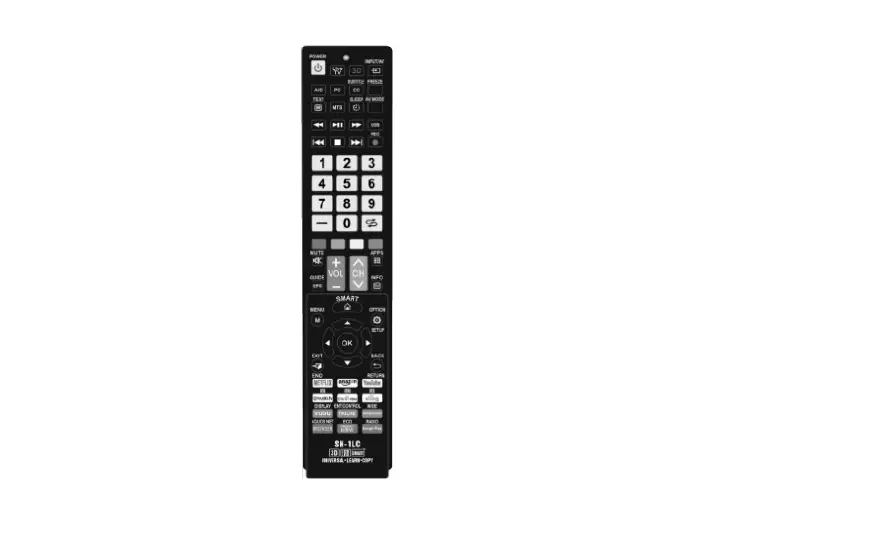
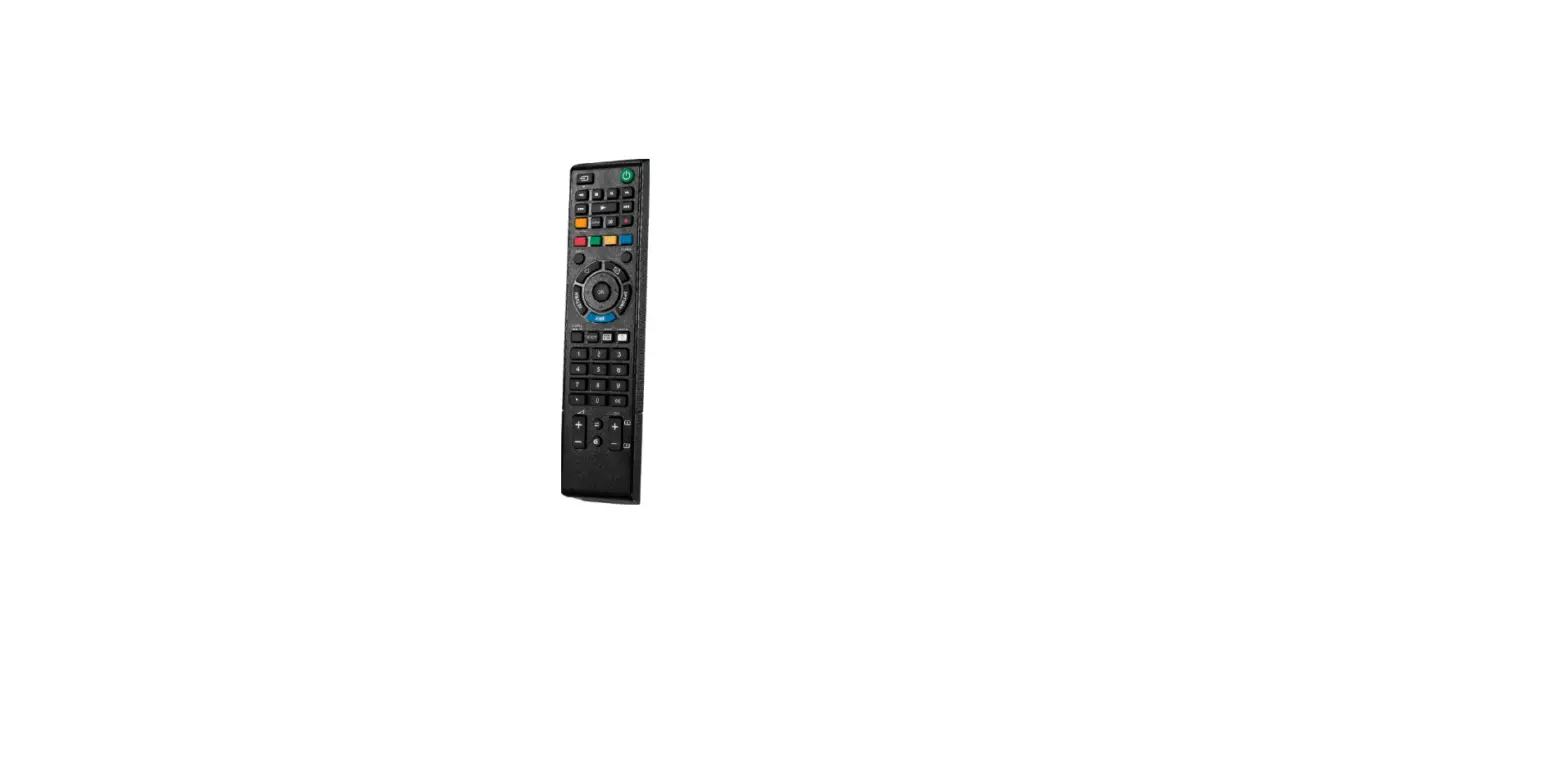
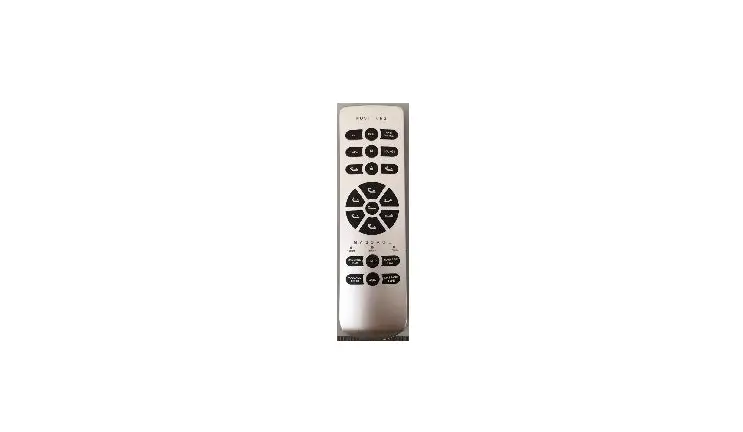
CR2M LodgeNet and OnCommand Compatible TV
Product Information
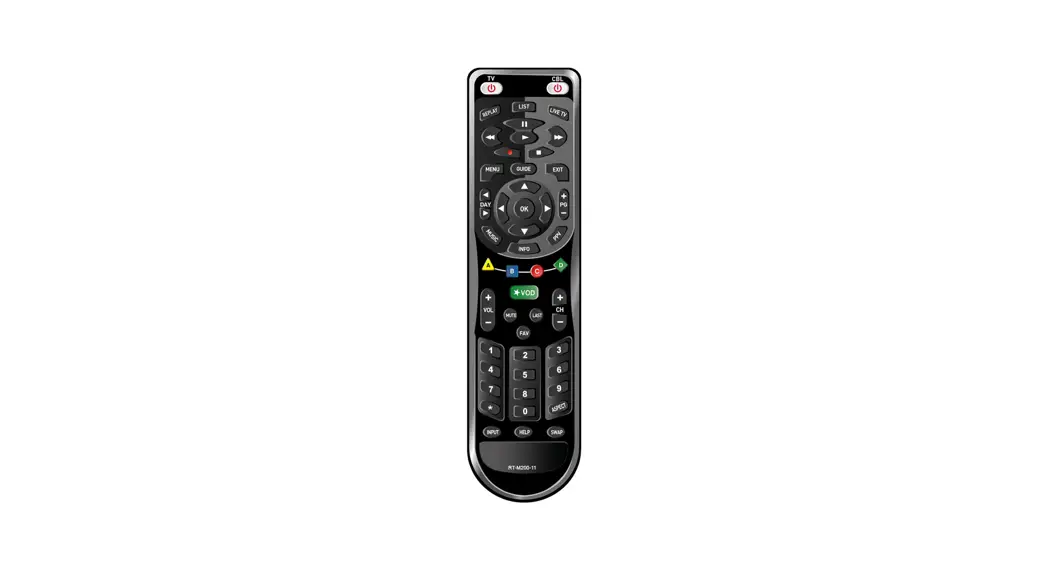
The CR2M* Version 6 remote control is a versatile remote that
works with over 250 brands of commercial and retail TVs, as well as
most Pay-Per-View systems. It offers simple one-touch set-up and
does not require any codes for TVs that are not connected to
Pay-Per-View movie systems. However, for Pay-Per-View movie
systems, code entry is necessary.
Battery Installation
- Open the battery cover by sliding the dark lens cover away from
you and then lifting the lid upward from the back. - Insert two AAA batteries into the compartment, ensuring that
the + and – symbols on the metal hinge make contact with the
corresponding + and – ends of each battery. - Gently close the battery cover by pressing downward and sliding
it toward the front until it is aligned. - Test the remote by pressing the POWER button. The LED should
light up, indicating that the batteries are correctly installed. If
the LED does not light up, check if the batteries are inserted
incorrectly or if they are depleted.
No Code Entry/One Step Programming
If your TV is not connected to a Pay-Per-View movie system,
follow these steps to program the remote:
- Turn on the TV.
- Press and hold down both the SETUP and POWER buttons
simultaneously until the LED light turns on and remains on. - Enter the two-digit direct access number for your TV system
from the provided list. The LED light will turn off to confirm that
the code was accepted. - Test the remote to ensure that it operates all of your TV
system’s features. If some features do not work, try the next code
from the list.
If you think you missed the code or are testing the remote on
different brand TVs, you can reset the remote back to the beginning
of the code search:
- Press and hold the SETUP button for 3 seconds.
- While still holding SETUP, press and hold the CC button
simultaneously until the red LED light blinks quickly 3 times. This
will reset the code list back to the beginning. - Start again from step 1 to search for the correct code.
Returning to TV Only Mode or Factory Default
If you want to return the remote to TV only mode or return it to
the factory default settings, follow these steps:
- Press and hold down the SETUP button.
- While still holding SETUP, press and hold the CC button
simultaneously until the red LED light blinks quickly 3 times. - Release both buttons. The code list will be reset back to the
beginning. - Refer to Page 1, Step 1 for TV only operation.
INSTRUCTIONS FOR CR2M * CLEAN REMOTE®
Works over 250 brands of commercial and retail TVs and most Pay-Per-View systems No codes needed for TVs NOT connected to Pay-Per-View Movie systems. Simple ONE TOUCH set-up
IMPORTANT— PAY-PER-VIEW MOVIE SYSTEMS DO REQUIRE CODE ENTRY; After Installing 2 AAA batteries SEE BACK PAGE
Battery Installation: 1. Open cover: With keypad facing you, first slide dark lens cover away from you (photo A, step 1)
and then lift lid upward from the back (photo A, step 2)
2. When placing AAA batteries in the compartment note the + and – symbols on the metal hinge
should make contact with the corresponding + and – end of each battery (photo B). 3. Closing cover: With keypad facing away from you gently close cover by pressing downward
(photo C, step 1) and sliding it toward the front (keypad) until it is aligned. (photo C, step 2) 4. Test remote by pressing the POWER button; the LED should light indicating that the batteries are in
correctly. If the LED doesn’t light, then the batteries are either in wrong or the batteries are bad.
Step 2
Step 1
+
–
Step 1 press down
Photo A
Open with keypad facing you
Photo B
Photo C
Step 2 Slide in to close
Close with keypad facing away from you
NO CODE ENTRY/ONE STEP PROGRAMMING
For all TVs NOT connected to Pay-Per-View Movie systems 1. For TVs connected to Pay-Per-View movie systems turn over page for Instructions. 2. For TVs not connected to Pay-Per-View movie systems: Turn on the TV and then stand back
about 5 feet from TV. Point the remote at the CENTER of the front panel of the TV. It will not be necessary to point the remote at that exact area once the remote is set-up. 3. Press and firmly hold down the SETUP button, do not release. The LED will blink once and then after 7 seconds it will initiate code search. The LED will continue to blink every 2 seconds. Once your TV shuts off immediately remove your finger from the SETUP button. The code automatically locks in. 4. Test the remote. If basic functions work, you are done. Menu functions will only work with Pay-PerView systems. Not all buttons will work because this is universal remote. If the main functions are not working properly, you may not have an exact code match. Start again at step #1. The code search will continue where it left off.
Important Note: If you think you missed the code or are testing remote on different brand TVs: Reset the remote back to the beginning of the code search. First press and hold the SETUP button for 3 seconds and then while still pressing SETUP, press and hold the CC button down at the same time until the red LED light blinks quickly 3 times. You have now reset the code list back to the beginning. Go back to step 1.
1
For TVs connected to Sonifi®, Lodgenet®, OnCommand® or Cruise Line Systems
1. Press and Hold Down both the SETUP and POWER buttons at the same time,until the LED light turns on and remains ON.
2. Enter the two digit direct access number for your TV Systems from the list below; the LED light will then turn off confirming it was accepted.
3. Test the remote to ensure it operates all your TV System’s features. If not, try the next code listed.
Codes For Sonifi® Lodgenet® or OnCommand® Systems The most common code is 02, you can also try 06, 05, 07, 08 or 10, 01, 03, 04 and 11.
Codes For Sonifi® Systems Operating with Samsung® IPTV – The code is 13.
Codes For Cruise Line Systems – The codes are 14, 15, 16, 17, 21, 02, 05, or 06
To Return the Remote to TV Only mode or return to the factory default Press and hold the SETUP button down, then press and hold the CC button down at the same time until the red LED light blinks quickly 3 times, then release both buttons. You have now reset the code list back to the beginning. For TV only operation see Page 1, Step 1.
Sonifi®, Lodgenet® and On Command® are registered trademarks of Sonifi Solutions. Clean Remote® is a registered trademark of Noso Control LLC Copyright© 2022, Noso Control, LLC
CR2M* Version 6
2