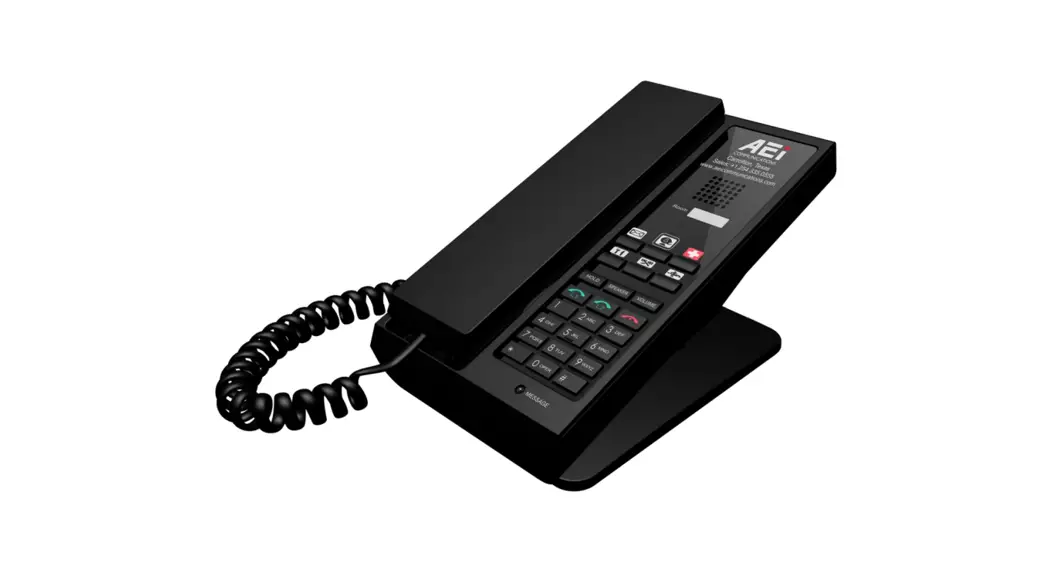
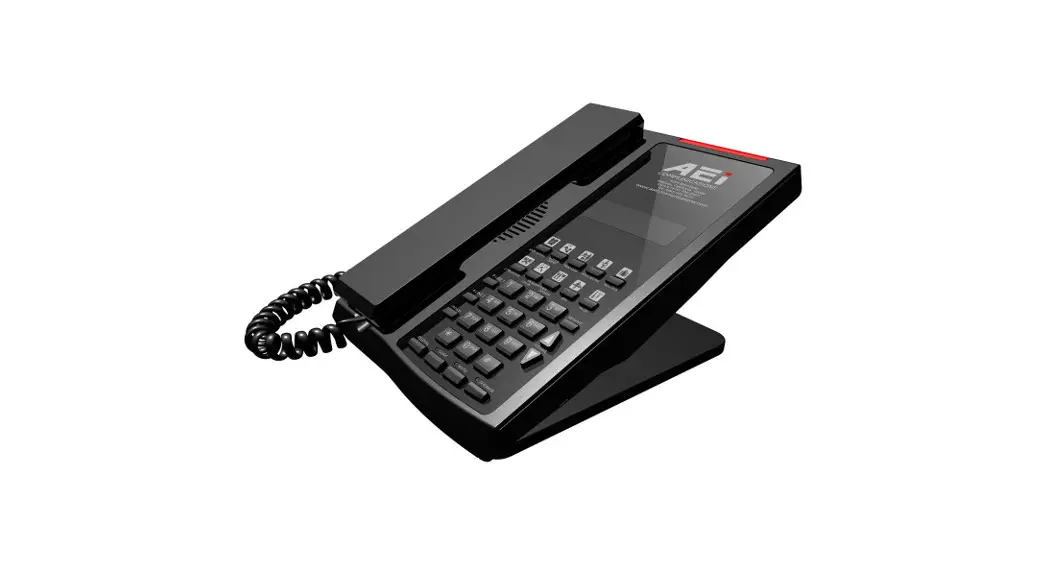
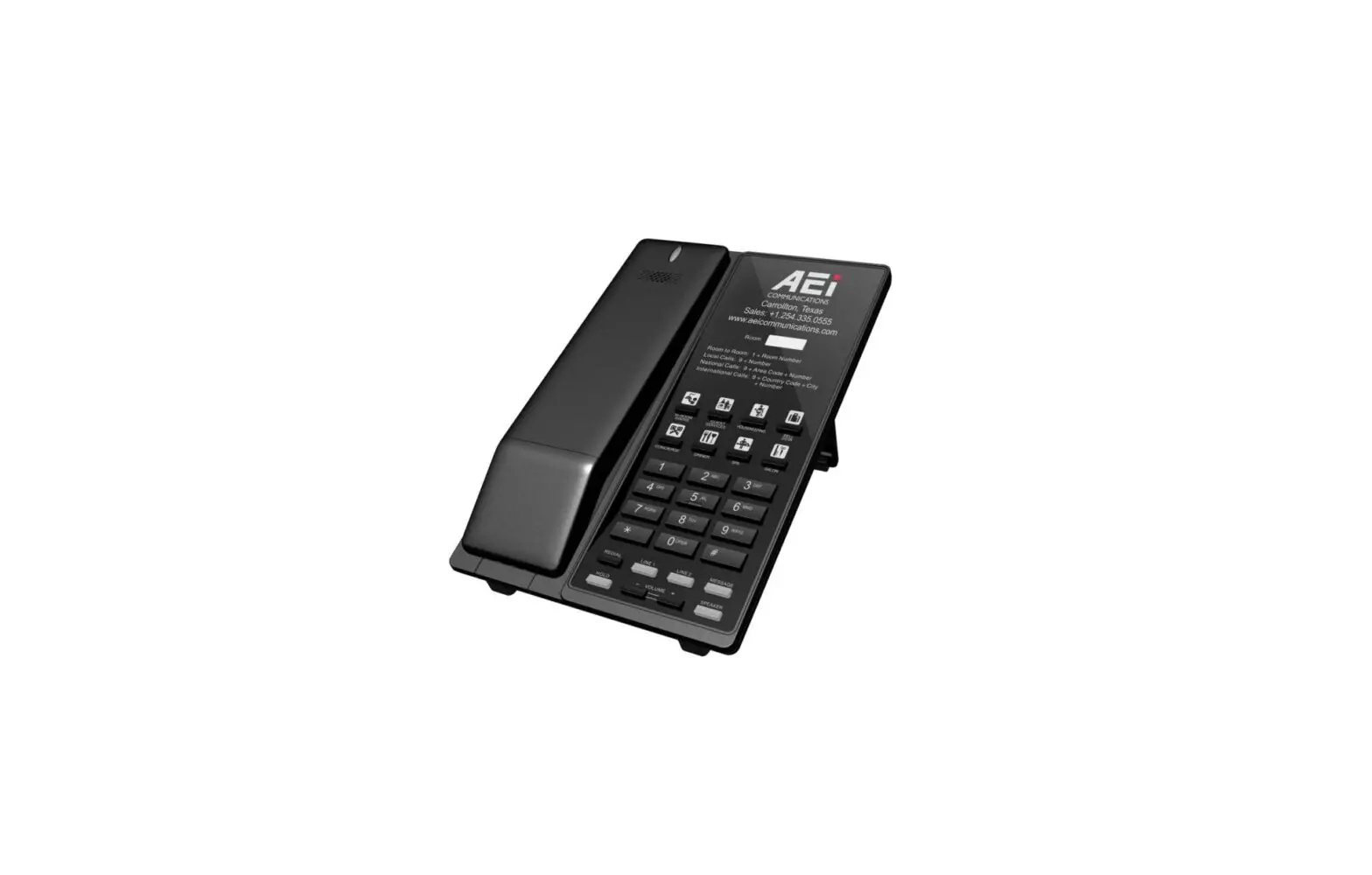
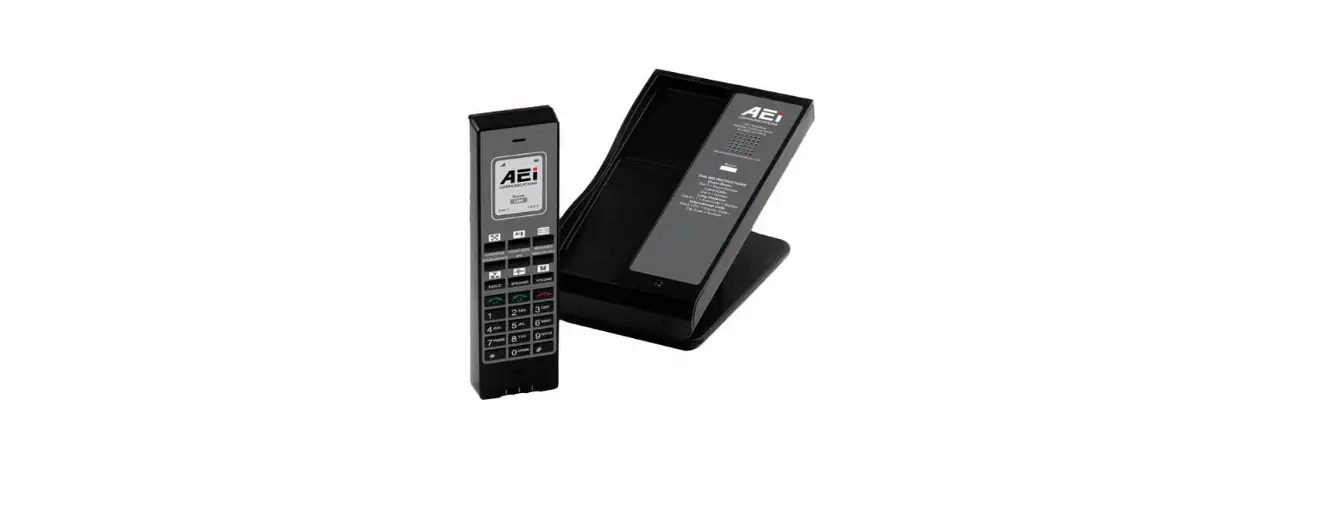
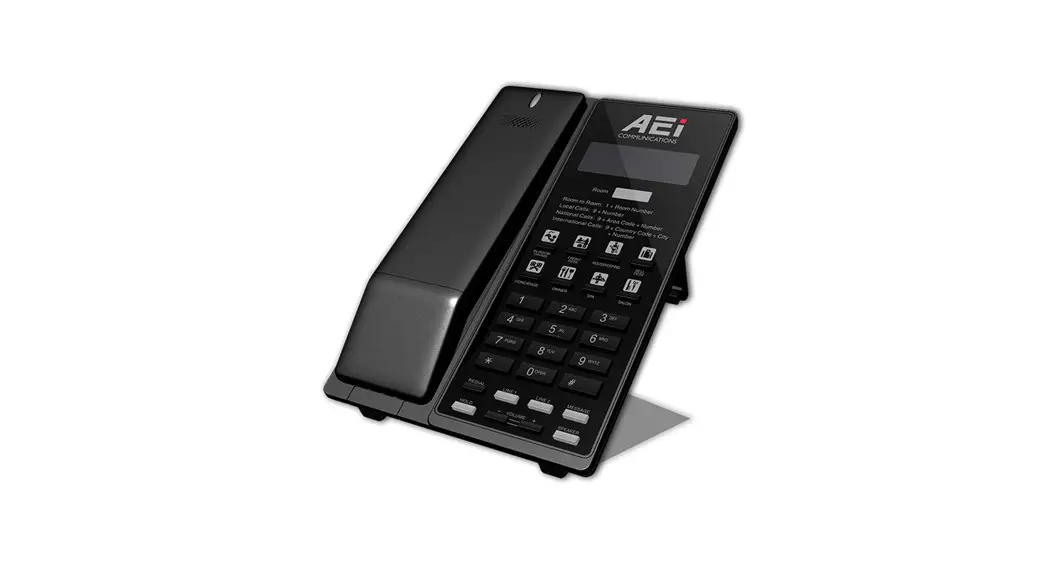
SGR-8206-SMK SIP DECT Phone
Product Information: SIP DECT Phone
The SIP DECT Phone is a full-feature telephone that provides
voice communication. It is available in two models: SGR-8206-SMK
and SGR-8106-SMK. The phone comes with a base unit, cordless
handset, stand, battery, RJ-45 cable, and Quick Installation Guide.
The AC Adaptor is optional. The phone has various keys and
functions that are described in detail in the user manual.
Package Contents
Ensure all the following items are present and undamaged when
unpacking the phone:
- Base Unit
- Cordless Handset
- Stand
- Battery
- AC Adaptor (Optional)
- RJ-45 Cable
- Quick Installation Guide (This document)
Product Description
The phone has various keys and functions that are described in
detail in the user manual. The front view of the phone has a
display screen, speed dial keys, LINE 1/LINE 2 keys, and function
keys like HOLD, MUTE, SPEAKER, and VOLUME. The base unit keys have
similar functions as the handset keys and also have a LAN port and
DC jack on the back.
Connecting the Phone
The phone can be connected to a HUB, ADSL, or Switch(PSE) using
the LAN port. The DC jack connects to the AC power adapter
(Optional. While base unit is not powered via a PSE).
Product Usage Instructions: SIP DECT Phone
Answering a Call
An incoming call is indicated by a ringing tone and a flashing
indicator at the top of both the handset and base units. You can
answer the call by doing one of the following:
- Pick up the handset to answer the call.
- Press the Line (Line1/Line2) key on the base or handset to
answer the call.
Making a Call
You can make a call by dialing the telephone number with the
alphanumerical keypad. The call will start automatically.
Installing the Phone and Stand
You can install the phone and stand as shown in the following
illustration:

Installing the Handset and Battery
You can install the handset and battery as shown in the
following illustration:

SIP DECT Phone
SGR-8206-SMK / SGR-8106-SMK
QIG V 1.02
Fo r sin g le Et h er n et m o d els
1 Over view
This phone is a full-feature telephone that provides voice communication. Read this QIG carefully to learn how to operate this product and take advantage of its features.
Package Contents
When unpacking the phone, ensure all the following items are present and undamaged. If anything appears to be missing or broken, contact your dealer for a replacement.
1. Base Unit 2. Cordless Handset 3. Stand 4. Battery 5. AC Adaptor (Optional) 6. RJ-45 Cable 7. Quick Installation Guide (This document)
2 Product Description
The following contains important information to help you familiarize with the functions of the VoIP phone.
Front View
1. Handset keys
Name
1
Message waiting indicator
2
Display screen
3
Speed dial keys
4
LINE 1 / LINE 2
Description To indicate an incoming call or unread messages. To display calls and status information. Press to dial the preset number. To indicate a line been used as the following status: – Idle: No LED indication. – In call: Red LED. – In on-hold call: Blinking red LED.
Name
Description
5
End key
Press to end a phone call
6
Alphanumerical keys
Press these keys to enter phone numbers or texts.
7
Function keys
HOLD (two line model only) Press to put an active call on hold.
MUTE (single line model only) Press to mute handset MIC.
SPEAKER
Press to activate the speakerphone for hands free conversations.
VOLUME
Press to increase or decrease the volume of the ringer tone, handset, or speakerphone.
2 Base unit keys
Name
Description
1
Message waiting indicator
To indicate an incoming call or unread messages.
2
Speed dial keys
Press to dial the preset number.
3
LINE 1 / LINE 2
To indicate a line been used as the following status: – Idle: No LED indication. – In call: Red LED.
– In on-hold call: Blinking red LED.
4
End key
Press to end a phone call
5
Alphanumerical keys
Press these keys to enter phone numbers or texts.
6
Function keys
HOLD (two line model only) Press to put an active call on hold.
MUTE (single line model only) Press to mute base unit MIC.
SPEAKER
Press to activate the speakerphone for hands free conversations.
VOLUME
Press to increase or decrease the volume of the ringer tone or speakerphone.
Back View
NO. Name
1
LAN port
2
DC jack
Description Connects to HUB, ADSL, or Switch(PSE) Connects to AC power adapter. (Optional. While base unit is not powered via a PSE)
Connecting the Phone
The following illustration shows how to connect the power and LAN ports of VoIP phone.
Power outlet
The following illustration shows how to install the phone and stand. The following illustration shows how to install the handset and battery.
3 Operations
Answering a Call
An incoming call is indicated by a ringing tone and a flashing indicator at the top of both handset and base units. You can answer the call by doing one of the followings: Pick up the handset to answer the call. Press the Line (Line1/Line2) key on the base or handset to answer the call.
Making a Call
Dialing with the Keypad Enter the telephone number with the alphanumerical keypad and the call will start automatically.
Using the Speed dial keys
You can use the 6 pre-assigned speed dial hotkeys, to configure the most commonly dialed numbers. Use the function to dial a number quickly, instead of keying in a complete number. To call a number using speed dialing, follow the steps below: Press the speed dial hotkey that has been pre-assigned to the phone number and the call will start automatically.
Call Options
While a call is in progress, a number of additional options are available.
Using the Speaker Phone
For hands free operation, you can use the built-in speaker to talk on the phone. To use the speakerphone, follow the steps below: While talking on the phone, press the SPEAKER key on the phone to enable the Speakerphone function. Press SPEAKER key again to terminate the call.
Putting a Call on Hold (two-line model only)
You may want to put a call on hold temporarily while doing some work or attending to a second incoming or outgoing call. To put a call on hold, do one of the following: Press the HOLD key on the phone to put the call on hold. When you receive a second call, press the next available LINE key to attend to the new call, and the first call will be
put on hold automatically.
Mute a Call (single-line model only)
You may need to mute MIC temporarily during a call, do one of the following: Press the MUTE key on the phone to mute the microphone. Press the MUTE key again to unmute microphone.
Charging the Handset Battery
You would need to charge the handset battery before using the handset. Install the battery into the handset. Place the handset onto the base unit and base unit will start to charge the handset automatically. The charging indicator lights up in red during charging progress. The LED goes off after the handset battery is
fully charged.
Checking Voice Messages
If the message waiting indicator at top of handset or base unit lights up in red, it indicates that there are one or more new messages in voicemail box. Press the MESSAGE key on the phone to retrieve voice messages. (An external ITSP or PBX must support voice message feature. And you need to set a voice message code before using the voice mail feature.)
4 Support
To configure through the web browser, do the following: Ensure the phone is powered up and connected to a DCHP network Press HOLD/MUTE *112*113# (HOLD for 2-Line / MUTE for 1-Line) on the base, the IP address is announced by the phone. Or Press *112*113 and then “LINE 1” (for 2-line phone) or green button (for 1- line phone) on the cordless handset, the IP address is displayed on the LCD screen. Open your browser (such as Internet Explorer, Firefox, etc.) and type in the web address of the phone. For example, if the IP address you obtain in step 4 above is 192.168.1.2, enter the web address: http:// 192.168.1.2:8000. When the Web login front page is displayed. Enter the user name and the password and click Login. The administrator’s user name and password are “admin” and “1234” respectively.
For technological support, please email to [email protected].