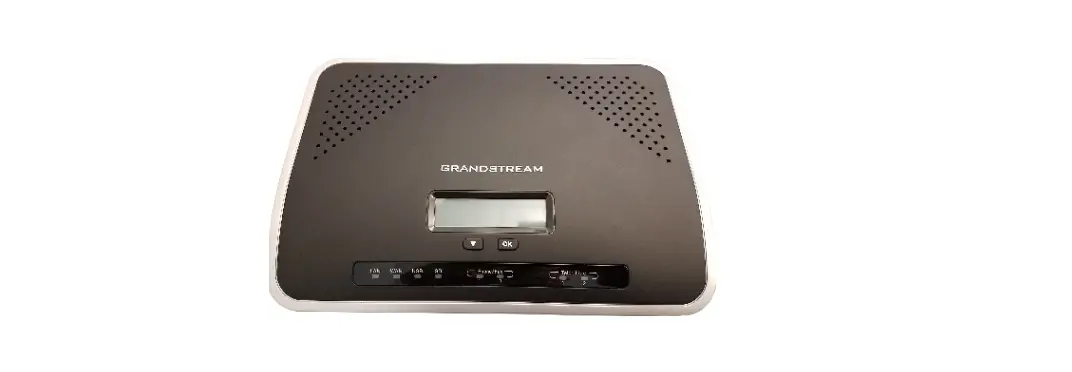
BY-3000-X Sip Byod Master
Product Information:
The SIP BYOD Master is an SIP telephone to Wi-Fi connection
adaptor that provides voice communication. It is designed to allow
users to connect their SIP telephone to a Wi-Fi network for easy
and convenient communication.
Package Contents:
- BYOD Master Unit
- Power Adaptor (optional)
- Ethernet Cable
- User Guide (This document)
Product Description:
The BYOD Master has several key features and components:
| Back View | Description |
|---|---|
| Reset Button | Resets the device to factory default settings. |
| LAN Status LED | Indicates the status of the device’s connection to the IP-PBX (Private Branch Exchange). |
| Name | 1. Reset Button 2. LAN 3. DC Power jack 4. Status LED |
| Description | Rest device to factory default. Connects to PSE(IP-PBX). Connects to power adapter. Blinking Red: The device does not register to IP-PBX. |
Product Usage Instructions:
Installation and Web Configurations:
To install the device and configure its settings, follow these
steps:
- Connect the device to your IP-PBX using the Ethernet
cable. - Connect the device to a power source using the power adaptor
(optional). - Access the web configuration interface by entering the device’s
IP address in a web browser. - Login to the web configuration interface using the provided
username and password. - Configure the desired settings in the System Settings section,
such as enabling or disabling auto provisioning and specifying the
server address for firmware updates. - Click on the “Save” or “Apply” button to save the changes.
Firmware Upgrade:
To upgrade the device’s firmware, follow these steps:
- In the web configuration interface, navigate to the Firmware
Upgrade section. - Enable or disable the “Force Upgrade” option as desired.
- Enable or disable the “Auto Upgrade” option as desired.
- Specify the server IP address, file path, username, and
password for downloading the firmware. - Set the auto upgrade interval if desired.
- Click on the “Save” or “Apply” button to save the changes.
Backup & Recover:
To backup or recover the device’s system configuration, follow
these steps:
- In the web configuration interface, navigate to the Backup
& Recover section. - To create a backup of the settings, click on the “Backup”
button. The backup file will be created with a timestamp. - To recover from a backup, click on the “Choose File” button and
select the preconfigured backup file. - Click on the “Submit” or “Load” button to load the
configuration file.
SIP BYOD Master
BY-3000-X(S) User Guide V 1.2
1. Overview
The SIP BYOD master is an SIP telephone to Wi-Fi connection adaptor that provides voice communication. Read this QIG carefully to learn how to operate this product and take advantage of its features.
Package Contents
When unpacking the device, ensure all the following items are present and undamaged. If anything appears to be missing or broken, contact your dealer for a replacement. 1. BYOD master Unit 2. Power Adaptor(optional) 3. Ethernet Cable 4. User Guide (This document)
2. Product Description
The following contains important information to help you familiarize with the functions of the device.
Back View
Reset Button
LAN Status LED
Name 1 Reset Button 2 LAN 3 DC Power jack 4. Status LED
Description
Rest device to factory default.
Connects to PSE(IP-PBX)
Connects to power adapter.
Blinking Red
The device does not register to IP-PBX
3. Installation and web configurations
The following illustration shows how to install the device.
Web Configuration Login
AEI BYOD master is a DHCP client that it acquires an IP address from a DCHP network. BY-3000 support mDNS to find the device or you can find the BYOD master IP address from your DHCP server. Open your web browser (such as Internet Explorer, Chrome, Firefox etc.) and type in the web address of the BYOD master. For mDNS, input http://MAC-aei.local:8000, or http://<<IP.address>>:8000. The Web login page is displayed. Enter the user name and the password and click Login. The default user name and password are “admin” and “1234” respectively.
System Settings
Auto configuration
Auto Configuration: (Default, Enable) Enable or disable auto provisioning.
DHCP OPTION 66: (Default, Enable) After enabling DHCP option 66, the BYOD master acquires the tftp server IP address from DHCP option 66. If it is disabled but “Auto Configuration” is enabled, the device will try to download its configuration file from the server specified in the “Server” field.
Server: The IP address information of the cfg file server, for example, tftp://192.168.1.54. The device will look for its cfg file at such server address if “DHCP OPTION 66” is disabled. The server can be tftp, ftp or http server. For example, tftp://IP.address.of.tftp, ftp://IP.address.of.ftp or http://IP.address.of.http
UserName: Username to login to the ftp or the http server
Password: Password to login to the ftp or the http server
Interval: Auto provisioning period (seconds); “0” is disable auto provisioning periodically.
Firmware Upgrade
Force Upgrade: (Default, Disable) Enable to force the device to upgrade via the Server IP address manually.
Auto Upgrade: (Default, Enable) Enable to auto upgrade. if “Interval” is 0 the device will check the firmware on the server after booting up
Server IP: The IP address information of the server for downloading the firmware. It can be tftp://IP.address.of.tftp, ftp://IP.address.of.ftp or http://IP.address.of.http
Server File Path: The file name of the firmware in the root folder of the server
Server Username: Username to login to the ftp or the http server
Server Password: Password to login to the ftp or the http server
Interval: Auto upgrade interval (seconds); It means the interval that the device will check the firmware on the server. If the firmware is different from the current one, the device will then reboot and update.
Backup & Recover
Backup System Configuration: Click the “Backup” button to back up the settings of the device, the file is created with prefix “Back” followed by the creating date. And the extension will be sbak, for example, Back_2018_1_11.sbak. It can be edited by a text editor, such as wordpad.
Recover System Configuration: Click the “Choose File” to select a preconfigured back up file and then submit to load the configuration file.
System Authority
Username: Change the Username of the web configuration login.
Password: Change the Password of the web configuration login.
Confirmed Password: Confirm the Password of the web configuration login.
Once it is done, press Submit to confirm change or Reset to start over
Factory Defaults
Click “Submit” to reset all settings to factory default.
Reboot
Click “Reboot” to restart the device.
Global SIP Settings
Port Settings
SIP Listen Port: (Default, 5060) SIP Local port, ranging from 10 ~ 65533
RTP Port Base: (Default, 10000) The port of RTP starts, ranging from 10 ~ 65533
RTP Port Range: (Default, 100) RTP port range, ranging from 12 ~ 1000
Codec Settings
Codec Priority: There are 4 types of codec in the drop box, please select one for each priority.
RTP Packet Length: Frame size for each code. G711 ranges from 20ms, 30ms, 40ms and 50ms G723 ranges from 30ms, 60ms, 90ms, 120ms, 150ms and 180ms G729 ranges from 20ms, 30ms, 40ms, 50ms, 60ms, 70ms and 80ms
Other Settings
Signaling Precedence (Tos): (Default, 0 Routing) Selection from 0 (Routing), 1 (Priority), 2 (Immediate), 3 (Flash), 4 (Flash Override) and 5 (CRITIC/ECP)
Voice Precedence (Tos): Default, 0 Routing) Selection from 0 (Routing), 1 (Priority), 2 (Immediate), 3 (Flash), 4 (Flash Override) and 5 (CRITIC/ECP)
RFC2833 Payload Type: (Default, 101) DTMF RFC2833 Payload Type, ranging from 96 ~ 127
Room Number: The key of Room Keeper feature that the master and client devices will look for each other by using the same room number.
SIP Mode: (Default, Master) BYOD Master will always act as master SIP mode.
Log Server: (Default, blank is disable) Please fill in the IP address of the AEi IMM Server. The device then reports status to IMM server, such as firmware version, IP address of the device, cordless handset status and etc. Also it accepts commands from it, such as firmware updating, restart, reset to factory default and etc.
Replace Sharp: (Default, Enable) The “#” in the sending string will be sent as %23% if it is enabled. The “#” in the sending string will be send as # if it is disabled
MWI To Tag: (Default, Disable) This is for Broadworks compatibility. Set to enable while interoperating with Broadworks.
Caller ID: (Default, Disable) To display caller ID on the display, select Enable; otherwise select Disable.
Register P-Asserted-Identity: (Default, Disable) Enable to support P-Asserted-Identity in SIP registration.
Session Timer: (Default, 0 is disable) To enable session timer, input the value in seconds ranging from 1 ~ 9999. The minimum session is 120 seconds; any number less than 120 will be set to 120.
Hot Line: (Default, blank is disable) Input an extension number to enable hot line feature. This feature is also known as Ring Down.
Debug Mode: (Default, blank is disable) Input the IP address of a log server (UDP; port: 514) to send the log of the phone system.
SIP Accounts
The maximum SIP accounts of the device are two.
To add a new SIP account, click “Add”.
To delete a SIP account, check the “Select” box and then click “Delete”
Check the server IP or account credential if the “Status” shows “registering” or “register fail”
Active: Check “Enable” to enable sending SIP registration or “Disable” to disable the SIP account temporarily.
Registration ID: Registration ID is also known as user ID or extension number.
Display Name: Display Name is the name or the location of the device on the remote party.
Authentication Name: Authentication Name is for SIP authentication.
Password: Password of the SIP account
Registration Server: FQDN, SIP domain name or IP address of the SIP server If the listening port of the SIP Server is different from 5060, please add the port to the end, for example, aeicommunications.com:5070 or 172.8.12.11:5061
Proxy Server: Domain name or IP address of the SIP Proxy Server If the listening port of the SIP Server is different from 5060, please add the port to at end, for example, aeicommunications.com:5070 or 172.8.12.11:5061
Proxy Address: Outbound proxy address
Voice Mail: No Voice mail number of the hard key
Expire Time: (Default, 60) SIP registration expire time (seconds); select from 60, 120, 300, 600, 1200, 1800, 3600 and 7200
DTMF Type: (Default, RFC 2833) DTMF for transmitting digits, * and #; select from RFC2833, SIP Info and In Band
Send KeepAlive: (Default, Disable) Send keep alive package to keep the SIP registration from being blocked
Send KeepAlive Type: (Default, Dummy) Dummy; to send a dummy UDP package through port 5060 Options; to send SIP options
Send KeepAlive Interval: (Default, 60) How long the device sends the keep alive message (seconds); select from 10, 20, 30, 40, 50, 60, 90, 120, 240 and 480.
MWI: (Default, Disable) No MWI in BYOD master.
Mode: (Default, Multi) Multi; allow send/receive multiple calls through the SIP account Single; allow only one send/receive call through the SIP account
DNSSRV: (Default, Disable) Enable DNSSRV query
Status: The status of the SIP registration; registered, registering or register fail **AEi SIP resilience feature, also known as SIP registration failed over feature. With the setting shown in the follow picture, it supports up to three SIP servers. Add “;” in between two servers and also at the end.
BYOD Settings
ROOM ID: Input correct room ID that for BYOD.link app scan the QR code then sync to this device.
WIFI SSID: Setup the remote WIFI SSID that the mobile device can access the device at same networking.
WIFI Password: Setup the remote WIFI Password.
Json URL: Setup the Json file path for BYOD.link app to download user interface settings after scan the QR code to login the room. Marriott sample JSON file path: http://crm.aeicommunications.com.tw:8080/Marriott01/uiconfigMarriott01.json
Network Status
Show the network status of the device
Type: Current IP type; DHCP Client or Static IP IP Address: Current IP address of the device Netmask: Current Netmask of the device Gateway: Current Gateway of the device Primary DNS: Current Primary DNS IP address Secondary DNS: Current Secondary DNS IP address
LAN Port Settings
LAN Port Setting IP Type: (Default, DHCP Client)
Select “Static IP” and configure the following fields from IP address to Secondary DNS. IP address: The IP address of the device Netmask: The Netmask of the device Gateway: The gateway of the device Primary DNS: The primary DNS IP address Secondary DNS: The secondary DNS IP address Mac Address: The MAC address of the device
802.1X Setting
EAP Method: (Default, Disable) The EAP method; PEAP or TLS Username: The username of the method Password: The password of the method Confirm Password: Confirm the password of the method
VLAN Setting
Switch: (Default, Disable) Enable switch to apply a VLAN to the device. Identifier: (Default, 1) Ranging from 1 ~ 4094 Priority: (Default, 0) Ranging from 0 ~ 7
NTP & Time Settings
Switch: (Default, Enable) Enable to synchronize the date & time
Primary Server: Select from the listed servers in the drop box. If there is an intranet NTP server, select “User defined” and then input the IP address of the NTP server.
Secondary Server: The device will synchronize date & time with the secondary server if the primary server is down. Select from the listed servers in the drop box. If there is an intranet NTP server, select “User defined” and then input the IP address of the NTP server.
Location: Select the time zone from the drop down box. Day Light: (Default, Off)
Daylight saving switch; enable to configure daylight saving date and time Start:
Select what month (MM) of the year, what week (W) of the month, what day (DD) of the week and what time (hh) of the day to start daylight saving. End: Select what month (MM) of the year, what week (W) of the month, what day (DD) of the week and what time (hh) of the day to start daylight saving. Sync Time: Configure the period of time to synchronize the date and time with the NTP server.
4. Download the BYOD.link App to the smart phone
5. Scan the in-room QR code
Turn on Bluetooth on the smart phone. Stay close to the BYOD master and scan the following QR code to download and activate soft phone configurations QR code link: http://crm.aeicommunications.com.tw:8080/qrcode.htm? “Room number” http://crm.aeicommunications.com.tw:8080/qrcode.htm?1233
6. Connectivity – BYOD Master, VM, GR, and Wi-Fi handsets
7. Support
For further technological support, please email to [email protected].
Record of Revision
Date
ver.
2022/4/22
1.0
2021/11/10
1.1
2023/2/21
1.2
Description First issue
Configuration update Connectivity Update
 AEI Communications - World Leading Telephone Supplier
 crm.aeicommunications.com.tw:8080/Marriott01/uiconfigMarriott01.json