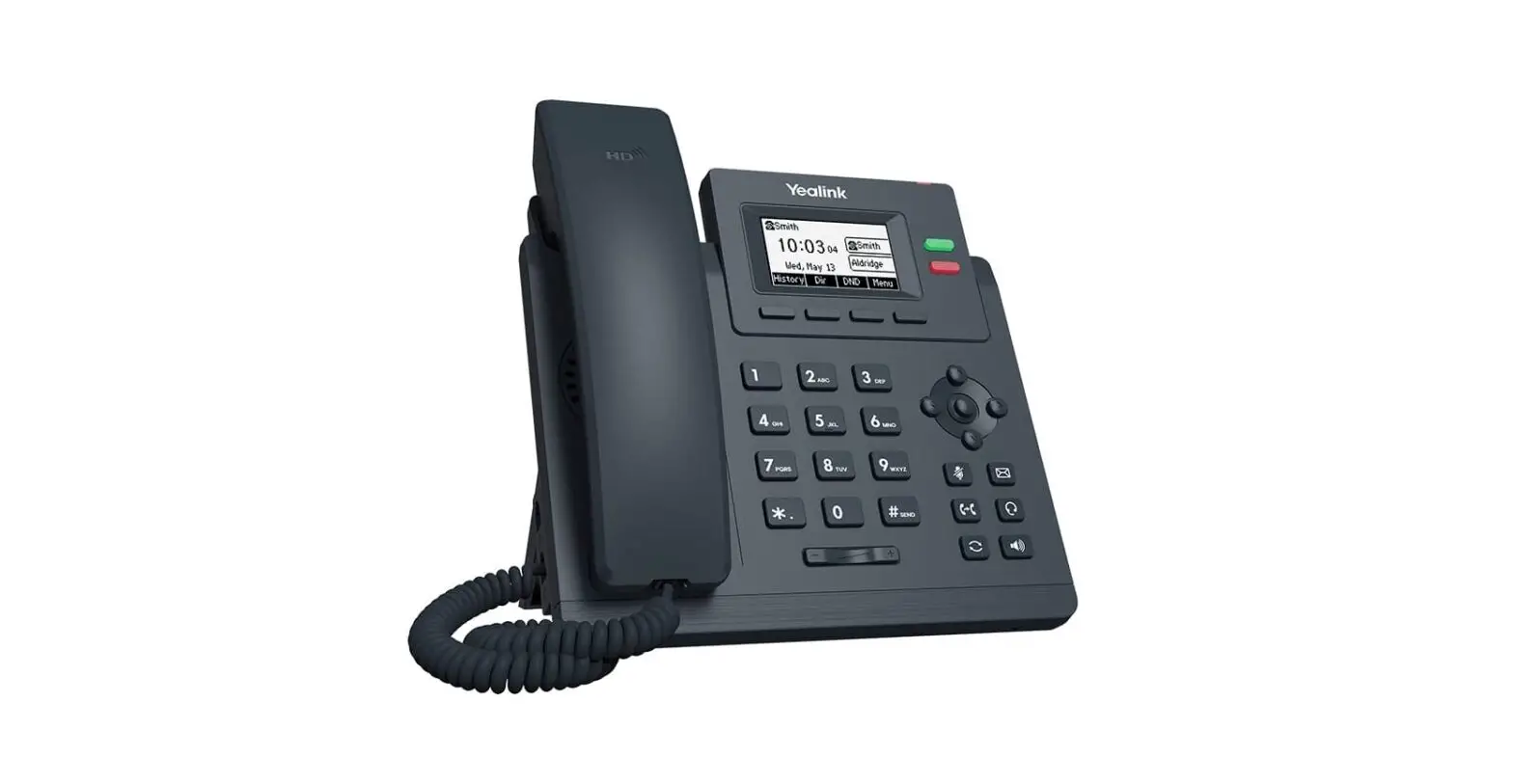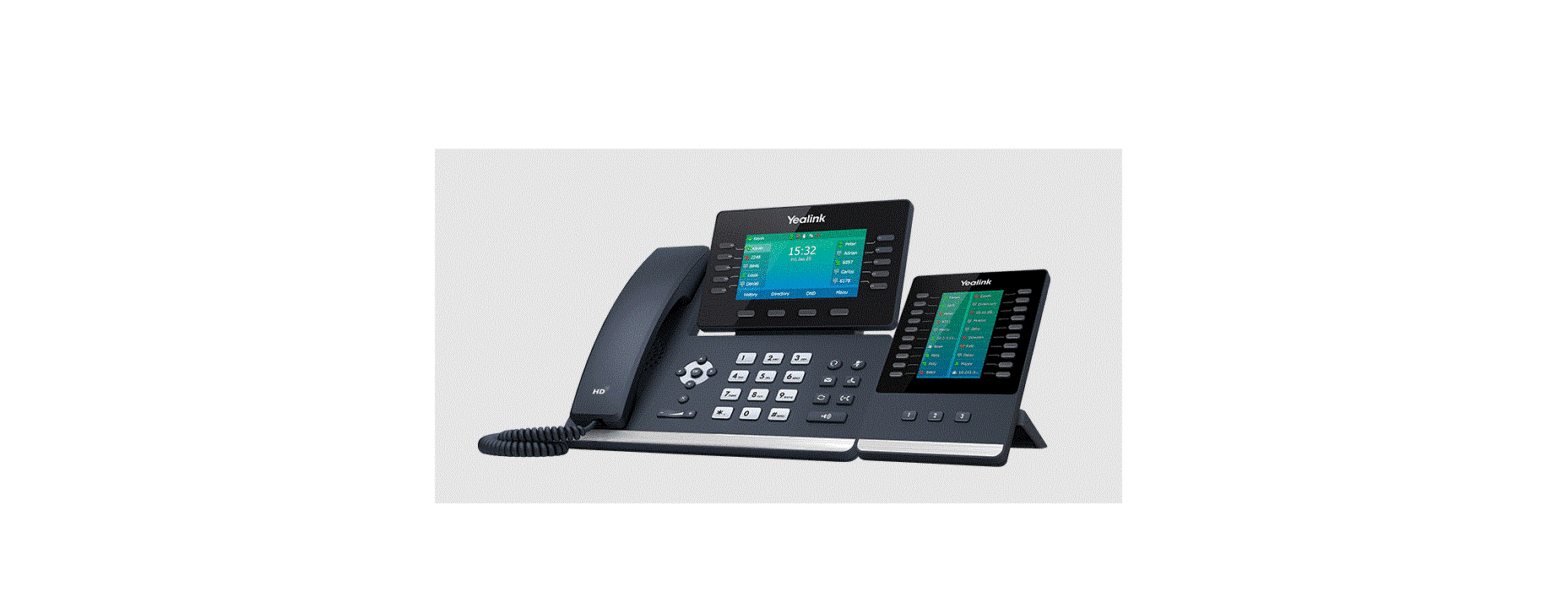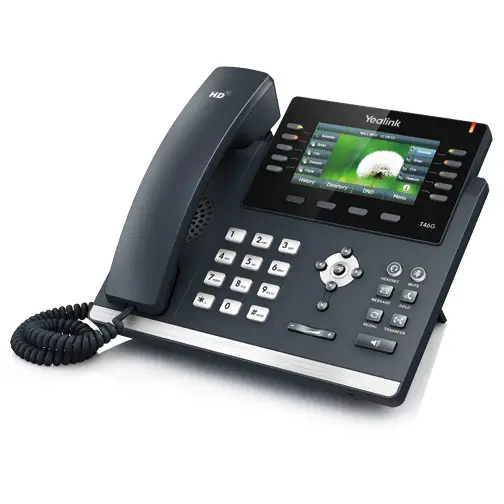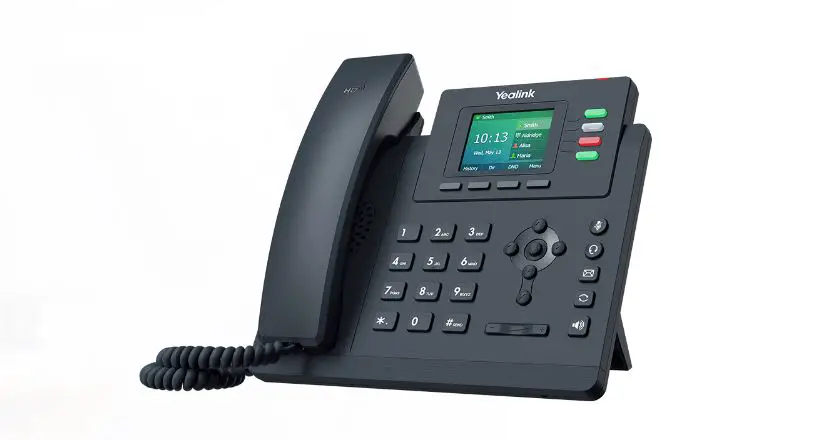
 Yealink T46U SIP Phone Quick
User Guide
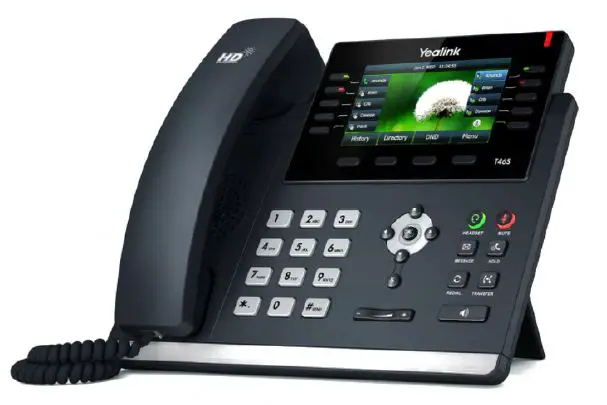
Desk Phone Features
 Feature Description
 Feature Description
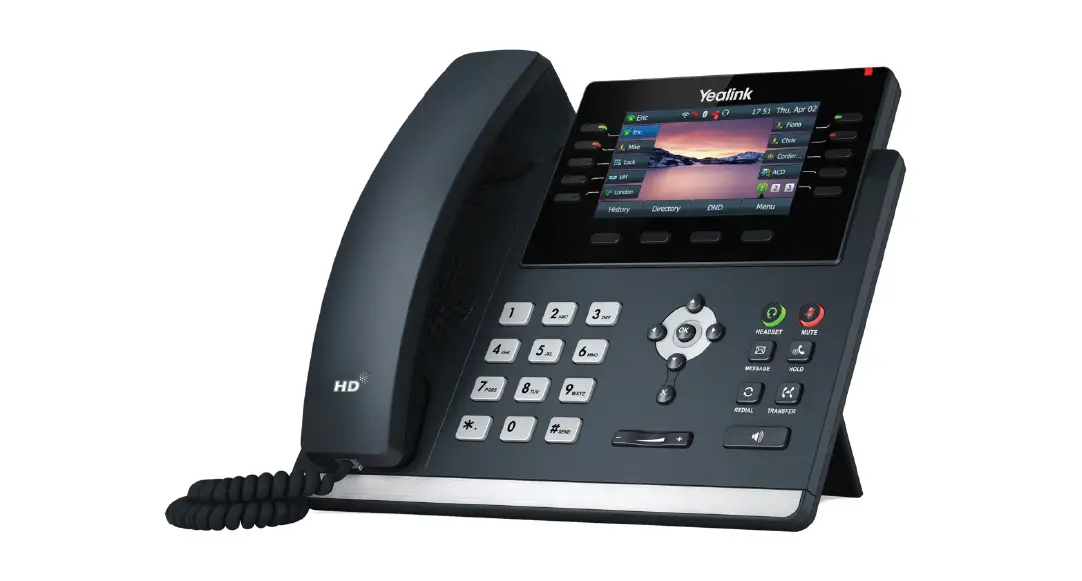
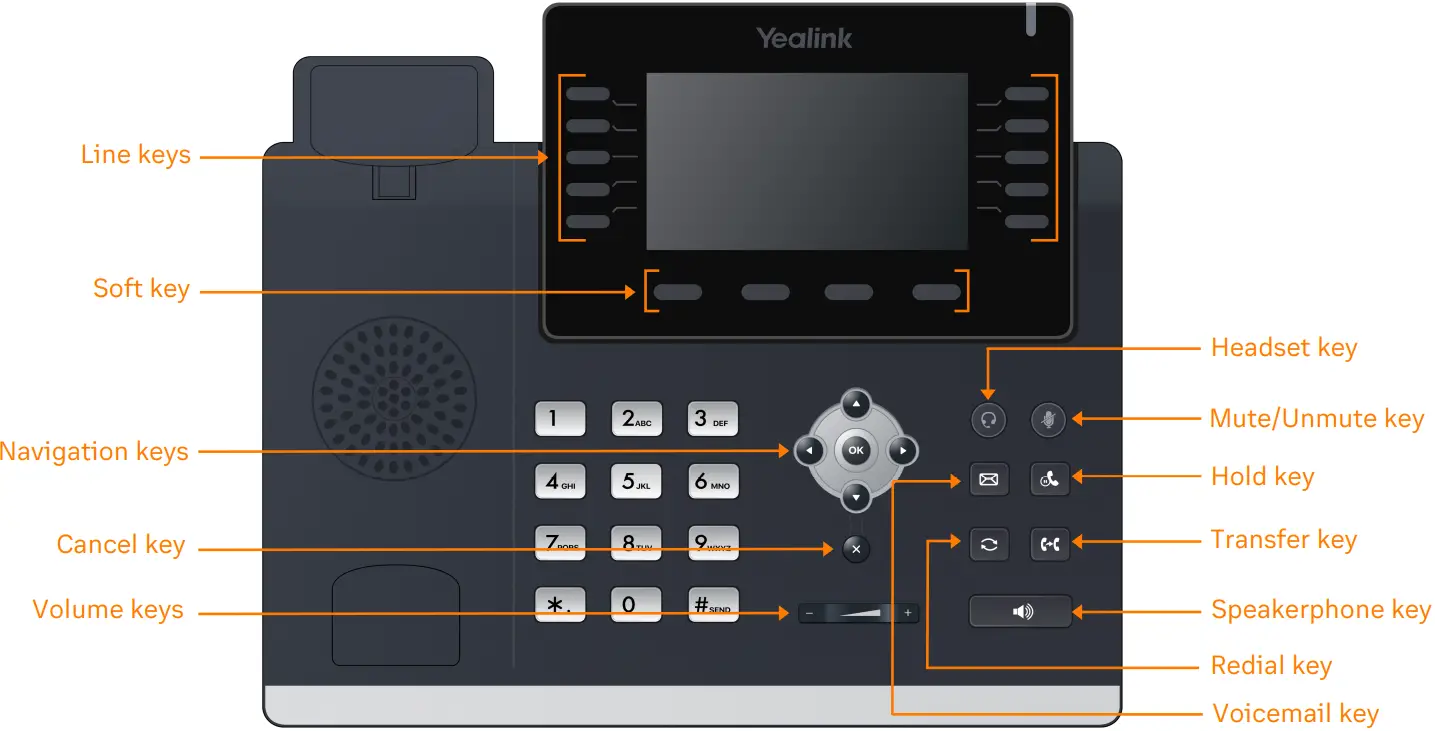
- Line keys—enables you to select a phone line, view calls on a line, or quickly call a favorite contact.
- Soft keys— enables you to select context-sensitive keys that display along the bottom of the screen.
- Navigation keys—scroll through information and options displayed on the phone screen.
- Cancel key—cancels action or rejects incoming calls.
- Volume keys—adjust the volume of the handset, headset, and speaker.
- Headset key—enables you to place and receive calls through a headset.
- Mute/Unmute key—mutes audio during calls and conferences.
- Hold key—holds an active call or resumes a held call.
- Voicemail key—enables you to access voicemail messages.
- Transfer key—transfer an active call to a contact.
- Redial key— enables you to dial the last called number or extension.
- Speakerphone key—enables you to place and receive calls using the speakerphone.
Placing a call
Dial the number and do one of the following:
- Lift the receiver.
- Press
 to use the headset.
 - Press
 to use the speakerphone.
 to use the headset.
 to use the speakerphone.
Answering a call
Options:
- Lift the receiver.
- Press to answer a call via headset.
- Press to answer a call via speakerphone.
Placing a call on hold
- Press
 or while on an active call.
 or while on an active call.
Retrieving a held call
- Press or to retrieve a held call.
Starting a Conference call
- While on an active call, press the Conference soft key.
- Dial the extension of the other party that you would like to add to the call.
- Once the other party answers, press the Conference soft key to merge the two calls.
Transferring a call
Warm Transfer:
- While on an active call, press
 or the Transfer soft key.
 - Dial the number of the other party.
- When the destination party answers, provide the information and confirm that they would like to take the call.
- Press or the Transfer soft key.
 or the Transfer soft key.
Blind Transfer:
- While on an active call, press or the Transfer soft key.
- Press the Blind soft key.
- Dial the extension of the other party.
- Press or the Transfer soft key.
Voicemail Transfer:
- Press or the Transfer soft key.
- Press the Blind soft key.
- Dial
 plus the extension number of the voicemail where you want to transfer the call.
 plus the extension number of the voicemail where you want to transfer the call.
Parking a call
Option 1:
1. While on an active call, press the More soft key
until the Park soft key is displayed.
2. Press the Park soft key.
3. Listen to the prompt indicating that the call has
been parked. The prompt will also announce the
extension where the call is parked.
4. Note the park location. Example *802.
Option 2:
- While on an active call, press

- Listen to the prompt indicating that the call has been parked. The prompt will also announce the extension where the call is parked.
- Note the park location. Example *802.

Retrieving a Parked Call
- Press
 , followed by the park location.
 , followed by the park location.
Paging
- Press
 , then follow the prompt.
 , then follow the prompt.
Initiating an Intercom call
- Press
 , then follow the prompt.
 , then follow the prompt.
Hot Desking
- Press the Login soft key then follow the prompt.
- Enter your extension number, then press
 .
. - Enter your voicemail pin, then press .
 .
.Recording a call
- While on an active call, press
 to start the recording.
 - Press to end the recording.
 to start the recording.
© 1999 – 2022 RingCentral, Inc. All rights reserved.