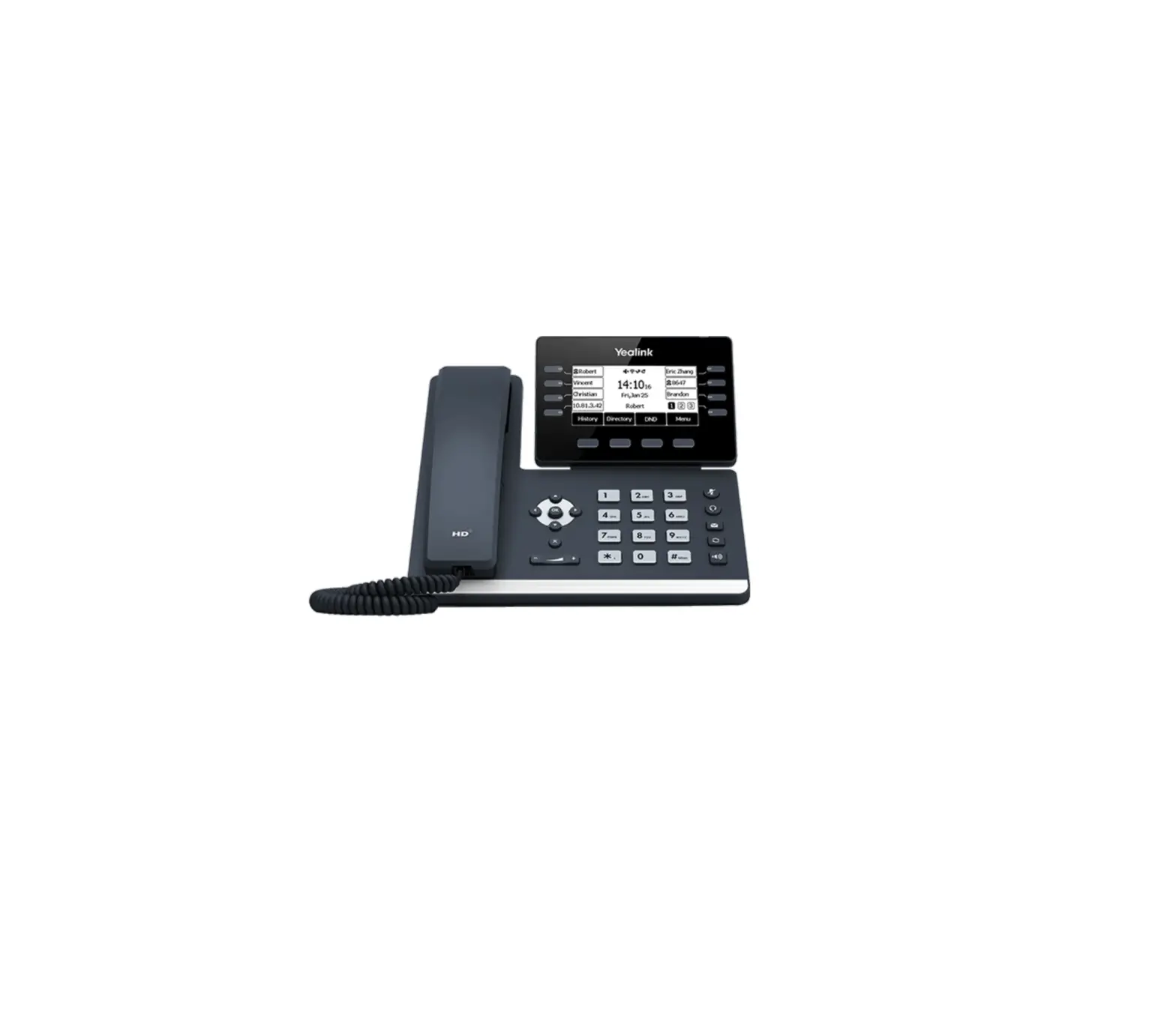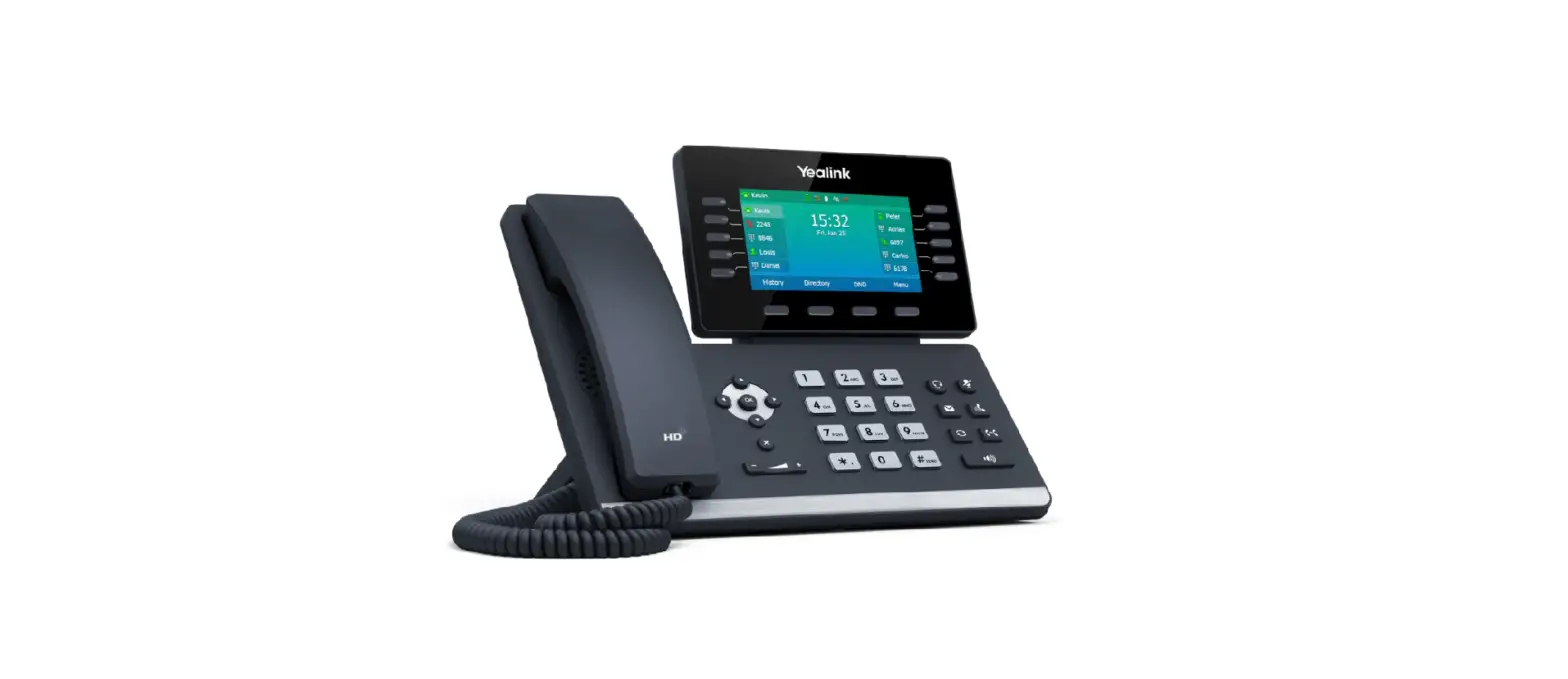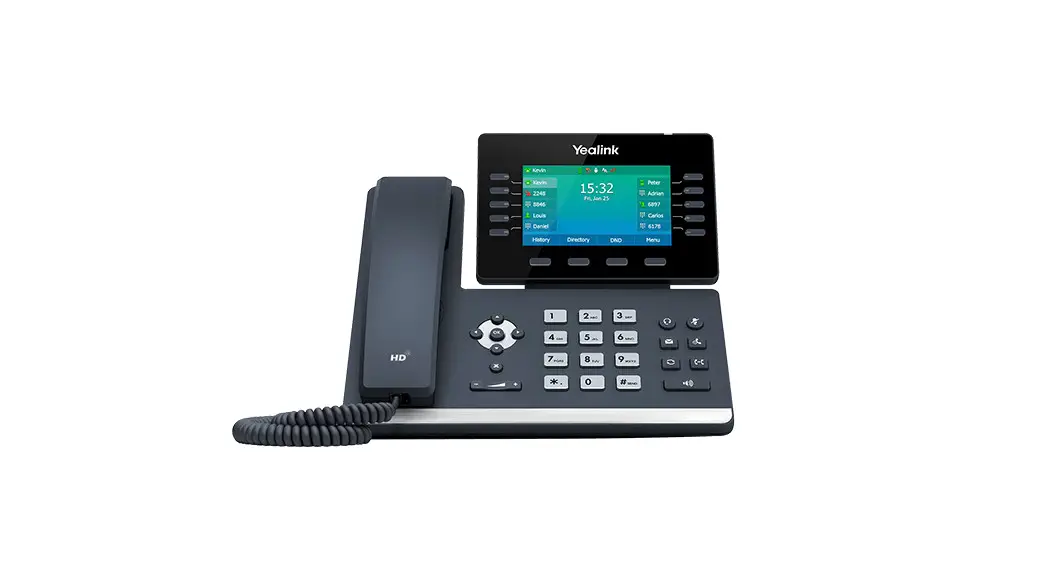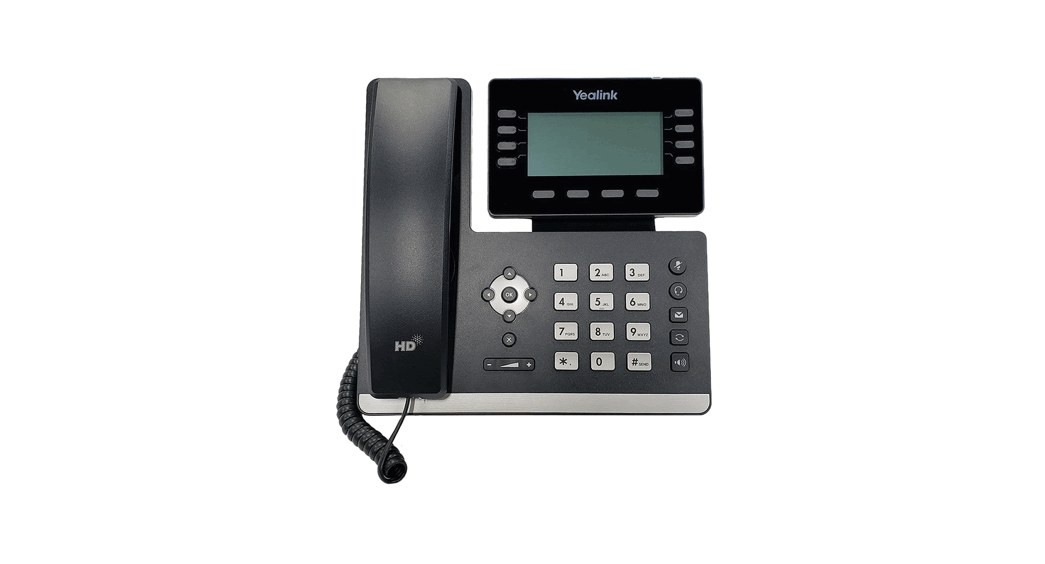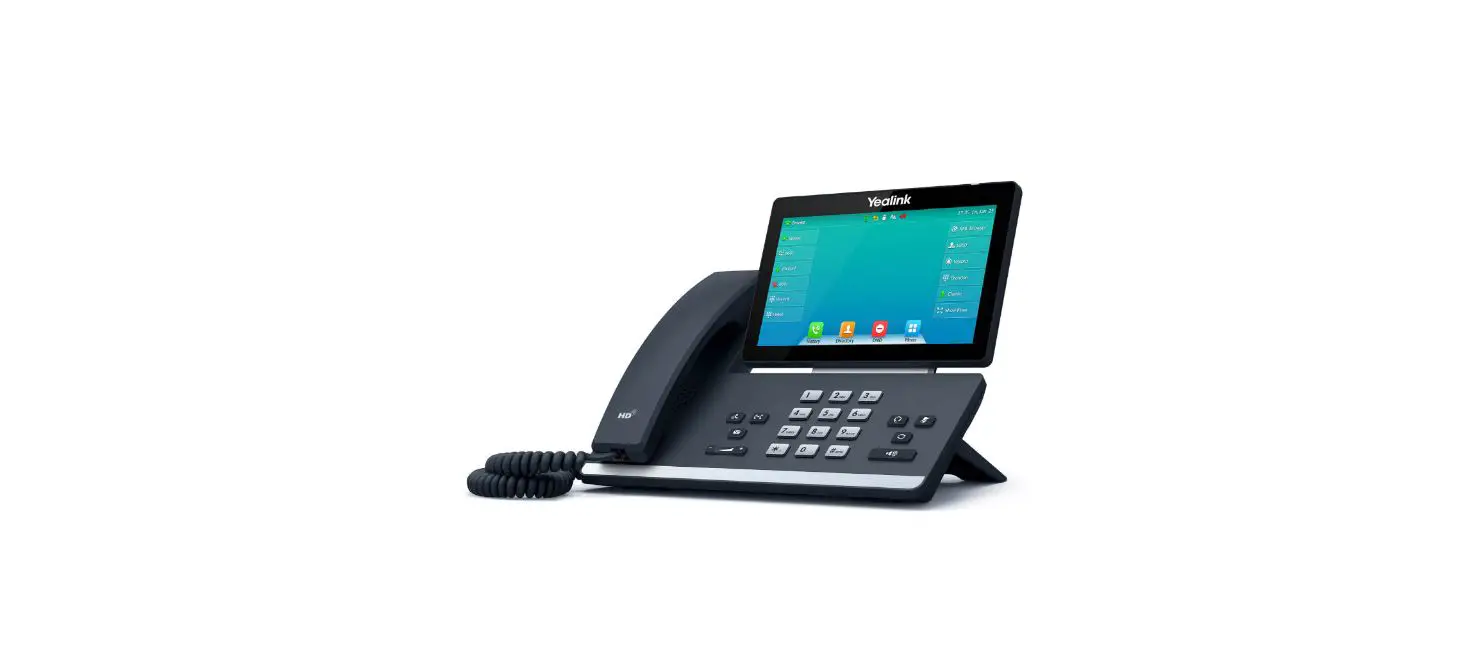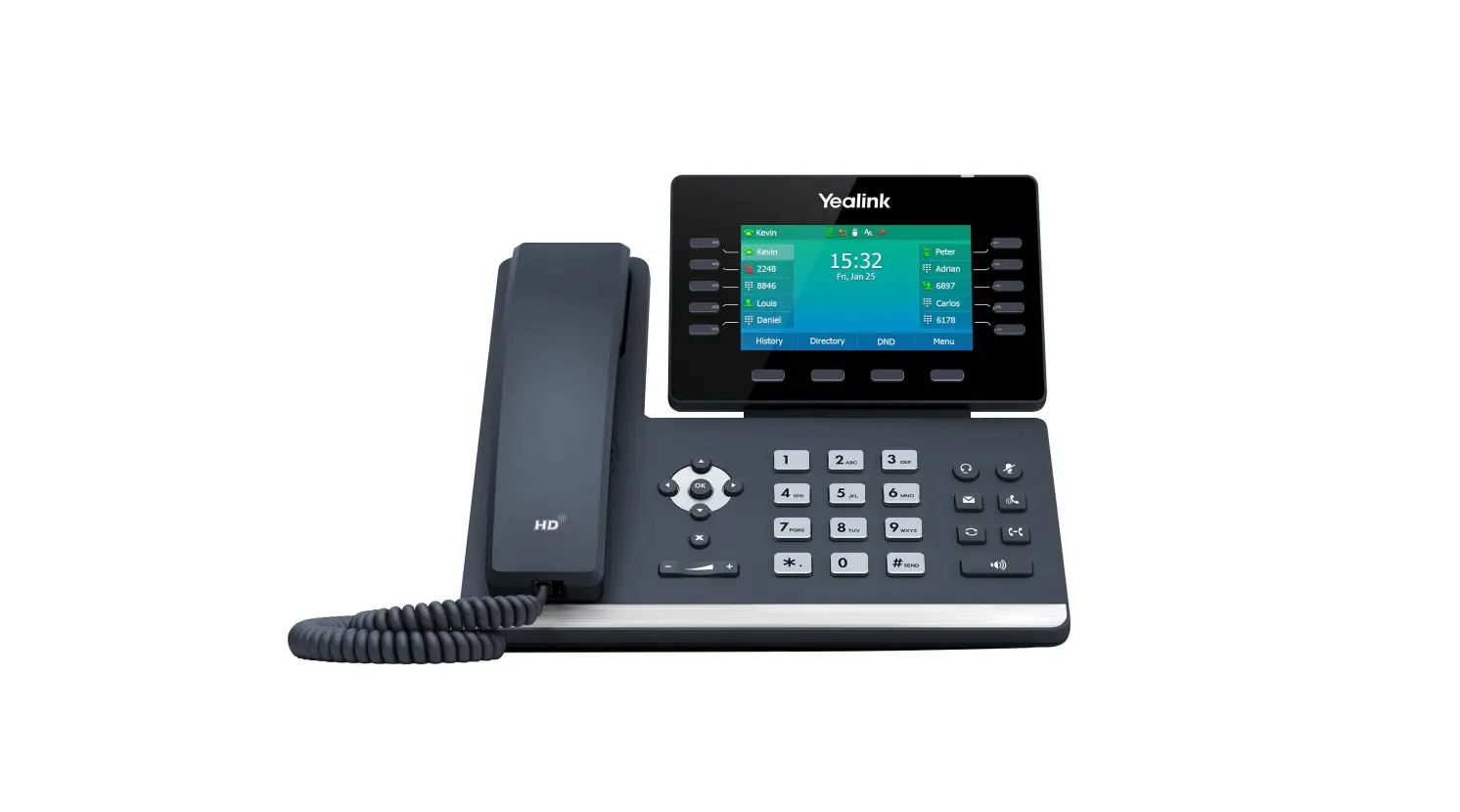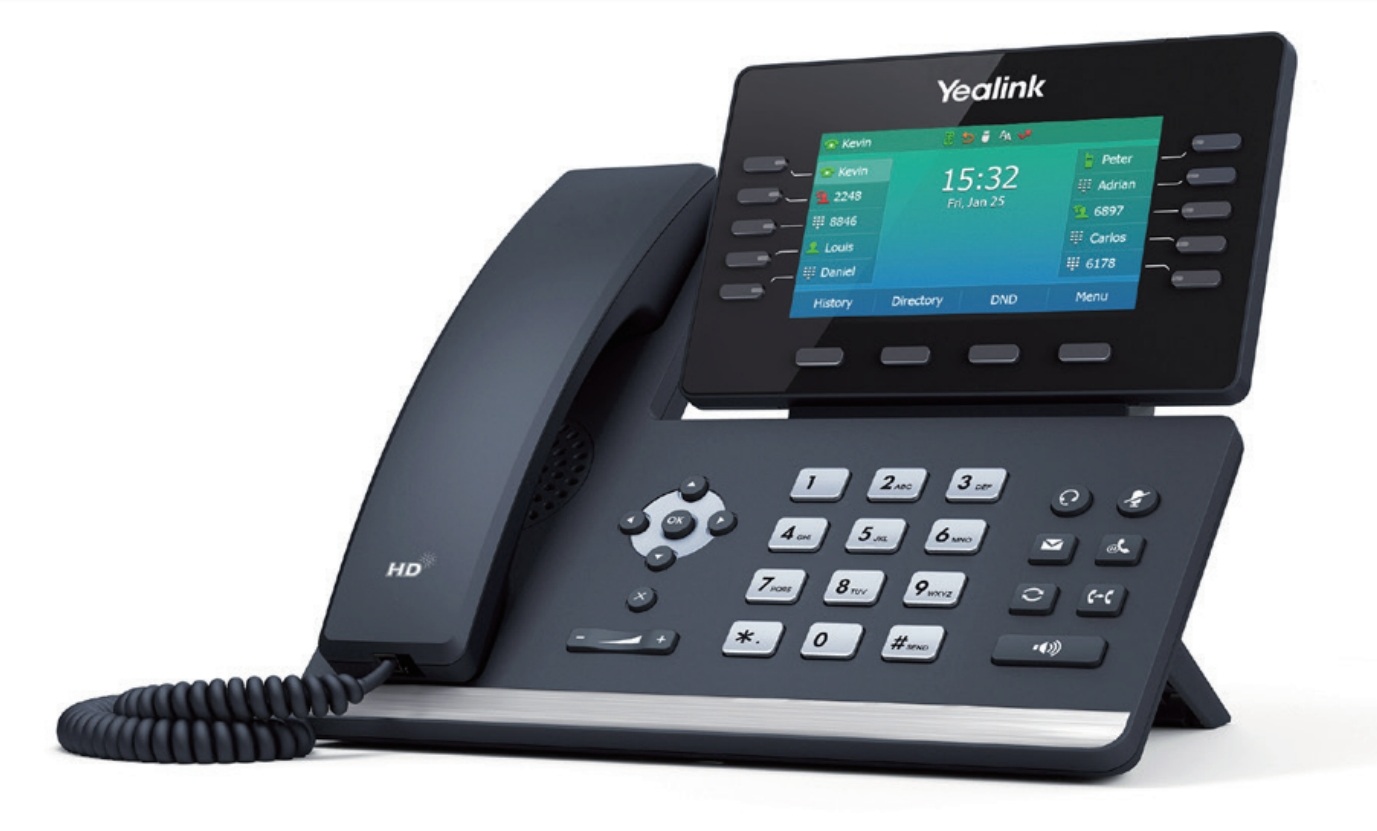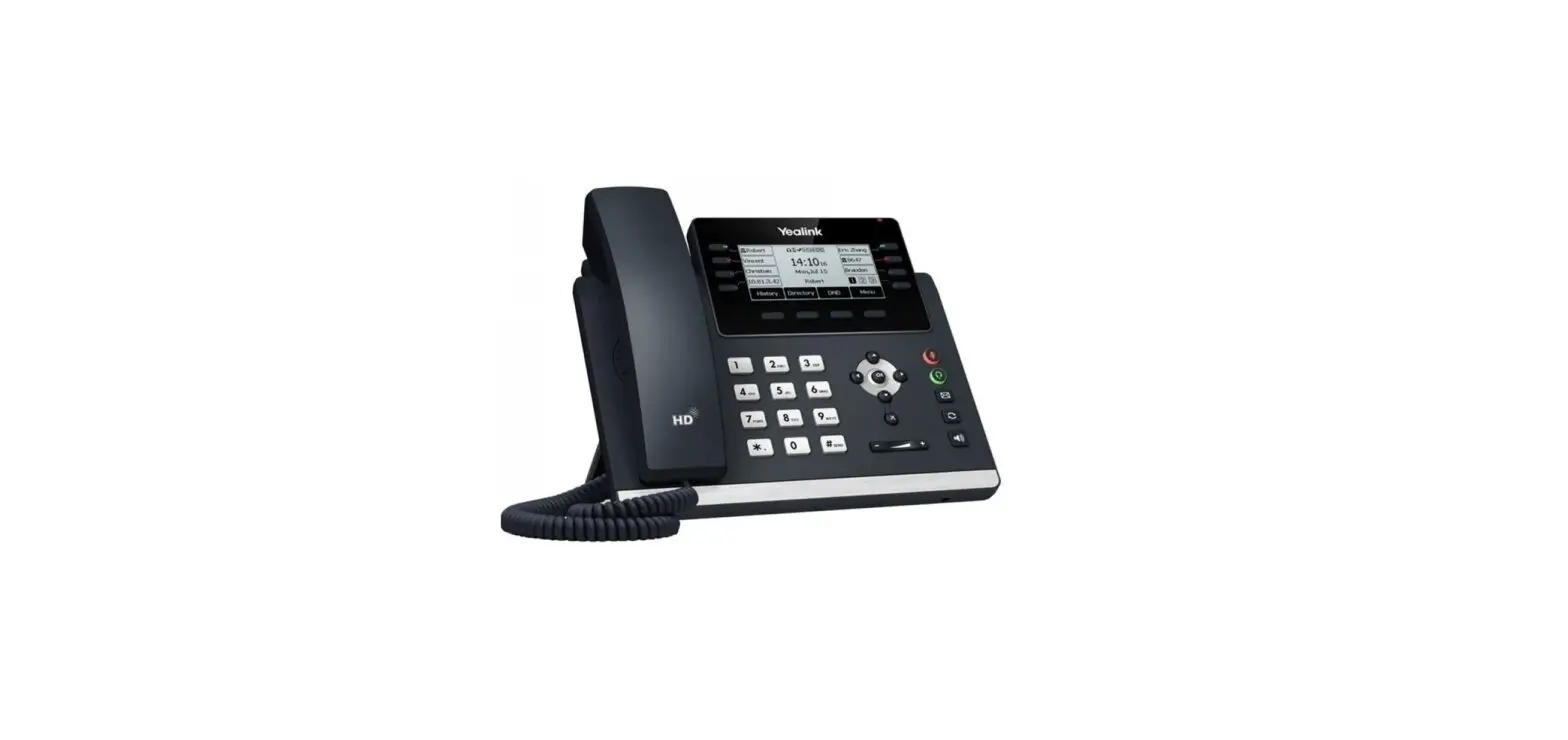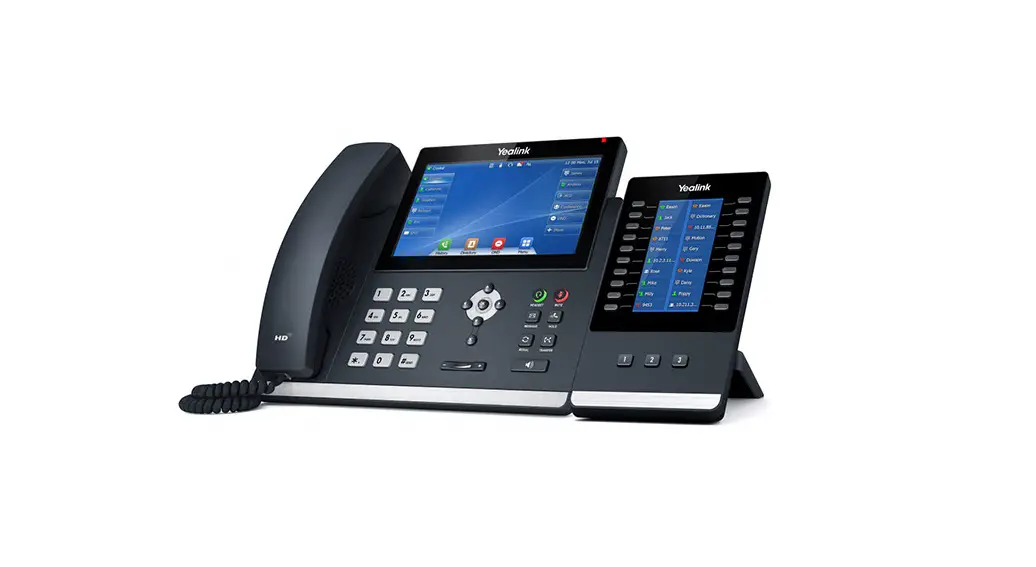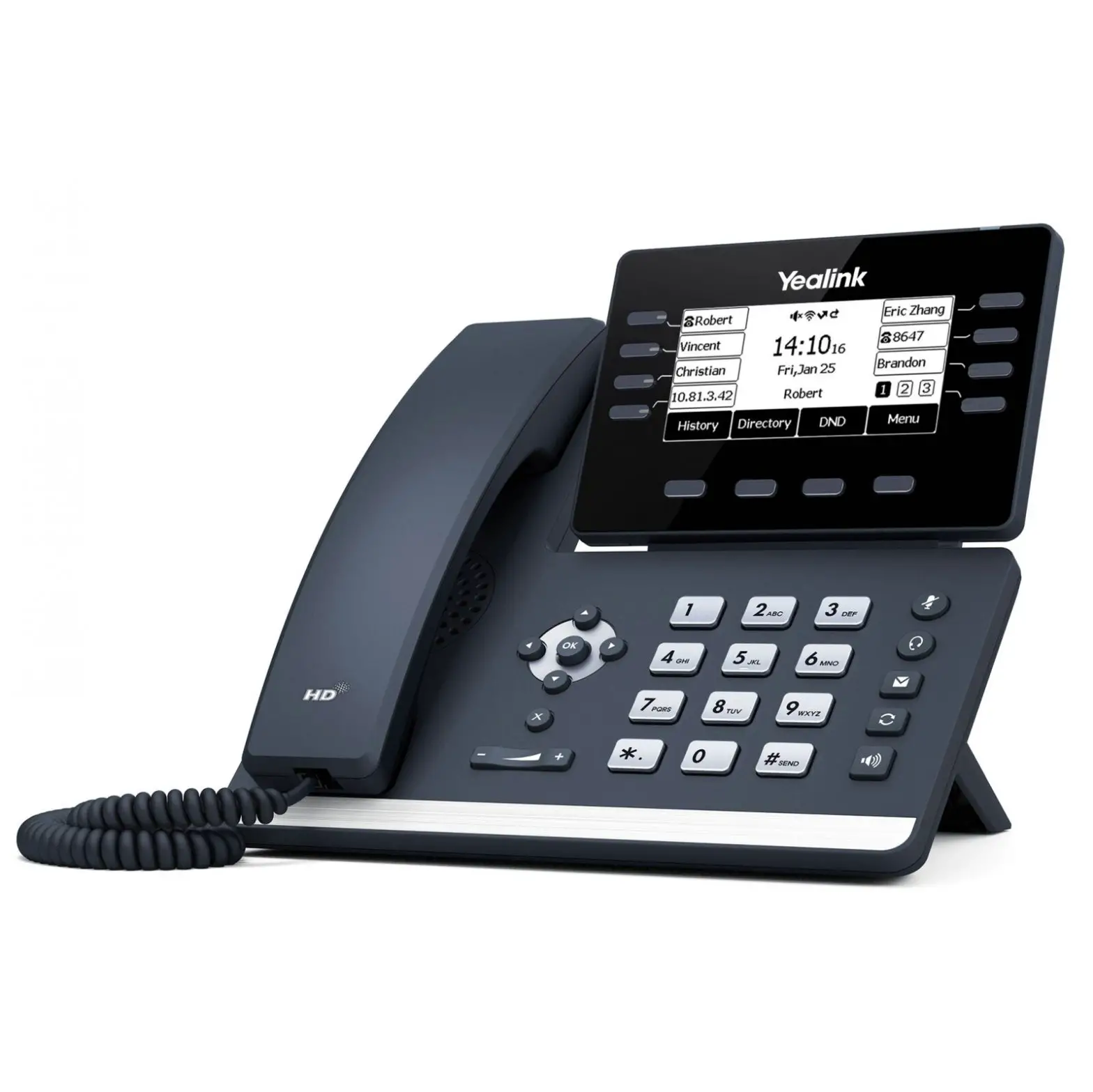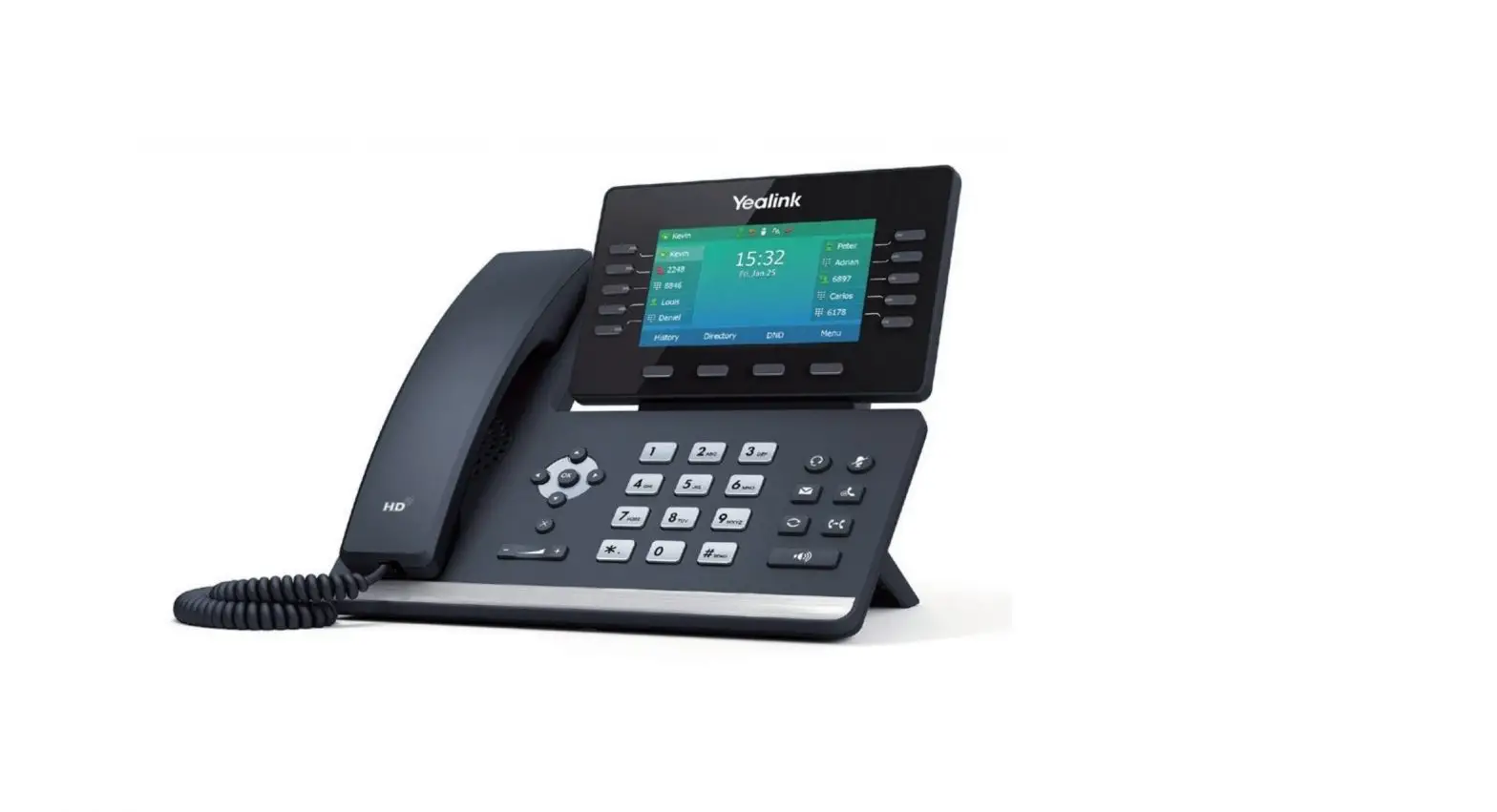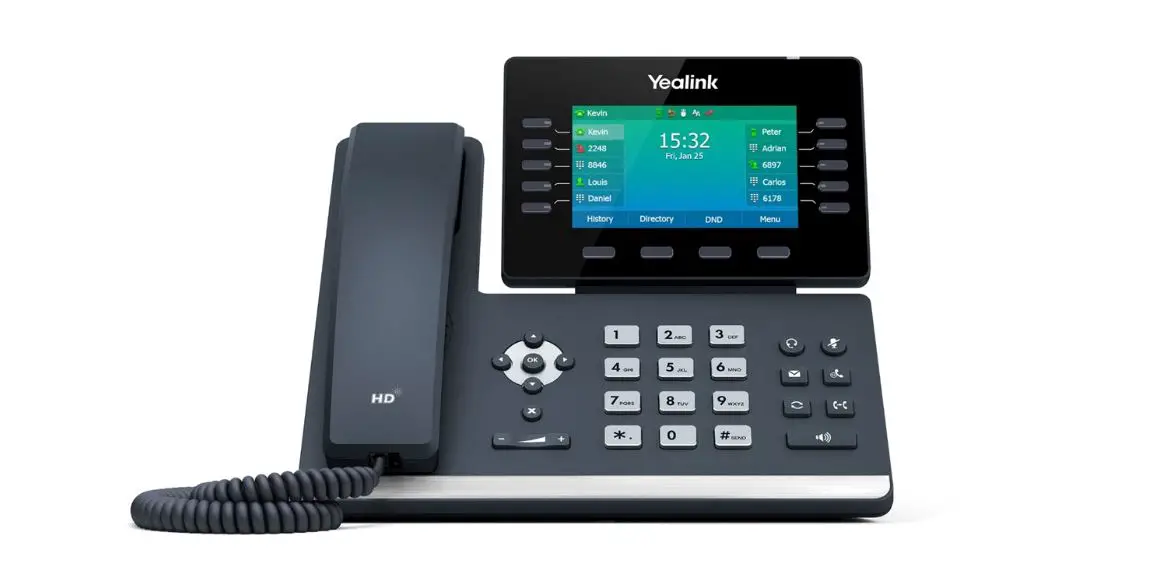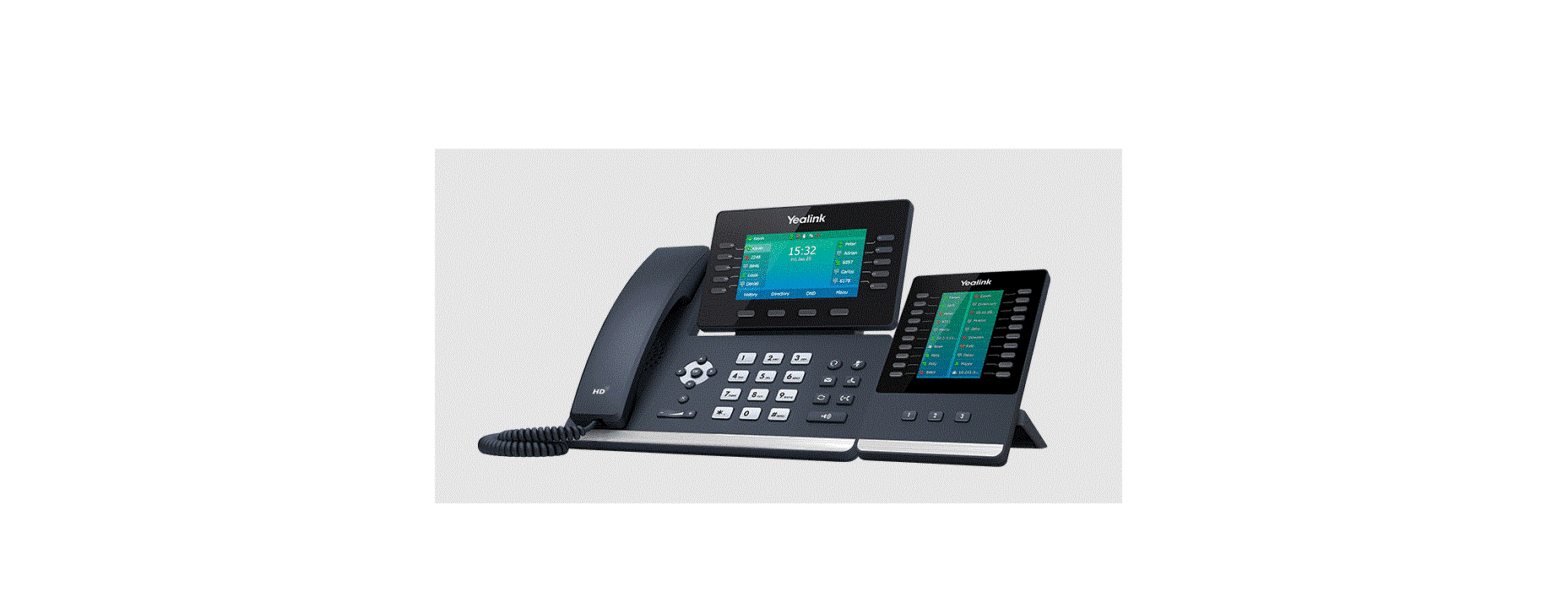
 Yealink SIP-T54W Prime Business Phone
 Yealink SIP-T54W Prime Business Phone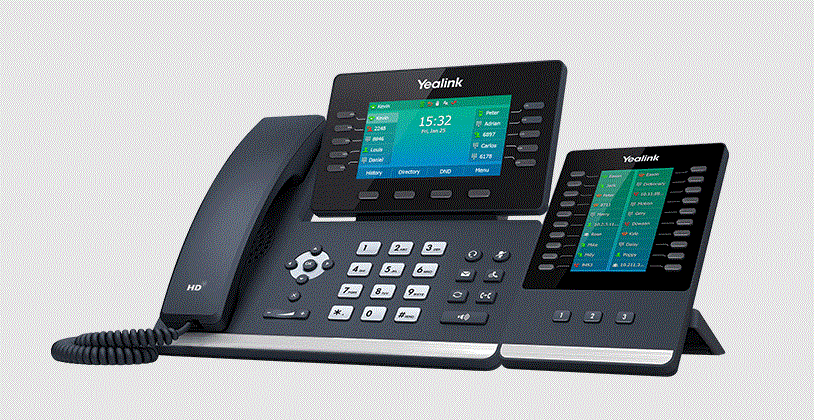
Package Contents
The following items are included in your package. If you find anything missing, contact your system administrator.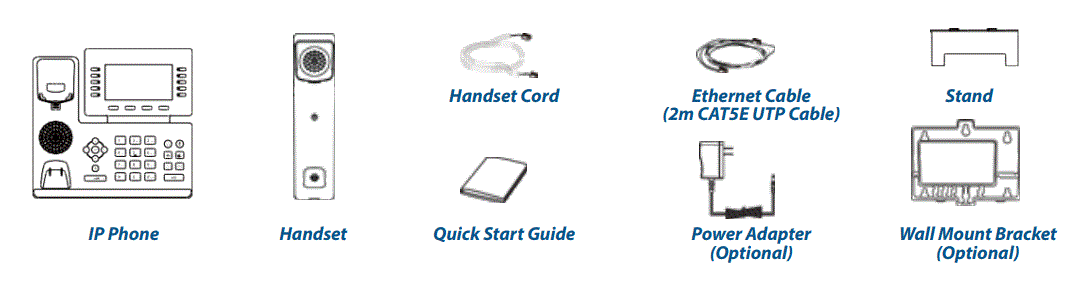
Note: We recommend that you use the accessories provided or approved by Yealink. The use of unapproved third-party accessories may result in reduced performance.
Assembling the Phone
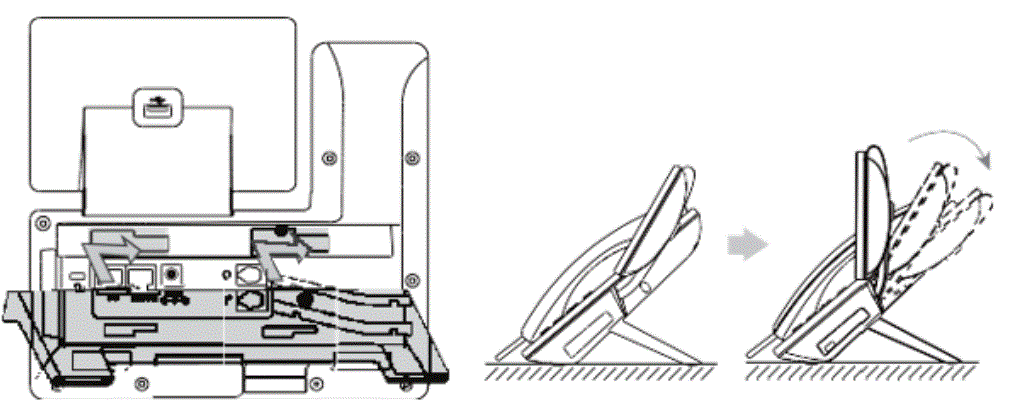
- Attach the stand and adjust the angle of the screen

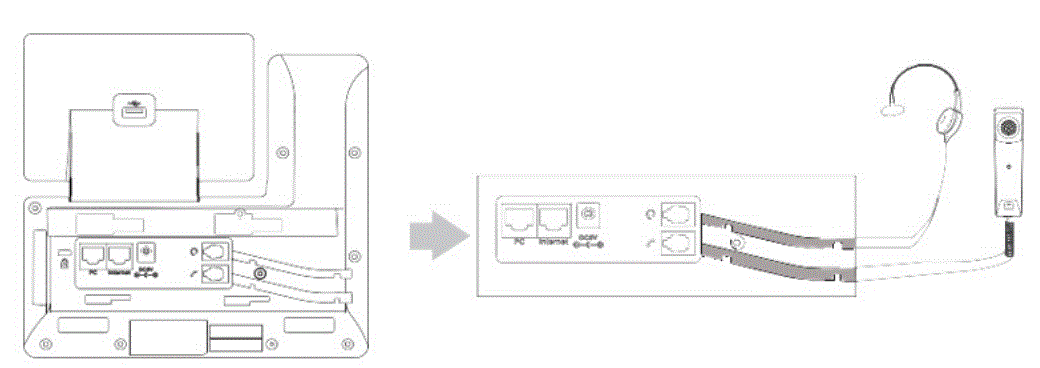
Note: You can also mount the phone to a wall. - Connect the handset and optional headset

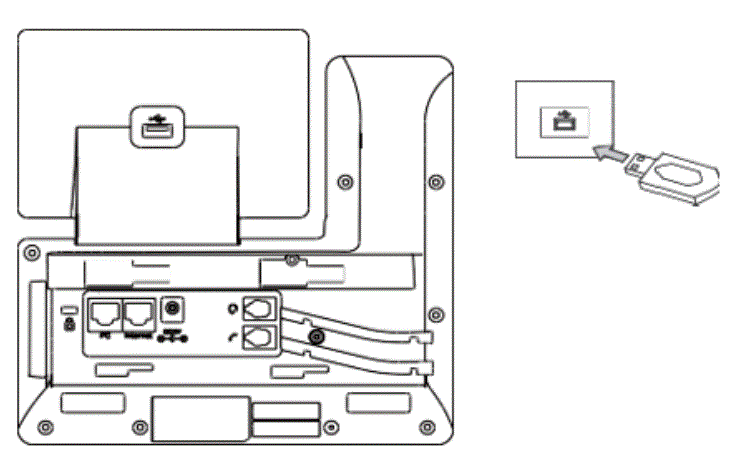
- Optional: Connect the USB devices

Note: The USB port can also be used to connect other USB devices, such as EXP50, USB headset and so on.
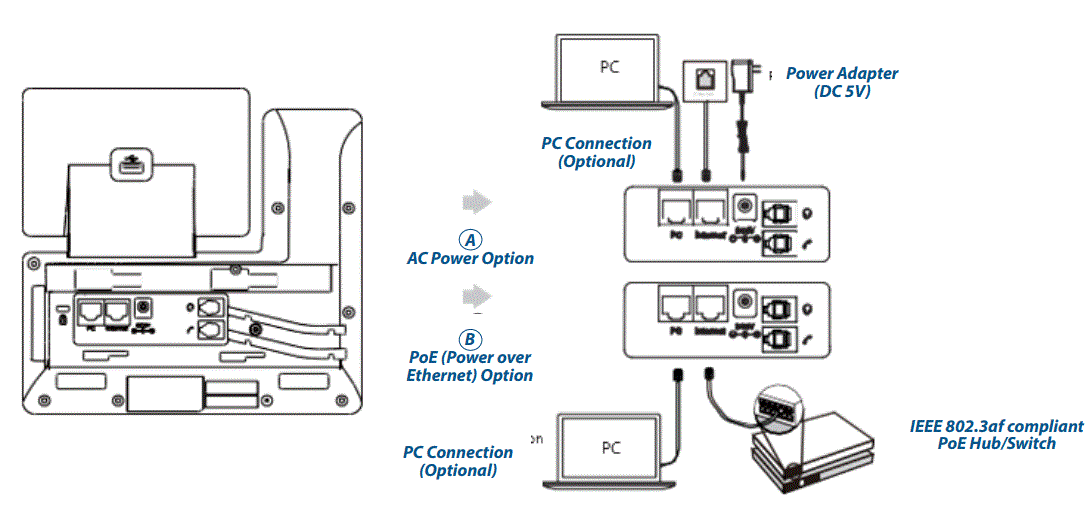
You have two options for network and power connections. Your system administrator will advise you which one to use
Note: The IP phone should be used with Yealink original power adapter (5V/2A)only. The use of the third-party power adapter may cause the damage to the phone. If you are connecting a PC to your phone, we recommend that you use the Ethernet cable provided by Yealink. If inline power (PoE) is provided, you don’t need to con- nect the power adapter. Make sure the hub/switch is PoE-compliant.
Starting the Phone
After the phone is connected to the network and supplied with power, it automatically begins the initialization process. After startup, the phone is ready for use. You can configure the phone via phone user interface or web user interface.
Basic Call Features
Placing a Call
Using the handset:
- Pick up the handset.
- Enter the number, and then press Send.
Using the speakerphone
- With the handset on-hook, press

- Enter the number, and then press Send.
Using the headset:
- With the headset connected
 press to activate the headset mode.
 - Enter the number, and then press Send.
Note: During a call, you can alternate between the headset, hands-free speakerphone and handset modes by pressing the HEADSET key, the Speakerphone key or by picking up the handset. Headset mode requires a connected headset.
Answering a Call
Using the handset:
Pick up the handset.
Using the speakerphone:
Press .
Using the headset:
Press
Note: You can reject an incoming call by pressing Reject.
Ending a Call
Using the handset:
Hang up the handset or press End Call.
Using the speakerphone:
Press or End Call.
Using the headset:
Press End Call.
Redialing a Call
- Press
 to enter the Placed Calls list, press or to select the desired entry, and then
 - press or Send.
- Press twice when the phone is idle to dial out the last dialed number.
 to enter the Placed Calls list, press or to select the desired entry, and then
Muting and Un-muting a Call
- Press
 to mute the microphone during a call.
 - Pressagain to un-mute the call.
 to mute the microphone during a call.
Holding and Resuming a Call To hold a call:
- Press
or the Hold soft key during an active call.
To Resume the call, do one of the following:
- If there is only one call on hold,
 press or Resume.
 - If there is more than one call on hold, press or to select the desired call, and then press or Resume.
 press or Resume.
Transferring a Call
You can transfer a call in the following ways:
Performing a Blind Transfer
- Press
 or Transfer during an active call. The call is placed on hold.
 - Enter the number you want to transfer to.
- Press or B Transfer.
 or Transfer during an active call. The call is placed on hold.
Performing a Semi-Attended Transfer
- Press or Transfer during an active call. The call is placed on hold.
- Enter the number you want to transfer to, and then press Send.
- Press or Transfer when you hear the ring-back tone.
Performing an Attended Transfer
- Press or Transfer during an active call. The call is placed on hold.
- Enter the number you want to transfer to, and then press Send.
- Press or Transfer when the second party answers.
Forwarding a Call
To enable call forward:
- Navigate to Menu->Features->Call Forward
- Select the desired forward type:
Always Forward — Incoming calls are forwarded unconditionally
Busy Forward — Incoming calls are forwarded when the phone is busy No Answer Forward Incoming calls are forwarded if not answered after a period of time.
Note: You can split the conference call into two individual calls by pressing the Split soft key. - Enter the number you want to forward to. For No Answer Forward, press or to select the desired ring time to wait before forwarding from the After Ring Time field.
- Press Save to accept the change.
Initiating a Conference Call
- Press Conference during an active call. The call is placed on hold.
- Enter the number of the second party, and then press Send.
- Press Conference again when the second party answers. All parties are now joined in the conference.
Note: You can split the conference call into two individual calls by pressing Split.
Listening to Voice Mails
Message waiting indicator on the idle screen indicates that one or more voicemail messages are waiting at the mes- sage center. The power indicator LED slowly flashes red.
To listen to voice messages
- Press
 or Connect.
 - Follow the voice prompts to listen to your voice messages.
 or Connect.
Customizing Your Phone
Managing Call History
- Press History.
- Press
 or
or  to select an entry from the list
 - Do the following
- Press Send to call the entry.
- Press Delete to delete the entry from the list.
- Press Option, you can also do the following:
- Select Detail to view detailed information about the entry.
- Select Add to Contacts to add the entry to the local directory.
- Select Delete All to delete all entries from the list.
 or
or  to select an entry from the list
Managing Contact Directory
Adding a contact:
- Press Directory, and then select All Contacts.
- Press or Add to add a contact.
- Enter a unique contact name in the Name field and contact numbers in the corresponding fields.
- Press Save key to accept the change.
Editing a contact:
- Press Directory, and then select All Contacts.
- Press or to select the desired contact, press Option and then select Detail from the prompt list.
- Edit the contact information.
- Press Save to accept the change.
Deleting a contact:
- Press Directory when the phone is idle, and then select All Contacts.
- Press or to select the desired contact, press Option and then select Delete from the prompt list.
- Press the OK soft key when the LCD screen prompts “Delete selected item?”.
Adjusting the Volume
- Press
 to adjust the volume.
 to adjust the volume.
Ready to find out more? Contact us at 888-389-2899,
email [email protected], or visit our website at www.airespring.com
 AireSpring - Cloud, Fully Managed and Connected
 link.com is available for purchase - Sedo.com
 Yealink Support
 Yealink Ticket
 AireSpring - Cloud, Fully Managed and Connected
 Yealink | UC & C Terminal, Video Collaboration, Conference Phone, IP Phone, Headsets & Video Conferencing