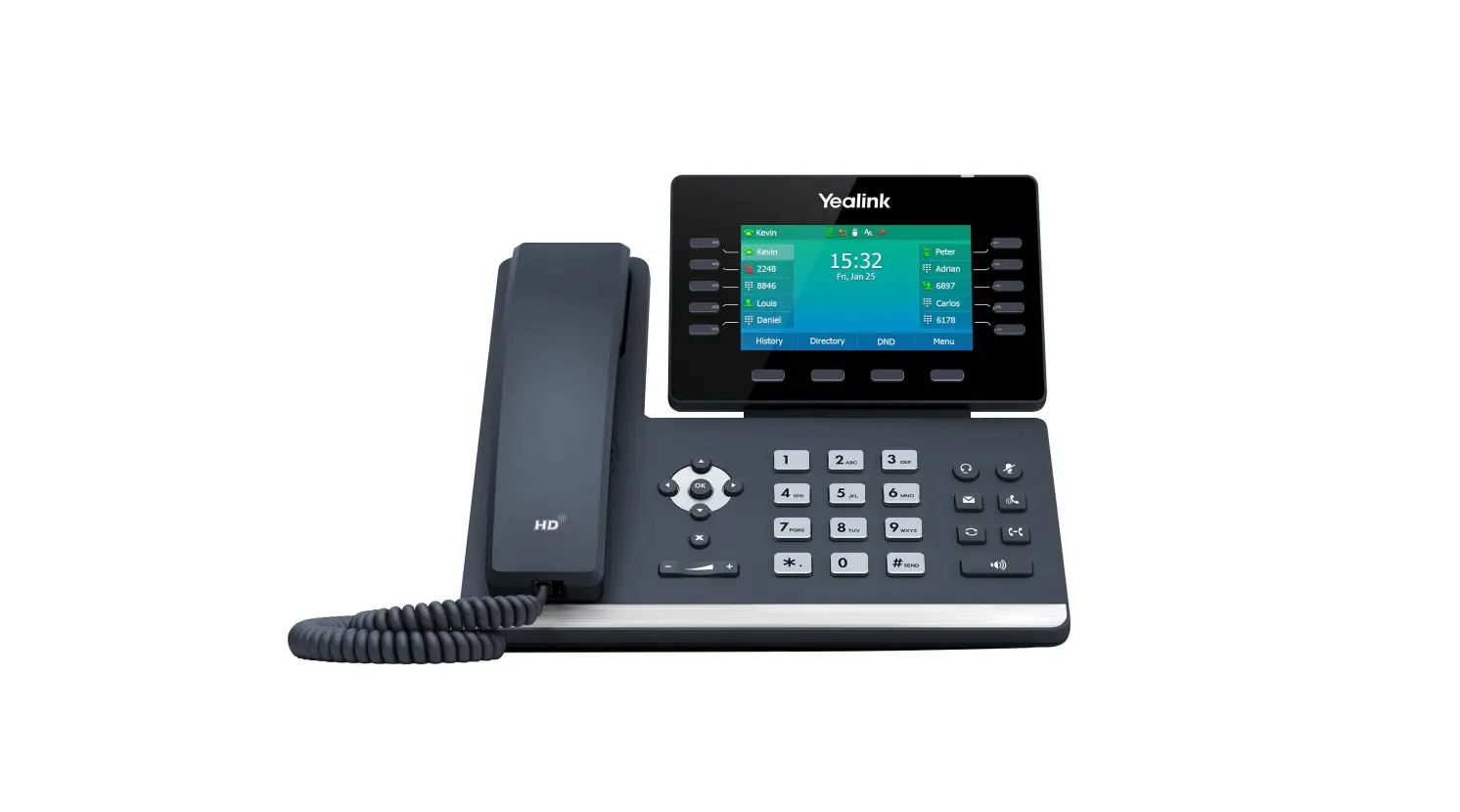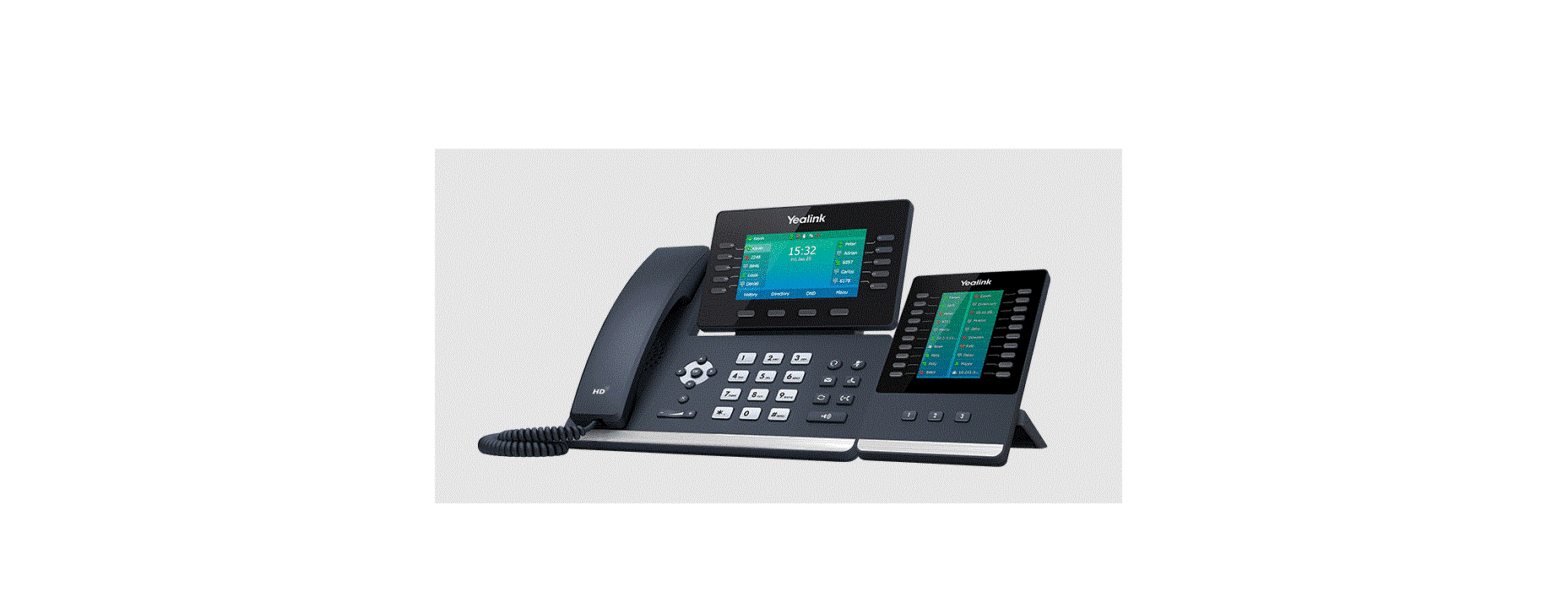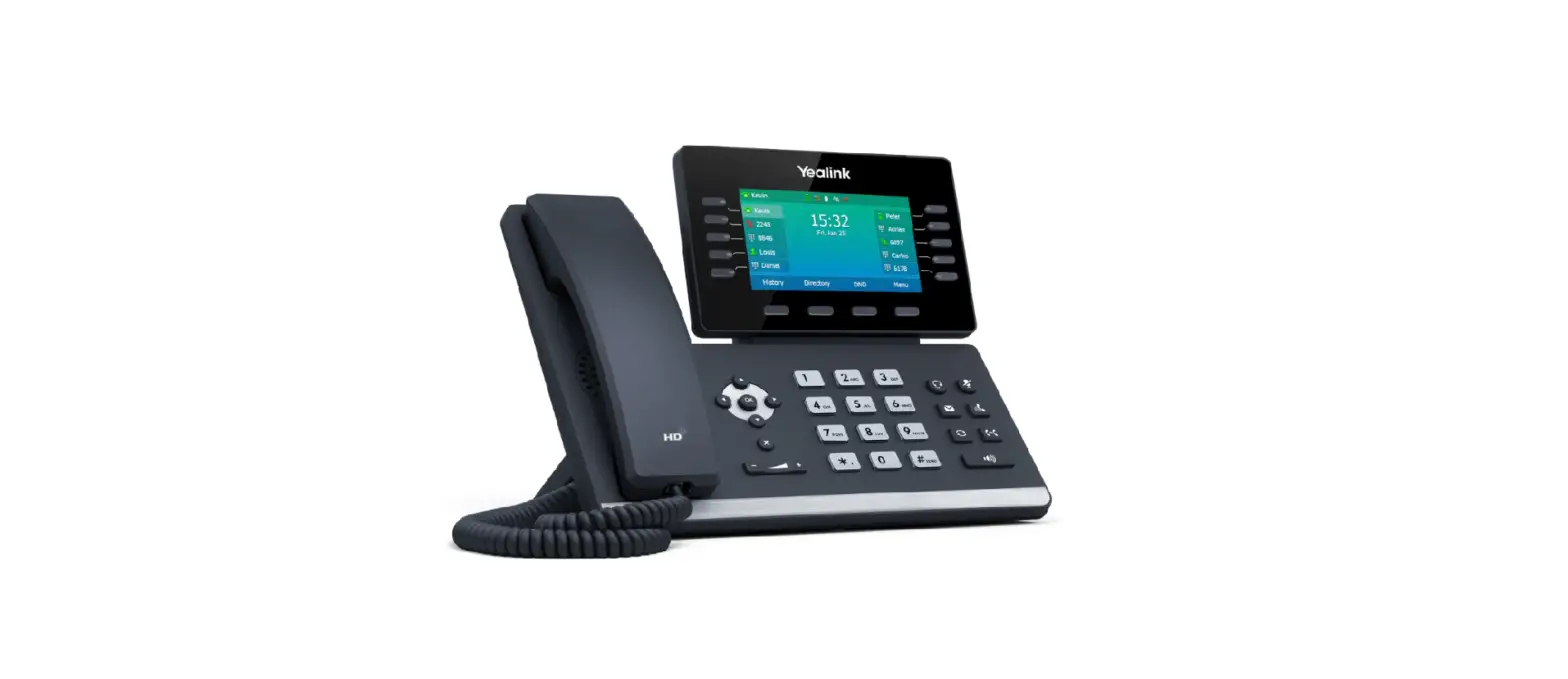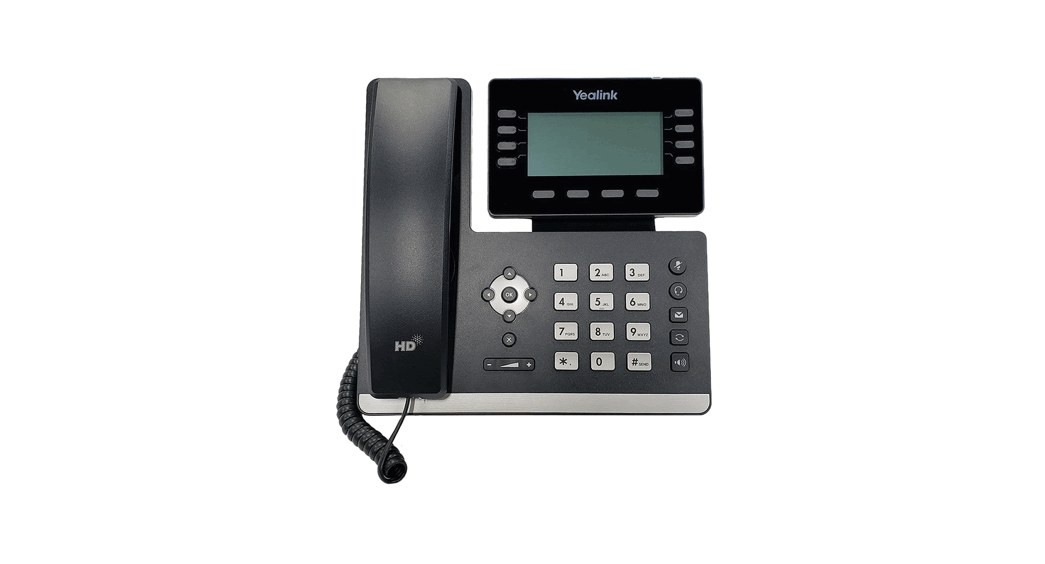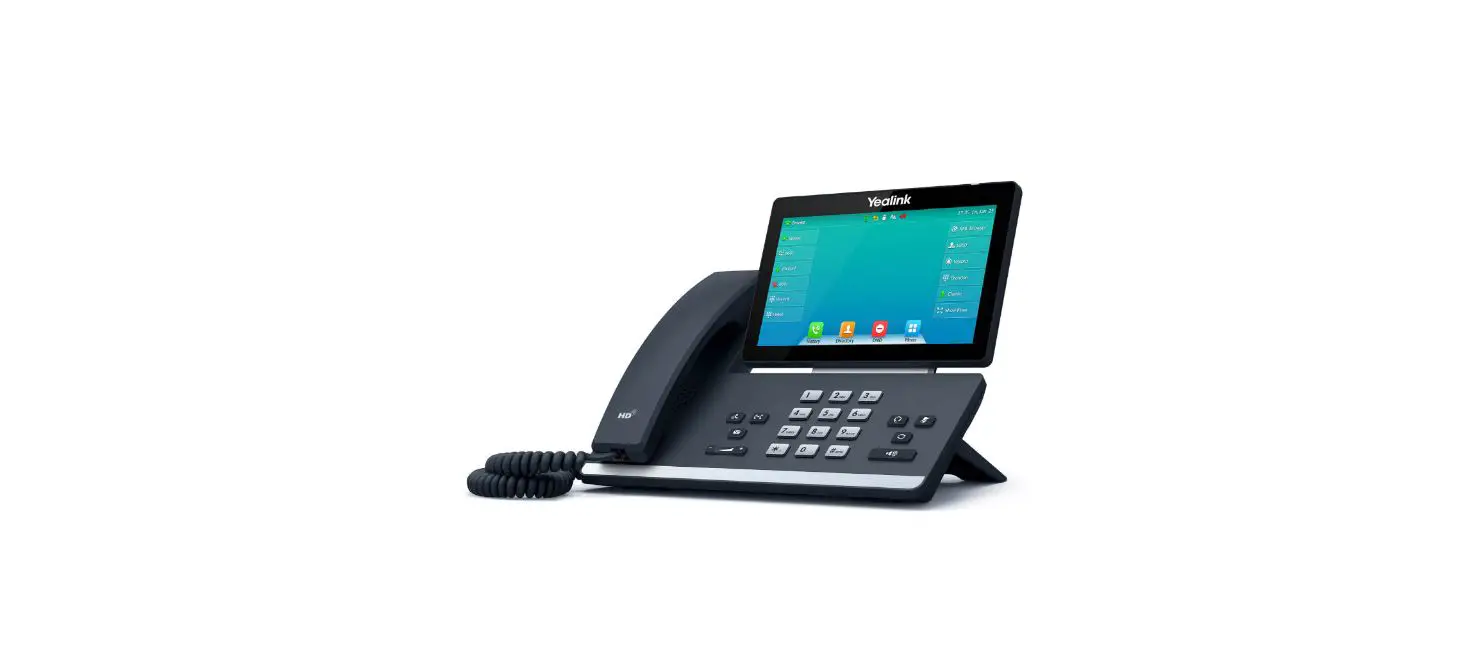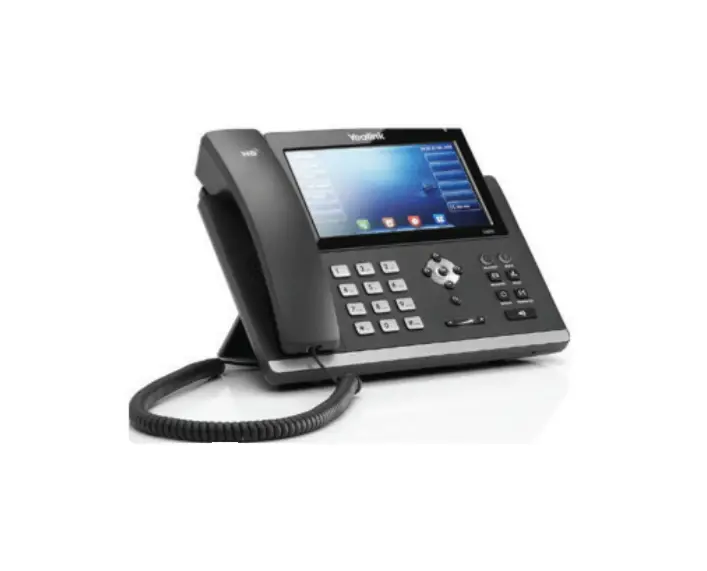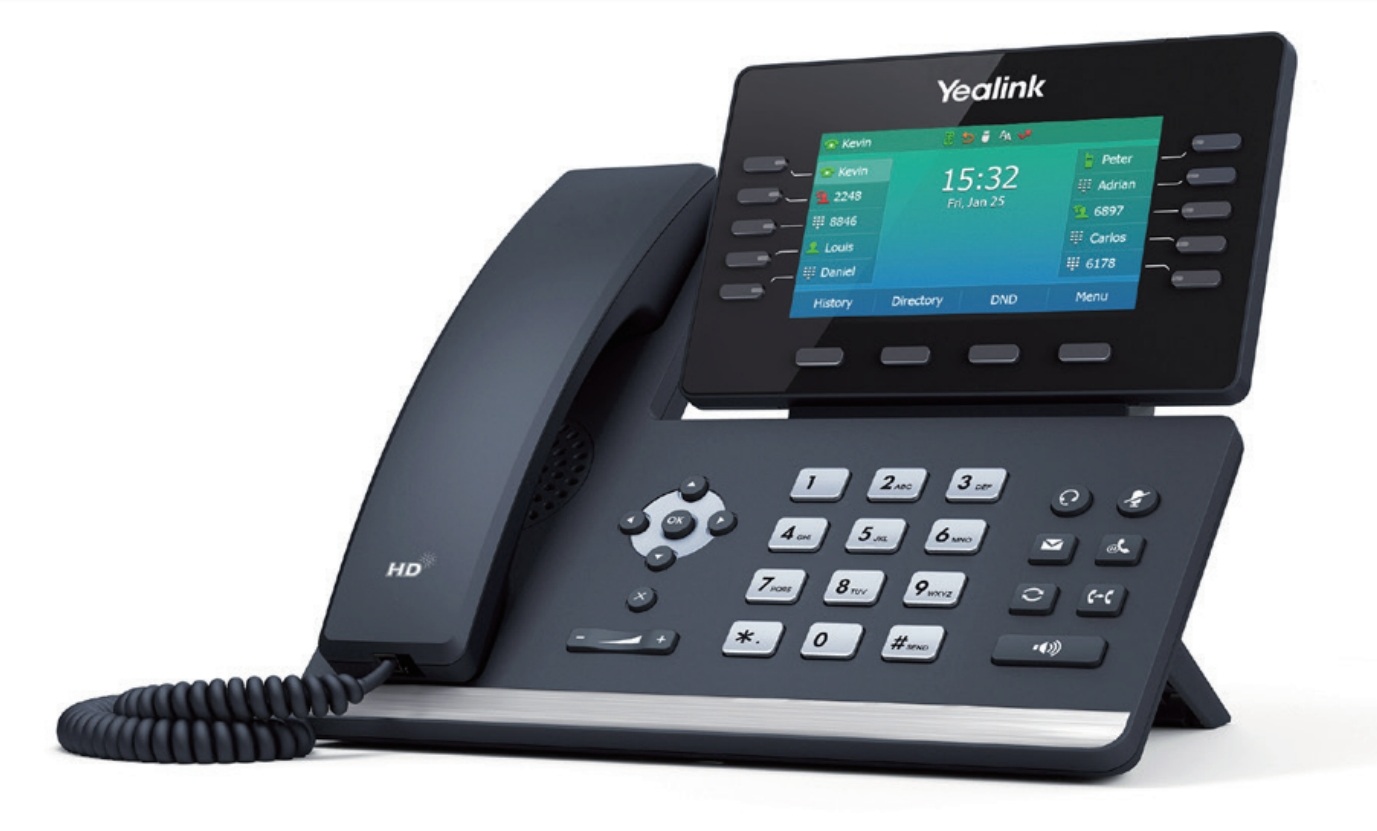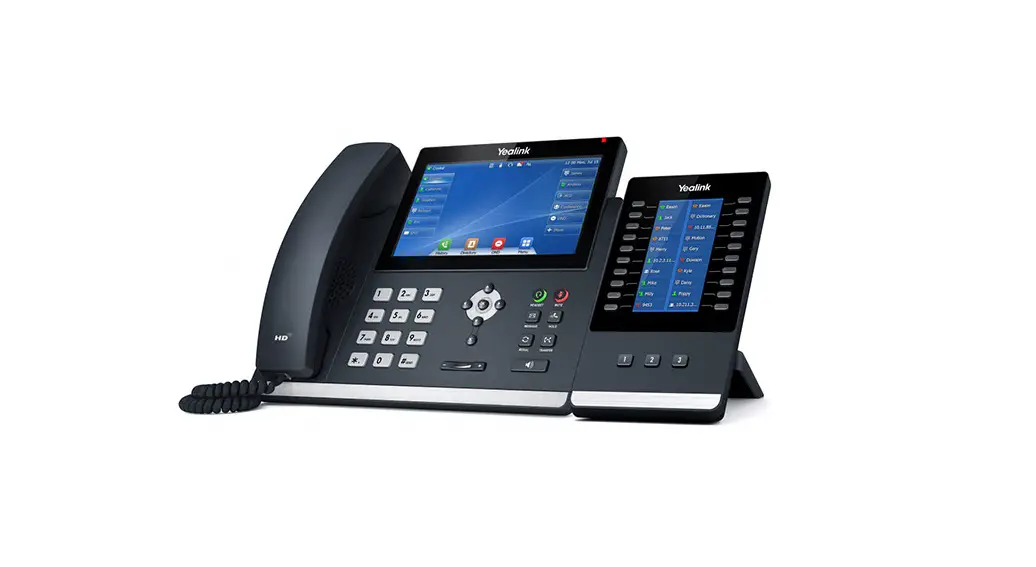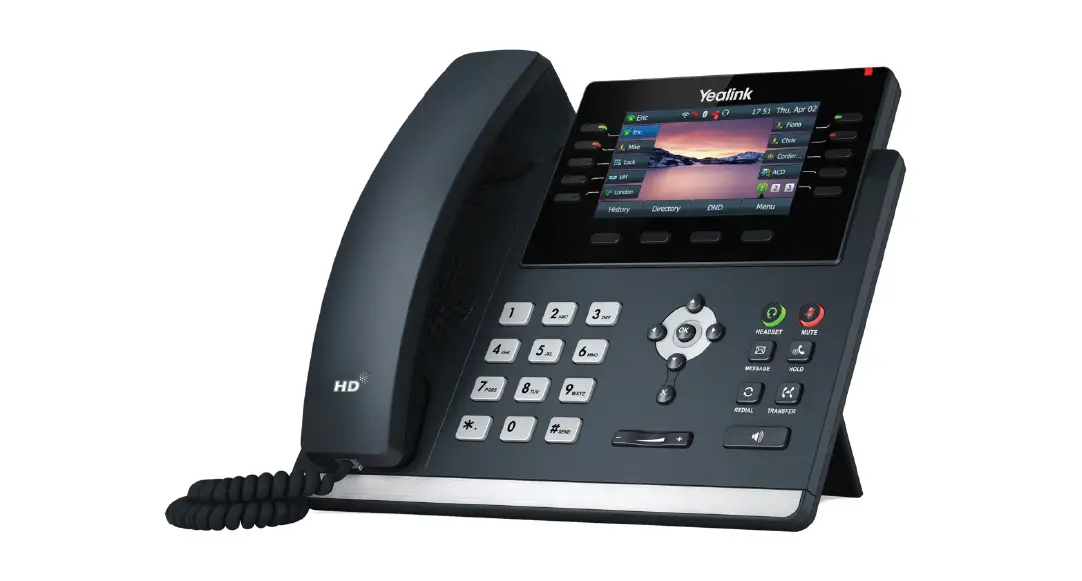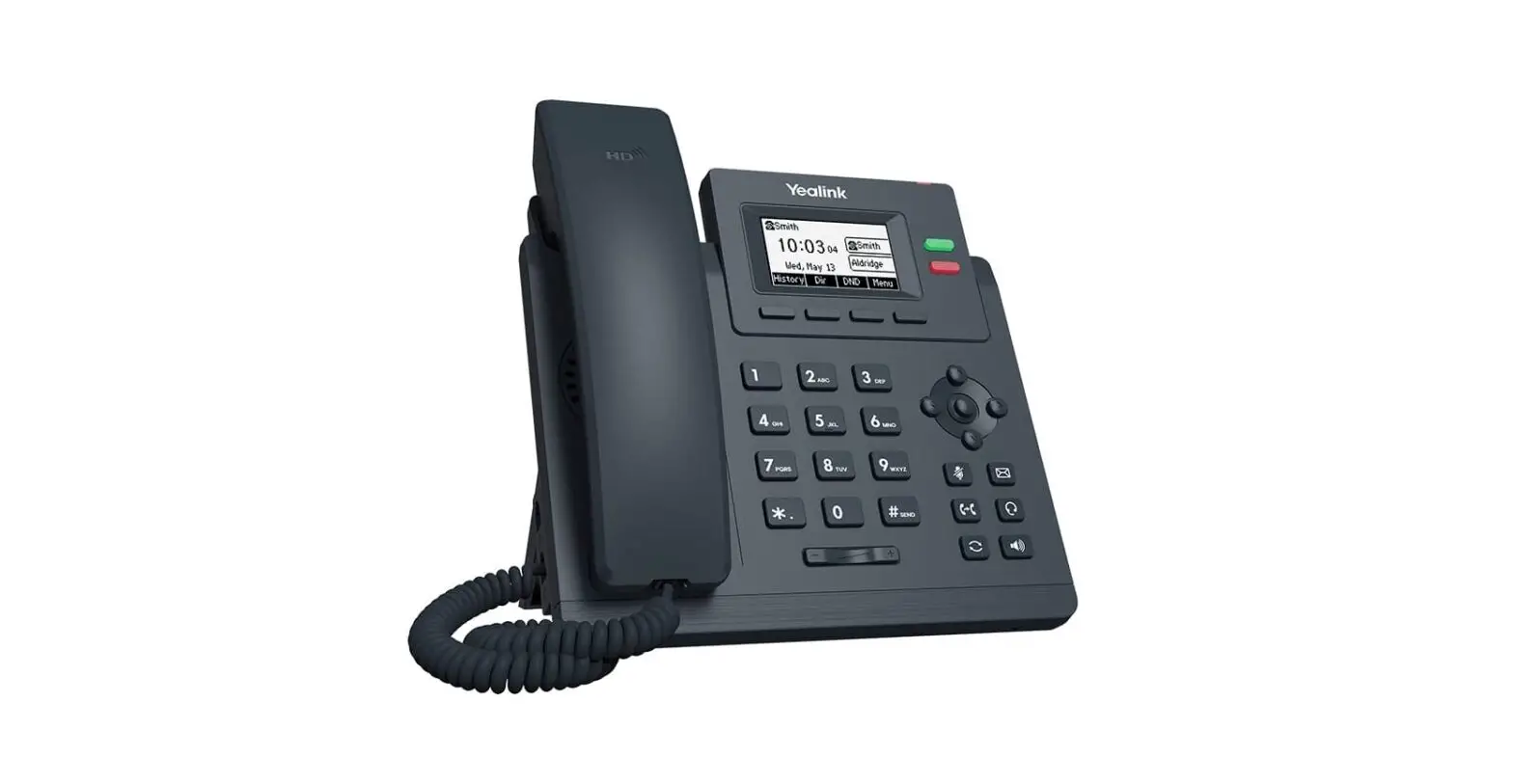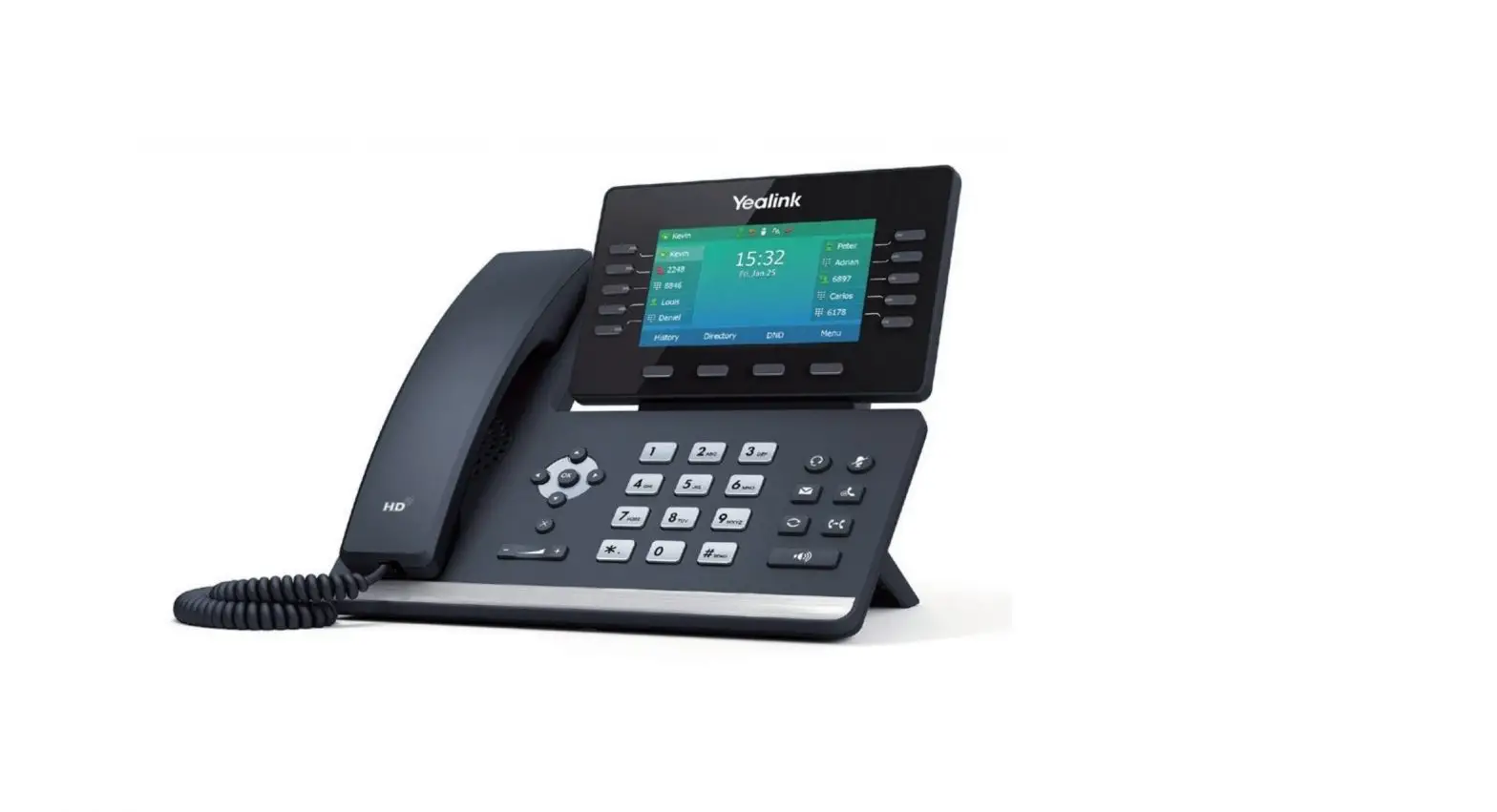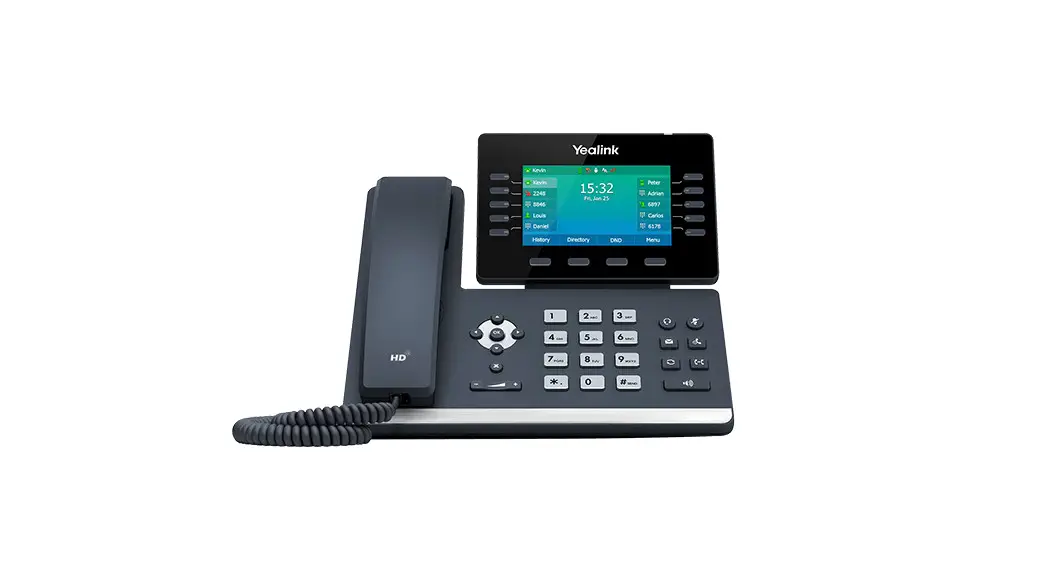

Yealink SIP-T54W 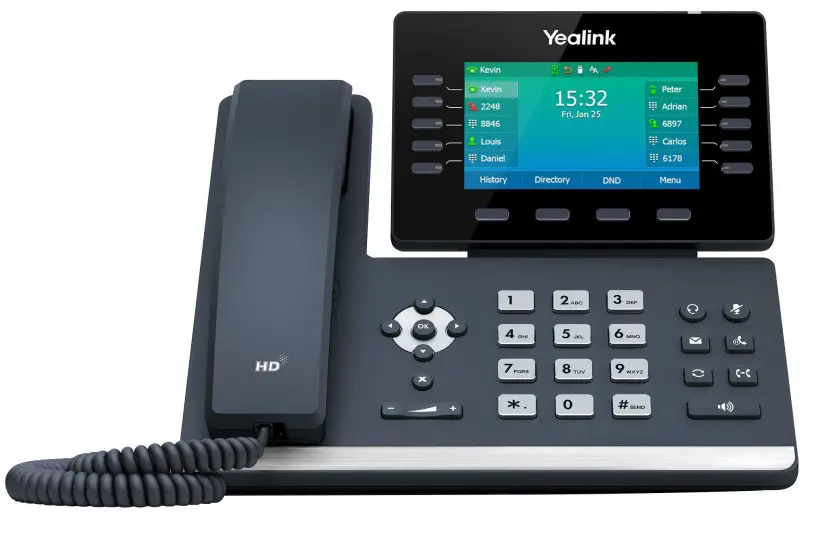 BG Admin Guide
Adding Yealink SIP-T54W to the BG Admin
Accessing the CommPortal BG Admin interface
To configure BG lines, and manage their BG lines and services, a BG Administrator should log in to the CommPortal BG Admin interface using a separate login page to regular users. For example, a BG An administrator might log in at https://commportal.airespring.com/bg. The BG Administrator login page sends the BG Administrator to the BG Administrator section of the default web UI. CommPortal is supported on the latest versions of all major browsers and operating systems. This includes: Microsoft Internet Explorer version 11 Edge Firefox version 3 or later
Google Chrome (Windows only)
Safari version 5 or later (Mac OS X only)
It is supported on the following operating systems: Microsoft Windows VistaMicrosoft Windows 7 Microsoft Windows 8 Microsoft Windows 10 Mac OS X 10.6 Snow Leopard and later, although some features are only supported by later versions JavaScript must be enabled.
Logging into CommPortal BG Admin
The following shows a sample CommPortal login page. 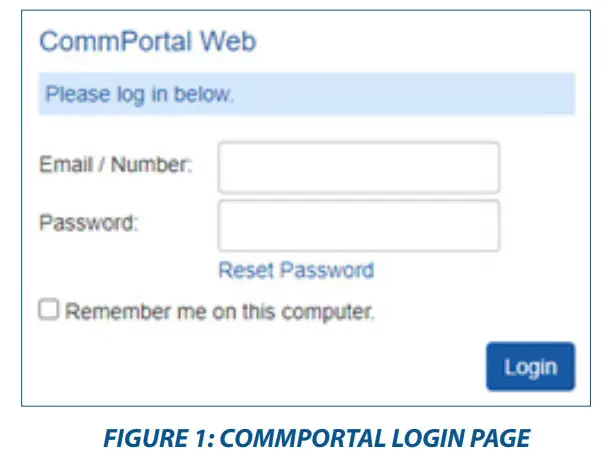
To log into CommPortal, follow these steps:
Enter a phone number with administrative access.
Enter the password.
Click on Login.
If this is the first time you have logged in, you will be prompted to change your password.
Using CommPortal BG Admin
Once you are logged into CommPortal you will see the Business Group Administrator’s homepage.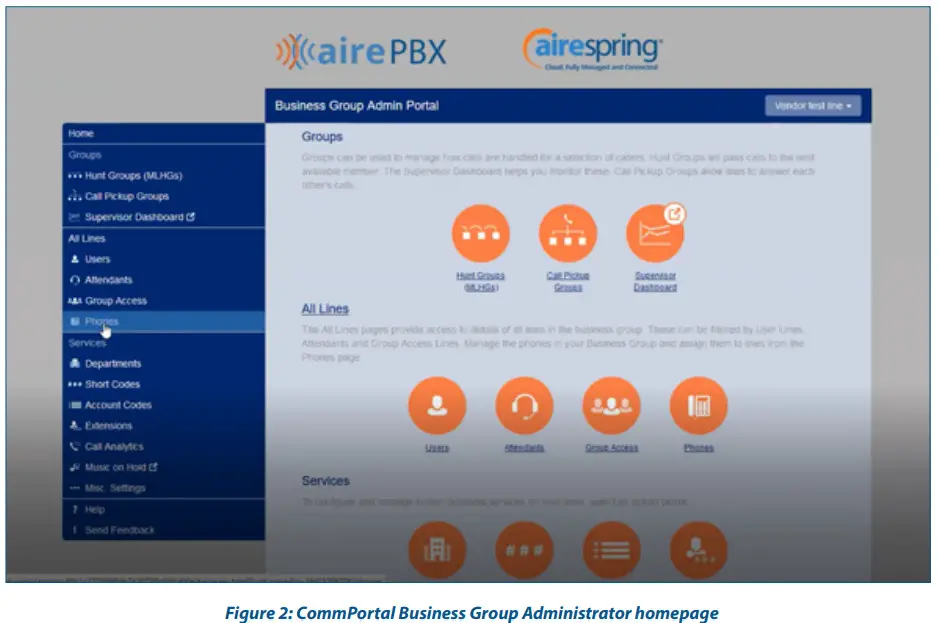
Click on the Phones section at the left-hand side – you can view different departments in case customers have multisite locations.
Building a new phone profile for users
Select a department if the phone model to be added is specific to one location. If the profile is to be used for the entire business, leave blank. Click on manage your phone profile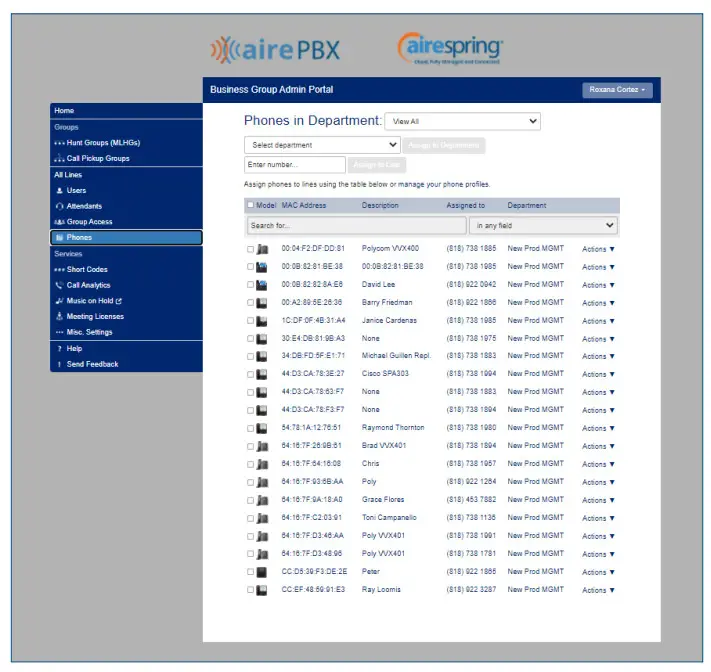
On the next screen select Create a new profile at the bottom of the page
Then select Yealink SIP-T54W
The profile has been created on the BG Admin 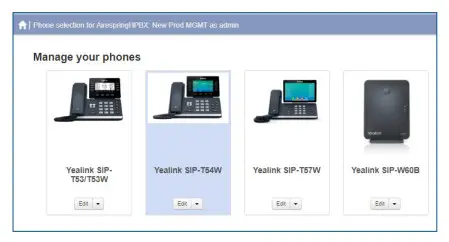
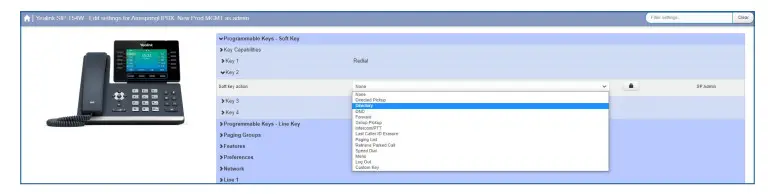
Programmable keys – Line key
The Line Keys capabilities
Click on edit and this will display the programming soft keys option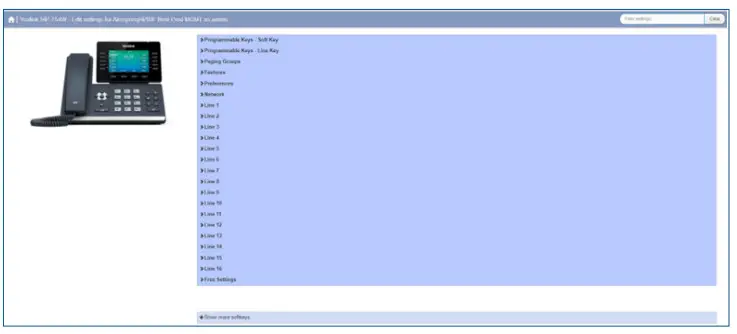
Key Capabilities
In this section, you will be able to enable and disable lines, Direct Pickup, DND, Enhanced Call Park,
Enhanced Monitor, Extension, Forward, Group pickup, Hold, Intercom / PTT, KeyPAd Lock, Last Caller ID
Erasure, LDAP, Paging List, Prefix, Retrieve Parked Call, Speed Dial, Transfer, VoiceMail, Park Call, Log Out,
Freely Retrieve Parked Call.
Key 1 will always be assigned to Line 1
Keys 2 through 27 will allow the following options: 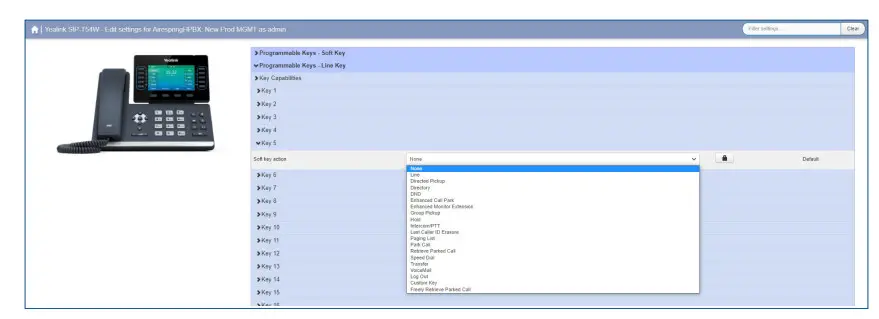
The possible options are as follows: None – this is used when a key is not assigned a function. Line – It configures the LineKey and the soft action you’d like. Directed Pickup – this configures the key as a speed dial to pick up calls ringing on a particular line. Enter the number of the extension you want to pick up calls for in the box provided. Directory – this configures the key to provide you with the phone’s list of contacts. Note: Aastra phones only. Do Not Disturb – configures the key as a Do Not Disturb.Enhanced Call Park – configures a key to park to and monitor a specific orbit Enhanced Monitor Extension – allow you to monitor another user’s phone activityGroup Pickup – this configures the key as a speed dial for the Group Pickup service Hold Intercom/PTT – this configures the key to launch a paging call Last Caller ID Erasure – this configures the key as a speed dial to call the access code which clears the network list of your recent calls.Paging List – display and access the subscribed paging groupsPark Call –Park the call into a system generated park orbit, upon transfer the system will echo the selected park orbit the call is placed into. Retrieved Parked Call – Retrieve a parked call from a specified orbit. Change access code to *54 Speed Dial – this configures the key as a speed dial.Enter the number you want this Speed Dial to call in the box provided. Transfer – this configures the key to transfer a call. VoiceMail – this configures a key to access voice mailLog out – used for Hotdesking/Hoteling. Login via CommPortal credentials. Custom Key – assigned by Service Provider for special functions that are not currently available in the profile.Freely Retrieve Parked Call retrieve a parked call, set the retrieve code to *54 and match the Orbit Number Length field to match the orbit length in use
Whichever option you chose for your key you may enter a label for the key. If your phone has a display next to the key, you configured this label will be shown on the phone display. Once you have finished configuring your key click on OK. The picture of the phone will be updated with the label you gave your new key assignment after the next reboot or nightly configuration pull.
Paging groups
You can make pages and listen to up to 10 paging groups.
Enter the IP multicast IP address of the network (usually 224.0.0.1), leave the port at 10000, and assign the channel you want to use for the group.
The 10 paging groups are separated into Listening and Paging groups. You do not have to Listen to a group if you only need to be able to page into the group.
If you do not want to have calls, automatically put on hold when a new page is received set the Priority
Paging Group under Paging Groups / Settings to 0. This will ignore any incoming pages while the phone is engaged in a call.
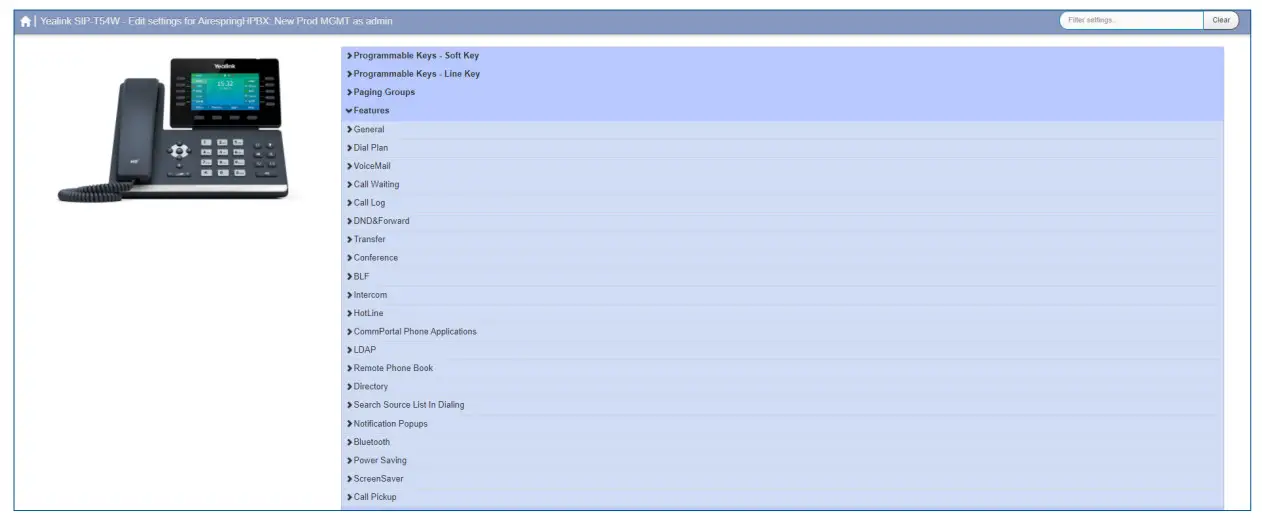
Features
In this section you will be able to customize: General in here you can configure the following: Allow Mute, Autoanswer Mute, AutoAnswer Delay, Keep Mute Enable, Group Listen in Talking Enable, Display Method on Dialing, Recent Call in Dialing, Play Hold Tone, Play Hold Tone Delay, Show Default Account on IDLE, Call Decline Enable, Handset
Mode Enable, Headset Mode Enable, Speaker Mode Enable, Dialtone Time Out, USB Call recording. Dial Plan in here you can configure the following Live Dialpad Enabled, Automatically Outgoing Delay, Digitmap Enable (on hook and Directory Dial), Digitmap Enable (Forward, Press Send) Digitmap String, Digitmap No Match Action. If the Digitmap needs to be changed you can do it by accessing the Dial
Plan option. VoiceMail, in here you can configure voicemail. Call Waiting, in here you can configure Call Waiting and Call Waiting Tone Call Log, in here you can enable and disable Call Log. DND&Forward in here you can custom DND and Forward for the IP phone. Transfer, it configures the ring tone. The conference enables to disable the local conference. BLF, provides four kinds of definitions for the BLF/BLF list key LED status.The intercom enables a mute, tone.HotLine configures the hotline numbers that the IP phone automatically dials out when lifting the handset. CommPortal Phone Applications, it configures the access URL of the com portal platform.LDAP enables or disables LDAP features on IP phones.Remote Phone Book, it configures the name of the remote phone book group displayed on the LCD screen, searches remote and flash time, and refreshes when accessing the remote phonebookDirectory, configures the display priority of the local directory, the history list, remote phone book, and LDAP priority. Search Course List in Dialing, it specifies the priority of the local directory in the search results. Notification Popups, it enables or disables the IP Phone to display the pop-up messages, missed calls, and forward. Bluetooth enables and disables Bluetooth.Power Saving enables and disables the time idle and office hours. The screensaver, configures wait time, screensaver type, and picture change. Call Pick up, it enables and disables the visual and audio alert.
Preferences
In this section you will be able to customize:
General Settings – in here you may enable the page tip (?)(?), set a maximum number of calls per line key, enable, and disable transfer calls using a line key, and conference key using soft keys. Time and Date – in here you’ll be able to set the time format (24 or 12 hours), date format, and much more.Call Display – here you may enable avatar to display on your phone, call party information, and display method. Display – it configures the intensity of the LCD screen when the phone is active, or inactive, it also configures the backlight time, background and expansion image, and LCD Screen contrast. Power LED – it enables and disables the power led flash for missed calls, talk/dial power that will turn on when IP phone is busy, ring power light flash, voice/ text mail power light flashes, hold/held power light on. Ring Tone – it configures ring type, and system ringtone resources. Note: ring settings may be overridden if the incoming call includes an alert-info to indicate long-distance, local, or intra-business calls.Headset – it activates and deactivates the headset key prior a call. Enable and disable the dual headset jack. Configuring the headset key, and ring device for the headset. The dual headset setting will establish two way audio to the RJ9-connected headset and will put the USB-connected headset in a listen-only mode. Voice – it enables or disables the AEC (Acoustic Echo Canceller) feature.Input Methods – it specifies the default input method when searching, and editing for contact whether is alpha, numeric, caps, and /or lower case. Configure the access URL of the input method and delete uploaded input method files. Missing Keypad Lock, Voice, and InternalRinger sections.
Networks
In this section you will be able to customize: PC Port – it enables or disables the PC (LAN) port.Plan – it enables or disables VLAN for the phone Port and PC. Configure VLAN ID and Priority for the Port and PC.It enables or disables the DHCP VLAN discovery feature on the IP phone. It configures the DHCP option from which the IP phone will obtain the VLAN settings. Or can be set to the desired VLAN if not provided by the DHCP server or LLDP-MED. Port Link – it configures the transmission method and speed of the Internet for the PC port. QoS – it configures the DSCP for voice and SIP packets.
Line 1 – 16
Over this section you will be able to customize:
User Information, Auto Answer, Ring Tone, Voicemail Access information, and Call Features
Free settings
Over this section you will be able to customize:
Setting the name and value of the Free Settings Airespring has provided for you. If additional functions are required, please contact us.
 Ready to find out more? Contact us at 888-389-2899,
email [email protected],
or visit our website at www.airespring.com
 AireSpring - Cloud, Fully Managed and Connected
 AireSpring - Cloud, Fully Managed and Connected
 Airespring Administrator