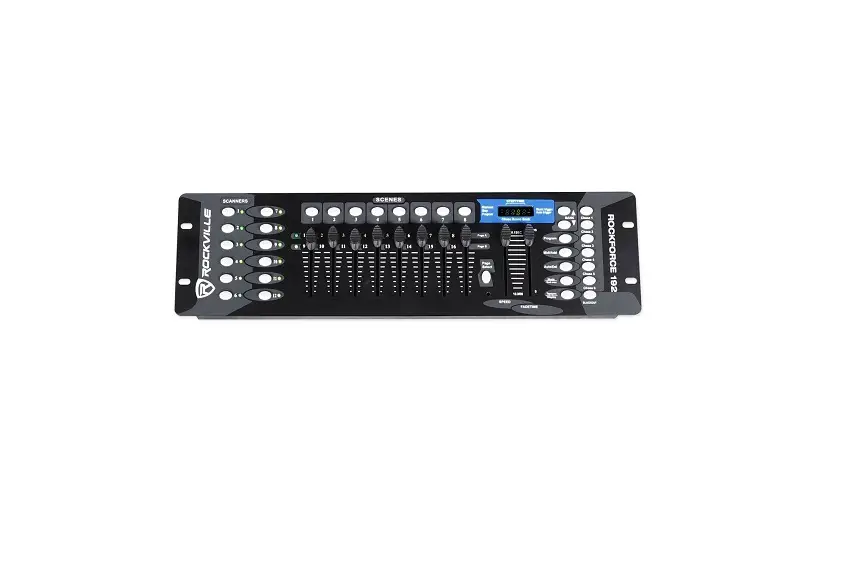
DMX 512 Metal Controller for Professional Show Lighting Control
SMARTBCON192 DMX 512 CONTROLLER
User Manual
Product Information:
The SMARTBCON192 DMX 512 Controller is a universal intelligent
lighting controller. It is designed to control 12 fixtures, each
composed of 16 channels. The controller allows for up to 184
programmable scenes, which can be triggered by music, MIDI,
automatic settings, or manual operation. The controller also
features six chase banks that can contain up to 184 steps, allowing
for the execution of multiple chases simultaneously.
Product Usage Instructions:
Before you begin using the SMARTBCON192 DMX 512 Controller,
please ensure you have the following items included in the
package:
- DMX-512 Controller
- DC 9-12V 500mA, 90V~240V Power Adapter
- Manual
Unpacking Instructions:
Please carefully unpack the contents of the package.
Safety Instructions:
Please read and follow these safety instructions for proper
installation, usage, and maintenance of the controller:
- Keep this User Guide for future reference. If you sell the unit
to another user, make sure they also receive this instruction
booklet. - Always connect the controller to the proper voltage and ensure
that the line voltage does not exceed the stated limit on the decal
or rear panel of the fixture. - This product is intended for indoor use only. Do not expose the
fixture to rain or moisture. Keep flammable materials away from the
unit while operating. - Ensure adequate ventilation by installing the unit at least
50cm away from adjacent surfaces. Do not block ventilation
slots. - Always disconnect the controller from the power source before
servicing or replacing the lamp or fuse. Use the same type of spare
parts during replacements. - If there is a serious operating problem, stop using the unit
immediately and do not attempt to repair it yourself. Contact the
nearest authorized technical assistance center. - Do not connect the device to a dimmer pack.
- Ensure that the power cord is never crimped or damaged.
- Never disconnect the power cord by pulling or tugging on
it. - Do not operate this device under ambient temperature conditions
exceeding 113°F (45°C).
SMARTBCON192
DMX 512 CONTROLLER
USER MANUAL
DMX 512 CONTROLLER SERIES
Contents
1. Before you begin 1.1 What are included……………………………. ………………………………………………………2 1.2 Unpacking instructions…………………………………………………………………………….. 2 1.3 Safety instructions …………………………………………………………………………………… 2
2. Installation 2.1 Features ……………………………………………………………………………………… ……… 3 2.2 General overview…………………………………………………………………………………… 3 2.3 Product overview (front) ……………………………………………………………………………3 2.4 Product overview (rear panel) …………………………………………………………… …… 5 2.5 Common terms………………………………………………………………………………. …….. 5
3. Operating instructions 3.1 SETUP 3.1.1 Setting up the System………………………………………………………………………..6 3.1.2 Fixture Addressing……………………………………………………………….. …… 6 3.1.3 Pan and tilt channels………………………………………………………….. ………… 7 3.1.4 Resetting the system …………………………………………………….. …………… 8 3.1.5 Copy Scanner …………………………………………………………………………………..8 3.1.6 Fade Time Assign……………………………………………………………………………. 8 3.2 OPERATION 3.2.1 Manual Mode………………………………………………………………………………….. 8 3.2.2 Review Scene or Chase…………………………………………………………………….. 9 3.3 PROGRAMMING 3.3.1 Entering program mode…………………………………………………… .9 3.3.2 Create a scene……………………………………………………………. 9 3.3.3 Running a Chase……………………………………………………… ….10 3.3.4 Checking Program………………………………………………………… 10 3.3.5 Editing a Program…………………………………………………………..10 3.3.6 Copy a Program…………………………………………………………… 10 4 3.4 CHASE PROGRAMMING 3.4.1 Create a chase……………………………………………………………… 11 3.4.2 Running a Chase…………………………………………………………. 11 3.4.3 Checking a Chase………………………………………………………… 11 3.4.4 Edit Chase (Copy Bank Into Chase)……………………………………… .12 3.4.5 Edit Chase (Copy Scene Into Chase)……………………………………….12 3.4.6 Edit Chase (Insert Scene Into Chase)……………………………………… 12 3.4.7 Delete a scene in a Chase………………………………………………….. 12 3.4.8 Delete a Chase…………………………………………………………….. 13 3.4.9 Delete all Chase Programs………………………………………………………………. 13 3.5 SCENE PROGRAMMING (STEPS) 3.5.1 Insert a scene……………………………………………………………………………………. .13 3.5.2 Copy a scene…………………………………………………………………………………….. 13 3.5.3 Delete a scene…………………………………………………………………………………….14 3.5.4 Delete all scenes………………………………………………………………………………….14 3.6 PLAYBACK 3.6.1 Running in Sound-Mode………………………………………………………….. …….. 14 3.6.2 Running in Auto-Mode……………………………………………………………. …….. 14 3.6.3 Blackout…………………………………………………………………………………………….15 3.7 MIDI OPERATION………………………………………………………………………………… .15
4. APPENDIX 4.1 DMX Primer………………………………………………………………………………….. ……. 16 4.2 Fixture Linking……………………………………………………………………………… ………17 4.3 DMX dipswitch quick reference chart………………………………………………………….. 18 4.4 Technical specifications …………………………………………………………………. ………19
USER MANUAL 1/19
DMX 512 CONTROLLER SERIES
1.BEFORE YOU BEGIN
1.1 What are included
1) DMX-512 Controlle 2) DC 9-12V 500mA, 90V~240V Power Adapter 3) Manual
1.2 Unpacking Instructions
Immediately upon receiving a fixture, carefully unpack the carton, check the contents to ensure that all parts are present, and have been received in good condition. Notify the shipper immediately and retain packing material for inspection if any parts appear damaged from shipping or the carton itself shows signs of mishandling. Save the carton and all packing materials. In the event that a fixture must be returned to the factory, it is important that the fixture be returned in the original factory box and packing.
1.3 Safety Instructions
Please read these instructions carefully, which includes important information about the installation, usage and maintenance .
* Please keep this User Guide for future consultation. If you sell the unit to another user, be sure that they also receive this instruction booklet.
*Always make sure that you are connecting to the proper voltage and that the line voltage you are connecting to is not higher than that stated on decal or rear panel of the fixture.
* This product is intended for indoor use only! * To prevent risk of fire or shock, do not expose fixture to rain or moisture. Make sure
there are no flammable materials close to the unit while operating. * The unit must be installed in a location with adequate ventilation, at least 50cm
from adjacent surfaces. Be sure that no ventilation slots are blocked. *Always disconnect from power source before servicing or replacing lamp or fuse
and be sure to replace with same lamp source. * In the event of serious operating problem, stop using the unit immediately. Never try to
repair the unit by yourself. Repairs carried out by unskilled people can lead to damage or malfunction. Please contact the nearest authorized technical assistance center. Always use the same type spare parts. * Don t connect the device to a dimmer pack. * Make sure power cord is never crimped or damaged. * Never disconnect power cord by pulling or tugging on the cord. * Do not operate this device under 113 F ambient temperature conditions.
USER MANUAL 2/19
DMX 512 CONTROLLER SERIES
2 .I N T R O D U C T I O N
22..11 Features
* DMX512/1990 Standard * Controls 12 intelligent lights of up to 16 channels, totally 192 channels * 23 banks, each with 8 scenes; 6 chase, each with up to 184 scenes * Record up to 6 chases with fade time and speeds * 16 sliders for direct control of channels * MIDI control over banks, chases and blackout * Built-in microphone for music mode *Black out * 4 digital LED display. 1st chases, 2nd scenes, 3rd & 4th banks * Auto mode program controlled by fade time sliders * DMX in/out: 3 pin XRL * Plastic end housing * Auto-save last running program when switch off/power off and continue to run last
running program while switch ON or power ON again.
22..22 General Overview
* The Controller is a universal intelligent lighting controller. It allows to control 12 fixtures composed of 16 channels each and up to 184 programmable scenes. Six chase banks can contain up to 184 steps composed of the saved scenes and in any order. Programs can be triggered by music, midi,automatically or manually. All chases can be executed at the same time.
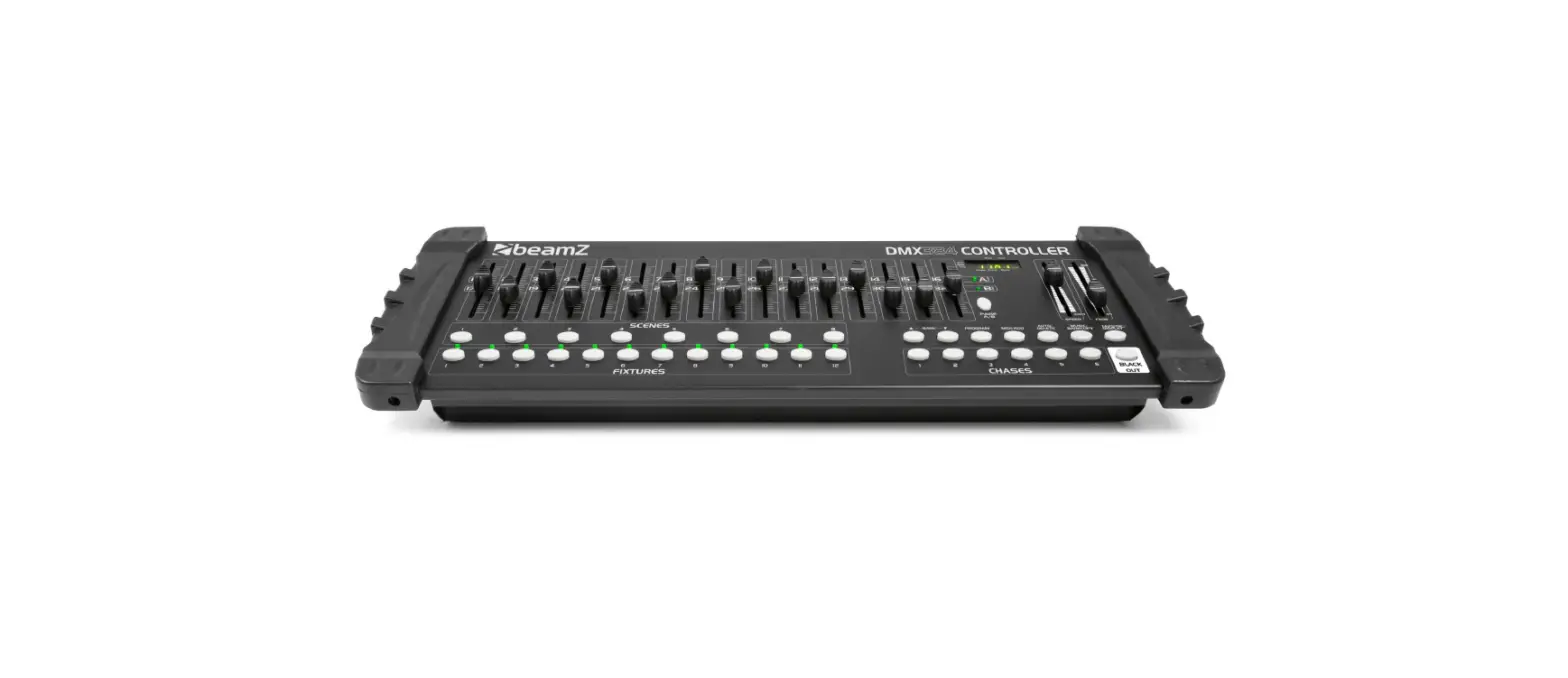
* On the surface you will find various programming tools such as 8 universal channel sliders, quick access scanner and scene buttons, and an LED display indicator for easier navigation of controls and menu functions.
22..33 Product Overview (front)
USER MANUAL 3/19
DMX 512 CONTROLLER SERIES
ITEM Button or Fader
Function
1 Scanner select buttons Fixture selection
2
Scanner indicator LEDS
Indicates the fixtures currently selected
3
Scene select buttons
Universal bump buttons representing scene location for storage and selection
4 Channel faders
For adjusting DMX values, Ch 1~8 can be adjusted immediately after pressing the respective scanner select button, CHL 9-16 after pressing the Page select button
5 Program button
Used to enter programming mode
6
Music/Bank Copy button
Used to activate Music mode and as the copy command during programming
7 LED display window Status window displays pertinent operation data
8 Mode Indicator LEDS Provides operating mode status, (manual, music or auto)
9 Bank Up button
Function button to traverse Scene/Steps in banks or chases
10 Bank Down button Function button to traverse Scene/Steps in banks or chases
11 Tap Display button
12
Blackout button
Sets the chase speed by tapping, and toggles between values and percentages.
Sets the shutter or dimmer value of all fixtures to 0 Causing all light output to cease
13 Midi/ADD button
Activates MIDI external control and also used to confirm the record/save process
14 Auto/Del button
Used to activate Auto mode and as the delete function key during programming
15 Chaser buttons
Chase memory 1 ~ 6
16 Speed fader
This will adjust the hold time of a scene or a step within a chase
17 Fade-Time fader
Also considered a cross-fade, sets the interval time between two scenes in a chase
18 Page A Indicator LED Represents Ch 1~8 range selected,
19 Page B Indicator LED
Represents Ch 9~16 range selected
20
Page select button
In manual mode, press to toggle between pages of
control.
USER MANUAL 4/19
22..44 Product Overview (rear panel)
DMX 512 CONTROLLER SERIES
Item
21
22 23 24 25
Button or Fader
MIDI input port
DMX output connector DC Input jack USB Lamp socket ON/OFF power switch
Function
For external triggering of Banks and Chases using a MIDI device DMX control signal Main power feed
Turns the controller on and off
2.5 Common Terms
The following are common terms used in intelligent light programming.
Blackout is a state by where all lighting fixtures light output are set to 0 or off, usually on a temporary basis
DMX-512 is an industry standard digital communication protocol used in entertainment lighting equipment. For more information read Sections DMX Primer and DMX Control Mode in the Appendix.
Fixture refers to your lighting instrument or other device such as a fogger or dimmer of which you can control.
Programs are a bunch of scenes stacked one after another. It can be programmed as either a single scene or multiple scenes in sequence
Scenes are static lighting states. Sliders also known as faders.
USER MANUAL 5/19
DMX 512 CONTROLLER SERIES
Chases can also be called programs. A chase consists of a bunch of scenes stacked one after another.
Scanner refers to a lighting instrument with a pan and tilt mirror; however, in the ILS-CON controller it can be used to control any DMX-512 compatible device as a generic fixture.
MIDI is a standard for representing musical information in a digital format. A MIDI input would provide external triggering of scenes using midi device such as a midi keyboard.
Stand Alone refers to a fixture s ability to function independently of an external controller and usually in sync to music, due to a built in microphone.
Fade slider is used to adjust the time between scenes within a chase.
Speed slider affects the amount of time a scene will hold its state. It is also considered a wait time.
Shutter is a mechanical device in the lighting fixture that allows you to block the lights path. It is often used to lessen the intensity of the light output and to strobe.
Patching refers to the process of assigning fixtures a DMX channel or.
Playbacks can be either scenes or chases that are directly called to execution by the user. A playback can also be considered program memory that can be recalled during a show.
3.OPERATING INSTRUCTIONS
3.1 Setup
3.1.1 SETTING UP THE SYSTEM
1) Plug the AC to DC power supply to the system back panel and to the mains outlet.
2) Plug in your DMX cable(s) to your intelligent lighting as described in the fixtures respective manual. For a quick Primer on DMX see the”DMX Primer” section in the Appendix of this manual.
33..11..22 FIXTURE ADDRESSING
The Controller is programmed to control 16 channels of DMX per fixture, therefore the f ixtures you wish to control with the correspondin SCANNER buttons on the unit, must be spaced 16 channels apart.
USER MANUAL 6/19
DMX 512 CONTROLLER SERIES
FIXTURE OR
SCANNER #
DEFAULT DMX STARTING ADDRESS
BINARY DIPSWITCH SETTINGS SWITCH TO THE ON POSITION
1
1
1
2
17
1,5
3
33
1,6
4
49
5
65
1,5,6 1,7
6
81
1,5,7
7
97
1,6,7
8
113
1,5,6,7
9
129
1,8
10
145
1,5,8
11
161
1,6,8
12
177
1,5,6,8
Please refer to your individual fixture s manual for DMX addressing instructions. The table above refers to a standard 9 dipswitch binary configurable device.
33..11..33 PAN AND TILT CHANNELS ASSIGNMENT
Because not all intelligent lighting fixtures are alike or share the same control attributes, the Controller allows the user to assign the wheel the correct pan and tilt channel for every individual fixture
Action :
1) Press and hold PROGRAM &TAPSYNC/DISPLAY button at the same time to access the number and are labeled on the surface of the channel assignment mode.
2) Press a SCANNER button that represents the fixture whose faders you would like to re-assign.
3) Press the TAPSYNC DISPLAY button to select pan / tilt.
4) Move one fader of 1-8 or 9-16 channel at different page to select the target PAN/ tilt cdahnisadpnl3nareyd l&1ysot4&uthwi2nindsdhischbaoteewaYsXscigchnhaeandnnnetoel l.nLnuumEmDbbeerryou set
5) Press and hold PROGRAM & TAPSYNC DISPLY buttons to exit and save setting. All LEDs will blink.
Notes :
All pan/tilt can be reassigned to output on a different DMX channel.
Press AUTO/DEL buttons to delete the channel assignment mode.
USER MANUAL 7/19
DMX 512 CONTROLLER SERIES
6) Press page button to choose channel you need at different page)
3.1.4 RESETTING THE SYSTEM Warning:
This will reset the controller to its factory defaults.
ATcthiiosnw:ill erase all programs and settings.
1) Turn off the unit. 2) Press and holdBANK UP and
AUTO/DEL. 3) Turn on power to the unit (while still
holding BANK UP and AUTO/DEL).
Notes :
3.1.5 COPY SCANNER
Example: Copying Scanner 1 into Scanner 2
Action :
1) Press and hold SCANNER button # 1. 2) While holding button # 1 pressSCANNER
button # 2.
3) Release SCANNER button # 1 first before releasingSCANNER button # 2.
4) All SCANNER LED indicators will flash to confirm successful copy.
Notes :
To save time, you can copy the settings of one Scanner button to another.
3.1.6 FADE TIME ASSIGN
You can choose whether the fade time during scene execution is implemented broadly to all output channels or only to the Pan & Tilt movement channels. This is relevant because often you will want gobos and colors to change quickly while not affecting the movement of the light.
Action :
1) Turn OFF the controller. 2) Hold the BLACKOUT and TAPSYNC
DISPLAY buttons simultaneously. 3) Turn ON the controller. 4) Press the TAPSYNC DISPLAY button to
toggle between the two modes. Either all channels(A) or select channel Pan & Tilt only (P)
5) Press BLACKOUT and TAPSYNC DISPLAY to save settings. All LEDs will blink to confirm.
Notes :
A: All channels P: Only Pan & Tilt
3.2 Operation
3.2.1 MANUAL MODE
The manual mode allows direct control of all scanners. You are able to move them and change attributes by using the channel faders.
USER MANUAL 8/19
DMX 512 CONTROLLER SERIES
Action :
1) Press the AUTO DEL button repeatedly until the MANUAL LED is lit.
2) Select a SCANNER button. 3) Move faders to change fixture attributes.
TAPSYNC DISPLAY button: Press to toggle the output indicator on the LED display between DMX values (0-255) and percentage (0-100)
Notes :
All changes made while in Manual Mode are temporary and will not be recorded.
3.2.2 REVIEW SCENE OR CHASE
This instruction assumes that you have already recorded scenes and chases on the controller. Other wise skip section and go to programming.
Action : (SCENE Review)
1) Press the AUTO DEL button repeatedly 2) until the MANUAL LED is lit. All AUTO
Trigger led and Music Trigger led OFF. Move all siders at bottom
Notes :
3) Select any one of the 23 banks by pressing the BANK UP/DOWN buttons.
4) Select a SCENE button (1~8) to review.
Make sure you are still in MANUAL Mode.
5) Move faders to change fixture attributes.
Action : (CHASE Review)
1) Keep pressing PROGRAM button 2 seconds to enter program mode and the indicated led will lit..
2) Press any one of the 6 CHASE buttons. 3) Press the TAPSYNIC/DISPLAY button
to view the step number on the display. 4) Press the BANK UP/DOWN buttons
review all scenes in the chase.
3.3 Programming
A program (bank) is a sequence of different scenes (or steps) that will be called up one after another. In the controller 23 programs can be created of 8 scenes in each.
3.3.1ENTERING PROGRAM MODE
1) Press the Program button around 2 seconds until the LED blinks.
3.3.2CREATE A SCENE :
A scene is a static lighting state. Scenes are stored in banks. There are 23 bank
memories on the controller and each bank can hold 8 scene memories. The
controller can save 184 scenes total.
Action :
1) Press the PROGRAM button until the
Notes :
LED blinks to enter program mode. 2) Select the SCANNERS you wish to
Deselect Blackout if LED is lit.
include in your scene. 3) Compose the effect by moving the sliders.
You can select more than one fixture.
The relative DMX value will be displayed on led display
There are 8 scenes available in every bank.
4) Tap MIDI/ADD button to save setting.
All LEDs will flash to confirm. The LED
5) Choose a bank by BANK UP/DOWN (01~23) to save it to your target BANK.
display will now indicate the Scene number and Bank number used.
USER MANUAL 9/19
DMX 512 CONTROLLER SERIES
6) Select a SCENES button to store. All LED blinks once data are saved. 7) Repeat steps 2 through 6 as need. 8 scenes can be recorded in a Program 8) Press the PROGRAM button until the LED OFF to quite program mode.
3.3.3 RUNNING A CHASE Action :
1) Press AUTO/DEL to enter auto running mode and AUTO indicated led ON.
2) Press target run CHASE number button and tap the TAPSYNC DISPLAY button twice to run it. Multi chases could be selected at the same time to run in cycle.
3) Use BANK UP/DOWN buttons to change Program banks if there is no chase.
4) Adjust the PROGRAM speed via the SPEED fader and the loop rate via the FADE TIME fader. The time between two taps sets the time between SCENES (up to 10 minutes).
3.3.4 CHECK A BANK Action :
1) Press and hold the PROGRAM button until the LED blinks.
2) Use the BANK UP/DOWN buttons to select the PROGRAM bank to review.
3) Press the SCENES buttons to review each scene individually.
3.3.5 EDITING A PROGRAM AcStcioennes: will need to be modified manually.
1) Press and hold the PROGRAM button until the LED blinks.
2) Use BANK UP/DOWN buttons to change Program banks if need.
3) Select the targeted fixture via the SCANNERS button .
4) Adjust and change fixture attributes using the channel faders and wheel.
5) Press the MIDI/ADD button to prepare the save.
6)Select the desired SCENES button to save.
3.3.6 COPY A BANK Action :
1) Press and hold the PROGRAM button until the LED blinks.
2) Use BANK UP/DOWN buttons to select the PROGRAM bank you will copy.
3) Press the MIDI/ADD button to prepare the copy.
Notes :
Deselect Blackout if LED is lit. Also called a Tap-Sync.
the copy.
Notes :
Notes :
Deselect Blackout if LED is lit.
Notes :
All 8 scenes in a Program Bank will be copied.
USER MANUAL10/19
DMX 512 CONTROLLER SERIES
4) Use BANK UP/DOWN buttons to select the destination PROGRAM bank. 5) Press the MUSIC BANK COPY button to execute the copy. All LEDs on the controller will
blink.
3.4 Chase Programming
A chase be created by using previously created scenes. Scenes become steps in a chase and can be arranged in any order you choose. It is highly recommended that prior to programming chases for the first time; you delete all chases from memory. See Delete All Chases for instructions.
3.4.1 CREATE A CHASE
A Chase can contain 184 scenes as steps. The term steps and scenes are used interchangeably.
Action :
1) Press the PROGRAM button until the LED blinks.
Notes :
2) Press the CHASE (1~6) button you wish to program.
3) Change BANK if necessary to locate a scene.
4) Select the SCENE to insert.
5) Tap the MIDI/ADD button to store.
6) Repeat steps 3 ~ 5 to add additional steps in the chase. Up to 240 steps can be recorded.
7) Press and hold the PROGRAM button to save the chase.
3.4.2 RUNNING A CHASE Action :
1) Press AUTO/DEL to enter auto running mode and AUTO indicated led ON.
2) Press target run CHASE number button and tap the TAPSYNC DISPLAY button twice to run it. Multi chases could be selected at the same time to run in cycle.
3) Adjust the PROGRAM speed via the SPEED fader and the loop rate via the FADE TIME fader
Notes :
The time between 2 taps will set the chase speed (up to 10 minutes)
3.4.3 CHECKING A CHASE Action :
1) Press and hold the PROGRAM button until the LED is light.
2) Select the target CHASE button. 3) Press the TAPSYNC/DISPLAY button
to check steps on display. 4) Review each scene/step individually by
using the BANK UP/DOWN buttons.
Notes :
USER MANUAL 11/19
DMX 512 CONTROLLER SERIES
3.4.4 EDIT CHASE (COPY BANK INTO CHASE
Action:
1) Press and hold the PROGRAM button to enter programming mode.
2) Press the desired CHASE button. 3) Select the BANK to be copied using the
BANK UP/DOWN button
Notes:
4) Press MUSIC/BANK COPY button one time to
prepare copy.
5) Press MIDI/ADD button again to copy the bank.
All LEDs will blink.
3.4.5 EDIT CHASE (COPY SCENE INTO CHASE)
Action :
1) Press and hold the PROGRAM button
to enter programming mode. 2) Press the desired CHASE button.
Notes :
3) Select the BANK that contains the scene to be copied using the BANK UP/DOWN
buttons.
4) Press the SCENE button that corresponds to the scene to be copied.
5) Press MIDI/ADD button to copy the scene. All LEDs will blink.
3.4.6 EDIT CHASE (INSERT SCENE INTOACHASE)
Action :
1) Press and hold the PROGRAM button to enter programming mode.
Notes :
2) Press the desired CHASE button.
3) Press the TAPSYNC DISPLAY to switch the LED display to steps view.
4) Use the BANK UP/DOWN buttons to navigate steps and locate the insert point of the new scene.The display will read the step number.
5) Press MIDI/ADD button to prepare the insert.
I.e. To insert a scene between Steps 05 and 06 navigate using BANK buttons until the display reads STEP05. The display will show STEP006 at this time.
6) Use the BANK UP/DOWN button to locate the SCENE.
7) Press the SCENE button that corresponds to the scene to be inserted.
8) Press MIDI/ADD button to insert the scene. All LEDs will blink.
3.4.7 DELETE A SCENE IN A CHASE
Action :
1) Press and hold the PROGRAM button to enter programming mode.
Notes :
2) Press the desired CHASE button that contains the scene to be delete
3) Press the TAPSYNC DISPLAY button to switch the LED display to steps
4) Select the scene/step to be deleted using the BANK UP/DOWN buttons
USER MANUAL 12/19
DMX 512 CONTROLLER SERIES
5) Press AUTO DEL button to delete the step/scene. All LEDs will blink.
3.4.8 DELETE A CHASE Action:
1) Press and hold the PROGRAM button to enter program edit mode.
2) Press the CHASE button (1~6) to be deleted. 3) Press and hold AUTO DEL button and the
selected CHASE button to delete the chase. All LEDs will blink
Notes:
3.4.9 DELETE ALL CHASE PROGRAMS
CAUTION! This procedure will result in irrevocable loss of chase step memory.
The individual scenes and program banks will be preserved.
Action :
1) Turn OFF power of controller. 2) Press and hold the BANK DOWN
button and the AUTO DEL button while turning ON the controller. 3) All LEDs will blink.
Notes :
3.5 Scene Programming (Steps)
3.5.1 INSERT A SCENE Action :
1) Press and hold the PROGRAM button to enter programming mode.
2) Press the desired CHASE button. 3) Press the TAPSYNC DISPLAY to switch
the LED display to steps view. 4) Use the BANK UP/DOWN buttons to
navigate steps and locate the insert point of the new scene.The display will read the step number. 5) Press MIDI/ADD button to prepare the insert. 6) Use the BANK UP/DOWN button to locate the SCENE. 7) Press the SCENE button that corresponds to the scene to be inserted. 8) Press MIDI/ADD button to insert the scene. All LEDs will blink.
Notes :
I.e. To insert a scene between Steps 05 and 06 navigate using BANK buttons until the display reads STEP05.
The display will show STEP006 at this time.
3.5.2 COPY A SCENE
Action :
1) Press and hold the PROGRAM button to enter programming mode.
2) Select the BANK that contains the scene to be copied using the BANK UP/DOWN buttons.
3) Press the SCENE button that corresponds to the scene to be Copied.
5) Select the destination BANK that contains the scene memory to record onto using the BANK UP/DOWN buttons.
6) Press the desired SCENE button to complete copy.All LEDs will blink.
Notes :
USER MANUAL 13/19
DMX 512 CONTROLLER SERIES
4) Press MIDI/ADD button to copy the scene. 5) Select the destination BANK that contains the scene memory to record onto using the BANK UP/DOWN buttons 6) Press the desired SCENE button to complete copy.All LEDs will blink
3.5.3 DELETE A SCENE Action :
1)Press and hold the PROGRAM button to enter programming mode.
2) Select the BANK that contains the scene to be deleted by using the BANK UP/DOWN buttons.
3) Press and hold the AUTO DEL button. 4)Press the SCENE button that
corresponds to the scene you want to delete. All LEDs will blink.
Notes :
When deleting a scene the physical location is not removed, however, all 384 DMX channels available to the scene will be set to value 0.
3.5.4 DELETE ALL SCENES Action :
1) Press and hold the PROGRAM button and the BANK DOWN button while switching off power to the controller.
2) Turn the controller back on.
Notes : CAUTION!
This process is irreversible. All scenes with data will be set to 0.
3.6 Playback
3.6.1 RUNNING IN SOUND-MODE Action :
1) Press the MUSIC BANK COPY button until the MUSIC LED turns on.
2) Select the program BANK to run in sound active mode using the BANK UP/DOWN buttons.
3) Alternatively you can press a single CHASE button(1~6) or several CHASE buttons in sequence and all selected chases will loop in the order selected.
4) You can adjust the duration time using the FADE TIME fader.
3.6.2 RUNNING IN AUTO-MODE Action :
1) Press the AUTO DEL button until the AUTO LED turns on.
2) If a CHASE button is not pressed the controller will automatically run a BANK program.
3) Change BANK programs by using BANK UP/DOWN buttons.
4) Alternatively you can press a single CHASE button(1~6) or several CHASE buttons in sequence and all selected
Notes :
In the Sound mode, programs will be triggered by the sound using its built-in microphone. Multiple chases selected will loop and run in the order originally selected.
loopin the order selected.
Notes :
In the Auto mode, programs will be triggered by controllers fade and speed time as set on the faders. Multiple chases selected will loop and run in the order originally selected.
USER MANUAL 14/19
DMX 512 CONTROLLER SERIES
chases will loop in the order selected. 5) You can adjust the time between steps by moving the SPEED fader and the duration of the
step by moving the FADE TIME fader
3.6.3BLACKOUT
The Blackout button brings all lighting output to 0 or off.
3.7MidOperation
The controller will only respond to MIDI commands on the MIDI channel is set to full stop. All MIDI control is performed using Note on commands. All other MIDI instructions are ignored. To stop a chase, send the blackout on note.
Action :
1)Press and hold the MIDI/ADD button for about 2 seconds.
2) Select the MIDI control channel (1~16) via the BANK UP/DOWN buttons to set.
3) Press and hold the MIDI/ADD button for 3 seconds to save settings.
4) To release MIDI control, press any other button except the BANK buttons during step 2.
Notes :
This is the Channel that the controller will receive MIDI note commands.
MIDI Value
00 to 07 08 to 15 16 to 23 24 to 31 32 to 39 40 to 47 48 to 55 56 to 63 64 to 71 72 to 79 80 to 87
FUNCTION (TURN ON/OFF)
Scenes 1~8 in BANK 1 Scenes 1~8 in BANK 2 Scenes 1~8 in BANK 3 Scenes 1~8 in BANK 4 Scenes 1~8 in BANK 5 Scenes 1~8 in BANK 6 Scenes 1~8 in BANK 7 Scenes 1~8 in BANK 8 Scenes 1~8 in BANK 9 Scenes 1~8 in BANK 10 Scenes 1~8 in BANK 11
MIDI Value
FUNCTION (TURNON/OFF)
88 to 95 Scenes 1~8 in BANK 12
96 to 103 Scenes 1~8 in BANK 13
104 to 111 Scenes 1~8 in BANK 14
112 to 119 Scenes 1~8 in BANK 15
120
Chase 1
121
Chase 2
122
Chase 3
123
Chase 4
124
Chase 5
125
Chase 6
126
BLACKOUT
USER MANUAL 15/19
DMX 512 CONTROLLER SERIES
4. APPENDIX
4.1 DMX Primer
There are 512 channels in a DMX-512 connection. Channels may be assigned in any manner. A fixture capable of receiving DMX 512 will require one or a number of sequential channels. The user must assign a starting address on the fixture that indicates the first channel reserved in the controller. There are many different types of DMX controllable fixtures and they all may vary in the total number of channels required. Choosing a start address should be planned in advance. Channels should never overlap. If they do, this will result in erratic operation of the fixtures whose starting address is set incorrectly. You can however, control multiple fixtures of the same type using the same starting address as long as the intended result is that of unison movement or operation. In other words, the fixtures will be slaved together and all respond exactly the same. DMX fixtures are designed to receive data through a serial Daisy Chain. A Daisy Chain connection is where the DATA OUT of one fixture connects to the DATA IN of the next fixture. The order in which the fixtures are connected is not important and has no effect on how a controller communicates to each fixture. Use an order that provides for the easiest and most direct cabling. Connect fixtures using shielded two conductor twisted pair cable with three pin XLR male to female connectors. The shield connection is pin 1, while pin 2 is Data Negative (S-) and pin 3 is Data positive (S+).
USER MANUAL 16/19
DMX 512 CONTROLLER SERIES
4.2 FIXTURE LINKING
Occupation of the XLR-connection:
DMX-OUTPUT XLR mounting-socket:
DMX-OUTPUT XLR mounting-plug:
1- Ground 2 – Signal (-) 3 – Signal (+)
1- Ground 2 – Signal (-) 3 – Signal (+)
Caution: At the last fixture, the DMX-cable has to be terminated with a terminator.Solder a 120 resistor between Signal (-) and Signal (+) into a 3-pin XLR-plug and plug it in
the DMX-output of the last fixture.
In the Controller mode, at the last fixture in the chain, the DMX output has to be connected with a DMX terminator. This prevents electrical noise from disturbing and corrupting the DMX control signals. The DMX terminator is simply an XLR connector with a 120W (ohm) resistor connected across pins 2 and 3, which is then plugged into the output socket on the last projector in the chain. The connections are illustrated below.
120 ohm
PIN 2
PIN3
If you wish to connect DMX-controllers with other XLR-outputs, you need to use adapter cables.The transform of the controller line of 3 pins and 5 pins (plug and socket)
USER MANUAL 17/19
DMX 512 CONTROLLER SERIES
4.3 DMX Dipswitch Quick Reference Chart
DMX Address Quick Reference Chart
Dip Switch Position
DMX DIP
#9 0 0 0 0 0 0 0 0 1 1 1 1 1 1 1 1
SWITCH SET #8 0 0 0 0 1 1 1 1 0 0 0 0 1 1 1 1
O=FF 1=ON
#7 0 0 1 1 0 0 1 1 0 0 1 1 0 0 1 1
X=OFF or ON #6 0 1 0 1 0 1 0 1 0 1 0 1 0 1 0 1
#1 #2 #3 #4 #5
0 0 0 0 0
32 64 96 128 160 192 224 256 288 320 352 384 416 448 480
1 0 0 0 0 0 1 0 0 0
1 33 65 97 129 161 193 225 257 289 321 353 385 417 449 481 2 34 66 98 130 162 194 226 258 290 322 354 386 418 450 482
1 1 0 0 0
3 35 67 99 131 163 195 227 259 291 323 355 387 419 451 483
0 0 1 0 0
4 36 68 100 132 164 196 228 260 292 324 356 388 420 452 484
1 0 1 0 0
5 37 69 101 133 165 197 229 261 293 325 357 389 421 453 485
0 1 1 0 0 1 1 1 0 0
6 38 70 102 134 166 198 230 262 294 326 358 390 422 454 486 7 39 71 103 135 167 199 231 263 295 327 359 391 423 455 487
0 0 0 1 0 1 0 0 1 0
8 40 72 104 136 168 200 232 264 296 328 360 392 424 456 488 9 41 73 105 137 169 201 233 265 297 329 361 393 425 457 489
0 1 0 1 0
10 42 74 106 138 170 202 234 266 298 330 362 394 426 458 490
1 1 0 1 0 0 0 1 1 0
11 43 75 107 139 171 203 235 267 299 331 363 395 427 459 491 12 44 76 108 140 172 204 236 268 300 332 364 396 428 460 492
1 0 1 1 0 0 1 1 1 0
13 45 77 109 141 173 205 237 269 301 333 365 397 429 461 493 14 46 78 110 142 174 206 238 270 302 334 366 398 430 462 494
1 1 1 1 0
15 47 79 111 143 175 207 239 271 303 335 367 399 431 463 495
0 0 0 0 1 1 0 0 0 1
16 48 80 112 144 176 208 240 272 304 336 368 400 432 464 496 17 49 81 113 145 177 209 241 273 305 337 369 401 433 465 497
0 1 0 0 1 1 1 0 0 1
18 50 82 114 146 178 210 242 274 306 338 370 402 434 466 498 19 51 83 115 147 179 211 243 275 307 339 371 403 435 467 499
0 0 1 0 1 1 0 1 0 1 0 1 1 0 1
20 52 84 116 148 180 212 244 276 308 340 372 404 436 468 500 21 53 85 117 149 181 213 245 277 309 341 373 405 437 469 501 22 54 86 118 150 182 214 246 278 310 342 374 406 438 470 502
1 1 1 0 1 0 0 0 1 1
23 55 87 119 151 183 215 247 279 311 343 375 407 439 471 503 24 56 88 120 152 184 216 248 280 312 344 376 408 440 472 504
1 0 0 1 1 0 1 0 1 1
25 57 89 121 153 185 217 249 281 313 345 377 409 441 473 505 26 58 90 122 154 186 218 250 282 314 346 378 410 442 474 506
1 1 0 1 1 0 0 1 1 1 1 0 1 1 1
27 59 91 123 155 187 219 251 283 315 347 379 411 443 475 507 28 60 92 124 156 188 220 252 284 316 348 380 412 444 476 508 29 61 93 125 157 189 221 253 285 317 349 381 413 445 477 509
0 1 1 1 1 1 1 1 1 1
30 62 94 126 158 190 222 254 286 318 350 382 414 446 478 510 31 63 95 127 159 191 223 255 287 319 351 383 415 447 479 511
Dip Switch Position
DMX Address
USER MANUAL 18/19
4.4 Technical Specifications
DMX 512 CONTROLLER SERIES
Dimensions…………………………………………………………………………………….482 X133 X82 mm Weight…………………………………………………………………………………………………………… 2.0 Kg Operating Range………………………………………………………………..DC 9V-12V 500mA min Maximum ambient temperature……………………………………………………45 Data input ………………………………………………………………locking 3-pin XLR male socket Data output ………………………………………………………….locking 3-pin XLR female socket Data pin configuration ……………………………………………..pin 1 shield, pin 2 (-), pin 3 (+) Protocols……………………………………………………………………………………DMX-512 USITT
USER MANUAL 19/19