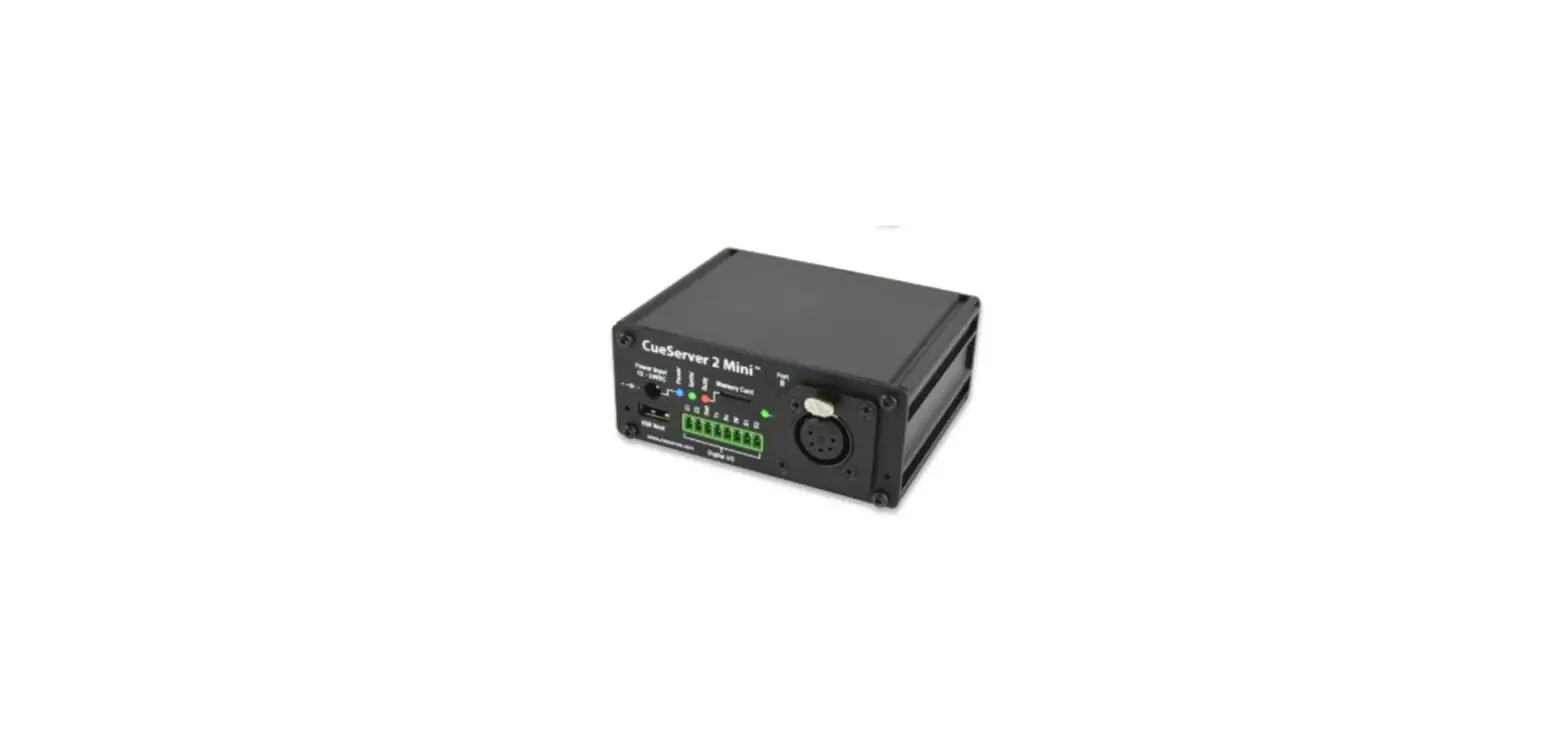
CS-3110 CueServer 3 Core DMX Lighting Control Unit
CueServer 3 Core (CS-3110) Quick Start Guide
Hardware Overview
The CueServer 3 Core (CS-3110) is a versatile lighting control
system. It allows you to control lighting fixtures and devices
through an Ethernet connection.
Mounting Bracket Attachment
The CueServer 3 Core comes with a mounting bracket for easy
installation. Please refer to the user manual for detailed
instructions on how to attach the mounting bracket.
What’s in the Box
- CueServer 3 Core (CS-3110)
- Power cable
- Ethernet patch cable
- User manual
Front Panel
The front panel of the CueServer 3 Core includes the following
components:
- Power Status/Input Reset button
- USB Jack
- microSD Card slot
- Gigabit Ethernet port
Rear Panel
The rear panel of the CueServer 3 Core features an Ethernet
port. Use an Ethernet patch cable to connect the CueServer to your
Ethernet switch or directly to your computer.
Product Usage Instructions
To use the CueServer 3 Core, follow these steps:
- Connect the CueServer to a power source using the provided
power cable. - Use an Ethernet patch cable to connect the CueServer to your
Ethernet switch or directly to your computer. - Ensure that the CueServer is properly connected to the
network. - Visit cueserver.com for additional resources and support.
Please refer to the user manual for more detailed instructions
on configuring and using the CueServer 3 Core.
Contact Information
For any inquiries or assistance, please contact Interactive
Technologies, Inc. at:
- Address: 5295 Lake Pointe Center Drive, Cumming, GA 30041,
USA - Phone: 1-678-455-9019
- Website: interactive-online.com
Disclaimer
Specifications are subject to change without notice. Interactive
Technologies is not responsible for errors or omissions. All
trademarks mentioned are the property of their respective
owners.
Date of Manual: 1/16/2023
CueServer 3 Core (CS-3110) Quick Start Guide
Hardware Overview
Mounting Bracket Attachment
What’s in the Box
· CS-3110 CueServer 3 Core Processor · Power Supply
Front Panel
Power Status/ Input Reset
USB Jack
microSD Card
Gigabit Ethernet
Rear Panel
Startup Procedure · Connect CueServer to the Network
Use an Ethernet patch cable to connect CueServer to your Ethernet Switch or directly to your computer.
· Connect CueServer to Power Use the included Power Supply with CueServer.
· Open CueServer Studio on your Computer You can download CueServer Studio from cueserver.com.
· CueServer should appear in the Navigator Window CueServer Studio’s main Navigator Window searches for and displays all
CueServers found on the network.
What’s Next
· Visit our Website for More Our website contains more information, including User’s Manual, Downlaods, Guides, Examples, Training and more. You can start your CueServer journey at:
cueserver.com
Interactive Technologies, Inc.
5295 Lake Pointe Center Drive Cumming, GA 30041 USA 1-678-455-9019 interactive-online.com
Specifications subject to change without notice. Interactive Technologies is not responsible for errors or omissions. All trademarks are the property of their respective
owners. Copyright © 2022-23, Interactive Technologies, Inc. All rights reserved worldwide.
D0551A 1/16/2023
 cueserver.com
 interactive-online.com