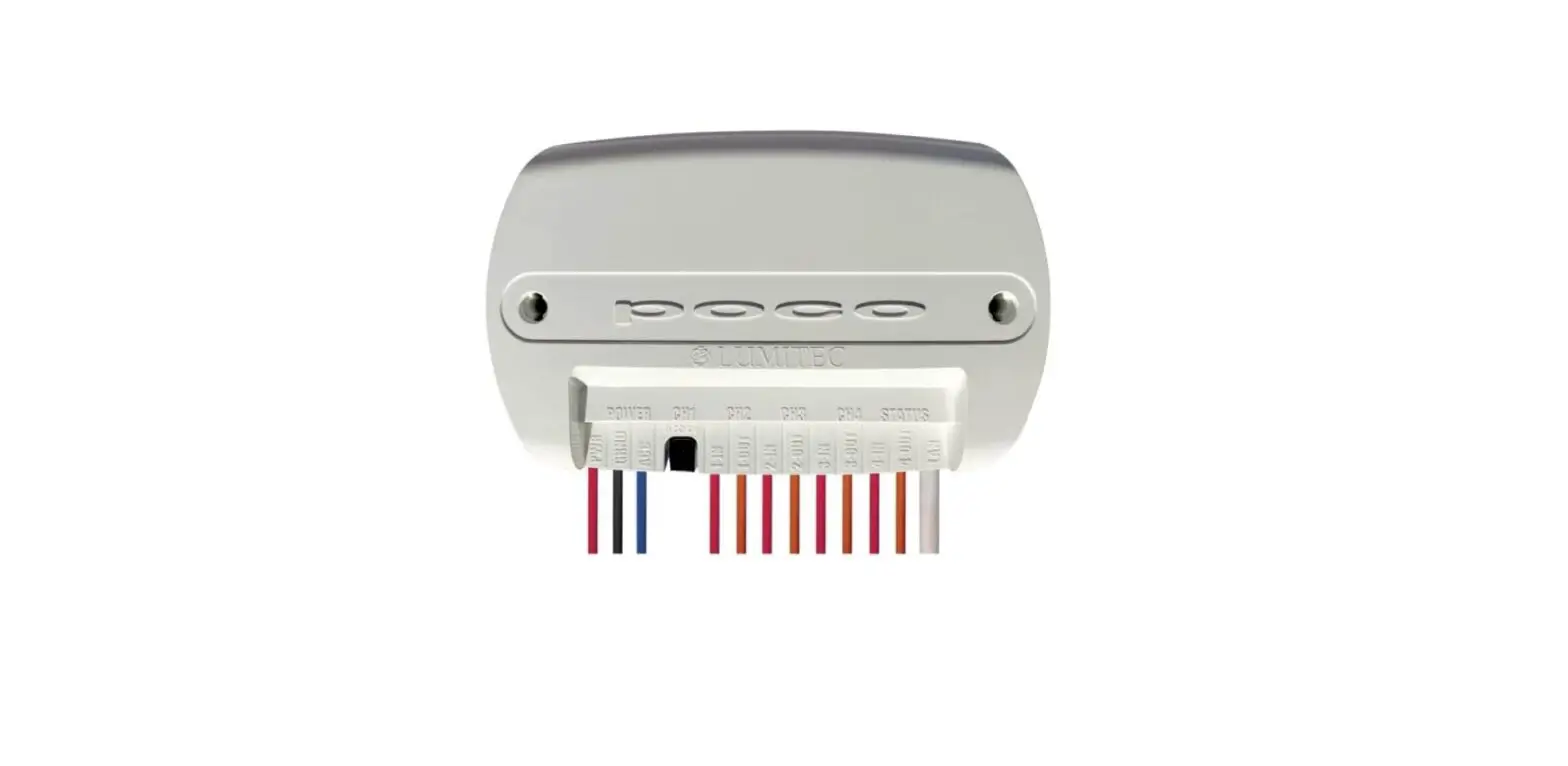
 POCO
POCO
DIGITAL LIGHTING CONTROL
QUICK START GUIDE
STEP 1:
Plan and Install Your Digital Lighting System
http://lumiteclighting.com/poco-quick-start
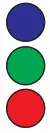 | Aft Hardtop Lights Aft Spreader Lights Fwd Hardtop Lights |
 | Fwd Spreader Lights Under Gunwale Lights Underwater Lights |
http://lumiteclighting.com/poco-quick-start/
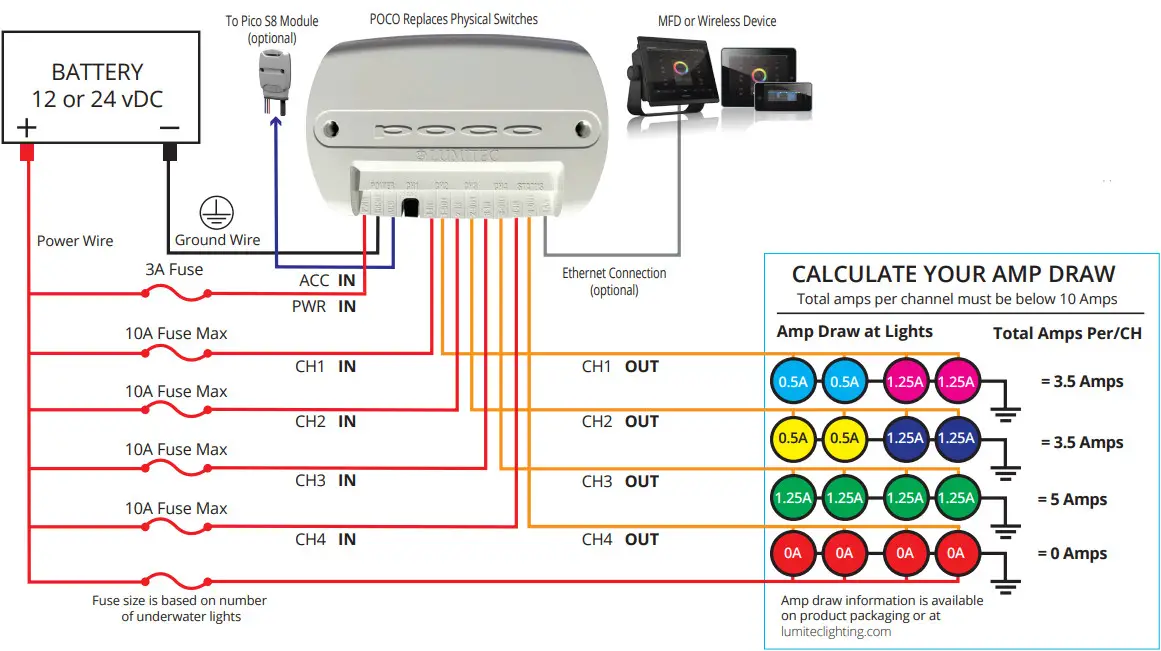
Connect to Poco
Step 1: installation on the reverse side
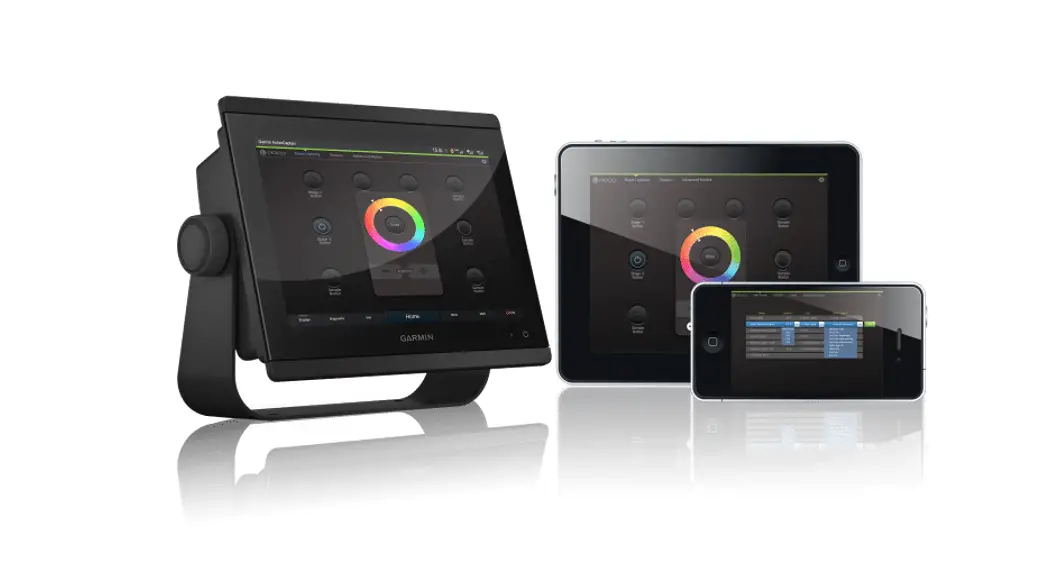
A. Poco can be connected to a chart plotter (MFD) and/or a mobile device.
B. For an MFD connect the network cable to a compatible display. For a list of compatible displays visit: http://lumiteclighting.com/poco-quick-start
C. For mobile devices connect using the Lumitec Poco App available on Apple or Google Play stores. You will be prompted to connect to Poco on launching the app.
Helpful Details:
– Poco default SSID number on the back of the device.
– Default Poco configuration access passcode: 0000
– Default Wi-Fi and Bluetooth password on the back of the device
– Wi-Fi web access to the user interface: 192.168.4.1
Create Light Groups
Select configuration in the setting menu (top right of screen). Assign Channel and Clan for each light location on your boat (underwater lights, spreaders lights, etc.).
Examples:
| Name: LG_aft_hardtop | Name: LG_fwd_hardtop |
| Channel: 1 | Channel: 2 |
| Clan: 1 – Down Lights | Clan: 1 – Down Lights |
| Output: Lumitec Spectrum | Output: Lumitec Spectrum |
| Name: LG_aft_spreader | Name: LG_underwater |
| Channel: 1 | Channel: 3 |
| Clan: 2 – Flood Lights | Clan: 4 – Flood Lights |
| Output: Blue / White | Output: Lumitec Spectrum |
Create Switches
(configuration menu)
Assign a default intensity and color to each switch.
Example Simple Switch:
Name: Aft Hardtop
Target: LG_aft_hardtop
Intensity: 50%
Color: Red
You can create lighting scenes by assigning multiple light groups to more than one target.
Example Scene Switch:
Name: Night Fishing
- Target: LG_aft_hardtop,
Intensity: 20%,
Color: Red - Target: LG_fwd_hardtop,
Intensity: 20%,
Color: Red - Target: LG_under_gunwale,
Intensity: 100%,
Color: Green
Add Switches to Layout Pages
A. Select a location for your switch.
B. Select the plus (+) button symbol.
C. Select desired to switch from list.
Note: Visual order of switches will be arranged by the order of the switch creation. Switches cannot be rearranged after they have been added to a screen, only deleted.
Go to http://lumiteclighting.com/poco-quick-start for more detailed information.
Check Status Indicators
- POWER Indicator – Illuminates Green if POCO is powered on.
PWR must have a supply voltage between 10-30vDC.
CH1, CH2, CH3 or CH4 Indicator –
•Illuminates Red if power is supplied to channel from fuse/breaker panel.
• Illuminates Green if power is supplied to channel input and channel is turned on inside of POCO controller; PLI enabled lights may be OFF.
• Flashes Orange if PLI data is transmitted.
• Illuminates Orange if the channel is dimmed through a PWM signal.
STATUS Indicator – - A green blinking light indicates WiFi connection status:
• 0 blinks: WiFi disabled
• 1 blink: WiFi-enabled but not connected to any peers
• 2 blinks: WiFi is connected to one or more peers - A blue blinking light indicates Bluetooth-LE connection status:
• 0 blinks: Bluetooth-LE is disabled
• 1 blink: Bluetooth-LE enabled but not connected
• 2 blinks: Bluetooth-LE is connected
A Clarence Technologies Company Power Line Instruction
Look for the PLI icon on packaging for product compatibility
IMPORTANT: To use the supplied information provided within this quick start guide all lights installed must be PLI compatible.
For lights that are non-PLI or a non Lumitec brand, refer to our website at http://lumiteclighting.com/check4pli for additional installation information.