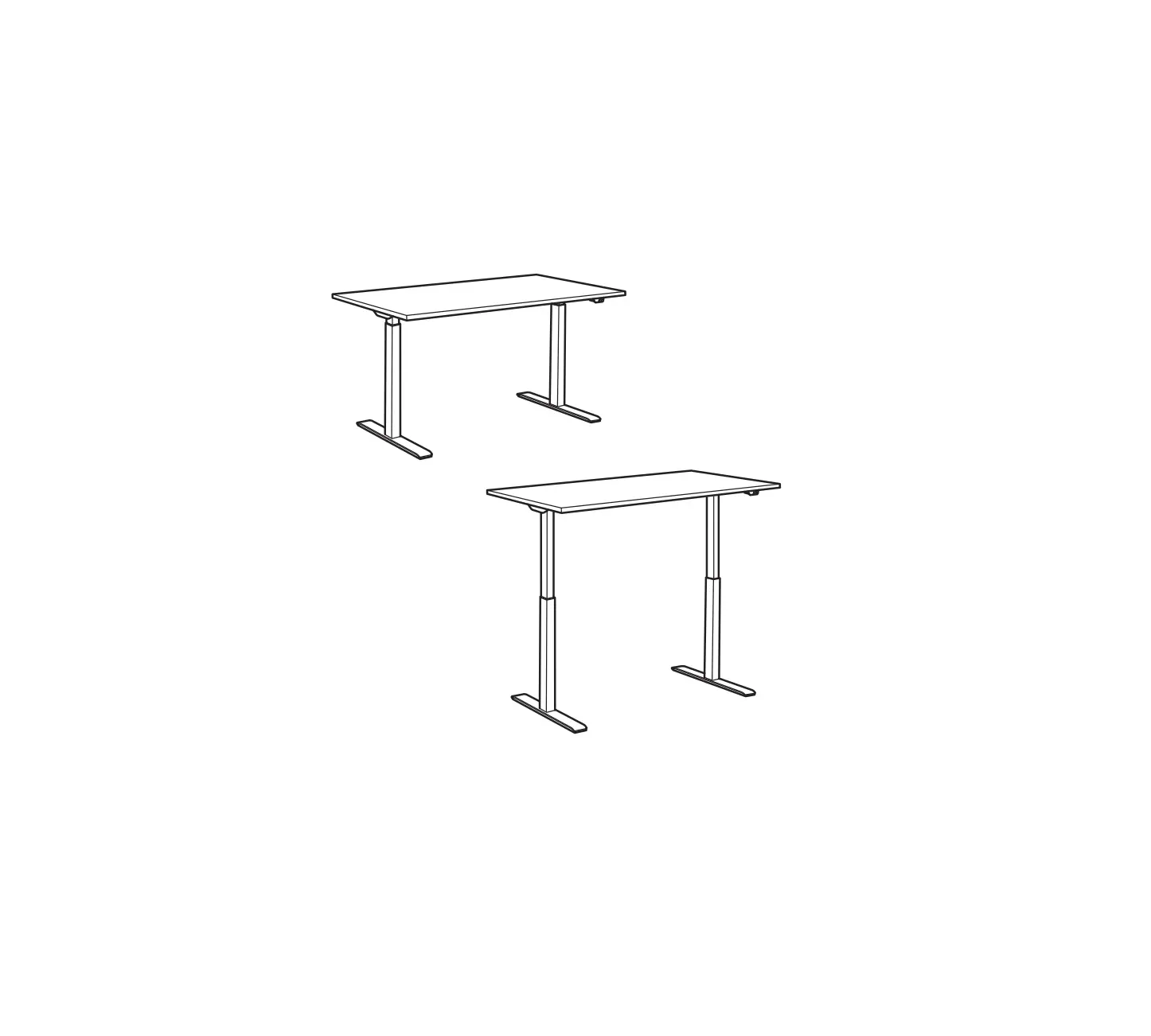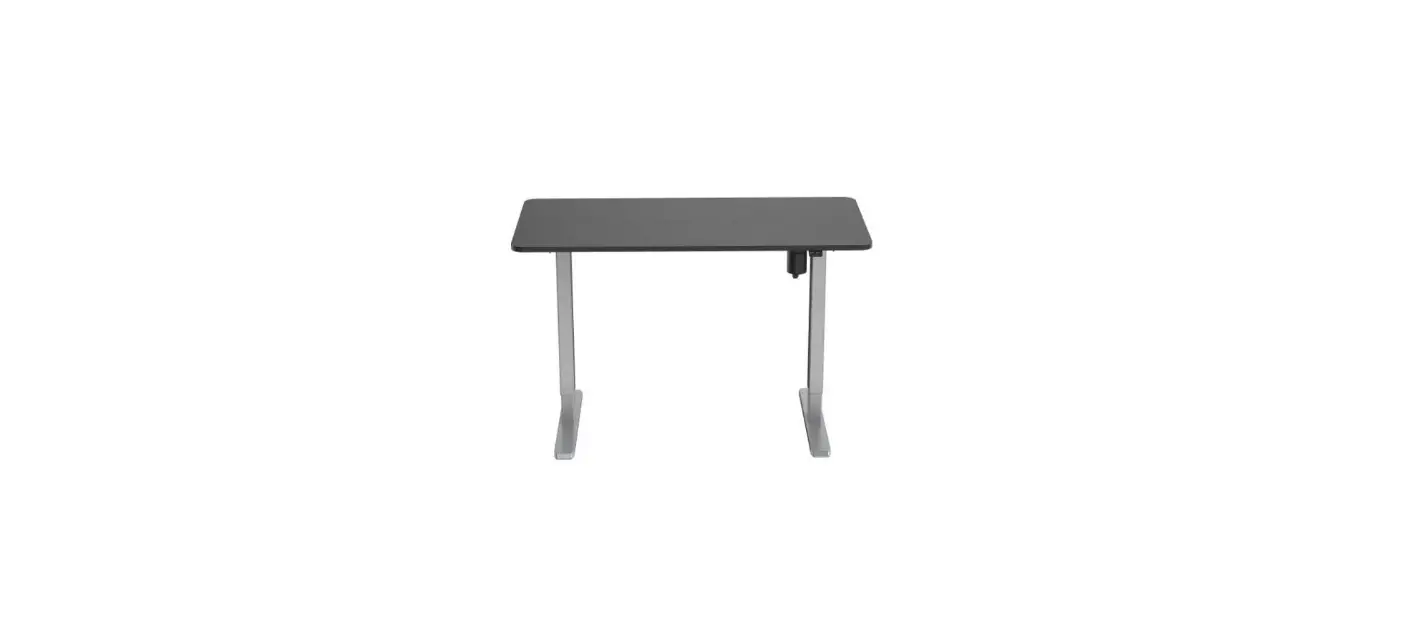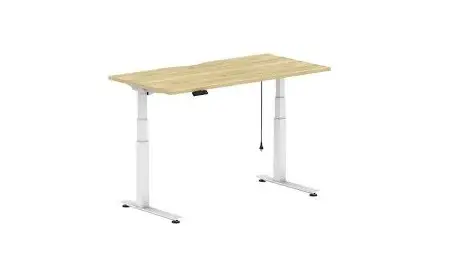
STiLFORD S2 Electric Sit Stand Desk User Manual
Initial Setup
After the initial assembly of the desk or if the display shows either of “E10, E16, E20 or E60”, press the button for 5 seconds until it shows
 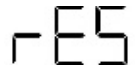 , the desk will automatically move down to the lowest and rebound back up. The Initial Setup process is then finished and will display the lowest height position (072)
Lifting
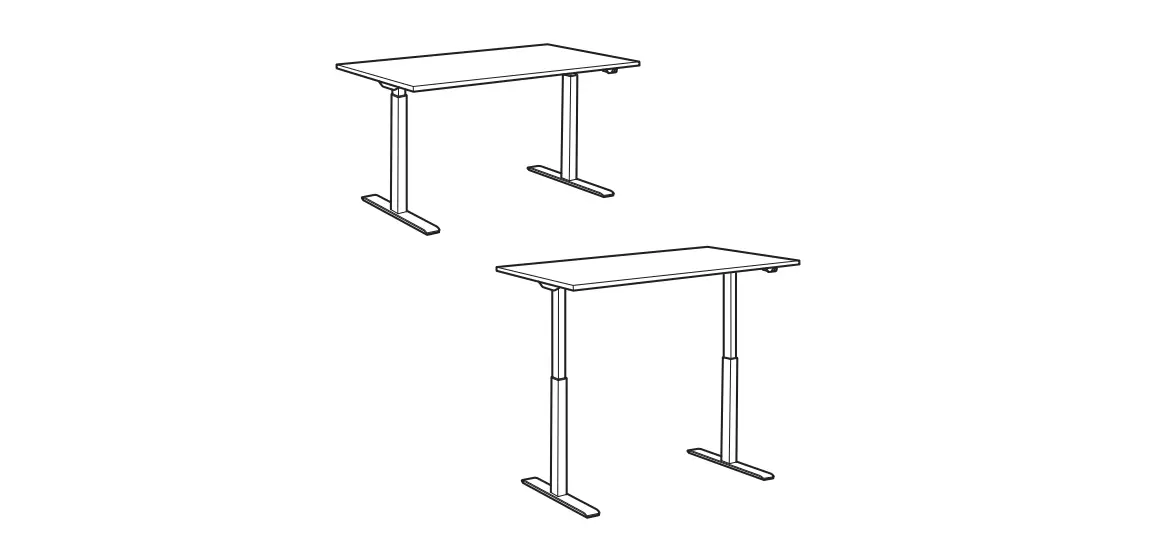
The desk will go up and down when pressing or  .
.
Height memory setting
Move the desk up or down to a desired position. Press  the button after which the display will blink, then press a numeric key (
  ) to save the desired height to the corresponding preset position. The display will stop blinking and exit the memory mode if there is no numeric key pressed within 5 seconds. Once you have saved the desired height you can press that numeric key to automatically move the desk to the saved height.
Setup Mode
- Press and hold the
 button for 5 seconds, display will show “S and blink.
 - Press the button to move through the below setup menu functions, then press
 to select menu, and press “S” into menu.
- Unit(
 ): Display height on screen in centimeters or inches;
 - Brightness(
 ): Brightness of the controller;
 - Beep(
 ): Turn on/off beep sound;
 - Collision Force(
 ): Collision protection sensitivity;
- Unit(
 ): Display height on screen in centimeters or inches;
 ): Brightness of the controller;
To navigate through the setup menu use the below buttons:
(1) Backspace key (back to previous menu) or Exit Setup Mode|Tab switch Enter key (enter to next menu or confirm the current operation)
If there is no numeric key pressed within 20 seconds the Setup Mode will be exited.
| Main menu interface | Submenu interface | Description |
 Unit Unit |  CM CM | Select height unit to be displayed in cm or inches. or to choose the height unit, and press to confirm and save it. The system will exit after 2 seconds. |
 Inch Inch | ||
 Brightness Brightness |  Low Low | Select brightness setting of controller. Use or to choose the brightness level, and press to confirm and save it. The system will exit after 2 seconds. |
 Normal Normal | ||
 High High | ||
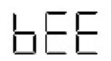 Beep Beep |  Off Off | Turn on or off the beep sound. Use or to choose sound on or off, and press to confirm and save it. The system will exit after 2 seconds. |
 On On | ||
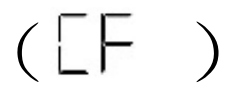 Anti-Collision Sensitivity Adjustment Anti-Collision Sensitivity Adjustment | Off | Press button for a few seconds until controller shows “S–“. Press button 1 time. Screen will show “Un”. Press or until screen shows “CF”.Press button 1 time to get into anti-collision options.Press or to select anti-collision sensitivity.Refer to left options to select the sensitivity level (suggest Heavy Level “H” or OFF. Press to confirm your selection then “S” again to exit the menu and return to desk height. |
| Light – Light touch will cause desk to stop movement. Suitable where desk may come into contact with objects to prevent damage eg. Filing drawer beneath desk. | ||
| Normal | ||
| Heavy – Requires significant touch/impact to cause desk to stop movement. Suitable where there are not obstructions. |
Protection codes and warnings
| E16 | Block protection 1. Message “E16” relates to the desk’s stability and sensitivity and the anti collision function within the transformer. 2. Please ensure the transformer, part 10, sits flat in the tray, part 15, and part 15 is level. Then press up or down button for height adjustment. 3. Message “E16” will flash on the screen for 5 to 10 seconds if the desk hits or has been hit by an object during operation. Please ensure you remove the object away from the desk then press the up or down button to adjust your desk height. 4. If error message “E16” continues to flash, please unplug the desk and wait for at least 1 minute before you plug it back in. You will also need to check and ensure all cables are connected properly following the assembly instructions. Once you have done the check, plug the desk back into the powerpoint and start the Stroke Reset Process by pressing the down arrow for 5 seconds until it shows “rES”, the desk will automatically move down to the lowest position and rebound back up. 5. If above steps cannot resolve the problem, please follow Anti-Collision Sensitivity Adjustment process on page 2, to adjust the anti collision protection sensitivity. |
| HOT | Overheat protection The desk has entered the overheat protection after operating for a long time. Wait for 20 minutes before operating again to allow the desk to cool down. |
| E10 | Motor fault protection Check and confirm the connection between motor and controller is correct as per the Assembly Instructions, then power the desk off and on again and follow the follow the Stroke Reset Process. |
| E20 | Overload protection The desk has more weight than the intended weight capacity. Remove objects from the desktop to ensure the desk is not overload with weight then power the desk off and on again or follow the Stroke Reset Process. |
| E31 | Undervoltage protection An alarm will sound when the supply voltage is lower than the required voltage. Power the desk off and on again or follow the Stroke Reset Process. |
| E32 | Overvoltage protection An alarm will sound when the supply voltage is higher than the required voltage. Power the desk off and on again or follow the Stroke Reset Process. |
| E60 | Out-of-step protection Check and ensure the motors of each leg are at an identical height and their connection to the controller is correct as per the Assembly Instructions, then power the desk off and on again or follow the Stroke Reset Process. |
If you see the code not listed on above. Please turn off the desk for 3 minutes and turn on it again. If still not solve the problem, please contact 1300 office (1300 633 23) for spare parts or hardware replacement.
Mechanical Reset
- Power the desk off.
- Check and confirm the connections between motor and controller are correct as per assembly instructions.
- Power the desk on.
- Press “ ” button for 3-4 second until it shows “S – – ” and is flashing.
- Press “” button 1 time to go into the menu showing “Un”.
- Press up arrow button 2 times until it shows “rS “.
- Press “ ” button again the screen will now show “OFF”.
- Press up arrow button until it shows “ON”.
- Press “” button again and “ON” will stop flashing.
- Hold the down arrow button for the desk to move down until it shows “072”.
UNEVEN LEGS: If the issue is that the legs are uneven, the higher leg should come down first until it is at the same height as the lower leg. Then screen will now show “E20” then show current height of desk. If you press “down” arrow and the desk still will not move, please try to hold down the “ ” button for 3-4 second until the desk goes down to it’s programmed lowest position of “072”. - Hold the down arrow button again until the screen shows “rES”. Desk will automatic go down until it reaches to the lowest position “067”.
- You can use the up and down arrow to adjust your desk height as per normal.
The default lowest height is 72cm
If you want to adjust lowest position to 67cm please follow below step.
- Press “” button for 3-4 second until it shows “S – – ” and flash.
- Press “ ” button 1 time to go into the menu showing “Un”.
- Press “down” arrow button 4 times until it shows “SH”.
- Press “ ” button again the screen will now show “0”.
- Press “down” button again until it shows “L”.
- Press “down” button again until it shows “072”.
- Press “down” button until it shows “067” .
- Press ” ” button 1 time to confirm the lowest position.
- Press “down” button until desk to “067” .