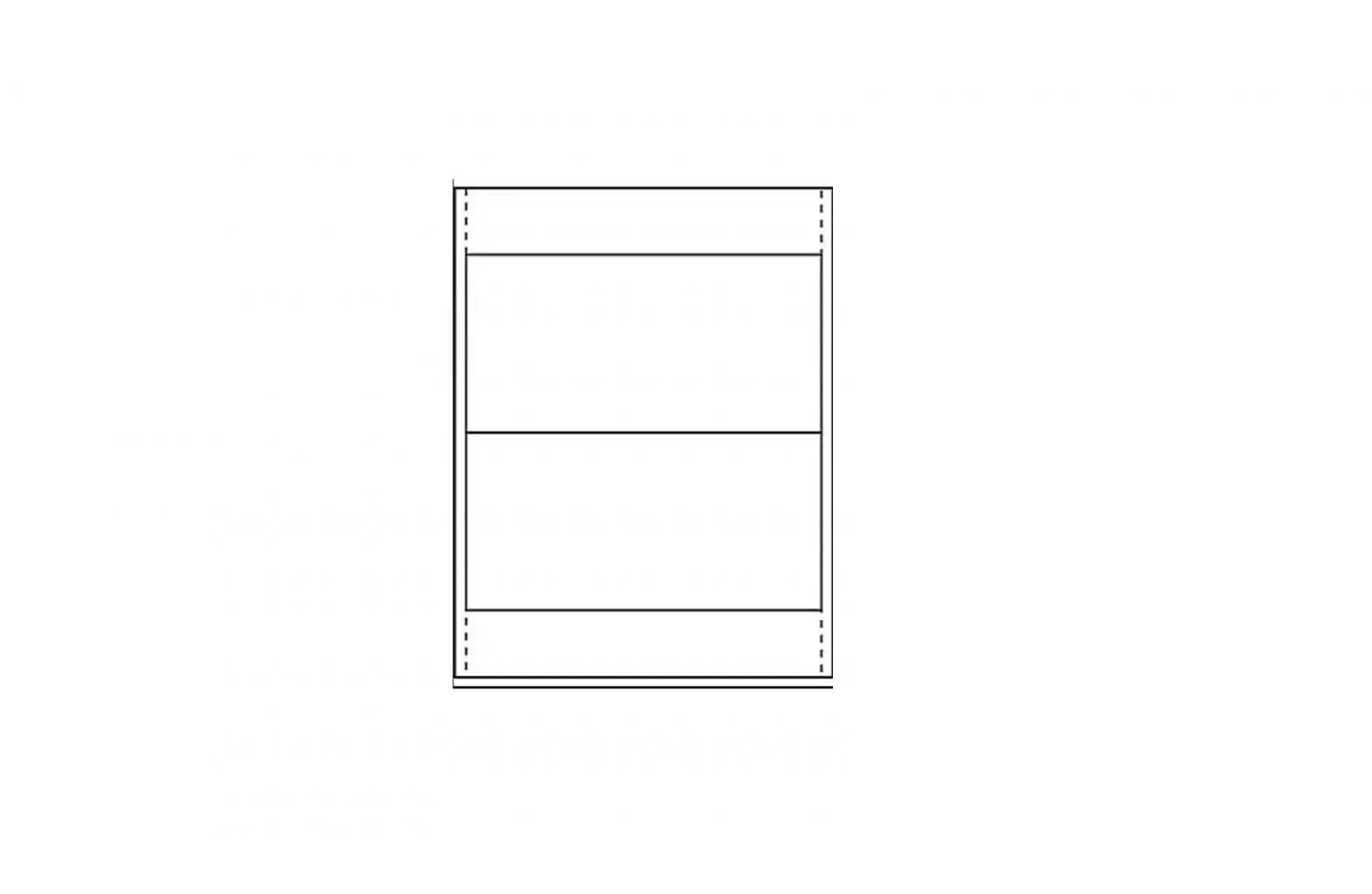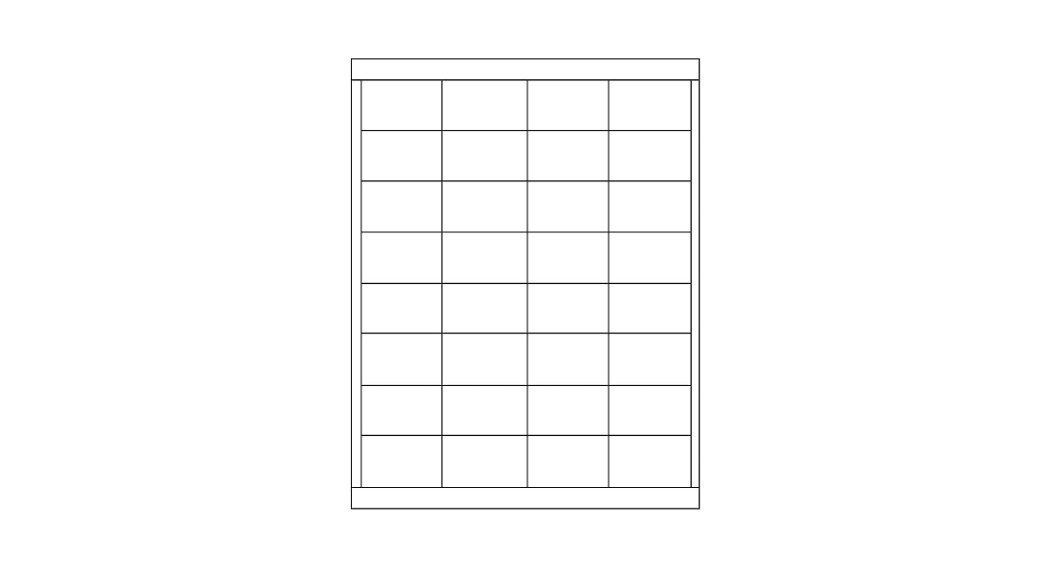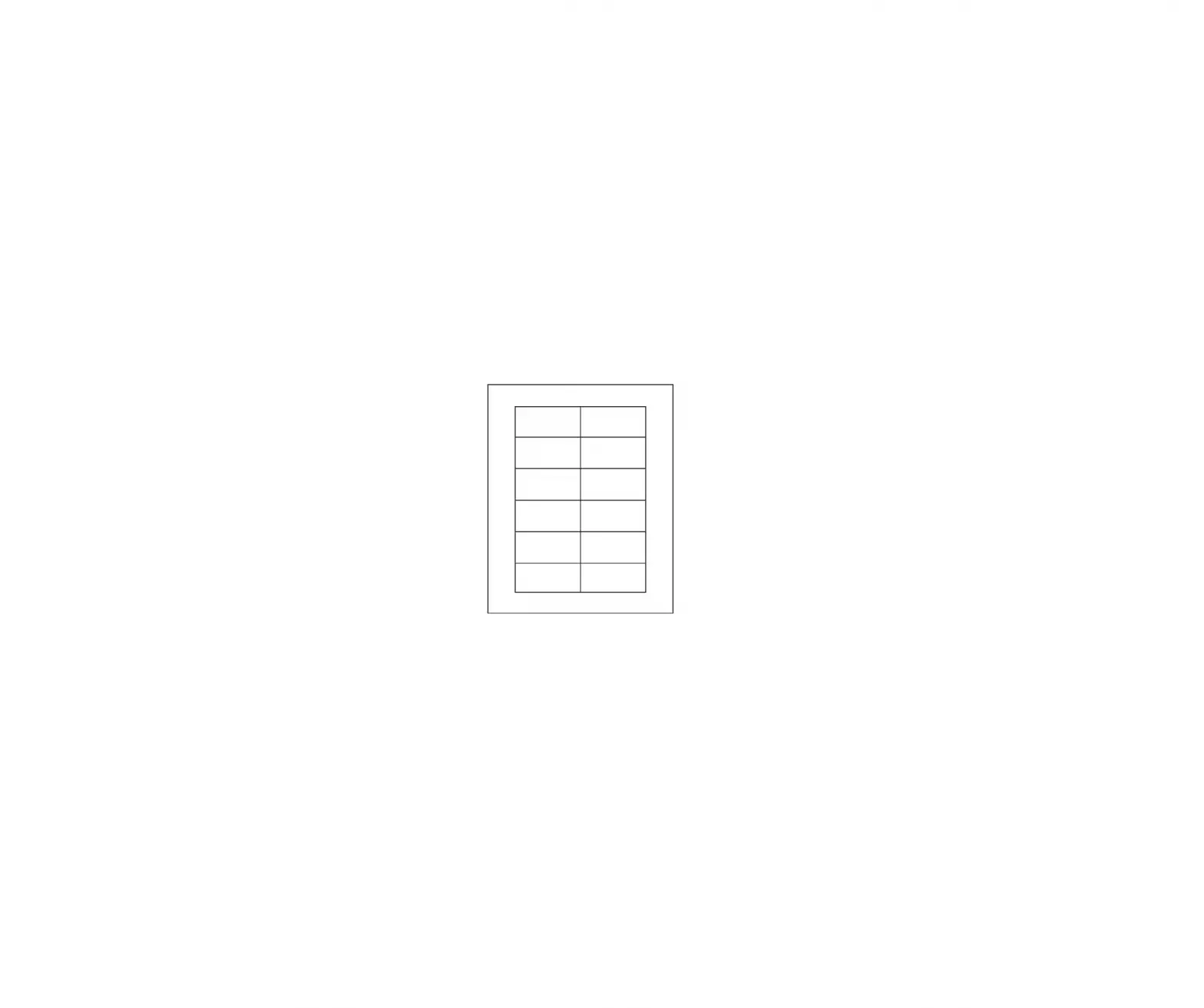
 S-7702 INSERT CARDS
1-800-295-5510
uline.com
INSTRUCTIONS
MICROSOFT WORD 2010 SETUP (PC USERS)
CREATING LABELS
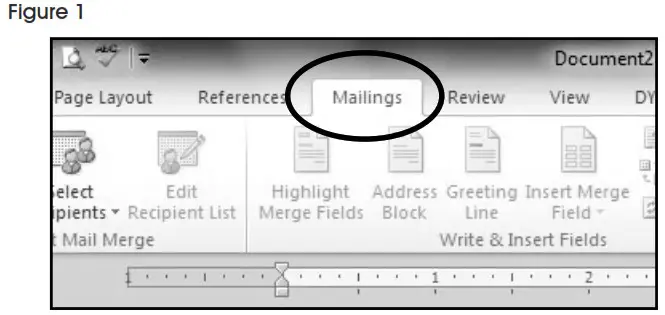
- On the toolbar ribbon, click the MAILINGS tab. (See Figure 1)

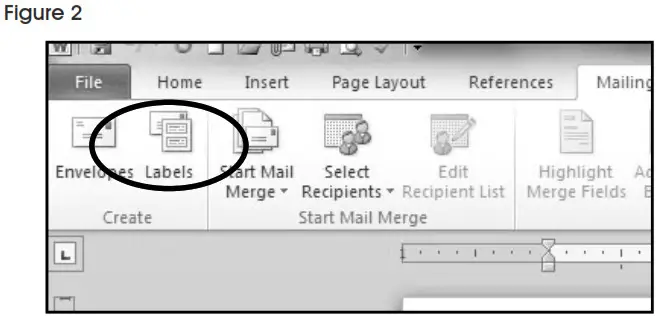
- Click the LABELS button. (See Figure 2)

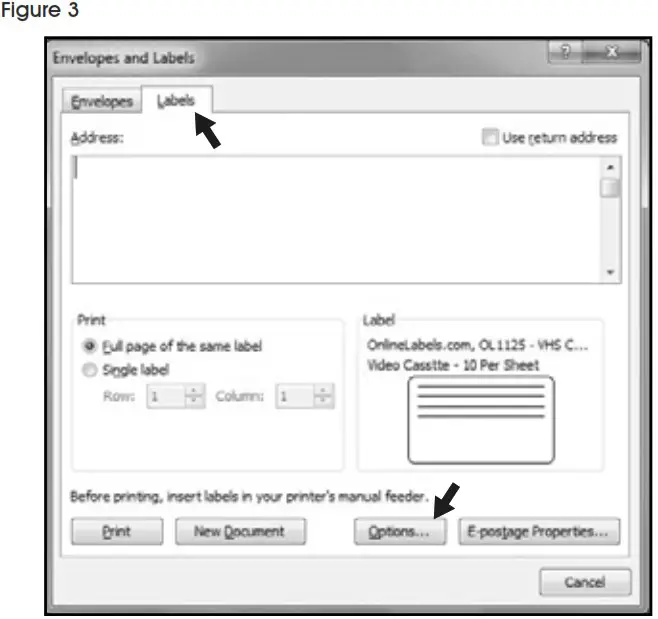
- On the LABELS tab, click the OPTIONS button. (See Figure 3)

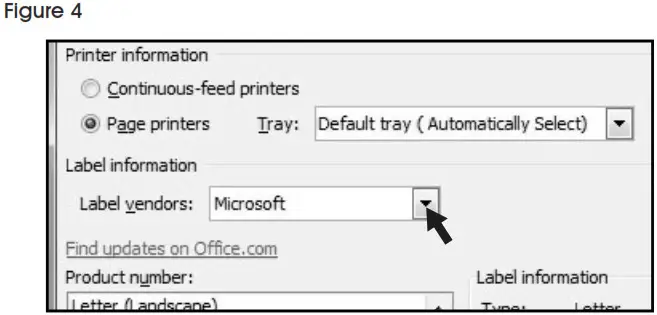
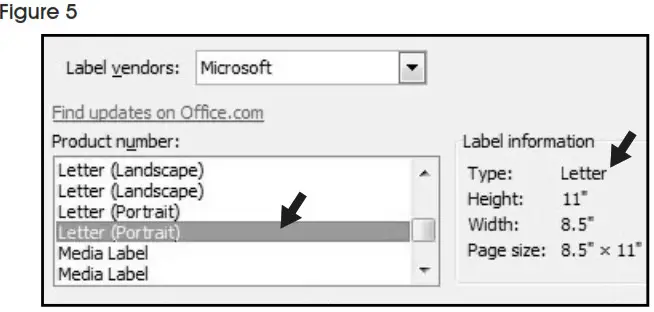
- Under LABEL INFORMATION, use the drop-down menu to select MICROSOFT. (See Figure 4)

- Under PRODUCT NUMBER, select LETTER (PORTRAIT). (See Figure 5)

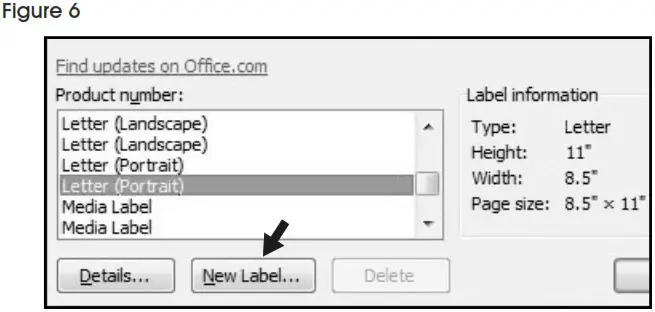
- Click the NEW LABEL button. (See Figure 6)

SETTING MARGINS
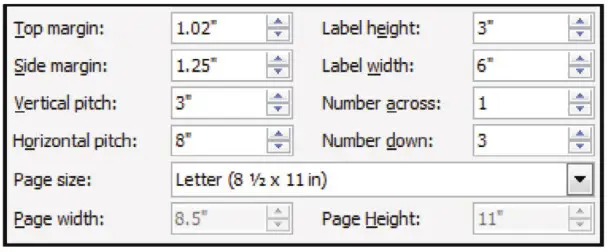
- Enter the following settings:

 NOTE: Enter the value for Number Across first.
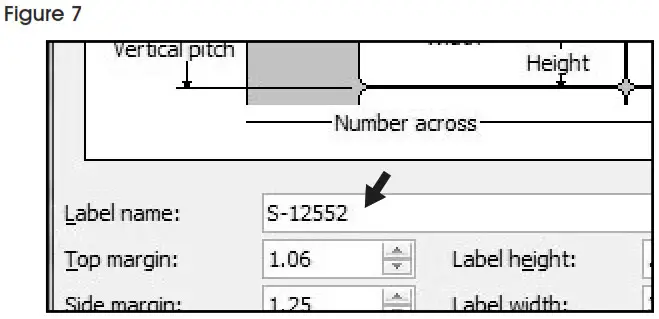
 - In the LABEL NAME box, enter a name for your template (i.e. Uline item # S-12552). (See Figure 7)

- Click the OK button.
- Click OK in the LABEL OPTIONS menu.
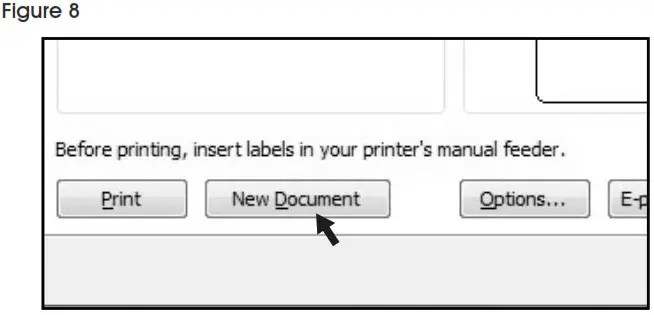
- Click NEW DOCUMENT in the ENVELOPES & LABELS menu. (See Figure 8)

TYPE
Format and add text as you desire.
PRINT
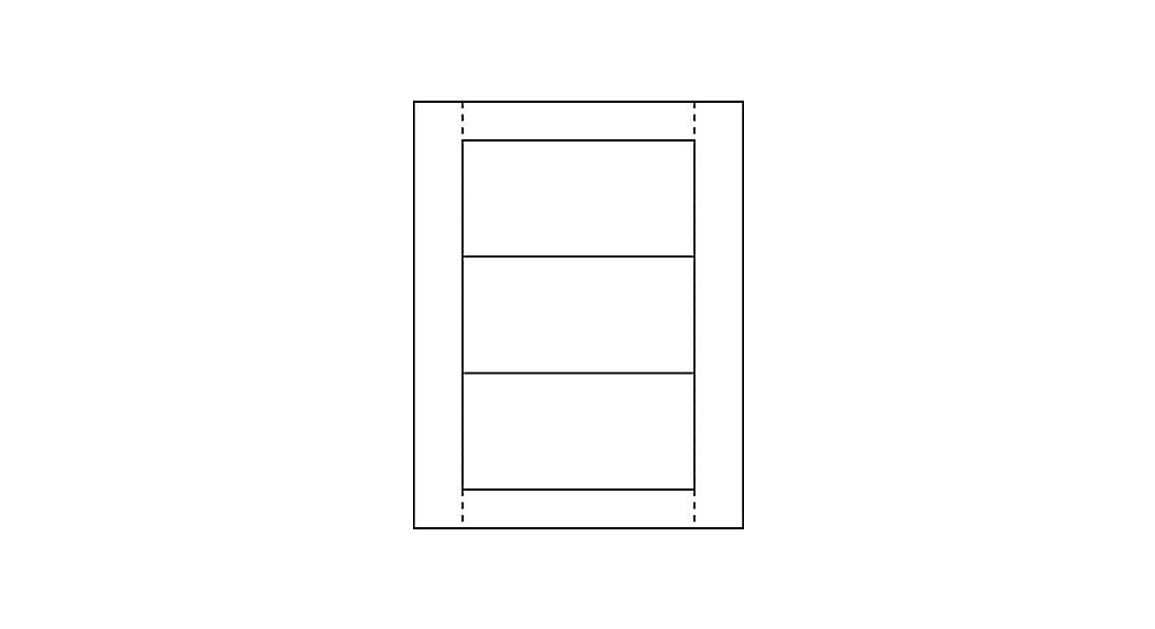
1. Place Insert Cards in the printer paper tray and select PRINT. NOTE: The perforated “T” on the label sheet denotes the top of the page.
TO USE THIS TEMPLATE AT ANOTHER TIME
- On the toolbar ribbon, click the MAILINGS tab.
- Click the LABELS button.
- On the LABELS tab, click the OPTIONS button.
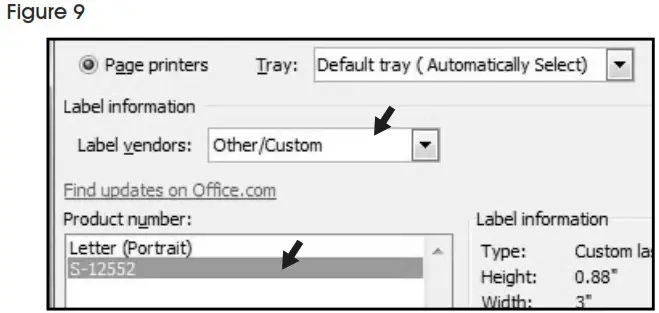
- Under LABEL INFORMATION, use the drop-down menu to select OTHER/CUSTOM. (See Figure 9)

- In the PRODUCT NUMBER listing, select your saved template. (See Figure 9)
- Click the OK button.
- Click NEW DOCUMENT in the ENVELOPES & LABELS menu.
0421 IS-7702