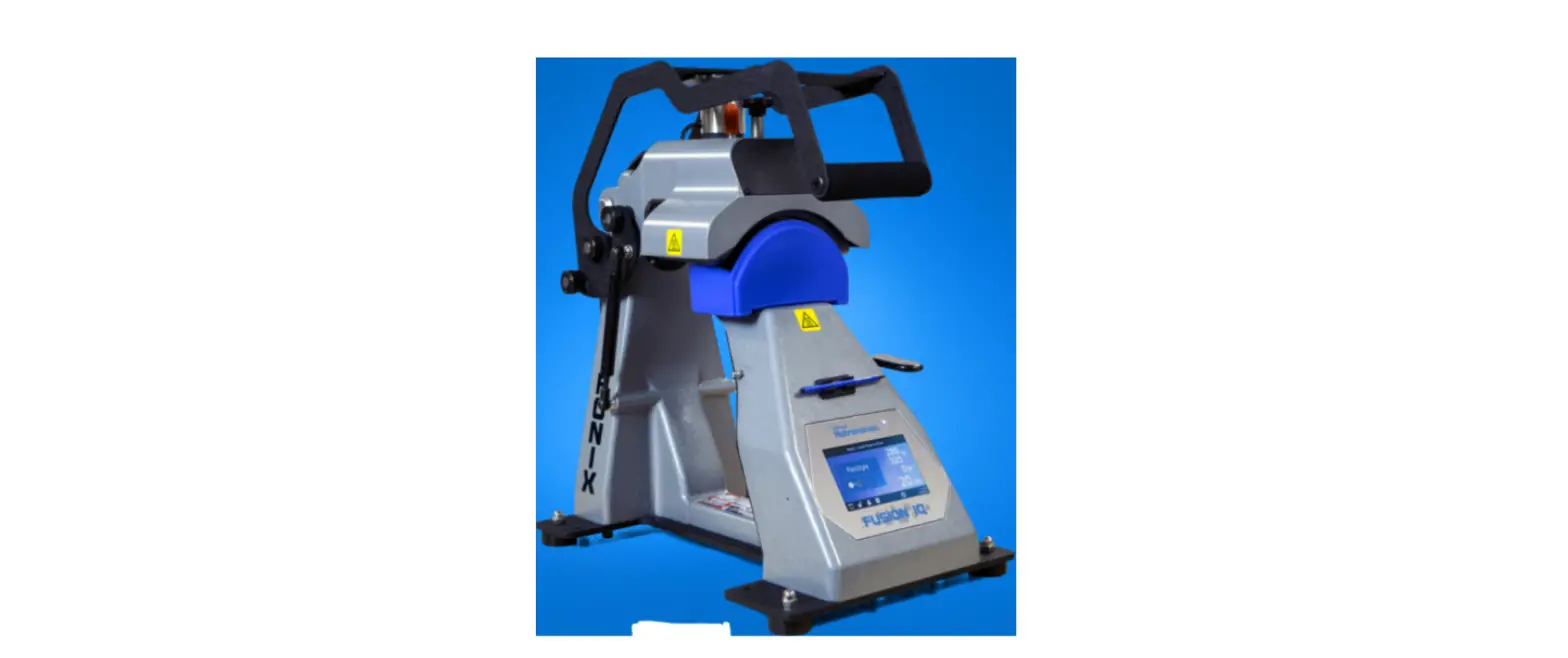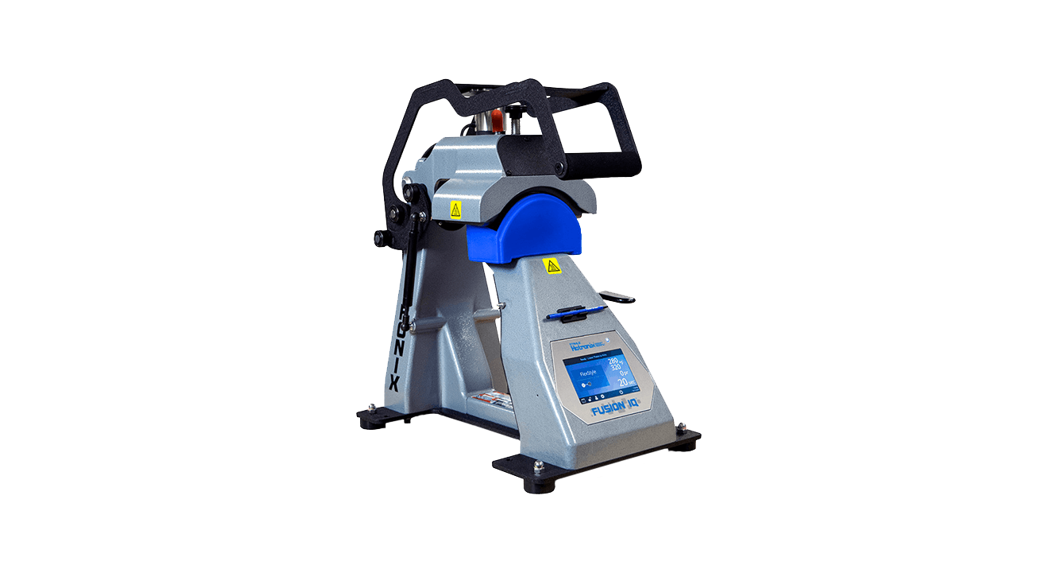
 HOTRONIX® 360 IQ™ HAT PRESS
OPERATOR’S MANUAL
Safety Instructions
When using your heat-press, basic precautions should always be followed, including the following:
- Read all instructions.
- Use heat press only for its intended use.
- To reduce the risk of electric shock, do not immerse the heat press in water or other liquids.
- Never pull the cord to disconnect from the outlet, instead grasp the plug and pull to disconnect.
- Do not allow the cord to touch hot surfaces, allow heat press to cool completely before storing.
- Do not operate the heat press with a damaged cord or if the equipment has been dropped or damaged.
To reduce the risk of electric shock, do not disassemble or attempt to repair the heat press. Take it to a qualified service person for examination and repair. Incorrect assembly or repair could increase the risk of fire, electric shock, or injury to persons when the equipment is used. The power supply cord must be disconnected before cleaning or servicing the press. - This appliance is not intended for use by persons (including children) with reduced physical, sensory or mental capabilities, or lack of experience and knowledge unless they have been given supervision or instruction concerning the use of the appliance by a person responsible for their safety.
- Close supervision is necessary for any heat press being used by or near children. Do not leave equipment unattended while connected.
- To avoid burns, do not touch hot metal parts or the heated platen during use.
- To reduce the likelihood of circuit overload, do not operate other high voltage equipment on the same circuit.
- If an extension cord is necessary, then a 20-amperage-rated cord should be used. Cords rated for less amperage may overheat. Care should be taken to arrange the cord so that it cannot be pulled or tripped over.
- Keep hands clear of the upper heat press plate during the lockdown as the pressure may cause injury.
- The heat press should be placed on a sturdy, suitable stand of at least 36″L x 24″W x 29″H.
- The work area must be kept clean, tidy, and free of obstructions.
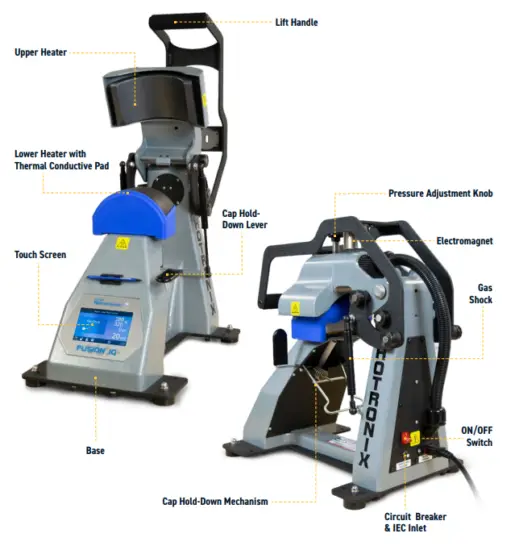
Machine View
Operating Instructions
Connecting the System
Insert the power cord into the IEC Inlet located on the side of the press (1.1).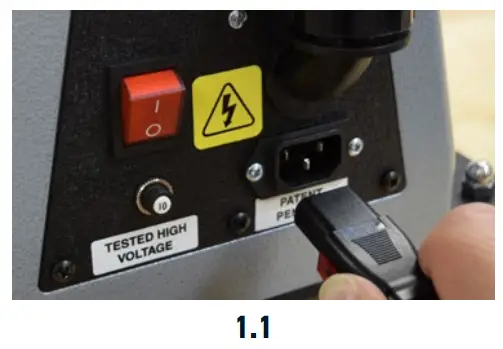 Connect the power cord into a properly grounded electrical outlet with a sufficient amperage rating. To remove a locking power cord (if equipped), press the two red buttons while pulling on the plug (1.2).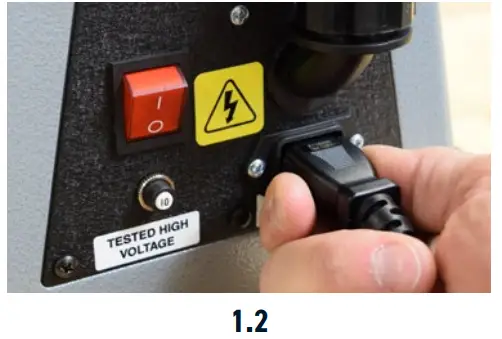
Voltage
120-volt presses require a full 6-amp grounded circuit.
240-volt presses require a full 3-amp grounded circuit.
Extension Cords
If used, extension cords should be as short as possible and not less than 12 gauge. Heavy-duty cords are recommended.
Circuits
Circuits that have less than 10 amps, or have other high-demand equipment or appliances (especially more than one heat press) plugged in, should not be used.
Note: If the supply cord is damaged, it must be replaced by the manufacturer, its service agent, or a similarly qualified person to avoid hazards.
Use SJT type rated 300 V cord for replacement.
Start-Up/Shut Down
Locate the packaging bolt on top of the press and remove it prior to turning on or operating (2.1).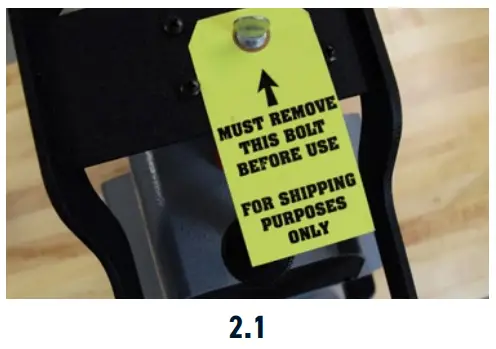 Flip the power switch ON (2.2). A splash screen displaying the Hotronix® logo and current software version is shown for several seconds.
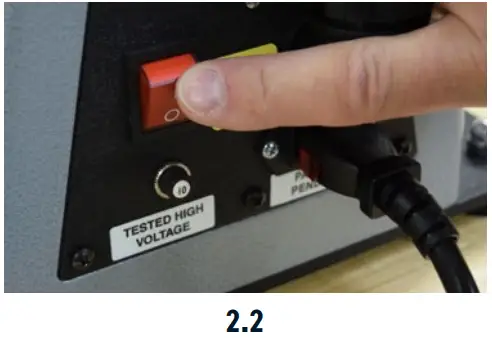 To turn heat press off, flip the power switch OFF.
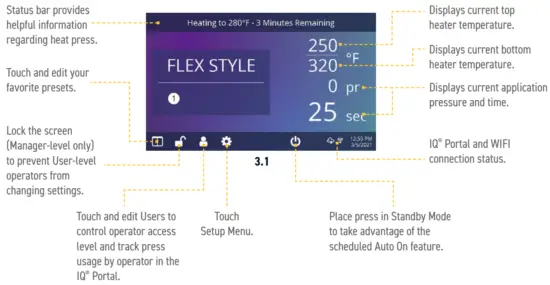
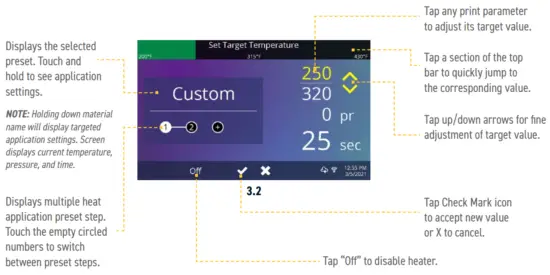
To place heat press into Standby Mode, touch and release the Power icon on the Home Screen (3.2 – following page). In Standby Mode, the heater turns off while the Touch Screen remains on, displaying an orange background as a warning if the platen is still hot (above 100°F/38°C).
NOTE: Standby Mode must be used for the Auto On feature to function (10.1).
The Auto On feature will not work if the power switch (2.2) is in the OFF position.
To start up your heat press while in Standby Mode, touch and release the Home icon on the Standby Screen.
Home Screen
Prepare to Print
Before heat applying, set the target settings for the selected transfer material by:
- Selecting a Preset (7.1), or
- Manually entering target temperature, time, and pressure.
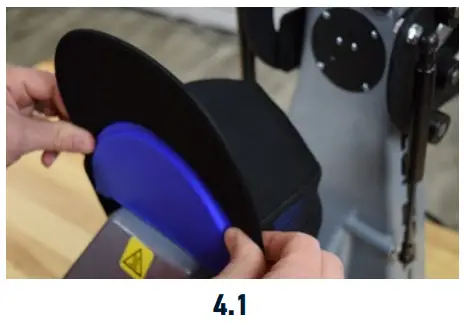
Temperature and time are controlled automatically. Pressure must be set manually: - Position a cap on the lower heater (4.1).

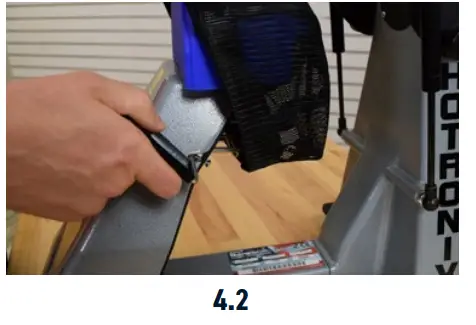
- Lower the cap hold-down lever (4.2) to lock it in place.

- Enable the Target Temp option in System settings (11.1) to prevent the electromagnet from locking down until the temperature is reached.
- Pull the lift handle down and observe the pressure reading.
- Adjust the pressure by turning the Pressure Adjustment Knob.
A visual pressure readout is located on the Home Screen. When the handle is locked in the PRINT position, a pressure number between 0-9 is displayed. - 0 = No Pressure.
- 1 – 3 = Light Pressure.
- 4 – 7 = Medium Pressure.
- 8 – 9 = Heavy Pressure.
WARNING: Structural damage caused by excessive pressure is not covered under the limited warranty!
The lower heater alignment can be adjusted by loosening the knob to accommodate different cup sizes (4.3).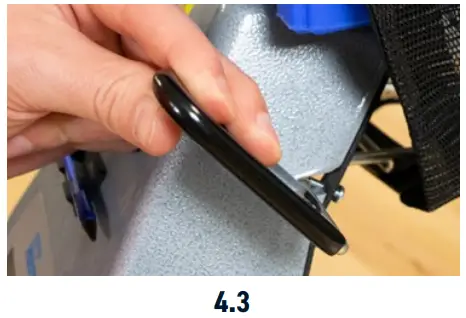 When the desired temperature is reached:
- Position the cap and design (4.1).
- Lower the cap hold-down lever to lock the cap into place (4.2).
- Pull lift handle down and begin to heat apply.
- The automatic timing process will begin.
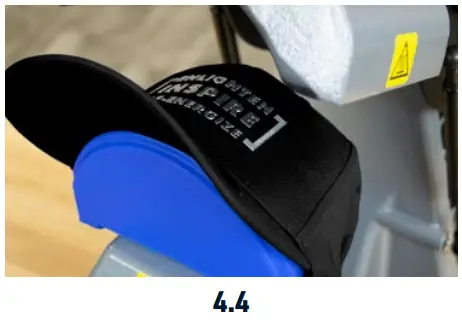
- The Home Screen will initiate a count down and lift the heat platen into the UP position when the print cycle is complete (4.4).

Tips for Successful Printing:
- Hold hat by the sides of bill and load from side of the platen.
- Align the seam of the bill with a lip on the lower platen for access to the full print area.
- Extend the sweatband out when possible to ensure a smoother application.
- Cover logo with included pad matching thickness of the material.
- Always best to remove the hat from the press before peeling backing to let the adhesive cool and set.
- Don’t pick or pull at the emblem or patch for 24 hours to ensure adhesion.
Touch Screen Guide
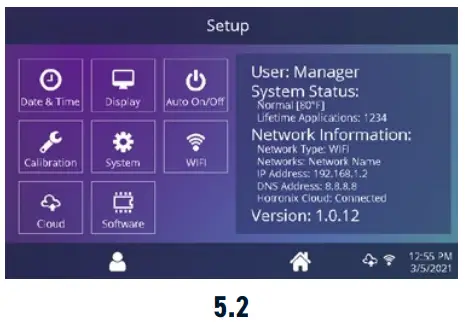
Touch the Settings icon on the Home Screen (5.1) to configure your heat press.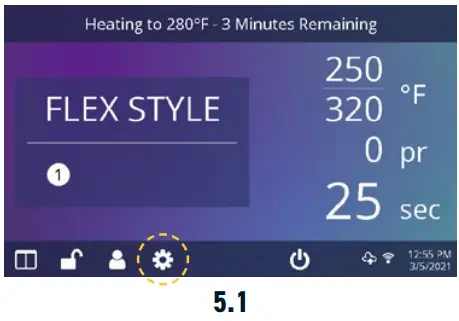 Managers can access all setup options, while Users can access a limited set (5.2).
- Managers default password: M
Password Setup (Manager-Level Only)
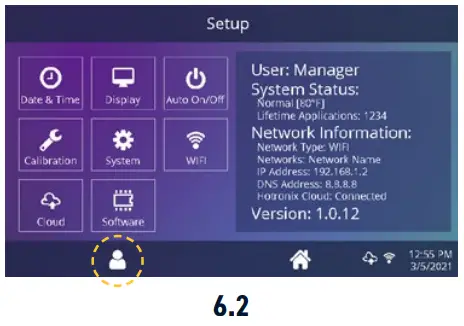
Touch the User icon on the Home Screen (6.1) or Setup Menu (6.2) to select, add, and edit Users.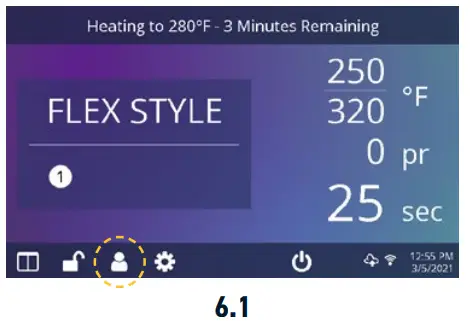
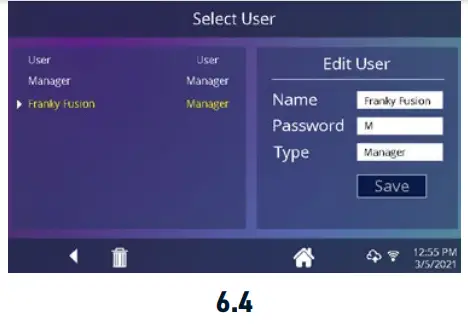
 Touch and edit Managers and Users to configure access to settings (6.3, 6.4). Heat press reports on the IQ® Portal can be filtered by the User to track individual operator performance.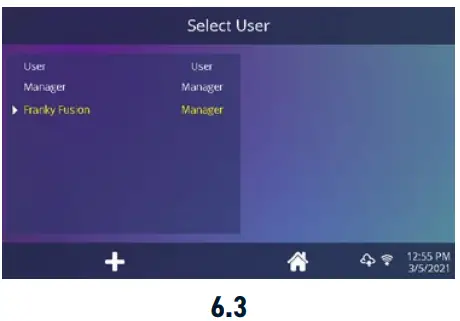
 Touch arrow keys on the taskbar to scroll through a long list of Users (6.5).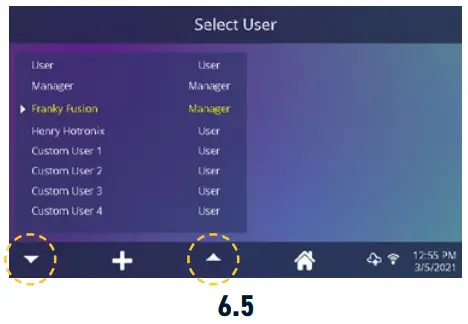
Preset Setup
Touch the Columns icon (7.1) to select from a list of saved presets (7.2).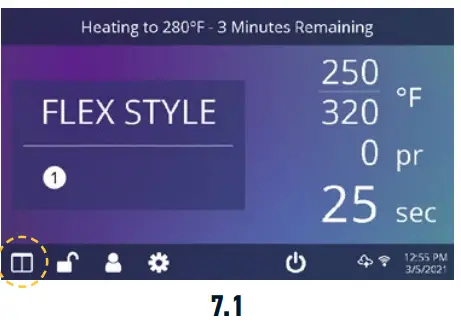
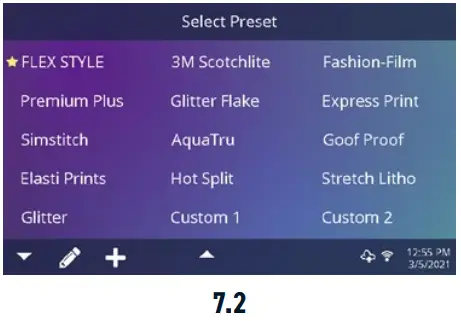 Touch arrow keys on the taskbar to scroll through a long list of presets (7.3).
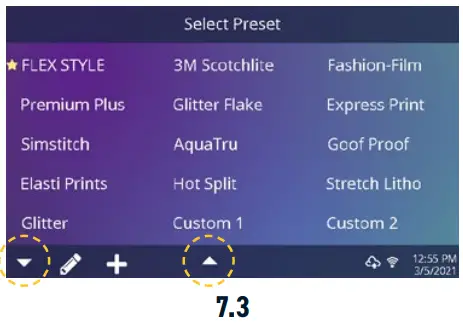 Touch a preset to select a material.
Touch the Pencil icon (7.4) to enter edit mode, then touch the preset name to edit settings.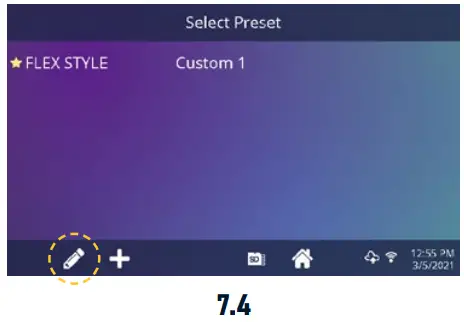 Touch Save to save changes.
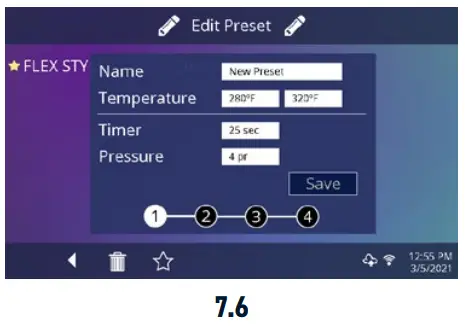
Touch the Plus icon to create a new preset (7.5).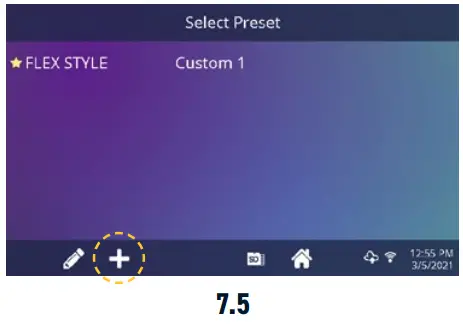 Name your preset and enter the desired temperature, time, and pressure. When creating a new preset, the current Home Screen application settings are selected automatically (7.6).
 Touch the empty circled numbers to set multiple preset stages for pretreatment or multi-step applications (7.7).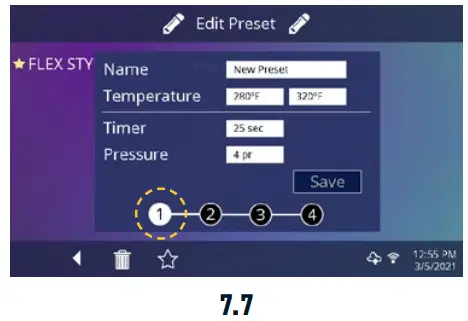
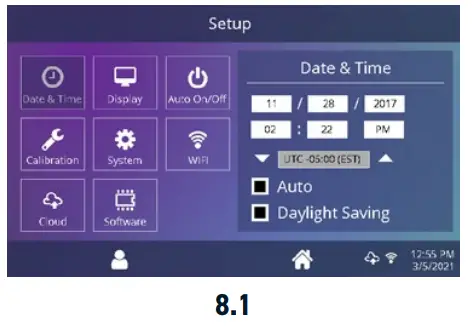
Date & Time Setup
Touch the Settings icon on the Home Screen.
- Touch Date & Time, information displayed on the right of the screen (8.1).

- Touch up/down arrows to select a time zone.
- Touch Auto to automatically synchronize the heat press clock.
The heat press must be connected to a WIFI network with access to the Internet. - Touch Daylight Saving to enable daylight saving mode.
This option should be enabled during the summer.
Display Setup
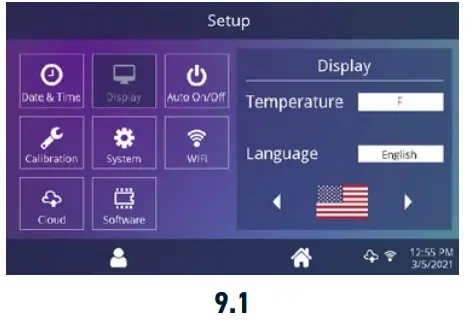
Touch the Settings icon on the Home Screen.
- Touch Display, information displayed on the right of the screen (9.1).
- Touch Temperature to switch between F° or C°, then touch the Check the Mark icon on the taskbar to save.
Auto On & Off Setup
Touch the Settings icon on the Home Screen.
- Touch Auto On/Off, and information displays on the right of the screen (10.1).
- Touch Enable, then On Hour/Minute and Off Hour/Minute, selecting Enter between each set. Once entered, touch the Check Mark icon on the taskbar to save.
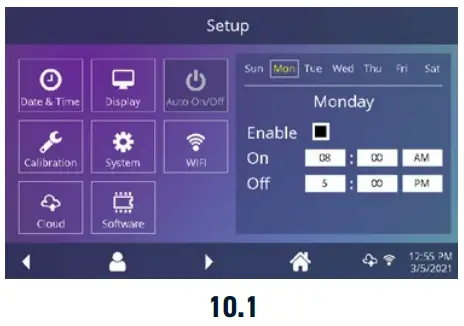 NOTE: Standby Mode must be used for the Auto On feature to function (3.1).
The Auto On feature will not work if the power switch (2.2) is in the OFF position.
System Setup (Manager-Level Only)
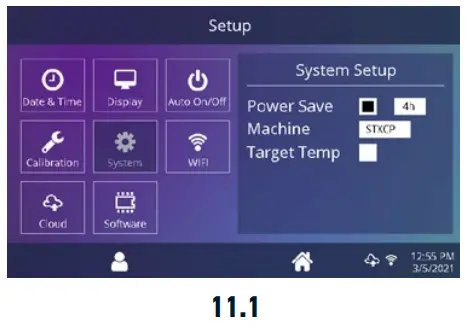
Touch the Settings icon on the Home Screen.
- Select System, information displayed on the right of the screen (11.1).
- Touch Power Save and select time, then touch the Check Mark icon on the taskbar to save. When enabled, your heat press will enter Standby Mode if it’s not used for the specified number of hours.
- Touch Target Temp to prevent the electromagnet from activating until the temperature is reached.
Calibration (Manager-Level Only)
Your heat press comes pre-calibrated from the factory. Calibration is only required after sensor or controller replacement. Pressure is periodically self-calibrated. Incorrect calibration can result in poor print results or damage to your heat press which is not covered by a warranty.
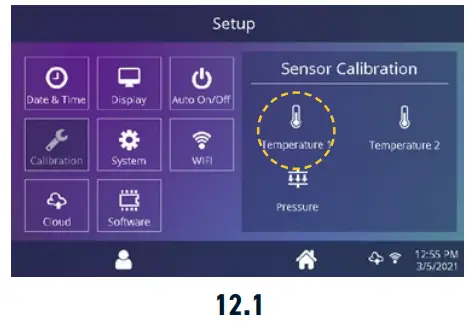
Your heat press has a temperature calibration function (12.1).
- Turn on the heat press and heat to 280°F/138°C top heater and 320°F/160°C bottom.
- Measure the center of the heater with a contact thermocouple (not infrared) thermometer.
- Touch the Settings icon on the Home Screen.
- Touch Calibration, information displayed on the right of the screen.
- Touch Temperature 1 for the top heater and adjust Temperature Calibration to match Target Temperature.
- Touch Temperature 2 for the bottom heater and adjust Temperature Calibration to match Target Temperature. Remove the rubber cap and adjust 100°F-105°F below the measured temperature for best results.
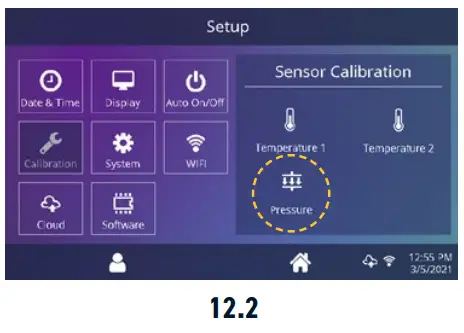
Your heat press has a pressure calibration function (12.2).
- Touch the Settings icon on the Home Screen.
- Touch Calibration, information displayed on the right of the screen.
- Touch Pressure, Calibrate, and wait for the screen to display the initial reading (about 2.5V).
- Turn Pressure Adjustment Knob counterclockwise (reducing pressure) until it stops.
- Place one thin (1/8” 3mm) white pad on the mandrel, lower print handle into print position until electromagnet lightly contacts magnet plate.
- Tap Set Min Point (should display approximately 2.4V or 0.1V below the initial reading).
- Raise print handle.
- Turn Pressure Adjustment Knob clockwise (increasing pressure) 3 full turns, lower print handle into print position until electromagnet lightly contacts magnet plate.
- Tap Set Max Point (should display approximately 2.2V or 0.3V below the initial reading).
- Raise print handle.
Updating Software
Touch the Settings icon on the Home Screen.
- When a software update is available, an exclamation point appears after the version number in the Setup Menu (5.2).
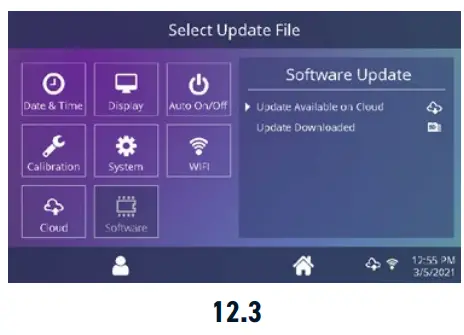
- Touch Software, information displays on the right of the screen. An available online update displays a Cloud icon (12.3).
- Touch Update File on the right of the screen, then touch the Check Mark icon on the taskbar to start the download. A downloaded update displays a Memory Card icon.
- Touch the Downloaded Update File on the right of the screen, then touch the Check Mark icon on the taskbar to start the installation.
 NOTE: If a power failure occurs during installation, the heat press will attempt to install the previous software version.
Connect to the IQ® Portal
Create Your Account
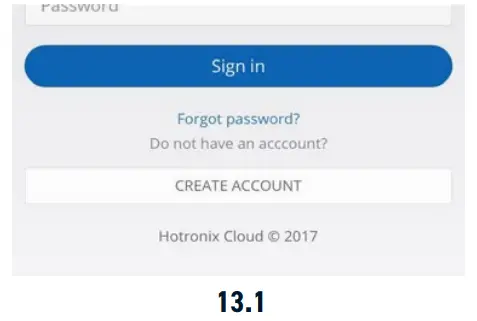
- Using a phone or computer, visit iq.hotronix.com to create an account (13.1).
- Enter your name, email, and password.
- Click on the confirmation link in the email you receive.
- Your account has been created.
Register a Heat Press
- Click on Manage Heat Presses, then New Heat Press.
- Select the heat press type, enter the serial number, and enter a name for the heat press (optional).
- Click on Create Heat Press and enter the verification code given.
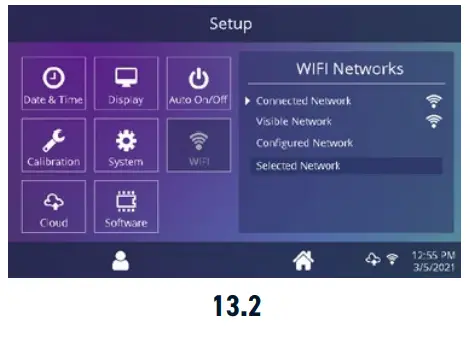
- On the heat press Setup Menu, touch WIFI, and connect to your WIFI router or mobile hotspot (13.2).

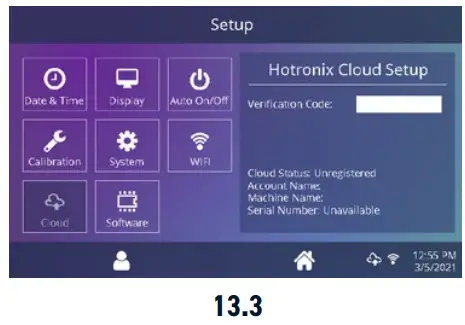
- On the heat press Setup Menu, touch the Cloud icon, and enter the verification code displayed in the IQ® Portal (13.3).

- Your heat press has been registered.
Create & Assign Users
- Click on Manage Operators, then New User.
- Enter a name and select a privilege level. Managers can access all heat press settings while Users have limited access.
- Click on New User, then Assign Machines in the sidebar.
- Select a machine and click Assign.
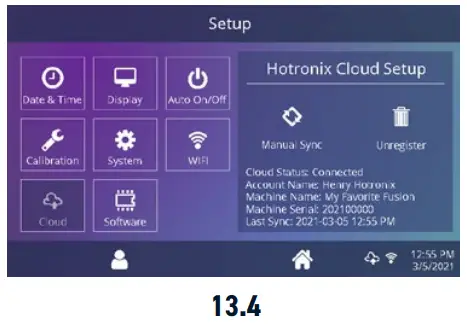
- On the heat press Setup Menu, touch the Cloud icon, then Manual Sync (13.4).
- Reporting will show impressions made by Users.
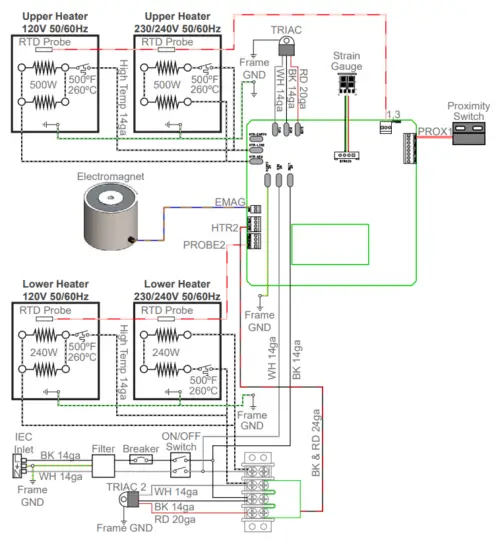
Electrical Schematic
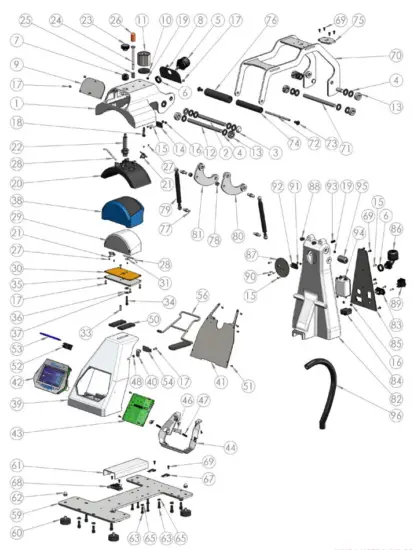
Replacement Parts List
| # | PART# | DESCRIPTION | QTY. |
| 1 | 4-1183 | Heater Arm, 360 IQ Hat | 1 |
| 2 | 2-1055-11 | Steel Pin, 1/2” x 5-9/16” | 1 |
| 3 | 1-1107-1 | Hub Cap 1/2” | 2 |
| 4 | 1-1048-3 | Washer, 1/2” Nylon | 16 |
| 5 | Jan-17 | Conduit Fitting, 1/2 NPT-21mm HPASC | 1 |
| 6 | Jan-19 | Conduit Fitting Nut, 1/2 NPT | 2 |
| 7 | Jan-05 | Threaded Insert, 1”-8 to 5/8”-11 | 1 |
| 8 | – | Heater Arm Panel, Rear | 1 |
| 9 | – | Heater Arm Panel, Front | 1 |
| 10 | Jan-04 | Silicone Pad, 5/16” ID x 1-3/4” OD x 1/4” T | 1 |
| 11 | 1-1945-1 | Electromagnet | 1 |
| 12 | – | Steel Pin, 1/2” x 7” | 1 |
| 13 | Jan-06 | Shaft Collar, 1/2” One-Piece Clamp-On | 6 |
| 14 | 1-1219 | Proximity Magnet | 1 |
| 15 | 3-1011-13 | Screw, Pan Phillips #6-32 x 1.00 | 12 |
| 16 | 2-1006-50 | Nut, #6-32 Hex with Lockwasher | 6 |
| 17 | 3-1011-10 | Screw, Machine #8-32 x 1/4” | 13 |
| 18 | 3-1011-185 | Screw, Shoulder 5/16” x 3/4” | 1 |
| 19 | 3-1011-281 | Set Screw, 5/16”-18 x 1/4” | 2 |
| 20 | 3-1386 | Heater, Upper, 360 IQ Hat, 500W | 1 |
| 21 | Jan-76 | Thermostat Disc | 2 |
| 22 | Feb-47 | Adjustment Spindle, Cap | 1 |
| 23 | 1-1095 | Knob, Black Plastic 3/8”-16 | 1 |
| 24 | 3-1011-238 | Bolt, Hex Head 5/16-18 x 3-1/2” | 1 |
| 25 | Jan-63 | Spring, 1/2” D x 3/4” L, 62lb/in | 1 |
| 26 | Jan-08 | Silicone Cap, 1/2” x 1” | 1 |
| 27 | 3-1011-98 | Screw, SS Sheet Metal #4 X 1/4” | 5 |
| 28 | 1-1272-1 | Temperature Probe | 2 |
| 29 | 3-1385 | Heater, Lower, 360 IQ Hat 240W | 1 |
| 30 | Jan-09 | Insulation, 1/8” x 2.75” x 5.75” | 1 |
| 31 | 2-1006-101 | Washer, #6 Oversized | 1 |
| 32 | 2-1006-110 | Weld Nut, 1/4”-20 Steel | 1 |
| 33 | Jan-10 | Dowel Pin, 1/4” x 3/4” Pull-Out | 1 |
| 34 | 3-1011-242 | Screw, Socket Head Cap 1/4-20 x 1.125 | 1 |
| 35 | – | Lower Heater Plate, 360 IQ Hat | 1 |
| 36 | 2-1006-25 | Washer, Flat 1/4” SAE | 2 |
| 37 | 2-1006-46 | Washer, 5/16” SS | 1 |
| 38 | Jan-92 | Thermal Snap Cap | 1 |
| 39 | 4-1179 | Lower Frame, 360 IQ Hat | 1 |
| 40 | Jan-11 | Loop Clamp, 3/8” Galv Steel | 1 |
| 41 | – | Lower Support Cover, 360 IQ Hat | 1 |
| 42 | 1-2463-F | Fusion IQ Controller | 1 |
| 43 | 1-2463-P | Fusion IQ Power Board | 1 |
| 44 | Jan-73 | Fusion IQ Power Bracket | 1 |
| 45 | 3-1011-235 | Screw, Sheet Metal #6 x 1/2” | 6 |
| 46 | Jan-74 | Fusion IQ Latch | 2 |
| 47 | Jan-85 | Spring, 1/4” x 1”, 1.7lbs/in | 2 |
| 48 | – | Spacer, 1/4” x 1/4” Slotted | 2 |
| 49 | – | Washer, #8 Stainless | 1 |
| 50 | Jan-12 | Silicone Pad, 1/4” x 1” Self-Adhesive | 2 |
| 51 | 3-1011-25 | Screw, Machine #6-32 x 1/4” | 6 |
| 52 | Jan-86 | Touchscreen Stylus Holder | 1 |
| 53 | Jan-85 | Touchscreen Stylus | 1 |
| 54 | – | Cable Mounting Plate | 1 |
| 55 | – | Washer, .375 x .203 x .020 #10 Stainless | 1 |
| 56 | 4-1180 | Cap Hold Down, 360 IQ Hat | 1 |
| 57 | 2-1006-111 | Nut, #8-32 Cap Stainless | 1 |
| 58 | 1-1073 | Spring | 1 |
| 59 | – | Base Plate, 360 IQ Hat | 1 |
| 60 | Jan-75 | Rubber Foot | 4 |
| 61 | 4-1181 | Base Channel, 360 IQ Hat | 1 |
| 62 | 2-1006-112 | Nut, M8x1.25 Cap | 4 |
| 63 | 3-1011-243 | Screw, Socket Head 1/4”-20 x 3/4” | 8 |
| 64 | 3-1011-100 | Screw, Socket Head 5/16”-18 x 3/4” | 8 |
| 65 | 2-1006-44 | Washer, Split Lock 1/4” | 8 |
| 66 | 2-1006-86 | Washer, Split Lock 5/16” | 8 |
| 67 | 1-1059 | TRIAC | 2 |
| 68 | Jan-72 | TRIAC Driver Board | 1 |
| 69 | 3-1011-127 | Screw, Machine #8-32 x 3/8” Black Oxide | 15 |
| 70 | – | Handle Weldment, 360 IQ Hat | 1 |
| 71 | 2-1055-8 | Steel Pin, 1/2” x 6-1/2” | 1 |
| 72 | 1-1042-1 | Threaded Rod .250-20 x 5.25 | 1 |
| 73 | 2-1006-2 | JCN – NUT | 2 |
| 74 | 1-1049-11 | PVC Spacer, 1/2” x 5” | 1 |
| 75 | – | Magnet Plate, 360 IQ Hat | 1 |
| 76 | 1-1540 | Foam Grip, Black | 1 |
| 77 | Jan-39 | Ball Stud 10mm | 4 |
| 78 | 2-1006-20 | Nut, Hex Nylok 5/16”-18 | 2 |
| 79 | Jan-14 | Gas Spring, 360 IQ Hat | 2 |
| 80 | – | Link Weldment, Right, 360 IQ Hat | 1 |
| 81 | – | Link Weldment, Left, 360 IQ Hat | 1 |
| 82 | 4-1182 | Column, 360 IQ Hat | 1 |
| 83 | 1-1759 | Power Inlet | 1 |
| 84 | 1-1331-2 | Circuit Breaker 10A (220V & 11×15) | 1 |
| 85 | – | Column Back Plate, 360 IQ Hat | 1 |
| 86 | Jan-18 | Conduit Fitting, 1/2 NPT-90-21mm HPASC | 1 |
| 87 | – | Proxy Plate, 360 IQ Hat | 1 |
| 88 | 1-1056 | Rubber Foot, Small Push-In | 2 |
| 89 | Jan-87 | Power Switch | 1 |
| 90 | 3-1011-22 | Screw, Machine #4-40 x 3/8” | 2 |
| 91 | 2-1006-51 | Nut, #4-40 with Tooth Washer | 2 |
| 92 | 1-1211 | Proximity Switch | 1 |
| 93 | 3-1011-282 | Set Screw, 5/16”-18 x 3/4” | 1 |
| 94 | Jan-90 | Filter, Schaffner FN2090-6-06 | 1 |
| 95 | – | Ferrite Core 461167281 | 1 |
| 96 | 2-1048-3 | Conduit, 21mm HPAS | 1 |
Parts Location Guide
CONTACT US
STAHLS’ Hotronix®
One Industrial Park
Carmichaels, PA 15320
The U.S.A.
Technical Support
800.727.8520
Speak with a representative
24 hours a day,
7 days a week,
365 days a year.
Customer Service
800.727.8520
Monday – Friday
8am – 5pm EST
Replacement Parts
800.727.8520
8am – 7pm EST
Web
Hotronix.com
This document includes multiple trademarks and describes equipment covered by many patents that are owned by GroupeSTAHL and/or its subsidiaries. GroupeSTAHL enforces its rights to protect these intellectual properties. ©2021
REV. 0321
 YouTube
 Hotronix Cloud
 Hotronix Heat Press