ACC096 Clamp-On Microphone Arm
Product Information: Clamp-On Microphone Arm
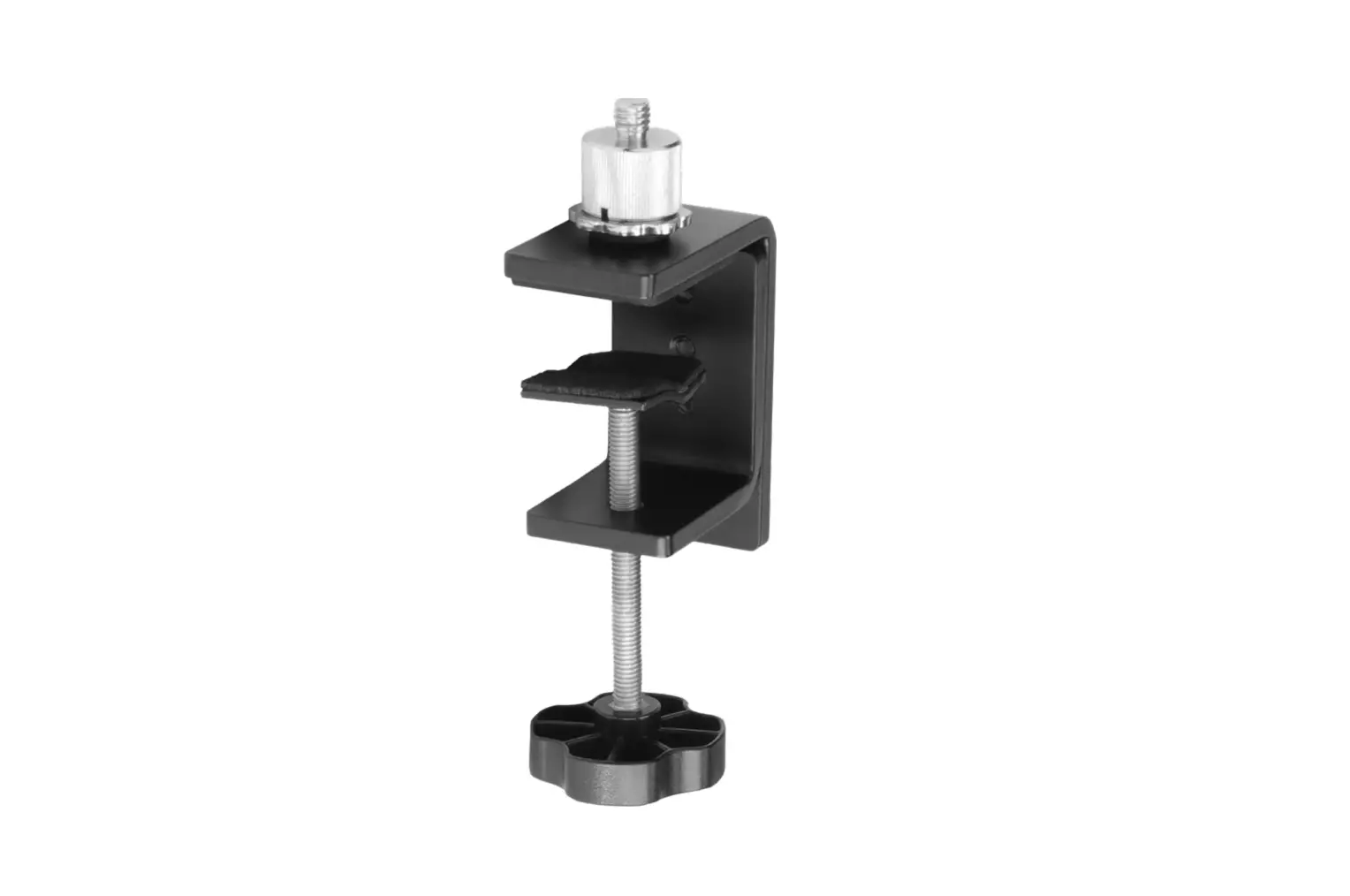
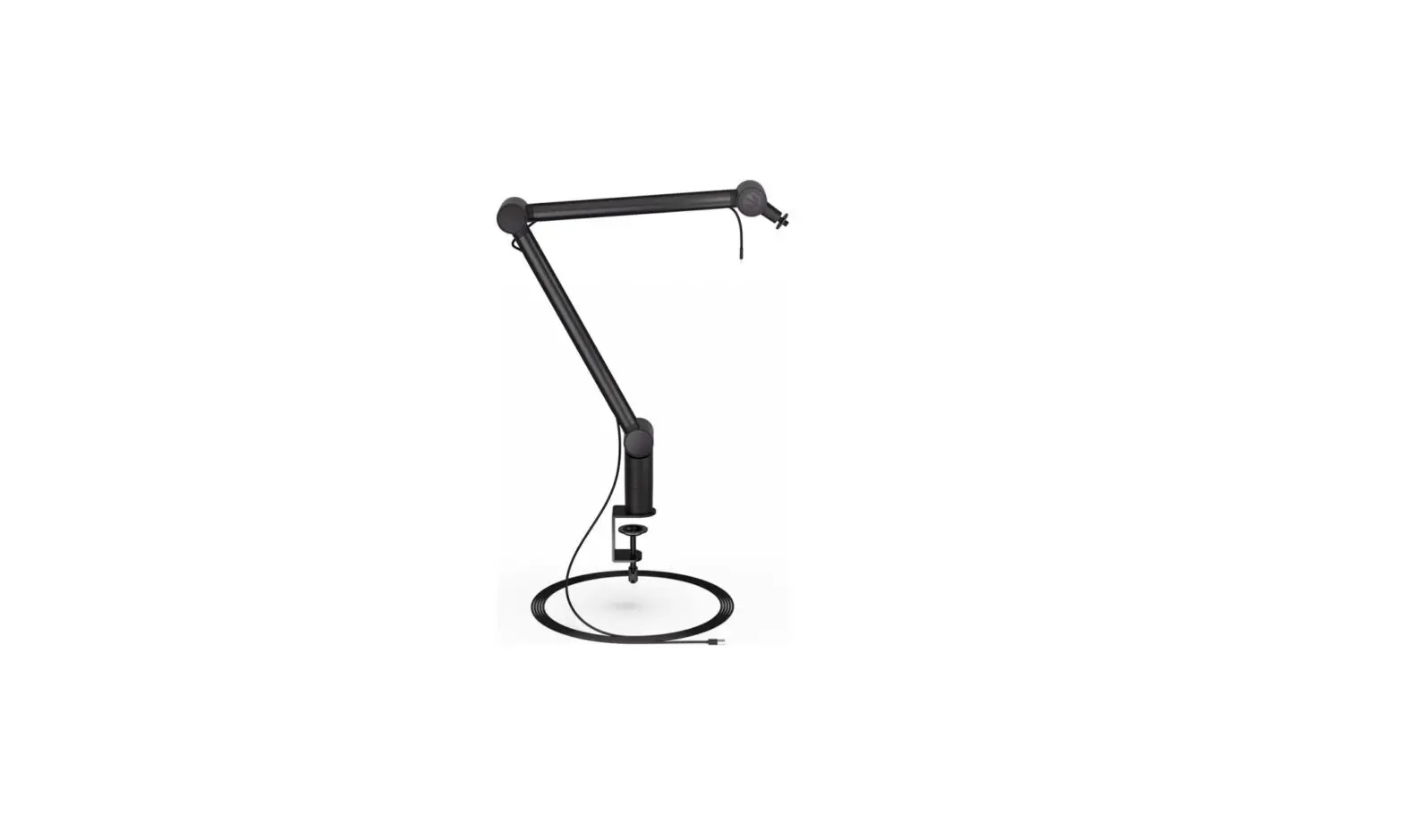
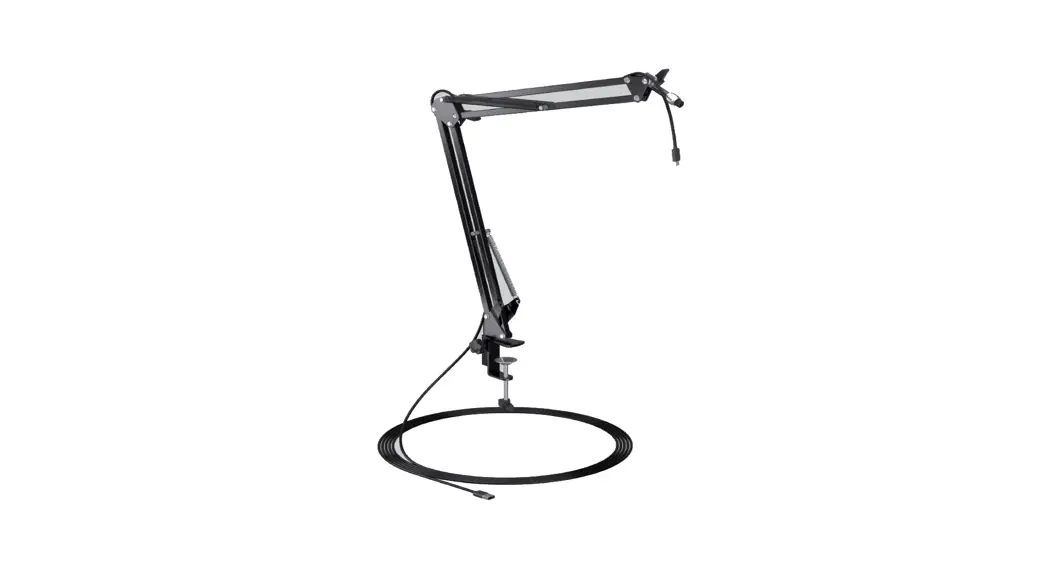
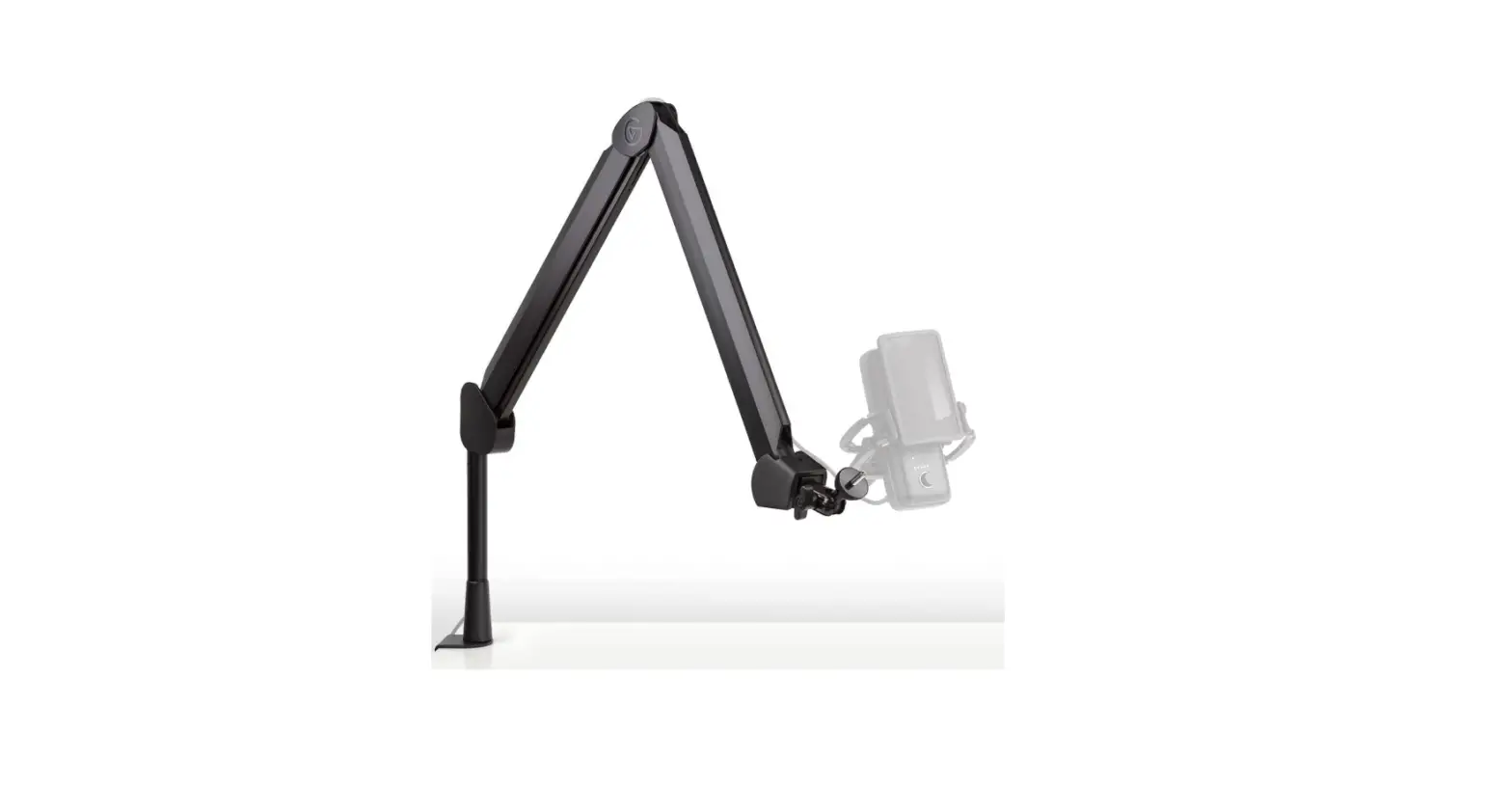
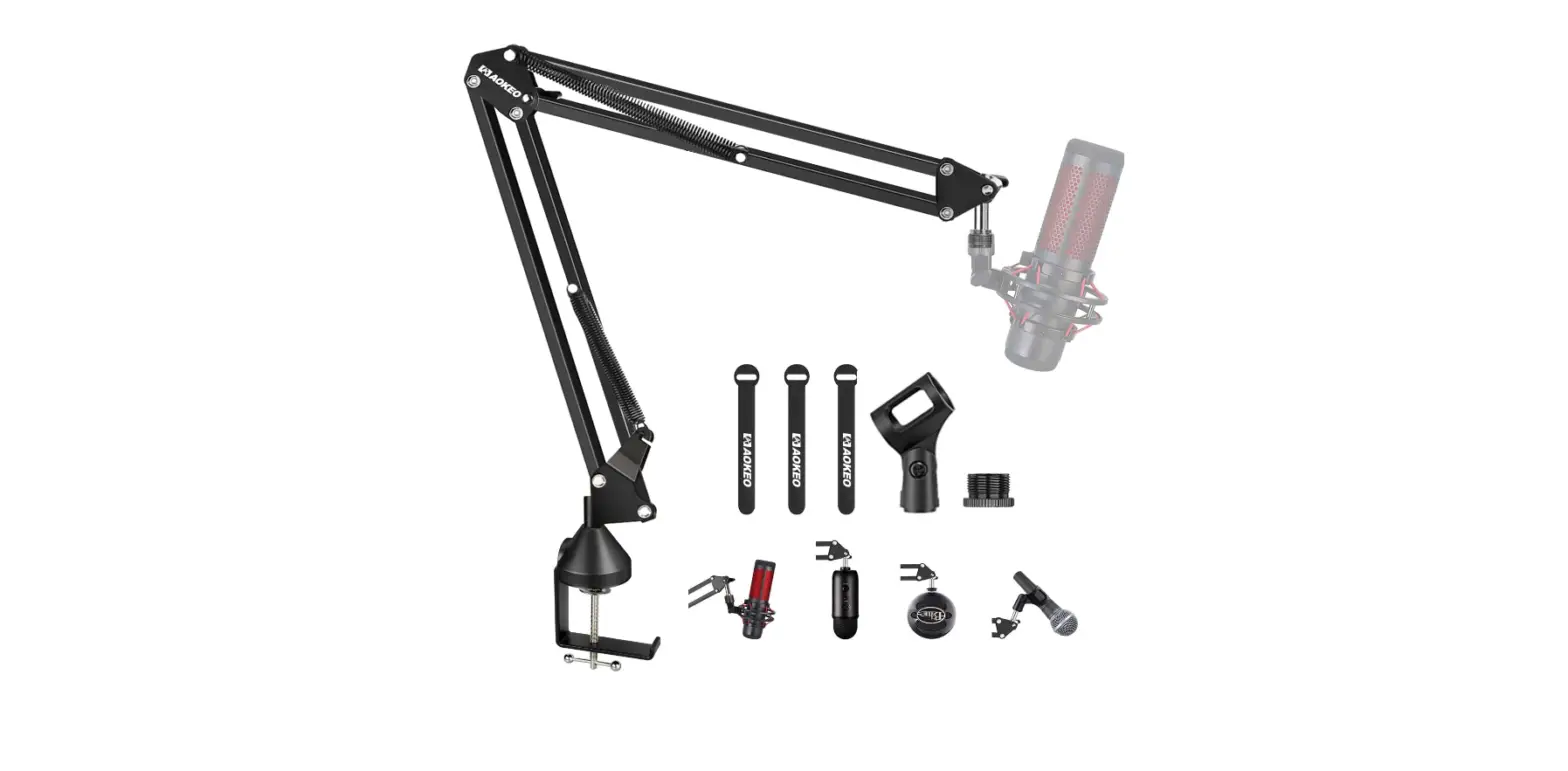
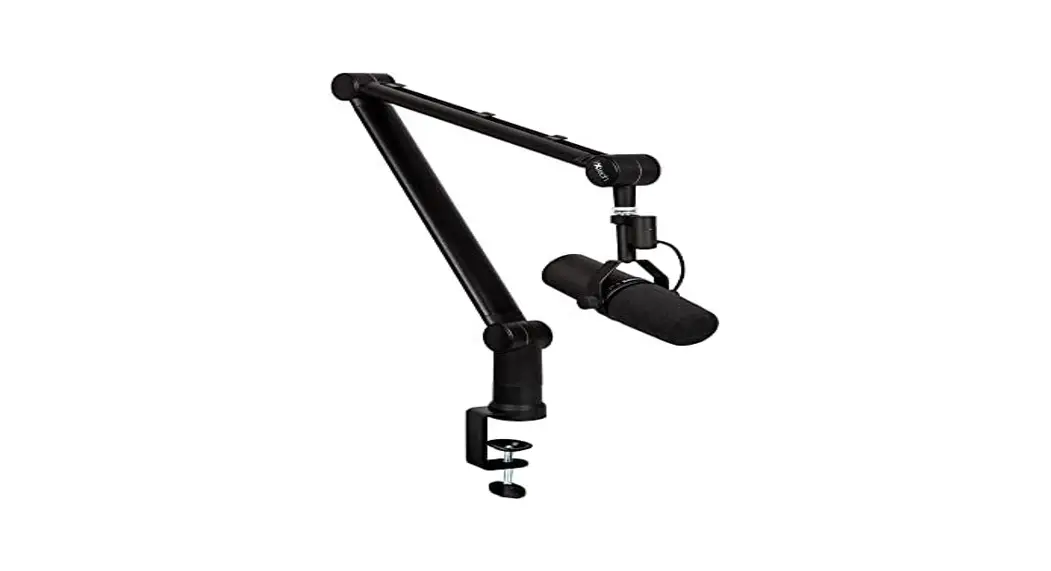
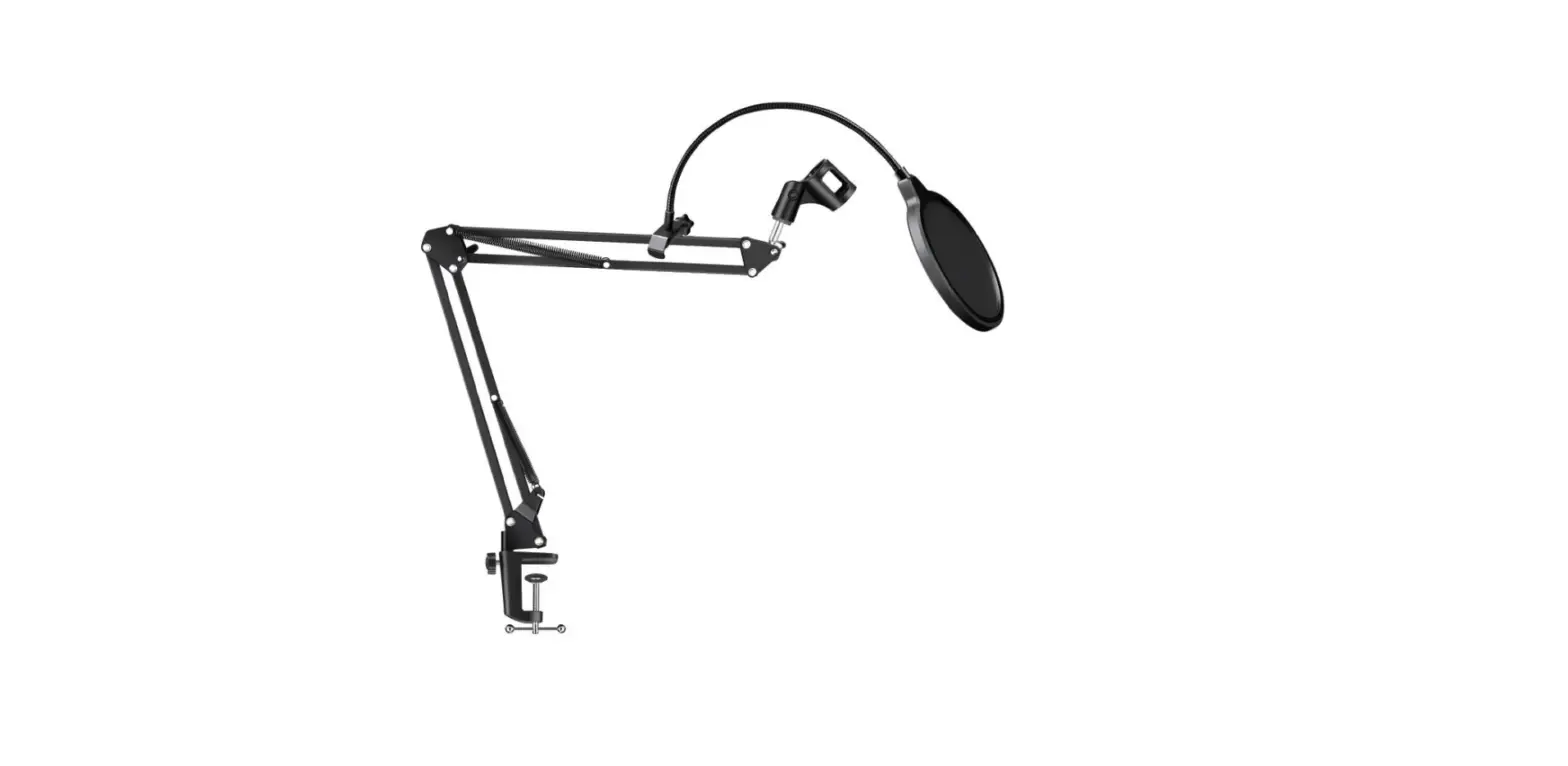
The Clamp-On Microphone Arm (ACC096) is a device used for
mounting microphones on a desk or table. It comes with a Clamp Base
Assembly and Bolt-Through Mount for attaching to desktops or tables
that are between 0.4 to 3.7 inches thick. The maximum weight
capacity of this product is 2.4lbs. The product can be attached to
the edge of the desk or through a hole using the Bolt-Through
Mount.
Safety and Warnings
- Read all instructions before assembly. Failure to assemble or
operate properly may result in damage or personal injury. - The linkage and spring are internal. Disassembly can lead to
damage and can cause serious injuries. - For a secure and stable setup, the desk surface and underside
should be flat and the corners should be square. Attaching the
clamp to a beveled, curved, or uneven surface can result in
unstable and unsafe installation and cause damage to the
desktop. - Use with products heavier than the rated weight of 2.4lbs may
result in instability causing possible injury. - Make sure that the supporting surface will safely support the
combined weight of the equipment and all attached hardware and
components. - Use the mounting screws provided and DO NOT OVER TIGHTEN
mounting screws. - This product is intended for indoor use only. Using this
product outdoors could lead to product failure and personal
injury. - Under no circumstances does the manufacturer accept warranty or
liability claims for damages caused from improper use of this
Microphone Arm. Please provide these instructions to any new user
or owner of the Microphone Arm.
Product Usage Instructions
Step 1 – Determine Your Mounting Method
There are two ways to attach the Clamp-On Microphone Arm to your
desktop or table:
- Clamp Base Assembly: Compatible with 0.4 to
3.7 inch thick desktops. To attach the microphone arm along the
edge of your desktop, follow the Clamp Method instructions (Step
2.A). Clamping the arm on the edge of a desk or table is the
simplest method, but the Clamp can also fit into grommet holes 3.15
inch diameter or larger. - Bolt-Through Mount: Compatible with 0.4 to 1.9
inch thick desktops. To attach the microphone arm through your
desktop, skip Step 2.A and follow the Bolt-Through Method
instructions (Step 2.B). The bolt-through mount can fit into a hole
between 0.4 – 1.75 inches in diameter located anywhere on the
desktop.
Step 2.A – Clamp Method
Base Attachment:
- Fit the Clamp Base Assembly onto the edge of the desk.
- Using the wing nut, tighten the Clamp Screw until the Bottom
Plate clamps firmly against the bottom of the desktop. - Skip the Bolt-Through Method steps and proceed with Step
3.
Step 2.B – Bolt-Through Method
Bolt-Through Hole Fit:
- The desktop must be between 0.4 and 1.9 inches thick and have a
hole between 0.4 and 1.75 inches in diameter to use this option.
Using a grommet hole already in your desktop is acceptable, or
drill a hole anywhere on the desktop, taking care to avoid frame
hardware underneath. - Clamp Assembly Removal: Remove the Clamp
Assembly from the Round Base. Using a Phillips head screwdriver,
remove the screw and nut from inside the Round Base to separate it
from the Clamp Assembly as shown.
Clamp-On Microphone Arm
ACC096
For assembly assistance, visit upliftdesk.com/contact, or call 800-349-3839, or email [email protected]
©2022 UPLIFT Desk®. All Rights Reserved
Bolt-Through Mount
Safety and Warnings
CAUTION: Read all instructions before assembly. Failure to assemble or operate properly may result in damage or personal injury. Retain manual for future reference.
CAUTION: The linkage and spring are internal. Disassembly can lead to damage and can cause serious injuries.
CAUTION: For a secure and stable setup, the desk surface and underside should be flat and the corners should be square. Attaching the clamp to a beveled, curved, or uneven surface can result in unstable and unsafe installation and cause damage to the desktop.
CAUTION: Use with products heavier than the rated weight of 2.4lbs may result in instability causing possible injury.
CAUTION: Make sure that the supporting surface will safely support the combined weight of the equipment and all attached hardware and components.
CAUTION: Use the mounting screws provided and DO NOT OVER TIGHTEN mounting screws.
CAUTION: This product is intended for indoor use only. Using this product outdoors could lead to product failure and personal injury.
Under no circumstances does the manufacturer accept warranty or liability claims for damages caused from improper use of this Microphone Arm. Please provide these instructions to any new user or owner of the Microphone Arm.
Microphone Arm
Clamp Base Assembly
Package Contents Bushing
Wing Nut
Base Plate
Bolt-Through Clamp Screw
” Thread Adapter
Ball Joint Adapter
Knurled Lock Nut
2.5mm Allen Wrench
Step 1 – Determine Your Mounting Method
There are two ways to attach the Clamp-On Microphone Arm to your desktop or table:
Clamp Base Assembly
Clamp Method Compatible with 0.4″ to 3.7″ thick desktops
To attach the microphone arm along the edge of your desktop, follow the Clamp Method instructions (Step 2.A). Clamping the arm on the edge of a desk or table is the simplest method, but the Clamp can also fit into grommet holes 3.15″ diameter or larger.
Round Base Clamp Plate Wing Nut
Bolt-Through Method Compatible with 0.4″ to 1.9″ thick desktops To attach the microphone arm through your desktop, skip Step 2.A and follow the Bolt-Through Method instructions (Step 2.B). The bolt-through mount can fit into a hole between 0.4″ – 1.75″ in diameter located anywhere on the desktop.
Step 2.A – Clamp Method
Base Attachment A. Fit the Clamp Base Assembly onto the edge of the desk.
Bolt-Through Assembly
.4″ 1.75″
Round Base
Clamp Plate Wing Nut Bolt-Through Clamp Screw
B. Using the wing nut, tighten the Clamp Screw until the Bottom Plate clamps firmly against the bottom of the desktop.
C. Skip the Bolt-Through Method steps and proceed with Step 3.
© UPLIFT Desk · 800-349-3839 · [email protected] · upliftdesk.com
3
Step 2B – Bolt-Through Method
Bolt-Through Hole Fit A. The desktop must be between 0.4″ and 1.9″
thick and have a hole between 0.4″ and 1.75″ in diameter to use this option. Using a grommet hole already in your desktop is acceptable, or drill a hole anywhere on the desktop, taking care to avoid frame hardware underneath.
.4″ 1.75″
Clamp Assembly Removal B. Remove the Clamp Assembly from
the Round Base. Using a Phillips head screwdriver, remove the screw and nut from inside the Round Base to separate it from the Clamp Assembly as shown.
Clamp Base Assembly
Round Base
Removing the Clamp Screw from the
Clamp Assembly C. Using a Phillips head screwdriver, remove the
screw and washer to separate the Clamp Plate from Clamp Screw assembly.
Creating a Hole (if needed) D. If you need to create a hole in your desktop:
1. Determine the location you would like to mount the Microphone Arm, and ensure it is located at least 2 ½” from the edge of the desktop.
2. Make sure there is not any interference with the desk frame or other accessories below the
3/8″ drill bit
2.5″
desktop where you intend to drill your hole.
3. Use a drill and drill bit to create the hole in the desktop. We recommend using a ” drill bit, but any hole between 0.38″ and 1.75″ in diameter will work.
Assembling the Base E. Insert the Base Plate into the slot at the bottom of the
Round Base. F. Insert the Bolt-Through Clamp Screw through the top of
the Round Base and through the hole in the Base Plate.
Base Plate
G. Insert the Bolt-Through Clamp Screw through the hole in the desktop.
H. From beneath the desktop, slide the Clamp Plate onto the Bolt-Through Clamp Screw in the orientation shown and then thread the included Wing Nut onto the end of the Clamp Screw.
I. Clamp the base to the desktop by tightening the Wing Nut and Clamp Plate securely.
Step 3 – Arm Attachment
A. Place the Bushing onto the Round Base as shown, aligning the three posts of the Bushing with three of the six holes on top of the Round Base.
B. Make sure the black plastic sleeve is in place over the post at the end of the Microphone Arm.
C. Insert the Microphone Arm post and plastic sleeve into the large hole in the top of the Round Base.
Bolt-Through Clamp Screw
Clamp Plate Wing Nut
Sleeve Bushing Round Base
Step 4 – Microphone Attachment with Optional Ball Joint Adapter
The included Ball Joint Adapter allows for additional adjustment for the microphone when attached. If you prefer to attach the optional Ball Joint Adapter, follow these instructions to attach your microphone. Otherwise, skip to Step 6.
A. If not already installed, thread the Knurled Lock Nut all the way onto the ” threaded stem at the end of the Microphone Arm until it stops.
” threaded stem Knurled Lock Nut
© UPLIFT Desk · 800-349-3839 · [email protected] · upliftdesk.com
5
B. Thread the Ball Joint Adapter onto the ” threaded stem at the end of the Microphone Arm until there is a gap of approximately 1/16″ between the Knurled Lock Nut and the Ball Joint Adapter.
C. Adjust the Knurled Lock Nut so it is tight against the Ball Joint Adapter to keep it from moving.
D. Determine if your microphone requires a ” or ” threaded stem for attachment. 1. If your microphone requires a ” threaded stem for mounting, thread the microphone onto the ” threaded stem at the end of the Ball Joint Adapter.
2. If your microphone requires a ” threaded stem, first thread the ” Thread Adapter securely into your microphone. We recommend using a coin such as a nickel or quarter to tighten the adapter by inserting it into the slot on the large end of the adapter and twisting clockwise. Next, thread the microphone with ” Thread Adapter onto the ” threaded stem on the Ball Joint Adapter.
E. Ensure the microphone is tight on the ” threaded stem.
Step 5 – Ball Joint Adapter Adjustment
A. Once your microphone is installed on the Ball Joint Adapter, hold it in your preferred position with one hand and tighten the wing nut on the Ball Joint Adapter to keep the microphone in place.
B. Use the Allen Wrench to tighten the set screw to further lock the microphone position in place. If you plan to regularly adjust the position of the microphone on the Ball Joint Adapter, do not tighten the set screw.
Ball Joint Adapter
Microphone ” Thread Adapter
Set screw
Wing nut
Step 6 – Microphone Attachment without Ball Joint Adapter
A. If not already installed, thread the Knurled Lock Nut all the way onto the ” threaded stem at the end of the Microphone Arm until it stops.
B. Determine if your microphone requires a ” or ” threaded stem for attachment.
C. If a ” threaded stem is required, install the ” Threaded Adapter into the microphone and tighten.
D. We recommend using a coin such as a nickel or quarter to tighten the adapter by inserting it into the slot on the large end of the adapter and twisting clockwise.
E. Thread the microphone onto the ” threaded stem at the end of the Microphone Arm until there is a gap of about 1/16″ between the Knurled Lock Nut and the microphone or the ” Threaded Adapter.
” threaded stem Knurled Lock Nut
” Thread Adapter Microphone
F. Ensure the microphone controls are facing the way you prefer them for access and turn the Knurled Lock Nut so it is tight against the microphone, locking it in place.
© UPLIFT Desk · 800-349-3839 · [email protected] · upliftdesk.com
7
Step 7 – Wire Management
Tuck your microphone cable into the integrated, soft rubber channel guides along the back side of the Microphone Arm. Keep slack in the cable to allow for any repositioning of the arm.
Step 8 – Arm Adjustments
A. To balance your microphone and arm, adjust the spring tension screw found below the base as shown with a Phillips head screwdriver.
1. If the arm rises on its own with the microphone attached, turn the screw counter-clockwise until the arm stays in place after it is positioned.
2. If the arm drops on its own with the microphone attached, turn the screw clockwise until the arm stays in place after it is positioned.
B. To adjust the angles of the arm segments, turn the knobs located at each joint counter-clockwise to loosen the joint. Move the arm segment to the desired position and then turn the knob clockwise to tighten and lock it in place.
+_
+_
Work Better. Live Healthier
SAVE THE INSTRUCTIONS
Study this manual carefully. If this product is sold, please provide this manual to the buyer, installers, or support personnel operating the product.
512-614-3152 | 800-349-3839 [email protected] | upliftdesk.com
©
Copyright Notice: This guide is a component of this UPLIFT Desk product. This guide is a part of the scope of delivery, even if the item is resold. This guide is also available on the UPLIFT Desk website: upliftdesk.com. These specifications are subject to United States copyright law.
AI-ACC096-1.0
 UPLIFT Desk | Office Furniture that Benefits You
 UPLIFT Desk | Office Furniture that Benefits You