 COMMPORTALASSISTANT APP
QUICK START GUIDE

Assistant App
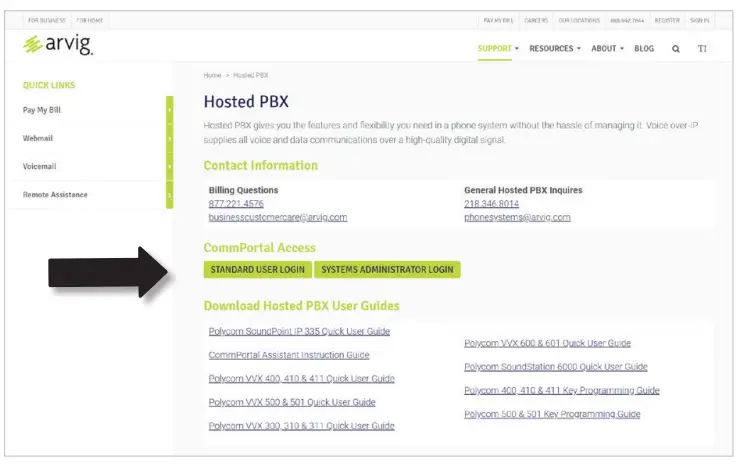
- Browse to: https://arvig.net/hostedpbx.
- Click STANDARD USER LOGIN.

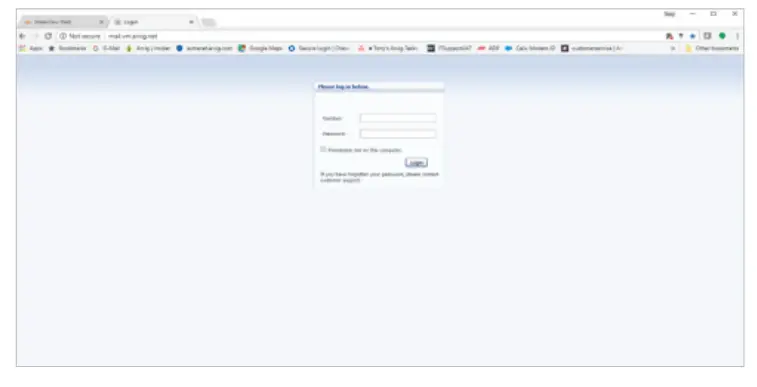
- Enter in your 10-digit phone number and password provided to you by your Systems Administrator or an Arvig representative.

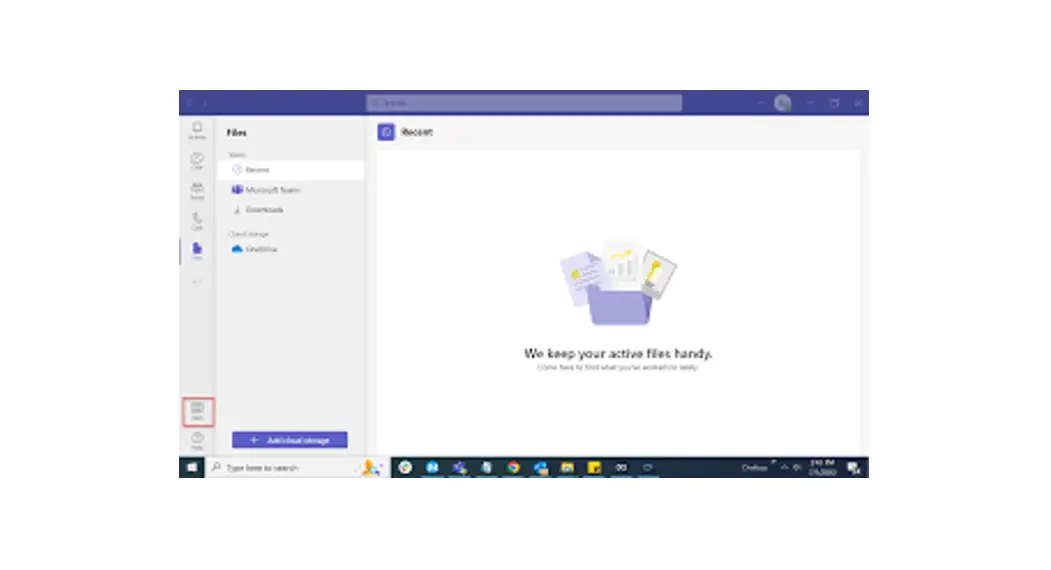
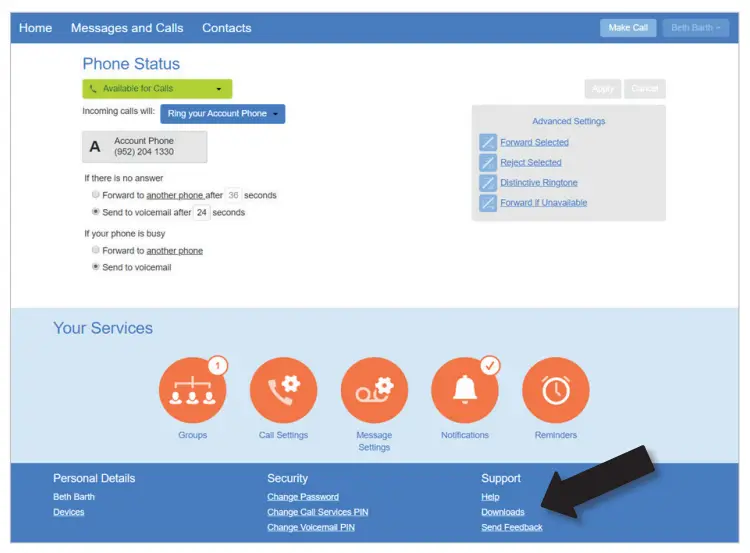
- Click on Downloads.

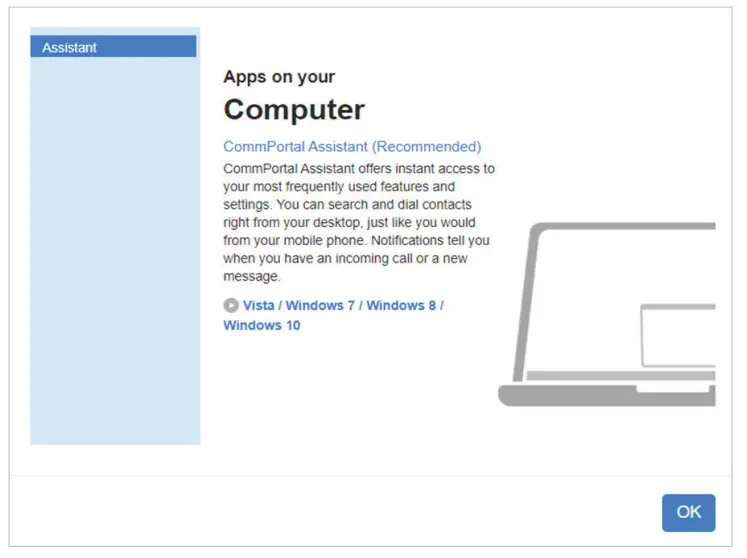
- Click on the Download link.

- You will find the .exe file in the tool bar.
- Click on the .exe link.
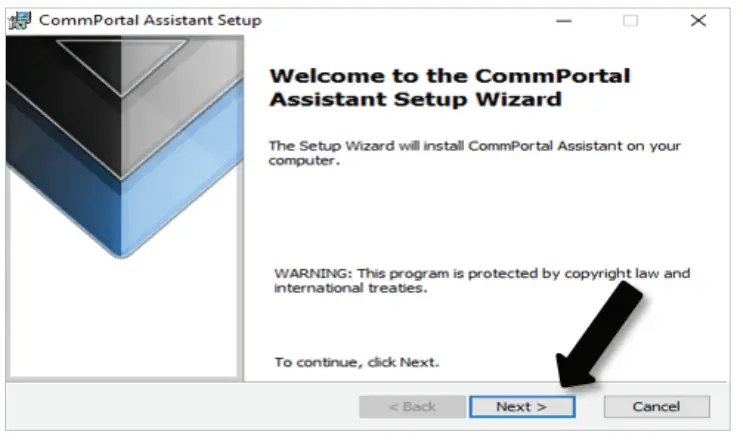
- After the Welcome message appears, click on Next.

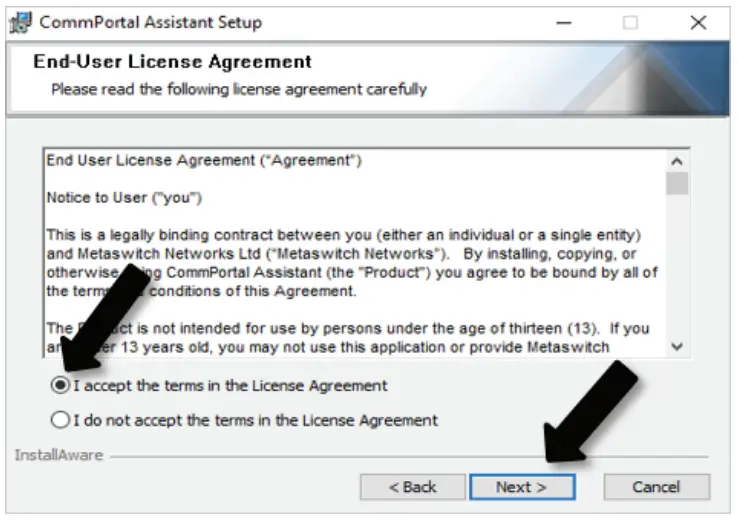
- Click on Accept.
- Click Next.

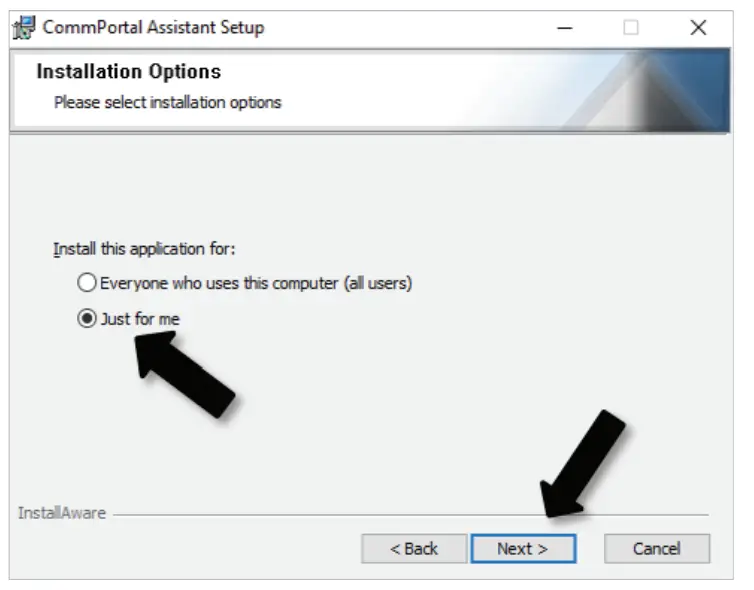
- Choose the option that fits best, most often it will be Just Me.
- Click Next.

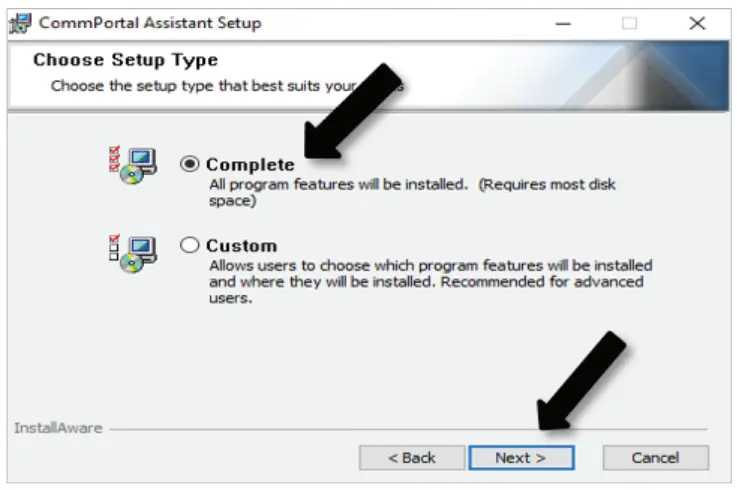
- Choose Complete.
- Click Next.

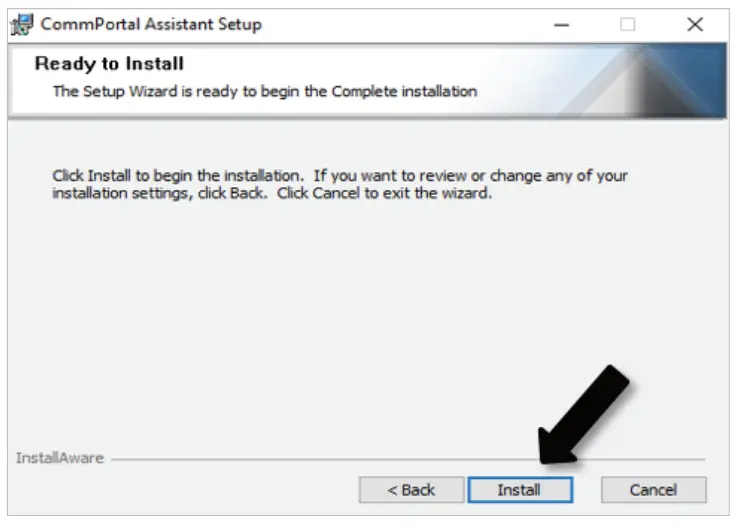
- Click Install.

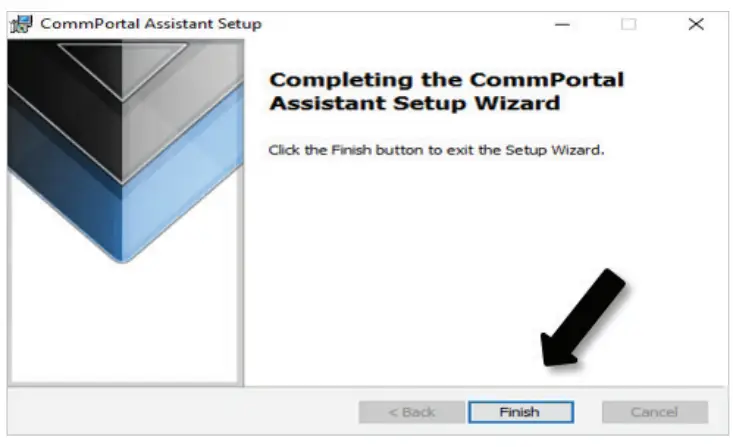
- Click Finish.

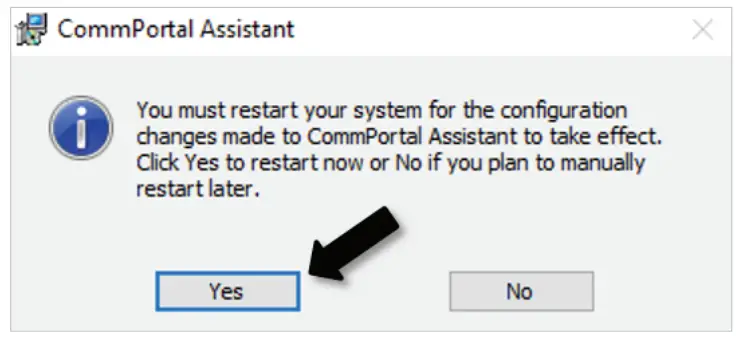
- You will need to restart your computer 1 or 2 times, depending upon your PC’s operating system. Be sure to save your work and close all programs before restarting.
- Click Yes if ready to restart.

- If prompted, click Yes to allow the changes.

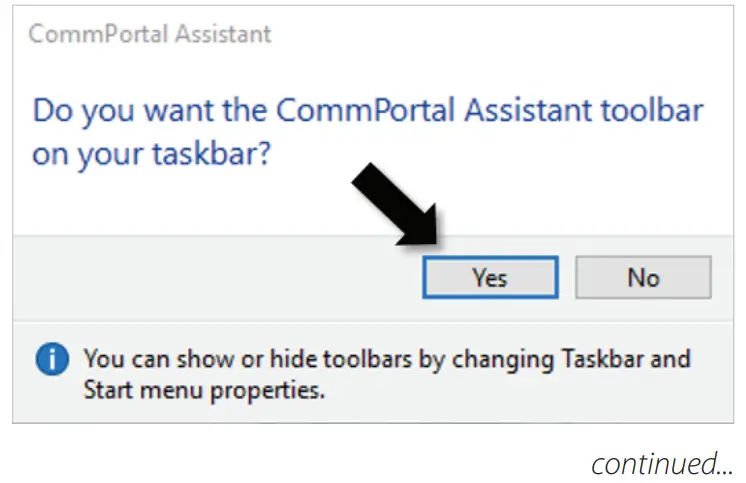
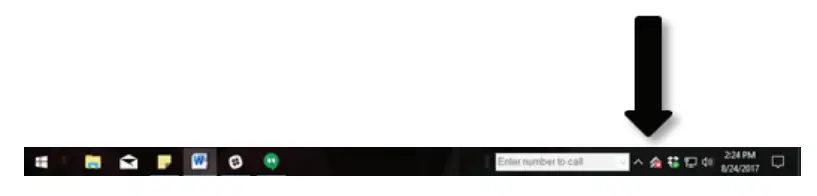
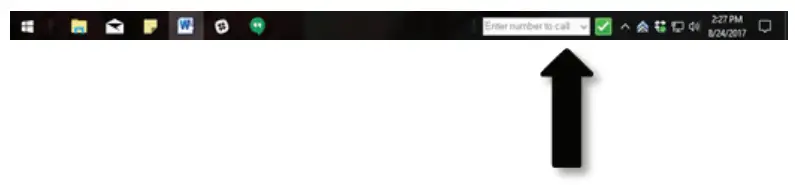
- You will see changes made to the Task Bar.

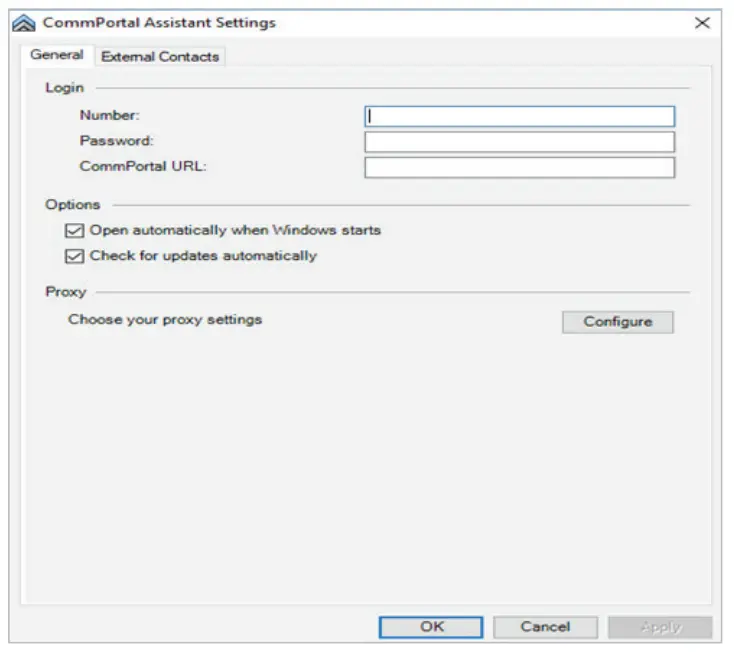
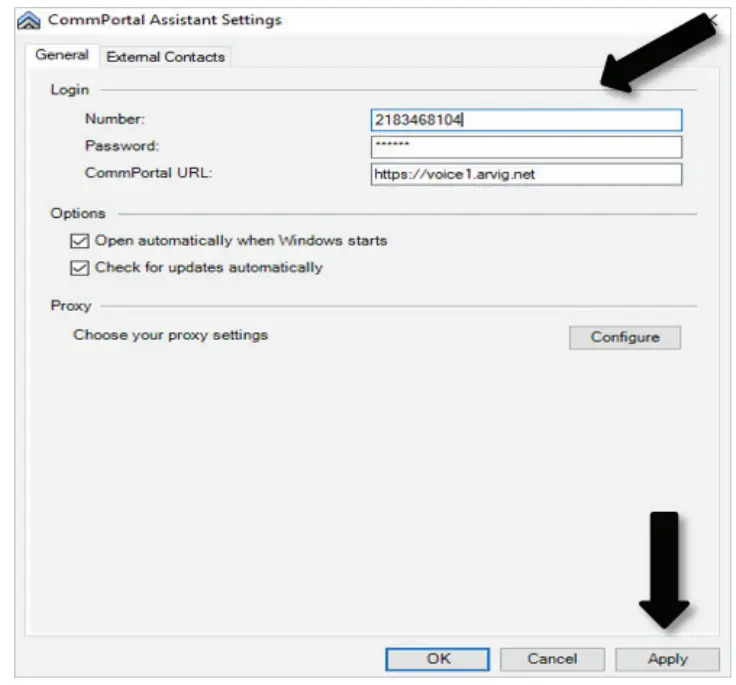
- If you have programs open, you may have to look behind other windows to see the below message.

- Enter the information in the 3 fields.
- Complete 10-digit phone number (no spaces).
- Password provided, same format as above.
- Enter the URL: https://voice1.arvig.net
- Click Apply.
- Click OK.
- Example:

- This is where you may need to restart your computer a second time to see the dialer app on the Task Bar.

You are now set up to use the CommPortal App.
©Arvig 2022
218.346.8014 | arvig.net/hostedpbx