 pure comp app
User Manual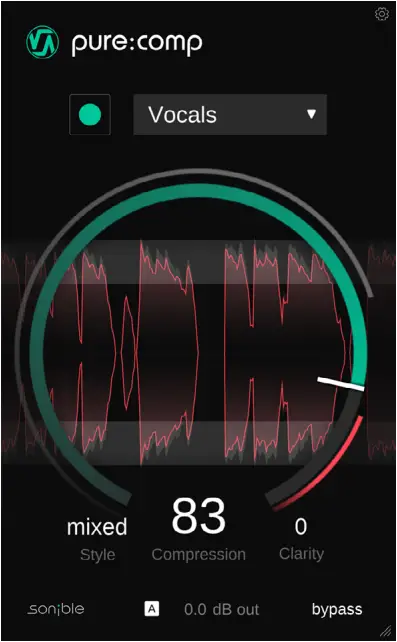
Welcome to pure:comp
pure:comp is a straightforward compression plug-in to instantly control a track’s dynamics – at the touch of one button.
The plug-in simplifies the process of applying compression to an instrument or voice track. With the help of sonible’s award-winning intelligent algorithms, the complexity of interdependent compression parameters is concentrated into just three controls: Compression Strength, Style and Clarity. Together with sonible’s signature AI learning feature and automatic parameterization, users can rely on pure:comp to deliver professional signal shaping without artifacts or overcooking.
Install
System requirements
CPU
Intel Core i5
AppleM1
RAM
4GB
Operating systems
Windows 10+ (64 bit)
Mac OS 10.12+
OpenGL Version 3.2+ You will need admin privileges to successfully install the pure:comp plug-in.
Mac OSX
To start the installation process, please open the disk image sonible_purecomp_osx_x.x.x.dmg. This will mount the image and open a finder window showing the content of the installation package.
To install pure:comp on your system, run the installation file purecomp.pkg.
The installer will now guide you through the necessary steps to install pure:comp on your computer. pure:comp will automatically be installed in the default locations for audio plug-ins.
Default folders:
Audio Unit
/Library/Audio/Plug-Ins/Components/
VST
/Library/Audio/Plug-Ins/VST/
VST3
/Library/Audio/Plug-Ins/VST3/
AAX
/Library/Application Support/Avid/Audio/Plug-Ins/
Windows
To start the installation process, extract the downloaded zip-file sonible_purecomp_win_x.x.x.zip onto your hard disk and run the installer.
The installer will now guide you through the necessary steps to install pure:comp on your computer. pure:comp will automatically be installed in the default locations for audio plug-ins.
Default folders:
VST3
C:\Program Files\Common Files\VST3\
VST
C:\Program Files\Common Files\VST\
AAX
C:\Program Files\Common Files\Avid\Audio\Plug-Ins
Licensing system
You can select between two licensing systems: machine-based or iLok (USB dongle).
By creating a user account on www.sonible.com and registering your products – if they are not already visible in your Dashboard, you can manage your plug-in activations.
Machine-based
Each license key allows you to install pure:comp on two computers with unique system IDs. These system IDs are computed during license activation.
The same license can be used by multiple users, but each user has to individually unlock the full version of pure:comp under their account.
In case a system-ID is changed (e.g. replacement of the hard drive), you can revoke/activate the plug-in next to the respective system-ID in the Dashboard of your sonible user account.
iLok
If you want to transfer one activation to your iLok, just make sure the plug-in is registered in your sonible user account. Click on the button „transfer to iLok“ next to the plug-in in your Dashboard and follow the instructions.
Note: 1st gen iLok dongles and the iLok Cloud are currently not supported.
Unlocking
If you purchased a license for pure:comp online, you receive your license key via email.
Machine-based unlocking
When opening pure:comp for the first time, a notification window will be displayed asking you to unlock pure:comp with a valid license key.
Please make sure that your computer is connected to the internet before starting the registration process.
Enter your license key and click „register.“ The plug-in will now communicate with our server to check if the license is valid. If it is – enjoy! 🙂
iLok
If you transferred your license to an iLok, simply attach the iLok to your computer. The plug-in will then be automatically registered – enjoy!
If you don’t receive the email within minutes please check your junk folder first before contacting our support ([email protected]).
Trial version
To run pure:comp in demo-mode, simply click ”try” and you will then be able to use pure:comp for a couple of days without any limitations. (Please refer to our website to find out more about the current demo period of pure:comp) When the demo period expires, you will need to purchase a full license in order to continue using the plug-in.
Internet connection requirements
sonible plug-ins only need an internet connection during the trial period and for initial license activation. During the trial period, the plug-in needs to go online every time it is used. Once the license of your plug-in has successfully been activated, an internet connection is no longer needed.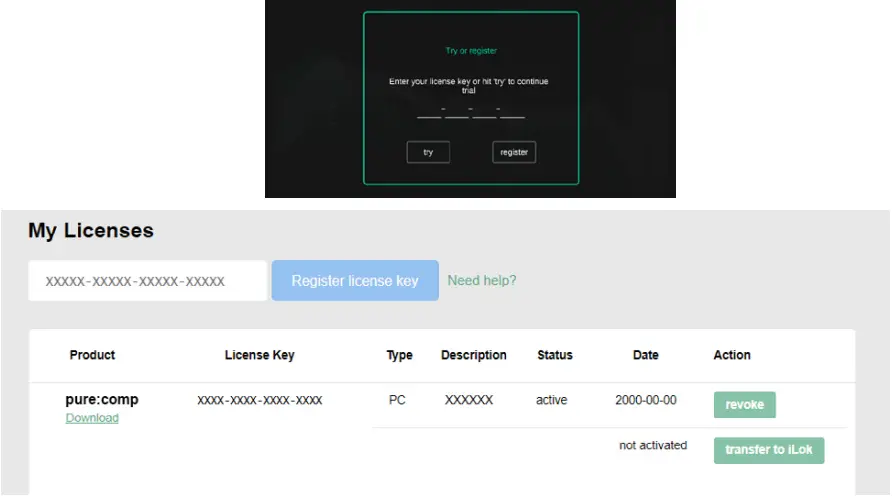
User interface
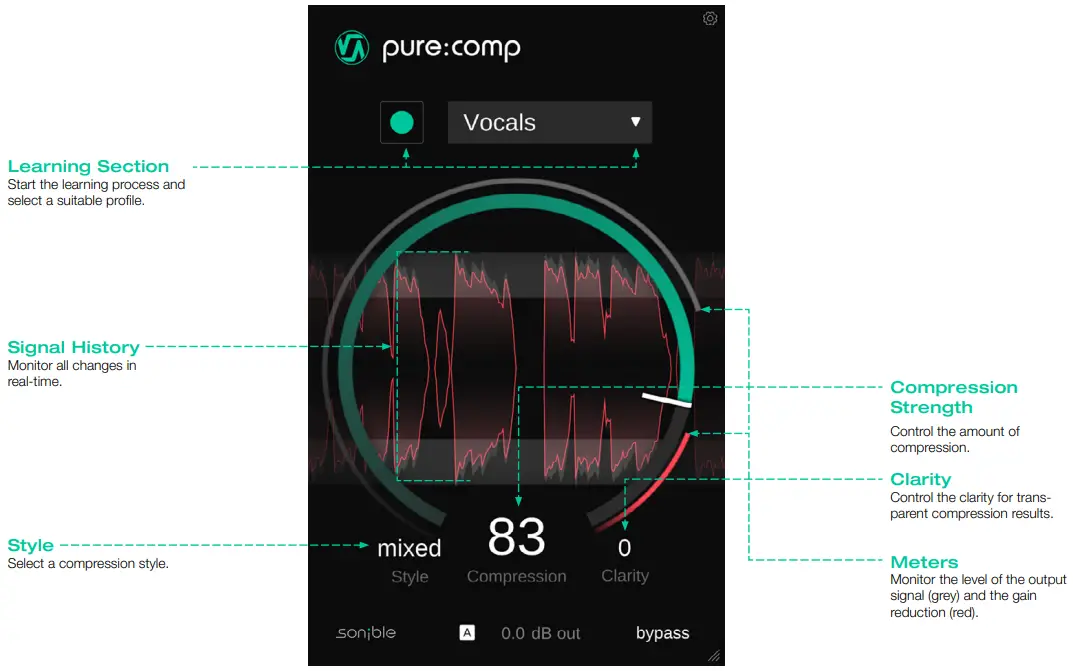
Getting started
pure:comp is equipped with a unique learning feature that finds the right parameters for well-balanced compression results. To get started, let pure:comp learn from your signal:
- Profile
A profile calibrates the processing of pure:comp to a specific sound source. You can always start the learning process with the “Universal” profile and switch to a more specific profile later.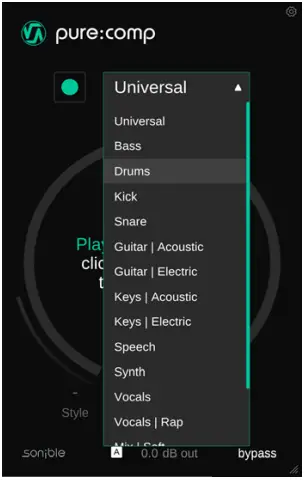
- Playback & learning
pure:comp needs an incoming audio signal for the learning process. Once the playback has started, click the green record button and let pure:comp listen to your signal.
Hint: It is recommended to let pure:comp learn from relatively loud sections of your track (e.g. the refrain). This gives the plug-in a good idea of the most critical dynamic section of the track.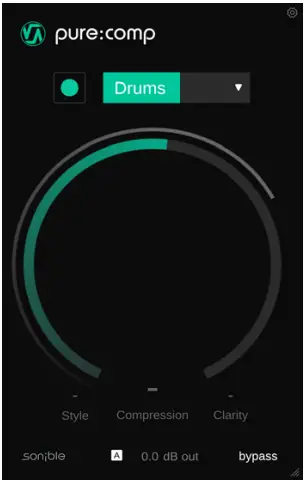
- Done!
When the learning process is finished, pure:comp automatically sets and unlocks all plug-in parameters.
Hint: If you want the plug-in to learn from a different section of your input signal, you can simply start the audio playback from there and click the learn button again.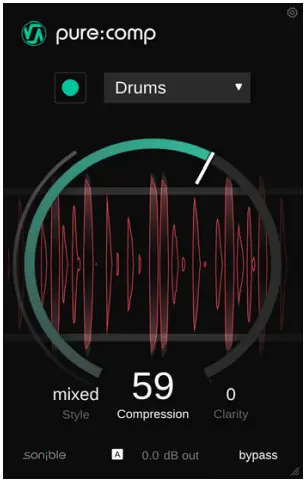
Fine-tuning
While the intelligent processing of pure:comp allows to instantly control the dynamics of a track, the plug-in also allows you to fine-tune the results to match your sonic vision.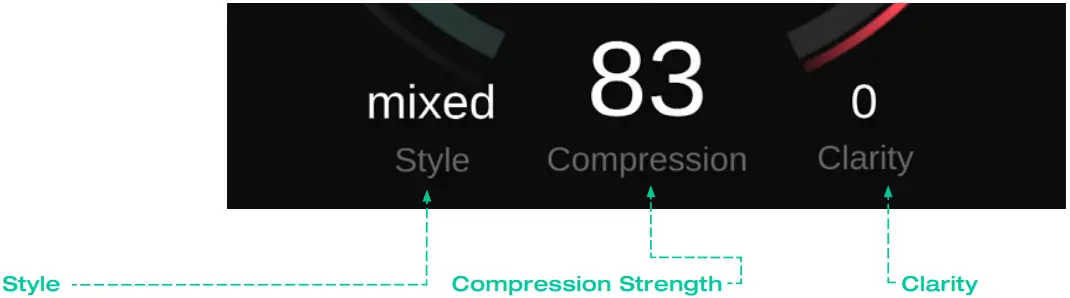
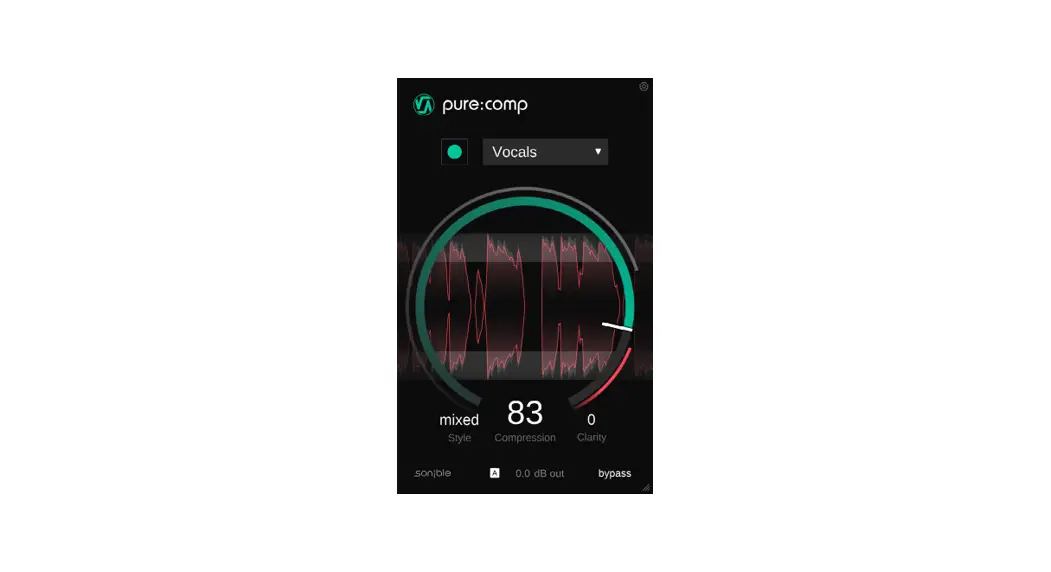
| The Style parameter determines the character of the compressor: Clean A clean compression style aims for a very transparent sound. It is suggested for content that should sound natural, but this style generally delivers clean compression results for a wide range of material. Mixed A mixed compression style leads to a good balance between a clean and dirty sound. It works well for most audio material and balances out the dynamics of a track without adding too much color. Dirty A dirty compression style helps to make your track sound punchy and adds a warm compression character. This style is perfect for giving drums or signals with a lot of transients the right dynamics without taking away their punch. | The compression parameter allows you to control the amount of compression. The higher the value, the more compression is going to be applied. You will instantly see the impact on the waveform of the compressed signal in the signal history. While a certain amount of gain reduction (compression) is intended when using a compressor, you should always try to go for a good balance between taming the dynamics and letting the signal breath. If you reach the red section of the slider while increasing the compression, you may be over-compressing your signal. | The clarity parameter allows to increase the transparency of the compression process. Increasing the clarity helps to smoothen out tonal imbalances to ensure a consistent tonal as well as dynamic balance. |
Settings page
To visit the settings page, click the little cogwheel in the upper right corner.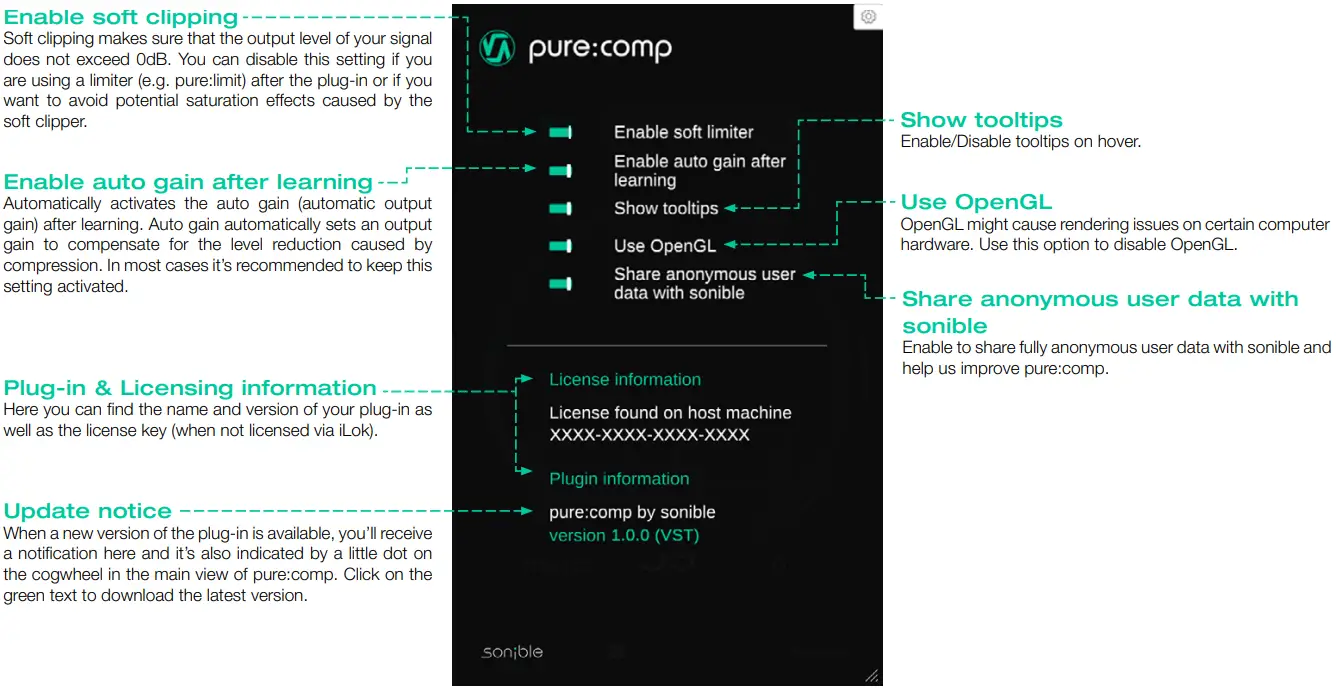
www.sonible.com/purecomp
All specifications are subject to change without notice.
©2023, sonible GmbH. All rights reserved.
Engineered & designed by sonible in Austria.
sonible GmbH
Haydngasse 10/1
8010 Graz
Austria
phone: +43 316 912288
[email protected]
www.sonible.com Compression, spot on
 sonible | Audio Soft- & Hardware made in Austria