
User Manual V1.0(2020.5)
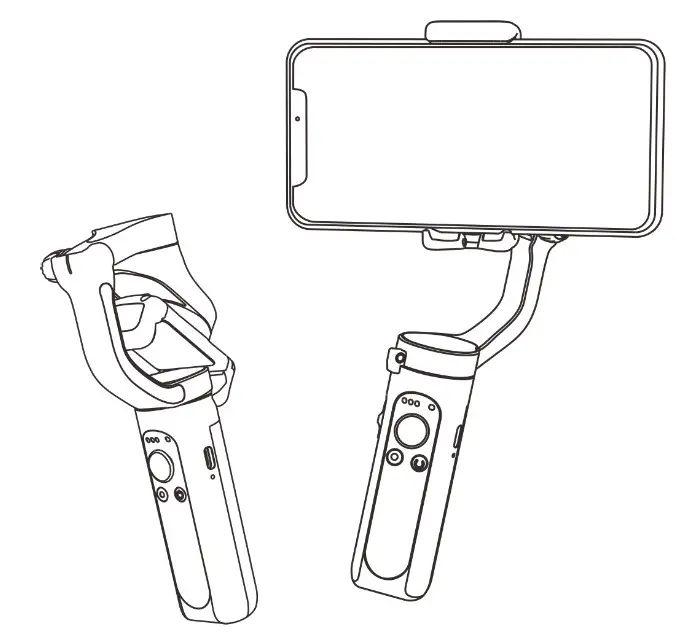

Download the App Hohem Pro

http://www.gimbalengine.com:8080/index.php/hohem-pro/
- Scan the QR code or search for ” Hohem Pro ” on the App Store or Google Play.
- Hohem Pro App Support iOS 9.0 and Android 5.0 or above.
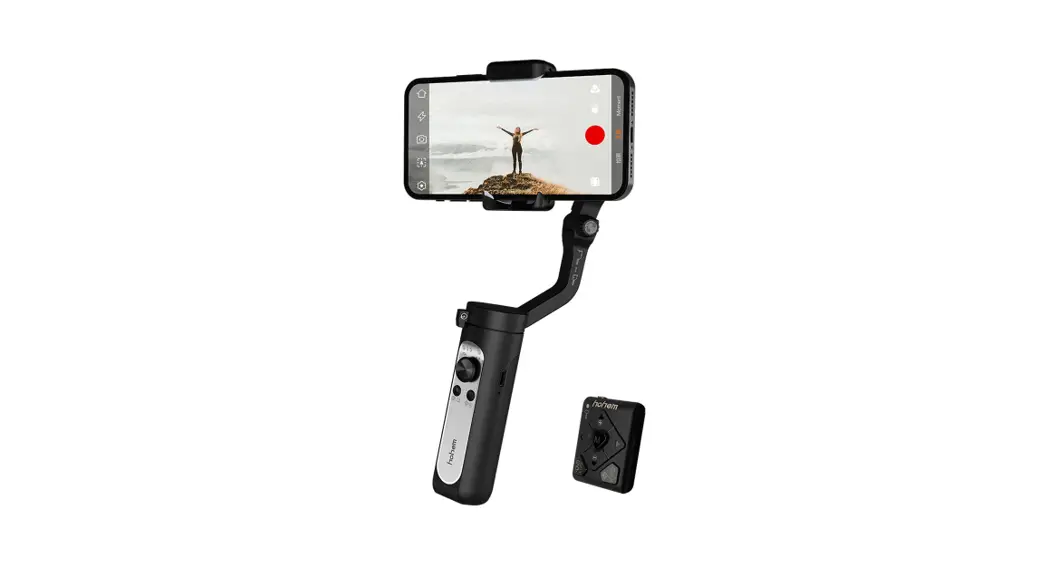
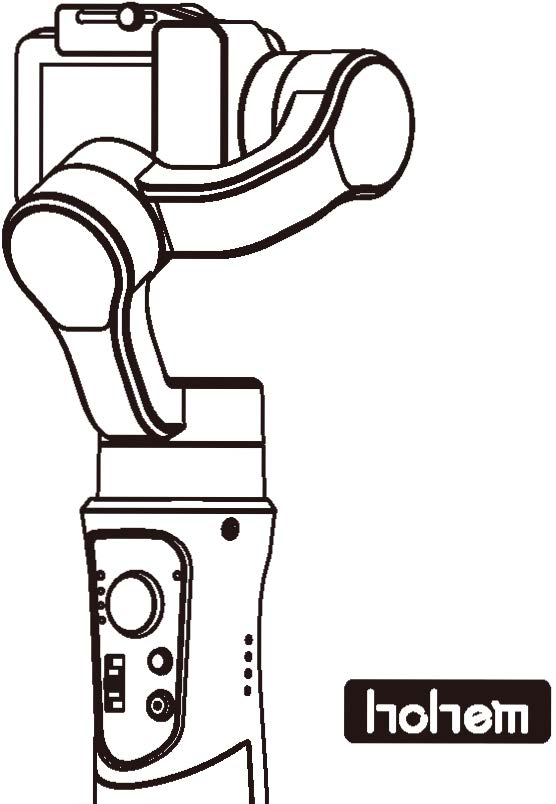
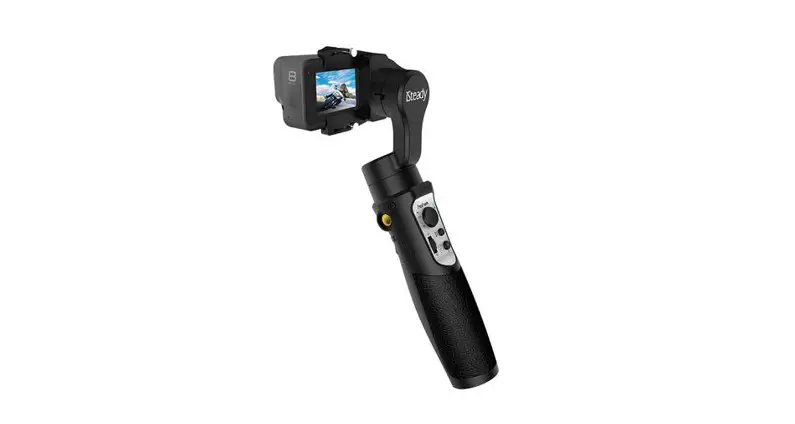
Product Overview
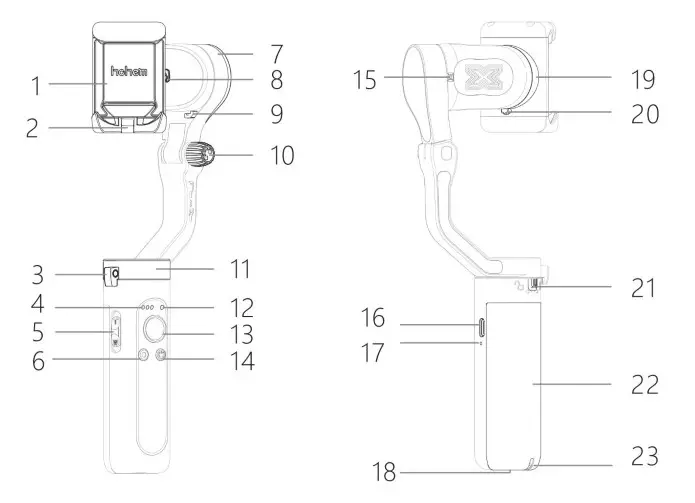
1. Phone Holder
2. Folding Lock
3. Pan Motor Lock
4. Battery Indicator
5. Zoom Slider
6. Shutter
7. Tilt Motor
8. Roll Motor Lock
9. Tilt Motor Lock
10.Knob
11. Pan Motor
12.Bluetooth Light
13.Joystick
14. Power Button (ON/OFF)
15. Tilt Motor Lock
16. Type C
17. Reset
18. 1/4 inch Screw Port
19. Roll Motor
20. Roll Motor Lock
21. Pan Motor Lock
22. Handle(Battery built-in)
23. Wrist Strap
How to mount and balance mobile phone on the gimbal?
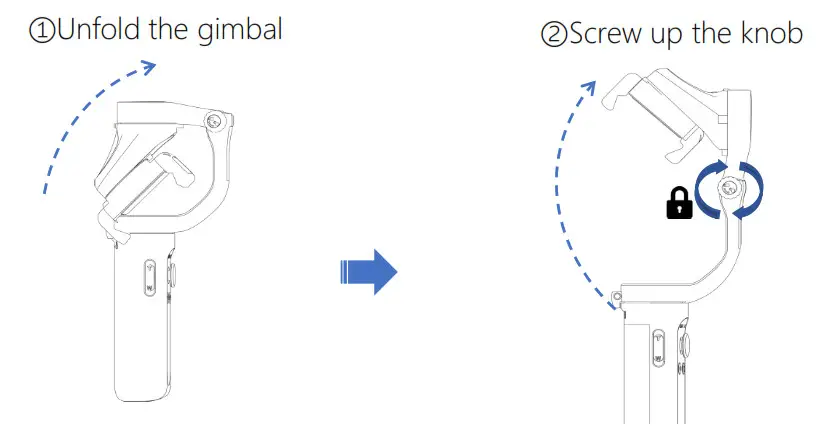
 The gimbal would work improperly if not screw the knob up.
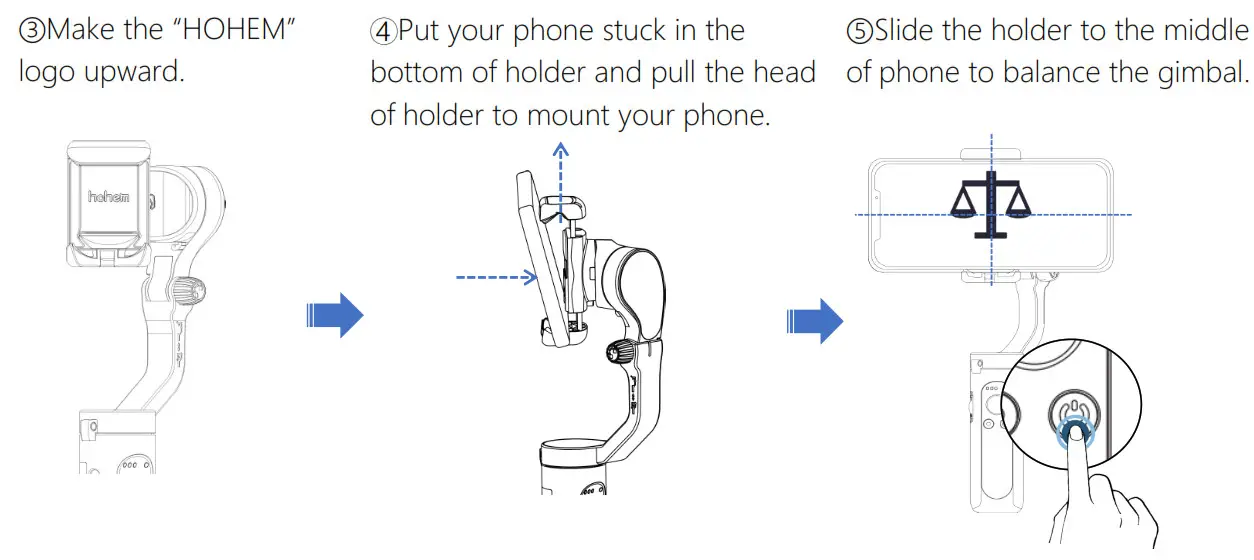
Clench the holder, ensuring that your phone clings to the rubber mat, otherwise, the gimbal would vibrate or turn off automatically.
Booting up for the First Time
Turn Bluetooth& Activate iSteady X
For the first time, please turn on the stabilizer. Log into the Hohem Pro App to activate the stabilizer. If the activation fails, it will not be enabled properly.
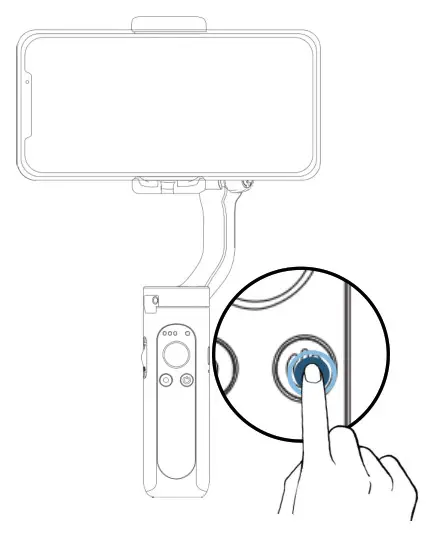
1 Startup
Long press the function key. When it is turned on for the first time, it will enter a to-be-activated state and the Bluetooth indicator light will flash “red and green” alternately.

② Connect Bluetooth in the App
Turn on the phone’s Bluetooth, open the APP, and log into the home page. Follow the prompt at the top and click “Connect”.
③ Activate iSteady X: After the Bluetooth is connected, an activation prompt box will pop up. Click “Confirm” to complete the activation. After that, you will hear a prompt tone of ticking, which means the stabilizer starts to work.
What to do if you fail to connect the Bluetooth or there is no pop-up of activation
a. Please make sure to enable the location service of phone and check if the Bluetooth connected successfully.
b. When you need connect the native camera of Android devices, please make sure the Bluetooth of mobile phone is connected with gimbal Bluetooth name with prefix “iSX”.
c. Some of android devices would not with a pop-up of pairing request after launch the app, or the pairing request is hidden in the notification bar without confirmation, which would cause the failed connection of Bluetooth in your phone, please click the pairing request to get connection.
Controls and Operations?
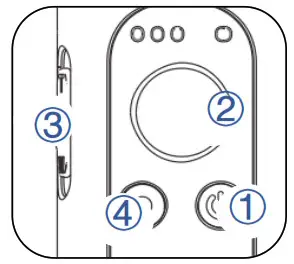
1 Power Button
Press and hold to power on/ off.
Tap to switch between landscape and portrait mode.
Press twice to re-center the gimbal.
②Joystick
Up/Down: Adjust tilt angle
Right/Left: Adjust pan angle
③Slider(available in the App)
Zoom in/ zoom out
Focus
④Shutter Button
Press once to take a photo
Press twice to start or stop recording
Press three times to switch between front and back cameras.
Shutter Button Controls
a. The gimbal is built with Bluetooth for mobile phone and the Hohem Pro App. User needs to connect the Bluetooth of mobile phone to control native camera and third-party apps, connect the Hohem Pro Bluetooth directly in the app.
b. When connected via Bluetooth, iSteady X is able to control the camera of the mobile phone without Hohem Pro. This feature is available with a mobile phone which supports camera control using the volume button.
Why The Lights Flash?
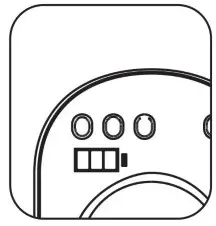
Power Indicator Lights
- Staying On: fully charged or charging complete
- Single flashing: charging
- Flashing in turn: calibrating
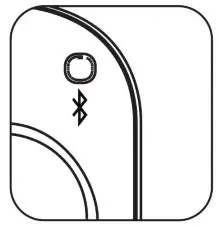
Bluetooth Indicator Light
- Flashing red and green alternately: stabilizer is to be activated (for the first time)
- Steady green: Bluetooth is connected
- Single flashing green: Bluetooth is to be connected
- Steady yellow: Standby mode and Bluetooth is connected
- Single flashing yellow: Standby mode and Bluetooth is to be connected
- Steady red: warning of abnormal loads on the stabilizer
Hohem Pro App
Hohem Pro app also allows you to use Moment mode, Hyperlapse, Timelapse, Face-tracking 3.0, and Pano, or configure camera and gimbal settings in just a few taps.
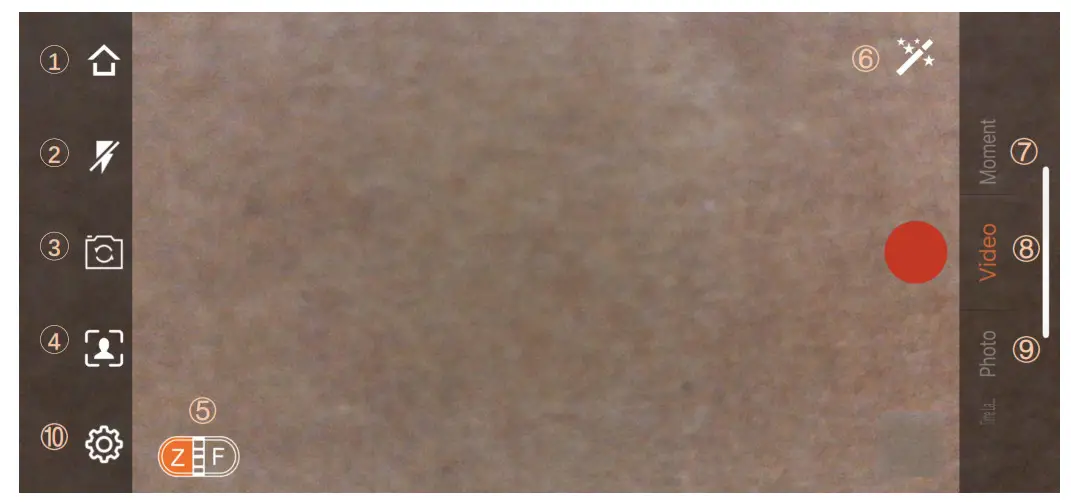
- Home: tap to return to home.
- Flash: Displays the flash status.
- Front/Back Camera Switch.
- Enable face tracking.
- Z /F:Zoom in/out and focus.
- Beauty cam and filter.
- Moment:Refer to Number 7 for more information about Moment mode.
- Video: tap to shoot a normal video.
- Photo: tap to take a single shot or interval photo.
- Settings:General Settings and camera setting.
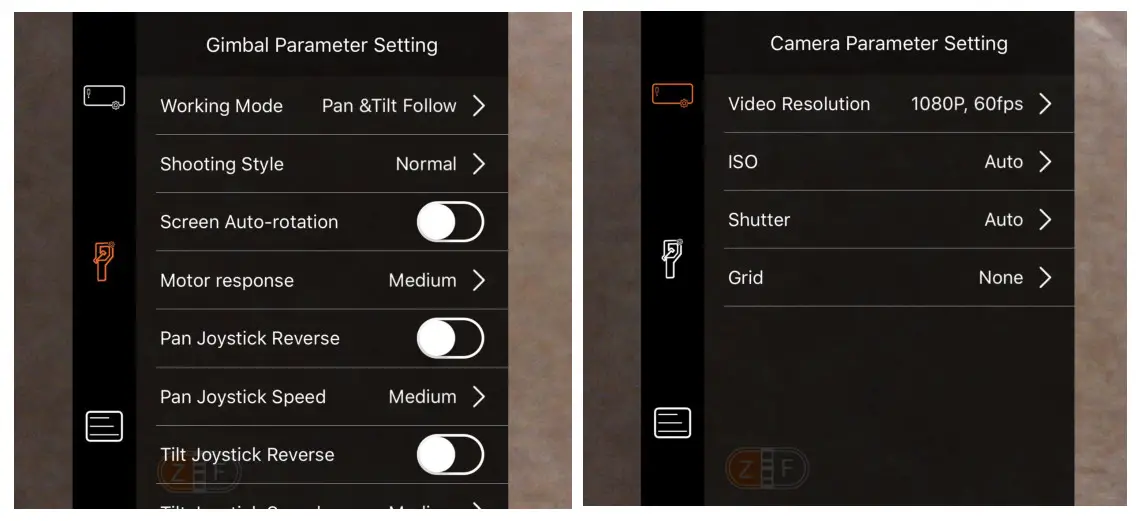
What are the Working Modes and Shooting Style?
- Please enter into the Stabilizer Parameter Settings of Hohem Pro App to change the Working Mode and Shooting Style.
- Make sure the Bluetooth connected in the App before changing the settings.
| Working Mode | Follow Speed | ||
| Pan & Tilt Follow | Default working mode: Camera follow the direction along with rotation of pan handle and tilt motor. | General | Shooting with general follow speed |
| Pan Follow | Camera follow the direction along with rotation of pan handle. | Slow | Shooting with slow follow speed |
| All Lock | All Pan, Tilt(within±30°), Roll motors are locked without follow along with movement. | Medium | Shooting to follow the fast movement |
| POV | The first point of view: All Pan/Tilt/Roll follow. | Fast | Fast follow speed for scenario transformation. |
It can be a mobile phone stand
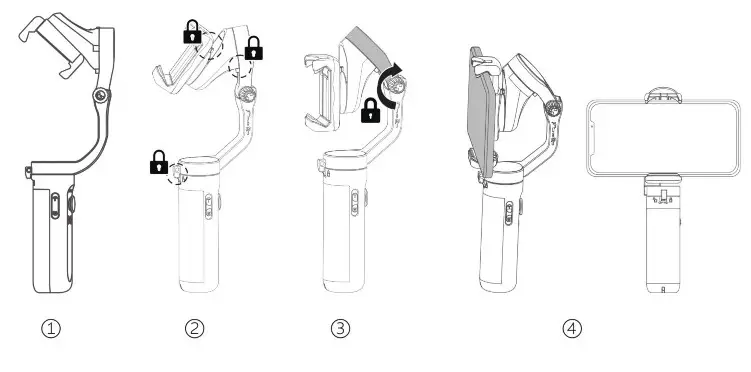
How to fold the gimbal?
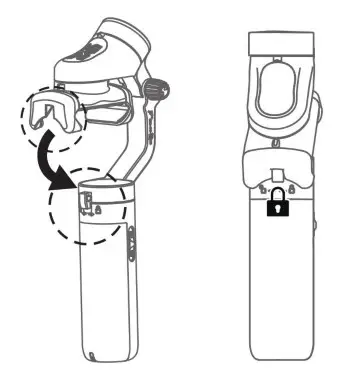
Calibration
Do not touch the gimbal and keep it on a static platform during calibration
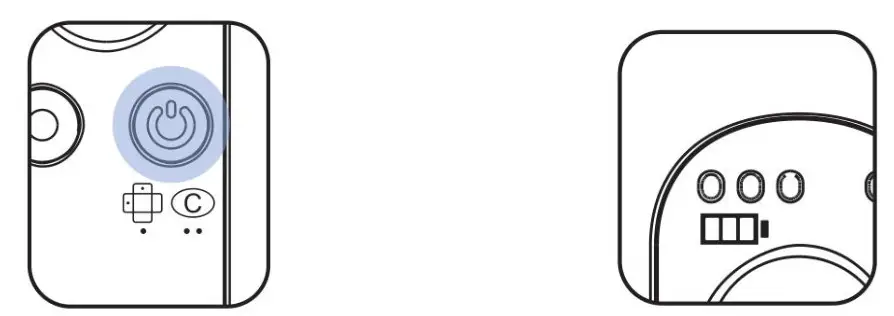
- Press five times
- You will here a beep
- LEDs blinks left to right
- Two beeps mean completed
FAQ
1.The gimbal works improperly (beep) after powering on for the first time.
Activation is required through Hohem Pro App after powering on the gimbal for the first time. How to activate iSteady X? Please refer to page 4.
*If there is no pop-up of activation, please make sure to enable the location service of phone and check if the Bluetooth connected successfully.
2.What to do if you fail to connect the Bluetooth or the app features are not available after Bluetooth connected?
a. The gimbal is built with Bluetooth for mobile phone and the Hohem Pro App. User needs to connect the Bluetooth of mobile phone to control native camera and third-party apps, connect the Hohem Pro Bluetooth directly in the app.
It’s better to connect the Bluetooth in the Hohem Pro app for the first-time connection. If you connect the Bluetooth in your mobile phone in advance, it would cause a failed connection in the Hohem Pro app. Please enter into your mobile phone Bluetooth list to unpair the
connection of gimbal (with prefix “iSX”), then launch the Hohem Pro App to connect the Bluetooth directly in the app, make sure the location service of mobile phone is enabled.
b. When you need connect the native camera of Android devices, please make sure the Bluetooth of mobile phone is connected with gimbal Bluetooth name with prefix “iSX”.
Some of android devices would not with a pop-up of pairing request after launch the app, or the pairing request is hidden in the notification bar without confirmation, which would cause the failed connection of Bluetooth in your phone, please click the pairing request to get
connection.
c. The Bluetooth light is solid green after the Bluetooth connected successfully, if the app features are not available even the Bluetooth light is solid green, please check if the device is connected another nearby mobile phone and make sure to disconnect it.
d.
3.Why the gimbal vibrates or turn off automatically after powering on?
If the gimbal vibrates and the Bluetooth light flashes by blue and red, the gimbal works improperly with beeps and turn off automatically after 3 seconds, it would be possible that your mobile phone is not properly mounted.
1. Mount your mobile phone before powering on the gimbal.
2. Attach your phone, ensuring that your phone is cling to the rubber mat.
3. Balance your phone by sliding the holder to the middle of phone.
4. Unlock all the 3 motors before powering on the gimbal.
*If you mobile phone is lightweight, the gimbal would vibrate while above steps are done correctly, please adjust the motor response as Medium or Low in the app.
Make sure to connect the gimbal with app successfully, you can find the Motor Response setting in the Stabilizer Parameter Settings.
4.What to do if the firmware updating failed?
If the firmware updating failed, the Bluetooth light flashes red and the gimbal is not able to work after powering on, please close the app, restart the Bluetooth of mobile phone and do the firmware updating again.
* Make sure the app is not closed, do not switch to other app or turn off your mobile phone while updating the firmware.
Specifications
| Model | Steady X | Battery | 186501i-ion 2000 mAh/3.7V |
| Folded Dimensions | 179 X 79 X 39 mm | Mechanical Range | * Pan: 320°. * Roll: 320°. *Tilt 320° |
| Weight | 259 g | Compatible Phones | Weight : 280g Thickness: <11 mm Width : 55mm-90mm |
| Operating Time | 8 hours |
After-Sales Information
Visit https://www.hohem.com to learn more about after-sales service policies, repair services, and support.
Call Center (Toll-Free)
UNITED STATES: +1 (888) 9658512
Mon-Fri: 9:00AM – 5:00PM (EST)
CANADA: +1 (855) 758-8939
Mon-Fri: 9:00AM – 5:00PM (EST)
UNITED KINGDOM: +44 (0)808 2737578
Mon-Fri: 10:00AM – 6:00PM (GMT -3)
BRAZIL: +55 (0)800 5911897
Mon-Fri: 2:00PM – 10:00PM (GMT +0)
Contact 171t. /Contattaci/Contactez-nous/Contacto/ CBa3a-rboi c Hamm: [email protected]

https://www.facebook.com/HohemGlobal/
This content is subject to change.
Download the latest version from
www.hohem.com
iSteady is a trademark of Hohem Tech.
Copyright © 2020 Hohem Tech All Rights Reserved.
 浩瀚瀚卓越三轴稳定器|专业三轴手机稳定器|手机稳定器|浩瀚卓越浩瀚卓越-hohem