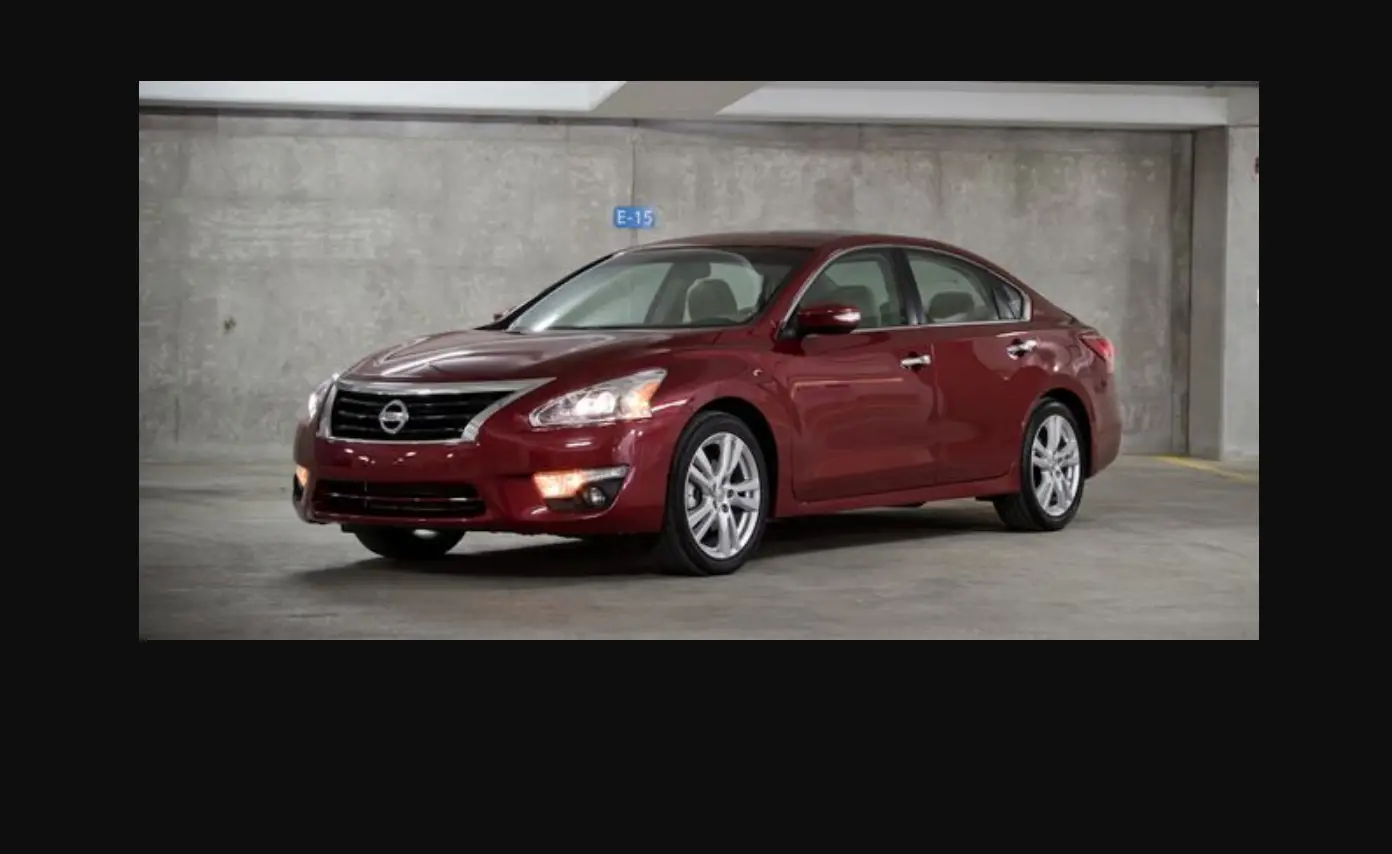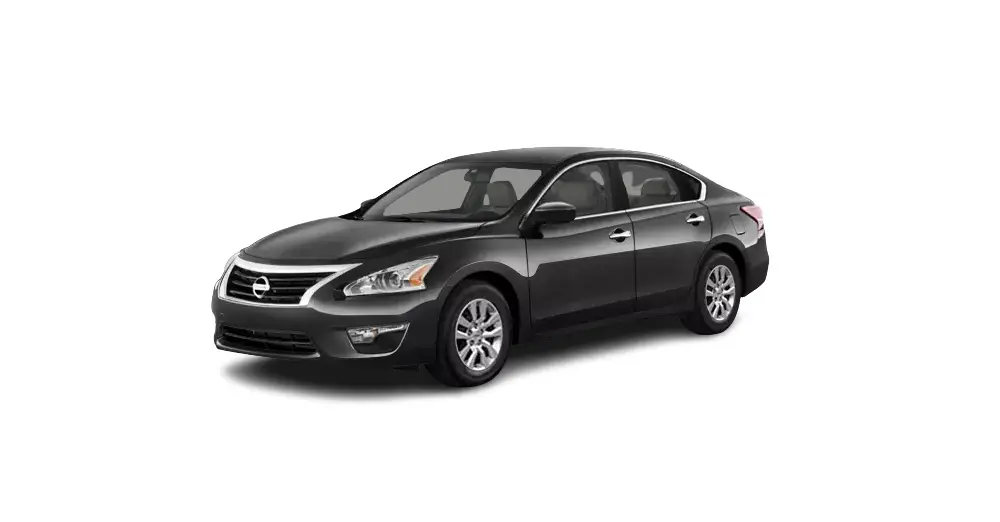

NISSAN Google Action Assistant device
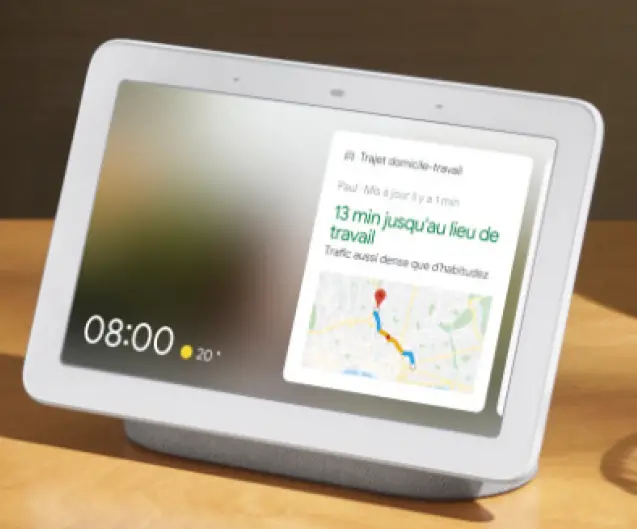
OVERVIEW OF 3 STEP PROCESS
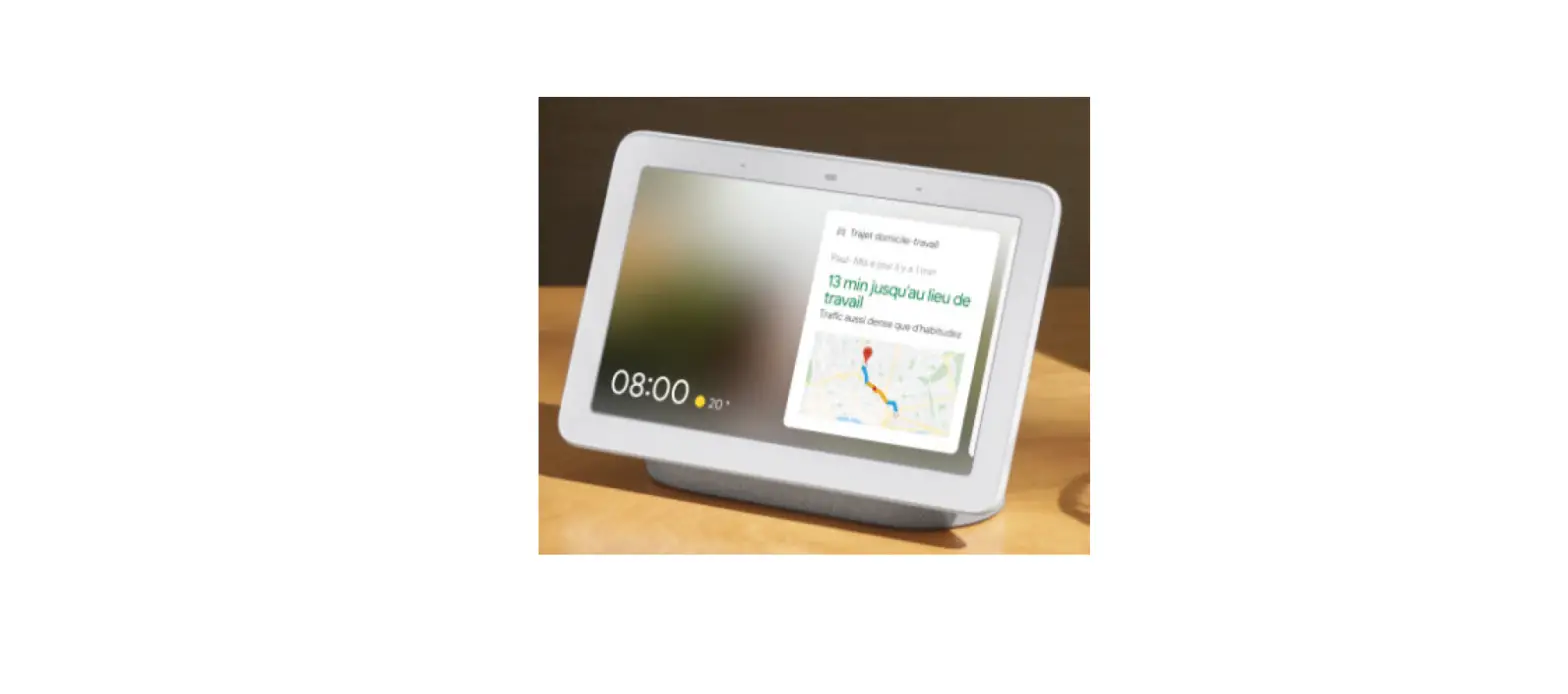
Before starting this 3 step activation process, please make sure you set up your Google Assistant device (Google Home, Google Home Mini, …) and connect it to your WiFi network.
- DOWNLOAD/OPEN
Install the free Google Assistant app on your phone from the Google Play Store or App Store. - FIND NISSAN
Access the section and find the Nissan Action. - LINK THE ACTION TO YOUR NISSANCONNECT SERVICES ACCOUNT
Connect your vehicle by linking Google Assistant to your NissanConnect Services account.
ACTIVATION STEPS
STEP 1:
Install the free Google Assistant app on your phone from the GoogleStore or App Store.
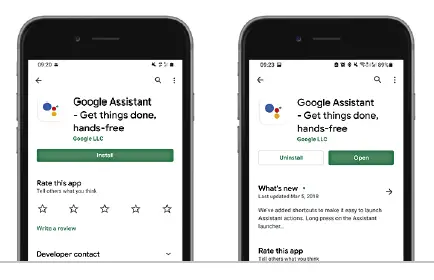
- Access Google Play Store or the App Store
- Search the Google Assistant App
- Download the Google Assistant App
STEP 2:
Access the ‘Explore’ section and find the Nissan Action.
- Access the Google Assistant app

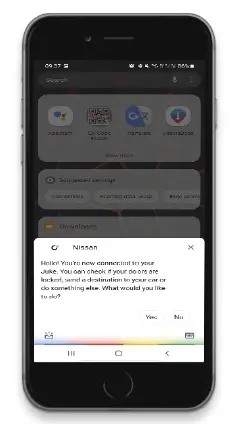
- Tap on the ‘Microphone’ icon and say “Talk to Nissan”:

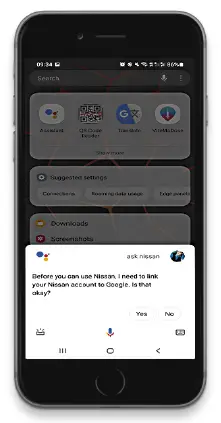
STEP 3:
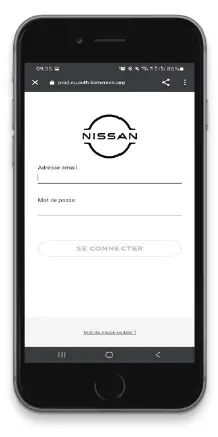
- Login with your NissanConnect Services credentials

- Your account is now linked. You can start using the Nissan Action by saying ‘Ok Google, ask Nissan to give me a tutorial