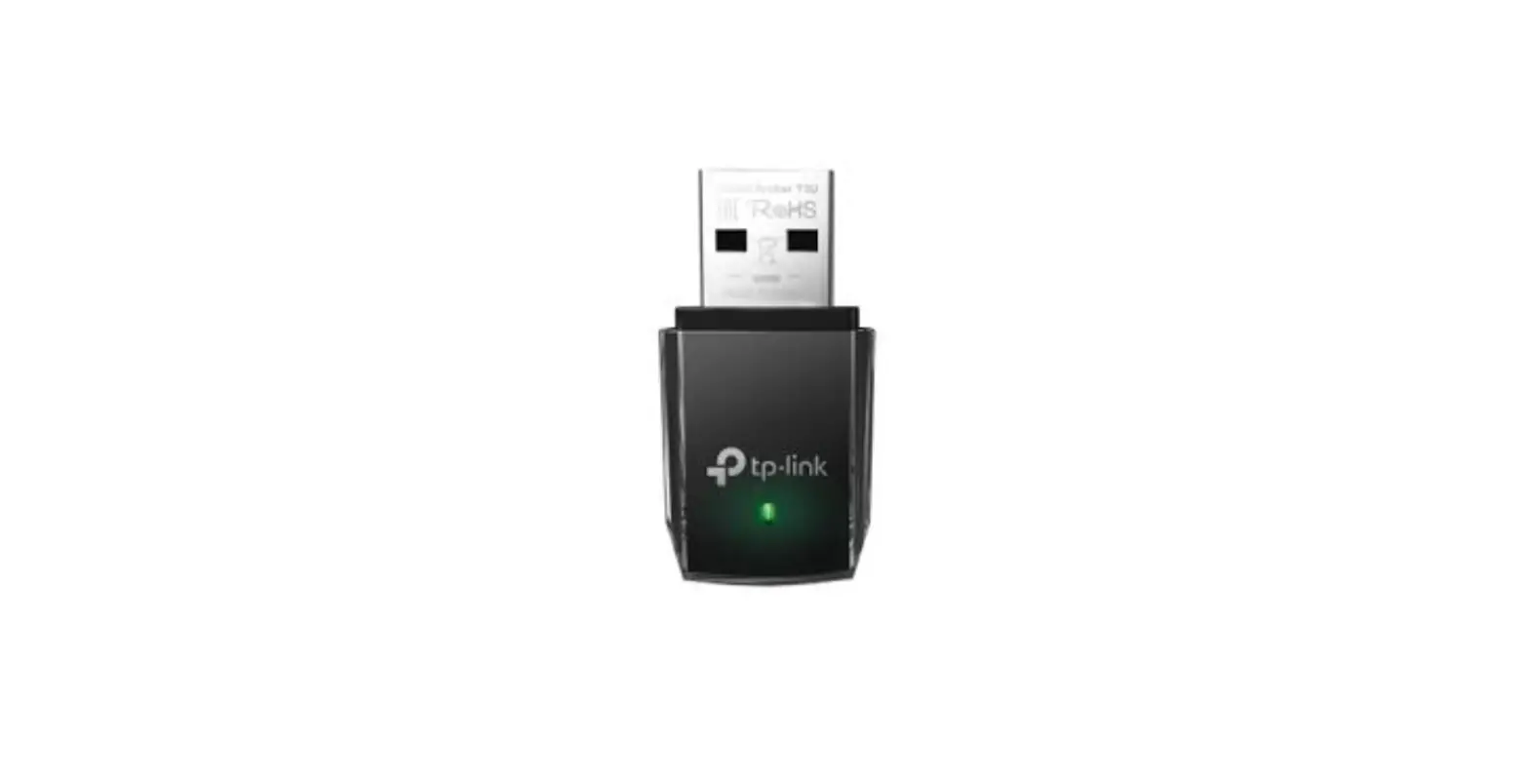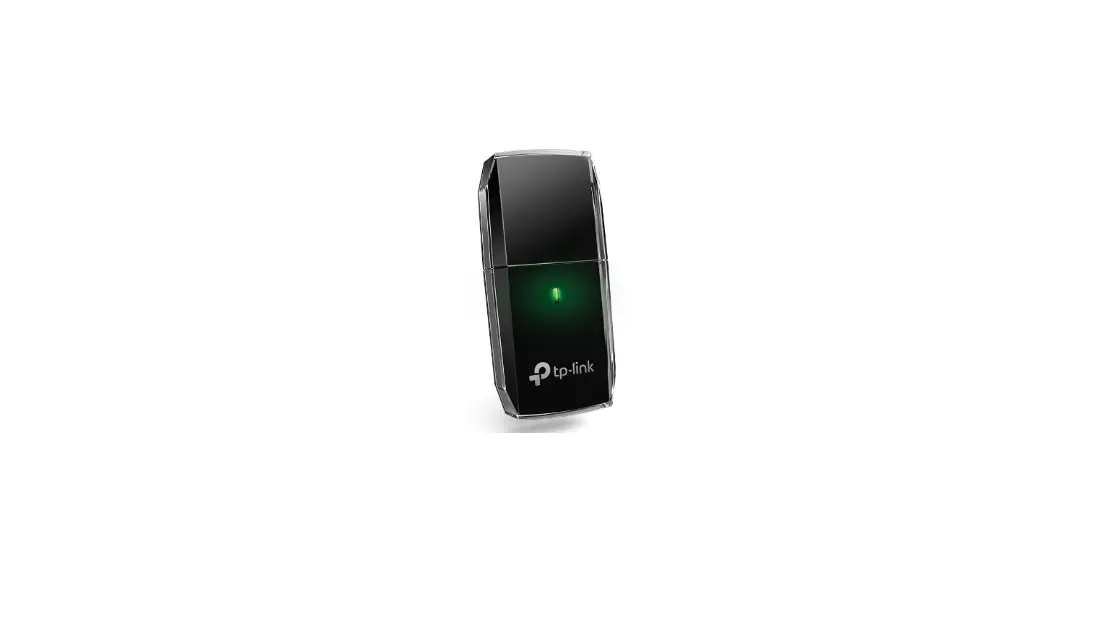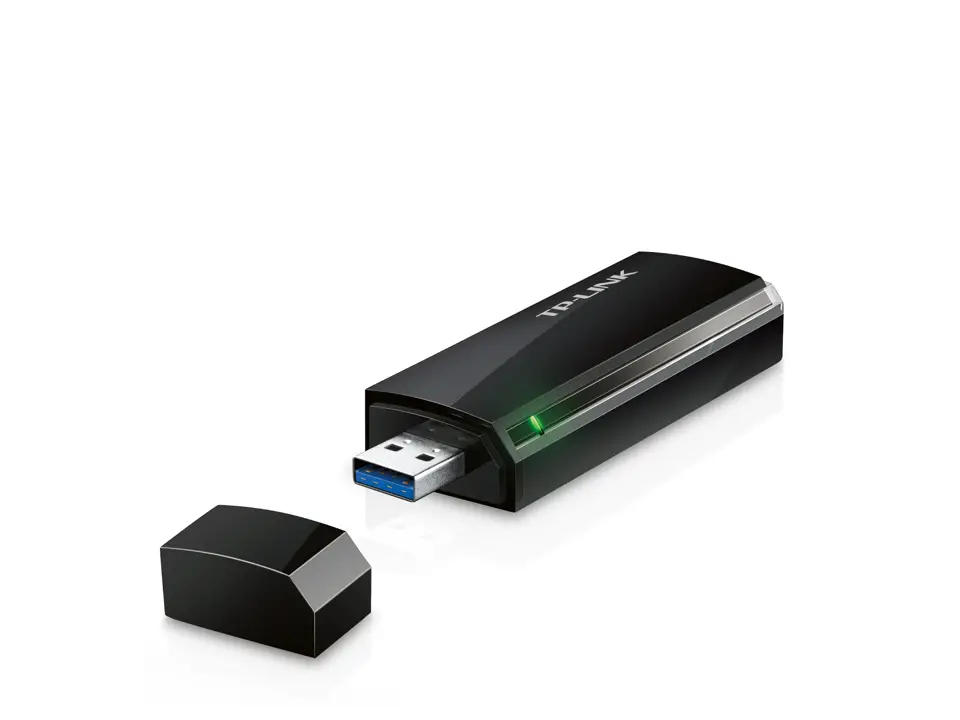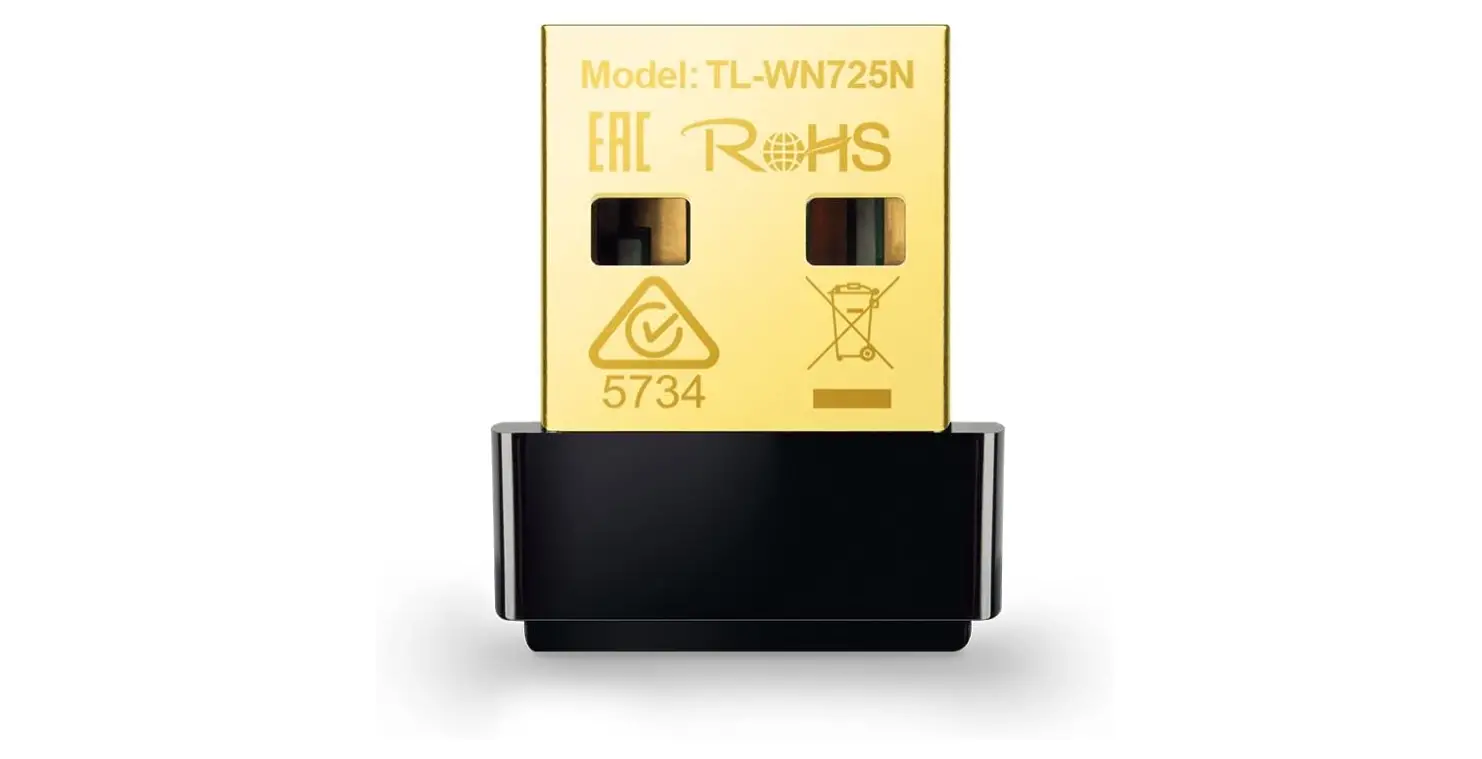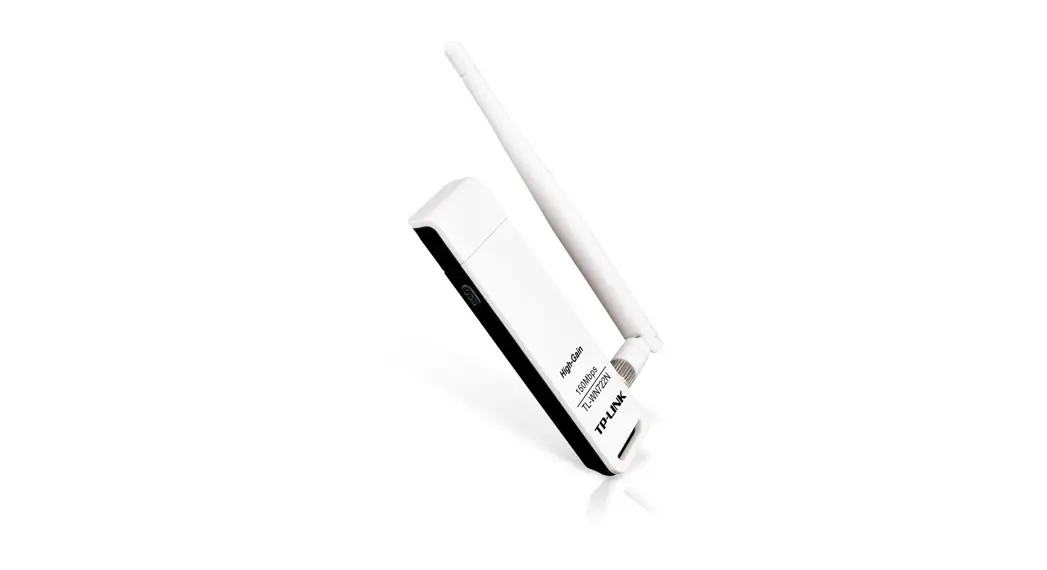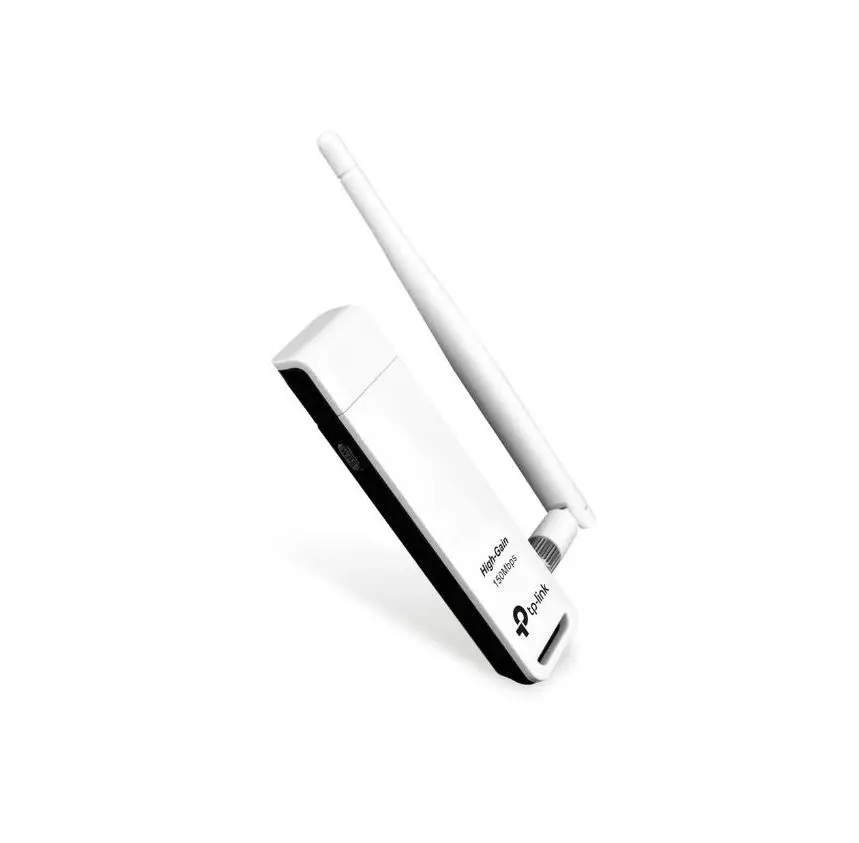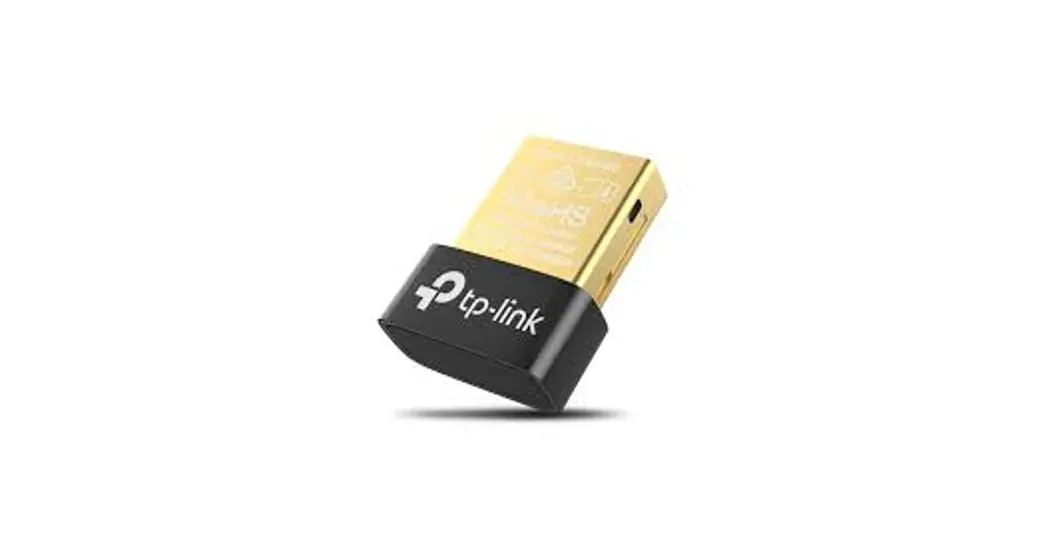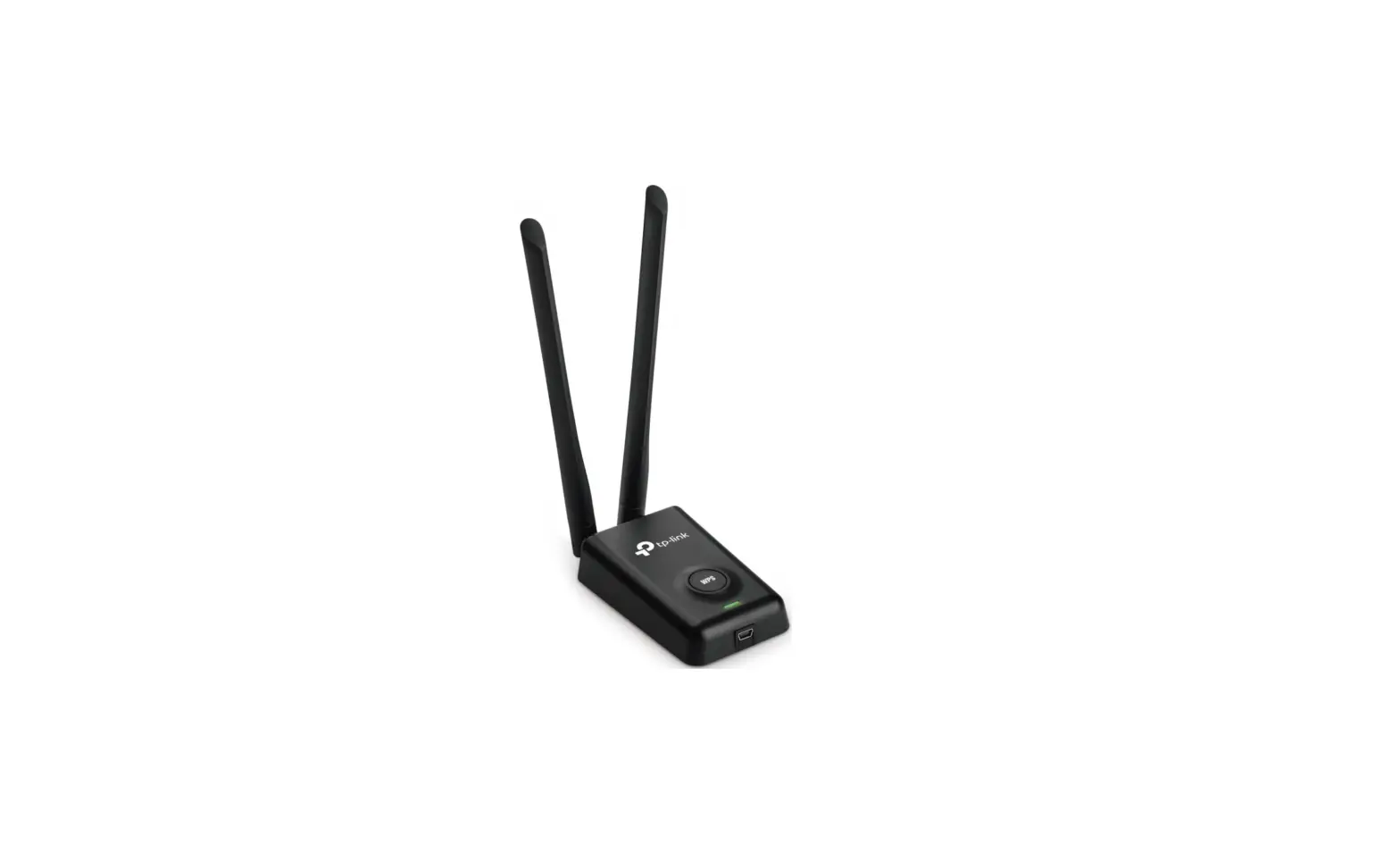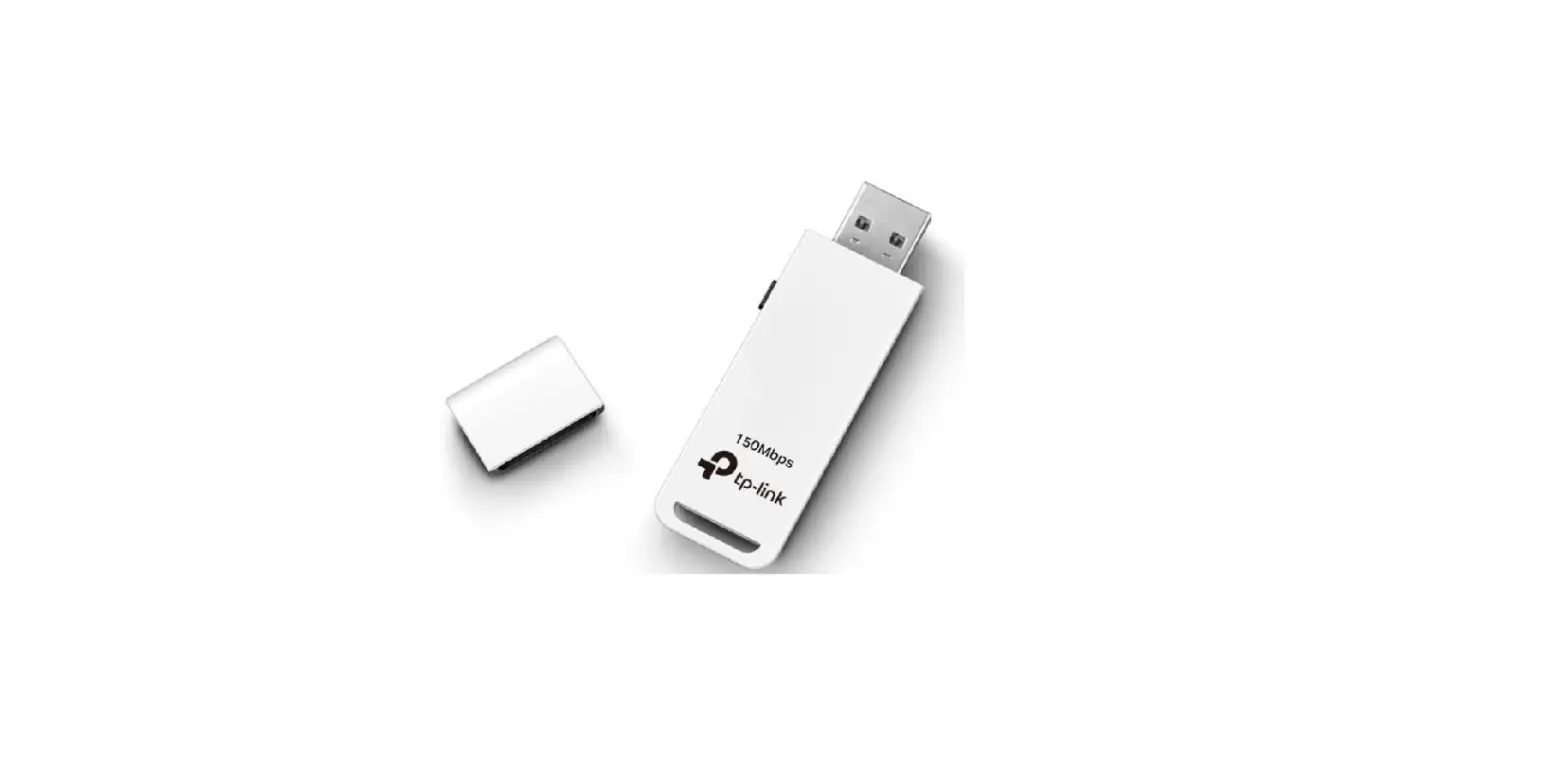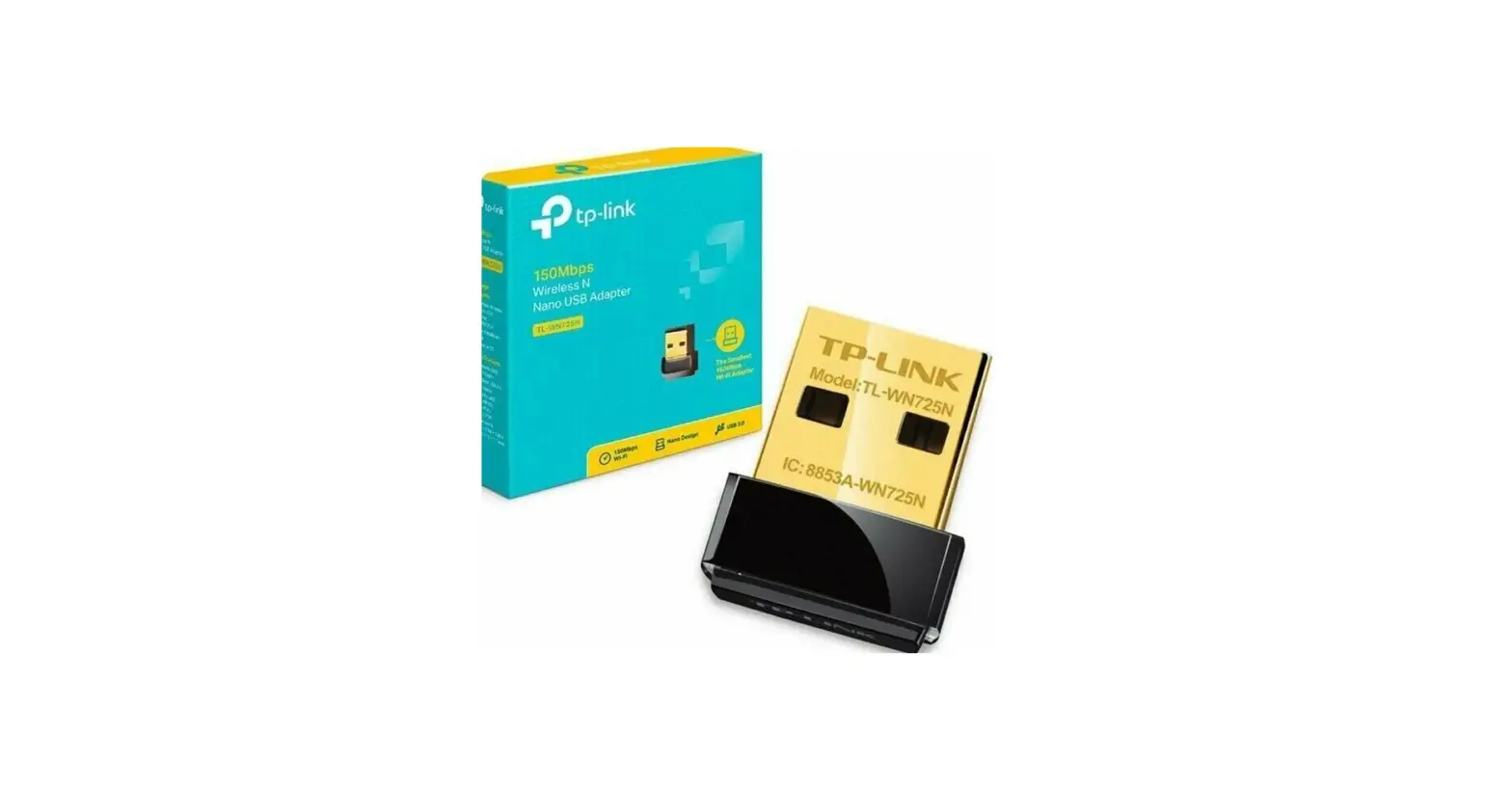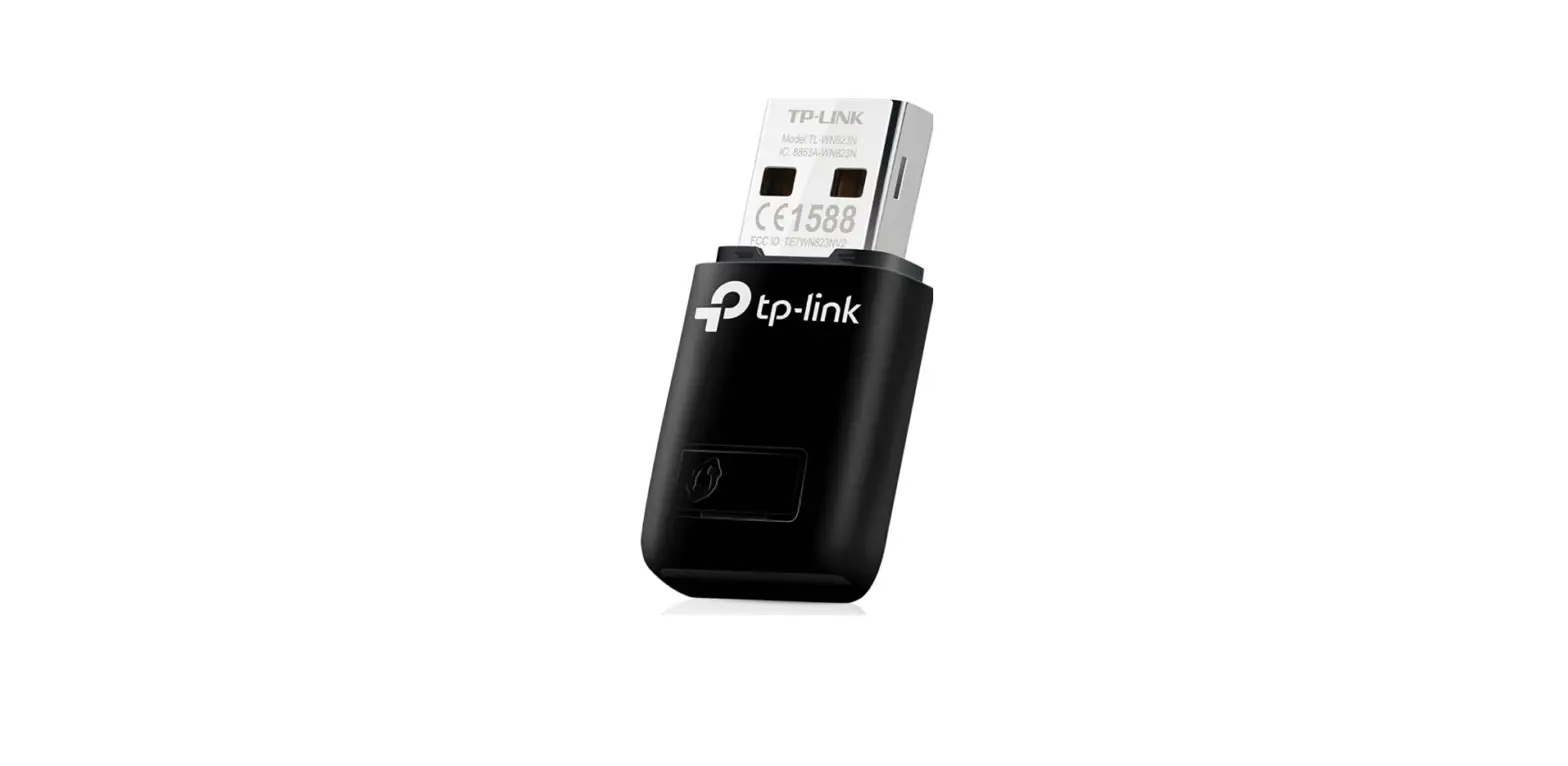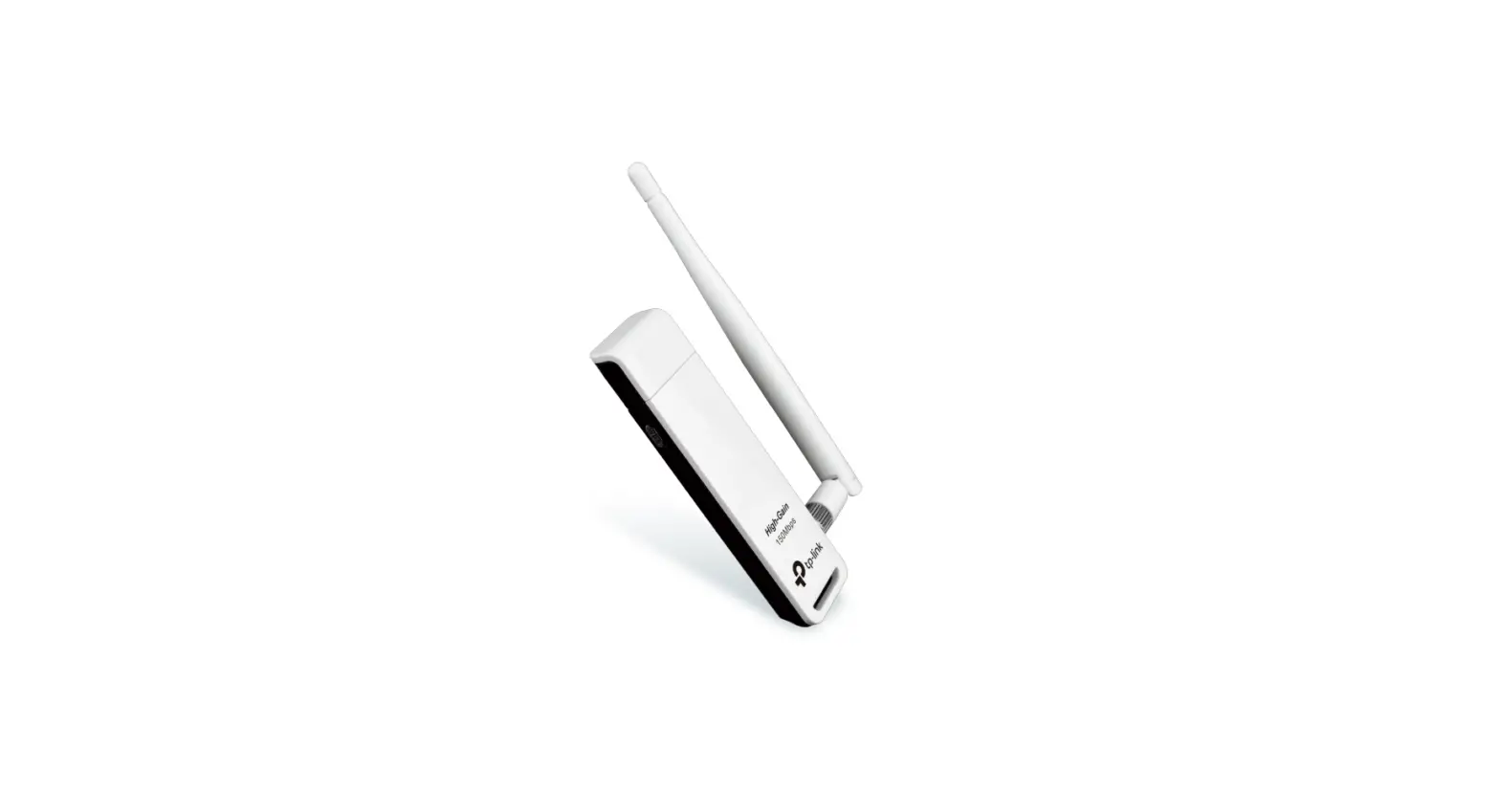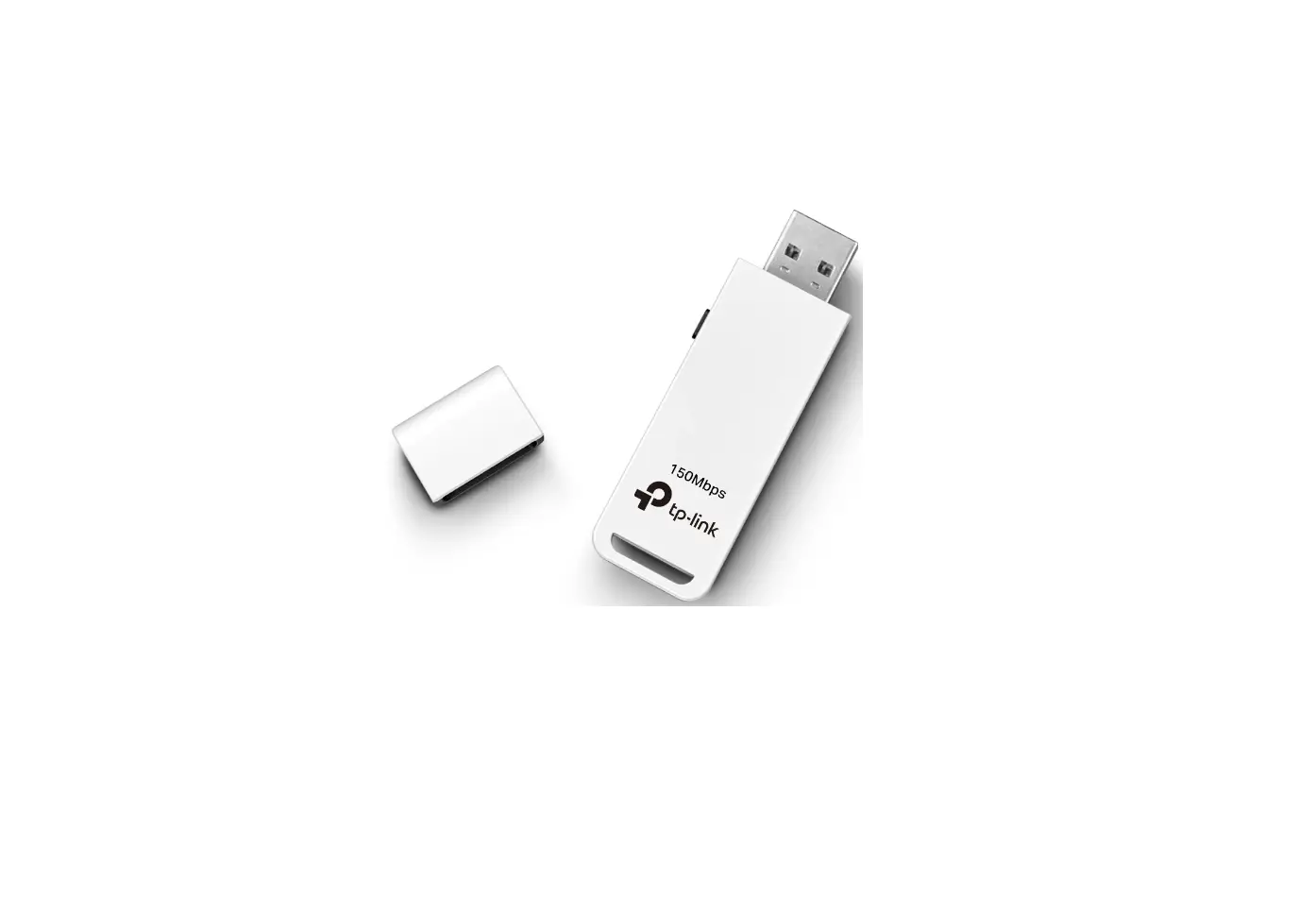
tp-link 7106509767 Wireless USB Adapter Installation Guide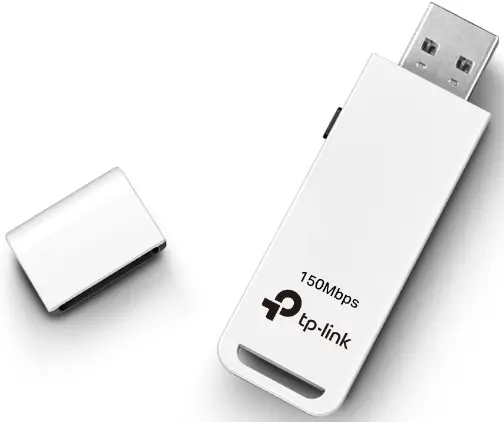
For Windows
Connect to a Computer
Option 1: Directly
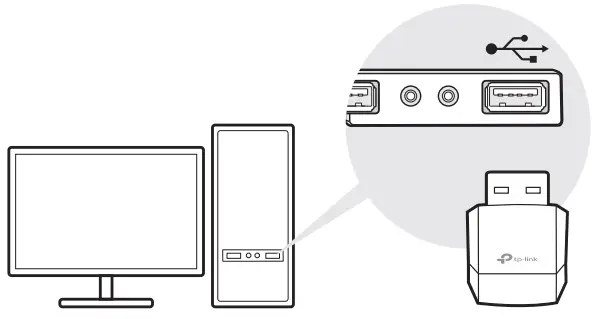
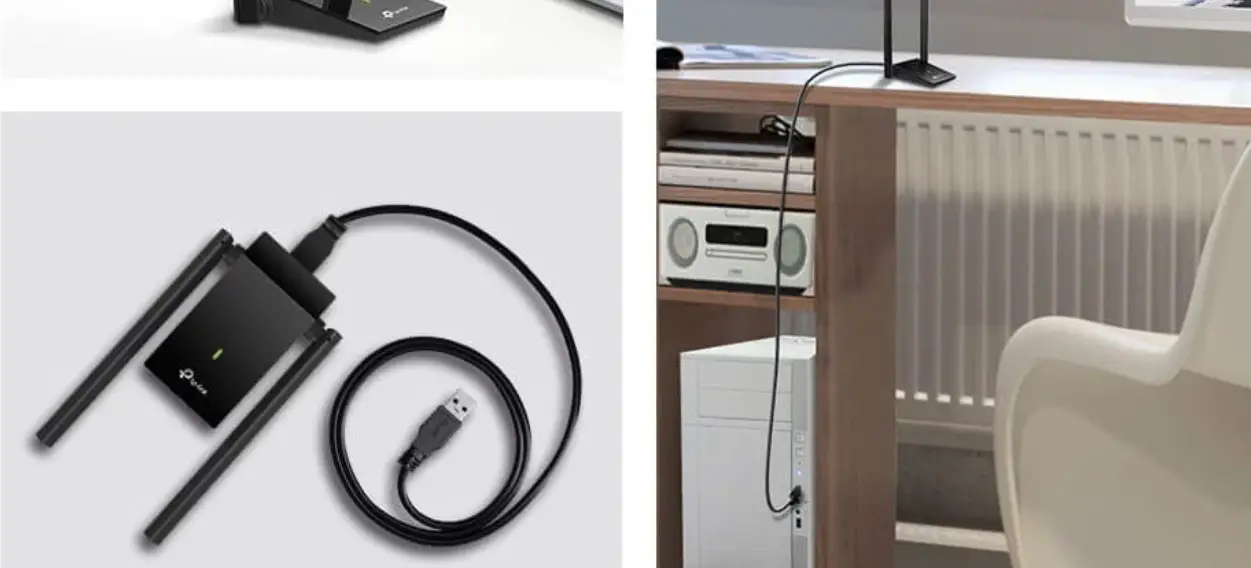
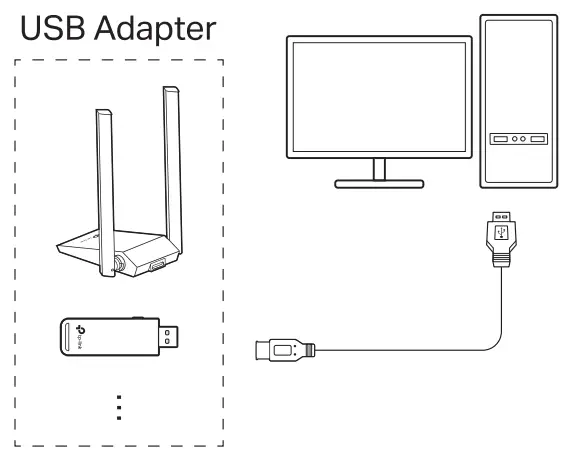
Option 2: Via the USB Extension Cable (if provided)
Install Driver
- This adapter supports Plug and Play feature. Plug the adapter in and then it is ready to use.
- If your operating system does not support this feature, follow the steps below:
a. Download the driver or check the new release at https://www.tp-link.com/download-center.
b. Unzip the downloaded folder and run the Setup.exe.
c. Select your adapter and follow the instructions to complete the installation.
Notes:- If you can’t install the driver successfully, disable the antivirus software and firewall, then try again.
- In Windows 7, if a Windows Security message pops up, refer to Troubleshooting > T4.
- If an unknown publisher message pops up, select Yes to continue.
- If Windows User Account Control requires admin credentials, type user name and password of your
Windows administrator account.
Join a Wireless Network
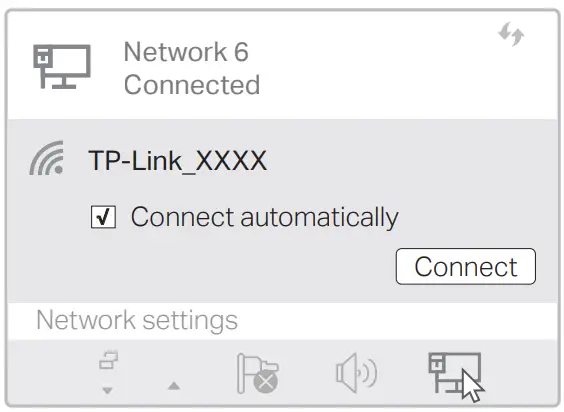
Option 1: Via Windows Wireless Utility
a. Click the network icon (  ) on the taskbar
b. Select your Wi-Fi network, click Connect and enter the password when prompted.
Option 2: Via WPS Tool
(If your adapter has a WPS button)
a. Press the WPS button on your router.
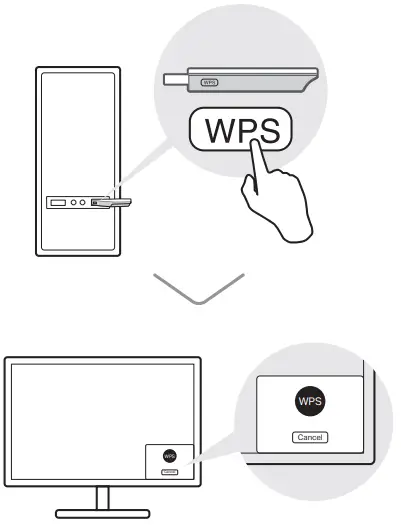
b. Within 2 minutes, press and hold the WPS button on the adapter until WPS Tool opens.
For macOS
Connect to a Computer
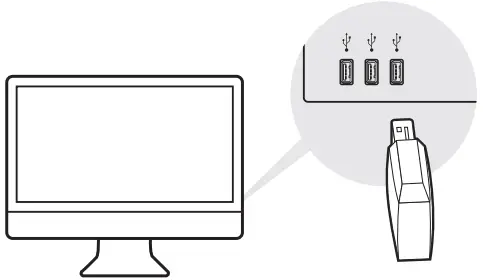
Option 1: Directly
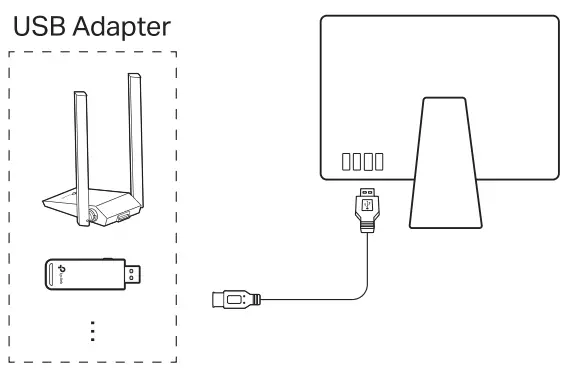
Option 2: Via the USB Extension Cable (If provided)
Install Driver and Utility
a. Download the driver and utility at https://www.tp-link.com/download-center.
b. Unzip the downloaded folder and run the Install.pkg.
Note:
If a 3rd Party Mac Developer Installer message pops up, click Continue for further instructions.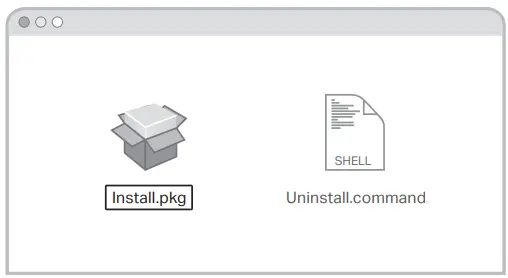
c. Follow the instructions to complete the installation.
Join a Wireless Network
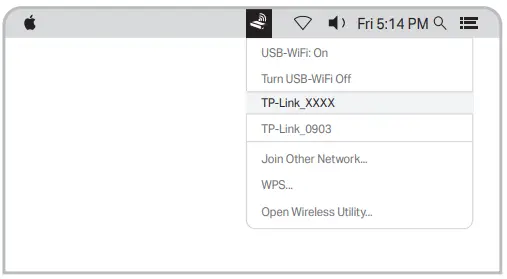
Option 1: Via TP-Link Utility
a. Click  (TP-Link Utility) on the menu bar.
b. Select your Wi-Fi network and enter the Wi-Fi password when prompted.
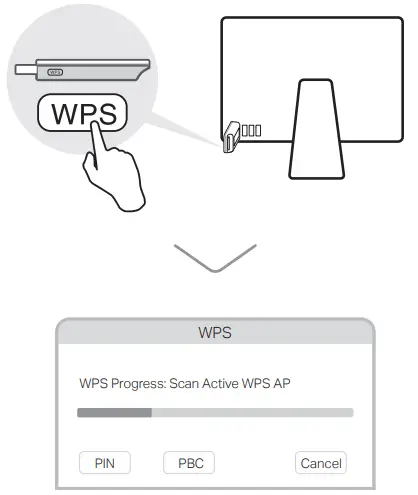
Option 2: Via Wi-Fi Protected Setup (WPS) (If your adapter has a WPS button)
a. Press the WPS button on your router.
b. Within 2 minutes, press and hold the WPS button on the adapter until the WPS progress window appears.
Troubleshooting
If you have problems during the installation, please refer to the following online FAQs.
T1. Can’t find the hardware version of the adapter:
https://www.tp-link.com/faq-46.html
T2. Can’t find or connect to the wireless networks:
https://www.tp-link.com/faq-2253.html
T3. Can’t install the driver:
https://www.tp-link.com/faq-2252.html
T4. How to fix Windows 7 Security issue:
https://www.tp-link.com/faq-2760.html
Support
For technical support, replacement services, user guides, and other
information, please visit https://www.tp-link.com/support, or simply scan the QR code.

- Do not attempt to disassemble, repair, or modify the device.
- Do not use the device where wireless devices are not allowed.
- Keep the device away from water, fire, humidity or hot environments.
- This product can be powered only by power supplies that comply with Power Source Class 2 (PS2 ) or Limited Power Source (LPS ) of IEC 62368-1.
References
 Download Center | TP-Link
-
Problems you may come across during the driver installation of the TP-Link wireless adapter
-
Why cannot I connect to my wireless network | TP-Link
-
Update System Patches if Windows 7 cannot verify the digital signature of TP-Link driver software
-
How to find the hardware version on a TP-Link device
-
TP-Link Product Support - Wireless Networking Equipment Support
 Download Center | TP-Link