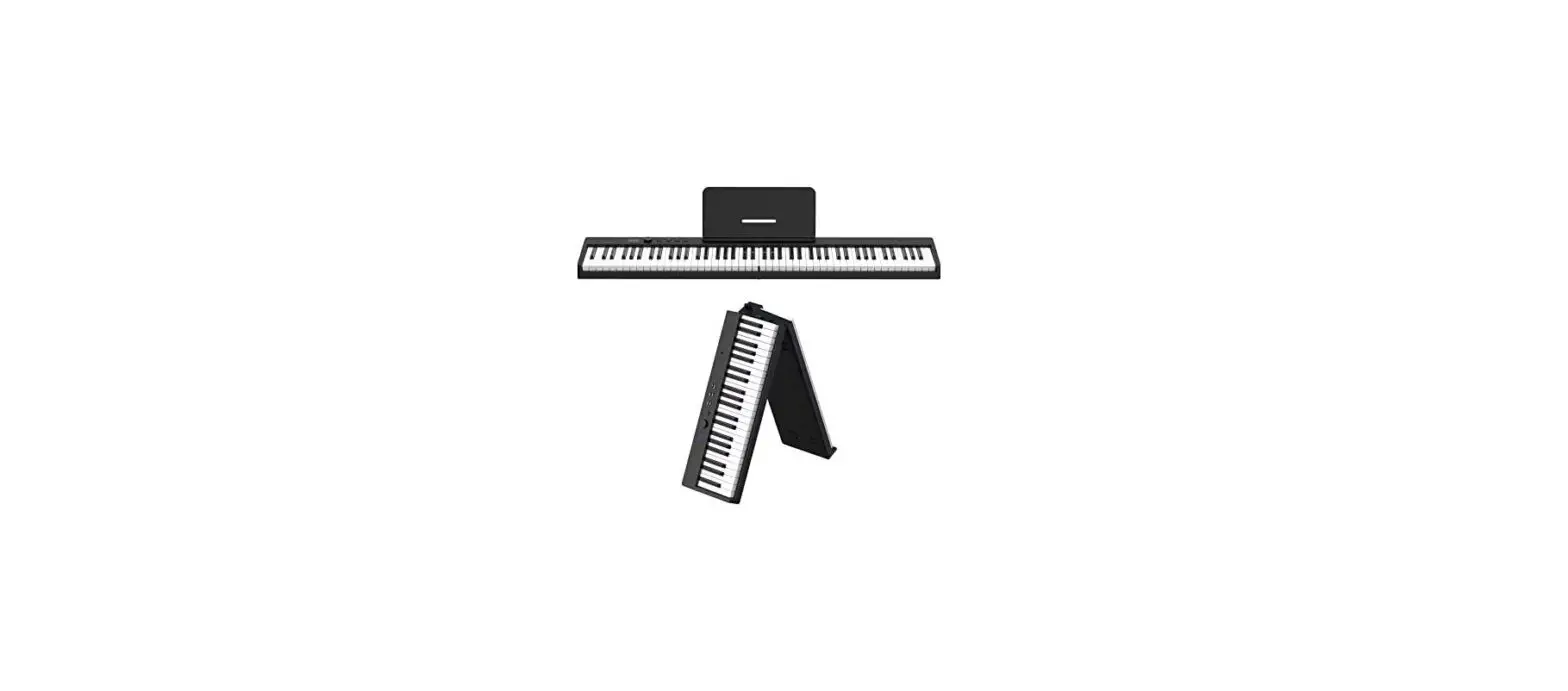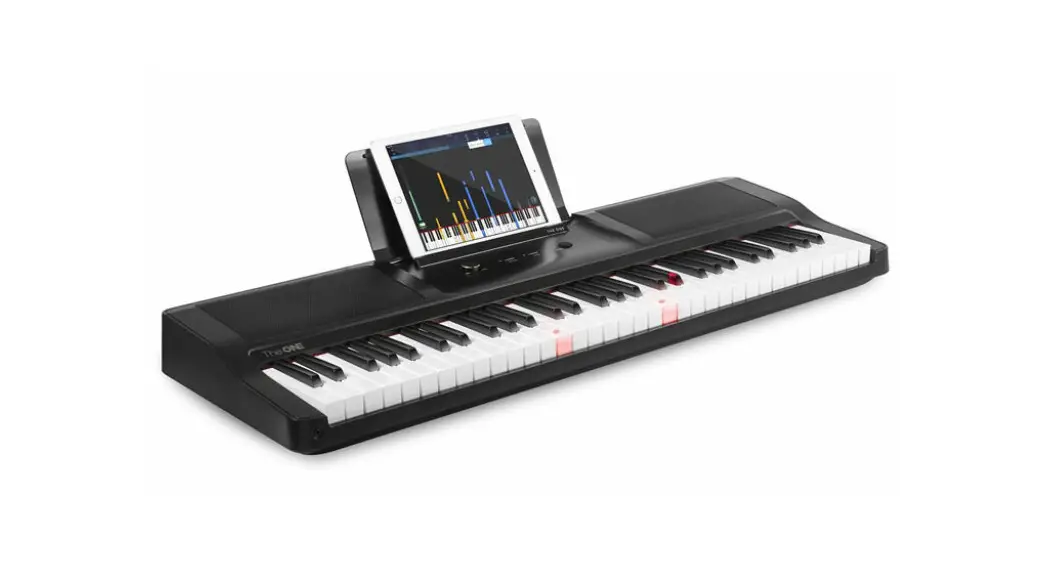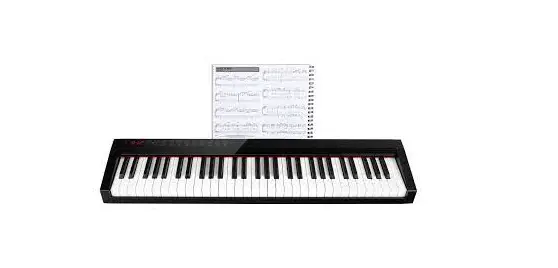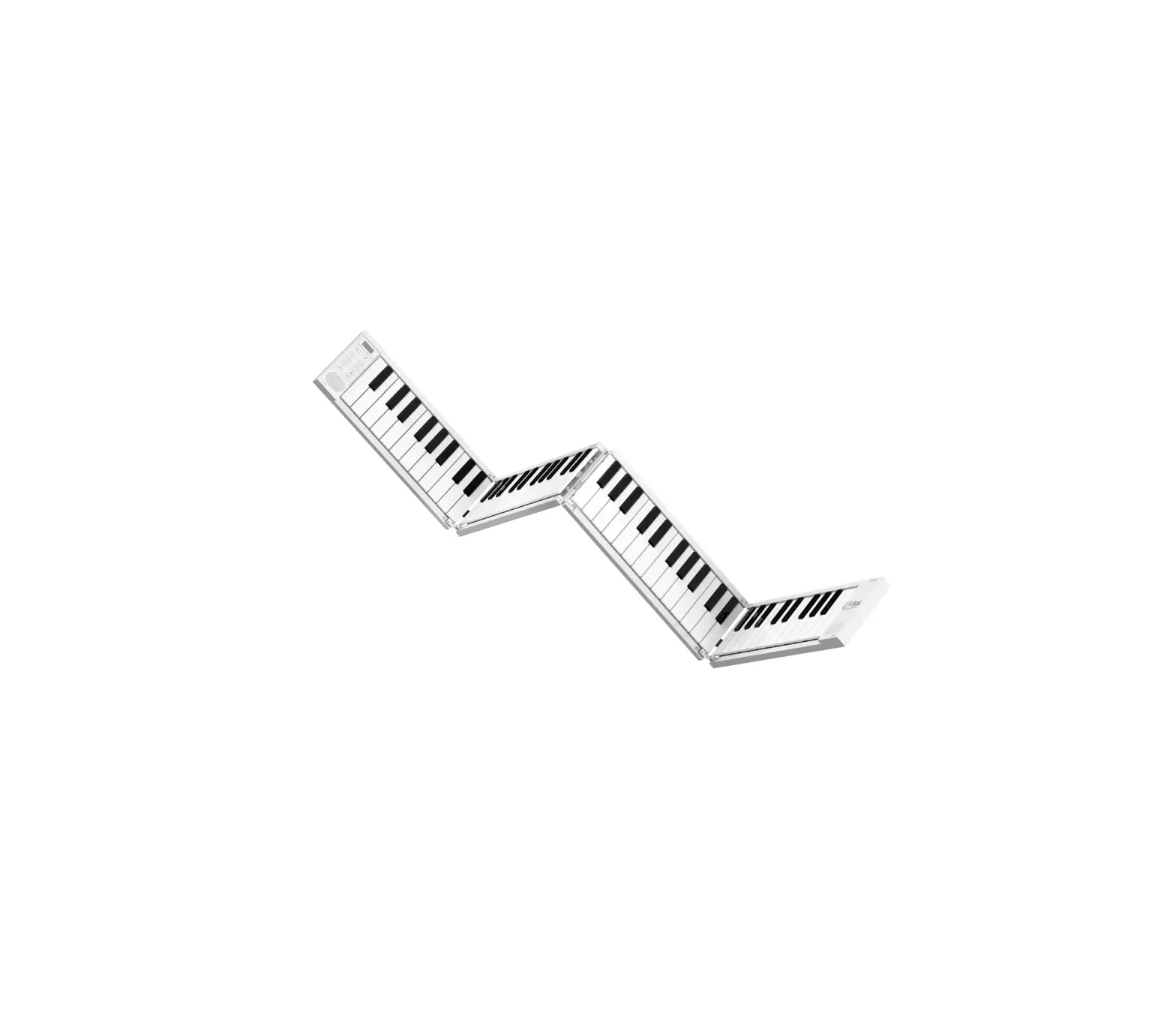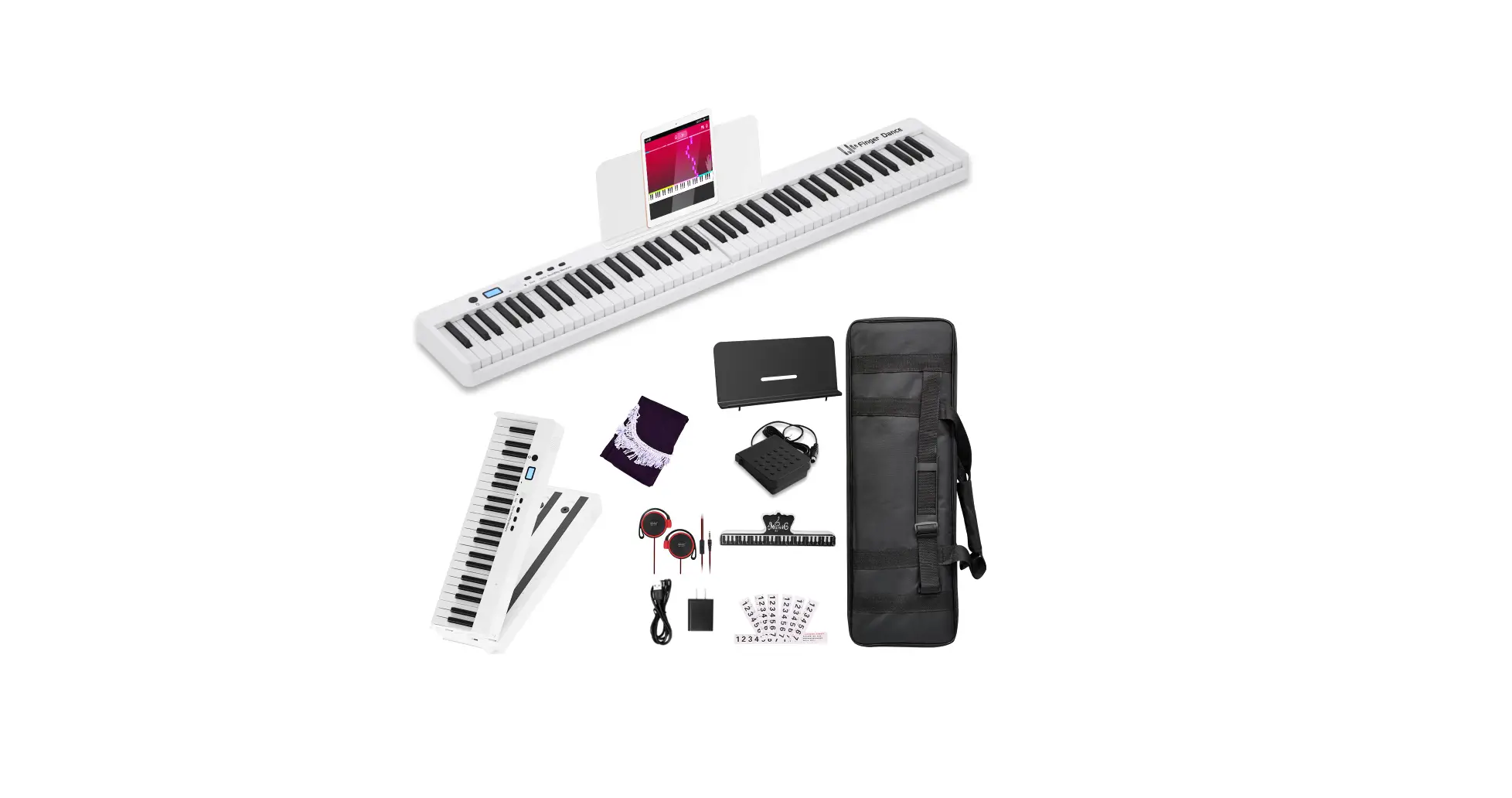
Finger Dance B09M8KPRNC Electric Piano Keyboard User Manual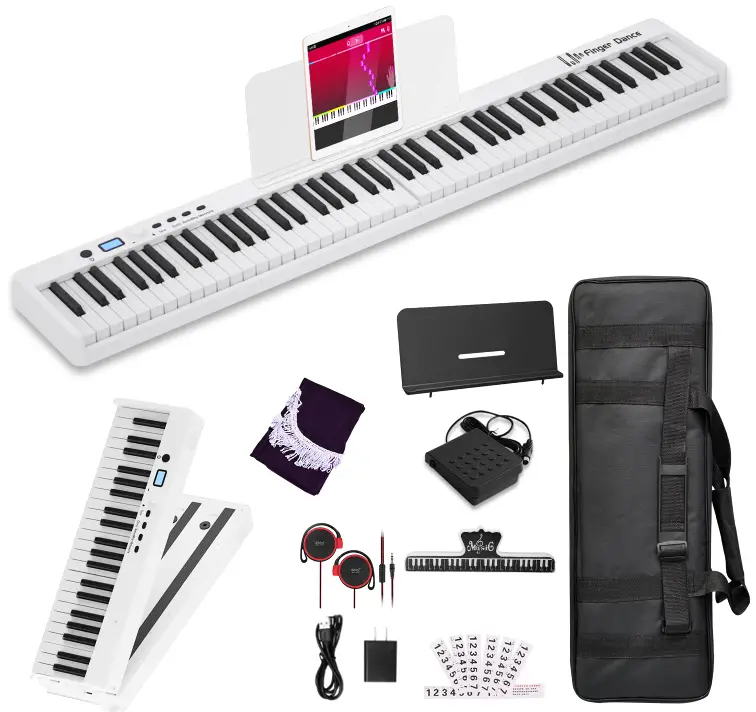
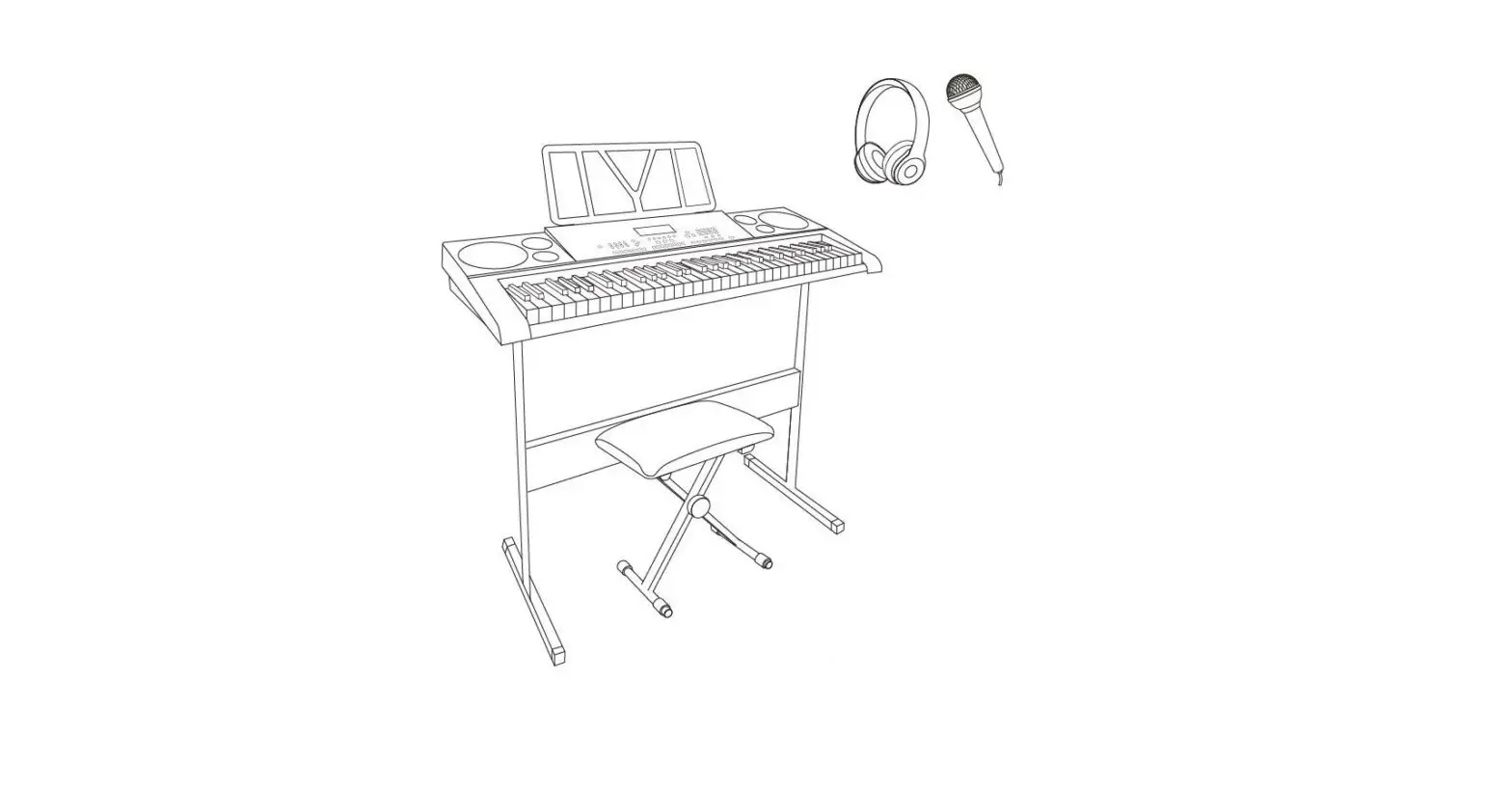
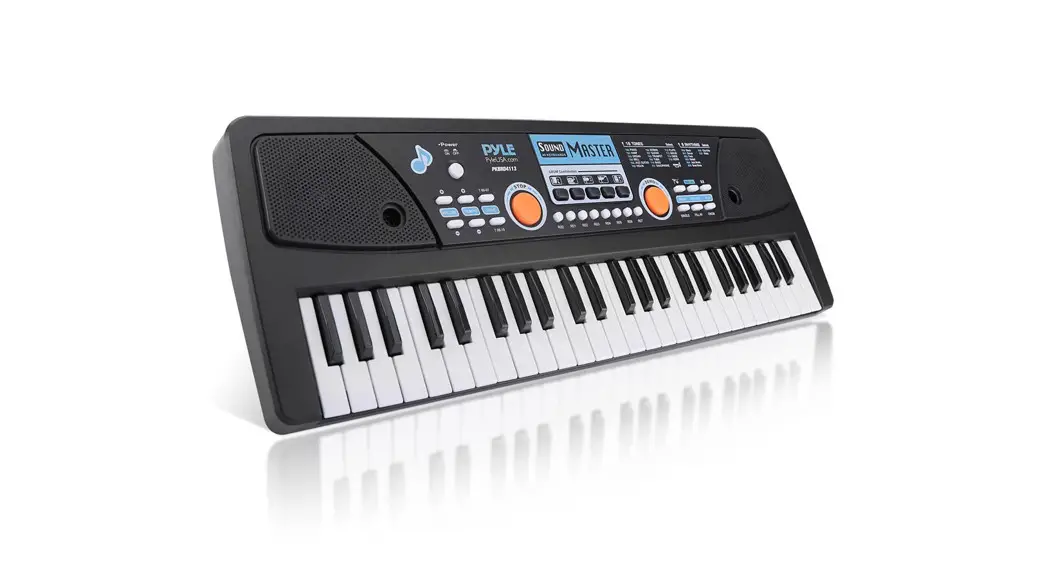
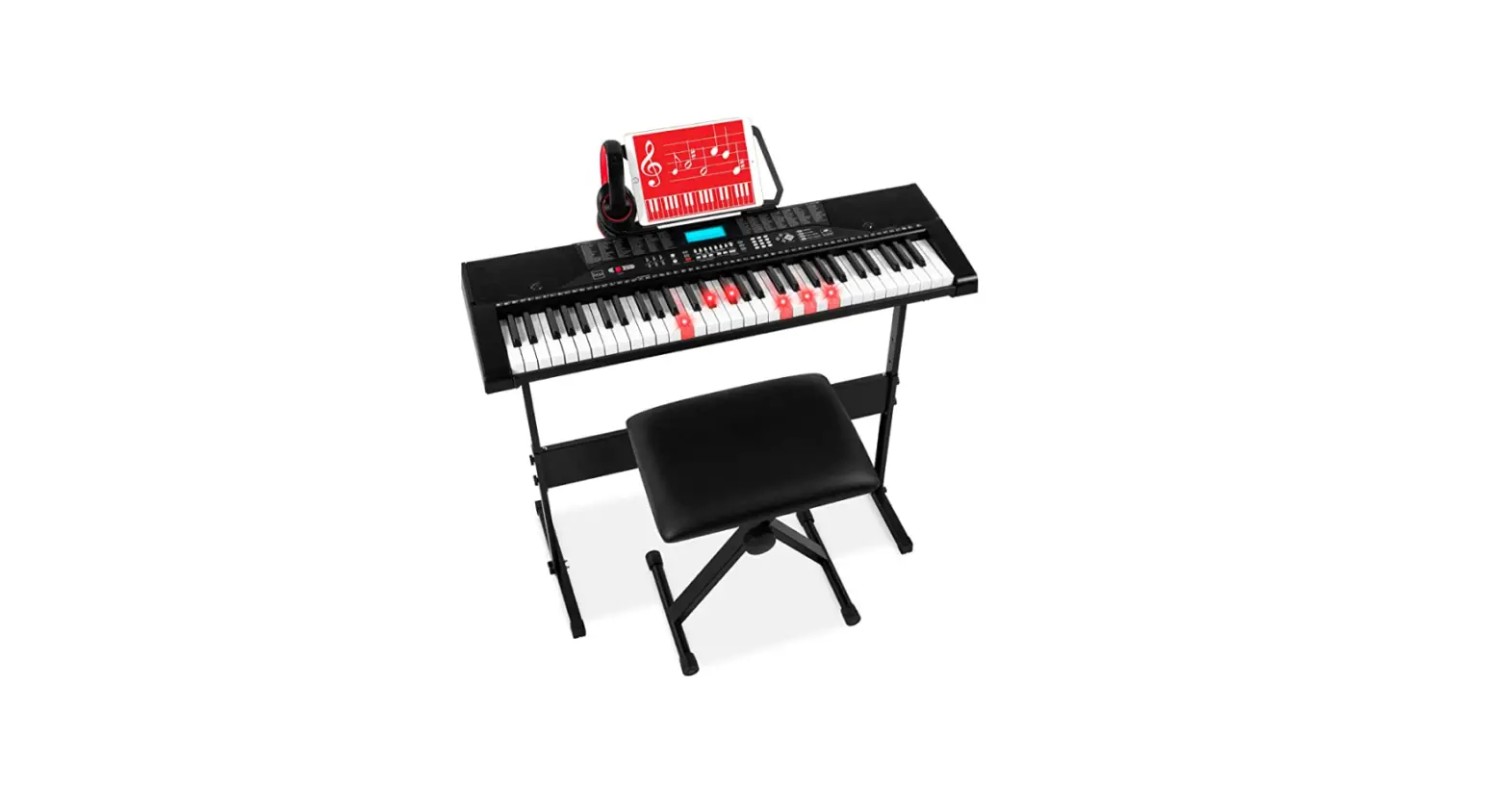
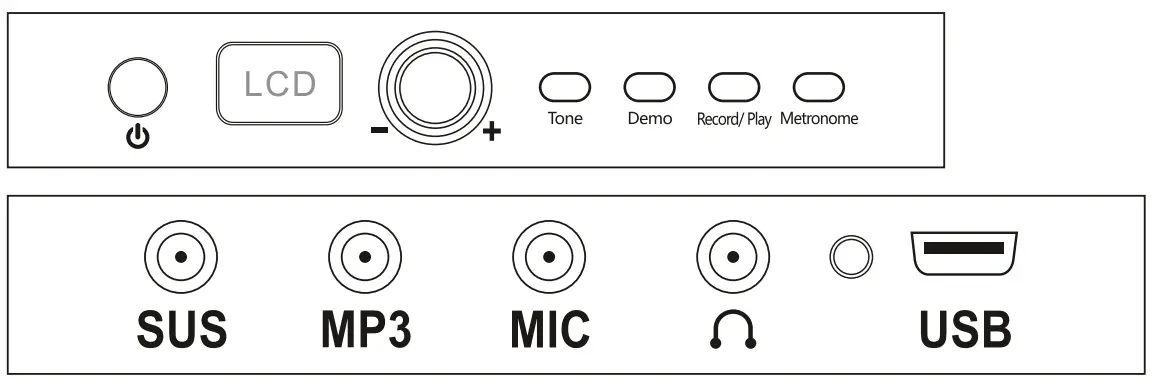
Panel Function Diagram
Please charge before use!
Charging indicator:
- TYPE-C interface
- It is not applicable to PD fast charging line
- The charging indicator is red and turns green when it is full
- Battery: charging time is about 4H, please charge it more than 6H for the first time
- Power adapter: 5V/2A
Low voltage prompt:
When the lithium battery voltage is too low (below 3.6V), the symbol of low voltage is constantly flashing on the display screen. Please charge it in time.
If you do not play the piano for ten minutes, the system will automatically go to sleep.
Interface:
SUS: Sustain pedal
MP3: MP3
MIC: Microphone : Headphone/ Speaker
USB: TYPE-C charging / MIDI interface
Function:
Volume adjustment, Start and stop, Tone, Rhythm, Demo, Record/play, Metronome, Keyboard light (LED) switch, Tempo, Pitch, Split, Chord, Learn, Sustain, Vibrato, Drum kit, Velocity, low voltage display, Bluetooth connection successful.
Volume
Rotate the encoder left and right to adjust the volume, the default boot volume is 12 (from 00-16).
Start/ Stop
Press the encoder gently to enter the rhythm playing mode. Rotate the encoder left and right to select the rhythm from 000 to 127 (see attached rhythm table). The sequence number and rhythm name will be displayed on the screen. When turning on the rhythm and demo music, gently press the encoder to stop the rhythm and demo music.
Tone
Press and hold the tone button and rotate the encoder from left to right to select the tone from 000 to 127 (see the attached tone table). The serial number and the name of the adjusted tone will be displayed on the screen. After releasing the tone key, return to the initial interface and rotate the encoder to adjust the volume.
Demo
- Short press the demo button to play the demo. Press the demo button again to stop the playback. During the playback of the demo and after stopping the playback, rotate the encoder left and right to select the demo from 000-020.
- Press and hold the demo button and rotate the encoder from left to right to select the demo from 000-020 (see the attached demo table).
Note: Only choose not to play the demo and the serial number and the demo name of the adjustment will be displayed on the screen. At this point, after releasing the demo button, and press the encoder twice, return to the initial interface and rotate the encoder to adjust the volume.
Record/ Play (long press is record, short press is Play)
- Press and hold the record/ Play button and then RECODE ON will appear on the screen. At this time, press the Record button on the keyboard panel to record MIDI signals.
- Then press the record/ Play button, and the display screen will display REC Play ON, that is, the last recorded signal can be played. After the playback, go back to the initial interface and rotate the encoder left and right to adjust the volume.
Tone & Demo Selection
- During the playback of the Demo and after stopping the playback, rotate the encoder left and right to select the Demo.
- Press the Demo button on the keyboard panel and rotate the encoder from left to right to select the Demo. Note: Only choose not to play the Demo.
- During the playback of the Tone and after stopping the playback, rotate the encoder left and right to select the Tone.
Metronome & Keyboard light (LED)
- Press the metronome button and the metronome will display the beat selection of 1/4, 2/4, 3/4 and 4/4.
- Long press the metronome button, and the keyboard light will turn on or off. The display screen will display LED ON or LED OFF.
Note: This feature requires the purchase of a piano with a keyboard light.
Feature selection
- Long press the encoder switch and rotate the encoder selection function (TEMPO, PIT CH, SPLIT, CHORD, LEARN, SUSTAIN, VIBRATE, DRUM KIT, and VELOCITY).
- After the selection, gently press the switch to select the function to be changed, such as TEMPO. At this point the rotary encoder changes the TEMPO value.
- After changing the function, gently press the switch or long press the switch to return to the previous function selection interface, and rotate the encoder selection function (TEMPO, etc.). Press the switch again and return to the initial interface. Rotate the encoder left and right to adjust the volume.
- Double-click the switch in any state to return to the initial interface, and rotate the encoder left and right to adjust the volume.
TEMPO
- Long press the encoder switch and rotate the encoder to select the TEMPO.
- Gently press the switch, then rotate the encoder left and right. The PITCH can be selected from 40 to 280, and the default is 120.
PITCH
- Long press the encoder switch and rotate the encoder to select the PITCH.
- Gently press the switch, then rotate the encoder from left to right. The PITCH can be selected from -6 to +6, and the default is +0.
SPLIT
- Long press the encoder switch and rotate the encoder to select the SPLIT. 2: Gently press the switch, and then rotate the encoder around, you can choose whether the SPLIT is on or off.
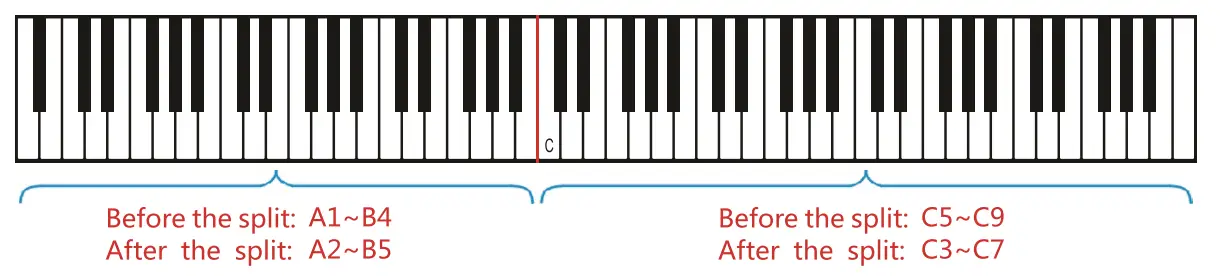
This function can divide the 88 keys into two vocal ranges for playing. Before segmentation, the left keyboard was A1-B4, and after segmentation, it was A2-B5. Before segmentation, the right keyboard was C5-C9, and after segmentation, it was C3-C7. When the split function is turned on, the host part can be used as a separate 44-key keyboard (the secondary part does not need to be connected). When connected to the secondary part, it is a complete 88-key electric piano.
CHORD
- Long press the encoder switch and rotate the encoder to select CHORD.
- Press the switch gently and rotate the encoder from left to right to select SINGLE, FINGERS and OFF.
During the playing of rhythm, the system enters the chord mode. Chord function: Press the key in the area Al-F4# to play the chords that match the rhythm, and the tone of the chords changes with the pitch of the harp.
LEARN
- Long press the encoder switch and rotate the encoder to choose LEARN.
- Gently press the switch, then rotate the encoder left and right to choose the teaching mode (teaching A, teaching B, and OFF).
Teaching A: Select different demo music and short press the Demo button to enter the teaching mode. Playing any key can play the main melody of the demo song, keyboard lights with the main melody on and off.
Teaching B: Select different demo music and short press the Demo button to enter the teaching mode. Keyboard light with the main melody, the user press the right keys, light the next note of the lamp; If the user does not press the right keys, they pause until they press the right keys to light the next note.
SUSTAIN
- Long press the encoder switch and rotate the encoder to choose SUSTAIN.
- Gently press the switch, then rotate the encoder left and right to choose whether the sustain is on or off. Turn on the sustain function, and make the tone produce the effect of continuance in performance.
VIBRATE
- Long press the encoder switch and rotate the encoder to select VIBRATE
- Gently press the switch, then rotate the encoder left and right to choose whether the vibrator is on or off. Turn on the vibrato function to produce the tremolo effect in the performance.
DRUM KIT
- Long press the encoder switch and rotate the encoder to select DRUM KIT
- Gently press the switch, then rotate the encoder left and right to choose whether the drum kit is on or off. When the drum kit is on, all the keys are turned on to become the percussion tone, and when the drum kit is off, the percussion tone is turned off.
VELOCITY
- Long press the encoder switch and rotate the encoder to select VELOCITY.
- Gently press the switch, then rotate the encoder left and right to choose whether the velocity is on or off. When the velocity is on, press the key with greater force and the sound will be louder. The default strength is on.
Sleep switch:
Long press the encoder switch, rotate the encoder to choose the sleep switch. The default mode is sleepmode on. In the default mode, when the piano is not played after 10 minutes, the electric piano will turn off. If you are in SleepMode off mode, it will always be on.
DEMO
| 0. Castle in the Sky | 7. Colourful Clouds Chasing The Moon | 14. Snow dreams |
| 1. Song of Joy | 8. In My Song | 15. Bandari |
| 2. Little Stars | 9. CrystlLake | 16. Edelweiss |
| 3. By Alice | 10. Green Sleeves | 17. Dance of fire flie |
| 4. Dancing Girl | 11. Milk Song | 18. My soul |
| 5. Deskmate | 12. A comme amour | 19. Ballade pour Adeline |
| 6. Ten Years | 13. Les premiers sourires de Vanessa | 20. CSIKOS POST |
Bluetooth APP functions:
GarageBand connection:
- Open GarageBand App,
- Turn on bluetooth on your phone.
- Open GarageBand App and click the Settings icon in the upper right corner of the screen.
- Connect the piano’s bluetooth through the: Song Settings – Advanced – Bluetooth MIDI Devices.
Tone Table
| Piano | 42. Cello | 85. Lead 6 (voice) |
| 0. Piano 1 | 43. Contrabass | 86. Lead 7 (fifths) |
| 1. Piano 2 | 44. Tremolo Strings | 87. Lead 8 (has.s+lead) |
| 2. Piano 3 | 45. Pizzicato Strings | Pad |
| 3. I I* -tlk Piano | 46. Orchestral Harp | 88. Pad 1 (newage) |
| 4. Rhode.. Piano | 47. Timpani | 89. Pad 2 (warm) |
| 5. Chorus,‘ I Piano | Choral •Thembles | 90. Pad 3 (pnlysynth) |
| 6. Harpsichord | 48. String Ensemble 1 | 91. Pad 4 (choir) |
| 7. Clavinet | 49. String Ensemble 2 | 92. Pad 5 (bowed) |
| Percussion Instrument | 50. SynthStrings 1 | 93. Pad 6 (metallic) |
| 8. Celesta | 51. SynthStrings 2 | 94. Pad 7 (halo) |
| 9. Glockenspiel | 52. Choir Aahs | 95. Pad 8 (sweep) |
| 10. Music Box | 53. Voice Oohs | FX |
| 11. Vibraphone | 54. Synth Voice | 96. FX 1 (rain) |
| 12. Marimba | 55. Orchestra Hit | 97. FX 2 (soundtrack) |
| 13. Xylophone | Brass | 98. FX 3 (crystal) |
| 14. Tubular Bells | 56. Trumpet | 99. FX 4 (atmosphere) |
| 15. Santur | 57. Trombone | 100. FX 5 (brightness) |
| Organ | 58. Tuba | 101. FX 6 (goblins) |
| 16. Hanininial Organ | 59. Muted Trumpet | 102. FX 7 (echoes) |
| 17. Percussive Organ | 60. French Horn | 103. FX 8 (sci-fi) |
| 18. Rock Organ | 61. Brass Section | National Instrument |
| 19. Church Organ | 62. Synth Brass I | 104. Sitar |
| 20. Reed Organ | 63. Synth Brass 2 | 105. Banjo |
| 21. Accordion | Reid instruments | 106. Shamisen |
| 22. Harmonica | 64. Soprano Sax | 107. Koto |
| 23. Bandoneon | 65. Alto Sax | 108. alimba |
| Guitar | 66. Tenor Sax | 109. Bagpipe |
| 24. Acoustic Guitar (nylon) | 67. Baritone Sax | 110. Fiddle |
| 25. Acoustic Guitar(steel) | 68. Oboe | 111. Shanai |
| 26. Electric Guitar (jazz) | 69. English Horn | Percussion Music |
| 27. Electric Guitar (clean) | 70. Bassoon | 112. Tinkle Bell |
| 28. Electric Guitar (muted) | 71. Clarinet | 113. Agogo |
| 29. Overdriven Guitar | Tongue | 114. Steel Drums |
| 30. Distortion Guitar | 72. Piccolo | 115. Woodblock |
| 31. Guitar Harmonics | 73. Flute | 116. Taiko Drum |
| Bass | 74. Recorder | 117. Melodic Tom |
| 32. Acoustic Bass | 75. Pan Flute | 118. Synth Drum |
| 33. Electric Bass(finger) | 76. Bottle Blow | 119. Reverse Cymbal |
| 34. Electric Bass(pick) | 77. Skakuhachi | FxPhone |
| 35. Fretless Bass | 78. Whistle | 120. Guitar Fret Noise |
| 36. Slap Bass I | 79. Ocarina | 121. Breath Noise |
| 37. Slap Bass 2 | Soft Leads | 122. Seashore |
| 38. Synth Bass 1 | 80. Lead I (square) | 123. Bird Tweet |
| 39. Synth Bass 2 | 81. Lead 2 (sawtooth) | 124. Telephone Ring |
| String solo | 82. Lead 3 (calliope lead) | 125. Helicopter |
| 40. Violin | 83. Lead 4 (chiff lead) | 126. Applause |
| 41. Viola | 84. Lead 5 (charang) | 127. Gun shot |
Rhythm Table
| 0. Beguines Wing | 43. Rock_] | 86. R.mll_2 |
| I. Beguine2 | 44. Roek_2 | 87. Fast Beat |
| 2. Beguine_3 | 45. Roek_3 | 88. Quick Beat |
| 3. Pop hit | 46. Airy Rock | 89. Smooth Beat |
| 4. Pop | 47. Heart Rock | 90. Square Beat |
| 5. Pop Malay | 48. Rock & Roll | 91. Eum Beat |
| 6. Boma nova | 49. Urban Rock | 92. Alpha Dance |
| 7. Disco _I | 50. Ballad | 93. Beta Dance |
| 8. Disco_2 | 51. Jazz Ballad | 94. Dream Dance |
| 9. Blue grass disco | 52. C.Ballad | 95. Dance_I |
| 10. Waltzl_l | 53. J.Ballad | 96. Dance_2 |
| I I. Waltzl_2 | 54.60s Slow Ballad | 97. Dance_3 |
| 12. True ballad waltz | 55. Piano Ballad | 98. RAP |
| 13. Bossa Waltz | 56. 50s Ballad | 99. The Country |
| 14. Easy Waltz | 57. Snake. Base | 100. Country Shuffle |
| IS. Shuffle Waltz | 58. Happy Blues | 101. Electric Keys |
| 16. Reggae Waltz | 59. Old Blues | 102. Dark Keys |
| 17. Rumba Waltz | 60. Blue Gras | 103. Easy Walk |
| 18. March_ I | 61. Boodie_l | 104. Destiny |
| 19. March_2 | 62. Boodie_2 | 105. Comedy |
| 20. Rumlxt _I | 63. Boodie_3 | 106. Drive |
| 21. Rumba_2 | 64. Shuffle_l | 107. Liquid Nova |
| 22. Slow_] | 65. Shuffle_2 | 108. Indonesian folk |
| 23. Slow_2 | 66. Dream Shuffle | 109. Absolute Music. |
| 24. Disco cha cha | 67. Country Shuffle | 110. Jamaica |
| 25. Guala elm | 68. Quick Shuffle | 111. Synthesis |
| 26. Char | 69. Reggae Shuffle | 112. Feel |
| 27. Samba_I | 70. R&B | 113. Accelerate |
| 28. Samha_2 | 71. Reggae_] | 114. Beach Night |
| 29. Ubminimal | 72. Reggae_2 | 115. Irish |
| 30. 8Bit_ I | 73. Reggae_3 | 116. Tarantella |
| 31. 813it_2 | 74. Salsa _I | 117. Big band |
| 32. 16Bit_l | 75. Salsa_2 | 118. Dan |
| 33. 16bit_2 | 76. Salsa_3 | 119. Fusion |
| 34. Ballad_l 6T | 77. Teeno_I | 120. Horse |
| 35. Country_l 6T | 78. Tecno_2 | 121. Canon |
| 36. Tango_l | 79. Funky_ I | 122. Latin |
| 37. Tango _2 | 80. Funky_2 | 123. Mambo |
| 38. Polka_) | 81. Dixie_l | 124. New age |
| 39. Polka _2 | 82. Dixie_2 | 125. Slow re |
| 40. Pop Swing | 83. Foxtmt_l | 126. Soul |
| 41. Easy Swing | 84. Foxtmt_2 | 127. Twist |
| 42. Soft Swing | 85. Itmll_ I |