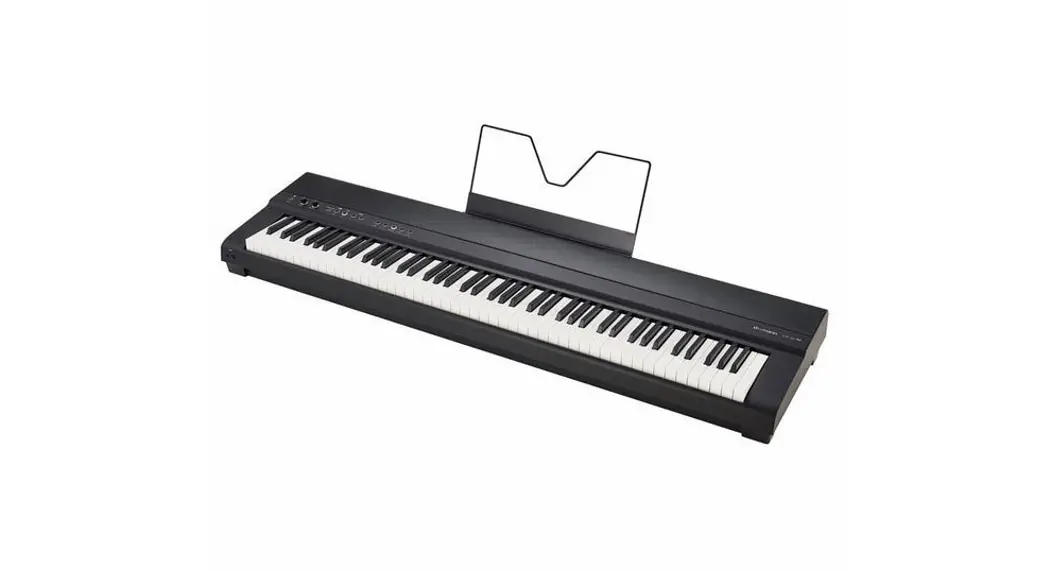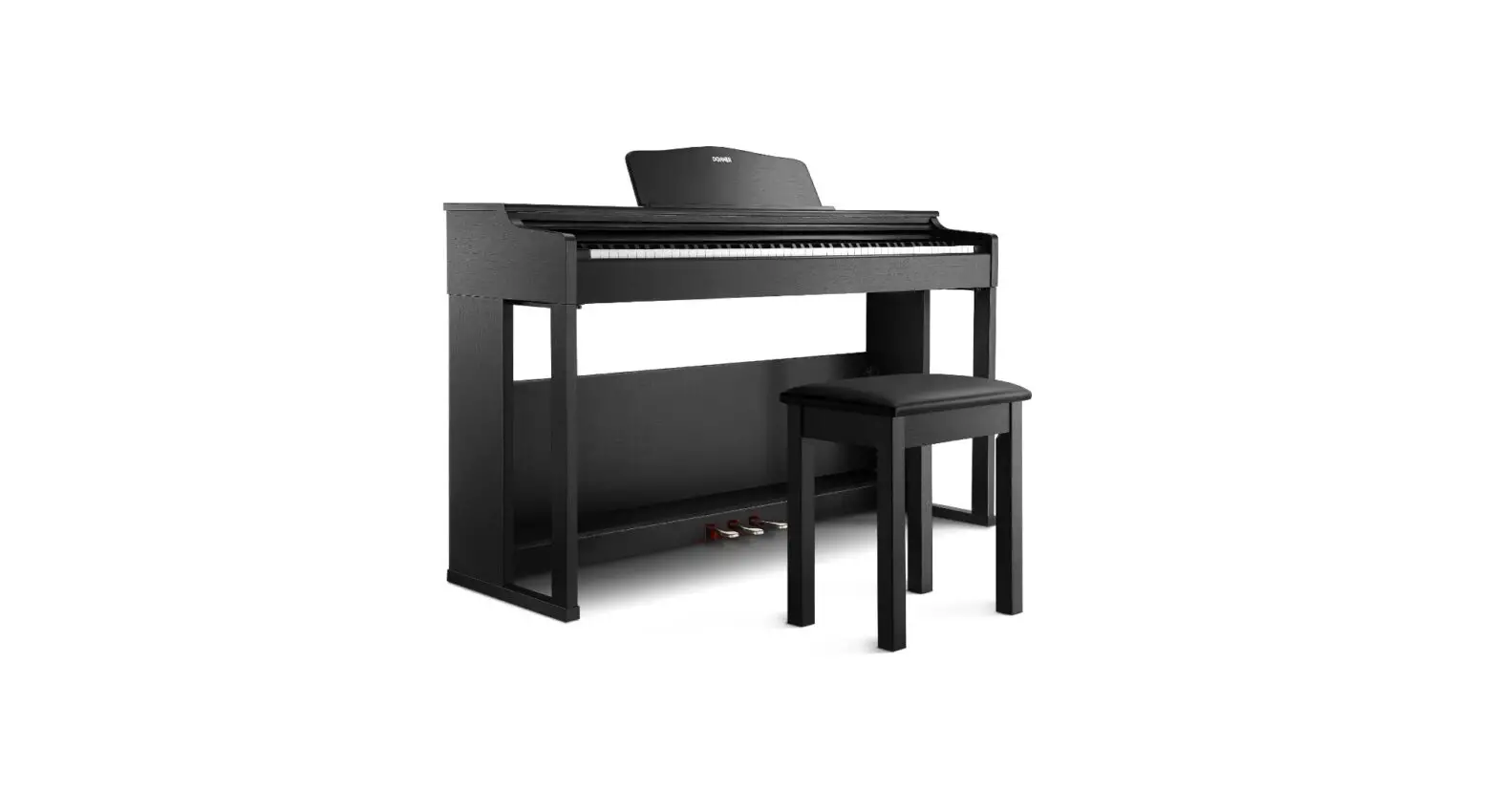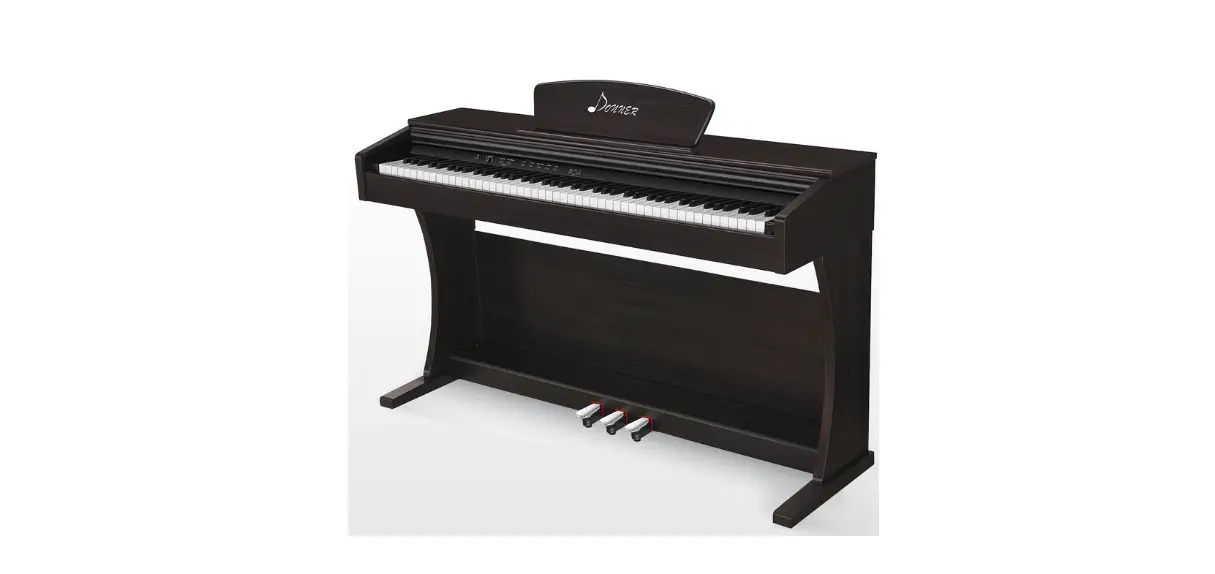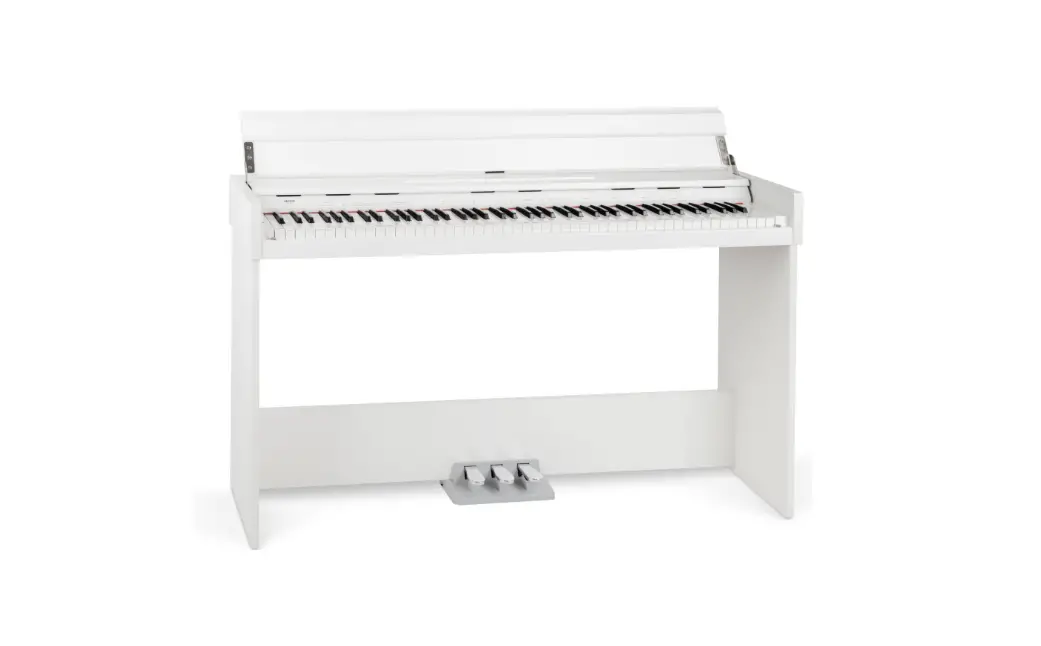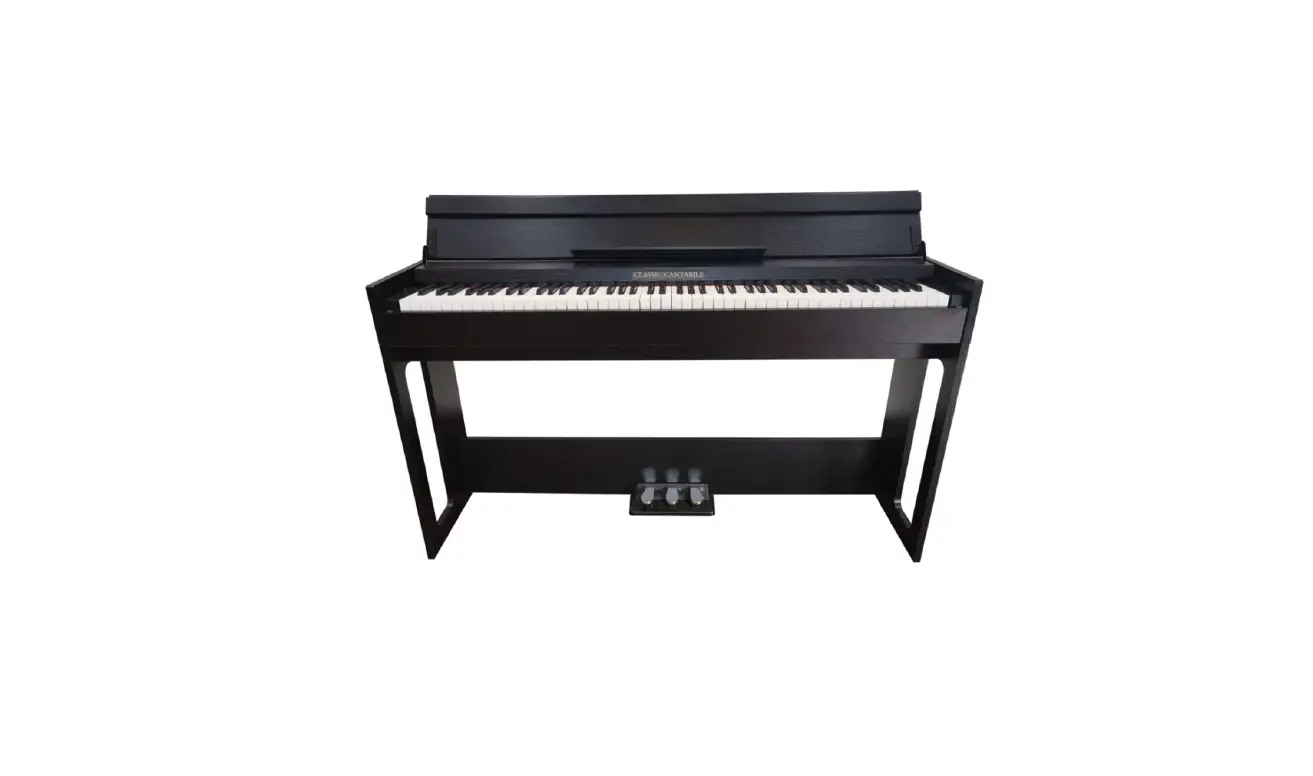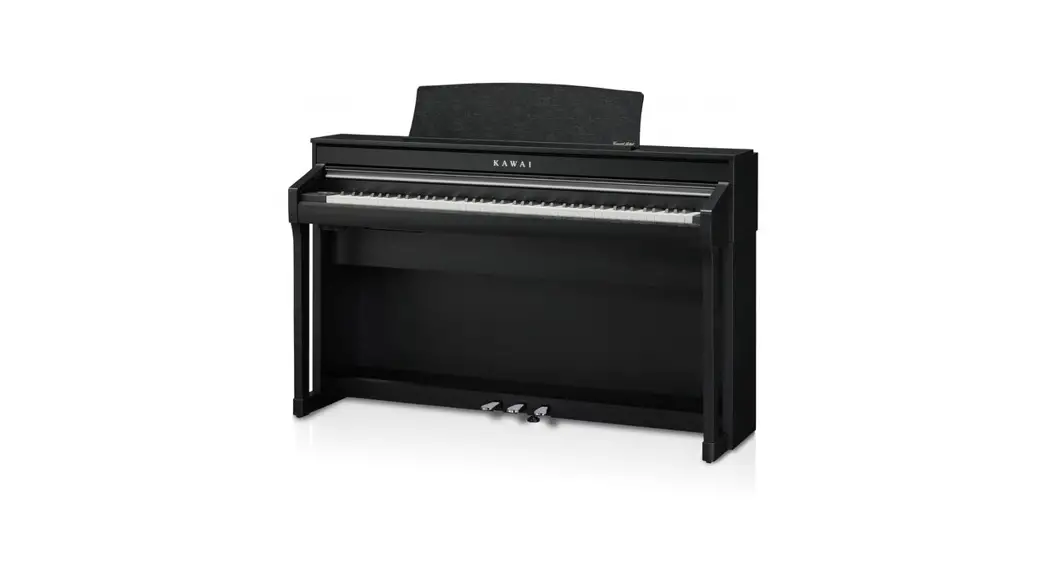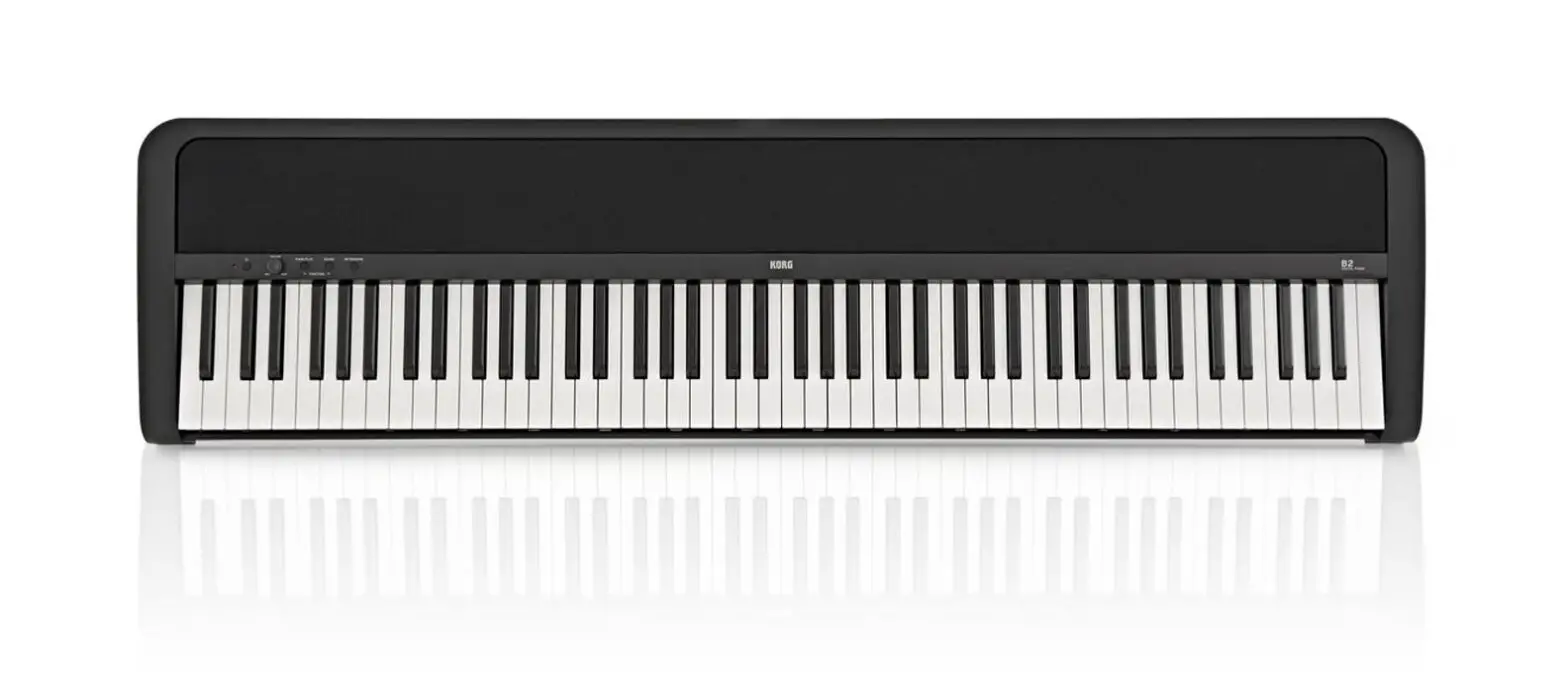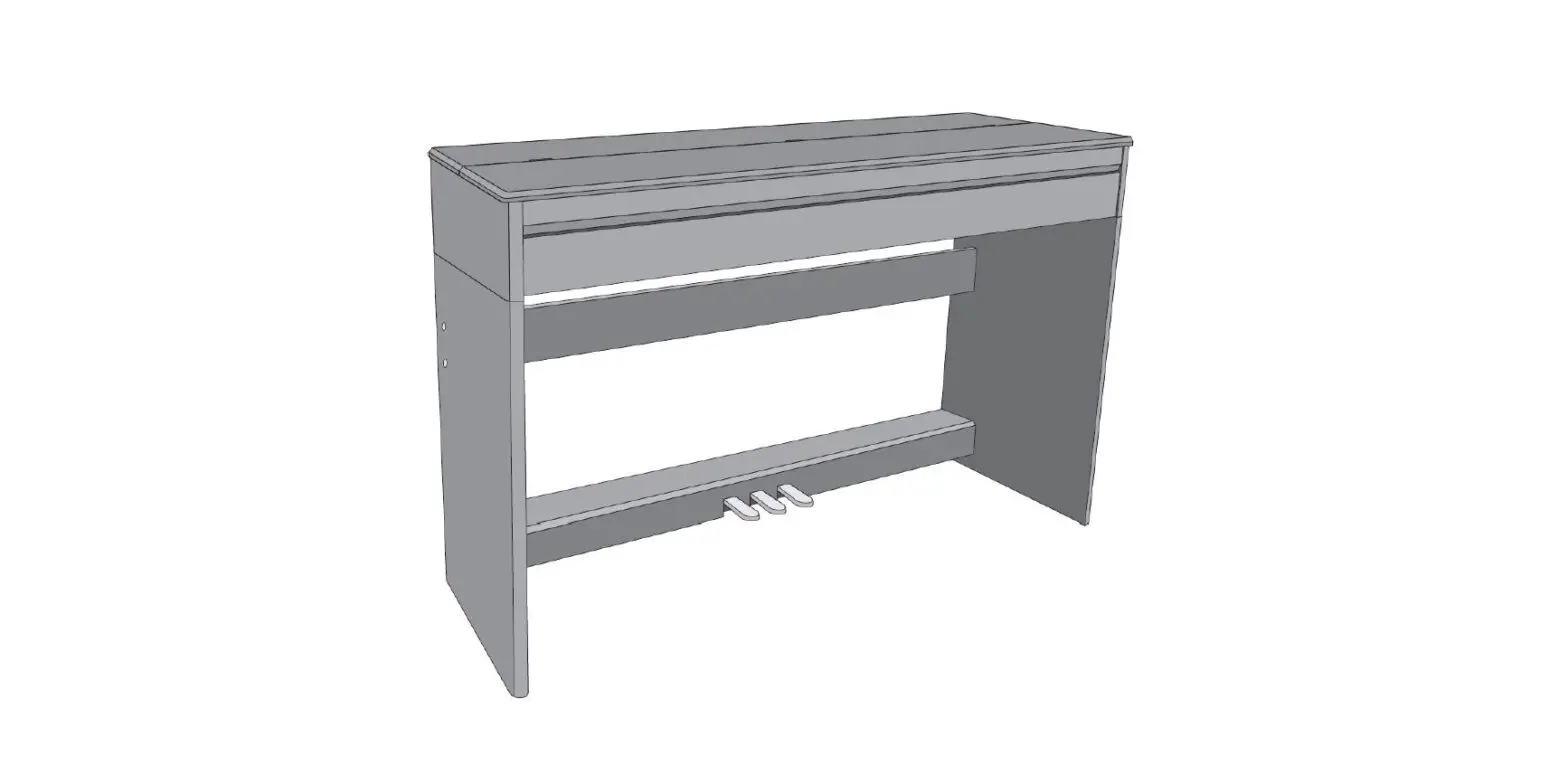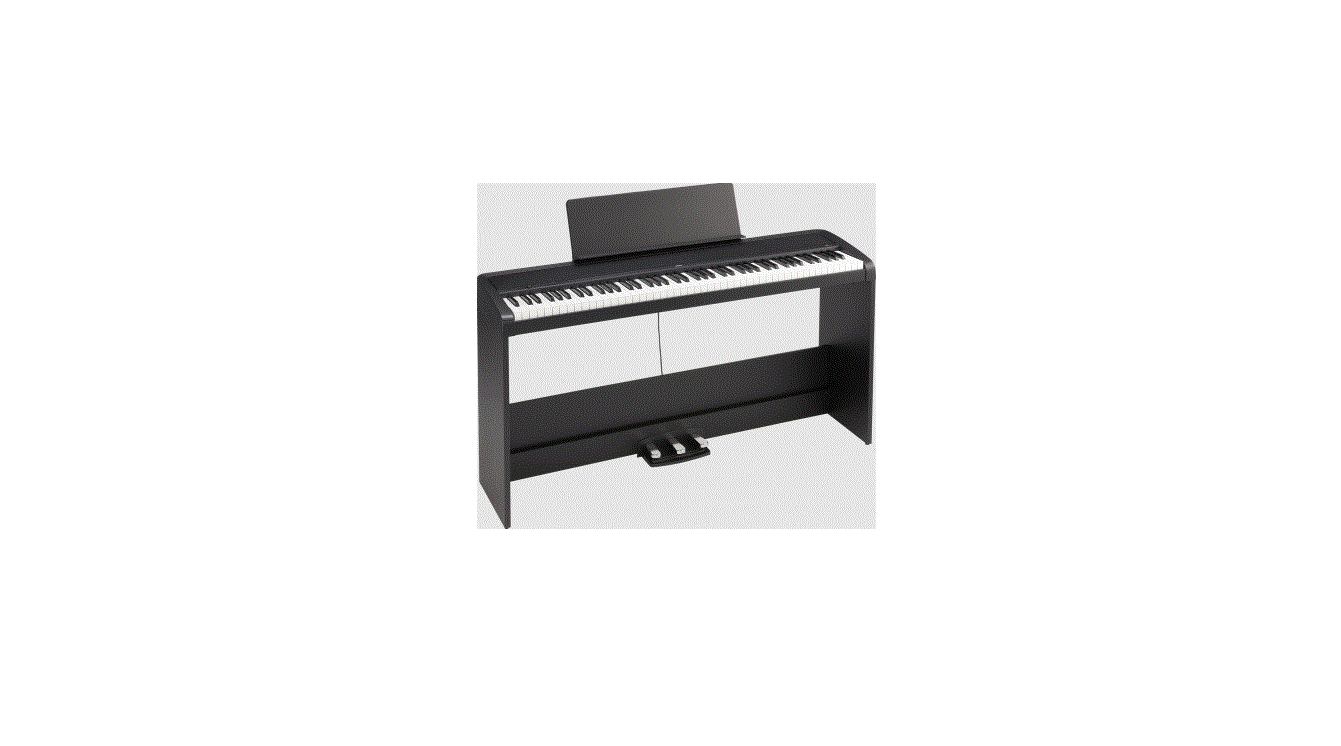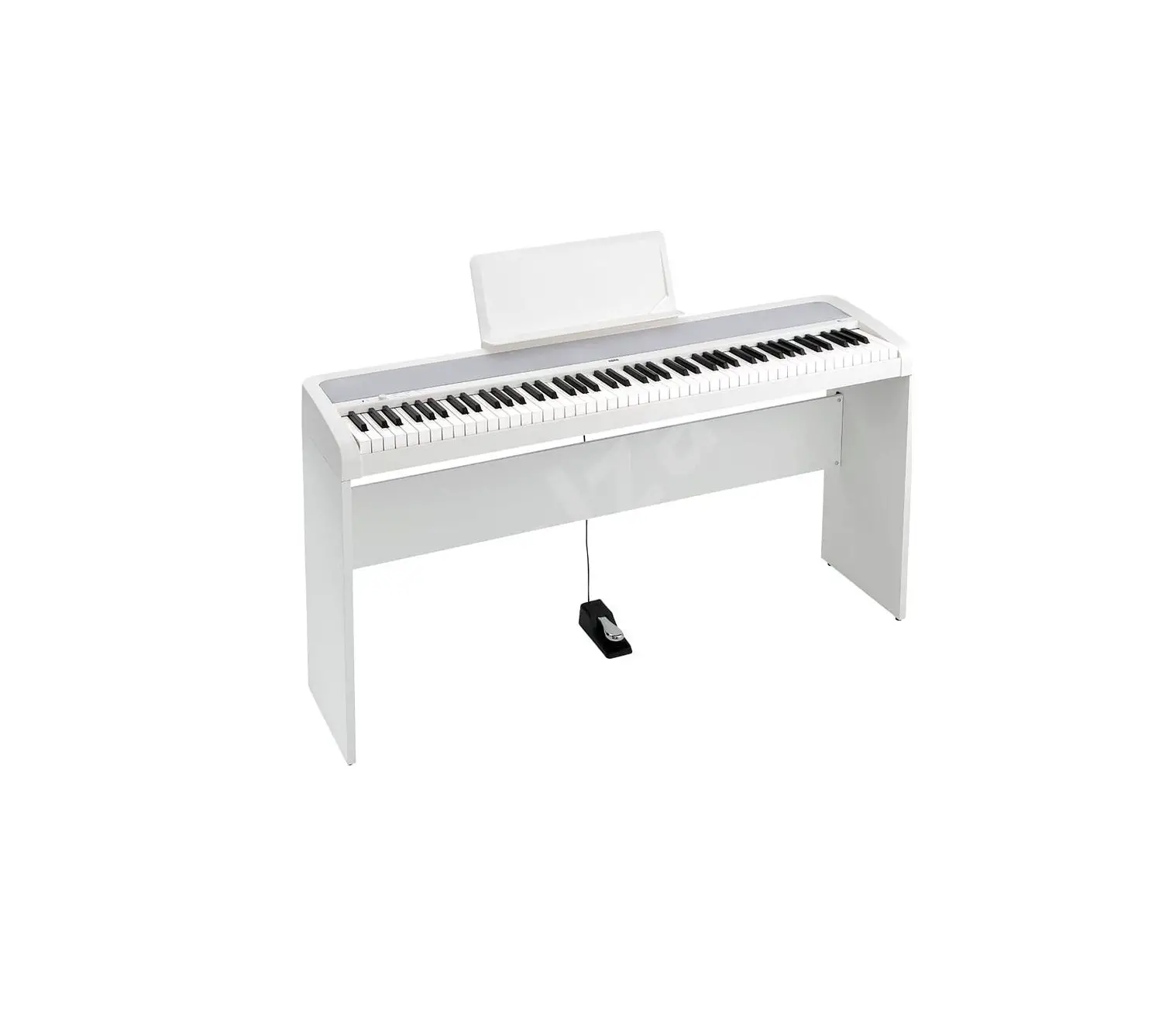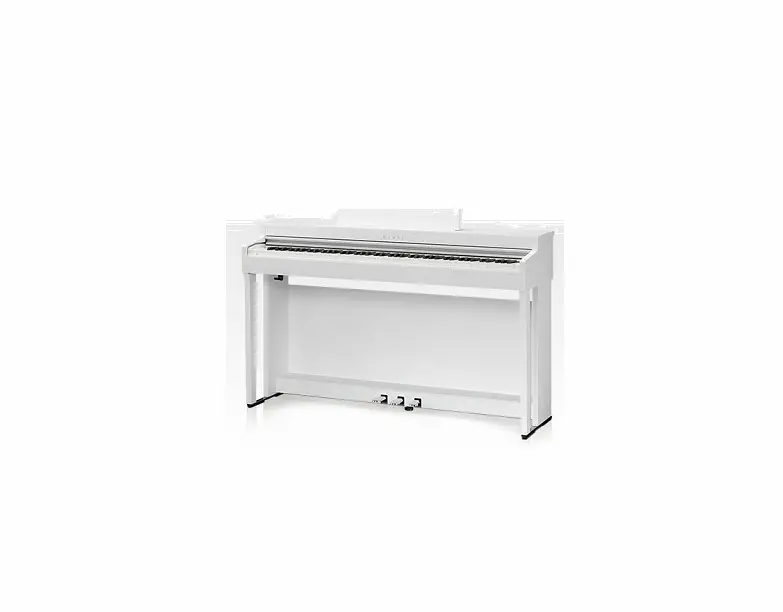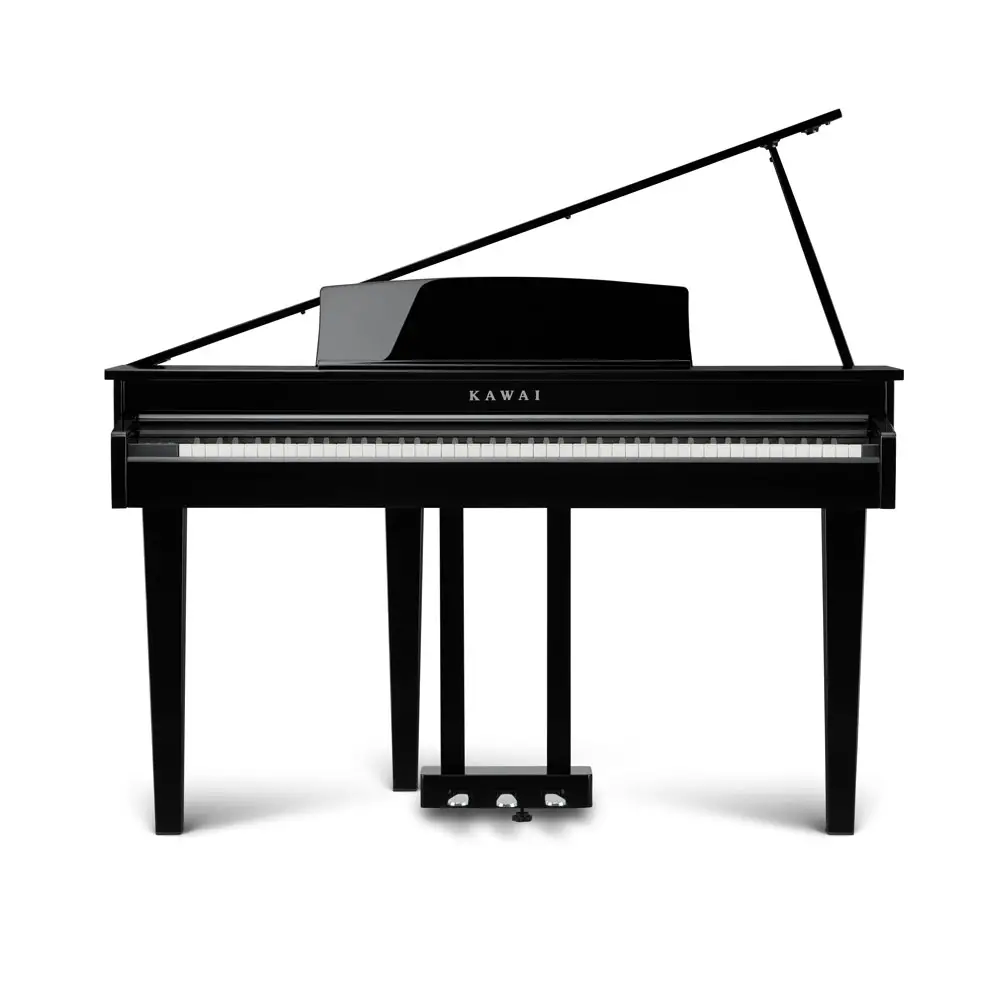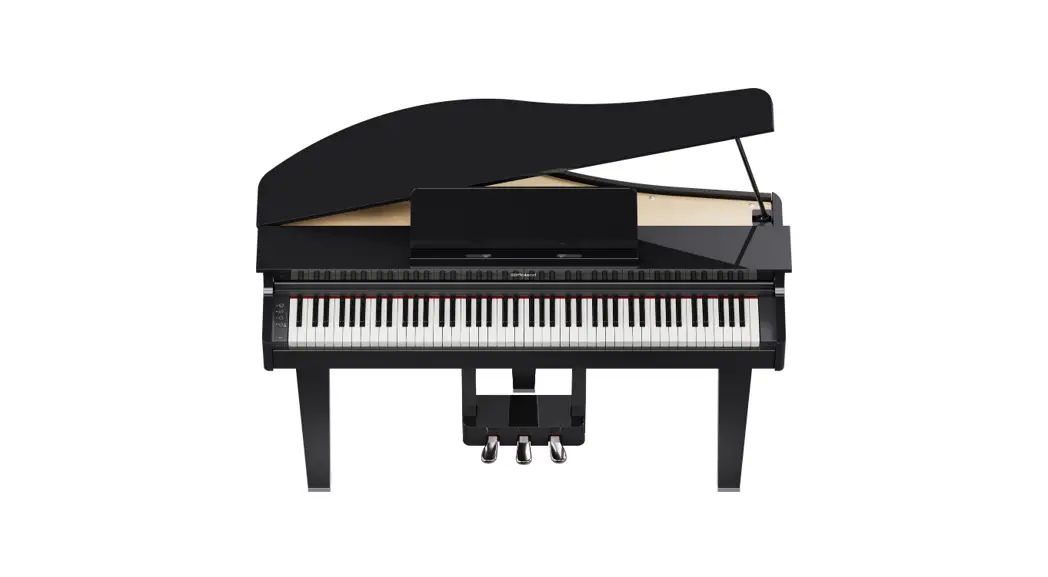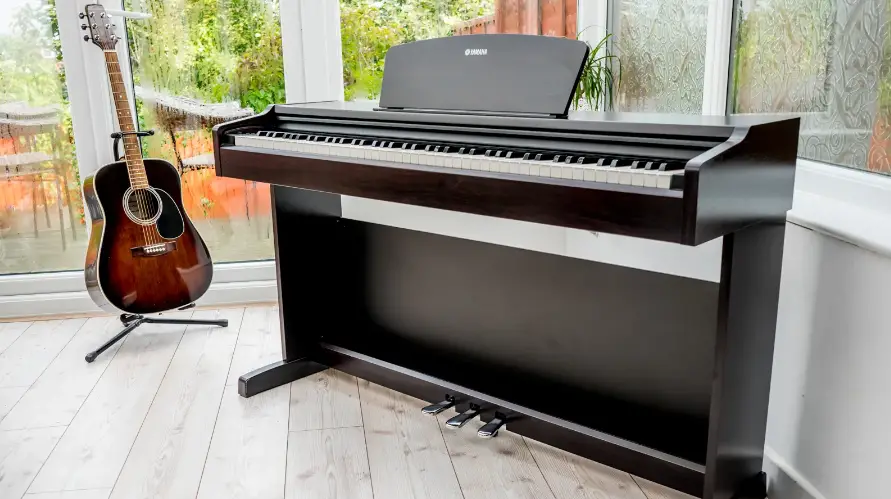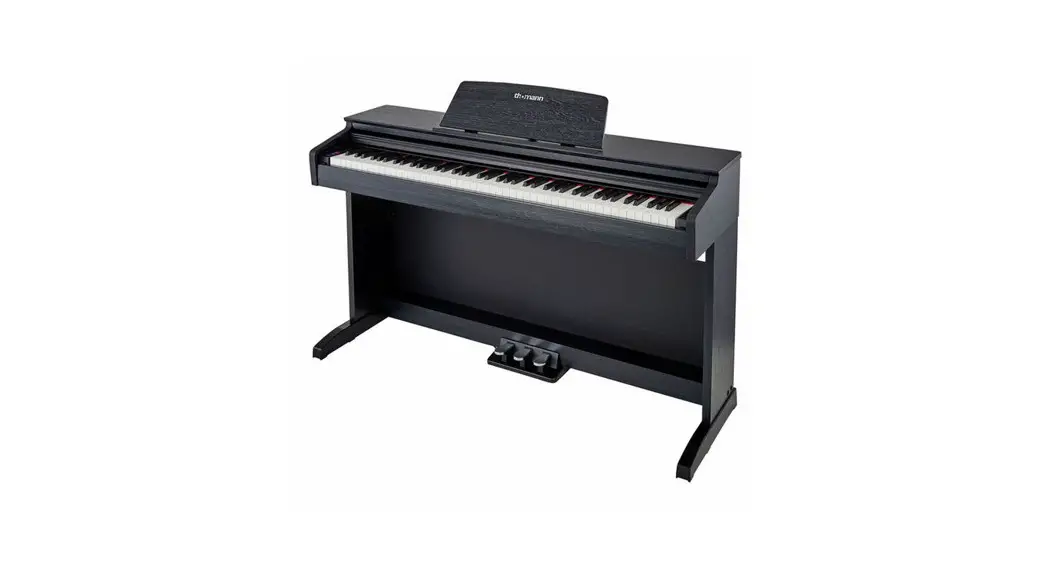
 DP-32 B, DP-32 WH
Digital Piano
User Manual 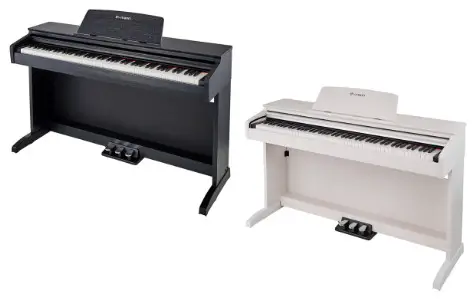
General information
This user manual contains important information on the safe operation of the device.
Read and follow all safety notes and all instructions. Save this manual for future refer‐ emcee. Make sure that it is available to all persons using this device. If you sell the device to another user, be sure that they also receive this manual.
Our products and user manuals are subject to a process of continuous development.
We therefore reserve the right to make changes without notice. Please refer to the latest version of the user manual which is ready for download under www.thomann.de.
1.1 Further information
On our website (www.thomann.de) you will find lots of further information and details on the following points:
| Download | This manual is also available as PDF file for you to download. |
| Keyword search | Use the search function in the electronic version to find the topics of interest for you quickly. |
| Online guides | Our online guides provide detailed information on technical basics and terms. |
| Personal consultation | For personal consultation please contact our technical hotline. |
| Service | If you have any problems with the device the customer service will gladly assist you. |
1.2 Notational conventions
This manual uses the following notational conventions:
Letterings
The letterings for connectors and controls are marked by square brackets and italics.
Examples: [VOLUME] control, [Mono] button.
Displays
Texts and values displayed on the device are marked by quotation marks and italics.
Examples: ‘24ch’ , ‘OFF’.
Instructions
The individual steps of an instruction are numbered consecutively. The result of a step is indented and highlighted by an arrow.
Example:
- Switch on the device.
- Press [Auto].
 Automatic operation is started.
 - Switch off the device.
Cross-references
References to other locations in this manual are identified by an arrow and the speci‐ fied page number. In the electronic version of the manual, you can click the cross-reference to jump to the specified location.
Example: See  ‘Cross-references’ on page 7.
1.3 Symbols and signal words
In this section you will find an overview of the meaning of symbols and signal words that are used in this manual.
| Signal word | Meaning |
| DANGER! | This combination of symbol and signal word indicates an immediate dangerous situation that will result in death or serious injury if it is not avoided. |
| CAUTION! | This combination of symbol and signal word indicates a possible dangerous situation that can result in minor injury if it is not avoided. |
| NOTICE! | This combination of symbol and signal word indicates a possible dangerous situation that can result in mate‐ rail and environmental damage if it is not avoided. |
| Warning signs | Type of danger |
 | Warning – high-voltage. |
 | Warning – danger zone. |
Safety instructions
Intended use
This device is intended to be used for electronic sound generation using a piano key‐ board. Use the device only as described in this user manual. Any other use or use under other operating conditions is considered to be improper and may result in per‐ zonal injury or property damage. No liability will be assumed for damages resulting from improper use.
This device may be used only by persons with sufficient physical, sensorial, and intel‐ lacteal abilities and having corresponding knowledge and experience. Other persons may use this device only if they are supervised or instructed by a person who is responsible for their safety.
Safety DANGER!
Danger for children
Ensure that plastic bags, packaging, etc. are disposed of properly and are not within reach of babies and young children. Choking hazard! Ensure that children do not detach any small parts (e.g. knobs or the like) from the unit. They could swallow the pieces and choke! Never let children unattended use electrical devices. DANGER!
Electric shock caused by short-circuit
Always use proper ready-made insulated two-wire mains cabling (power cord). Do not modify the mains cable or the plug. Failure to do so could result in electric shock/death or fire. If in doubt, seek advice from a registered electrician. DANGER!
Electric shock caused by high voltages inside
Within the device there are areas where high voltages may be present. Never remove any covers. There are no user-serviceable parts inside. Do not use the device if covers, protectors or optical components are missing or damaged. CAUTION!
Possible hearing damage
With loudspeakers or headphones connected, the device can produce volume levels that may cause temporary or permanent hearing impairment. Do not operate the device permanently at a high volume level. Decrease the volume level immediately if you experience ringing in your ears or hearing impairment. CAUTION!
Risk of injury due to heavy weight
Due to the heavy weight of the device, at least two persons are required for transport and installation. NOTICE!
Operating conditions
This device has been designed for indoor use only. To prevent damage, never expose the device to any liquid or moisture. Avoid direct sunlight, heavy dirt, and strong vibrations. Only operate the device within the ambient conditions specified in the chapter ‘Technical specifications’ of this user manual. Avoid heavy temperature fluctuations and do not switch the device on immediately after it was exposed to temperature fluctuations (for example after transport at low outside temperatures). Dust and dirt inside
can damage the unit. When operated in harmful ambient conditions (dust, smoke, nicotine, fog, etc.), the unit should be main‐ tainted by qualified service personnel at regular intervals to prevent overheating and other malfunction. NOTICE!
Power supply
Before connecting the device, ensure that the input voltage (AC outlet) matches the voltage rating of the device and that the AC outlet is protected by a residual current circuit breaker. Failure to do so could result in damage to the device and possibly injure the user. Unplug the device before electrical storms occur and when it is unused for long periods of time to reduce the risk of electric shock or fire. NOTICE!
Possible staining
The plasticizer contained in the rubber feet of this product may possibly react with the coating of your surface and after some time cause permanent dark stains. In case of doubt, do not put the rubber feet directly on the surface and use a suitable underlay if necessary, i.e. felt pads or similar.
Features
The digital piano is characterized by the following features:
- Keyboard: 88 weighted keys with hammer action and adjustable touch response.
- 16 sounds
- 128-voice polyphony
- Reverb
- Chorus
- Split mode
- Metronome
- Transpose function
- Music Library with 60 rehearsal songs
- Speaker: 2 × 10 W
- 3 pedals
- Connections: 2 × headphones out, stereo AUX IN/OUT, USB MIDI 2.0
- Finish: matt black (item # 448686) or matt white (item # 448687)
- Automatic shutoff
- Operating system: Windows® 8 and later, Mac OS X® 10.8 and later
Assembly instructions
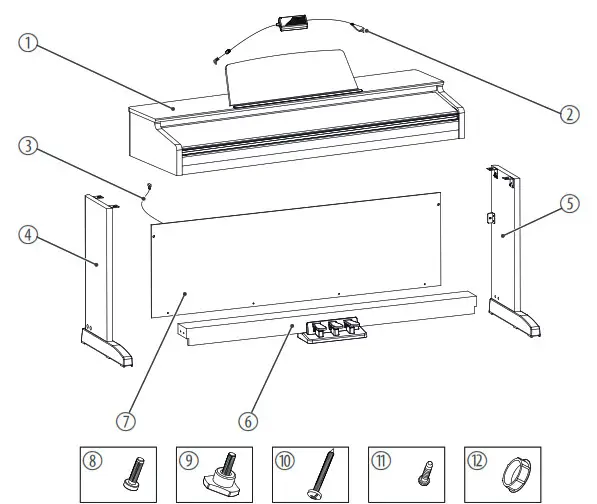
You need a Phillips screwdriver (not supplied) for the assembly of the digital piano.
Open the package and make sure before assembling that the entire scope of delivery is present, as posted here.
| 1 | Digital piano housing |
| 2 | Power cord |
| 3 | Pedal cable |
| 4 | Left side panel |
| 5 | Right side panel |
| 6 | Pedal box |
| 7 | Back panel |
| 8 | Phillips-head screws M6 ´ 18 (2 pcs.) |
| 9 | Hand screws (4 pcs.) |
| 10 | Phillips-head screws 6 ´ 50 (4 pcs.) |
| 11 | Phillips-head screws 4 ´ 15 (4 pcs.) |
| 12 | Plastic caps (4 pcs.) |
Mechanical assembly
Proceed according to the illustrations and only use the supplied screws. Using other screws could damage the piano housing or result in a reduced stability of the piano.
- Hand screws (4 pcs.)
- Phillips-head screws M6 ´ 18 (2 pcs.)
- Phillips-head screws 6 ´ 50 (4 pcs.)
- Phillips-head screws 4 ´ 15 (4 pcs.)
- Plastic caps (4 pcs.)
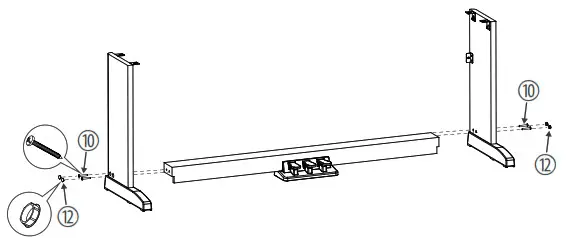 Put the pedal box between the left and right side panel and use two screws 6 ´ 50 on each side to affix both side panels to the pedal box. Attach the four plastic caps.
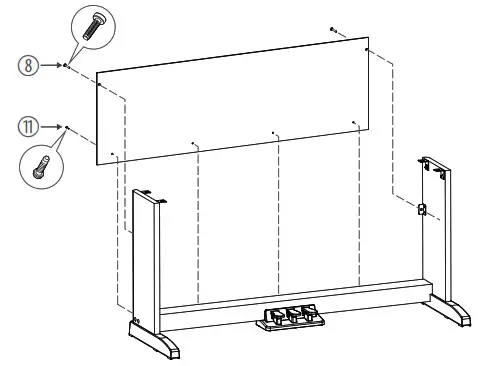
Attach the rear panel to the pedal box with four screws 4 ´ 15 and with two screws M6 ´ 18 to the mounting brackets of the side panels.
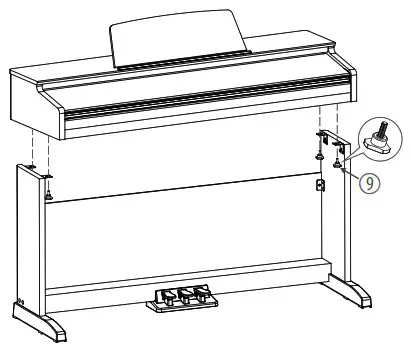
Put the digital piano housing on the stand and affix it using four hand screws.

Connect the DIN plug of the pedal cable to the provided socket on the bottom side of the digital piano housing. Fix the cable to the base and move the digital piano to the desired position.
Connecting the power supply

Make sure that the device is turned off before you connect it to the power supply or disconnect it.

Turn the volume knob counter-clockwise to minimum before connecting the digital piano to the power supply or to other devices. This is to protect the speakers from damage.
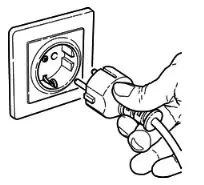
Connect the cable from the power adapter outlet to the input socket [DC IN] on the rear panel of the digital piano.
Plug the AC power cord into a properly wired mains wall outlet.
Connections and operating elements
Control panel left and right
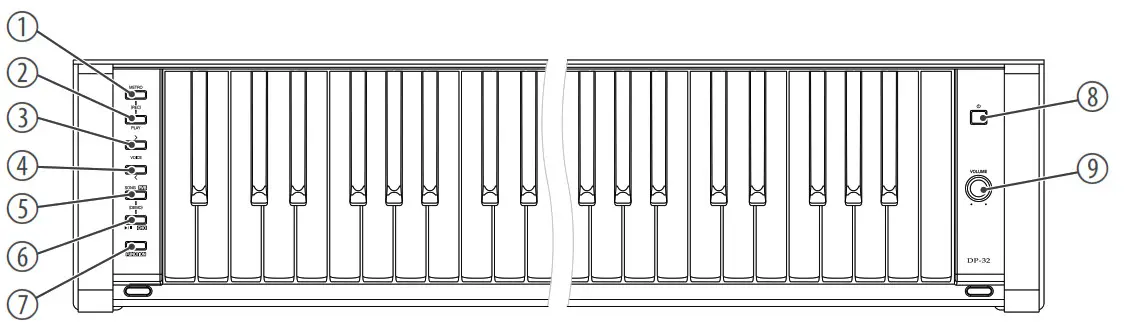
1 [METRO]
Button to turn the metronome on and off
Press [METRO] and [PLAY] simultaneously to enable the recording mode.
2 [PLAY]
Button to start and stop user song playback
Press [METRO] and [PLAY] simultaneously to enable the recording mode.
3, 4 </>
Buttons to set the parameters
5 [SONG/RVB]
Button for selecting practised pieces
6  /[CHO]
Button to start and stop the practice pieces
7 [FUNCTION]
Press and hold this key while you call up a specific function with a piano key.
8 
Turns the digital piano on and off
9 [VOLUME]
Rotary volume control
Pedals
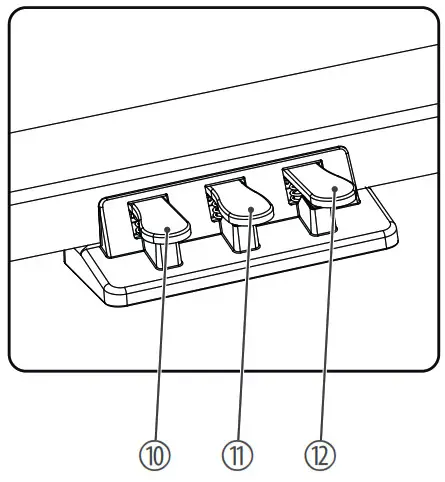 10 Soft pedal
Using the Soft pedal makes the piano sound smoother and the overall volume is attenuated.
11 Sostenuto pedal
When stepping on the Sostenuto pedal, the currently played notes linger until you release the pedal.
12 Sustain pedal
With the sustain pedal all played notes sound longer. This effect simulates the lifting of the damper in an analogue keyboard instrument.
Rear panel connections
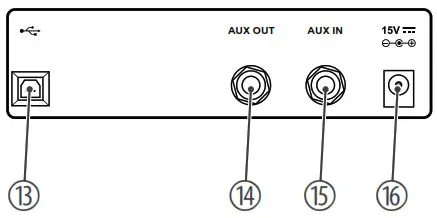 13 USB/MIDI interface to connect a computer
14 [AUX OUT]
Output for external audio devices like active speakers or amplifiers
15 [AUX IN ]
Connection for external audio devices such as MP3 or CD players to use the internal speakers
16 [DC IN]
Connection for the power adapter
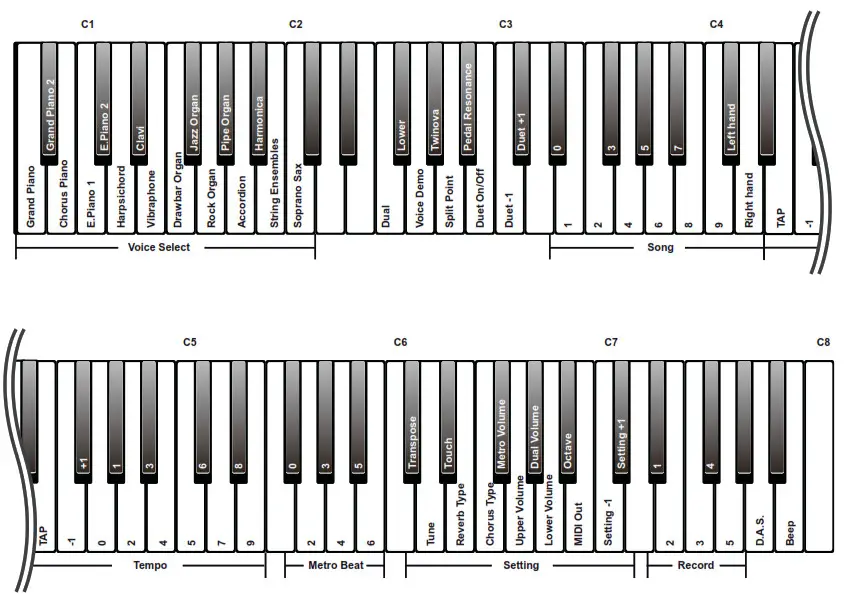
Piano keys
The keyboard keys are referred to in this manual as shown below.
Connection options
Headphones
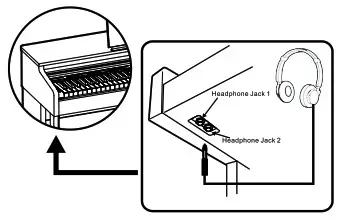
To the left beneath the keyboard you find the headphones outlets 1 and 2 (designed as 1/4″ phone socket).
If you connect headphones (not supplied) to output 1, speaker playback will be retained.
Using outlet 2 mutes the speakers.
External audio devices via the AUX OUT socket
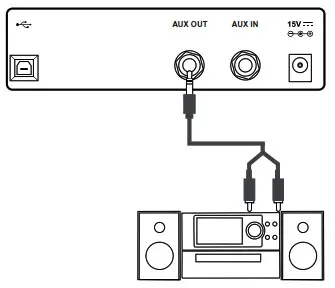
Use the AUX OUT socket to connect the digital piano to an amplifier, stereo device, mixing console or recording device. Plug one end of the audio cable into the AUX
OUT socket on the rear panel of the digital piano and the other end into the input of the respective audio device. NOTICE!
To prevent damage to the speakers, turn the volume down to ‘Mini‐ mum’ before you connect other devices to the digital piano.
External audio devices via the AUX IN socket
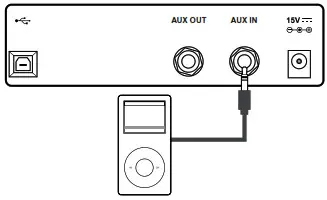
Use the AUX IN socket to connect a, for example, CD or MP3 player to the digital piano. So you can playback music through the internal speakers of the digital piano and simultaneously play along to it. Plug one end of the audio cable into the AUX IN socket on the rear panel of the digital piano and the other end into the output of the respective audio device.
Computer via USB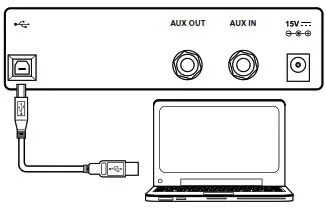 You can connect the digital piano to exchange data with a PC via the USB port. This also allows the transfer of MIDI data.
 Use a current operating system still supported by the provider to avoid tech‐ nical difficulties. Do not set the USB interface as the in and output at the same time in the computer software. Otherwise, there will be overlap when playing the dig‐ ital piano.
Turning the digital piano on / off, setup
7.1 Switching the digital piano on
Press the power button on the right of the cavicapture to turn the digital piano on or off. If you hear nothing coming from the speakers, the volume may be set to ‘minimum’.
7.2 Automatic shutoff
When the digital piano is not being used for 30 minutes, it switches off automatically.
To turn it on again, press the power button on the unit.
The automatic shutoff is activated automatically when powering up the digital piano.
To deactivate the automatic shutoff function, press the first white key on the left while the digital piano is being switched on.
7.3 Adjusting the volume
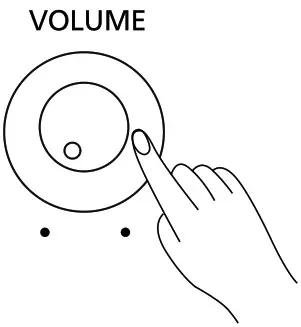
7.4 Touch sensitivity
With this function you can adjust the touch response of the keyboard at six different levels.
| Parameter | Meaning |
| [OFF] | Touch sensitivity is off. This can be very recom‐ mendable when playing the organ voice. |
| [1] | Hard 2 In this setting, the volume is lower than usual even when playing with a hard touch. |
| [2] | Hard 1 In this setting, the volume is slightly lower than usual even when playing with a hard touch. |
| [3] | Normal This setting corresponds to the usual touch response of a keyboard. |
| [4] | Soft 1 In this setting, the volume is slightly higher than usual even when playing with a soft touch. |
| [5] | Soft 2 In this setting, the volume is higher than usual even when playing with a soft touch. |
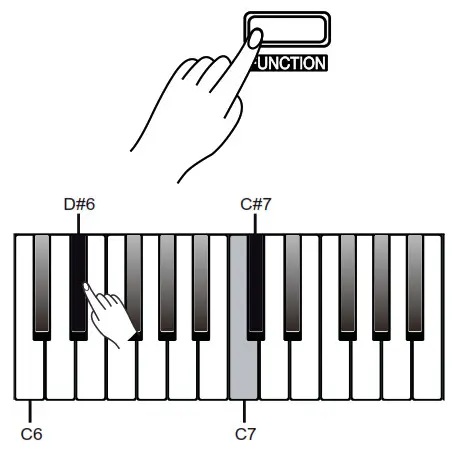
- Hold down the [FUNCTION] button and press piano key [D#6].
- Hold down the [FUNCTION] button and press piano key [C7] or [C#7] to adjust the touch sensitivity.
Hold down the [FUNCTION] button and press piano key [C7] and [C#7] simultaneously to restore the preset value ‘3’ .
7.5 Transposing
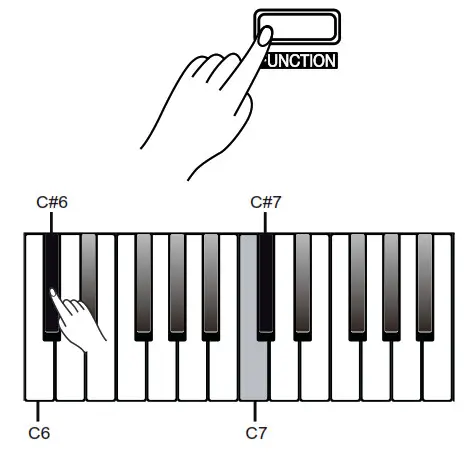
With this function you can adjust the pitch of the keyboard in 12 semitone steps up or down.
- Hold down the [FUNCTION] button and press piano key [C#6].
- Hold down the [FUNCTION] button and press piano key [C7] or [C#7] to trans‐ pose the keyboard pitch in 12 semitone steps up or down.
 Hold down the [FUNCTION] button and press piano key [C7] and [C#7] simultaneously to restore the preset value ‘00’ .
- For example, if you set the transpose value to ‘–05’ or ‘+07’ , you will hear the pitch [G] while playing the [C] keys.
7.6 Fine tuning
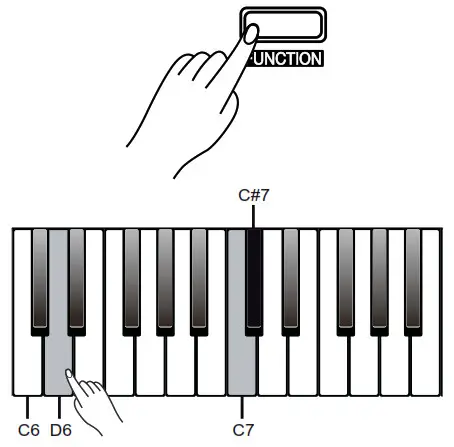
With this function you can fine tune the entire keyboard in 2-cent steps.
- Hold down the [FUNCTION] button and press piano key [D6].
- Hold down the [FUNCTION] button and press piano key [C7] or [C#7] to fine tune the keyboard. The value changes by 2 Cents per keystroke in a range from –50 bis +50 Cents.
- Hold down the [FUNCTION] button and press piano key [C7] and [C#7] simultaneously to restore the preset value ‘0 Cent’ .
7.7 Metronome
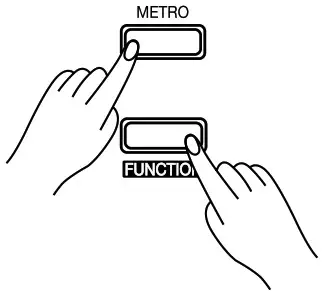
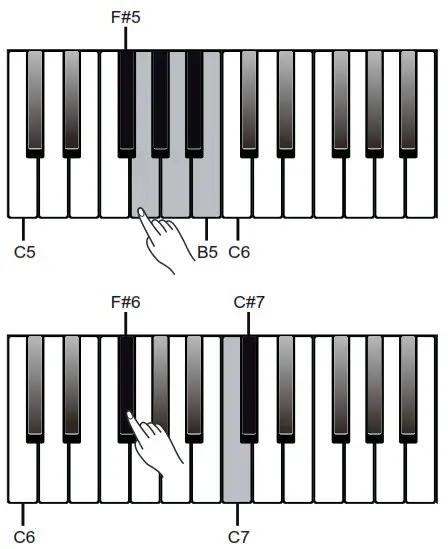
The digital piano metronome has six preset time signatures.
- Turning the metronome on / off
Press the [METRO] button to turn the Metronome on or off. - Setting the time signature
Press the buttons / to set one of the preset time signatures ‘0’ , ‘2’ , ‘3’ , ‘4’ , ‘5’ or ‘6’ .
Hold down the [FUNCTION] button and press one of the piano keys [F#5] … [B5] to set the time signature directly. - Setting the Click volume
Hold down the [FUNCTION] button and press piano key [F#6].
Hold down the [FUNCTION] button and press piano key [C7] or [C#7] to adjust the Click volume between ‘0’ … ‘15’ .
Hold down the [FUNCTION] button and press piano keys [C7] and [C#7] simultaneously to restore the default value.
- The metronome is not available while playing practice pieces.
7.8 Tempo
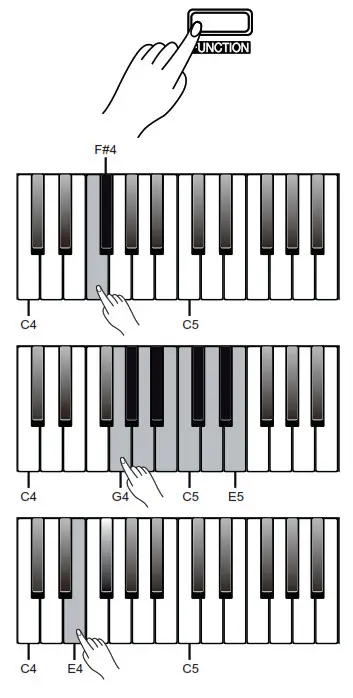
All preprogrammed pieces and voices as well as the metronome function are stored with certain tempo information. These presets can be adjusted at any time in various ways.
- Hold down the [FUNCTION] button and press piano key [F4] or [F#4] to adjust the tempo in steps of 1.
- Hold down the [FUNCTION] button and press the / buttons to adjust the tempo in steps of 10.
- Hold down the [FUNCTION] button and press one of the piano keys [G4] … [E5] to adjust the tempo directly.
- Hold down the [FUNCTION] button and press piano key [E4] repeatedly in the desired tempo to set the tempo.
– Hold down the [FUNCTION] button and press piano keys [F4] and [F#4] simultaneously, the tempo will be reset to the default standard value (120 beats per minute).
– The tempo can be adjusted in a range from 30 to 280 bpm.
– If you want to change the tempo using one of the piano keys [G4] to [E5], you always have to enter it in three-digit format. For example, to set tempo 214, hold down the [FUNCTION] button and press the piano keys [A4, ][G#4] and [B4] one after the other.
7.9 Button sound
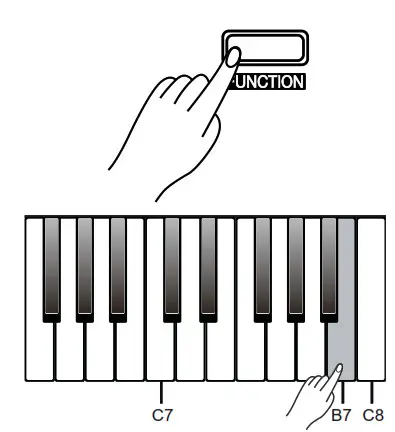 With this function, you can turn the Key Tone on or off. By default, the Key Tone is turned on.
Hold down the [FUNCTION] button and press the piano key [B7] to turn the button sound on or off.
- When you turn on the button sound, you will hear a sound each timeyou press a function button.
7.10 Pedal resonance
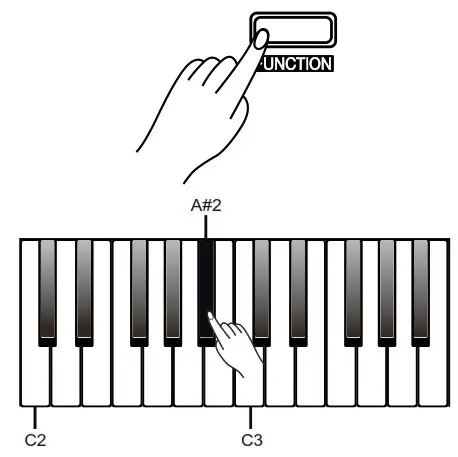
This function mimics the sustain effect of a piano.
Press and hold the [FUNCTION] button. Press the piano key [A#2] to turn the effect on or off.
- The resonance effect is activated as soon as the digital piano is switched on.
- While the resonance effect is activated, the chorus effect of the digital piano is suppressed.
- There may be a brief pause if you turn the Resonance effect on or off during playing.
Operating
8.1 Demo song
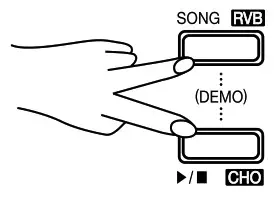
The built-in demo song shows the sound and the pitch range of the instrument.
- Simultaneously press the buttons [SONG/RVB] and
 /[CHO] to start the play‐ back of the demo song. The demo song is playing in an endless loop.
 - Press the /[CHO] button again to stop the playback. During playback, the piano keys are muted.
8.2 Practicing songs
8.2.1 Selecting practised songs
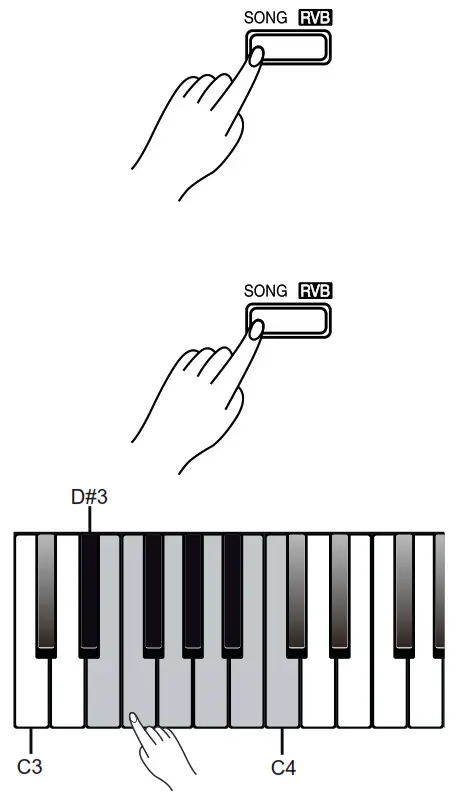
The digital piano offers 60 practised songs in total (see Ä Chapter 9 ‘Practised and demo songs’ on page 33).
- Press the [SONG/RVB] button to enter the playback mode for practised songs. The [SONG/RVB] button LED lights up. All practised songs are played in an end‐ less loop.
- Press the / buttons during playback to select a desired practice song. Press the /[CHO] button to play the selected practice song in an infinite loop.
- Press the /[CHO] button to stop playback and exit the current mode. .
- Selecting a practised song directly Hold down the [FUNCTION] button and press one of the piano keys [D#3] … [C4] during playback to select the desired practise song. To select the practised song with the piano keys [D#3] … [C4], always enter the number in two-digit format. If you want to select the eighth practise song, for example, press the piano keys [D#3] and [B3] one after the other.
8.2.2 Practising left and / or right hand
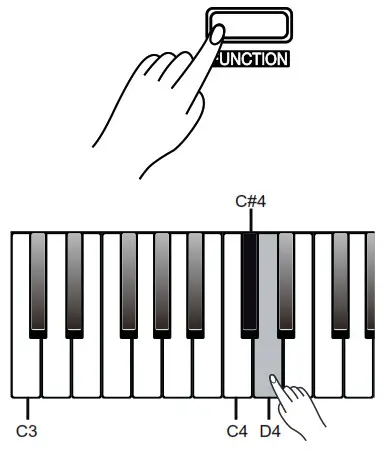
In [SONG] mode, you can set whether to play both tracks of the practise song or only the left or right track so that hands can practice individually or together.
- To mute the left track of the practice song, hold down the [FUNCTION] button and press piano key [C#4].
To deactivate the setting, hold down the [FUNCTION] button and press piano key [C#4] again. - To mute the right track of the practice song, hold down the [FUNCTION] button and press piano key [D4].
To deactivate the setting, hold down the [FUNCTION] button and press piano key [D4] again.
8.3 Voices
8.3.1 Selecting voices
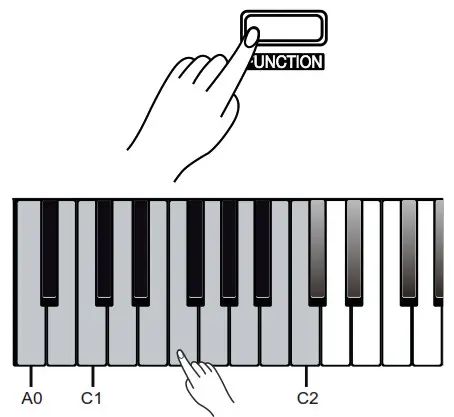
Overall, the digital piano has 16 voices, which can be accessed via piano keys [A0] … [C2] (see Ä Chapter 10 ‘Voice list’ on page 35). A preset voice is assigned to each piano key.
- Hold down the [FUNCTION] button and press one of the piano keys [A0] … [C2]
to select the desired voice. - To select another voice, hold down the [FUNCTION] button again and press one of the piano keys [A0] … [C2].
- Press the </> buttons to select a desired voice.
Alternatively, you can call up the 16 voices of the digital piano via the / buttons (see Chapter 10 ‘Voice list’ on page 35).?
8.3.2 Split mode
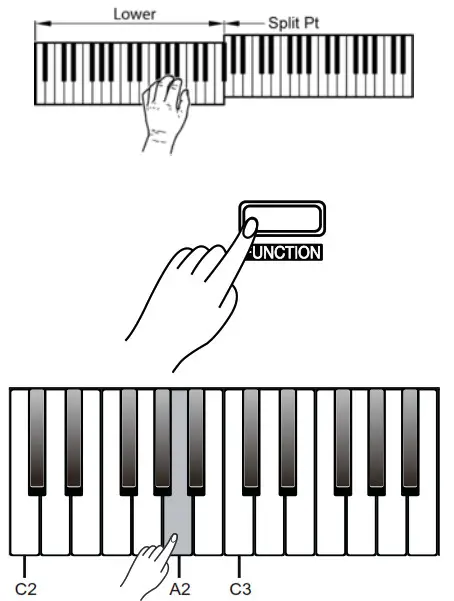
This feature allows you to select a point that splits the entire keyboard into two sec‐ tions and to assign different voices to those sections. The preset split point is on piano key [F#3].
- Hold down the [FUNCTION] button and press piano key [A2]. Select the desired piano key that you want to be the split point. Usually, the split point lies within the piano keys [C3] … [C6].
- Release the [FUNCTION] button to apply the setting.
- To assign voices to the two sections, first select the first voice as described in chapter
 Chapter 8.3.1 ‘Selecting voices’ on page 25.
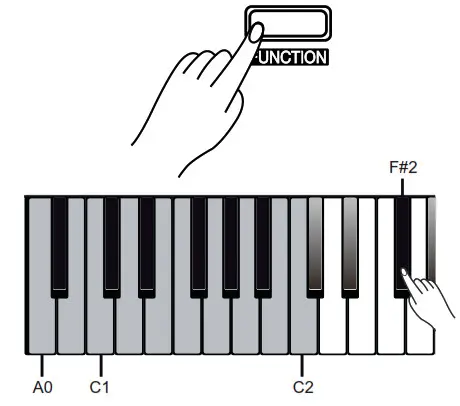
- To assign the second voice, hold down the [FUNCTION] button and press piano key [F#2] to start the split mode. The preset second voice is ‘String Ensembles’ .
- Hold down the [FUNCTION] button and press piano key [F#2] again. Use one of the piano keys [A0] … [C2] to select the second voice.
- Hold down the [FUNCTION] button and press piano key [F#2] again to exit the split mode.
8.3.3 Dual mode
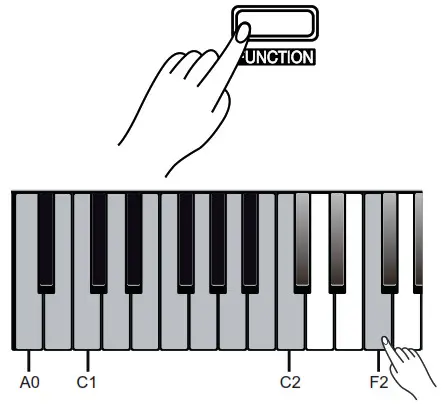
In Dual mode, you can play two voices simultaneously.
- First, select the first voice as described in section Chapter 8.3.1 ‘Selecting voices’ on page 25.
- Hold down the [FUNCTION] button and press piano key [F2] to start the dual mode. The preset second voice is ‘String Ensembles’ .
- Hold down the [FUNCTION] button and press piano key [F2] again. Use one of the piano keys [A0] … [C2] to select the second voice.
- Hold down the [FUNCTION] button and press piano key [F2] again to exit the dual mode. When split mode and dual mode are selected, only the right track can play the second voice.
8.3.4 Demo mode
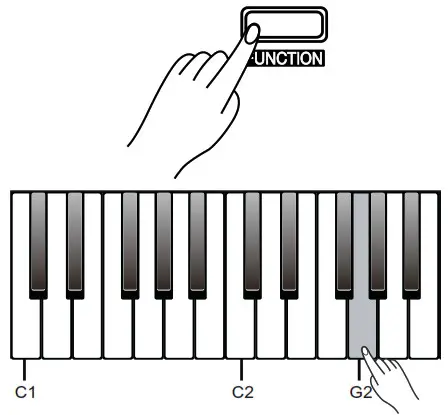
The digital piano offers 16 demos for the individual voices.
- First, select the first voice as described in section Ä Chapter 8.3.1 ‘Selecting voices’ on page 25.
- Hold down the [FUNCTION] button and press piano key [G2] to start the demo for the selected voice.
- Press piano key [G2] again or press the /[CHO] button to exit the demo mode.
During playback, the piano keys are muted.
8.3.5 Duet mode
8.3.5.1 Turning the duet mode on and off
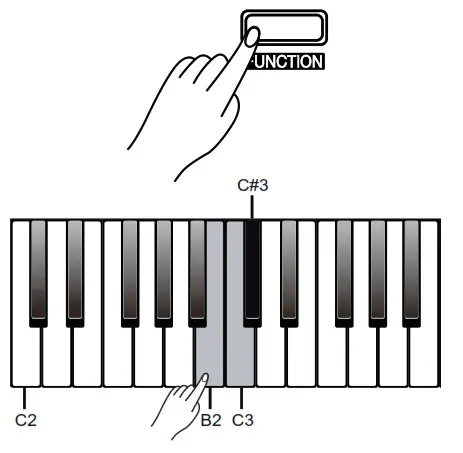
With this feature on, the digital piano automatically creates a matching accompany‐ kneeing voice when chords are played in the chord section of the keyboard. The digital piano offers 32 duet patterns.
- Hold down the [FUNCTION] button and press piano key [B2] to start the duet mode.
- Hold down the [FUNCTION] button and select the desired duet pattern with the piano keys [C3] or [C#3].
- Press [B2] again to deactivate the function again. A preset duet pattern is assigned to each voice.
8.3.5.2 Setting duet split point
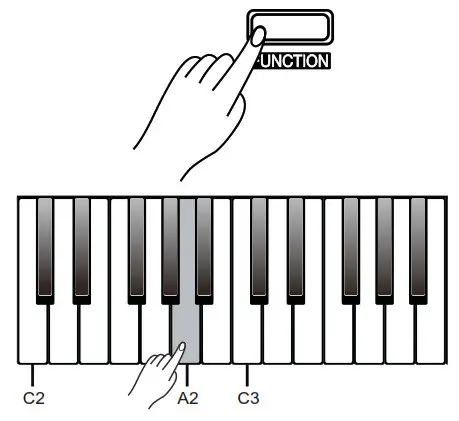
In duet mode, to play the chords in the chord section with your left hand and the melody with your right hand, you can select a point that splits the entire keyboard into two sections.
- Hold down the [FUNCTION] button and press piano key [A2]. Select the desired piano key that you want to be the split point.
- Release the [FUNCTION] button to apply the setting.
8.3.6 TWINOVA
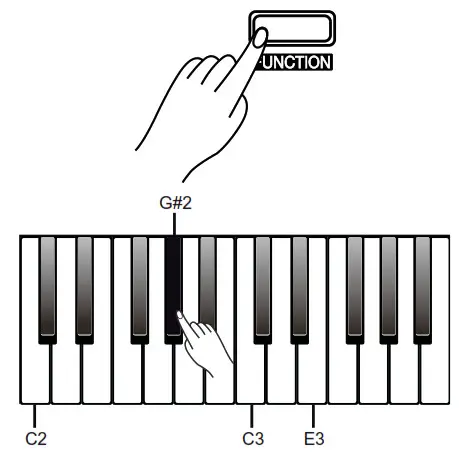
In TWINOVA mode, the keyboard is divided into two areas with the same voice and the same pitch.
- Hold down the [FUNCTION] button and press piano key [G#2] to start the TWI‐ NOVA mode.
- Select the desired voice, see Chapter 8.3.1 ‘Selecting voices’ on page 25.
- If necessary, specify a split point, see Chapter 8.3.2 ‘Split mode’ on page 26. The preset split point is on piano key [E3].
- If necessary, adapt the Octave area, see Chapter 7.5 ‘Transposing’ on page 20.
- Hold down the [FUNCTION] button and press piano key [G#2] again to deictic‐ vote the TWINOVA mode.
8.4 Digital effects
8.4.1 Chorus effect
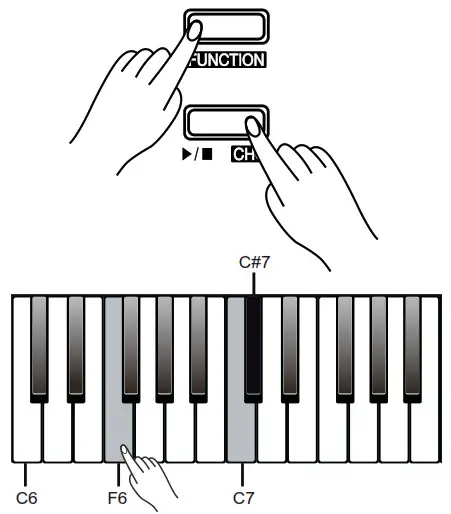
The Chorus function lets you simulate the acoustic effects under different environ‐ mental conditions.
- Hold down the [FUNCTION] button and press the /[CHO] button to turn the Chorus effect on or off.
- Hold down the [FUNCTION] button and press piano key [F6] to call up the con‐ figuration mode of the Chorus effect.
- Hold down the [FUNCTION] button and press piano key [C7] or [C#7] to set the desired effect between ‘1’ … ‘5’ .
- To restore the default settings, hold down the [FUNCTION] button in configura‐ tion mode and simultaneously press [C7] and [C#7].
| Parameter | Effect | Meaning |
| [1] | Chorus 1 | Slight Chorus effect |
| [2] | Chorus 2 | Medium Chorus effect |
| [3] | Chorus 3 | Strong Chorus effect |
| [4] | Flinger | Flinger effect |
| [5] | Rotary | Rotary effect |
- By default, the Chorus effect is deactivated when the digital piano is switched on.
- While the Chorus effect is activated, the Resonance effect of the digital piano is suppressed.
8.4.2 Reverb effect
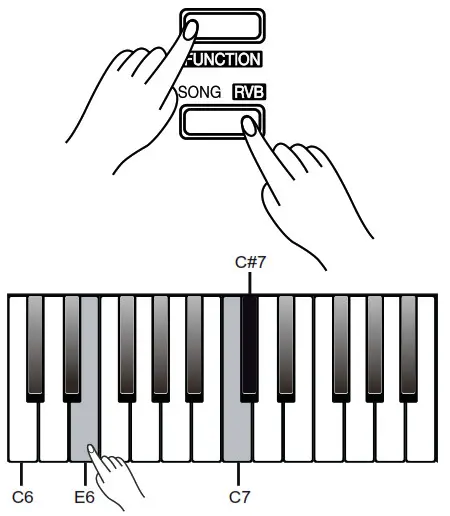
With this function you can turn on the Reverb effect and select the effect type.
- Hold down the [FUNCTION] button and press the [SONG/RVB] button to turn the Reverb effect on or off.
- Hold down the [FUNCTION] button and press piano key [E6].
- Hold down the [FUNCTION] button and press piano key [C7] or [C#7] to set the desired effect between ‘1’ … ‘5’ .
| Parameter | Effect | Meaning |
| [1] | Room | Room |
| [2] | Reverb | Reverb |
| [3] | Church | Church |
| [4] | Delay | Delay |
| [5] | Pan Delay | Pan Delay |
Hold down the [FUNCTION] button and press piano keys [C7] and [C#7] simultaneously to restore the preset value ‘3’ .
8.4.3 Dynamic Acoustic System (DAS)
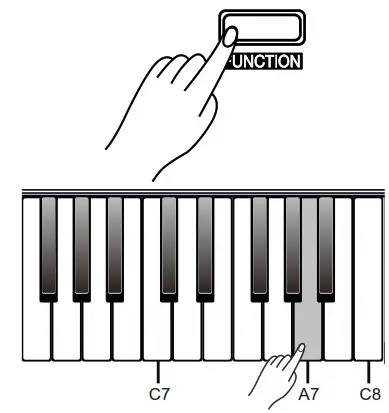
With this function you can adjust the tone at low volumes to the characteristic of human hearing. The level of extremely high and low frequencies is dynamically increased when reducing the volume.
The Dynamic Acoustic System (DAS) is activated automatically when powering up the digital piano.
Hold down the [FUNCTION] button and press the piano key [A7] to activate or deactivate the DAS function.
8.5 Recording function
You can record your own songs with the digital piano and save up to five recordings as user songs in the internal memory. Unsaved recordings are lost after switching the
digital piano off.
8.5.1 Preparing and starting recording
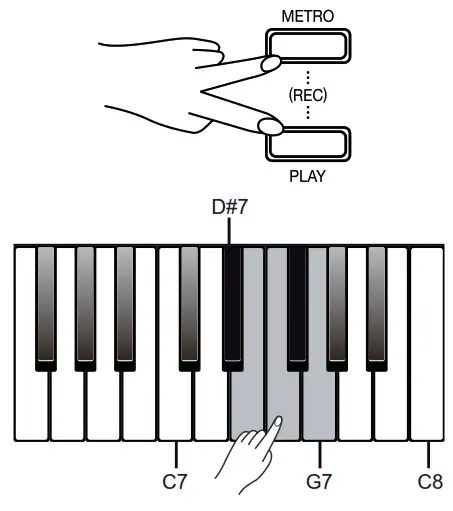
- Press the [METRO] and [PLAY] buttons simultaneously to enable the recording mode.
- Press one of the piano keys [D#7] … [G7] to select a memory location for recording. The digital piano is now record enabled. The /[CHO] button LED flashes.
- Set the recording tempo.
- Recording starts as soon as you press the /[CHO] button or play the first note or chord. The [METRO] and [PLAY] button LEDs light up.
8.5.2 Stopping recording
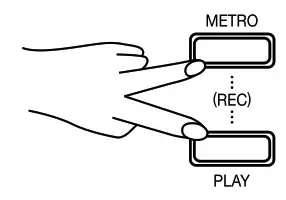
You can cancel or stop recording at any time.
During recording, press the [METRO] and [PLAY] buttons simultaneously to stop recording. The recording is stopped and saved to the selected memory location. The [METRO] and [PLAY] button LEDs turn off.
- The recording previously saved in the selected memory location is over‐ written.
- When the full memory capacity has been reached, the recording is ter‐ minted automatically and the recorded data is saved.
8.5.3 Playing a recording
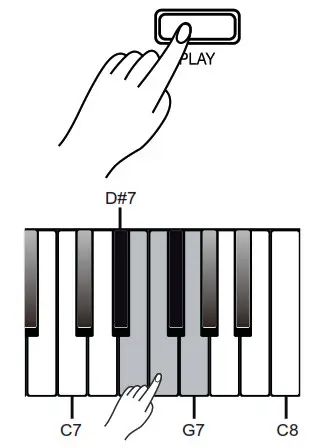
- Hold down the [PLAY] button and press one of the piano keys [D#7] … [G7] to select the desired recording.
- Press the [PLAY] button to play back the recording. The [PLAY] button LED lights.
- Press the [PLAY] button again to stop the playback. The [PLAY] button LED goes out.
8.5.4 Deleting recordings
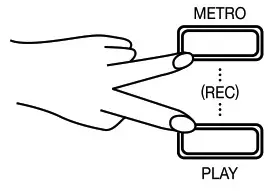
Deleting single recordings
- Switch to playback mode and select the desired recording as described in Chapter 8.5.3 ‘Playing a recording’ on page 31.
- Hold down the [METRO] and [PLAY] buttons simultaneously. The selected recording is deleted.
Deleting all recordings
- Turn off the digital piano.
- Simultaneously press the [METRO] and [PLAY] buttons and turn the digital piano back on. All user recordings are deleted.
8.6 MIDI functions
8.6.1 USB connection to a computer
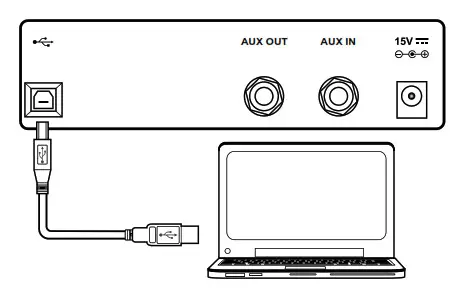
- Turn on the computer.
- Connect the USB port on the rear panel of the digital piano using a standard USB cable (not included) to the USB port on your computer. Use a current operating system still supported by the provider to avoid technical difficulties.
- Then turn the digital piano on.
Please heed the following instructions when connecting USB instruments to computers. Otherwise, the instrument or the computer may ‘crash’, which can result in data loss. If a ‘crash’ should occur, turn off computer and instrument and restart both after a few seconds.
- If the computer is in standby or hibernation, wake the computer before connecting the USB cable.
- Establish the USB connection between computer and instrument before turning on the instrument.
- For additional applications you may need a suitable software for recording and editing music (not included).
8.6.2 Setting the MIDI channel
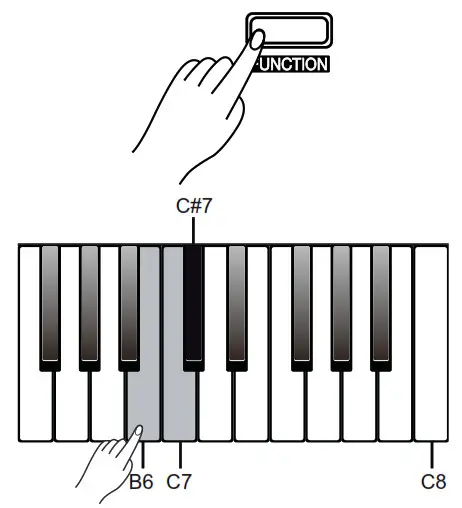
- Hold down the [FUNCTION] button and press piano key [B6].
- Hold down the [FUNCTION] button and press piano key [C7] or [C#7] to set the desired MIDI OUT channel between ‘1’ … ‘16’ .
Hold down the [FUNCTION] button and press piano keys [C7] and [C#7] simultaneously to restore the preset value ‘1’ .
Practised and demo songs
Practising songs
| No. | Name | No. | Name |
| 1 | The Entertainer | 31 | Robot Doll |
| 2 | Rialto Ripples (Rag) | 32 | Consolation |
| 3 | Neapolitan Song | 33 | 2-Part Invention #13 In A Minor. B.W. III |
| 4 | Waltzes | 34 | Minuet In G Major (BWV Anh. 114) |
| 5 | Turkish March | 35 | Barcarolle |
| 6 | Schuss Doll’s Dance No. 2 | 36 | Norwegian Dance No.2 |
| 7 | Minuet In D Major | 37 | Mozetta Dance |
| 8 | Inquietude | 38 | The Small Gathering |
| 9 | Italian Polka | 39 | The Return |
| 10 | Moment Musical | 40 | The Wagtail |
| 11 | Prelude In C-Sharp Major | 41 | Bulie Dance |
| 12 | The Happy Farmer | 42 | Tender Blossom |
| 13 | The Rag-Time Dance | 43 | Grace |
| 14 | Piano Sonata In C Major, K.330. III | 44 | Cherish The Memories |
| 15 | Mazurka | 45 | Chopsticks |
| 16 | Prelude In E Major | 46 | Four Little Swans |
| 17 | Piano Sonata In A Major, K.331. I | 47 | Progress |
| 18 | Waltz For Piano In G-Sharp Minor | 48 | Eclogue |
| 19 | Gavotte | 49 | The Limpid Stream |
| 20 | L ‘Arabesque | 50 | Brave Cavalier |
| 21 | Austria Variation | 51 | The Chatterbox |
| 22 | Schuss Doll’s Dance No. 7 | 52 | Tarantella |
| 23 | To A Wild Rose | 53 | Frankness |
| 24 | Gavotte I | 54 | Tender Grieving |
| 25 | Waltz | 55 | The Farewell |
| 26 | Minuet In G Major (BWV Anh. 116) | 56 | The Chase |
| 27 | Innocence | 57 | Habanera |
| 28 | Tchaikovsky Waltz | 58 | Prelude In C Major |
| 29 | Salut d’ Amour | 59 | Fountain |
| 30 | Barcarolle | 60 | Für Elise |
Demo song
| No. | Name |
| 1 | Fantasia |
Voice list
| No. | Name | No. | Name |
| 1 | Grand Piano | 9 | Drawbar Organ |
| 2 | Grand Piano 2 | 10 | Jazz Organ |
| 3 | Chorus Piano | 11 | Rock Organ |
| 4 | E.Piano 1 | 12 | Pipe Organ |
| 5 | E.Piano 2 | 13 | Accordion |
| 6 | Harpsichord | 14 | Harmonica |
| 7 | Clavi | 15 | String Ensembles |
| 8 | Vibraphone | 16 | Soprano Sax |
MIDI implementation chart
| Function | Sent | Received | Notes | |
| Basic Channel | Default | 1 | ALL | |
| Changed | 1-16 | 1-16 | ||
| Mode | Default | No | Mode 3 | |
| Messages | No | Mode 3 | ||
| Altered | *********** | No | ||
| Note Number | 0 – 127 | 0 – 127 | ||
| True voice | *********** | 0 – 127 | ||
| Velocity Note | Note ON | Yes, 9nH, v = 1 – 127 | Yes, 9nH, v = 1 – 127 | |
| Note OFF | No, 9nH, v = 0 | Yes, 9nH, v = 0 or 8nH, v = 0 – 127 | ||
| After Touch | Keys | No | No | |
| Channels | No | No | ||
| Pitch Bend | No | Yes | ||
| Control Change | 0 1 5 6 7 10 11 64 65 66 67 80 81 91 93 120 121 123 | Yes No No Yes Yes No No Yes No Yes Yes Yes Yes Yes Yes Yes No Yes | Yes Yes Yes Yes Yes Yes Yes Yes Yes Yes Yes Yes Yes Yes Yes Yes Yes Yes | Bank Select Modulation Portamento Time Data Entry Volume Pan Expression Sustain Pedal Portamento ON/OFF Sostenuto Pedal Soft Pedal Reverb Program Chorus Program Reverb Level Chorus Level All Sound Off Reset All Controllers All Notes Off |
| Program Change | True # | Yes *********** | Yes 0 – 127 | |
| System Exclusive | No | Yes | ||
| System Common | Song Position Pointer | No | No | |
| Function | Sent | Received | Notes | |
| Song Select | No | No | ||
| Tune Request | No | No | ||
| System Real Time | Clock | Yes | No | |
| Commands | No *1 | No *1 | ||
| Aux Messages | Local ON/OFF | No | No | |
| Active Sensing | No | Yes | ||
| System Reset | No | Yes | ||
| Notes: | *1 When the accompaniment starts, an FAH message is transmitted. When the accompaniment stops, an FCH message is transmitted. | |||
MIDI channel modes
| POLY | MONO | |
| OMNI ON | Mode 1 | Mode 2 |
| OMNI OFF | Mode 3 | Mode 4 |
Troubleshooting
| Problem | Possible causes and solutions |
| You hear a ‘pop’ sound from the speakers when switching the digital piano on and off. | This is normal. No need to worry. |
| No sound can be heard when playing the piano. | Make sure that the volume control is set appropriately. Check if headphones are plugged into the headphone output 2. Connecting headphones will mute the speakers of the dig‐ ital piano. |
| Malfunction occurs when using a mobile phone. | Using a mobile phone near the digital piano can cause inter‐ refence. To prevent this, turn off the mobile phone or use it only at a safe distance. |
| A connected computer does not detect the digital piano. | Check if the USB cable is connected properly. Connect the USB cable to another USB port on the computer. |
Technical specifications
| Input connections | Power supply | DC connection for power adapter |
| USB port | USB-to-Host | |
| AUX in | 1 × 1/4″ jack socket | |
| Output connections | Headphones | 2 × 1/4″ jack socket |
| AUX out | 1 × 1/4″ jack socket | |
| Keyboard | 88 weighted keys with hammer action | |
| Touch sensitivity adjustable | ||
| Polyphony | 128-voice polyphony | |
| Sounds | 16 | |
| Effects | Hall, Chorus, Reverb, DAS | |
| Pedals | Soft, Sostenuto, Sustain | |
| Pitch adjustment | Transposing | –12 … +12 |
| Tuning | –50 … +50 | |
| Functions | Metronome | 0, 2, 3, 4, 5 or 6 |
| Tempo | 30 … 280 | |
| Demo and practice songs | 61 | |
| Memory | 5 × memory locations for user recordings | |
| Speaker | 2 × 10 W | |
| Amp | 2 × 20 W | |
| Power supply Operating voltage Operating system | External power adapter, 100 – 240 V 50/60 Hz 15 V / 2500 mA, centre positive Windows® 8 and later, Mac OS X® 10.8 and later | |
| Dimensions (W × H × D) | 1320 mm × 815 mm × 440 mm | |
| Weight | 38.5 kg | |
| Colour | Matt black | Item no. 448686 |
| Matt white | Item no. 448687 | |
| Ambient conditions | Temperature range | 0 °C…40 °C |
| Relative humidity | 20 %…80 % (non-condensing) | |
| Further information | ||
| Surface | Satanized | |
| Wooden keyboard | No | |
| Ivory-feel keyboard | No | |
| Auto Accompaniment | No | |
| Number of rhythms | 0 | |
Plug and connection assignment
Introduction
This chapter will help you select the right cables and plugs to connect your valuable equipment in such a way that a perfect sound experience is ensured.
Please note these advices, because especially in ‘Sound & Light’ caution is indicated: Even if a plug fits into the socket, an incorrect connection may result in a destroyed power amp, a short circuit or ‘just’ in poor transmission quality!
Balanced and unbalanced transmits‐ scion
Unbalanced transmission is mainly used in semi-professional environment and in hifi use. Instrument cables with two conductors (one core plus shielding) are typical rep‐ presentative of the unbalanced transmission. One conductor is ground and shielding while the signal is transmitted through the core.
Unbalanced transmission is susceptible to electromagnetic interference, especially at low levels, such as microphone signals and when using long cables.
In a professional environment, therefore, the balanced transmission is preferred, because this enables an undisturbed transmission of signals over long distances. In addition to the conductors ‘Ground’ and ‘Signal’, in a balanced transmission a second core is added. This also transfers the signal, but phase-shifted by 180°.
Since the interference affects both cores equally, by subtracting the phase-shifted signals, the interfering signal is completely neutralized. The result is a pure signal without any noise interference.
1/4″ TRS phone plug (stereo, unbal‐ anced)
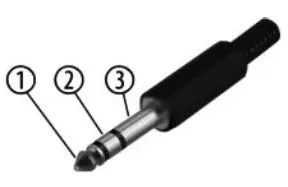
| 1 | Signal (left) |
| 2 | Signal (right) |
| 3 | Ground |
Protecting the environment
Disposal of the packaging material For the transport and protective packaging, environmentally friendly materials have been chosen that can be supplied to normal recycling.
Ensure that plastic bags, packaging, etc. are properly disposed of.
Do not just dispose of these materials with your normal household waste, but make sure that they are collected for recycling. Please follow the notes and markings on the packaging.
Disposal of your old device This product is subject to the European Waste Electrical and Electronic Equipment Directive (WEEE) in its currently valid version. Do not dispose with your normal household waste.
Dispose of this device through an approved waste disposal firm or through your local waste facility. When discarding the device, comply with the rules and regulations that apply in your country. If in doubt, consult your local waste disposal facility.
DP-32 B, DP-32 WH
Digital Piano
 Welcome – Thomann United States