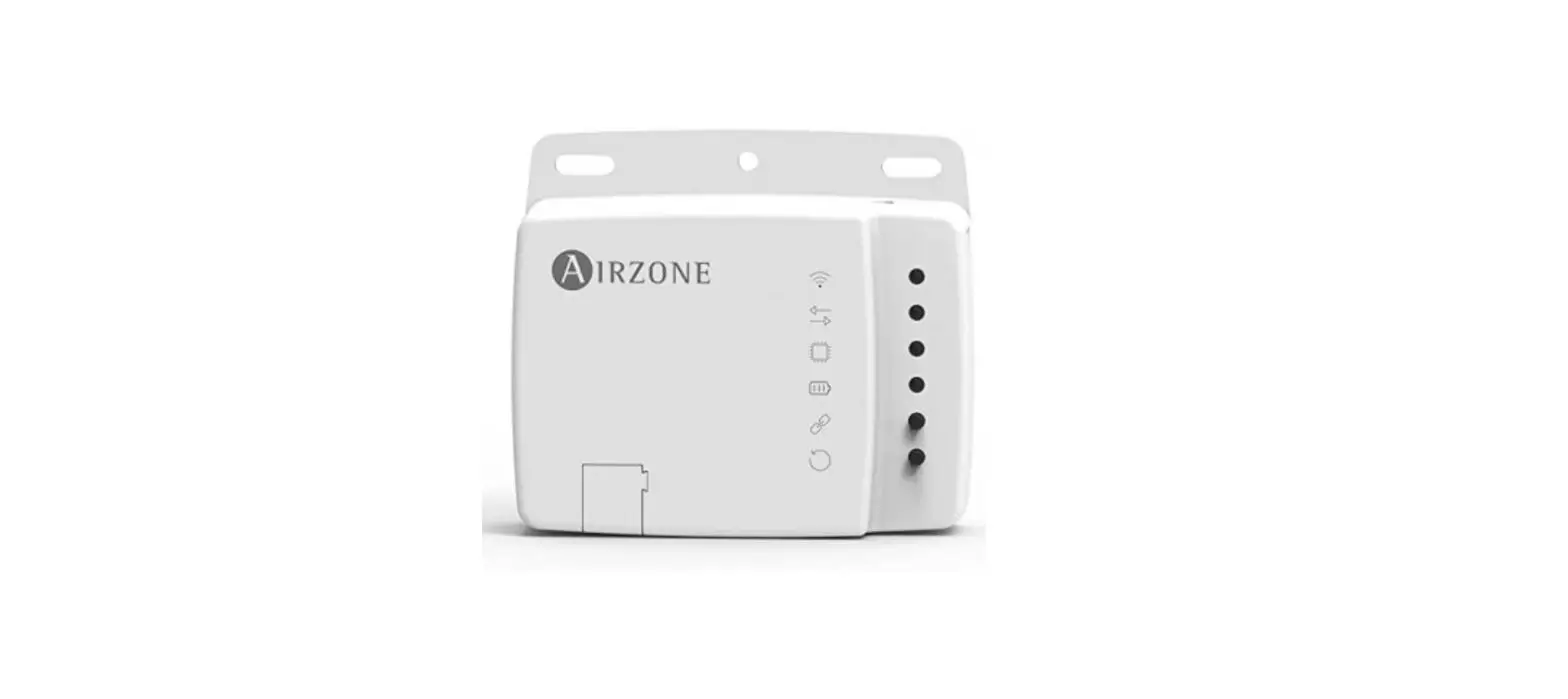
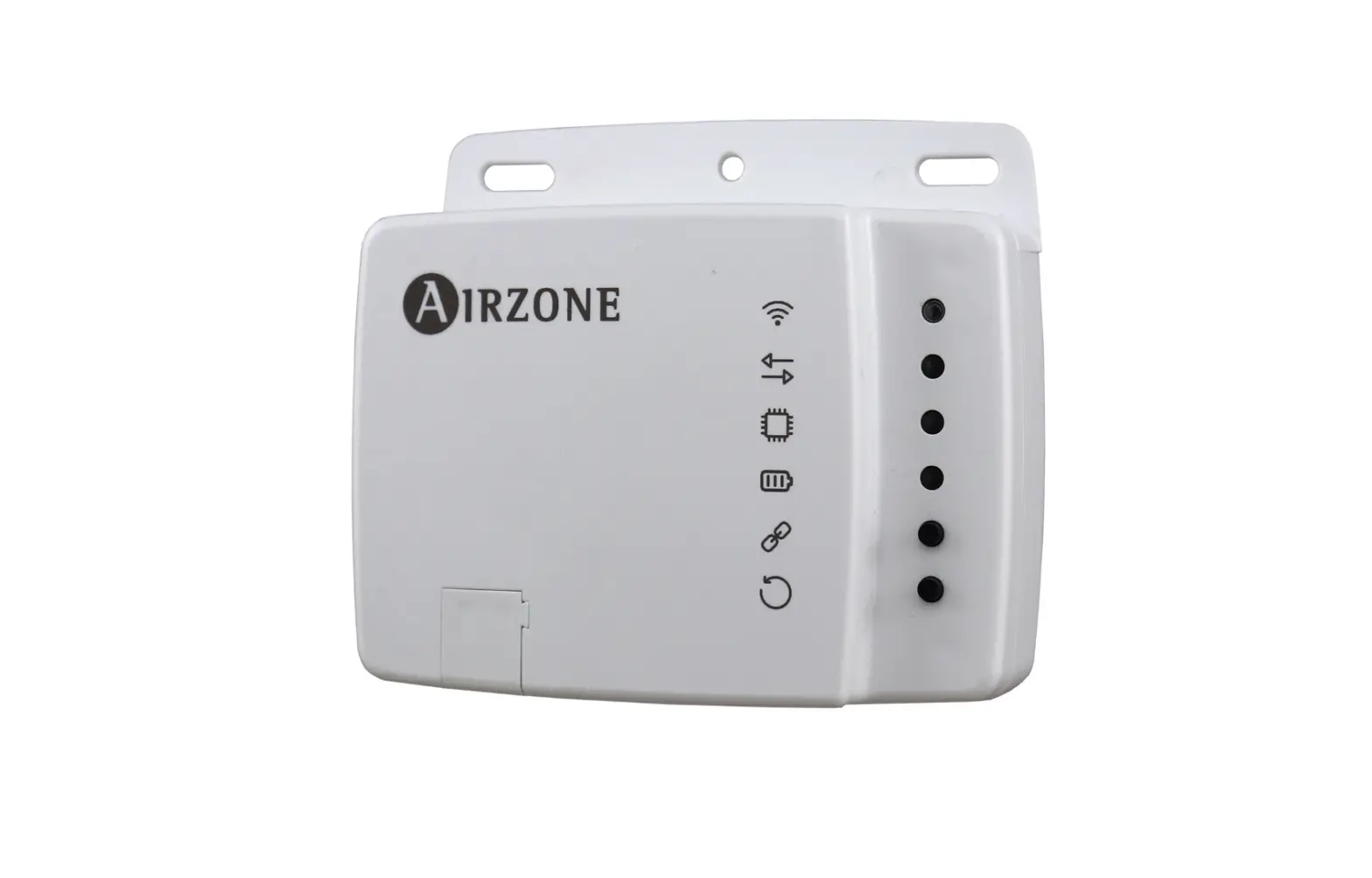
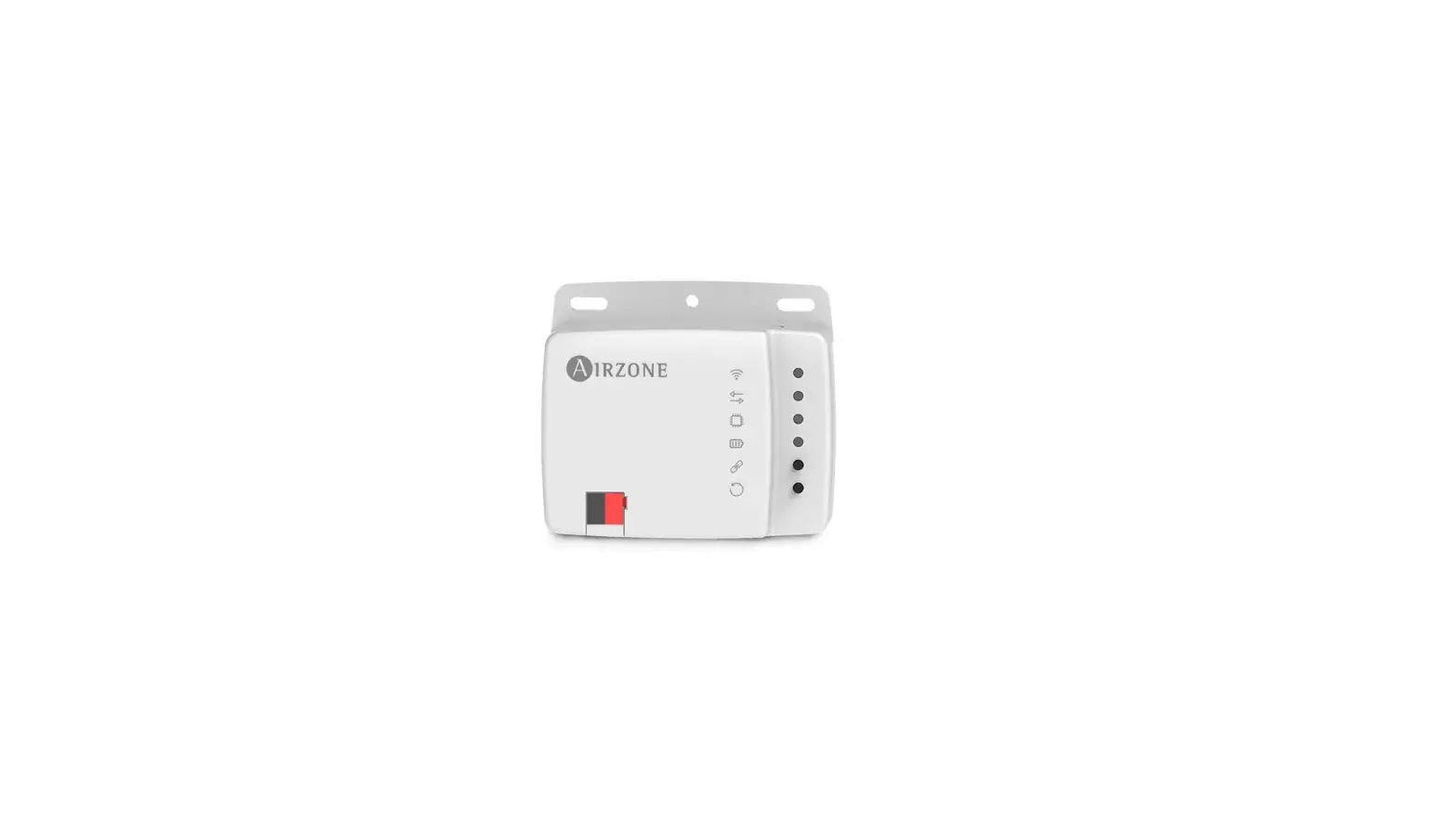
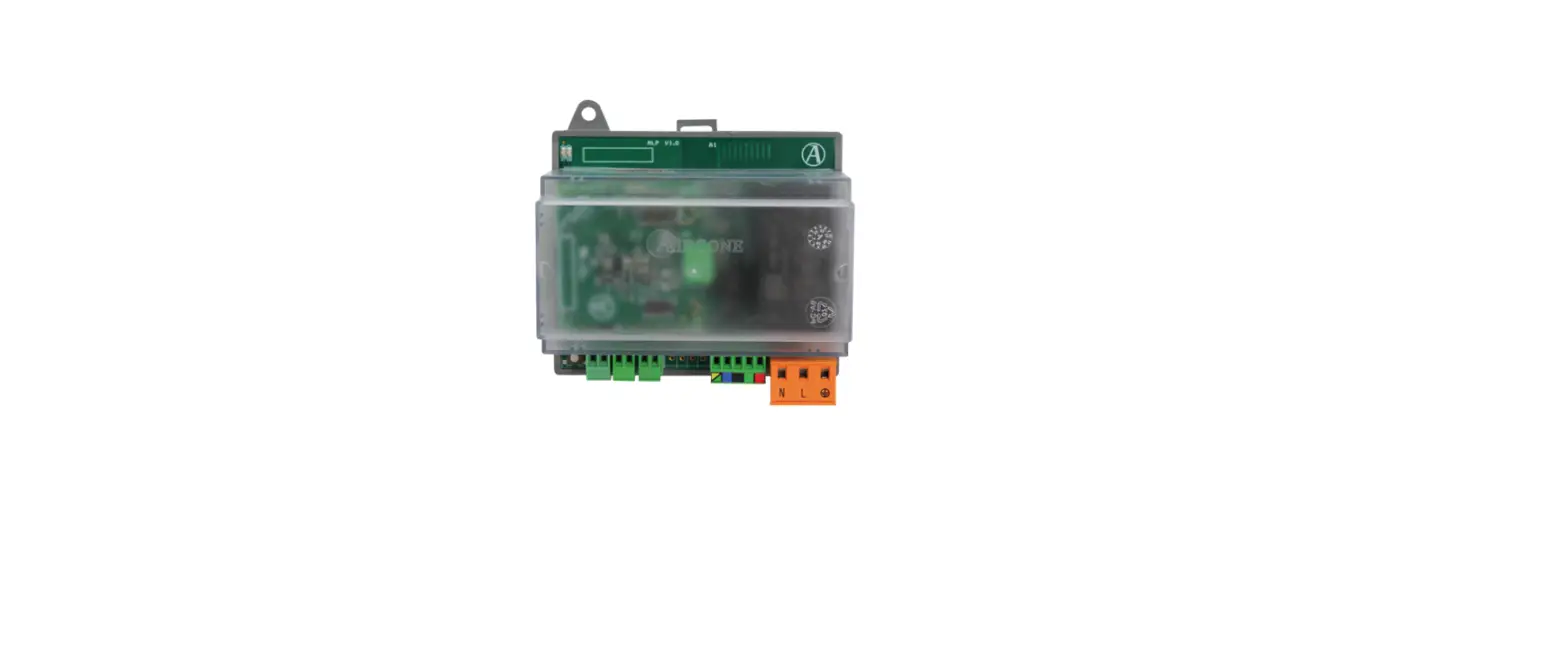
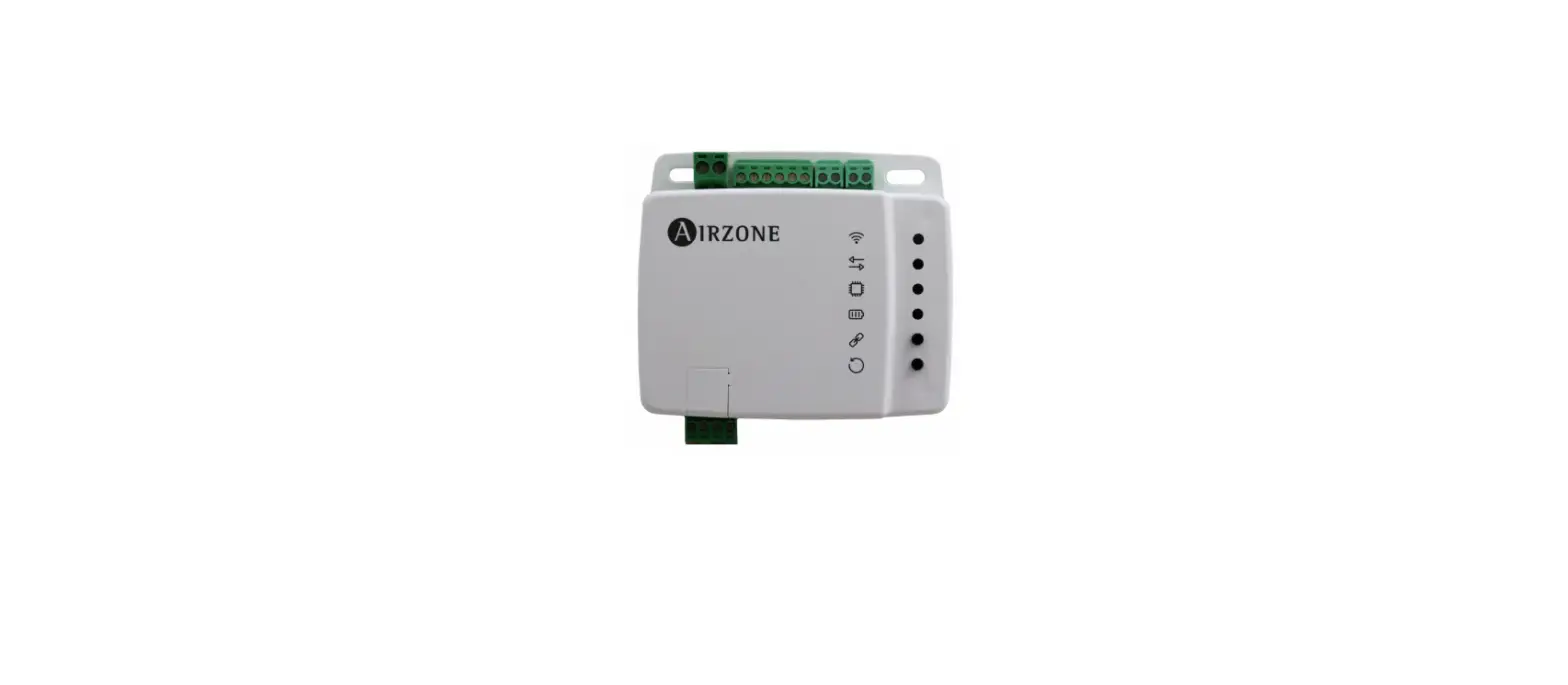
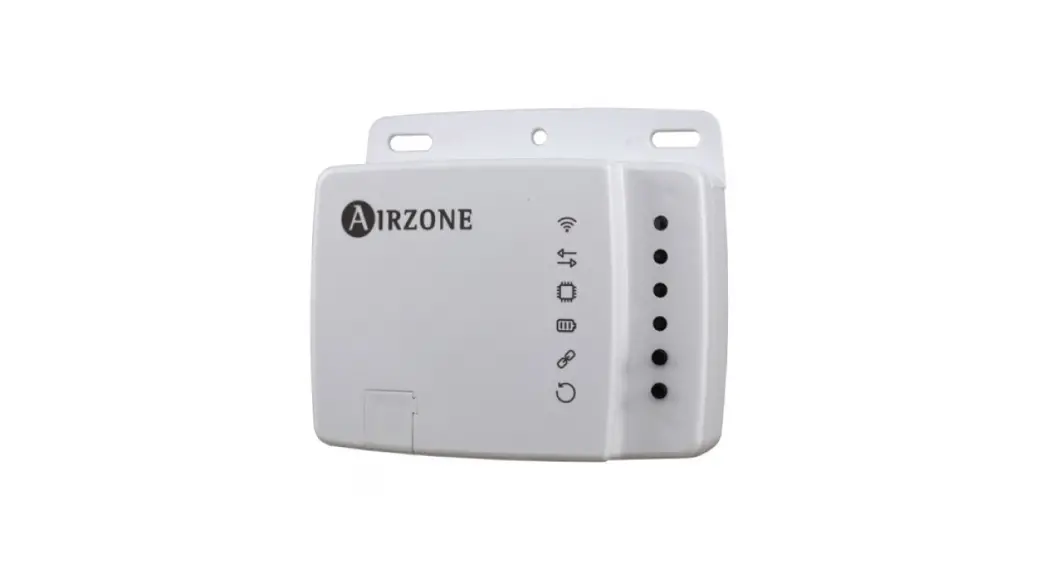
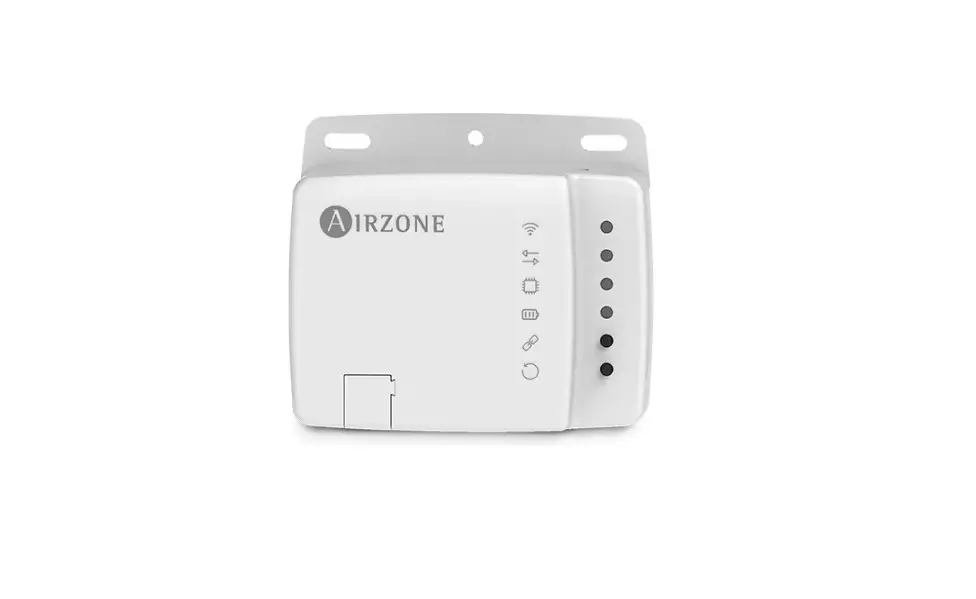
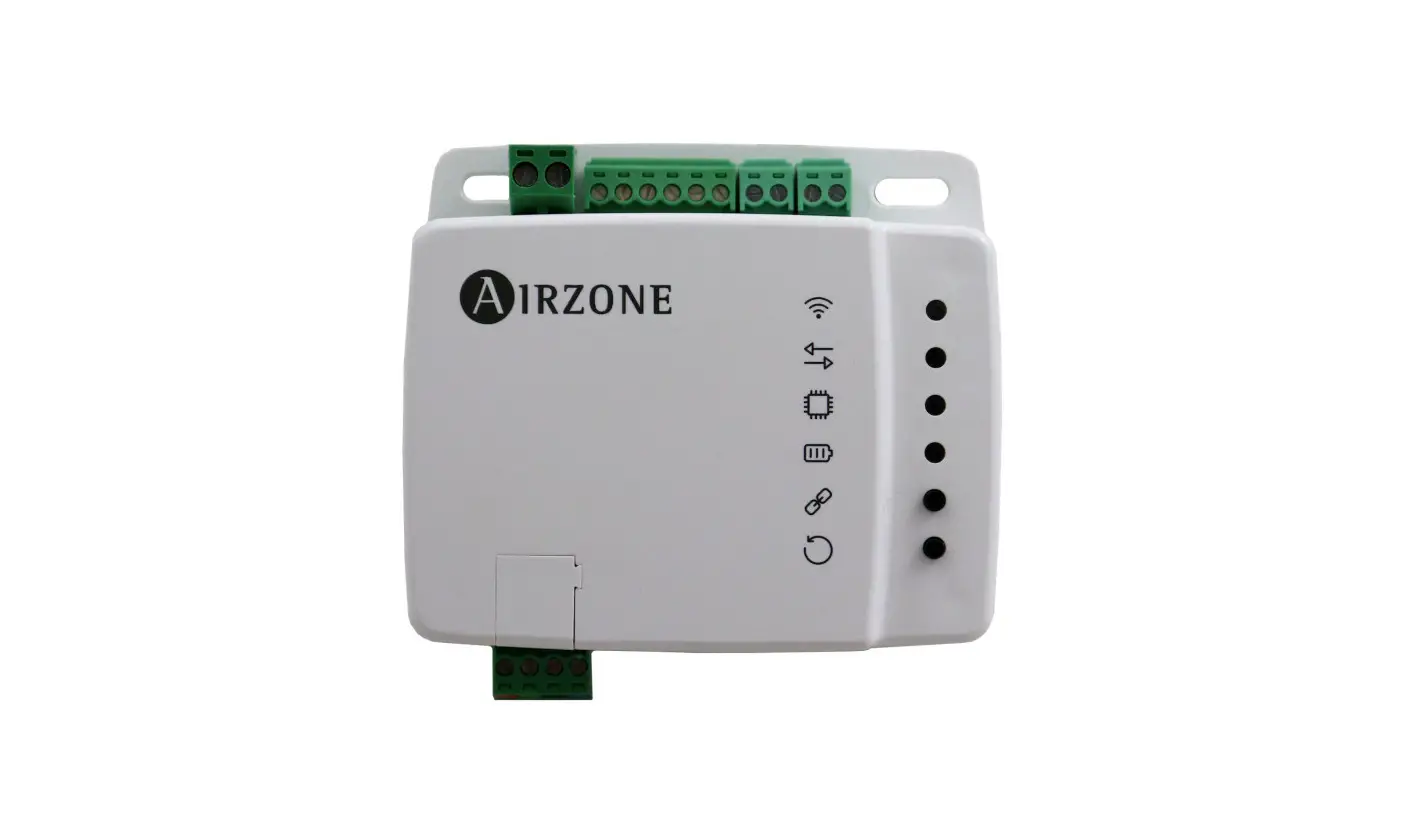
AZAI6ZWExxx Aidoo Z-Wave Plus Controller
Product Information:
Product Name:
Aidoo Z-Wave PlusTM
Model Numbers:
AZAI6ZWExxx, AZAI6ZWUxxx, AZAI6ZWHxxx
Content:
– Environmental Policy – Before Starting – Aidoo Z-Wave Plustm by
Airzone – Device elements – Technical specs – Assembly and
Connection – Assembly – Connection – Self-diagnosis – Configuration
– Add/Remove Aidoo Z-Wave Plus into a Z-Wave network (classic) –
Standard Inclusion – Standard exclusion – SmartStart Inclusion – S2
Secure inclusion – Z-Wave Communication – Supported Command classes
– Supporting command class basic – Supporting command class
indicator – Notification Command Class – Associations – Device
control. Z-Wave application command class mapping – Reset to the
factory settings – Firmware Update
Environmental Policy:
The product contains substances that can be harmful to the
environment if not properly handled. The crossed-out waste bin
symbol indicates separate collection of electrical devices, which
must be separated from other urban waste. For correct environmental
management, at the end of its useful life, the equipment should be
taken to the collection centers provided for this purpose.
Before Starting:
Before installing the Airzone system, it is important to ensure
that the product meets local regulations and is working correctly.
Contact the sales distributor or service dealer for repair or
disposal of the product. Verify that the installation meets local
regulations covering electrical installations. Avoid connecting
other devices such as lights, actuators, etc. as this may cause
interference in communications.
Aidoo Z-Wave Plustm by Airzone:
Device Elements:
The device elements are not specified in the manual.
Technical Specs:
The technical specs include information about the product’s power
supply, operating temperature, and humidity range.
Assembly and Connection:
Assembly:
The manual provides instructions for assembling the product.
Connection:
The manual provides instructions for connecting the product.
Self-diagnosis:
The manual provides instructions for self-diagnosing the product.
Configuration:
The manual provides instructions for configuring the product,
including adding/removing it to/from a Z-Wave network, and
performing standard inclusion, standard exclusion, SmartStart
inclusion, and S2 secure inclusion.
Z-Wave Communication:
The manual provides information about Z-Wave communication,
including supported command classes, supporting command class
basic, supporting command class indicator, notification command
class, associations, device control, Z-Wave application command
class mapping, resetting to factory settings, and firmware updates.
Product Usage Instructions:
1. Before starting the installation of the Airzone system, verify
that the product meets local regulations and is working correctly.
Contact the sales distributor or service dealer for repair or
disposal of the product if necessary. 2. Assemble the product
according to the instructions provided in the manual. 3. Connect
the product according to the instructions provided in the manual.
4. Perform self-diagnosis of the product as instructed in the
manual. 5. Configure the product by adding/removing it to/from a
Z-Wave network, and performing standard inclusion, standard
exclusion, SmartStart inclusion, and S2 secure inclusion as
instructed in the manual. 6. Use Z-Wave communication features such
as supported command classes, supporting command class basic,
supporting command class indicator, notification command class,
associations, device control, Z-Wave application command class
mapping, resetting to factory settings, and firmware updates as per
the instructions provided in the manual.
EN
ES
FR
IT
Integration Manual
PT
DE
Aidoo Z-Wave PlusTM
AZAI6ZWExxx
AZAI6ZWUxxx
AZAI6ZWHxxx
TM
Content
ENVIRONMENTAL POLICY_________________________________________________________________________ 3 EN
BEFORE STARTING__________________________________________________________________________________ 4
AIDOO Z-WAVE PLUSTM BY AIRZONE ___________________________________________________________ 5
> Device elements __________________________________________________________________________ 5 > Technical specs ___________________________________________________________________________ 6
ASSEMBLY AND CONNECTION ___________________________________________________________________ 7
> Assembly __________________________________________________________________________________ 7 > Connection_________________________________________________________________________________ 7 > Self-diagnosis_____________________________________________________________________________ 8
CONFIGURATION ____________________________________________________________________________________ 9
> Add/Remove Aidoo Z-Wave Plus into a Z-Wave network (classic) _____________ 9 > Standard Inclusion _________________________________________________________________ 9 > Standard exclusion_________________________________________________________________ 9
> SmartStart Inclusion_____________________________________________________________________ 9 > S2 Secure inclusion ______________________________________________________________________ 10
Z-WAVE COMMUNICATION________________________________________________________________________ 10
> Supported Command classes__________________________________________________________ 10 > Supporting command class basic _______________________________________________ 11 > Supporting command class indicator___________________________________________ 11 > Notification Command Class _____________________________________________________ 11 > Associations _________________________________________________________________________ 11
> Device control. Z-Wave application command class mapping___________________ 12 > Reset to the factory settings___________________________________________________________ 13 > Firmware Update_________________________________________________________________________ 13
Environmental Policy
· Never dispose of this equipment with household waste. Electrical and electronic
products contain substances that can be harmful to the environment if not
EN
properly handled. The crossed-out waste bin symbol indicates separate collection
of electrical devices, which must be separated from other urban waste. For correct
environmental management, at the end of its useful life the equipment should be
taken to the collection centers provided for this purpose.
· The parts that make it up can be recycled. Therefore, please respect the regulations
in force regarding environmental protection.
· If you replace the equipment, the original equipment must be returned to your
dealer or deposited at a specialized collection center.
· Violations are subject to the penalties and measures stipulated in environmental
protection law.
3
Before Starting
· The system must be installed by a qualified technician.
· This product must not be modified or disassembled under any circumstances.
· Do not handle the system with wet or damp hands.
EN
· In the case of any malfunction of this appliance, do not repair it yourself. Contact the
sales distributor or service dealer for repair or disposal of the product.
· Check that the HVAC installation has been installed according to the manufacturer’s
requirements, complies with local regulations in force and is working correctly
before you install the Airzone system.
· Place and connect the elements in your installation in accordance with current
regulations covering electrical installations.
· All connections must be made with the power supply completely turned off. · Take care not to short circuit any of the system’s connections. · Please refer carefully to the wiring diagram and these instructions when wiring. · Connect all wiring securely. Loose wiring may cause overheating at the connection
points and is a possible fire hazard.
· Do not locate the Airzone communication bus close to power lines, fluorescent
lights, actuators, etc. as this may cause interference in communications.
· The connection to the external power supply must include a main switch or other
method of disconnection that includes a constant separation for all polarities, in accordance with appropriate local and national regulations. The system will automatically restart if the power supply is turned off. Use separate circuits for the
unit that is to be controlled and the power supply to the system.
· Check the polarity of each device’s connectors. A wrong connection can seriously
damage the product.
· To connect to the system, use Airzone cable: four-wire cable (2×0.22 mm2 twisted
shielded wires for data communications and 2×0.5 mm2 wires for power supply).
· For equipment using R32 refrigerant, verify the compliance with the local
refrigerant regulation.
4
Aidoo Z-Wave PlusTM by Airzone
Device to manage and integrate units remotely. Wireless Z-WaveTM connection. Externally
powered by the indoor unit.
EN
Features:
· Control of the parameters of the unit. · Communication errors detection. · Temperature and operating mode time schedules. · Port for integration via Modbus .
For further information about our products, go to airzonecontrol.com
The Aidoo Z-Wave PlusTM by Airzone operates in any Z-Wave network with other Z-Wave/ZWave Plus certified devices and controllers from any other manufacturer. As a constantly powered node, Aidoo Z-Wave Plus will act as repeater in order to increase the reliability of the network.
DEVICE ELEMENTS
Nº
Description
Cable for connection with indoor unit
Modbus port
Indoor unit port
Device reboot
Association process
Factory reset
5
TECHNICAL SPECS
Connection to indoor unit
V max. 18 Vdc
I max. 137.5 mA
EN
V in 12-16 Vdc
Consumption 310 mW
Type of cable According to the indoor unit manufacturer
Wire length
Protocol Model
2.5 m (8.2 ft) Z-Wave Communication Z-Wave Plus ZGM130S
Communication frequency
AZAI6ZWxXXX E = Europe (E.U.) U = United States (U.S.) H = Australia / New Zealand (ANZ)
E= 864.4 MHz (E.U.) U= 908.4 MHz, 916 MHz (U.S.) H= 919.8 MHz, 921.4 MHz (AZN)
Maximum power-Antenna power
13 dBm
Sensitivity -97 dBm Protection system S2 Security
Maximum distance
Up to 100 m outdoor Up to 40 m indoor
Shielded twisted pair Communication protocol
Modbus Port
2 x 0.22 + 2 x 0.5 mm2 (AWG 23 2 wired + AWG 20 2 wired)
MODBUS RS-485 Par 19200 bps
Storage Operation
Operating temperatures -20 … 70 ºC (-4 … 158 ºF) 0 … 45 ºC (32 … 113 ºF)
Operating humidity rango
5 … 90% (non-condensing)
Mechanical aspects
Protection class IP 41
Weight 130 g (0.29 lb)
Size (WxHxD) 92x80x29 mm (3.62×3.15×1.14″)
Conformity
Europe
– 2011/65/EU & 2015/863/EU & 2017/2102/UE RoHS Directive – 2014/53/EU RED (Radio Equipment Directive)
U.S.A / Canada
– 47 CFR Part 15B FCC – ICES-003 Issue 6 ISED
Australia / New Zeland – AS/NZS 4268-2017 – SRD Standard
6
ASSEMBLY AND CONNECTION
ASSEMBLY
Perform the assembly by fixing your Aidoo Z-Wave Plus close to the AC unit to be controlled
EN
using the material supplied:
a. Screw attachment. b. Double-sided adhesive attachment.
a.
b.
CONNECTION
General considerations to connect the Aidoo Z-Wave Plus: 1. Important: Some Aidoo Z-Wave Plus requires to be supplied by a limited power source
meeting class PS2 of the standard IEC 62368-1. Refer to the data sheet the for further information. 2. Important: Use separate circuits for the unit that is to be controlled and the power supply to the system.
3. Disconnect the indoor unit. Perform all of the connections with a total absence of power. 4. Connect the Aidoo Z-Wave Plus to the indoor unit according to the instructions detailed in
the data sheet of your specific Aidoo Z-Wave Plus reference. 5. Power the indoor unit. Check the LEDs (see Self-diagnosis section). 6. Configure the device.
7
EN
Orientative wiring diagram
SELF-DIAGNOSIS
The Aidoo Z-Wave Plus have integrated LED that detects the operation of the device. Depending on the LED operation, it indicates:
Nº
Meaning
Connected to Z-Wave network
Steady Blue
TX/RX communication with Z-Wave Blinking Red
Linking device Identification mode Microprocessor activity
Steady Red
Fast Blinking
Red
Blinking Green
Power supply
Steady Red
Data transmission to the indoor unit Blinking Red
Data reception from the indoor unit Blinking Green
8
CONFIGURATION
ADD/REMOVE AIDOO Z-WAVE PLUS INTO A Z-WAVE NETWORK
EN
(CLASSIC)
The Aidoo Z-Wave Plus is compatible with all Z-Wave/Z-Wave Plus certified controllers. The device supports both the Network Wide Inclusion mechanism (which offers the ability to be included in a network, even if the device is not directly connected to the controller) and Normal Inclusion.
By default, the inclusion procedure starts in Normal Inclusion mode and after a short timeout the procedure continues in Network Wide Inclusion mode that lasts for about 20 Seconds.
Standard Inclusion
The Aidoo Z-Wave Plus is compatible with all Z-Wave/Z-Wave Plus certified controllers. The device supports both the Network SmartStart inclusion mechanism (which offers the ability to be included in a network, even if the device is not directly connected to the controller) and Standard Inclusion.
By default, the inclusion procedure starts in Normal Inclusion mode and after a short timeout the procedure continues in Network Wide Inclusion mode that lasts for about 20 Seconds.
If the Aidoo Z-Wave Plus has not been included yet into the Z-Wave network, the
LED will
remain off. The procedure of inclusion is activated by pressing the Association Button . As
soon as the inclusion procedure initiates, the LED remains steady red until the device is
included in the network.
Standard exclusion
Only a controller can remove the device from the network. After activating the exclusion function by the controller, the device can be removed by setting it in Learning Mode.
If the Aidoo Z-Wave Plus is already included into the Z-Wave network, the LED will remain steady blue. The procedure of exclusion is activated by pressing the Association Button . As soon as the exclusion procedure initiates, the LED remains steady red until the device is excluded of the network.
SMARTSTART INCLUSION
Z-Wave SmartStart aims to shift the tasks related to inclusion of an Aidoo Z-Wave Plus into a Z-Wave network away from the Aidoo device itself, and towards the more user-friendly interface of the gateway.
Z-Wave SmartStart removes the need for initiating the Aidoo device to start inclusion. Inclusion is initiated automatically on power-ON, and repeated at dynamic intervals for as long as the device is not included into a Z-Wave network. As the new device announces itself on power-ON, the protocol will provide notifications, and the gateway can initiate the inclusion process in the background, without the need for user interaction or any interruption of normal operation. The Smart Start inclusion process only includes authenticated devices.
9
The Aidoo Z-Wave Plus can be added
into a Z-Wave network by scanning the
Z-Wave QR Code present on the product
with a controller providing SmartStart
inclusion. No further action is required
and the SmartStart product will be added
EN
automatically within 10 minutes of being
switched on in the network vicinity.
The SmartStart QR and the full DSK string code can be found on the front side of the Aidoo Z-Wave Plus. The PIN is the first group of 5 underlined digits of the DSK identified as DSK in the left side of the sticker. If you plan to use the DSK, it is important that you take a picture of the label and keep it in a safe place.
DSK Z-Wave
S2 SECURE INCLUSION
When adding the Aidoo Z-Wave Plus to a Z-Wave network with a controller supporting Security 2 Authenticated (S2), the PIN code of the Z-Wave Device Specific Key (DSK) is required. The first five digits of the unique DSK code are the key PIN code and is printed on the product label.
Z-WAVE COMMUNICATION
SUPPORTED COMMAND CLASSES
Command class BASIC ZWAVEPLUS_INFO ASSOCIATION MULTI_CHANNEL_ASSOCIATION_V2 ASSOCIATION_GRP_INFO TRANSPORT_SERVICE VERSION MANUFACTURER_SPECIFIC DEVICE_RESET_LOCALLY INDICATOR POWERLEVEL SECURITY 0
Version Non-Secure CC Secure CC
2
x
2
x
2
x
3
x
3
x
2
x
3
x
2
x
1
x
3
x
1
x
1
x
10
Command class SECURITY_2 SUPERVISION FIRMWARE_UPDATE_MD THERMOSTAT_FAN_MODE THERMOSTAT_MODE THERMOSTAT_SETPOINT SENSOR_MULTILEVEL NOTIFICATION
Version Non-Secure CC Secure CC
1
x
1
x
5
x
2
x
EN
3
x
1
x
1
x
8
x
Supporting command class basic Implemented Mapping:
Basic Command Received
Mapped Command (Thermostat Mode)
Basic set (0xxFF) Basic set (0xx00)
Basic GET
If the last non Off mode was 1 or 2 -> Thermostat Mode(last non Off mode). Otherwise -> Thermostat Mode (0x01) Thermostat Mode (0x00)
Replay with a basic Report with these meaning: Basic Report 0x00 if mode is equal to 0x00 If mode different than 0 reply with Basic Report 0xFF
The basic command classes are mapped into the Thermostat Mode Command Class as required by the protocol specification.
Supporting command class indicator
The Aidoo Z-Wave Plus supports Indicator V3 with Indicator ID 0x50 (identity). When the device receives an indicator set, the backlight start to blink accordingly the received command.
Notification Command Class
The system implement notification command class with Type: System (0x09) and event: System hardware failure (manufacturer proprietary failure code provided).
Manufacturer proprietary failure code provided are 2 bytes length (error and warning). The meaning of these bytes are described into the Air conditioning manufacturer’s installation manual.
Associations
Lifeline group: Nodes belonging to this group will receive: notifications about device reset and all other changes.
11
Group ID
Group Name
N° of max nodes supported in the Description
group
Command sent
EN
1
Lifeline
1
Life Line Group
DEVICE_RESET_LOCALLY_NOTIFICATION THERMOSTAT_FAN_MODE_REPORT INDICATOR_REPORT THERMOSTAT_MODE_REPORT THERMOSTAT_SETPOINT_REPORT SENSOR_MULTILEVEL_REPORT NOTIFICATION_REPORT
DEVICE CONTROL. Z-WAVE APPLICATION COMMAND CLASS MAP-
PING
The Aidoo Z-Wave Plus controller acts as a gateway between the air conditioner controller interface and the Z-Wave network. The Aidoo Z-Wave Plus interacts with the proprietary protocol of the different A/C manufacturers converting the orders into Modbus commands to trigger the Z-Wave network commands.
The monitoring/control items supported by the Aidoo Z-Wave Plus are mapped to the standard Thermostat Command class object types defined by the Z-Wave protocol. The user can interact with the air conditioning system through the Z-Wave network with the following supported monitoring/control items.
Description SetPoint LocalTemp Modes
Speed Warning / Error
Values
– SetpointType: (Heating, Cooling, Dry Air)
– SetPointValue: (tenths of °C)
Room temperature x10
OFF Auto chageover
Cooling Heating
Fan Dry
Auto – Medium Low
Medium High Off
Max 2 Byte
Z-Wave Command Thermostat_Setpoint
Sensor_Multilevel Thermostat_Mode
Thermostat_Fan_Mode Notification(*)
(*) For the Notification Z-Wave command class, the Aidoo Z-Wave Plus reserves 2 alphanumeric bytes to represent the Air conditioning unit warnings and error codes. The warnings and error codes are represented in a different way according to each manufacturer. Please refer to the manufacturer’s installation manual to check the meaning of the different codes.
12
The following interactions with the air conditioning unit will imply a combination of Z-Wave. commands:
Description
Values
Z-Wave Command
Fan Off
Off
Thermostat_Fan_Mode
Thermostat_Mode
EN
Change Mode
Thermostat_Mode: Auto chageover Cooling Heating Fan Dry
Thermostat_Setpoint – SetpointType: (Heating,
Cooling, Dry Air) – SetPointValue: (tenths of °C)
Thermostat_Mode Thermostat_Setpoint
It is possible to check the compatible Air conditioning indoor units in the Airzone compatibility checker:
https://www.airzonecontrol.com/control_solutions/aidoo/wi-fi
RESET TO THE FACTORY SETTINGS
Please use this procedure only when the network primary controller is missing or ortherwise inoperable.
The Aidoo Z-Wave Plus can be reset to the original factory settings by long pressing over the Factoy Reset button until all of the front side LEDs light up for a second.
Note: If the reset is performed while the device is still part of a network, it notifies the other devices in the Lifeline group that it has been removed.
FIRMWARE UPDATE
The Aidoo Z-Wave Plus supports over-the-air firmware updates that do not require the device to be removed from its location. The firmware update can be activated from all certified controllers supporting version 5 of the Firmware Update function.
Important: The Aidoo Z-Wave Plus will be rebooted at the end of the firmware update procedure. It is advisable to carry out the firmware update procedure only when necessary and following careful planning of the intervention.
13
Contenido
POLÍTICA MEDIOAMBIENTAL _____________________________________________________________________ 3
ANTES DE EMPEZAR _______________________________________________________________________________ 4 ES
AIDOO Z-WAVE PLUS BY AIRZONE______________________________________________________________ 5
> Elementos del dispositivo ______________________________________________________________ 5 > Características técnicas _________________________________________________________________ 6
MONTAJE Y CONEXIÓN_____________________________________________________________________________ 7
> Montaje ____________________________________________________________________________________ 7 > Conexión ___________________________________________________________________________________ 7 > Autodiagnóstico __________________________________________________________________________ 8
CONFIGURACIÓN ____________________________________________________________________________________ 9
> Añadir Aidoo Z-Wave Plus a una red Z-Wave o eliminarlo (Classic)____________ 9 > Inclusión estándar__________________________________________________________________ 9 > Exclusión estándar _________________________________________________________________ 9
> Inclusión SmartStart_____________________________________________________________________ 9 > Inclusión segura S2 Security___________________________________________________________ 10
COMUNICACIÓN Z-WAVE __________________________________________________________________________ 10
> Clases de comandos compatibles_____________________________________________________ 10 > Compatibilidad con la clase de comando “BASIC”____________________________ 11 > Compatibilidad con la clase de comando “INDICATOR” _____________________ 11 > Clase de comando Notification___________________________________________________ 11 > Asociaciones_________________________________________________________________________ 11
> Control del dispositivo. Asignación de clases de comandos de aplicación
Z-Wave _____________________________________________________________________________________ 12
> Reset del dispositivo a los valores de fábrica_______________________________________ 13 > Actualización de firmware______________________________________________________________ 13
Política medioambiental
· No tire nunca este equipo con los desechos domésticos. Los productos eléctricos y
electrónicos contienen sustancias que pueden ser dañinas para el medioambiente si no se les da el tratamiento adecuado. El símbolo del contenedor de basura tachado indica la recogida selectiva de aparatos eléctricos, que se diferencia del resto de basuras urbanas. Para una correcta gestión ambiental, se deberá llevar el equipo a los centros de recogida previstos al final de su vida útil.
· Las piezas que forman parte del mismo se pueden reciclar. Respete, por tanto, la
reglamentación en vigor sobre protección medioambiental.
· Debe entregarlo a su distribuidor si lo reemplaza por otro, o depositarlo en un centro
de recogida especializado.
· Los infractores están sujetos a las sanciones y a las medidas que establece la ley
sobre protección del medio ambiente.
3
Antes de empezar
· El sistema debe ser instalado por un técnico cualificado. · Este producto no debe modificarse ni desmontarse bajo ninguna circunstancia. · No manipule el sistema con las manos mojadas ni húmedas. · En caso de mal funcionamiento de este aparato, no lo repare usted mismo. Póngase
en contacto con el distribuidor de ventas o el distribuidor de servicio para la
ES
reparación o eliminación del producto.
· Compruebe que la instalación de climatización ha sido instalada según los
requisitos del fabricante, cumple con la normativa local vigente y funciona
correctamente antes de instalar el sistema Airzone.
· Ubique y conecte todos los elementos de su instalación conforme a la
reglamentación electrónica local vigente.
· Realice todas las conexiones con ausencia total de alimentación. · Tenga precaución de no realizar ningún cortocircuito en ninguna conexión del
sistema.
· Consulte cuidadosamente el diagrama de cableado y estas instrucciones al realizar
el cableado.
· Conecte todo el cableado firmemente. Un cableado suelto puede provocar un
sobrecalentamiento en los puntos de conexión y un posible riesgo de incendio.
· No sitúe el bus de comunicaciones Airzone junto a líneas de fuerza, fluorescentes,
motores, etc., que puedan generar interferencias en las comunicaciones.
· En el cableado de alimentación externo del sistema deberá incorporarse, según la
reglamentación local y nacional pertinente, un interruptor principal u otro medio de
desconexión que tenga una separación constante en todos los polos. El sistema se reiniciará automáticamente si se apaga la alimentación principal. Utilice un circuito
independiente del equipo a controlar para la alimentación del sistema.
· Respete la polaridad de conexión de cada dispositivo. Una conexión errónea puede
dañar seriamente el producto.
· Para la conexión de comunicación con el sistema, utilice el cable Airzone:
cable formado por 4 hilos (2 x 0,22 mm2 hilos trenzados y apantallados para la comunicación de datos y 2 x 0,5 mm2 hilos para la alimentación).
· Si el equipo utiliza gas refrigerante R32, compruebe que cumple la normativa local
sobre refrigerantes.
4
Aidoo Z-Wave PlusTM by Airzone
Dispositivo para la gestión e integración de equipos de forma remota. Conexión inalámbrica Z-WaveTM. Alimentación externa mediante la unidad interior.
Funciones:
ES
· Control de los parámetros de la unidad. · Detección de errores de comunicación. · Programaciones horarias de temperatura y de modo de funcionamiento. · Puerto para la integración mediante Modbus.
Para obtener más información sobre nuestros productos, diríjase a airzonecontrol.com.
El Aidoo Z-Wave PlusTM by Airzone funciona en cualquier red Z-Wave con otros controladores y dispositivos con certificación Z-Wave/Z-Wave Plus de cualquier otro fabricante. Como nodo que recibe alimentación de manera constante, el Aidoo Z-Wave Plus actúa como un repetidor de red independiente para aumentar la fiabilidad de la red.
ELEMENTOS DEL DISPOSITIVO
Nº
Descripción
Cable para la conexión con la unidad interior
Puerto Modbus
Puerto de la unidad interior
Reinicio del dispositivo
Proceso de asociación
Reset de fábrica 5
CARACTERÍSTICAS TÉCNICAS
ES 6
Conexión con la unidad interior V máx. 18 Vdc I máx. 137,5 mA V entrada 12-16 Vdc Consumo 310 mW
Tipo de cable En función del fabricante de la unidad interior
Longitud del cable
Protocolo Modelo
Frecuencia de comunicación
2,5 m (8,2 ft)
Comunicación Z-Wave
Z-Wave Plus
ZGM130S
AZAI6ZWxXXX
E = Europa (UE) U = Estados Unidos (EE. UU.) H = Australia/Nueva Zelanda (ANZ)
E = 864,4 MHz (UE) U = 908,4 MHz, 916 MHz (EE. UU.) H = 919,8 MHz, 921,4 MHz (ANZ)
Potencia máxima-Potencia de antena
13 dBm
Sensibilidad -97 dBm Sistema de protección S2 Security
Distancia máxima
Hasta 100 m en exterior Hasta 40 m en interior
Par apantallado y trenzado
Protocolo de comunicaciones
Puerto Modbus
2 x 0,22 mm2 + 2 x 0,5 mm2 (AWG 23 2 hilos + AWG 20 2 hilos)
MODBUS RS-485 Par 19.200 bps
Almacenaje Funcionamiento
Temperaturas operativas Entre -20 y 70 °C (entre -4 y 158 °F) Entre 0 y 45 °C (entre 32 y 113 °F)
Rango de humedad de Entre 5% y 90% funcionamiento (sin condensación)
Aspectos mecánicos
Clase de protección IP 41
Peso 130 g (0,29 lb)
Dimensiones (AnxAlxPr) 92x80x29 mm (3,62×3,15×1,14″)
Conformidad
Europa
– 2011/65/UE, 2015/863/UE y 2017/2102/UE Directiva RoHS – 2014/53/UE DER (directiva sobre equipos radioeléctricos)
EE. UU. /Canadá
Australia/Nueva Zelanda
– 47 CFR Parte 15B FCC – ICES-003 Número 6 ISED
– AS/NZS 4268-2017 Norma sobre dispositivos de corto alcance (SRD)
MONTAJE Y CONEXIÓN
MONTAJE
Realice el montaje fijando el Aidoo Z-Wave Plus cerca de la unidad de climatización que desee controlar utilizando los materiales suministrados:
ES
a. Fijación mediante tornillos. b. Fijación mediante adhesivo de doble cara.
a.
b.
CONEXIÓN
Consideraciones generales para conectar el Aidoo Z-Wave Plus: 1. Importante: Algunos Aidoo Z-Wave Plus deben recibir energía de una fuente de
alimentación limitada de clase PS2 según la norma IEC 62368-1. Consulte la ficha técnica para obtener más información. 2. Importante: Utilice un circuito independiente del equipo a controlar para la alimentación del sistema.
3. Desconecte la unidad interior. Realice todas las conexiones con ausencia total de alimentación.
4. Conecte el Aidoo Z-Wave Plus a la unidad interior conforme a las instrucciones detalladas en la ficha técnica de su referencia de Aidoo Z-Wave Plus específica.
5. Conecte la unidad interior. Compruebe los LED (véase el apartado Autodiagnóstico). 6. Configure el dispositivo.
7
ES Esquema de conexión orientativo
AUTODIAGNÓSTICO
El Aidoo Z-Wave Plus tiene LED integrados que detectan el funcionamiento del dispositivo. Según el comportamiento de los LED, se indica lo siguiente:
Nº
Significado
Conexión a la red Z-Wave
Fijo
Azul
Comunicación TX/RX con Z-Wave Parpadeo
Modo de identificación
Parpadeo rápido
Vinculación del dispositivo
Fijo
Rojo Rojo Rojo
Actividad del microprocesador
Parpadeo Verde
Alimentación
Transmisión de datos a la unidad interior
Recepción de datos de la unidad interior
Fijo Parpadeo Parpadeo
Rojo Rojo Verde
8
CONFIGURACIÓN
AÑADIR AIDOO Z-WAVE PLUS A UNA RED Z-WAVE O ELIMINARLO
(CLASSIC)
ES El Aidoo Z-Wave Plus es compatible con todos los controladores con certificación Z-Wave/ZWave Plus. El dispositivo admite tanto el mecanismo de inclusión SmartStart (que ofrece la posibilidad de inclusión en una red incluso aunque el dispositivo no esté directamente conectado al controlador) como la inclusión estándar.
Por defecto, el procedimiento de inclusión comienza en el modo de inclusión estándar y, tras un breve tiempo de espera, continúa en modo de inclusión SmartStart, que dura unos 20 segundos.
Inclusión estándar
El Aidoo Z-Wave Plus es compatible con todos los controladores con certificación Z-Wave/ZWave Plus. El dispositivo admite tanto el mecanismo de inclusión SmartStart (que ofrece la posibilidad de inclusión en una red incluso aunque el dispositivo no esté directamente conectado al controlador) como la inclusión estándar.
Por defecto, el procedimiento de inclusión comienza en el modo de inclusión estándar y, tras
un breve tiempo de espera, continúa en modo de inclusión SmartStart, que dura unos 20
segundos.
Si el Aidoo Z-Wave Plus aún no se ha incluido en la red Z-Wave, el LED
permanecerá
apagado. El procedimiento de inclusión se activa pulsando el botón de asociación . En
cuanto se inicia el procedimiento de inclusión, el LED permanece rojo fijo hasta que el
dispositivo se incluye en la red.
Exclusión estándar
Solo un controlador puede eliminar el dispositivo de la red. Después de que el controlador active la función de exclusión, el dispositivo se puede eliminar de la red configurándose en modo de aprendizaje.
Si el Aidoo Z-Wave Plus ya está incluido en la red Z-Wave, el LED
permanecerá azul fijo. El
procedimiento de exclusión se activa pulsando el botón de asociación . En cuanto se inicia el
procedimiento de exclusión, el LED permanece rojo fijo hasta que el dispositivo se excluye
de la red.
INCLUSIÓN SMARTSTART
Z-Wave SmartStart pretende desviar las tareas relacionadas con la inclusión de un Aidoo Z-Wave Plus en una red Z-Wave del propio dispositivo Aidoo, y dirigirlas hacia la interfaz más intuitiva de la pasarela.
Z-Wave SmartStart elimina la necesidad de tener que iniciar el dispositivo Aidoo para comenzar la inclusión. La inclusión se inicia automáticamente con el encendido y se repite a intervalos dinámicos mientras el dispositivo no esté incluido en una red Z-Wave. Cuando el nuevo dispositivo indica que se está encendiendo, el protocolo envía las notificaciones y la pasarela puede iniciar el proceso de inclusión en segundo plano sin que el usuario tenga que interactuar y sin ninguna interrupción del funcionamiento normal. El proceso de
9
inclusión SmartStart solo afecta a dispositivos
autenticados.
El Aidoo Z-Wave Plus puede añadirse a cualquier
red Z-Wave escaneando el código QR de Z-Wave
presente en el producto con un controlador que
ofrezca la inclusión SmartStart. No se requiere
ninguna otra acción y el producto SmartStart se
añadirá automáticamente a los 10 minutos de
ES
encenderse en las inmediaciones de la red.
El código QR y el código de cadena DSK completo de SmartStart están indicados en el frontal del Aidoo Z-Wave Plus. El PIN es el primer grupo de 5 dígitos subrayados del código DSK, que se identifica como “DSK” en la parte izquierda de la pegatina. Si tiene pensado utilizar el código DSK, es importante que haga una foto de la etiqueta y la guarde en un lugar seguro.
DSK Z-Wave
INCLUSIÓN SEGURA S2 SECURITY
Al añadir el Aidoo Z-Wave Plus a una red Z-Wave con un controlador compatible con la autenticación Security 2 (S2), el código PIN de la clave específica del dispositivo (DSK) Z-Wave es obligatorio. Los primeros cinco dígitos del código DSK único son el código PIN principal, que está impreso en la etiqueta del producto.
COMUNICACIÓN Z-WAVE
CLASES DE COMANDOS COMPATIBLES
Clase de comando BASIC ZWAVEPLUS_INFO ASSOCIATION MULTI_CHANNEL_ASSOCIATION_V2 ASSOCIATION_GRP_INFO TRANSPORT_SERVICE VERSION MANUFACTURER_SPECIFIC DEVICE_RESET_LOCALLY INDICATOR POWERLEVEL SECURITY 0
Versión CC no segura CC segura
2
x
2
x
2
x
3
x
3
x
2
x
3
x
2
x
1
x
3
x
1
x
1
x
10
Clase de comando SECURITY_2 SUPERVISION FIRMWARE_UPDATE_MD THERMOSTAT_FAN_MODE THERMOSTAT_MODE THERMOSTAT_SETPOINT SENSOR_MULTILEVEL NOTIFICATION
Versión CC no segura CC segura
1
x
1
x
5
x
2
x
3
x
ES
1
x
1
x
8
x
Compatibilidad con la clase de comando “BASIC” Mapeo implementado:
Comando Básico Recibido Basic set (0xxFF) Basic set (0xx00) Basic GET
Comando Mapeado (Modo del termostato)
Si el último modo distinto de Off fue 1 o 2 -> Thermostat Mode (último modo distinto de Off). De lo contrario -> Thermostat Mode (0x01) Thermostat Mode (0x00)
Responder con un Basic Report con estos significados: Basic Report 0x00 si el modo es igual a 0x00. Si el modo es distinto de 0, responder con Basic Report 0xFF
Las clases de comandos básicos se asignan a la clase de comando THERMOSTAT_MODE como requiere la especificación del protocolo.
Compatibilidad con la clase de comando “INDICATOR”
El Aidoo Z-Wave Plus es compatible con el conjunto de indicadores V3 con el indicador ID 0x50 (identidad). Cuando el dispositivo recibe un conjunto de indicadores, la luz de fondo del LED comienza a parpadear conforme al comando recibido.
Clase de comando Notification
El sistema implementa la clase de comando Notification con el tipo: Sistema (0x09) y evento: Fallo de hardware del sistema (código de fallo propio del fabricante proporcionado). El código de fallo propio del fabricante proporcionado tiene una longitud de 2 bytes (error y aviso). El significado de estos bytes se describe en el manual de instalación del fabricante de la unidad de climatización.
Asociaciones
Grupo Lifeline: los nodos que pertenecen a este grupo reciben notificaciones sobre el reset del dispositivo y todos los demás cambios.
11
ID de Nombre grupo del grupo
N° máx. de nodos compatibles en el grupo
Descripción
Comando enviado
1
Lifeline
1
ES
Lifeline Group
DEVICE_RESET_LOCALLY_NOTIFICATION THERMOSTAT_FAN_MODE_REPORT INDICATOR_REPORT THERMOSTAT_MODE_REPORT THERMOSTAT_SETPOINT_REPORT SENSOR_MULTILEVEL_REPORT NOTIFICATION_REPORT
CONTROL DEL DISPOSITIVO. ASIGNACIÓN DE CLASES DE COMANDOS
DE APLICACIÓN Z-WAVE
El controlador Aidoo Z-Wave Plus actúa como pasarela entre la interfaz del controlador del climatizador y la red Z-Wave. El Aidoo Z-Wave Plus interactúa con el protocolo propietario de los distintos fabricantes de sistemas de climatización convirtiendo las órdenes en comandos Modbus para activar los comandos de la red Z-Wave.
Los elementos de monitorización y control compatibles con el Aidoo Z-Wave Plus se asignan a los tipos de objeto de clases de comandos estándar tipo THERMOSTAT definidos por el protocolo Z-Wave. El usuario puede interactuar con el sistema de climatización a través de la red Z-Wave con los siguientes elementos de monitorización/control compatibles.
Descripción SetPoint LocalTemp Modes
Speed Warning / Error
Valores
– SetpointType: (Heating, Cooling, Dry Air)
– SetPointValue: (tenths of °C)
Room temperature x10
OFF Auto changeover
Cooling Heating
Fan Dry
Auto – Medium Low
Medium High Off
Max 2 Byte
Comando Z-Wave Thermostat_Setpoint
Sensor_Multilevel Thermostat_Mode
Thermostat_Fan_Mode Notification*
*Para la clase de comando Z-Wave Notification, el Aidoo Z-Wave Plus reserva 2 bytes alfanuméricos para representar los códigos de error de la unidad de climatización. Los códigos de error se representan de forma diferente según cada fabricante. Remítase al manual de instalación del fabricante para comprobar el significado de los diferentes códigos.
12
Las siguientes interacciones con la unidad de aire acondicionado supondrán una combinación de comandos Z-Wave:
Descripción
Valores
Comando Z-Wave
Fan Off
Off
Thermostat_Fan_Mode Thermostat_Mode
Change Mode
Thermostat_Mode: Auto chageover Cooling Heating Fan Dry
ES
Thermostat_Mode Thermostat_Setpoint
Thermostat_Setpoint – SetpointType: (Heating,
Cooling, Dry Air) – SetPointValue: (tenths of °C)
Se puede comprobar la compatibilidad con las unidades interiores de climatización en el apartado de consulta de compatibilidad de Airzone:
https://www.airzonecontrol.com/ib/es/soluciones_de_control/aidoo/wi-fi
RESET DEL DISPOSITIVO A LOS VALORES DE FÁBRICA
Por favor, utilice este procedimiento únicamente cuando el controlador principal de la red falte o esté inoperativo.
El Aidoo Z-Wave Plus puede restablecerse a los valores de fábrica originales pulsando prolongadamente el botón de reset de fábrica hasta que todos los LED delanteros se iluminen durante un segundo.
Nota: Si se realiza el reset mientras el dispositivo sigue incluido en una red, notificará a los demás dispositivos del grupo Lifeline, que se ha eliminado.
ACTUALIZACIÓN DE FIRMWARE
El Aidoo Z-Wave Plus admite actualizaciones OTA (over-the-air) de firmware que no requieren que el dispositivo se elimine de su ubicación. La actualización de firmware puede activarse desde todos los controladores certificados compatibles con la versión 5 de la función de actualización de firmware.
Importante: El Aidoo Z-Wave Plus se reiniciará cuando termine el procedimiento de actualización de firmware. Se recomienda que lleve a cabo el procedimiento de actualización de firmware solo cuando sea necesario y de forma planificada.
13
Table des matières
POLITIQUE ENVIRONNEMENTALE_______________________________________________________________ 3
AVANT DE COMMENCER___________________________________________________________________________ 4
AIDOO Z-WAVE PLUSTM BY AIRZONE ___________________________________________________________ 5 FR
> ÉLÉMENTS DU DISPOSITIF ____________________________________________________________ 5 > CARACTÉRISTIQUES TECHNIQUES___________________________________________________ 6
MONTAGE ET CONNEXION ________________________________________________________________________ 7
> MONTAGE__________________________________________________________________________________ 7 > CONNEXION _______________________________________________________________________________ 7 > Autodiagnostic____________________________________________________________________________ 8
CONFIGURATION ____________________________________________________________________________________ 9
> Ajouter le dispositif Aidoo Z-Wave Plus à un réseau Z-Wave ou le supprimer
(Classic)_____________________________________________________________________________________ 9
> Inclusion standard__________________________________________________________________ 9 > Exclusion standard _________________________________________________________________ 9 > Inclusion SmartStart_____________________________________________________________________ 9 > Inclusion sécurisée S2 Security _______________________________________________________ 10
COMMUNICATION Z-WAVE________________________________________________________________________ 10
> Classes de commandes compatibles _________________________________________________ 10 > Compatibilité avec la classe de commande « BASIC » _______________________ 11 > Compatibilité avec la classe de commande « INDICATOR »_________________ 11 > Classe de commande Notification_______________________________________________ 11 > Associations _________________________________________________________________________ 11
> Contrôle du dispositif. Assignation des classes de commandes d’application
Z-Wave _____________________________________________________________________________________ 12
> Réinitialisation du dispositif aux paramètres d’usine_____________________________ 13 > Actualisation du firmware ______________________________________________________________ 13
Politique environnementale
· Ne jetez pas l’appareil dans la poubelle des déchets ménagers. Les appareils
électriques et électroniques contiennent des substances qui peuvent être nocives pour l’environnement si ceux-ci ne sont pas traités correctement. Le symbole de la poubelle barrée d’une croix indique une collecte sélective des appareils électriques, différente du reste de déchets urbains. Dans l’intérêt d’une bonne gestion environnementale, l’appareil devra être déposé dans les centres de collecte prévus à cet effet, à la fin de sa durée de vie utile.
· Les pièces qui le composent peuvent être recyclées. Veillez, par conséquent,
à respecter la réglementation en vigueur en matière de protection de l’environnement.
· Rendez-vous chez le distributeur, si vous souhaitez remplacer l’appareil par un autre,
ou déposez-le dans un centre de collecte spécialisé.
· Les transgresseurs s’exposent aux sanctions et aux dispositions prévues par la loi en
matière de protection sur l’environnement.
3
Avant de commencer
· Le système doit être installé par un technicien qualifié. · Ce produit ne doit en aucun cas être altéré ou démonté. · Ne manipulez pas le système avec les mains mouillées ou humides. · En cas de dysfonctionnement de cet appareil, ne le réparez pas vous-même. Veuillez
contacter le revendeur ou le prestataire de services pour réparer ou détruire le produit.
FR
· Vérifiez que l’installation de chauffage et refroidissement a été faite conformément
aux exigences du fabricant, qu’elle est conforme aux réglementations locales en
vigueur et qu’elle fonctionne correctement avant d’installer le système Airzone.
· Placez et connectez tous les éléments de l’installation conformément à la
réglementation électronique locale en vigueur.
· Toutes les connexions doivent être réalisées en l’absence totale d’alimentation. · Des précautions doivent être prises pour éviter les courts-circuits sur toute
connexion du système.
· Reportez-vous attentivement au schéma des câbles et aux présentes instructions
lorsque vous procédez au câblage.
· Connectez tous les câbles solidement. Des câbles mal fixés peuvent entraîner une
surchauffe au niveau des points de connexion et un risque d’incendie.
· Évitez de placer le bus de communication Airzone à proximité de lignes de force,
tubes fluorescents, moteurs, etc. Ceux-ci sont susceptibles de provoquer des
interférences dans les communications.
· Conformément à la réglementation locale et nationale pertinente, le câblage
d’alimentation externe du système devra comprendre un interrupteur principal ou autre moyen de déconnexion avec une séparation constante de tous les pôles. Si l’alimentation principale est coupée, le système redémarrera automatiquement.
Utilisez un circuit indépendant de l’unité à contrôler pour assurer l’alimentation
du système.
· Respectez la polarité de connexion de chaque dispositif. Une mauvaise connexion
peut provoquer des dommages graves au produit.
· Pour la connexion de communication avec le système, utilisez le câble Airzone :
câble composé de 4 fils (2 x 0,22 mm2 torsadés et blindés pour la communication de données et 2 x 0,5 mm2 pour l’alimentation).
· Si l’unité utilise du gaz réfrigérant R32, vérifiez le respect des normes locales en
matière de réfrigérants.
4
Aidoo Z-Wave PlusTM by Airzone
Dispositif pour la gestion et l’intégration des unités à distance. Connexion sans fil Z-WaveTM. Alimentation externe par l’unité intérieure.
Fonctions :
· Contrôle des paramètres de l’unité.
FR
· Détection d’erreurs de communication.
· Programmations horaires de la température et du mode de fonctionnement.
· Port pour l’intégration via Modbus.
Pour obtenir plus d’informations concernant nos produits, consultez airzonecontrol.com.
Le dispositif Aidoo Z-Wave PlusTM by Airzone fonctionne sur n’importe quel réseau Z-Wave avec d’autres contrôleurs et dispositifs disposant d’une certification Z-Wave/Z-Wave Plus de n’importe quel autre fabricant. En tant que noeud recevant l’alimentation de manière constante, le dispositif Aidoo Z-Wave Plus agit comme répéteur de réseau indépendant, pour augmenter la fiabilité du réseau.
ÉLÉMENTS DU DISPOSITIF
Nº
Description
Câble pour la connexion avec l’unité intérieure
Port Modbus
Port de l’unité intérieure
Réinitialisation du dispositif
Processus d’association
Réinitialisation aux paramètres d’usine
5
FR 6
CARACTÉRISTIQUES TECHNIQUES
Connexion à l’unité intérieure V max. 18 VCC I max. 137,5 mA V entrée 12-16 VCC Consommation 310 mW
Type de câble En fonction du fabricant de l’unité intérieure
Longueur du câble
Protocole Modèle
2,5 m (8,2 ft) Communication Z-Wave Z-Wave Plus ZGM130S
Fréquence de communication
AZAI6ZWxXXX E = Europe (UE) U = États-Unis (É.-U.) H = Australie/Nouvelle-Zélande
E = 864,4 MHz (UE) (ANZ) U = 908,4 MHz, 916 MHz (É.-U.) H = 919,8 MHz, 921,4 MHz (ANZ)
Puissance maximale – Puissance d’antenne
13 dBm
Sensibilité -97 dBm Système de protection S2 Security
Distance maximum
Jusqu’à 100 m en extérieur Jusqu’à 40 m en intérieur
Paire blindée et torsadée
Protocole de communication
Port Modbus
2 x 0,22 mm2 + 2 x 0,5 mm2 (AWG 23 2 fils + AWG 20 2 fils)
MODBUS RS-485 Paire 19 200 bps
Températures d’exploitation Stockage Entre -20 et 70 °C (entre -4 et 158 °F) Fonctionnement Entre 0 et 45 °C (entre 32 et 113 °F)
Plage d’humidité de fonc- Entre 5 % et 90 % tionnement (sans condensation)
Classe de protection Poids
Dimensions (l x H x P)
Aspects mécaniques IP 41 130 g (0,29 lb) 92 x 80 x 29 mm (3,62 x 3,15 x 1,14″)
Europe
États-Unis/Canada Australie/Nouvelle-Zé-
lande
Conformité
– 2011/65/UE, 2015/863/UE et 2017/2102/UE Directive RoHS – 2014/53/UE DER (directive sur les équipements radioélectriques)
– 47 CFR section 15B FCC – ICES-003 numéro 6 ISED
– AS/NZS 4268-2017 Norme sur les dispositifs à courte portée (SRD)
MONTAGE ET CONNEXION
MONTAGE
Procédez au montage en fixant le dispositif Aidoo Z-Wave Plus à proximité de l’unité de chauffage et refroidissement que vous souhaitez contrôler en utilisant le matériel fourni :
a. Fixation par vis.
b. Fixation par adhésif à double face.
FR
a.
b.
CONNEXION
Remarques générales concernant la connexion du dispositif Aidoo Z-Wave Plus : 1. Attention : Certains dispositifs Aidoo Z-Wave Plus doivent recevoir leur énergie d’une
source d’alimentation limitée de classe PS2, selon la norme IEC 62368-1. Consultez la fiche technique pour obtenir plus d’informations. 2. Attention : Utilisez un circuit indépendant de l’unité à contrôler pour assurer l’alimentation du système.
3. Déconnectez l’unité intérieure. Toutes les connexions doivent être réalisées en l’absence totale d’alimentation.
4. Connectez le dispositif Aidoo Z-Wave Plus à l’unité intérieure en suivant les instructions détaillées de la fiche technique de la référence spécifique de votre Aidoo Z-Wave Plus.
5. Connectez l’unité intérieure. Vérifiez les LED (voir rubrique Autodiagnostic). 6. Configurez le dispositif.
7
FR Schéma de connexion indicatif
AUTODIAGNOSTIC
Le dispositif Aidoo Z-Wave Plus comprend des LED intégrées qui détectent son fonctionnement. Le comportement des LED indique les choses suivantes :
Nº
Signification
Connecté au réseau Z-Wave
Fixe
Bleu
Communication TX/RX avec Z-Wave Clignotement Rouge
Association du dispositif Mode d’identification
Activité du microprocesseur
Fixe
Rouge
Clignotement rapide
Rouge
Clignotement Vert
Alimentation
Fixe
Rouge
Transmission des données à l’unité intérieure
Réception des données de l’unité intérieure
Clignotement Clignotement
Rouge Vert
8
CONFIGURATION
AJOUTER LE DISPOSITIF AIDOO Z-WAVE PLUS À UN RÉSEAU Z-WAVE
OU LE SUPPRIMER (CLASSIC)
Le dispositif Aidoo Z-Wave Plus est compatible avec tous les contrôleurs disposant d’une
certification Z-Wave/Z-Wave Plus. Le dispositif prend en charge le mécanisme d’inclusion
FR
SmartStart (qui permet l’inclusion sur un réseau, même si le dispositif n’est pas directement
connecté au contrôleur), ainsi que l’inclusion standard.
Par défaut, le processus d’inclusion commence en mode d’inclusion standard, et après un court temps d’attente, il continue en mode d’inclusion SmartStart, qui dure environ 20 secondes.
Inclusion standard
Le dispositif Aidoo Z-Wave Plus est compatible avec tous les contrôleurs disposant d’une certification Z-Wave/Z-Wave Plus. Le dispositif prend en charge le mécanisme d’inclusion SmartStart (qui permet l’inclusion sur un réseau, même si le dispositif n’est pas directement connecté au contrôleur), ainsi que l’inclusion standard.
Par défaut, le processus d’inclusion commence en mode d’inclusion standard, et après un court temps d’attente, il continue en mode d’inclusion SmartStart, qui dure environ 20 secondes.
Si le dispositif Aidoo Z-Wave Plus n’a pas encore été inclus sur le réseau Z-Wave, la LED
reste éteinte. Le processus d’inclusion s’active en appuyant sur le bouton d’association . Dès
que le processus d’inclusion est lancé, la LED
reste allumée en rouge jusqu’à ce que le
dispositif soit inclus sur le réseau.
Exclusion standard Seul un contrôleur peut supprimer le dispositif du réseau. Une fois que le contrôleur active la fonction d’exclusion, le dispositif peut être supprimé du réseau en le configurant en mode d’apprentissage.
Si le dispositif Aidoo Z-Wave Plus est déjà inclus sur le réseau Z-Wave, la LED reste allumée en bleu. Le processus d’exclusion s’active en appuyant sur le bouton d’association . Dès que le processus d’exclusion est lancé, la LED reste allumée en rouge jusqu’à ce que le dispositif soit exclu du réseau.
INCLUSION SMARTSTART
Z-Wave SmartStart sert à dévier les tâches liées à l’inclusion d’un dispositif Aidoo Z-Wave Plus sur un réseau Z-Wave du dispositif Aidoo et à les rediriger vers l’interface la plus intuitive de la passerelle.
Z-Wave SmartStart permet de ne plus avoir besoin d’initier le dispositif Aidoo pour commencer l’inclusion. L’inclusion se lance automatiquement avec la mise sous tension et se répète à intervalles dynamiques tant que le dispositif n’est pas inclus sur un réseau Z-Wave. Quand le nouveau dispositif indique qu’il est en cours de mise sous tension, le protocole envoie les notifications et la passerelle peut lancer le processus d’inclusion en arrière-plan sans que l’utilisateur puisse interagir et sans aucune interruption du fonctionnement normal.
9
Le processus d’inclusion SmartStart affecte uniquement les dispositifs authentifiés. Le dispositif Aidoo Z-Wave Plus peut être ajouté à n’importe quel réseau Z-Wave en scannant le code QR de Z-Wave situé sur le produit avec un contrôleur permettant l’inclusion SmartStart. Aucune autre action n’est nécessaire et le produit SmartStart s’ajoute automatiquement 10 minutes après sa mise sous tension à proximité du réseau.
FR Le code QR et le code de chaîne DSK complet de SmartStart sont indiqués sur la face avant du dispositif Aidoo Z-Wave Plus. Le code PIN correspond au premier groupe de 5 chiffres soulignés du code DSK, indiqué sous le nom de « DSK » sur la gauche de l’étiquette. Si vous avez DSK Z-Wave l’intention d’utiliser le code DSK, veillez à faire une photo de l’étiquette et à la conserver en lieu sûr.
INCLUSION SÉCURISÉE S2 SECURITY
Lors de l’ajout du dispositif Aidoo Z-Wave Plus à un réseau Z-Wave avec un contrôleur compatible avec l’authentification Security 2 (S2), le code PIN du code spécifique du dispositif (DSK) Z-Wave est obligatoire. Les cinq premiers chiffres du code DSK unique correspondent au code PIN principal, qui est imprimé sur l’étiquette du produit.
COMMUNICATION Z-WAVE
CLASSES DE COMMANDES COMPATIBLES
Classe de commande
BASIC ZWAVEPLUS_INFO ASSOCIATION MULTI_CHANNEL_ASSOCIATION_V2 ASSOCIATION_GRP_INFO TRANSPORT_SERVICE VERSION MANUFACTURER_SPECIFIC DEVICE_RESET_LOCALLY INDICATOR POWERLEVEL SECURITY 0
Version
2 2 2 3 3 2 3 2 1 3 1 1
CC non sécurisée
x
x
x
CC sécurisée
x
x x x
x x x x x
10
Classe de commande
SECURITY_2 SUPERVISION FIRMWARE_UPDATE_MD THERMOSTAT_FAN_MODE THERMOSTAT_MODE THERMOSTAT_SETPOINT SENSOR_MULTILEVEL NOTIFICATION
Version 1
CC non sécurisée
x
CC sécurisée
1
x
5
x
2
x
3
x
1
x
FR
1
x
8
x
Compatibilité avec la classe de commande « BASIC »
Basic Command Received
Mapped Command (Thermostat Mode)
Basic set (0xxFF) Basic set (0xx00)
Basic GET
Si le dernier mode différent de Off était 1 ou 2 -> Thermostat Mode (dernier mode différent de Off). Sinon -> Thermostat Mode (0x01)
Thermostat Mode (0x00)
Répondre avec un Basic Report signifiant les choses suivantes : Basic Report 0x00 si le mode est égal à 0x00. Si le mode est différent de 0, répondre avec Basic Report 0xFF
Les classes de commande basiques sont assignées à la classe de commande THERMOSTAT_ MODE, tel que requis par les spécifications du protocole.
Compatibilité avec la classe de commande « INDICATOR »
Le dispositif Aidoo Z-Wave Plus est compatible avec l’ensemble des indicateurs V3 avec l’indicateur ID 0x50 (identité). Quand le dispositif reçoit un ensemble d’indicateurs, le rétroéclairage de la LED commence à clignoter, en fonction de la commande reçue.
Classe de commande Notification
Le système met en oeuvre la classe de commande Notification avec le type : Système (0x09) et l’évènement : Erreur de matériel du système (code d’erreur spécifique du fabricant fourni).
Le code d’erreur spécifique du fabricant fourni a une longueur de 2 octets (erreur et avertissement). La signification de ces octets est décrite dans le manuel d’installation du fabricant de l’unité de chauffage et refroidissement.
Associations
Groupe Lifeline : les noeuds qui appartiennent à ce groupe reçoivent des notifications sur la réinitialisation du dispositif et tous les autres changements.
11
ID du Nom du groupe groupe
Nbre max. de noeuds compatibles
Description
Commande envoyée
1
Lifeline
1
Lifeline Group
DEVICE_RESET_LOCALLY_NOTIFICATION THERMOSTAT_FAN_MODE_REPORT INDICATOR_REPORT THERMOSTAT_MODE_REPORT THERMOSTAT_SETPOINT_REPORT SENSOR_MULTILEVEL_REPORT NOTIFICATION_REPORT
FR
CONTRÔLE DU DISPOSITIF. ASSIGNATION DES CLASSES DE COM-
MANDES D’APPLICATION Z-WAVE
Le contrôleur Aidoo Z-Wave Plus agit comme une passerelle entre l’interface du contrôleur de l’unité de chauffage et refroidissement et le réseau Z-Wave. Le dispositif Aidoo Z-Wave Plus interagit avec le protocole propriétaire des différents fabricants de systèmes de chauffage et refroidissement, en convertissant les ordres en commandes Modbus pour activer les commandes du réseau Z-Wave. Les éléments de surveillance et contrôle compatibles avec le dispositif Aidoo Z-Wave Plus sont assignés aux types d’objet de classes de commande standard de type THERMOSTAT définis par le protocole Z-Wave. L’utilisateur peut interagir avec le système de chauffage et refroidissement par l’intermédiaire du réseau Z-Wave, avec les éléments de surveillance/ contrôle compatibles suivants.
Description SetPoint LocalTemp Modes
Speed Warning / Error
Valeurs
– SetpointType: (Heating, Cooling, Dry Air)
– SetPointValue: (tenths of °C)
Room temperature x10
OFF Auto changeover
Cooling Heating
Fan Dry
Auto – Medium Low
Medium High Off
Max 2 Byte
Commande Z-Wave Thermostat_Setpoint
Sensor_Multilevel Thermostat_Mode
Thermostat_Fan_Mode Notification (*)
(*) Pour la classe de commande Z-Wave Notification, le dispositif Aidoo Z-Wave Plus réserve 2 octets alphanumériques à la représentation des codes d’erreur de l’unité de chauffage et refroidissement. Les codes d’erreur sont représentés de manière différente selon les fabricants. Veuillez vous référer au manuel d’installation du fabricant pour vérifier la signification des différents codes.
12
Les interactions suivantes avec l’unité de chauffage et refroidissement impliquent une combinaison de commandes Z-Wave :
Description
Valeurs
Commande Z-Wave
Fan Off
Off
Thermostat_Fan_Mode Thermostat_Mode
Change Mode
Thermostat_Mode: Auto chageover Cooling Heating Fan Dry
FR
Thermostat_Mode Thermostat_Setpoint
Thermostat_Setpoint – SetpointType: (Heating,
Cooling, Dry Air) – SetPointValue: (tenths of °C)
Vous pouvez confirmer la compatibilité avec les unités intérieures de chauffage et refroidissement dans la rubrique de vérification de compatibilité d’Airzone :
https: //www.airzonecontrol.com/ff/f r/solutions_de_controle/aidoo/wi-fi
RÉINITIALISATION DU DISPOSITIF AUX PARAMÈTRES D’USINE
Veuillez utiliser cette procédure uniquement lorsque le contrôleur principal du réseau a disparu ou est hors service. Le dispositif Aidoo Z-Wave Plus peut être réinitialisé aux paramètres d’usine d’origine en appuyant longuement sur le bouton de réinitialisation aux paramètres d’usine jusqu’à ce que toutes les LED situées à l’avant s’allument pendant une seconde.
Note : Si la réinitialisation est effectuée tant que le dispositif reste inclus sur un réseau, une notification indiquant sa suppression est envoyée à tous les autres dispositifs du groupe Lifeline.
ACTUALISATION DU FIRMWARE
Le dispositif Aidoo Z-Wave Plus accepte les actualisations OTA (over-the-air) du firmware qui ne nécessitent pas que le dispositif soit supprimé de son emplacement. L’actualisation du firmware peut être activée depuis tous les contrôleurs certifiés compatibles avec la version 5 de la fonction d’actualisation du firmware.
Attention : Le dispositif Aidoo Z-Wave Plus se réinitialise une fois que le processus d’actualisation du firmware est terminé. Nous vous recommandons de procéder au processus d’actualisation du firmware uniquement lorsque cela est nécessaire et de manière planifiée.
13
Indice
POLITICA AMBIENTALE ____________________________________________________________________________ 3
PRIMA DI INIZIARE__________________________________________________________________________________ 4
AIDOO Z-WAVE PLUSTM BY AIRZONE ___________________________________________________________ 5
> Elementi del dispositivo_________________________________________________________________ 5
IT
> Caratteristiche tecniche _________________________________________________________________ 6
INSTALLAZIONE E COLLEGAMENTO ____________________________________________________________ 7
> Installazione_______________________________________________________________________________ 7 > Collegamento _____________________________________________________________________________ 7 > Autodiagnosi ______________________________________________________________________________ 8
CONFIGURAZIONE __________________________________________________________________________________ 9
> Aggiungere Aidoo Z-Wave Plus a una rete Z-Wave o eliminarlo (Classic) ____ 9 > Inclusione standard ________________________________________________________________ 9 > Esclusione standard________________________________________________________________ 9
> Inclusione SmartStart ___________________________________________________________________ 9 > Inclusione sicura S2 Security __________________________________________________________ 10
COMUNICAZIONE Z-WAVE ________________________________________________________________________ 10
> Classi di comando compatibili _________________________________________________________ 10 > Compatibilità con la classe di comando “BASIC”______________________________ 11 > Compatibilità con la classe di comando “INDICATOR” _______________________ 11 > Classe di comando Notification __________________________________________________ 11 > Associazioni _________________________________________________________________________ 11
> Controllo del dispositivo. Assegnazione delle classi di comando d’applicazione
Z-Wave _____________________________________________________________________________________ 12
> Reset del dispositivo ai valori di fabbrica____________________________________________ 13 > Aggiornamento dei firmware __________________________________________________________ 13
Politica ambientale
· Non smaltire mai questa unità insieme agli altri rifiuti domestici. I prodotti elettrici
ed elettronici contengono sostanze che possono essere dannose per l’ambiente in assenza di un adeguato trattamento. Il simbolo del cassonetto contrassegnato da una croce indica la raccolta separata delle apparecchiature elettriche, differente dal resto dei rifiuti urbani. Per una corretta gestione ambientale, l’unità dovrà essere smaltita presso gli appositi centri di raccolta alla fine del suo ciclo di vita.
· Le parti che fanno parte di questa unità possono essere riciclate. Si prega quindi di
rispettare la regolamentazione in vigore sulla tutela dell’ambiente.
· È necessario consegnare l’articolo al relativo distributore in caso di sostituzione con
un’altra unità nuova o depositarlo in un centro di raccolta specializzato.
· I trasgressori saranno soggetti alle sanzioni e alle misure stabilite dalle normative in
materia di tutela dell’ambiente.
3
Prima di iniziare
· Il sistema deve essere installato da un tecnico qualificato. · Questo prodotto non deve essere in nessun caso modificato o smontato. · Non maneggiare il sistema con le mani bagnate o umide. · Non riparare l’apparecchio in caso di malfunzionamento. Si prega di mettersi in
contatto con il proprio rappresentante di vendita o di servizio per riparare o smaltire il prodotto.
· Prima di installare il sistema Airzone, verificare che l’impianto di climatizzazione sia
stato installato secondo i requisiti del costruttore, nel rispetto della normativa locale
IT
in vigore e che funzioni correttamente.
· Collocare e connettere tutti gli elementi dell’impianto secondo la regolamentazione
elettronica locale in vigore.
· Effettuare tutti i collegamenti senza alimentazione elettrica. · Prestare particolare attenzione per non provocare nessun cortocircuito nei
collegamenti del sistema.
· Consultare con attenzione il diagramma di cablaggio e queste istruzioni durante la
realizzazione del cablaggio.
· Collegare saldamente tutti i cavi. La presenza di cavi non fissati potrebbe causare un
surriscaldamento nei punti di collegamento e un possibile rischio di incendio.
· Non collocare il bus di comunicazione Airzone vicino a linee di forza, fluorescenti,
motori ecc., poiché possono generare interferenze nelle comunicazioni.
· Nel cablaggio di alimentazione esterno del sistema dovrà essere inserito un
interruttore principale o un altro mezzo di scollegamento dotato di una separazione
costante in tutti i poli, secondo la regolamentazione locale o nazionale pertinente. Se l’alimentazione principale si spegne, il sistema si riavvierà automaticamente.
Utilizzare un circuito indipendente dell’unità da controllare per l’alimentazione
del sistema.
· Rispettare la polarità di collegamento di ogni dispositivo. Un collegamento errato
può danneggiare gravemente il prodotto.
· Per il collegamento di comunicazione con il sistema, utilizzare il cavo Airzone: cavo
formato da 4 fili (2 x 0,22 mm2 fili intrecciati e schermati per la comunicazione di dati, e 2 x 0,5 mm2 fili per l’alimentazione).
· Se l’unità usa gas refrigerante R32, verificare la corretta osservanza della normativa
locale sui refrigeranti.
4
Aidoo Z-Wave PlusTM by Airzone
Dispositivo per la gestione e l’integrazione di unità in modalità remota. Collegamento senza fili Z-WaveTM. Alimentazione esterna mediante l’unità interna.
Funzioni:
· Controllo dei parametri dell’unità.
· Rilevamento degli errori di comunicazione.
· Programmazioni orarie di temperatura e di modo di funzionamento.
· Porta per l’integrazione mediante Modbus.
IT
Per ottenere ulteriori informazioni sui nostri prodotti, consultare airzonecontrol.com.
Aidoo Z-Wave PlusTM by Airzone funziona in tutte le reti Z-Wave con altri controllori e dispositivi con certificazione Z-Wave/Z-Wave Plus di qualsiasi altro costruttore. In qualità di nodo che riceve l’alimentazione in modo costante, Aidoo Z-Wave Plus funge da ripetitore di rete indipendente per aumentare l’affidabilità della rete.
ELEMENTI DEL DISPOSITIVO
N.
Descrizione
Cavo per il collegamento con l’unità interna
Porta Modbus
Porta dell’unità interna
Riavvio del dispositivo
Processo di associazione
Reset di fabbrica 5
IT 6
CARATTERISTICHE TECNICHE
Collegamento all’unità interna V max. 18 VDC I max. 137,5 mA V entrata 12-16 VDC Consumo 310 mW
Tipo di cavo In base al costruttore dell’unità interna
Lunghezza del cavo
Protocollo Modello
2,5 m (8,2 ft) Comunicazione Z-Wave Z-Wave Plus ZGM130S
Frequenza di comunicazione
AZAI6ZWxXXX
E = Europa (UE) U = Stati Uniti (USA) H = Australia/Nuova Zelanda (ANZ)
E = 864,4 MHz (UE) U = 908,4 MHz, 916 MHz (USA) H = 919,8 MHz, 921,4 MHz (ANZ)
Potenza massima-Potenza dell’antenna
13 dBm
Sensibilità -97 dBm Sistema di protezione S2 Security
Distanza massima
Fino a 100 m negli spazi interni Fino a 40 m negli spazi esterni
Coppia schermata e intrecciata
Protocollo di comunicazione
Porta Modbus
2 x 0,22 mm2 + 2 x 0,5 mm2 (AWG 23 2 fili + AWG 20 2 fili)
MODBUS RS-485 Pari 19.200 bps
Stoccaggio Funzionamento
Temperature operative Tra -20 e 70 °C (tra -4 e 158 °F) Tra 0 e 45 °C (tra 32 e 113 °F)
Limite di umidità di funzio- Tra il 5% e 90% namento (senza condensa)
Aspetti meccanici Classe di protezione IP 41
Peso 130 g (0,29 lb)
Dimensioni (L x A x P) 92 x 80 x 29 mm (3,62 x 3,15 x 1,14″)
Conformità
Europa
– 2011/65/UE, 2015/863/UE e 2017/2102/UE Direttiva RoHS – 2014/53/UE RED (direttiva sulle apparecchiature radio)
USA/Canada
Australia/Nuova Zelanda
– 47 CFR Parte 15B FCC – ICES-003 Numero 6 ISED
– AS/NZS 4268-2017 Norma sui dispositivi a corto raggio (SRD)
INSTALLAZIONE E COLLEGAMENTO
INSTALLAZIONE
Effettuare l’installazione fissando Aidoo Z-Wave Plus vicino all’unità di climatizzazione che si desidera controllare, utilizzando i materiali forniti:
a. Fissaggio con viti. b. Fissaggio con biadesivo.
IT
a.
b.
COLLEGAMENTO
Considerazioni generali per collegare Aidoo Z-Wave Plus: 1. Importante: Alcuni Aidoo Z-Wave Plus devono ricevere energia da una fonte di
alimentazione limitata di classe PS2 secondo la norma IEC 62368-1. Consultare la scheda tecnica per ottenere ulteriori informazioni. 2. Importante: Utilizzare un circuito indipendente dell’unità da controllare per l’alimentazione del sistema.
3. Scollegare l’unità interna. Effettuare tutti i collegamenti senza alimentazione elettrica. 4. Collegare Aidoo Z-Wave Plus all’unità interna seguendo le istruzioni della scheda tecnica del
riferimento specifico del prodotto di Aidoo Z-Wave Plus. 5. Collegare l’unità interna. Verificare i LED (vedi la sezione Autodiagnosi). 6. Configurare il dispositivo.
7
IT Schema di collegamento orientativo
AUTODIAGNOSI
Aidoo Z-Wave Plus ha dei LED integrati che rilevano il funzionamento del dispositivo. In base al comportamento dei LED, si indica quanto segue:
N.
Significato
Collegamento alla rete Z-Wave
Fisso
Blu
Comunicazione TX/RX con Z-Wave Lampeggio Rosso
Vincolo del dispositivo Modo di identificazione Attività del microprocessore
Fisso
Rosso
Lampeggio rapido
Rosso
Lampeggio Verde
Alimentazione
Fisso
Rosso
Trasmissione dei dati all’unità interna Lampeggio Rosso
Ricezione dei dati dall’unità interna Lampeggio Verde
8
CONFIGURAZIONE
AGGIUNGERE AIDOO Z-WAVE PLUS A UNA RETE Z-WAVE O ELIMINAR-
LO (CLASSIC)
Aidoo Z-Wave Plus è compatibile con tutti i controllori con certificazione Z-Wave/Z-Wave Plus.
Il dispositivo ammette sia il meccanismo di inclusione SmartStart (che offre la possibilità di
inclusione in una rete, anche se il dispositivo non è direttamente collegato al controllore) che
l’inclusione standard.
IT
Il processo di inclusione inizia nel modo di inclusione standard per default e, dopo una breve attesa, continua con il modo di inclusione SmartStart, che dura circa 20 secondi.
Inclusione standard
Aidoo Z-Wave Plus è compatibile con tutti i controllori con certificazione Z-Wave/Z-Wave Plus. Il dispositivo ammette sia il meccanismo di inclusione SmartStart (che offre la possibilità di inclusione in una rete, anche se il dispositivo non è direttamente collegato al controllore) che l’inclusione standard.
Il processo di inclusione inizia nel modo di inclusione standard per default e, dopo una breve attesa, continua con il modo di inclusione SmartStart, che dura circa 20 secondi.
Se Aidoo Z-Wave Plus non è stato ancora incluso nella rete Z-Wave, il LED
rimarrà spento.
Il processo di inclusione si attiva premendo il pulsante di associazione . Appena si avvia il
processo di inclusione, il LED rimane con luce rossa fissa fino a quando il dispositivo non
viene incluso nella rete.
Esclusione standard
Solo un controllore può eliminare il dispositivo dalla rete. Dopo che il controllore ha attivato la funzione di esclusione, il dispositivo si può eliminare dalla rete configurandosi in modo di apprendimento.
Se Aidoo Z-Wave Plus non è stato ancora incluso nella rete Z-Wave, il LED rimane con luce blu fissa. Il processo di esclusione si attiva premendo il pulsante di associazione . Appena si avvia il processo di esclusione, il LED rimane con luce rossa fissa fino quando il dispositivo non viene escluso dalla rete.
INCLUSIONE SMARTSTART
Lo scopo di Z-Wave SmartStart è quello di deviare le attività di inclusione di un Aidoo Z-Wave Plus in una rete Z-Wave del dispositivo Aidoo, indirizzandole verso l’interfaccia più intuitiva dell’interfaccia.
Con Z-Wave SmartStart non è più necessario avviare il dispositivo Aidoo per iniziare l’inclusione. L’inclusione si avvia automaticamente con l’accensione, e si ripete a intervalli dinamici mentre il dispositivo non è incluso in una rete Z-Wave. Quando il nuovo dispositivo indica che è in fase di accensione, il protocollo invia le notifiche e l’interfaccia può avviare il processo di inclusione in secondo piano, senza che l’utente debba interagire e senza alcuna interruzione del funzionamento normale. Il processo di inclusione SmartStart riguarda solo i dispositivi autenticati.
9
Aidoo Z-Wave Plus può essere aggiunto a qualsiasi rete Z-Wave scannerizzando il QR code di Z-Wave presente sul prodotto con un controllore che offre l’inclusione SmartStart. Non sono necessarie altre azioni, e il prodotto SmartStart verrà aggiunto automaticamente dopo 10 minuti dall’accensione nelle vicinanze della rete.
Il QR code e il codice completo della
stringa DSK di SmartStart si trovano sul
lato anteriore di Aidoo Z-Wave Plus. Il PIN
IT
è il primo gruppo di 5 cifre sottolineate
del codice DSK, identificato come “DSK”
sul lato sinistro dell’adesivo. Se si desidera
utilizzare il codice DSK, è importante
scattare una foto dell’etichetta e
conservarla in un luogo sicuro.
DSK Z-Wave
INCLUSIONE SICURA S2 SECURITY
Quando si aggiunge Aidoo Z-Wave Plus a una rete Z-Wave con un controllore compatibile con l’autenticazione Security 2 (S2), il codice PIN della Device Specific Key (DSK) Z-Wave è obbligatorio. Le prime cinque cifre del codice unico DSK rappresentano il codice PIN principale, che è stampato sull’etichetta del prodotto.
COMUNICAZIONE Z-WAVE
CLASSI DI COMANDO COMPATIBILI
Classe di comando BASIC ZWAVEPLUS_INFO ASSOCIATION MULTI_CHANNEL_ASSOCIATION_V2 ASSOCIATION_GRP_INFO TRANSPORT_SERVICE VERSION MANUFACTURER_SPECIFIC DEVICE_RESET_LOCALLY INDICATOR POWERLEVEL SECURITY 0
Versione CC non sicura CC sicura
2
x
2
x
2
x
3
x
3
x
2
x
3
x
2
x
1
x
3
x
1
x
1
x
10
Classe di comando SECURITY_2 SUPERVISION FIRMWARE_UPDATE_MD THERMOSTAT_FAN_MODE THERMOSTAT_MODE THERMOSTAT_SETPOINT SENSOR_MULTILEVEL NOTIFICATION
Versione CC non sicura CC sicura
1
x
1
x
5
x
2
x
3
x
1
x
1
x
8
x
IT
Compatibilità con la classe di comando “BASIC”
Basic Command Received
Mapped Command (Thermostat Mode)
Basic set (0xxFF) Basic set (0xx00)
Basic GET
Se l’ultimo modo diverso da Off è stato 1 o 2 -> Thermostat Mode (ultimo modo diverso da Off). Altrimenti -> Thermostat Mode (0x01)
Thermostat Mode (0x00)
Rispondere con un Basic Report con questi significati: Basic Report 0x00 se il modo è uguale a 0x00. Se il modo è diverso da 0, rispondere con Basic Report 0xFF
Le classi di comando di base vengono assegnate alla classe di comando THERMOSTAT_MODE, come richiesto dalle specifiche del protocollo.
Compatibilità con la classe di comando “INDICATOR”
Aidoo Z-Wave Plus è compatibile con il set di indicatori V3 con l’indicatore ID 0x50 (identità). Quando il dispositivo riceve un set di indicatori, la luce di fondo del LED inizia a lampeggiare in base al comando ricevuto.
Classe di comando Notification
Il sistema implementa la classe di comando Notification con il tipo: Sistema (0x09) ed evento: Errore di hardware del sistema (codice di errore del costruttore fornito). Il codice di errore del costruttore fornito ha una lunghezza di 2 byte (errore e avviso). Il significato di questi byte è descritto nel manuale per l’installazione del costruttore dell’unità di climatizzazione.
Associazioni
Gruppo Lifeline: i nodi che appartengono a questo gruppo ricevono notifiche sul reset del dispositivo e tutte le altre modifiche.
11
ID del Nome del gruppo gruppo
1
Lifeline
N. max. di nodi compatibili nel
gruppo
1
Descrizione
Comando inviato
Lifeline Group
DEVICE_RESET_LOCALLY_NOTIFICATION THERMOSTAT_FAN_MODE_REPORT INDICATOR_REPORT THERMOSTAT_MODE_REPORT THERMOSTAT_SETPOINT_REPORT SENSOR_MULTILEVEL_REPORT NOTIFICATION_REPORT
IT
CONTROLLO DEL DISPOSITIVO. ASSEGNAZIONE DELLE CLASSI DI CO-
MANDO D’APPLICAZIONE Z-WAVE
Il controllore Aidoo Z-Wave Plus funge da interfaccia tra l’interfaccia del controllore del climatizzatore e la rete Z-Wave. Aidoo Z-Wave Plus interagisce con il protocollo proprietario dei vari costruttori di sistemi di climatizzazione, trasformando gli ordini in comandi Modbus per attivare i comandi della rete Z-Wave.
Gli elementi di monitoraggio e controllo compatibili con Aidoo Z-Wave Plus vengono assegnati ai tipi di oggetto delle classi di comando standard tipo THERMOSTAT definiti dal protocollo Z-Wave. L’utente può interagire con il sistema di climatizzazione attraverso la rete Z-Wave con i seguenti elementi di monitoraggio/controllo compatibili.
Descrizione SetPoint LocalTemp Modes
Speed Warning / Error
Valori
– SetpointType: (Heating, Cooling, Dry Air)
– SetPointValue: (tenths of °C)
Room temperature x10
OFF Auto changeover
Cooling Heating
Fan Dry
Auto – Medium Low
Medium High Off
Max 2 Byte
Comando Z-Wave Thermostat_Setpoint
Sensor_Multilevel Thermostat_Mode
Thermostat_Fan_Mode Notification(*)
(*) Per la classe di comando Z-Wave Notification, Aidoo Z-Wave Plus riserva 2 byte alfanumerici per rappresentare i codici di errore dell’unità di climatizzazione. I codici di errore vengono rappresentati in modo diverso in base a ogni costruttore. Si prega di fare riferimento al manuale di installazione del produttore per verificare il significato dei diversi codici di errore.
12
Le seguenti interazioni con l’unità di climatizzazione comporteranno una combinazione di comandi Z-Wave:
Descrizione
Valori
Comando Z-Wave
Fan Off
Off
Thermostat_Fan_Mode Thermostat_Mode
Change Mode
Thermostat_Mode: Auto chageover Cooling Heating Fan Dry
IT Thermostat_Mode Thermostat_Setpoint
Thermostat_Setpoint – SetpointType: (Heating,
Cooling, Dry Air) – SetPointValue: (tenths of °C)
È possibile consultare la compatibilità con le unità interne di climatizzazione nell’apposita sezione per verificare la compatibilità di Airzone:
https://www.airzonecontrol.com/it/it/soluzioni_di_controllo/aidoo/wi-fi
RESET DEL DISPOSITIVO AI VALORI DI FABBRICA
Si prega di utilizzare questa procedura solo quando il controllore della rete principale è mancante o non funzionante.
Aidoo Z-Wave Plus può ristabilire i valori di fabbrica originali tenendo premuto a lungo il pulsante di reset di fabbrica fino a quando tutti i LED frontali si illuminano per un secondo.
Nota: Se viene eseguito il reset quando il dispositivo si trova ancora in una rete, comunicherà agli altri dispositivi del gruppo Lifeline che è stato eliminato.
AGGIORNAMENTO DEI FIRMWARE
Aidoo Z-Wave Plus accetta aggiornamenti OTA (over-the-air) di firmware che non richiedono l’eliminazione del dispositivo dalla sua posizione. L’aggiornamento dei firmware può essere attivato da tutti i controllori certificati compatibili con la versione 5 della funzione di aggiornamento del firmware.
Importante: Aidoo Z-Wave Plus si riavvierà quando finisce il processo di aggiornamento dei firmware. Si consiglia di aggiornare i firmware solo quando necessario e in modo programmato.
13
Índice
POLÍTICA AMBIENTAL ______________________________________________________________________________ 3
ANTES DE COMEÇAR _______________________________________________________________________________ 4
AIDOO Z-WAVE PLUS BY AIRZONE______________________________________________________________ 5
> Elementos do dispositivo _______________________________________________________________ 5 > Características técnicas _________________________________________________________________ 6
PT
MONTAGEM E LIGAÇÃO____________________________________________________________________________ 7
> Montagem _________________________________________________________________________________ 7 > Ligação _____________________________________________________________________________________ 7 > Autodiagnóstico __________________________________________________________________________ 8
CONFIGURAÇÃO _____________________________________________________________________________________ 9
> Adicionar o Aidoo Z-Wave Plus a uma rede Z-Wave ou removê-lo (Classic) _ 9 > Inclusão padrão _____________________________________________________________________ 9 > Exclusão padrão ____________________________________________________________________ 9
> Inclusão SmartStart _____________________________________________________________________ 9 > Inclusão segura S2 Security ___________________________________________________________ 10
COMUNICAÇÃO Z-WAVE ___________________________________________________________________________ 10
> Classes de comando compatíveis _____________________________________________________ 10 > Compatibilidade com a classe de comando “BASIC”_________________________ 11 > Compatibilidade com a classe de comando “INDICATOR” __________________ 11 > Classe de comando Notification _________________________________________________ 11 > Associações__________________________________________________________________________ 11
> Controlo do dispositivo. Atribuição de classes de comando da aplicação
Z-Wave _____________________________________________________________________________________ 12
> Reset do dispositivo para valores de fábrica _______________________________________ 13 > Atualização de firmware________________________________________________________________ 13
Política ambiental
· Nunca deite fora esta unidade com o lixo doméstico. Caso não sejam tratados
adequadamente, os produtos elétricos e eletrónicos podem liberar substâncias que causam danos ao meio ambiente. A imagem de um recipiente riscado ao meio indica recolha seletiva de dispositivos elétricos, que são tratados de maneira diferente do lixo urbano. Para uma gestão ambiental correta, no final de sua vida útil, deverá levar a unidade a um centro de recolha adequado.
· As peças desta unidade poderão ser recicladas. Portanto, respeite a regulamentação
em vigor sobre proteção ambiental.
· Entregue a unidade que não será mais utilizada ao seu distribuidor ou a um centro
de coleta especializado.
· Os infratores estarão sujeitos às sanções e medidas estabelecidas pela lei de
proteção do meio ambiente.
3
Antes de começar
· O sistema deve ser instalado por um técnico qualificado. · Este produto não deve ser modificado ou desmontado em nenhuma circunstância. · Não manipule o sistema com as mãos molhadas ou húmidas. · Em caso de avaria deste aparelho, não o repare por sua conta. Contacte o
distribuidor de vendas ou revendedor de serviços para reparação ou eliminação do produto.
· Verifique se a instalação de climatização foi instalada de acordo com os requisitos
do fabricante, se está em conformidade com os regulamentos locais vigentes e
funciona corretamente antes de instalar o sistema Airzone.
· Localize e ligue todos os elementos da sua instalação conforme a regulamentação
PT
eletrónica local vigente.
· Faça todas as ligações sem alimentação. · Tenha o cuidado de não fazer nenhum curto-circuito nas ligações do sistema. · Consulte cuidadosamente o diagrama da cablagem e estas instruções ao instalar a
cablagem.
· Ligue todos os cabos de forma segura. A cablagem solta pode causar
sobreaquecimento nos pontos de ligação e um possível risco de incêndio.
· Não coloque o barramento de comunicação Airzone perto de linhas de força,
iluminação fluorescente, motores, etc., para que não haja interferência nas
comunicações.
· Um interruptor principal ou outro meio de desligamento que tenha uma separação
constante em todos os polos deverá ser incorporado aos cabos de alimentação
externa do sistema, de acordo com a regulamentação local e nacional pertinente. O sistema será reiniciado automaticamente caso a alimentação principal seja desligada. Utilize um circuito independente da unidade a controlar para
alimentar o sistema.
· Respeite a polaridade da ligação de cada dispositivo. Uma ligação incorreta pode
danificar o produto.
· Para a ligação de comunicação com o sistema, utilize o cabo Airzone: cabo formado
por 4 fios (2 x 0,22 mm2 trançados e blindados para a comunicação de dados e 2 x 0,5 mm2 para a alimentação).
· Se a unidade utilizar o gás refrigerante R32, verifique o cumprimento dos
regulamentos locais em matéria de refrigerantes.
4
Aidoo Z-Wave PlusTM by Airzone
Dispositivo para a gestão e integração de unidades de forma remota. Ligação sem fios Z-WaveTM. Alimentação externa através da unidade interior.
Funções:
· Controlo dos parâmetros da unidade. · Deteção de erros de comunicação. · Programações temporizadas de temperatura e de modo de funcionamento. · Porta para a integração através de Modbus.
Para obter mais informações sobre os nossos produtos, consulte airzonecontrol.com.
PT
O Aidoo Z-Wave PlusTM by Airzone funciona em qualquer rede Z-Wave com outros controladores e dispositivos com certificação Z-Wave/Z-Wave Plus de qualquer outro fabricante. Como um nó que recebe alimentação de forma constante, o Aidoo Z-Wave Plus atua como um repetidor de rede autónomo para aumentar a fiabilidade da rede.
ELEMENTOS DO DISPOSITIVO
Nº
Descrição
Cabo para ligação com a unidade interior
Porta Modbus
Porta da unidade interior
Reinício do dispositivo
Processo de associação
Reset de fábrica
5
PT 6
CARACTERÍSTICAS TÉCNICAS
Ligação à unidade interior V máx. 18 VDC I máx. 137,5 mA V entrada 12-16 VDC Consumo 310 mW
Tipo de cabo Em função do fabricante da unidade interior
Comprimento do cabo
Protocolo Modelo
2,5 m (8,2 ft) Comunicação Z-Wave
Z-Wave Plus ZGM130S
Frequência de comunicação
AZAI6ZWxXXX
E = Europa (UE) U = Estados Unidos (EUA) H = Austrália/Nova Zelândia (ANZ)
E = 864,4 MHz (UE) U = 908,4 MHz, 916 MHz (EUA) H = 919,8 MHz, 921,4 MHz (ANZ)
Potência máxima-Potência da antena
Sensibilidade Sistema de proteção
13 dBm
-97 dBm S2 Security
Distância máxima
Até 100 m no exterior Até 40 m no interior
Par blindado e trançado Protocolo de comunicação
Porta Modbus
2 x 0,22 mm2 + 2 x 0,5 mm2 (AWG 23 2 fios + AWG 20 2 fios)
MODBUS RS-485 Par 19 200 bps
Temperaturas de operação Armazenamento Entre -20 e 70 °C (entre -4 e 158 °F) Funcionamento Entre 0 e 45 °C (entre 32 e 113 °F)
Intervalo de humidade de Entre 5% e 90% funcionamento (sem condensação)
Aspetos mecânicos
Classe de proteção IP 41
Peso 130 g (0,29 lb)
Dimensões (LxAxP) 92x80x29 mm (3,62×3,15×1,14″)
Conformidade
Europa
– 2011/65/UE, 2015/863/UE e 2017/2102/UE Diretiva RoHS – 2014/53/UE DER (diretiva de equipamentos de rádio)
EUA/Canadá
Austrália/Nova Zelândia
– 47 CFR Parte 15B FCC – ICES-003 Número 6 ISED
– AS/NZS 4268-2017 Norma sobre dispositivos de curto alcance (SRD)
MONTAGEM E LIGAÇÃO
MONTAGEM
Faça a montagem fixando o Aidoo Z-Wave Plus perto da unidade de climatização que deseja controlar utilizando os materiais fornecidos:
a. Fixação com parafusos. b. Fixação com fita adesiva de dupla face.
a.
b.
PT
LIGAÇÃO
Considerações gerais para ligar o Aidoo Z-Wave Plus: 1. Importante: Alguns Aidoo Z-Wave Plus devem receber energia de uma fonte de
alimentação limitada de classe PS2, em conformidade com a norma IEC 62368-1. Consulte a ficha técnica para obter mais informação. 2. Importante: Utilize um circuito independente da unidade a controlar para alimentar o sistema.
3. Desligue a unidade interior. Faça todas as ligações sem alimentação. 4. Ligue o Aidoo Z-Wave Plus à unidade interior, segundo as instruções detalhadas na ficha
técnica da sua referência de Aidoo Z-Wave Plus específica. 5. Ligue a unidade interior. Verifique os LED (consulte a secção Autodiagnóstico). 6. Configure o dispositivo.
7
PT
Esquema de ligação orientativo
AUTODIAGNÓSTICO
O Aidoo Z-Wave Plus tem LED integrados que detetam o funcionamento do dispositivo. Dependendo do comportamento dos LED, indica-se o seguinte:
Nº
Significado
Ligação à rede Z-Wave
Fixo
Azul
Comunicação TX/RX com Z-Wave
Pisca
Vermelho
Associação do dispositivo Modo de identificação
Atividade do microprocessador
Fixo
Vermelho
Pisca rapidamente
Vermelho
Pisca
Verde
Alimentação
Transmissão de dados à unidade interior
Receção de dados da unidade interior
Fixo Pisca Pisca
Vermelho Vermelho
Verde
8
CONFIGURAÇÃO
ADICIONAR O AIDOO Z-WAVE PLUS A UMA REDE Z-WAVE OU REMOVÊ-
-LO (CLASSIC)
O Aidoo Z-Wave Plus é compatível com todos os controladores com certificação Z-Wave/ZWave Plus. O dispositivo suporta tanto o mecanismo de inclusão SmartStart (que oferece a possibilidade de inclusão numa rede, mesmo que o dispositivo não esteja diretamente ligado ao controlador) como a inclusão padrão.
Por padrão, o procedimento de inclusão começa no modo de inclusão padrão e, após um curto
PT
tempo de espera, continua no modo de inclusão SmartStart, que dura cerca de 20 segundos.
Inclusão padrão
O Aidoo Z-Wave Plus é compatível com todos os controladores com certificação Z-Wave/ZWave Plus. O dispositivo suporta tanto o mecanismo de inclusão SmartStart (que oferece a possibilidade de inclusão numa rede, mesmo que o dispositivo não esteja diretamente ligado ao controlador) como a inclusão padrão.
Por padrão, o procedimento de inclusão começa no modo de inclusão padrão e, após um curto tempo de espera, continua no modo de inclusão SmartStart, que dura cerca de 20 segundos.
Se o Aidoo Z-Wave Plus ainda não tiver sido incluído na rede Z-Wave, o LED
manter-se-á
desligado. O procedimento de inclusão ativa-se premindo o botão de associação . Assim que
se inicia o procedimento de inclusão, o LED mantém-se fixo a vermelho até o dispositivo ser
incluído na rede.
Exclusão padrão
Apenas um controlador pode remover o dispositivo da rede. Depois de o controlador ativar a função de exclusão, o dispositivo pode ser removido da rede, configurando-se no modo de aprendizagem.
Se o Aidoo Z-Wave Plus já estiver incluído na rede Z-Wave, o LED manter-se-á fixo a azul. O procedimento de exclusão ativa-se premindo o botão de associação . Assim que se inicia o procedimento de exclusão, o LED mantém-se fixo a vermelho até o dispositivo ser excluído da rede.
INCLUSÃO SMARTSTART
O Z-Wave SmartStart visa desviar tarefas relacionadas com a inclusão de um Aidoo Z-Wave Plus numa rede Z-Wave do próprio dispositivo Aidoo, e dirigi-las para a interface mais intuitiva do gateway.
O Z-Wave SmartStart elimina a necessidade de ter que iniciar o dispositivo Aidoo para iniciar a inclusão. A inclusão começa automaticamente no arranque e repete-se a intervalos dinâmicos desde que o dispositivo não esteja incluído numa rede Z-Wave. Quando o novo dispositivo indica que se está a ligar, o protocolo envia as notificações e o gateway pode iniciar o processo de inclusão em segundo plano, sem necessidade de intervenção do utilizador e sem nenhuma interrupção do funcionamento normal. O processo de inclusão SmartStart só afeta dispositivos
9
autenticados. O Aidoo Z-Wave Plus pode adicionar-se a qualquer rede Z-Wave digitalizando o código QR de Z-Wave no produto com um controlador que ofereça a inclusão SmartStart. Não é necessária nenhuma outra ação e o produto SmartStart adicionar-se-á automaticamente nos 10 minutos seguintes à ligação na vizinhança da rede.
O código QR e o código de cadeia DSK
completo do SmartStart estão indicados no
lado da frente do Aidoo Z-Wave Plus. O PIN
PT
é o primeiro grupo de 5 dígitos sublinhados
do código DSK, que está identificado como
“DSK” no lado esquerdo do autocolante. Se
pensa utilizar o código DSK, é importante
tirar uma fotografia da etiqueta e guardá-la
num local seguro.
INCLUSÃO SEGURA S2 SECURITY
DSK Z-Wave
Ao adicionar o Aidoo Z-Wave Plus a uma rede Z-Wave com um controlador compatível com a autenticação Security 2 (S2), é obrigatório o código PIN da chave específica do dispositivo (DSK) Z-Wave. Os primeiros cinco dígitos do código único DSK são o código PIN principal, que está impresso na etiqueta do produto.
COMUNICAÇÃO Z-WAVE
CLASSES DE COMANDO COMPATÍVEIS
Classe de comando BASIC ZWAVEPLUS_INFO ASSOCIATION MULTI_CHANNEL_ASSOCIATION_V2 ASSOCIATION_GRP_INFO TRANSPORT_SERVICE VERSION MANUFACTURER_SPECIFIC DEVICE_RESET_LOCALLY INDICATOR POWERLEVEL SECURITY 0
Versão CC não segura CC segura
2
x
2
x
2
x
3
x
3
x
2
x
3
x
2
x
1
x
3
x
1
x
1
x
10
Classe de comando
Versão CC não segura CC segura
SECURITY_2
1
x
SUPERVISION
1
x
FIRMWARE_UPDATE_MD
5
x
THERMOSTAT_FAN_MODE
2
x
THERMOSTAT_MODE
3
x
THERMOSTAT_SETPOINT
1
x
SENSOR_MULTILEVEL
1
x
NOTIFICATION
8
x
PT Compatibilidade com a classe de comando “BASIC”
Basic Command Received
Mapped Command (Thermostat Mode)
Basic set (0xxFF)
Se o último modo diferente de Off foi 1 ou 2 -> Thermostat Mode (último modo diferente de Off). Caso contrário -> Thermostat Mode (0x01)
Basic set (0xx00)
Thermostat Mode (0x00)
Basic GET
Responder com um Basic Report com estes significados: Basic Report 0x00 se o modo é igual a 0x00. Se o modo é diferente de 0, responder com Basic Report 0xFF
As classes de comandos básicos são atribuídas à classe de comando THERMOSTAT_MODE, conforme requerido pela especificação do protocolo.
Compatibilidade com a classe de comando “INDICATOR”
O Aidoo Z-Wave Plus é compatível com o conjunto de indicadores V3 com o indicador ID 0x50 (identidade). Quando o dispositivo recebe um conjunto de indicadores, a luz de fundo do LED
começa a piscar de acordo com o comando recebido.
Classe de comando Notification
O sistema implementa a classe de comando Notification com o tipo: Sistema (0x09) e evento: Falha de hardware do sistema (código de erro próprio do fabricante fornecido). O código de erro próprio do fabricante fornecido tem 2 bytes de comprimento (erro e aviso). O significado destes bytes é descrito no manual de instalação do fabricante da unidade de climatização.
Associações
Grupo Lifeline: os nós pertencentes a este grupo recebem notificações sobre o reset do dispositivo e todas as outras alterações.
11
ID de Nome do grupo grupo
N.º máx. de nós compatíveis no
grupo
Descrição
Comando enviado
1
Lifeline
1
Lifeline Group
DEVICE_RESET_LOCALLY_NOTIFICATION THERMOSTAT_FAN_MODE_REPORT INDICATOR_REPORT THERMOSTAT_MODE_REPORT THERMOSTAT_SETPOINT_REPORT SENSOR_MULTILEVEL_REPORT NOTIFICATION_REPORT
CONTROLO DO DISPOSITIVO. ATRIBUIÇÃO DE CLASSES DE COMANDO
PT
DA APLICAÇÃO Z-WAVE
O controlador Aidoo Z-Wave Plus age como um gateway entre a interface do controlador do climatizador e a rede Z-Wave. O Aidoo Z-Wave Plus interage com o protocolo proprietário dos vários fabricantes de sistemas de climatização, convertendo as ordens em comandos Modbus para ativar os comandos da rede Z-Wave.
Os elementos de monitorização e controlo compatíveis com o Aidoo Z-Wave Plus são atribuídos aos tipos de objetos das classes de comando padrão tipo THERMOSTAT definidos pelo protocolo Z-Wave. O utilizador pode interagir com o sistema de climatização através da rede Z-Wave com os seguintes elementos de monitorização/controlo compatíveis.
Descrição SetPoint LocalTemp Modes
Speed Warning / Error
Valores
– SetpointType: (Heating, Cooling, Dry Air)
– SetPointValue: (tenths of °C)
Room temperature x10
OFF Auto changeover
Cooling Heating
Fan Dry
Auto – Medium Low
Medium High Off
Max 2 Byte
Comando Z-Wave Thermostat_Setpoint
Sensor_Multilevel Thermostat_Mode
Thermostat_Fan_Mode Notification(*)
(*) Para a classe de comando Z-Wave Notification, o Aidoo Z-Wave Plus reserva 2 bytes alfanuméricos para representar os códigos de erro da unidade de climatização. Os códigos de erro são representados de forma diferente de fabricante para fabricante. Consultar o manual de instalação do fabricante para verificar o significado dos diferentes códigos de erro.
12
As seguintes interações com a unidade de climatização implicarão uma combinação de comandos Z-Wave:
Descrição
Valores
Comando Z-Wave
Fan Off
Off
Thermostat_Fan_Mode Thermostat_Mode
Change Mode
Thermostat_Mode: Auto chageover Cooling Heating Fan Dry
Thermostat_Mode
PT
Thermostat_Setpoint
Thermostat_Setpoint – SetpointType: (Heating,
Cooling, Dry Air) – SetPointValue: (tenths of °C)
Pode-se comprovar a compatibilidade com as unidades interiores de climatização na secção de verificação de compatibilidade de Airzone:
https://www.airzonecontrol.com/pt/pt/solucoes_de_controlo/aidoo/wi-fi
RESET DO DISPOSITIVO PARA VALORES DE FÁBRICA
Por favor, utilize este procedimento apenas quando o controlador primário da rede estiver em falta ou inoperacional
O Aidoo Z-Wave Plus pode ser restaurado para os valores originais de fábrica premindo longamente o botão de reset de fábrica até todos os LED frontais se acenderem durante um segundo.
Nota: Se o reset for realizado enquanto o dispositivo estiver incluído numa rede, notificará os outros dispositivos do grupo Lifeline que o mesmo foi removido.
ATUALIZAÇÃO DE FIRMWARE
O Aidoo Z-Wave Plus suporta atualizações de firmware OTA (over-the-air) que não obrigam a que o dispositivo seja removido da sua localização. A atualização de firmware pode ser acionada a partir de todos os controladores certificados compatíveis com a versão 5 da funcionalidade de atualização de firmware.
Importante: O Aidoo Z-Wave Plus irá reiniciar-se quando o procedimento de atualização de firmware terminar. Recomenda-se executar o procedimento de atualização do firmware apenas quando necessário e de forma planeada.
13
Inhaltsverzeichnis
UMWELTSCHUTZ____________________________________________________________________________________ 3
BEVOR SIE BEGINNEN _____________________________________________________________________________ 4
AIDOO Z-WAVE PLUSTM BY AIRZONE ___________________________________________________________ 5
> Aufgau des geräts _______________________________________________________________________ 5 > Technische daten_________________________________________________________________________ 6
MONTAGE UND ANSCHLUSS _____________________________________________________________________ 7
DE
> Montage ___________________________________________________________________________________ 7
> Anschluss __________________________________________________________________________________ 7
> Eigendiagnose ____________________________________________________________________________ 8
EINSTELLUNGEN ____________________________________________________________________________________ 9
> Aidoo Z-Wave Plus zu einem Z-Wave-Netzwerk hinzufügen oder entfernen
(Classic)_____________________________________________________________________________________ 9
> Standardeinbindung _______________________________________________________________ 9 > Standardausschluss _______________________________________________________________ 9 > SmartStart-Einbindung _________________________________________________________________ 9 > Sichere Einbindung mit S2 Security __________________________________________________ 10
Z-WAVE-KOMMUNIKATION _______________________________________________________________________ 10
> Unterstützte Befehlsklassen___________________________________________________________ 10 > Unterstützung der Befehlsklasse ,,BASIC” ____________________________________ 11 > Unterstützung der Befehlsklasse ,,INDICATOR” ______________________________ 11 > Befehlsklasse Notification ________________________________________________________ 11 > Zuordnungen ________________________________________________________________________ 11
> Steuerung des Geräts. Zuordnung der Z-Wave-Anwendungsbefehlsklassen
12
> Zurücksetzen des Geräts auf Werkseinstellungen ________________________________ 13 > Aktualisierung der Firmware___________________________________________________________ 13
Umweltschutz
· Das Gerät darf nicht über den Hausmüll entsorgt werden. Elektrische und
elektronische Geräte enthalten Stoffe, die bei unsachgemäßer Behandlung Umweltschäden verursachen können. Das Symbol der durchgestrichenen Mülltonne weist auf die Notwendigkeit einer vom Hausmüll getrennten Entsorgung elektrischer Geräte hin. Für eine umweltgerechte Entsorgung muss das Gerät am Ende seiner Lebensdauer einer geeigneten Sammelstelle zugeführt werden.
· Die Gerätebauteile können wiederverwertet werden. Beachten Sie die geltenden
Umweltschutzbestimmungen.
· Geben Sie das Altgerät beim Austausch an Ihren Händler zurück oder führen Sie es
einer geeigneten Sammelstelle zu.
· Verstöße werden nach Maßgabe der einschlägigen Umweltschutzgesetze
geahndet.
3
Bevor Sie beginnen
· Die Installation des Systems muss durch qualifiziertes Fachpersonal erfolgen. · Dieses Gerät darf unter keinen Umständen verändert oder demontiert werden. · Nehmen Sie keine Arbeiten am System mit feuchten oder nassen Händen vor. · Bei Fehlfunktion reparieren Sie das Gerät nicht selbst. Wenden Sie sich für eine
Reparatur oder Entsorgung des Geräts an den Vertriebshändler oder Servicehändler.
· Überprüfen Sie vor dem Einbau des Airzone-Systems, dass die Klimaanlage nach
den Herstellervorschriften und den einschlägigen örtlichen Bestimmungen
installiert wurde und einwandfrei funktioniert.
· Die Aufstellung und der Anschluss aller Systembauteile muss unter Beachtung der
geltenden örtlichen elektrotechnischen Vorschriften erfolgen.
· Beim Herstellen der Anschlüsse muss das System spannungslos geschaltet sein.
DE
· Achten Sie darauf, keine Kurzschlüsse an den Systemanschlüssen zu verursachen.
· Beachten Sie bei der Verkabelung sorgfältig den Verkabelungsplan und die
vorliegende Anleitung.
· Achten Sie auf festen Sitz aller Kabelanschlüsse. Eine lose Verkabelung kann zu
Überhitzung an der Anschlussstelle führen und damit Brandgefahr verursachen.
· Verlegen Sie die Airzone-Kommunikationsbusleitungen nicht in der Nähe von
Leistungskabeln, Leuchtstoffröhren, Motoren usw., die Kommunikationsstörungen
verursachen könnten.
· In der externen Versorgungsleitung des Systems muss ein Hauptschalter
oder eine vergleichbare Einrichtung zur dauerhaften allpoligen Trennung
der Spannungsversorgung vorgesehen werden. Bei Unterbrechung der
Hauptspannungsversorgung führt das System einen Neustart durch. Verwenden
Sie für die Energieversorgung des anzusteuernden Geräts einen separaten
Stromkreis.
· Achten Sie auf die richtige Polarität der einzelnen Geräte. Ein falscher Anschluss
kann zu schweren Schäden am Produkt führen.
· Verwenden Sie für die Kommunikationsverbindungen des Systems das
vieradrige Airzone-Kabel (2 x 0,22 mm2 geschirmte verdrillte Litzen für die Datenkommunikation und mit 2 x 0,5 mm2-Adern für die Spannungsversorgung).
· Bei mit R32-Kältemittel betriebenen Geräten prüfen Sie die Einhaltung der lokalen
Vorschriften zu Kältemitteln.
4
Aidoo Z-Wave PlusTM by Airzone
Gerät zur Ansteuerung und Integration von Geräten über Fernverbindung. Z-WaveTMFunkverbindung. Externe Spannungsversorgung über das Innengerät.
Funktionen:
· Steuerung aller Geräteparameter. · Erkennung von Kommunikationsfehlern. · Zeitsteuerung von Temperatur und Betriebsart. · Intergrationsanschluss über Modbus.
Wenn Sie weitere Informationen zu unseren Produkten wünschen, besuchen Sie airzonecontrol.com.
DE Aidoo Z-Wave PlusTM von Airzone kann in jedem Z-Wave-Netzwerk zusammen mit anderen Z-Wave/Z-Wave Plus-zertifizierten Reglern und Geräten anderer Hersteller betrieben werden. Als konstant spannungsversorgter Netzwerkknoten fungiert der Aidoo Z-Wave Plus als eigenständiger Netzwerk-Repeater, der die Zuverlässigkeit des Netzwerks erhöht.
AUFGAU DES GERÄTS
Nr.
Beschreibung
Kabel zum Anschluss an das Innengerät
Modbus-Schnittstelle
Schnittstelle des Innengeräts
Neustart des Geräts
Zuordnungsvorgang
Reset auf Werkseinstellungen 5
DE 6
TECHNISCHE DATEN
V max. I max. V Eingang Verbrauch
Anschluss am Innengerät 18 VDC 137,5 mA 10-16 VDC 310 mW
Leitungsart Abhängig vom Fabrikat des Innengerät
Leitungslänge
Protokoll Modell
2,5 m (8.2 ft) Z-Wave-Kommunikation Z-Wave Plus ZGM130S
Kommunikationsf requenz
AZAI6ZWxXXX
E = Europa (EU) U = Vereinigte Staaten (USA) H = Australien/Neuseeland (ANZ)
E = 864,4 MHz (EU) U = 908,4 MHz, 916 MHz (USA) H = 919,8 MHz, 921,4 MHz (ANZ)
Sendeleistung max.-Antennenleistung
13 dBm
Empfindlichkeit -97 dBm Schutzsystem S2 Security
Maximale Entfernung
Bis 100 m im Außenbereich Bis 40 m im Innenbereich
Geschirmtes, verdrilltes Litzenpaar
Kommunikationsprotokoll
Modbus-Schnittstelle
2 x 0,22 mm2 + 2 x 0,5 mm2 (AWG 23 2-adrig + AWG 20 2-adrig)
MODBUS RS-485 Par 19.200 bps
Lagerung Betrieb
Betriebstemperaturen Zwischen -20 und 70 °C (-4 und 158 °F) Zwischen 0 und 45 °C (32 und 113 °F)
Zul. Luftfeuchtebereich
Zwischen 5% und 90% (nicht kondensierend)
Mechanische Daten
Schutzart IP 41
Gewicht 130 g (0,29 lb)
Abmessungen (BxHxT) 92x80x29 mm (3,62×3,15×1,14″)
Europa
Konformität
– 2011/65/EU, 2015/863/EU und 2017/2102/EU – RoHSRichtlinie
– 2014/53/UE DER (Funkanlagenrichtlinie)
USA/Kanada
– 47 CFR Teil 15B FCC – ICES-003 Nummer 6 ISED
Australien/Neusee- – AS/NZS 4268-2017 Vorschrift über Geräte mit kurzer land Reichweite (SRD)
MONTAGE UND ANSCHLUSS
MONTAGE
Montieren Sie das Aidoo Z-Wave Plus-Gerät in der Nähe des anzusteuernden Klimageräts mit dem mitgelieferten Material:
a. Befestigung mit Schrauben. b. Befestigung mit doppelseitigem Klebeband.
a.
b.
DE
ANSCHLUSS
Allgemeine Hinweise zum Anschluss des Aidoo Z-Wave Plus:
1. Wichtig: Einige Aidoo Z-Wave Plus-Geräte müssen über eine Stromquelle mit begrenzter Leistung der Klasse PS2 gemäß IEC 62368-1 versorgt werden. Weitere Angaben dazu finden Sie im Datenblatt.
2. Wichtig: Verwenden Sie für die Energieversorgung des anzusteuernden Geräts einen separaten Stromkreis.
3. Klemmen Sie das Innengerät ab. Beim Herstellen der Anschlüsse muss das System spannungslos geschaltet sein.
4. Verbinden Sie Aidoo Z-Wave Plus mit dem Innengerät gemäß den Anweisungen auf dem Datenblatt mit der Artikelnummer Ihres spezifischen Aidoo Z-Wave Plus-Geräts.
5. Schließen Sie das Innengerät an. Überprüfen Sie die LEDs (siehe Abschnitt Eigendiagnose). 6. Konfigurieren Sie das Gerät.
7
Anschlussschema DE
EIGENDIAGNOSE
Aidoo Z-Wave Plus-Gerät verfügt über integrierte LEDs, die den Betriebszustand des Geräts anzeigen. Die LEDs zeigen je nach Status Folgendes an:
Nr.
Bedeutung
Ins Z-Wave-Netzwerk eingebunden
Ein
Blau
TX/ RX Kommunikation mit Z-Wave Blinken Rot
Gerät verbunden Identifizierungsmodus: Funktion des Mikroprozessors
Ein
Rot
Schnelles Blinken
Rot
Blinken Grün
Spannungsversorgung
Ein
Rot
Datenübertragung zum Innengerät Blinken Rot
Datenempfang vom Innengerät
Blinken Grün
8
EINSTELLUNGEN
AIDOO Z-WAVE PLUS ZU EINEM Z-WAVE-NETZWERK HINZUFÜGEN
ODER ENTFERNEN (CLASSIC)
Der Aidoo Z-Wave Plus ist mit allen Z-Wave/Z-Wave Plus-zertifizierten Reglern kompatibel. Das Gerät unterstützt sowohl den SmartStart-Einbindungsprozess (der die Möglichkeit der Einbindung in ein Netzwerk bietet, auch wenn das Gerät nicht direkt mit dem Regler verbunden ist), als auch die Standardeinbindung.
Standardmäßig beginnt der Einbindungsvorgang im Standardmodus und wird nach einer kurzen Wartezeit im SmartStart-Modus fortgesetzt, der etwa 20 Sekunden dauert.
Standardeinbindung
Der Aidoo Z-Wave Plus ist mit allen Z-Wave/Z-Wave Plus-zertifizierten Reglern kompatibel. Das Gerät unterstützt sowohl den SmartStart-Einbindungsprozess (der die Möglichkeit der Einbindung in ein Netzwerk bietet, auch wenn das Gerät nicht direkt mit dem Regler verbunden ist), als auch die Standardeinbindung.
Standardmäßig beginnt der Einbindungsvorgang im Standardmodus und wird nach einer kurzen Wartezeit im SmartStart-Modus fortgesetzt, der etwa 20 Sekunden dauert.
Wenn Aidoo Z-Wave Plus noch nicht in das Z-Wave-Netzwerk eingebunden ist, bleibt die LED aus. Das Einbindungsverfahren wird durch Drücken der Zuordnungstaste eingeleitet.
Sobald das Einbindungsverfahren eingeleitet wird, leuchtet die LED rot auf, bis das Gerät in das Netzwerk eingebunden ist.
Standardausschluss
Das Gerät kann nur über einen Regler aus dem Netzwerk entfernen werden. Nachdem der Regler die Ausschlussfunktion aktiviert hat, kann das Gerät aus dem Netz entfernt werden, indem es in den Lernmodus versetzt wird.
Wenn Aidoo Z-Wave Plus bereits in das Z-Wave-Netzwerk eingebunden ist, leuchtet die LED blau. Das Abmeldeverfahren wird durch Drücken der Zuordnungstaste eingeleitet.
Sobald das Abmeldeverfahren eingeleitet wird, leuchtet die LED rot auf, bis das Gerät aus dem Netzwerk ausgeschlossen ist.
SMARTSTART-EINBINDUNG
Mit Z-Wave SmartStart sollen die Vorgänge im Zusammenhang mit der Einbindung eines Aidoo Z-Wave Plus in ein Z-Wave-Netz vom Aidoo-Gerät selbst auf die intuitivere Schnittstelle verlagert werden.
Mit Z-Wave SmartStart muss das Aidoo-Gerät nicht mehr gestartet werden, um mit der Einbindung zu beginnen. Der Einbindungsvorgang beginnt automatisch beim Einschalten und wird in dynamischen Intervallen so lange wiederholt, bis das Gerät in das Z-Wave-Netz eingebunden ist. Wenn das neue Gerät anzeigt, dass es eingeschaltet ist, sendet das Protokoll die Benachrichtigungen und das Gateway kann den Einbindungsvorgang im Hintergrund ohne Benutzerinteraktion und ohne Unterbrechung des normalen Betriebs starten. Der SmartStart-Einbindungsvorgang betrifft nur authentifizierte Geräte.
DE 9
Aidoo Z-Wave Plus kann durch Scannen des Z-Wave-QR-Codes auf dem Produkt mit einem SmartStart-fähigen Regler in jedes Z-WaveNetzwerk integriert werden. Es sind keine weiteren Maßnahmen erforderlich, und das SmartStart-Produkt wird innerhalb von 10 Minuten nach dem Einschalten automatisch in das Netzwerk eingebunden.
Der QR-Code und der vollständige DSK-
String-Code von SmartStart sind auf der
vorderseitedes Aidoo Z-Wave Plus ablesbar. Die
PIN ist die erste Gruppe der 5 unterstrichenen
Ziffern des DSK-Codes, die sich auf der linken
Seite befindet Rand des Aufklebers als ,,DSK”
gekennzeichnet ist. Wenn Sie den DSK-Code
DE
verwenden möchten, sollten Sie unbedingt DSK Z-Wave
ein Foto des Etiketts machen und es an einem
sicheren Ort aufbewahren.
SICHERE EINBINDUNG MIT S2 SECURITY
Beim Hinzufügen des Aidoo Z-Wave Plus zu einem Z-Wave-Netzwerk mit einem Regler, der die Security 2 (S2)-Authentifizierung unterstützt, ist der PIN-Code des Z-Wave Device Specific Key (DSK) zwingend erforderlich. Die ersten fünf Ziffern des eindeutigen DSK-Codes sind der Haupt-PIN-Code, der auf dem Produktetikett aufgedruckt ist.
Z-WAVE-KOMMUNIKATION
UNTERSTÜTZTE BEFEHLSKLASSEN
Befehlsklasse BASIC ZWAVEPLUS_INFO ASSOCIATION MULTI_CHANNEL_ASSOCIATION_V2 ASSOCIATION_GRP_INFO TRANSPORT_SERVICE VERSION MANUFACTURER_SPECIFIC DEVICE_RESET_LOCALLY INDICATOR POWERLEVEL SECURITY 0
10
Version BK nicht sicher BK sicher
2
x
2
x
2
x
3
x
3
x
2
x
3
x
2
x
1
x
3
x
1
x
1
x
Befehlsklasse SECURITY_2 SUPERVISION FIRMWARE_UPDATE_MD THERMOSTAT_FAN_MODE THERMOSTAT_MODE THERMOSTAT_SETPOINT SENSOR_MULTILEVEL NOTIFICATION
Version BK nicht sicher BK sicher
1
x
1
x
5
x
2
x
3
x
1
x
1
x
8
x
Unterstützung der Befehlsklasse ,,BASIC”
DE
Basic Command Received
Mapped Command (Thermostat Mode)
Basic set (0xxFF)
Wenn der letzte Nicht-Aus-Modus 1 oder 2 war -> Thermostat Mode (letzter Nicht-Aus-Modus). Andernfalls -> Thermostat Mode (0x01
Basic set (0xx00)
Thermostat Mode (0x00)
Basic GET
Antworten mit einem Basic Report mit dieser Bedeutung: Basic Report 0x00, wenn Mode gleich 0x00 ist. Wenn Mode nicht gleich 0 ist, dann antworten mit Basic Report 0xFF
Dies Basis-Befehlsklassen werden nach Protokollspezifikation auf die Befehlsklasse THERMOSTAT_MODE abgebildet.
Unterstützung der Befehlsklasse ,,INDICATOR”
Der Aidoo Z-Wave Plus unterstützt den V3-Indikatorensatz mit dem Indikator ID 0x50 (Identität). Wenn das Gerät einen Indikatorensatz empfängt, beginnt die LEDHintergrundbeleuchtung entsprechend dem empfangenen Befehl zu blinken.
Befehlsklasse Notification
Im System ist die Befehlsklasse Notification mit folgendem Typ implementiert: Systema (0x09) und Ereignis: Hardwarefehler im System (herstellereigener Code geliefert).
Der gelieferte herstellereigene Code hat eine Länge von 2 Bytes (Fehler und Meldung). Die Bedeutung der Bytes wird in der Installationsanleitung des Klimageräteherstellers erläutert.
Zuordnungen
Lifeline-Gruppe: Knoten, die zu dieser Gruppe gehören, erhalten Benachrichtigungen über das Zurücksetzen von Geräten und alle anderen Änderungen.
11
ID der Gruppe
Name der Gruppe
Max. Anzahl kompatibler Knoten
in der Gruppe
Beschreibung
Befehl gesendet
1
Lifeline
DEVICE_RESET_LOCALLY_NOTIFICATION
THERMOSTAT_FAN_MODE_REPORT
INDICATOR_REPORT
1
Lifeline Group THERMOSTAT_MODE_REPORT
THERMOSTAT_SETPOINT_REPORT
SENSOR_MULTILEVEL_REPORT
NOTIFICATION_REPORT
STEUERUNG DES GERÄTS. ZUORDNUNG DER Z-WAVE-ANWENDUNGS-
BEFEHLSKLASSEN
DE Der Aidoo Z-Wave Plus-Regler fungiert als Gateway zwischen der Klimaregler-Schnittstelle und dem Z-Wave-Netzwerk. Aidoo Z-Wave Plus arbeitet mit dem proprietären Protokoll der verschiedenen HLK-Hersteller zusammen, indem es die Befehle in Modbus-Befehle umwandelt, um die Z-Wave-Netzwerkbefehle zu aktivieren.
Die von Aidoo Z-Wave Plus unterstützten Überwachungs- und Steuerelemente werden den vom Z-Wave-Protokoll definierten Objekttypen der Standardbefehlsklassen THERMOSTAT zugeordnet. Der Benutzer kann über das Z-Wave-Netz mit folgenden unterstützten Überwachungs-/Steuerungselementen mit dem Klimasystem interagieren.
Beschreibung SetPoint LocalTemp Modi
Geschwindigkeit Warnung / Fehler
Werte
– SetpointType: (Heizen, Kühlen, Trocknen)
– SetPointValue: (Zehntel °C)
Raumtemperatur x10
AUS Automatische Umschaltung
Kühlen Heizen Lüften Trocknen
Auto – Mittel Niedrig Mittel Hoch Aus
Maximal 2 Byte
Z-Wave-Befehl Thermostat_Setpoint
Sensor_Multilevel Thermostat_Mode
Thermostat_Fan_Mode Benachrichtigung(*)
(*) Für die Z-Wave-Befehlsklasse Benachrichtigung hält Aidoo Z-Wave Plus 2 alphanumerische Bytes für die Darstellung der Fehlercodes der Klimaanlage bereit. Die Fehlercodes werden je nach Hersteller auf unterschiedliche Weise dargestellt. Die Bedeutung der verschiedenen Fehlercodes entnehmen Sie bitte dem Installationshandbuch des Herstellers.
12
Die folgenden Interaktionen mit der Klimaanlage setzen eine Kombination von Z-WaveBefehlen voraus:
Beschreibung
Werte
Z-Wave-Befehl
Fan Off
Off
Thermostat_Fan_Mode Thermostat_Mode
Change Mode
Thermostat_Mode: Auto chageover Cooling Heating Fan Dry
Thermostat_Mode Thermostat_Setpoint
Thermostat_Setpoint
– SetpointType: (Heating,
DE
Cooling, Dry Air)
– SetPointValue: (tenths of °C)
Die Kompatibilität mit den Innengeräten der Klimaanlage kann im Abschnitt AirzoneKompatibilitätsberatung überprüft werden:
https://www.airzonecontrol.com/ib/es/soluciones_de_control/aidoo/wi-fi
ZURÜCKSETZEN DES GERÄTS AUF WERKSEINSTELLUNGEN
Bitte verwenden Sie dieses Verfahren nur, wenn der primäre Netzwerk-Controller fehlt oder aus anderen Gründen nicht funktionsfähig ist.
Aidoo Z-Wave Plus kann auf die ursprünglichen Werkseinstellungen zurückgesetzt werden, indem Sie die Taste zum Zurücksetzen auf die Werkseinstellungen so lange drücken, bis alle LEDs auf der Vorderseite eine Sekunde lang aufleuchten.
Hinweis: Wenn das Rücksetzen durchgeführt wird, während das Gerät noch in ein Netzwerk eingebunden ist, werden die anderen Geräte der Lifeline-Gruppe darüber informiert, dass es entfernt wurde.
AKTUALISIERUNG DER FIRMWARE
Aidoo Z-Wave Plus unterstützt OTA (over-the-air) Firmware-Updates, ohne dass das Gerät von seinem Einbauort entfernt werden muss. Das Firmware-Update kann von allen zertifizierten Reglern aktiviert werden, die Version 5 der Firmware-Update-Funktion unterstützen.
Wichtig: Aidoo Z-Wave Plus startet neu, sobald die Aktualisierung der Firmware abgeschlossen ist. Es wird empfohlen, die Firmware-Aktualisierung nur bei Bedarf und geplant durchzuführen.
13
airzonecontrol.com
Marie Curie, 21 29590 Málaga
Spain
v 100
References
 Airzone | Leaders in HVAC control solutions
-
Aidoo Wi-Fi Inverter/VRF: Wi-Fi control for air-conditioning
-
Aidoo Wifi Inverter/VRFÂ : commande Wifi de la climatisation
-
Aidoo Wi-Fi Inverter/VRF: control wifi para aire acondicionado
-
Aidoo Wi-Fi Inverter/VRF: controllo Wi-Fi per la climatizzazione
-
Aidoo Wi-Fi Inverter/VRF: controlo via Wi-Fi para ar condicionado
 Airzone | Leaders in HVAC control solutions
 Aidoo Wi-Fi Inverter/VRF: Wi-Fi control for air-conditioning