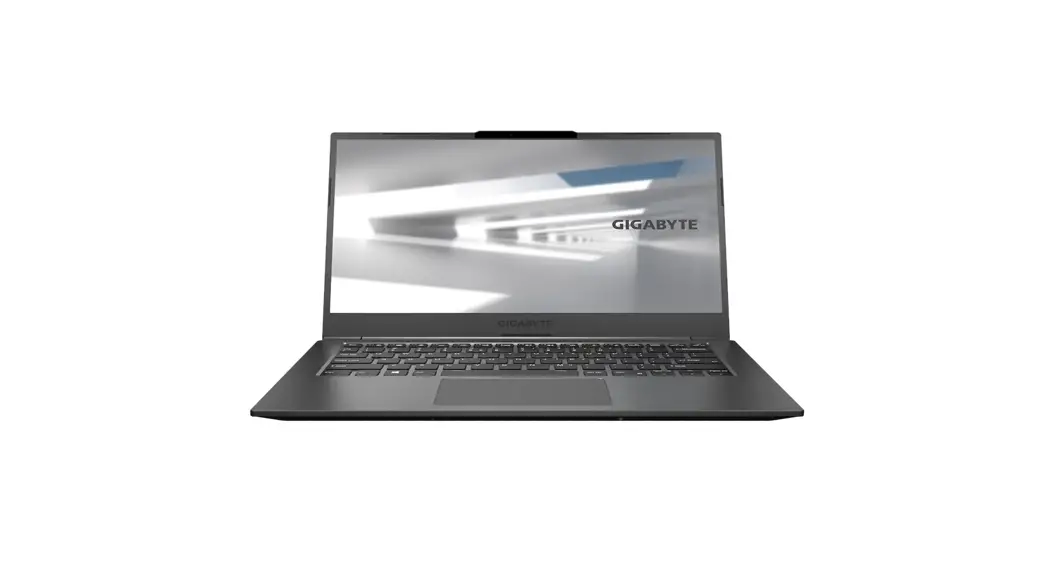
 U4
U4
Quick Start Guide V1.1
Using GIGABYTE Notebook for the First Time
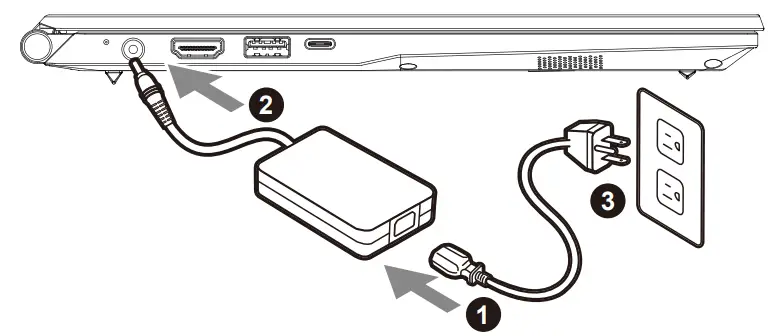
- Connect the power cord to the AC adapter.
- Connect the AC adapter to the DC-in jack on the notebook.
- Connect the power cord to the power outlet.
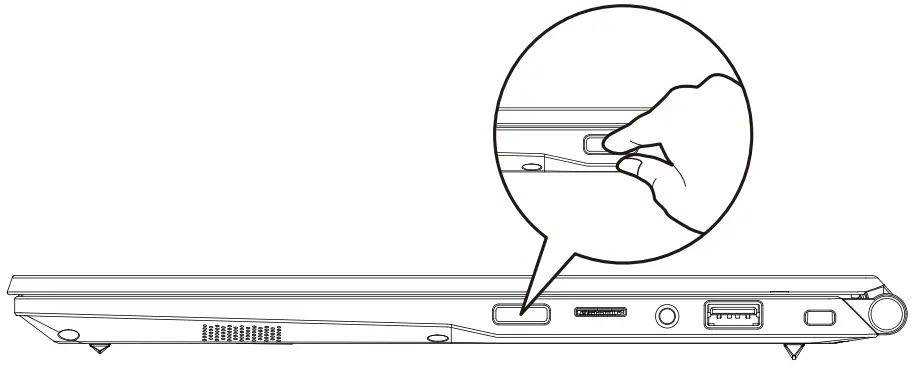
1-2. Switching on the Power
After you turn on the notebook for the very first time, do not turn it off until the operating system has been configured. Please note that the volume for the audio will not function until Windows® Setup has been completed.
 IMPORTANT:
- Ensure that your Notebook PC is connected to a grounded power adapter before turning it on for the first time.
- When using your Notebook PC on power adapter mode, the socket-outlet must be near to the unit and easily accessible.
- Locate the input/output mark on your Notebook PC and ensure that it matches the input/output rating information on your power adapter. Some Notebook PC models may have multiple rating output currents based on the available SKU.
- Power adapter information: – Input voltage: 100-240 Vac – Input frequency: 50-60 Hz – Rating output voltag:19V,3.42A
1-3. Full User Manual
For more user guide and software instruction, please refer to the below link:
https://www.gigabyte.com/Support
- Product specifications and product appearance may differ from country to country. We recommend that you check with your local dealers for the specifications and appearance of the products available in your country.
- Although we endeavor to present the most accurate and comprehensive information at the time of publication, we reserve the right to make changes without prior notice.
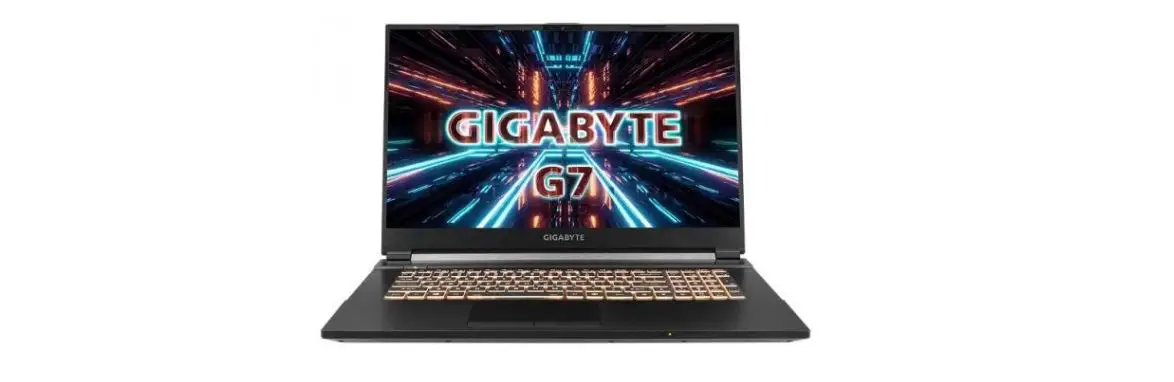
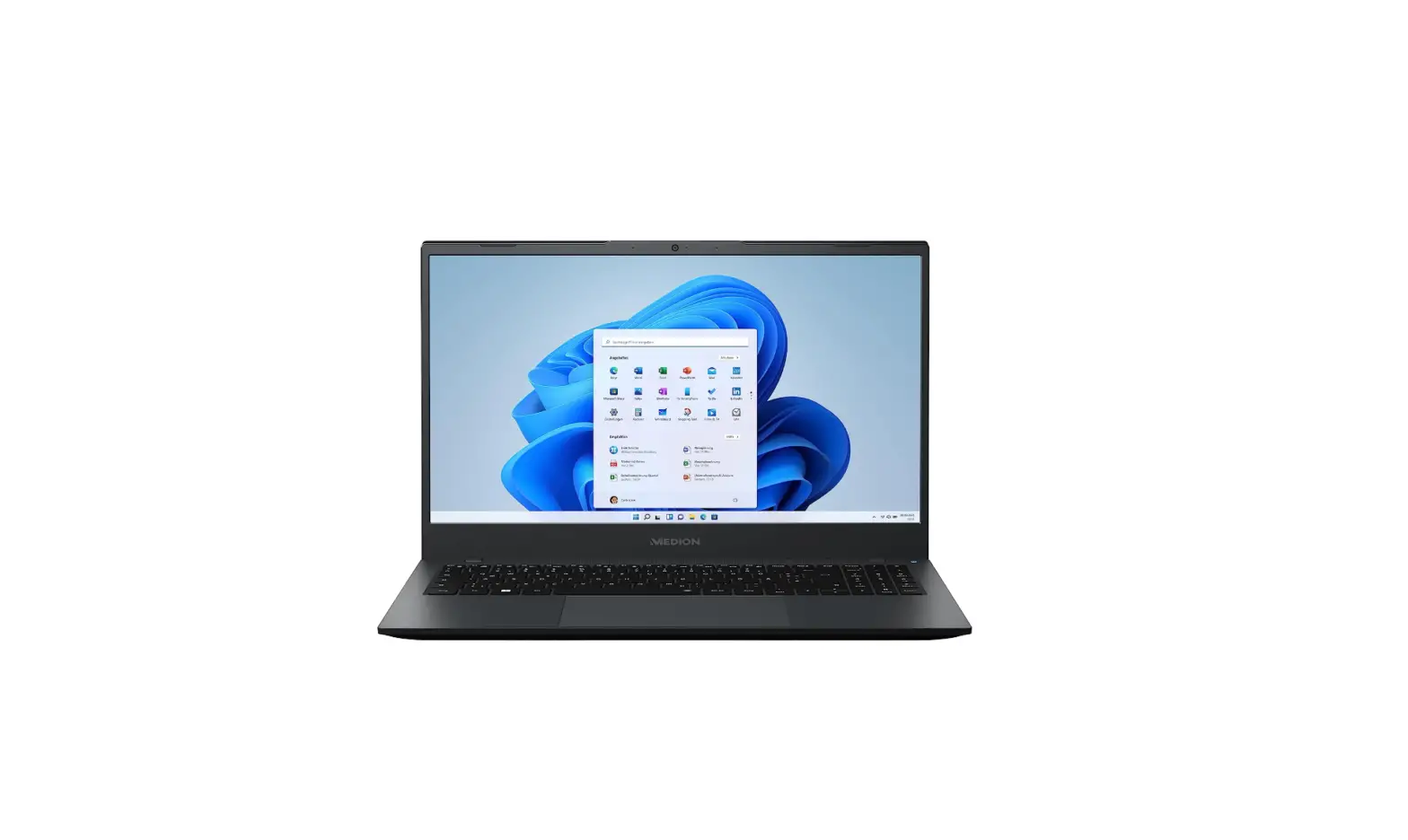
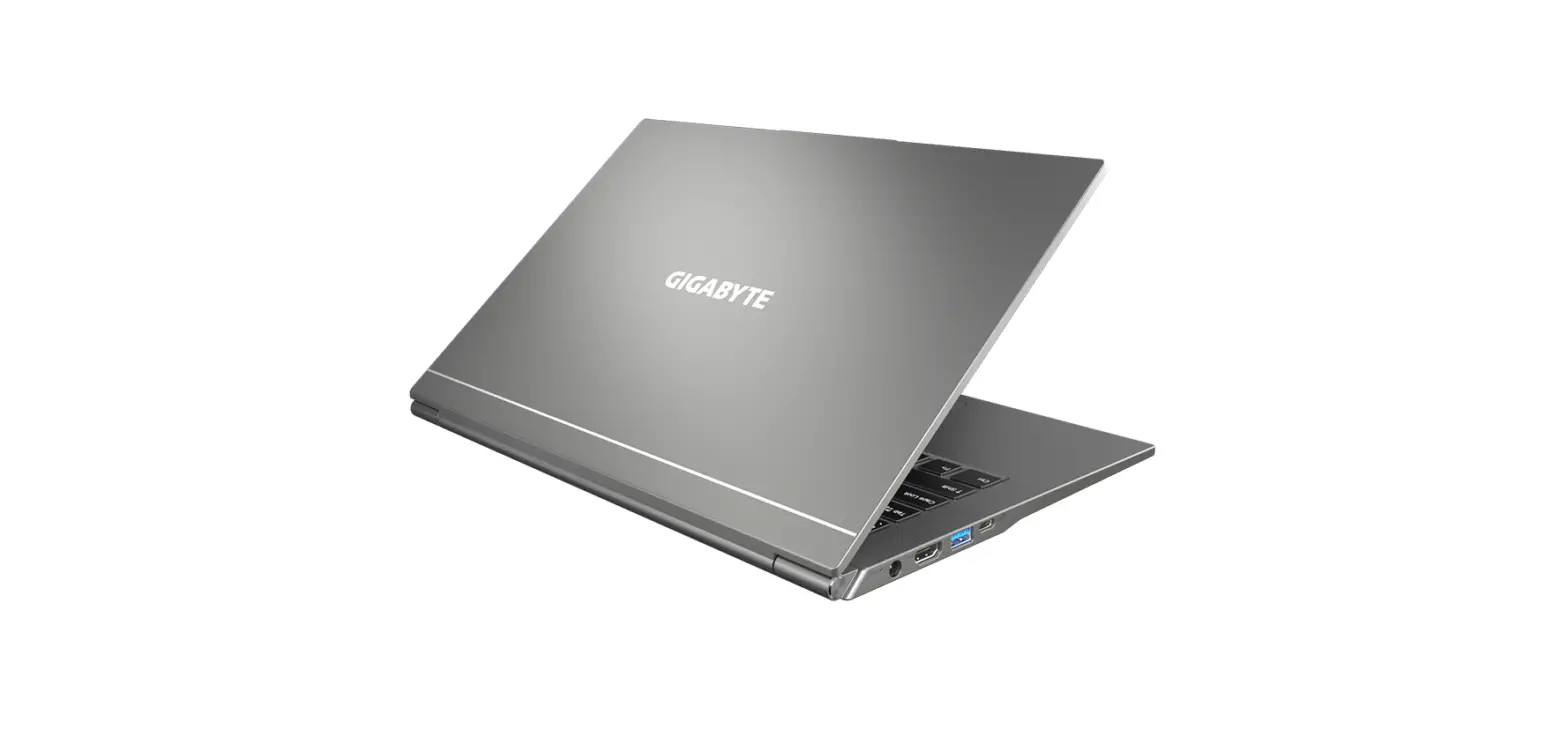
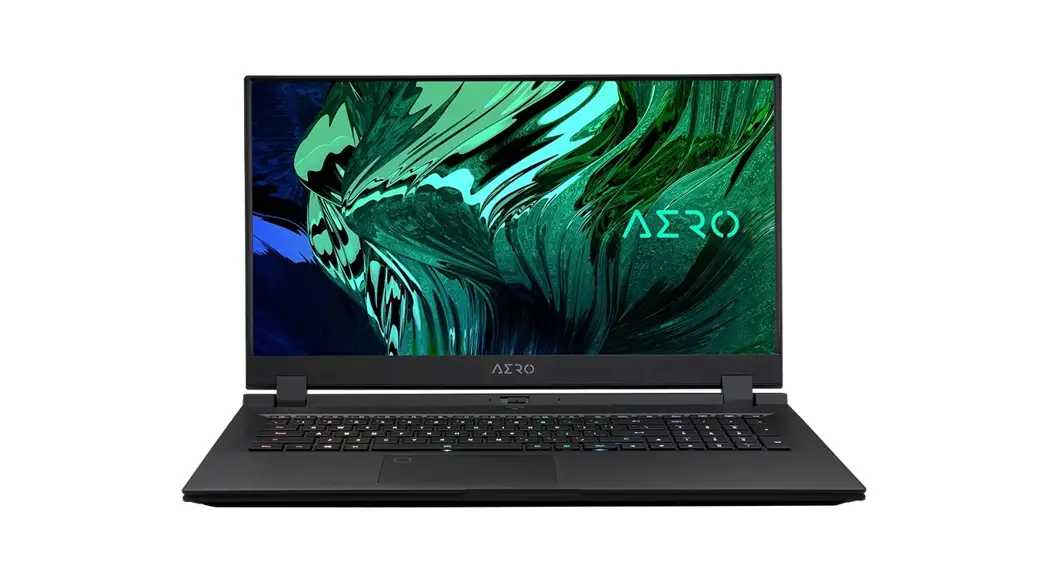
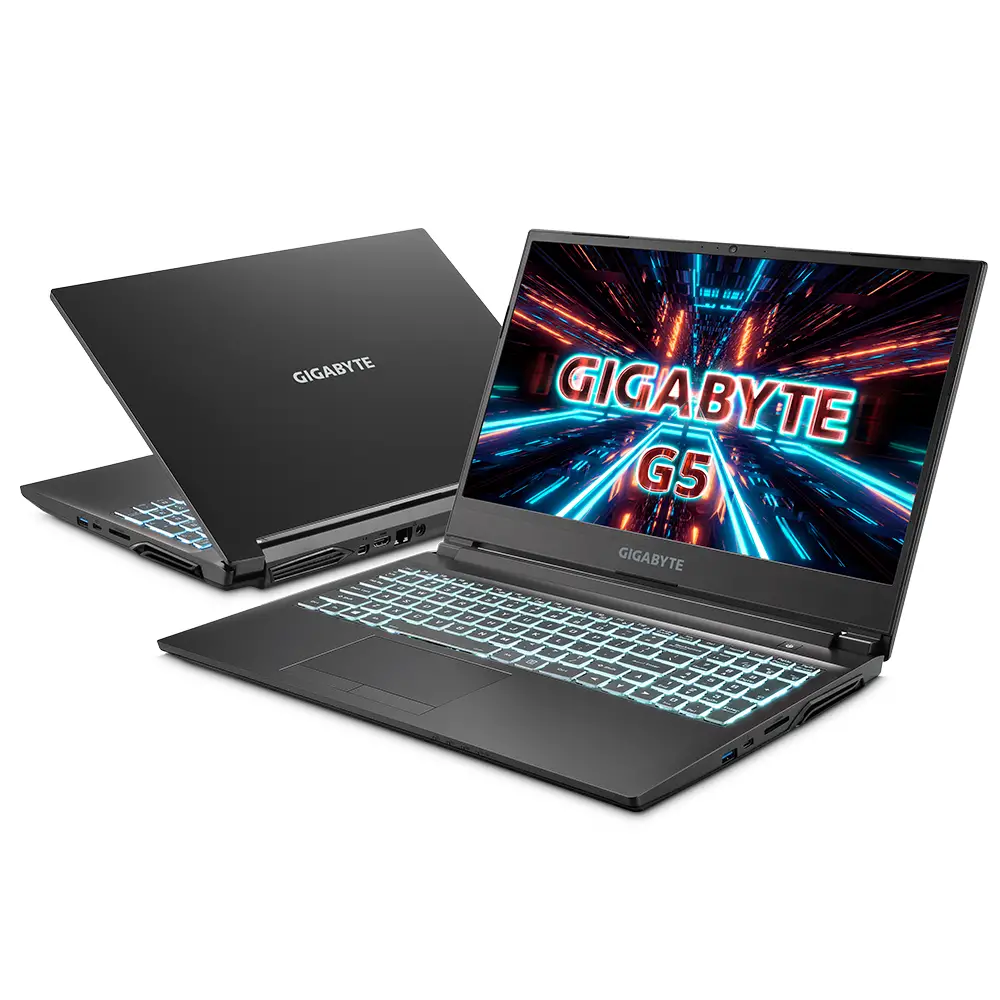
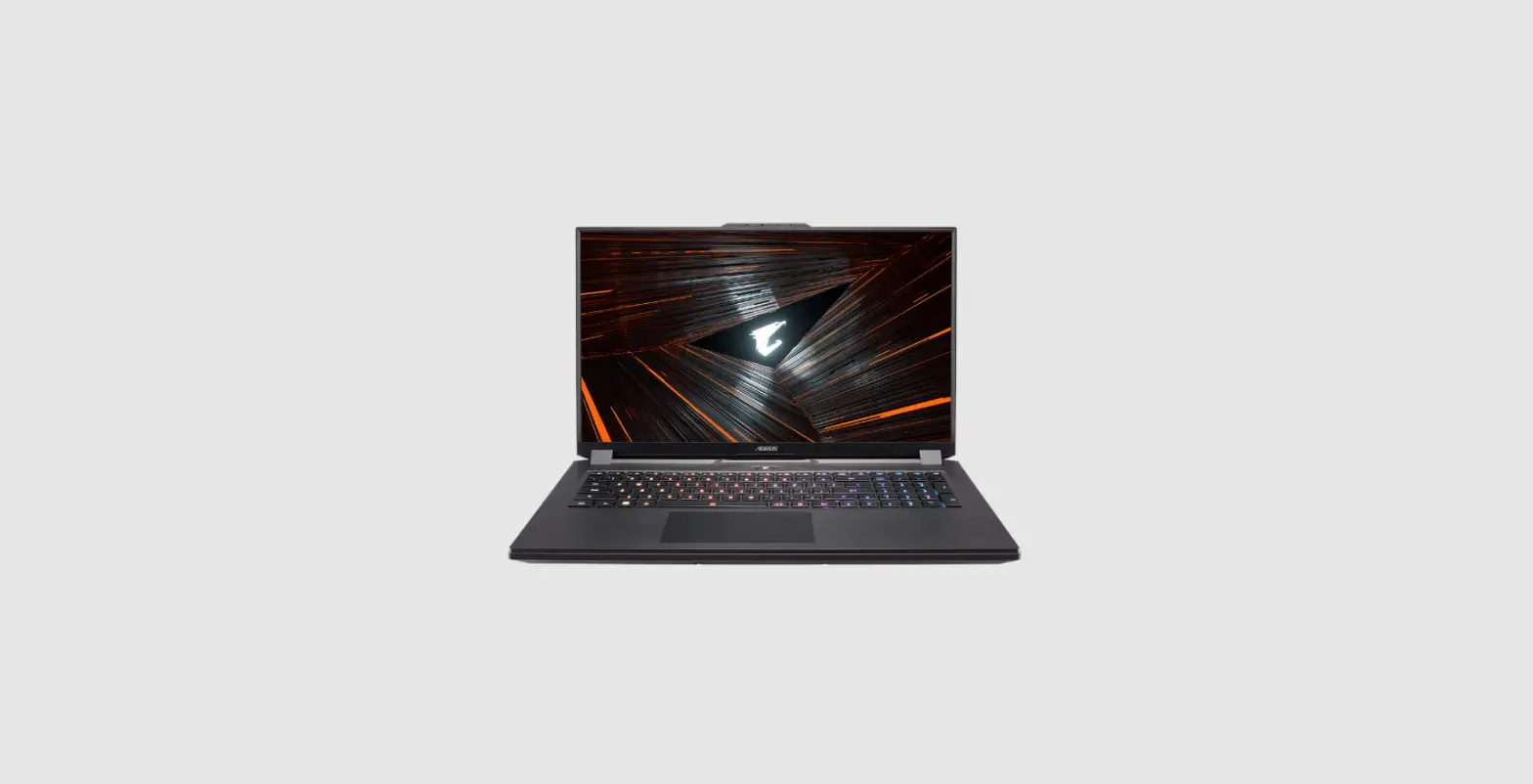
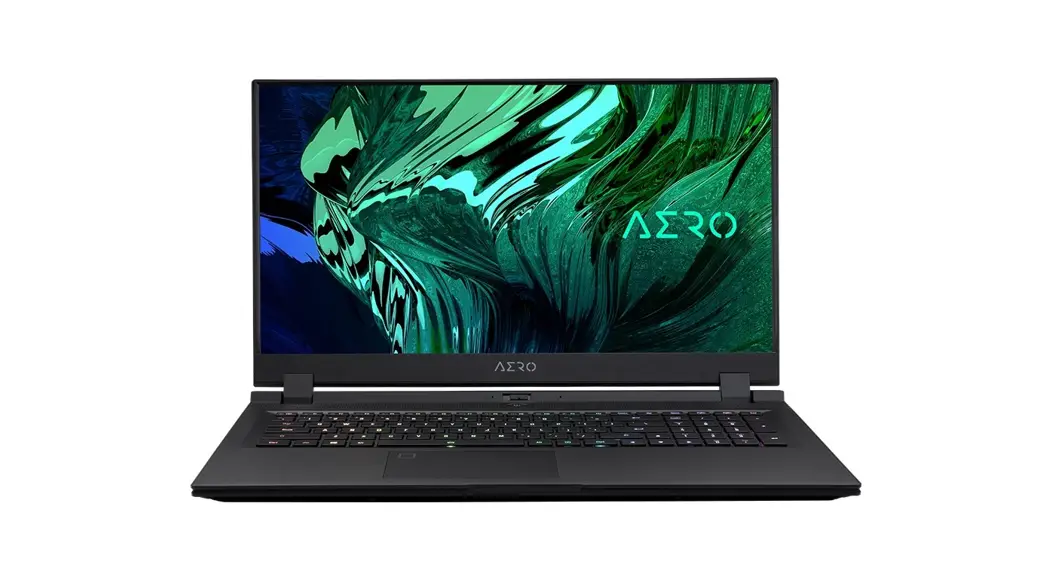
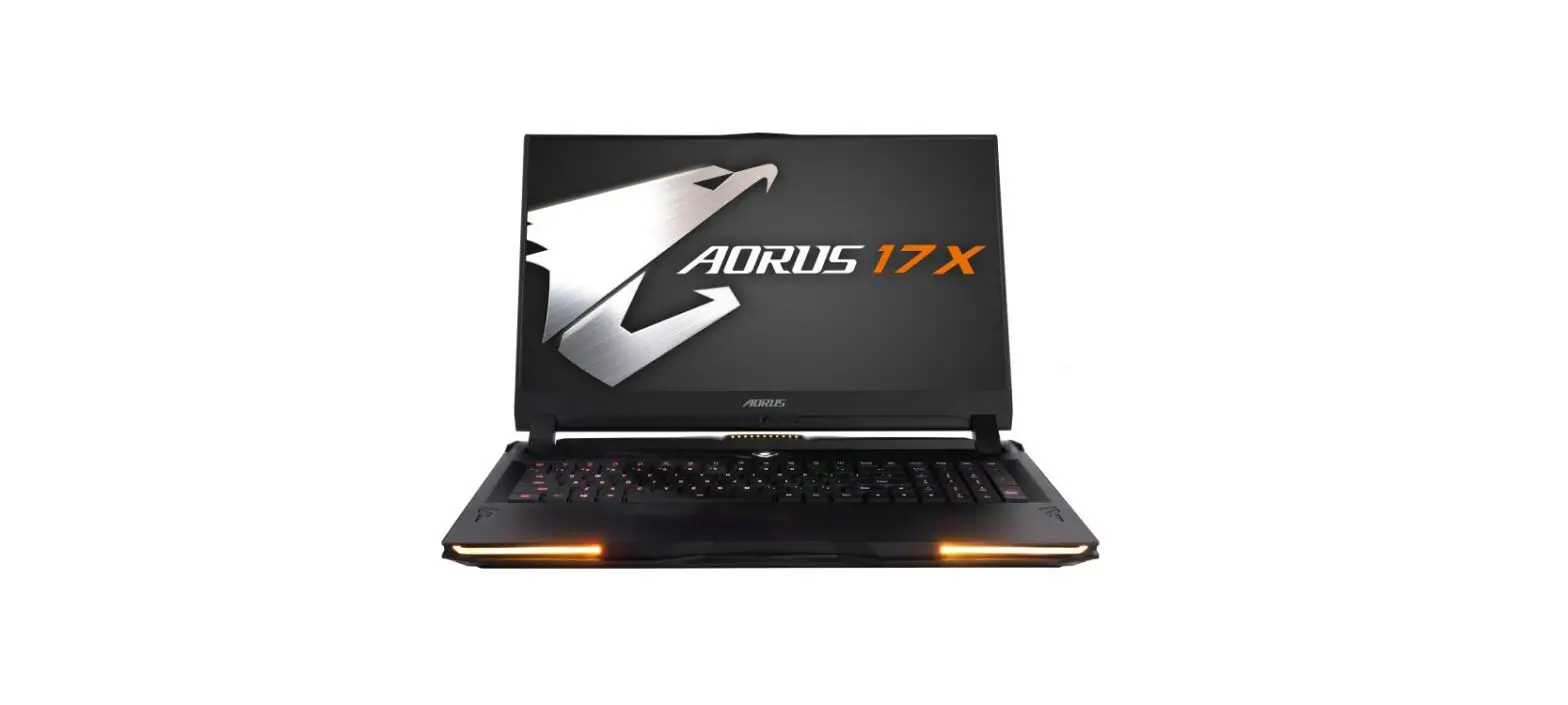
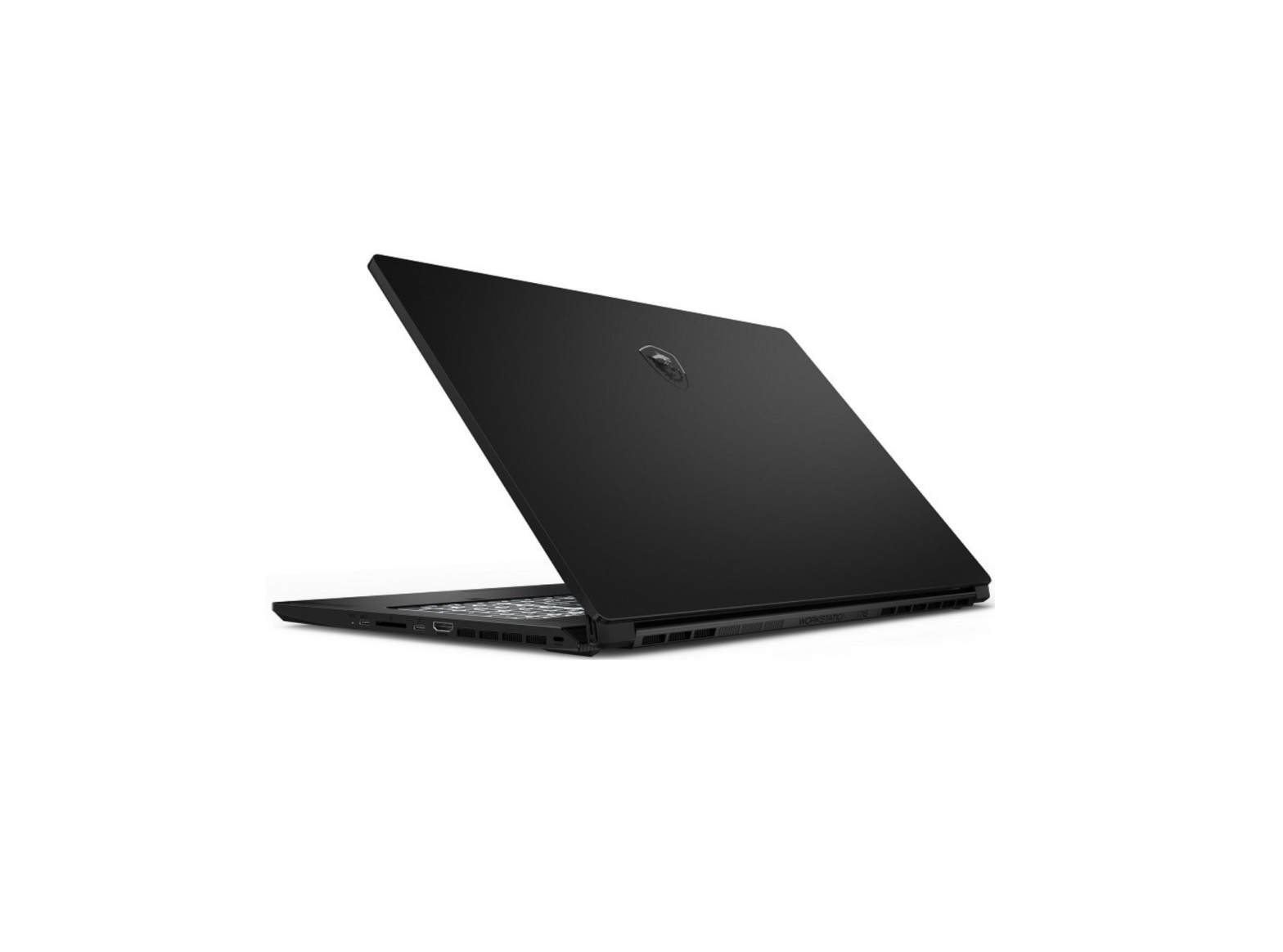
GIGABYTE Notebook Tour
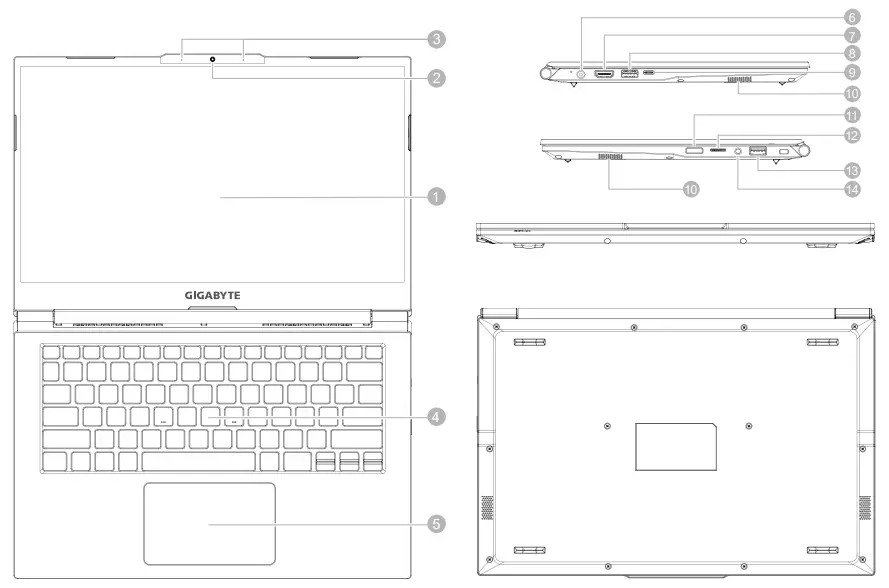
- Display Panel
- Webcam
- Microphone
- Keyboard
- Touchpad
- Power Input Port (DC)
- HDMI 2.0b Port

- USB 3.2 Port (USB type-A)
- Thunderbolt 4 Port (USB type-C)
- Speaker
- Power Button
- SD Card reader
- Audio Combo Jack
- USB 3.2 Port (USB type-A)

IMPORTANT :
- Do not remove the built-in lithium battery. For any service needs, please contact your local GIGABYTE Authorized Service Center.
- Do not install the Notebook PC on a slant or a place prone to vibrations, or avoid using the Notebook PC in that location for a long time. This increases the risk that a malfunction or damage to the product will occur.
- Do not store and use Notebook PC in direct sunlight or the location where temperatures exceed 112°F (45°C) such as inside a vehicle. There is a danger of Lithium-ion battery expansion and aging.
- Do not use the Notebook PC in a badly ventilated location such as on bedding, on a pillow or cushion, etc, and do not use it in a location such as a room with floor heating as it may cause the computer to overheat. Take care that the Notebook PC vents (on the side or the bottom) are not blocked especially in these environments. If the vents are blocked, it may be dangerous and cause the Notebook PC to overheat.
Hotkeys
The computer employs hotkeys or key combinations to access most of the computer’s controls like screen brightness and volume output. To activate hotkeys, press and hold the <Fn> key before pressing the other key in the hotkey combination.
| Hotkey | Description |
Fn +~  | Play / Pause (in Audio/Video Programs) |
Fn + !  | Fan Automatic Control / Full Power |
Fn + F1  | Touchpad Toggle |
Fn + F2  | Turn LCD Backlight OFF (Press a key to or use Tochpad to turn on) |
Fn + F3 | Mute Toggle |
FN + F4 | Toggle Keyboard Illumination / Adjust Brightness Level |
Fn + F5 / F6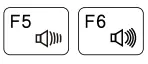 | Volume Decrease / Increases |
Fn + F7 | Display Toggle |
Fn + F8 / F9 | Bright Descreases / Increases |
Fn + 10 | PC Camera Power on and off |
Fn + F11 | Airplane Mode Toggle |
Fn + F12 | Sleep Toggle |
FN + Ins Num LK | Number Lock Toggle |
Fn + Del Scr LK | Scroll Lock Toggle |
Fn + Esc | Control Center Toggle |
FN + R | Rotate the Screen |
System Backup Guide
WARNING
- You can backup the original recovery image through this application in case of loss by device damage.
- You can backup the original recovery image to a USB disk and restore the system if any storage system replacement with the recovery USB disk.
- Before you restore the system through the recovery USB disk, please make sure that you have already made the backup of your data.
- Please DO NOT shut down or un-plug the system when performing a backup through recovery USB disk.
 • Please plug in the USB Flash Drive which is at least 32GB incapacity to make the original image ( backup the data in USB first. All data will be eliminated during the creation of recovery USB disk )
• Insert the driver disk to your optical drive and run the install of “System Backup” (for the none-ODD model, please use a USB ODD device or download from
http://www.gigabyte.com • Run the “System Backup” after finishing the install.
 • Select your USB disk from the drop-down list and start to create the recovery USB disk.
- • The window will pop out when the creation of the recovery disk is done.
• Please press F12 on starting the system when you need to restore the system. Select “boot from recovery USB disk” and the system will be restored.
• The time needed for restore will be around 30 mins(time needed may vary by USB disk model) .
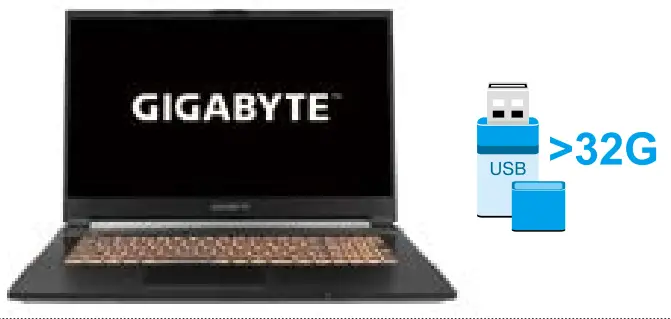 • Please plug in the USB Flash Drive which is at least 32GB incapacity to make the original image ( backup the data in USB first. All data will be eliminated during the creation of recovery USB disk )
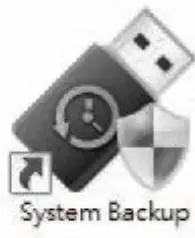 • Run the “System Backup” after finishing the install.
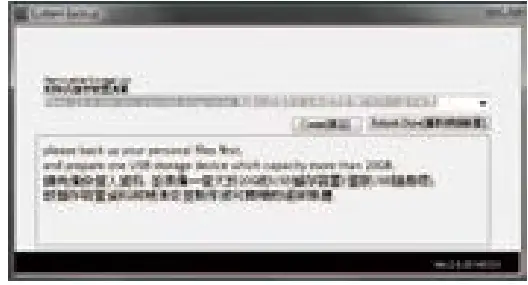 • Select your USB disk from the drop-down list and start to create the recovery USB disk.
Recovery Guide
System Recovery (Restore your laptop operating system)
When something is going wrong with the laptop operating system, the storage of the laptop has a hidden partition containing a full backup image of the operating system that can be used to restore the system to factory default settings.
 Note
Note
- If the storage has been switched or the partition deleted, the recovery option will no longer be available and a recovery service will be needed.”
- The recovery function is only available on devices with O/S preinstalled. Devices with EFI SHELL do not have the recovery function.
Launch System Recovery
The system recovery feature is preinstalled before the laptop is shipped from the factory. The options menu allows you to launch the Windows recovery tool to reinstall the operating system to factory default. The brief introduction below will show you how to start the recovery tool and restore your system.All ready to go
Make sure your PC is plugged in. This will take a few minutes.
Windows 10 Recovery Guide
- Turn off and restart the laptop.
 During the laptop turn on process, press and hold F9 key to launch the tool.
 Choose “Troubleshoot” to enter the recovery settings. (Also you can choose “Continue” to exit the recovery system and continue to Windows 10 for files or data backup.)
 There are two options for system recovery
• Reset this PC You can choose to keep or remove your files and then reinstalls Windows without losing your files.
• GIGABYTE Smart Recovery Your PC settings will be restored to factory default settings.
• Caution: All personal data and files will be lost. GIGABYTE Smart Recovery
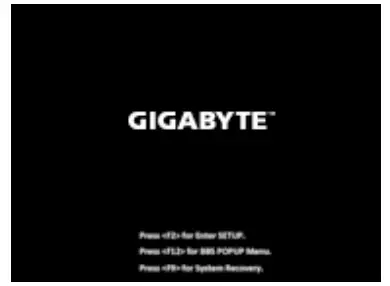 During the laptop turn on process, press and hold F9 key to launch the tool.
 Choose “Troubleshoot” to enter the recovery settings. (Also you can choose “Continue” to exit the recovery system and continue to Windows 10 for files or data backup.)
 GIGABYTE Smart Recovery
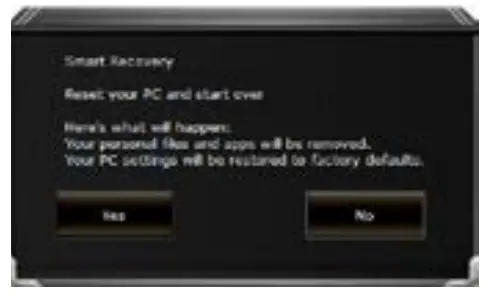 The recovery will be activated and you will see the option buttons on the window. Click on “Yes” to start it.Caution
- Once the “Recovery” is selected, your personal data and files will be deleted after the laptop starts restoring, and the operating system will be reset to factory default settings.
- A progress indicator bar will show on the window when the recovery process is running. Please make sure the AC adapter is plugged in and do not turn off the laptop.
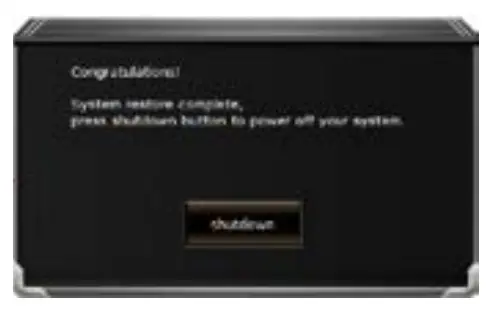 After the system recovery is completed, you will see the options button on the window, please click on “Shutdown”.
5.  Advanced options
 | System Restore |
| Use a restore point recorded on your PC to restore Windows. | |
| System Image Recovery | |
| Recover Windows using a specific system image file. | |
| Startup Repair | |
| Fix problems that keep Windows from loading. | |
| Command Prompt | |
| Use the Command Prompt for advanced troubleshooting. | |
| UEFI Firmware Settings | |
| Change settings in your PC’s UEFI firmware. | |
| Startup Settings | |
| Change Windows Startup behavior. |
Appendix
- Warranty & Service :
Warranty and service and related information please refer to the
warranty card or GIGABYTE service website as the below link:
https://www.gigabyte.com/Support/Laptop - FAQ :
FAQ(Frequent Asked Questions) please refer to the below link:
https://www.gigabyte.com/Support/Faq
Control Center Application
The Control Center application is a quick computer configuration application, which allows you to change power mode, set keyboard backlight, and assign a single key to launch multiple key combinations.
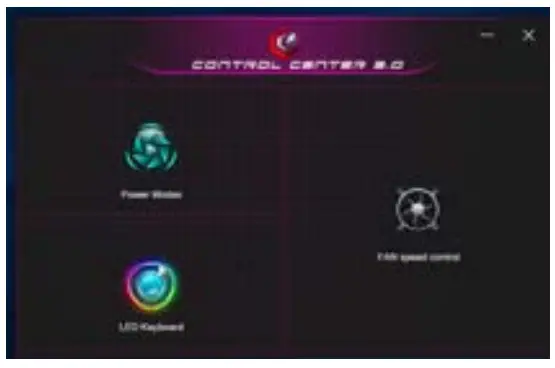
Control Center Overview
- Power Modes
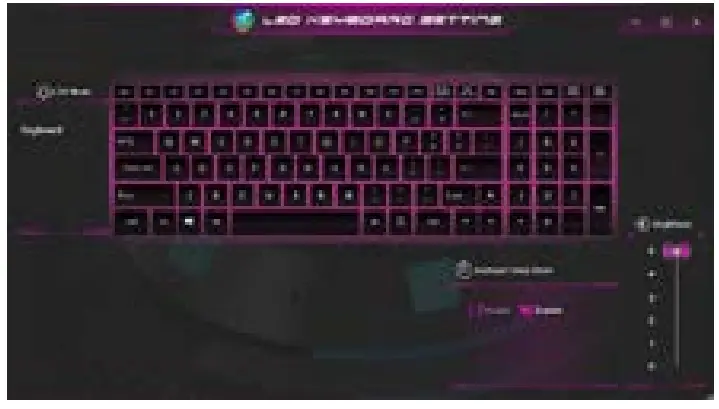
- LED Keyboard
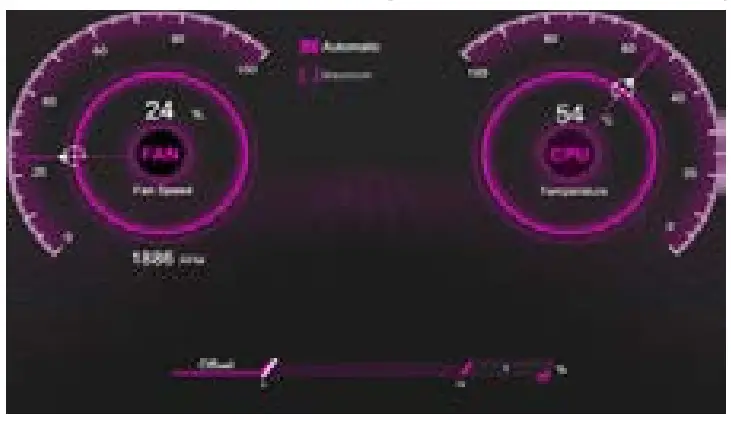
- FAN speed control
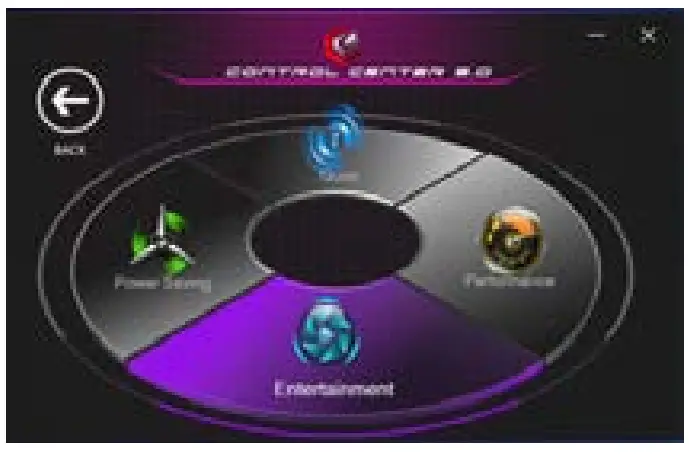
- Power Modes
To set different power mode. 1. Quiet
2. Performance
3. Entertainment
4. Power Saving - LED Keyboard
To set keyboard backlight.
1. Keyboard Sleep timer: enter the value to set a backlit sleep timer.
2. Keyboard Brightness: to set the brightness of the keyboard backlight. - FAN speed control
You can set the fan speed to Maximum (full power) or Automatic.
 1. Quiet