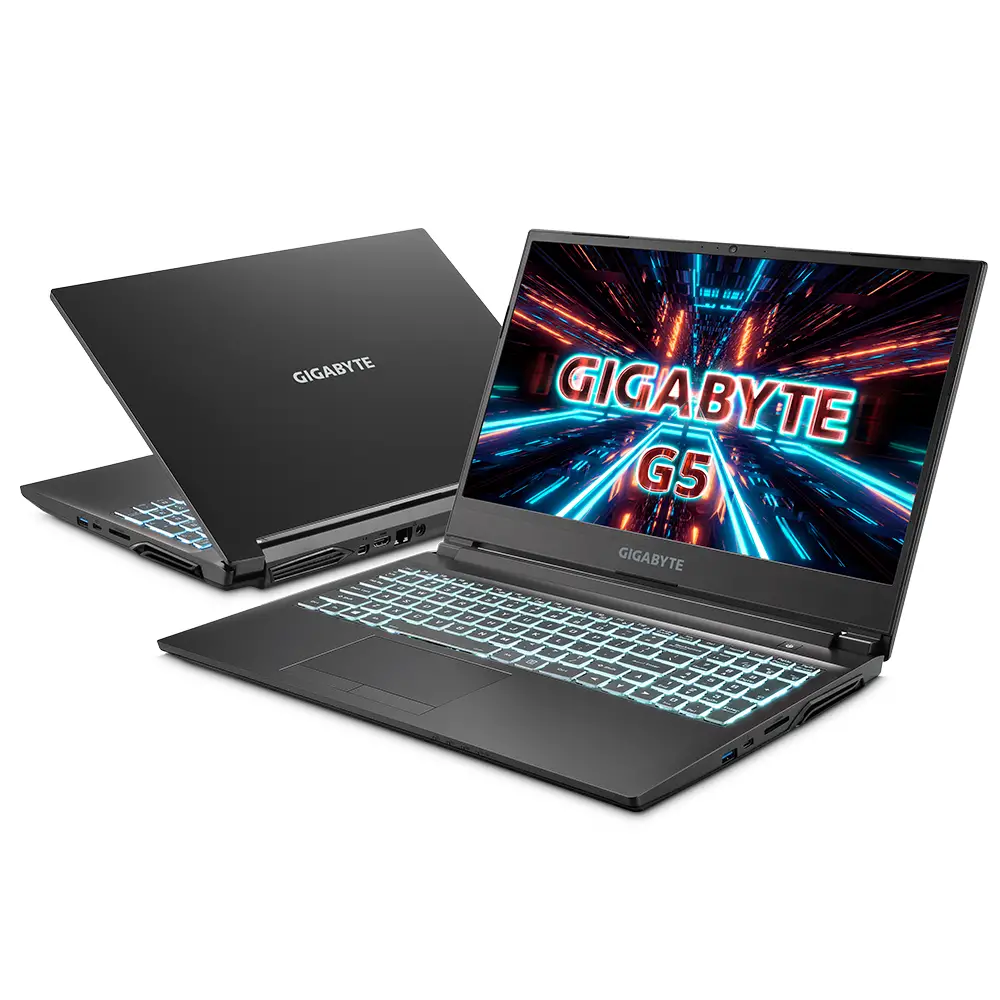
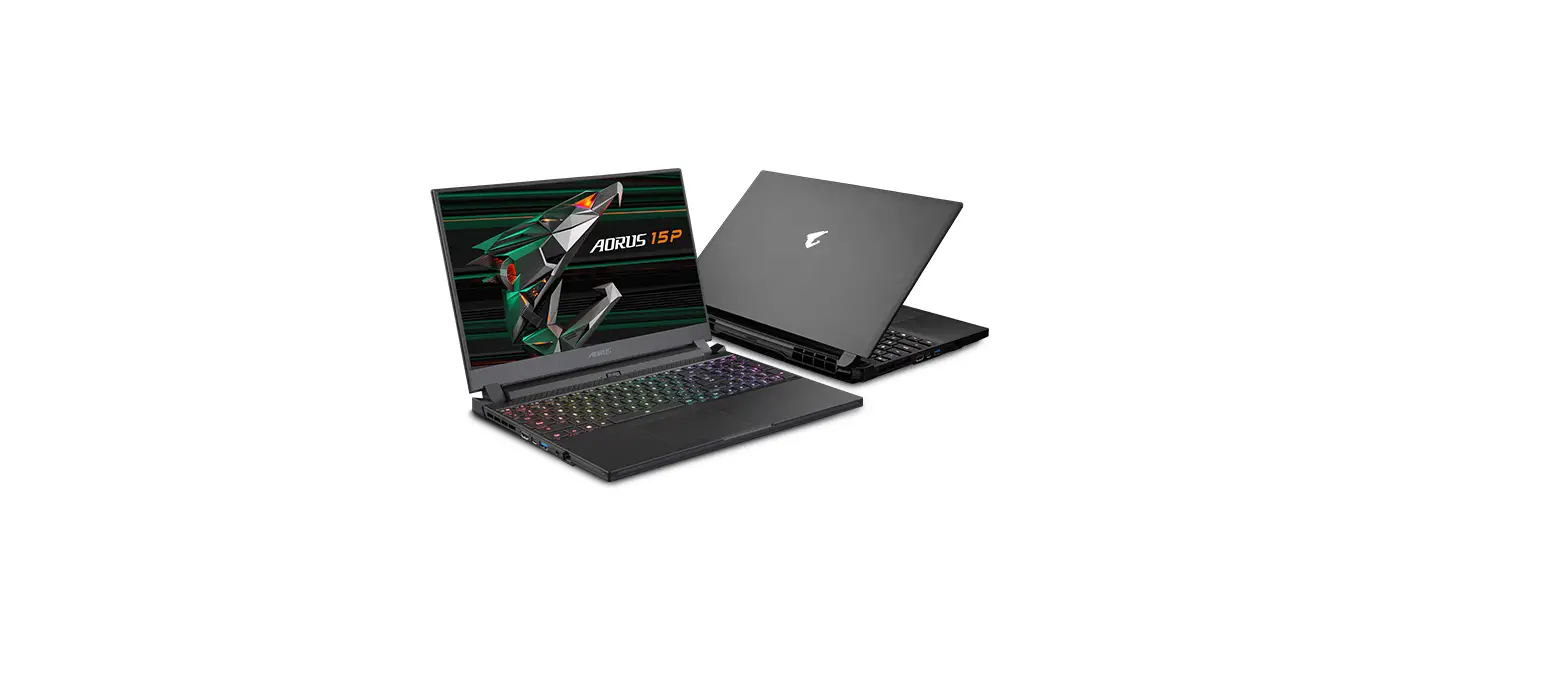
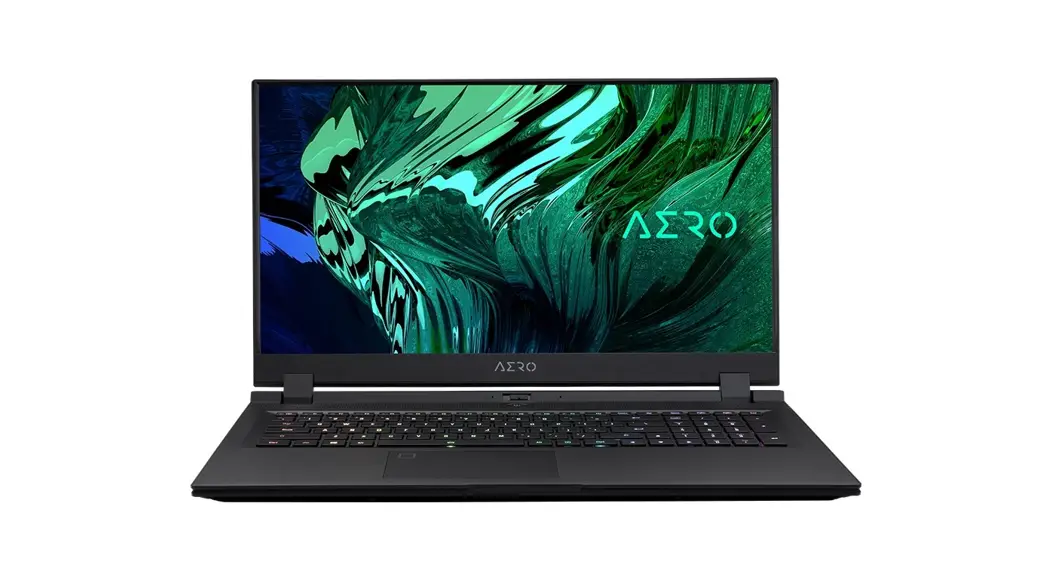
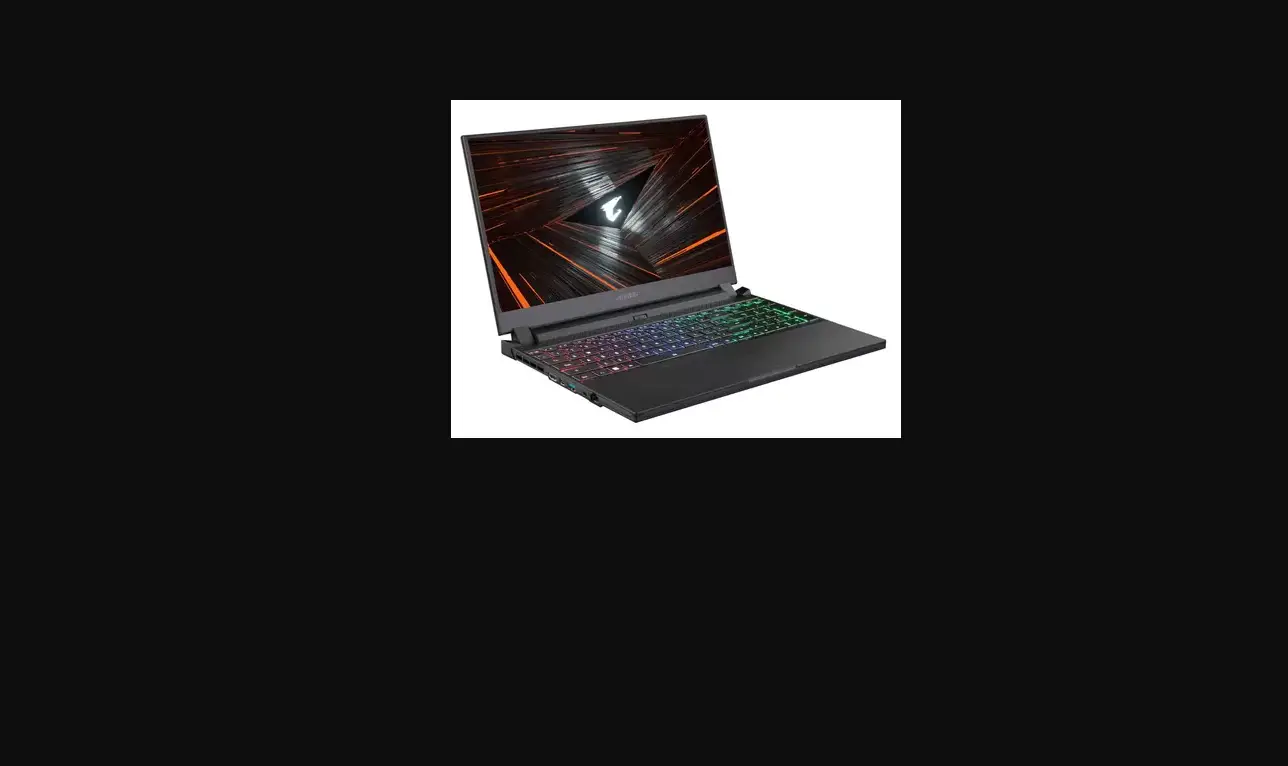
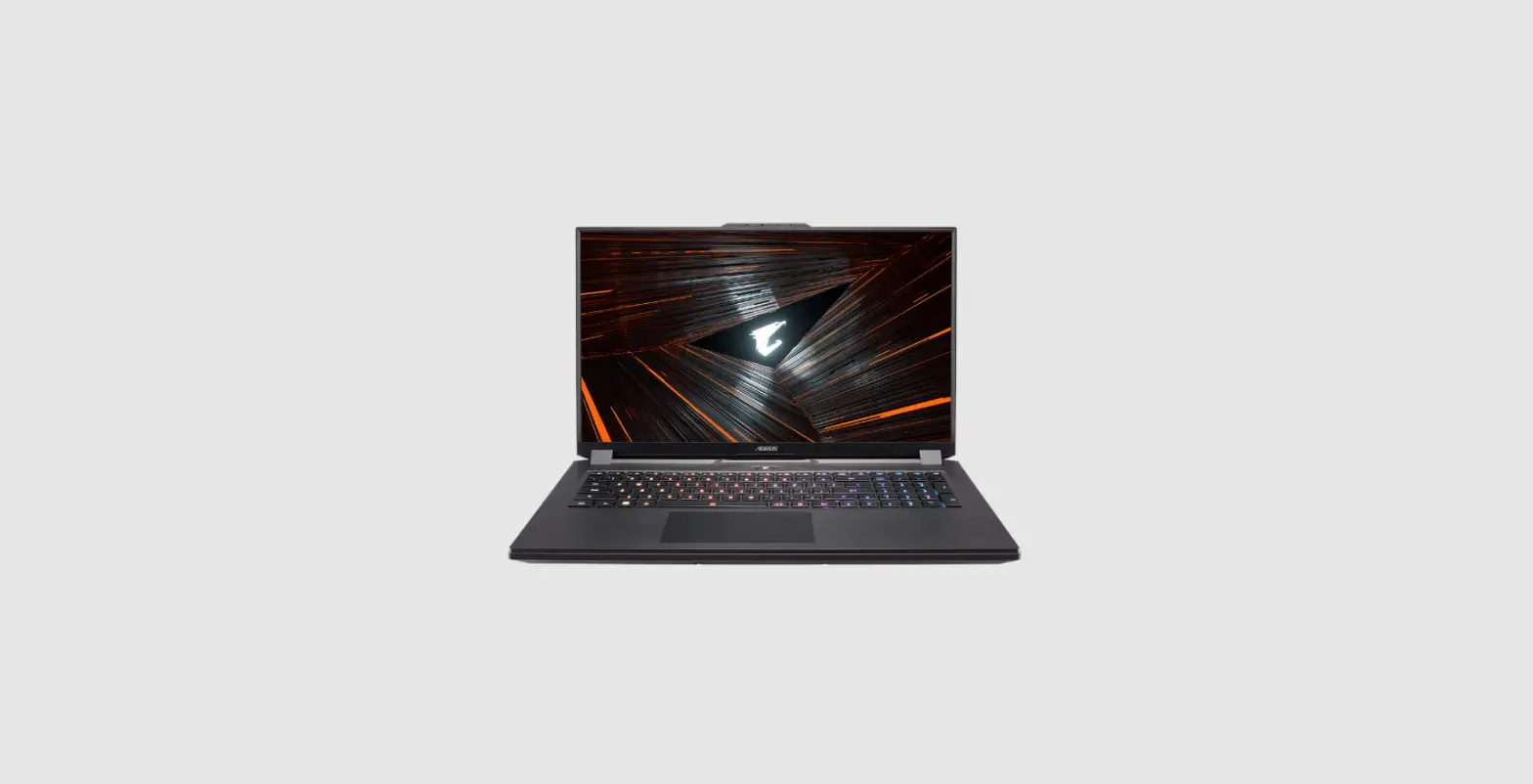
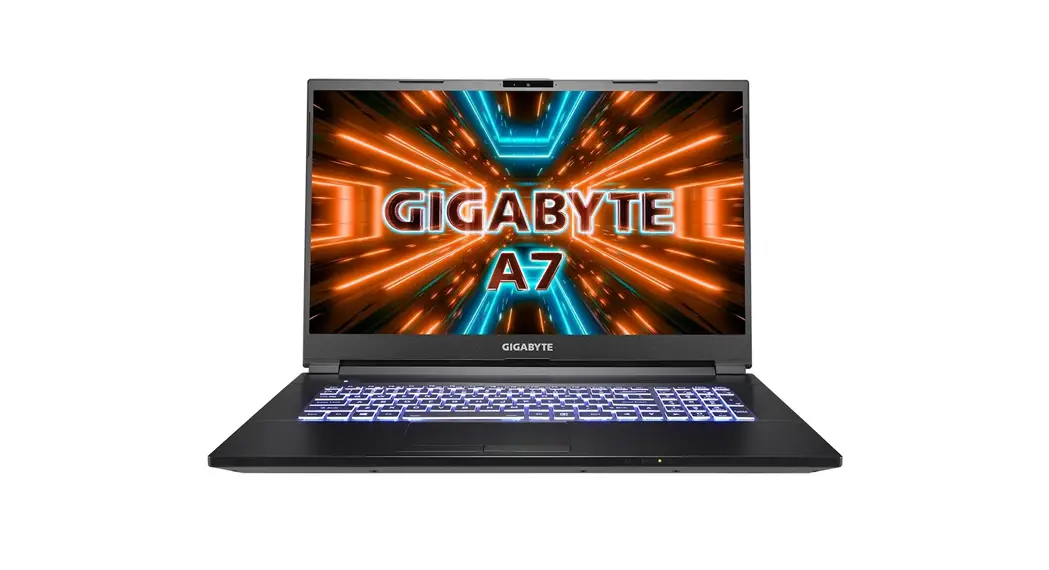
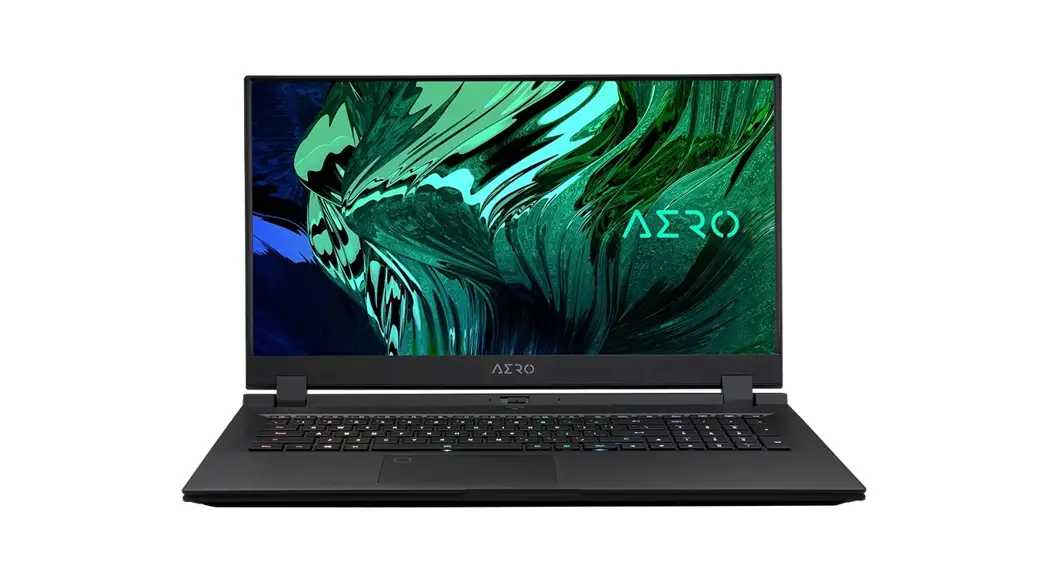
G5 GE Notebook
Product Information
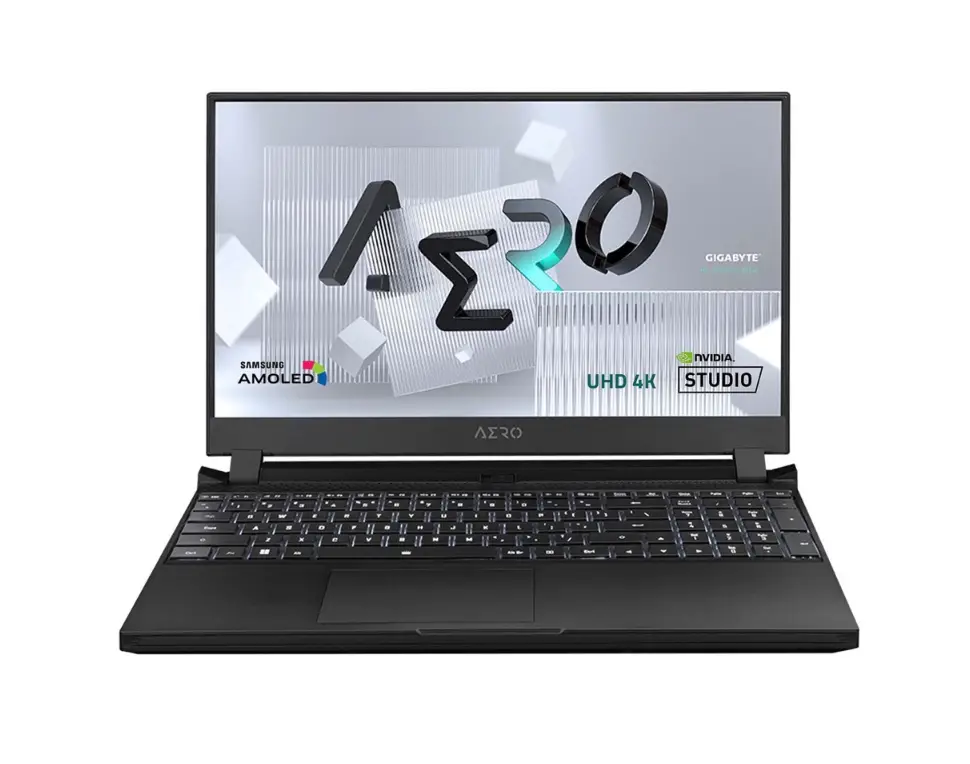
The G5 GE G5 ME is a notebook manufactured by GIGABYTE. It is
equipped with various features and components to enhance user
experience and productivity.
Product Specifications
- Webcam Indicator
- Webcam
- Microphone
- Display Panel
- Power Button
- Keyboard
- Touchpad
- USB 3.2 Port (USB type-A)
- USB 2.0 Port (USB type-A)
- Microphone-In Jack
- Audio Combo Jack
- MicroSD Card Reader
- USB 3.2 Port (USB type-C)
- Ethernet Port (LAN)
- USB 3.2 Port (USB type-C)
- HDMI Port
- Mini DisplayPort 1.4
- Power Input (DC)
- Speakers
Important Usage Guidelines
- Do not remove the built-in lithium battery. For any service
needs, please contact your local GIGABYTE Authorized Service
Center. - Do not install the Notebook PC on a slant or a place prone to
vibrations, or avoid using the Notebook PC in that location for a
long time. This increases the risk that a malfunction or damage to
the product will occur. - Do not use the Notebook PC in a badly ventilated location such
as on bedding, on a pillow or cushion, etc, and do not use it in a
location such as a room with floor heating as it may cause the
computer to overheat. Take care that the Notebook PC vents (on the
side or the bottom) are not blocked especially in these
environments. If the vents are blocked, it may be dangerous and
cause the Notebook PC to overheat.
Hotkeys
The GIGABYTE Notebook utilizes hotkeys or key combinations to
access various controls on the computer, such as screen brightness
and volume output. To activate hotkeys, press and hold the
Fn key before pressing the other key in the hotkey
combination.
- Fn + ~: Launch the LED Keyboard Application
- Fn + F1: Toggle the Keyboard LED On/Off
- Fn + F2: Decrease Keyboard LED Illumination
- Fn + F3: Increase Keyboard LED Illumination
- Fn + F5/F6: Adjust Screen Brightness
- Fn + F7: Toggle Touchpad On/Off
- Fn + F8/F9: Adjust Volume Output
- Fn + F10: Mute/Unmute Audio
- Fn + F11: Previous Track
- Fn + F12: Next Track
- NumLK: Toggle Number Lock On/Off
- Fn + ScrLK: Toggle Scroll Lock On/Off
- Caps Lock: Toggle Caps Lock On/Off
- Fn + Esc: Open System Information
- Fn + !: Toggle Airplane Mode On/Off
- Fn + Backspace: Delete
- Fn + #: Toggle Backlit Keyboard On/Off
Smart USB Backup Guide
The Smart USB Backup feature allows you to backup the original
recovery image of your device in case of loss or storage system
replacement. Follow the steps below to perform a backup:
- Ensure you have a USB flash drive with a capacity of at least
32GB. Backup any data stored on the USB drive as it will be erased
during the creation of the recovery USB flash disk. - Insert the USB flash drive into an available USB port.
- Run the “Install” file from the optical drive.
- Follow the on-screen instructions to create the original image
and backup it to the USB flash drive.
Note: Do not shut down or unplug the system while performing the
backup through the recovery USB flash drive.
G5 GE G5 ME
Quick Start Guide V1.1
English
1 Using GIGABYTE Notebook for the First Time
2
3
1
1 Connect the power cord to the AC adapter. 2 Connect the adapter to the Power (DC) Input Port on the notebook. 3 Connect the power cord to the power outlet.
Switching on the Power
After you turn on the notebook for the very first time, do not turn it off until the operating system has been configured. Please note that the volume for the audio will not function until Windows® Setup has completed.
IMPORTANT: · Ensure that your Notebook PC is connected to a grounded power adapter before turning it on for the first time. · When using your Notebook PC on power adapter mode, the socket outlet must be near to the unit and easily
accessible. · Locate the input/output mark on your Notebook PC and ensure that it matches the input/output rating information
on your power adapter. Some Notebook PC models may have multiple rating output currents based on the available SKU. · Power adapter information: – Input voltage: 100-240Vac – Input frequency: 50-60Hz – Rating output voltag: 20V , 7.5A
* Product specifications and product appearance may differ from country to country. We recommend that you check with your local dealers for the specifications and appearance of the products available in your country.
* Although we endeavor to present the most accurate and comprehensive information at the time of publication, we reserve the right to make changes without prior notice.
GIGABYTE Notebook Tour
2
English
1 Webcam Indicator 2 Webcam 3 Microphone 4 Display Panel 5 Power Button 6 Keyboard 7 Touchpad 8 USB 3.2 Port (USB type-A) 9 USB 2.0 Port (USB type-A) 10 Microphone-In Jack
11 Audio Combo Jack 12 MicroSD Card Reader 13 USB 3.2 Port (USB type-C) 14 Ethernet Port (LAN) 15 USB 3.2 Port (USB type-C) 16 HDMI Port 17 Mini DisplayPort 1.4 18 Power Input (DC) 19 Speakers
IMPORTANT:
Do not remove the built-in lithium battery. For any service needs, please contact your local GIGABYTE Authorized Service Center.
Do not install the Notebook PC on a slant or a place prone to vibrations, or avoid using the Notebook PC in that location for a long time.This increases the risk that a malfunction or damage to the product will occur.
Do not store and use Notebook PC in direct sunlight or the location where temperatures exceed 112°F (45°C) such as inside a vehicle.There is a danger of Lithium-ion battery expansion and aging.
Do not use the Notebook PC in a badly ventilated location such as on bedding, on a pillow or cushion, etc, and do not use it in a location such as room with floor heating as it may cause the computer to overheat.Take care that the Notebook PC vents (on the side or the bottom) are not blocked especially in these environments. If the vents are blocked, it may be dangerous and cause the Notebook PC to overheat.
English
3 Hotkeys
The computer employs hotkeys or key combinations to access most of the computer’s controls like screen brightness and volume output. To activate hotkeys, press and hold the <Fn> key before pressing the other key in the hotkey combination.
Hotkey Fn +~ Fn + F1
Fn + F2
Fn + F3
Fn + F5/F6
Fn + F7
Fn + F8/F9
Fn + F10
Fn + F11
Fn + F12
NumLK
Fn+ ScrLK
Caps Lock
Fn+ Esc
Fn+ !
Fn + Backspace
Fn +
# 3
Fn +
Description Play / Pause(in Audio/Video Programs) Touchpad Toggle Turn LCD Backlight OFF (Press a key to or use Tochpad to turn on) Mute Toggle Volume Decrease/Increases Display Toggle Brightness Decreases/Increases PC Camera Power on and off Airplane Mode Toggle Sleep Toggle Number Lock Toggle Scroll Lock Toggle Caps Lock Toggle Control Center Toggle Fan Automatic Control / Full Power Disable/Enable Flexikey® Power Modes Toggle
Launch the LED Keyboard Application
Fn +
Toggle the Keyboard LED On/Off
Fn +
Keyboard LED Illumination Decrease
Fn +
Keyboard LED Illumination Increase
English
Smart USB Backup Guide
4
WARNING
y You can backup original recovery image through this application in case of losing by device damage.
y You can backup original recovery image to USB Flash Drive and restore the system if any storage system replacement with the recovery USB Flash Drive.
y Before you restore the system through the recovery USB Flash Drive, please make sure that you have already made the backup of your data.
y Please DO NOT shut down or un-plug the system when performing backup through recovery USB Flash Drive.
1
· Please plug in the USB Flash
Drive which is at least 32GB in
capacity to make the original
image (backup the data in USB
first. All data will be eliminated
during the creation of recovery
USB Flash disk)
2
· Insert the driver disk to your
optical drive and run the install of
“Smart USB Backup” (for none-
ODD model,please use USB
ODD device or download from
http://www.gigabyte.com
3
· Run the “Smart USB Backup” after finishing the install.
4
· Select your USB Flash disk from the drop-down list and start to create the recovery USB disk.
5 · The window will pop out when the creation of recovery disk is done.
· Please press F12 on starting the system when you need to restore the system. Select”boot from recovery USB disk” and the system will be restored.
· The time needed for restore will be around 30 mins(time needed may vary by USB disk model).
English
5 Recovery Guide
System Recovery (Restore your laptop operating system)
When something is going wrong with the laptop operating system, the storage of the laptop has a hidden partition containing a full back up image of the operating system that can be used to restore the system to factory default settings.
Note · If the storage has been switched or the partition deleted, the recovery option will no
longer be available and a recovery service will be needed. · The recovery function is only available on devices with O/S preinstalled. Devices with
EFI SHELL do not have the recovery function.
Launch System Recovery
The system recovery feature is preinstalled before the laptop is shipped from the factory. The option menu allows you to launch the Windows recovery tool to reinstall the operating system to factory default. The brief introduction below will show you how to start the recovery tool and restore your system.
All ready to go
Make sure your PC is plugged in. This will take a few minutes.
English
Recovery Guide
6
1 Turn off and restart the laptop.
2
During the laptop turn on process,press and hold F9 key to launch the tool.
3
Choose “Troubleshoot” to enter the recovery settings.
(Also you can choose”Continue” to exit recovery system and continue to System
for files or data backup.)
There are two options for system recovery
· Reset this PC You can choose to keep or remove your files and then reinstalls Windows without losing your files.
· Smart Recovery Your PC settings will be restored to factory default settings.
Caution: All personal data and files will be lost.
4
Smart Recovery
The recovery will be activated and you will see the option buttons on the window. Click on “Yes” to start it.
Caution · Once the “Recovery” is selected, your personal data and
files will be deleted after the laptop starts restoring, and the operating system will be reset to factory default settings. · A progress indicator bar will show on the window when the recovery process is running. Please make sure the ACadapter is plugged in and do not turn off the laptop.
After the system recovery is completed, you will see the option button on the window, please click on “Shutdown”.
English
7
5
Advanced options
System Restore Use a restore point recorded on your PC to restore Windows.
System Image Recovery Recover Windows using a specific system image file.
Startup Repair Fix problems that keep Windows from loading.
Command Prompt Use the Command Prompt for advanced trobleshooting.
UEFI Firmware Settings Change settings in your PC’s UEFI firmware.
Startup Settings Change Windows Startup behavior.
Appendix
Warranty & Service : Warranty and service and related information please refer to the warranty card or GIGABYTE service website as the below link: https://www.gigabyte.com/Support/Laptop
FAQ :
FAQ(Frequent Asked Questions) please refer to the below link: https://www.gigabyte.com/Support/Faq
English
8 Control Center Application
The Control Center application is a quick computer configuration application, which allows you to change power mode, set keyboard backlight and assign a single key to launch multiple key combinations.
Control Center Overview 1. Power Modes 2. LED Keyboard 3. Flexikey 4. FAN speed control
1 Power Modes
To set different power mode.
1. Quiet 2. Performance 3. Enterainment 4. Power Saving
2 LED Keyboard
To set keyboard backlight.
1. Keyboard Backlit :The buttons surrounding the swatch allow you to alter the keyboard backlit.
2. Keyboard Sleep timer : enter the value to set backlit sleep timer.
3. Brightness : to set the brightness of keyboard backlight.
English
9
3 Flexikey®
The Flexikey® application is a quick hotkey configuration application. It allows you to assign a single key to launch multiple key combinations, programs and applications. You also can create text macros and disable certain keys. The application can also be used to configure the mouse buttons and create hotkeys for gaming.
Flexikey® Overview 1. Profile 2. Keyboard Macro 3. Statistics 4. Mouse Macro 5. Disable/Enable
Keyboard Macro
You can set macro on every keycap except the black key here.Just click the key you want to set macro and it will pop out the macro assign page.
1. Name:naming the macro profile
2. Action Type 3. Start Record 4. Enable Delay Time 5. Restore
Setting Steps : a.Choose an action key “each key”, the name can be edited by “1” b.Choose an action type by “2” c.Choose “EXPRESS KEY” as an action type if you want to set a
macro key. Then click “3” to start record and press again to stop it.
Statistics
1. Start Record
10
Click to start recording the frequency of key presses.
English
Different colors will represent the frequency of key presses, purple is the
most frequent through to green is the less frequent.
2. Quick Disable
The color bar at left side of the screen, displays the color code against the
number of key presses. click to disable the color which corresponds to the
keys you wish to disable, all disabled keys will then change to gray.
Mouse Macro
You can set macro on every mouse key cap here. Just click the key you want to set macro and it will pop out the macro assign page.
1. Name: naming the macro profile
2. Action Type 3. Start Record 4. Enable Delay Time 5. Restore
Setting Steps : a. Choose an action key “each key”, the name can be edited by “1” b. Choose an action type by “2” c. Choose “EXPRESS KEY” as an action type if you want to set a
macro key. Then click “3” to start record and press again to stop it.
FAN speed control
You can set fan speed on here.
1
GIGABYTE
2
3
1
. 1 . . (DC) 2
. 3
. .Windows®
: ·
· / / ·
.(SKU) : ·
240 100 : 60 50 : –
20V 7.5A : –
. * *
GIGABYTE 2
11 MicroSD (C USB) USB 3.2 13
(LAN) 14 (C USB) USB 3.2 15
HDMI 16 1.4 17 ( ) 18
19
1 2 3 4 5 6 7
(A USB) USB 3.2 8 (A USB) USB 2.0 9
10
:
. .GIGABYTE
.
45 . ( 112)
. . ( )
.
3
: . . <Fn>
Fn +~
(/ ) /
Fn + F1
.
Fn + F2
LCD ( )
Fn + F3
/
Fn + F5/F6
Fn + F7
Fn + F8/F9
Fn + F10
Fn + F11
/
Fn + F12
/
NumLK Fn+ ScrLK
/ /
Caps Lock
/
Fn+ Esc
/
Fn+ !
/
Fn + Backspace
Fn +
# 3
Flexikey® Toggle
Fn +
LED
Fn +
LED /
Fn +
LED
Fn +
USB 4
. · USB ·
. USB
. USB · USB · .
1
USB
32
)
. USB
USB
(
2
Smart”
) “USB Backup
) (
(ODD)
USB ODD
(http://www.gigabyte.com
3
) “Smart USB Backup” (
4
USB USB
.
5
. . F12
. ( USB ) “boot from recovery USB disk”
.(USB ) 30
5
( )
.
. . . EFI SHELL
. . Windows .
, .
.
6
1
.
2
. F9
3
. ” ”
“” ) (.
y
Windows
. y . . :
4
. . “”
“”
. .
.
.” ”
7
5
.Windows
. Windows
. Windows
.
UEFI . UEFI
.Windows
8
:
: GIGABYTE
https://www.gigabyte.com/Support/Laptop
:
: (FAQ) https://www.gigabyte.com/Support/Faq
1 GIGABYTE Notebook
2
3
1
1 . 2 (DC) . 3 .
, . , Windows® Setup ( Windows®) .
· , Notebook PC . · Notebook PC ,
. · / Notebook PC ,
/ . Notebook PC SKU. · : – : 100-240 Vac – : 50-60 Hz – : 20V, 7.5A
* . , .
* – , .
GIGABYTE
2
1
11
2
12 MicroSD
3
13 USB 3.2 (USB type-C)
4
14 Ethernet (LAN)
5 15 USB 3.2 (USB type-C)
6
16 HDMI
7
17 Mini Display 1.4
8 USB 3.2 (USB type-A)
18 (DC)
9 USB 2.0 (USB type-A)
19
10
. GIGABYTE.
Notebook PC , . Notebook PC . .
Notebook PC 45°C (112°F), . – .
Notebook PC , , .. , . Notebook PC ( ) . , Notebook PC.
3
, . , <Fn> .
Fn +~
/ ( /)
Fn + F1 Fn + F2 Fn + F3
LCD ( )
Fn + F5/F6
/
Fn + F7
Fn + F8/F9 Fn + F10 Fn + F11
/
Fn + F12
NumLK
Number Lock
Fn+ ScrLK
Scroll Lock
Caps Lock
Caps Lock
Fn+ Esc
Fn+ !
Fn + Backspace
Fn +
# 3
/ / Flexikey®
Fn +
LED
Fn +
/
Fn +
LED
Fn +
LED
USB
4
y , .
y USB USB .
y USB , , .
y USB .
1
· USB – 32GB,
(
USB.
USB
.)
2
·
“Smart USB
Backup” ( ODD,
USB ODD
http://www.
gigabyte.com).
3
· “Smart USB Backup” .
4
· USB , USB .
5 · , . · F12 , . ” USB ” . · , , 30 ( USB ).
5 ( )
, , , .
· ,
. ·
. EFI SHELL .
. Windows . – .
, . .
6
1 .
2
F9,
.
3
” “, .
( “”, .)
·
Windows . · Smart Recovery
.
: .
4
Smart Recovery
. “” .
· “”, . .
· , . , .
, . , “”.
7
5
, Windows.
Windows .
, Windows.
.
UEFI UEFI .
Windows.
8
: , , GIGABYTE, -: https://www.gigabyte.com/Support/Laptop
:
( ): -: https://www.gigabyte.com/Support/Faq
cestina
1 První pouzití notebooku GIGABYTE
2
3
1
1 Pipojte napájecí kabel k napájecímu adaptéru. 2 Pipojte adaptér k napájecímu (DC) vstupnímu portu notebooku. 3 Pipojte napájecí kabel k elektrické zásuvce.
Zapnutí napájení
Po prvním zapnutím notebooku jej nevypínejte, dokud nebude nakonfigurován operacní systém. Zvuk nebude k dispozici, dokud nebude dokonceno nastavení systému Windows®.
DLEZITÉ · Ped prvním zapnutím notebooku jej pipojte k uzemnnému napájecímu adaptéru. · Pokud je notebook pipojen k napájecímu adaptéru, elektrická zásuvka se musí nacházet v blízkosti a musí být
snadno pístupná. · Najdte na notebooku stítek s jmenovitými vstupními/výstupními hodnotami a ujistte se, ze napájecí adaptér
odpovídá tmto hodnotám. Nkteré modely notebook mohou mít více jmenovitých výstupních proud v závislosti na dostupných SKU. · Informace o napájecím adaptéru: – Vstupní naptí: 100240 V AC – Vstupní frekvence: 5060 Hz – Jmenovité výstupní naptí: 20V, 7.5A * Specifikace výrobku a jeho vzhled se mohou v rzných zemích lisit. Doporucujeme se obrátit na místní prodejce, kteí vám sdlí, jaké specifikace a vzhled výrobku jsou k dispozici ve vasí zemi. * Usilujeme o to, abychom v dob publikace poskytli co nejpesnjsí a nejúplnjsí informace, ale vyhrazujeme si právo provést zmny, a to bez pedchozího upozornní.
Seznámení s notebookem GIGABYTE
2
cestina
1 Indikátor webové kamery 2 Webová kamera 3 Mikrofon 4 Displej 5 Tlacítko napájení 6 Klávesnice 7 Touchpad
8 Port USB 3.2 (USB type-A)
9 Port USB 2.0 (USB type-A) 10 Vstupní konektor pro mikrofon
11 Kombinovaný audio konektor
12 Ctecka karet MicroSD
13 Port USB 3.2 (USB type-C)
14 Ethernetový port (LAN)
15 Port USB 3.2 (USB type-C)
16 Port HDMI
17 Mini DisplayPort 1.4
18
Vstupní konektor (stejnosmrného) napájení
19 Reproduktor
DLEZITÉ
Nevyndávejte vestavnou lithiovou baterii. V pípad, ze potebujete vyuzít servis, obrate se na místní autorizovaný servis GIGABYTE.
Neumisujte notebook na naklonný povrch ani místo vystavené vibracím, pípadn notebook na takovém míst nepouzívejte dlouhou dobu. Za takových okolností se totiz zvysuje riziko poruchy nebo poskození výrobku.
Neskladujte a nepouzívejte notebook na míst vystaveném pímému slunecnímu svtlu ani míst, kde teplota pekracuje 45 °C (112 °F), napíklad uvnit vozidla. Hrozí nebezpecí, ze se bude rozpínat lithium-iontová baterie a ze se zhorsí její vlastnosti.
Nepouzívejte notebook na míst, kde nebude zajistno dostatecné vtrání, napíklad na dece, polstái nebo polstrovaném nábytku, nebo na vytápné podlaze, protoze by se notebook mohl pehát. Dbejte na to, aby vtrací otvory notebooku (na boku nebo spodní stran) nebyly blokovány, obzvlás v tchto situacích. Blokování vtracích otvor je nebezpecné a mze vést k pehátí notebooku.
cestina
3 Klávesové zkratky
Pocítac umozuje pístup k nejpouzívanjsím ovládacím prvkm, napíklad nastaveni jasu obrazovky nebo hlasitosti, prostednictvím klávesových zkratek nebo kombinací kláves. Chcete-li aktivovat klávesovou zkratku, stisknte a podrzte klávesu <Fn> a poté stisknte druhou klávesu kombinace.
Klávesová zkratka Fn +~ Fn + F1 Fn + F2 Fn + F3
Popis
Pehrát/pozastavit (v programech pro pehrávání zvuku/videa)
Pepnutí touchpadu
Vypnutí podsvícení LCD(zapnout jej mzete stisknutím klávesy nebo pomocí touchpadu)
Pepnutí ztlumení
Fn + F5/F6
Snízení/zvýsení hlasitosti
Fn + F7
Pepnutí zobrazení
Fn + F8/F9
Snízení/zvýsení jasu
Fn + F10
Zapnutí nebo vypnutí kamery pocítace
Fn + F11
Pepnutí rezimu v letadle
Fn + F12
Pepnutí rezimu spánku
NumLK
Pepnutí funkce Num Lock
Fn+ ScrLK
Pepnutí funkce Scroll Lock
Caps Lock
Pepnutí funkce Caps Lock
Fn+ Esc
Pepnutí Ovládacího centra
Fn+ !
Automatické ízení ventilátoru / plný výkon
Fn + Backspace
Fn +
# 3
Deaktivace/aktivace aplikace Flexikey® Pepínání rezim napájení
Fn +
Spuste aplikaci LED klávesnice
Fn +
Zapnutí/vypnutí LED klávesnice
Fn +
Snízení osvtlení LED klávesnice
Fn +
Zvýsení podsvícení LED klávesnice
cestina
Prvodce inteligentním zálohováním USB
4
VAROVÁNÍ
y Pro pípad poskození zaízení mzete pomocí této aplikace zálohovat pvodní bitovou kopii pro obnovení.
y Pvodní bitovou kopii pro obnovení mzete zálohovat na disk USB a s tímto diskem USB systém v pípad poteby obnovit.
y Pedtím, nez obnovíte systém pomocí disku USB pro obnovení, zálohujte si svá data.
y Pi zálohování na disk USB pro obnovení systém NEVYPÍNEJTE ani NEODPOJUJTE OD NAPÁJENÍ.
1
· Pro ulození pvodní bitové
kopie pipojte disk USB, který
má kapacitu minimáln 32 GB
(Nejdíve zálohujte data na disku
USB. Veskerá data na disku USB
budou pi vytváení disku USB pro
obnovení odstranna.).
2
· Vlozte disk s ovladaci do optické jednotky a spuste instalaci nástroje
,,Smart USB Backup” (Zálohování
systému) (v pípad modelu bez
optické jednotky pouzijte externí
optickou jednotku nebo software
stáhnte ze stránek http://www.
gigabyte.com).
3
· Po dokoncení instalace spuste nástroj ,,Smart USB Backup”.
4
· Vyberte z rozevíracího seznamu disk USB a zahajte vytváení disku USB pro obnovení.
5 · Jakmile bude disk pro obnovení vytvoen, zobrazí se okno. · Pokud chcete obnovit systém, stisknte pi spoustní systému klávesu F12. Vyberte moznost ,,Boot from recovery USB disk” (Spustit z disku USB pro obnovení) a systém se obnoví. · Obnovení bude trvat piblizn 30 minut (potebná doba se mze lisit v závislosti na modelu disku USB).
cestina
5 Prvodce obnovením Obnovení systému (obnovení operacního systému laptopu)
V úlozisti laptopu je skrytý oddíl s úplnou bitovou kopií operacního systému, pomocí které lze v pípad problém s laptopem obnovit výchozí nastavení systému z výroby.
Poznámka · V pípad výmny úlozist nebo odstranní tohoto oddílu jiz nebude moznost
obnovení k dispozici a bude nutné servisní obnovení. · Funkce obnovení je k dispozici pouze v zaízeních s pedinstalovaným operacním
systémem. Zaízení se systémem EFI SHELL funkci obnovení nemají.
Spustní obnovení systému
Funkce obnovení systému je pedinstalována ped zasláním laptopu z továrny. Pomocí nabídky mozností mzete spustit nástroj pro obnovení systému Windows a obnovit výchozí stav operacního systému z výroby. Strucné pokyny níze popisují, jak spustit nástroj pro obnovení a obnovit systém.
Vse je pipraveno Pipojte pocítac k zásuvce. Tento proces bude trvat nkolik minut.
cestina
Prvodce obnovením systému
6
1 Vypnte a restartujte laptop.
2 Bhem spoustní laptopu stisknte a podrzte klávesu F9, címz spustíte nástroj.
3
Otevete nastavení obnovení zvolením moznosti ,,Troubleshoot” (Odstranit problémy).
(Mzete také zvolit moznost ,,Continue” (Pokracovat), címz systém pro obnovení ukoncíte a budete pokracovat do systému, abyste mohli zálohovat soubory a data.)
Pro obnovení systému jsou k dispozici dv moznosti
· Resetovat pocítac Mzete zvolit, zda chcete zachovat nebo odstranit soubory, a poté peinstalovat systém Windows bez ztráty soubor.
· Chytré obnovení Bude obnoveno výchozí nastavení pocítace z výroby.
Upozornní: Budou ztracena vsechna osobní data a soubory.
4
Chytré obnovení
Aktivuje se obnovení a v okn se zobrazí pepínace. Kliknutím na moznost ,,Yes” (Ano) proces zahájíte.
Upozornní
· Jakmile bude vybrána moznost ,,Recovery” (Obnovení), osobní data a soubory budou po zahájení obnovení odstranny a bude obnoveno výchozí nastavení operacního systému z výroby.
· Po zahájení procesu obnovení se v okn zobrazí indikátor prbhu. Ujistte se, ze je pipojen napájecí adaptér, a laptop nevypínejte.
Jakmile bude obnovení systému dokonceno, v okn se zobrazí pepínac. Kliknte na moznost ,,Shutdown” (Vypnout).
cestina
7
5
Pokrocilé moznosti
Obnovení systému Obnovení systému Windows pomocí bodu obnovení ulozeného v pocítaci.
Obnovení z bitové kopie systému Obnovení systému Windows pomocí konkrétní bitové kopie systému.
Oprava spoustní
Vyesení problém, které zabraují nactení systému Windows.
Píkazový ádek Píkazový ádek pro pokrocilé esení problém.
Nastavení firmwaru UEFI Zmna nastavení ve firmwaru UEFI pocítace.
Nastavení spoustní Zmna zpsobu spoustní systému Windows.
Píloha
8
cestina
Záruka a servis: Informace o záruce, servisu a dalsí související informace naleznete na zárucním listu nebo na webových stránkách GIGABYTE na následujícím odkazu: https://www.gigabyte.com/Support/Laptop
Casté otázky:
Casté otázky naleznete na následujícím odkazu: https://www.gigabyte.com/Support/Faq
Deutsch
1 Erste Inbetriebnahme Ihres GIGABYTE Notebooks
2
3
1
1 Verbinden Sie das Stromkabel mit dem Netzteil. 2 Verbinden Sie das Netzteil mit dem Notebook. 3 Stecken Sie den Stecker in die Steckdose.
Einschalten des Notebooks
Wenn Sie das Notebook zum ersten Mal einschalten, dürfen Sie das Notebook nicht ausschalten bis die Konfiguration des Betriebssystems abgeschlossen wurde. Bitte beachten Sie, dass die Lautstärkeregelung erst mit dem Abschluß der Windows® Einrichtung funktionsfähig ist.
WICHTIG · Stellen Sie sicher, dass das Notebook mit Ihrem Netzteil verbunden und dieses an der Stechdose angeschlossen
ist, wenn Sie das Notebook zum ersten mal einschalten. · Wenn Sie Ihr Notebook im Netzteil-Modus betreiben, stellen Sie sicher, dass die Steckdose nahe am Notebook
und leicht zu erreichen ist. · Schauen Sie auf das Input/Output-Label ihres Notebooks und stellen Sie sicher, dass die Werte mit denen auf
dem Netzteil übereinstimmen. · Netzadapter Informationen: – Eingangsspannung :100-240 Vac – Eingangsfrequenz : 50-60 Hz – Bewertung Ausgangsspannung : 20V, 7.5A
* Produktspezifikationen können sich lokal unterscheiden. Bitte kontaktieren Sie ihren ansässigen Händler um die verfügbaren Ausstattungen zu erfahren.
* Obwohl wir bemüht sind umfangreiche und präzise Informationen zu veröffentlichen, behalten wir uns das Recht vor jeder Zeit Änderungen vorzunehmen.
GIGABYTE Notebook Tour
2
Deutsch
1 Webcam-Anzeige 2 Webcam 3 Mikrofon 4 Display 5 Einschalter 6 Tastatur 7 Touchpad 8 USB 3.2 Port (USB Typ-A) 9 USB 2.0 Port (USB Typ-A) 10 Mikrofonaschluss
11 Audio-Kombi-Buchse 12 MicroSD-Kartenleser 13 USB 3.2 Port (USB Typ-C) 14 Netzwerk Port (LAN) 15 USB 3.2 Port (USB Typ-C) 16 HDMI-Anschluss 17 Mini Display 1.4 Port 18 Power Eingangsanschluss (DC) 19 Lautsprecher
WICHTIG
Entfernen Sie NICHT den eingebauten Lithium-Akku. Für jegliche Wartung kontaktieren Sie Ihre, von GIGABYTE authorisierte, Service-Stelle.
Nutzen Sie das Notebook nicht auf schrägen Flächen oder Plätzen, die anfällig für Vibrationen sind oder vermeiden sie zumindest die längere Nutzung an solchen Plätzen, da sich sonst die Gefahr von Beschädigungen oder von Fehlfunktionen erhöht.
Setzen Sie ihr Notebook nicht dauerhaft Temperaturen von über 45°, wie z.B. im parkenden Auto aus, sonst besteht die Gefahr der frühzeitigen Alterung oder Vergrößerung des Lithium-Ionen-Akkus.
Nutzen Sie Ihr Notebook nicht auf schlecht zu belüftenden Oberflächen wie Bettwäsche, Kissen oder Polstern und vermeiden Sie die Nutzung auf dem Boden eines Raumes mit Fußbodenheizung, um Überhitzungen vorzubeugen. Achten Sie darauf, dass die Lüftungseinlässe am Boden und den Seiten ihres Gerätes niemals verdeckt werden. Wenn die Lüftungsöffnungen blockiert sind führt dies zur Überhitzung ihres Gerätes.”
3 Hotkey
Das Notebook hat Hotkeys oder Tastatur Kombinationen für die meisten Funktionen wie Bildschirmhelligkeit und Lautstärke. Um einen Hotkey zu aktivieren halten Sie die <Fn>Taste gedrückt und drücken eine weitere Taste der Hotkey Kombination.
Deutsch
Hotkey Fn +~ Fn + F1
Fn + F2
Fn + F3
Fn + F5/F6
Fn + F7
Fn + F8/F9
Fn + F10
Fn + F11
Fn + F12
NumLK
Fn+ ScrLK
Caps Lock
Fn+ Esc
Fn+ !
Fn + Backspace
Fn +
# 3
Fn +
Description Start / Pause. (in Audio / Videoprogrammen) Schaltet das integrierte Touchpad an oder aus. Schaltet dasLCD Display EIN / AUS. ( Drücken einer beliebigen Taste oder betätigen des Touchpads schaltet den Bilschirm wieder ein ) Schatet die Lautsprecher EIN / AUS. Erhöht / verringert die Lautsprecher-Lautstärke. Schaltet den Bildschirm EIN / AUS. Erhöht / verringert die Bildschirmhelligkeit. Schaltet die ingrierte Webcam an oder aus. Schaltet dden Flugzeugmodus an oder aus. Versetzt den Computer in den Ruhezustand. Schaltet den Num Lock an oder aus. Schaltet den Scroll Lock an oder aus. Schaltet den Caps Lock an oder aus. Umschaltung Control Center. Automatische Lüftersteuerung / Maximale Drehzahl. Aktivieren / Deaktivieren von Flexikey®. Energiemodi umschalten
Starten Sie die LED-Tastaturanwendung
Fn +
Schalten Sie die Tastatur-LED ein/aus
Fn +
LED-Beleuchtung der Tastatur verringert sich
Fn +
LED-Beleuchtung der Tastatur erhöhen
Deutsch
Anleitung zur Smart-USB-Sicherung
4
ACHTUNG
y Sie können mit dieser Anwendung ein Backup Ihres Systems erstellen,um einen Verlust Ihres Systems im Falle von Schäden am Gerät zu vermeiden.
y Sollten Sie die Datenträger ihres Gerätes austauschen, können Sie mit dieser Anwendung ein Backup Ihres Systems erstellen und es nach dem Tausch der Datenträger wiederherstellen
y Bevor Sie Ihr System mit dem USB Backup wiederherstellen möchten, stellen Sie sicher, dass Sie ein Backup Ihrer Dateien erstellt haben
y Bitte schließen Sie Ihr Gerät während des Backups an eine Stromquelle, schalten Sie Ihr System während des Backups nicht aus und entfernen Sie nicht den USBDatenträger
1
· Bitte schließen Sie Ihren USBDatenträger mit mindestens
32GB freiem Speicher an Ihrem
Gerät an, um ein Image Ihres
Systems zu erstellen (Bitte speichern
Sie Ihre Daten von Ihrem USB-
Datenträger, da diese Daten während
des Vorgangs vom USB-Datenträger
entfernt werden)
2
· Legen Sie die Driver Disk in ihr optisches Laufwerk und starten Sie
die Installation des “Smart USB
Backup” (Sollte kein optisches
Laufwerk integriert sein, nutzen
sie bitte ein externes optisches
Laufwerk oder laden sie den Treiber
von folgender Seite runter: http://
www.gigabyte.com)
3
· Starten Sie nach der Installation das “Smart USB Backup”
4
· Wählen Sie vom Drop-Down Menü Ihren USB-Datenträger und starten Sie die Erstellung der Recovery USB Disk.
5 · The window will pop out when the creation of recovery disk is done.
· Please press F12 on starting the system when you need to restore the system. Select “boot from recovery USB Flash Drive” and the system will be restored.”
· The time needed for restore will be around 30 mins (time needed may vary by USB disk model).
Deutsch
5 Anleitung zur Systemwiederherstellung
Systemwiederherstellung
Das Notebook hat eine versteckte Partition mit einer Kopie des Betriebssystems. Sollten Sie Probleme mit dem Betriebssystem haben, können Sie jederzeit das Gerät auf Werkseinstellungen zurücksetzen.
Bitte beachten · Falls die Festplatte gewechselt wurde oder die Partition gelöscht wurde, ist die
Wiederherstellungsoption nicht mehr verfügbar und das Gerät muß neu installiert werden. · Die Wiederherstellungsfunktion ist nur verfügbar wenn bereits bei der Auslieferung ein Betriebssystem installiert ist. Geräte ohne Betriebssystem haben keine Wiederherstellungsfunktion.
Systemwiederherstellung starten
Die Systemwiederherstellung ist bereits vorinstalliert wenn das Gerät ausgeliefert wird. Im Auswahlmenü können Sie die Systemwiederherstellung starten und das Gerät auf Werkseinstellungen zurücksetzen. Die folgende kurze Einführung zeigt Ihnen, wie Sie das Recovery-Tool starten und Ihr System wiederherstellen.
Achtung Der PC ist jetzt betriebsbereit. Stellen Sie sicher das Ihr PC am Stromnetz ist. Der Vorgang wird einige Minuten dauern.
Deutsch
Systemwiederherstellung
6
1 Notebook abschalten und neu starten.
2 Halten Sie während der Einschaltung des Notebooks zum Starten des Werkzeugs die F9-Taste gedrückt.
3
“Wählen Sie zum Aufrufen der Wiederherstellungseinstellungen ,,Problemlösung”.
(Zudem können Sie zum Verlassen des Wiederherstellungssystems und zum Fortfahren von System zur Datei- oder Datensicherung ,,Fortfahren” wählen.)”
Es gibt zwei Optionen zur Systemwiederherstellung
· Reset this PC Sie können festlegen, ob Sie die Dateien aufbewahren oder entfernen möchten; installieren Sie Windows dann neu, ohne Ihre Dateien zu verlieren.
· Smart Recovery Ihre PC-Einstellungen werden auf die werkseitigen Standardeinstellungen rückgesetzt.
Achtung: Alle persönlichen Daten und Dateien gehen verloren.
4
Smart Recovery
Die Wiederherstellung wird aktiviert und Sie sehen die Optionsschaltflächen im Fenster. Klicken Sie zum Starten auf ,,Ja”.
Achtung
· “Sobald ,,Wiederherstellung” ausgewählt ist, werden Ihre persönlichen Daten und Dateien gelöscht, nachdem das Notebook die Wiederherstellung begonnen hat; das Betriebssystem setzt die werkseitigen Standardeinstellungen zurück.
· Eine Fortschrittsleiste erscheint im Fenster, wenn die Wiederherstellung im Gange ist. Bitte stellen Sie sicher, dass das Netzteil angeschlossen ist; schalten Sie das Notebook nicht aus.”
Nach Abschluss der Systemwiederherstellung sehen Sie die Optionsschaltfläche im Fenster; bitte klicken Sie auf ,,Herunterfahren”.
Deutsch
7
5
Erweiterte Optionen
systemwiederherstellung Verwenden Sie einen auf Ihrem PC aufgezeichneten Wiederherstellungspunkt zur Windows-Wiederherstellung.
Systemabbildwiederherstellung Stellen Sie Windows mit einer spezifischen Systemabbilddatei wieder her.
Startvorgang-Reparatur
Beheben Sie Probleme, die Windows am Laden hindern.
Befehlseingabe Nutzen Sie die Befehlseingabe für erweiterte Problemlösung.
UEFI-Firmware-Einstellungen Ändern Sie Einstellungen in der UEFI-Firmware Ihres PCs.
Startvorgang-Einstellungen Ändern Sie das Startverhalten von Windows.
Anhang
8
Deutsch
Garantie und Kundendienst: Garantie- und Kundendiensthinweise sowie weitere Informationen finden Sie auf der Garantiekarte oder den GIGABYTEKundendienstseiten: https://www.gigabyte.com/de/Support/Laptop
Häufig gestellte Fragen:
Häufig gestellte Fragen finden Sie hier: https://www.gigabyte.com/de/Support/Faq
1 GIGABYTE Notebook
2 3
1
1 AC.
2
(DC) .
3 .
notebook , . Windows®.
· Notebook PC . · Notebook PC ,
. · / Notebook PC /
. Notebook PC SKU. · : – : 100-240 Vac – : 50-60 Hz – : 20V, 7.5A
* . .
* , .
GIGABYTE Notebook
2
1 Webcam 2 Webcam 3 4 5 6 7 8 USB 3.2 ( USB Type-A) 9 USB 2.0 ( USB Type-A) 10
11 Audio Combo 12 MicroSD 13 USB 3.2 ( USB Type-C) 14 Ethernet (LAN) 15 USB 3.2 ( USB Type-C) 16 HDMI 17 Mini Display Port 1.4 18 (DC) 19
, GIGABYTE.
Notebook PC Notebook PC . .
Notebook PC 112°F (45°C), . .
Notebook PC , , .. , . Notebook PC ( ) , . , Notebook PC.
3
, . , <Fn> .
Fn +~
/ ( /)
Fn + F1 Fn + F2 Fn + F3
LCD ( )
Fn + F5/F6
/
Fn + F7
Fn + F8/F9 Fn + F10 Fn + F11
/
.
Fn + F12
NumLK
Fn+ ScrLK
Caps Lock
Fn+ Esc
Fn+ !
/
Fn + Backspace
Fn +
# 3
/ Flexikey®
Fn +
LED
Fn +
/ LED
Fn +
LED
Fn +
LED
Smart USB
4
y .
y USB USB .
y USB, .
y USB.
1
· flash USB 32 GB
(
USB.
USB)
2
·
“Smart
USB Backup” (
) (
ODD,
USB ODD
http://www.gigabyte.com
3
· “Smart USB Backup” ( ) .
4
· USB USB.
5 · . · F12 . “boot from recovery USB disk” ( USB). .
· 30 ( USB).
5 ( )
, .
· ,
. · . EFI SHELL .
. Windows . .
. .
6
1 .
2
,
F9
.
3
” ” .
( “” .)
· ·
Windows . ·
.
: .
4
. “Yes” () .
· “Recovery” (), .
· . AC .
, . “Shutdown” ( ).
7
5
Windows.
Windows .
Windows.
.
UEFI UEFI .
Windows.
8
& : , GIGABYTE : https://www.gigabyte.com/Support/Laptop
:
, : https://www.gigabyte.com/Support/Faq
Español
1 Primer contacto con el portátil GIGABYTE
2
3
1
1 Conecta el cable de alimentación al adaptador de CA. 2 Conecta el adaptador de CA a la entrada de CC en la parte posterior del portátil. 3 Conecta el cable de alimentación a la toma de corriente.
Activar el equipo
Después de encender el ordenador portátil por primera vez, no lo apague hasta que el sistema operativo haya sido configurado. Tenga en cuenta que el volumen del audio no funcionará hasta que el programa de instalación Windows® haya finalizado.
IMPORTANTE · Asegúrese de que su PC portátil está conectado a un adaptador de corriente con conexión antes de encenderlo por primera vez. · Cuando utilice su portátil en modo de adaptador, la toma de corriente debe estar cerca de la unidad y con fácil acceso. · Busque la etiqueta de entrada / salida en su PC portátil y asegúrese de que coincide con la información de clasificación de
entrada / salida en su adaptador de corriente. Algunos modelos de PC portátil pueden tener múltiples corrientes de salida de clasificación basado en el SKU disponible. · Información de adaptador de corriente: – Voltaje de entrada : 100-240 Vac – Frecuencia de entrada : 50-60 Hz – Tensión de salida de los huéspedes : 20V, 7.5A
* Las especificaciones del producto y su apariencia pueden ser diferentes de un país a otro. Te recomendamos que compruebes las especificaciones y apariencia disponibles en tu país con tu provedor local.
* Aunque nos esforzamos por ofrecer la informacion más exacta y detallada en el momento de su publicación, nos reservamos el derecho de realizar cambios sin notificación previa.
Presentación del portátil GIGABYTE
2
Español
1 Indicador de cámara web 2 Cámara web 3 Micrófono 4 Panel de visualización 5 Botón de encendido 6 Teclado 7 Touchpad 8 Puerto USB 3.2 (tipo USB-A) 9 Puerto USB 2.0 (tipo USB-A) 10 Entrada de micrófono Jack
11 Entrada combo de audio 12 Lector de tarjetas MicroSD 13 Puerto USB 3.2 (tipo USB-C) 14 Puerto Ethernet (LAN) 15 Puerto USB 3.2 (tipo USB-C) 16 Puerto HDMI 17 Mini Display 1.4 Port 18 Puerto de entrada de alimentación (DC) 19 Altavoz
IMPORTANTE
No retire la batería de litio por sí mismo. En caso necesario, por favor, póngase en contacto con el centro de reparación GIGABYTE más cercano.
No instale el equipo portátil en una inclinación o en un lugar propenso a las vibraciones, o evite el uso del portátil por mucho tiempo. Esto aumenta el riesgo de que se produzca un fallo de funcionamiento o daños en el producto.
No almacene ni utilice el portátil de luz directa del sol o del lugar donde la temperatura exceda los 112 °F (45 °C) como el interior de un vehículo. Existe el peligro de la expansión de la batería de iones de litio y su deterioro.
Le recomendamos no emplear el portátil en un lugar mal ventilado y tampoco en lugares como una habitación con calefacción en el suelo ya que puede hacer que el equipo se sobrecaliente. Tenga cuidado de que los orificios de ventilación del PC portátil (en el lado o la parte inferior) puesto que tienen que estar desbloqueados en cualquier entorno. Si los orificios de ventilación están bloqueados, puede ser peligroso y provocar que el portátil se sobrecaliente.
3 Teclas de acceso rápido
El ordenador utiliza teclas de acceso directo o combinaciones de teclas para acceder a los controles más utilizados como el brillo de la pantalla y la salida de volumen. Para activar teclas de acceso rápido, mantenga pulsada la tecla <Fn> antes de pulsar la tecla de la combinación de teclas rápidas.”
Español
Hotkey Fn +~ Fn + F1
Fn + F2
Fn + F3
Fn + F5/F6
Fn + F7
Fn + F8/F9
Fn + F10
Fn + F11
Fn + F12
NumLK
Fn+ ScrLK
Caps Lock
Fn+ Esc
Fn+ !
Fn + Backspace
Fn +
# 3
Fn +
Description Reproducir / Pausa. ( en / Programas de Video Audio ) Touchpad Toggle. Gire LCD Backlight OFF. ( Pulse una tecla o utilizar Tochpad para encender ) Toggle Mute. Disminución de volumen / Aumenta. Display Toggle. Bright descreases / Aumenta. Cámara de la PC de encendido y apagado. Avión El modo Toggle. Sleep Toggle. Número Lock Toggle. Scroll Lock Toggle. El bloqueo de mayúsculas Toggle. Centro de control. Control de la ventilación / Máxima velocidad. Desactivar / Activar Flexikey®. Alternar modos de energía
Inicie la aplicación de teclado LED
Fn +
Activar / desactivar el LED del teclado
Fn +
Disminución de la iluminación del LED del teclado
Fn +
Aumento de la iluminación LED del teclado
Español
Guía de copia de seguridad USB inteligente
4
ADVERTENCIA
y Puede guardar una imagen de recuperación a través de esta aplicación en el caso de pérdida de datos si el dispositivo de almacenamiento está dañado.
y Puede imagen original de recuperación de copia de seguridad en el disco USB y restaurar el sistema si la sustitución del sistema de almacenamiento con el disco de recuperación USB.
y Por favor, copia de seguridad de los datos antes de recuperar el sistema a través de un USB de recuperación.
y Por favor, no retire el dispositivo USB ni apague el ordenador durante el proceso de recuperación del sistema.
1
· Por favor, conecte el disco USB que
es al menos 32 GB de capacidad
de tomar la imagen original (copia
de seguridad de los datos en USB
primero.Todos los datos serán
eliminados durante la creación del
disco de recuperación USB)
2
· Inserte el disco de controladores
en la unidad óptica y ejecute la
instalación de “Smart USB Backup”
(parael modelo-ni nguno ODD, por
favor, utilice el dispositivo ODD USB
USB o descargar desde http://www.
gigabyte.com)
3
· Ejecute el “Smart USB Backup” después de terminar la instalación.
4
· Seleccione su disco USB de la lista desplegable y comenzar a crear el disco de recuperación USB.
5 · La ventana se abrirá cuando se realiza la creación del disco de recuperación. · Por favor, pulse F12 en el arranque del sistema cuando se necesita para restaurar el sistema. Seleccione “arranque desde el disco USB de recuperación” y el sistema será restaurado. · El tiempo necesario para la restauración será de alrededor de 30 minutos (tiempo necesario puede variar según el modelo de disco USB).
Español
5 Guía de recuperación
Recuperación del sistema (Restaurar el sistema operativo)
Cuando algo va mal con el sistema operativo de la computadora portátil, el almacenamiento de la computadora portátil tiene una partición oculta que contiene una copia de seguridad completa imagen del sistema operativo que se puede utilizar para restaurar el sistema a los valores predeterminados de fábrica.
Nota · Si el almacenamiento se ha cambiado o eliminado la partición, la opción de
recuperación ya no estará disponible y un servicio de recuperación será necesario. · La función de recuperación sólo está disponible en dispositivos con O/S preinstalado.
Los dispositivos con EFI SHELL no tienen la función de recuperación.
Lanzamiento de recuperación del sistema
La función de recuperación del sistema está preinstalado antes de que el ordenador portátil se suministra de fábrica. El menú de opciones permite iniciar la herramienta de recuperación de Windows para reinstalar el sistema operativo por defecto de fábrica . La introducción breve a continuación le mostrará cómo iniciar la herramienta de recuperación y restaurar el sistema.
Todo listo para ir
Asegúrese de que su PC está conectado , Esto tomará unos minutos.
Español
Guía de recuperación
6
1 Apague y reinicie el equipo portátil.
2 Durante el proceso de encendido del equipo portátil, presione sin soltar la tecla F9 para iniciar la herramienta.
3
Elija “Solucionar problemas” para entrar en la configuración de recuperación.
(También puede elegir “Continuar” para salir del sistema de recuperación y continuar con Sistema para copia de seguridad de archivos o datos.)
Hay dos opciones para la recuperación del sistema:
· Restablecer este PC Puede optar por mantener o quitar los archivos y, a continuación, reinstalar Windows sin perder los archivos.
· Elegir Utilidad Se restaurará la configuración predeterminada de fábrica para la configuración de su PC.
Precaución: Todos los datos personales y archivos se perderán.
4
Elegir Utilidad
La recuperación se activará y verá los botones de opción en la ventana. Haga clic en “Sí” para iniciarla.
Precaución
· Si selecciona “Recuperación”, los datos y archivos personales se eliminarán después de que el equipo portátil inicie la restauración y se restablecerá la configuración predeterminada de fábrica del sistema operativo.
· Una barra de indicación de progreso se mostrará en la ventana cuando el · proceso de recuperación se esté ejecutando. Asegúrese de que el
adaptador de CA está enchufado y no apague el equipo portátil.
Una vez completada la recuperación del sistema, verá el botón de opción en la ventana. Haga clic en “Apagar”.
Español
7
5
Opciones avanzadas
Restauración del sistema Utilice un punto de restauración grabado en su PC para restaurar Windows.
Recuperación a partir de una imagen del sistema Recupere Windows mediante un archivo de imagen del sistema específico.
Reparación de inicio
Solucione problemas que impiden que Windows se cargue.
Símbolo del sistema Utilice el símbolo del sistema para solución avanzada de problemas.
Configuración del firmware UEFI Cambie la configuración del firmware UEFI de su PC.
Configuración de inicio Cambiar comportamiento de inicio de Windows.
apéndice
8
Español
Garantía y Servicio: Garantía y servicio y de información relacionados, por favor consulte la tarjeta de garantía o sitio web de GIGABYTE servicio como el siguiente enlace: https://www.gigabyte.com/Support/Laptop
Preguntas frecuentes :
FAQ (Preguntas más frecuentes), por favor consulte el siguiente enlace: https://www.gigabyte.com/Support/FAQ
eesti keel
1 GIGABYTE’i sülearvuti esmakordne kasutamine
2
3
1
1 Ühendage toitekaabel toiteplokiga. 2 Ühendage adapter sülearvuti toite (alalisvoolu) sisendporti. 3 Ühendage toitekaabel vooluvõrguga.
Toite sisselülitamine
Kui sülearvuti esmakordset sisse lülitate, ärge lülitage seda välja enne, kui opsüsteem on konfigureeritud. Pange tähele, et helitugevuse ei hakka toimima enne, kui Windows® Setup on lõppenud.
TÄHTIS · Enne sülearvuti esmakordset sisselülitamist veenduge, et see on ühendatud maandatud toiteplokiga. · Sülearvuti kasutamisel toiteplokiga ühendatuna peab pistikupesa asuma seadme lähedal ja olema hõlpsalt
ligipääsetav. · Leidke sülearvutilt sisendi/väljundi märgis ja kontrollige, kas see vastab toiteploki sisend-/väljundandmetele.
Mõnel sülearvuti mudelil võib sõltuvalt SKU-st olla mitu nimiväljundvoolu. · Toiteploki andmed – Sisendpinge : 100240 VAC – Sisendsagedus : 5060 Hz – Nominaalne väljundpinge : 20V, 7.5A * Toote tehnilised andmed ja välimus võivad riigiti varieeruda. Soovitame lisateavet teie riigis saadaolevate toodete tehniliste andmete ja
välimuse kohta küsida kohalikult edasimüüjalt. * Püüame alati avaldada kõige täpsemat ja põhjalikumat teavet, kuid jätame endale siiski õiguse seda etteteatamata muuta.
GIGABYTE’i sülearvuti tutvustus
2
eesti keel
1 Veebikaamera märgutuli 2 Veebikaamera 3 Mikrofon 4 Kuvaripaneel 5 Toitenupp 6 Klaviatuur 7 Puuteplaat 8 USB 3.2 port (USB type-A) 9 USB 2.0 port (USB type-A) 10 Mikrofoni sisenpesa
11 Audio ühendpesa 12 MicroSD kaardilugeja 13 USB 3.2 port (USB type-C) 14 Etherneti port (LAN) 15 USB 3.2 port (USB type-C) 16 HDMI port 17 Mini Display port 1.4 18 Toite sisendpesa (DC) 19 Kõlar
TÄHTIS
Ärge eemaldage seadmest sisseehitatud liitiumakut. Igasuguse hoolduse jaoks pöörduge GIGABYTE’i volitatud kohalikku hoolduskeskusse.
Ärge paigaldage sülearvutit kaldu ega vibreerivale pinnale ning vältige sülearvuti pikaajalist kasutamist sellises kohas. Vastasel korral suureneb toote tõrke- või kahjustumisoht.
Ärge hoidke ega kasutage sülearvutit otseses päikesevalguses või kohas, kus temperatuur ületab 45 °C (112 °F), nt sõidukis. Vastasel korral võib liitiumioonaku paisuda ja kiirelt vananeda.
Ärge kasutage sülearvutit vähese õhuvahetusega kohas, näiteks voodi, padja, madratsi vms peal ning ärge asetage sülearvutit küttega põrandale, mis võib põhjustada arvuti ülekuumenemise. Vältige sülearvuti õhutusavade (küljel või all) kinnikatmist eriti ülal kirjeldatud tingimustes. Õhutusavade kinnikatmine võib olla ohtlik ja põhjustada sülearvuti ülekuumenemise.
3 Kiirklahvid
Arvuti kiirklahve või klahvikombinatsioone saab kasutada juurdepääseuks enamikule arvuti funktsioonidest, nagu näiteks ekraani heleduse ja helitugevuse seadmine. Kiirklahvide aktiveerimiseks hoidke all klahvi <Fn> ning vajutate soovitava klahvikombinatsiooni teist klahvi.
eesti keel
Kiirklahvd Fn +~ Fn + F1
Fn + F2
Fn + F3
Fn + F5/F6
Fn + F7
Fn + F8/F9
Fn + F10
Fn + F11
Fn + F12
NumLK
Fn+ ScrLK
Caps Lock
Fn+ Esc
Fn+ !
Fn + Backspace
Fn +
# 3
Fn +
Kirjeldus Mängi/paus (audio-/videoprogrammides) Puuteplaat sisse/välja LCD valgustuse väljalülitus (Sisselülitamiseks vajutage mõnd klahvi või kasutage puuteplaati) Vaigistus sisse/välja Helitugevus väiksemaks/suuremaks Kuvari ümberlülitus Vähem/rohkem heledust Kaamera toide sisse- ja väljalülitus Lennukireziim sisse/välja Unereziim sisse/välja Numbrilukk sisse/välja Kerimislukk sisse/välja Suurtähelukk sisse/välja Juhtimiskeskus sisse/välja Ventilaatori automaatjuhtimine/täisvõimsus Flexikey® sisse-/väljalülitus Toitereziimide lüliti
Käivitage LED-klaviatuuri rakendus
Fn +
Lülitage klaviatuuri LED sisse/välja
Fn +
Klaviatuuri LED-valgustuse vähenemine
Fn +
Klaviatuuri LED-valgustuse suurendamine
eesti keel
Smart USB varundusjuhend
4
HOIATUS
y Rakendus võimaldab teha algsest taastekujutisest varukoopia juhuks, kui seadme kujutis peaks kustuma.
y Võite algse taastekujutise varundada USB-kettale ja süsteemi taastada sülearvuti mäluseadmele USB-taastekettalt.
y Enne süsteemi taastamist USB-taastekettalt veenduge, et olete oma andmed eelnevalt varundanud.
y Süsteemi USB-taastekettale varundamise ajal ÄRGE süsteemi välja lülitage ega vooluvõrgust eemaldage.
1
· Süsteemist originaalkujutise
tegemiseks sisestage USB-
mälupulk mahuga vähemalt 32 GB
(varundades esmalt USB-l olevad
andmed. USB-taasteketta loomise
ajal kustutatakse sellelt kõik andmed)
2
· Sisestage optilisse draivi
draiveriplaat ja käivitage ,,Smart
USB Backup” (ilma ODD-ta mudelil
kasutage USB ODD-seadet või
laadige see alla aadressilt http://
www.gigabyte.com
3
· Pärast installimise lõpetamist käivitage “Smart USB Backup”.
4
· Valige rippmenüüst USB-ketas ja alustage USB-taasteketta loomist.
5 · Kui taasteketas on loodud, avaneb hüpikaken.
· Kui soovite süsteemi taastada, vajutage süsteemi käivitumise ajal klahvi F12. Valige käsk ,,Taaskäivitus USB-taastekettalt”, et süsteem taastada.
· Taastamine kestab umbes 30 minutit (sõltuvalt USB-ketta mudelist).
eesti keel
5 Taastejuhend
Süsteemitaaste (sülearvuti opsüsteemi taastamine)
Kui sülearvuti opsüsteem rikneb, saab kasutada mäluseadme peidetud sektsiooni salvestatud opsüsteemi täielikku varukoopiat süsteemi tehasesätete taastamiseks.
Märkus · Kui mäluseade on vahetatud või sektsioon on kustutatud, pole taastamine enam
võimalik ja kasutada tuleb taastamisteenust. · Taastefunktsioon on saadaval ainult eelinstallitud opsüsteemiga seadmetel. EFI
SHELL-iga seadmetel pole taastefunktsiooni.
Süsteemitaaste käivitamine
Süsteemi taastefunktsioon eelinstallitakse sülearvutisse enne arvuti tehasest väljastamist. Saate valikute menüüst käivitada Windowsi taastetööriista, et installida opsüsteemi tehasesätetega versioon. Allpool kirjeldatakse lühidalt, kuidas taastetööriista käivitada ja süsteem taastada.
Kõik on valmis Ühendage arvuti vooluvõrguga. Protsess kestab paar minutit.
eesti keel
taastejuhend
6
1 Lülitage sülearvuti välja ja taaskäivitage.
2
Sülearvuti sisselülitumise ajal hoidke all klahvi F9, et tööriist käivitada.
3
Taaste sätete sisestamiseks valige ,,Tõrkeotsing”.
(Võite valida ka ,,Jätka”, et taastesüsteem sulgeda ja Süsteem failide või andmete varundamiseks käivitada.)
Süsteemi taastamiseks on kaks võimalust
· ,,Lähtesta arvuti” Võite valida failide säilitamise või kustutamise ja Windowsi uuesti installida, ilma faile kustutamata.
· Smart Recovery Arvuti sätted taastatakse tehasesätetele.
Ettevaatust! Kõik isikuandmed ja failid kustuvad.
4
Smart Recovery
Taastamine aktiveeritakse ja avaneb valiknuppudega aken. Käivitamiseks klõpsake ,,Jah”.
Ettevaatust
· Kui valite,,Taastamine”, kustutatakse pärast sülearvuti taaste alustamist teie isikuandmed ja failid ning opsüsteem lähtestatakse tehasesätetele.
· Taasteprotsessi ajal kuvatakse aknas edenemisriba. Veenduge, et toiteplokk on vooluvõrguga ühendatud ja ärge sülearvutit välja lülitage.
Kui süsteemitaaste on lõppenud, ilmub aknas valikunupp; klõpsake ,,Sule arvuti”.
eesti keel
7
5
Täiendavad valikud
Süsteemitaaste Windowsi taastamiseks kasutage arvutisse salvestatud taastepunkti.
Süsteemikujutise taaste Taastage Windowsi süsteemi kujutisfaili abil.
Käivituse parandamine
Lahendage probleeme, mis takistavad Windowsi laadimist.
Käsuviip Kasutage käsuviipa täpsema tõrkeotsingu jaoks.
UEFI püsivara sätted Muutke arvuti UEFI püsivara sätteid.
Käivitussätted Muutke Windowsi käitumist käivitamise ajal.
Lisa
8
eesti keel
Garantii ja teenindus
Garantiid ja teenindust puudutav teave on saadaval garantiikaardil ja GIGABYTE’i teeninduse veebisaidil aadressil: https://www.gigabyte.com/Support/Laptop
KKK
KKK (korduma kippuvad küsimused) on saadaval aadressil: https://www.gigabyte.com/Support/Faq
Français
1 Vous utilisez ce portable GIGABYTE pour la première fois
2 3
1
1 Branchez le cordon d’alimentation sur l’adaptateur secteur.
2
Branchez l’adaptateur secteur sur la prise d’alimentation qui se situe à l’arrière de l’ordinateur portable.
3 Branchez le cordon d’alimentation sur une prise de courant.
Mise en marche
Lorsque vous allumez l’ordinateur pour la première fois, ne l’éteignez pas avant que le système d’exploitation ait été complètement configuré. Veuillez noter que le système audio ne fonctionnera pas avant que l’installation de Windows® soit terminée.
IMPORTANT
· Assurez-vous que votre PC portable est connecté à une prise branchée à la terre avant de l’allumer pour la première fois.
· Lorsque vous utilisez votre ordinateur portable branché à l’adaptateur secteur, la prise de courant doit être à proximité de l’appareil et facilement accessible.
· Repérez l’étiquette signalétique d’entrée / sortie sur votre PC portable et assurez-vous qu’il corresponde aux informations de note d’entrée / sortie de votre adaptateur secteur. Certains modèles de portables, peuvent avoir de multiples prises d’entrées/sorties en fonction des modèles.
· informations de l’adaptateur secteur : – tension d’entrée : 100-240 Vac – fréquence d’entrée : 50-60 Hz – tension nominale de sortie : 20V, 7.5A
* Les spécifications et l’aspect du produit peuvent varier d’un pays à l’autre. Nous vous recommandons de contacter votre revendeur local pour connaître les spécifications et l’apparence des produits disponibles dans votre pays.
* Bien que nous nous efforçons de présenter des informations précises et complètes au moment de la publication, nous nous réservons le droit d’apporter des modifications sans préavis.
Présentation de votre ordinateur portable GIGABYTE
2
Français
1 Indicateur webcam 2 Webcam 3 Microphone 4 Panneau d’affichage 5 Bouton d’alimentation 6 Clavier 7 Pavé tactile 8 Port USB 3.2 (USB type-A) 9 Port USB 2.0 (USB type-A) 10 Entrée micro
11 Audio-Kombi-Buchse 12 Lecteur de carte Micro SD 13 Port USB 3.2 (USB type-C) 14 Port Ethernet (LAN) 15 Port USB 3.2 (USB type-C) 16 Port HDMI 17 Mini Display 1.4 Port 18 Port d’entrée d’alimentation (DC) 19 Haut-parleurs
IMPORTANT
Ne pas enlever la batterie au Lithium par vous-même. Au besoin, veuillez contacter le Centre de Réparation GIGABYTE le plus proche.
Ne disposez pas votre Portable sur une surface inclinée ou pouvant être soumise à vibrations. En cas de nécessité de telles configurations, réduisez au maximum le temps d’exposition. Une telle mise en place pourrait accroitre les risques d’endommagement matériel.
N’entreposez pas votre Portable dans un environnement où la température ambiante dépasse les 45°C (112°F). N’exposez pas votre Portable à la lumière directe du soleil. Votre batterie Lithium-ion pourrait se dégrader et voir sa durée de vie considérablement réduite.
Ne placez pas votre Portable en un lieu mal ventilé, comme par exemple sur un lit, coussin, oreiller etc. et ne l’utilisez pas dans une pièce disposant d’un chauffage au sol; votre Portable pourrait surchauffer. Merci de vous assurer avec le plus grand soin que les systèmes de ventilation de votre Portable ne sont pas bloqués ou obstrués lors d’utilisation au coeur de tels environnements. Un système de ventilation obstrué ou ne fonctionnant pas à son plein potentiel pourrait endommager votre Portable par surchauffe.
Français
3 Utilisation des touches Fonction
Votre ordinateur dispose de touches racourcies ou combinaisons de touches pour accéder aux principaux contrôles comme l’intensité d’affichage à l’écran ou le contrôle du volume. Pour activer ces fonctions, gardez la touche <Fn> appuyée, en combinaison avec l’autre touche correspondante à la fonction demandée.
Hotkey
Description
Fn +~
Lecture/Pause (pour tous les programmes audi/vidéo)
Fn + F1 Fn + F2 Fn + F3
Active ou Désactive le pavé tactile (Touchpad)
Active ou désactive l’affichage à l’écran. (Appuyez sur une touche ou sur le Touchpad pour rallumer)
Active ou désactive le son
Fn + F5/F6 Fn + F7 Fn + F8/F9
Augmente/Baisse le volume audio
Partage l’affichage entre l’écran du portable et/ou un moniteur externe
Baisse / Augmente la luminosité de l’écran
Fn + F10
Active ou Désactive la Webcam
Fn + F11
Active ou Désactive le mode Avion
Fn + F12
Active le mode veille
NumLK
Active ou Désactive le Pavé numérique (Num lock)
Fn+ ScrLK
Active ou Désactive le défilement (Arrêt Defil)
Caps Lock
Active ou Désactive les Majuscules (Caps lock)
Fn+ Esc
Fn+ !
Fn + Backspace
Fn +
# 3
Ouvrir l’utilitaire Control Center Réglage de la vitesse des ventilateurs sur Automatique ou Pleine vitesse Activer/Désactiver Flexikey®
Bascule entre les modes d’alimentation
Fn +
Lancez l’application du clavier LED
Fn +
Activer/désactiver la LED du clavier
Fn +
Diminution de l’éclairage LED du clavier
Fn +
Augmentation de l’éclairage LED du clavier
Français
Guide de sauvegarde USB intelligent
4
ATTENTION
y Vous pouvez sauvegarder l’image de récupération d’origine grâce à cette application en cas de perte par une lésion de l’appareil.
y Vous pouvez sauvegarder l’image de récupération d’origine sur disque ou clé USB et restaurer le système en cas de remplacement du système de stockage avec le disque USB de récupération.
y Avant de restaurer le système à travers le disque USB de récupération, veuillez vous assurez que vous avez fait la sauvegarde de toutes vos données.
y Veuillez NE PAS éteindre ou débrancher le système lors de la sauvegarde sur disque ou clé USB.
1
· Veuillez brancher le disque USB qui est d’au moins 32 Go de capacité
pour contenir l’image originale de
restauration (Veuillez sauvegarder
vos données en premier. Toutes les
données seront supprimées lors de
la création de la récupération disque
USB)
2
· insérez le disque de pilotes dans
votre lecteur et lancez l’installation
de “Smart USB Backup”(pour les
modèles sans lecteur,veuillez utiliser
un lectur de disques externe surpor
t USB ou les télé charger via http://
www.gigabyte.fr)
3
· Exécutez le “”Smart USB Backup”après avoir terminé l’installation.
4
· Sélectionnez votre disque / clé USB dans la liste déroulante et de commencez à créer le disque USB de récupération.
5 · Une fenêtre apparaîtra lorsque la création de disque de récupération sera terminée. · Veuillez appuyer sur F12 au démarrage du système lorsque vous devez restaurer le système. Sélectionnez “boot from recovery USB disk”et le système lancera la restauration. · Le temps nécessaire pour la restauration sera d’environ 30 minutes (Le temps nécessaire peut varier selon le modèle du disque / clé USB).
Français
5 Guide du système de restauration Système de restauration (restaurer le système d’exploitation de votre Portable)
Quand quelque chose ne va pas avec le système d’exploitation de votre portable, le système de stockage de l’ordinateur a une partition cachée contenant une image de sauvegarde complète du système d’exploitation qui peut être utilisée pour restaurer le système en revenant aux paramètres d’usine par défaut.
Note · Si le système de stockage a été changé ou la partition supprimée, l’option de
récupération ne sera plus disponible et un service de récupération complet sera nécessaire. · La fonction de récupération est disponible uniquement sur les appareils avec un système d’exploitation préinstallé. Les appareils livrés sous EFI SHELL ne disposent pas de la fonction de restauration.
Utilliser System Recovery
La fonction de restauration du système d’exploitation est installée en nos usines. Le menu d’options au démarrage vous permet de lancer l’outil de restauration de Windows pour réinstaller le système d’exploitation avec les réglages d’usine par défaut. La brève introduction ci-dessous va vous montrer comment démarrer l’outil de restauration et comment restaurer votre système.
Tout est prêt pour commencer Assurez-vous que votre PC est branché au courant. Patientez ensuite quelques minutes.
Français
Guide de restauration du système
6
1 Eteignez et redémarrez votre ordinateur.
2 Pendant que l’ordinateur redémarre, appuyez et maintenez la touche F9 appuyée pour lancer l’utilitaire.
3
Choisissez “Troubleshoot” (Résoudre) pour entrer dans les paramètres de restauration.
(Vou spouvez également choisir “Continue” (continuer) pour sortir du système de restauration et continuer de démarrez votre portable sous Système pour sauvegarder vos données et fichiers personnels.
Il y a deux options de restauration :
· Reset this PC Vous pouves choisir de conserver ou d’effacer vos fichiers et ensuite de réinstaller Windows sans perdre vos données.
· Smart Recovery Vos paramètres seront restaurés à l’origine, comme lorsque le PC est sorti d’usine.
Achtung: Alle persönlichen Daten und Dateien gehen verloren.
4
Smart Recovery
La restauration sera activée et vous verrez les boutons des différentes options. Cliquez sur “Yes” (oui) pour commencer.
Attention
· Une fois la restauration lancée, vos données personnelles et fichiers seront effacés dès que l’ordinateur commence la restauration, et le système d’exploitation sera restauré avec les paramètre d’usine.
· Une barre de progression indiquera la progression de processus de restauration dans la fenêtre. Vérifiez que l’adaptateur secteur est bien branché et n’éteignez pas l’ordinateur.
Après la fin de la restauration cliquez sur le bouton “Shutdown” (Eteindre) pour éteindre votre ordinateur.
Français
7
5
Options avancées
System Restore Restauration du système Utilisez un point de restauration enregistré au préalable sur votre ordinateur pour restaurer votre système.
System Image Recovery System Image Recovery : Restauration à partir d’une image système. Restaurer Windows en utilisant une image specifique du système.
Startup Repair
Réparation du système de démarrage Résoudre les problèmes qui empêchent le chargement de Windows.
Command Prompt Invite de commandes Utiliser l’invite de commande pour un dépannage avancé.
UEFI Firmware Settings Paramétrage du BIOS UEFI Changer les paramètres du BIOS UEFI
Startup Settings Paramétres de démarrage Changer le comportement de Windows au démarrage.
Annexes
8
Français
Garantie & service: Concernant la garantie, les services et informations complémentaires, merci de consulter votre carte de garantie ou au site internet GIGABYTE ci-dessous: https://www.gigabyte.com/fr/Support/Laptop
Foire Aux Questions:
FAQ (Questions frequentes) – Référez-vous au lien suivant : https://www.gigabyte.com/fr/Support/FAQ
1
GIGABYTE
2
3
1
. 1 . (DC) 2
. 3
, .
.Windows®
: . , · . , · . / , / ·
. SKU- , : ·
100-240 Vac : 50-60 Hz : –
20V, 7.5A : –
. * , *
GIGABYTE 2
11 MicroSD 12 USB 3.2 ( USB type-C ) 13
Ethernet 14 USB 3.2 ( USB type-C ) 15
HDMI 16 Mini Display 1.4 17
18 19
1 2 3 4 5 6 7
USB 3.2 ( USB type-A ) 8 USB 2.0 ( USB type-A ) 9
10
:
, . y .GIGABYTE
, , y . .
, , y .- . ,45°C-
,’ , y . , . , ( )
. ,
3
, , .
<Fn>
Fn +~
(/ ) /
Fn + F1
/
Fn + F2
LCD- ( )
Fn + F3 Fn + F5/F6 Fn + F7 Fn + F8/F9
/ / / /
Fn + F10 Fn + F11 Fn + F12 NumLK Fn+ ScrLK
/ /
/ /
Caps Lock Fn+ Esc Fn+ !
/ /
/
Fn + Backspace
Fn +
# 3
Flexikey® /
Fn +
LED
Fn +
/
Fn +
LED
Fn +
LED
USB 4
, · USB ·
. USB- . , USB- ·
. USB ·
1
USB Flash ·
32GB
. USB- )
( USB-
2
, ·
“Smart USB Backup”
,ODD ) ( )
USB ODD
//:http
(www.gigabyte.com
3
( ) “Smart USB Backup” · .
4
, USB- · . USB-
5
. , y “boot from recovery USB disk ” . F12 , y
. ,( USB )
.(USB- ) 30- y
5
( )
, ,
.
, . ,
. . EFI SHELL
. , Windows
. . , .
. .
6
1
.
2
, . F9
3
. ” ”
«» ) (.
y ,
. Windows
y .
. :
4
, . “Yes” .
,””- · ,
. . , ·
. ,
, .”” .
7
5
Windows
Windows
Windows
UEFI UEFI-
Windows
8
:
, : GIGABYTE https://www.gigabyte.com/Support/Laptop
:
: , https://www.gigabyte.com/Support/Faq
magyar
1 A GIGABYTE Notebook használatba vétele
2
3
1
1 Csatlakoztassa a hálózati tápkábelt a hálózati adapterhez. 2 Csatlakoztassa az adaptert a noteszgép tápellátásának (DC) bemenetéhez. 3 Csatlakoztassa a tápkábelt a hálózati konnektorhoz.
A tápfeszültség bekapcsolása
Miután els alkalommal bekapcsolja a notebook számítógépet, ne kapcsolja ki, amíg meg nem történik az operációs rendszer konfigurálása. Vegye figyelembe, hogy a hanger-beállítás nem mködképes, amíg be nem fejezdik a Windows® Setup.
FONTOS · Gyzdjön meg arról, hogy a Notebook PC földelt hálózati adapterhez csatlakozik, mieltt els alkalommal
bekapcsolná. · Amikor a Notebook PC-t hálózati áramforrásról használja, az aljzatnak a készülék közelében és könnyen
elérhetnek kell lennie. · Keresse meg a Notebook PC bemeneti/kimeneti jelölését és gyzdjön meg arról, hogy megfelel a hálózati adapt-
er bemeneti/kimeneti értékeinek. Elfordulhat, hogy egyes Notebook PC típusok egynél több minsítés kimeneti árammal rendelkeznek az elérhet SKU alapján. A tápfeszültség adapter adatai: – Bemeneti feszültség : 100240 V~ – Bemeneti frekvencia : 50-60 Hz – Névleges kimeneti feszültség : 20V, 7.5A
* A termék mszaki adatai és megjelenése országonként eltérhet. Tanácsos megkeresni a helyi márkakereskedket az Ön országában elérhet típusok mszaki adatait és megjelenését illeten.
* Habár a lehet legpontosabb és legteljesebb információt kívánjuk rendelkezésre bocsátani a kiadás idpontjában, a változtatás jogát fenntartjuk.
A GIGABYTE Notebook bemutatása
2
magyar
1 Webkamera jelzfény 2 Webkamera 3 Mikrofon 4 Kijelzpanel 5 Fkapcsoló gomb 6 Billentyzet 7 Érintpad 8 USB 3.2-aljzat (USB ,,A” típusú) 9 USB 2.0-aljzat (USB ,,A” típusú) 10 Mikrofon bemeneti jack
11 Audió kombinált jack-aljzat 12 MicroSD kártyaolvasó 13 USB 3.2-aljzat (USB ,,C” típusú) 14 Ethernet aljzat (LAN) 15 USB 3.2-aljzat (USB ,,C” típusú) 16 HDMI-aljzat 17 Mini Display 1.4 aljzat 18 Tápfeszültség bemeneti aljzat (DC) 19 Hangszóró
FONTOS
Ne távolítsa el a beépített lítium akkumulátort. Szerviz igénye esetén vegye fel a kapcsolatot a helyi hivatalos GIGABYTE szervizközponttal.
Ne helyezze el a Notebook PC-t ferde vagy rezgésnek kitett helyen, illetve kerülje a Notebook PC tartós használatát ilyen helyen. Ez növeli a termék meghibásodásának, illetve sérülésének kockázatát.
Ne tárolja vagy használja a Notebook PC-t a közvetlen napfényben, illetve olyan helyen, ahol a hmérséklet meghaladja a 112°F (45°C) értéket, mint például gépjárm belsejében. Fennáll a lítium-ion akkumulátor felfúvódásának és korai öregedésének veszélye.
Ne használja a Notebook PC-t gyengén szellz helyen, mint például ágynemn, párnán, szivacson vagy hasonlón, és ne tegye a padlóra olyan helyiségben, ahol padlóftés van, mivel ettl túlhevülhet. Ügyeljen arra, hogy a Notebook PC szellznyílásai (oldalt és alul) ne legyenek letakarva, különösen a fenti környezetben. Ha a szellznyílásokat letakarják, veszélyes helyzet áll el, amitl a Notebook PC túlhevül.
magyar
3 Gyorsbillentyk
A számítógép gyorsbillentyket vagy billentykombinációkat használ a legtöbb kezelszervek beállításához, mint például a képerny fényereje és a kimeneti hanger. A gyorsbillentyk aktiválásához nyomja le és tartsa lenyomva az <Fn> billentyt, mieltt lenyomná a gyorsbillenty-kombináció másik billentyjét.
Gyorsbillenty
Leírás
Fn +~
Lejátszás/szünet (Audió/Videó programokban)
Fn + F1 Fn + F2 Fn + F3
Érintpad be-/kikapcsolása
Az LCD háttérvilágítás KIKAPCSOLÁSÁHOZ (Nyomjon meg egy billentyt vagy használja az érintpadot a bekapcsolásához)
Némítás be-/kikapcsolása
Fn + F5/F6
Hanger csökkentése/növelése
Fn + F7
A kijelz be-/kikapcsolása
Fn + F8/F9
Fényer csökkentése/növelése
Fn + F10
PC kamera tápfeszültség be- és kikapcsolása
Fn + F11
Repülési üzemmód be-/kikapcsolása
Fn + F12
Alvó mód be-/kikapcsolása
NumLK
Számbillentyzet be-/kikapcsolása
Fn+ ScrLK
Scroll Lock be-/kikapcsolása
Caps Lock
Nagybetzár be-/kikapcsolása
Fn+ Esc
Vezérlközpont be-/kikapcsolása
Fn+ !
Ventilátor automata vezérlés/Teljes teljesítmény
Fn + Backspace
Fn +
# 3
Flexikey® letiltása/engedélyezése Energiagazdálkodási módok váltása
Fn +
Indítsa el a LED billentyzet alkalmazást
Fn +
Kapcsolja be/ki a billentyzet LED-jét
Fn +
A billentyzet LED-világításának csökkenése
Fn +
A billentyzet LED-megvilágításának növelése
magyar
Intelligens USB biztonsági mentési útmutató
4
FIGYELEM
y Elvégezheti a rendszer eredeti lemezképének biztonsági mentését ezzel az alkalmazással a rendszer meghibásodása esetére.
y Elvégezheti a rendszer eredeti lemezképének biztonsági mentését USB-lemezre, majd azzal visszaállíthatja a rendszert, ha a háttértárolót esetleg kicserélik.
y Mieltt visszaállítaná a rendszert a visszaállító USB-lemezre, ne feledjen meggyzdni arról, hogy készített mentést az adatairól.
y Kérjük, NE állítsa le vagy húzza ki a rendszert, miközben a visszaállító USB-lemez segítségével végez mentést.
1
· Csatlakoztasson egy legalább 32 GB
kapacitású USB Flash-meghajtót az
eredeti lemezkép létrehozásához
(elbb készítsen biztonsági
mentést az USB-n lév adatokról. A
helyreállító USB-lemez létrehozása
során minden adat el fog veszni).
2
· Helyezze be az illesztprogramokat tartalmazó lemezt az optikai
meghajtóba, majd futtassa a ,,Smart
USB Backup” telepítjét (az optikai
meghajtóval nem rendelkez típusok
esetén használjon USB ODD-
eszközt, vagy töltrse le a http://www.
gigabyte.com címrl.
3
· A telepítés befejezése után futtassa a ,,Smart USB Backup” programot.
4
· Válassza ki USB-lemezét a lenyíló listáról, és kezdje el a helyreállító USB-lemez létrehozását.
5 · Elugrik egy ablak, jelezve a helyreállító lemez elkészülését. · Nyomja meg az F12 billentyt a rendszer indítása során, ha a rendszer visszaállítása szükséges. Válassza a ,,boot from recovery USB disk” (indítás a visszaállító USB-lemezrl) lehetséget, és megtörténik a rendszer visszaállítása. · A visszaállításhoz körülbelül 30 perc szükséges (az idtartam az USB-lemez típusától függen eltérhet).
magyar
5 Visszaállítási útmutató Rendszer-visszaállítás (A laptop operációs rendszerének helyreállítása)
Ha a laptop operációs rendszere nem mködik megfelelen, a laptop háttértárolója rejtett partíciót tartalmaz az operációs rendszer teljes tartalék lemezképével, amelyet fel lehet használni a rendszer gyári állapotra történ visszaállítására.
Megjegyzés · Ha a háttértárolót kicserélték vagy a partíciót törölték, a visszaállítási lehetség nem
áll többé rendelkezésre, és visszaállítási szolgáltatót kell igénybe venni. · A visszaállítási funkció csak azoknál az eszközöknél érhet el, amelyekre az
operációs rendszert eltelepítették. A EFI SHELL rendszerrel futó eszközök nem rendelkeznek visszaállítási funkcióval.
A rendszer-visszaállítás indítása
A rendszer-visszaállítás funkciót a laptopra kerül, mieltt elhagyja a gyárat. Az opciók menü lehetvé teszi a Windows rendszer-visszaállító eszköz indítását az operációs rendszer gyári állapotba történ visszaállításához. Az alábbi rövid bemutatás megmutatja, hogyan indíthatja a rendszer-visszaállító eszközt és állíthatja vissza a rendszert.
Indulásra készen
Gyzdjön meg arról, hogy a PC be van dugva. Ez eltarthat néhány percig.
magyar
rendszer-visszaállítási útmutató
6
1 Kapcsolja ki, majd indítsa újra a laptopot.
2 A laptop bekapcsolása után közvetlenül nyomja meg és tartsa lenymova az F9 billentyt az eszköz indításához.
3
Válassza a ,,Hibaelhárítás” lehetséget a visszaállítás beállításainak megadásához.
(Ezenkívül választhatja a ,,Tovább” lehetséget a visszaállítási rendszerbl történ
kilépéshez és a Rendszer indításához a fájlok vagy adatok biztonsági mentése
érdekében.)
A rendszer-visszaállításnak két lehetsége van:
· A PC alaphelyzetbe állítása Választhat a fájlok megtartása vagy eltávolítása között, majd elvégezheti a Windows újratelepítését a fájlok elveszítése nélkül.
· Smart Recovery A PC beállítása gyári alapértékre kerülnek visszaállításra.
Vigyázat: Az összes személyes adat és fájl el fog veszni.
4
Smart Recovery
Aktiválódik a visszaállítás, és láthatóvá válnak a lehetségek gombjai az ablakban. Kattintson a ,,Igen” gombra az indításhoz.
Vigyázat
· Amint kiválasztják a ,,Helyreállítás” elemet, a személyes adatai és fájljai törldnek, miután a laptop elindítja a visszaállítást, valamint megtörténik az operációs rendszernek a visszaállítása is gyári értékekre.
· A visszaállítás haladását jelz sáv megjelenik az ablakban, miközben folyamatban van a visszaállítás. Gyzdjön meg arról, hogy a hálózati adapter csatlakoztatva van, és ne kapcsolja ki a laptopot.
Miután megtörtént a rendszer-visszaállítás, megjelennek a lehetségeket jelképez gombok az ablakban. Kérjük, kattintson a ,,Leállítás” gombra.
magyar
7
5
Speciális lehetségek
Rendszer visszaállítása A PC-n mentett visszaállítási pont használata a Windows visszaállításához.
Rendszer-lemezkép visszaállítása A Windows visszaállítása adott rendszer-lemezképfájl használatával.
Indítás javítása
A Windows betöltését akadályozó problémák kijavítása.
Parancssor Használja a parancssort haladó hibaelhárításhoz.
UEFI firmware-beállítások A PC UEFI firmware-ében lév beállítások módosítása.
Indítási beállítások A Windows indításkori viselkedésének módosítása.
Függelék
8
magyar
Garancia és szerviz:
A garancia- és szervizinformációkért valamint a kapcsolódó tájékoztatásért lásd a garanciakártyát vagy a GIGABYTE szerviz webhelyet az alábbi hivatkozás követésével: https://www.gigabyte.com/Support/Laptop
GYIK:
GYIK (Gyakran ismétld kérdések) ügyében lásd az alábbi hivatkozást: https://www.gigabyte.com/Support/Faq
1 GIGABYTE
2
3
1
1 2 DC 3
· PC · PC
· PC
PCSKU · – 100-240 Vac – 50-60 Hz – 20 V / 7.5 A
*
*
GIGABYTE
2
1 2 3 4 5 6 7 8 USB 3.2 ( USB -A ) 9 USB 2.0 ( USB -A ) 10
11 12 MicroSD 13 USB 3.2 USB -C 14 (LAN) 15 USB 3.2 USB -C 16 HDMI 17 Mini-Display 1.4 18 19
· GIGABYTE
·
· 45° C
·
3
<Fn>
<F1>~<F12>
Fn +~ Fn + F1
( )
Fn + F2
LCD
Fn + F3
Fn + F5/F6
/
Fn + F7
/
Fn + F8/F9
/
Fn + F10
Web /
Fn + F11
/
Fn + F12
/
NumLK
Number Lock /
Fn+ ScrLK
Scroll Lock /
Caps Lock
Caps Lock /
Fn+ Esc
Fn+ !
/
Fn + Backspace
Fn +
# 3
Flexikey®
Fn +
LED
Fn +
LED /
Fn +
LED
Fn +
LED
Smart USB Backup
4
y
y USB
y USB
y USB
1
· 32GB USB
USB
USB
USB
)
2
·
Smart USB Backup
CD/DVD
http://www.gigabyte.com/
3
· Smart USB Backup
4 · USB USB
5 · USB
· F12 USB · 30 USB
5
OS
OS
OS OS
·
· OS EFI SHELL
Windows OS
6
1
2 F9
3
Troubleshoot (Continue
)
2
· Reset this PC
· Smart Recovery
4
·
·
7
5
Windows
Windows
Windows
UEFI UEFI
Windows
8
GIGABYTE
https://www.gigabyte.com/jp/Support/Laptop
URL https://www.gigabyte.com/jp/Support/FAQ
1
2
3
1
1 AC . 2 DC AC . 3 .
, . .
· AC . ·
. · PC . · – 100-240 Vac – 50-60 Hz – 20 V / 7.5 A
* . .
* , .
GIGABYTE
2
1 2 3 4 5 6 7 8 USB 3.2 (USB- A) 9 USB 2.0 (USB- A) 10
11 12 MicroSD 13 USB 3.2 (USB- C) 14 LAN 15 USB 3.2 (USB- C) 16 HDMI 17 Mini Display 1.4 18 DC 19
· . .
· . .
· (45 ) .
· , . . .
3
. , <Fn> .
Fn +~
/ ( / )
Fn + F1 Fn + F2 Fn + F3
LCD ( )
Fn + F5/F6
/
Fn + F7
Fn + F8/F9
/
Fn + F10
PC /
Fn + F11
Fn + F12
NumLK
Fn+ ScrLK
Caps Lock
Fn+ Esc
Fn+ !
Fn + Backspace
Fn +
# 3
Flexikey®
Fn +
LED
Fn +
LED /
Fn +
LED
Fn +
LED
Smart USB Backup
4
y , .
y USB , USB .
y , . y .
1
· ,
32GB USB
.(USB
USB
.)
2
· ODD
“Smart USB Backup”
. (ODD
USB ODD
, http://www.gigabyte.com
.)
3
· “Smart USB Backup” .
4
· USB USB .
5 · USB
· , F12 “boot from recovery USB disk” .
· 30 .( USB .)
5
( )
,
.
·
. · ,
.
, . .
PC , .
6
1
2 F9 .
3
” Troubleshot” . (“Continue” ,
.)
2
· Reset this PC – PC .
· Smart Recovery PC ,
. “PC ”
4
Smart Recovery
, “YES” .
· ,
. · .
.
, ” ” .
7
5
Advanced options
System Restore PC
System Image Recovery
Startup Repair
Command Prompt UEFI Firmware Settings PC UEFI Startup Settings
8
&
,
https://www.gigabyte.com/kr/Support
FAQ( ) . https://www.gigabyte.com/kr/Support/Faq
lietuvi kalba
1 Jei nesiojamuoju kompiuteriu GIGABYTE naudojats pirm kart
2 3
1
1 Prijunkite maitinimo kabel prie kintamosios srovs adapterio.
2
Prijunkite adapter prie nesiojamojo kompiuterio maitinimo (nuolatins srovs) vesties prievado.
3 Prijunkite maitinimo kabel prie elektros lizdo.
Kaip jungti nesiojamj kompiuter
Pirm kart jung nesiojamj kompiuter, neisjunkite jo tol, kol bus sukonfigruota operacin sistema. Atminkite, kad garsas neveiks, kol bus baigta ,,Windows®” sranka.
SVARBU!
· Pries jungdami nesiojamj kompiuter pirm kart, pries tai btinai prijunkite j prie zeminto maitinimo adapterio. · Jei nesiojamasis kompiuteris veikia prijungtas prie maitinimo adapterio, maitinimo lizdas turi bti netoli renginio ir
lengvai pasiekiamas. · Susiraskite nesiojamojo kompiuterio vesties / isvesties vardini duomen lentel ir patikrinkite, ar js adapterio
vesties / isvesties vardiniai duomenys atitinka nurodytuosius ant kompiuterio. Kai kurie nesiojamieji kompiuteriai gali turti kelias vardines isvesties sroves, pagrstas turimu SKU. · Informacija apie maitinimo adapter: – vesties tampa : 100240 V – vesties daznis : 5060 Hz – Vardin isvesties tampa : 20V, 7.5A
* Gaminio specifikacijos ir jo isvaizda vairiose salyse gali skirtis. Rekomenduojame pasiteirauti savo vietos pardavj dl js salyje galim gamini specifikacij ir j isvaizdos.
* Nors gaminio paskelbimo metu stengiams pateikti tiksliausi ir issamiausi informacij, visgi mes pasiliekame teis daryti pakeitimus be isankstinio spjimo.
Nesiojamojo kompiuterio GIGABYTE apzvalga
2
lietuvi kalba
1
Internetins lemput
kameros
kontrolin
11
Bendrasis ,,Combo”
garso
vesties
lizdas
2 Internetin kamera
12 MicroSD korteli skaitytuvas
3 Mikrofonas
13 USB 3.2 prievadas (C tipo USB)
4 Ekrano plokst
14 Eterneto prievadas (LAN)
5 jungimo mygtukas
15 USB 3.2 prievadas (C tipo USB)
6 Klaviatra
16 HDMI prievadas
7 Jutiklinis pultas
17 ,,Mini Display” prievadas 1.4
8 USB 3.2 prievadas (A tipo USB)
18
Maitinimo vesties prievadas (nuolatins srovs)
9 USB 2.0 prievadas (A tipo USB) 19 Garsiakalbis
10 Mikrofono vesties lizdas
SVARBU!
Neisimkite rengtosios kraunamos licio baterijos. Prireikus bet koki paslaug, susisiekite su artimiausiu galiotuoju GIGABYTE technins prieziros centru.
Nedkite nesiojamojo kompiuterio ant nuozulnaus pavirsiaus arba ant pavirsiaus, kuris gali vibruoti, arba stenkits nesinaudoti nesiojamuoju kompiuteriu tokiose vietoje ilgai. Antraip padids gaminio gedimo ar sugadinimo rizika.
Nelaikykite ir nenaudokite nesiojamojo kompiuterio sauls atokaitoje arba ten, kur temperatra yra aukstesn nei 112 °F (45 °C), pavyzdziui, transporto priemonje. Antraip licio jon baterija gali issiplsti ir pasenti.
Nesinaudokite nesiojamuoju kompiuteriu prastai vdinamoje vietoje, pvz., pataluose, padj ant pagalvs ar pagalvls ir pan., ir nesinaudokite juo tokioje vietoje kaip, pavyzdziui, patalpa su sildomomis grindimis, nes kompiuteris gali perkaisti. Uztikrinkite, kad nesiojamojo kompiuterio ventiliacijos angos (sonuose ar apacioje) nebt uzblokuotos, ypac naudodamiesi juo pirmiau mintose vietose. Jei ventiliacijos angos bus uzblokuotos, gali kilti pavojus ir nesiojamasis kompiuteris gali perkaisti.
lietuvi kalba
3 Spartieji klavisai
Kompiuteryje naudojami spartieji klavisai arba klavis kombinacijos daugumai kompiuterio valdikli, pvz., ekrano sviesumui ir garsumui, valdyti. Nordami suaktyvinti sparciuosius klavisus, paspauskite klavis <Fn> ir, laikydami j nuspaud, paspauskite kit sparciojo klaviso kombinacijos klavis.
Spartusis klavisas Fn +~ Fn + F1 Fn + F2 Fn + F3
Aprasymas
Paleisti / pristabdyti (veikiant garso / vaizdo ras programoms)
Jutiklinio pulto jungiklis
Isjungti skystj kristal ekrano fonin apsvietim (Nordami jungti, paspauskite klavis arba naudokite jutiklin pult)
Garso nutildymo jungiklis
Fn + F5/F6
Garsas mazinamas / didinamas
Fn + F7
Ekrano jungiklis
Fn + F8/F9
Sviesumas mazinamas / didinamas
Fn + F10
Kompiuterio kameros jungimas ir isjungimas
Fn + F11
Lktuvo rezimo jungiklis
Fn + F12
Miego rezimo jungiklis
NumLK
Skaici uzrakto jungiklis
Fn+ ScrLK
Slinkties uzrakto jungiklis
Caps Lock
Funkcijos ,,Caps Lock” jungiklis
Fn+ Esc
Valdymo centro jungiklis
Fn+ !
Ventiliatoriaus automatinis valdymas / visa galia
Fn + Backspace
Fn +
# 3
Isjungia / jungia ,,Flexikey®” Maitinimo rezim perjungimas
Fn +
Paleiskite LED klaviatros program
Fn +
junkite / isjunkite klaviatros sviesos diod
Fn +
Sumazjs klaviatros LED apsvietimas
Fn +
Klaviatros LED apsvietimo padidjimas
lietuvi kalba
Smart USB atsargins kopijos vadovas
4
SPJIMAS
y Jei renginys sugest ir js dl to patirtumte zal, naudodamiesi sia programle galite sukurti atsargin originalaus atkrimo vaizdo kopij.
y Atsargin originalaus atkrimo vaizdo kopij galite sukurti ir rasyti USB atminties rengin bei atkurti sistem, vietoj saugojimo sistemos panaudoj atkrimo USB atminties rengin.
y Pries atkurdami sistem naudodami atkrimo USB atminties rengin, privalote sukurti atsargin duomen kopij.
y Kuriant atsargin kopij naudojant atkrimo USB atminties rengin, NEGALIMA isjungti arba atjungti sistemos.
1
· Prijunkite maziausiai 32 GB talpos
USB atminties rengin originaliam
vaizdui sukurti .(Pirmiausia
sukurkite USB renginyje atsargin
duomen kopij. Kuriant atkrimo
USB atminties rengin, visi
duomenys bus pasalinti.)
2
· dkite tvarkykls disk optin
disk rengin ir paleiskite ,,Smart
USB Backup” (atsargins sistemos
kopijos) diegim (jei turi ne ODD
model, naudokite USB ODD rengin
arba atsisiskite is http://www.
gigabyte.com
3
· Pabaig diegti, paleiskite ,,Smart USB Backup” (atsargin sistemos kopij).
4
· Isskleidziamajame srase pasirinkite USB atminties rengin ir pradkite kurti atkrimo USB atminties rengin.
5 · Kai bus sukurtas atkrimo atminties renginys, pasirodys laikinasis langas.
· Prireikus atkurti sistem, sistemos paleidimo metu paspauskite F12. Pasirinkite ,,Paleisti is atkrimo USB atminties renginio” ir sistema bus atkurta.
· Atkrimas truks mazdaug 30 minuci (reikiama trukm gali skirtis priklausomai nuo USB atminties renginio modelio).
lietuvi kalba
5 Atkrimo vadovas Sistemos atkrimas (atkuria nesiojamojo kompiuterio operacin sistem)
Jei nesiojamojo kompiuterio operacins sistemos veikimas sutrinka, nesiojamojo kompiuterio saugykla turi slapt skaidin, kuriame saugomas visas atsarginis operacins sistemos vaizdas, kur galima panaudoti sistemos gamyklinms numatytosioms nuostatoms atkurti.
Pastaba · Jei saugykla buvo pakeista arba skaidinys istrintas, atkrimo parinktis nebeveiks ir
reiks atkrimo paslaugos. · Atkrimo funkcija galima tik tuose renginiuose, kuriuose yra is anksto diegta
operacin sistema. renginiai, turintys EFI SHELL, atkrimo funkcijos neturi.
Pradeda sistemos atkrim
Sistemos atkrimo funkcija diegiama is anksto, pries issiunciant nesiojamj kompiuter is gamyklos. Meniu parinktis leidzia paleisti ,,Windows” atkrimo rank ir is naujo diegti operacin sistem su numatytosiomis gamyklos nuostatomis. Toliau pateikiamame trumpame vade aprasyta, kaip paleisti atkrimo rank ir atkurti sistem.
Viskas paruosta
Prijunkite kompiuter prie elektros lizdo. Tai uztruks kelias minutes.
lietuvi kalba
atkrimo vadovas
6
1 Isjunkite ir is naujo paleiskite nesiojamj kompiuter.
2
Nesiojamojo kompiuterio paleidimo
proceso metu paspauskite ir laikykite
nuspaud klavis F9, kad paleistumte
atkrimo rank.
3
Pasirinkite ,,Trikci salinimas”, kad galtumte vesti atkrimo nuostatas.
(Taip pat galite pasirinkti ,,Tsti”, jei atkrimo sistem norite isjungti ir pereiti prie Sistema fail ar duomen atsargins kopijos.)
Galimi du sistemos atkrimo bdai Is naujo nustatyti s kompiuter
· Galite pasirinkti issaugoti arba pasalinti savo failus, o tada is naujo diegti
,,Windows”, neprarasdami savo fail. · Ismanusis atkrimas
Js kompiuterio nuostatose bus atkurtos numatytosios gamyklos nuostatos. Perspjimas! Visi asmeniniai duomenys ir failai bus prarasti.
4
Ismanusis atkrimas
Atkrimas bus suaktyvintas ir lange pamatysite parinkci mygtukus. Nordami pradti, paspauskite ,,Taip”.
Perspjimas
· Pasirinkus ,,Atkrim” ir nesiojamajam kompiuteriui pradjus atkrim, js asmeniniai duomenys ir failai bus istrinti ir bus atkurtos operacins sistemos numatytosios gamyklins nuostatos.
· Vykstant atkrimo procesui, lange bus rodoma eigos kontrolin juosta. Uztikrinkite, kad kintamosios srovs adapteris bt prijungtas, ir neisjunkite nesiojamojo kompiuterio.
Baigus sistemos atkrim, lange pamatysite parinkties mygtuk; spustelkite ,,Isjungti”.
lietuvi kalba
7
5
Papildomos parinktys
Sistemos atkrimas Nordami atkurti ,,Windows”, naudokite kompiuteryje rasyt atkrimo task.
Sistemos vaizdo atkrimas ,,Windows” sistema atkuriama naudojant konkret sistemos vaizdo fail.
Paleisties taisymas
Issprendzia problemas, dl kuri nemanoma kelti ,,Windows”.
Komandin eilut Papildomam trikci salinimui naudokite komandin eilut.
UEFI programins rangos nuostatos Pakeicia js kompiuterio UEFI programins rangos nuostatas.
Paleisties nuostatos Pakeicia ,,Windows” paleisties elgsen.
Priedas
8
lietuvi kalba
Garantija ir technins prieziros paslaugos: Garantija ir technins prieziros paslaugos bei susijusi informacija pateikiama garantijos kortelje arba ,,GIGABYTE” technins prieziros svetainje adresu: https://www.gigabyte.com/Support/Laptop
DUK:
DUK (daznai uzduodami klausimai); spauskite si nuorod: https://www.gigabyte.com/Support/Faq
latviesu valoda
1 GIGABYTE piezmjdatora lietosana pirmo reizi
2
3
1
1 Pievienojiet maistrvas adapterim strvas vadu. 2 Pievienojiet adapteri piezmjdatora barosanas (ldzstrvas) ievades portam. 3 Pievienojiet strvas vadu sienas kontaktligzdai.
Ieslgsana
Pc piezmjdatora ieslgsanas pirmo reizi neizsldziet to, ldz tiek konfigurta opertjsistma. emiet vr, ka audio skaums nedarbojas, kamr nav pabeigta Windows® iestatsana.
SVARGI · Nodrosiniet, ka piezmjdators pirms pirms ieslgsanas ir pievienots sazemtam strvas adapterim. · Izmantojot piezmjdatoru barosanas adaptera rezm, kontaktligzdai jatrodas ierces tuvum un jbt viegli
pieejamai. · Atrodiet ievades/izvades atzmi uz piezmjdatora un prliecinieties, ka dati atbilst strvas adaptera ievades/
izvades jaudas vrtbai. Daziem piezmjdatoriem atkarb no pieejam SKU var bt vairkas nominls izvades vrtbas. · Informcija par strvas adapteri. – Ievades spriegums :100240 V maistrva – Ievades frekvence : 5060 Hz – Nominlais izejas spriegums : 20V, 7.5A * Izstrdjuma specifikcijas un izstrdjuma izskats atkarb no valsts var atsirties. Iesakm pie vietj izplattja prbaudt jsu valst pieejam izstrdjuma specifikcijas un izskatu. * Lai gan ms censamies publicsanas laik sniegt vispreczko un visaptverosko informciju, ms paturam tiesbas veikt izmaias bez ieprieksja brdinjuma.
Iepazsans ar GIGABYTE piezmjdatoru
2
latviesu valoda
1 Tmeka kameras indikators
11 Audio kombint ligzda
2 Tmeka kamera
12 MicroSD karsu lastjs
3 Mikrofons
13 USB 3.2 pieslgvieta (USB C veida)
4 Displeja panelis
14 Ethernet pieslgvieta (LAN)
5 Barosanas poga
15 USB 3.2 pieslgvieta (USB C veida)
6 Tastatra
16 HDMI pieslgvieta
7 Skrienpaliktnis
17 Mini displeja pieslgvieta 1.4
8
USB 3.2 pieslgvieta (USB A veida)
18
Barosanas ievades pieslgvieta (ldzstrvas)
9 USB 2.0 pieslgvieta (USB A veida) 19 Skarunis
10 Mikrofona ievades ligzda
SVARGI
Neizemiet iebvto litija akumulatoru. Ja nepieciesama apkope, sazinieties ar vietjo GIGABYTE pilnvaroto servisa centru.
Nenovietojiet piezmjdatoru uz slpas virsmas un virsmas, kas pakauta vibrcijm, un izvairieties no piezmjdatora lietosanas sd viet ilgu laika periodu. Tas izstrdjumam palielina kmju un bojjumu risku.
Neuzglabjiet un nelietojiet piezmjdatoru tiesos saules staros un viets, kur temperatra prsniedz 45 °C (112 °F), piemram, automasn. Pastv litija jonu akumulatora izplesans un nolietosans apdraudjums.
Nelietojiet piezmjdatoru slikti ventiljam viet, piemram, gult un uz spilvena. Nelietojiet to telps ar grdas apsildi, jo tas var radt datora prkarsanu. Prliecinieties, ka piezmjdatora ventilcijas atveres (snos vai apaks) nav blotas, pasi nordtajs vids. Ja ventilcijas atveres ir aizsegtas, tas var bt bstami un radt piezmjdatora prkarsanu.
latviesu valoda
3 Karstie taustii
Dator tiek izmantoti karstie taustii jeb taustiu kombincijas, lai piektu vairumam datora vadbas funkciju, piemram, ekrna spilgtumam un izvades skaumam. Lai aktivtu karstos taustius, nospiediet un turiet nospiestu taustiu <Fn>, pirms nospiezat citu taustiu karst taustia kombincij.
Karstais taustis
Apraksts
Fn +~
Atskaot/pauzt (audio/video programms)
Fn + F1 Fn + F2 Fn + F3
Skrienpalikta prslgsana
IZSLDZIET LCD aizmugurapgaismojumu (Nospiediet taustiu vai izmantojiet skrienpaneli, lai ieslgtu)
Izslgt skau
Fn + F5/F6
Samazina/palielina skaumu
Fn + F7
Displeju prslgsana
Fn + F8/F9
Samazina/palielina spilgtumu
Fn + F10
Iesldz un izsldz datora kameru
Fn + F11
Lidmasnas rezma prslgsana
Fn + F12
Miega rezma prslgsana
NumLK
Ciparslga taustia prslgsana
Fn+ ScrLK
Ritslga taustia prslgsana
Caps Lock
Burtslga taustia prslgsana
Fn+ Esc
Vadbas centra prslgsana
Fn+ !
Ventilatora automtiska vadba/pilna jauda
Fn + Backspace
Fn +
# 3
Iespjo/atspjo Flexikey® Barosanas rezmu prslgsana
Fn +
Palaidiet LED tastatras lietojumprogrammu
Fn +
Iesldziet/izsldziet tastatras LED
Fn +
Tastatras LED apgaismojuma samazinsans
Fn +
Tastatras LED apgaismojuma palielinsana
latviesu valoda
Smart USB dublsanas rokasgrmata
4
BRDINJUMS
y Izmantojot so lietojumprogrammu, varat dublt skotnjo atjaunosanas attla failu
gadjum, ja tas tiek zaudts ierces bojjumu rezultt. y Varat dublt skotnjo atjaunosanas attla failu USB disk un atjaunot sistmu no t. y Pirms atjaunot sistmu, izmantojot atjaunosanas USB disku, prliecinieties, vai dati
jau ir dublti. y NEIZSLDZIET un neatvienojiet sistmu, kad veicat atjaunosanu, izmantojot
atjaunosanas USB disku.
1
· Pievienojiet USB zibatmias ierci,
kurai ir vismaz 32 GB liela ietilpba,
lai izveidotu skotnjo attla failu
(vispirms dubljiet datus USB disk.
Atjaunosanas USB diska
izveidosanas laik visi dati tiks
noemti.)
2
· Ievietojiet draivera disku optiskaj
diskdzin un palaidiet “Smart USB
Backup” instalciju (modeiem, kas
nav ODD, izmantojiet USB ODD
ierci vai lejupieldjiet no vietnes
http://www.gigabyte.com
3
· Pc instalsanas palaidiet “Smart USB Backup”.
4
· Nolaizamaj izvln atlasiet savu USB disku un palaidiet, lai izveidotu atjaunosanas USB disku.
5 · Logs uznirst, kad pabeigta atjaunosanas diska izveide.
· Kad nepieciesams atjaunot sistmu, sistmas startsanas laik nospiediet taustiu F12. Atlasiet “sknt no atjaunosanas USB diska”, un sistma tiek atjaunota.
· Atjaunosanai nepieciesamais laiks ir aptuveni 30 mintes (nepieciesamais laiks var atsirties atkarb no USB diska modea).
latviesu valoda
5 Atjaunosanas rokasgrmata
Sistmas atjaunosana (atjauno piezmjdatora opertjsistmu)
Kad kaut kas notiek ar piezmjdatora opertjsistmu, atmias ierces slpt nodaljum pieejams pilns opertjsistmas dubljuma attla fails, kuru var izmantot, lai atjaunotu sistmu uz rpncas noklusjuma iestatjumiem.
Piezme · Ja atmias ierce ir mainta vai nodaljums dzsts, atjaunosanas opcija vairs nav
pieejama un nepieciesams atjaunosanas pakalpojums. · Atjaunosanas funkcija ir pieejama tikai iercs ar ieprieks instaltu opertjsistmu.
Iercm ar EFI SHELL nav pieejama atjaunosanas funkcija.
Sistmas atjaunosanas palaisana
Sistmas atjaunosanas funkcija ir ieprieks instalta pirms piezmjdatora nostsanas no rpncas. Opciju izvlne nodrosina iespju palaist Windows atjaunosanas rku, lai atjaunotu opertjsistmu uz rpncas noklusjumu. s pamcb tlk nordts, k palaist atjaunosanas rku un atjaunot opertjsistmu.
Viss gatavs sksanai Prliecinieties, vai piezmjdators ir pievienots pie strvas padeves avota. Tas var aizemt vairkas mintes.
latviesu valoda
atjaunosanas rokasgrmata
6
1 Izsldz un restart piezmjdatoru.
2 Piezmjdatora ieslgsanas procesa laik turiet nospiestu taustiu F9, lai palaistu rku.
3
Atlasiet “Problmu novrsana”, lai atvrtu atjaunosanas iestatjumus.
(Varat ar atlast “Turpint”, lai aizvrtu atjaunosanas sistmu un turpintu ar Sistma failu vai datu dublsanai.)
Pieejamas divas sistmas atjaunosanas opcijas
· Atiestatt so datoru Varat atlast, lai paturtu vai noemtu failus un pc tam instaltu opertjsistmu Windows, nezaudjot failus.
· vied atjaunosana Datora iestatjumi tiek atjaunoti uz rpncas noklusjuma iestatjumiem.
Uzmanbu! Visi persongie dati un faili tiks zaudti.
4
vied atjaunosana
Atjaunosana tiek aktivizta, un log varat redzt opcijas pogas. Nokliksiniet uz “J”, lai to palaistu.
Uzmanbu
· Ldzko tiek atlasts “Atjaunot”, persongie dati un faili tiek dzsti pc tam, kad piezmjdators uzsk atjaunosanu un opertjsistma tiek atiestatta uz rpncas noklusjuma iestatjumiem.
· Log redzama norises josla, kad atjaunosanas process darbojas. Prliecinieties, vai maistrvas adapteris ir pievienots, un neizsldziet piezmjdatoru.
Pc sistmas atjaunosanas log ir redzama opciju poga. Nokliksiniet uz “Izslgt”.
latviesu valoda
7
5
Papildu opcijas
Sistmas atjaunosana Izmanto dator ierakstto atjaunosanas punktu, lai atjaunotu opertjsistmu Windows.
Sistmas attla faila atjaunosana Atjauno opertjsistmu Windows, izmantojot noteiktu sistmas attla failu.
Skuma labosana
Novrs problmas, kas aizkav opertjsistmas Windows ieldsanos.
Komandu uzvedne Izmanto rku Komandu uzvedne, lai veiktu papildu problmu novrsanu.
UEFI apartprogrammatras iestatjumi Maina iestatjumus datora UEFI apartprogrammatr
Startsanas iestatjumi Maina Windows startsanas darbbas.
Pielikums
8
latviesu valoda
Garantija un apkope:
Lai saemtu garantijas un apkopes informciju, skatiet garantijas karti vai GIGABYTE apkopes tmeka vietni: https://www.gigabyte.com/Support/Laptop
BUJ:
BUJ (biezi uzdotie jautjumi) skatiet tmeka vietn: https://www.gigabyte.com/Support/Faq
Nederlands
1 GIGABYTE-Notebook voor de eerste keer gebruiken
2
3
1
1 Sluit de voedingskabel aan op de AC-adapter. 2 Sluit de adapter aan op de Power (DC) Input Port op de notebook. 3 Sluit de voedingskabel aan op het stopcontact.
De Notebook aanzetten
Nadat u de notebook voor de allereerste keer hebt aangezet, moet u hem pas uitschakelen als het besturingssysteem is geconfigureerd. Houd er rekening mee dat het geluidsvolume pas functioneert als de Windows® Set-up is voltooid.
BELANGRIJKE INFORMATIE · Zorg ervoor dat uw Notebook PC is aangesloten op een geaarde stroomadapter voordat u hem voor het eerst
aanzet. · Wanneer u uw Notebook PC in de stroomadaptermodus gebruikt, moet het stopcontact in de buurt van het toestel
zijn en gemakkelijk bereikbaar zijn. · Zoek het invoer- en uitvoerteken op uw Notebook PC en zorg ervoor dat het overeenkomt met de invoer- en uitvo-
erinformatie op uw stroomadapter. Sommige notebook PC-modellen kunnen meerdere nominale uitgangsstromen hebben op basis van de beschikbare SKU. · Informatie over de stroomadapter : – Invoervoltage: 100-240 Vac – Invoer frequentie: 50-60 Hz – Nominale uitvoervoltage: 20V, 7.5A
* De productspecificaties en het uiterlijk van het product kunnen van land tot land verschillen. Wij raden u aan om bij uw lokale dealers te informeren naar de specificaties en het uiterlijk van de producten die in uw land verkrijgbaar zijn.
* Hoewel we ernaar streven om de meest nauwkeurige en uitgebreide informatie te presenteren op het moment van publicatie, behouden we ons het recht voor om wijzigingen aan te brengen zonder voorafgaande kennisgeving.
GIGABYTE Notebook Tour
2
Nederlands
1 Webcam-lampje 2 Webcam 3 Microfoon 4 Beeldscherm 5 Aan/uit-knop 6 Toetsenbord 7 Touchpad 8 USB 3.2 Poort (USB type A) 9 USB 2.0 Poort (USB type A) 10 Microfoon-in aansluiting
11 Audio combo-aansluiting 12 MicroSD-kaartlezer 13 USB 3.2 Poort (USB type C) 14 Ethernet poort (LAN) 15 USB 3.2 Poort (USB type C) 16 HDMI-poort 17 Mini Beeldscherm Poort 1.4 18 Stroom Invoerpoort (DC) 19 Luidspreker
BELANGRIJKE INFORMATIE
U mag de ingebouwde lithiumbatterij niet verwijderen. Neem voor eventuele service contact op met uw lokale GIGABYTE Authorized Service Center (geautoriseerd servicecentrum).
Installeer de Notebook PC niet op een schuin oppervlak of op een plaats die gevoelig is voor trillingen, of vermijd het gebruik van de Notebook PC op die plaats voor lange tijd. Dit verhoogt het risico dat er een storing optreedt of dat het product beschadigd raakt.
Bewaar en gebruik de Notebook PC niet in direct zonlicht of op een plaats waar de temperatuur hoger is dan 45°C (112°F), zoals in een voertuig.
Gebruik de Notebook PC niet op een slecht geventileerde plaats, zoals op beddengoed, op een kussen of deken, enz., en gebruik hem niet op een locatie zoals een kamer met vloerverwarming, omdat de computer hierdoor oververhit kan raken. Zorg ervoor dat de ventilatieopeningen van de Notebook PC (aan de zijkant of de onderkant) niet worden geblokkeerd, vooral niet in deze omgevingen. Als de ventilatieopeningen geblokkeerd zijn, kan dit gevaarlijk zijn en oververhitting van de Notebook PC veroorzaken.
Nederlands
3 Sneltoetsen
De computer maakt gebruik van sneltoetsen of toetscombinaties om toegang te krijgen tot de meeste bedieningselementen van de computer, zoals de helderheid van het scherm en het geluidsvolume. Om de sneltoetsen te activeren, houdt u de <Fn>-toets ingedrukt voordat u de andere toets in de sneltoetscombinatie indrukt.
Sneltoets
Beschrijving
Fn +~
Afspelen/ Pauzeren (in Audio/Video programma’s)
Fn + F1 Fn + F2 Fn + F3
Touchpad schakelaar
LCD-achtergrondverlichting UIT schakelen (Druk op een toets of gebruik het Touchpad om aan te zetten)
Mute schakelaar
Fn + F5/F6
Volume Omhoog/Omlaag
Fn + F7
Scherm schakelaar
Fn + F8/F9
Helderheid omlaag/omhoog
Fn + F10
PC Camera aan en uit
Fn + F11
Vliegtuigmodus schakelaar
Fn + F12
Slaapstand schakelaar
NumLK
Cijfervergrendeling schakelaar
Fn+ ScrLK
Scrollvergrendeling schakelaar
Caps Lock
Caps Lock schakelaar
Fn+ Esc
Controlecentrum schakelaar
Fn+ !
Automatische ventilatorcontrole/Volledige snelheid
Fn + Backspace
Fn +
# 3
Flexikey® in-/uitschakelen Vermogensmodi schakelen
Fn +
Start de LED-toetsenbordtoepassing
Fn +
Schakel de toetsenbord-LED in/uit
Fn +
Toetsenbord LED-verlichting neemt af
Fn +
Toetsenbord LED-verlichting Toename
Nederlands
Handleiding voor slimme USB-back-up
4
WAARSCHUWING
y U kunt via deze toepassing een back-up maken van de oorspronkelijke
herstelafbeelding in geval van verlies door beschadiging van het apparaat. y U kunt een back-up van de oorspronkelijke herstelafbeelding maken naar USB-schijf
en het systeem herstellen bij enige vervanging van opslagsysteem met de USB-schijf
voor herstel. y Voordat u het systeem herstelt via de USB-schijf voor herstel, moet u ervoor zorgen
dat u reeds de back-up van uw gegevens hebt gemaakt. y Schakel het systeem NIET uit en koppel het NIET los bij het uitvoeren van een back-up
via USB-schijf voor herstel.
1
· Sluit de USB-stick aan die een capaciteit heeft van ten minste 32GB,
om de oorspronkelijke afbeelding
te maken (maak eerst een back-
up van de gegevens naar USB. Alle
gegevens worden verwijderd tijdens
het aanmaken van de USB-schijf
voor herstel)
2
· Plaats de driverschijf in uw optische
station en voer de installatie uit van
“Smart USB Backup” (voor niet-
ODD-model gebruikt u USB ODD-
apparaat of download van http://
www.gigabyte.com
3
· Voer de “Smart USB Backup” uit wanneer de installatie is voltooid.
4
· Selecteer uw USB-schijf in de vervolgkeuzelijst en begin met het aanmaken van de USB-schijf voor herstel.
5 · Het venster wordt weergegeven wanneer de herstelschijf is aangemaakt. · Druk op F12 bij het starten van het systeem wanneer u het systeem moet herstellen. Selecteer “opstarten vanaf USB-schijf voor herstel” en het systeem wordt hersteld. · De tijd die nodig is voor herstellen is ongeveer 30 min (de benodigde tijd kan variëren afhankelijk van het model USB-schijf).
Nederlands
5 Herstelgids
Systeemherstel (Herstel van het besturingssysteem van uw laptop)
Wanneer er iets mis gaat met het besturingssysteem van de laptop, heeft de opslag van de laptop een verborgen afscheiding met daarin een volledig back-up beeld van het besturingssysteem dat kan worden gebruikt om het systeem te herstellen naar de standaard fabrieksinstellingen.
Let op · Als de opslag is geschakeld of de afscheiding is verwijderd, zal de hersteloptie niet
langer beschikbaar zijn en zal er een hersteldienst nodig zijn. · De herstelfunctie is alleen beschikbaar op apparaten waarop O/S is
voorgeïnstalleerd. Apparaten met EFI SHELL hebben de herstelfunctie niet.
Systeemherstel starten
De systeemherstelfunctie is voorgeïnstalleerd voordat de laptop uit de fabriek wordt verzonden. Via het optiemenu kunt u de Windows hersteltool starten om het besturingssysteem opnieuw te installeren volgens de standaard fabrieksinstellingen. De korte inleiding hieronder laat u zien hoe u de hersteltool kunt starten en uw systeem kunt herstellen.
Alles klaar om te beginnen
Zorg ervoor dat uw PC is aangesloten. Dit zal een paar minuten duren.
Nederlands
Herstelgids
6
1 Zet de laptop uit en start hem opnieuw op.
2 Houd tijdens het inschakelen van de laptop de F9-toets ingedrukt om de tool te starten.
3
Kies “Problemen oplossen” om de herstelinstellingen in te voeren.
(U kunt ook kiezen voor “Doorgaan” om het herstelsysteem af te sluiten en door te gaan
naar Sistma voor bestanden of gegevensback-up).
Er zijn twee opties voor systeemherstel
· Deze PC resetten U kunt ervoor kiezen om uw bestanden te bewaren of te verwijderen en vervolgens Windows opnieuw te installeren zonder uw bestanden te verliezen.
· Slim herstel De instellingen van uw PC zullen worden hersteld naar de standaard fabrieksinstellingen.
Let op: Alle persoonlijke gegevens en bestanden zullen verwijderd worden.
4
Slim herstel
Het herstel zal worden geactiveerd en u zult de verschillende opties op het scherm zien. Klik op “Ja” om hiermee te starten.
Let op
· Zodra het “Herstel” is geselecteerd, zullen uw persoonlijke gegevens en bestanden worden verwijderd nadat de laptop begint met het herstellen, en het besturingssysteem zal worden gereset naar de standaard fabrieksinstellingen.
· Een voortgangsindicatiebalk wordt op het scherm weergegeven wanneer het herstelproces wordt uitgevoerd. Zorg ervoor dat de AC-adapter is aangesloten en zet de laptop niet uit.
Nadat het systeemherstel is voltooid, ziet u de optieknop op het scherm en klikt u op “Uitschakelen”.
Nederlands
7
5
Geavanceerde opties
Systeemherstel Gebruik een herstelpunt dat op uw PC is opgeslagen om Windows te herstellen.
Systeembeeldherstel Herstel Windows met behulp van een specifiek systeembeeldbestand.
Reparatie opstarten
Problemen oplossen die ervoor zorgen dat Windows niet kan worden geladen.
Commando prompt Gebruik de Commando Prompt voor geavanceerde probleemoplossing.
UEFI-firmware instellingen Wijzig de instellingen in de UEFI-firmware van uw PC.
Instellingen voor het opstarten Verander het opstartgedrag van Windows.
Bijlage
8
Nederlands
Garantie & Service :
Ga voor informatie over garantie en service naar de garantiekaart of de GIGABYTE-servicewebsite via onderstaande link: https://www.gigabyte.com/Support/Laptop
Veelgestelde vragen :
Ga voor FAQ(Veelgestelde Vragen) naar onderstaande link: https://www.gigabyte.com/Support/Faq
jzyk polski
1 Pierwsze uycie notebooka GIGABYTE
2
3
1
1 Podlcz przewód zasilajcy do zasilacza prdu zmiennego. 2 Podlcz adapter do gniazda wejciowego zasilania (DC) w notebooku. 3 Podlcz przewód zasilajcy do gniazda zasilania.
Wlczanie zasilania
Po pierwszym wlczeniu notebooka, nie naley go wylcza, a do skonfigurowania systemu operacyjnego. Naley pamita, e glono audio nie bdzie dziala, a do wykonania ustawie Windows®.
WANE · Przed pierwszym wlczeniem naley si upewni, czy posiadany notebook PC jest podlczony do uziemionego
zasilacza. · Podczas uywania posiadanego notebooka PC w trybie zasilacza, gniazdo zasilania musi si znajdowa w
pobliu urzdzenia i musi by latwo dostpne. · Zlokalizuj znak wejcia/wyjcia na posiadanym notebooku PC i upewnij si, e pasuje do informacji znamion-
owych wejcia/wyjcia na zasilaczu. Niektóre modele notebooka PC mog mie znamionowych prdów wyjcia w oparciu o dostpne SKU. · Informacje zasilacza : – Napicie wejcia : 100-240 V prdu zmiennego – Czstotliwo wejcia : 50-60 Hz – Znamionowe napicie wyjcia :20V, 7.5A
* Specyfikacje produktu i wygld produktu zale od kraju. Zalecamy sprawdzenie u lokalnych dostawców specyfikacji i wygldu produktów dostpnych w swoim kraju.
* Chocia dokladamy wszelkich wysilków, aby zaprezentowa najbardziej dokladne i wyczerpujce informacje w czasie publikacji, zastrzegamy sobie prawo do wykonania zmian, bez wczeniejszego powiadomienia.
Przedstawienie notebooka GIGABYTE
2
jzyk polski
1 Wskanik kamery internetowej 2 Kamera internetowa 3 Mikrofon 4 Panel wywietlacza 5 Przycisk zasilania 6 Klawiatura 7 Touchpad 8 Port USB 3.2 (USB typ A) 9 Port USB 2.0 (USB typ A) 10 Gniazdo wejcia mikrofonu
11 Gniazdo audio combo 12 Czytnik kart microSD 13 Port USB 3.2 (USB typ C) 14 Port Ethernet (LAN) 15 Port USB 3.2 (USB typ C) 16 Port HDMI 17 Port Mini Display 1.4 18 Gniazdo wejcia zasilania (Prd staly) 19 Glonik
WANE
· Nie naley wyjmowa wbudowanej baterii litowej. W sprawie jakichkolwiek potrzeb serwisowych naley si kontaktowa ze swoim lokalnym, autoryzowanym punktem serwisowym GIGABYTE.
· Nie naley instalowa notebooka PC na pochylej powierzchni lub w miejscu naraonym na wibracje, naley te unika dlugotrwalego uywania notebooka PC w takim miejscu. Zwiksza to zagroenie wystpienia awarii lub uszkodzenia produktu.
· Nie naley przechowywa i uywa notebooka PC w bezporednim wietle slonecznym lub w miejscach w których temperatura przekracza 112°F (45°C), takich jak wntrze pojazdu. Grozi to spuchniciem i przyspieszonym zuyciem baterii.
· Nie naley uywa notebooka PC w miejscu o zlej wentylacji, takim jak pociel, poduszka, itd. i nie naley go uywa w takim miejscu jak pokój z ogrzewaniem podlogowym, poniewa moe to spowodowa przegrzanie komputera. Naley uwaa, aby nie blokowa szczelin wentylacyjnych notebooka PC (z boku lub na spodzie), szczególnie w tych miejscach. Zablokowanie szczelin wentylacyjnych moe by grone i moe spowodowa przegrzanie notebooka PC.
jzyk polski
3 Przyciski skrótu
Komputer wykorzystuje przyciski skrótu lub kombinacje przycisków dla dostpu do wikszoci elementów sterowania komputera, takich jak jasno ekranu i glono. Aby uaktywni przyciski skrótu, nacinij i przytrzymaj przycisk <Fn> przed naciniciem innego przycisku w kombinacji przycisku skrótu.
Przycisk skrótu
Opis
Fn +~
Odtwarzaj/Pauza (w programach Audio/Wideo)
Fn + F1 Fn + F2 Fn + F3
Przelczenie touchpada
WYLCZENIE podwietlenia LCD (W celu wlczenia, nacinij przycisk lub uyj touchpada)
Przelczenie wyciszenia
Fn + F5/F6
Zmniejszenie/zwikszenie glonoci
Fn + F7
Przelczanie wywietlacza
Fn + F8/F9
Zmniejszanie/zwikszenia jasnoci
Fn + F10
Wlczanie i wylczanie zasilania kamery PC
Fn + F11
Przelczenie trybu Samolot
Fn + F12
Przelczenie upienia
NumLK
Przelczenie blokady klawiatury numerycznej
Fn+ ScrLK
Przelczenie blokady przewijania
Caps Lock
Przelczenie blokady wielkich liter
Fn+ Esc
Przelczenie Centrum sterowania
Fn+ !
Automatyczne sterowanie wentylatorem/Pelna moc
Fn + Backspace
Fn +
# 3
Wylczenie/wlczenie Flexikey® Przelcznik trybów zasilania
Fn +
Uruchom aplikacj klawiatury LED
Fn +
Wlcz/wylcz diod LED klawiatury
Fn +
Zmniejszenie podwietlenia klawiatury LED
Fn +
Zwikszenie podwietlenia klawiatury LED
jzyk polski
Przewodnik inteligentnego tworzenia kopii zapasowych USB 4
OSTRZE ENIE
y Przez t aplikacj, mona wykona kopi zapasow oryginalnego obrazu odzyskiwania, na wypadek jego utraty w wyniku uszkodzenia urzdzenia.
y Kopi zapasow oryginalnego obrazu odzyskiwania mona wykona na dysku USB i przywróci system, jak z dowolnego systemu pamici z dyskiem USB odzyskiwania.
y Przed przywróceniem systemu przed dysk USB odzyskiwania, naley si upewni, e zostala zrobiona kopia zapasowa swoich danych.
y Podczas wykonywania kopii zapasowej przez dysk USB odzyskiwania, systemu NIE naley wylcza lub odlcza od zasilania.
1
· Aby wykona oryginalny obraz, naley podlczy napd flash
USB o pojemnoci co najmniej
32GB (najpierw naley wykona
kopi zapasow danych. Podczas
tworzenia dysku USB odzyskiwania
usunite zostan z niego wszystkie
dane)
2
· Wló plyt ze sterownikiem do napdu optycznego i uruchom
instalacj “Smart USB Backup”
(w modelu bez napdu dysków
optycznych, naley uy napd
dysków optycznych USB lub pobra
sterownik ze strony internetowej
http://www.gigabyte.com
3
· Po zakoczeniu instalacji, uruchom “Smart USB Backup”.
4
· Wybierz dysk USB z rozwijanej listy i rozpocznij tworzenie dysku USB odzyskiwania.
5 · Po utworzeniu dysku odzyskiwania, wywietlone zostanie wyskakujce okno. · Aby przywróci system, podczas uruchamiania systemu nacinij F12. Wybierz “boot from recovery USB disk (uruchom z dysku USB odzyskiwania)”, po czym wykonane zostanie przywracanie systemu. · Czas wymagany do przywrócenia to okolo 30 min. (wymagany czas zaley od modelu dysku USB) .
jzyk polski
5 Instrukcja przywracania Przywracanie systemu (Przywrócenie systemu operacyjnego posiadanego laptopa)
Jeli system operacyjny laptopa zacznie dziala nieprawidlowo, w pamici masowej laptopa znajduje si ukryta partycja, zawierajca obraz pelnej kopii zapasowej systemu operacyjnego, który mona wykorzysta do przywrócenia fabrycznych, domylnych ustawie systemu.
Uwaga · Jeli pami masowa zostala przelczona lub usunita zostala partycja, opcja
przywracania nie bdzie ju dostpna i konieczne bdzie skorzystanie z uslugi przywracania. · Funkcja przywracania jest dostpna wylcznie w urzdzeniach z preinstalowanym systemem operacyjnym. Urzdzenia z systemem EFI SHELL nie maj funkcji przywracania.
Uruchomienie przywracania systemu
Funkcja przywracania systemu jest preinstalowana przed dostarczeniem laptopa z fabryki. Menu opcji umoliwia uruchomienie narzdzia przywracania Windows w celu ponownej instalacji systemu operacyjnego w fabrycznej, domylnej konfiguracji. Zamieszczone poniej, krótkie wprowadzenie pokae, jak uruchomi narzdzie przywracania i przywróci swój system.
Wszystko gotowe do rozpoczcia Upewnij si, e posiadany komputer PC jest podlczony do zasilania. Zajmie to kilka minut.
jzyk polski
Instrukcja odzyskiwania
6
1 Wylcz i uruchom ponownie laptopa.
2 Podczas wlczania laptopa, nacinij i przytrzymaj przycisk F9 w celu uruchomienia narzdzia.
3
Wybierz “Rozwizywanie problemów”, aby przej do ustawie przywracania.
(Mona take wybra “Kontynuuj”, aby wyj z odzyskiwania systemu i kontynuowa uruchamianie System w celu wykonania kopii zapasowej plików lub danych)
Dostpne s dwie opcje odzyskiwania systemu
· Resetowanie ustawie do stanu pocztkowego Mona wybra zachowanie lub usunicie swoich plików, a nastpnie ponownie zainstalowa system Windows, bez utraty swoich plików.
· Smart Recovery Ustawienia posiadanego komputera PC zostan przywrócone do fabrycznych ustawie domylnych.
Ostrzeenie: Utracone zostan wszystkie dane osobowe i pliki.
4
Smart Recovery
Zostanie uaktywnione odzyskiwanie i w oknie pojawi si przyciski opcji. Kliknij “Tak”, aby rozpocz odzyskiwanie.
Ostrzeenie
· Po wybraniu “Odzyskiwanie”, po rozpoczciu przez laptopa przywracania, usunite zostan dane osobowe i pliki uytkownika, a system operacyjny zostanie przywrócony do fabrycznych ustawie domylnych.
· Po uruchomieniu procesu odzyskiwania w oknie zostanie pokazany pasek wskanika postpu. Naley si upewni, e jest podlczony zasilacz prdu zmiennego i nie naley wylcza laptopa.
Po wykonaniu odzyskiwania systemu w oknie pojawi si przycisk opcji, naley klikn “Zamknij”.
jzyk polski
7
5
Opcje zaawansowane
Przywracanie systemu Uycie do przywracania systemu Windows punktu zapisanego w posiadanym komputerze PC.
Odzyskiwanie obrazu systemu Odzyskanie systemu Windows z uyciem okrelonego pliku obrazu systemu.
Naprawa podczas uruchomienia
Rozwizanie problemów, uniemoliwiajcych zaladowanie systemu Windows.
Wiersz poleceniaCommando prompt Wiersz polecenia naley uy do zaawansowanego rozwizywania problemów.
Ustawienia oprogramowania ukladowego UEFI Zmiana ustawie oprogramowania ukladowego UEFI posiadanego komputera PC.
Ustawienia uruchamiania Zmiana zachowania podczas uruchamiania Windows.
Dodatek
8
jzyk polski
Gwarancja i serwis: W celu uzyskania informacji o gwarancji i serwisie naley sprawdzi kart gwarancyjn lub stron internetow serwisu GIGABYTE, pod podanym poniej lczem: https://www.gigabyte.com/Support/Laptop
FAQ:
FAQ (Czsto zadawane pytania), znajduj si pod podanym poniej lczem: https://www.gigabyte.com/Support/Faq
Português
1 Utilizar o computador portátil GIGABYTE pela primeira vez
2
3
1
1 Ligue o cabo de alimentação ao adaptador de corrente AC. 2 Conecte o adaptador à porta de entrada de energia (DC) do notebook. 3 Ligue o cabo de alimentação à tomada elétrica.
Ligar o computador
Depois de ligar o computador portátil pela primeira vez, não o desligue antes de concluir a configuração do sistema operativo. Tenha em atenção que o volume do som não funcionará antes de concluir a configuração do Windows®.
IMPORTANTE · Certifique-se de que o PC Portátil está ligado uma tomada elétrica com ligação à terra antes de o ligar pela
primeira vez. · Quando utilizar o PC Portátil ligado ao adaptador de corrente, a tomada elétrica deverá estar próxima do equipa-
mento e facilmente acessível. · Localize a etiqueta de potência de entrada/saída do PC Portátil e certifique-se de que corresponde às infor-
mações de potência de entrada/saída do adaptador de corrente. Alguns modelos do PC Portátil poderão suportar várias tensões de saída, de acordo com a SKU disponível. · Informações sobre o adaptador de corrente: – Tensão de entrada: 100-240 Vac – Frequência de entrada: 50-60 Hz – Potência da tensão de saída:20V, 7.5A
* As especificações e o aspeto do produto poderão diferir de acordo com o país. Recomendamos que consulte os revendedores locais para verificar as especificações e o aspeto dos produtos disponíveis no seu país.
* Embora nos esforcemos por apresentar as informações mais precisas e completas no momento da publicação, reservamo-nos o direito de efetuar alterações sem aviso prévio.
Descrição do computador portátil GIGABYTE
2
Português
1 Indicador da câmara web 2 Câmara web 3 Microfone 4 Monitor 5 Botão de energia 6 Teclado 7 Touchpad 8 Porta USB 3.2 (USB tipo A) 9 Porta USB 2.0 (USB tipo A) 10 Tomada de entrada para microfone
11 Tomada de áudio combinada 12 Leitor de cartão microSD 13 Porta USB 3.2 (USB tipo C) 14 Porta Ethernet (LAN) 15 Porta USB 3.2 (USB tipo C) 16 Porta HDMI 17 Porta Mini Display 1.4 18 Porta de entrada de alimentação (DC) 19 Altifalante
IMPORTANTE
· Não remova a bateria de lítio incorporada. Caso necessite de assistência técnica, contacte um Centro de Assistência Técnica GIGABYTE Autorizado.
· Não instale o PC Portátil num local inclinado ou propenso a vibrações, evite utilizar o PC Portátil nesse local durante muito tempo. Isso aumenta o risco de ocorrência de avarias ou danos no produto.
· Não armazene nem utilize o PC Portátil sob luz solar direta ou em locais com temperaturas superiores 45°C, tais como no interior de um veículo. Existe o perigo de expansão e deterioração da bateria de iões de lítio.
· Não utilize o PC Portátil num local mal ventilado , por exemplo, em cima de uma cama ou almofada, etc., e não o coloque sobre um piso com aquecimento, pois pode provocar o sobreaquecimento do computador. Evite bloquear as aberturas de ventilação do PC Portátil (laterais ou inferiores), especialmente nos locais indicados acima. Se as aberturas de ventilação estiverem bloqueadas, pode constituir perigo e provocar o sobreaquecimento do PC Portátil.
Português
3 Teclas de atalho
O computador disponibiliza teclas de atalho ou combinações de teclas para aceder à maioria dos controlos do computador, como o brilho do ecrã e o volume do som. Para ativar as teclas de atalho, mantenha pressionada a tecla <Fn> e pressione a outra tecla da combinação de teclas.
Tecla de talho
Descrição
Fn +~
Reproduzir/Pausa (em programas de áudio/vídeo)
Fn + F1 Fn + F2 Fn + F3
Alternar Touchpad
Desligar o ecrã LCD(Pressione qualquer tecla ou utilize o Tochpad para ligar o ecrã)
Ativar/desativar o som
Fn + F5/F6
Aumentar/diminuir o volume
Fn + F7
Alternar monitor
Fn + F8/F9
Aumentar/diminuir o brilho
Fn + F10
Ligar e desligar câmara do PC
Fn + F11
Alternar modo de avião
Fn + F12
Alternar Suspensão
NumLK
Alternar bloqueio de teclado numérico
Fn+ ScrLK
Alternar bloqueio de deslocamento
Caps Lock
Alternar bloqueio de maiúsculas
Fn+ Esc
Alternar Centro de Controlo
Fn+ !
Controlo automático do ventilador/Potência máxima
Fn + Backspace
Fn +
# 3
Desativar/ativar Flexikey® Alternar modos de energia
Fn +
Inicie o aplicativo de teclado LED
Fn +
Ligue / desligue o LED do teclado
Fn +
Diminuição da iluminação do LED do teclado
Fn +
Aumento da iluminação do LED do teclado
Português
Guia Smart USB Backup
4
AVISO
y Através desta aplicação é possível efetuar a cópia de segurança da imagem de recuperação original, em caso de perda por danos no dispositivo.
y Pode efetuar a cópia de segurança da imagem de recuperação original para um disco USB e restaurar o sistema se algum sistema de armazenamento for substituído pelo disco USB de recuperação.
y Antes de restaurar o sistema através do disco USB de recuperação, certifique-se de que já efetuou a cópia de segurança dos seus dados.
y NÃO desligue o sistema nem o cabo de alimentação durante a realização da cópia de segurança através do disco USB de recuperação.
1
· Ligue uma unidade flash USB com pelo menos 32 GB de capacidade
para criar a imagem original
(efetue previamente uma cópia
de segurança dos dados num
disco USB. Todos os dados serão
eliminados durante a criação do
disco USB de recuperação)
2
· Insira o disco de controladores
na sua unidade ótica e execute a
instalação da “Smart USB Backup”
(para o modelo sem ODD, utilize o
dispositivo USB ODD ou transfira a
partir de http://www.gigabyte.com
3
· Abra a “Smart USB Backup” quando a instalação terminar.
4
· Selecione o seu disco USB na lista pendente e comece a criar o disco USB de recuperação.
5 · A janela irá abrir quando a criação do disco de recuperação estiver concluída. · Pressione F12 durante o arranque do sistema caso necessite de restaurar o sistema. Selecione “arrancar a partir de disco USB de recuperação” para restaurar o sistema. · O tempo necessário para restaurar será de cerca de 30 minutos (o tempo necessário pode variar de acordo com o modelo do disco USB).
Português
5 Guia de recuperação Recuperação do sistema (Restaura o sistema operativo do computador portátil)
Quando algo correr mal com o sistema operativo do computador portátil, é possível utilizar uma imagem completa do sistema operativo, armazenada numa partição oculta para restaurar as predefinições de fábrica do sistema.
Nota · Se o armazenamento tiver sido alterado ou a partição tiver sido eliminada, a opção
de recuperação deixará de estar disponível e será necessário executar um serviço de recuperação. · A função de recuperação está disponível apenas em dispositivos com do Sistema Operativo pré-instalado. Dispositivos com EFI SHELL não possuem função de recuperação.
Executar a recuperação do sistema
A função de recuperação do sistema é pré-instalada na fábrica antes da expedição do computador portátil. O menu de opções permite executar a ferramenta de recuperação do Windows para reinstalar o sistema operativo e restaurar as predefinições. A breve introdução abaixo mostra como executar a ferramenta de recuperação e restaurar o sistema.
Tudo preparado para iniciar Certifique-se de que o PC está ligado à corrente elétrica. Este processo demorará alguns minutos.
Português
Guia de recuperação do
6
1 Desligue e reinicie o computador portátil.
2 Durante o processo de arranque, mantenha pressionada a tecla F9 para executar a ferramenta.
3
Escolha “Resolução de problemas” para aceder às definições de recuperação.
(Pode também escolher “Continuar” para sair do sistema de recuperação e continuar
para o Sistema para efetuar a cópia de segurança de ficheiros ou dados)
Existem duas opções para recuperação do sistema
· Repor este PC Pode escolher esta opção para manter ou remover os seus ficheiros e
reinstalar o Windows sem perder os seus ficheiros. · Recuperação Inteligente
Os valores predefinidos das definições do seu PC serão restauradas. Atenção: Irá perder todos os seus dados e ficheiros pessoais.
4
Recuperação Inteligente
A recuperação será ativada e serão apresentados botões de opção na janela. Clique em “Sim” para iniciar.
Atenção
· Se selecionar “Recuperação”, os seus dados e ficheiros pessoais serão eliminados quando o computador começar a ser restaurado, e serão repostas as predefinições do sistema operativo.
· Será exibida uma barra de progresso na janela durante o processo de recuperação. Certifique-se de que o adaptador de corrente AC está ligado e não desligue o computador portátil.
Quando a recuperação do sistema estiver concluída, será apresentado um botão de opção na janela. Clique em “Desligar”.
Português
7
5
Opções avançadas
Restauro do Sistema Use um ponto de restauro gravado no seu PC para restaurar o Windows.
Recuperação da Imagem do Sistema Recupere o Windows com um ficheiro de imagem do sistema específico.
Reparação do Arranque
Corrigir problemas que impedem o carregamento do Windows.
Linha de Comandos Utilizar a Linha de Comandos para resolução avançada de problemas.
Definições de Firmware UEFI Alterar definições no firmware UEFI do seu PC.
Definições de Arranque Alterar comportamento de arranque do Windows.
Anexo
8
Português
Garantia e Serviço:
Consulte informações relacionadas com garantia e serviço no certificado de garantia ou no website da GIGABYTE no link abaixo: https://www.gigabyte.com/Support/Laptop
Perguntas frequentes:
Para aceder às perguntas frequentes, consulte o link abaixo: https://www.gigabyte.com/Support/Faq
limba român
1 Prima utilizare a notebook-ului GIGABYTE
2
3
1
1 Conectai cablul de alimentare la adaptor. 2 Conectai adaptorul la portul de intrare de alimentare (DC) de pe notebook. 3 Conectai cablul de alimentare la ieirea de alimentare.
Pornirea alimentrii
Dup ce pornii notebook-ul pentru prima dat, nu îl oprii înainte de configurarea sistemului de operare. Reinei c volumul audio nu va funciona pân la finalizarea configurrii Windows®.
IMPORTANT · Asigurai-v c PC-ul dvs. notebook este conectat la un adaptor de alimentare cu împmântare înainte de a-l
porni pentru prima dat. · Când utilizai notebook-ul în modul adaptor de alimentare, priza trebuie s fie aproape de unitate i uor ac-
cesibil. · Localizai marcajul de intrare/ieire de pe notebook i asigurai-v c se potrivete cu informaiile de intrare/ieire
de pe adaptorul de alimentare. Unele modele de notebook-uri pot avea cureni de ieire multipli, în funcie de SKU-ul disponibil. · Informaii despre adaptorul de alimentare: – Tensiune de intrare: 100-240 V c.a. – Frecven de intrare: 50-60 Hz – Tensiune de ieire nominal: 20V, 7.5A
* Specificaiile i aspectul produsului pot diferi de la o ar la alta. Recomandm s consultai distribuitorii locali pentru specificaiile i aspectul produselor disponibile în ara dvs.
* Dei ne strduim s prezentm cele mai exacte i complete informaii în momentul publicrii, ne rezervm dreptul de a face modificri fr notificare prealabil.
Tur al notebook-ului Gigabyte
2
limba român
1 Indicator camer web 2 Camer web 3 Microfon 4 Panou de afiare 5 Buton de pornire 6 Tastatur 7 Touchpad 8 Port USB 3.2 (USB tip-A) 9 Port USB 2.0 (USB tip-A) 10 Muf pentru microfon
11 Muf combinat audio 12 Cititor de carduri MicroSD 13 Port USB 3.2 (USB tip-C) 14 Port Ethernet (LAN) 15 Port USB 3.2 (USB tip-C) 16 Port HDMI 17 Mini Display Port 1.4 18 Port intrare alimentare (c.c.) 19 Difuzor
IMPORTANT
· Nu scoatei bateria cu litiu încorporat. Pentru orice operaii de service, contactai centrul local de service autorizat GIGABYTE.
· Nu instalai notebook-ul pe o suprafa înclinat sau într-un loc predispus la vibraii i evitai utilizarea notebook-ului în acea locaie pentru o perioad lung de timp. Acest lucru crete riscul de defeciune sau deteriorare a produsului.
· Nu depozitai i nu utilizai notebook-ul în lumina direct a soarelui sau în locaia în care temperaturile depesc 45°C (112°F), cum ar fi în interiorul vehiculelor. Exist pericolul ca bateria s se umfle i s se uzeze.
· Nu utilizai notebook-ul într-o locaie slab ventilat, cum ar fi pe aternuturi sau pe o pern etc. i nu îl utilizai într-o locaie, cum ar fi o camer cu înclzire prin pardoseal, deoarece ar putea duce la supraînclzirea computerului. Orificiile pentru notebook (laterale sau inferioare) nu trebuie blocate, mai ales în aceste medii. Dac orificiile de ventilare sunt blocate, acest lucru poate fi periculos i poate cauza supraînclzirea notebook-ului.
3 Taste rapide
Computerul folosete taste rapide sau combinaii de taste pentru a accesa majoritatea comenzilor, cum ar fi luminozitatea ecranului i volumul. Pentru a activa tastele rapide, inei apsat butonul <Fn> înainte de a apsa cealalt tast din combinaia de taste rapide.
limba român
Tast rapid
Fn +~ Fn + F1
Fn + F2
Fn + F3
Fn + F5/F6
Fn + F7
Fn + F8/F9
Fn + F10
Fn + F11
Fn + F12
NumLK
Fn+ ScrLK
Caps Lock
Fn+ Esc
Fn+ !
Fn + Backspace
Fn +
# 3
Fn +
Descriere Redare/pauz (în programe audio/video) Comutare touchpad Oprire iluminare de fundal LCD (Apsai o tast sau utilizai tochpad-ul pentru a porni) Comutare oprire sonor Scderea/creterea volumului Comutare afiaj Reducere/cretere luminozitate Activare i dezactivare camer PC Comutare mod avion Comutare repaus Comutare blocare tastatur numeric Comutare blocare defilare Comutare blocare majuscule Comutator Centru de comand Control automat ventilator/putere maxim Dezactivare/activare Flexikey® Comutare moduri de alimentare
Lansai aplicaia LED Keyboard
Fn +
Activai/Oprii LED-ul tastaturii
Fn +
Scderea iluminrii LED-ului tastaturii
Fn +
Cretere luminozitate tastatur
limba român
Ghid de backup inteligent USB
4
AVERTISMENT
y Putei copia imaginea de recuperare original prin aceast aplicaie în cazul pierderilor cauzate de deteriorarea dispozitivului.
y Putei copia imaginea de recuperare original pe unitatea USB i restabili sistemul dac orice sistem de stocare este înlocuit cu unitatea de recuperare USB.
y Înainte de a restabili sistemul prin intermediul unitii USB de recuperare, asigurai-v c ai efectuat deja copia de rezerv a datelor dvs.
y NU oprii sau deconectai sistemul atunci când efectuai copie de rezerv prin unitate USB de recuperare.
1
· Conectai o unitate flash USB cu o
capacitate de cel puin 32 GB pentru
a efectua imaginea original (facei
mai întâi o copie de siguran a
datelor de pe unitatea USB. Toate
datele vor fi eliminate în timpul crerii
unui disc USB de recuperare)
2
· Introducei discul driverului în
unitatea optic i rulai instalarea
,,Smart USB Backup” (Copie de
siguran sistem) (pentru modelul
non-ODD, utilizai dispozitivul USB
ODD sau descrcai de la http://
www.gigabyte.com
3
· Rulai ,,Smart USB Backup” (Copie de siguran sistem) dup terminarea instalrii.
4
· Selectai unitatea USB din lista derulant i începei s creai discul USB de recuperare.
5 · Fereastra va aprea când se termin crearea discului de recuperare. · Apsai F12 la pornirea sistemului când trebuie s restabilii sistemul. Selectai ,,boot from recovery USB disk” (boot de pe discul de recuperare USB), iar sistemul va fi restabilit. · Timpul necesar pentru restabilire
References
 GIGABYTE Global
-
GIGABYTE Global
-
GIGABYTE Global
-
GIGABYTE France
-
筆記型電腦 | 服務 / 支援 - GIGABYTE 技嘉科技
-
问题集 - GIGABYTE 技嘉科技
-
笔记本电脑 | 支持 - GIGABYTE 技嘉科技
-
FAQ - GIGABYTE Germany
-
Laptop | Unterstützung - GIGABYTE Germany
-
FAQ - GIGABYTE France
-
Ordinateur Portable / Netbook | Support - GIGABYTE France
-
FAQ - GIGABYTE Japan
-
ノートパソコン | サポート - GIGABYTE Japan
-
지원 - GIGABYTE Korea
-
FAQ - GIGABYTE Korea
-
FAQ - GIGABYTE Global
-
Laptop | Service / Support - GIGABYTE Global
-
常見問題 - GIGABYTE 技嘉科技
 GIGABYTE Global
 GIGABYTE Global
 GIGABYTE France
 筆記型電腦 | 服務 / 支援 - GIGABYTE 技嘉科技
 问题集 - GIGABYTE 技嘉科技