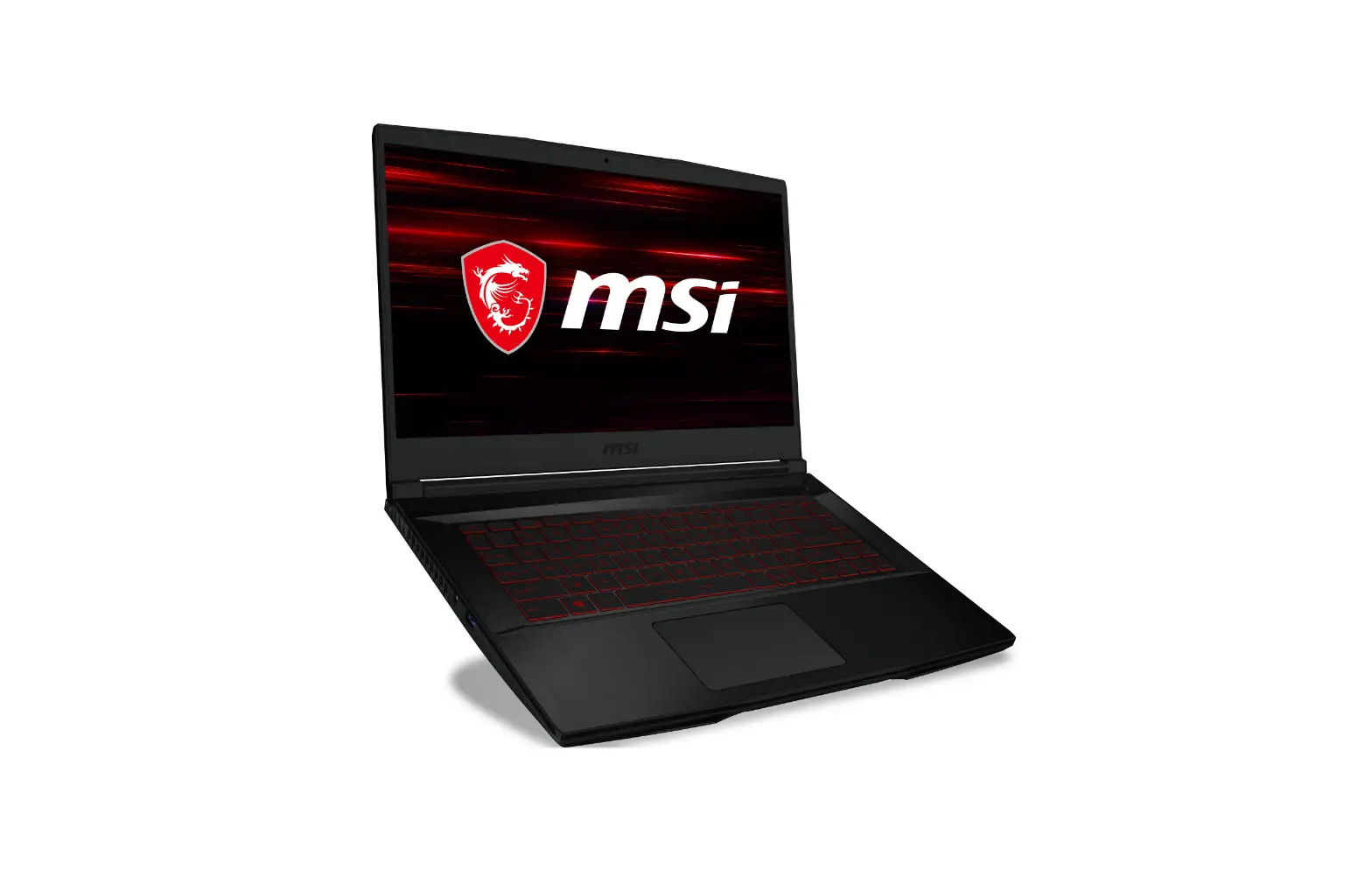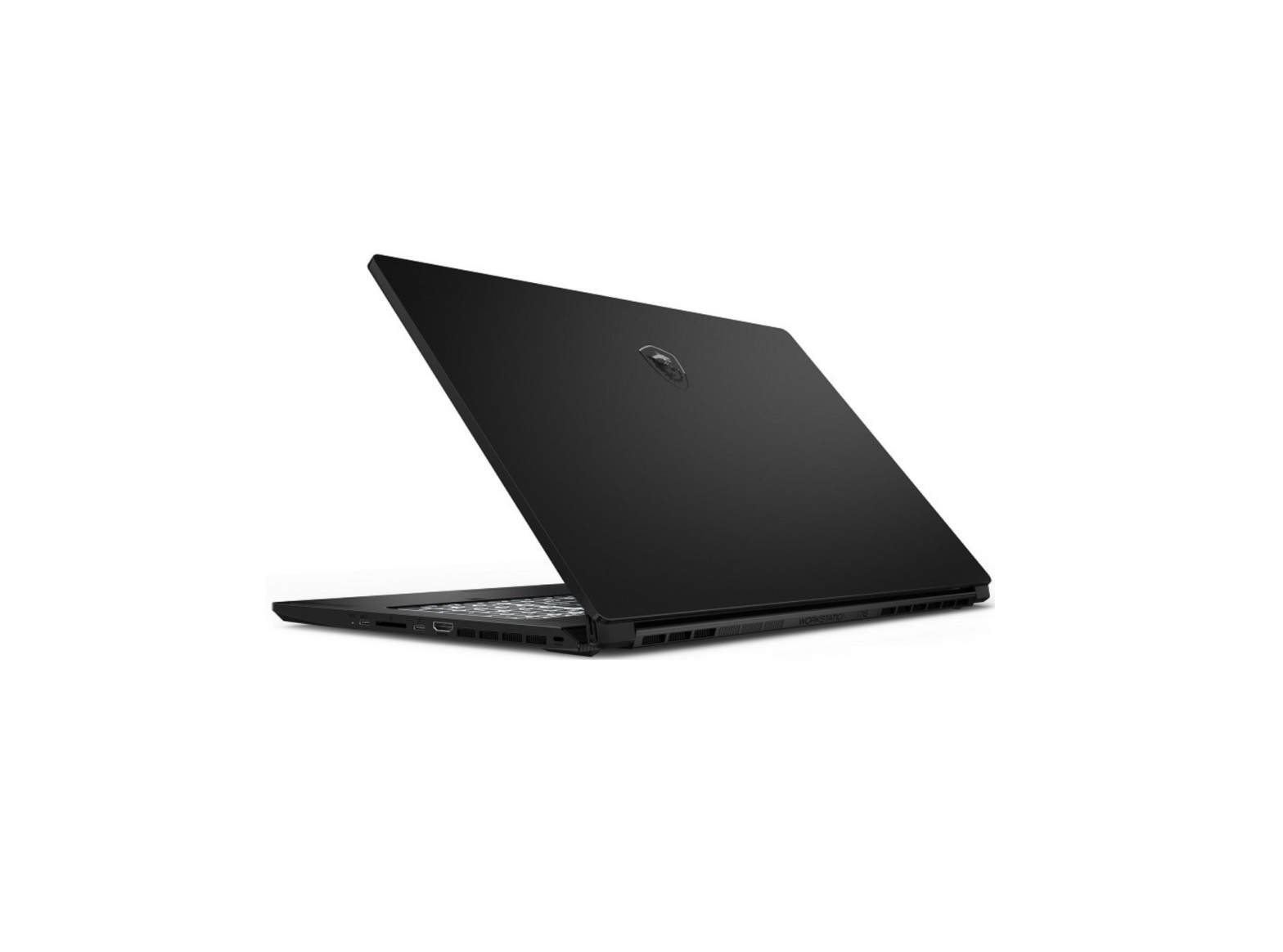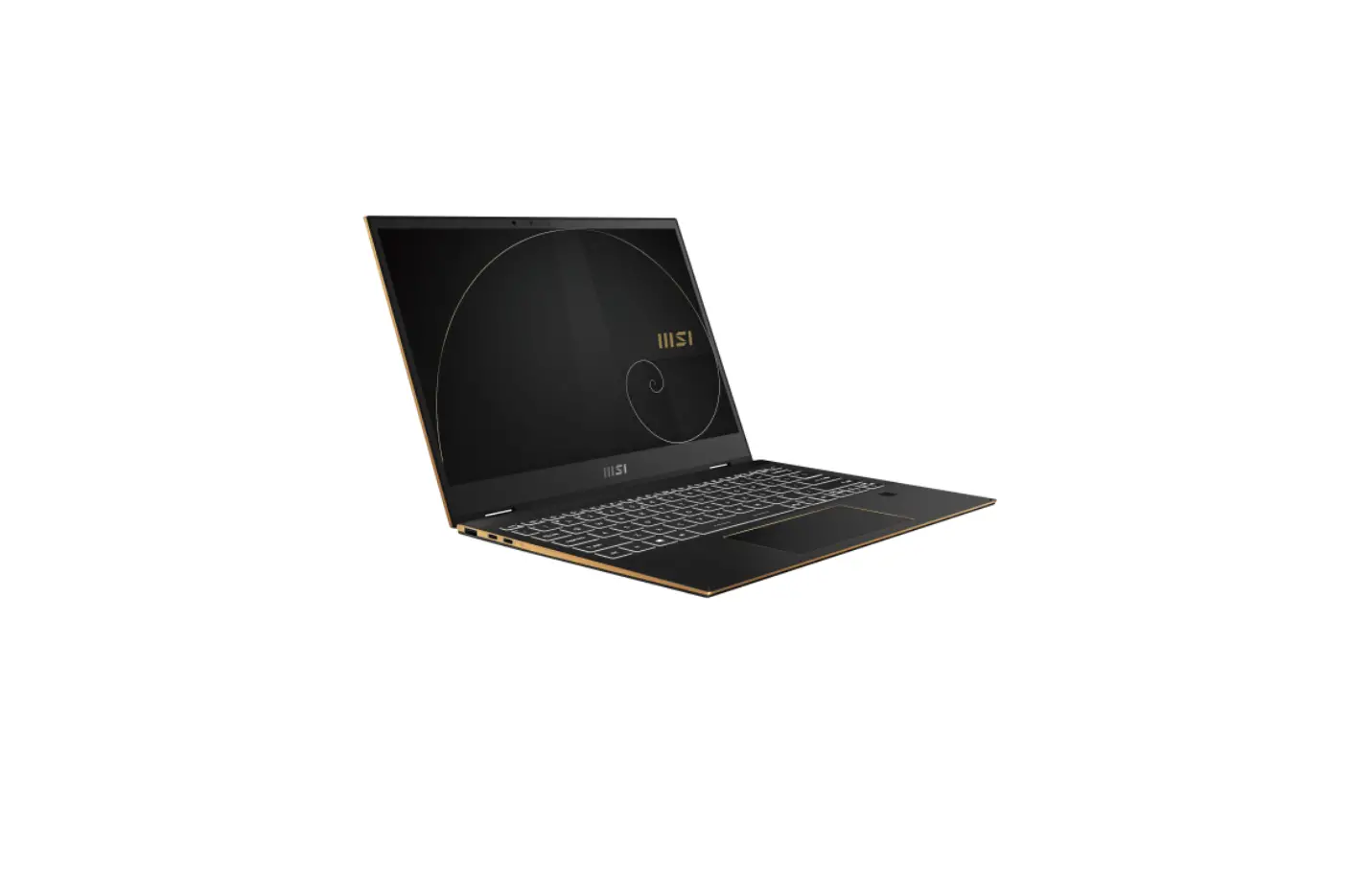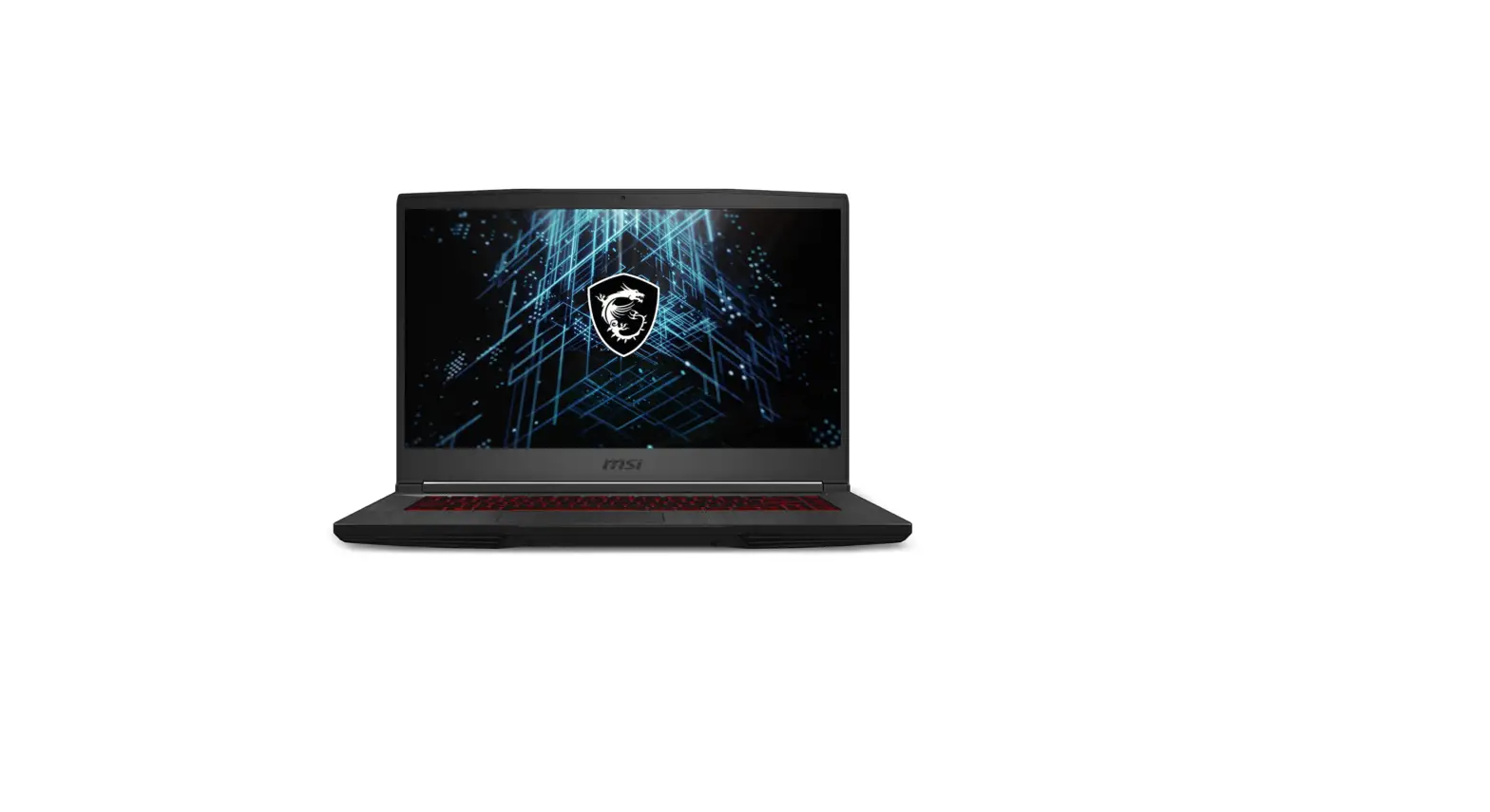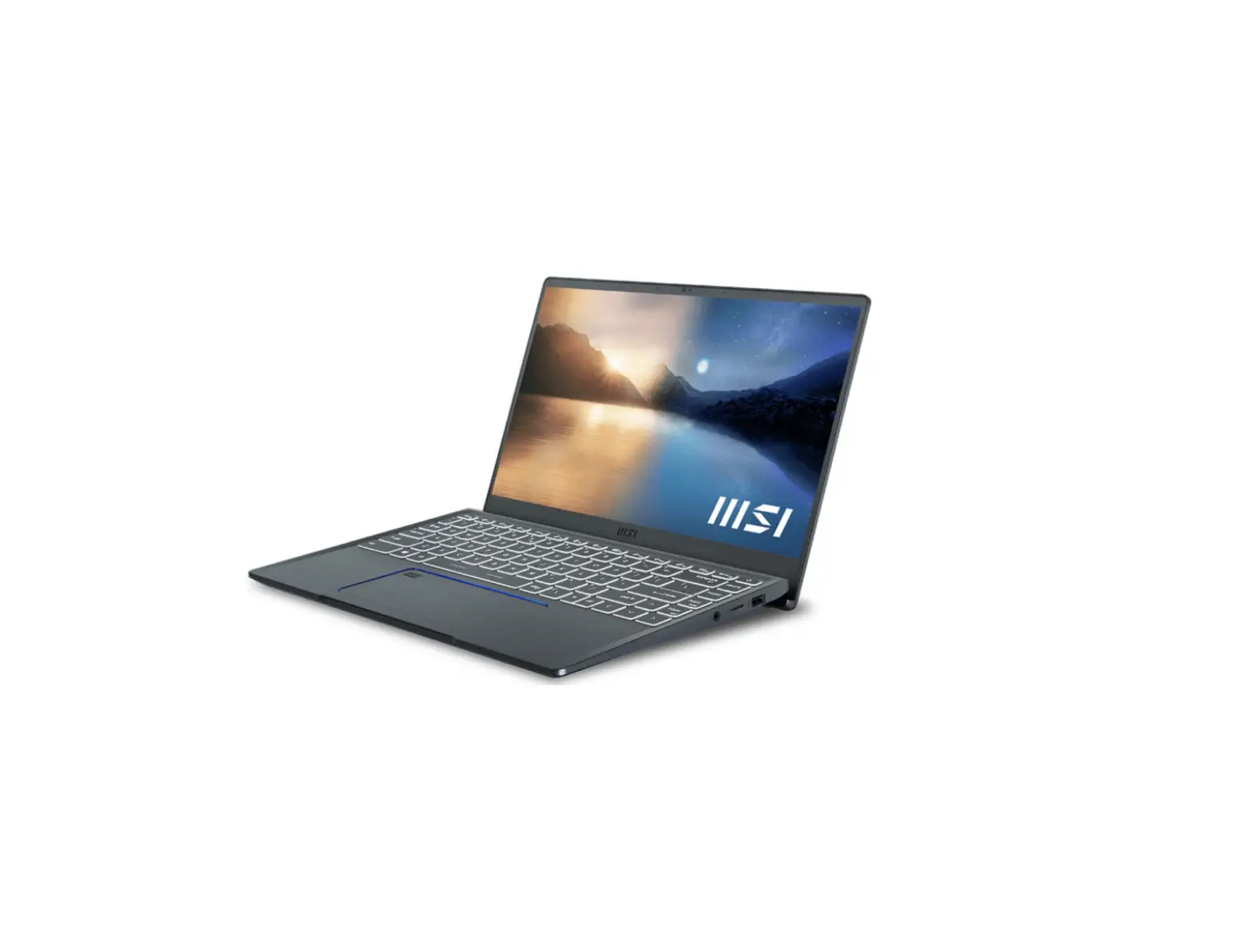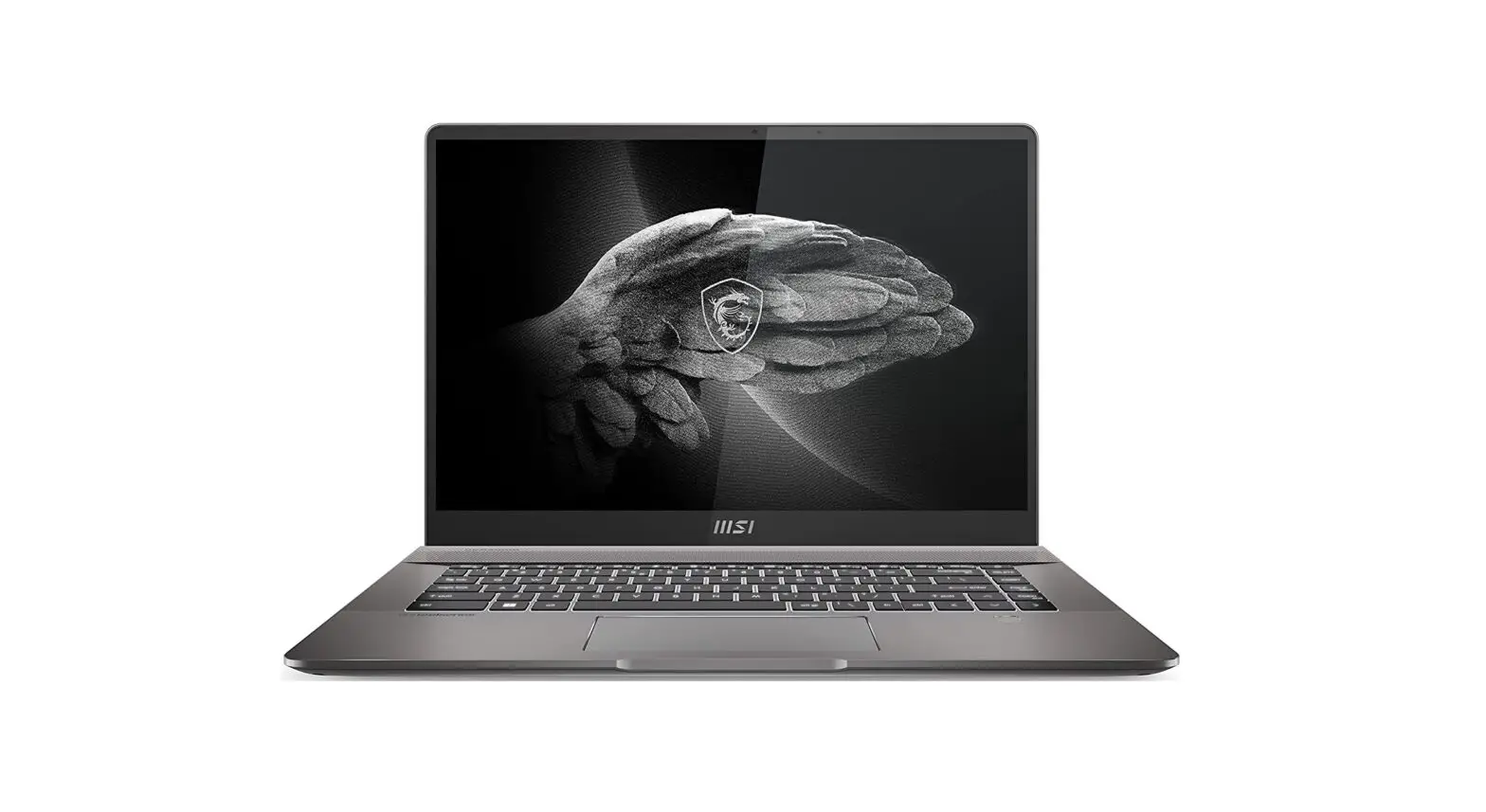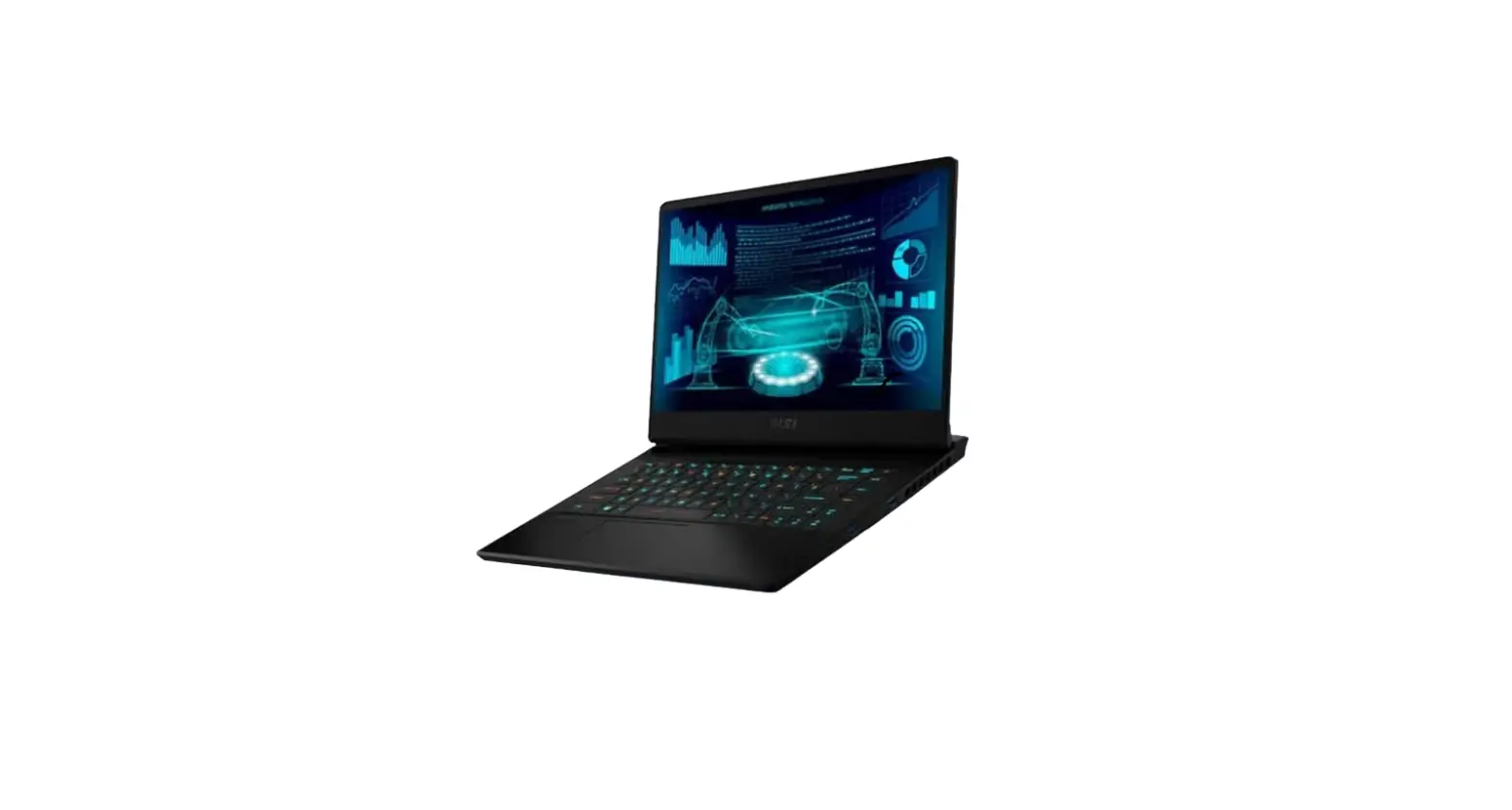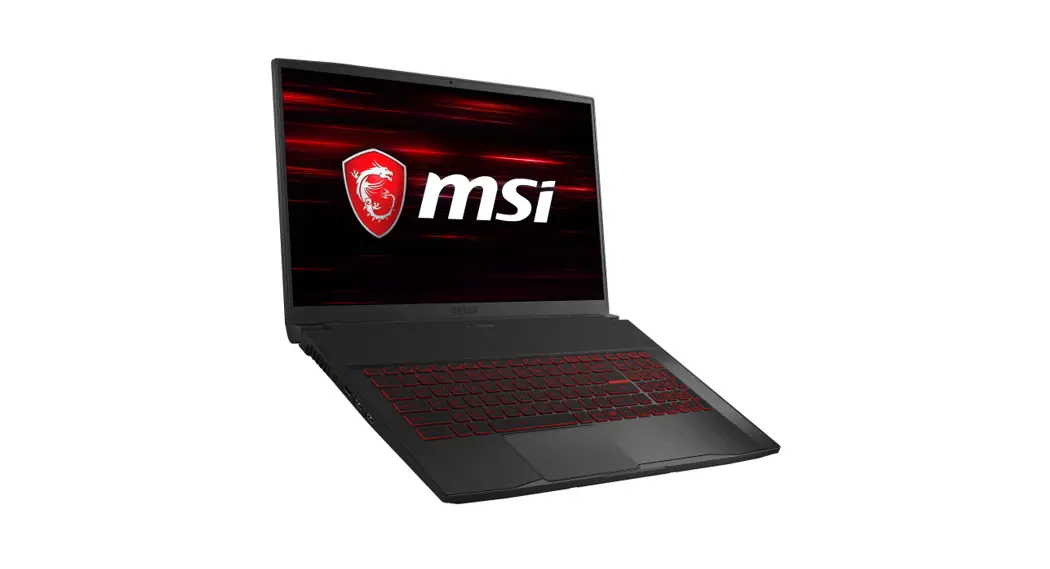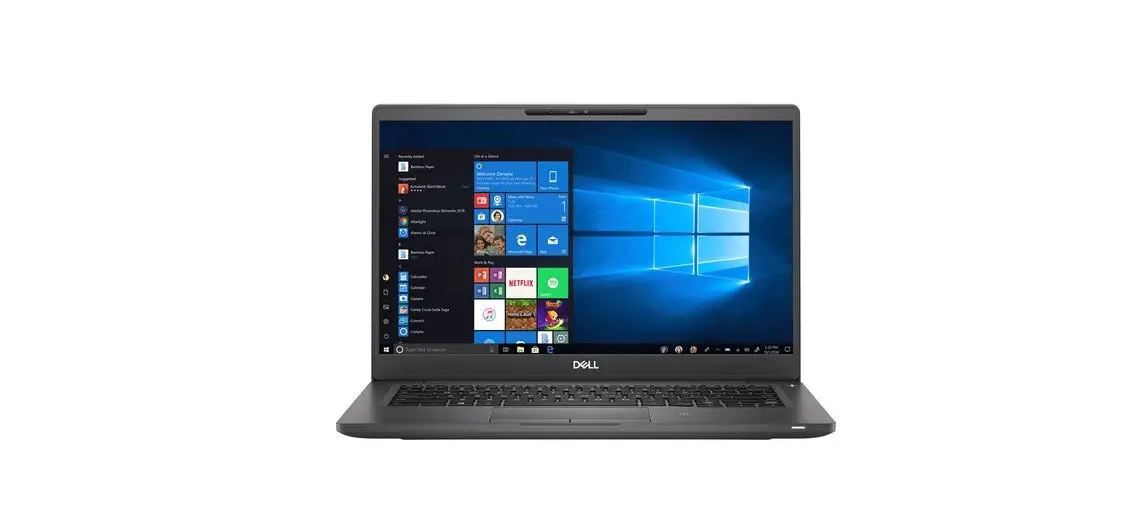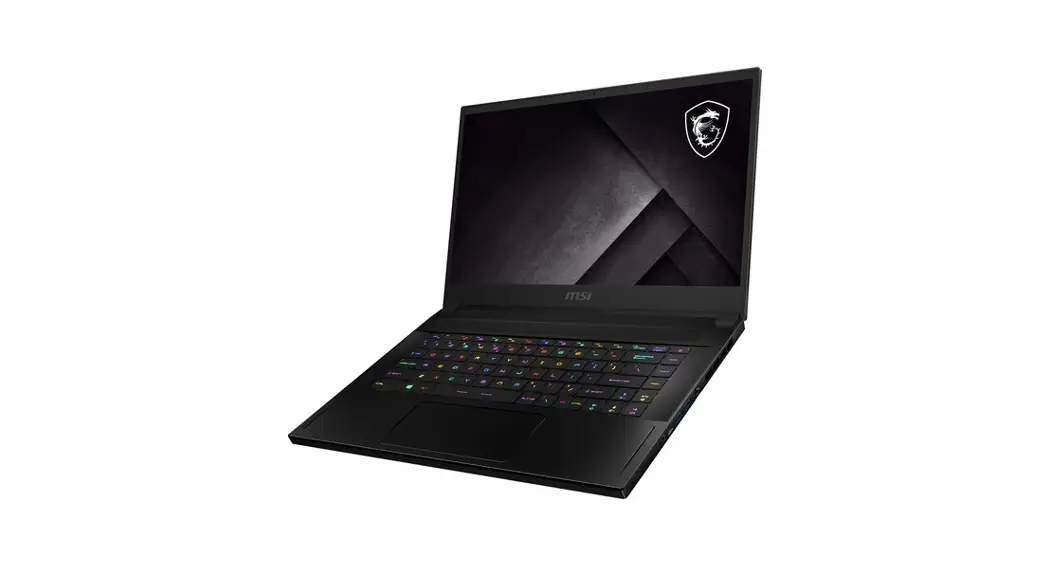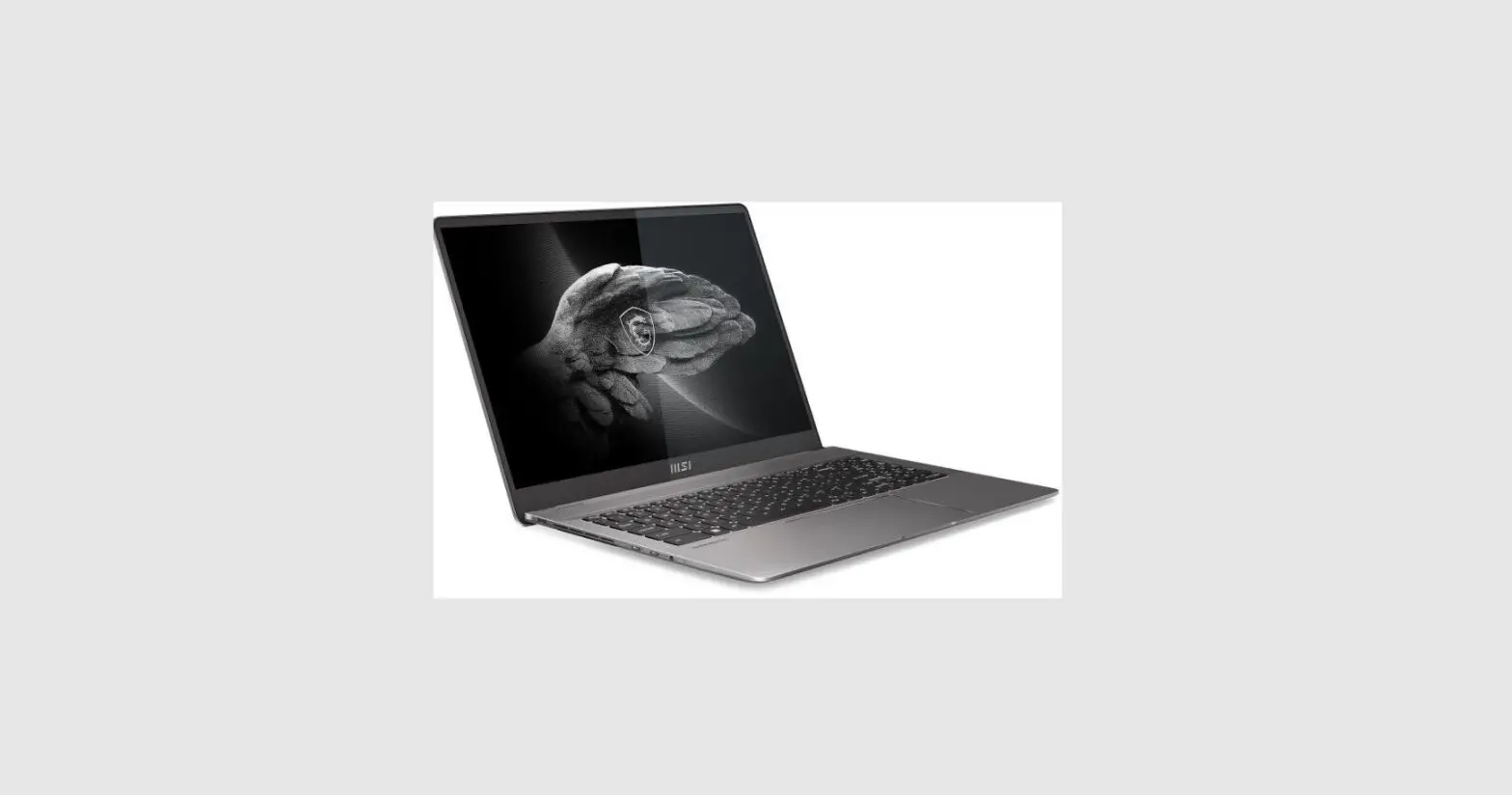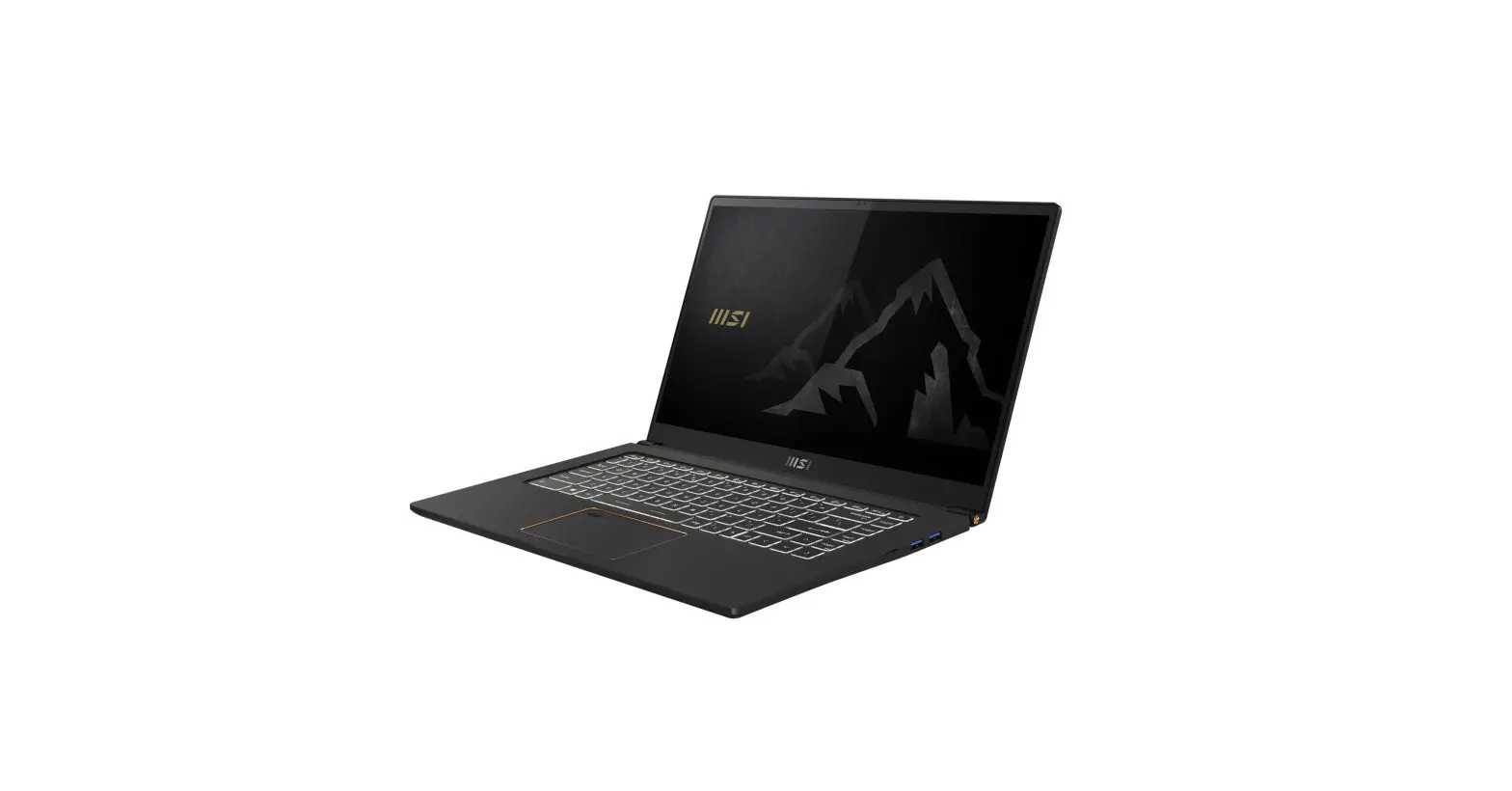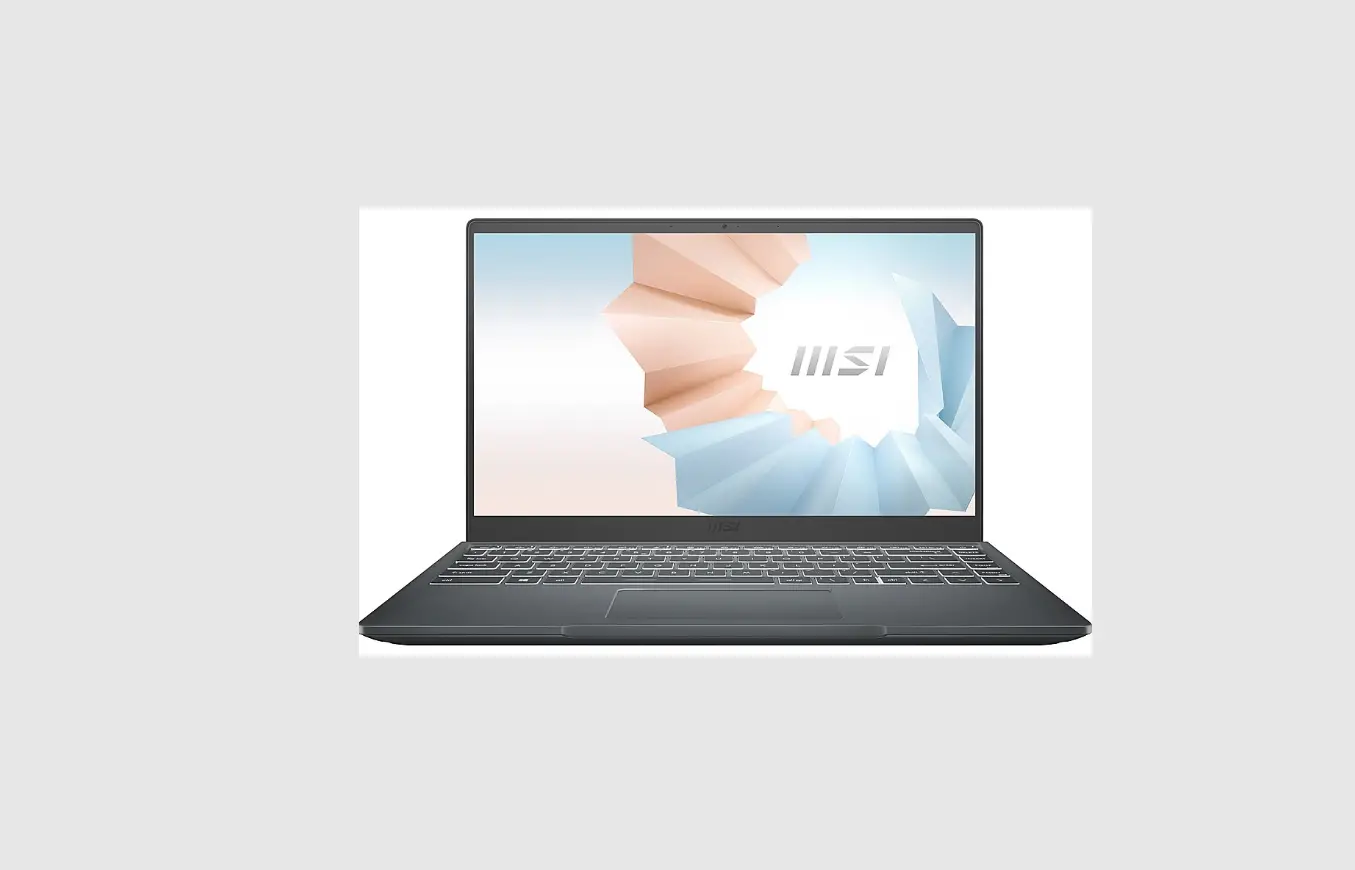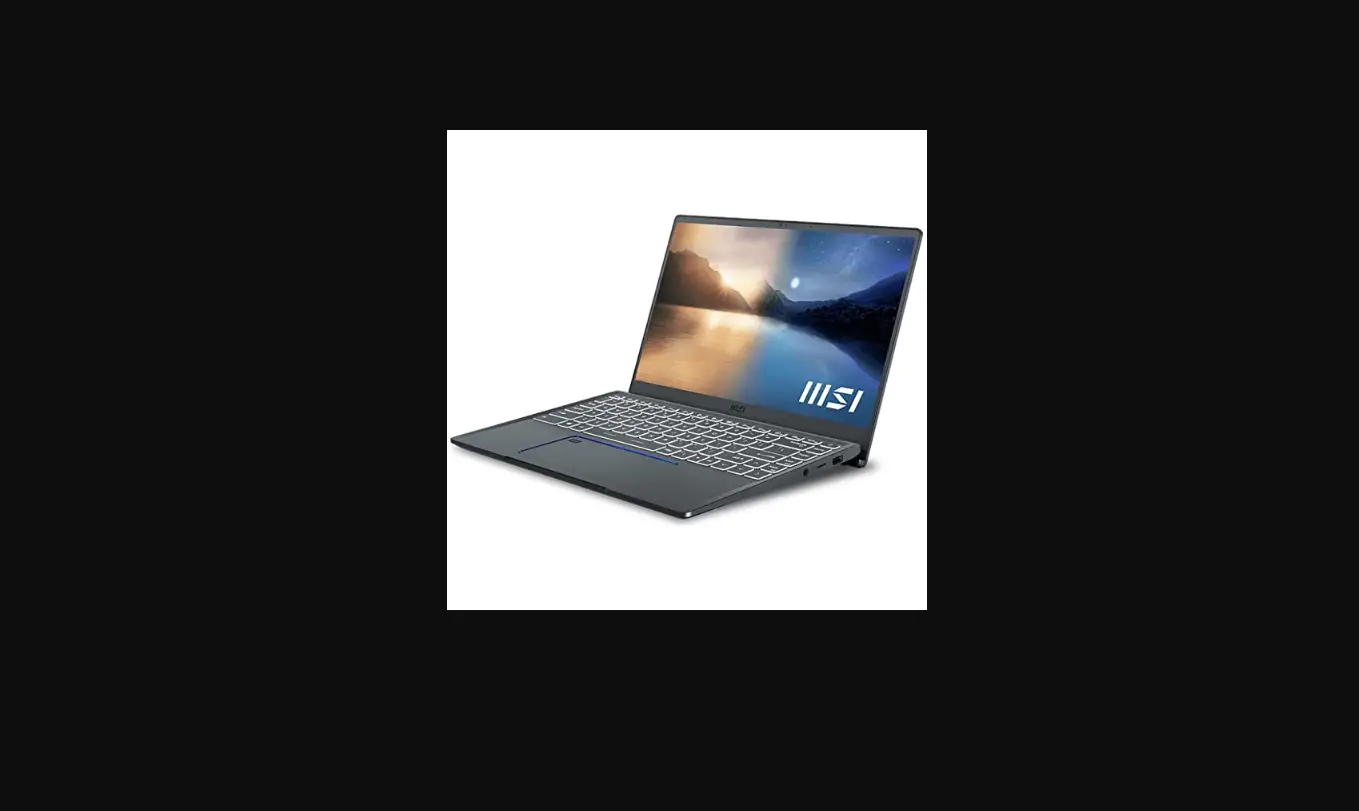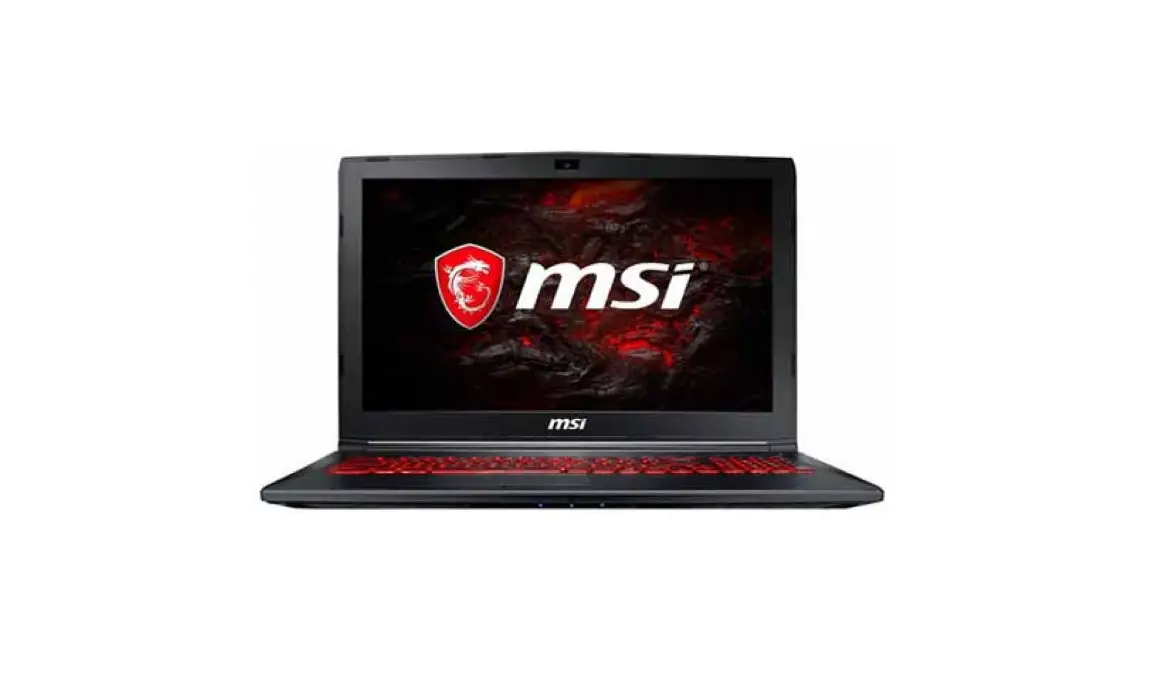
MSI GL62M 15.6 Inch Core i7 7th Gen Laptop User Guide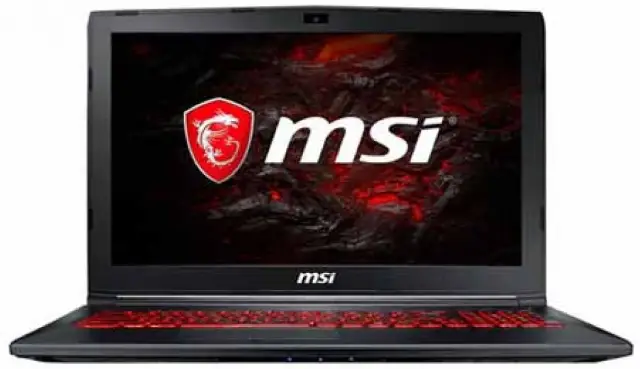
Product Overview
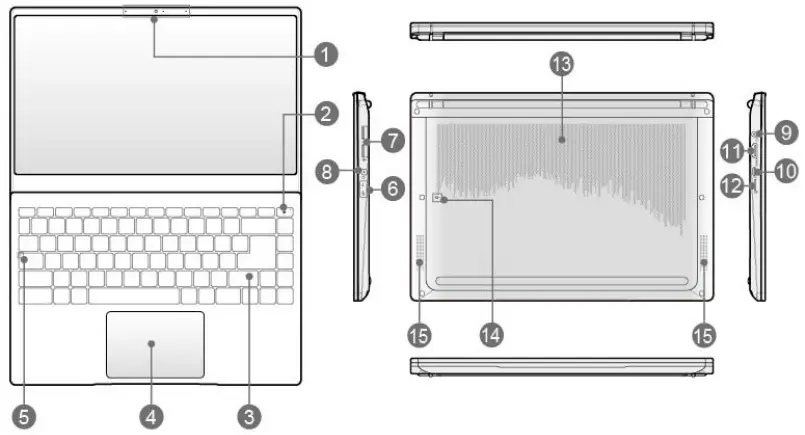
- Webcam/ Webcam LED/ Internal Microphone
- Power Key/ Power LED/ GPU Mode LED
- Keyboard
- Touchpad
- Status LED
 Caps Lock
 - Status LED
 Power LED
 Battery Status : Continuously blinking if the battery fails. If the problem persists, please contact your local authorized retailer or service center.
 - USB 2.0 Port
- Combo Audio Port
- Power Connector
- USB 3.2 Gen 2 Port (Type-C)
- HDMI Connector

- Card Reader
- Ventilator
- Battery Reset Hole
- Stereo Speakers
 Caps Lock
 Battery Status : Continuously blinking if the battery fails. If the problem persists, please contact your local authorized retailer or service center.
Getting Started
Connect the AC Power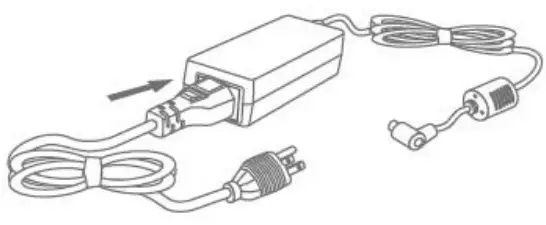
Power On the Notebook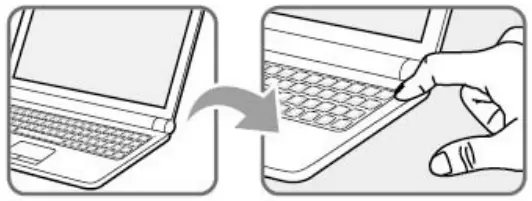
Connect the AC Power
It is strongly recommended to connect the AC/ DC adapter to the notebook and use the AC power while using this notebook for the first time since some models may require the AC/DC adapter to be connected in order to power on the notebook safely and properly.
- Unpack the package to find the AC/DC adapter and power cord.
- Attach the power cord to the connector of the AC/DC adapter.
- Plug the DC end of the adapter to the notebook. and the male end of the power cord to the electrical outlet.
Power On the Notebook
When the AC power is connected, press the power button to turn the notebook on.
Feature Keys
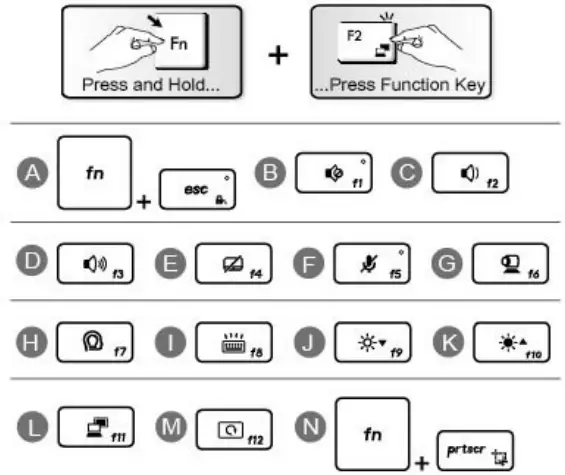
Function Keys
A. Enable or disable the default Quick Fn Launch Keys.
B. Mute the built-in speakers.
C. Decrease the built-in speaker’s volume.
D. Increase the built-in speaker’s volume.
E. Enable or disable the touchpad function.
F. Enable or disable the microphone function.
G. Enable or disable the Webcam function.
H. Launch Creator Center application.
I. Select a keyboard backlight LED level.
J. Decrease the LCD brightness.
K. Increase the LCD brightness.
L. Switch the display output mode between the LCD. external monitor and both.
M. Rotate the screen upside down for 180 degrees.
N. Launch Snip & Sketch application.
CE Conformity

Products bearing the CE marking comply with one or more of the following EU Directives as may be applicable:
RED 2014/53/EU; Low Voltage Directive 2014/35/EU; EMC Directive 2014/30/EU; RoHS Directive 2011/65/EU.
Compliance with these directives is assessed using applicable European Harmonized Standards.
Products with Radio Functionality (EMF)
This product incorporates a radio transmitting and receiving device. For computers in normal use, a separation distance of 20 cm ensures that radio frequency exposure levels comply with EU requirements. Products designed to be operated at closer proximities, such as tablet computers, comply with applicable EU requirements in typical operating positions. Products can be operated without maintaining a separation distance unless otherwise indicated in instructions specific to the product.
Restrictions for Products with Radio Functionality
(select products only)
 | CAUTION: IEEE 802.11x wireless LAN with 5.15-5.35 GHz frequency band is restricted for indoor use only in all European Union member states, EFTA (Iceland, Norway, Liechtenstein), and most other European countries (e.g., Switzerland, Turkey, Republic of Serbia). Using this WLAN application outdoors might lead to interference issues with existing radio services. | |
| CAUTION: Fixed outdoor installations for WiGig application (57-66 GHz frequency band) are excluded in all European Union member states, EFTA (Iceland, Norway, Liechtenstein), and other European countries (e.g., Switzerland, Turkey, Republic of Serbia). | |
| Radio frequency bands and maximum power levels | |
| Features | 802.11 a/b/g/n/ac, BT | |
| Frequency Range | 2.4 GHz, 5 GHz | |
| Modulation | FHSS, DSSS, OFDM | |
| Power Output | 10, 20, 23 | |
| Channel Bandwidth | 1, 5, 20, 40, 80 MHz | |