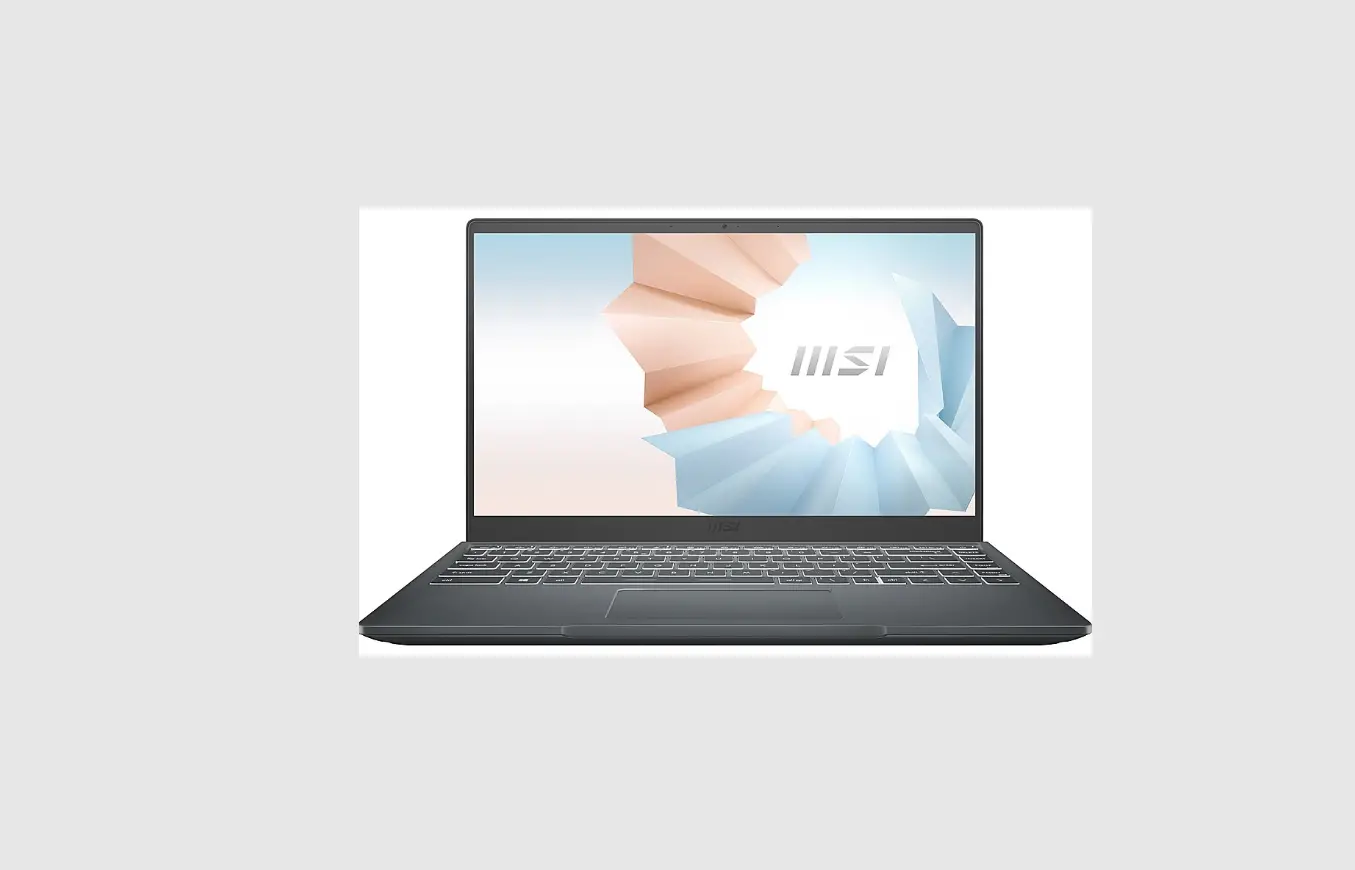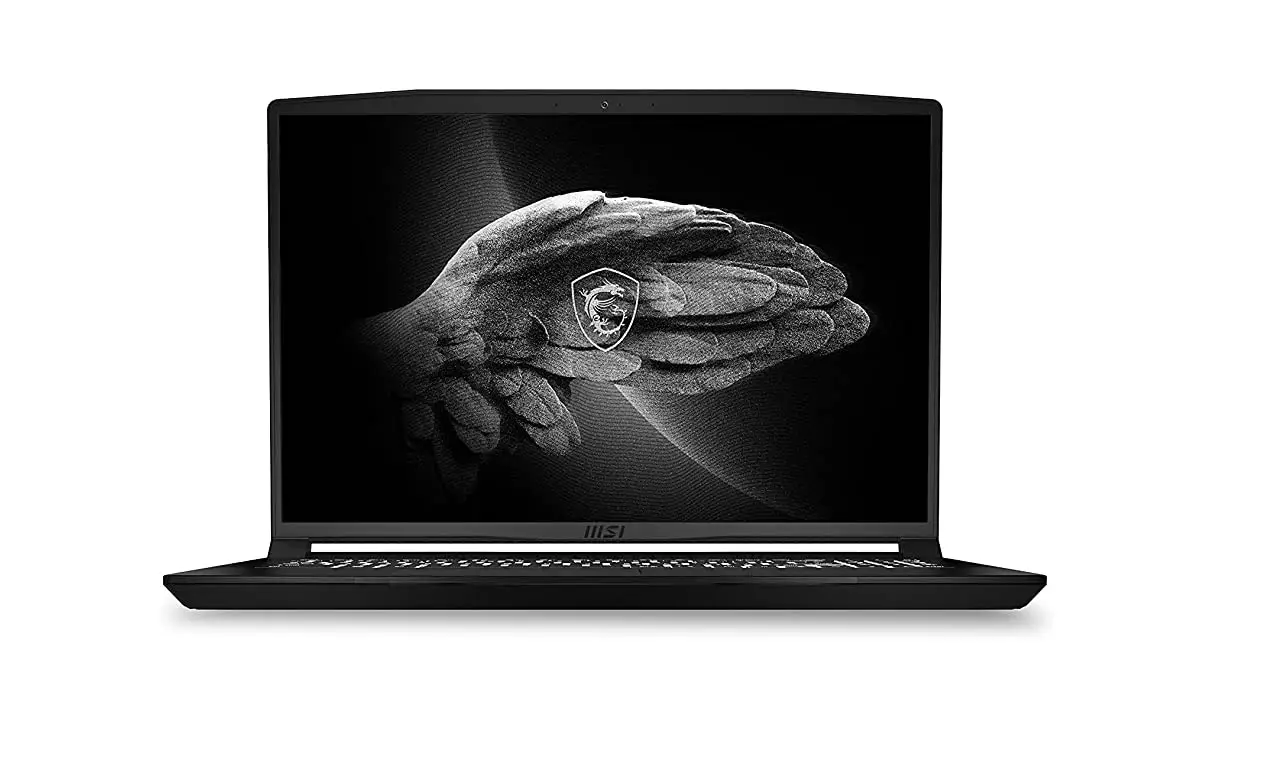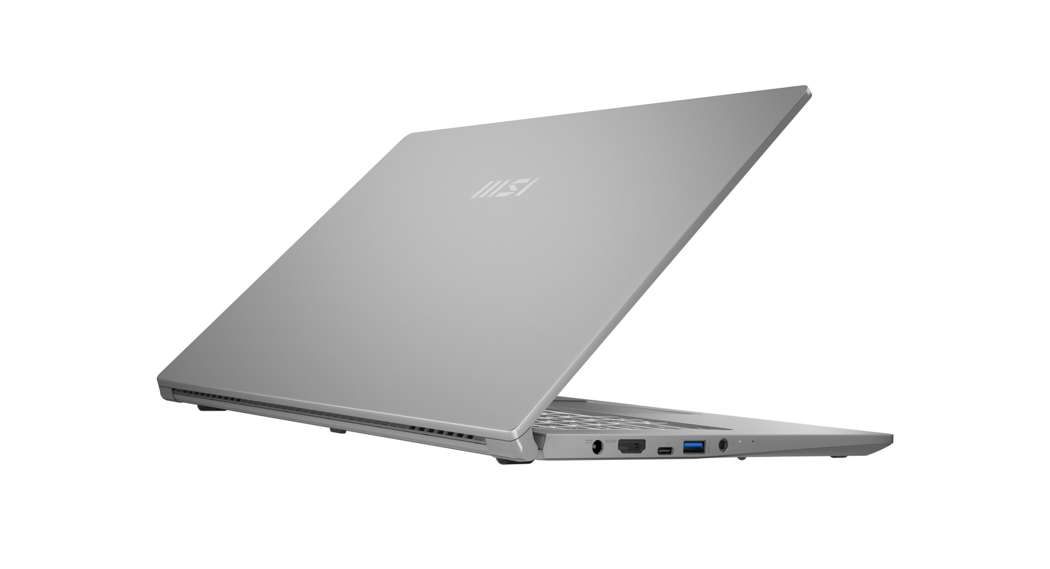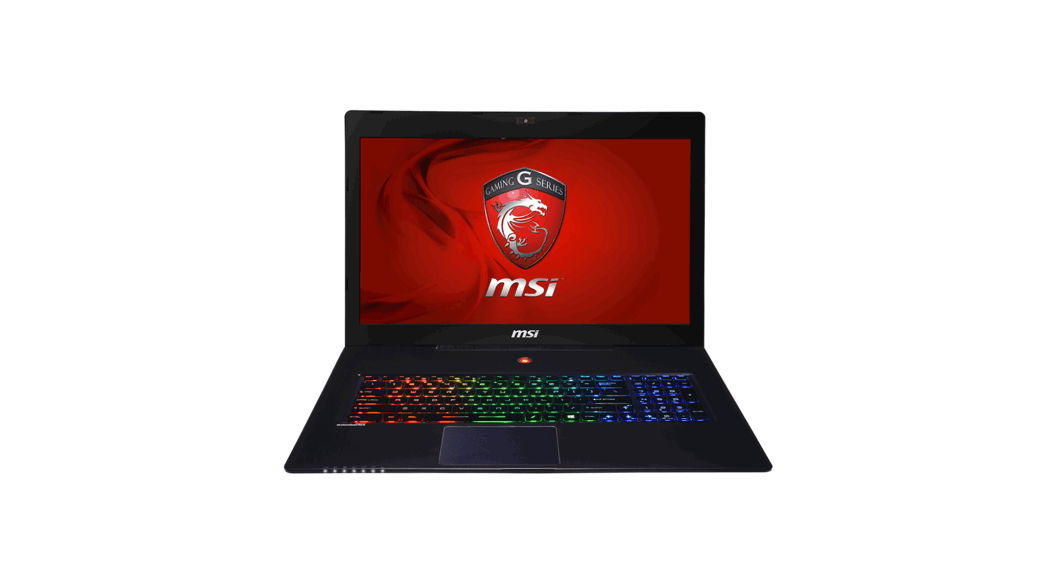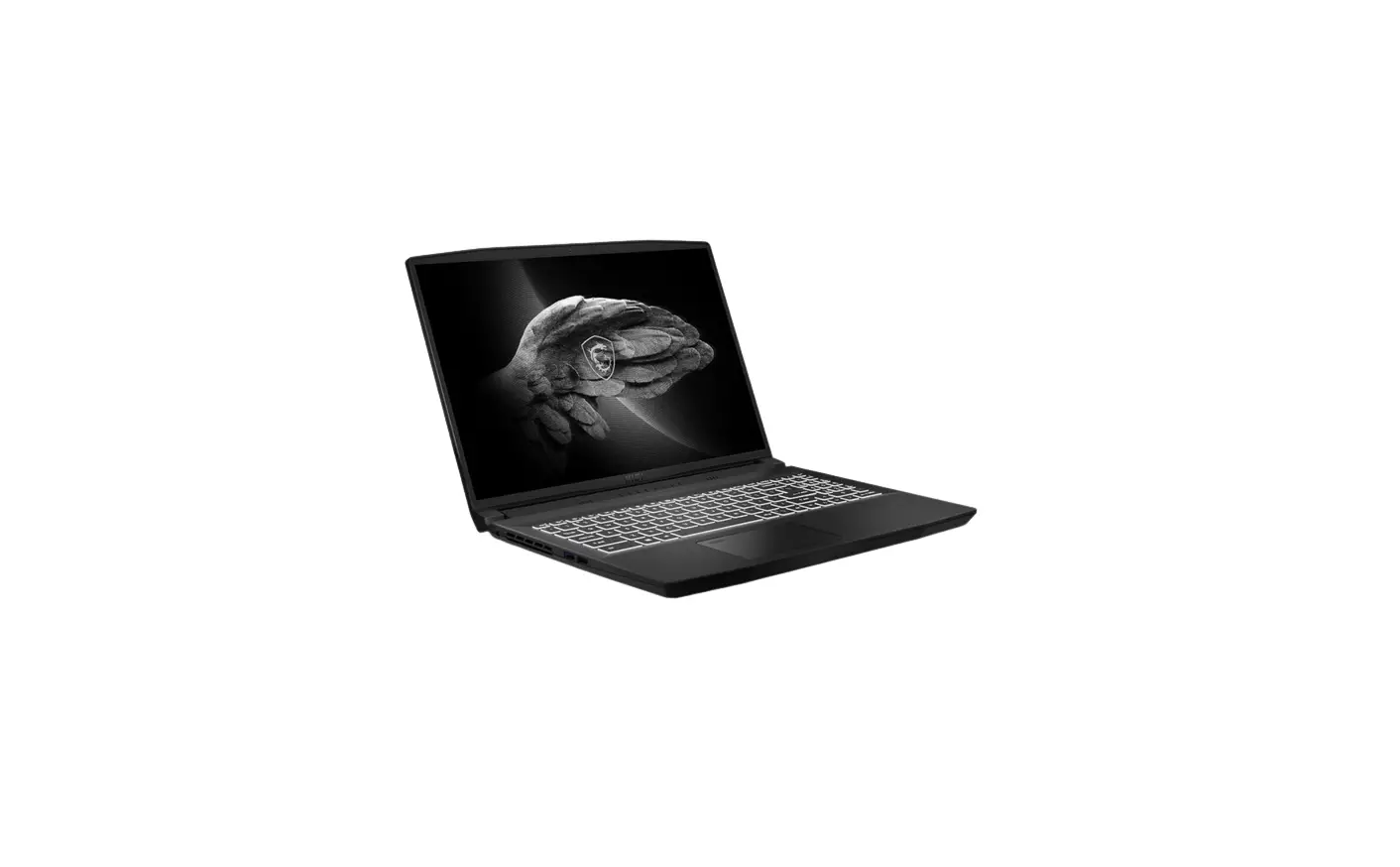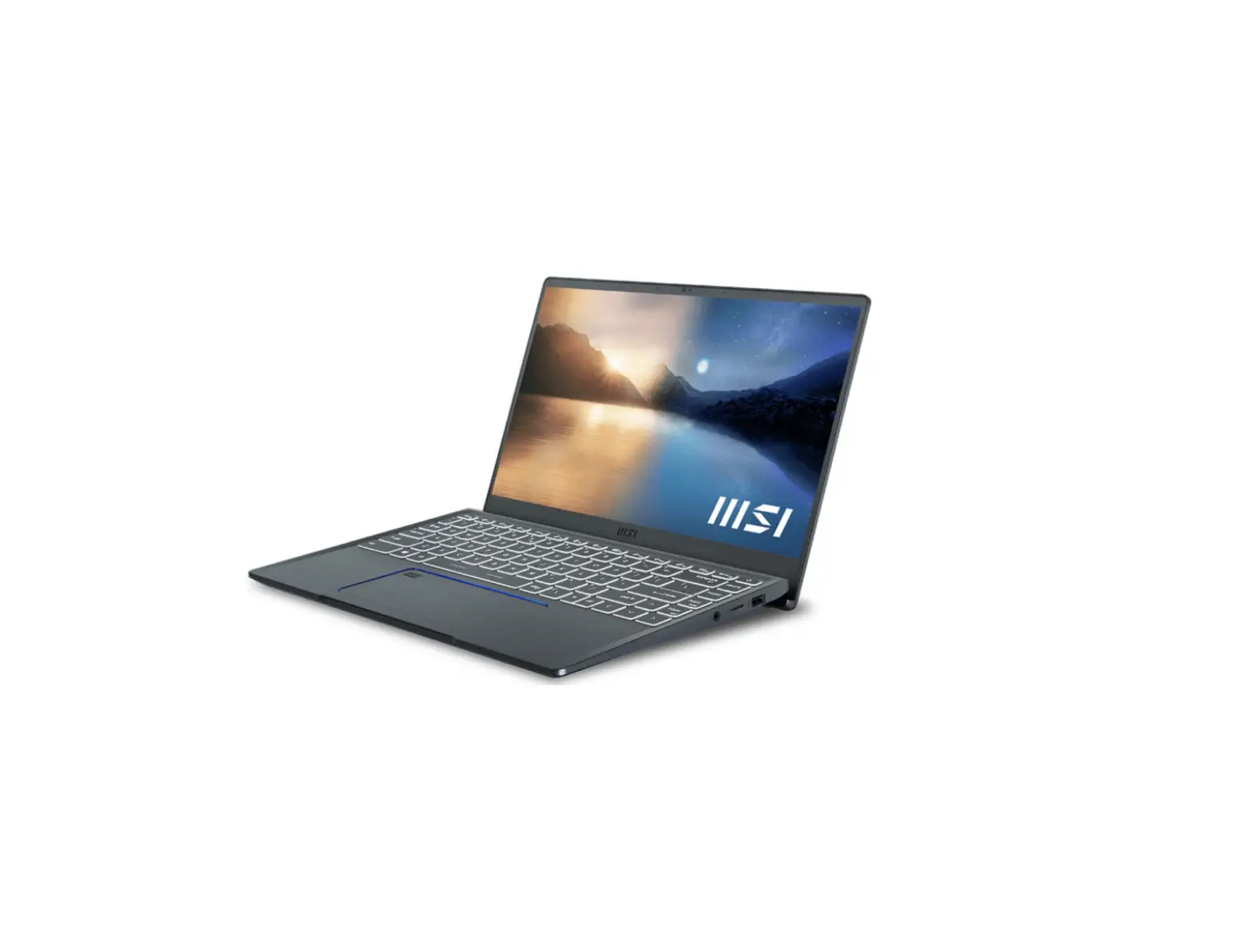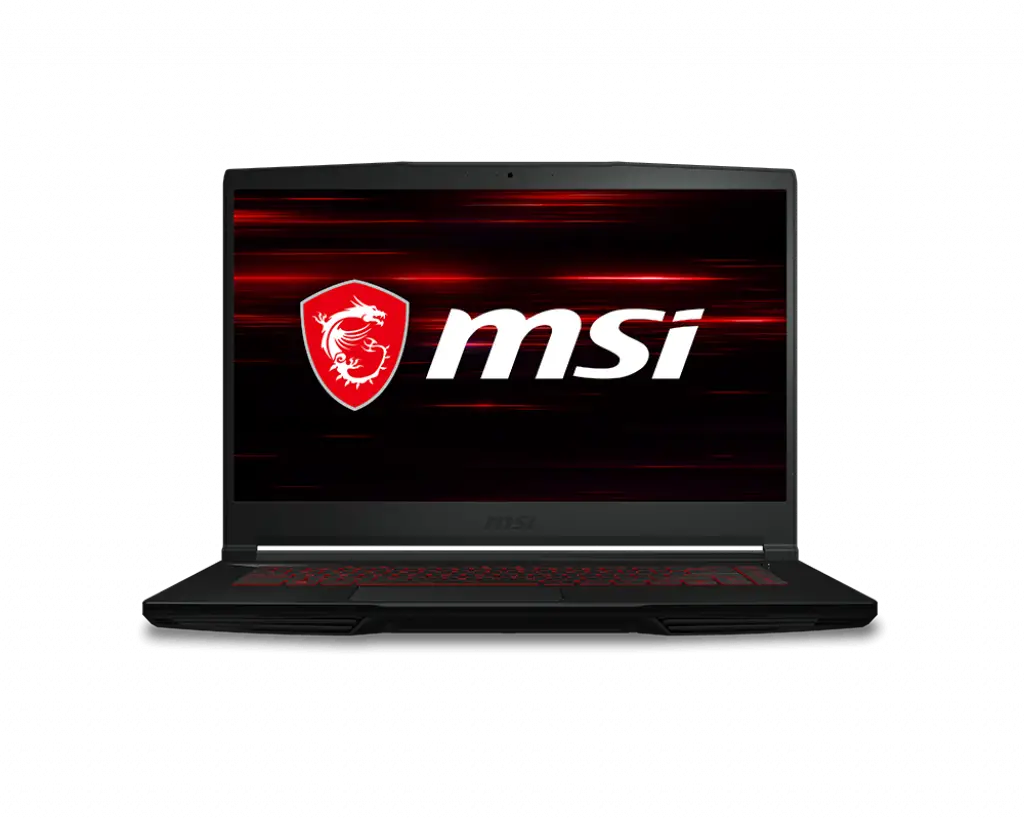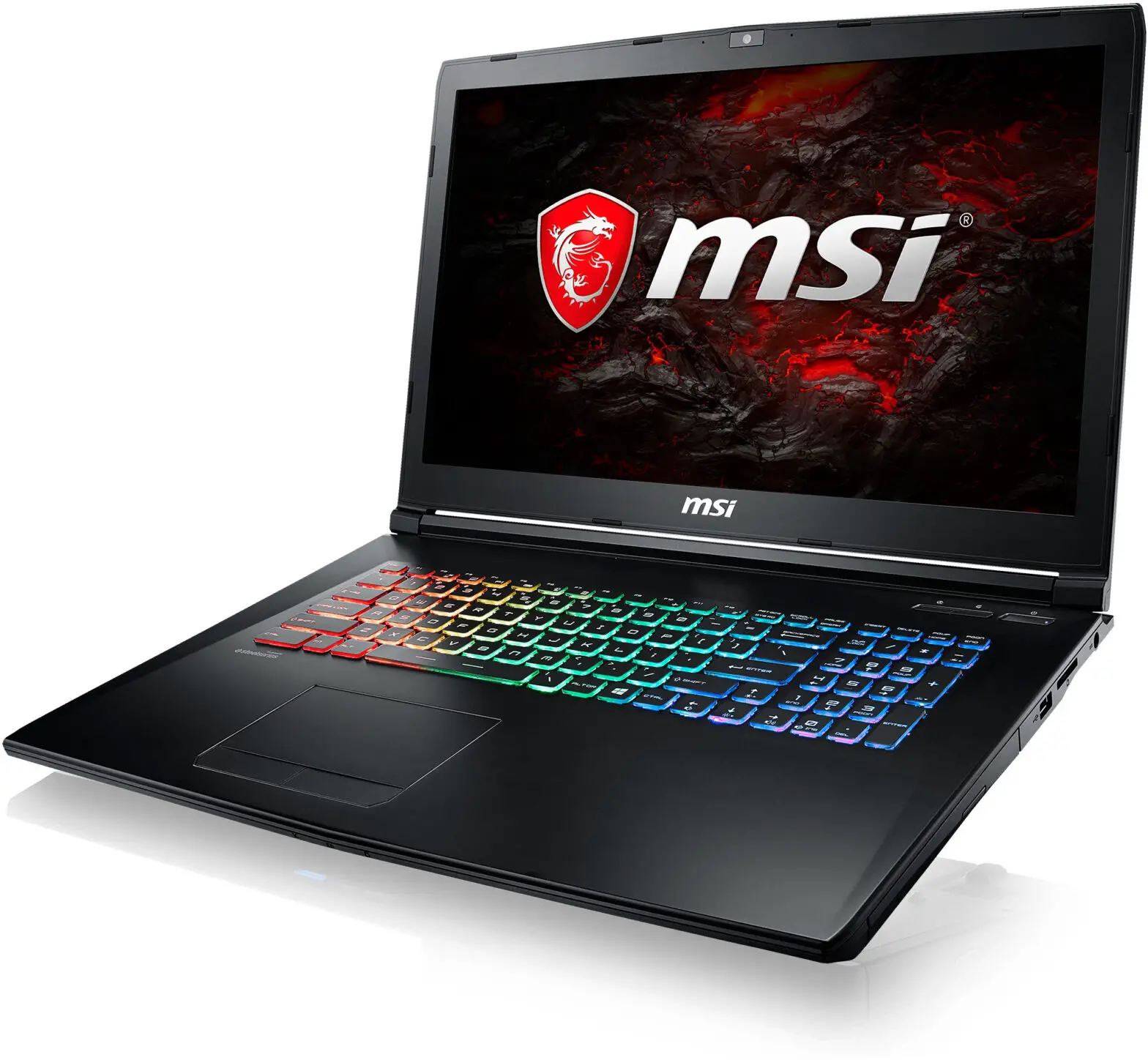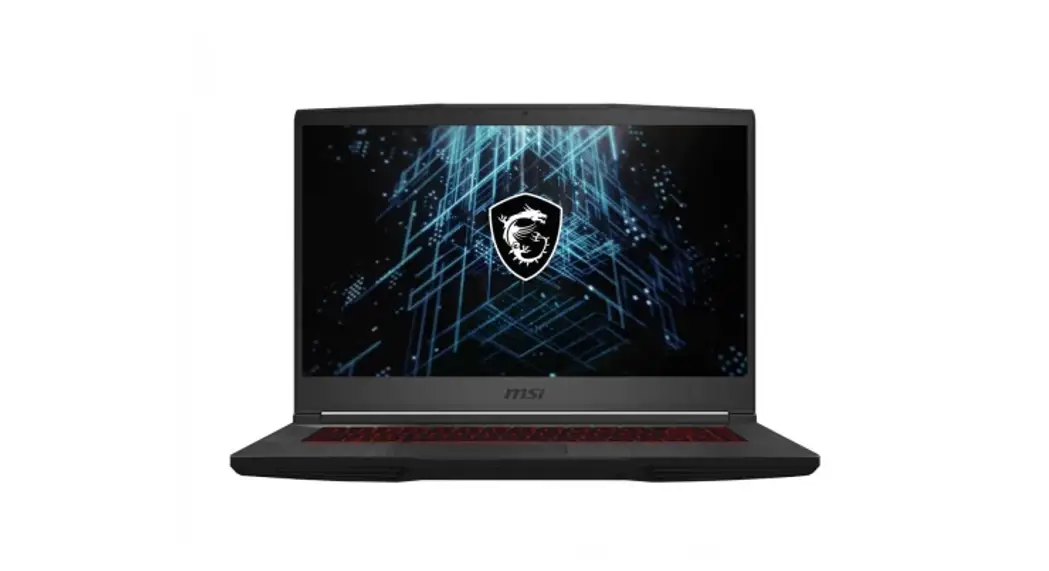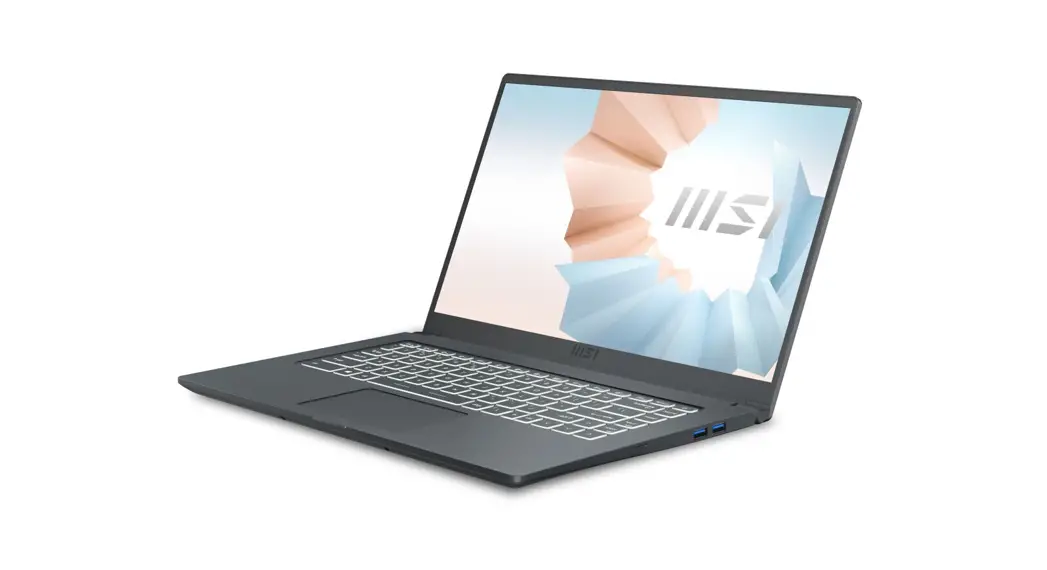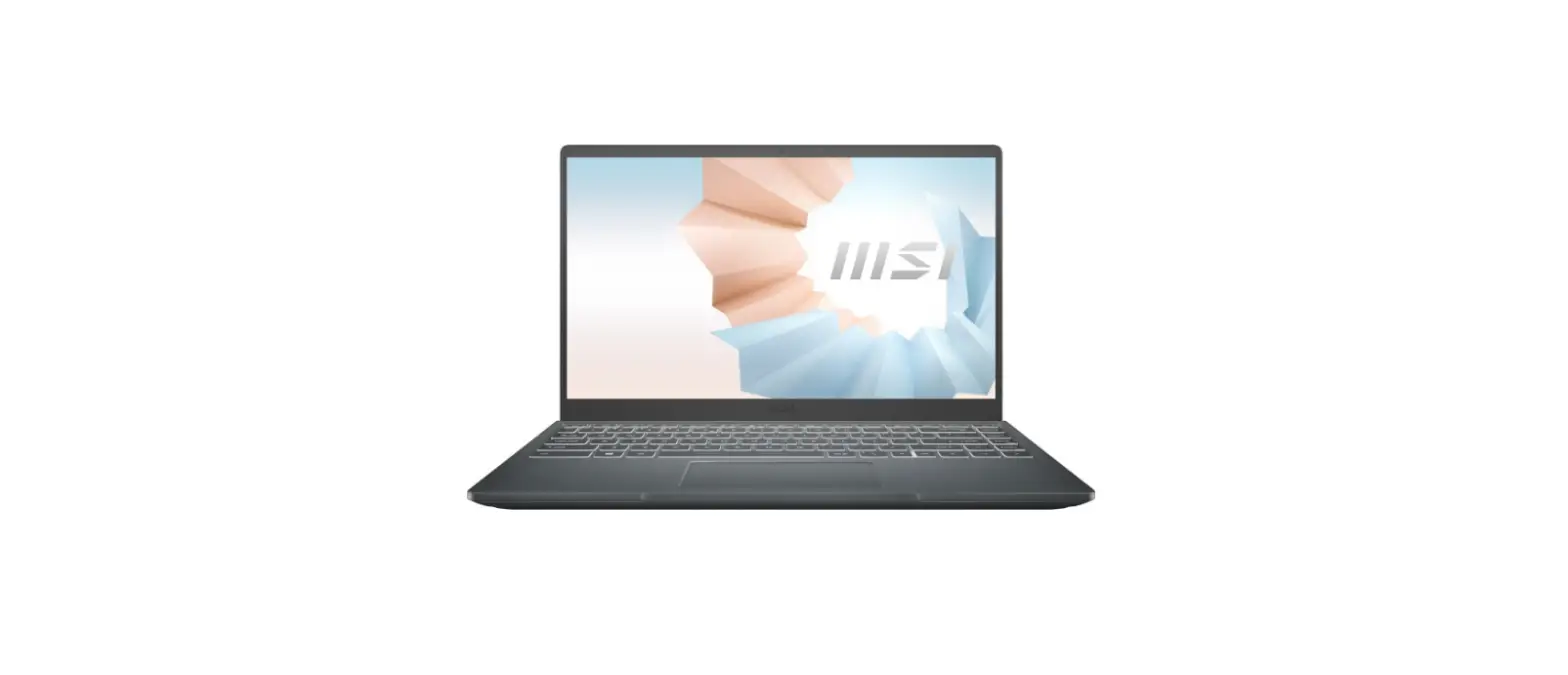

MSI Modern 14 Laptop
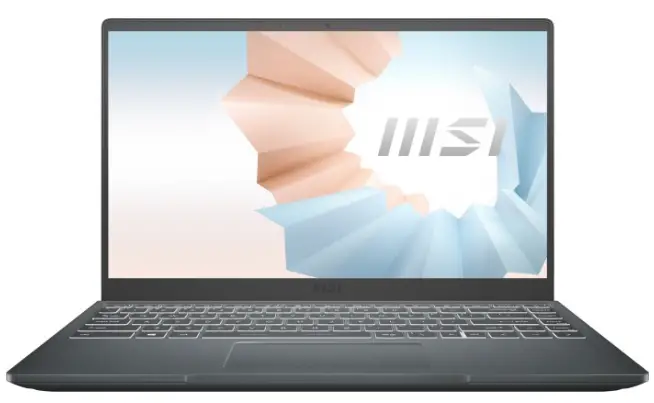
Product Overview (for reference only)
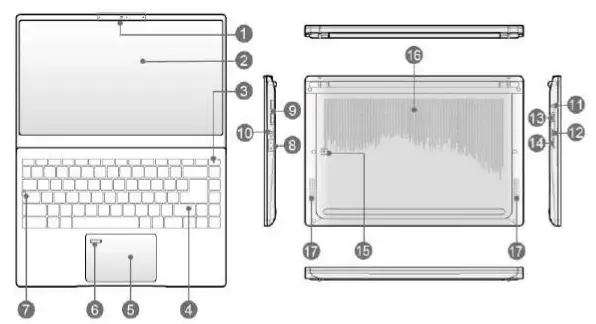
- Webcam/ Webcam LED
Internal Microphone - Touch Screen Monitor (optional)
- Power Key/ Power LED/ GPU Mode LED
- Keyboard
- Touchpad
- Fingerprint Sensor (optional)
- Status LED
- Caps Lock
- Status LED
 Power LED
Battery Status: Continuously blinking if the battery Fails. If the problem persists, please contact your local authorized retailer or service center.
 - USB 3.2 Gen 2 Port
- Combo Audio Pot
- Power Connector
- Thunderbolt (Type-C) (optional)
- HDMI Connector
- Card Reader
- Battery Reset Hole
- Ventilator
- Stereo Speakers
 Power LED
 Fails. If the problem persists, please contact your local authorized retailer or service center.
Getting Started (for reference only)
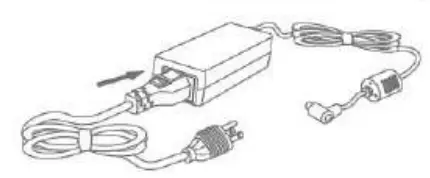
- Connect the AC Power

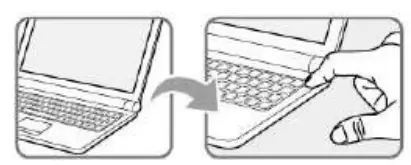
- Power On the Notebook
Connect the AC Power
It is strongly recommended to connect the AC DC adapter to the notebook and use the AC power while using this notebook for the first time since some models may require the ACIDC adapter to be connected in order to power on the notebook safely and properly.
- Unpack the package to find the AC/DC adapter and power cord.
- Attach the power cord to the connector of thee ACDC adapter.
- Plug the DC end of the adapter to the notebook,and the male end of the power cord to the electrical outlet.
Power On the Notebook
When the AC power is connected, press the power button to turn the notebook on.
Function Keys
Function Keys
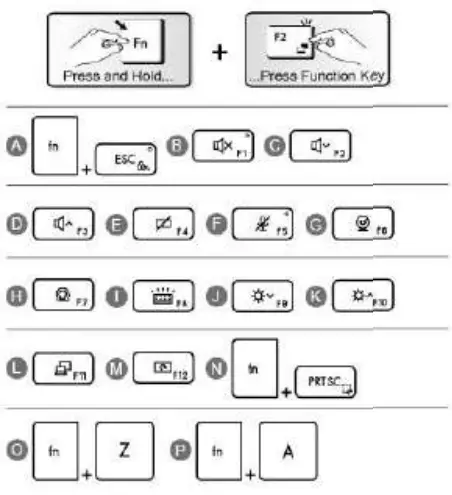
- Enable or disable the default Quick Fn Launch Keys.
- Mute the built-in speakers.
- Decrease the built-in speaker’s volume.
- Increase the built-in speaker’s volume.
- Enable or disable the touchpad function.
- Enable or disable the microphone function.
- Enable or disable the Webcam function.
- Use this key to switch the User Scenario in MSI Center.
- Select a keyboard backlight LED level
- Decrease the LCD brightness.
- Increase the LCD brightness.
- Switch the display output mode between the LCD, external monitor and both.
- Rotate the screen upside down for 180 degrees.
- Take a screen capture.
- Launch the True Color application. (optional)
- Change different view modes in True Color. (optional)