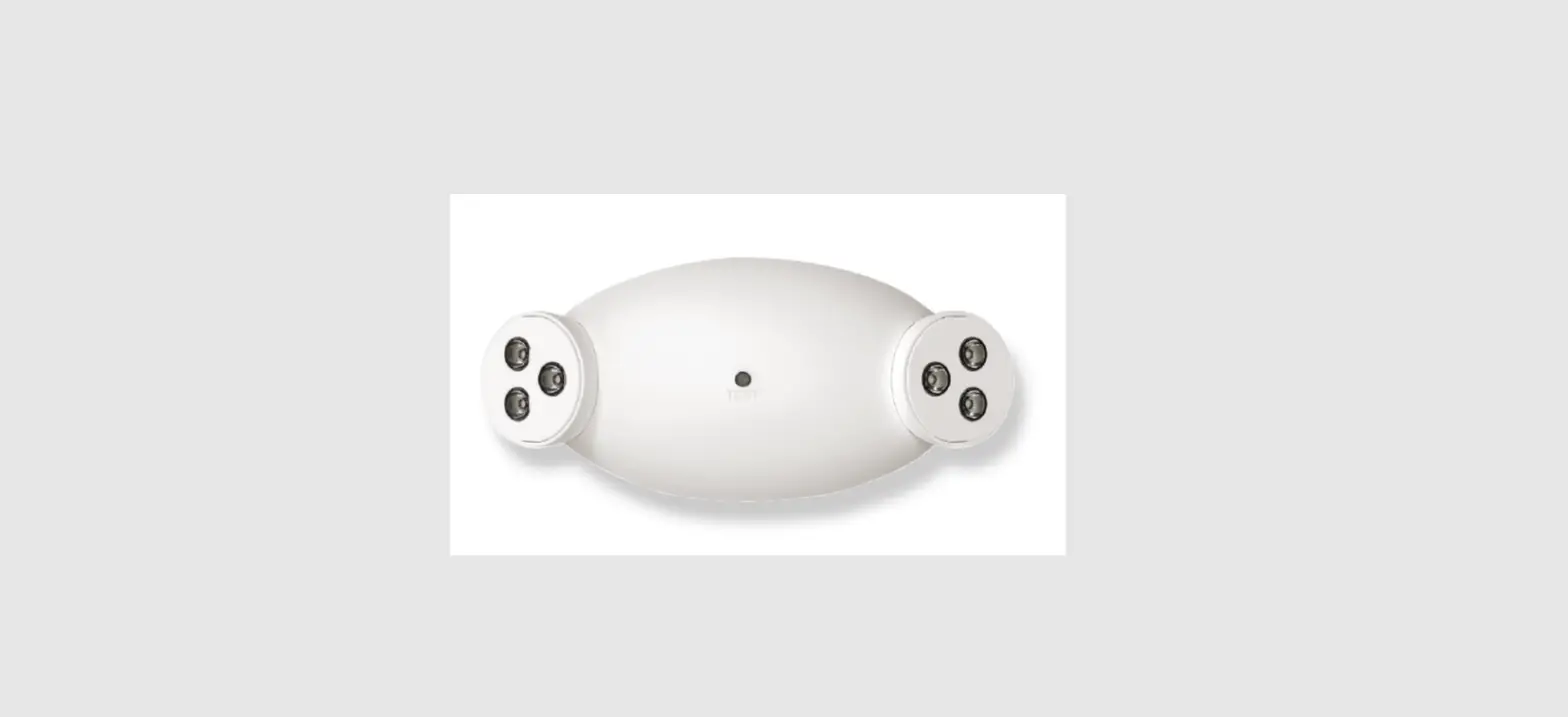
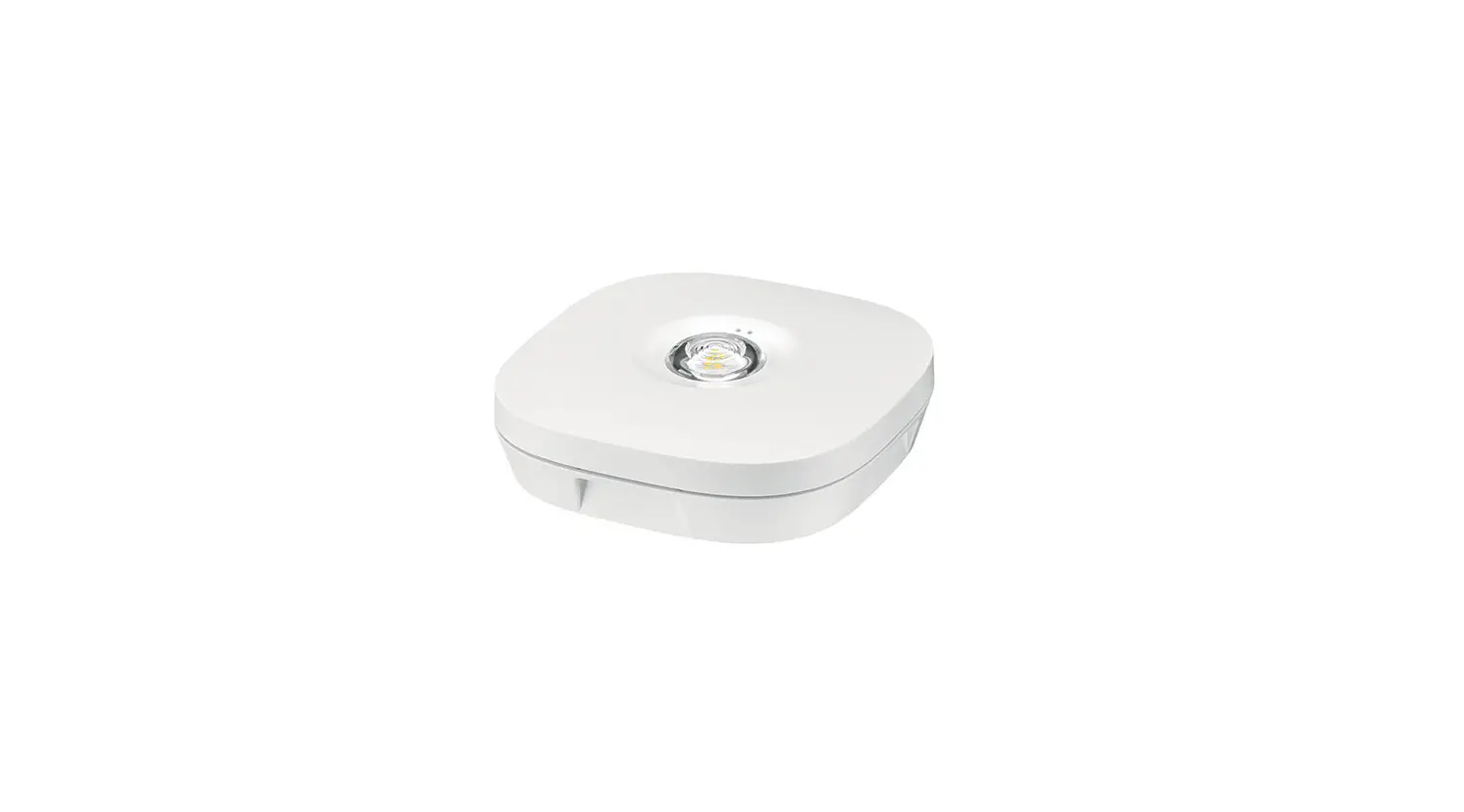
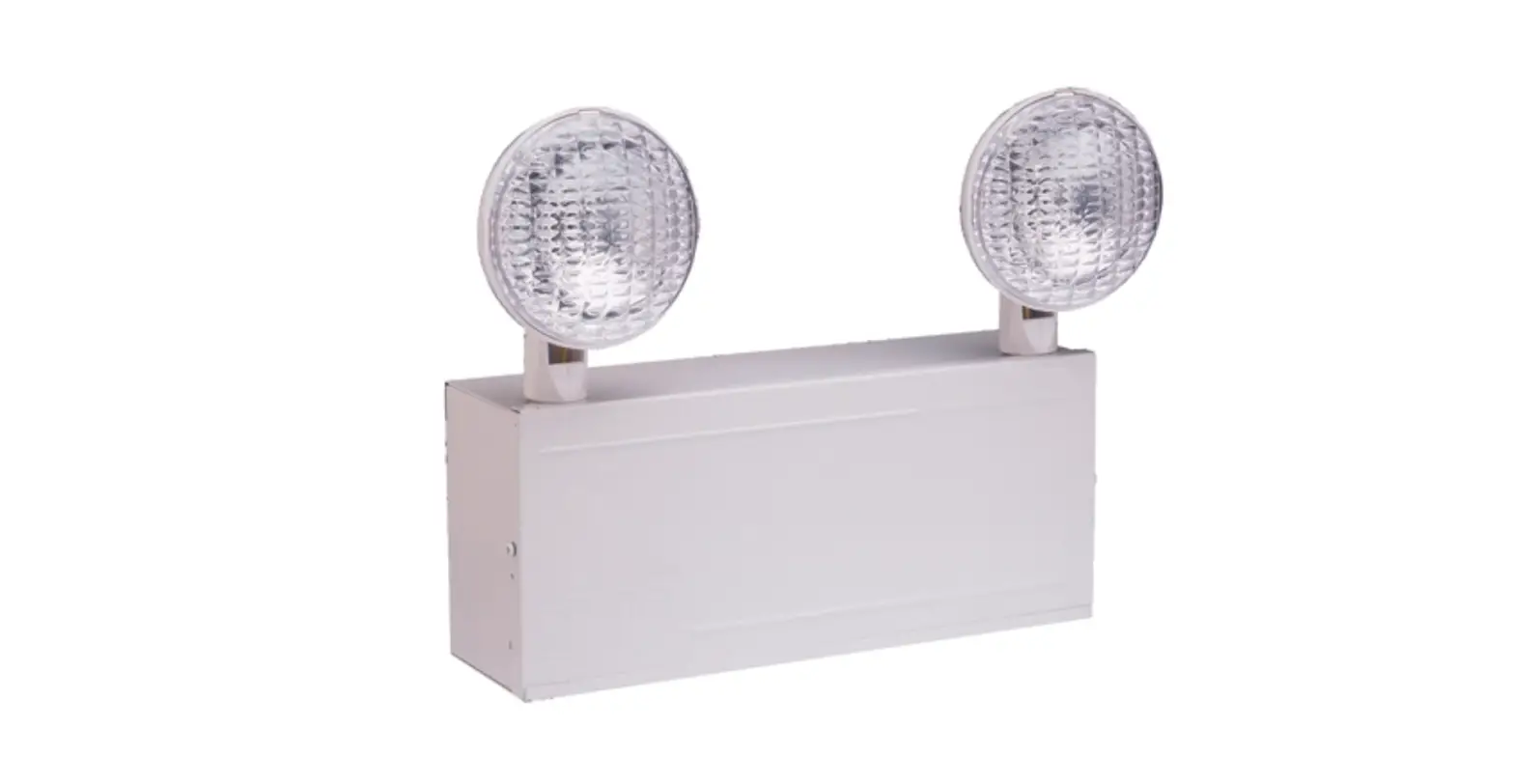
em-LINK v3 software Single-Battery Emergency Light
error
{
“error”: {
“message”: “You exceeded your current quota, please check your plan and billing details.”,
“type”: “insufficient_quota”,
“param”: null,
“code”: null
}
}
the following is the text from the user manual / instructions:
Controls & Connectivity
em-LINK v3 software
Manual
Legal information
Copyright
Manufacturer
Document number
em-LINK v3 1.0 | 07.2022 | en
em-LINK v3 1.0 | 07.2022 | en
Table of contents
1 How to use these instructions
…………………………………………………………………………………………………… 3
2 em-LINK v3 software
…………………………………………………………………………………………………… 5
3 Interface description
…………………………………………………………………………………………………… 8
4 Requirements
…………………………………………………………………………………………………… 9
5 Licensing
…………………………………………………………………………………………………… 10
6 Commissioning
…………………………………………………………………………………………………… 11
6.1 Installing the em-LINK v3 software 6.2 Starting the em-LINK v3 web interface 6.3 Establishing a connection to control devices 6.4 Configuring the building structure 6.5 Defining exports 6.6 Configuring SMTP
7 Monitoring
…………………………………………………………………………………………………… 21
7.1 Overview of monitoring functions
…………………………………………………………………………………………………………………………………………….. 21
7.2 Monitoring the functionality of self-contained emergen..c..y….l..u..m…..i.n…a..i..r..e..s…………………………………………………………………………………………………………………… 24
7.3 Faults
…………………………………………………………………………………………………………………………………………….. 26
8 Maintenance
…………………………………………………………………………………………………… 27
8.1 Software update 8.2 Logo
9 Appendix
…………………………………………………………………………………………………………………………………………….. 27 …………………………………………………………………………………………………………………………………………….. 27
…………………………………………………………………………………………………… 28
9.1 Icons
…………………………………………………………………………………………………………………………………………….. 28
c
2
em-LINK v3 1.0 | 07.2022 | en
1 How to use these instructions
Signs and icons in these instructions
The following signs and icons are used in these instructions:
Sign/icon 1.
— i [Bold text]
Explanation
Individual steps in the instructions are numbered.
w Single-step instructions are indicated by the icon at the beginning of the line.
indicated by the icon at the beginning of the line.
Controls & Connectivity
em-LINK v3 software
Manual
Legal information
Copyright
Copyright © Tridonic GmbH & Co KG All rights reserved.
Manufacturer
Tridonic GmbH & Co KG Färbergasse 15 6851 Dornbirn AUSTRIA Tel. +43 5572 395-0 Fax +43 5572 20176 www.tridonic.com
Document number
em-LINK v3 1.0 | 07.2022 | en
em-LINK v3 1.0 | 07.2022 | en
Table of contents
1 How to use these instructions
…………………………………………………………………………………………………… 3
2 em-LINK v3 software
…………………………………………………………………………………………………… 5
3 Interface description
…………………………………………………………………………………………………… 8
4 Requirements
…………………………………………………………………………………………………… 9
5 Licensing
…………………………………………………………………………………………………… 10
6 Commissioning
…………………………………………………………………………………………………… 11
6.1 Installing the em-LINK v3 software 6.2 Starting the em-LINK v3 web interface 6.3 Establishing a connection to control devices 6.4 Configuring the building structure 6.5 Defining exports 6.6 Configuring SMTP
7 Monitoring
…………………………………………………………………………………………………………………………………………….. 12 …………………………………………………………………………………………………………………………………………….. 13 …………………………………………………………………………………………………………………………………………….. 14 …………………………………………………………………………………………………………………………………………….. 17 …………………………………………………………………………………………………………………………………………….. 18 …………………………………………………………………………………………………………………………………………….. 20
…………………………………………………………………………………………………… 21
7.1 Overview of monitoring functions
…………………………………………………………………………………………………………………………………………….. 21
7.2 Monitoring the functionality of self-contained emergen..c..y….l..u..m…..i.n…a..i..r..e..s…………………………………………………………………………………………………………………… 24
7.3 Faults
…………………………………………………………………………………………………………………………………………….. 26
8 Maintenance
…………………………………………………………………………………………………… 27
8.1 Software update 8.2 Logo
9 Appendix
…………………………………………………………………………………………………………………………………………….. 27 …………………………………………………………………………………………………………………………………………….. 27
…………………………………………………………………………………………………… 28
9.1 Icons
…………………………………………………………………………………………………………………………………………….. 28
c
2
em-LINK v3 1.0 | 07.2022 | en
1 How to use these instructions
We are pleased that you have chosen this Tridonic GmbH & Co KG product. So that you can get the most from these instructions, this section provides the following information: · Signs and icons in these instructions · Further information · Target audience of these instructions · Software version
Signs and icons in these instructions
The following signs and icons are used in these instructions:
Sign/icon 1.
w Ü
— i [Bold text]
Explanation
Individual steps in the instructions are numbered.
w Single-step instructions are indicated by the icon at the beginning of the line.
Ü After a step has been described, a description of the expected results will follow. These results are
indicated by the icon at the beginning of the line.
Requirements which need to be checked before carrying out a step are indicated by –.
Notes can be recognised by the i icon. In addition, notes are identified by the word Note .
Bold text indicates words that are shown on a device display or software user interface.
Danger and safety instructions are indicated by this icon. Safety and warning information is labelled and classified using the following words:
DANGER
indicates an immediate danger. This could lead to death or severe injury if not avoided.
WARNING
indicates a potentially dangerous situation. This could lead to death or severe injury if not avoided.
CAUTION
indicates a potentially dangerous situation. This could lead to minor injury or damage to property if not avoided.
Attention
Table 1: Signs and icons in these instructions
indicates a situation involving potential damage. If it is not avoided, the product or something in the vicinity may be damaged.
c
3
em-LINK v3 1.0 | 07.2022 | en
1 How to use these instructions
Further information
More information on your emergency lighting system’s setup and function can be found in the sceneCOM selfcontained emergency luminaires manual. If you should have any further questions, please contact your sales partner.
Target audience of these instructions
These instructions are intended for electricians without any special product training who would like to use the em-LINK v3 software to connect and monitor multiple sceneCOM controllers.
Software version
These instructions are based on software version em-LINK v3 3.0.0.
c
4
em-LINK v3 1.0 | 07.2022 | en
2 em-LINK v3 software
The em-LINK v3 software can be used to establish a connection with up to 200 control devices. The EMLinkService must be started on the main computer and must be running at all times.
WARNING
· The em-LINK v3 software will not work if the EMLinkService is not started! · If the EMLinkService is stopped on the main computer, no connection can be established with the
em-LINK v3 web interface. The automatic test book export also stops working. · Do not shut down the main computer.
For more information see Section Installing the em-LINK v3 software 12
Once the software has been started on the main computer, the em-LINK v3 software can be accessed via the web interface from any computer in the network to get an overview of all connected control devices.
i
Note
If you start the software without a licence, the software functions are still available but you can only connect to one control device. You must purchase a licence to connect multiple control devices.
c
5
em-LINK v3 1.0 | 07.2022 | en
2 em-LINK v3 software
Figure 1: Topology
Emergency lighting system
The emergency lighting system is designed for controlling and monitoring self-contained emergency luminaires.
The sceneCOM web application allows you to use just one sceneCOM controller to automate up to 192 self-contained emergency luminaires. It is therefore suitable for small buildings or individual floors, as shown in the figure on the left.
Figure 2: Application example
i
Note More information on the web application can be found in the sceneCOM self-contained emergency
luminaires manual.
c
6
em-LINK v3 1.0 | 07.2022 | en
2 em-LINK v3 software
Basic functions of the em-LINK v3 software
· Establishing a connection to max. 200 control devices manually or automatically · Monitoring the connection status of individual control devices · Accessing the web application for individual control devices · Monitoring the function of the self-contained emergency luminaires · Downloading the test books and faults for individual control devices manually or automatically
c
7
em-LINK v3 1.0 | 07.2022 | en
3 Interface description
Navigation principles
Different buttons are available in the em-LINK v3 software for commissioning, configuration and maintenance.
Button Table 2: Navigation principles
Meaning
Expand Collapse The arrow signifies that further information can be displayed (e. g. error messages). · When the right arrow is clicked, the information is expanded and the arrow points
down. · When the arrow pointing down is clicked, the information is collapsed and the arrow
points to the right.
Error status: Permissible limit has not been exceeded The permissible limit of error messages has not been exceeded.
Error status: Permissible limit has been exceeded The permissible limit of error messages has been exceeded.
Connection status: No connection to the control device The grey bar signifies that no connection to the control device can currently be established. A check is performed at regular intervals to ascertain whether a connection can be established.
c
8
em-LINK v3 1.0 | 07.2022 | en
4 Requirements
Before starting the commissioning and configuration process for your em-LINK v3 software, ensure that the following requirements have been met on the main computer: — Operating system: Linux (Debian-based) or Microsoft Windows — The Java Runtime Environment (JRE) or Java Development Kit (JDK) 11 software is installed. — The JAVA HOME and PATH environment variables are present on computer and set to the JDK 11 folder. — Disk space required: at least 200 MB — Port 9000 (TCP) is not in use and is not locked. — Port 9000 (TCP) is accessible for em-LINK v3 web users. — Port 443 (TCP) and port 8883 (TCP) are accessible to the main computer. — Optional: mDNS (port 5353 (UDP)) for finding control devices in the same network.
Before starting the em-LINK v3 software web application, ensure that the following requirements have been met: — Web browser: Microsoft Edge, Google Chrome, macOS Safari, Mozilla Firefox
Before establishing the connection to the control devices, ensure that the following requirements have been met: — One configured REST API & MQTT API consumer on a control device. — Version 3.0 or higher has been installed on all control devices.
Optimal viewport width
The optimal viewport width is 1,440 px, 1,280 px or 1,024 px.
i
Note · The em-LINK v3 software uses the Apple Bonjour service to find the devices via mDNS.
· The em-LINK v3 software accesses the control device via the REST API & MQTT interface.
· If you already have a higher version of Java installed, you must uninstall this version and install Java 11 on your main computer instead.
· It is a good idea to connect the control devices in a separate LAN (e.g. VLAN).
c
9
em-LINK v3 1.0 | 07.2022 | en
5 Licensing
A license is required in order to use all of the functions of the em-LINK v3 software. For licensing proceed as follows: 1. Open the menu. 2. Select Licensing.
ÜThe Licensing view is displayed.
3. Enter the license key. The license key can be obtained from your local sales partner. 4. Tap the Save button.
ÜThe license is applied. ÜThe full functionality of the em-LINK v3 software is now available.
c
10
em-LINK v3 1.0 | 07.2022 | en
6 Commissioning
This section describes how to commission the em-LINK v3 software. The following steps are required: · Step 1: Install the em-LINK v3 software.
For more information see Section Installing the em-LINK v3 software 12 · Step 2: Open the em-LINK v3 web interface.
For more information see Section Starting the em-LINK v3 web interface 13 · Step 3: Establish a connection to a maximum of 200 sceneCOM controllers manually or automatically.
For more information see Section Establishing a connection to control devices 14 · Step 4: Define the exports (manual or automatic).
For more information see Section Defining exports 18
c
11
em-LINK v3 1.0 | 07.2022 | en
6 Commissioning
6.1 Installing the em-LINK v3 software
1. Run the installation file em-LINK v3.msi on the main computer.
2. Complete the installation by selecting Finish.
Üem-LINK v3 has been installed.
3. Start em-LINK v3 from the start menu.
ÜThe EMLinkService starts.
WARNING
· The em-LINK v3 software will not work if the EMLinkService is not started! · If the EMLinkService is stopped on the main computer, no connection can be established with the
em-LINK v3 web interface. The automatic test book export also stops working. · Do not shut down the main computer.
4. Write down the IP address of the main computer.
c
12
em-LINK v3 1.0 | 07.2022 | en
6 Commissioning
6.2 Starting the em-LINK v3 web interface
Starting em-LINK v3 on the main computer
1. Start the EMLinkService for em-LINK v3. 2. Open a web browser. 3. In the address line, enter the IP address localhost:9000.
ÜThe em-LINK v3 web interface is displayed.
i
Note
The web interface starts in English the first time a connection is established. You can change the language in which the web interface is displayed using the button at the top right corner of the start
page.
Starting em-LINK v3 on another computer
Requirements: — The EMLinkService for em-LINK v3 is running on the main computer. — The main computer and the other computer are located in the same network. — The IP address or name of the main computer is known.
1. Open a web browser.
2. In the address line, enter the IP address of the main computer which has the em-LINK v3 running on it, along with :9000 at the end, and navigate to this address (e.g. enter “[IP address]:9000”).
or
2. In the address line, enter the name of the main computer which has the em-LINK v3 running on it, along with :9000 at the end, and navigate to this address.
ÜThe em-LINK v3 web interface is displayed.
c
13
em-LINK v3 1.0 | 07.2022 | en
6 Commissioning
6.3 Establishing a connection to control devices
There are two ways to establish a connection to the sceneCOM controllers: · Manually · Automatically
Entering a connection to a control device manually
Requirement: — The control devices have been commissioned.
i
Note
More information on the sceneCOM software can be found in the sceneCOM self-contained emergency luminaires manual.
1. Open the menu. 2. Select Connect manually.
ÜThe Connect to control device manually view is displayed.
c
14
em-LINK v3 1.0 | 07.2022 | en
6 Commissioning
3. Enter the IP address for the control device.
i
Note · If only the IP address is entered, the control device appears in the list but has no access
to data.
· You can access the web interface via the icon and can create and manage the API consumer and API tokens for the control device via the REST API & MQTT app.
· A control device can only be added once.
· Assign a unique consumer name (e.g. CCD1) if you create a new consumer.
4. Enter the consumer name. 5. Enter the generated API token.
i
Note Copy the token generated in the REST API & MQTT app.
6. Tap Add.
ÜThe sceneCOM control device controller is added. ÜAs soon as the connection has been manually established, the device name, IP address and device
designation, if any, are displayed. The total number of emergency luminaires and the number of these which are faulty are also displayed.
Automatically adding control devices
Requirement: –sceneCOM controller has been commissioned.
1. Open the menu. 2. Select Automatic search.
ÜThe em-LINK v3 software automatically searches the network for control devices.
i
Note · If you select Automatic search, mDNS detection is triggered.
· All control devices are displayed as offline (in grey).
c
15
em-LINK v3 1.0 | 07.2022 | en
6 Commissioning
ÜControl devices found are displayed with four possible statuses on the em-LINK v3 web interface.
Connection status: control device is offline; no connection to control device Connection status: connection to the control device has been established Connection status: control device is online, but the credentials are invalid or missing Connection status: attempting to connect to the control device
i
Note · There is no connection to the control device until the login data is saved.
· Note that the API consumer and API token must be entered manually for each control device. The total number of emergency luminaires and the number of faulty emergency luminaires are only displayed in the web view once the login data for the control device has been saved.
3. Tap the icon indicating the connection status for the control device.
ÜThe Connect to control device manually view is displayed.
4. Enter the consumer name.
5. Enter the generated API token.
6. Tap Save.
ÜAs soon as the connection has been established, the device name, IP address and device designation, if any, are displayed. The total number of emergency luminaires and the number of these which are faulty are also displayed.
c
16
em-LINK v3 1.0 | 07.2022 | en
6 Commissioning 6.4 Configuring the building structure
The following section contains an overview of the options for monitoring and configuring self-contained emergency luminaires in a hierarchy layout. You can define the specific structure in which the view is laid out yourself.
Creating and editing the building structure
1. Open the menu. 2. Select Edit building structure.
ÜThe Edit building structure view is displayed.
3. Tap the icon to add a new area.
ÜThe new area is displayed one level below.
4. Tap the icon to change the name of the area. 5. Tap the icon to delete the area. 6. The drag and drop function can be used to move the individual areas and assign them to new levels
in the building structure.
c
17
em-LINK v3 1.0 | 07.2022 | en
6 Commissioning
6.5 Defining exports
The faults and test book can be exported as a PDF or XML file. You can also select whether the faults and test book are exported automatically or manually.
i
Note
When generating test books with over 100 pages, creating the export as a PDF is not recommended because this may cause problems. For test books with a high number of pages an XML export should
always be selected.
Defining the test book export
1. Open the menu. 2. Select Define exports.
ÜThe Define exports view is displayed.
3. Select the type of export (automatic or manual). 4. Define the options for the automatic test book export (file type, language, interval, time, path and
recipient).
or 4. Define the options for the manual test book export (file type, language and path).
i
Note · The path indicates the desired save location for the exports on the main computer.
· For the recipient, enter the email address to which the exported files are to be sent.
5. Tap Save.
ÜIf “Automatic test book export” has been enabled, the test book export settings are saved. The test books are saved on the main computer or sent by email according to the settings. A separate file is created for each control device. Existing files are not overwritten.
c
18
em-LINK v3 1.0 | 07.2022 | en
6 Commissioning
ÜIf “Manual test book export” is selected, the test books will immediately be saved on the main computer or sent by email according to the settings. A separate file is created for each control device. Existing files are not overwritten.
i
Note · The
button on the em-LINK v3 web interface can be used to manually export the test
books for each control device at any time.
· The “Export entire test book” button on the em-LINK v3 web interface can be used to manually export the test books for displayed control devices.
Exporting faults
1. Open the menu. 2. Select Define exports.
ÜThe Define exports view is displayed.
3. Select the type of export (automatic or manual).
4. Define the options for the automatic export of faults (file type, language, interval, time, path and recipient)
or 4. Define the options for the manual export of faults (file type, language and path).
i
Note · The path indicates the desired save location for the exports on the main computer.
· For the recipient, enter the email address to which the exported files are to be sent.
5. Tap Save.
ÜIf Automatic export of faults has been enabled, the export settings are saved. The faults are saved on the main computer or sent by email according to the settings. A separate file is created for each control device. Existing files are not overwritten.
c
19
em-LINK v3 1.0 | 07.2022 | en
6 Commissioning
ÜIf Manual export of faults is selected, the faults will immediately be saved on the main computer or sent by email according to the settings. A separate file is created for each control device. Existing files are not overwritten.
i
Note · The
button on the em-LINK v3 web interface can be used to manually export the
faults for each control device at any time.
· The Export all faults button on the em-LINK v3 web interface can be used to manually export the faults for all displayed control devices.
6.6 Configuring SMTP
Configure the SMTP server to send exports of test books and faults by email. 1. Open the menu.
2. Select Configure SMTP.
ÜThe Configure SMTP view is displayed.
3. Enter the user name. 4. Enter the password. 5. Enter the host name. 6. Enter the sender address. 7. Enter the port. Port 25 is entered here by default. 8. Select the method of encryption. 9. Tap Save.
ÜThe settings are saved.
c
20
em-LINK v3 1.0 | 07.2022 | en
7 Monitoring
This section describes how to monitor individual control devices using the em-LINK v3 software. This includes: · Monitoring the connection status of individual control devices · Accessing the web application for individual control devices · Monitoring the function of the self-contained emergency luminaires · Exporting test books for the individual control devices manually or automatically
7.1 Overview of monitoring functions
The following contains an overview of the monitoring functions:
Figure 3: Monitoring the function of the self-contained emergency luminaires
Function (1) Edit connection
Terminate connection
Brief description
The Edit button can be used to select individual control devices or all of them. The connection to the control devices can then be terminated.
When the connection is terminated via the em-LINK v3 web interface, the test book for the control device is not deleted on the control device itself. The test book also continues to be available via the control device web application.
c
21
em-LINK v3 1.0 | 07.2022 | en
7 Monitoring
Function (2) Status of all connected self-contained
emergency luminaires (3) Filter by area (4) Sort (5) Export faults
(6) More filter options
(7) Export the test book
Brief description
This shows you the status of the self-contained emergency luminaires installed in the system at a glance: · Total no. of emergency luminaires: number of self-contained
emergency luminaires addressed in the system. · Of which defective: number of self-contained emergency
luminaires with a fault.
Use this button to select the area containing the control devices you want to be displayed on the web interface.
Sorting improves how the status of the control devices and of the connected self-contained emergency luminaires is displayed and makes it easier find the desired information. You can sort the control devices by device name (from A to Z), by the total number of emergency luminaires or by the number of faulty emergency luminaires.
Use this button to export all faults for the control devices displayed on the web interface. The export is carried out based on the settings defined for manual exports of faults.
i
Note For more information see Section Defining exports 18
It may be beneficial to display only the control devices that meet a certain criterion, e.g. all control devices with luminaire faults. The project window provides an additional filter function for this purpose. The following filters can be selected:
· All control devices: all control devices are displayed.
· Defect. emergency luminaires: only control devices to which faulty emergency luminaires are connected are displayed.
· Over limit for critical fault: only control devices for which the limit has been exceeded are displayed.
i
Note In the sceneCOM web application, you can set the
number of luminaire faults required to trigger a critical
fault message. Luminaire faults are lamp failures,
double addressing errors or ballast failures, for
example. Set the limit to 1 if you wish to view every
instance of these faults as critical faults. Increase the
limit if a higher number of luminaire faults is desired
before a critical fault is displayed. The default limit is 1.
Use this button to export a collective test book for all control devices displayed on the web interface. The export is carried out based on the settings defined for manual test book exports.
i
Note For more information see Section Defining exports 18
c
22
em-LINK v3 1.0 | 07.2022 | en
7 Monitoring
Function (8) Open the menu
(9) Monitor the function of the self-contained emergency luminaires
Brief description
You can access a selection of further functions via the menu: · Connecting to a control device manually · Editing the building structure · Automatic search · Defining exports · Configuring SMTP · Opening the manual · Adding a licence
The type of fault and path of the luminaire are displayed for each faulty emergency luminaire. Faults are displayed no more than 15 min. after they have occurred.
i
Note For more information see Section Faults 26
Table 3: Monitoring the function of the self-contained emergency luminaires
c
23
em-LINK v3 1.0 | 07.2022 | en
7 Monitoring
7.2 Monitoring the functionality of self-contained emergency luminaires
The following provides detailed information about monitoring the function of the self-contained emergency luminaires:
Figure 4: Details about monitoring the function of the self-contained emergency luminaires
Function
Brief description
(1) Device information
This is where you find the device name, an overview of the structure, the IP address and the device designation, if any, of the control device.
Number of emergency luminaires and number of luminaire faults
This shows you the status of the self-contained emergency luminaires:
· Total no. of emergency luminaires: number of self-contained emergency luminaires addressed in the system.
· Of which defective: number of self-contained emergency luminaires with a fault.
(2) Open the control device web application
Use this button to open the web application for the corresponding control device.
(3) Assign control device
Use this button to assign the control device directly to an area in the building.
(4) Check connection status
The icon indicates the connection status for the control device:
Connection status: connection to the control device is not possible; the control device is offline Connection status: attempting to connect to the control device Connection status: connection to the control device has been established Connection status: control device is online, but the credentials are invalid or missing
c
24
em-LINK v3 1.0 | 07.2022 | en
7 Monitoring
Function (5) Export test book manually
(6) Monitoring the function of the self-contained emergency luminaires
Brief description
The results of function, duration and inspection tests are documented in the test book. Test book entries are organised in chronological order (most recent test result at the top).
This button can be used to manually export the test book for a control device to the local computer. The test book is exported as a PDF file in the language set on the em-LINK v3 web interface. Exports always include all test results.
i
Note A test book export can be defined for all control devices.
For more information see Section Defining exports 18
The type of fault and path of the luminaire are displayed for each faulty emergency luminaire. Faults are displayed no more than 15 min. after they have occurred.
i
Note For more information see Section Faults 26
Table 4: Details about monitoring the function of the self-contained emergency luminaires
c
25
em-LINK v3 1.0 | 07.2022 | en
7 Monitoring
7.3 Faults
The following section provides an overview of the individual faults that can occur with the self-contained emergency luminaires. You can also get information on what the cause of the error message could be and how the problem can be corrected.
Self-contained emergency luminaire
Message General error
Battery fault
Possible cause
A general error has occurred with an emergency luminaire.
A fault has occurred with the battery.
Solution
w Contact your sales partner. w Replace the battery.
Duration test due. Communication error
Short circuit on DALI line
The service interval has been exceeded.
A luminaire was connected, for example, first to one DALI control line and then to another. As a result a communication error has occurred.
DALI control line has a short circuit.
1. Carry out maintenance. 2. Perform a duration test.
w Delete the luminaire from the system image and readdress it.
w Check the affected line and eliminate the short circuit.
Charging fault
A fault has occurred when the battery was charging.
w Check the battery wiring.
or
w Replace the battery.
or
w Replace the control gear.
Lamp or control gear failure
The lamp is not correctly connected.
w Check the lamp wiring.
Lamp or LED module is faulty.
w Replace the faulty lamp or LED module.
Control gear is faulty.
w Replace the faulty control gear.
Break on DALI line
DALI control line has a break.
w Check the affected line and eliminate the break.
Table 5: Possible faults for a self-contained emergency luminaire
i
Note
A report on the faults can be exported automatically or manually. For more information see Section Defining exports 18
c
26
em-LINK v3 1.0 | 07.2022 | en
8 Maintenance
This section explains how to maintain the em-LINK v3 software.
8.1 Software update
You can update the em-LINK v3 software. The software configuration will be retained. Existing test book exports will not be deleted.
i
Note The most up-to-date software version is available from your sales partner.
Updating the em-LINK v3 software
wRun the new installation file em-LINK v3.msi. ÜThe em-LINK v3 software is updated.
8.2 Logo
You can set the logo yourself, so that it appears in the top left corner of the web interface.
Defining and replacing the logo
Requirement: — The logo is available as a PNG file.
i
Note · File name: logo.png
· Dimensions: 500 × 250 pixels
1. Open the following folder on the main computer: C:Program Files (x86)em-LINKconf 2. Copy file logo.png to the following folder: C:Program Files (x86)em-LINKconf 3. Reload the web interface.
ÜThe new logo is displayed in the top left corner of the em-LINK v3 web interface.
c
27
em-LINK v3 1.0 | 07.2022 | en
9 Appendix
This section contains the following information: · Icons 28
9.1 Icons
This section contains an overview of all icons shown in the em-LINK v3 software.
Icon
Description Select an area
Open the web application
Export test book manually
Connection status: control device is offline; no connection to control device
Connection status: connecting to the control device now
Connection status: attempting to connect to the control device
Connection status: connection to the control device has been established
Connection status: control device is online, but the credentials are invalid or missing
You can access a selection of further functions via the menu: · Connecting to a control device manually · Editing the building structure · Automatic search · Defining exports · Configuring SMTP · Opening the manual · Activating a licence
Table 6: Icons in the em-LINK v3 software
This section contains an overview of all menu icons.
Icon
Description Connect to a control device manually
Edit the building structure
Automatic search
Define exports Configure SMTP Open the manual
c
28
em-LINK v3 1.0 | 07.2022 | en
9 Appendix
Icon
Description Activate a licence
Table 7: Menu icons in the em-LINK v3 software
c
29
 Lighting solutions for smart indoor and outdoor lighting – Tridonic