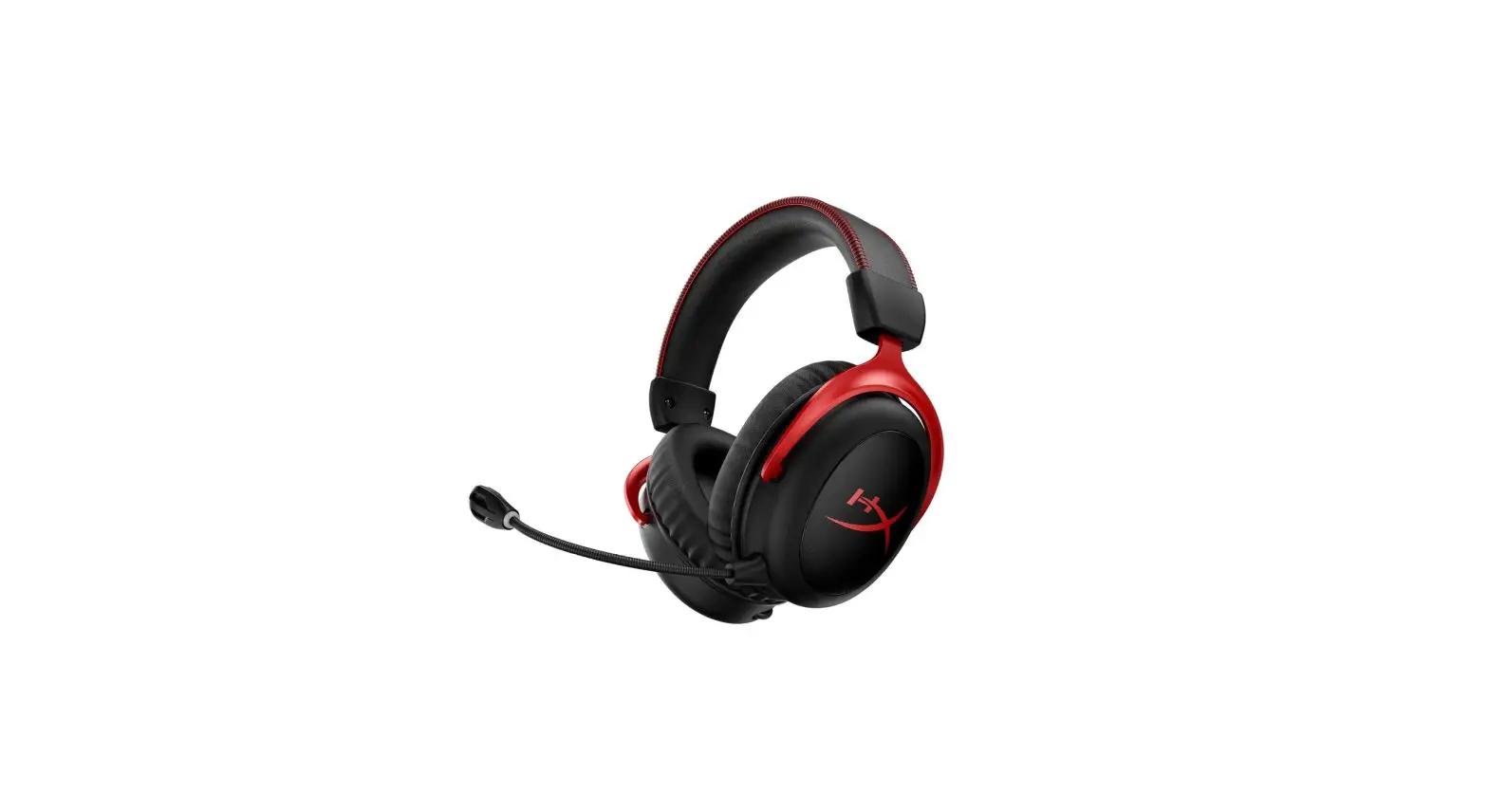
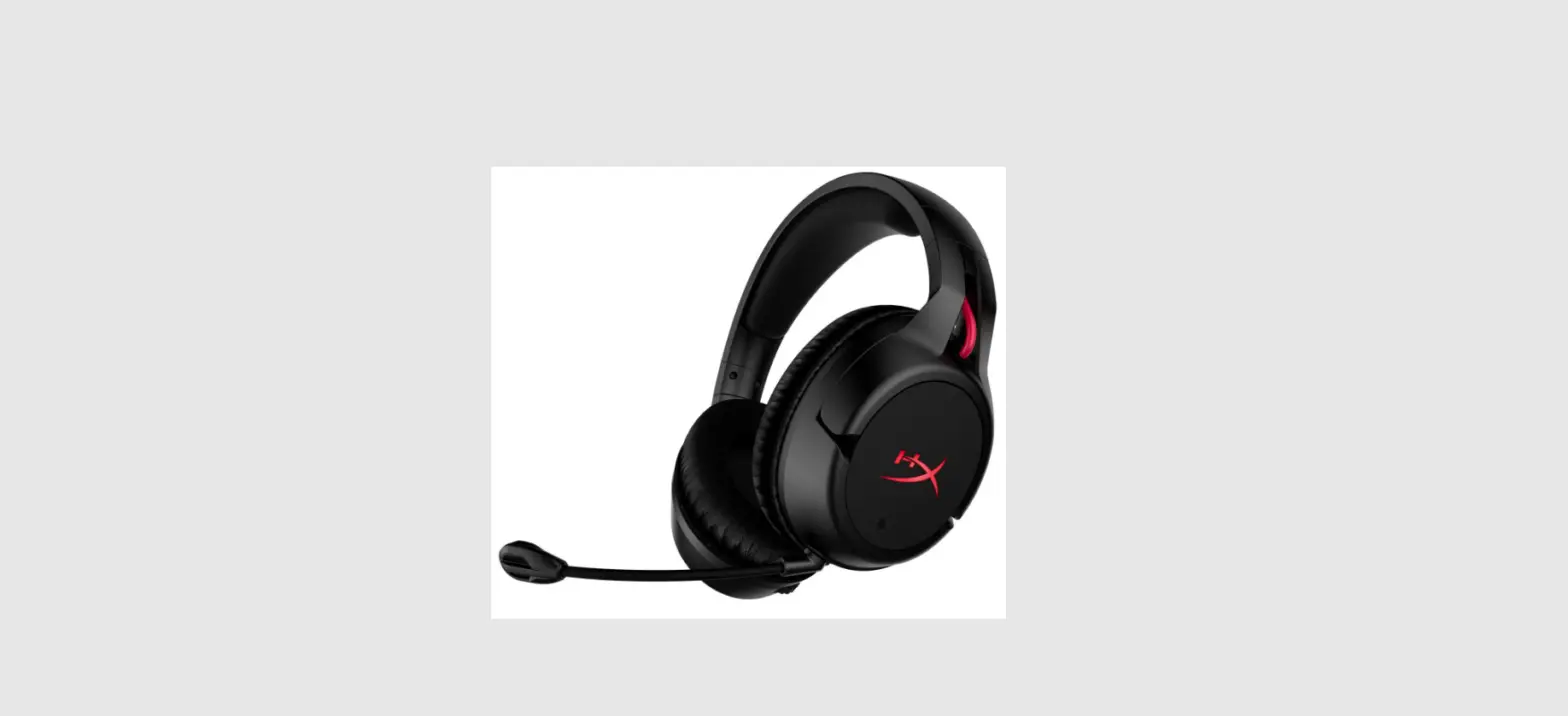
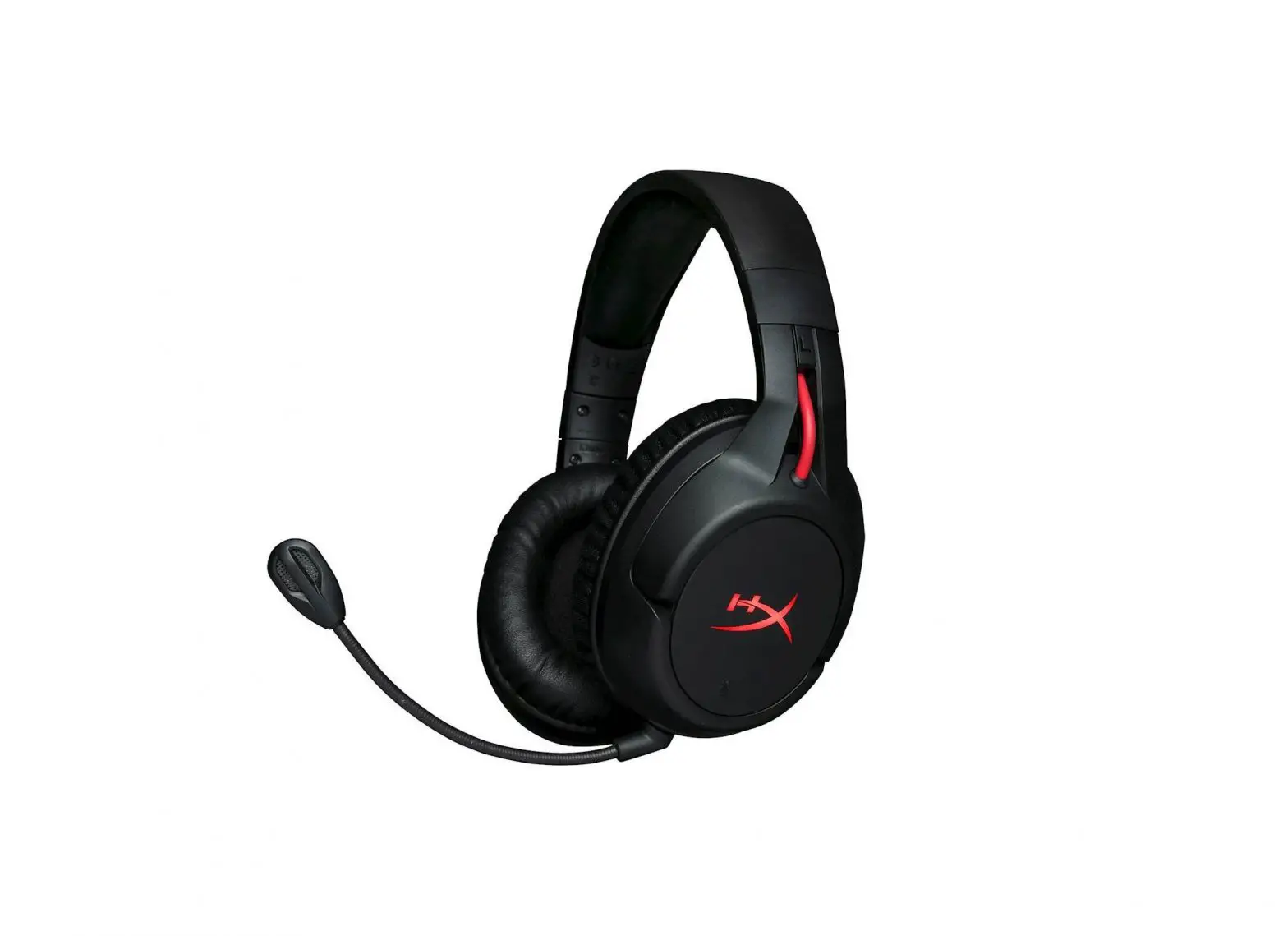
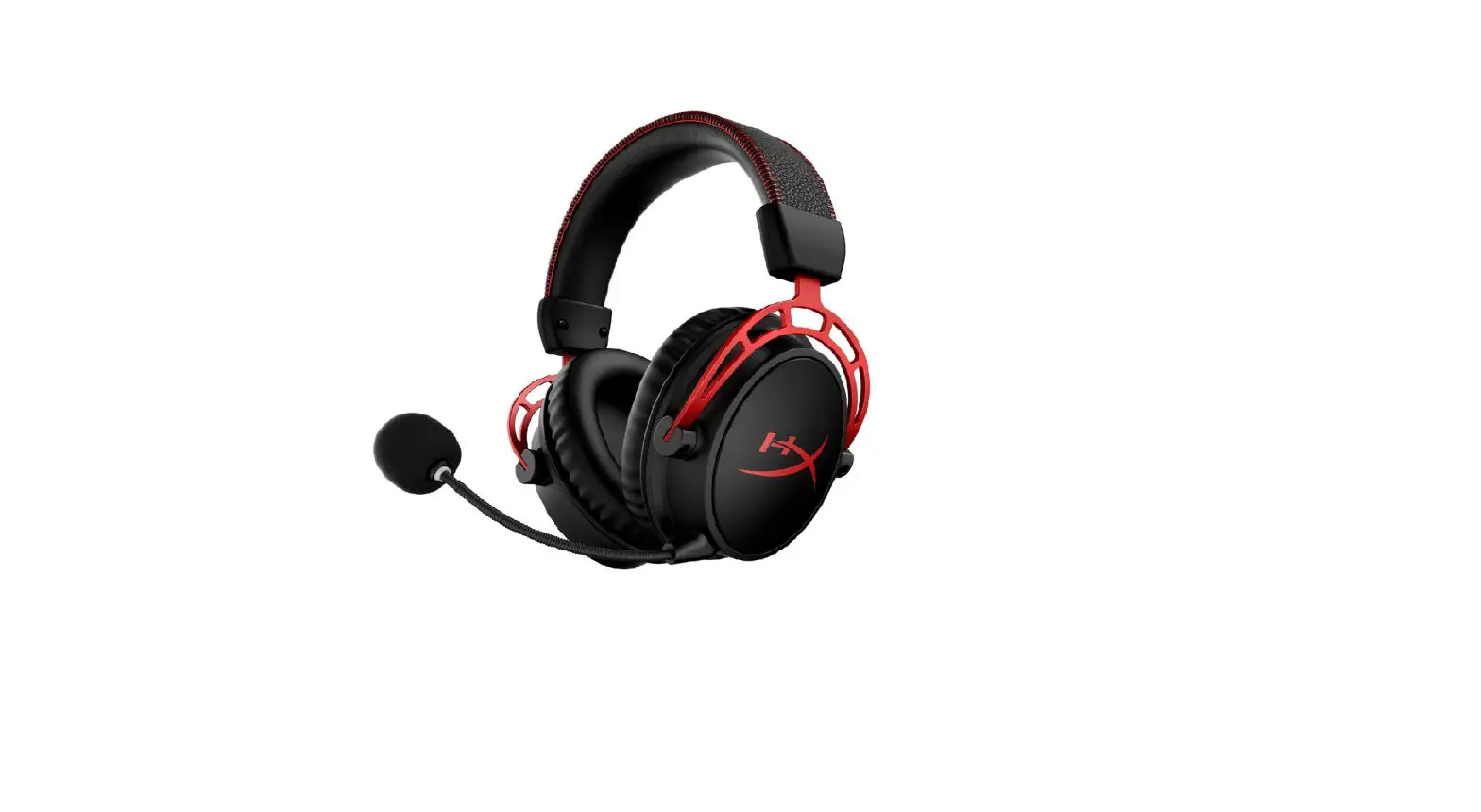
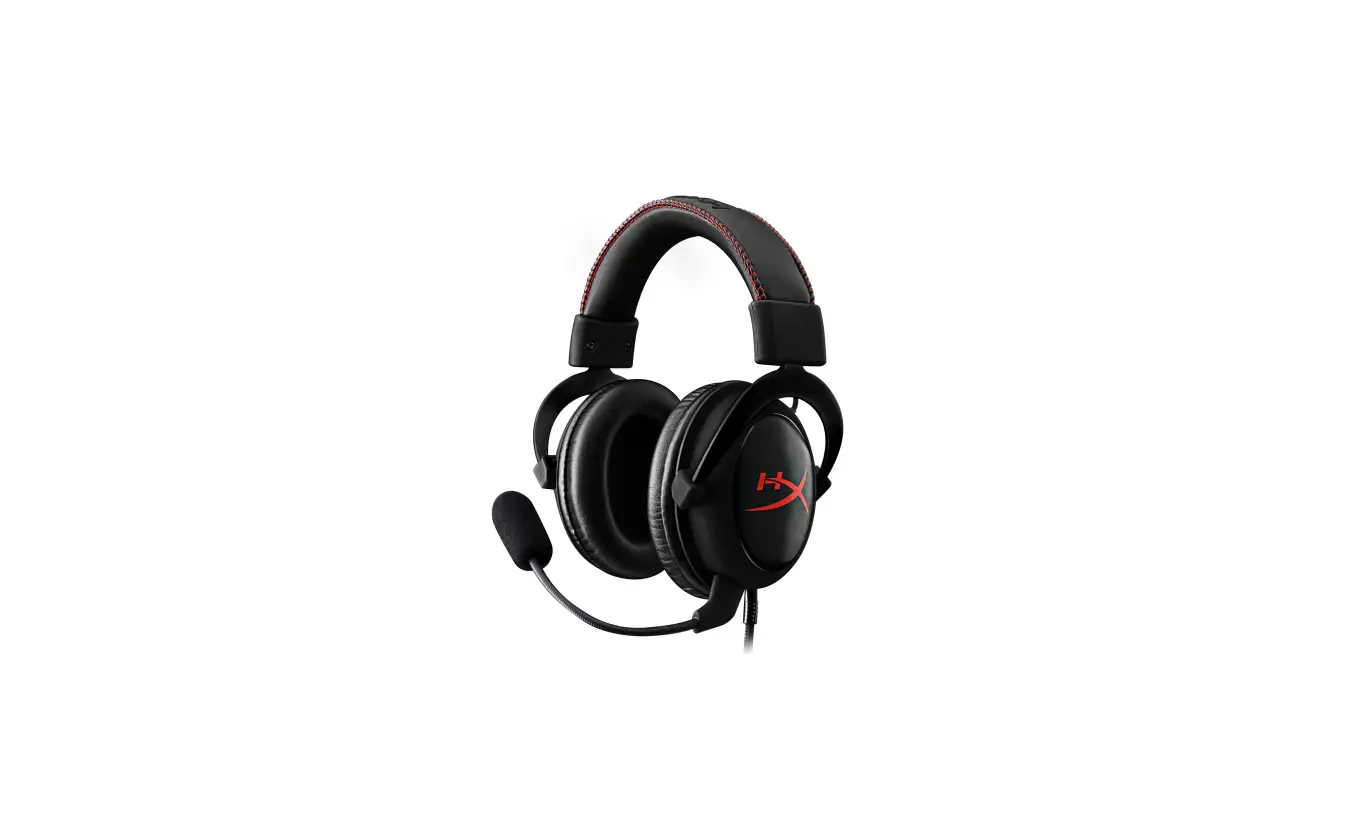
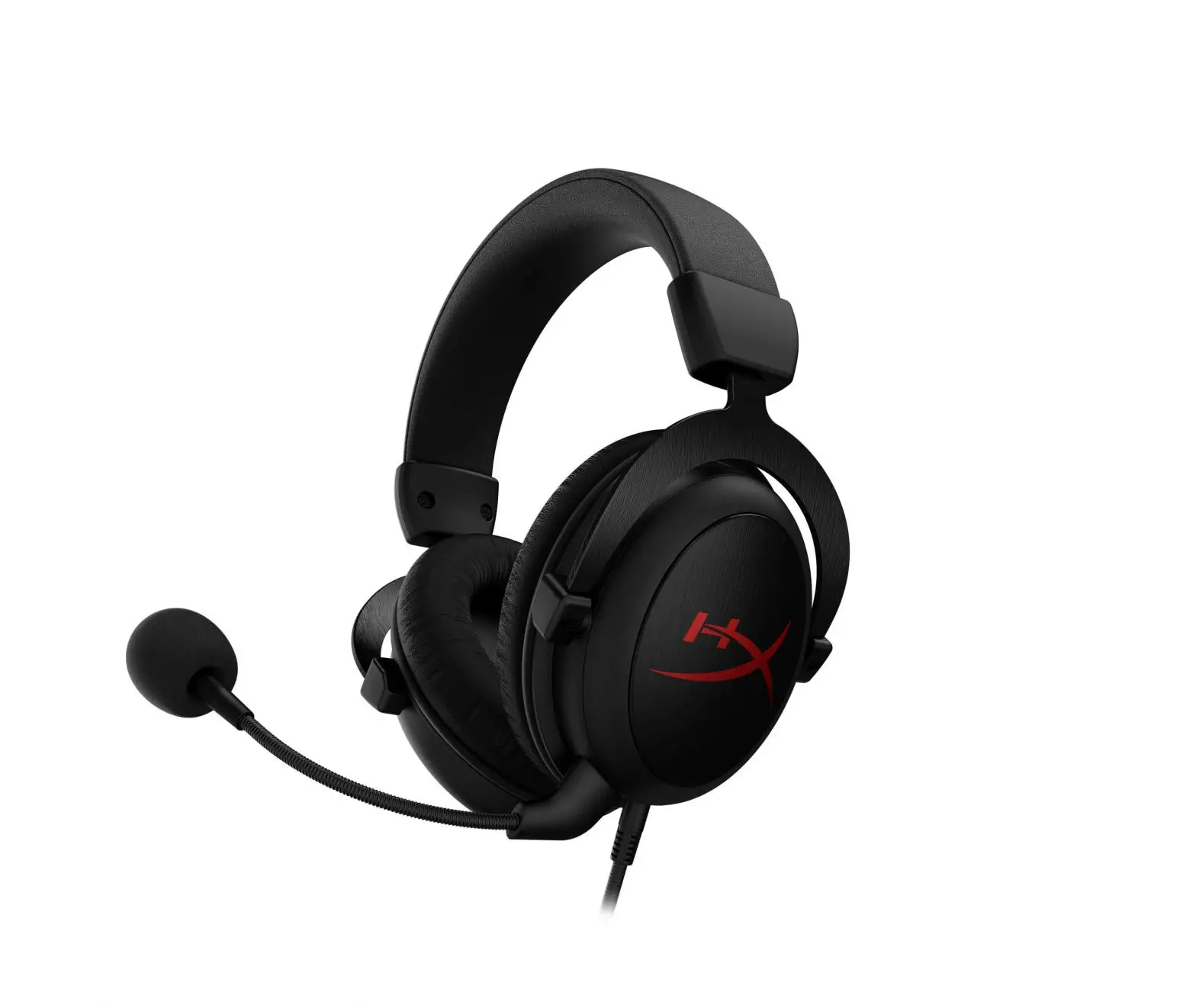
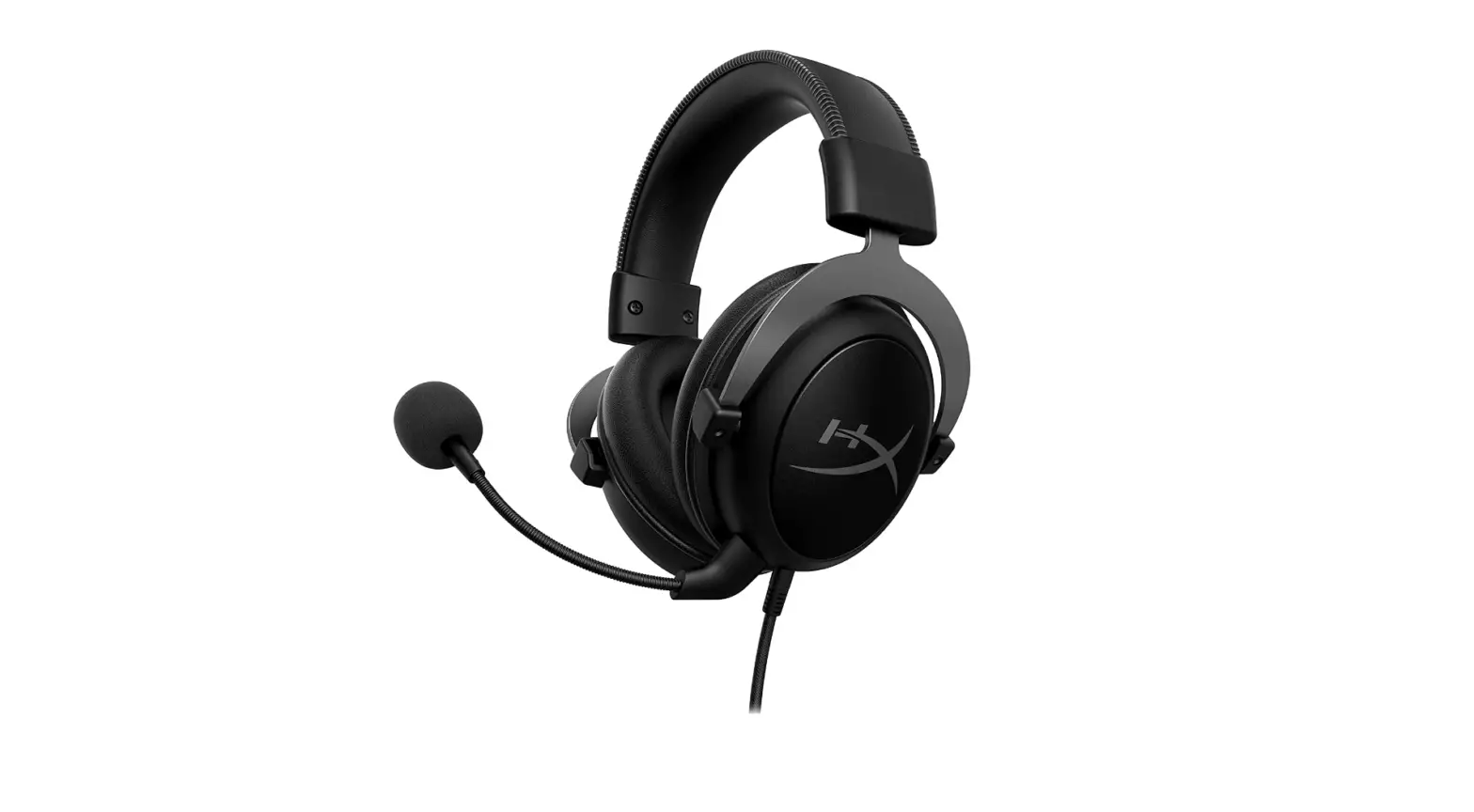
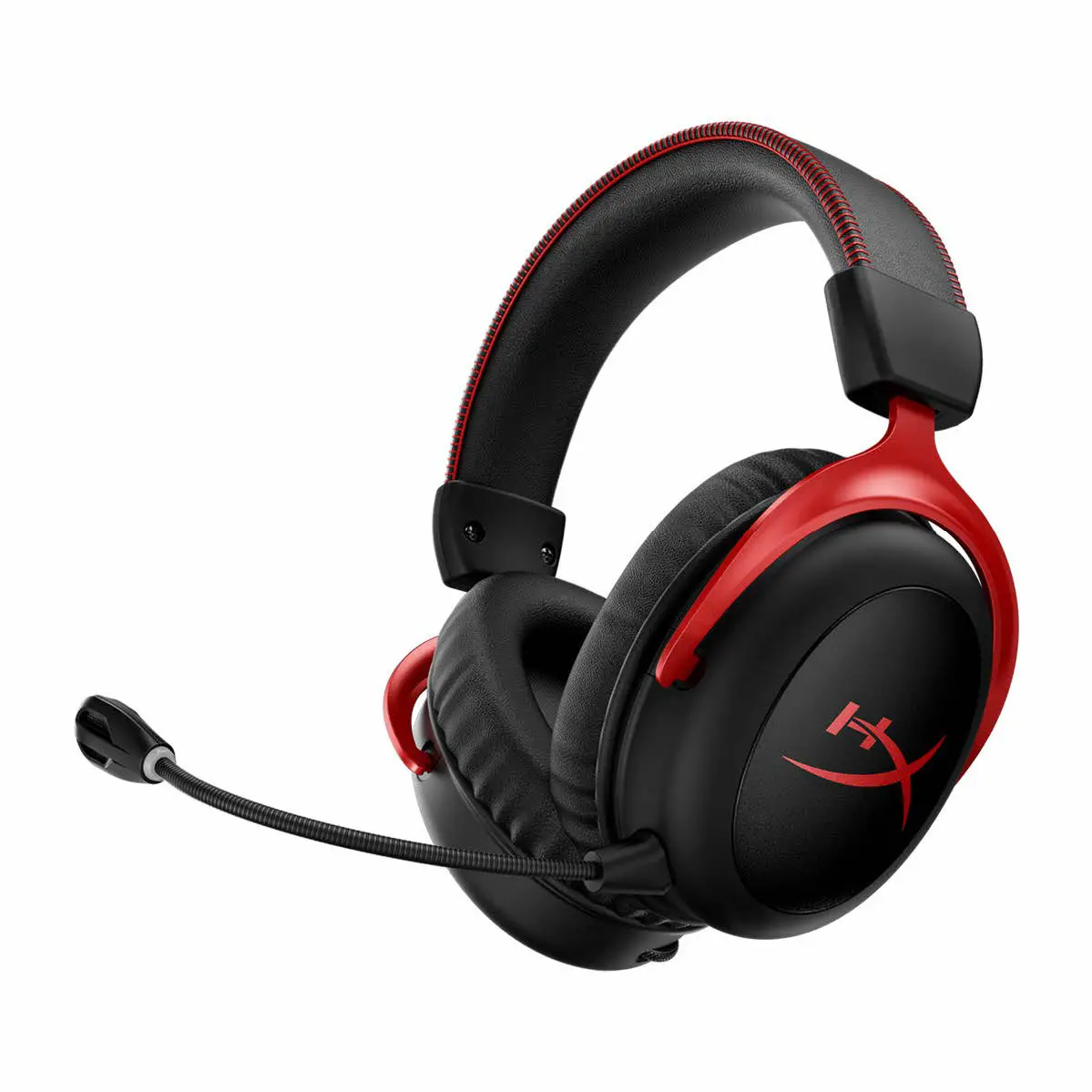
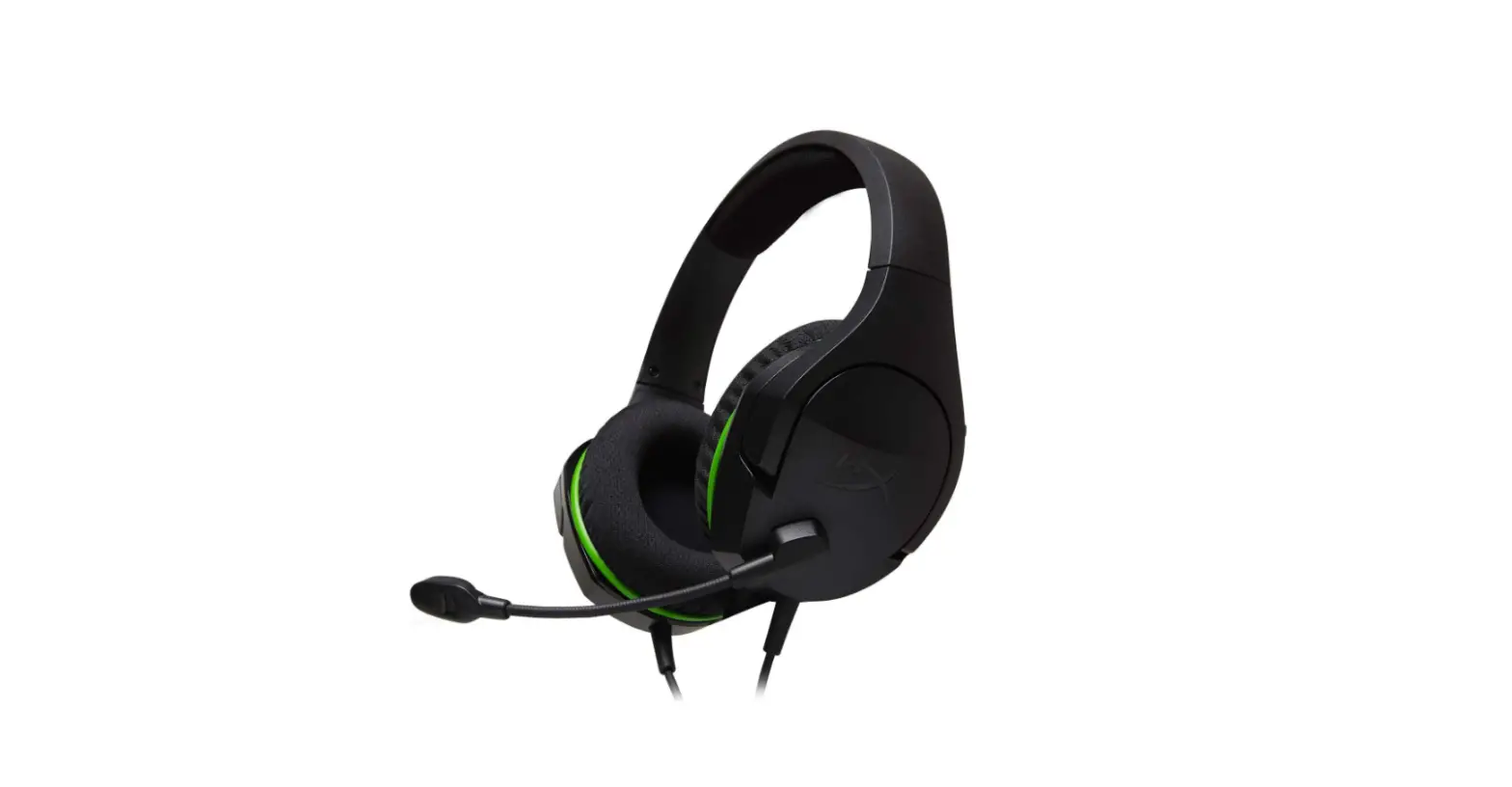
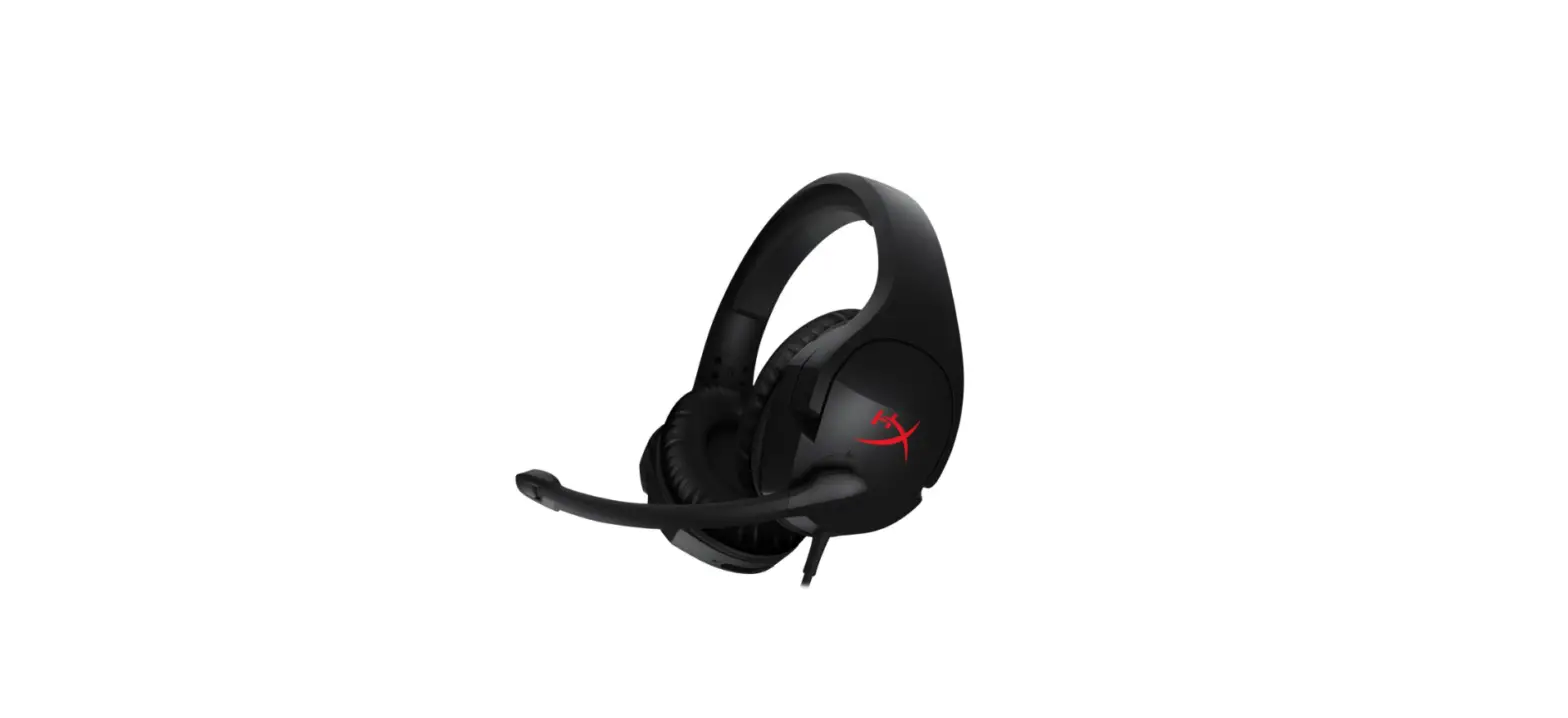
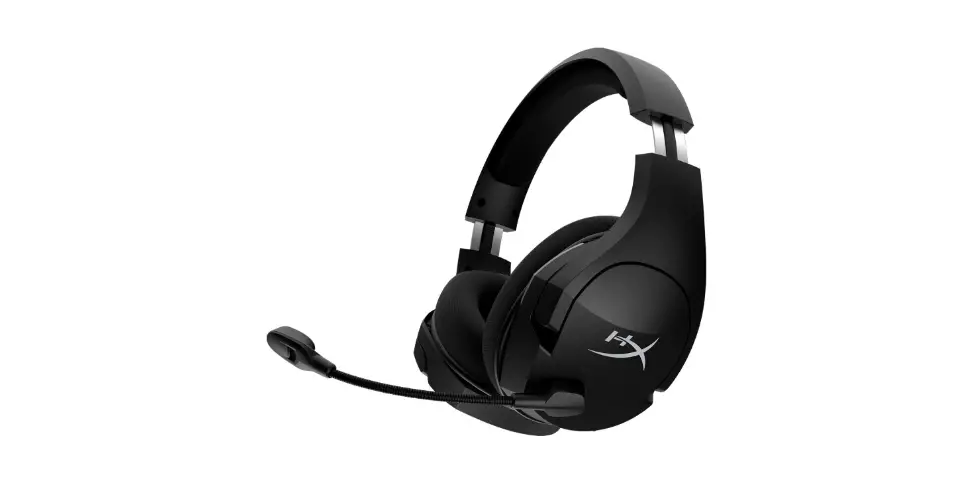
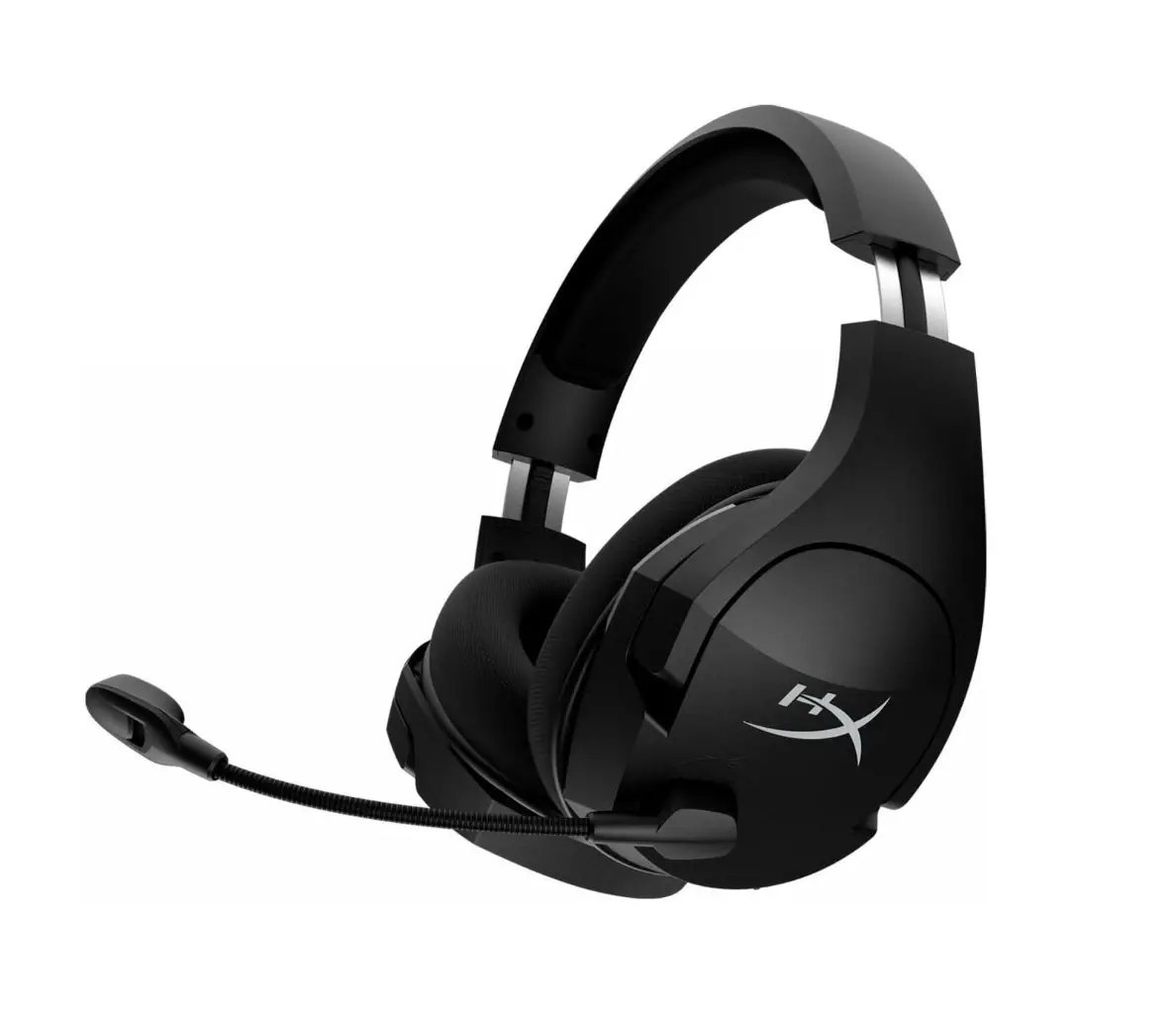
44X0019B Cloud III Wired Gaming Headset
Product Information:
The HyperX Cloud III Gaming Headset is a high-quality gaming
headset designed for immersive gaming experiences. It features a
detachable microphone, mic mute button, volume wheel, and LED
indicator. The headset comes with a USB dongle and a USB-C to USB-A
adapter for versatile connectivity options. The headset is
compatible with PCs and can be customized using the HyperX NGENUITY
software.
Product Usage Instructions:
- Setting up with PC:
- Right-click on the speaker icon in the system tray and select
“Open Sound settings”. - In the Sound settings, click on “Sound control panel”.
- In the Sound control panel, set the default playback device to
“HyperX Cloud III”. - Set the default recording device to “HyperX Cloud III”.
- Use the volume wheel on the headset to scroll up or down and
adjust the volume level. - Be cautious not to use the headset at high volumes for extended
periods of time to prevent hearing damage.
- Visit hyperx.com/ngenuity to download the NGENUITY
software. - The NGENUITY software allows for customization and features DTS
Headphone:X.
If you have any questions or encounter setup issues, please
visit hyperx.com/support for assistance.
HyperX Cloud III
Gaming Headset
Quick Start Guide
44X0019B
Overview
A C
B
E D
F
G
A Mic mute button B Microphone port
C Volume wheel D Detachable microphone
E Microphone mute LED F USB dongle
G USB-C to USB-A adapter
Usage
Setting up with PC
Right click speaker icon > Select Open Sound settings > Select Sound control panel
Open Sound settings Open Volume mixer Spatial sound (Off) Troubleshoot sound problems
Settings
Display Sound Notifications & actions Focus assist Power & sleep
Sound
Related Settings Bluetooth and other devices Sound control panel Microphone privacy settings Ease of Access audio settings
Playback Device Set Default Device to “HyperX Cloud III”
Playback Recording
Sound Sounds Communications
Speakers HyperX Cloud III Default Device
Recording Device Set Default Device to “HyperX Cloud III”
Playback Recording
Sound Sounds Communications
Microphone HyperX Cloud III Default Device
Configure
Set Default
Properties
OK
Cancel
Apply
Configure
Set Default
Properties
OK
Cancel
Apply
Mic Mute Button
Press button to turn the mic mute on/off · LED On: Mic muted · LED Off: Mic active
Volume Wheel
Scroll up or down to adjust volume level WARNING: Permanent hearing damage can occur if a headset is used at high volumes for extended periods of time.
HyperX NGENUITY Software
Go to hyperx.com/ngenuity to download the NGENUITY software. NGENUITY software features include: DTS Headphone:X
Questions or Setup Issues?
Contact the HyperX support team or see the user manual at hyperx.com/support DTS, DTS:X, DTS Sound Unbound, Headphone:X, the DTS logo, and the DTS:X logo are registered trademarks or trademarks of DTS, Inc. in the United States and other countries. © 2020 DTS, Inc. ALL RIGHTS RESERVED.
ENGLISH
Overview A – Mic mute button B – Microphone port C – Volume wheel D – Detachable microphone E – Microphone mute LED F – USB dongle G – USB-C to USB-A adapter Usage Setting up with PC Right click speaker icon > Select Open Sound settings > Select Sound control panel Playback Device Set Default Device to “HyperX Cloud III” Recording Device Set Default Device to “HyperX Cloud III” Mic Mute Button Press button to turn the mic mute on/off · LED On: Mic muted · LED Off: Mic active Volume Wheel Scroll up or down to adjust volume level WARNING: Permanent hearing damage can occur if a headset is used at high volumes for extended periods of time. HyperX NGENUITY Software Go to hyperx.com/ngenuity to download the NGENUITY software. NGENUITY software features include: · DTS Headphone:X Questions or Setup Issues? Contact the HyperX support team or see the user manual at
hyperx.com/support
FRANÇAIS
Présentation A – Bouton de désactivation du micro B – Port microphone C – Molette de réglage du volume D – Microphone amovible E – LED de désactivation du microphone F – Dongle USB G – Adaptateur USB-C vers USB-A
Utilisation Configuration sur PC Effectue un clic droit sur l’icône du haut-parleur > Sélectionne Ouvrir les paramètres du son > Sélectionne Panneau de configuration du son Périphérique de lecture Sélectionne comme périphérique par défaut : « HyperX Cloud III ». Périphérique d’enregistrement Sélectionne comme périphérique par défaut : « HyperX Cloud III ». Bouton de désactivation du micro Appuie sur le bouton pour activer/ désactiver le micro. · LED allumée : micro désactivé. · LED éteinte : micro activé. Molette de réglage du volume Fais défiler vers le haut ou vers le bas pour augmenter ou diminuer le volume. AVERTISSEMENT : L’exposition prolongée à des niveaux sonores élevés peut provoquer une détérioration irréversible de la capacité auditive. Logiciel HyperX NGENUITY Visite le site hyperx.com/ngenuity pour télécharger le logiciel NGENUITY. Fonctionnalités du logiciel NGENUITY : · DTS Headphone:X Questions ou problèmes de configuration ? Contacte l’équipe d’assistance HyperX ou consulte le manuel d’utilisation disponible sur le site hyperx.com/support
ITALIANO
Descrizione generale A – Pulsante di disattivazione del microfono B – Porta per microfono C – Manopola di regolazione del volume D – Microfono asportabile E – LED di disattivazione del microfono F – Dongle USB G – Adattatore da USB-C a USB-A Uso Configurazione con il PC Fare clic con il pulsante destro sull’icona dell’altoparlante > selezionare Apri impostazioni audio > selezionare Pannello di controllo audio Dispositivo di riproduzione Impostare “HyperX Cloud III” come dispositivo predefinito. Dispositivo di registrazione Impostare “HyperX Cloud III” come dispositivo predefinito
Pulsante di disattivazione del microfono Premere il pulsante per attivare/disattivare il microfono · LED acceso: microfono disattivato · LED spento: microfono attivato Manopola di regolazione del volume Scorrere verso l’alto o verso il basso per regolare il livello del volume AVVERTENZA: l’uso delle cuffie ad alto volume per periodi di tempo prolungati può causare danni permanenti all’udito. Software HyperX NGENUITY Visitare hyperx.com/ngenuity per scaricare il software NGENUITY. Le funzionalità del software NGENUITY comprendono: · DTS Headphone:X Domande o dubbi sulla configurazione? Contattare il team dell’assistenza HyperX, oppure consultare il manuale utente all’indirizzo hyperx.com/support
DEUTSCH
Übersicht A – Mikrofon stummschalten B – Mikrofonanschluss C – Lautstärkeregler D – Abnehmbares Mikrofon E – Mikrofonstummschalt-LED F – USB-Dongle G – USB-C zu USB-A Adapter Verwendung Einrichten mit PC Klicken Sie mit der rechten Maustaste auf das Lautsprechersymbol > Wählen Sie Sound-Einstellungen öffnen > Wählen Sie Sound-Systemsteuerung. Wiedergabegerät Stellen Sie das Standardgerät auf ,,HyperX Cloud III” ein. Aufnahmegerät Stellen Sie das Standardgerät auf ,,HyperX Cloud III” ein. Mikrofon stummschalten Drücken Sie die Taste, um die Mikrofonstummschaltung ein-/auszuschalten. · LED Ein: Mikrofon stummgeschaltet · LED aus: Mik. aktiv Lautstärkeregler Scrolle nach oben oder unten, um die Lautstärke zu ändern. WARNHINWEIS: Durch Hören mit Kopfhörern in hoher Lautstärke über einen längeren Zeitraum kann das Gehör dauerhaft geschädigt werden. HyperX NGENUITY Software
Gehen Sie zu hyperx.com/ngenuity, um die NGENUITY Software herunterzuladen. Die NGENUITY Software verfügt über folgende Funktionen: · DTS Headphone:X Fragen oder Probleme bei der Einrichtung? Wenden Sie sich an das HyperX-Support-Team oder lesen Sie die Bedienungsanleitung unter hyperx.com/support.
POLSKI
Przegld urzdzenia A – Przycisk wyciszenia mikrofonu B – Gniazdo mikrofonu C – Pokrtlo glonoci D – Odlczany mikrofon E – Wskanik LED wyciszenia mikrofonu F – Klucz sprztowy USB G – Przejciówka z USB-C na USB-A Obsluga Konfigurowanie na komputerze PC Kliknij prawym przyciskiem myszy ikon glonika > wybierz opcj Otwórz ustawienia dwiku > wybierz opcj Panel sterowania dwikiem Urzdzenie do odtwarzania Jako domylne urzdzenie wybierz ,,HyperX Cloud III” Urzdzenie do nagrywania Jako domylne urzdzenie wybierz ,,HyperX Cloud III” Przycisk wyciszenia mikrofonu Nacinij przycisk, aby wlczy/wylczy wyciszenie mikrofonu · Dioda LED wieci: Mikrofon wyciszony · Dioda LED nie wieci: Mikrofon aktywny Pokrtlo glonoci Obró w gór lub w dól, aby dostosowa glono dwiku OSTRZEENIE: Zbyt wysoki poziom glonoci dwiku odtwarzanego przez zestaw sluchawkowy przez dlugi czas moe prowadzi do trwalego uszkodzenia sluchu. Oprogramowanie HyperX NGENUITY Przejd na stron hyperx.com/ngenuity, aby pobra oprogramowanie NGENUITY. Funkcje oprogramowania NGENUITY: · DTS Headphone:X Masz pytania lub problemy z konfiguracj? Skontaktuj si z dzialem pomocy technicznej HyperX lub przeczytaj instrukcj obslugi na stronie hyperx.com/support
ESPAÑOL
Visión general A – Botón de silencio de micrófono B – Puerto para micrófono C – Rueda de control de volumen D – Micrófono extraíble E – LED de silencio de micrófono F – Llave USB G – Adaptador USB-C a USB-A Uso Configuración del equipo Haz clic con el botón derecho en el ícono del altavoz > Selecciona Abrir configuración de sonido > Panel de control de sonido Dispositivo de reproducción Establece el dispositivo predeterminado en “HyperX Cloud III” Dispositivo de grabación Establece el dispositivo predeterminado en “HyperX Cloud III” Botón de silencio de micrófono Presiona el botón para activar o desactivar silencio del micrófono · LED encendido: micrófono silenciado · LED apagado: micrófono activo Rueda de control de volumen Muévela hacia arriba y abajo para ajustar el volumen ADVERTENCIA: la audición puede sufrir daños permanentes si se usa el auricular a niveles de volumen alto durante períodos prolongados. Software HyperX NGENUITY Visita hyperx.com/ngenuity para descargar el software NGENUITY. Las funciones del software NGENUITY incluyen: · DTS Headphone:X ¿Tienes alguna pregunta o algún problema con la instalación? Contacta al equipo de asistencia de HyperX o consulta el manual del usuario en hyperx.com/support
PORTUGUÊS
Visão geral A – Botão do microfone em mudo B – Porta do microfone C – Botão de volume D – Microfone removível E – LED do botão do microfone em mudo F – Dongle USB G – Adaptador USB-C para USB-A
Uso Configuração com o PC Clique com o botão direito no ícone de alto falante > Selecione Abrir configurações de som > Selecione Painel de controle de som Dispositivo de reprodução Configure o dispositivo padrão como “HyperX Cloud III” Dispositivo de Gravação Configure o dispositivo padrão como “HyperX Cloud III” Botão do microfone em mudo Pressione o botão para ligar/desligar o som do microfone · LED ligado: microfone em mudo · LED desligado: microfone ativado Botão de volume Role para cima ou para baixo para ajustar o nível do volume AVISO: em caso de uso prolongado em alto volume, o headset pode causar danos permanentes ao aparelho auditivo. Software HyperX NGENUITY Acesse hyperx.com/ngenuity para baixar o software NGENUITY. Os recursos do software NGENUITY incluem: · DTS Headphone:X · Configurações ajustáveis de EQ Dúvidas ou problemas de instalação? Entre em contato com a equipe de suporte HyperX ou consulte o manual do usuário em hyperx.com/support
CESTINA Pehled A – Tlacítko pro ztlumení mikrofonu B – Port mikrofonu C – Kolecko pro ovládání hlasitosti D – Odnímatelný mikrofon E – LED indikátor ztlumení mikrofonu F – USB modul G – Adaptér USB-C > USB-A Pouzití Nastavení pomocí pocítace Kliknte pravým tlacítkem na ikonu reproduktoru > vyberte moznost Otevít nastavení zvuku > vyberte moznost Ovládací panel zvuku. Zaízení pro pehrávání Nastavte pednastavené zaízení na ,,HyperX Cloud III”. Zaízení pro záznam Nastavte pednastavené zaízení na ,,HyperX Cloud III”.
Tlacítko pro ztlumení mikrofonu Stisknte tlacítko pro zapnutí/vypnutí ztlumení mikrofonu. · LED svítí: Mikrofon je ztlumený. · LED nesvítí: Mikrofon je aktivní. Kolecko pro ovládání hlasitosti Otácením nahoru ci dol mzete upravit hlasitost. VAROVÁNÍ: Pokud sluchátka s mikrofonem pouzíváte po delsí dobu pi vysoké hlasitosti, mze dojít k trvalému poskození sluchu. Software HyperX NGENUITY Na adrese hyperx.com/ngenuity si mzete stáhnout software NGENUITY. Mezi funkce softwaru NGENUITY patí: · DTS Headphone:X Otázky nebo problémy s nastavením? Kontaktujte tým podpory HyperX nebo si pectte uzivatelskou pírucku na adrese hyperx.com/support.
A – B – ‘ C – D – E – F – USB- G – USB-C USB-A > > «HyperX Cloud III» «HyperX Cloud III» , / · : · : , :
. HyperX NGENUITY hyperx.com/ngenuity, NGENUITY. NGENUITY: · DTS Headphone:X ? HyperX hyperx.com/support
A – B – C – D – E – F – USB- G – USB-C — USB-A > > «HyperX Cloud III» «HyperX Cloud III» . · : · : . . . HyperX NGENUITY hyperx.com/ngenuity NGENUITY. NGENUITY: · DTS Headphone:X
? HyperX hyperx.com/support
A – B – C – D – E – LED F – USB G – USB-C USB-A PC > [] > [] [HyperX Cloud III] [HyperX Cloud III] / · LED · LED HyperX NGENUITY hyperx.com/ngenuity NGENUITY NGENUITY · DTS Headphone:X HyperX hyperx.com/support
A – B – C – D – E – LED F – USB
G – USB-C USB-A > > “HyperX Cloud III” “HyperX Cloud III” / · LED · LED HyperX NGENUITY hyperx.com/ngenuity NGENUITY NGENUITY · DTS Headphone:X HyperX hyperx.com/support
A – B – C – D – E – -&% F – 64# G – 64#$64#” 1$ <> <> <)ZQFS9$MPVE***> <)ZQFS9$MPVE***>
· -&% · -&% )ZQFS9/(&/6*5: IZQFSYDPNOHFOVJUZ/(&/6*5: /(&/6*5: · %54)FBEQIPOF9 )ZQFS9 IZQFSYDPNTVQQPSU
A – B – C – D – E – LED F – USB G – USB-C – USB-A PC > > “HyperX Cloud III” . “HyperX Cloud III” . . · LED : · LED : . :
. HyperX NGENUITY NGENUITY hyperx.com/ngenuity . NGENUITY . · DTS Headphone:X ? HyperX hyperx.com/support .
-A -B -C -D LED -E USB -F USB-A USB-C -G < < “HyperX Cloud III” “HyperX Cloud III” / : LED : LED :. HyperX NGENUITY : NGENUITY .NGENUITY hyperx.com/ngenuity DTS: Headphone X · hyperx.com/support HyperX
A – B – C – D – E – F – USB G – USB-C USB-A
, ( ) > ( ) . HyperX Cloud III . HyperX Cloud III .
/ . · : . · : . . ! , , .
HyperX NGENUITY hyperx.com/ngenuity – , NGENUITY . NGENUITY : · DTS Headphone:X
? HyperX hyperx.com/support – .
TURKISH
Genel Görünüm A – Mikrofon sessize alma dümesi B – Mikrofon balanti noktasi C – Ses seviyesi tekerlei D – Çikarilabilir mikrofon E – Mikrofon sessiz LED’i F – USB donanim kilidi G – USB-C USB-A adaptörü Kullanim Bilgisayar ayarlari Hoparlör simgesine sa tiklayin > Ses Ayarlarini Aç öesini seçin > Ses kontrol paneli öesini seçin Oynatma Cihazi Varsayilan cihazi “HyperX Cloud III” olarak ayarlayin Kayit Cihazi Varsayilan Cihazi “HyperX Cloud III” olarak ayarlayin Mikrofon Sessize Alma Dümesi Mikrofonun sesini açmak/kapatmak için dümeye basin · LED Açik: Mikrofon sesi kapali · LED Kapali: Mikrofon sesi açik Ses Seviyesi Tekerlei Ses seviyesini ayarlamak için yukari veya aai doru kaydirin UYARI: Kulaklik, yüksek ses seviyelerinde uzun süre kullanildiinda kalici iitme bozukluklari oluabilir. HyperX NGENUITY Yazilimi NGENUITY yazilimini indirmek için hyperx.com/ngenuity adresine gidin. NGENUITY yazilim özelliklerine aaidakiler dahildir: · DTS Headphone:X Sorunuz mu var? Kurulum sorunlari mi yaiyorsunuz? HyperX destek ekibiyle iletiime geçin veya hyperx.com/support adresindeki kullanim kilavuzuna göz atin
ROMÂN
Prezentare general A – Buton de dezactivare a sunetului microfonului B – Port pentru microfon C – Roti de volum D – Microfon detaabil E – LED de dezactivare a sunetului microfonului F – Dongle USB G – Adaptor USB-C la USB-A Utilizare Configurarea cu PC-ul F clic dreapta pe pictograma difuzor > selecteaz Deschide Setrile de sunet > selecteaz Panoul de control sunete Dispozitiv de redare Seteaz dispozitivul implicit la ,,HyperX Cloud III” Dispozitiv de înregistrare Seteaz dispozitivul implicit la ,,HyperX Cloud III” Buton de dezactivare a sunetului microfonului Apas butonul pentru a activa/dezactiva sunetul microfonului · LED aprins: sunetul microfonului este dezactivat · LED stins: microfonul este activ Roti de volum Deruleaz în sus sau în jos pentru a regla volumul AVERTISMENT: dac headsetul este folosit la un volum ridicat pentru perioade îndelungate, pot aprea probleme auditive permanente. Software-ul HyperX NGENUITY Acceseaz hyperx.com/ngenuity pentru a descrca software-ul NGENUITY. Printre funciile software-ului NGENUITY se numr: · DTS Headphone:X · Setri reglabile ale egalizatorului Întrebri sau probleme la instalare? Contacteaz echipa de asisten HyperX sau consult manualul de utilizare la
hyperx.com/support
SLOVENSCINA
Pregled A – Gumb za izklop mikrofona B – Prikljucek za mikrofon C – Vrtljiv gumb za glasnost D – Snemljiv mikrofon E – Indikator LED za izklop mikrofona F – Kljuc USB G – Prilagojevalnik iz USB-C v USB-A Uporaba Nastavitev z osebnim racunalnikom Z desno tipko miske klikni ikono zvocnika > izberi Odpri nastavitve zvoka > izberi Nadzorna plosca za zvok. Naprava za predvajanje Nastavi privzeto napravo na »HyperX Cloud III«. Naprava za snemanje Nastavi privzeto napravo na »HyperX Cloud III«. Gumb za izklop mikrofona Pritisni gumb, da vklopis/izklopis mikrofon · Lucka LED sveti: mikrofon je izklopljen · Lucka LED je ugasnjena: mikrofon je aktiven Vrtljiv gumb za glasnost Povleci ga navzgor ali navzdol, da prilagodis glasnost. OPOZORILO: Ce slusalke uporabljas dlje casa pri visoki glasnosti, lahko pride do trajne poskodbe sluha. Programska oprema HyperX NGENUITY Programsko opremo NGENUITY lahko preneses s spletnega mesta hyperx.com/ngenuity. Funkcije programske opreme NGENUITY vkljucujejo: · DTS Headphone:X · prilagodljive nastavitve EQ Imas vprasanja ali tezave pri namestitvi? Obrni se na ekipo za podporo za HyperX ali preglej uporabniski prirocnik na naslovu hyperx.com/support
Rating 5V/100mA (USB dongle) Federal Communication Commission Interference Statement This device complies with Part 15 of the FCC Rules. Operation is subject to the following two conditions: (1) This device may not cause harmful interference, and (2) this device must accept any interference received, including interference that may cause undesired operation. This equipment has been tested and found to comply with the limits for a Class B digital device, pursuant to Part 15 of the FCC Rules. These limits are designed to provide reasonable protection against harmful interference in a residential installation. This equipment generates, uses and can radiate radio frequency energy and, if not installed and used in accordance with the instructions, may cause harmful interference to radio communications. However, there is no guarantee that interference will not occur in a particular installation. If this equipment does cause harmful interference to radio or television reception, which can be determined by turning the equipment off and on, the user is encouraged to try to correct the interference by one of the following measures: – Reorient or relocate the receiving antenna. – Increase the separation between the equipment and receiver. – Connect the equipment into an outlet on a circuit different from that to which the receiver is connected. – Consult the dealer or an experienced radio/TV technician for help. FCC Caution: Any changes or modifications not expressly approved by the party responsible for compliance could void the user’s authority to operate this equipment. Canada Notices This Class B digital apparatus complies with Canadian ICES-003. Avis Canadian Cet appareil numérique de la classe B est conforme à la norme NMB-003 du Canada. Industry Canada statement This device complies with ISED ‘s licence ex empt RSSs. Operation is subject to the following two conditions: (1) This device may not cause harmful interference, and (2) this device must accept any interference received, including interference that may cause undesired operation. Le présent appareil e st conforme aux CNR d’ ISED applicables aux appareils radio exempts de licence. L’exploitation est autorisée aux deux conditions suivantes : (1) le dispositif ne doit pas produire de bro uillage préjudiciable, et (2) ce dispositif doit accepter tout brouillage reçu, y compris un brouillage susceptible de provoquer un fonctionnement indésirable.
KCC statement B ( ) (B)
, . Japan VCCI Statement
#
Headset Model//: CL006 USB-C to USB-A Adapter/USB-C USB-A USB-CUSB-A Model//: CL006A USB dongle/USB USB Model//: CL006D
©Copyright 2023 HyperX and the HyperX logo are registered trademarks or trademarks of HP Inc. in the U.S. and/or other countries. All registered trademarks and trademarks are property of their respective owners. / HyperX et le logo HyperX sont des marques déposées ou des marques commerciales de HP Inc. aux États-Unis et/ou dans d’autres pays. Toutes les marques déposées et les marques commerciales sont la propriété de leurs détenteurs respectifs. / HP Inc. 1501 Page Mill Road, Palo Alto, CA 94304, USA. HP, HQ-TRE, 71025 Boeblingen, Germany. HP Inc UK Ltd, Regulatory Enquiries, Earley West, 300 Thames Valley Park Drive, Reading, RG6 1PT. : ” ..” , , 050040, ., , – , 77/7 /: +7 727 356 21 80. HP Inc. 1501 Page Mill Road, -, 94304, . , 6610, : 886237899900
 NGENUITY – HyperX ROW