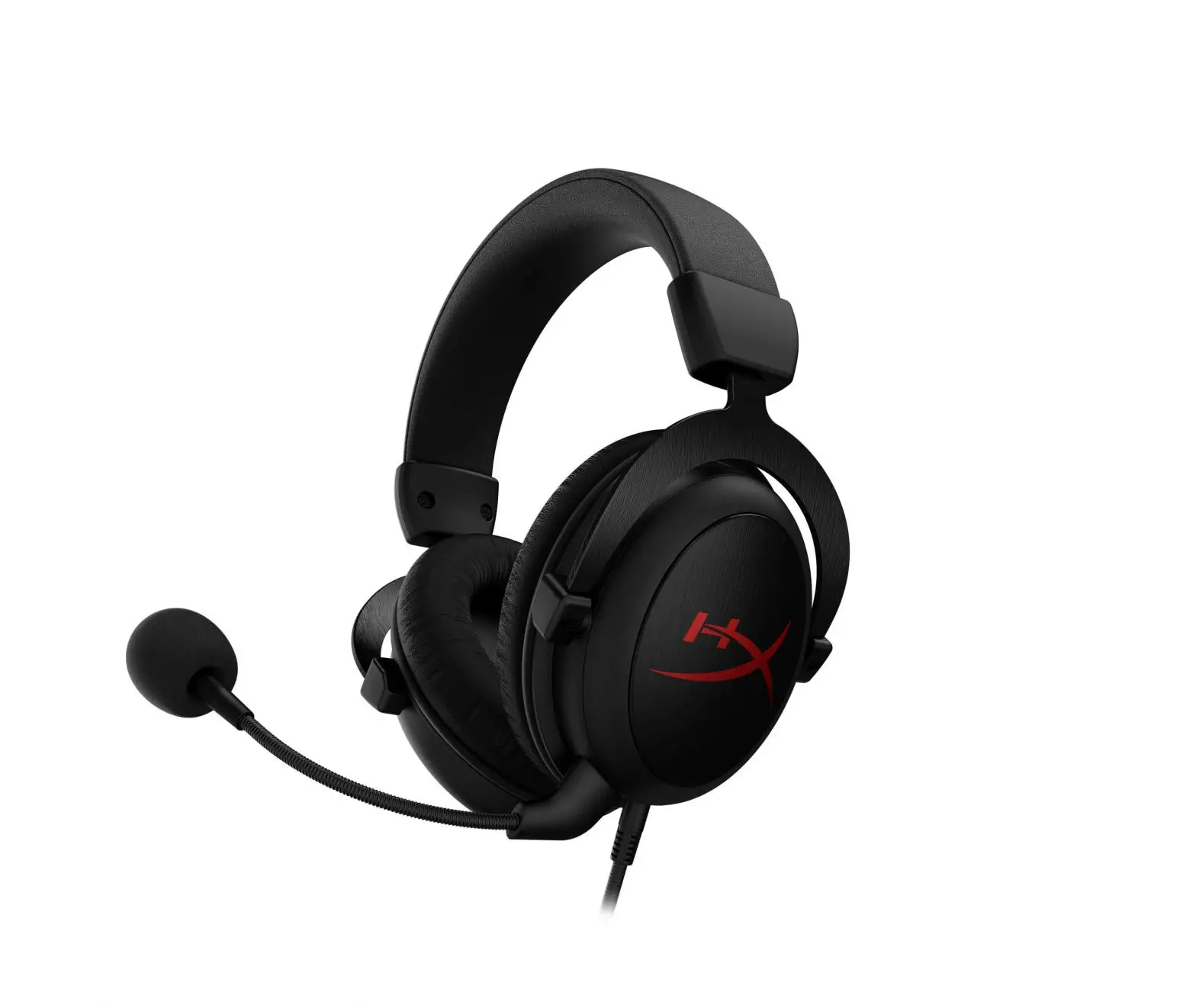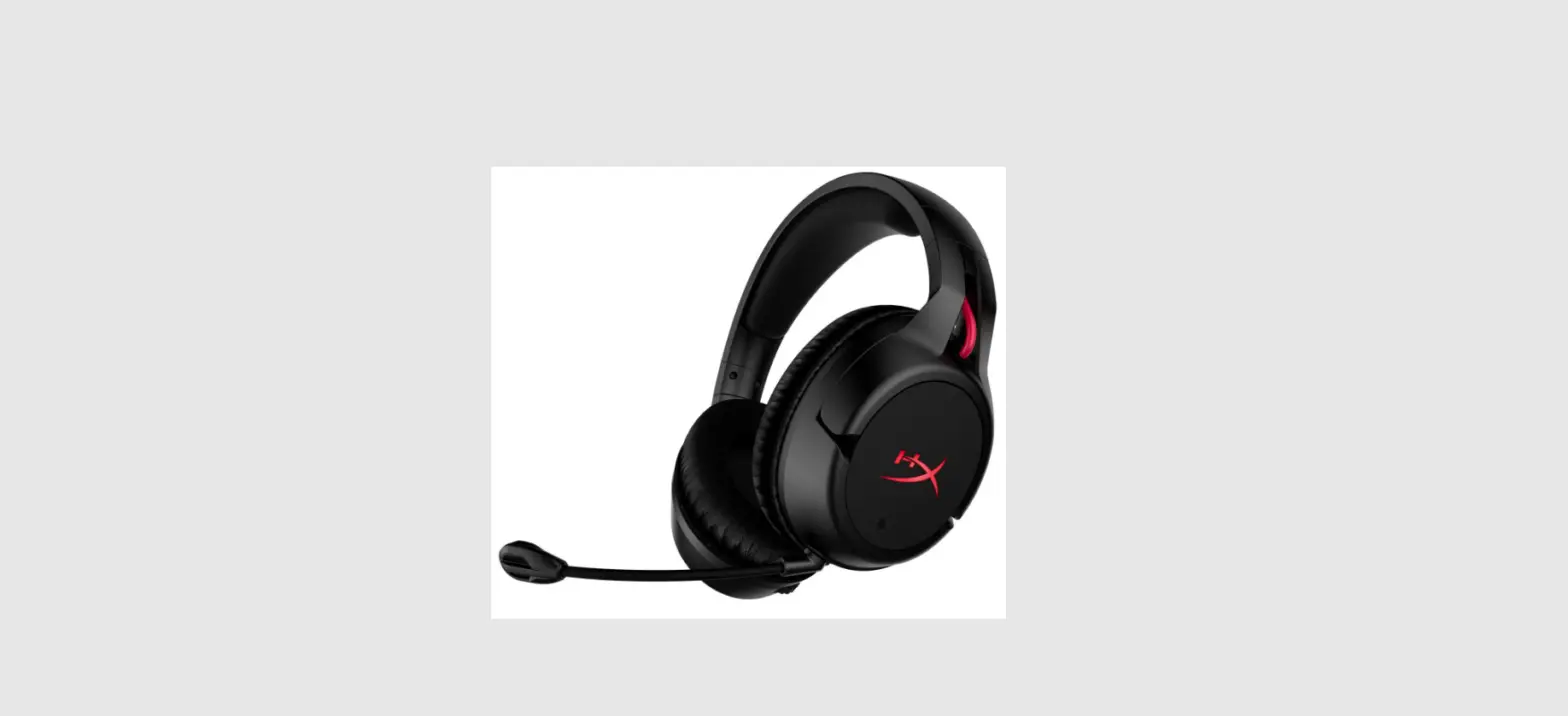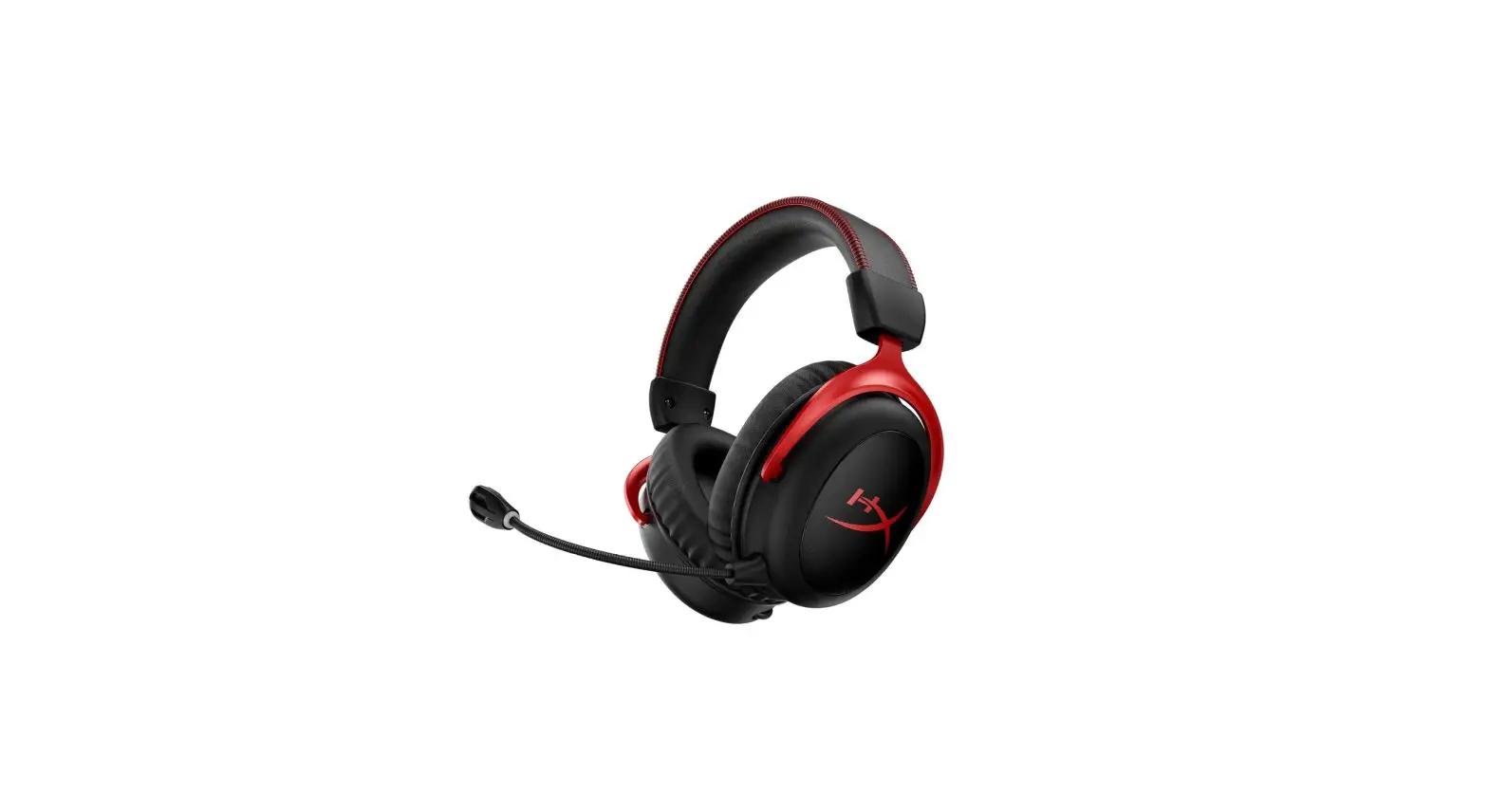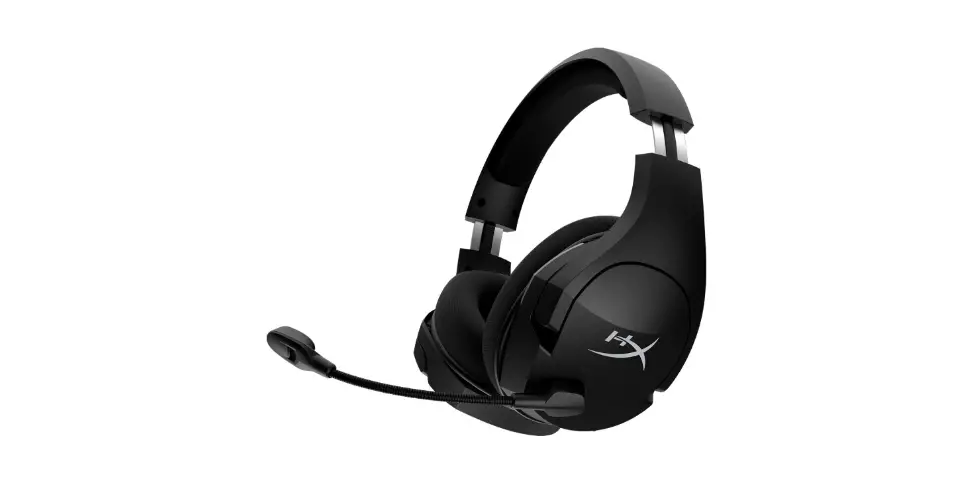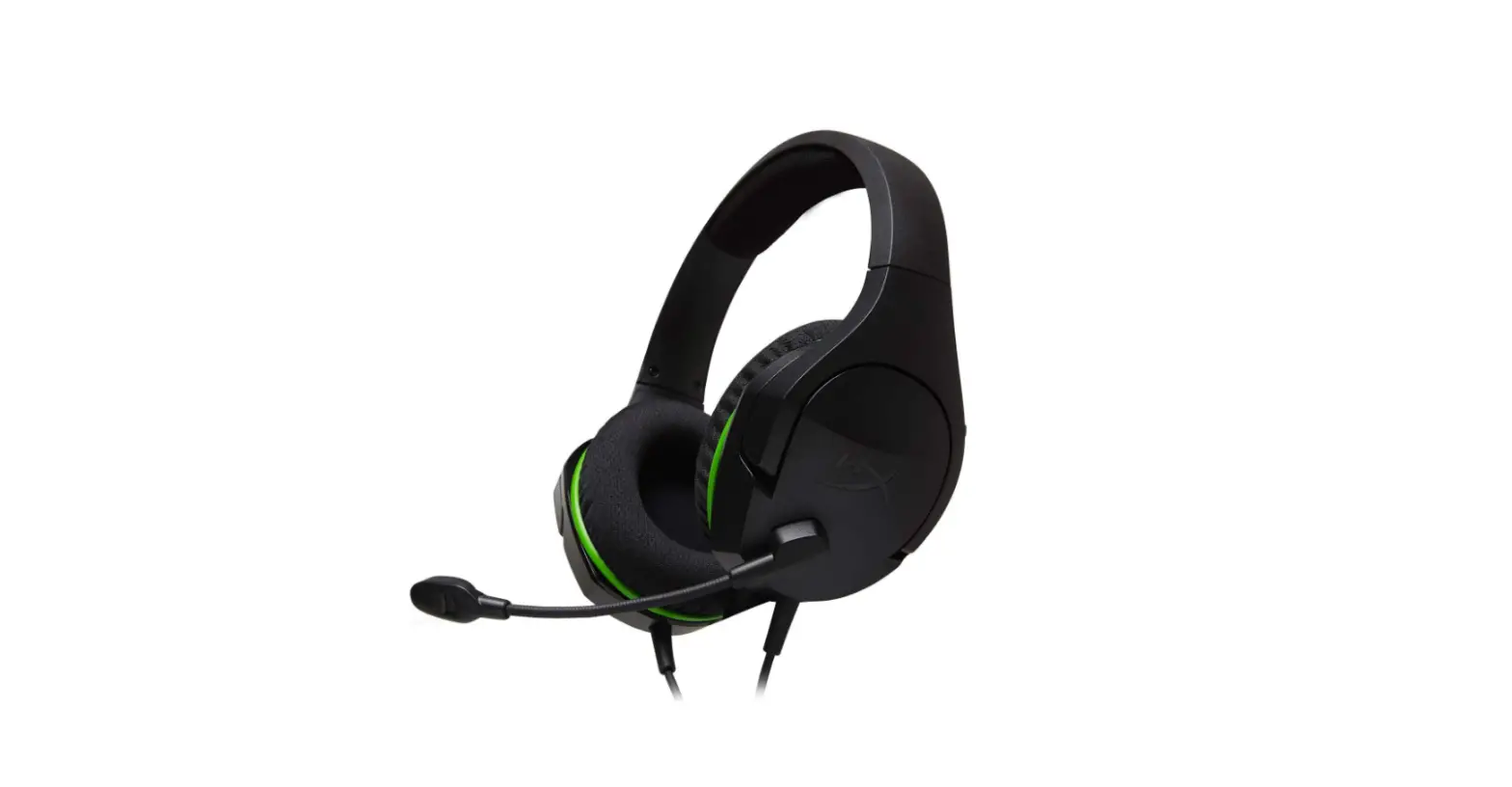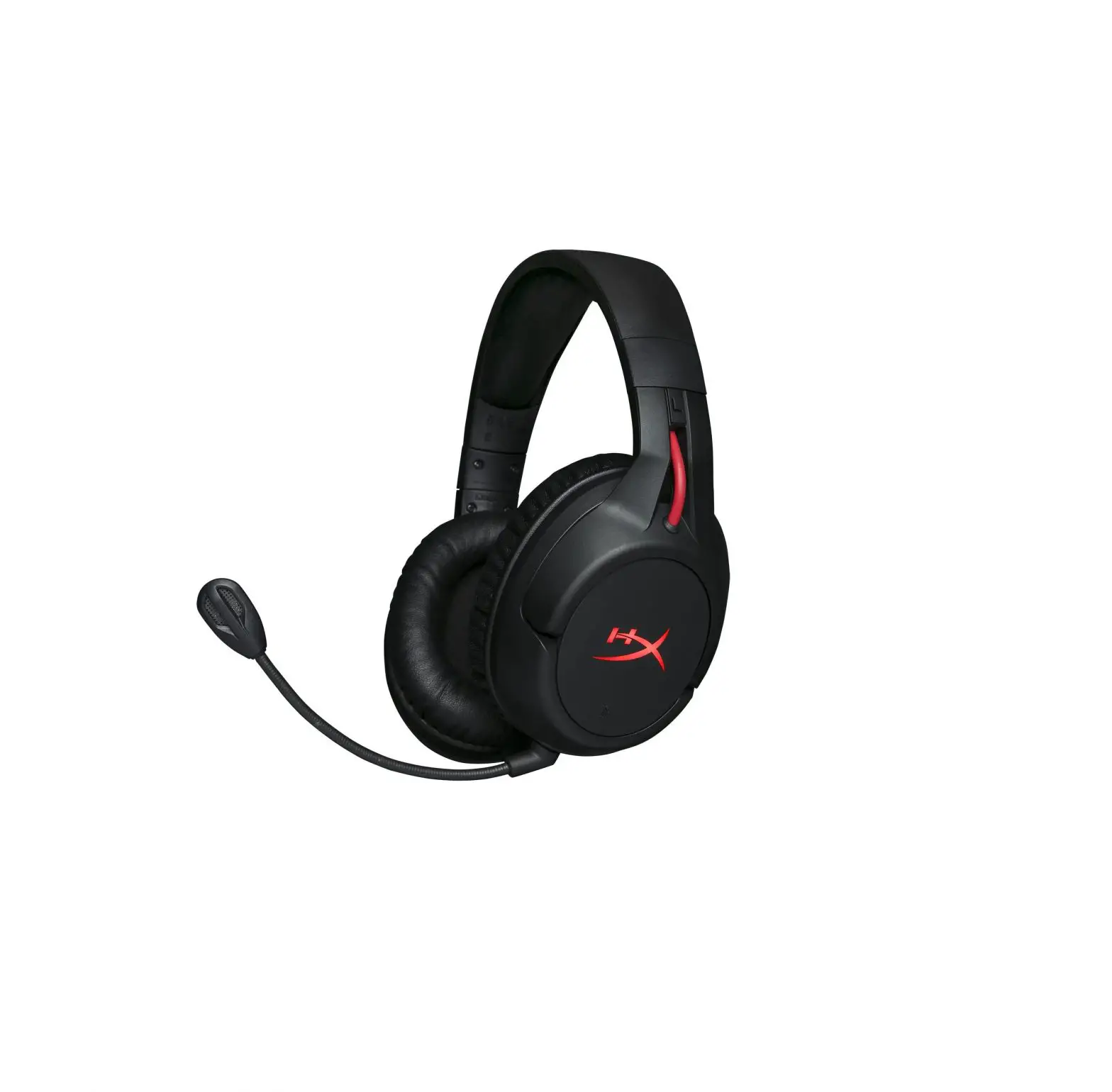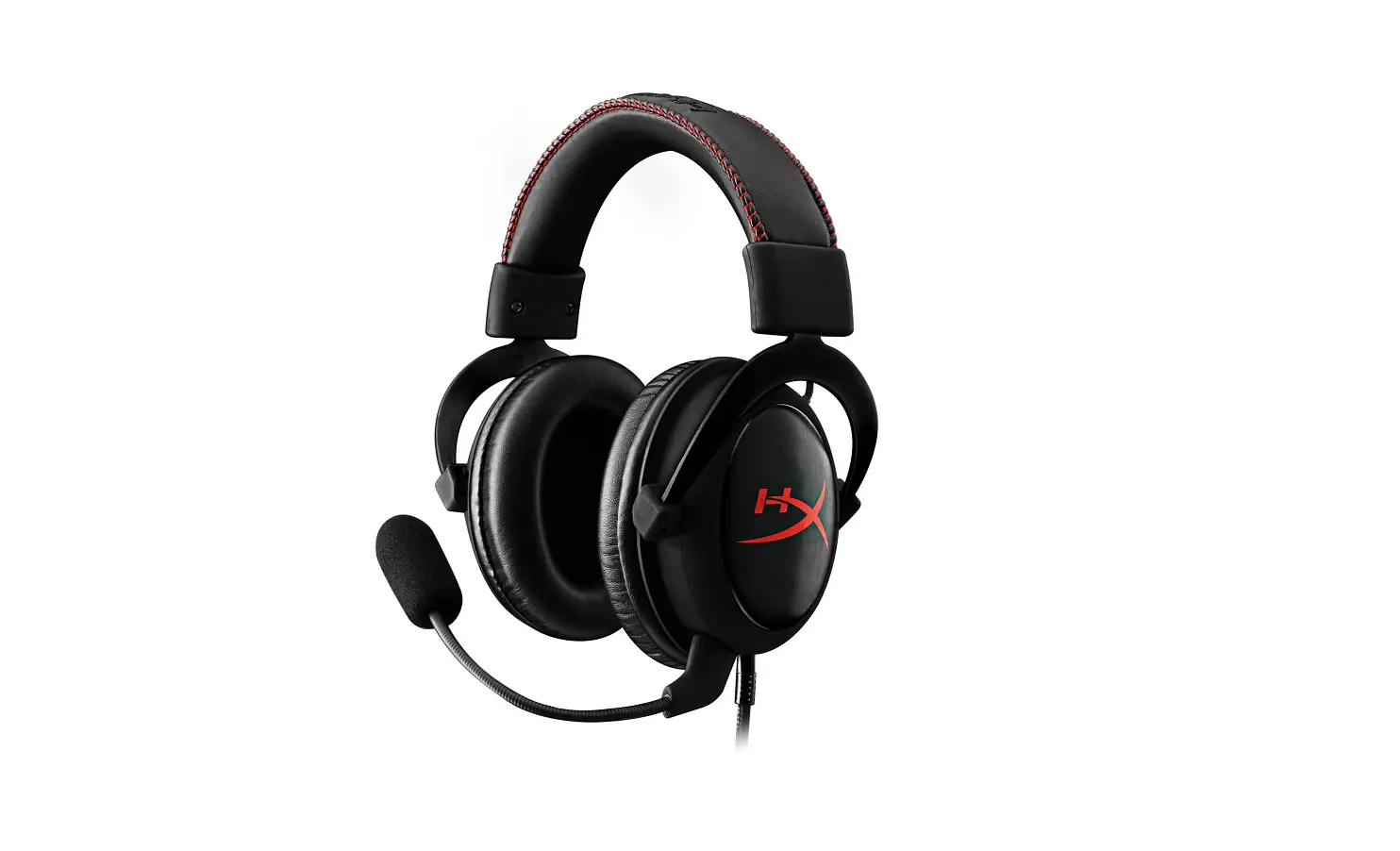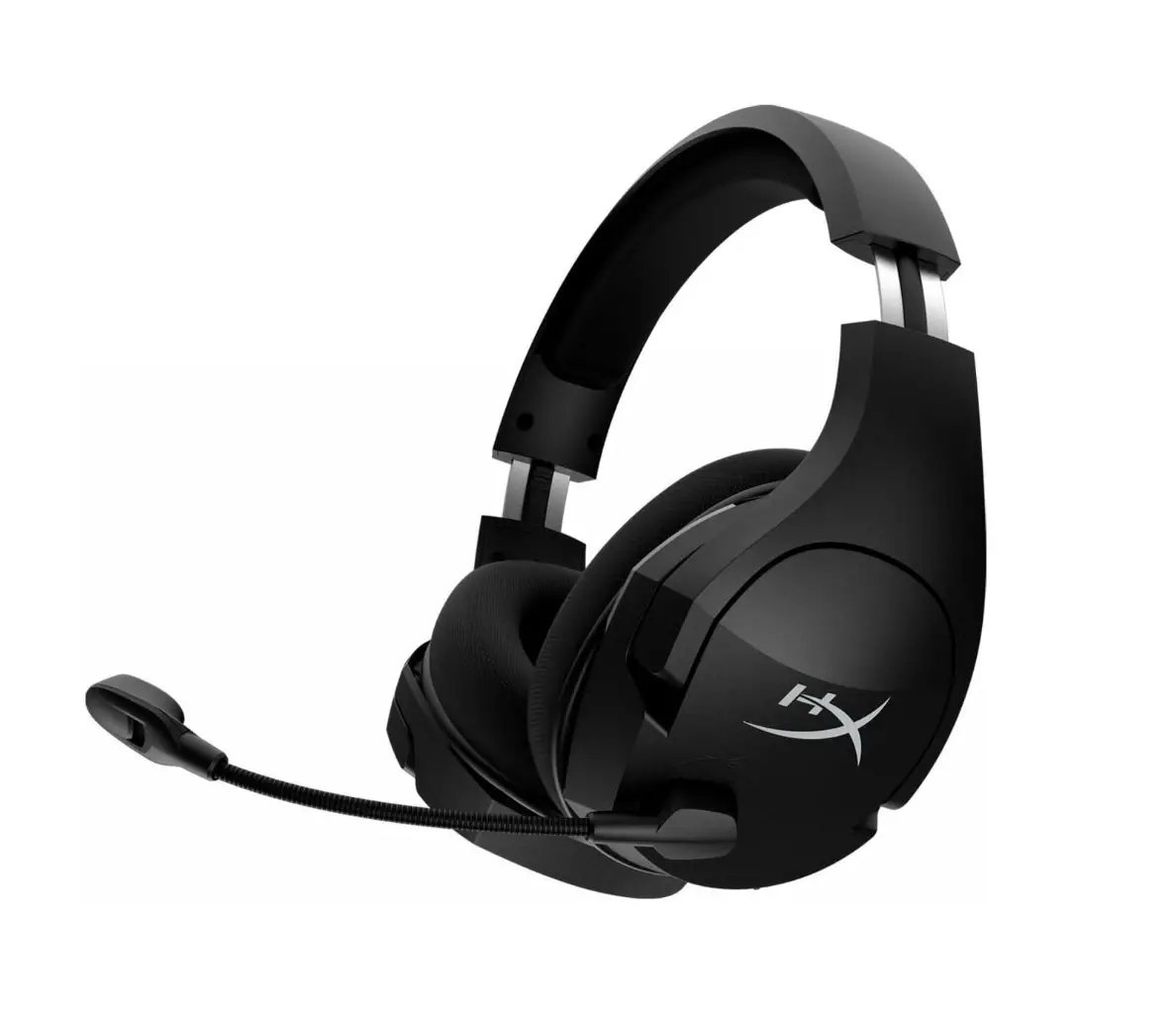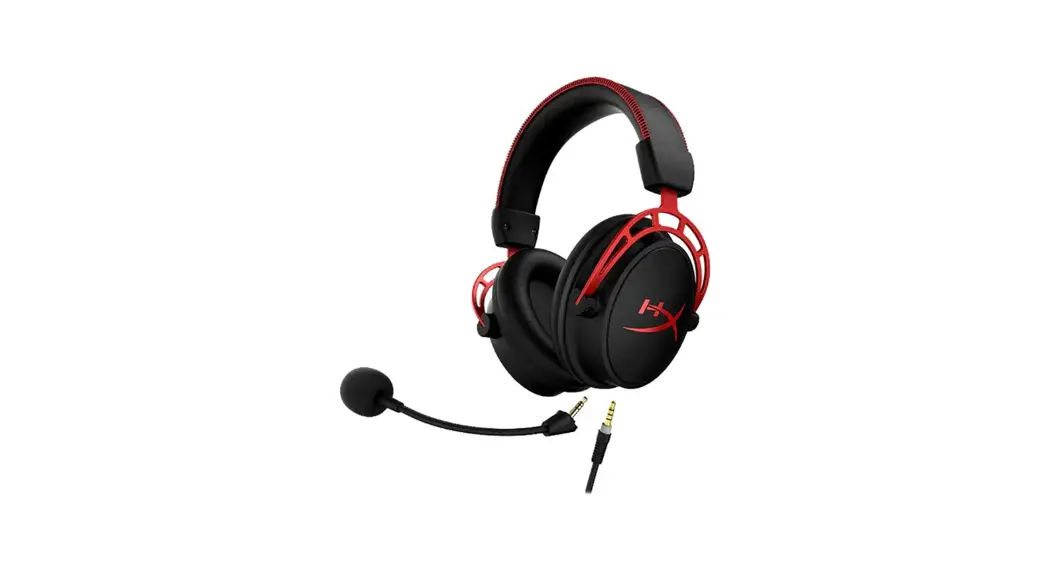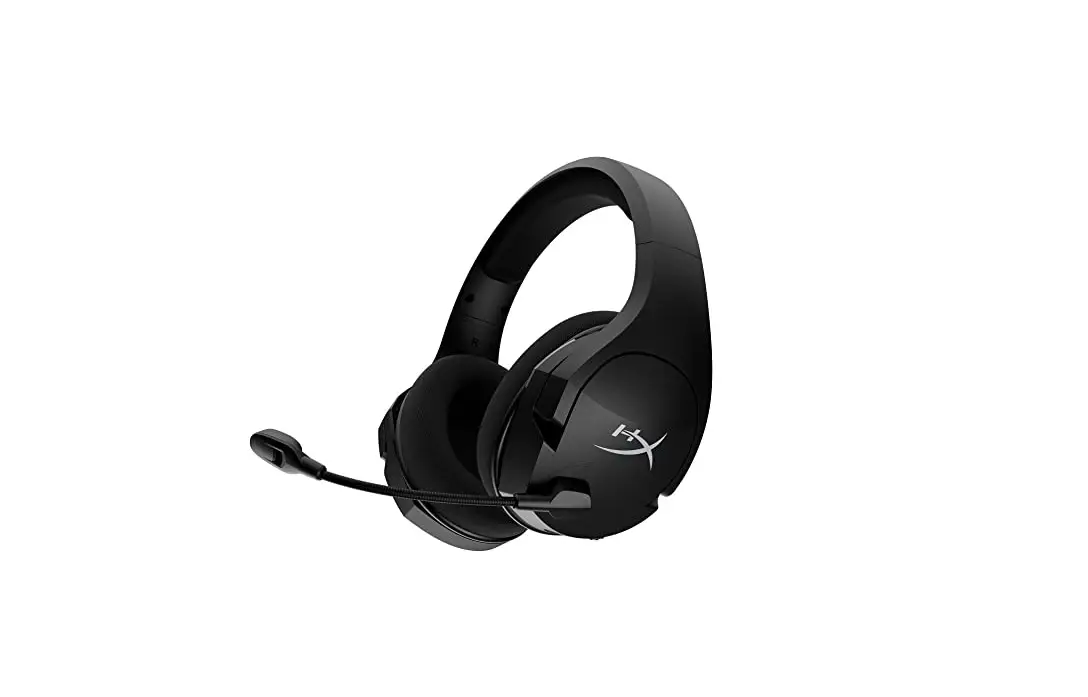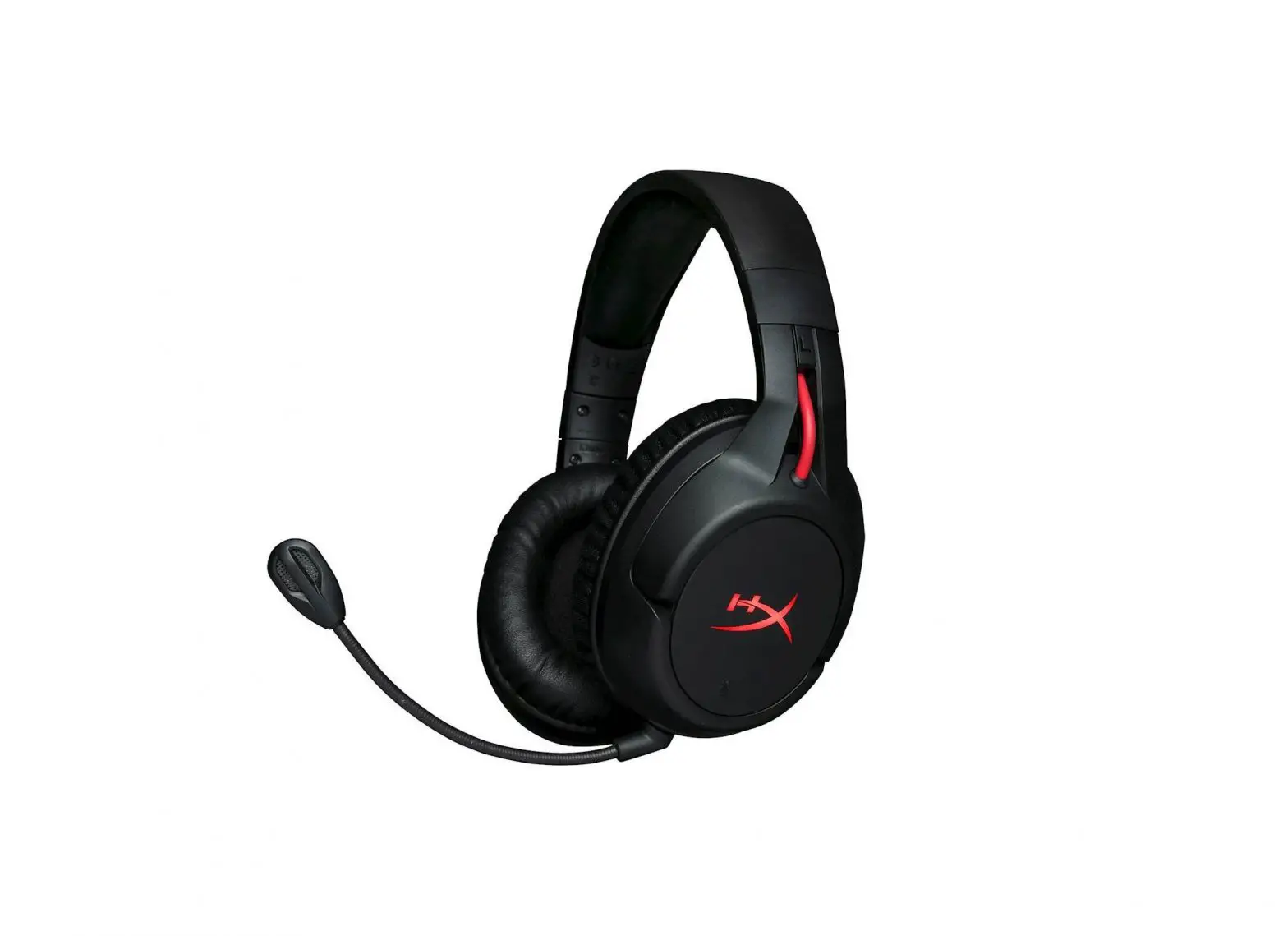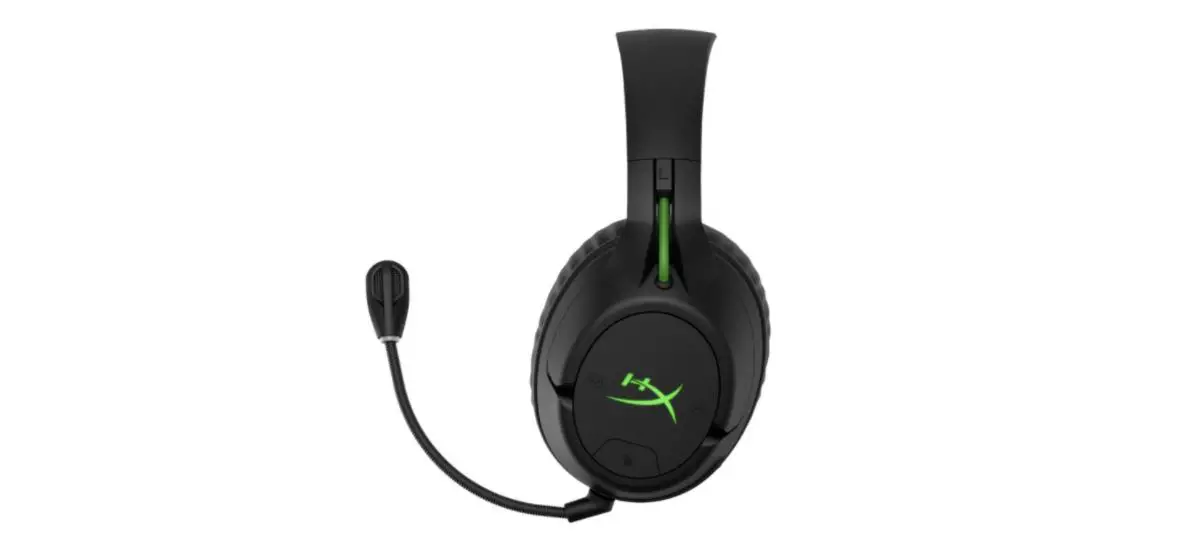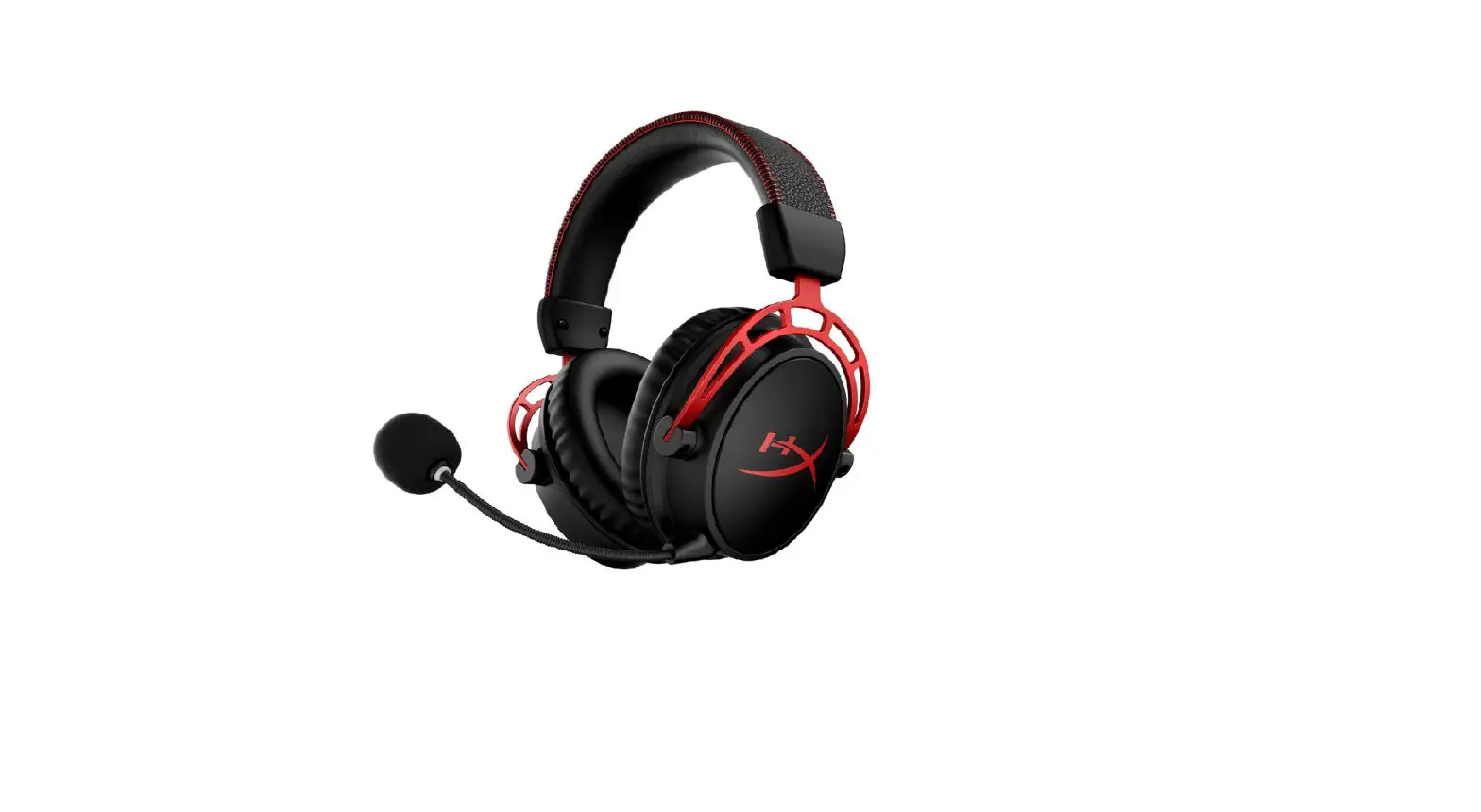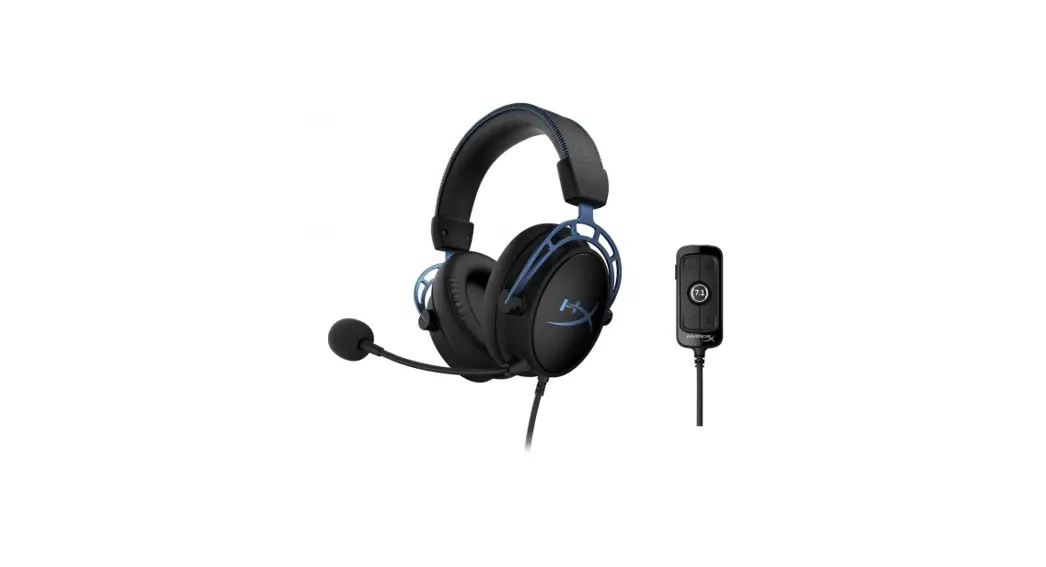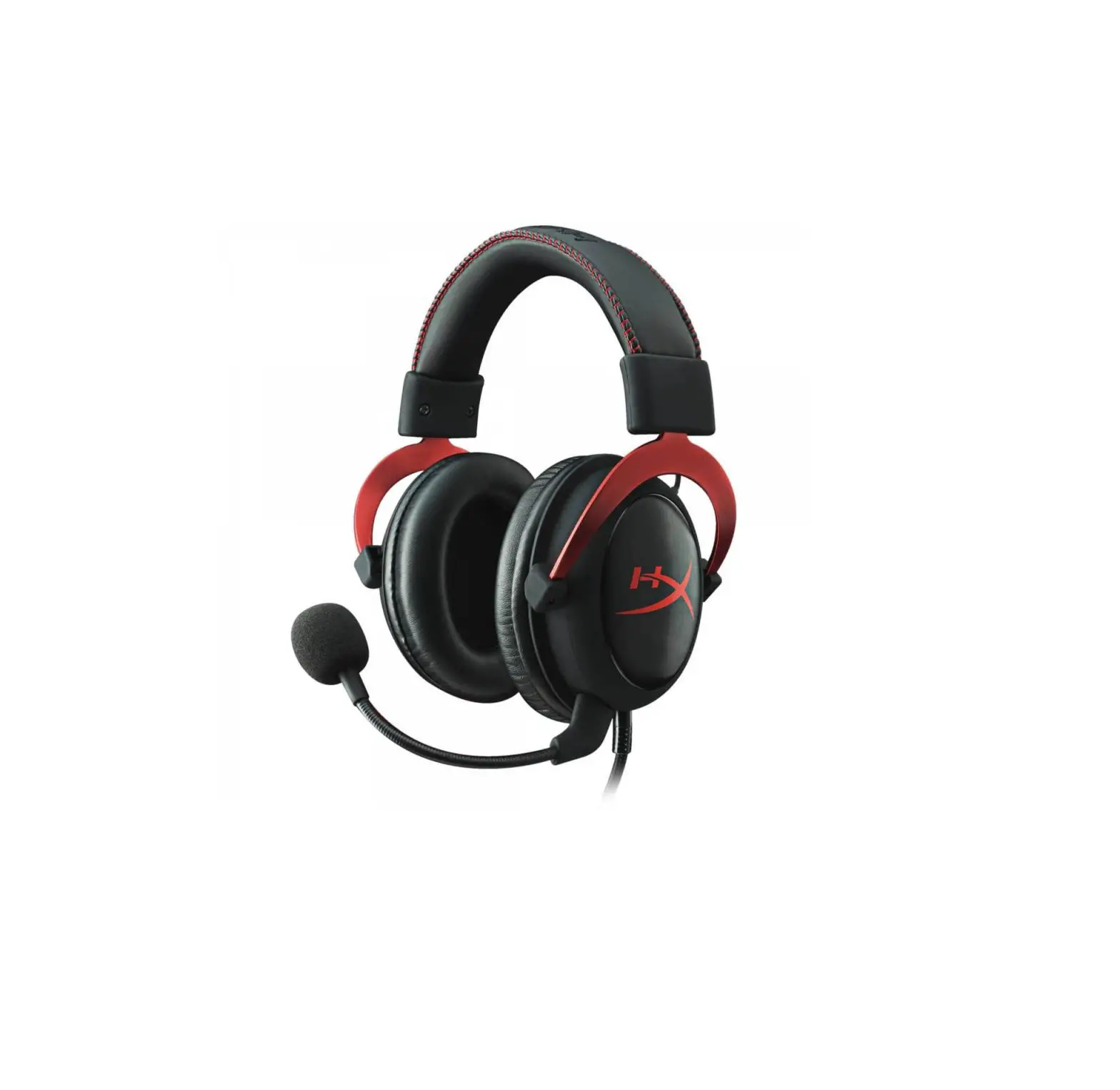

HyperX Cloud Core Gaming Headset plus 7.1
Overview
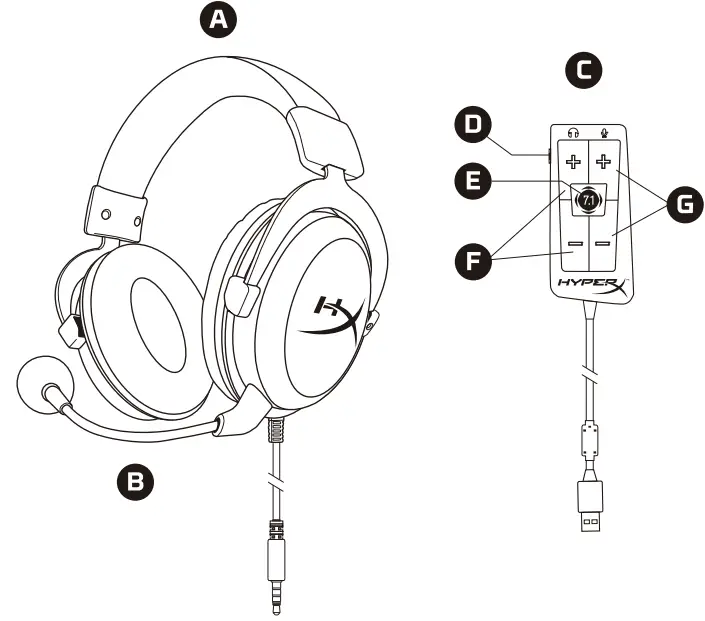
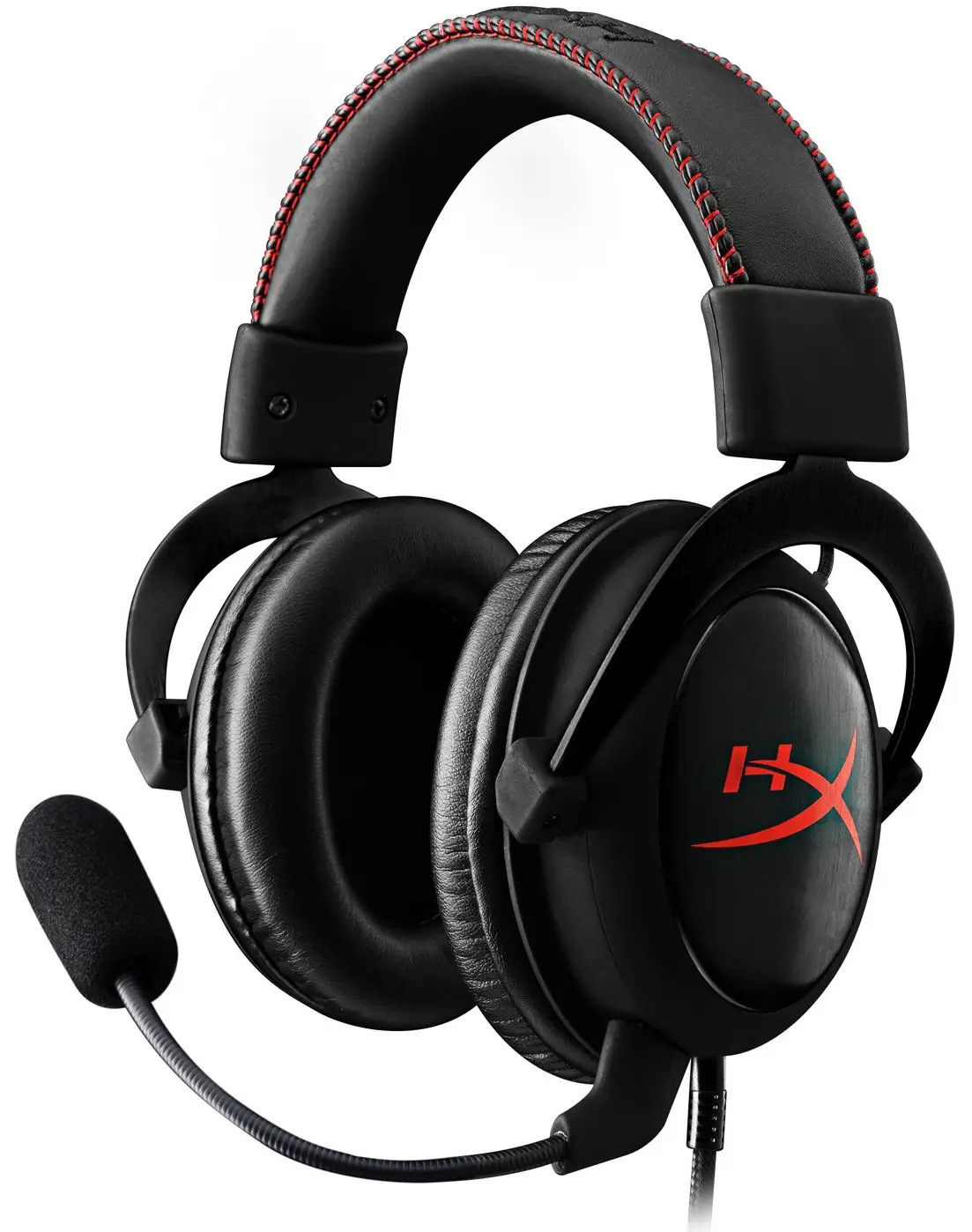
- A. Gaming Headset
- B. Detachable Microphone
- C. USB Sound Card
- D. Microphone Mute
- E. 7.1 Virtual Surround Sound
- F. Headphone Volume
- G. Microphone Volume
PC or Mac
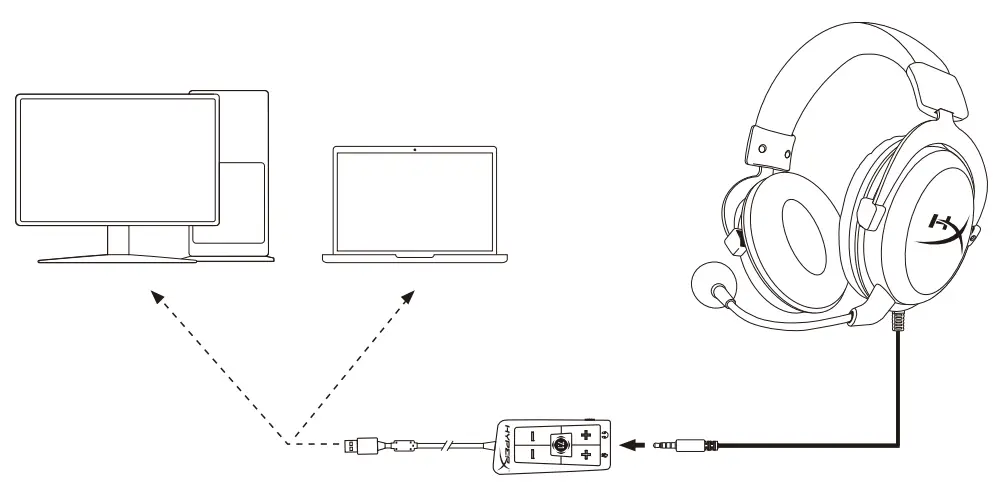
- PC:
Control Panel › Sound › Set Default Playback and Recording to “HyperX Virtual Surround Sound” - Mac:
Apple® Menu › System Preferences › Sound › Set default output and input to “HyperX Virtual Surround Sound”
* Virtual 7.1 surround sound eect output as a 2 channel stereo signal to be used with stereo headphones.
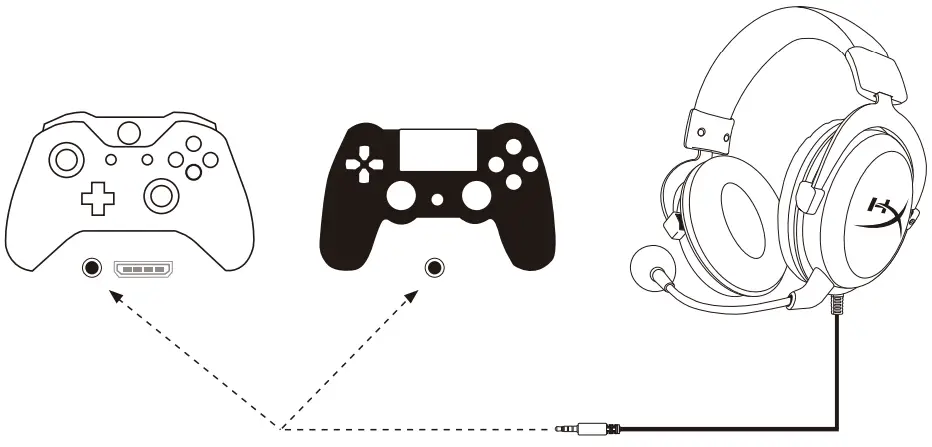
Xbox One™ or PS4™
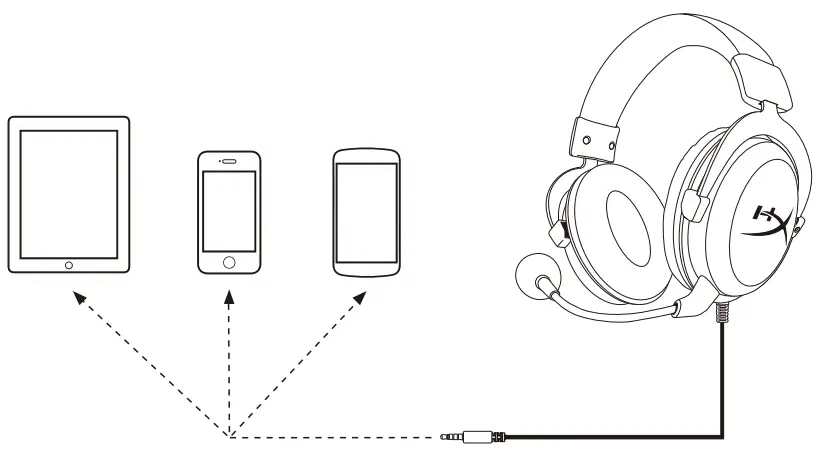
Mobile
Questions or Setup Issues?
Contact HyperX support team at hyperxgaming.com/support/headsets
WARNING: Permanent hearing damage can occur if a headset is used at high volumes for extended periods of time
ABOUT COMPANY
- HyperX is a division of Kingston.
- THIS DOCUMENT SUBJECT TO CHANGE WITHOUT NOTICE
- ©2019 Kingston Technology Corporation, 17600 Newhope Street, Fountain Valley, CA 92708 USA.
- All rights reserved. All registered trademarks and trademarks are the property of their respective owners
 HyperX | High Quality Gaming Gear