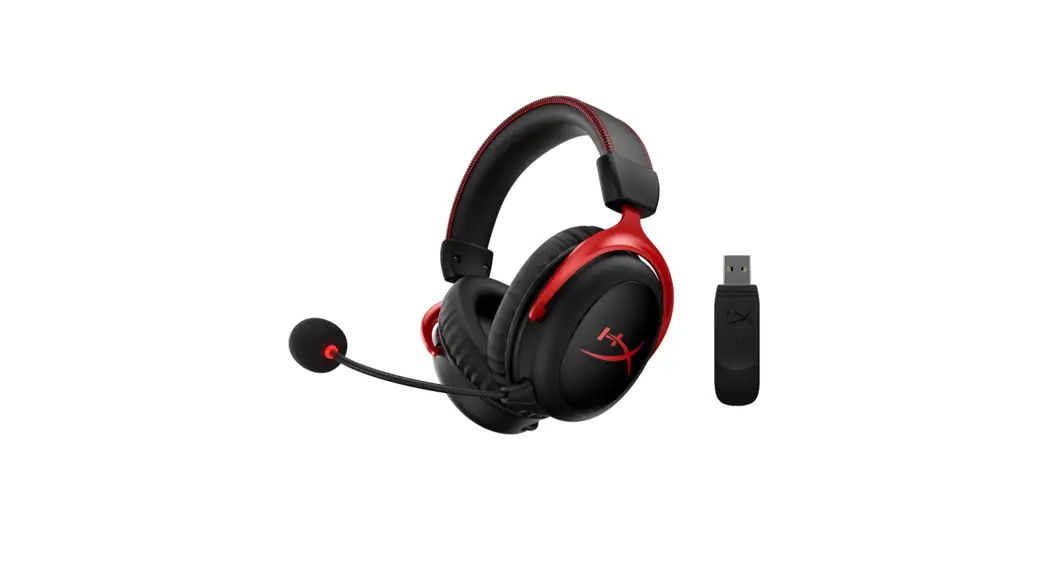
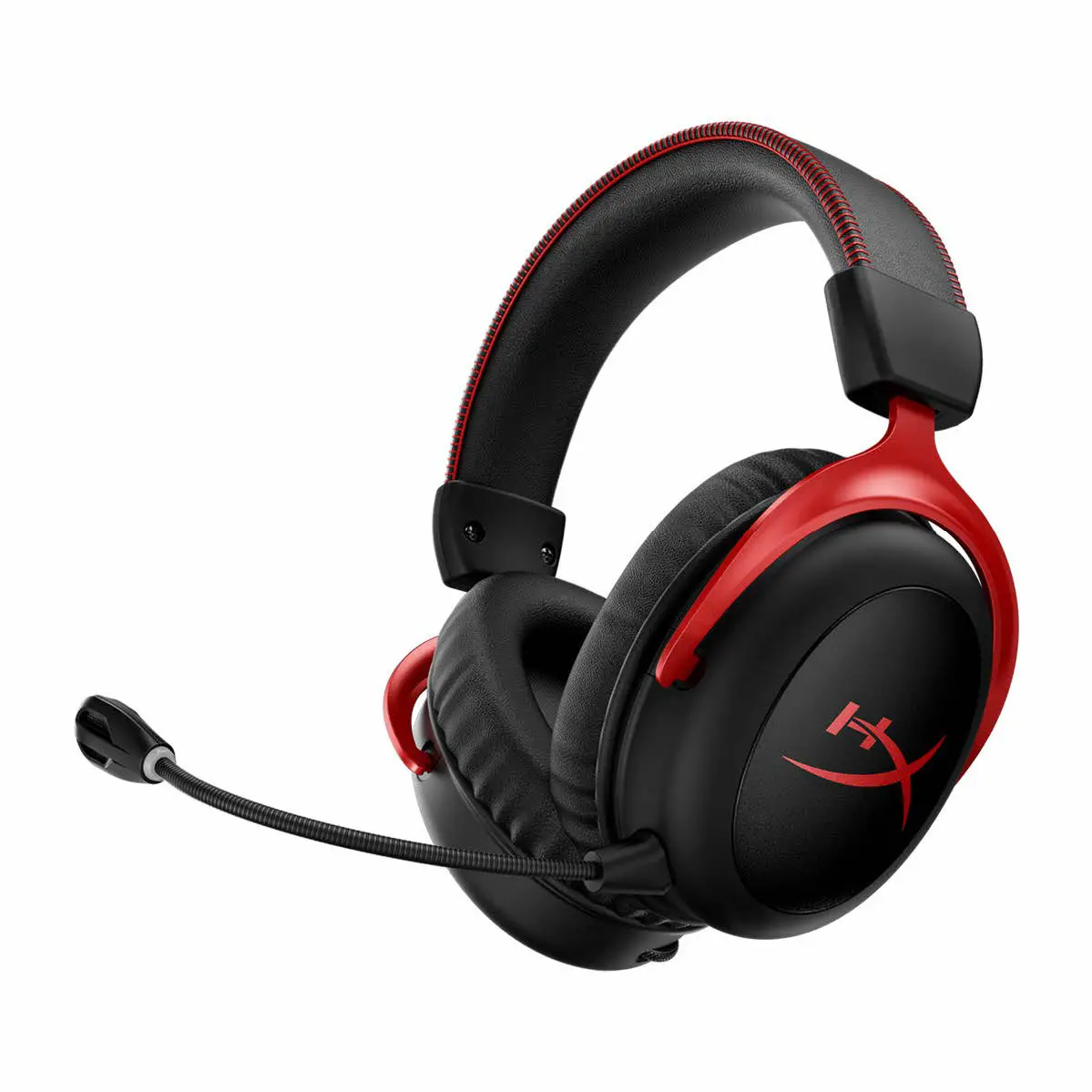
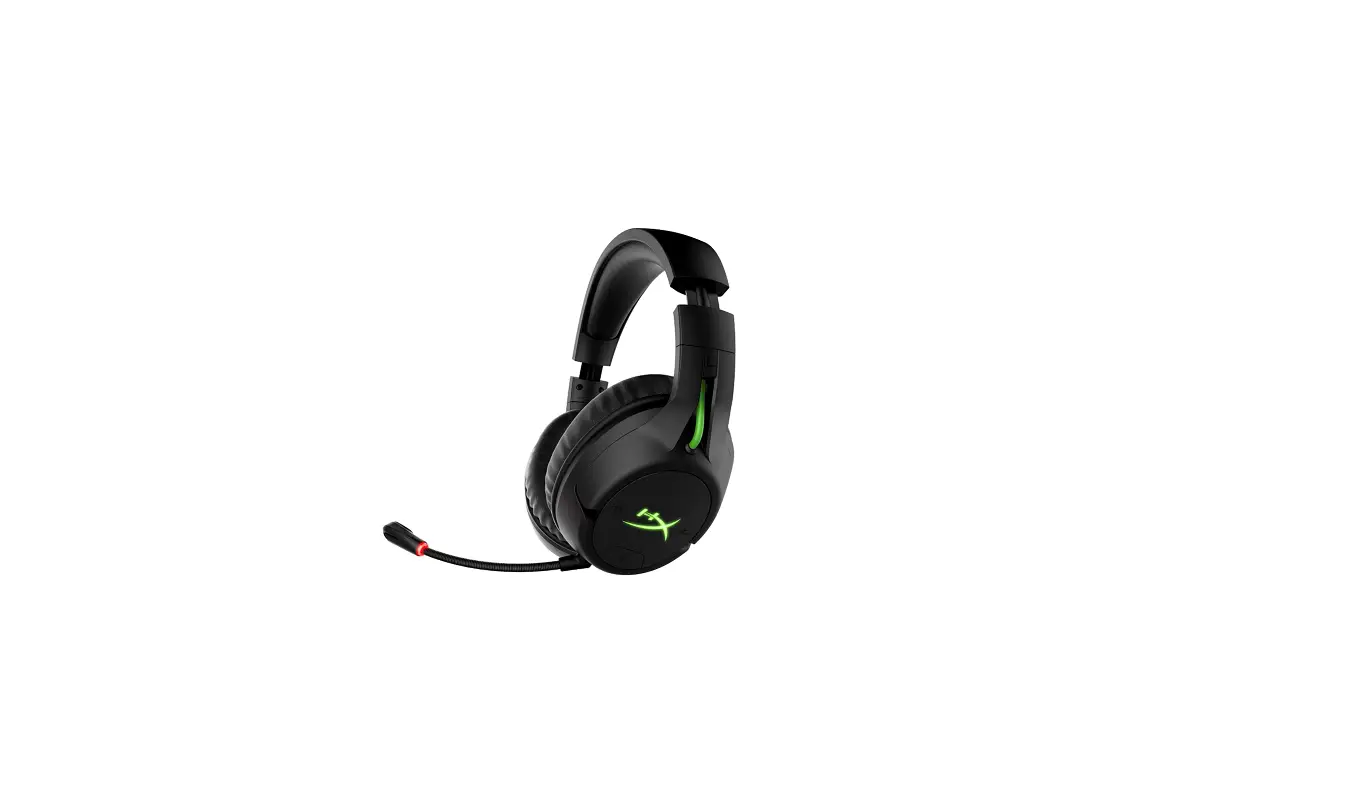
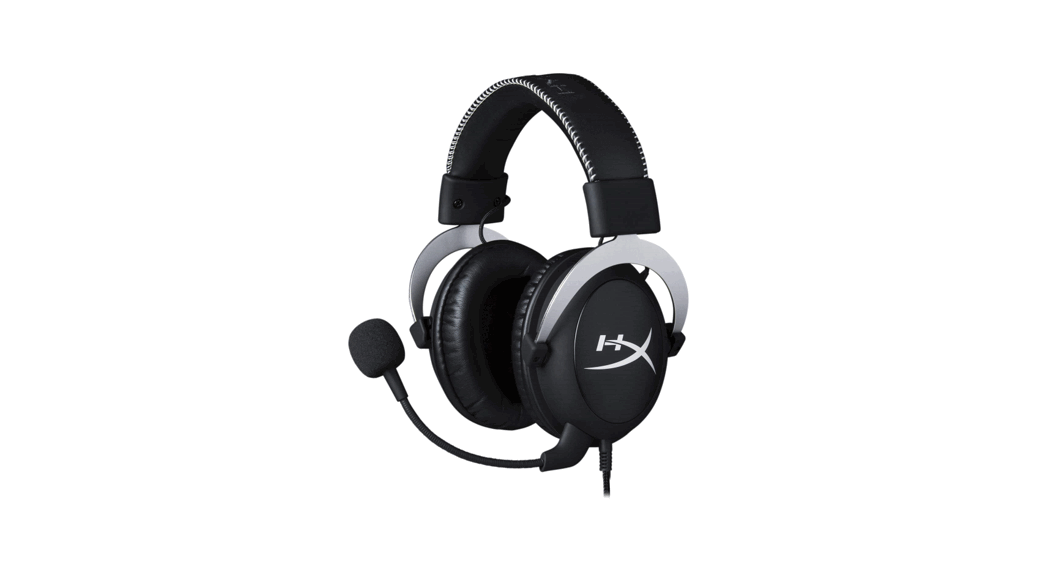
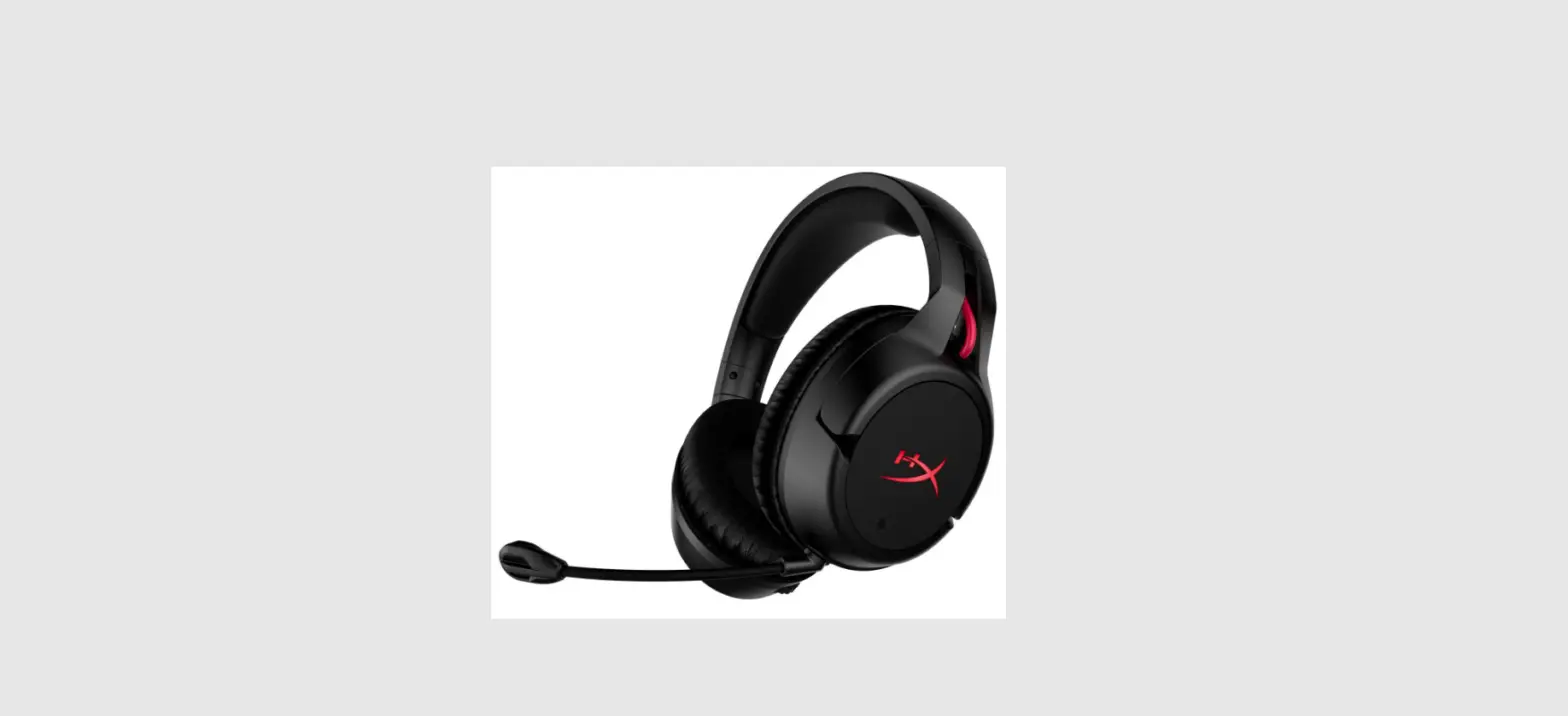
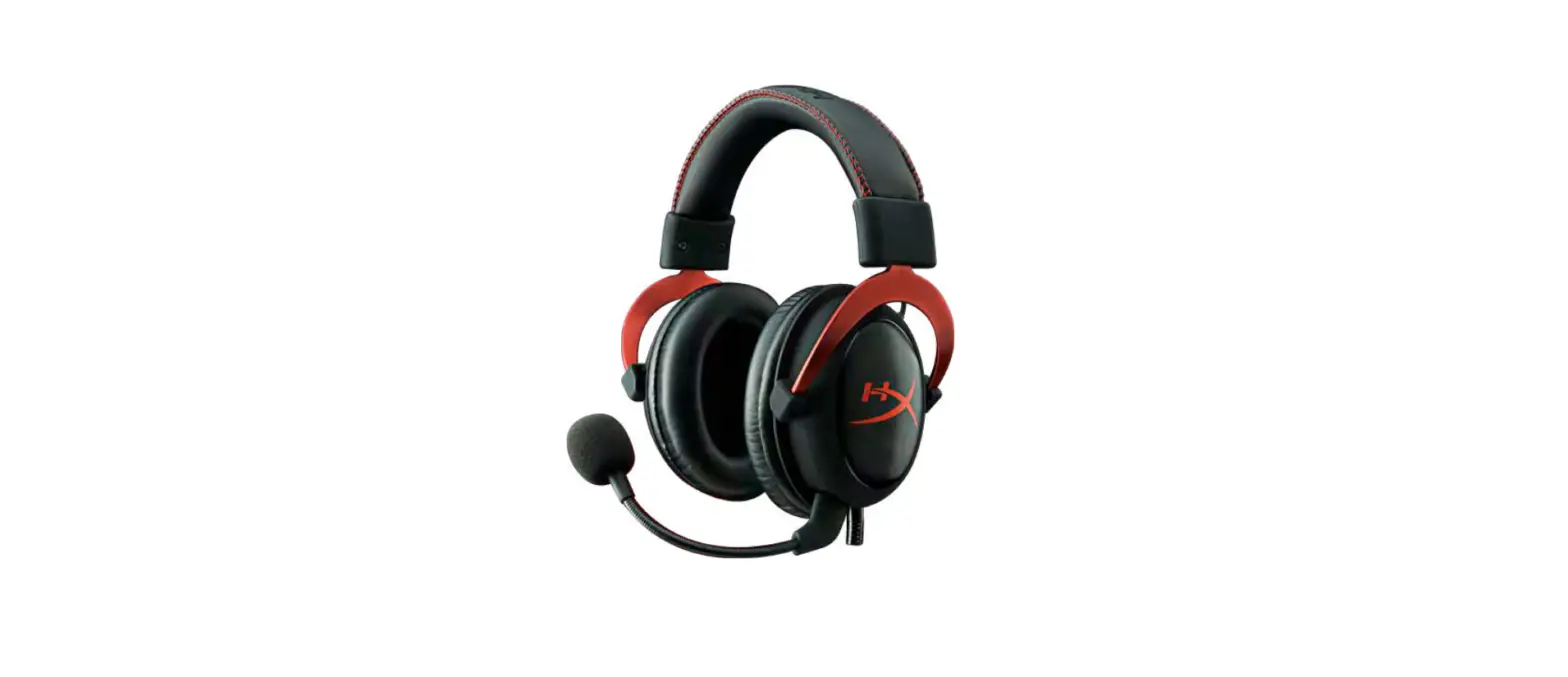
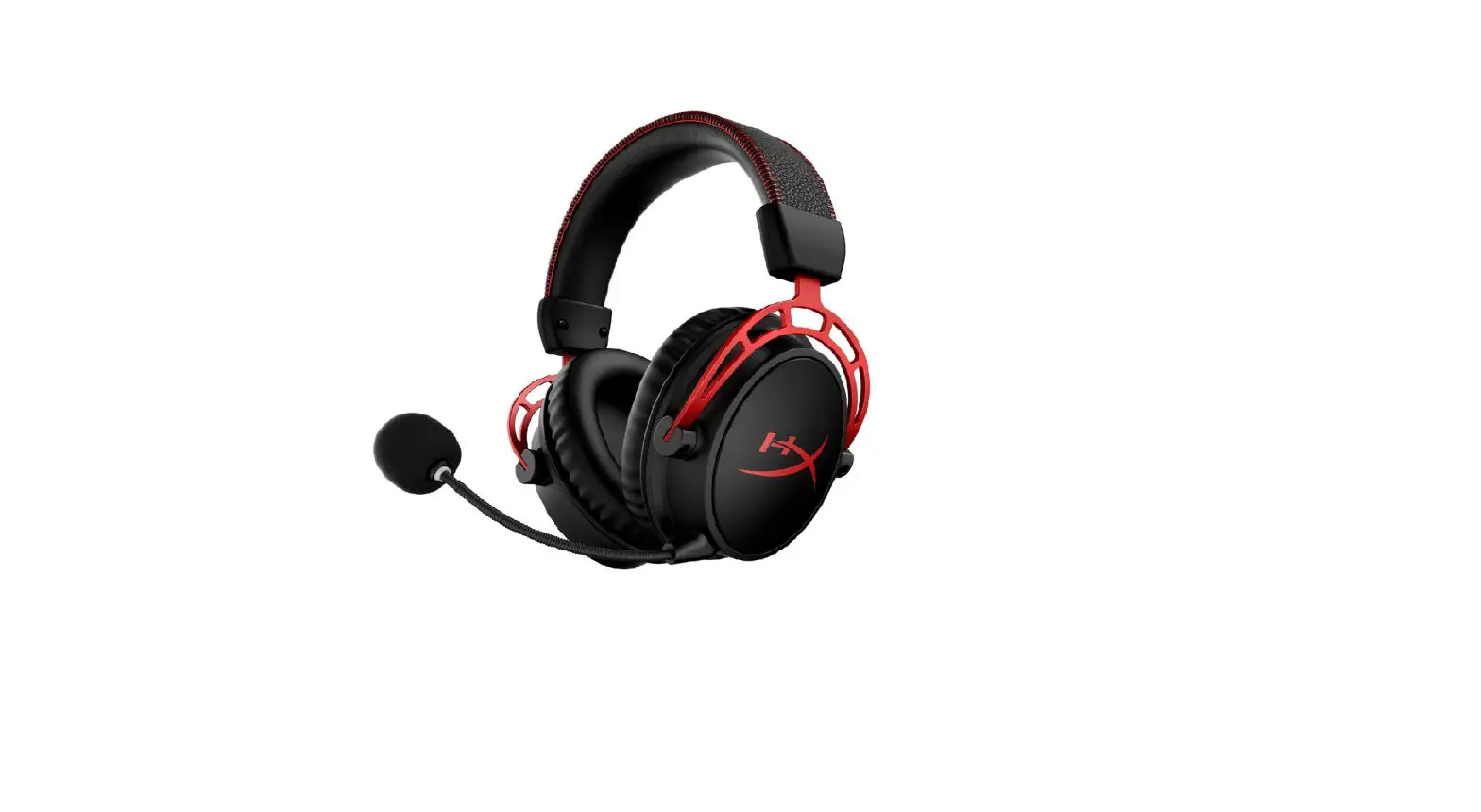
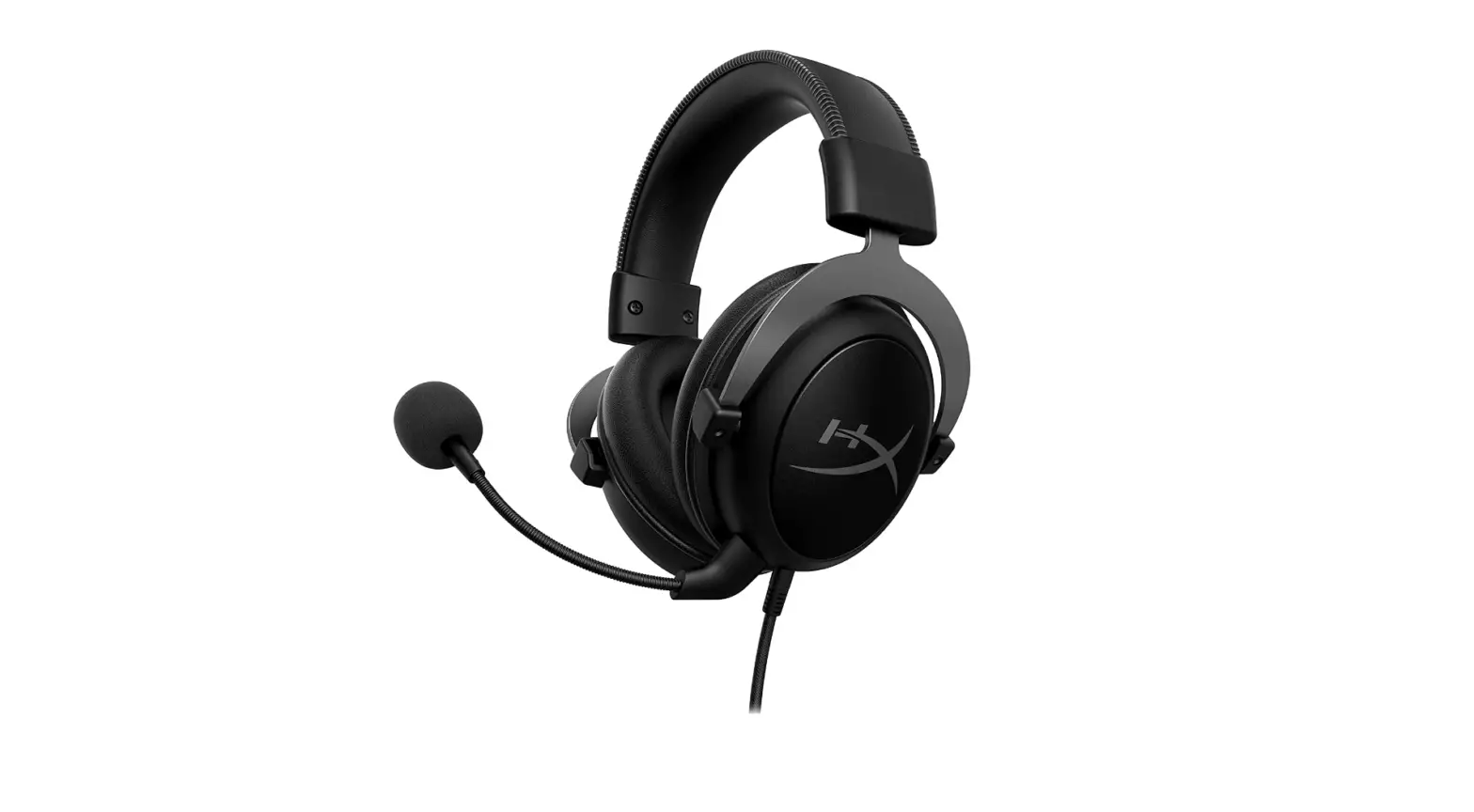
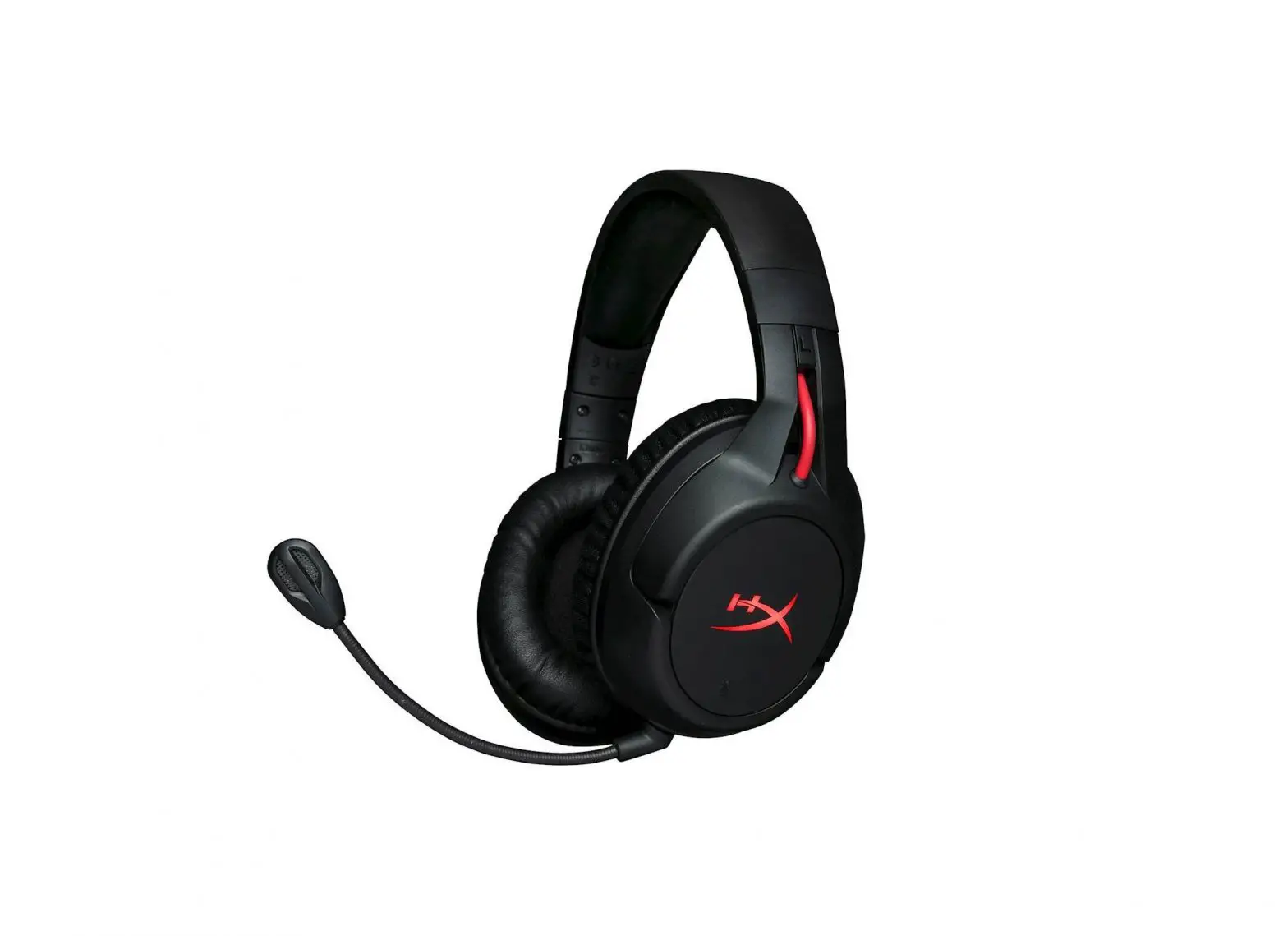
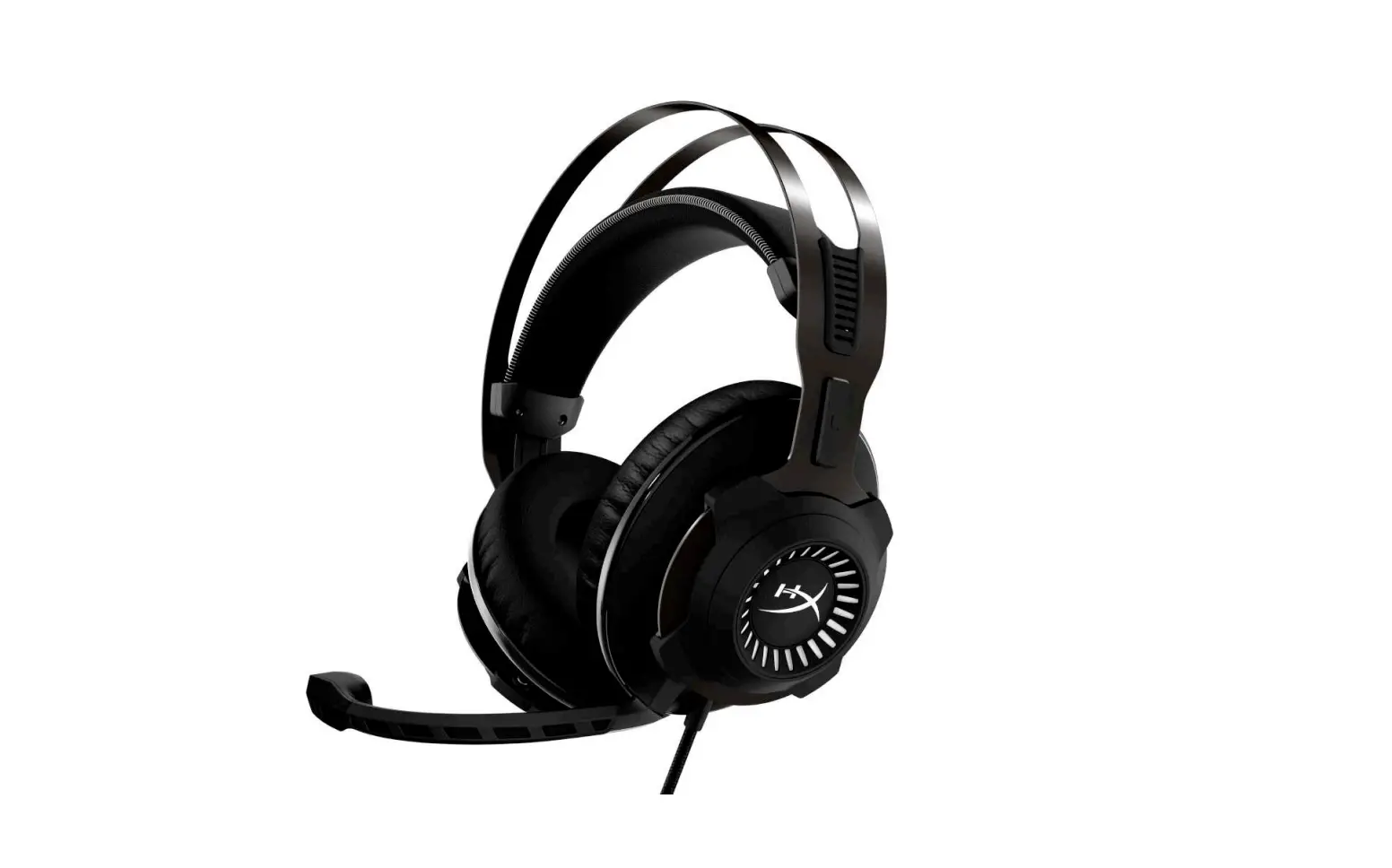
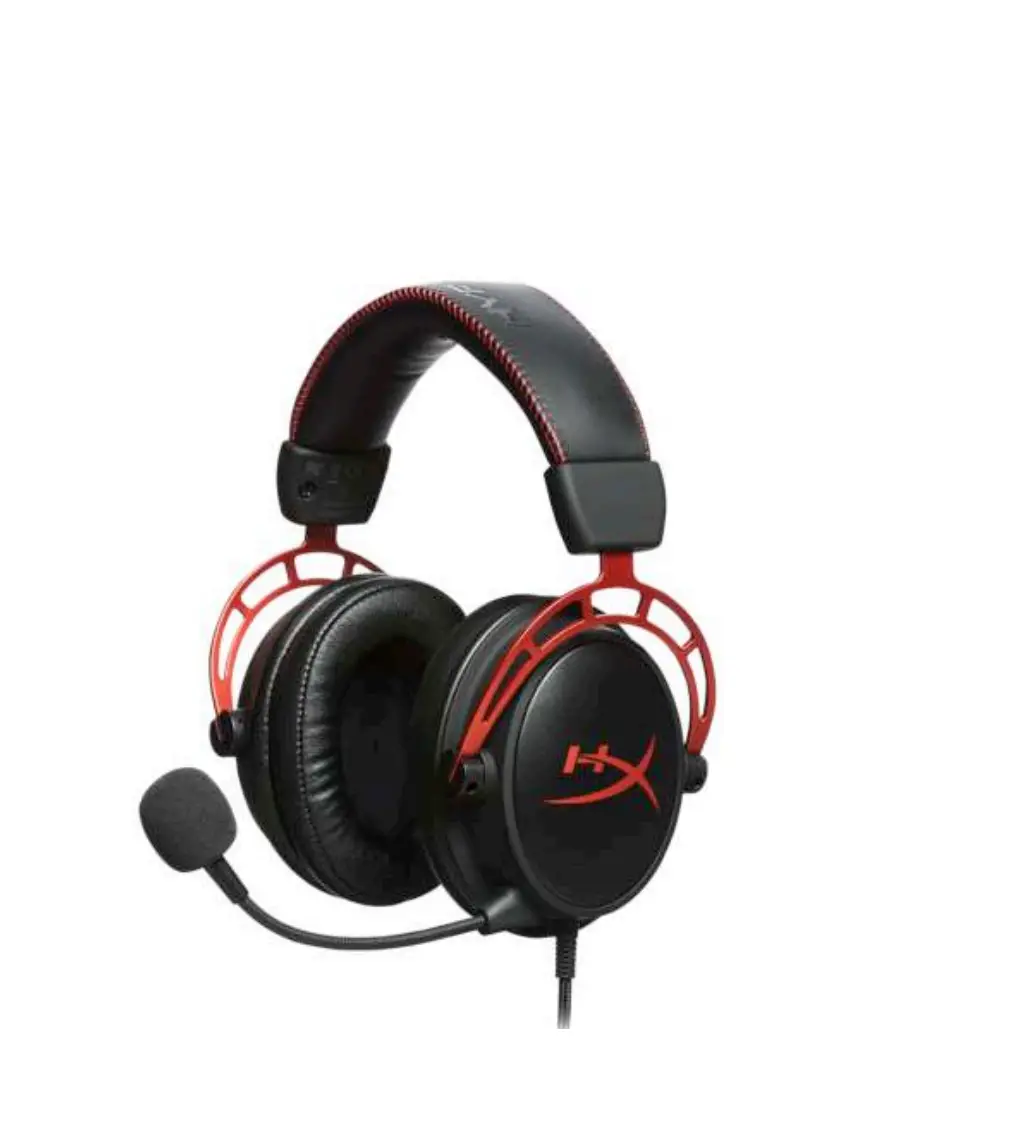
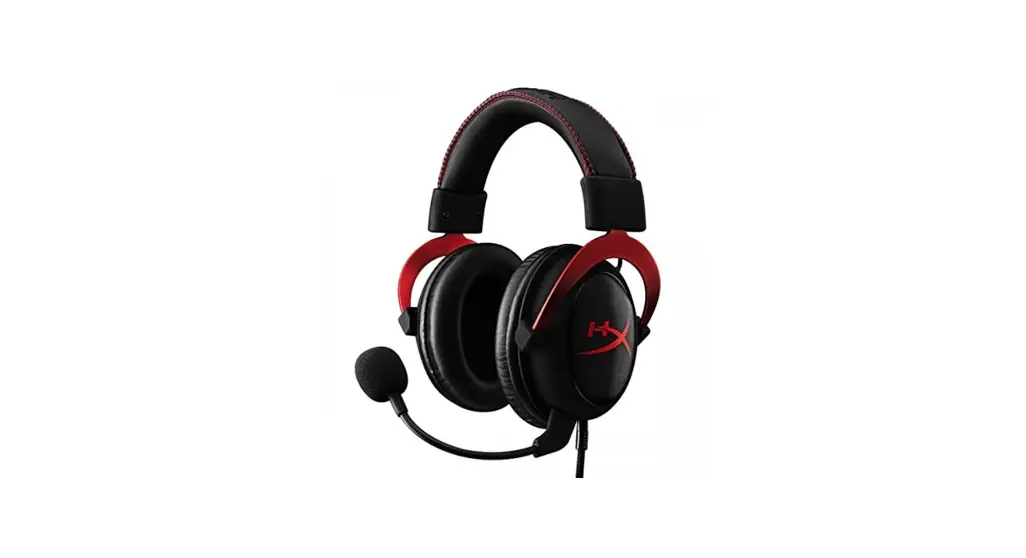
HHSC2X-BA-RD-G Cloud II Wireless Gaming Headset for PC
Product Information
| Product Name | HyperX Cloud II Wireless |
|---|---|
| Part Numbers | HHSC2X-BA-RD/G |
| Document No. | 480HX-HHSC2X.A01 |
| Battery Life | 30 hours* |
| Wireless Range | 2.4 GHz Up to 20 meters** |
Product Usage Instructions
Setting up with PC
- Connect the wireless USB adapter to the PC.
- Power on the headset.
- Right click speaker icon > Select Open Sound settings >
Select Sound Control Panel. - Under the Playback tab, click on HyperX Cloud II Wireless and
click on the Set Default button. - Right click on HyperX Cloud II Wireless and click on Configure
Speakers. - Select 7.1 Surround as the speaker configuration and click
next. - Under the Recording tab, click on HyperX Cloud II Wireless and
click on the Set Default button. - Under the Playback tab, verify that HyperX Cloud II Wireless is
set as Default Device and Default Communication Device. Under the
Recording tab, verify that HyperX Cloud II Wireless is set as
Default Device.
Setting up with PlayStation 4
- Set Input Device to USB Headset (HyperX Cloud II
Wireless). - Set Output Device to USB Headset (HyperX Cloud II
Wireless). - Set Output to Headphones to All Audio.
- Set Volume Control (Headphones) to maximum.
*Tested at 50% headphone volume. Battery life varies depending
upon the usage.
**Wireless range may vary due to environmental conditions.
HyperX Cloud II Wireless
Part Numbers
HHSC2X-BA-RD/G
Document No. 480HX-HHSC2X.A01
HyperX Cloud II Wireless
Page 1 of 13
TABLE OF CONTENTS
Overview …………………………………………………………………………………………………………………… 3 Specifications……………………………………………………………………………………………………………. 4 Setting up with PC …………………………………………………………………………………………………….. 5 Setting up with PlayStation 4……………………………………………………………………………………… 9 Controls ………………………………………………………………………………………………………………….. 10
Mic mute / mic monitoring button…………………………………………………………………………………………………………10 Power button / 7.1 Surround Sound button ………………………………………………………………………………………….. 10 Volume wheel …………………………………………………………………………………………………………………………………….. 11 Status LED …………………………………………………………………………………………………………………………………………. 10
Charging the Headset………………………………………………………………………………………………. 12
Wired charging …………………………………………………………………………………………………………………………………… 12
HyperX NGENUITY Software…………………………………………………………………………………….. 12 Manually Pairing the Headset and USB Adapter ……………………………………………………….. 13
Document No. 480HX-HHSC2X.A01
HyperX Cloud II Wireless
Page 2 of 13
Overview
A. Mic mute / mic monitoring button B. USB charge port C. Microphone port D. Status LED E. Power / 7.1 Surround Sound button F. Volume wheel
G. Detachable microphone H. Microphone mute LED I. USB adapter J. Wireless pairing pin hole K. Wireless status LED L. USB charge cable
Document No. 480HX-HHSC2X.A01
HyperX Cloud II Wireless
Page 3 of 13
Specifications
Headphone Driver: Dynamic, 53mm with neodymium magnets Type: Circumaural, Closed back Frequency response: 15Hz20kHz Impedance: 60 Sound pressure level: 104dBSPL/mW at 1kHz T.H.D.: 1% Weight: 300g Weight with mic: 309g Cable length and type: USB charge cable (0.5m)
Microphone Element: Electret condenser microphone Polar pattern: Bi-directional, Noise-cancelling Frequency response: 50Hz-6.8kHz Sensitivity: -20dBV (1V/Pa at 1kHz)
Battery life* 30 hours
Wireless Range** 2.4 GHz Up to 20 meters
*Tested at 50% headphone volume. Battery life varies depending upon the usage. **Wireless range may vary due to environmental conditions.
Document No. 480HX-HHSC2X.A01
HyperX Cloud II Wireless
Page 4 of 13
Setting up with PC
1. Connect the wireless USB adapter to the PC. 2. Power on the headset. 3. Right click speaker icon > Select Open Sound settings > Select Sound Control Panel
Document No. 480HX-HHSC2X.A01
HyperX Cloud II Wireless
Page 5 of 13
4. Under the Playback tab, click on “HyperX Cloud II Wireless” and click on the Set Default button.
5. Right click on “HyperX Cloud II Wireless” and click on Configure Speakers.
Document No. 480HX-HHSC2X.A01
HyperX Cloud II Wireless
Page 6 of 13
6. Select 7.1 Surround as the speaker configuration and click next.
7. Under the Recording tab, click on “HyperX Cloud II Wireless” and click on the Set Default button.
Document No. 480HX-HHSC2X.A01
HyperX Cloud II Wireless
Page 7 of 13
8. Under the Playback tab, verify that “HyperX Cloud II Wireless” is set as Default Device and Default Communication Device. Under the Recording tab, verify that “HyperX Cloud II Wireless” is set as Default Device.
Document No. 480HX-HHSC2X.A01
HyperX Cloud II Wireless
Page 8 of 13
Setting up with PlayStation 4
1. Set Input Device to USB Headset (HyperX Cloud II Wireless) 2. Set Output Device to USB Headset (HyperX Cloud II Wireless) 3. Set Output to Headphones to All Audio 4. Set Volume Control (Headphones) to maximum.
Document No. 480HX-HHSC2X.A01
HyperX Cloud II Wireless
Page 9 of 13
Controls
Status LED Power / 7.1 Surround Sound button Mic mute / mic monitoring button
Status LED Status Pairing
Searching
Connected
Battery Level –
90% – 100% 15% – 90%
< 15%
LED Flash green and red every 0.2s
Slow breathing green Solid green
Blinking green Blinking red
Power / 7.1 Surround Sound button · Hold for 3 seconds to power headset on/off · Press to toggle 7.1 Surround Sound* on/off
*Virtual 7.1 surround sound outputs as a 2 channel stereo signal to be used with stereo headphones.
Mic mute / mic monitoring button · Press to toggle mic mute on/off o LED On Mic muted o LED Off Mic active · Hold for 3 seconds to toggle mic monitoring on/off
Document No. 480HX-HHSC2X.A01
HyperX Cloud II Wireless
Page 10 of 13
Volume wheel
Volume wheel · Scroll up and down to adjust volume level
WARNING: Permanent hearing damage can occur if a headset is used at high volumes for extended periods of time
Document No. 480HX-HHSC2X.A01
HyperX Cloud II Wireless
Page 11 of 13
Charging the Headset
It is recommended to fully charge your headset before first use. When charging the headset, the headset status LED will indicate the current charge status.
Status LED
Charge Status
Solid green
Fully charged
Breathing green
15% – 99% battery level
Breathing red
< 15% battery level
Wired charging
To charge the headset via wired, plug the headset to a USB port with the USB charge cable.
HyperX NGENUITY Software
Download NGENUITY software at: hyperxgaming.com/ngenuity
Document No. 480HX-HHSC2X.A01
HyperX Cloud II Wireless
Page 12 of 13
 HyperX | High Quality Gaming Gear