DS3231 Precision RTC Module for Pico
Precision RTC Module for Pico – Product Information
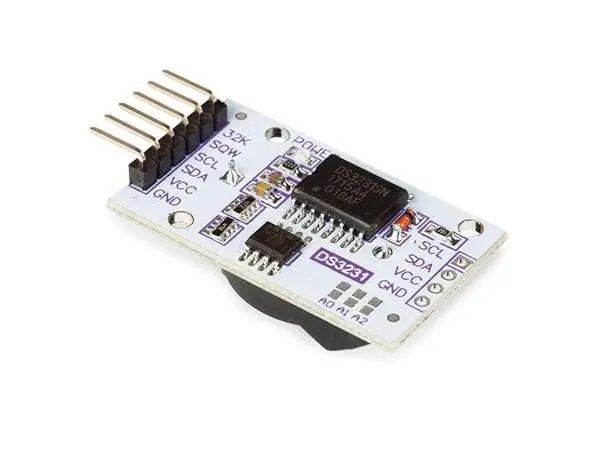
The Precision RTC Module for Pico is a high precision real-time
clock module designed to be used with the Raspberry Pi Pico
microcontroller board. It incorporates the DS3231 high precision
RTC chip and supports I2C communication. The module also includes
an RTC backup battery slot that supports a CR1220 button cell for
maintaining accurate timekeeping even when the main power is
disconnected. The module features a power indicator that can be
enabled or disabled by soldering a 0 resistor on the jumper. It is
designed with a stackable header for easy attachment to the
Raspberry Pi Pico.
What’s on Board:
- DS3231 high precision RTC chip
- I2C bus for communication
- RTC backup battery slot supporting CR1220 button cell
- Power indicator (enabled by soldering a 0 resistor on the
jumper, disabled by default) - Raspberry Pi Pico header for easy attachment
Pinout Definition:
The pinout of the Precision RTC Module for Pico is as
follows:
| Raspberry Pi Pico Code | Description |
|---|---|
| A | I2C0 |
| B | I2C1 |
| C | GP20 |
| D | P_SDA |
| 1 | GP0 |
| 2 | GP1 |
| 3 | GND |
| 4 | GP2 |
| 5 | GP3 |
| 6 | GP4 |
| 7 | GP5 |
| 8 | GND |
| 9 | GP6 |
| 10 | GP7 |
| 11 | GP8 |
| 12 | GP9 |
| 13 | GND |
| 14 | GP10 |
| 15 | GP11 |
| 16 | GP12 |
| 17 | GP13 |
| 18 | GND |
| 19 | GP14 |
| 20 | GP15 |
Schematic:
The schematic diagram of the Precision RTC Module for Pico can
be viewed by clicking here.
Precision RTC Module for Pico – Product Usage Instructions
Raspberry Pi Code:
- Open a terminal of Raspberry Pi.
- Download and unzip the demo codes to the directory Pico C/C++
SDK. Note that the directory of SDK may be different for different
users, so you need to check the actual directory. Generally, it
should be ~/pico/. Use the following command:wget -P ~/pico
https://www.waveshare.com/w/upload/2/26/Pico-rtc-ds3231_code.zip - Navigate to the Pico C/C++ SDK directory:
cd
~/pico - Unzip the downloaded code:
unzip
Pico-rtc-ds3231_code.zip - Hold the BOOTSEL button of Pico and connect the USB interface
of Pico to Raspberry Pi. Then release the button. - Compile and run the pico-rtc-ds3231 examples using the
following commands:cd ~/pico/pico-rtc-ds3231_code/c/build/cmake ..makesudo mount /dev/sda1 /mnt/pico && sudo cp rtc.uf2 /mnt/pico/ && sudo sync && sudo umount /mnt/pico && sleep 2 && sudo minicom -b 115200 -o -D /dev/ttyACM0 - Open a terminal and use minicom to check the sensor’s
information.
Python:
- Refer to Raspberry Pi’s guides to set up Micropython firmware
for Pico. - Open the Thonny IDE.
- Drag the demo code to the IDE and run it on Pico.
- Click the run icon to execute the MicroPython demo codes.
Windows:
Instructions for using the Precision RTC Module for Pico with
Windows are not provided in the user manual. Please refer to the
product documentation or contact the manufacturer for further
assistance.
Others:
The LED lights on the module are not used by default. If you
need to use them, you can solder a 0R resistor on the R8 position.
You can view the schematic diagram for more details.
Precision RTC Module for Pico Incorporates High Precision User Manual
What’s on Board:
1- DS3231 high precision RTC chip, I2C bus 2- RTC backup battery supports CR1220 button cell 3- Power indicator – enabled by soldering a 0 resistor on the jumper, disabled by default 4- Raspberry Pi Pico header for attaching to Raspberry Pi Pico, stackable design
Pinout Definition:
Raspberry Pi Code:
1. Open a terminal of Raspberry Pi 2. Download and unzip the demo codes to directory Pico C/C++ SDK #Note that the directory of SDK may be different for different users, you need to check the actual directory. Generally, it should be ~/pico/. wget -P ~/pico https://www.waveshare.com/w/upload/2/26/Pico-rtc-ds3231_code.zip cd ~/pico unzip Pico-rtc-ds3231_code.zip
1. Hold the BOOTSEL button of Pico, and connect the USB interface of Pico to Raspberry Pi then release the button. 2. Compile and run the pico-rtc-ds3231 examples cd ~/pico/pico-rtc-ds3231_code/c/build/ cmake .. make sudo mount /dev/sda1 /mnt/pico && sudo cp rtc.uf2 /mnt/pico/ && sudo sync && sudo umount /mnt/p ico && sleep 2 && sudo minicom -b 115200 -o -D /dev/ttyACM0
3. Open a terminal and user minicom to check the sensor’s information.
Python:
1. Refer to Raspberry Pi’s guides to setup Micropython firmware for Pico 2. Open the Thonny IDE, and drag the demo to IDE and run on Pico as below.
3. Click the “run” icon to run the MicroPython demo codes.
Windows:
· Download and unzip the demo to your Windows desktop, refer to Raspberry Pi’s guides to set up the Windows software environment settings.
· Press and hold the BOOTSEL button of Pico, connect the USB of Pico to the PC with a MicroUSB cable. Import c or python program into Pico to make it run.
· Use the serial tool to view the virtual serial port of Pico’s USB enumeration to check the print information, the DTR needs to be opened, the baud rate is 115200, as shown in the picture below:
Others:
– The LED light are not used by default, if you need to use it, you can solder a 0R resistor on the R8 position. Click to view the schematic diagram.
– The INT pin of DS3231 is not used by default. if you need to use it, you can solder the 0R resistor on the R5,R6,R7 positions. Click to view the schematic diagram. o Solder the R5 resistor, connect the INT pin to the GP3 pin of Pico, to detect the output status of the DS3231 alarm clock. o Solder the R6 resistor, connect the INT pin to the 3V3_EN pin of Pico, to turn off the Pico power when the DS3231 alarm clock outputs low level. o Solder the R7 resistor, connect the INT pin to the RUN pin of the Pico, to reset Pico when DS3231 alarm clock outputs low level.
Schematic:
1 A
B
C
D 1
2
3
H2 Identification
I2C0 I2C1
GP20 P_SDA GP6
H3 H1
11 22 33
GP0 GP1 GND GP2 GP3 GP4 GP5 GND GP6 GP7 GP8 GP9 GND GP10 GP11 GP12 GP13 GND GP14 GP15
U1
1 2 3 4 5 6 7 8 9 10 11 12 13 14 15 16 17 18 19 20
GPIO0
VBUS
GPIO1
VSYS
GND
GND
GPIO2
3V3_EN
GPIO3
3V3
GPIO4 ADC_VREF
GPIO5 IO28/ADC2
GND
AGND
GPIO6 IO27/ADC1
GPIO7 IO26/ADC0
GPIO8
RUN
GPIO9
GPIO22
GND
GND
GPIO10 GPIO21
GPIO11 GPIO20
GPIO12 GPIO19
GPIO13 GPIO18
GND
GND
GPIO14 GPIO17
GPIO15 GPIO16
40 39 38 37 36 35 34 33 32 31 30 29 28 27 26 25 24 23 22 21
Pi pico (40P)
VBUS VSYS GND 3V3_EN 3V3(OUT) ADC_VREF GP28 GND GP27 GP26 RUN GP22 GND GP21 GP20 GP19 GP18 GND GP17 GP16
4
5
6
GP21 P_SCL GP7
3V3(OUT)
+3.3V
GP3 3V3_EN
RUN
R5
INT
0R/NC R6
0R/NC R7
0R/NC
A +3.3V +3.3V
R3
R4
+3.3V
U2
10K/NC 10K/NC
C6 0.1uF
R2 10K
INT
1 2 3 4 5 6 7 8
32KHz VCC INT/SQW RST NC NC NC NC
SCL SDA VBAT GND
NC NC NC NC
16 P_SCL 15 P_SDA 14 13 12 11 10 9
BAT1
B
GND
DS3231
GND
I2C Address: 0x68 C
Waveshare
+3.3V
R8
R1
GND
0R/NC
1K
L_PWR1
Pico-RTC-DS3231 D
2
3
4
5
6
 File:Pico-10DOF-IMU005.jpg - Waveshare Wiki
 File:Pico-RTC-DS3231004.jpg - Waveshare Wiki
 File:Pico-RTC-DS3231005.jpg - Waveshare Wiki
 File:Pico-RTC-DS3231006.jpg - Waveshare Wiki
.jpg) File:Pico-RTC-DS3231007 (1).jpg - Waveshare Wiki
File:Pico-RTC-DS3231007 (1).jpg - Waveshare Wiki