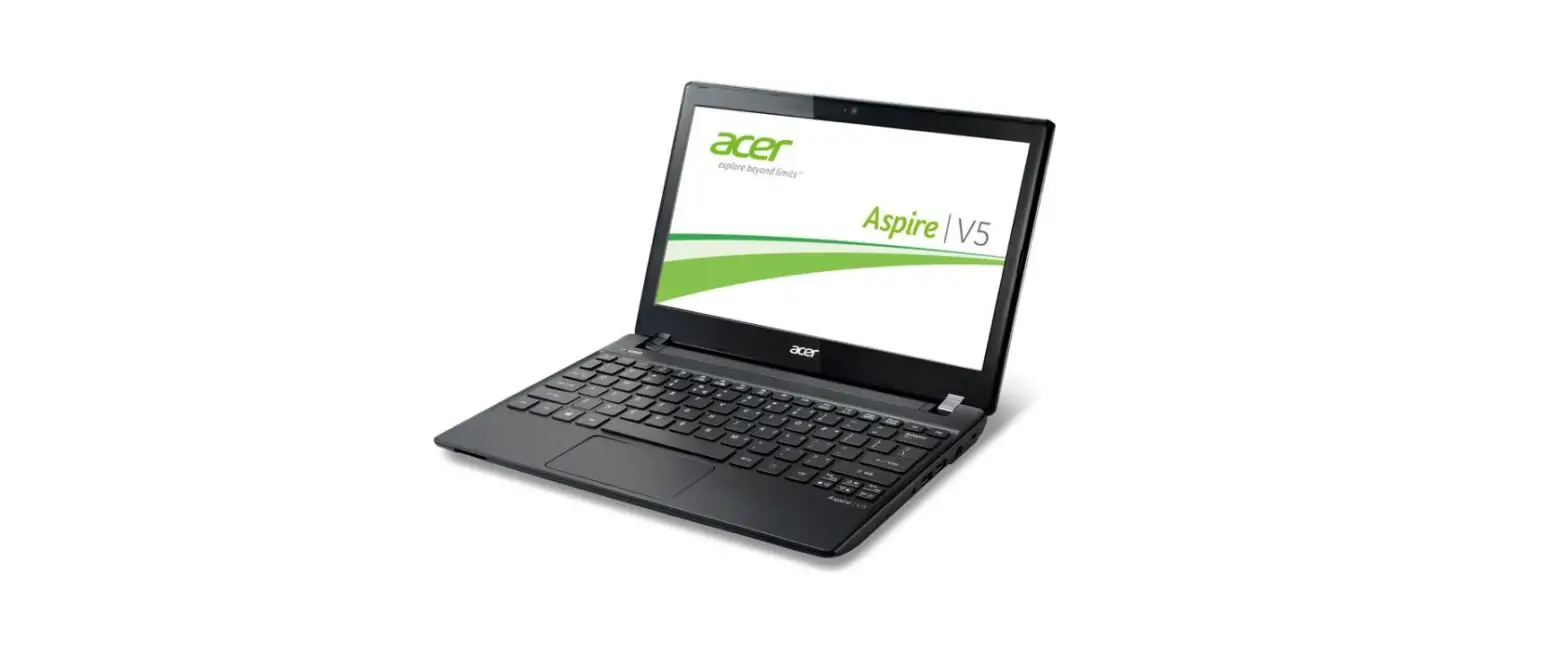
 Acer Aspire R7 Battery Replacement
User Manual
Replace the dead or faulty internal battery on the Aspire R7.
Written By: F Fernandez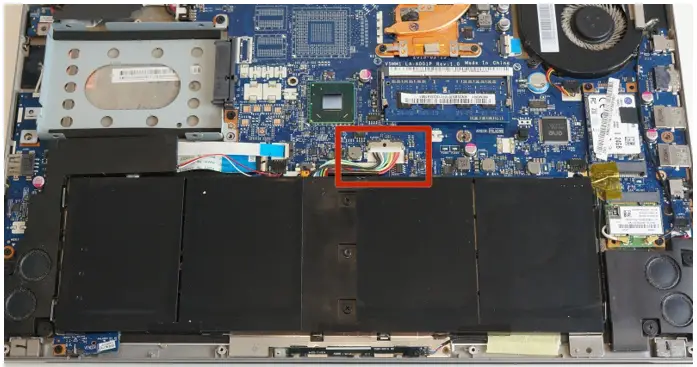
INTRODUCTION
Changing the Battery in an Acer Aspire R7 is a straightforward process if you find your computer has lost its ability to hold a charge.
The Aspire laptop battery enables the computer to work without having a power cord. It is a hardware component that is not externally accessible and requires a small amount of disassembly to replace.
The 4-cell replacement battery instructions are listed below in quick simple steps. Before using this guide make sure that the battery can no longer function in one of two ways, use a multimeter to test battery strength or check the settings on the laptop if possible.
If the battery is swollen be careful and proceed with caution and take appropriate precautions.
 TOOLS:
- Spudger (1)
- TR7 Torx Security Screwdriver (1)
- Phillips #00 Screwdriver (1)
- iFixit Opening Tool (1)
Step 1 — Cover
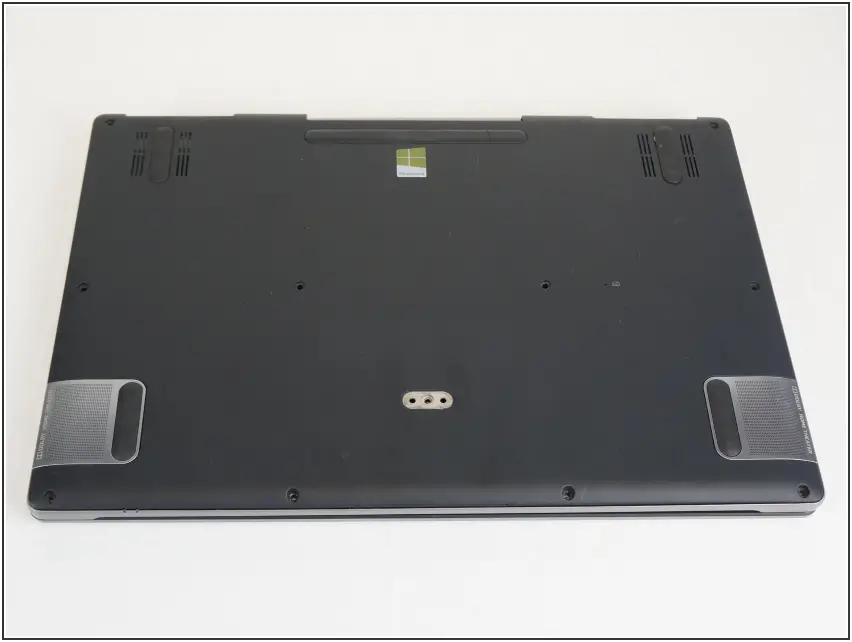
- Shut down the laptop and disconnect the power cord.
 Failing to disconnect or shut down the laptop could result in damage to the laptop or a shock hazard.
 - Turn the laptop over.
Step 2
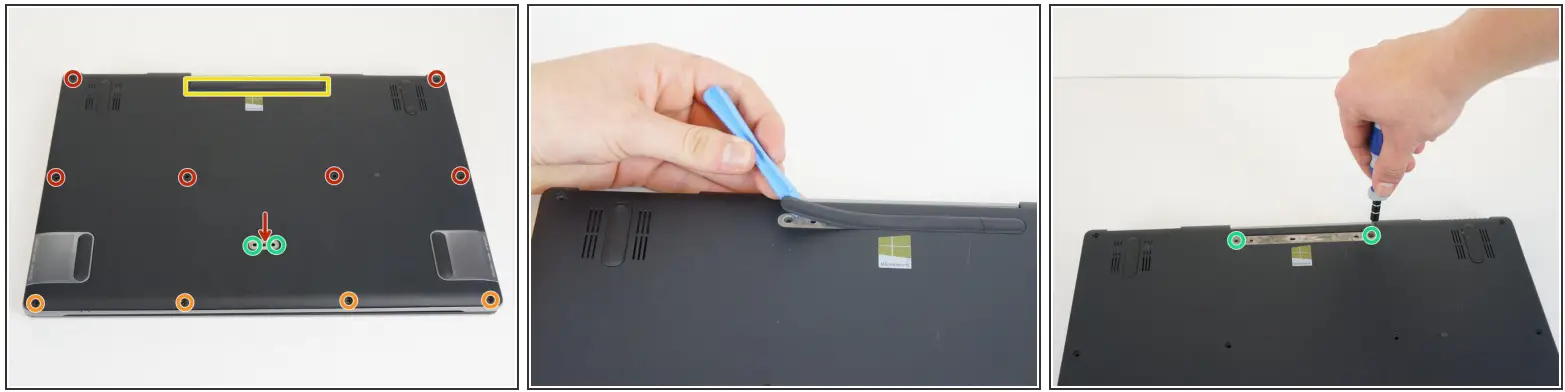
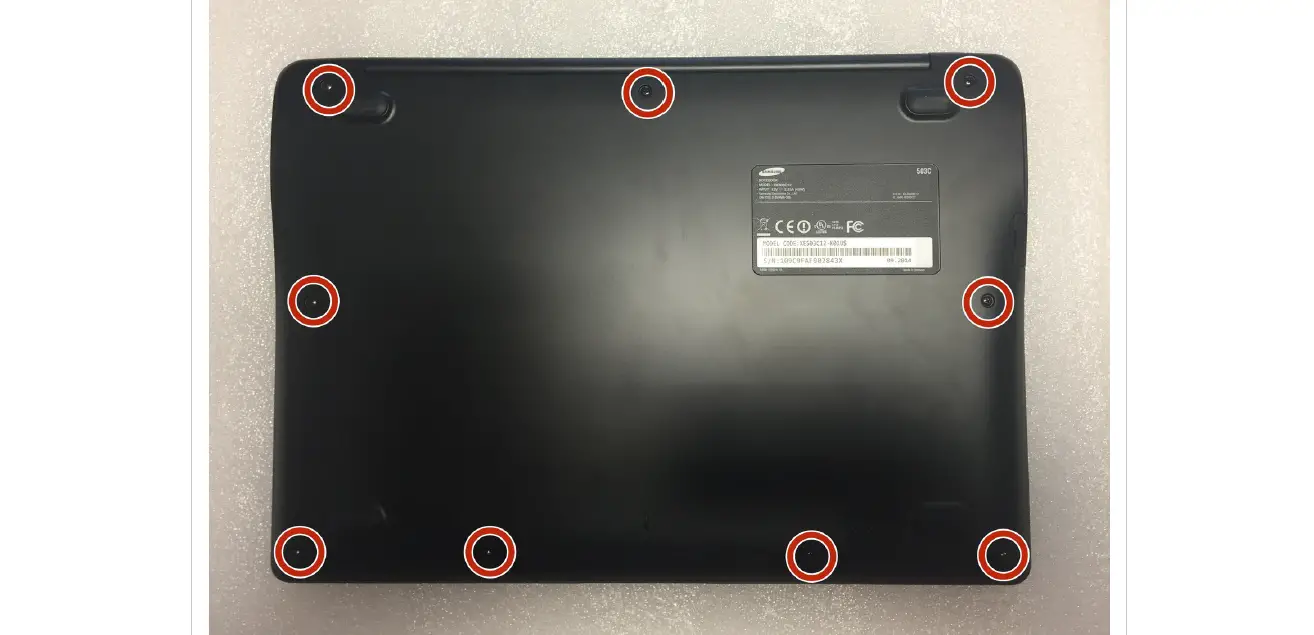
 Remove seven 10 mm T7 screws.
 Remove four 6 mm T7 screws.
 Use the blue plastic opening tool to carefully remove both rubber pads which cover the four remaining screws.
 Remove the remaining four 10 mm T7 screws.
Step 3
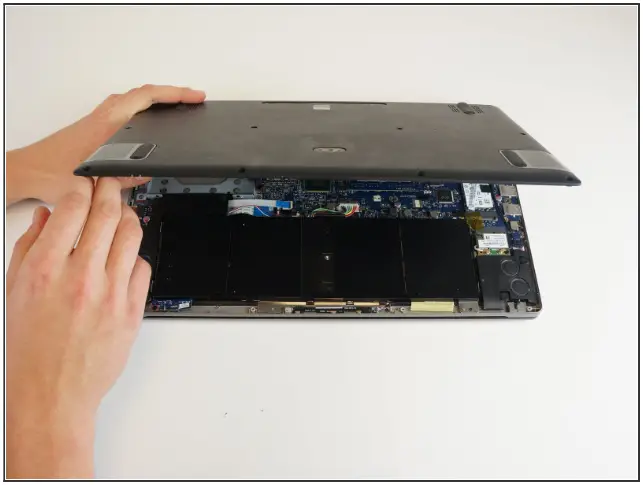
- Carefully lift the cover upwards.
 If the cover seems stuck, use a spudger tool to pry the sides.
 If the cover seems stuck, use a spudger tool to pry the sides.
Step 4 — Battery
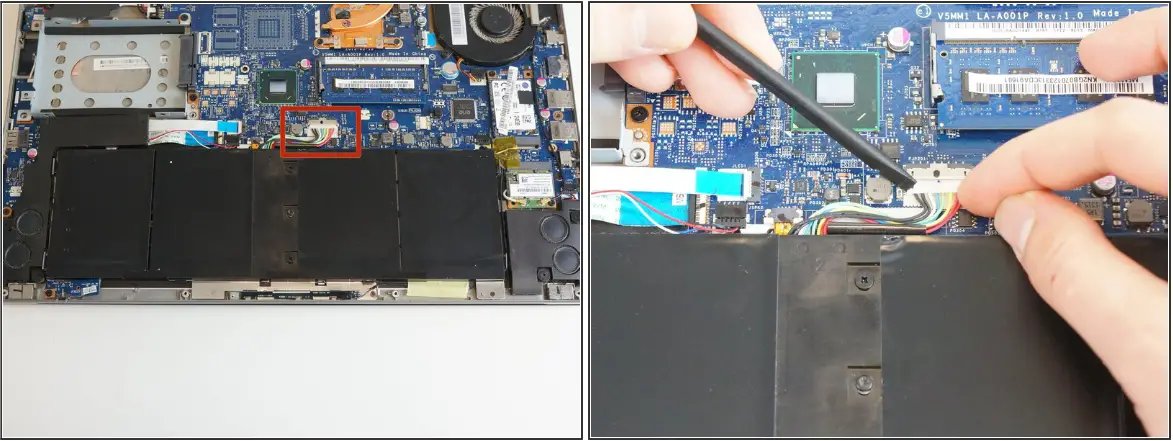
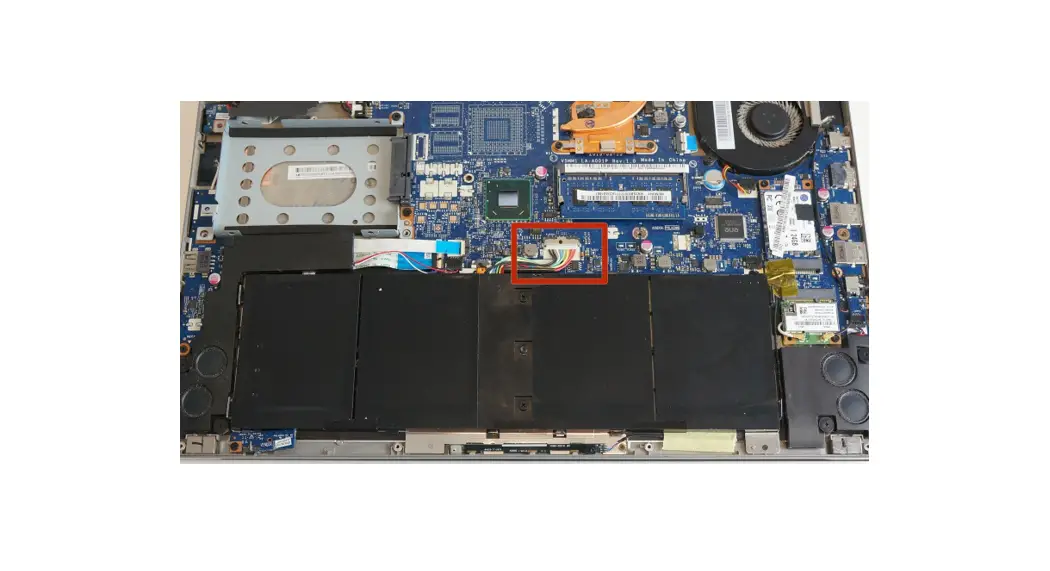
Locate the battery ribbon connector Remove the ribbon cable attaching the battery to the motherboard by carefully pulling it outwards
 When using the spudger be careful around the motherboard as it can easily be damaged
Step 5
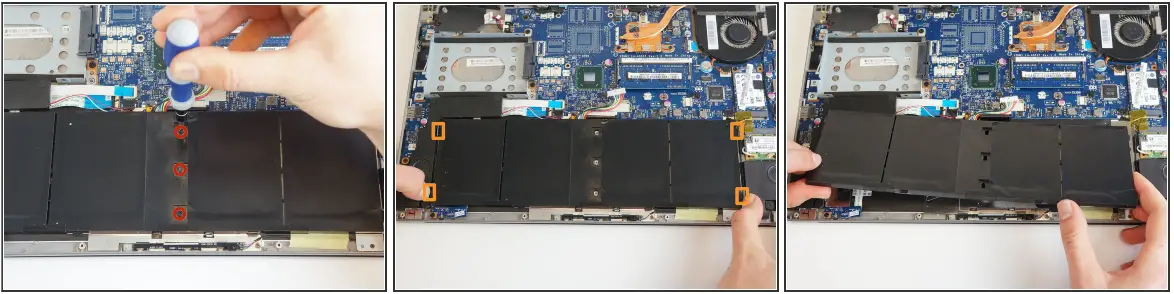
Remove the three 4.5 mm #00 Phillips screws attaching the battery to the motherboard Push the 4 retaining clips away from the battery Carefully lift the battery from the motherboard
To reassemble your device, follow these instructions in reverse order.
© iFixit — CC BY-NC-SA
www.iFixit.com
Guide ID: 36618
Draft: 2021-12-20
This document was generated on 2022-06-02
7:15:59 PM (MST).