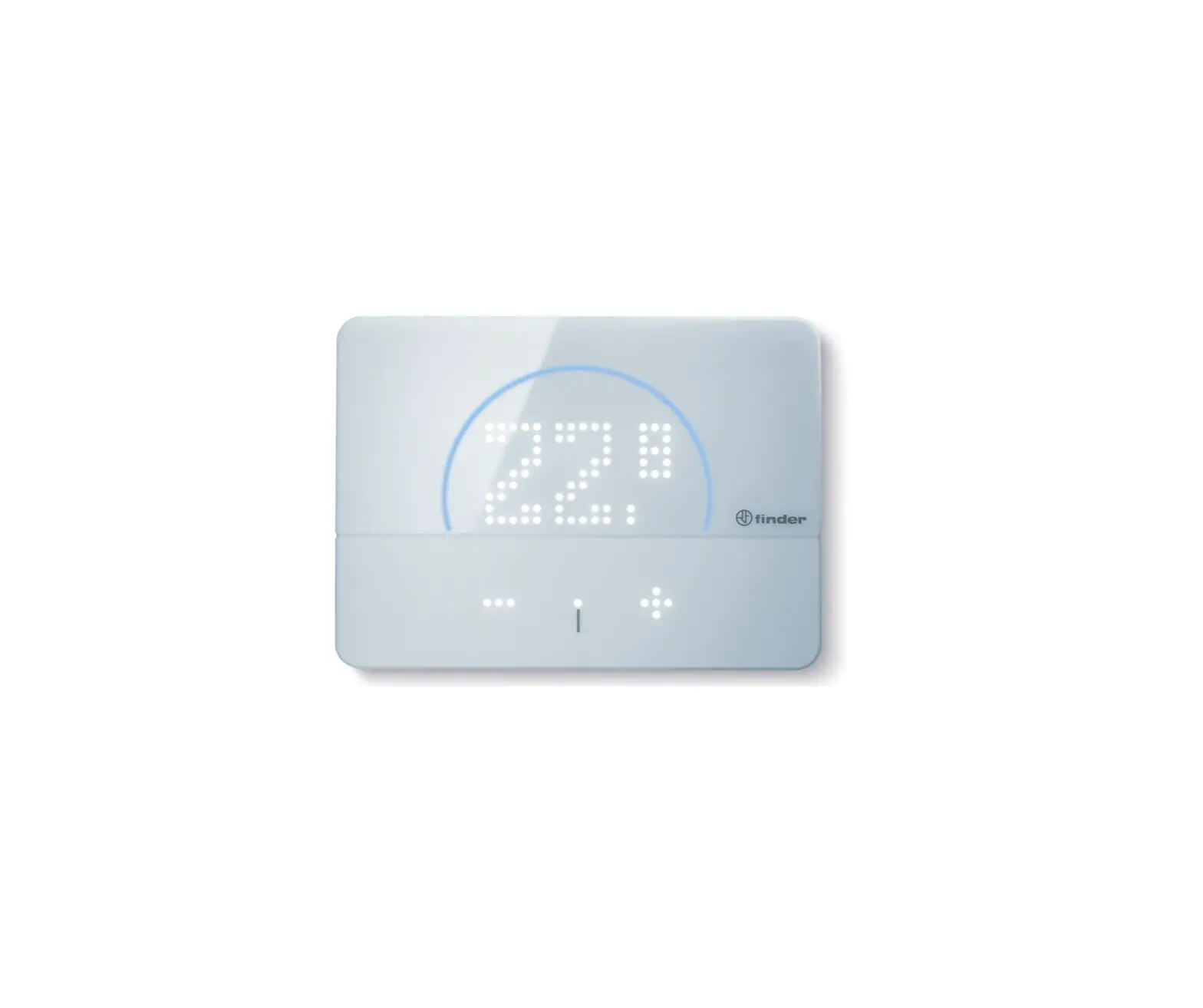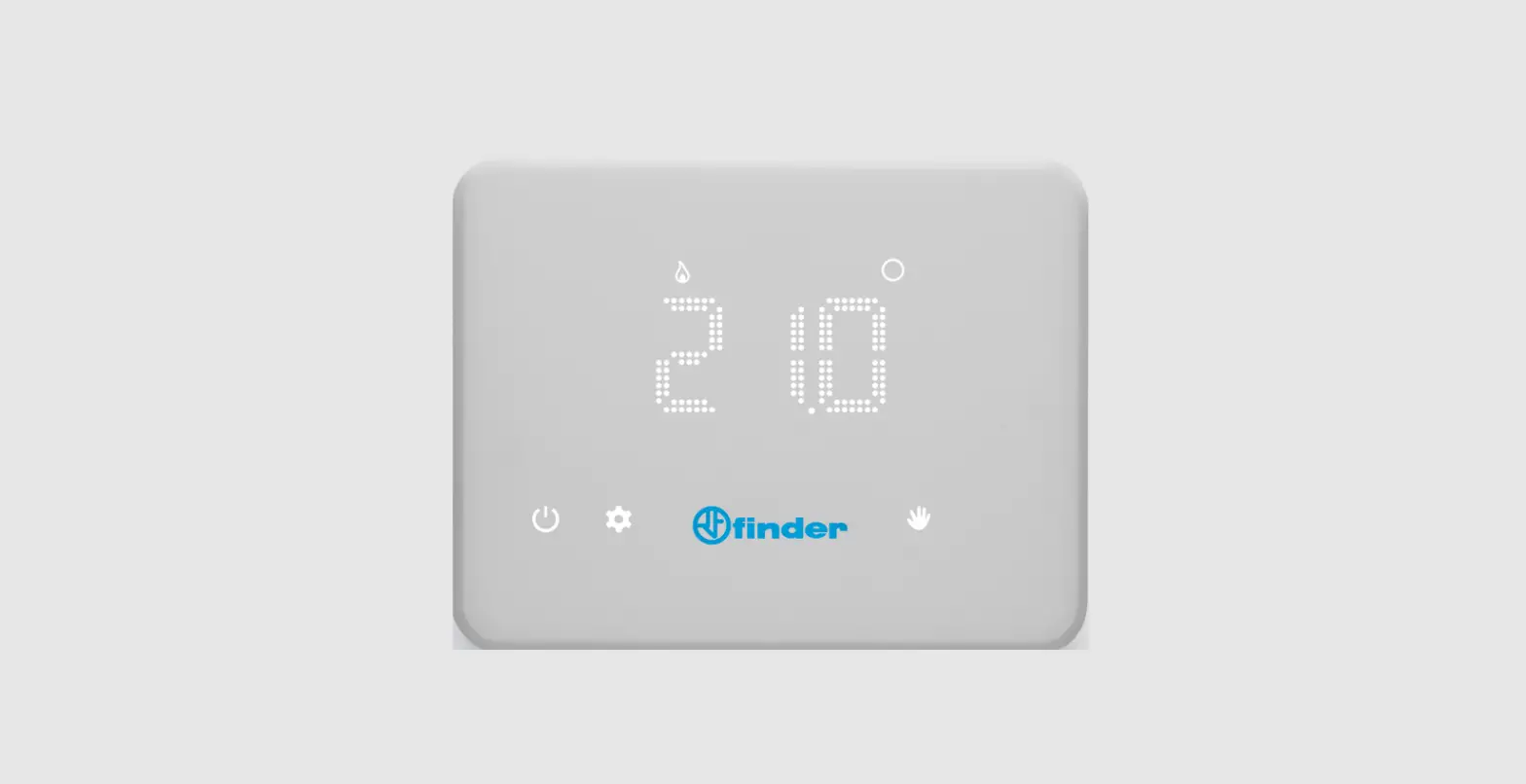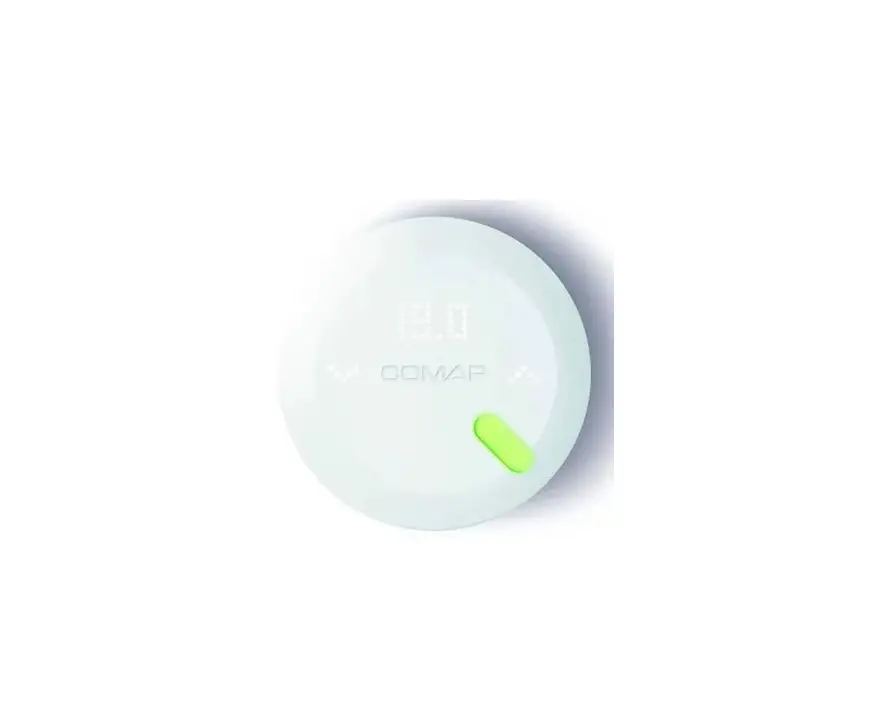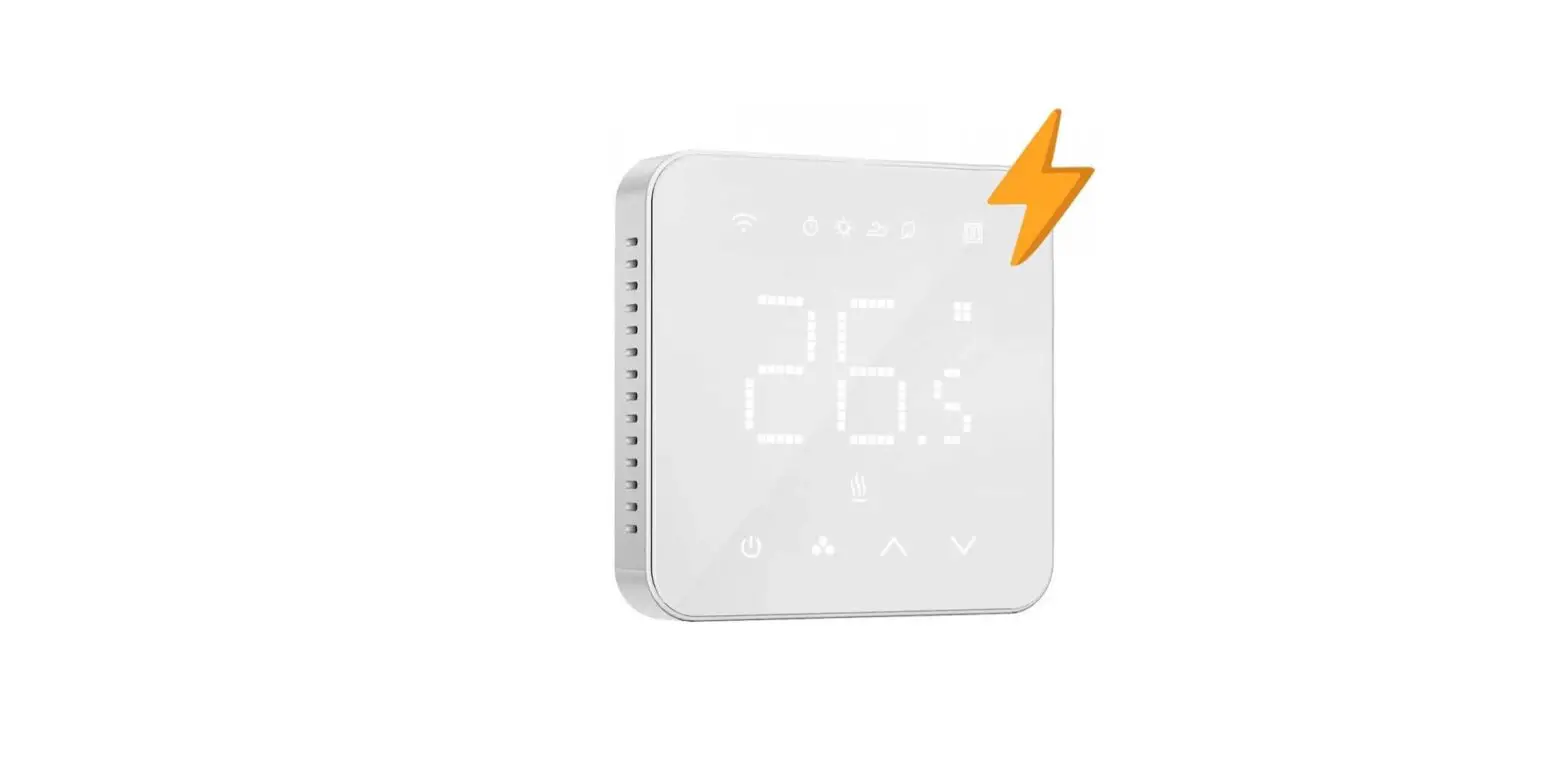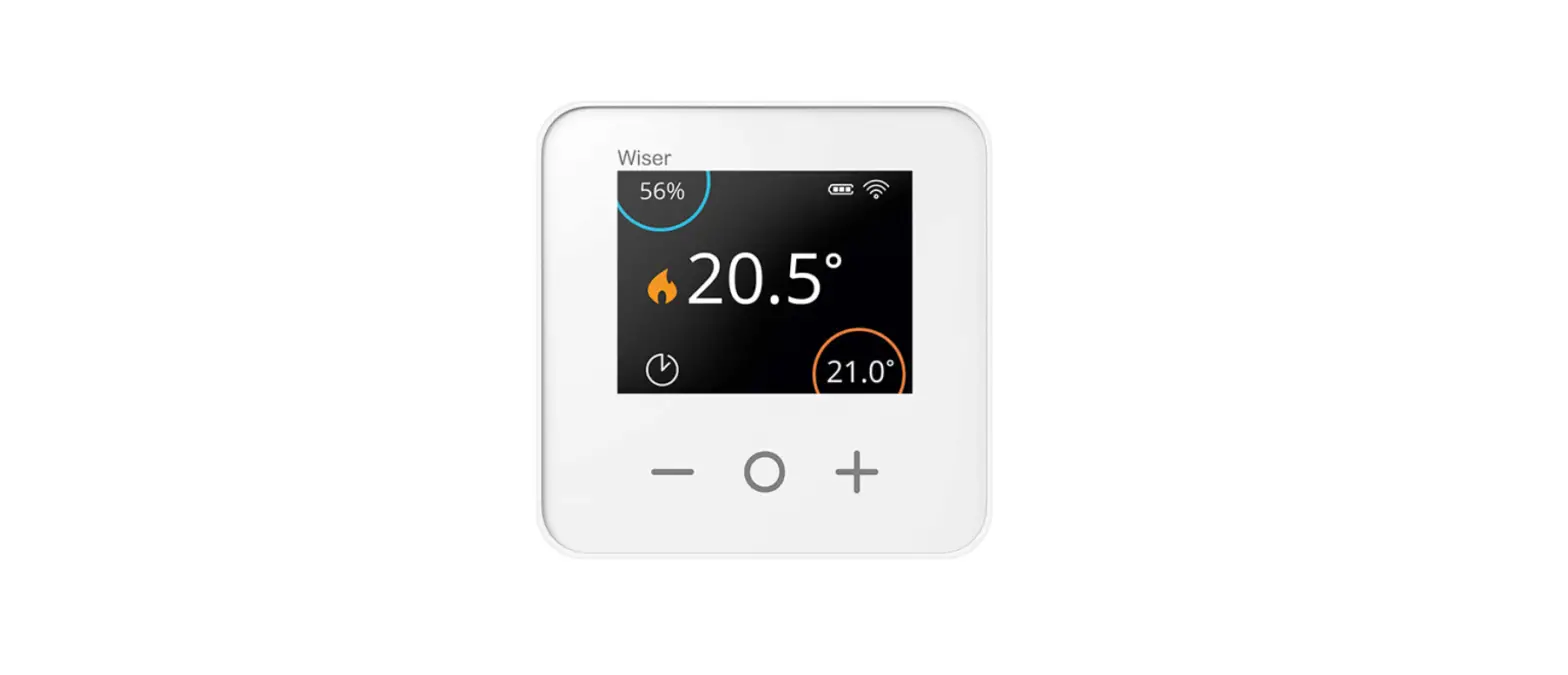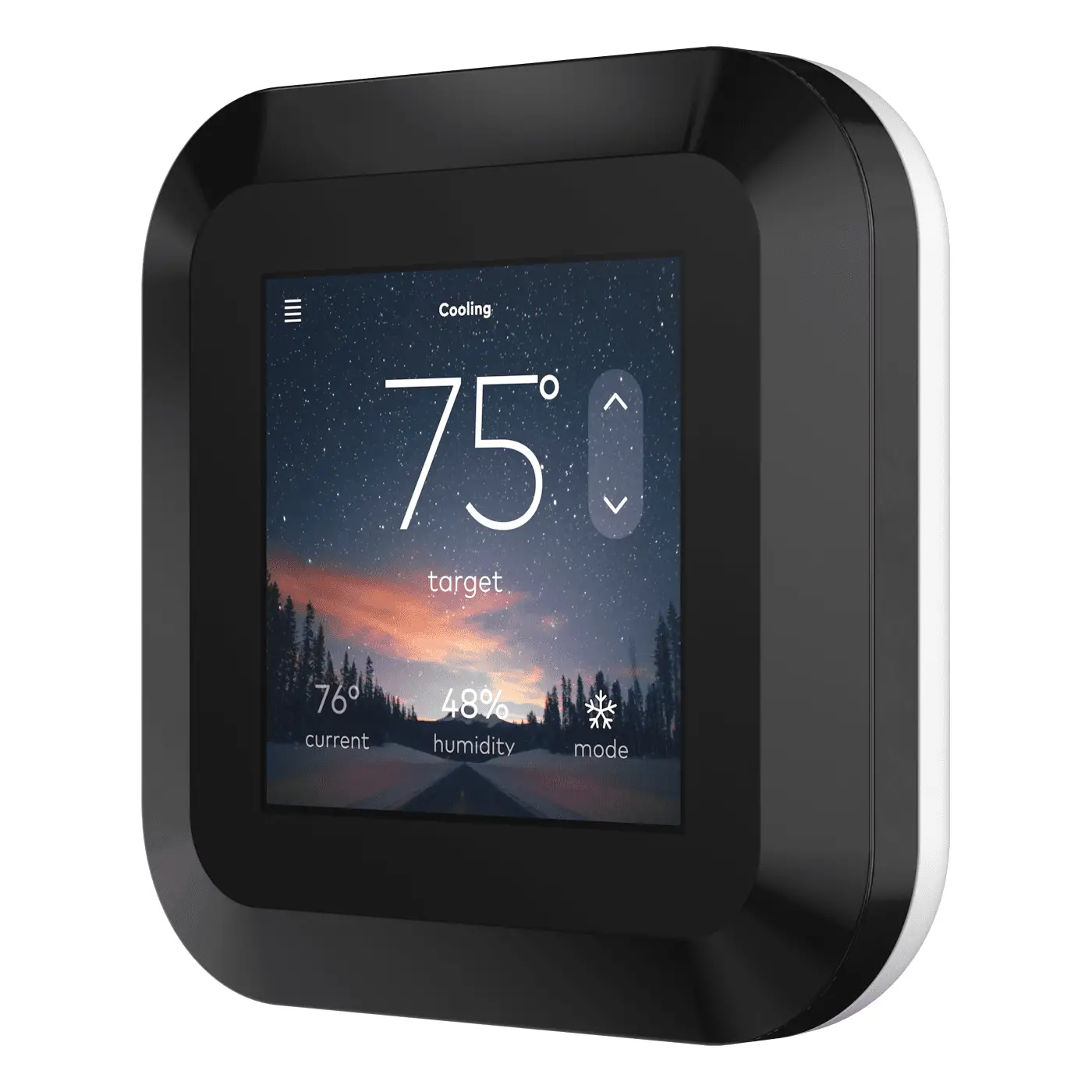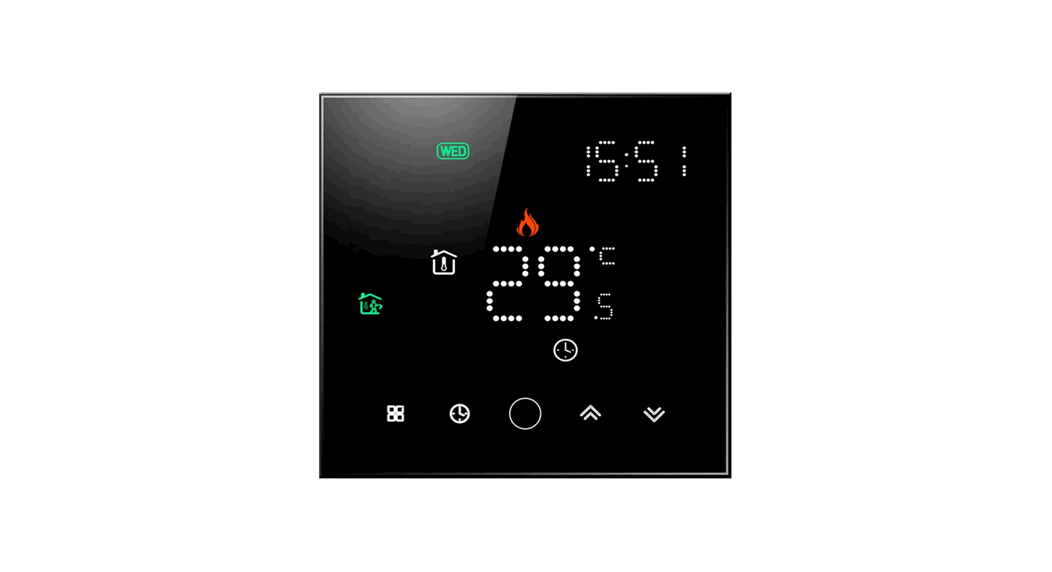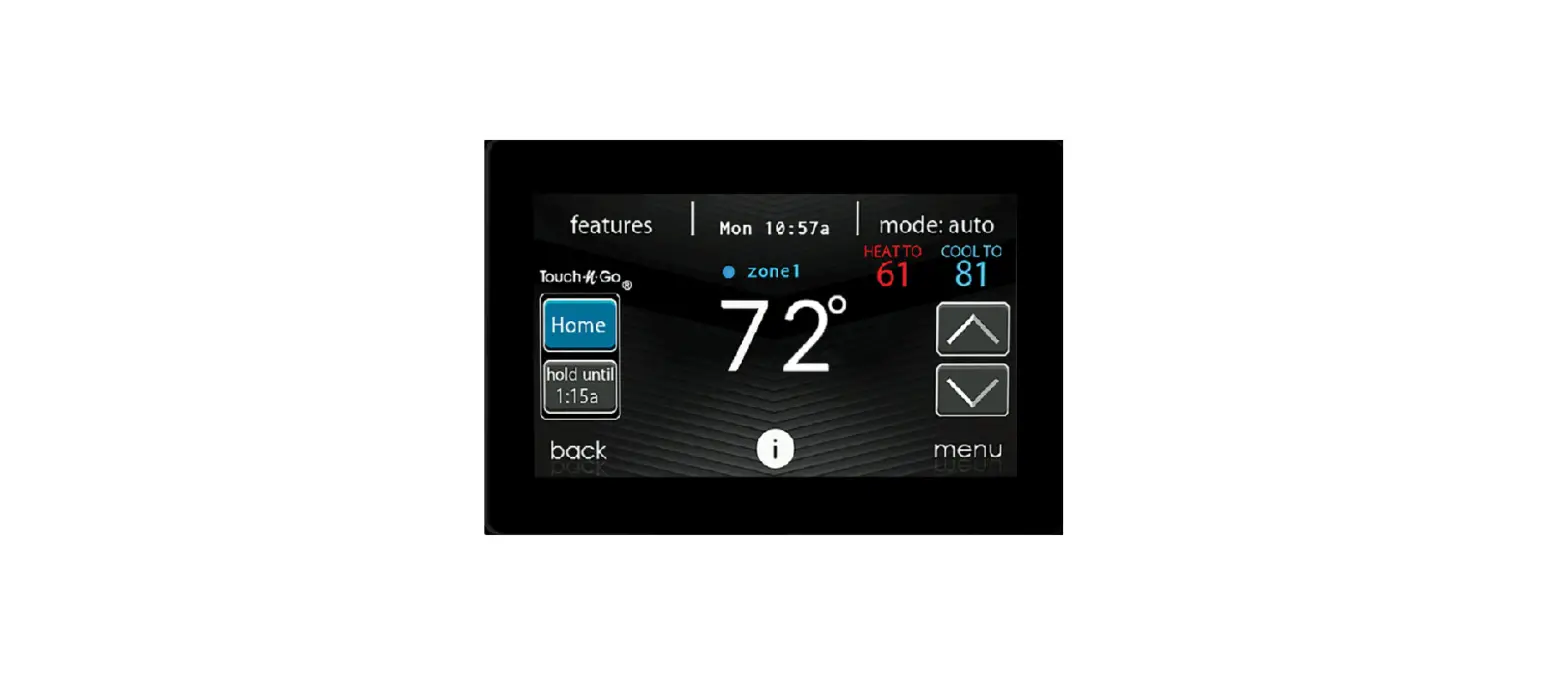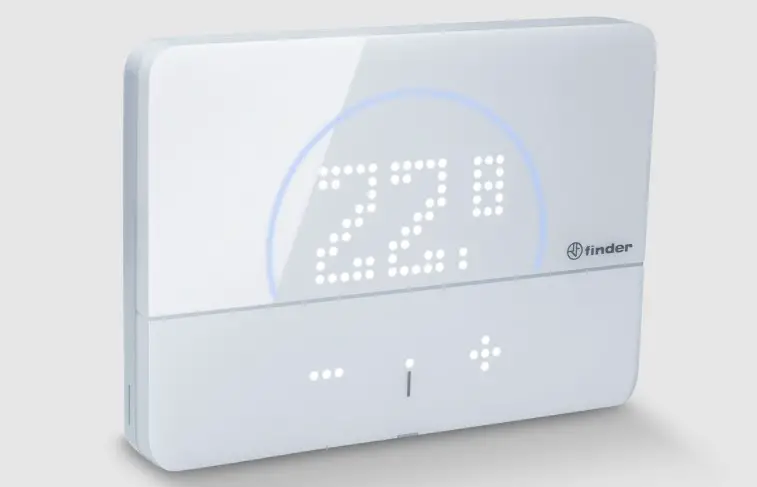
finder 1C.B1 Bliss2 Smart Thermostat
User Manual
EASY INSTALLATION
TECHNICAL SPECIFICATION
Power supply: 3×1.5 V alkaline batteries type AAA – LR03
Temperature adjustment: (+5…+37)°C
Resolution: 0.1°C
Degree of protection: IP20
Output: 5 A 250 V AC changeover volt-free contact
Mounting: Wall
INSTALLATION NOTES
SAFETY REQUIREMENTS
The installation and assembly of electrical equipment must be performed by experienced personnel. Before connecting the thermostat, make sure that the load (pump, valve, boiler, etc.) is not powered and that it falls within the thermostat’s contact rating.
POSITIONING
Install the thermostat away from heat sources (radiators, direct sunlight, kitchens), away from doors/windows, and mount approximately 1.5 meters above floor level.
FIXING BASE TO WALL
First, detach thermostat from its base by inserting two fingers into the central rear hole and, with the other hand, pull the front of the thermostat towards you.
FIXING BASE
Secure the Smart Bliss2 thermostat base to the wall using the screws included in the package. When fixing, be careful not to over-tighten the screws to avoid damaging the base.
ELECTRICAL CONNECTIONS
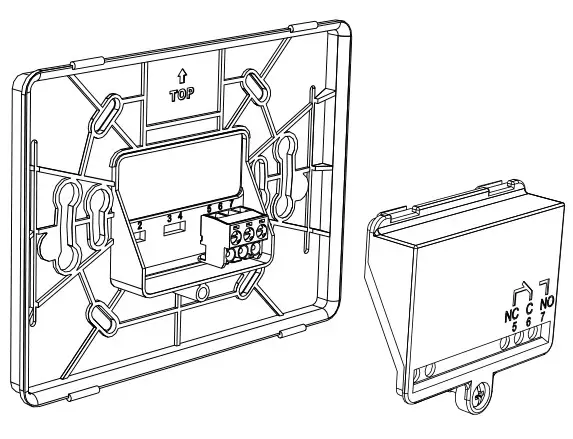
To make the connections, first refer to instructions for your heating system (pump, valve, boiler, etc.), then remove the terminal cover and connect the appropriate wires to terminals 6 (COM) and 7 (NO) of the Smart Bliss2 thermostat.
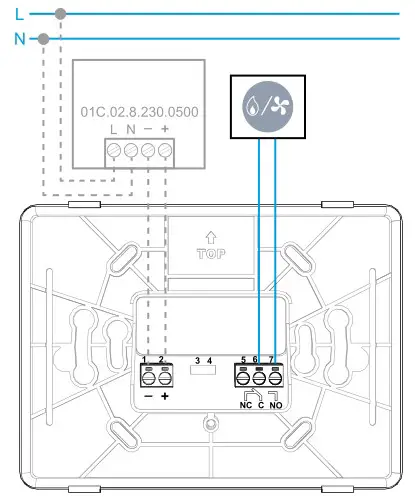
Type 01C.02.8.230.0500: OPTIONAL power supply
Using the external power supply, the batteries MUST be removed.
BATTERY INSERTION AND MOUNTING THE THERMOSTAT
- Insert 3 x 1.5V alkaline batteries type AAA – LR03, paying attention to the indicated polarity. After inserting the batteries, initialization screens will appear. Wait for this process to finish and the detected temperature will then appear.
- Mount the thermostat to its base by first engaging the bottom part of the thermostat with the lower pins of the base plate, then close the upper part of the thermostat to lock onto the upper pins.
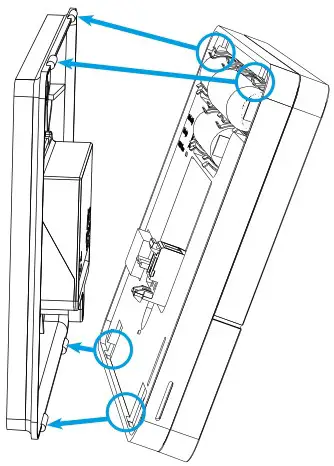
The thermostat is now ready to be configured.
However, the Gateway2 (1Y.GU.005.1) must first be installed.
GATEWAY2 INSTALLATION
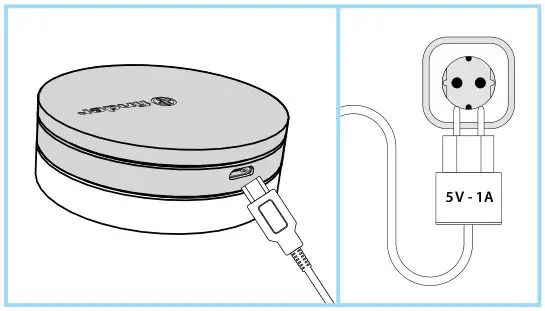
Connect the Micro USB connector to the Gateway2 (1Y.GU.005.1) and plug the power supply into to the electrical outlet.
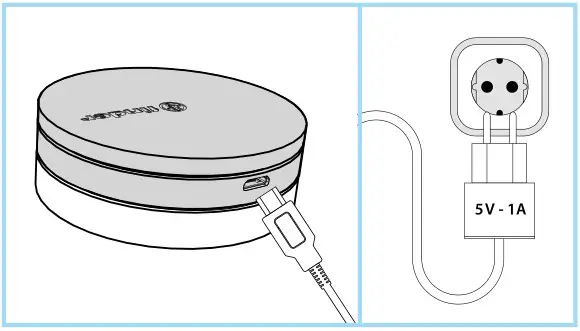
After switching on, the luminous base of the Gateway2 flashes with a fading white light – which indicates it is awaiting configuration.
CONFIGURATION
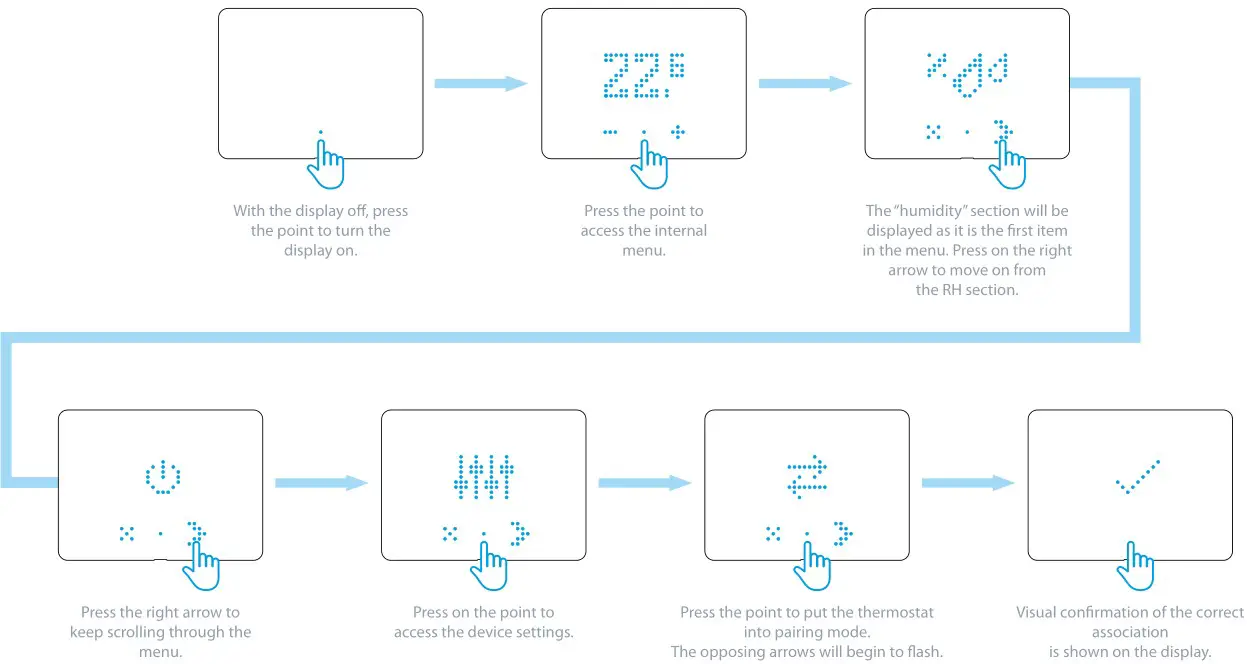
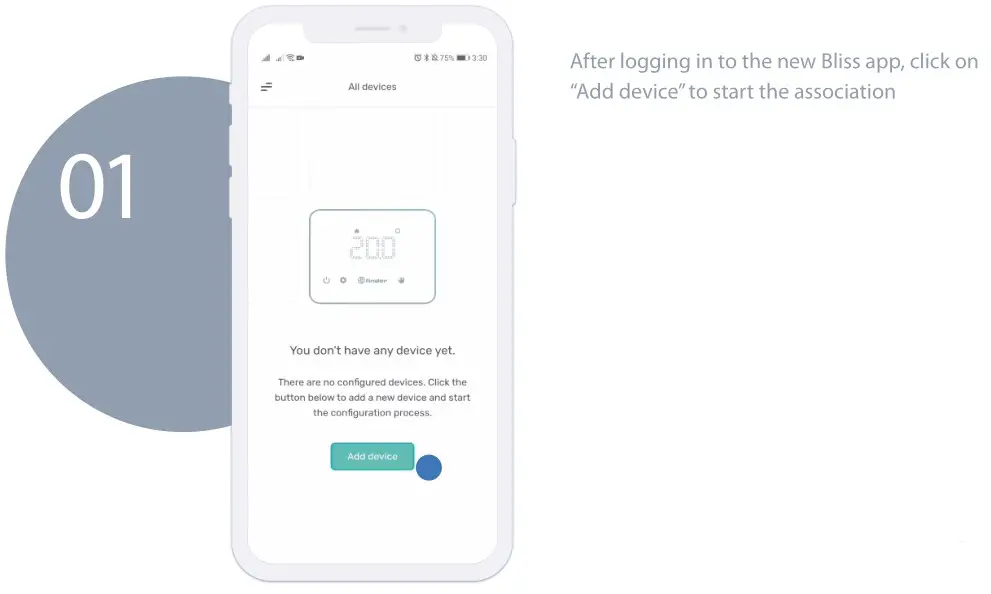
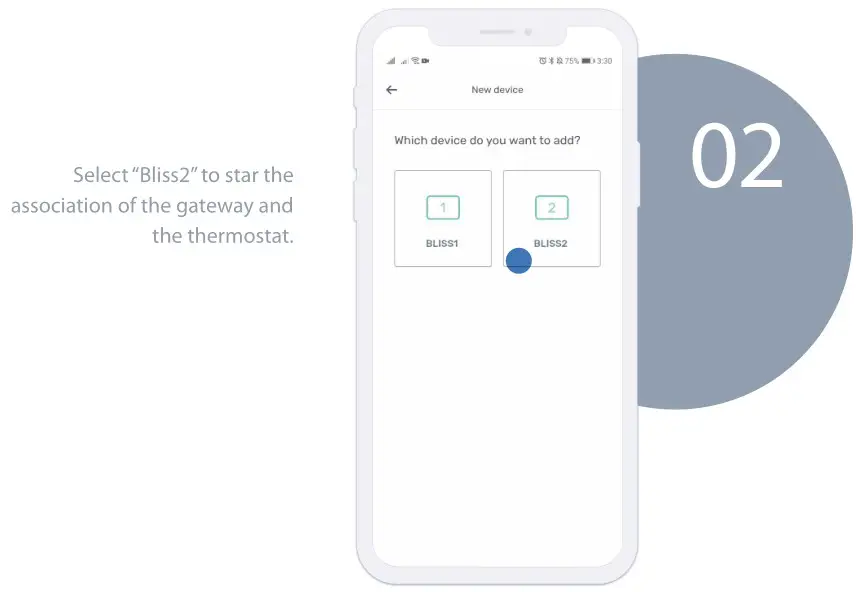
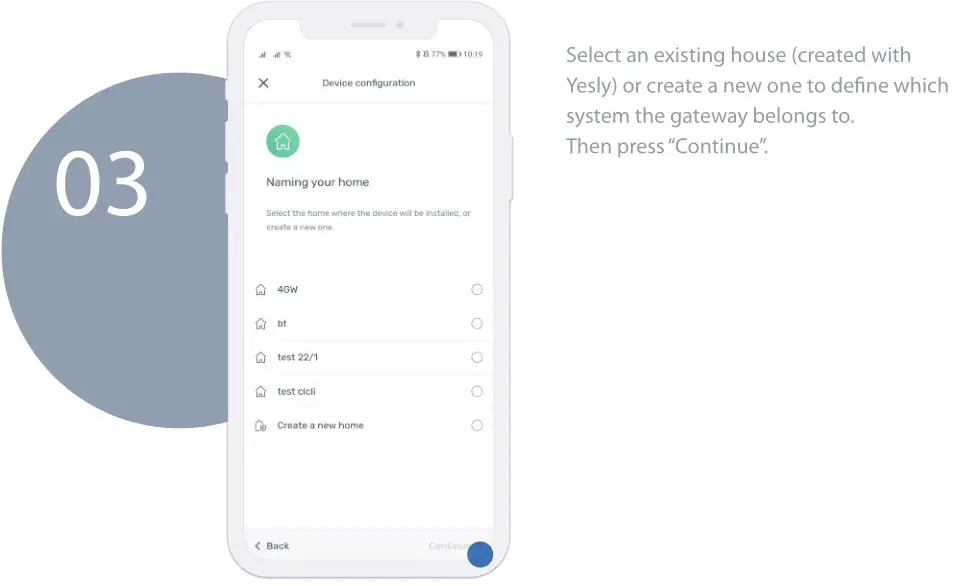
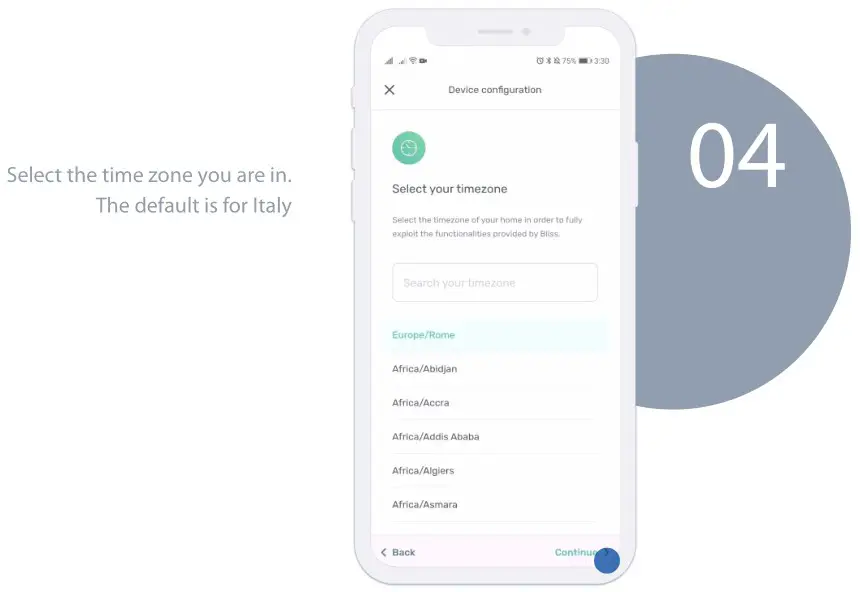
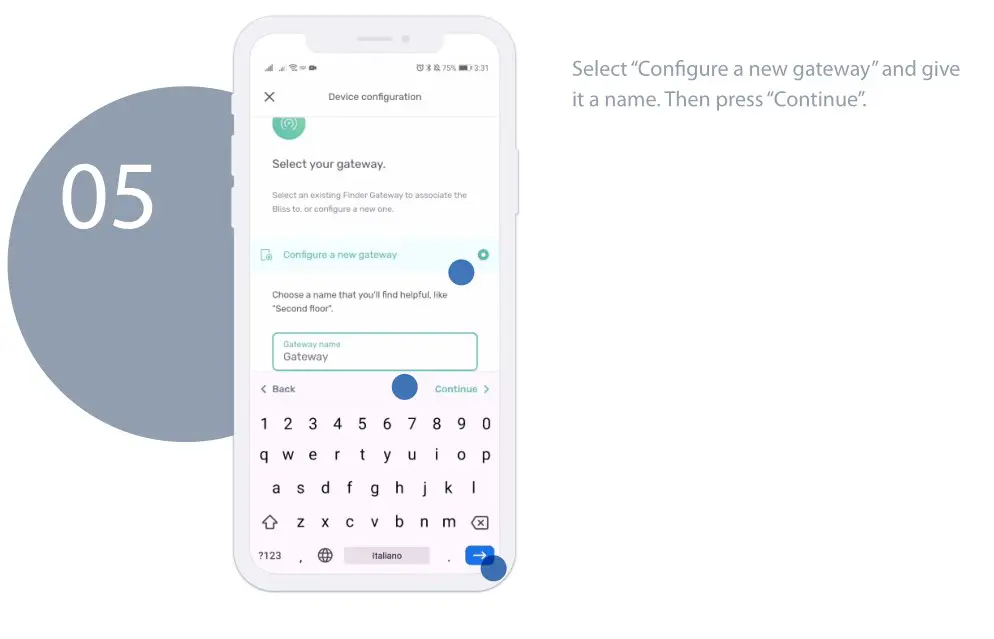
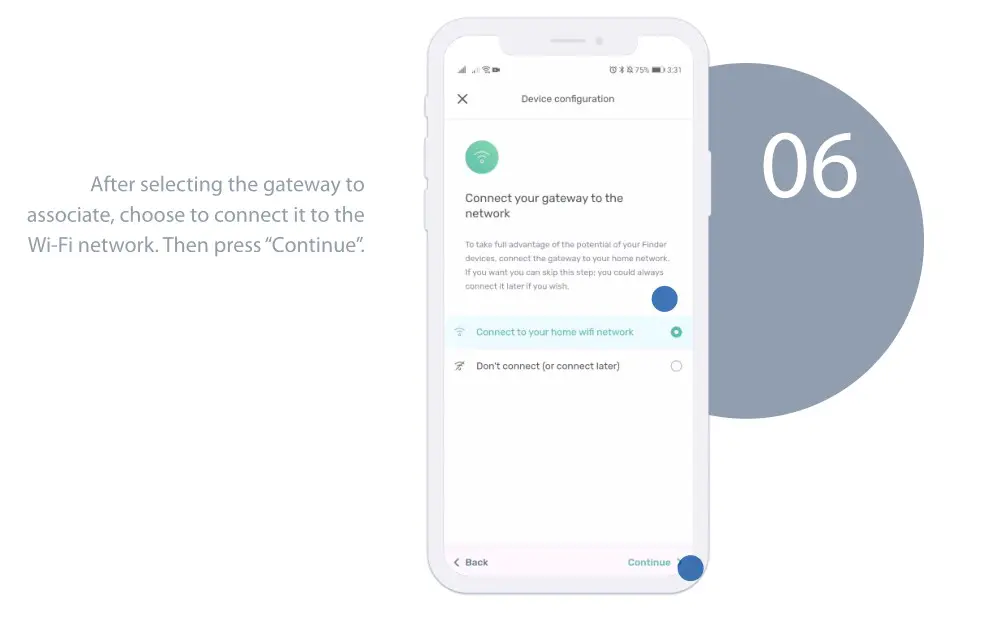
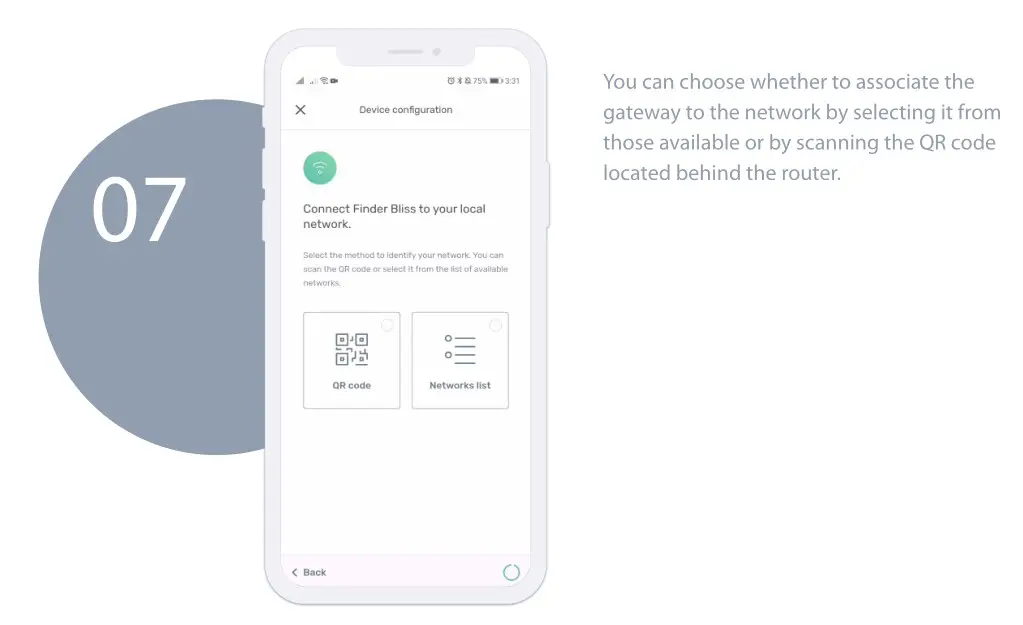
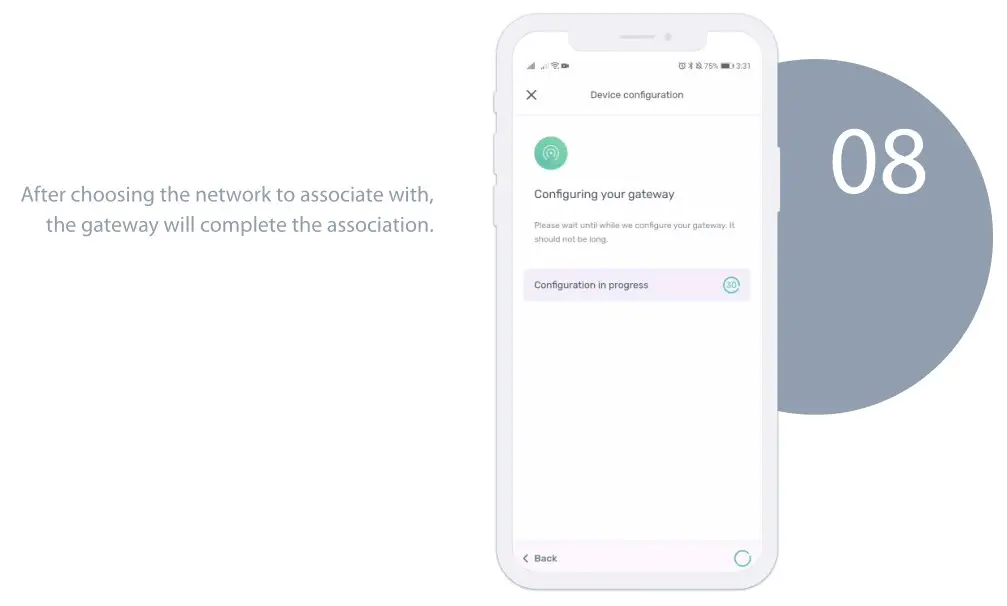
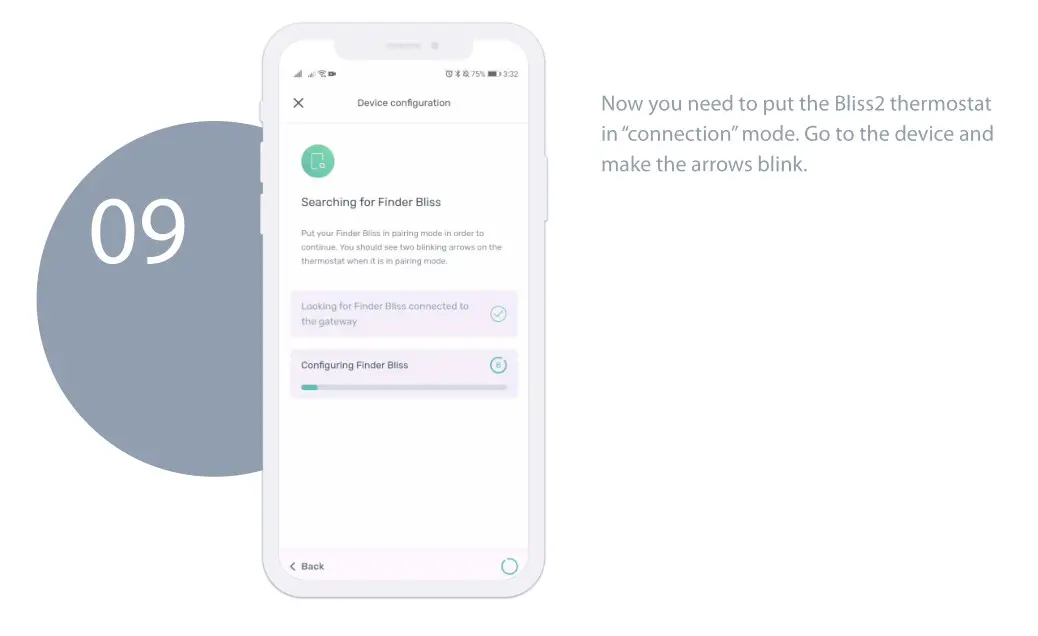
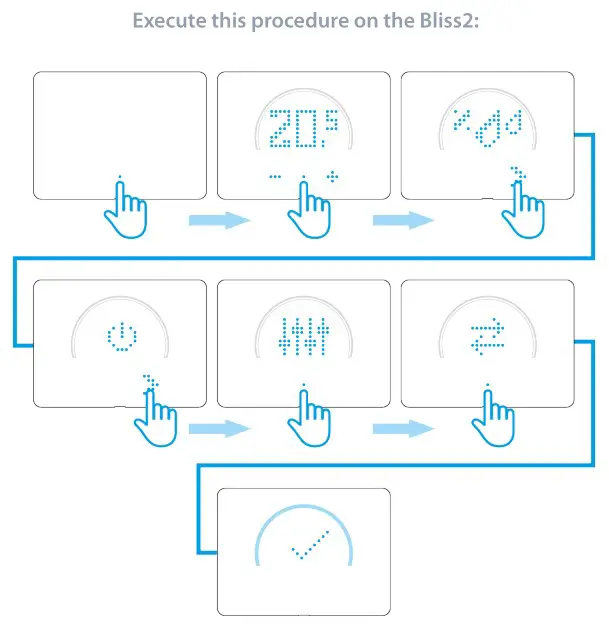
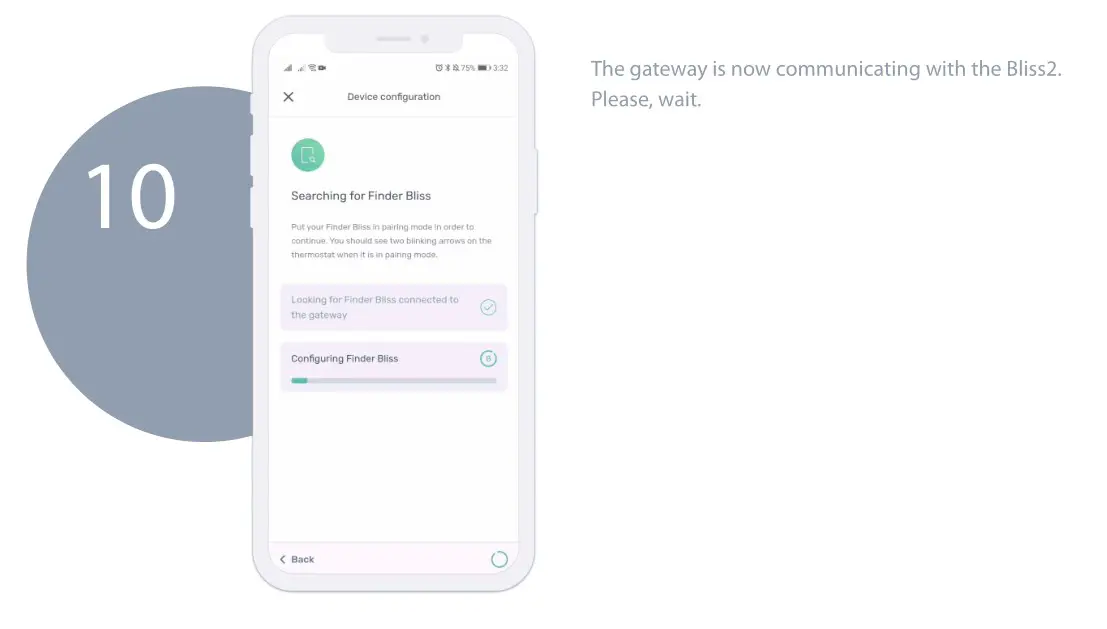
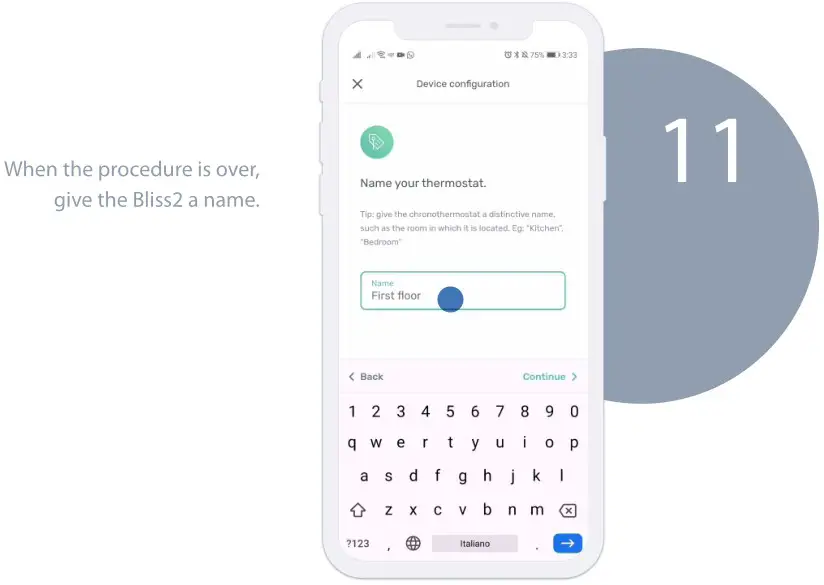
To configure the Gateway2 and the Smart Bliss2 Thermostat, download the Finder Bliss application from the Google Play Store or the Apple Store and proceed with the configuration following the tutorial on the App. When requested by the App, activate the association of the thermostat following the following screens:
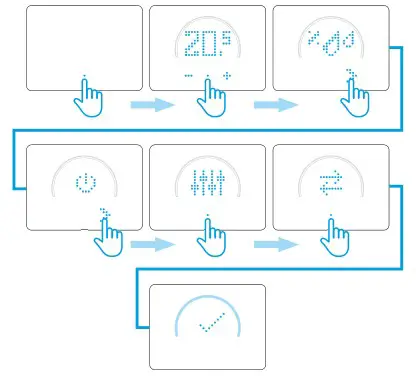
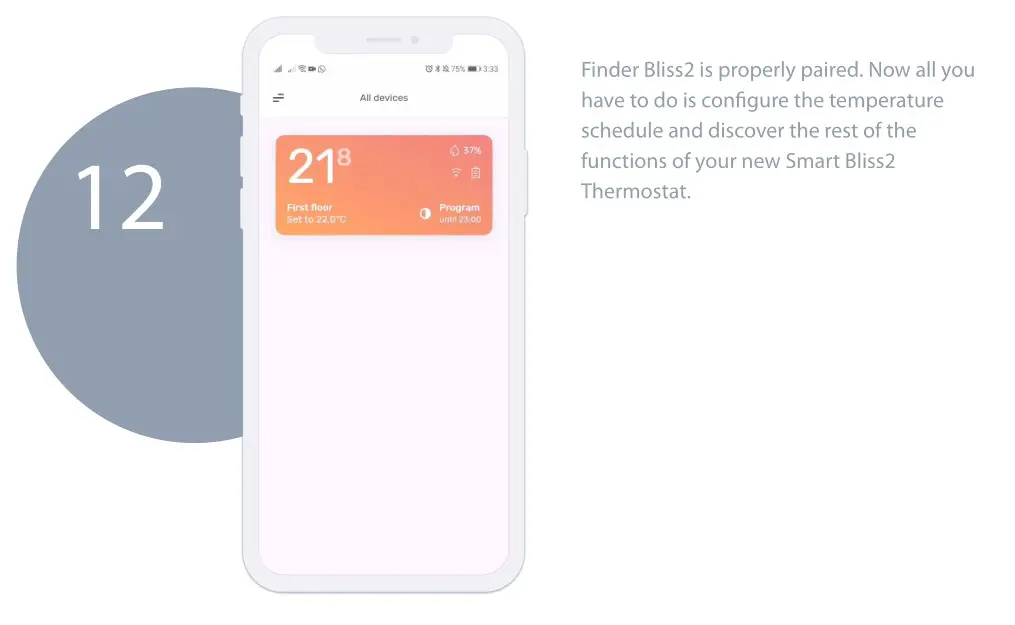
When done, the temperature detected by the Smart Bliss2 thermostat will be displayed in the application.
THE LUMINOUS BASE – NOTES
WHITE LED
- Fading flashing: waiting for configuration
- Fixed: Wi-Fi network and Cloud connection present
- 2 Flashes: Connected to the Wi-Fi network but no connection to the Cloud (Check your Internet connection)
- 3 Flashes: No connection to the Wi-Fi network and no connection to the Cloud (Check your Wi-Fi network)
BLUE LED
- Flashing: sending Bluetooth commands
RED LED
- Flashing: sending commands to the Smart Bliss2 Thermostat
To change the light intensity of the GATEWAY2 base, press the button 3 :
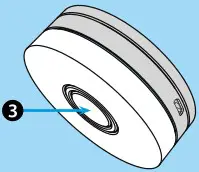
- 1 Once: Low brightness
- 2 times: Medium-Low brightness
- 3 times: Medium-High brightness
- 4 times: High brightness
RESET
Press the button for> 10 seconds to restore factory settings

OVERVIEW OF SCREENS & ICONS
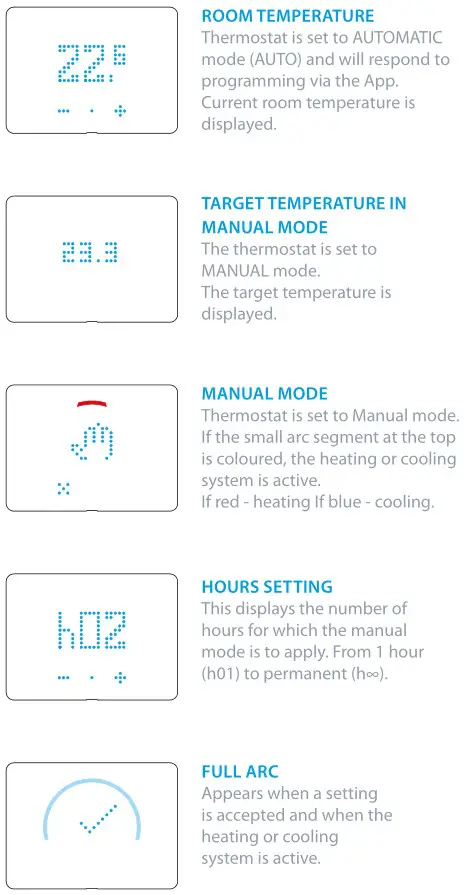
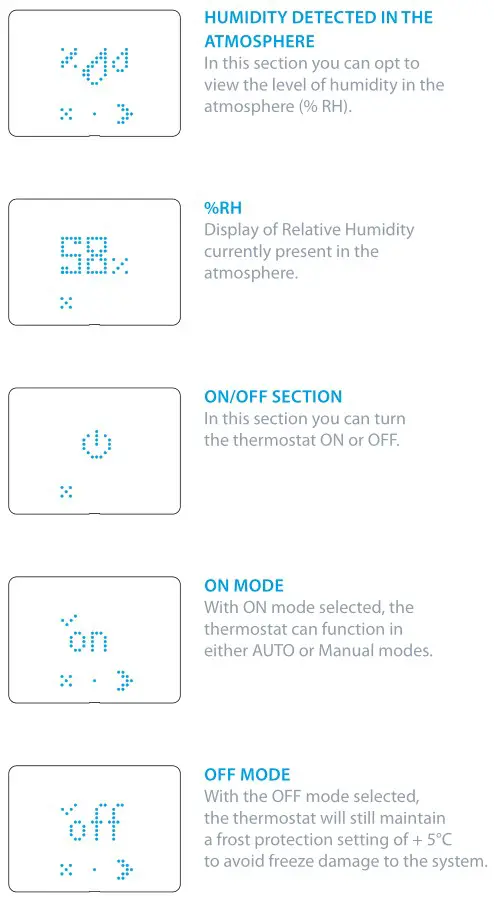
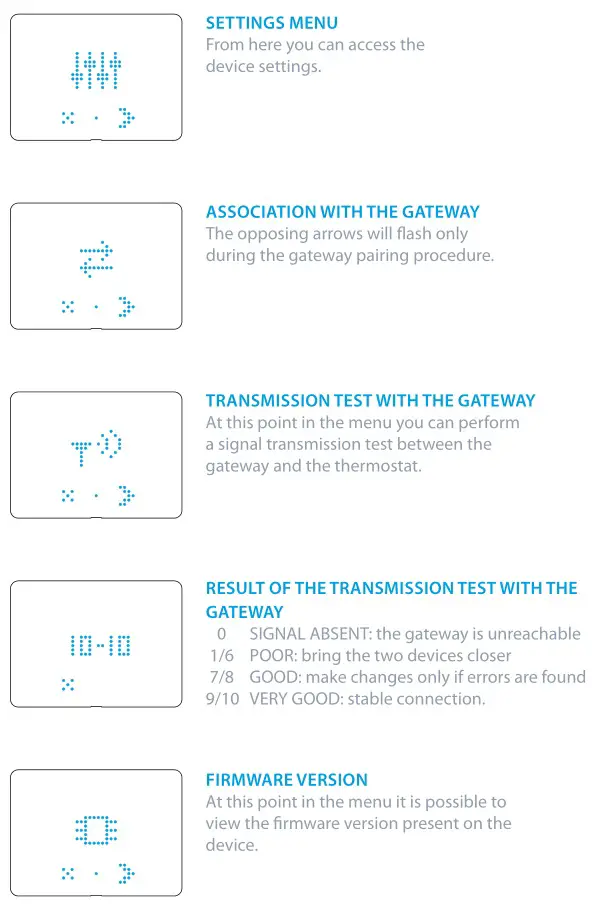
MANUAL MODE
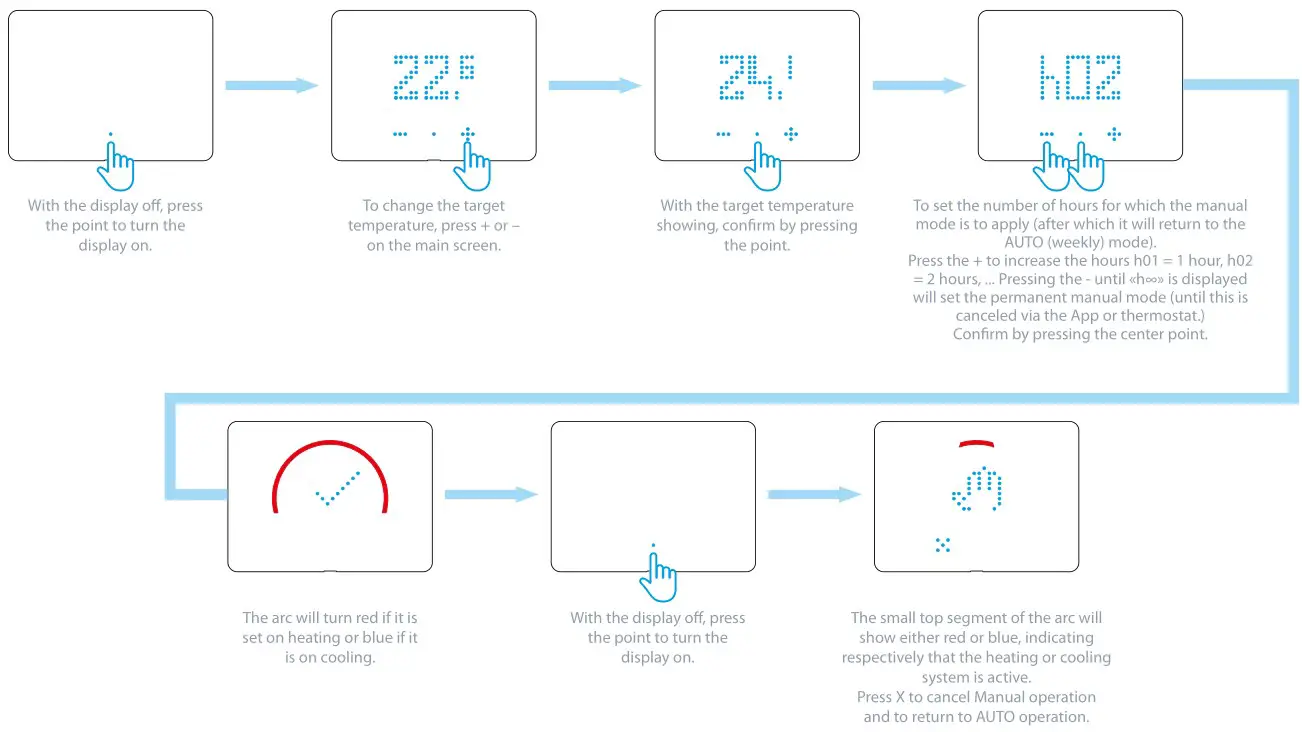
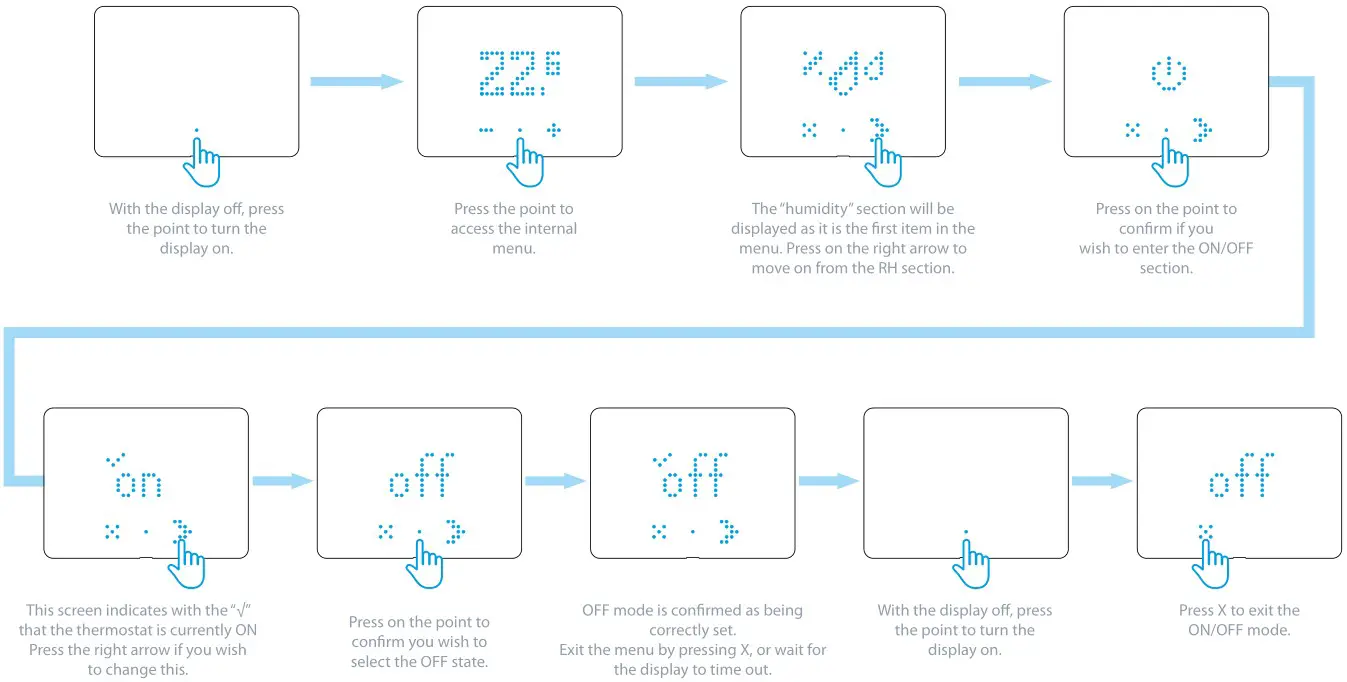
ON/OFF MODE
AUTOMATIC (AUTO) MODE

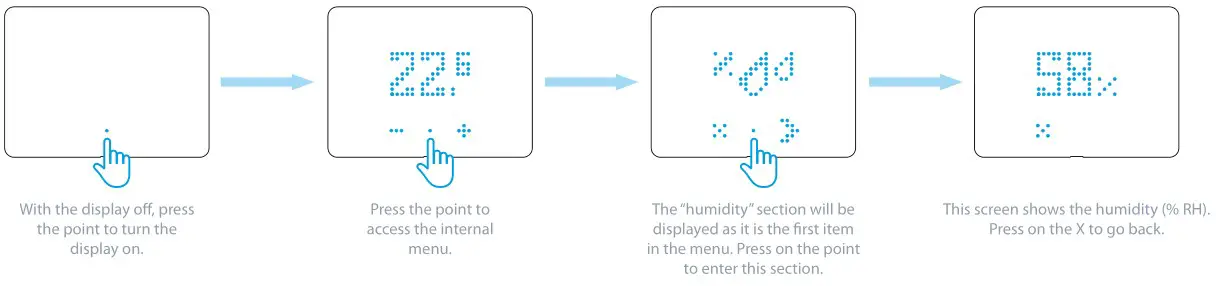
HUMIDITY
ASSOCIATION WITH THE GATEWAY
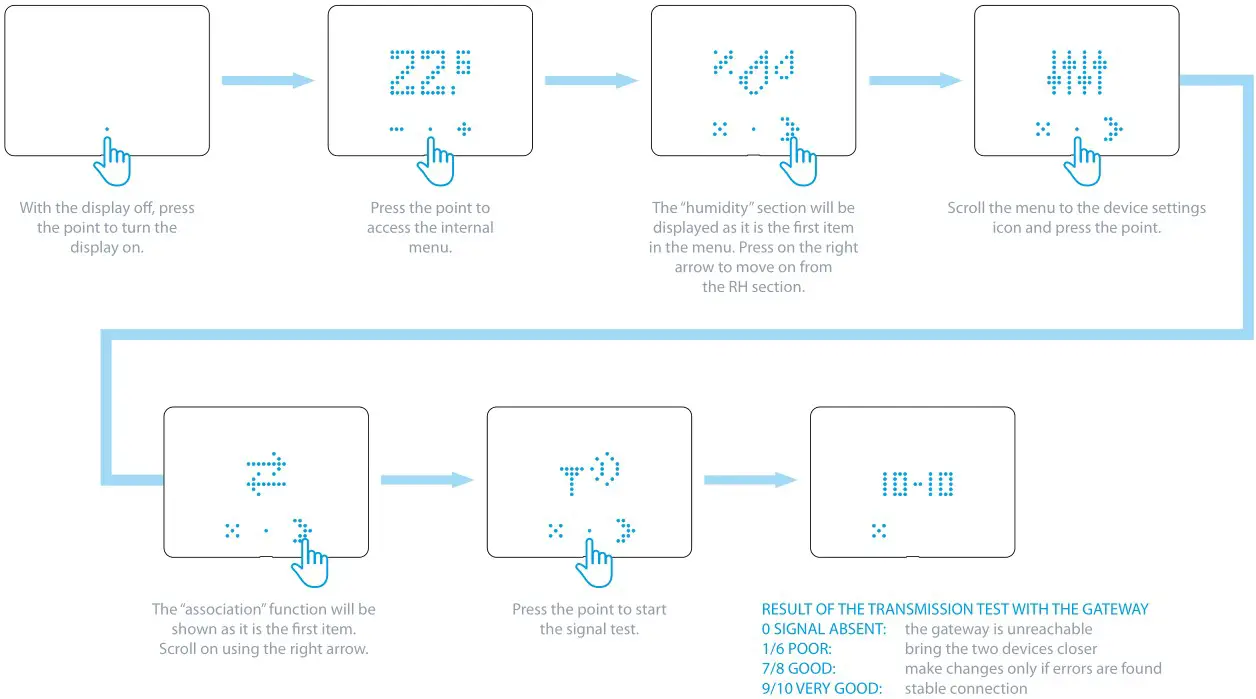
TRANSMISSION TEST WITH THE GATEWAY
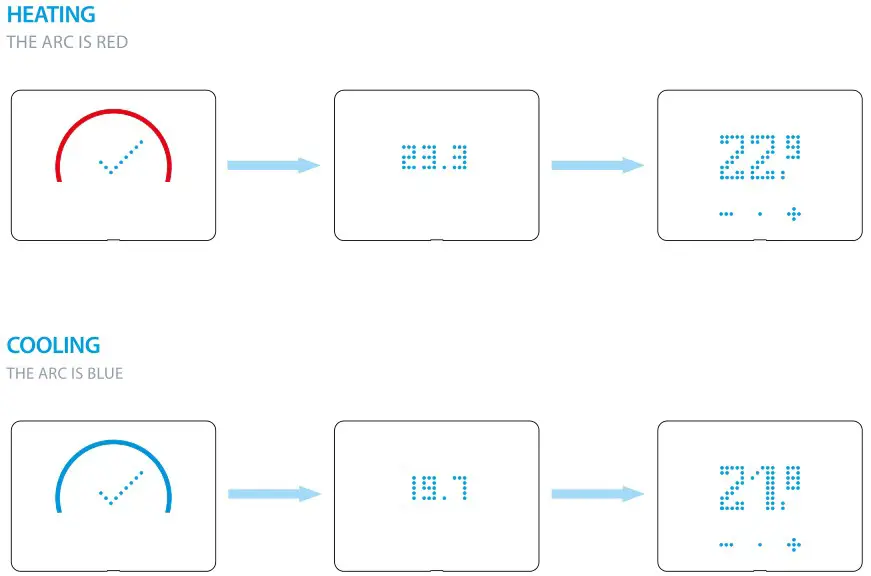
HEATING/COOLING
ACCORDING TO THE OPERATING MODE OF THE THERMOSTAT, YOU WILL SEE DIFFERING VISUAL FEEDBACKS ON THE
GATEWAY SET-UP
FIRST STEPS
Connect the gateway to the socket using the micro USB power supply before starting the procedure.
IMPORTANT
The BLISS2 smart thermostat is only compatible with the second generation gateway Type 1Y.GU.005.1.
The code is shown under the black silicone cover at the top of the gateway.
The gateway works only with 2.4GHz Wi-Fi networks. Check that you have a 2.4GHz network configured on your home router and that you have the network name and password before starting the procedure.


 Relays, Timers, Movement detectors, Dimmers - Finder Relays, Inc.
 Fondation Le Relais - Insertion Sociale et Professionnelle