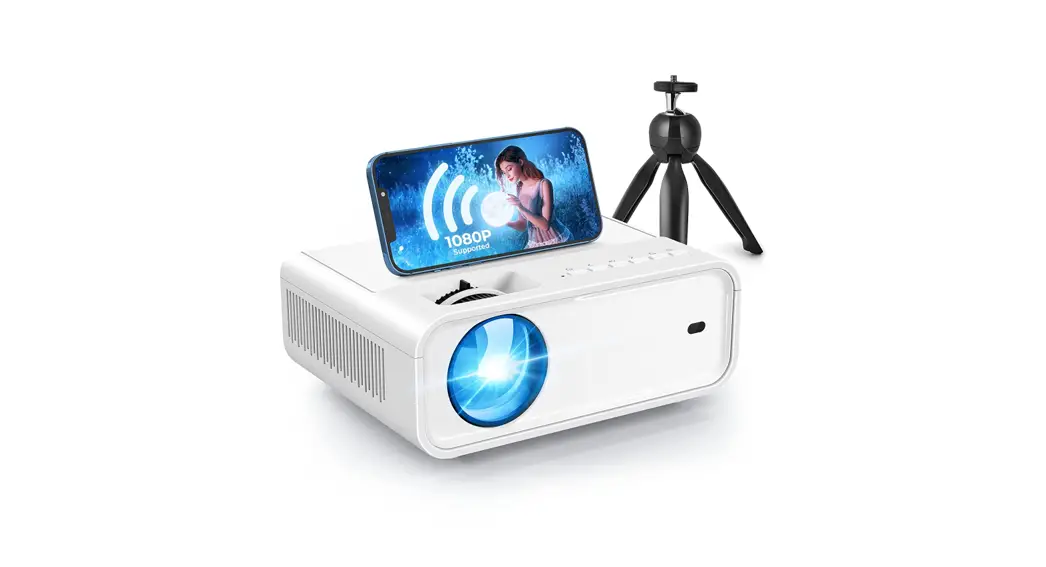
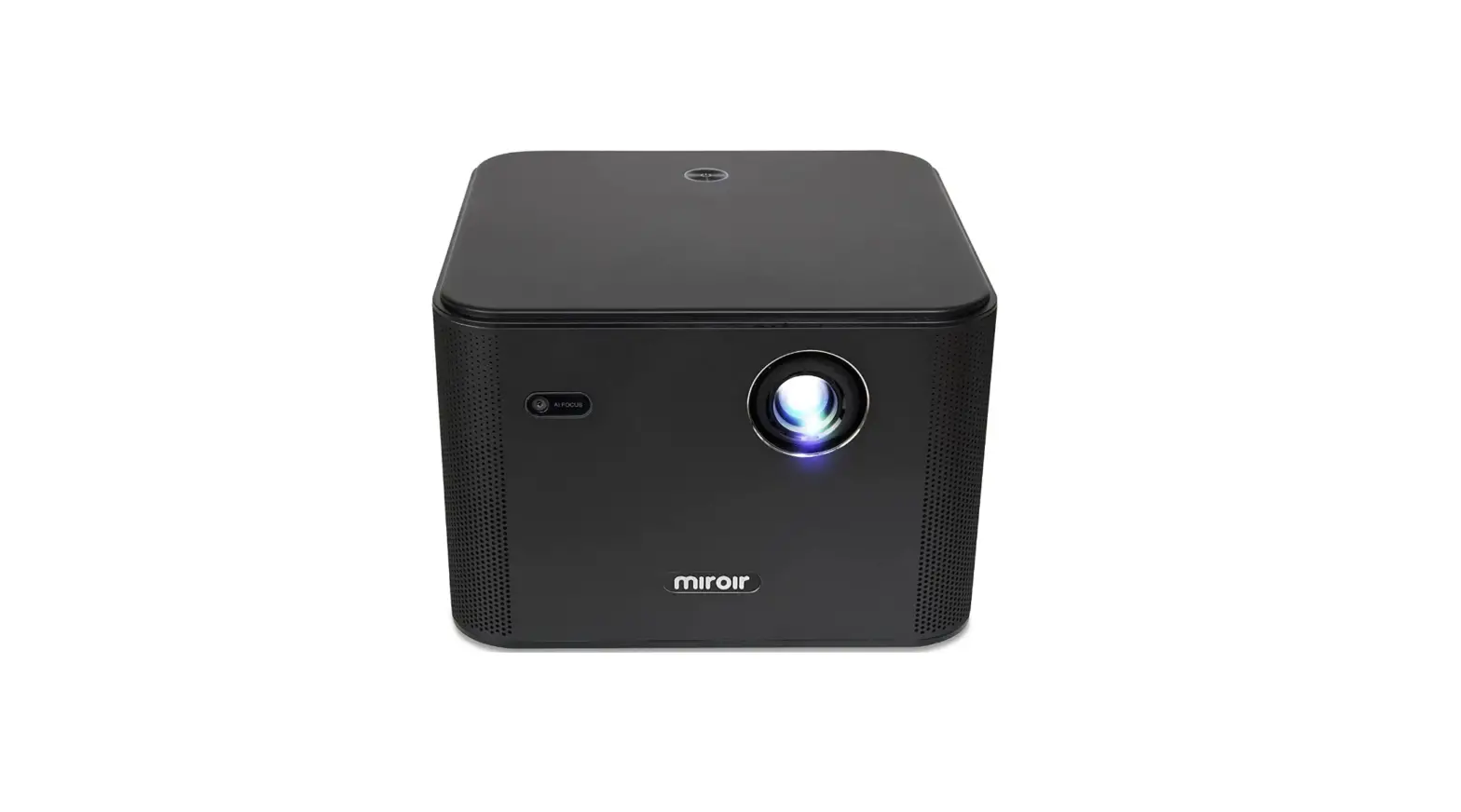
ACROJOY D501 4K Support Native 1080P Portable Projector
 ACROJOY D501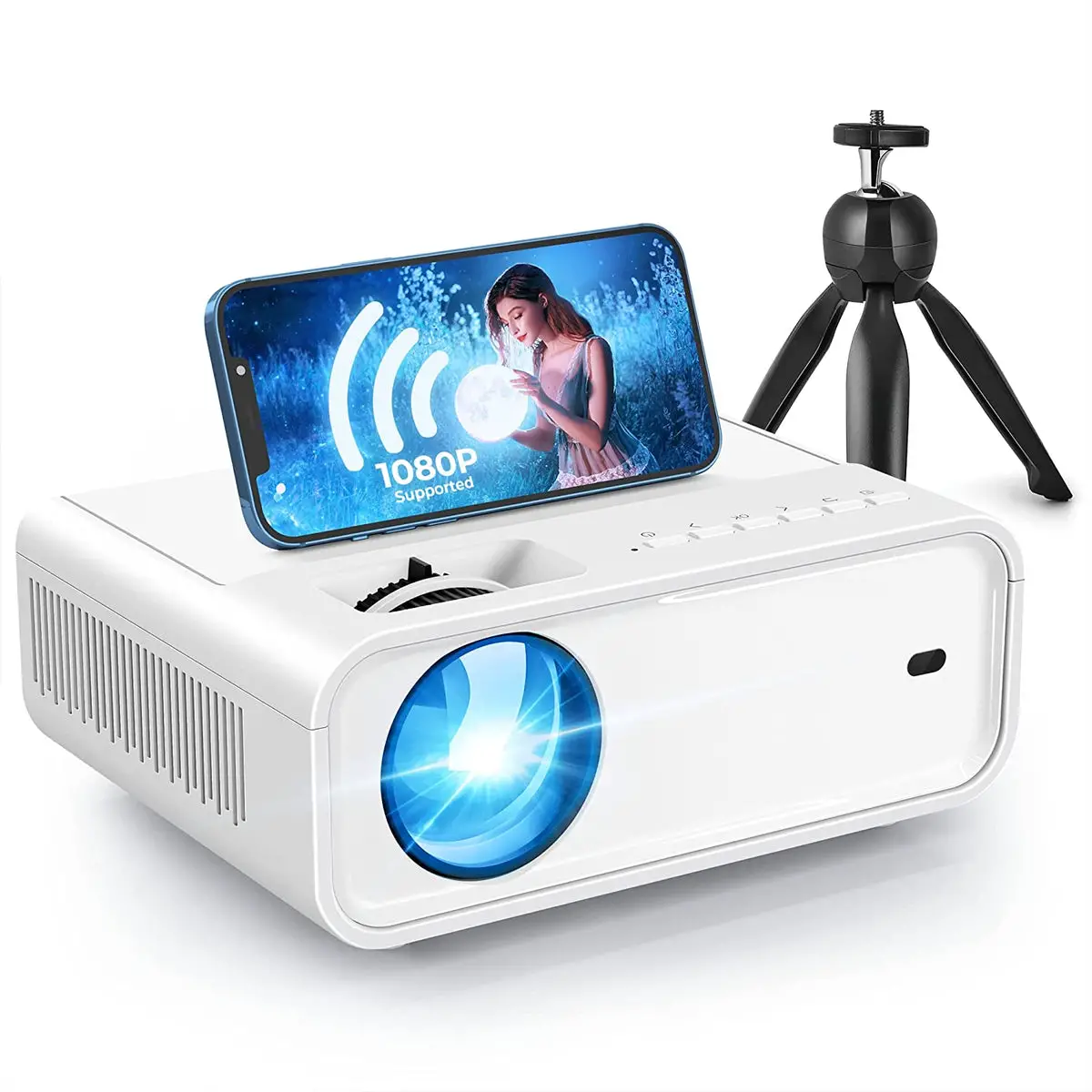
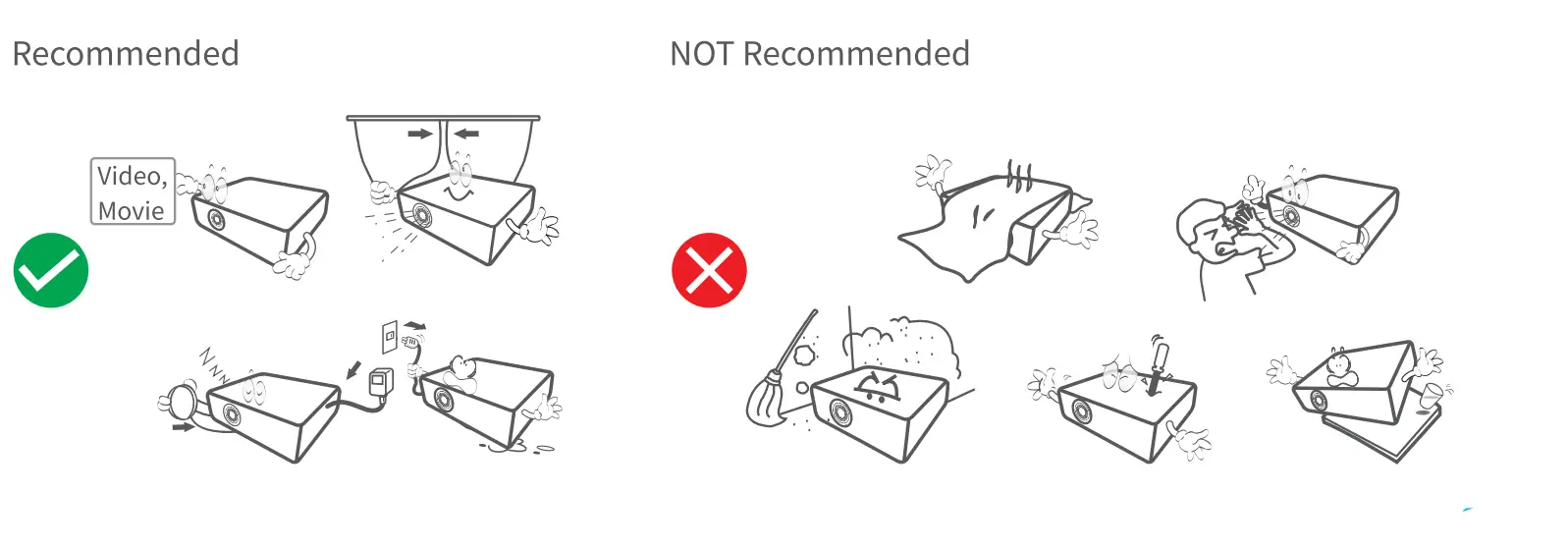
WHAT’S INCLUDED 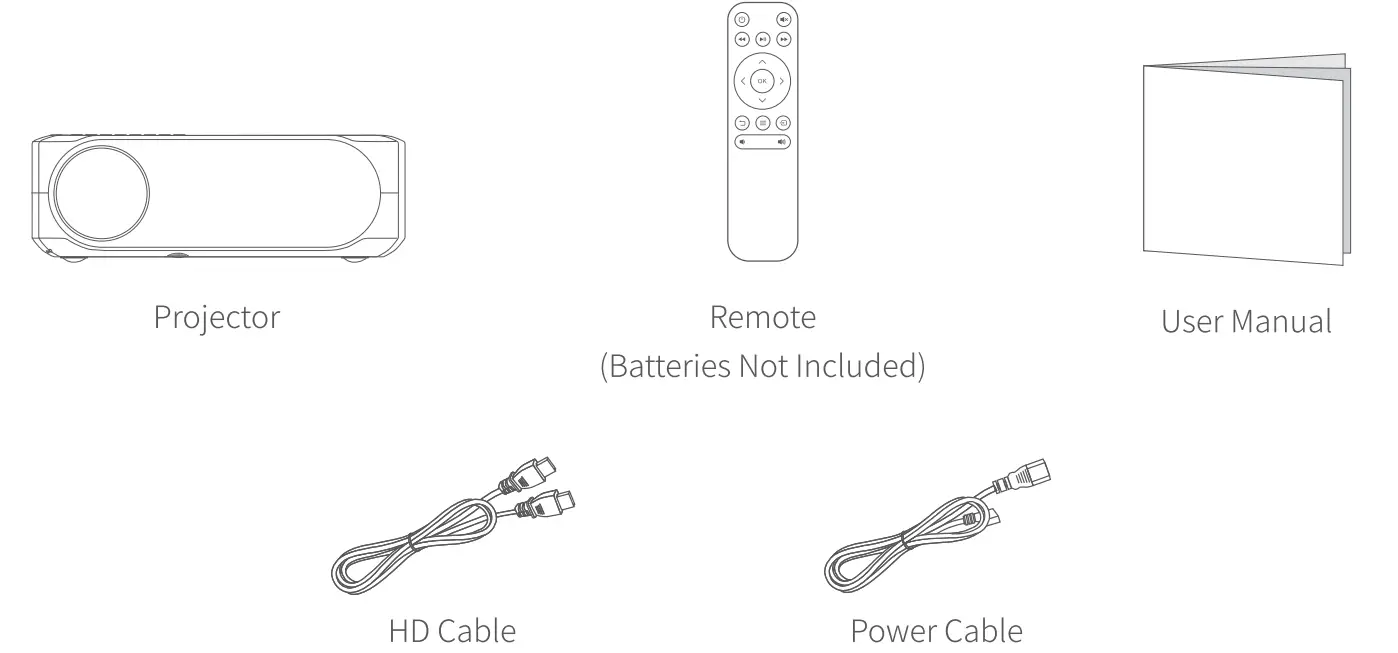 NOTICE
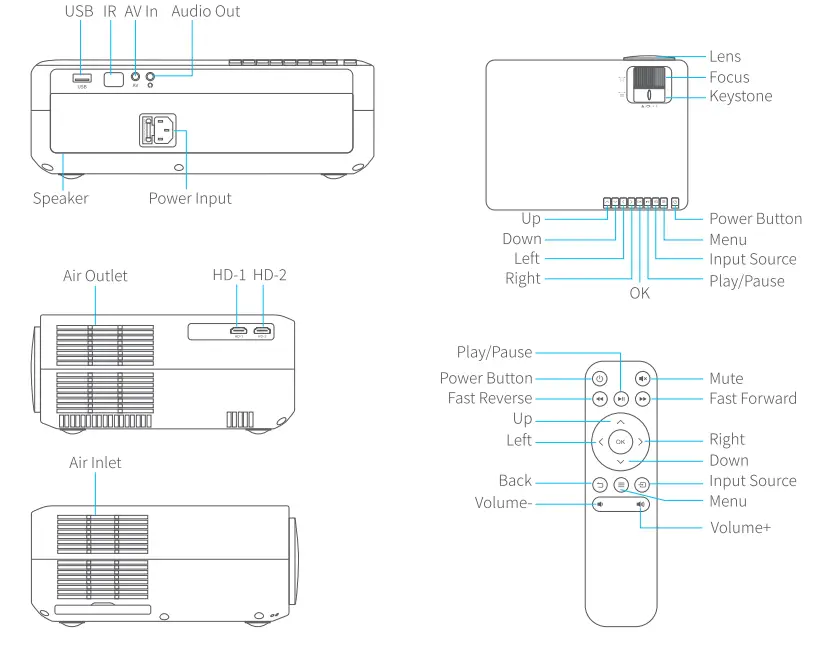
FUNCTION OVERVIEW 
QUICK START
- Plug the power cord into an outlet.
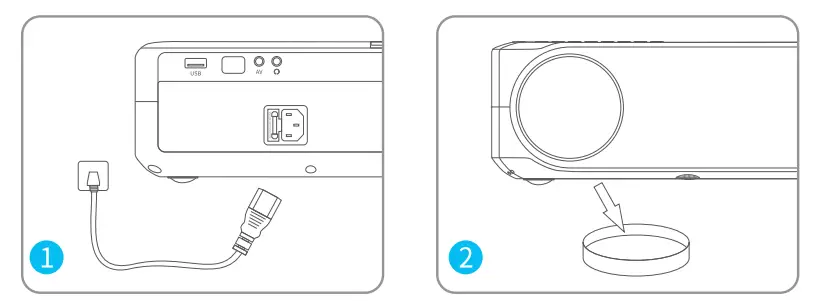
- Take off the lens cover.
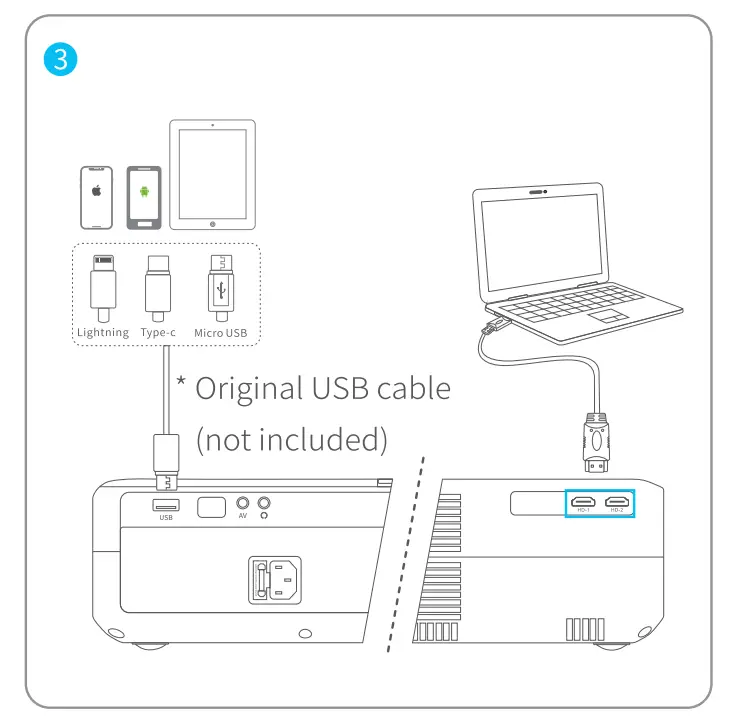
- Connect your device to the projector correctly.
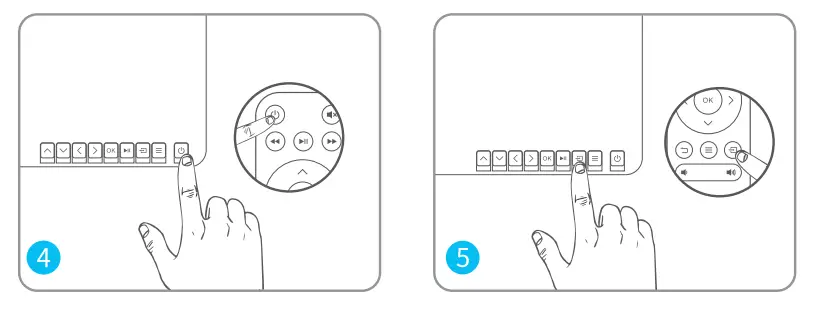
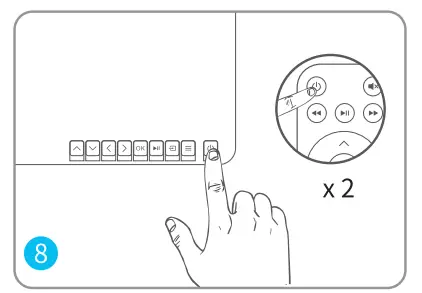
- Press the Power Button to turn on the projector.

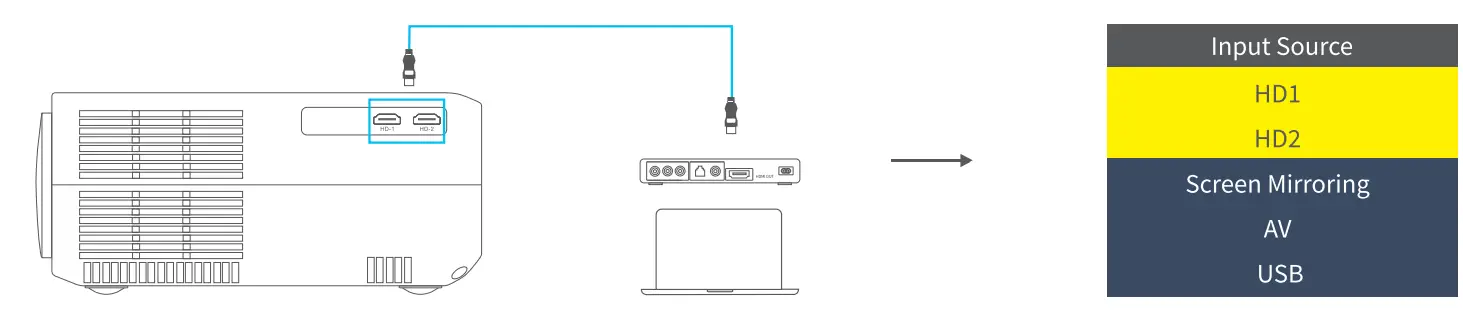
- Select the correct input source to project your device.
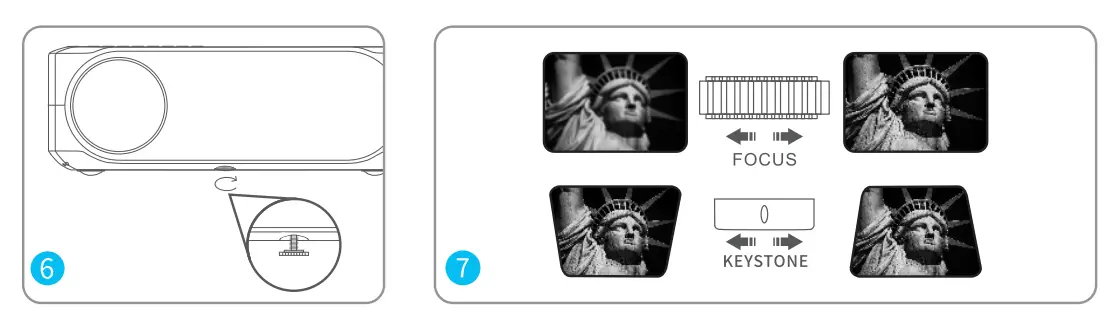
- Adjust the kickstand accordingly.

- Adjust the focus ring and keystone to get the best image performance.
- Press the Power Button twice to turn off the projector.

INPUT SOURCE
Press  on the projector/remote to enter the interface of Input Source.
- Screen Mirroring

- HD Connection
- USB Connection



PROJECTOR CONNECTION 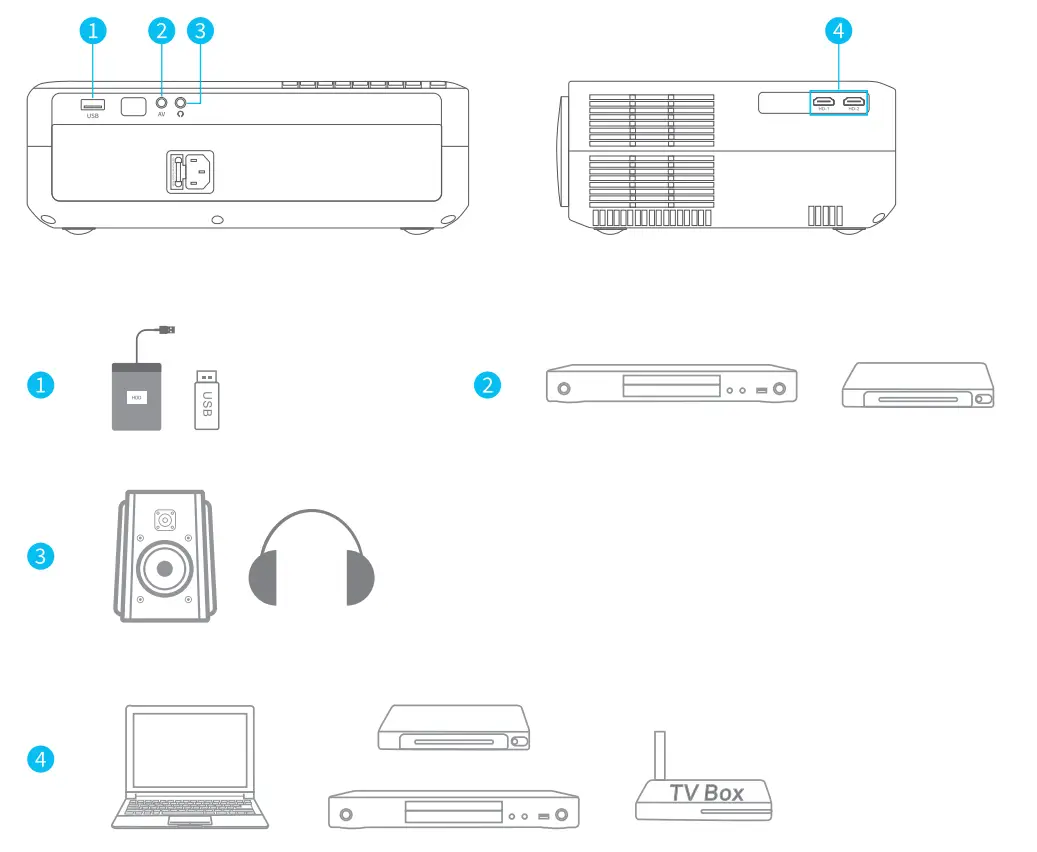
TROUBLESHOOTING GUIDE
- The content from Hulu, Netflix, and similar services can not be mirrored or cast?
- Due to the copyright restriction from Hulu, Netflix, and similar services, the contents MAY NOT be mirrored or cast.
- What should I do if I want to watch the content from Hulu, Netflix, and similar services via the projector?
- Please prepare a Fire TV stick , Roku stick or Chromecast™ (not included), then connect it to the projector to watch the content.
- Video Playback at 4K Resolution.
- The 4K video content can be presented by connecting the projector to a laptop or a TV stick, but it cannot be presented via a USB drive.
- Remote Unresponsive
- Make sure remote points at IR receiver directly.
Do not cover IR receiver. - Replace the old AAA batteries with new ones.
- Make sure remote points at IR receiver directly.
- Blurry Image
- Adjust focus ring/keystone.
- Projector and screen/wall must be in effective distance.
- Factory Reset
- Go to Menu> OPTION> Restore Factory Default to restore the projector to default settings.
- Resetting of the Screen Mirroring Module.
- If the projected image freezes when you switch the screen mirroring interfaces, you can’t find or fail to connect the corresponding WiFi network, please press and hold the OK button for 5 seconds on the projector/remote to do a reset. The reset progress will complete in 1 minute. Please wait patiently.
- Upside Down Images
- Go to Menu> PICTURE> Projection Mode to flip the projection image.
SCREEN MIRRORING
Important:
- Before screen mirroring, please press the button on the projector/remote to enter the interface of Input Source and select Screen Mirroring.
- Press OK button on the projector/remote to switch the interfaces between Screen Mirroring for iOS Systems and Screen Mirroring for Android Systems.
Screen Mirroring through Wireless Connection
For iOS System
* Streaming with cellular data
- Turn on the projector, select Screen Mirroring as the input source to enter the interface of Screen Mirroring for iOSSystem.
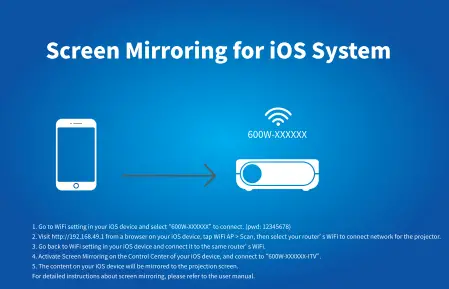
- Go to the settings of your iOS mobile device and connect it to the WiFi of 600W-XXXXXX (password: 12345678).
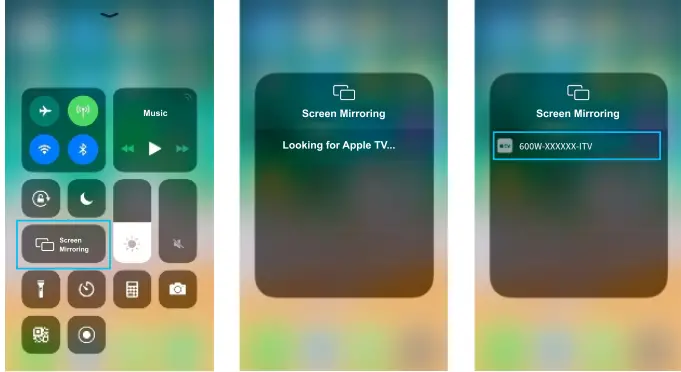
- Activate Screen Mirroring/AirPlay Mirroring on your iOS device and search for the projector.

- Select 600W-XXXXXX-1TV from the searching results to connect.
- The display of your iOS mobile device will be projected to the wall/screen via cellular data after a successful connection.
Streaming with your router’s WiFi
- Turn on the projector, select Screen Mirroring as the input source to enter the interface of Screen Mirroring for iOSSystem.
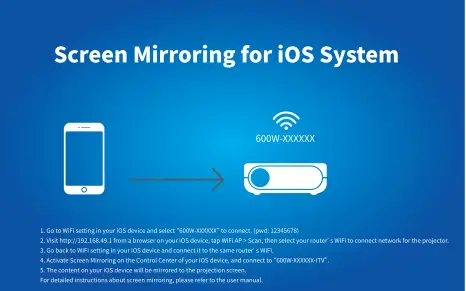
- Go to the settings of your iOS mobile device and connect it to the WiFi of 600W-XXXXXX (password: 12345678).
- Visit http:f//192.168.49.1 from a browser on your mobile device, tap WiFi AP> Scan, select your router’s WiFi and enter the right password, then tap Connect to continue.
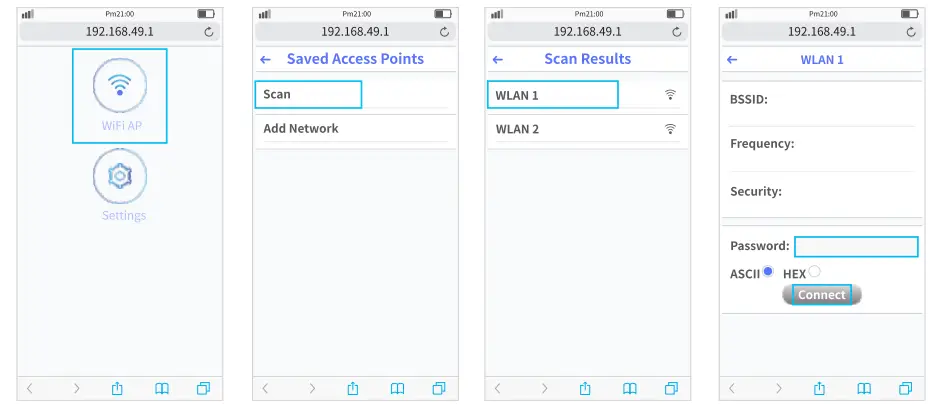
- Your router’s WiFi will be displayed on interface of Screen Mirroring for iOS System after a successful connection.

- Get back to the WiFi setting of your iOS mobile device, then connect it to the same router’s WiFi.
- Activate Screen Mirroring on your iOS device and search for the projector, then select 600W-XXXXXX-ITV from the search results to connect.
- The live streaming content from your iOS mobile device will be projected to the wall/screen through WiFi connection.
Tip:
If you’d like to connect to another router’s WiFi, please repeat the procedures mentioned in the section of Streaming with your router’s WiFi.
For Android System
To activate this function, your Android device must support a Multi-Screen/Wireless display/Smart View. Names may differ from different devices.
- Turn on the projector, select Screen Mirroring as the Input Source, then press OK button on the projector/remote to switch to the interface of Screen Mirroring for Android System .
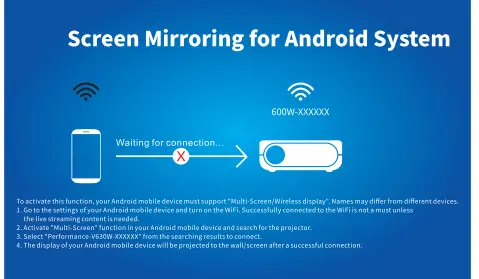
- Activate Multi-Screen/Wireless Display/Smart View function on your Android device and search for the projector.
- Select 600W-XXXXXX from the searching results to connect.
- Your Android device display will be projected to the wall/screen after a successful connection.
Important Tips for Wireless Connection
- If the projected image freezes when you switch the screen mirroring interfaces, you can’t find or fail to connect the corresponding WiFi network, please long press OK button for 5 seconds on the projector/ remote to do a reset. The reset progress will complete in l minute. Please wait patiently.
- Due to the copyright restriction from Netflix, Hulu, and similar services, the contents MAY NOT be mirrored or cast.
- The fluency of screen mirroring with wireless connection will be affected by the network environment.
- Bandwidth of l00Mbit or more is recommended when using screen mirroring.
- ake sure your projector is close to the mobile device and the router when using wireless connection. C, Some mobile devices may not support screen mirroring due to the compatibility.
Upgrade the Firmware Version of Screen Mirroring
When there is a newer version, you will see Discover new firmware … on the projected screen, please press OK button on the projector/remote and follow the steps to upgrade the firmware version of screen mirroring as needed.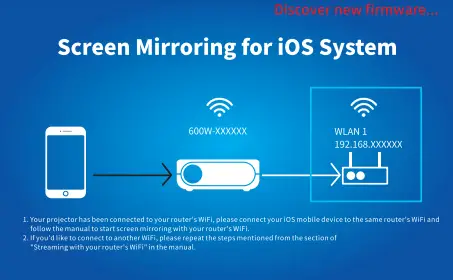
Notes:
- Make sure the projector is connected to WlFl and DO NOT power off during updating. f) It takes around 6-8 minutes for the update completes, please wait patiently.
- The screen mirroring system will restart once the upgrade is completed.
Screen Mirroring with the Original USB Cable
For iOS System
- Turn on the projector, select Screen Mirroring as the input source to enter the interface of Screen Mirroring for iOSSystem.
- Connect your iOS mobile device to the USB port of the projector with the ORIGINAL lightning cable.
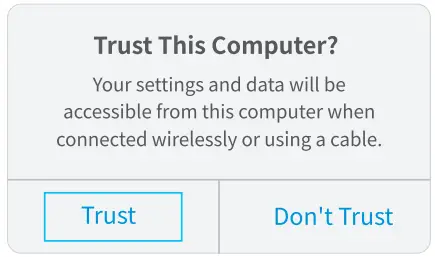
- Select Trust in the pop-up window of Trust This Computer.

- The display of your iOS mobile device will be projected to the wall/screen after a while.
Tip:
If the projection fails, please unplug the lightning cable from the projector and repeat the steps mentioned above.
For Android System
- Turn on the projector, select Screen Mirroring as the input source, then press the OK button on the projector/remote to switch to the interface of Screen Mirroring for Android System.
- Go to the settings of your mobile device, find Developer options and turn on USB debugging.
Tip:
The steps to turn on Developer options vary from different models of Android device. You may check it from Internet or contact us for the detailed steps. We take Samsung Galaxy SB+ as an example.- Go to settings of your Android device, then tap About phone> Software information> Build number.
- Continuously tap on Build number for several times until it shows Developer mode had been turned on.
- Get back to the settings of your mobile device, it will show Developer options.
- Connect your Android mobile device to the USB port of the projector with the ORIGINAL USB cable.
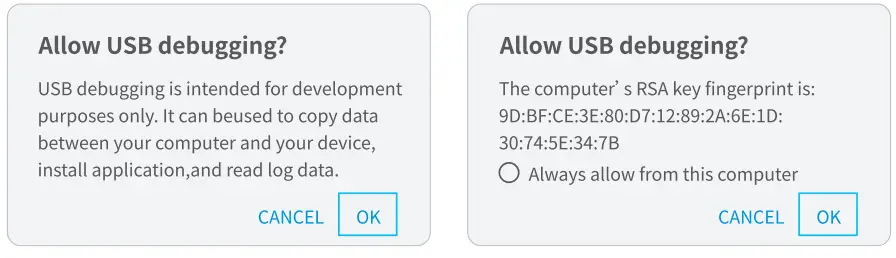
- Tap OK when your Android mobile device pops out the window of Allow USB debugging?, then your Android device will be projected to the wall/screen.
Notes:
- The USB cable MUST be the ORIGINAL cable or the cable which can transfer the data, otherwise screen mirroring may fail. You can plug the cable into your laptop to check the availability of transferring the data.
- Some mobile devices may not support screen mirroring due to compatibility.
- Some Android mobile devices may only transfer the display without audio due to the protocol restrictions.
PROJECTION DISTANCE&SIZE 
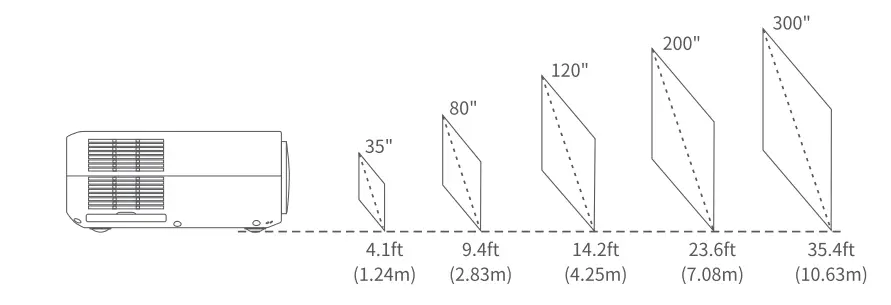
- The recommended projection distance varies with different projection contents. Please adjust the distance between the wall/screen and the projector properly as needed.
- Ambient darkness will improve the clarity of the projected images.
SPECIFICATION 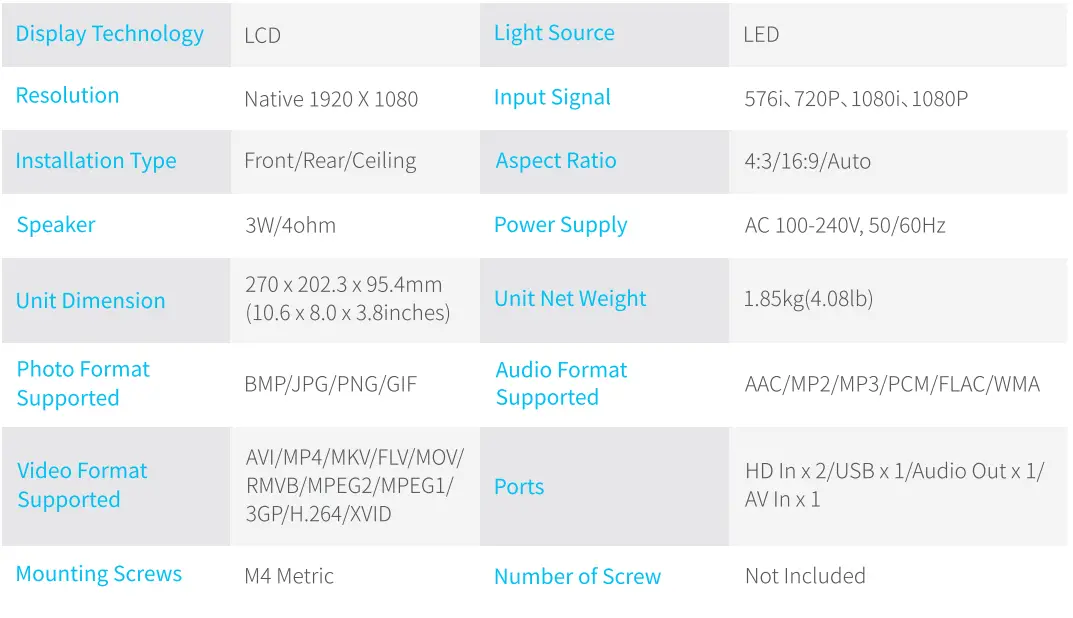
FCC Statement
Any Changes or modifications not expressly approved by the party responsible for compliance could void the user’s authority to operate the equipment. This device complies with part 15 of the FCC Rules. Operation is subject to the following two conditions:
- This device may not cause harmful interference, and
- this device must accept any interference received, including interference that may cause undesired operation.
NOTE: This equipment has been tested and found to comply with the limits for a Class B digital device, pursuant to part 15 of the FCC Rules. These limits are designed to provide reasonable protection against harmful interference in a residential installation. This equipment generates, uses and can radiate radio frequency energy and, if not installed and used in accordance with the instructions, may cause harmful interference to radio communications. However, there is no guarantee that interference will not occur in a particular installation. If this equipment does cause harmful interference to radio or television reception, which can be determined by turning the equipment off and on, the user is encouraged to try to correct the interference by one or more of the following measures:
- Reorient or relocate the receiving antenna.
- Increase the separation between the equipment and receiver.
- Connect the equipment into an outlet on a circuit different from that to which the receiver is connected.
- Consult the dealer or an experienced radio/TV technician for help.
This equipment complies with FCC radiation exposure limits set forth for an uncontrolled environment.
This equipment should be installed and operated with minimum distance 20cm between the radiator& your body.
This transmitter must not be co-located or operating in conjunction with any other antenna or transmitter.
ISEDC Warning
This device complies with Industry Canada licence-exempt RSS standard(s). Operation is subject to the following two conditions:
- this device may not cause interference, and
- this device must accept any interference, including interference that may cause undesired operation of the device.
FAQS
what is the refresh rate and version of hdmi is supported?
The refresh rate is 60HZ, and the version of HDMI is 1.4. If you still have further questions, feel free to contact us via [email protected]. Our customer service is 7/24 available for any inquiries at any time.
I do not see the screen , cords, or remote in the box? Does it come separately?
All should be included. 1 power cord, 1 remote, and a screen.
How do you Ceiling Mount this unit. I do not see anywhere in the menu to flip the image when mounted upside down?
Upside Down Image: Go to Menu>PICTURE>Projection Mode to flip the projection image. If you still have further questions, feel free to contact us via [email protected]. Our customer service is 7/24 available for any inquiries at any time.
why does mine keep shutting down after only running it for a few minutes?
Seems like a defect. Mine works wonderfully….
Is it work with 220 V?
Our video projector has a wide range of input voltage. It works with 220 V. If you still have further questions, feel free to contact us via [email protected]. Our customer service is 7/24 available for any inquiries at any time.
Will it work for power point presentations?
Yes it will. It is very bright and vibrant. I’m actually shocked
How loud is the fan?
Not loud at all…
How is the sound quality? Is the sound?
Works better with a Bluetooth speaker and Chromecast TV
Can u use Bluetooth?
Bluetooth is not supported. It is recommended to hook up an external speaker via the 3.5 mm audio output jack on the projector.
If you still have further questions, feel free to contact us via [email protected]. Our customer service is 7/24 available for any inquiries at any time.
Can this be used in temperatures below 32 F?
It can be used in temperatures below 32 F. If you still have further questions, feel free to contact us via [email protected]. Our customer service is 7/24 available for any inquiries at any time.
Does it support Dolby stereo?
If there is no sound when playing videos like Netflix, turn off Dolby sound on your connected devices or apps *(Setting>Display & Sounds>Audio>Dolby Digital Output>Turn off Dolby Digital Plus). If you still have further questions, feel free to contact us via [email protected]. Our customer service is 7/24 available for any inquiries at any time.
What is the brightness of this projector in lumens?
The native 1080p projector features 9500 lumens of brightness and provides stunning true-to-life pictures for you. If you have further questions, feel free to contact us via [email protected]. Our customer service is 7/24 available for any inquiries at any time.
Can this be hung from the ceiling or wall? Upside down?
Yes, it has 4 mounting holes and can be hung from the ceiling and wall. You need to purchase a separate projector mount. Mounting Screws: M4 Metric(Not Included)
Is the picture quality as good as a flat screen television
Yes it is and i got it on sale for way under price.
How many watts inout power does it take?
The input power of our movie projector is 110 W.
If you still have further questions, feel free to contact us via [email protected]. Our customer service is 7/24 available for any inquiries at any time.
Is this bright enough to be used outside at dusk, after sunset but before dark, in a well-shaded area? No direct sunlight
Not that good, but in the dark and later dusk it work very well.
How many lumens is this projector?
this movie projector features 9500 lumens of brightness and provides stunning true-to-life pictures. If you have further questions, please feel free to contact us via [email protected].