QUICK START
Sunspark 500W Email: [email protected]
SCREEN MIRRORING
For iOS System
Step 1: Connect your iOS device and the projector to the same WiFi network.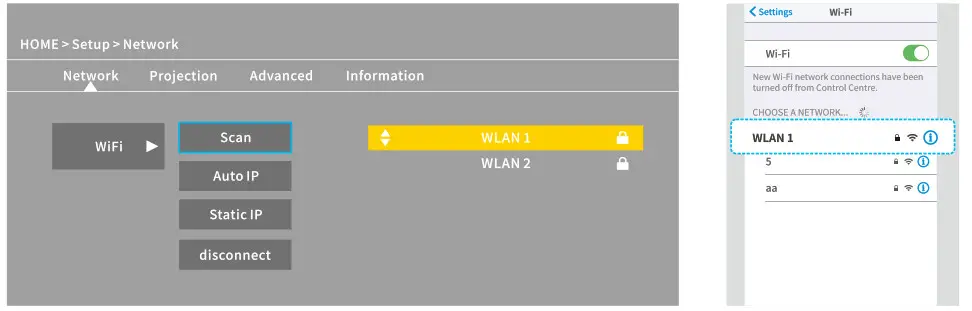 Step 2: Go to Homepage > iOS Cast to display the following interface.
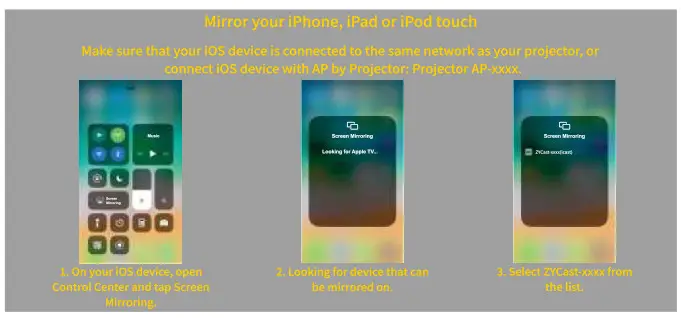 Step 3: Activate Screen Mirroring/AirPlay Mirroring on your iOS device and search for the projector.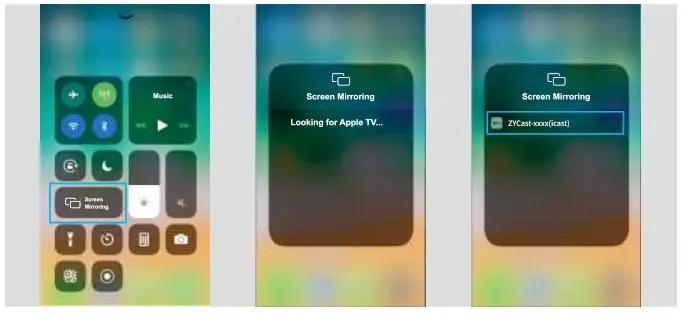
Step 4: Select ZYCast-XXXX(cast) from the searching list.
Step 5: Your iOS device display will be projected on the wall/screen.
For Android System
To activate this function, please make sure your Android device supports a Multi-screen/Wireless Display. Names may differ from different Android devices.
Step 1: Turn the WiFi to ON status in the settings of your Android device. To make smoother streaming, please do not connect to any WiFi on your projector(only for Android devices).
Step 2: Go to Homepage > Miracast to enter the following interface.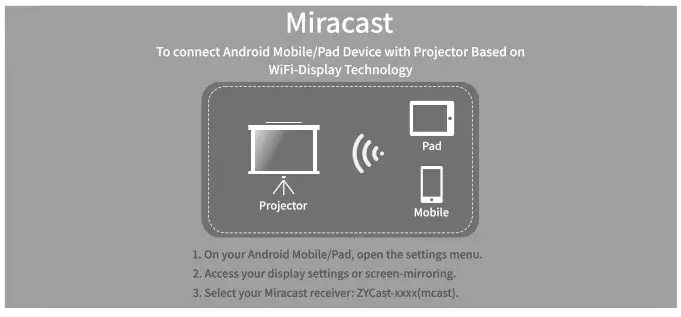 Step 3: Activate Multi-screen(Wireless Display, Wireless Projection, Smart View, etc.) function on your Andriod device and search for the projector.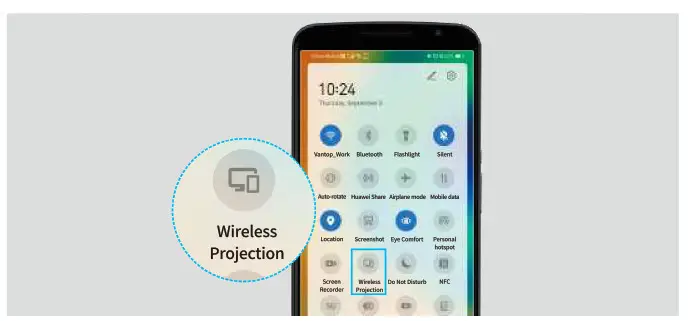
Step 4: Select ZYCast-XXXX(cast) from the searching list.
Step 5: Your Android device display will be projected on the wall/screen.
SCREEN CASTING(For iOS System Only)
Step 1: Connect your iOS device and the projector to the same WiFi network.
Step 2: Select Setup on the homepage, enter Advanced > iOS Play Mode, then press the right button on the remote to select screen casting HD/SD.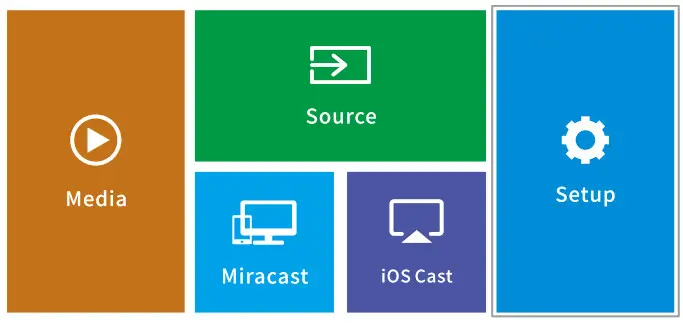
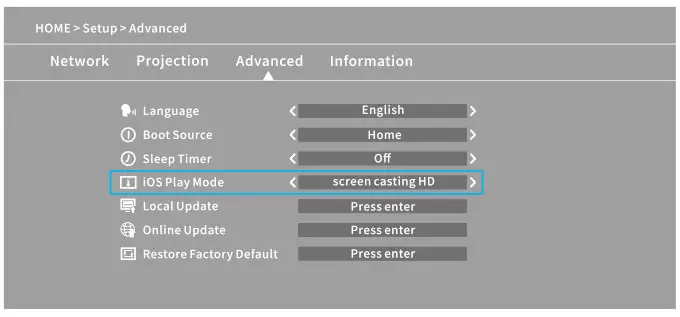 Step 3: Go back to the Homepage and select iOS Cast.
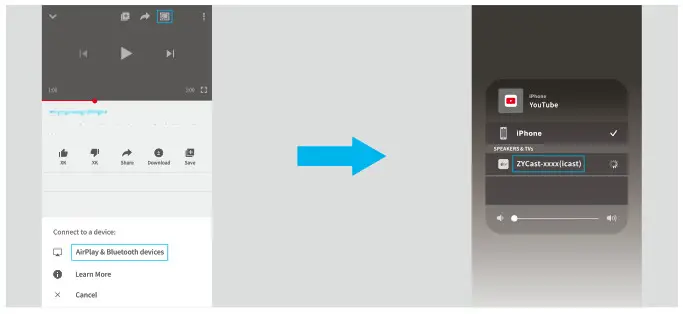
Step 4: Launch a video player on your iOS device and select a video to play.
Step 5: Tap > Airplay&Bluetooth devices > ZYCast-XXXX(icast) to cast the video on your iOS device to the wall/screen via the projector.
 Tips
Tips
- Once the video is cast to the wall/screen, you can close the app and do other things without interrupting the video as long as your iOS device is still connected.
- Always connect your projector to power.