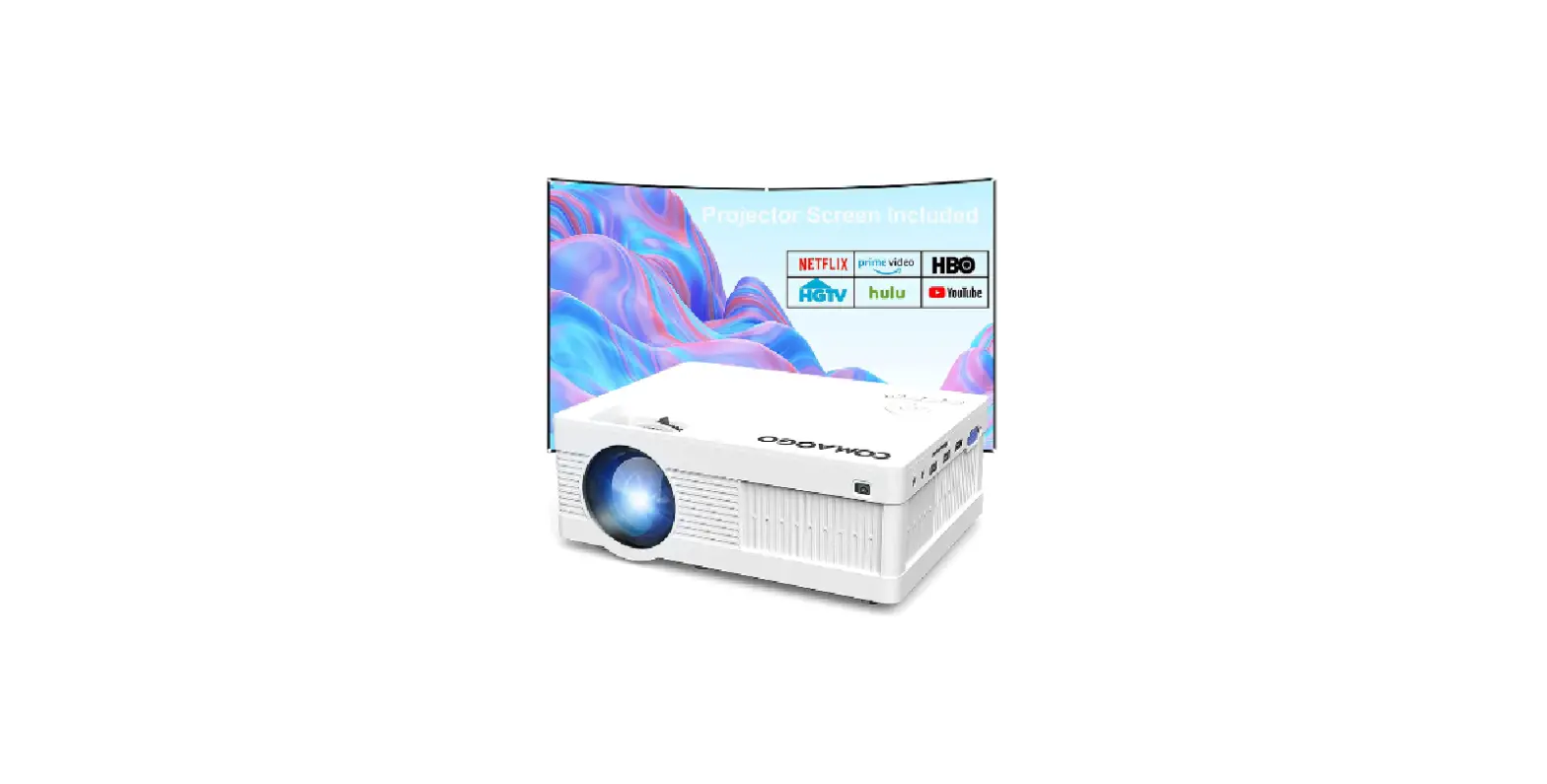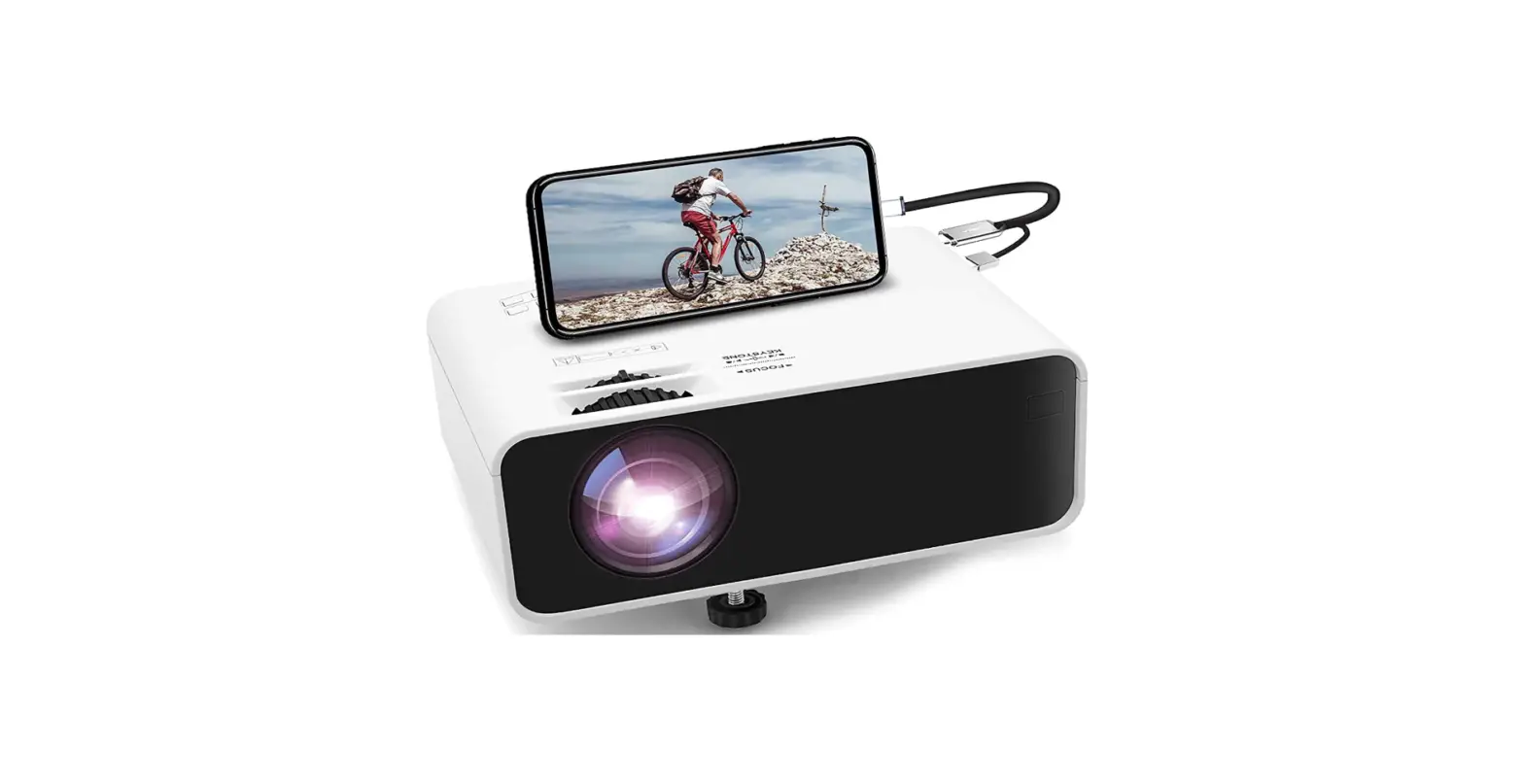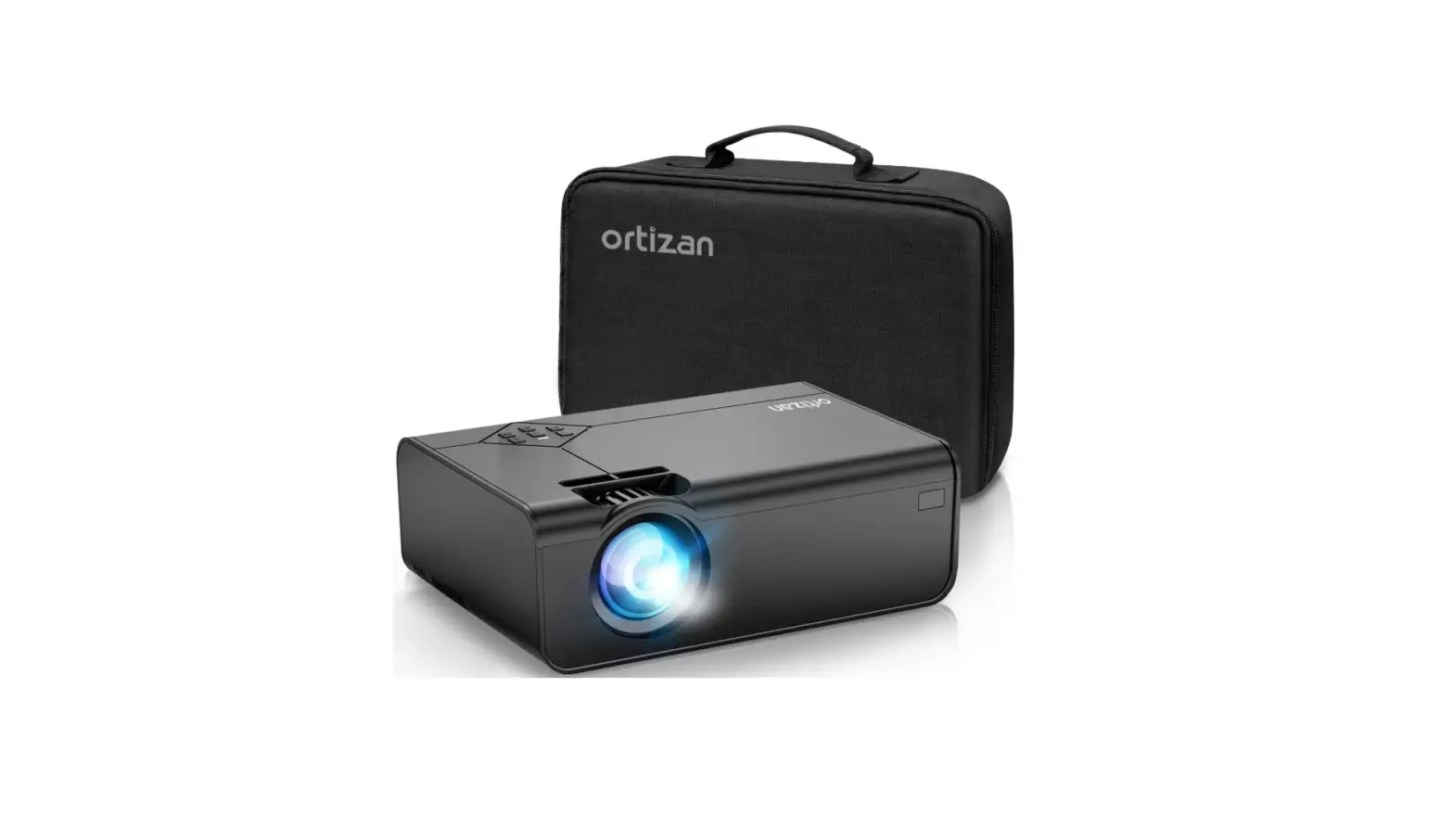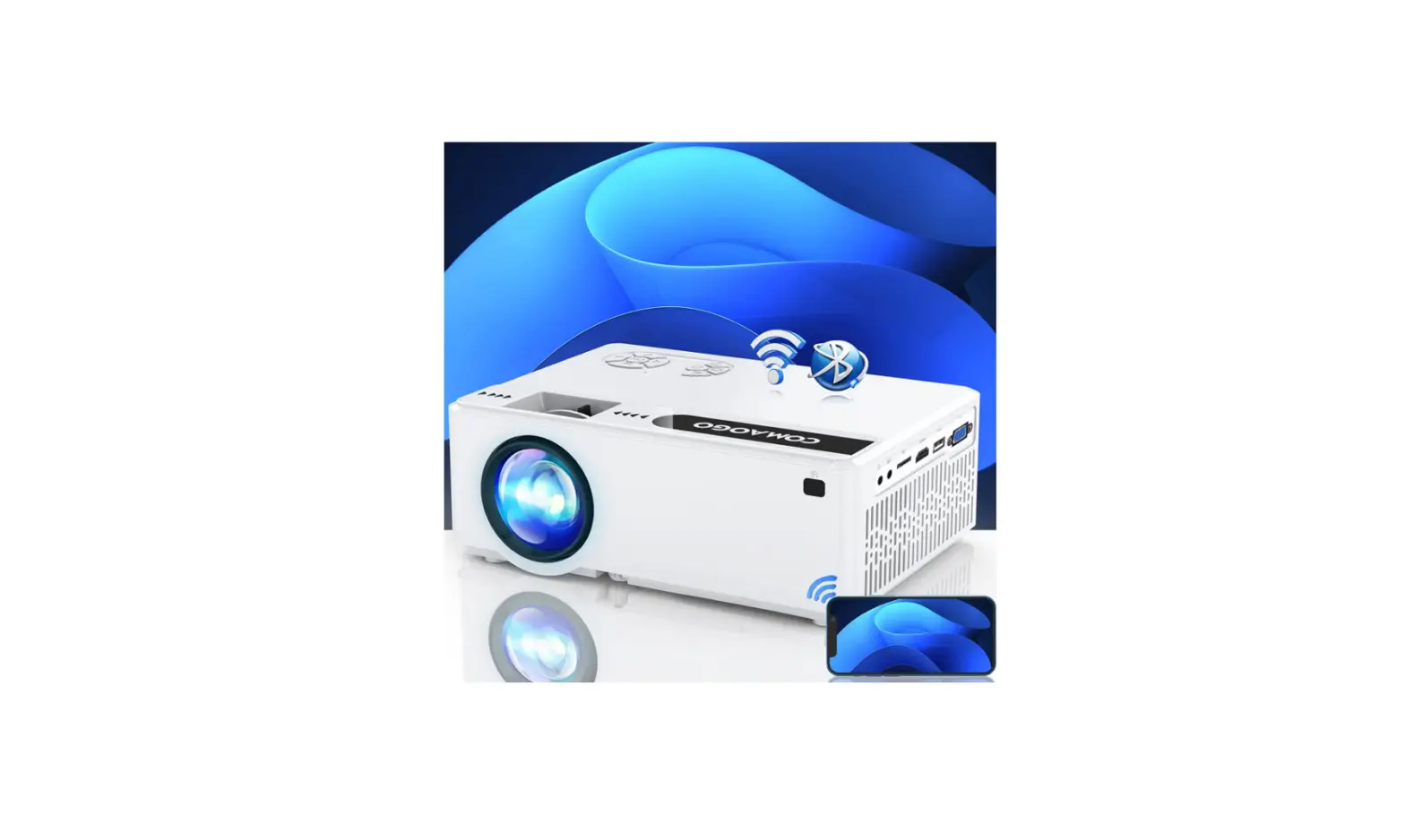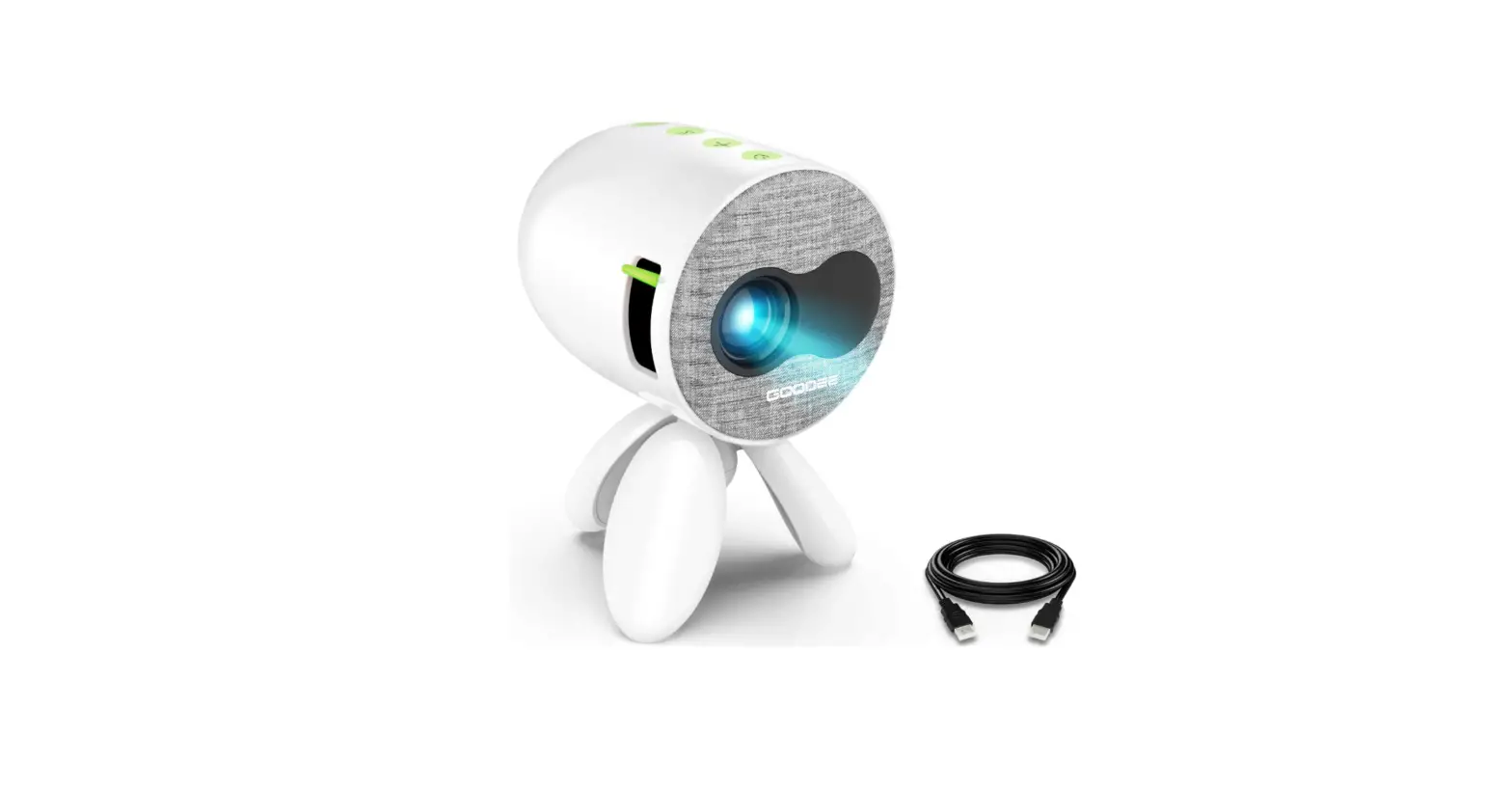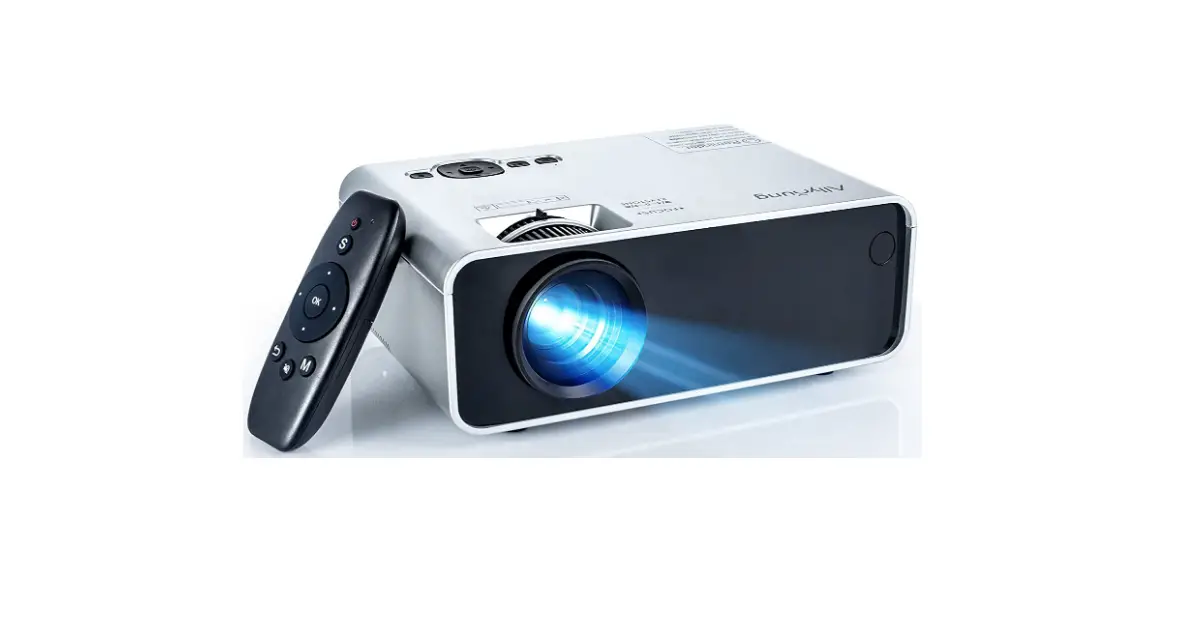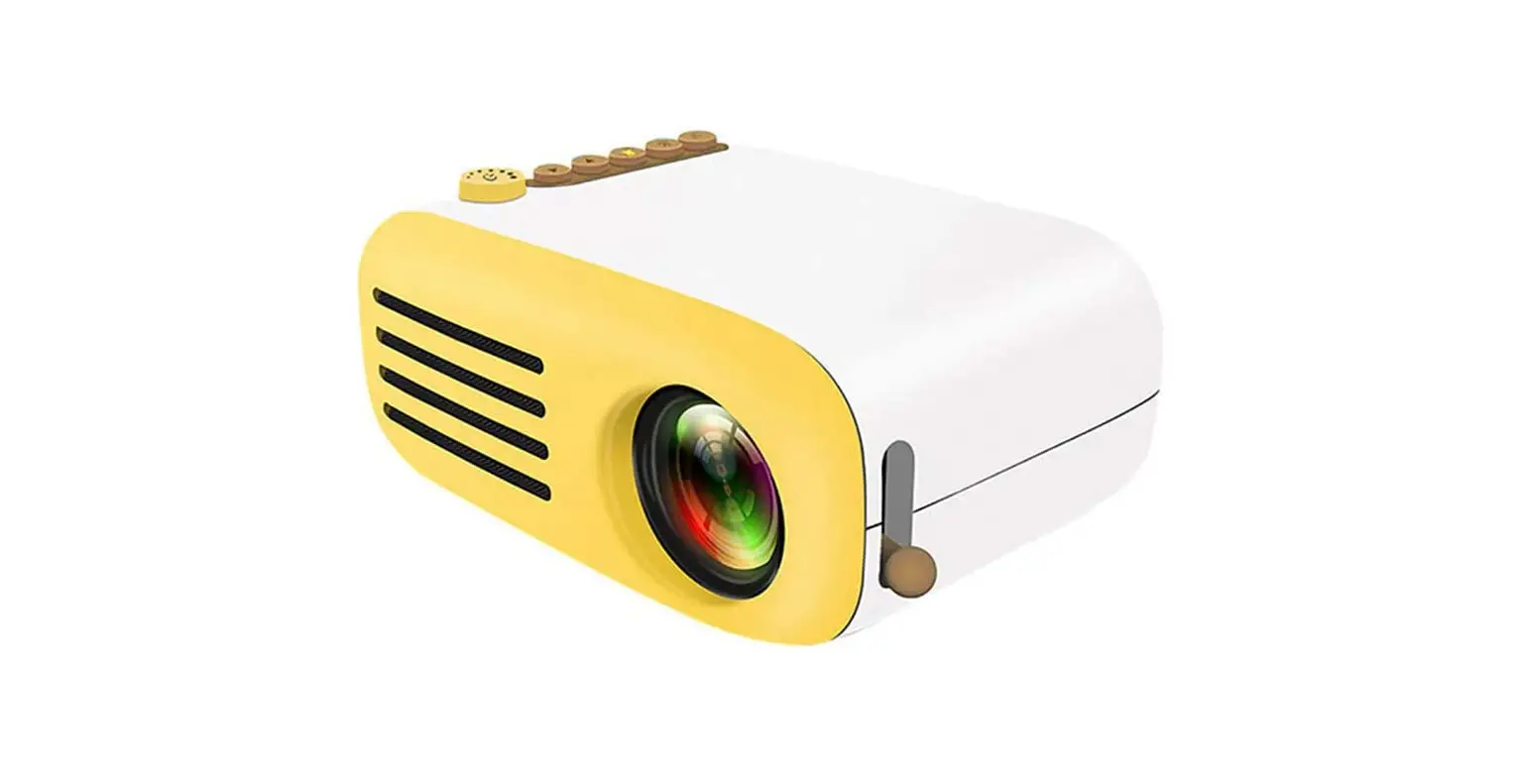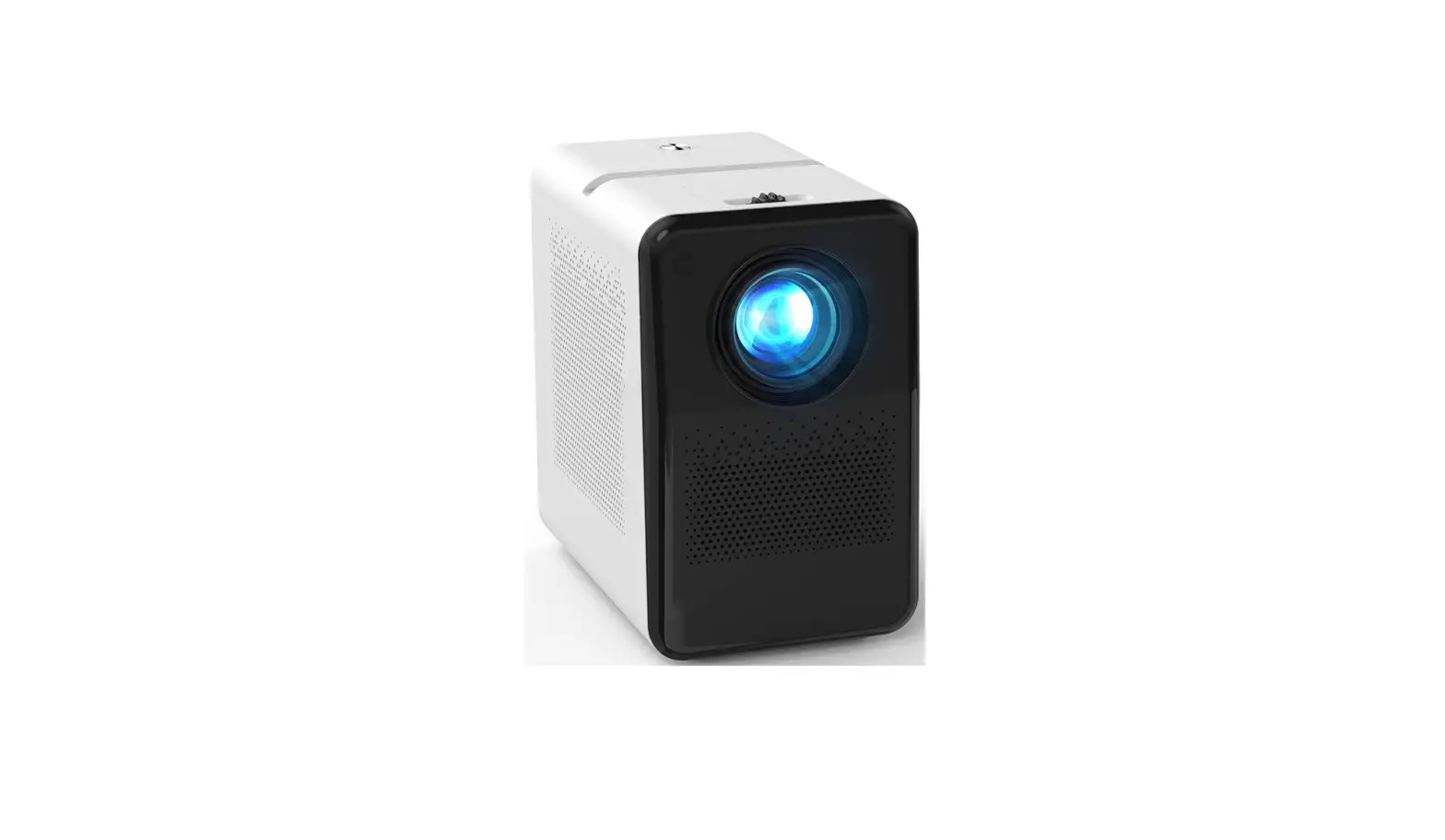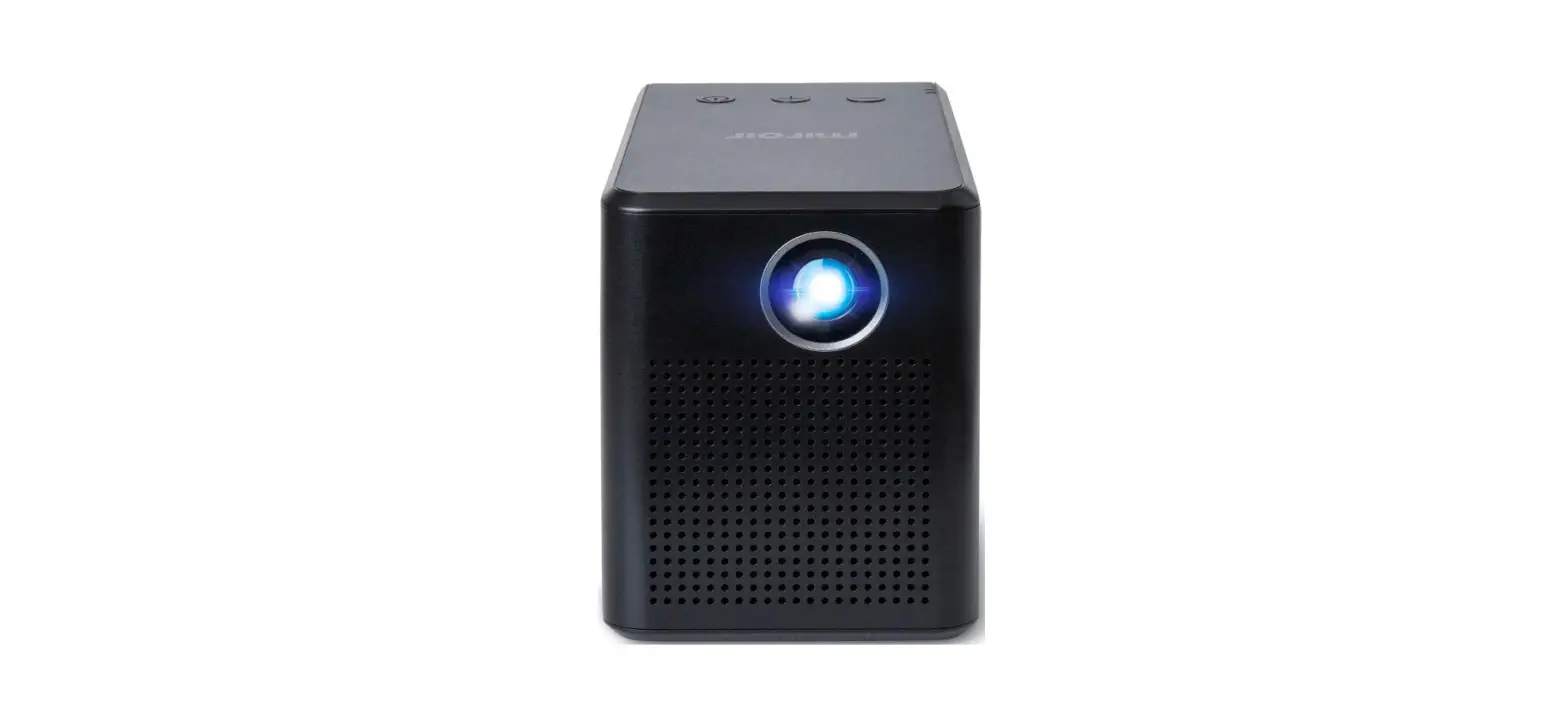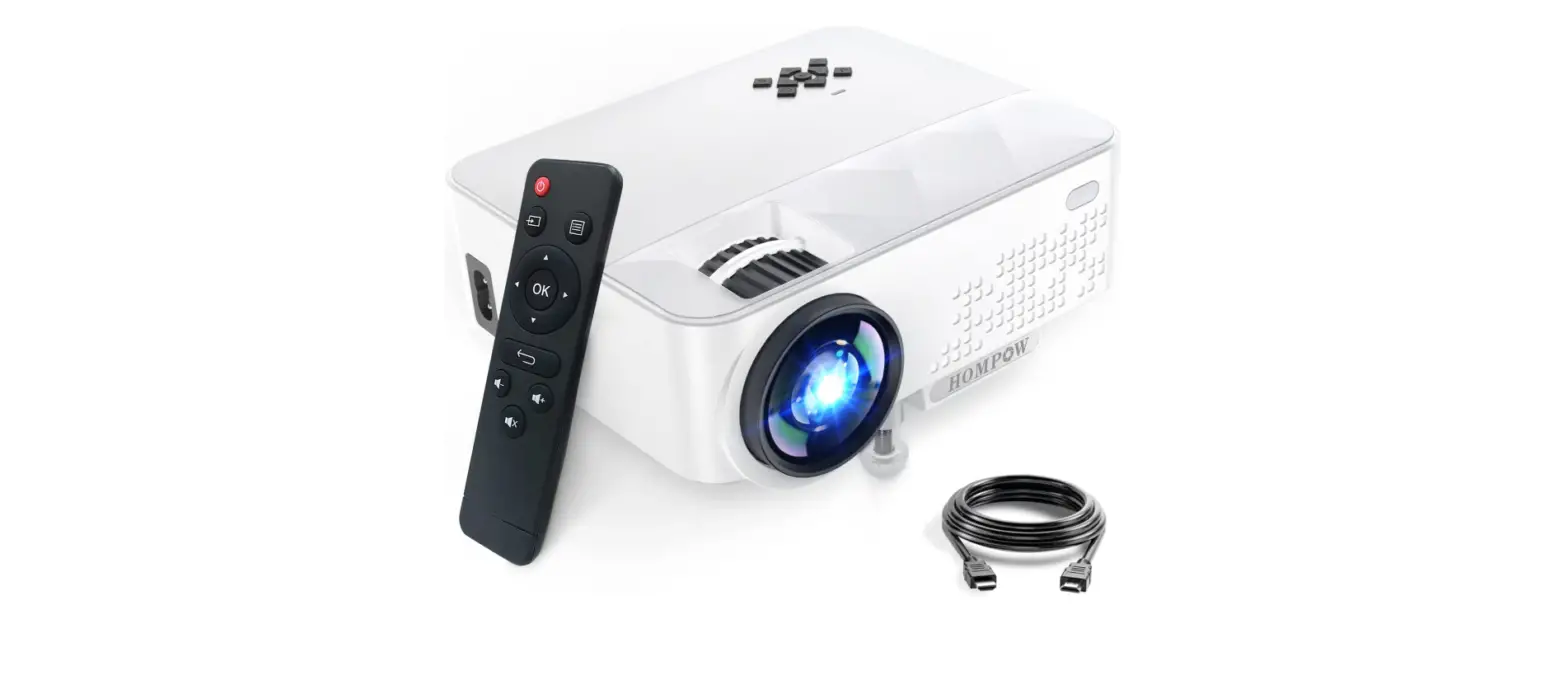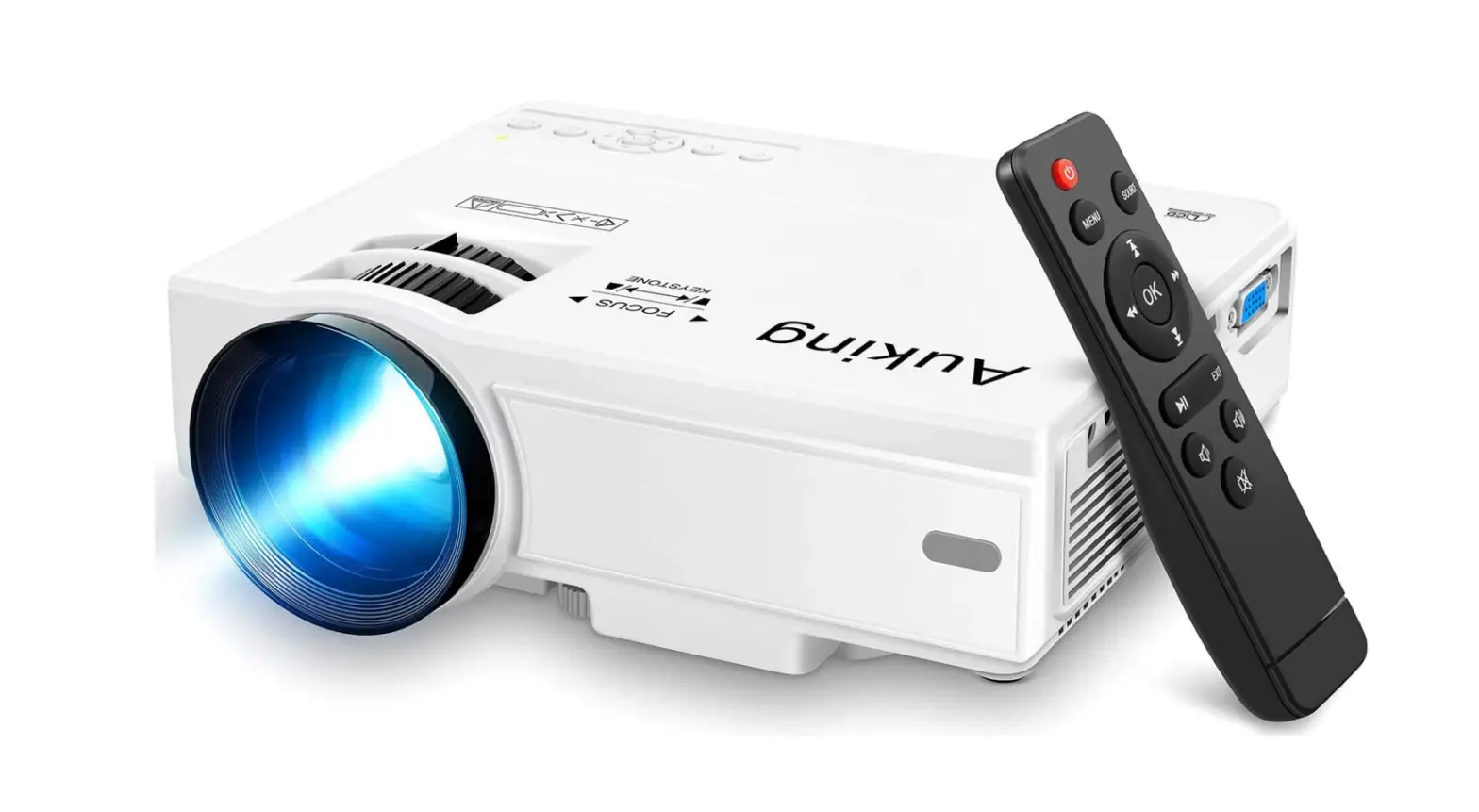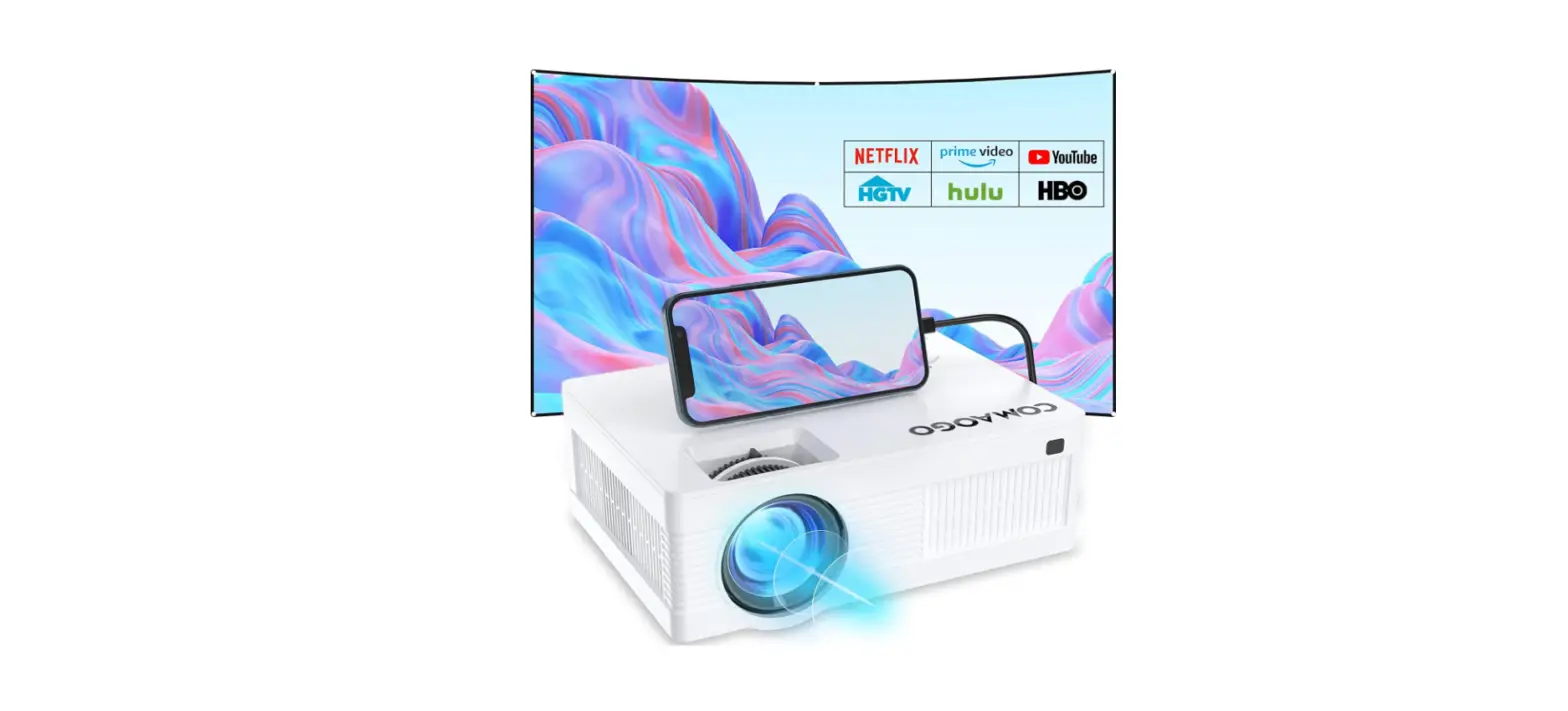
 COMAOGO T001 Mini Movie Portable Projectors
 COMAOGO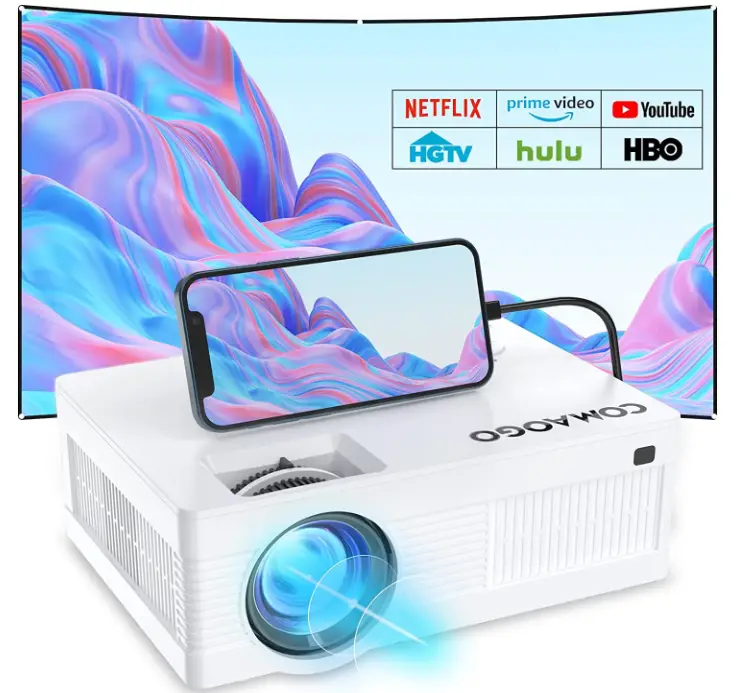
SAFETY NOTICE
- Please read the user manual carefully before using the projector.
- Please use the same power voltage with the projector marked.
- Please do not disassemble the projector by yourself, otherwise we will not provide free warranty service.
- Please do not look into the lens when the projector is working, otherwise it will damage your eyes easily.
- Please do not cover the projector ventilation hole with cloth, carpet and other materials.
- Please keep the projector away from the rain, water or any other liquid as it is not waterproof.
- Please do not put the projector under the rain or moisture to avoid electric shock.
- Turn off the power, if you do not use the projector for a long time.
- Please use the original packing foam or other anti-shock material when moving the projector.
- If a fault should occur during operation of the unit, switch the power supply off or disconnect the power plug and disconnect the device.
- Use only a qualified ceiling mount kit to install the projector and ensure it is securely installed. It is recommended to use M6 screws for installation.
- Please contact us for help firstly if the projector has any problem.
- E-mail: [email protected]
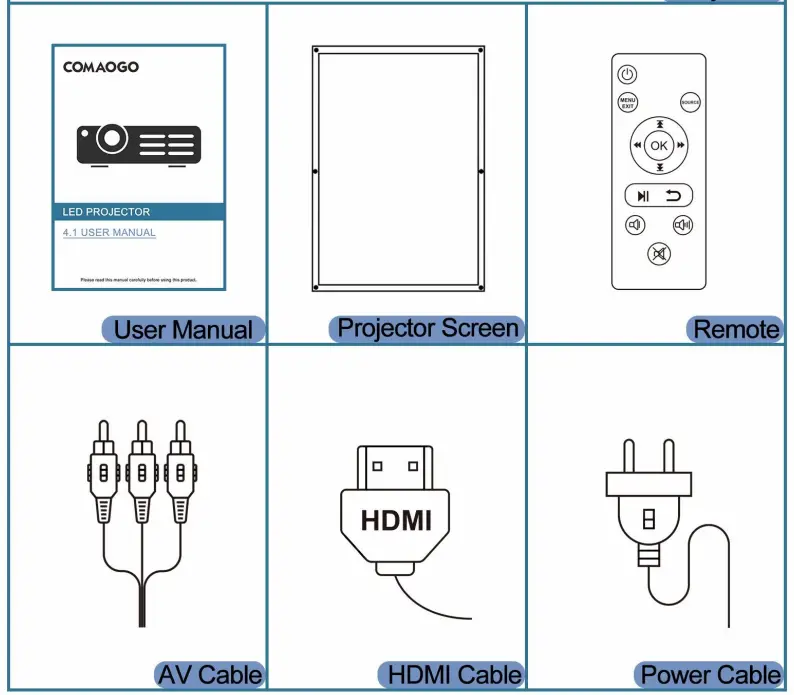
Packing list
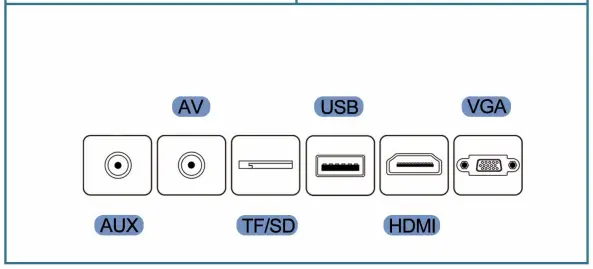
 Product information

 Product information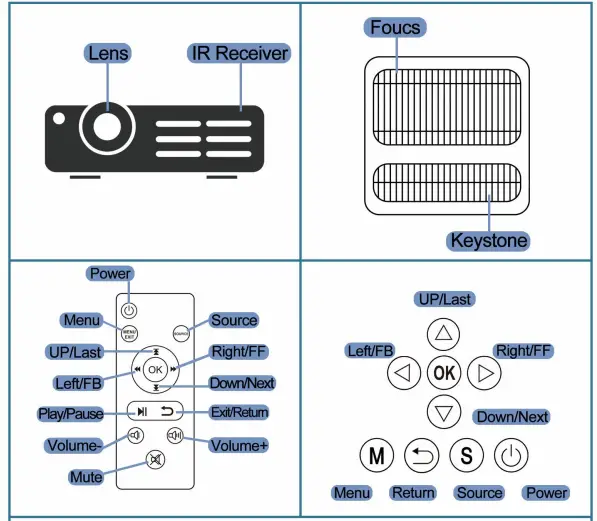
QUICK START
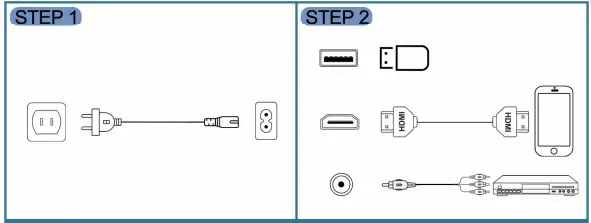
- Connect the power cable into the projector.

- Connect your device to the projector.
- Press the power button to turn it on.
 Adjust projector height, keystone, and focus for the best picture quality.
- Click the S (source) button to select the input signal.

- Tum off the projector after use.
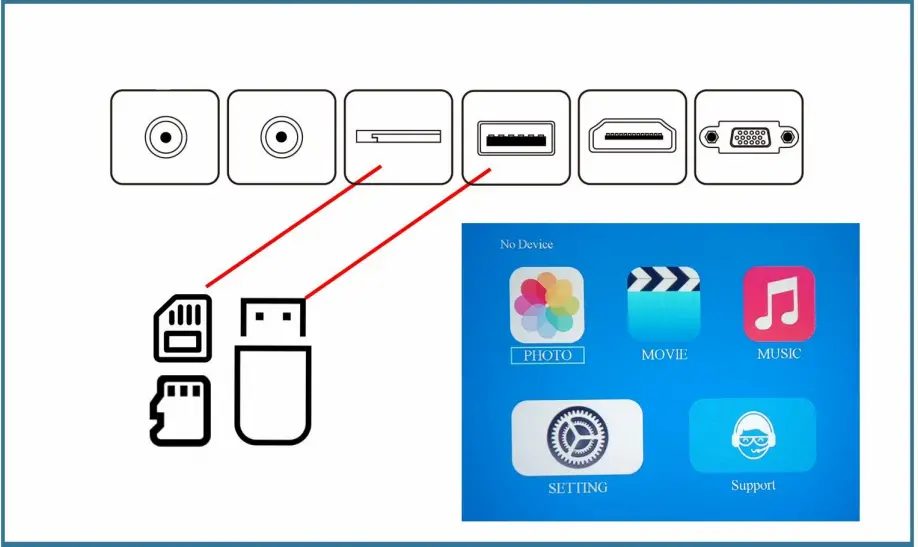
After inserting the USB storage device or SD card, directly select the projection content in the desktop menu, please refer to page 11.
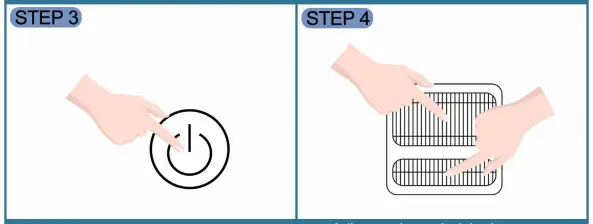 Adjust projector height, keystone, and focus for the best picture quality.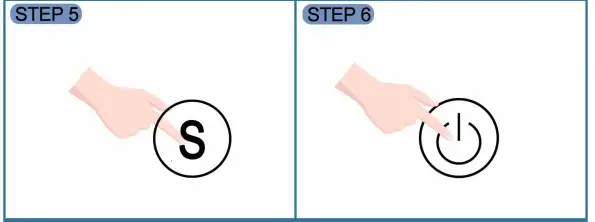
Singal sources
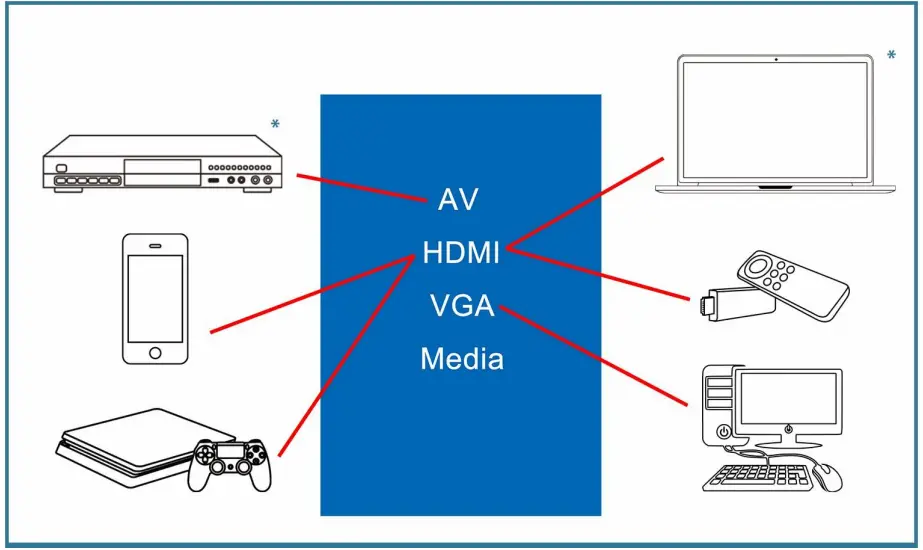
- Depending on the device, click the S (source) button to select the signal coresponding to the input.


- Insert the storage device, and the device content can be directly read through the desktop menu.
note
- If the DVD supports HDMI connection, you can use HDMI cable and select HDMI input.
- Ifthe desktop supports HDMI connection, you can use HDMI cable and select HDMI input.
LAPTOP CONNECTION
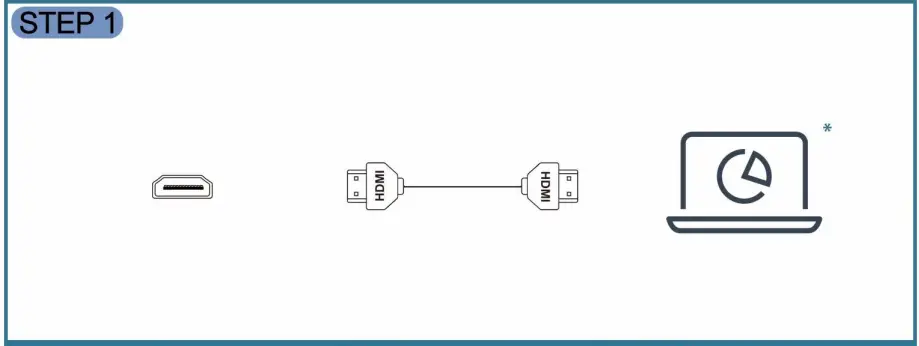
- Select the included HDMI cable and connect the HDMI port of the laptop to the projector.

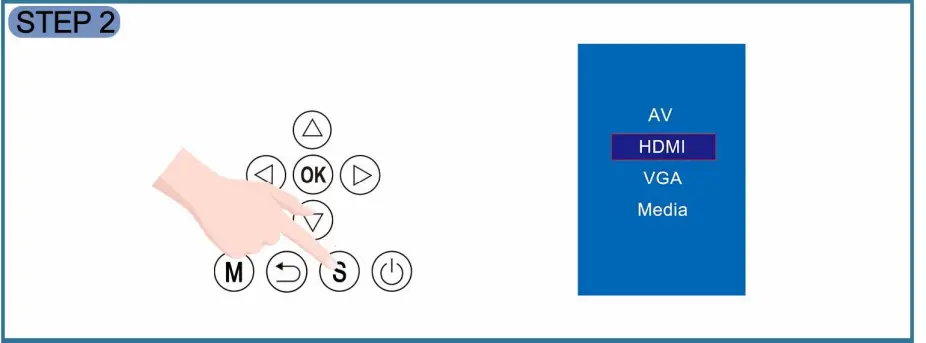
- Media Tum on the projector, click the S (Source) button to seledt HDMI input

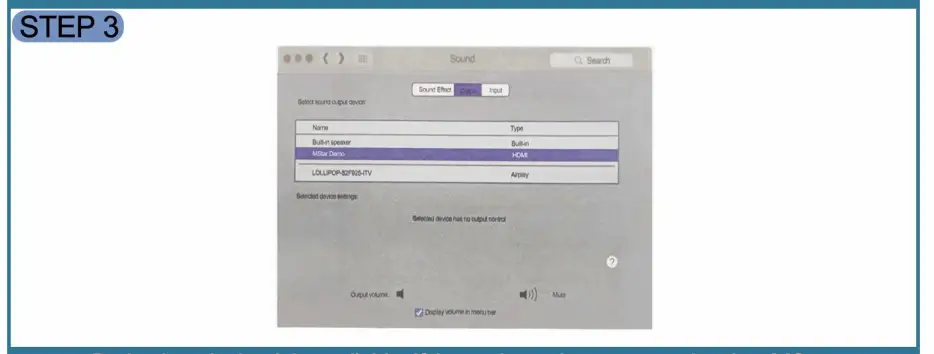
- Projection playback is available. If the projector has no sound, select MStar Demo as the default audio output for the laptop.

NOTE
- For Macbook, piease refer to the iOS device connedion guide (page8)
- For laptop without HDMI interface, please refer to the Other Device Connections guide (page 13)
Android Device Connection
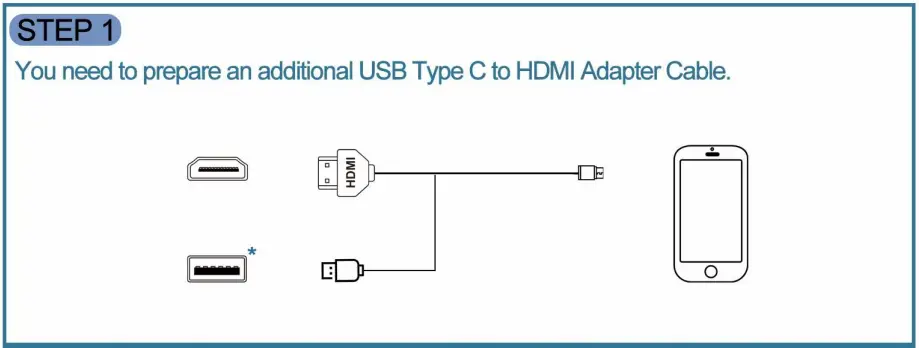
- You need to prepare an additional USB Type C to HDMI Adapter Cable. Connect the adapter cable to the HDMI and USB ports of the projector, and then connect the Type C plug to the Android device.

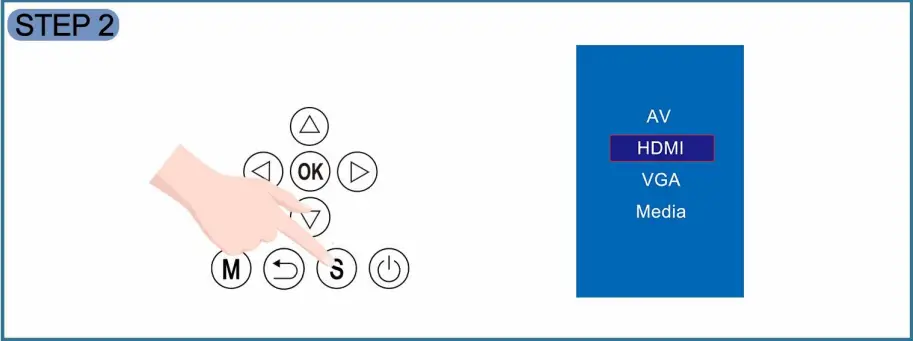
- Click the S key (Source) to enter and select HDMI mode.

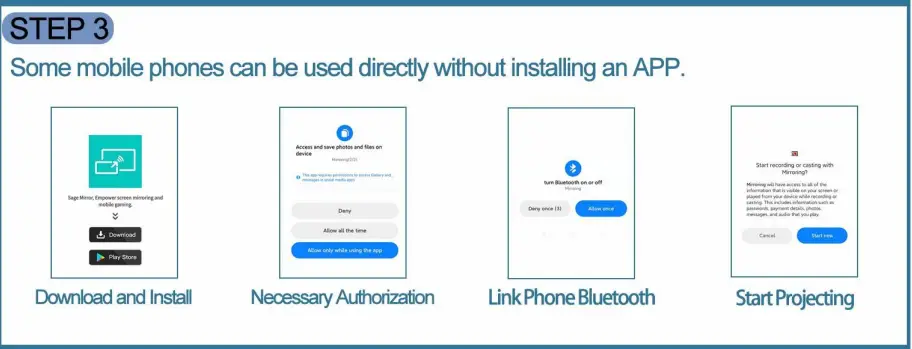
- Some mobile phones can be used directly without installing an APP. After the mobe phone is linked follow the: prompts to download and install the APP,

iOS Device Connection-iPhone & iPad
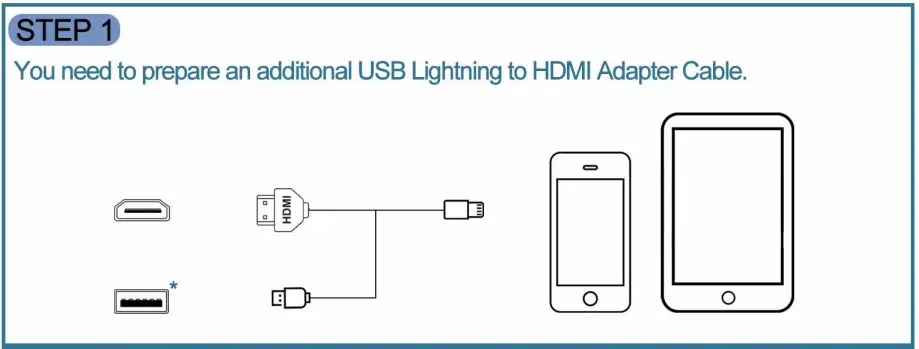
- You need to prepare an additional UsB Lightning to HDMI Adapter Cable. connect the adapter cable to the HDM and USB ports of the projector, and nen connecting ginning plug to the ios device.

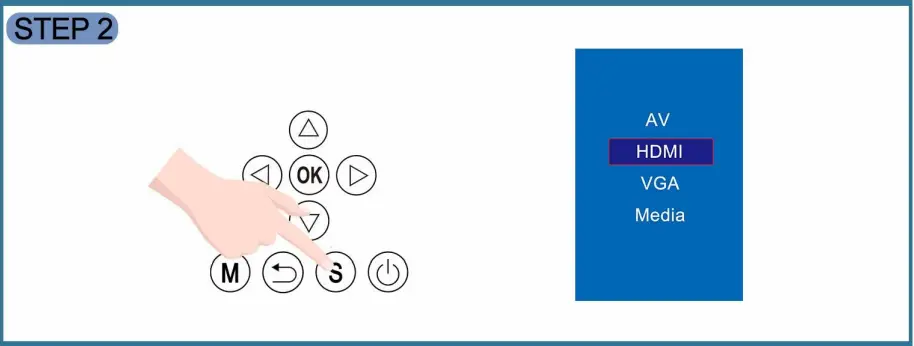
- Click the S key (Source) to enter and select HDMI mode.

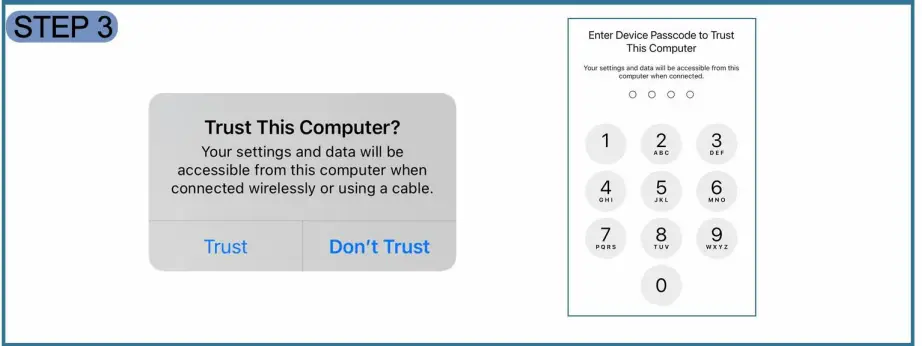
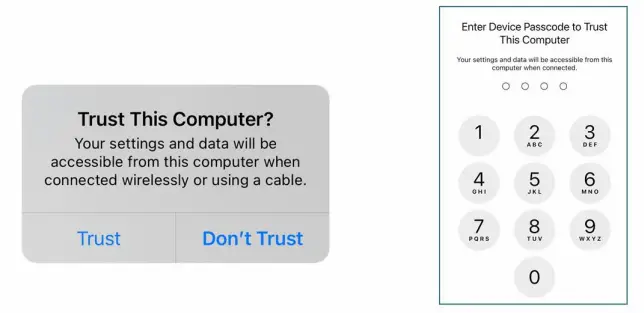
- After the mobile phone is connected, wail for a while, and a trusted window will pop up on the smart device interface, please click Trust and enter the password.

“Some USB Lighting to HDMI Adapter Cables are sel-powered and do not need to be plugged into the USB port.
ioS Device Connection-Macbook
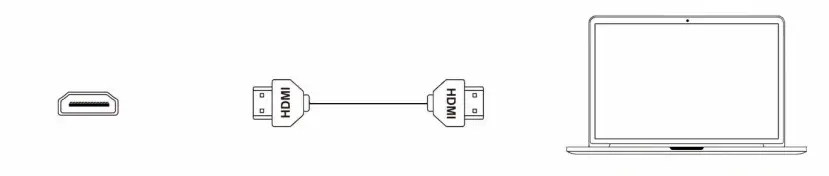
- If your Macbook has an HDMI port, you can connect the projector directly with the included HDMI cable. If your MacBook does not have an HDMI port, you need to prepare an additional Type-C or Mini DisplayPort to HDMI Adapter
 Connect the projector to the Macbook.
 - Click the S key (Source) to enter and select HDMI mode.

- After connecting, please wait for a while, the interface will pop up the trust window, please click trust and enter the password.
Note: If the projector doesn’t play MacBook sound properly, Please choose MStar Demo (HDMI) as the default sound output on your MacBook
 Connect the projector to the Macbook.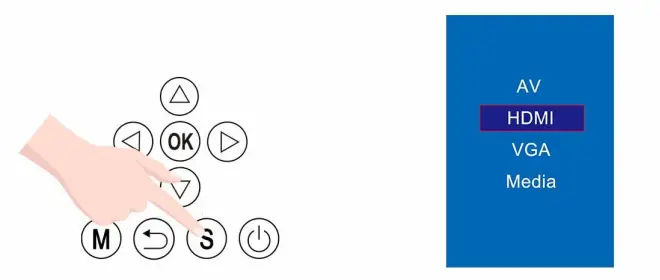
TV Stick/Box Connection
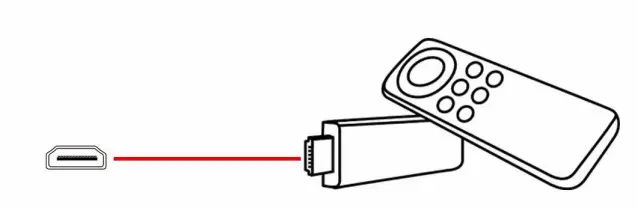
- Plug the TV stick into the projector’s HDMI port

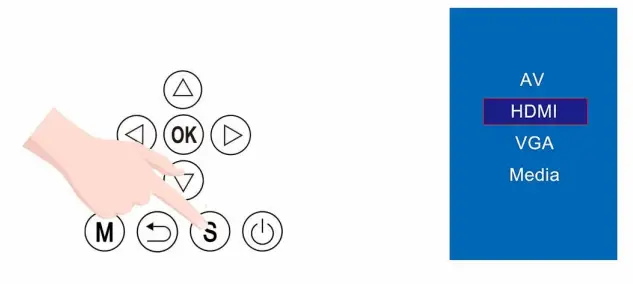
- Click the S key (Source) to enter and select HDMI mode.

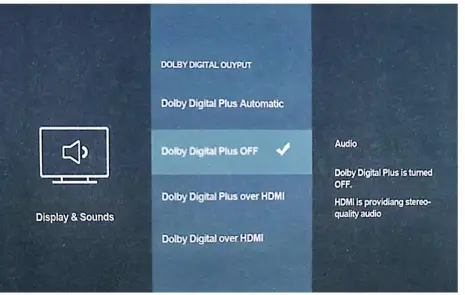
- Tum off the Dolby Digital output o 1 the device if you have no sound.

Removable Storage Device Connection
- Connect the device to the projector port (US8 or SD/TF card slot)

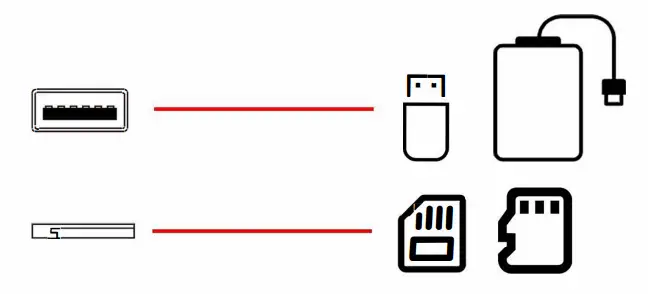
After the connection, directly select the picture, movie or music menu on the projector desktop to project the content in the storage device.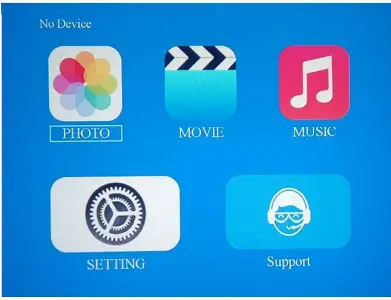
Note
- The supported file system formats of U disk, hard disk, SD card and TF card are FAT (FAT 16, FAT 32) and NTFS. The maximum supported capacity is 2TB.
- Supported formats are as follows:
- Video Format MPEG1, MPEG2, MPEG4, MP4, RM , AVI, RMVB MOV,MKV, DIVX, VOB, M- JPEG. (Support up to 1080P) Audio Format: MP3/WMA/ ASF/ OGGIAACWAV. Image Format: JPEG, BMP, PNG.
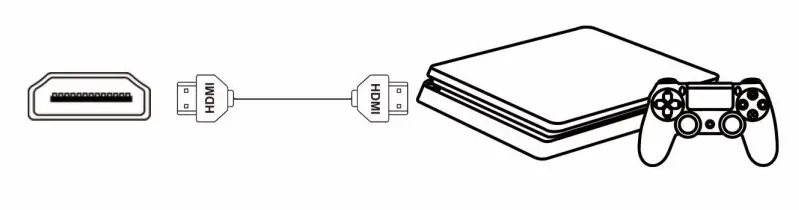
Game Console Connection
PS, Xbox, Switch, etc.
- Connect the device to the projector’s HDMI port using the included HDMI cable.

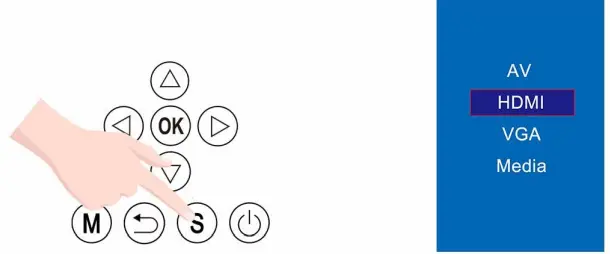
- Click the S key (Source) to enter and select HDMI mode.

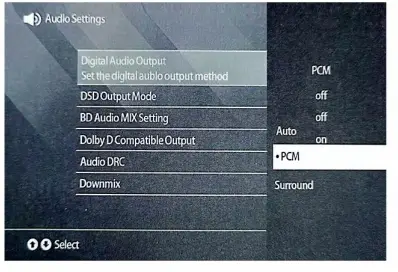
- If the projector cannot play sound, select PCM as the audio output on the device.

Other Device Connections
AV connection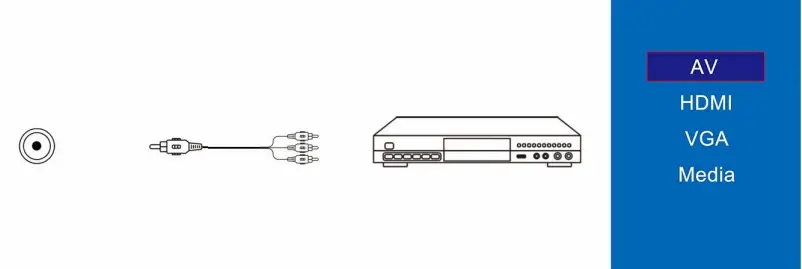
If your DVD supports HDMI output, please use the included HDMI cable to connect and change the output mode to HDMI.
VGA connection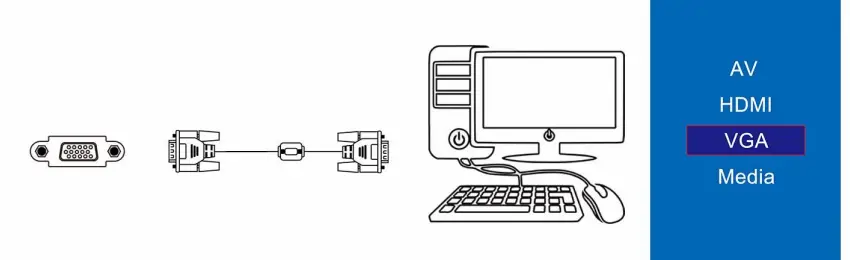
If your desktop computer supports HDMI output, please use the included HDMI cable to connect and change the output mode to HDMI.
Audio connection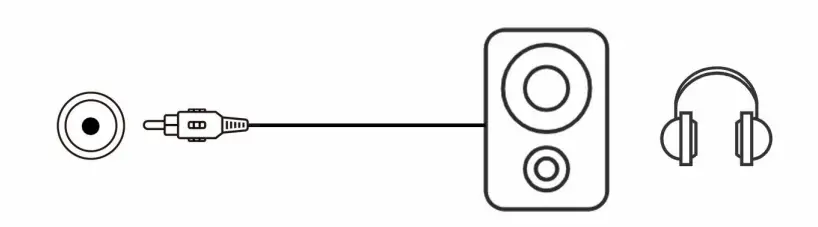
After connecting the headphones, adjust the volume to an appropriate level to protect your hearing.
Basic Operation
- Focus & Keystone
- Adjust the suitable height through the bottom knob.
- Rotate the lens to get the image in focus and have the best picture quality
- Rotate the keystone to get horizontal projection screen.

- Projection Modes
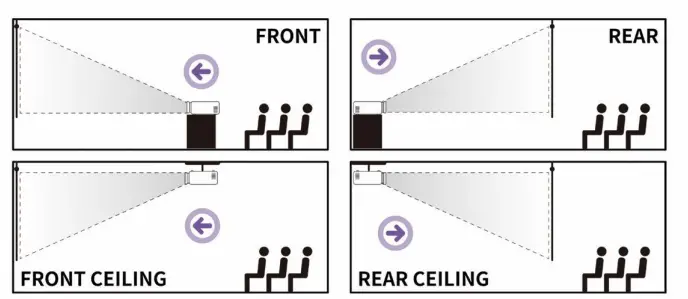
Click the M (Menu) button, select Picture-Projection Mode, and choose the projection mode according to your needs.
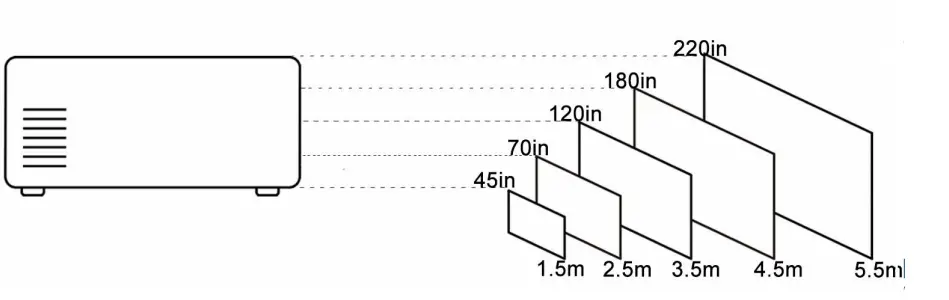
- Projection Distance& Size
The optimal projection distance is 1.5m-3.5m. For the best picture effect, it is reoommended to directly project on a white wall, and ordinary projecion screens are only recommended for outdoor use.
Basic Setting
Click the M (MENU) button or click from the “DESKTOP-SETTING” to enter the basic setting interface.
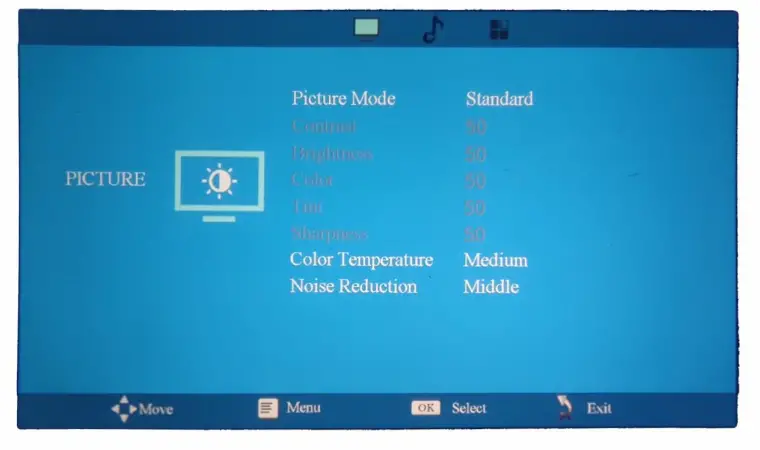
- Picture Settings
- Picture Mode The system defaults to Standard mode, you can also set Contrast, Brightness, Color, Tint, and Sharpness in USER mode.
- Color Temperature Switch the color temperature to Standard, Warm, and Cool to suit different uses. Warm colors are suitable for movies and cool colors are suitable for image display.
- Noise Reduction Limited by the difference in the quality of the input signal source, it is recommended to set it to medium noise reduction to obtain a balanced display effect.

- Sound Settings Set the Sound Mode for Standard, Movie, Music, Sports and User in Sound Mode. You can set treble, bass in user mode. Due to the difference in the quality of the input signal source, it is recommended to set it to standard for a balanced sound.
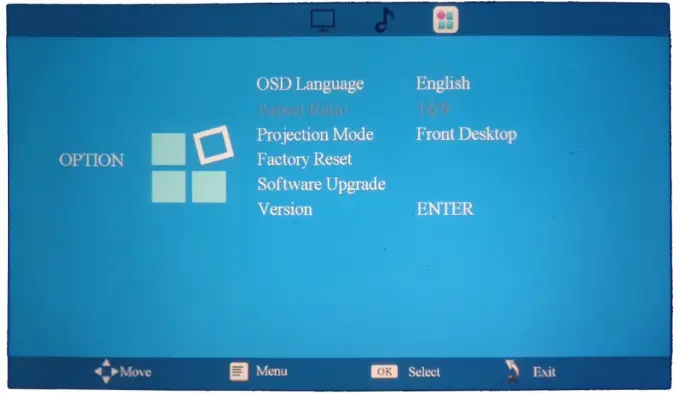
- Option Settings
- OSD Language Support 8 language settings.
- Aspect Ratio This version does not support scaling and is fixed at 16:9.
- Projection Mode Applicable to different projector fixing methods, please refer to the Projection Modes chapter on page 13.
- Factory Reset To reset the projector, select Factory reset.
- Software Upgrade and Version We do not recommend users to upgrade and modify the system by themselves. For software updates, please contact customer service before updating (page 16)

Maintenance Guide
- Projector maintenance
- Do not disassemble the projector by yourself, otherwise, we cannot provide after-sales service;
- The projector is not waterproof, please keep it away from any liquid;
- When using the projector, please do not block the vents on both sides;
- Lens Maintenance
- For daily use, please keep the lens clean.
- When the lens needs to be cleaned, please use a dust-free cloth.
- Quick guide to clean the dirt spot on the screen
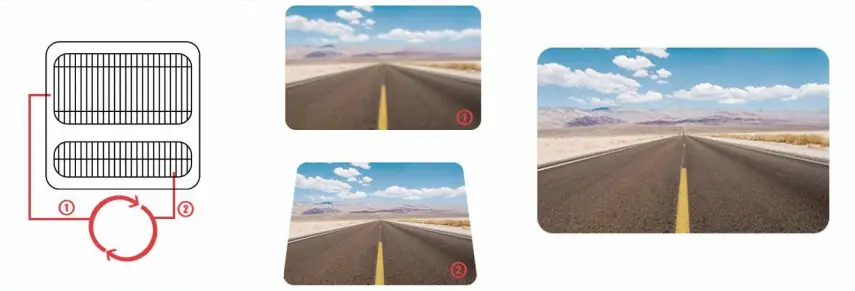
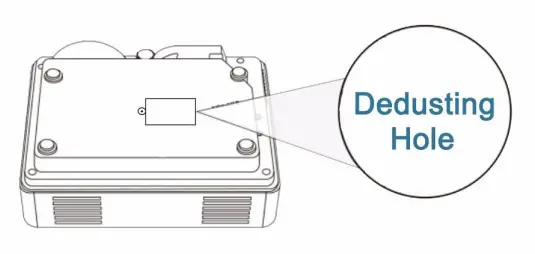
Due to environmental reasons, dust may be deposited on the surface of the LCD screen. If there are dirty spots on the projector screen, try the following.- Open the dedusting hole under the projector. (The location of the dedusting hole will be different for different models, if you have any questions, please contact us
- Insert the cotton swab into the projector LCD Part.
- Move the cotton swab to the dirt spot part and wipe it gently.

ANY QUESTIONS, PLEASE CONTACT US.
SHENZHEN RONGCHUANG YOU PIN ELECTRONIC cOMMERCE CO LTD Address: 201, Bldg. A, Wisdom Cloud Valley, No. 1 Sanhe Rd., Gaofeng Community, Dalang St. Longhua Dist, Shenzhen E-mail: [email protected]
FAQS
this projector does not take batteries.
That a stand is not included in the package. But if you want the stand, please email us to get it. ([email protected])
COMAOGO Customer Service Team
Due to HDCP copyright, Netflix, Amazon Prime is not supported. But you could use these video hostings via HDMI connection such as Amazon Fire TV Stick, laptop, or DVD player to play.
for Android phone connection, you need to download the APP named “Mirroring”. For iPhone, there is need to dowload nothing, just open the mirror function on your phone. Please kindly note all the connection to projector need via HDMI, it does not support charging cable connection directly. You need to prepare an additional USB Lightning to HDMI Adapter Cable (for iPhone) or a Type C to HDMI Adapter Cable (for Android). Hope it helps. Any questions, please contact [email protected].
The projector can be mounted on the ceiling.
1. COMAOGO projector adopts standard installation interface. There are 1/4″ screw holes on the bottom for attaching the Universal Ceiling Wall Mount Bracket.
2. After installation, system settings are required because the projector screen is reversed. Please press the M (MENU) key to enter “SETTING”, press the “NEXT” key to select “OPTION”, then select “Projector Mode”, press the “OK” key to enter, and select the “Front Ceiling” option.
If you have any questions, please contact our customer service, customer service email address: [email protected]
You can use a projector on your Macbook to project YouTube.
1. If your Macbook has an HDMI port, please connect it via the included HDMI cable.
If your Macbook doesn’t have an HDMI port, you’ll need an extra Mini DisplayPort to connect.
2. The projector comes with its own speakers, you do not need additional speakers. Of course, you can also connect additional speakers with a 3.5mm audio cable.
If you have any questions, please contact our customer service, customer service email address: [email protected]
if we go camping, we usually need to take power station, then we can use the portable projector by connecting to the power station.
we are sorry that if you use power point via U disk, the projector does not support. But if you play power point via laptop by HDMI cable connection, you can play it. The reason why we do not recommended to play power point is that the clarity of fonts might not be ideal.
the projector does not support bluetooth. But you can use speakers via audio interface by cable.
1. Please kindly note our product does not support WMV format.
2. For MP4 Format, the projector indeed supports. But you might need to pay attention to some factors:
a. Maximum resolution is 1920*1080
b. MP4 Format support: MPEG-2 Video/MPEG-4 SP/ASP/H.264/MJPEG/H.265 (Xvid does not support)
c. Frame Rate: Support 30fps/60fps (Lower than 1920*1080 resolution, it means if your MP4 video format is 1920*1080 resolution with 60fps frame rate, the projector does not support)
If you have any questions, please contact our customer service email: [email protected]
Sincerely
this projector does not have bluetooth function. But you can use the AV port via cable.
that the bulb inside can not be replaced as it might damage the projector after replacement. Please kindly note the bulb life can be about 65000 hours, you do not need to worry about it.