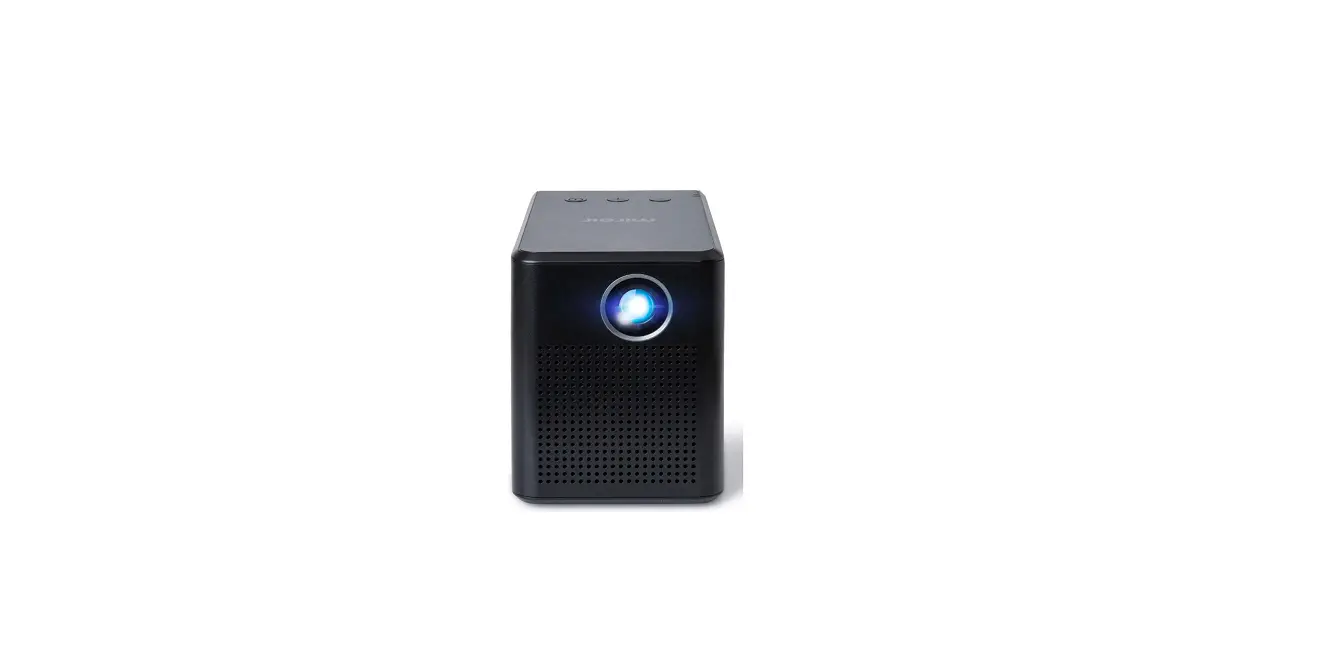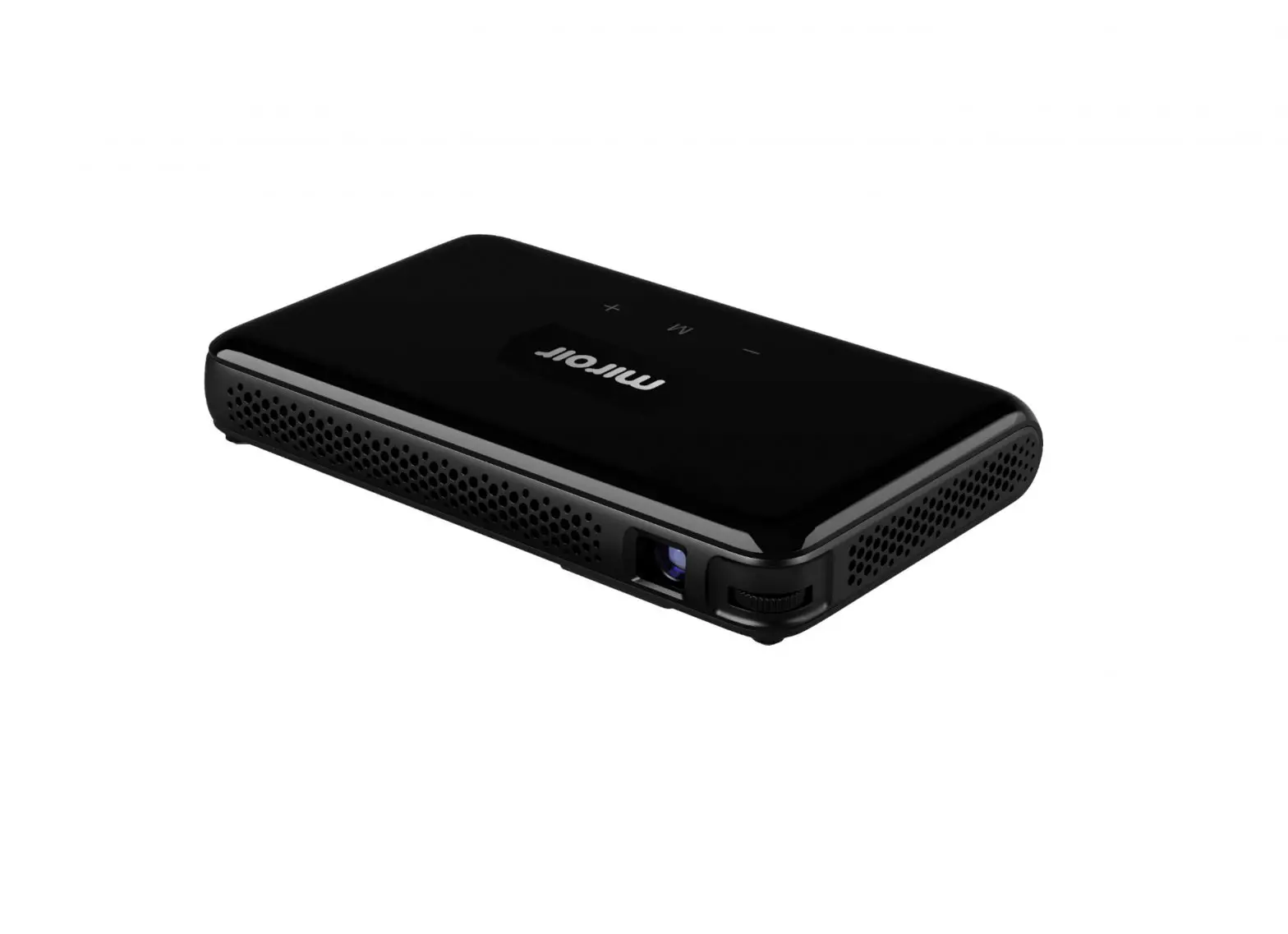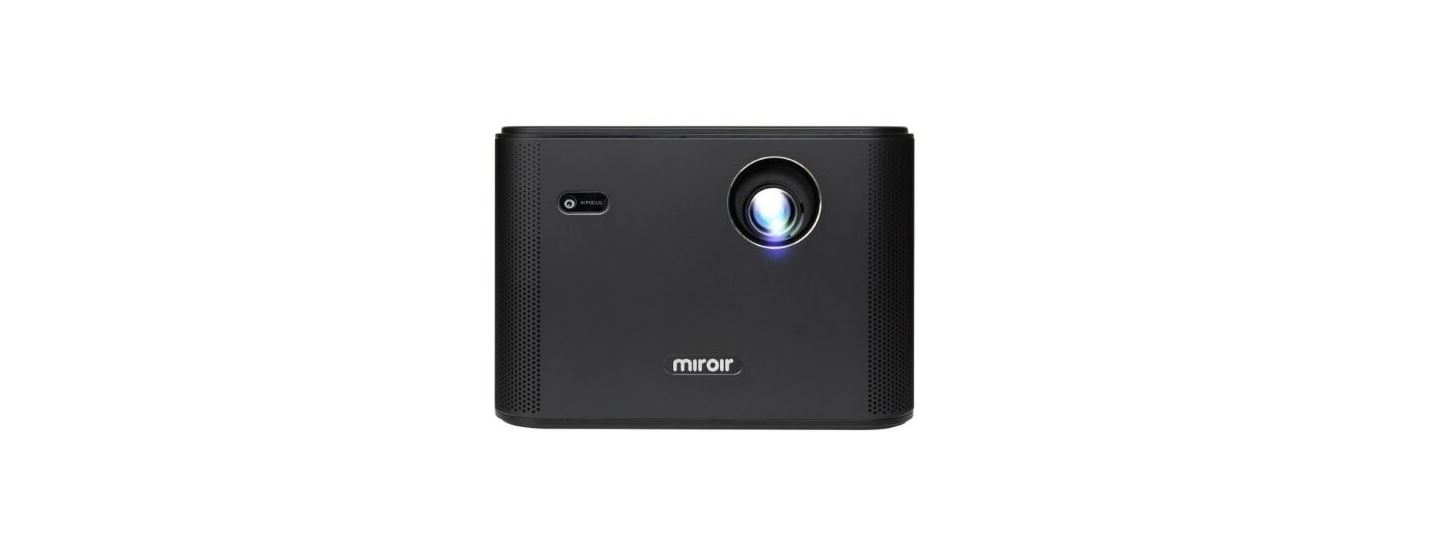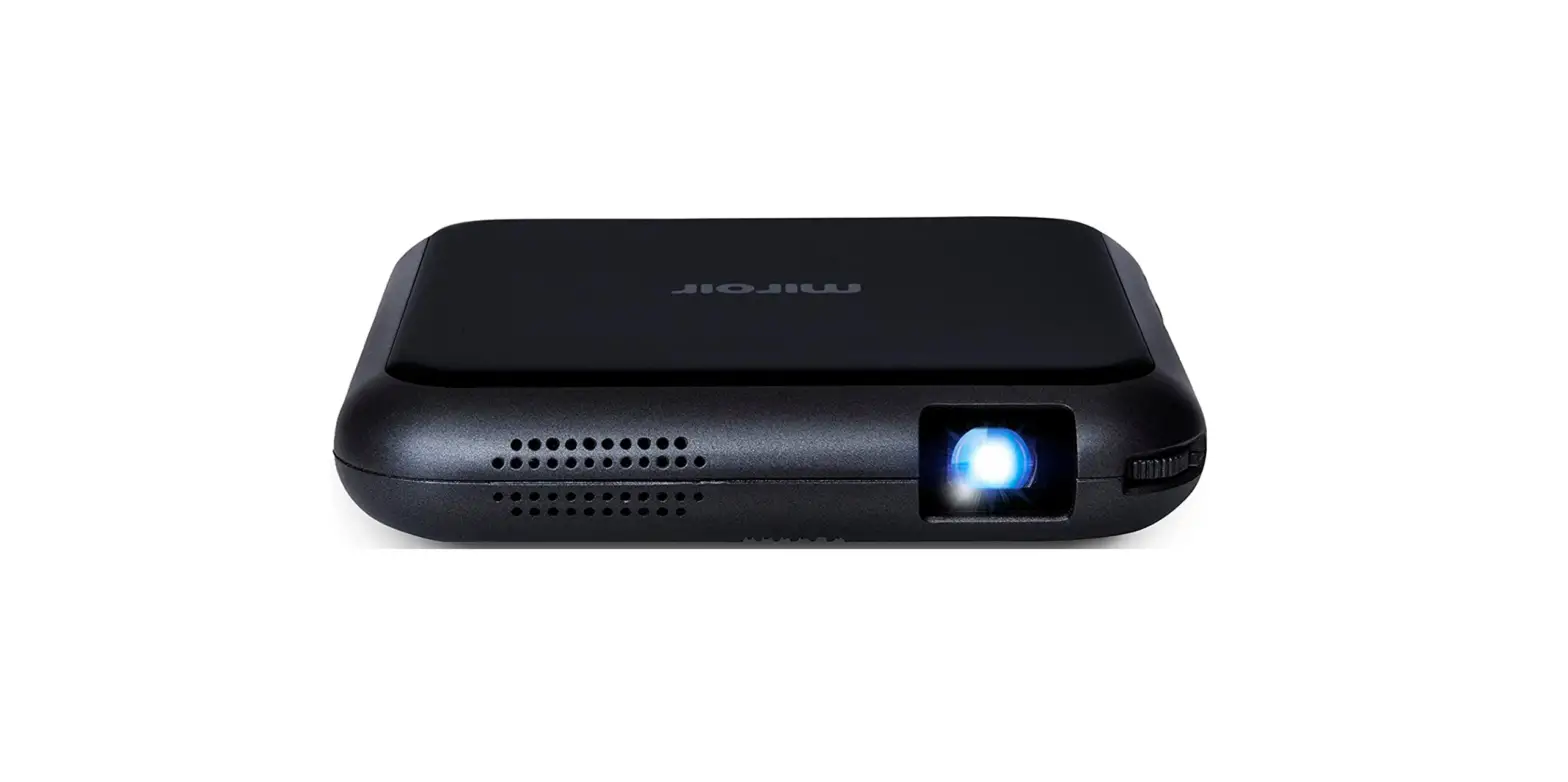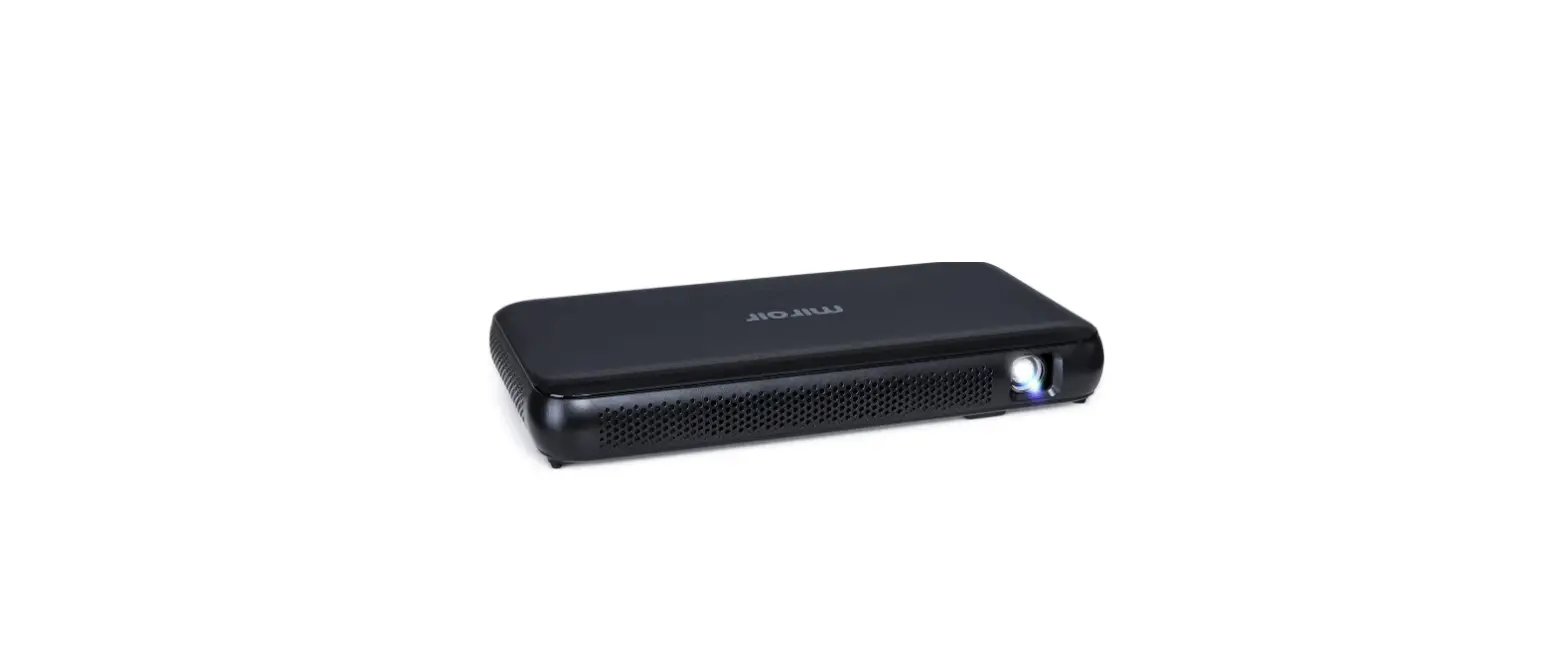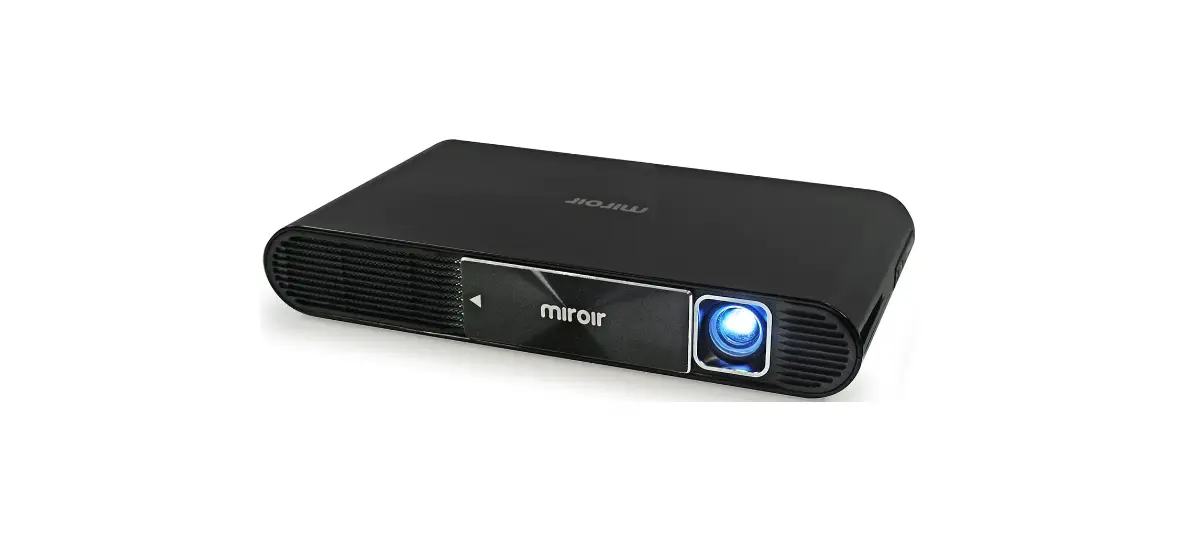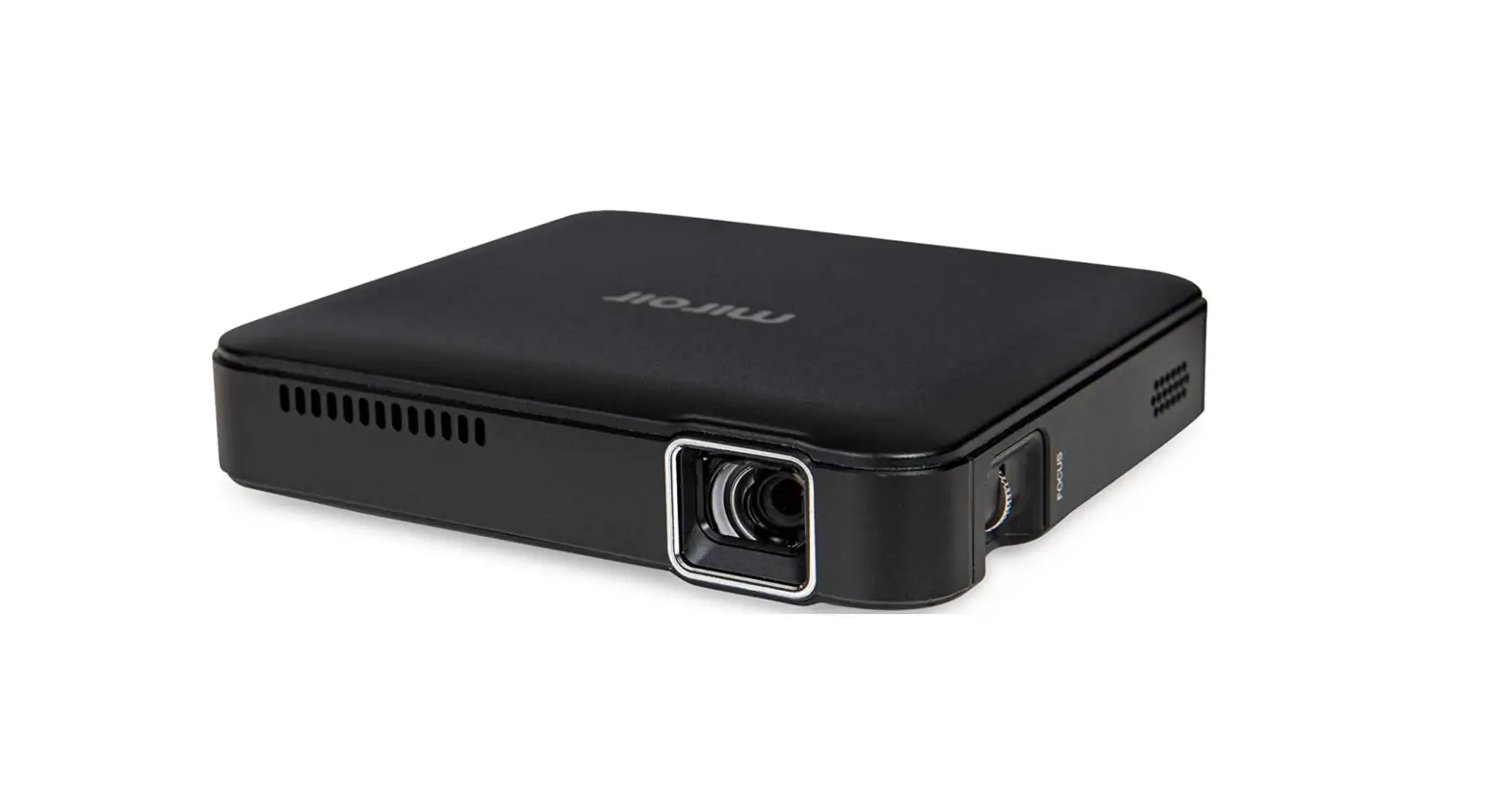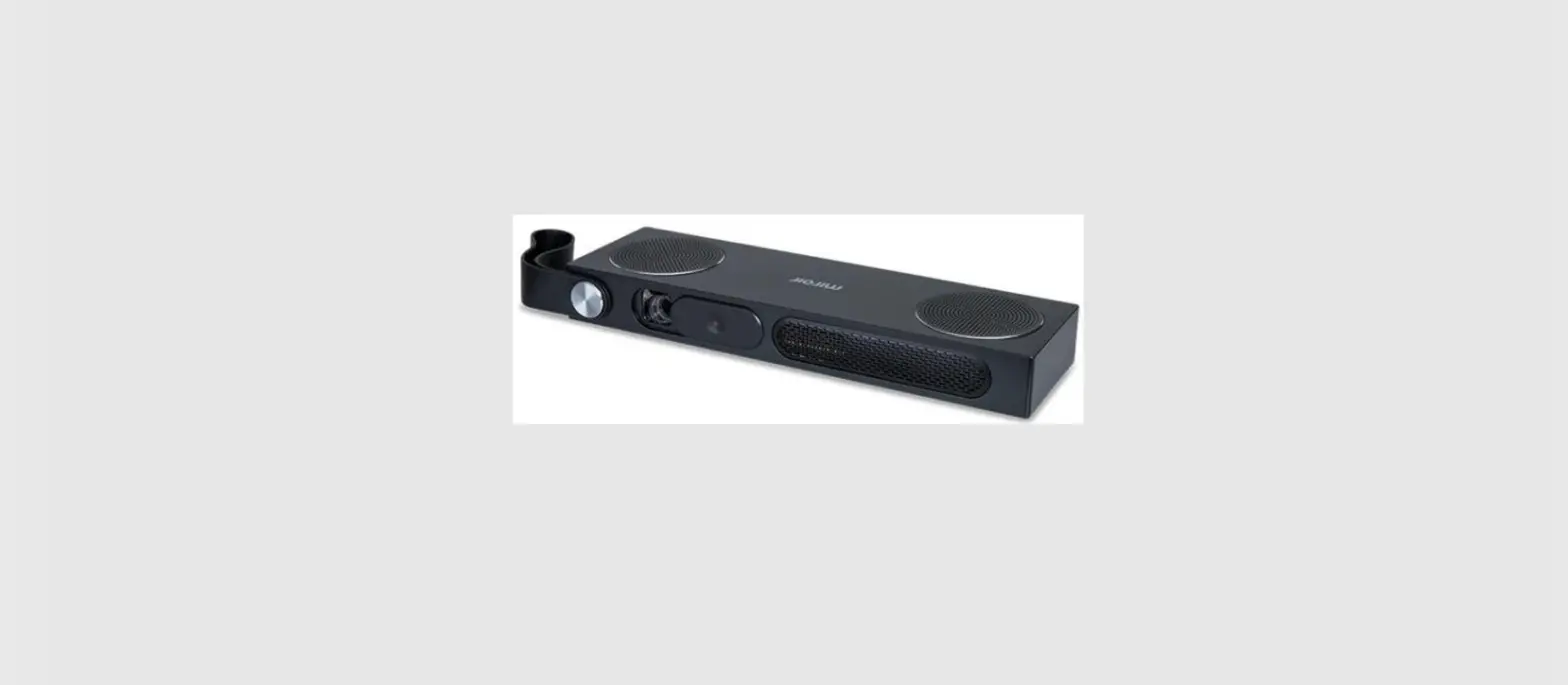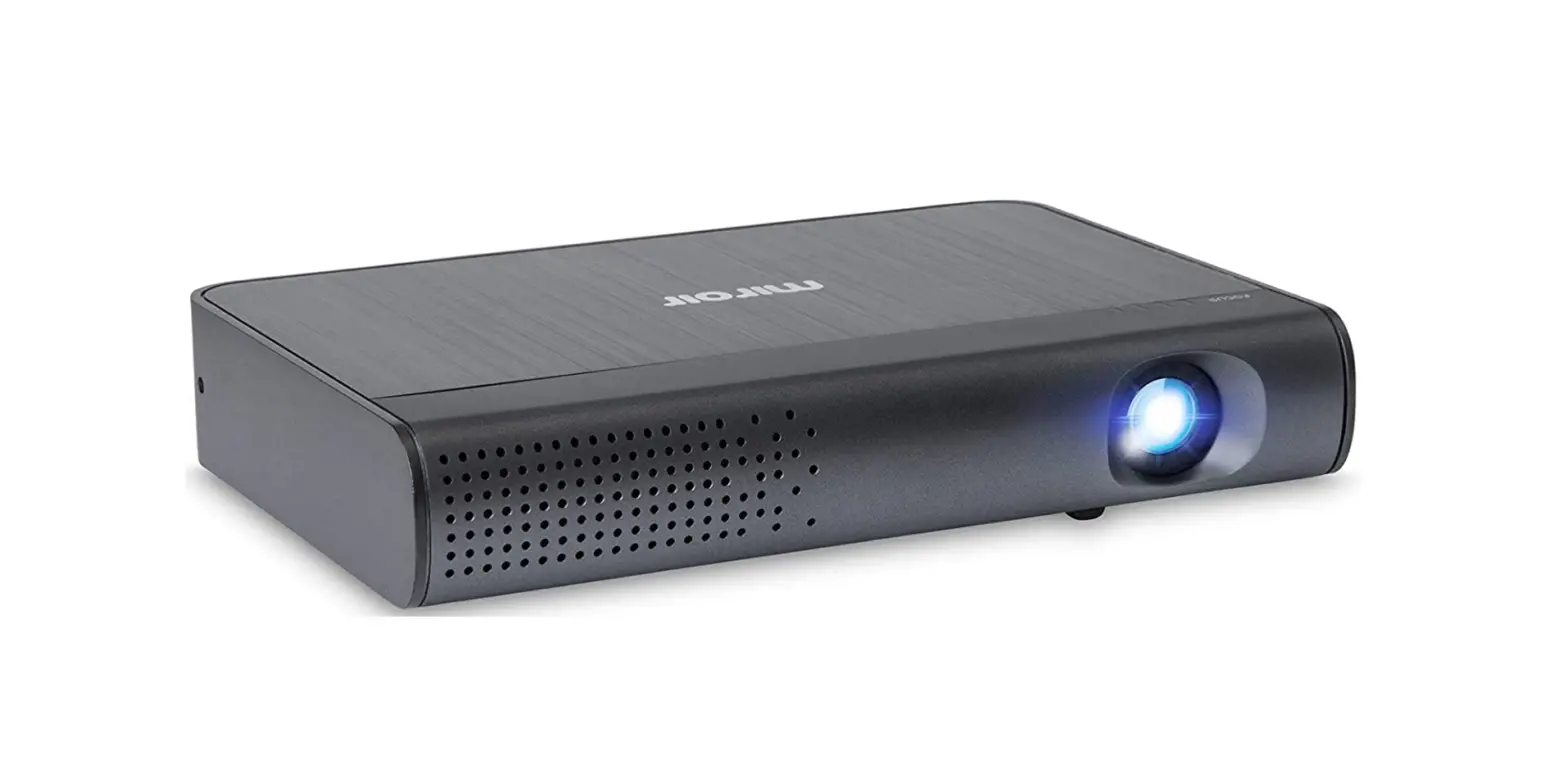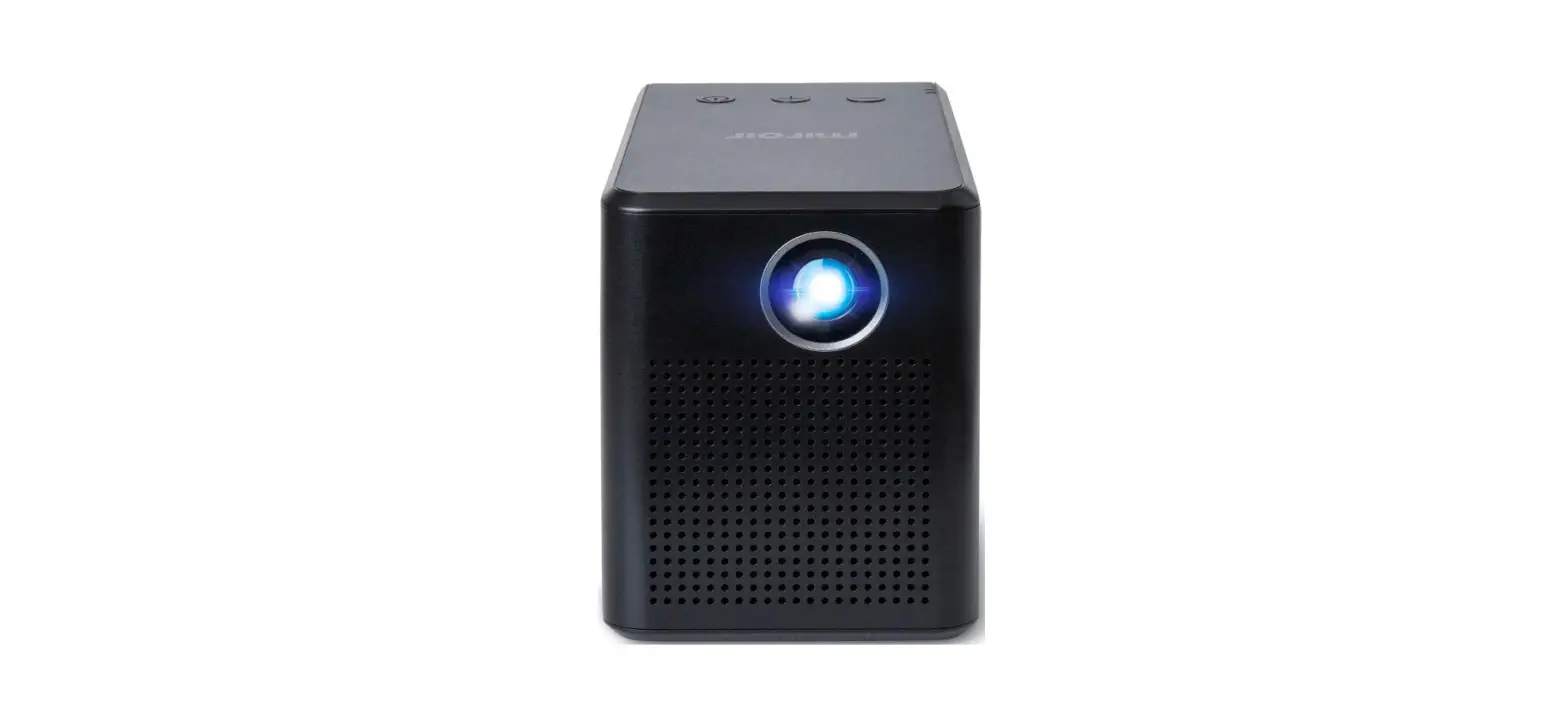
 Miroir M189 HD Portable Projector
 Miroir M189 HD Portable Projector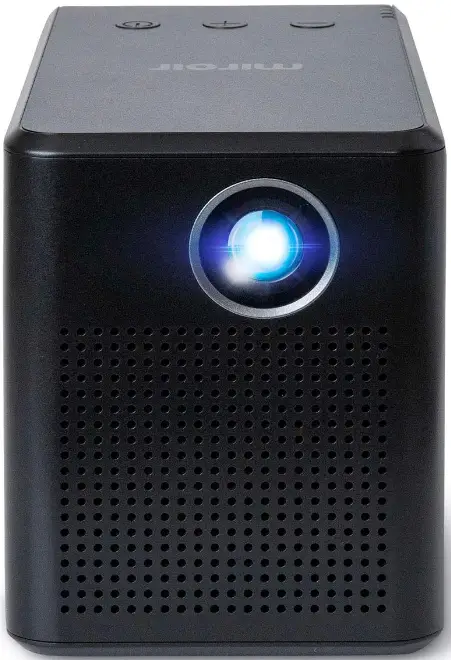
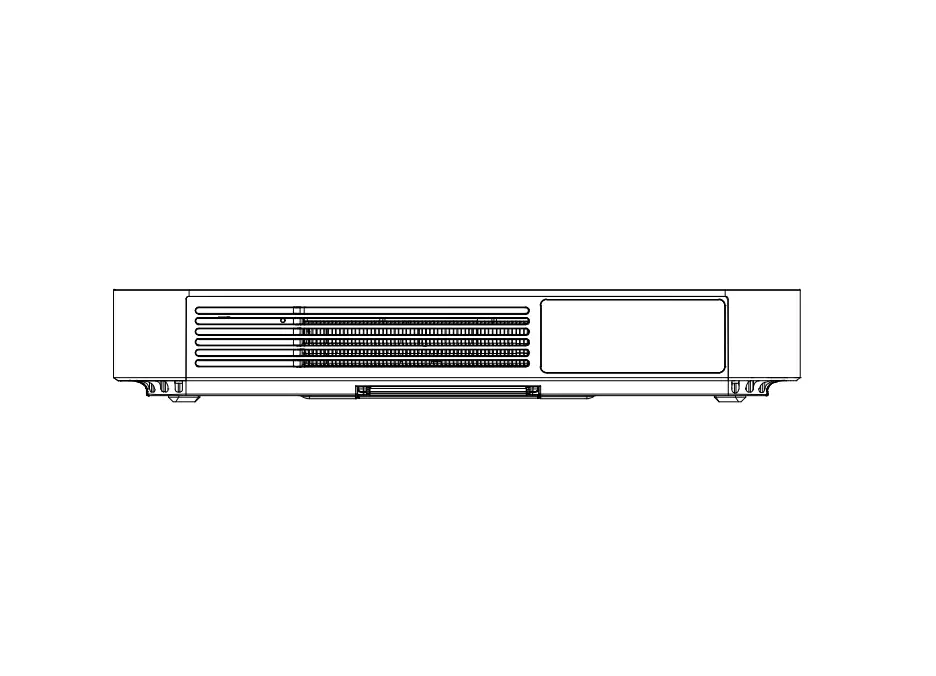
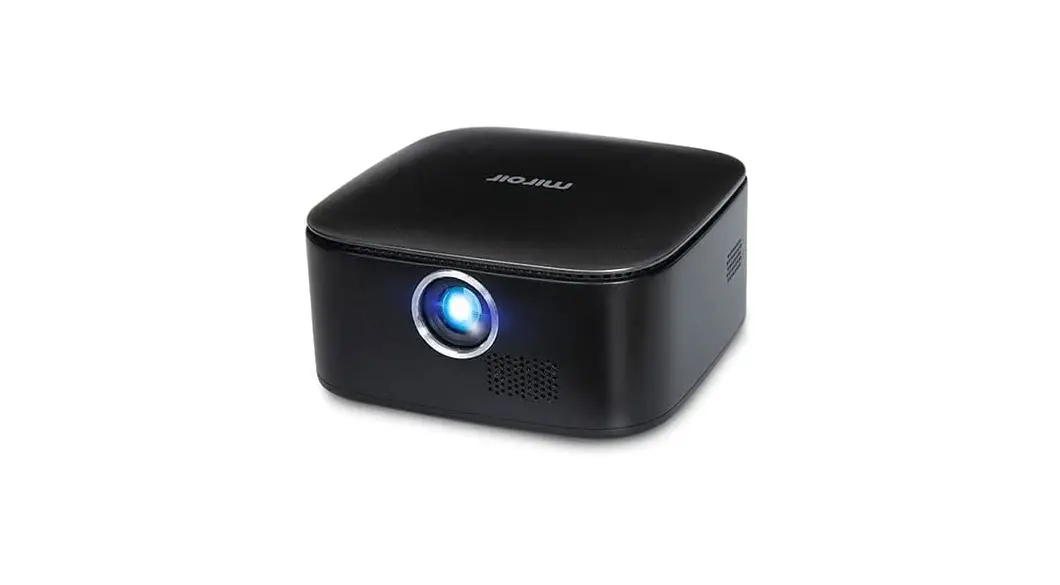
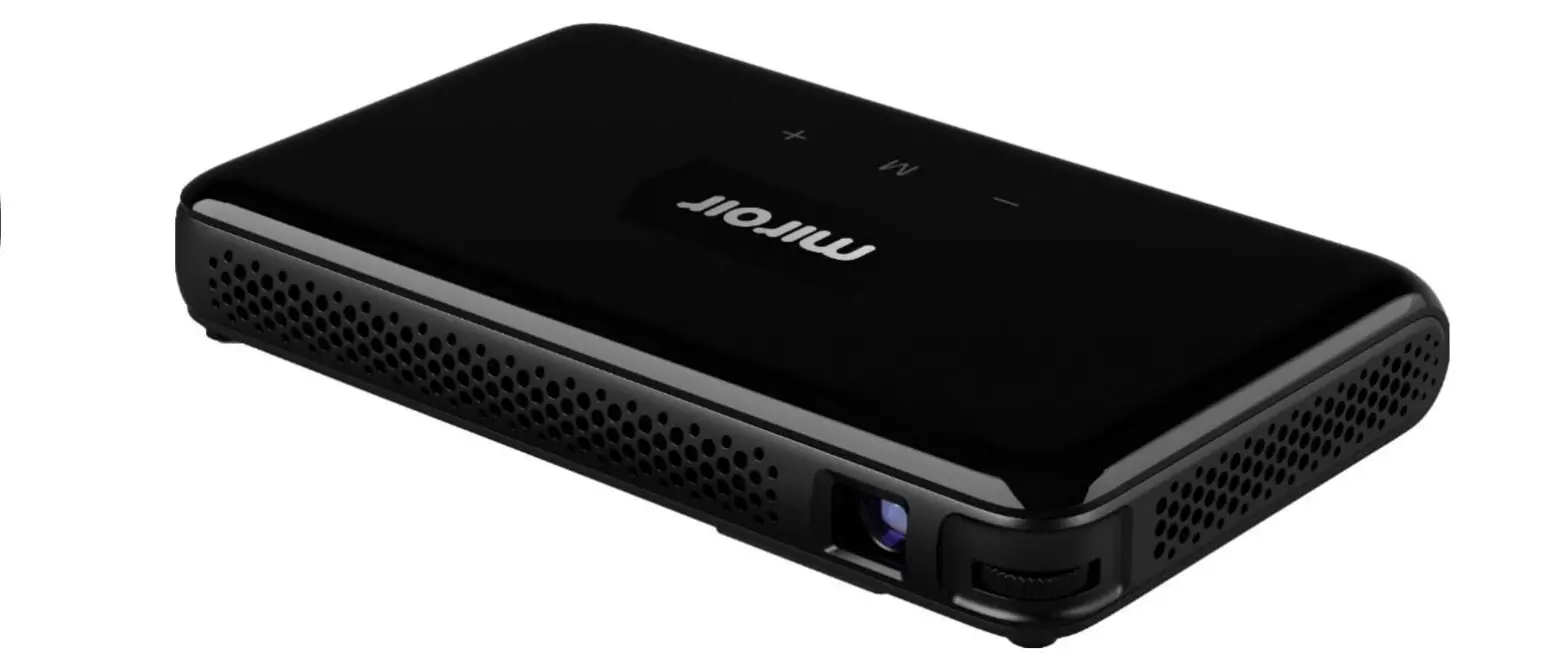
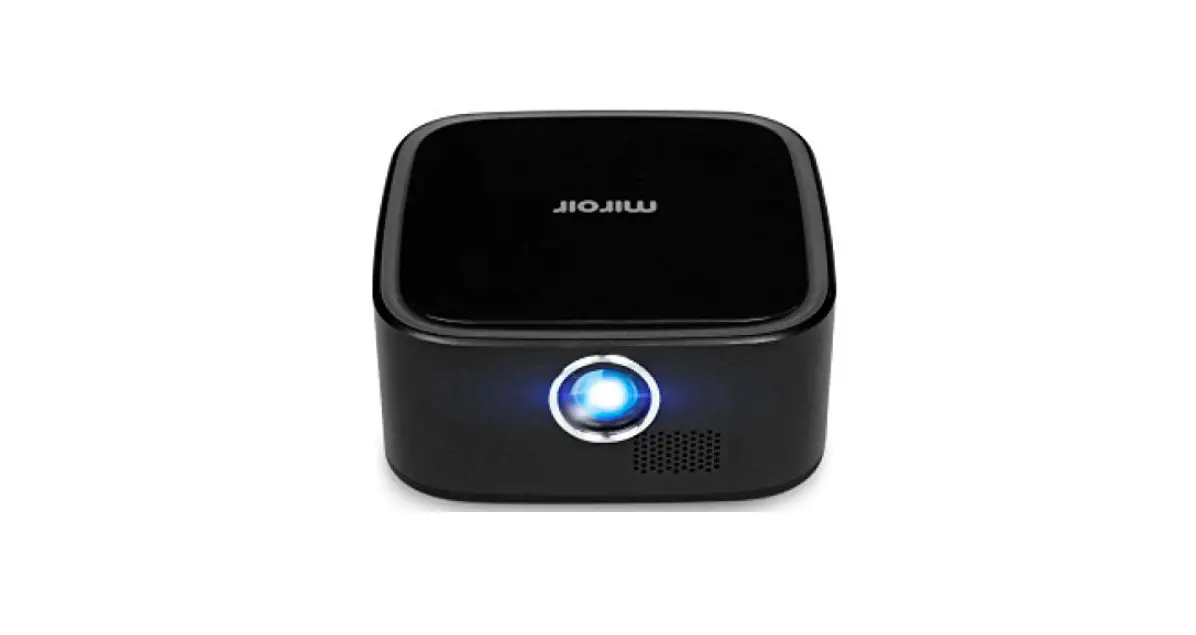
Your Miroir HD Pro Projector
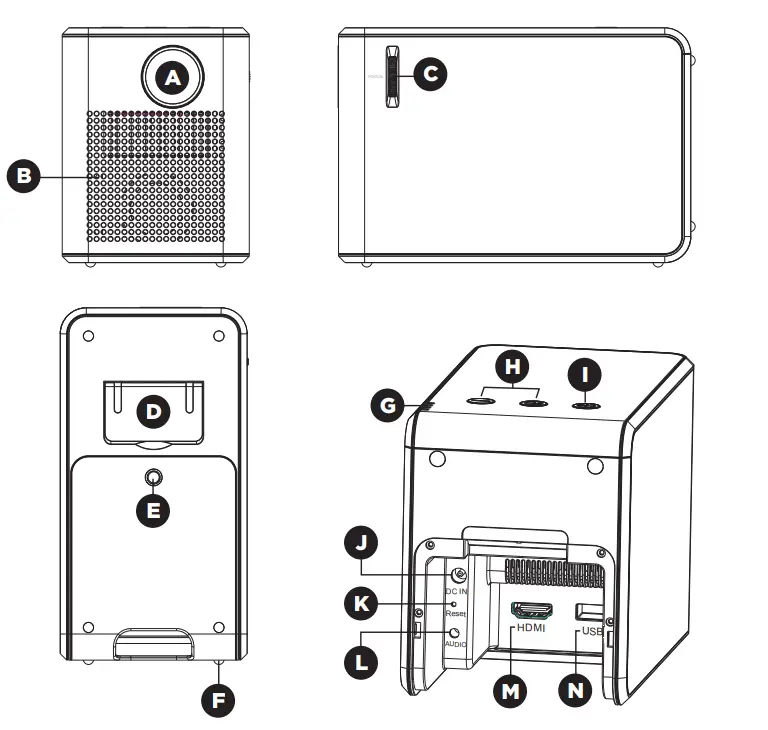
- Projection Lens
- Cooling Vent – IMPORTANT: Do not cover or block airflow to the vent.
- Focus Controls – Turn wheel to adjust focus.
- Kick Stand – Kick Stand out to elevate front.
- Tripod Mount – Will fit a standard sized tripod screw. Tripod not included.
- Rubber Foot Pads – Provides stability and proper airflow to cooling vents.
- Battery Indicator Lights – Lights flash in turn as the device charges.
The battery is fully charged when all the lights illuminate and no longer flash. - Volume Controls – Increase/decrease the volume output of the projector.
- Power Button – Press and hold for 3 seconds to power the projector on or off. Briefly press to check battery life on the projector. Battery life will be displayed by the number of lit battery indicator lights.
- Power Port – Connect included AC Adapter/Charger for power. Fully charge battery before the first use (approx. 4-5 hours).
- Reset Button – Press to reset projector.
- Audio Out (3.5mm) – (Optional) Connect an external speaker or headphones.
- HDMI Video Input – Connect an HDMI cable to a device that supports HDMI video output.
- USB Power Output – Connect a USB power cable to provide power to a
- HDMI streaming stick. Cannot be used for video input.
Connect To Your Laptop HDMI Connect To Your Device
 Connect To Your MacBook USB-C
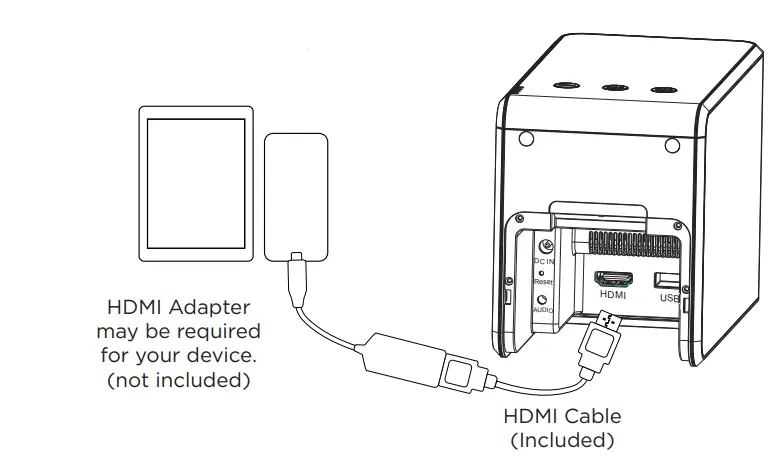
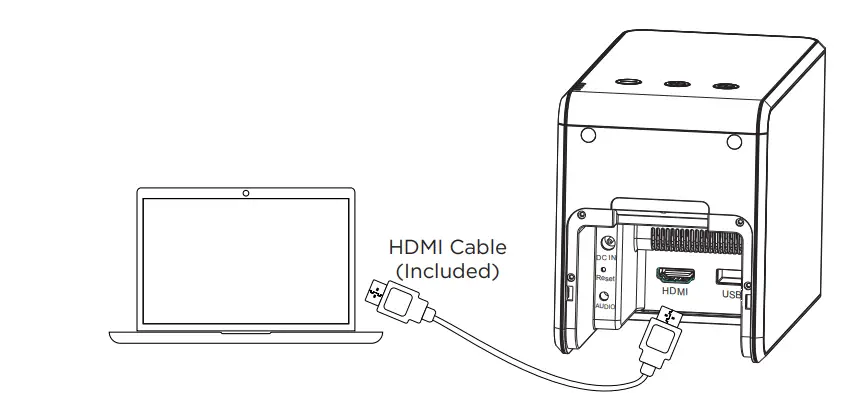 Connect To Your Device
 Connect To Your MacBook USB-C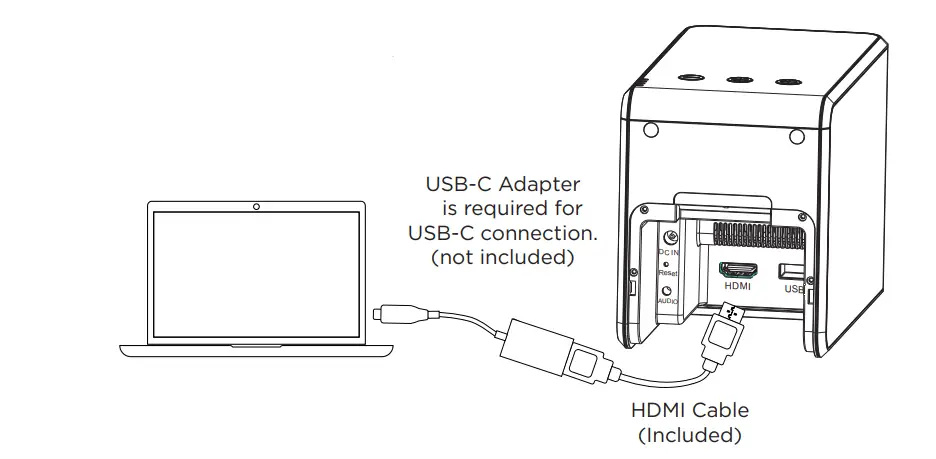
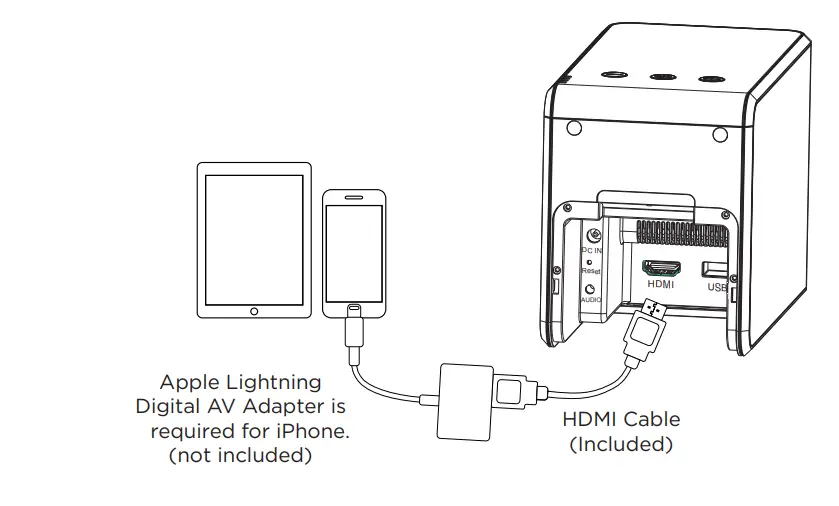
Connect To Your Apple Device Lightning
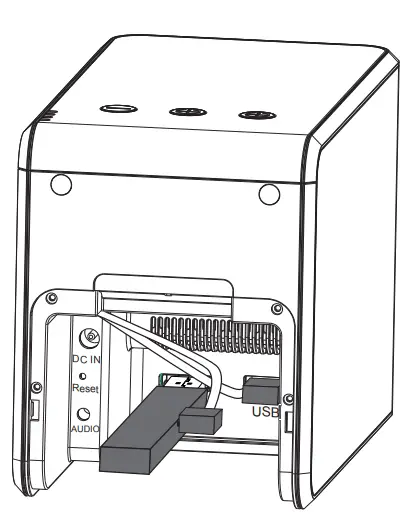
 Connect To Your Streaming Stick
 Troubleshooting
 Connect To Your Streaming Stick
 Troubleshooting
No sound
- Check the volume control on your source device to ensure the volume is turned up.
- Check the volume control on the projector to ensure the volume is turned up.
- If you are using an adapter, verify that the adapter supports audio.
- Check that the HDMI cable is fully plugged into the HDMI port.
The image is not square
- Check that the projector’s lens is parallel to your projection surface and that your projection surface is flat.
The image is blurry
- Adjust the projected image’s focus by rolling the focus wheel forwards or backwards.
- Check that the surface you are projecting on is smooth and non-reflective.
- Check that the projector’s lens is clean and free of debris.
No Signal Message
- Check that you are using the required cable and/or adapter.
- If you are using a digital AV adapter, check that the adapter is an authentic
Apple adapter and is compatible with your model phone or tablet.
- If you are connected to a laptop or computer, check your computer displayN settings to ensure a multiple display option is selected (such as “duplicate these displays”).
- Check that your source device supports HDMI video out.
Projector will not power on, or stay powered on
- Check the battery life of the projector by briefly pressing the power button on the projector. If one or fewer lights illuminate, charge the battery with the AC adapter.
Learn More
To learn more about your Miroir HD Pro Projector and its operations, to review specs, and find answers to frequently asked questions, please visit: www.miroirusa.com/M189
FAQS
Does this projector have the hookups required for Nintendo 64/ Playstation 2 (red, yellow, white)?
the M189 has an HDMI connector. If your model Nintendo doesn’t have an HDMI connector you would need a composite video to HDMI adapter. Amazon has several offerings starting at $21. The M189 comes with an HDMI cable that would plug into the adapter or an HDMI port.
Will the projector play movies from a flash drive through the USB port?
No, the USB-A port on the M189 is only able to supply power to run a streaming device or charge a cell phone. The USB-A port cannot play movies from a flash drive.
Does this projector support hdmi cec volume and power controls?
Yes, the Miroir M189 projector supports the HDMI CEC (Consumer Electronics Control) standard for volume and power controls. In this case, CEC allows the user to control the volume and power on/off functions of the projector from the source video device’s remote through the HDMI cable connection. Please note, few streaming devices (that supply the video signal) may not have implemented the CEC portion of the standard correctly which could prevent CEC control from working.
What Voltage is the AC charger?
The AC Adapter for the M189 has an input that accepts 100-240V AC at 50-60Hz and outputs 15VDC @2.4 amps (36W). The AC Adapter only comes with the US style 2 prong plug. If you wanted to use it with another socket you would need to get a simple plug adapter.
How dark does it need to be to use this outside? I would like to watch movies in the summer with my kids but it doesn’t get completely dark until 8pm.
We held “Driveway Movie Night” all last summer, and it’s not dark here until 8:30 or later. If it’s dark enough for the drive-in theater, it’s dark enough for this projector. We put up a 100 inch screen and filled it with the picture and it was awesome! I recommend using external speakers, however, as the sound gets lost pretty easily outdoors!
Trying to set this up in a bedroom. The shelf above my bed is 8 1/2 feet from the screen and the screen size is 72 inches. Will this projector work?
The M189 projector has a 1.20 throw ratio. From that we can calculate that when the projector is 8 1/2 feet from the screen the projected image will be 85 inches wide, 47.8 inches tall with a diagonal of 97.5 inches. To fit a screen that has a diagonal size of 72 inches the projector would need to be placed 6 foot 10 inches from the screen.
Does it play DVD,s?
Not by itself. You need to hook up a DVD player or a Blu Ray player using an HDMI cable
Can i connect an apple tv to this projector?
Yes, the M189 can be connected to an AppleTV using an HDMI cable.
Can I use this device with an Apple iPad?
Yes! The M189 projector has a single HDMI input, so you will have to convert the iPad output to HDMI with an adapter. If your iPad has a Lightning connector, like an iPhone, then you will need a genuine Apple Lightning Digital AV Adapter. If your iPad has the USB-C connector then you will need an Apple USB-C Digital AV Multiport Adapter. Both adapters then connect by HDMI cable to the projector
How use with Roku Stick?
To use with an HDMI Roku Stick, you can remove the panel on the lower back side of the projector where the power cord comes out and there is an HDMI slot and then you can plug your power supply for the Roku stick into the USB port inside the projector as well. We use it this way and it is great.
Can you play Netflix, Disney plus or any other streaming platforms on this?
The M189 requires a streaming device (Roku, Chromecast, Firestick, AppleTV, smart phone, computer, etc.) to supply the video signal. This projector has a compartment that will allow many streaming sticks to fit inside. Please check the dimensions to make sure your streaming device can fit in the compartment.