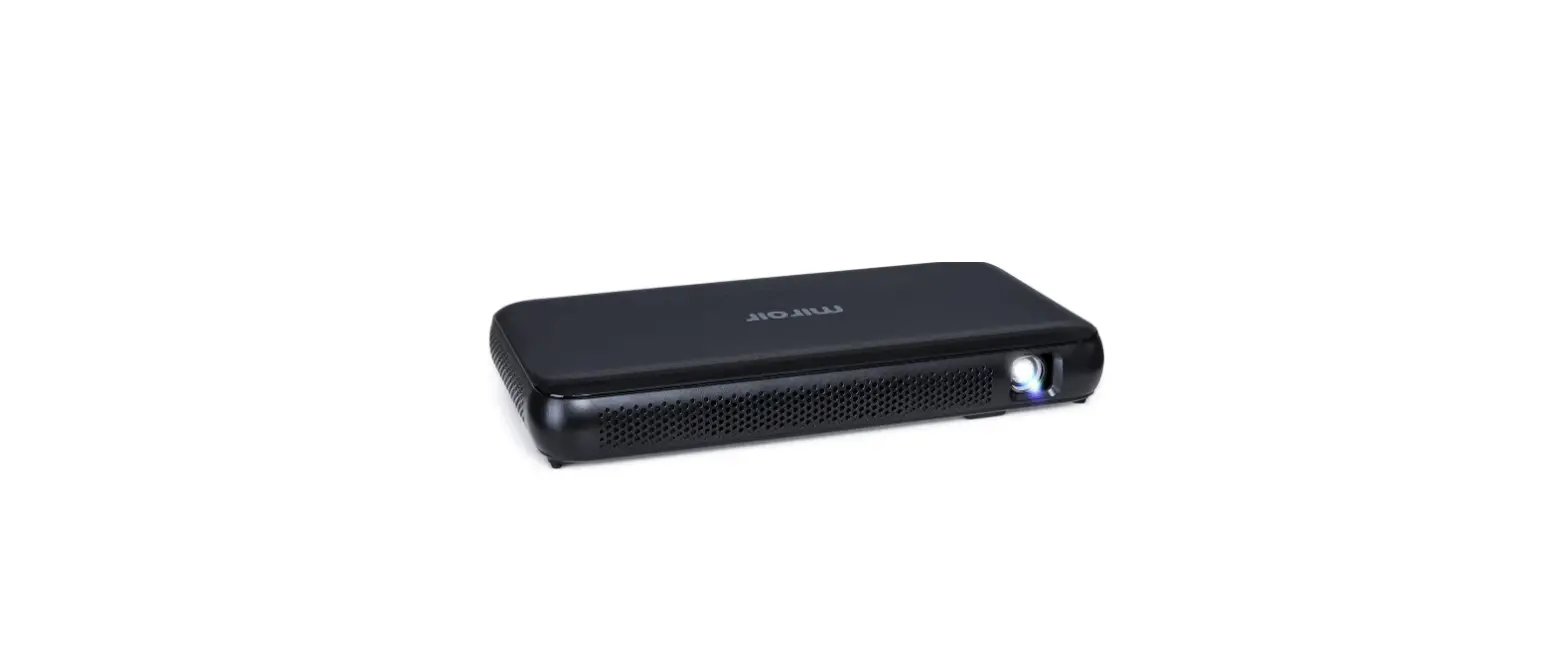
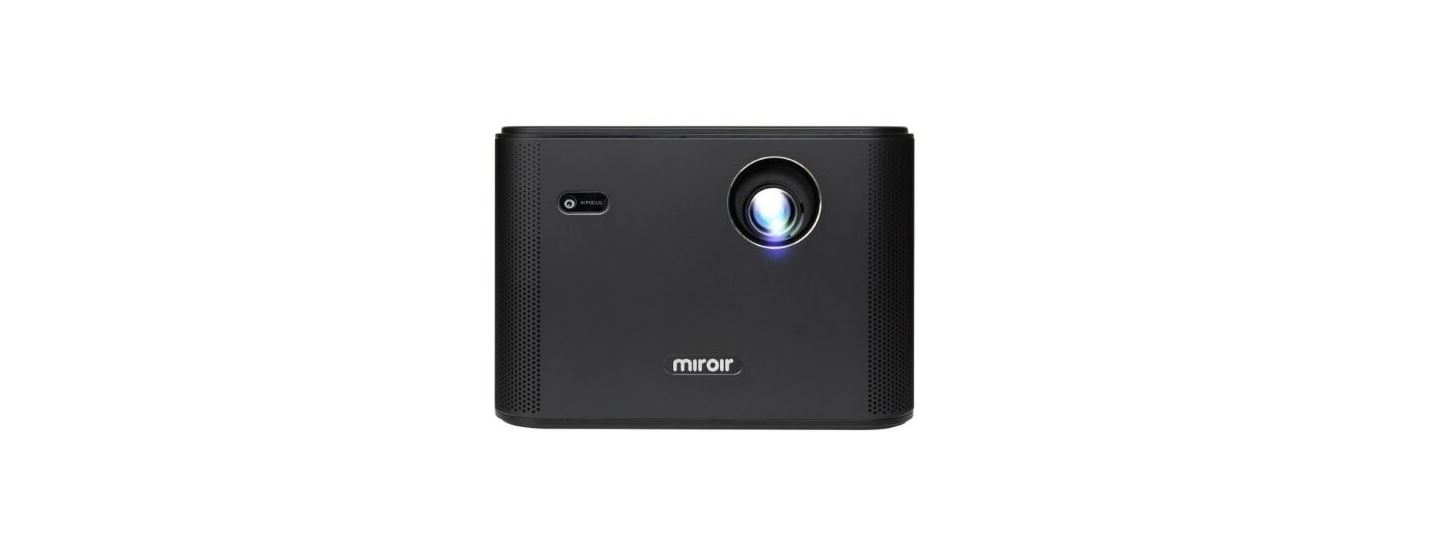
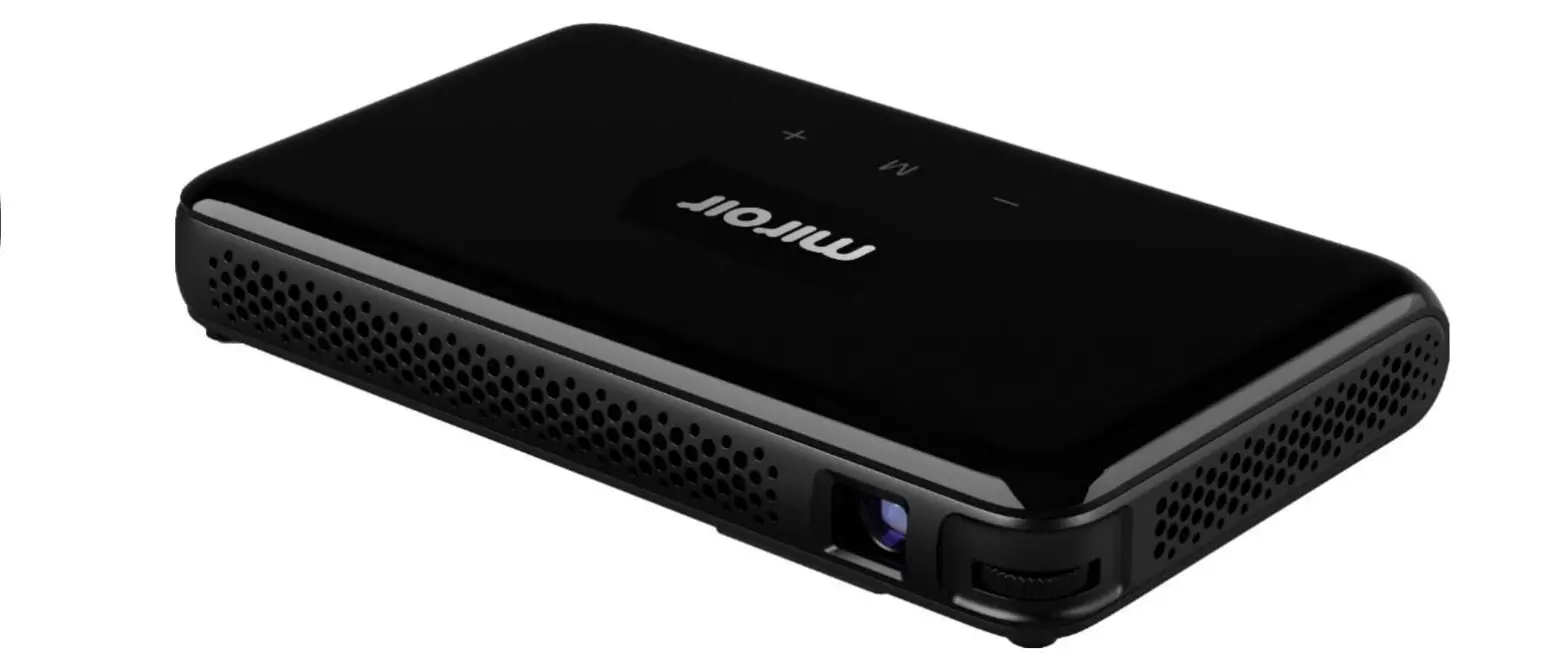
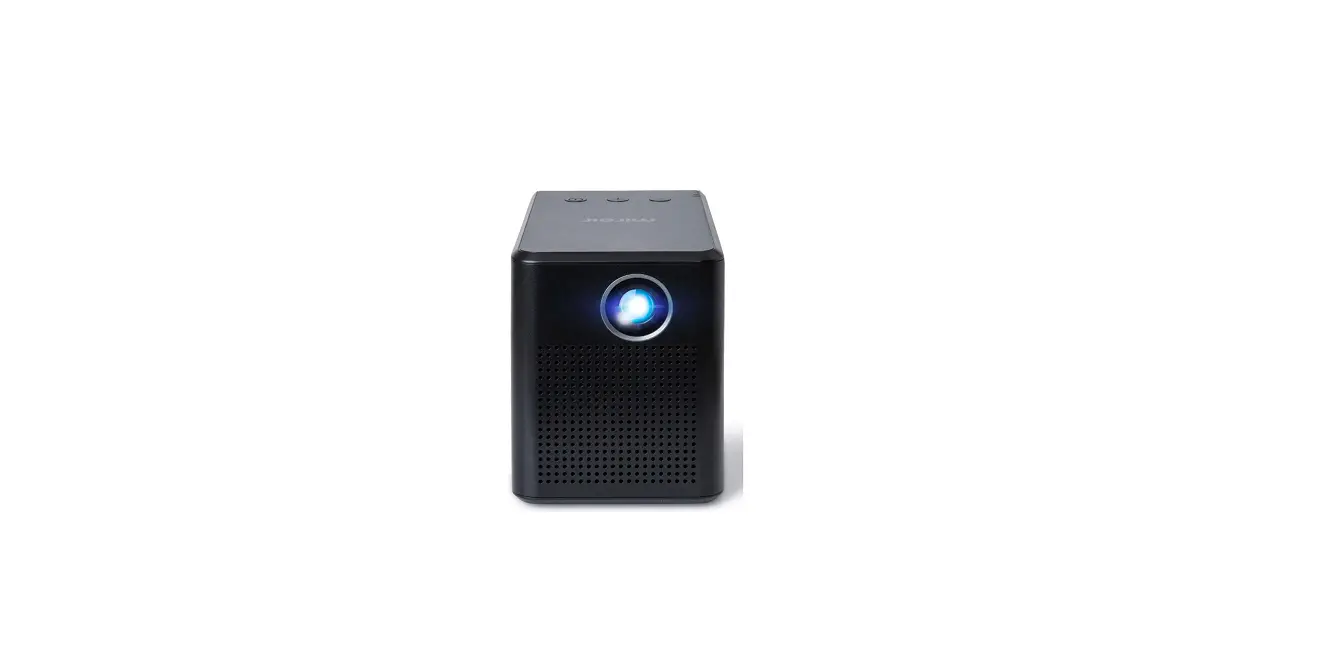
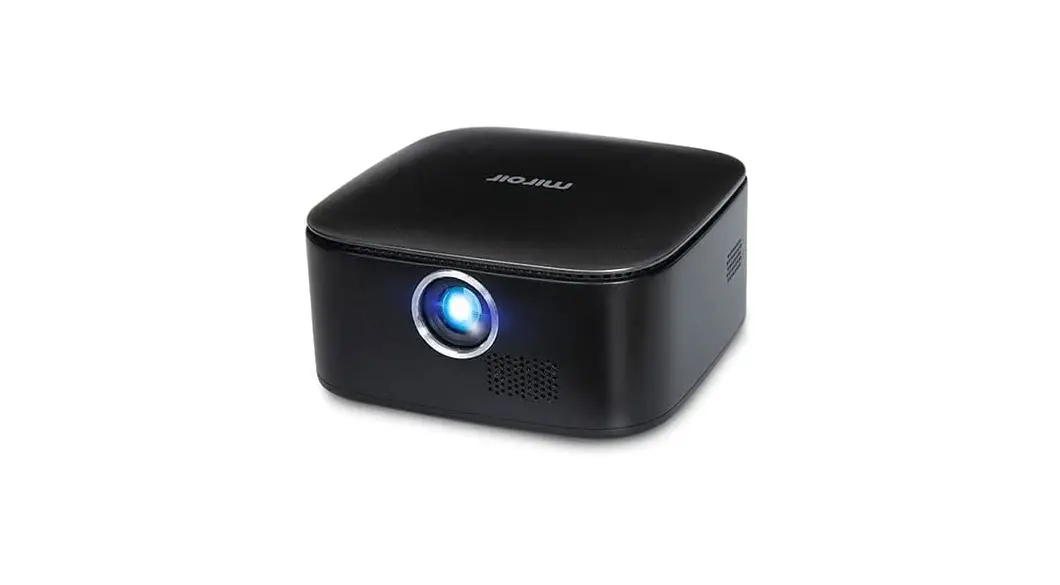
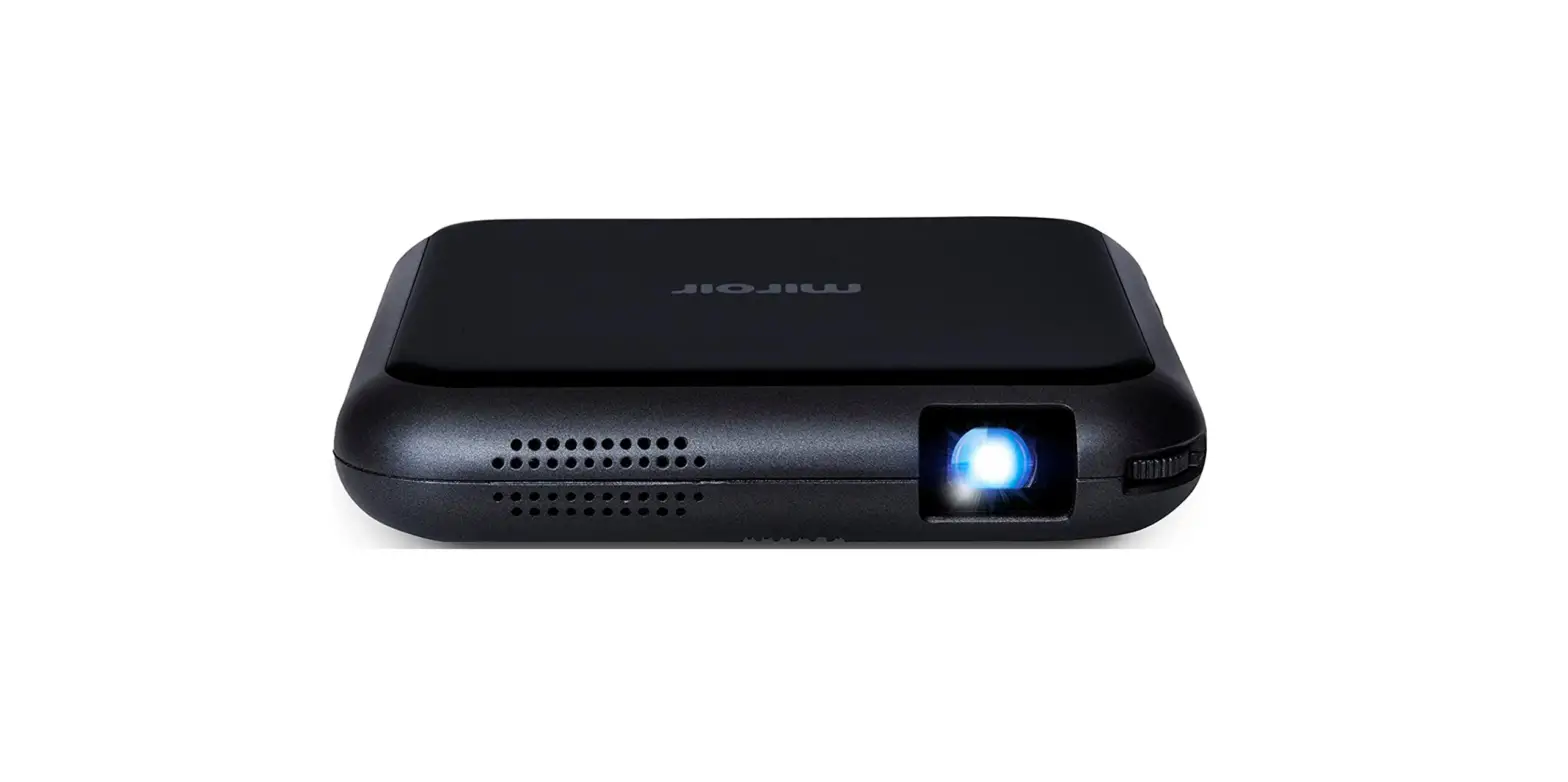
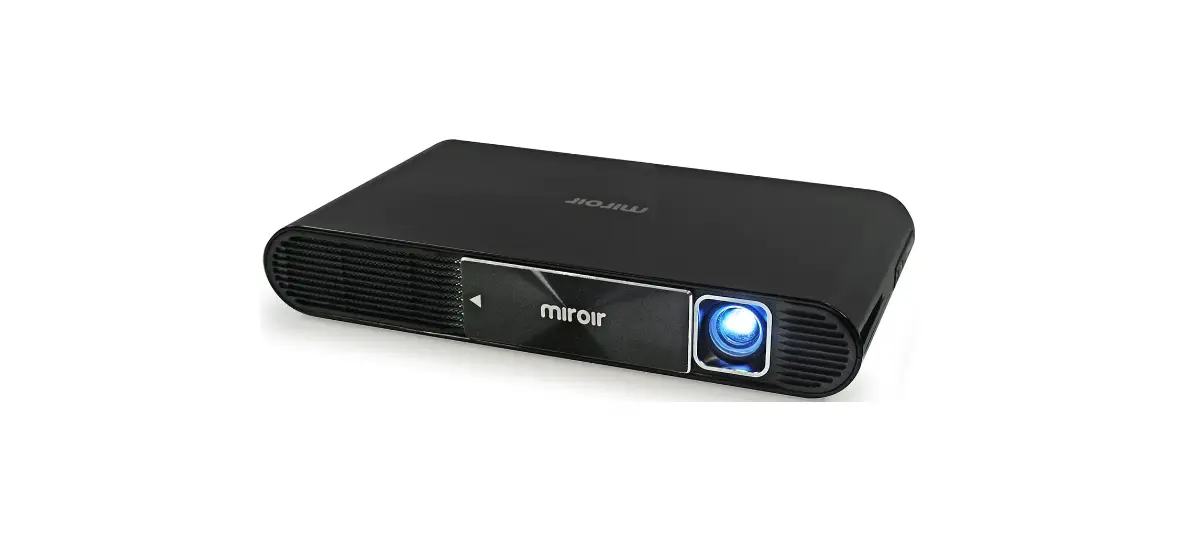
M700S Projector
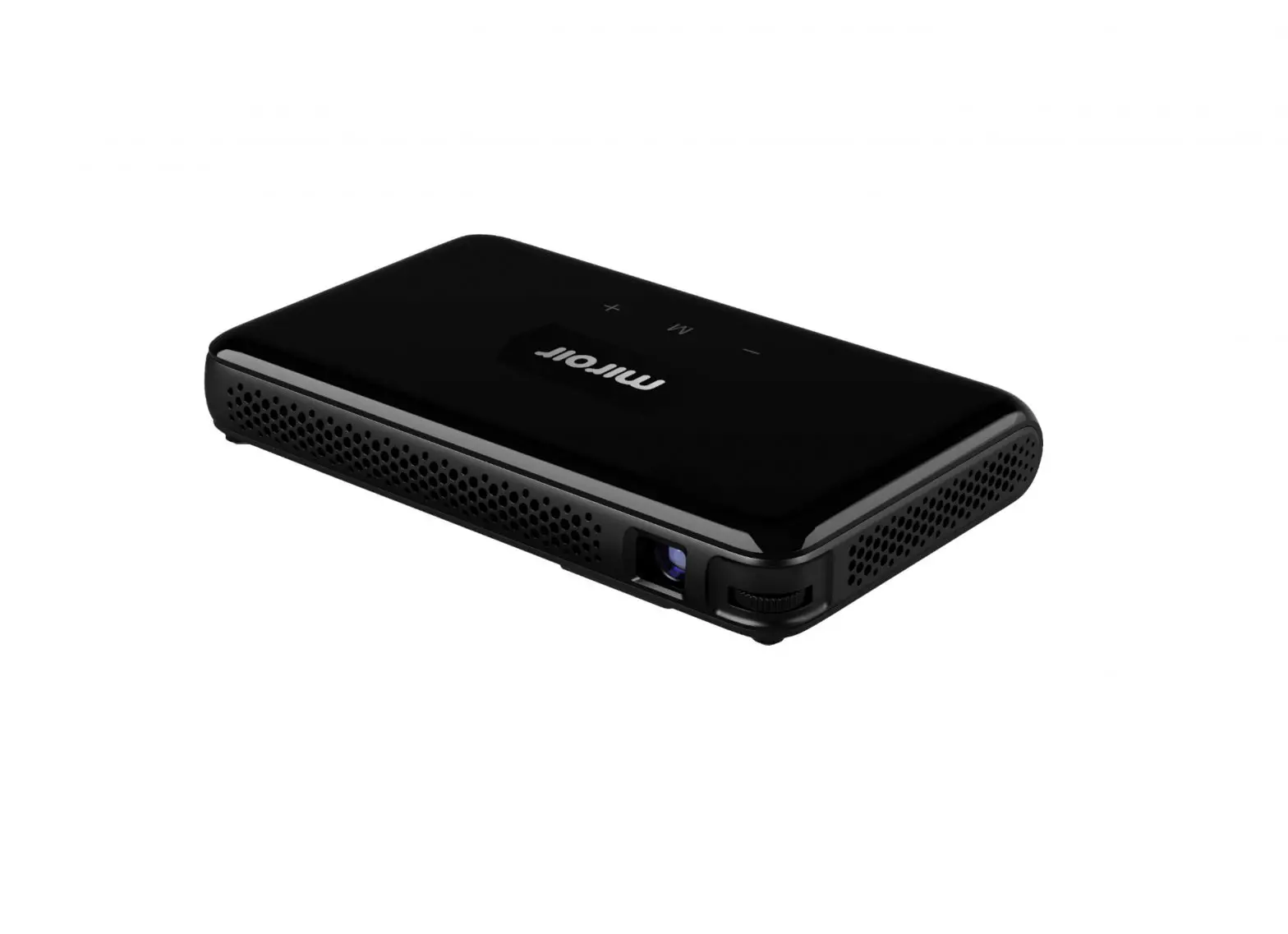
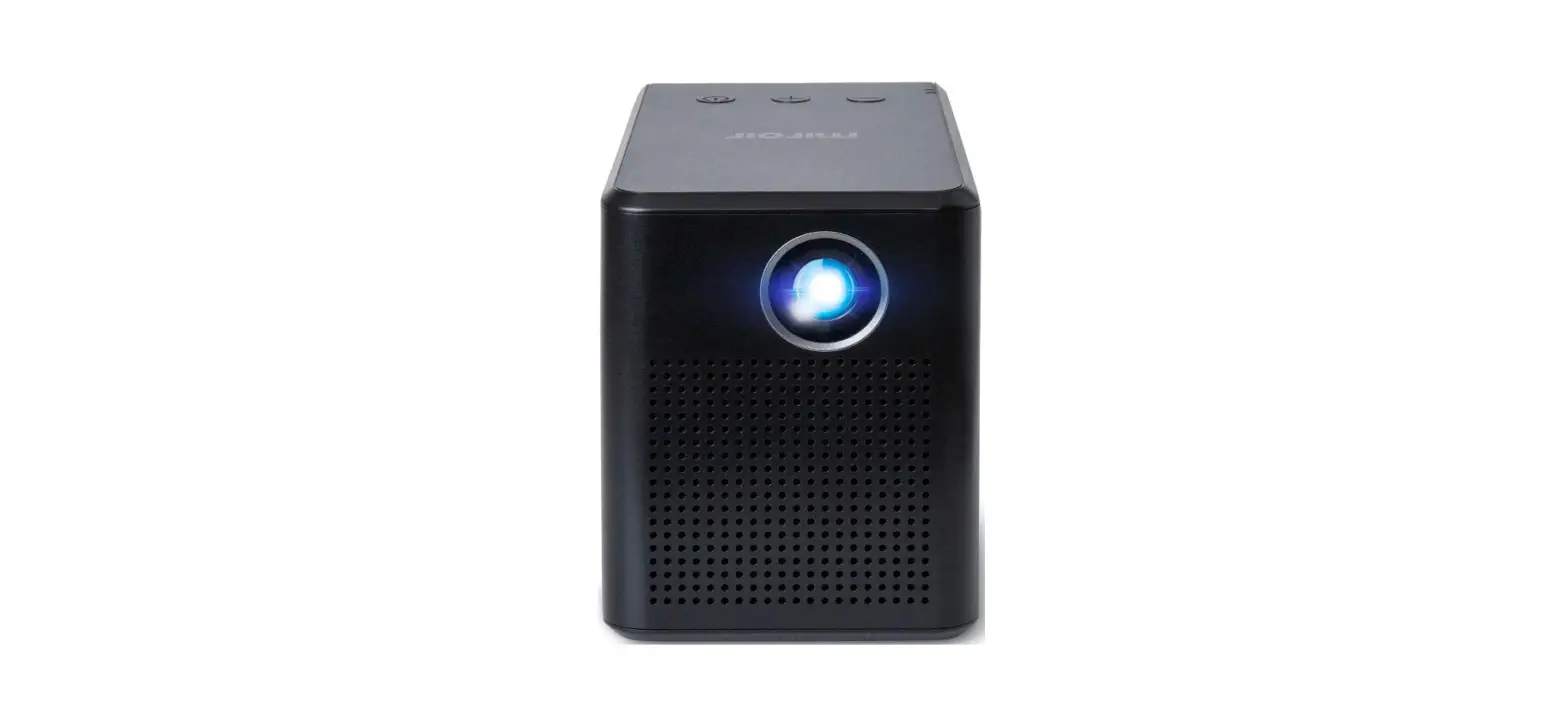
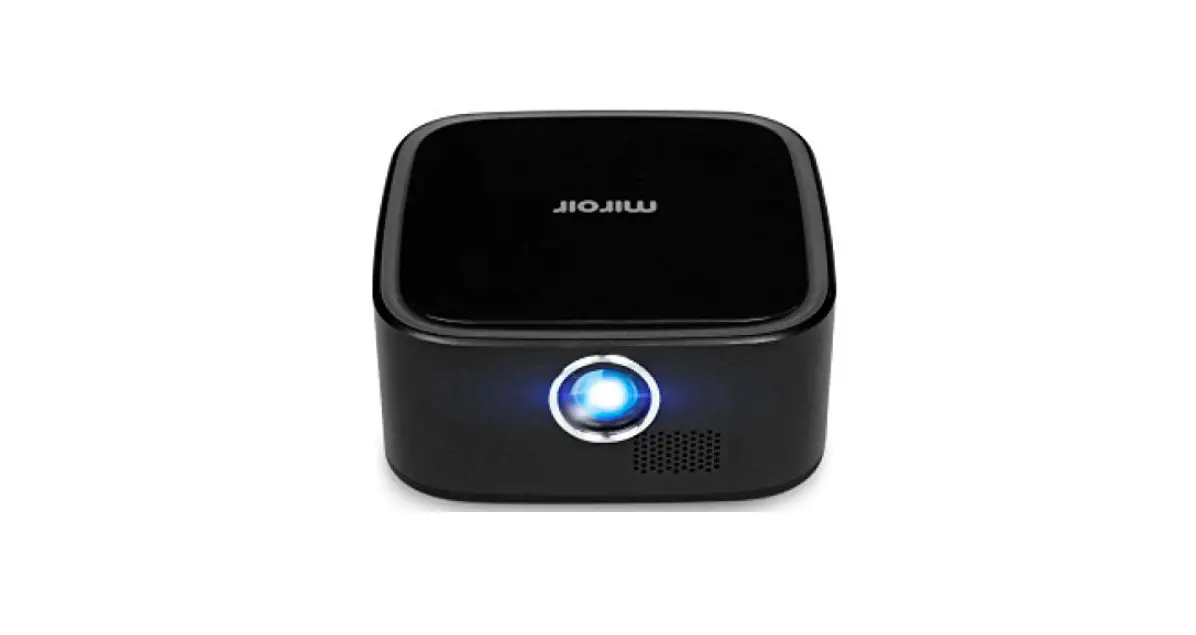
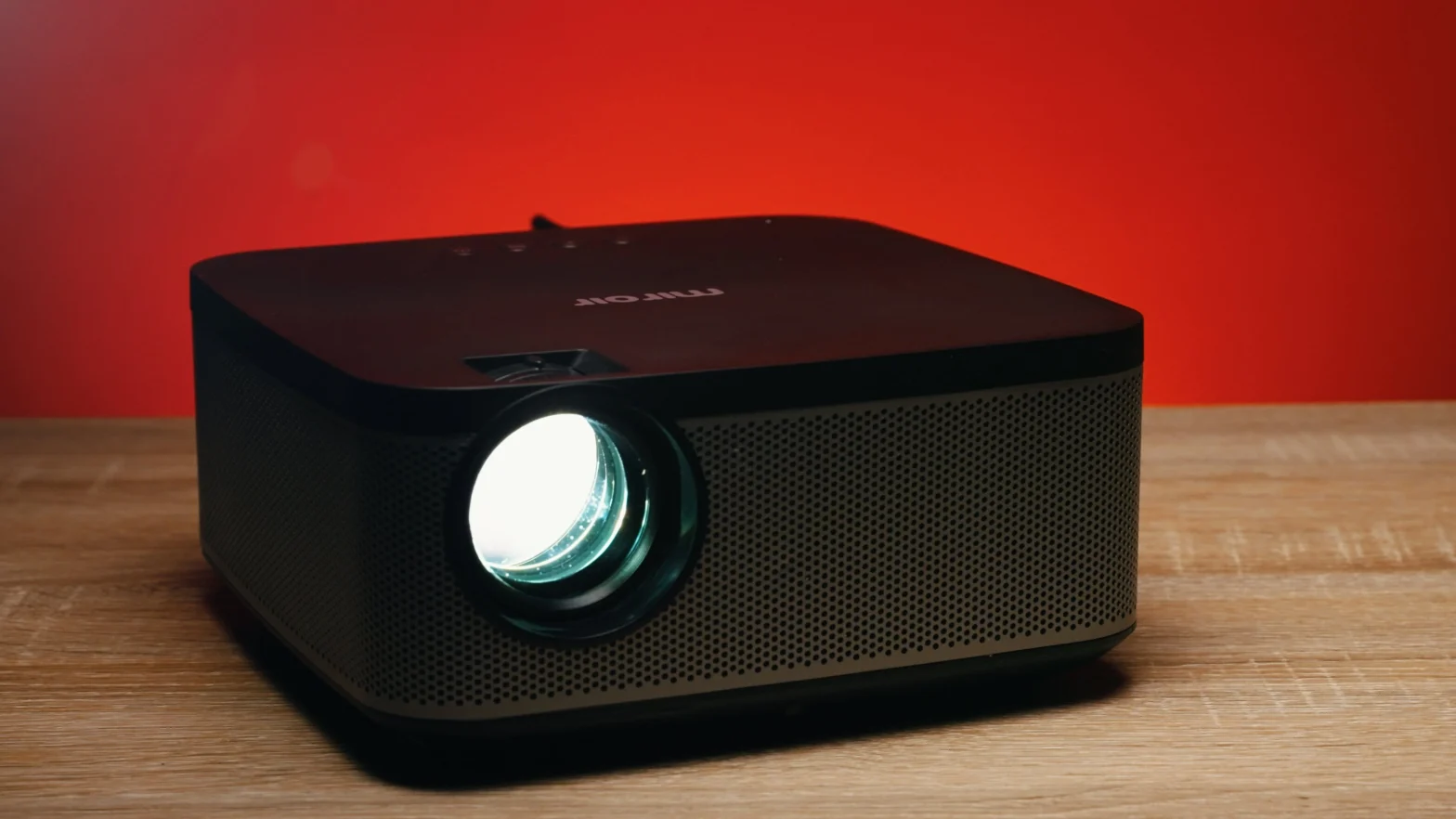
Miroir M700S Projector
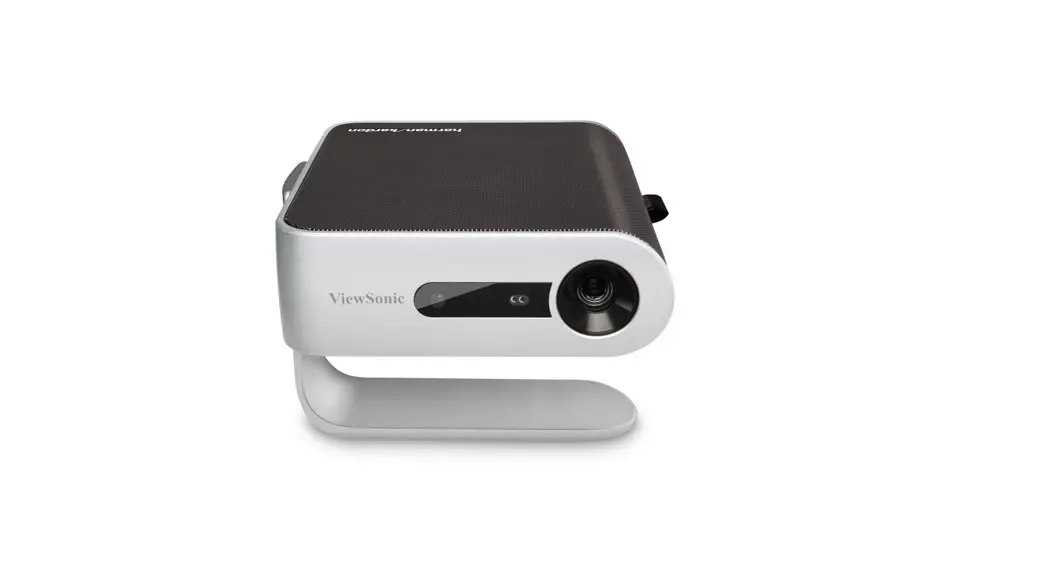
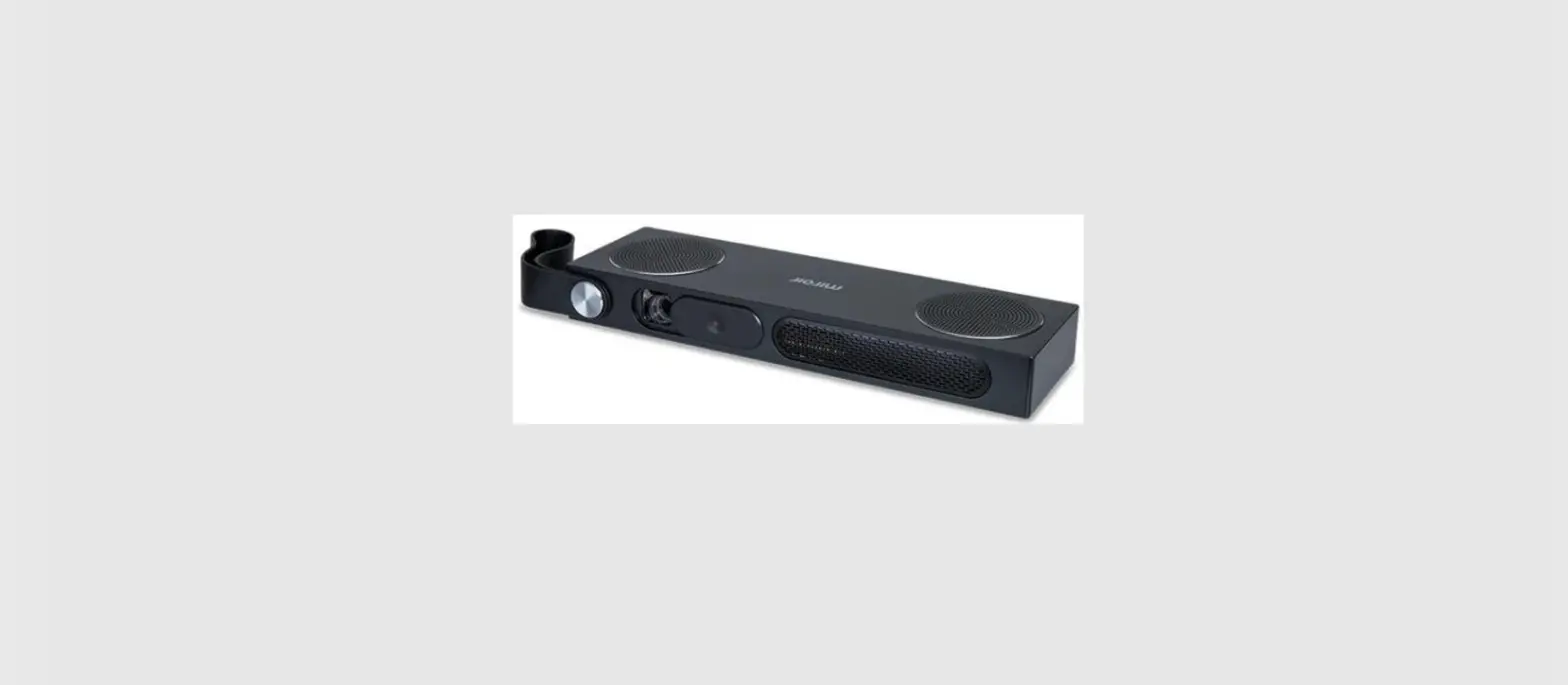
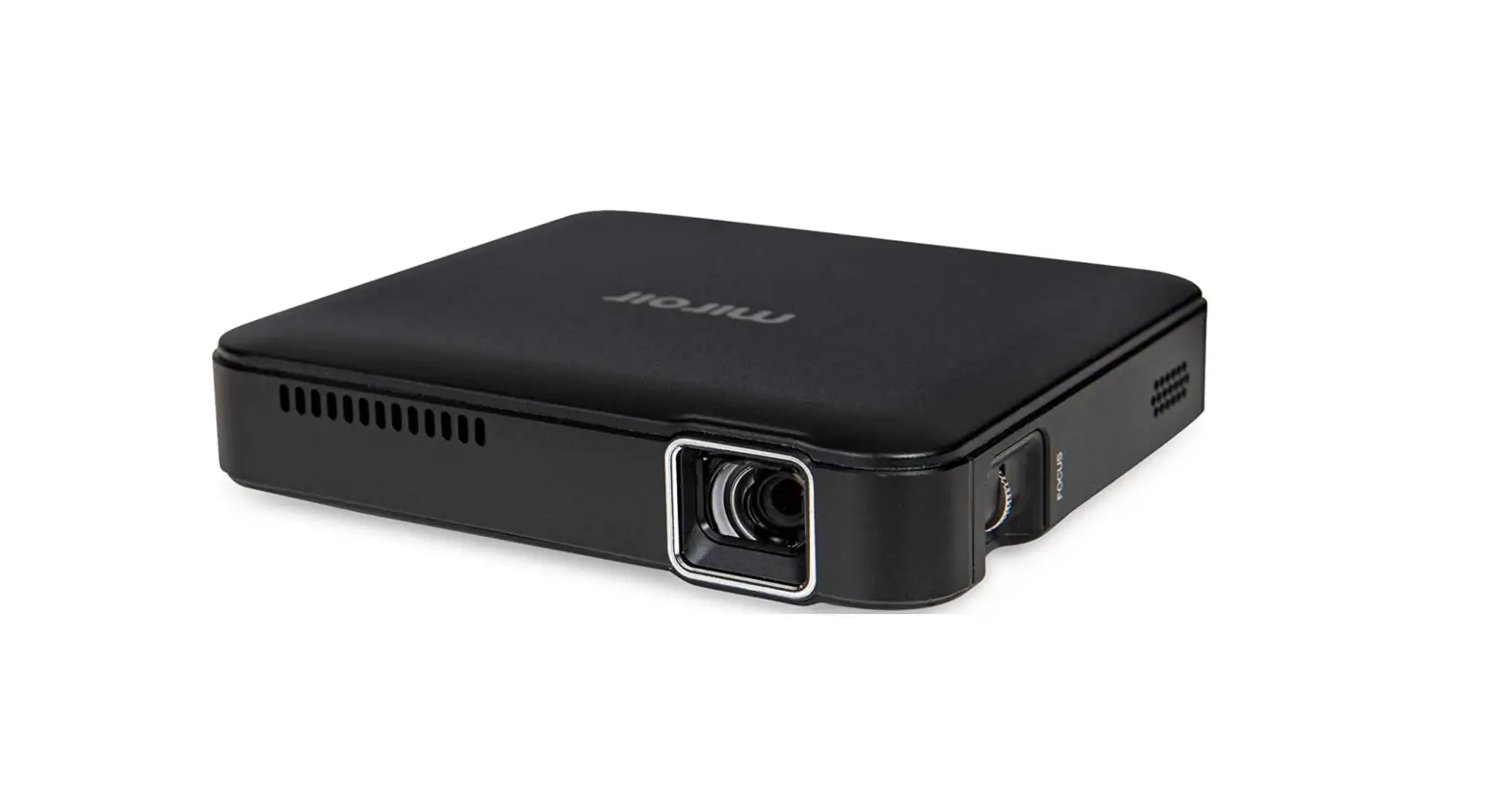
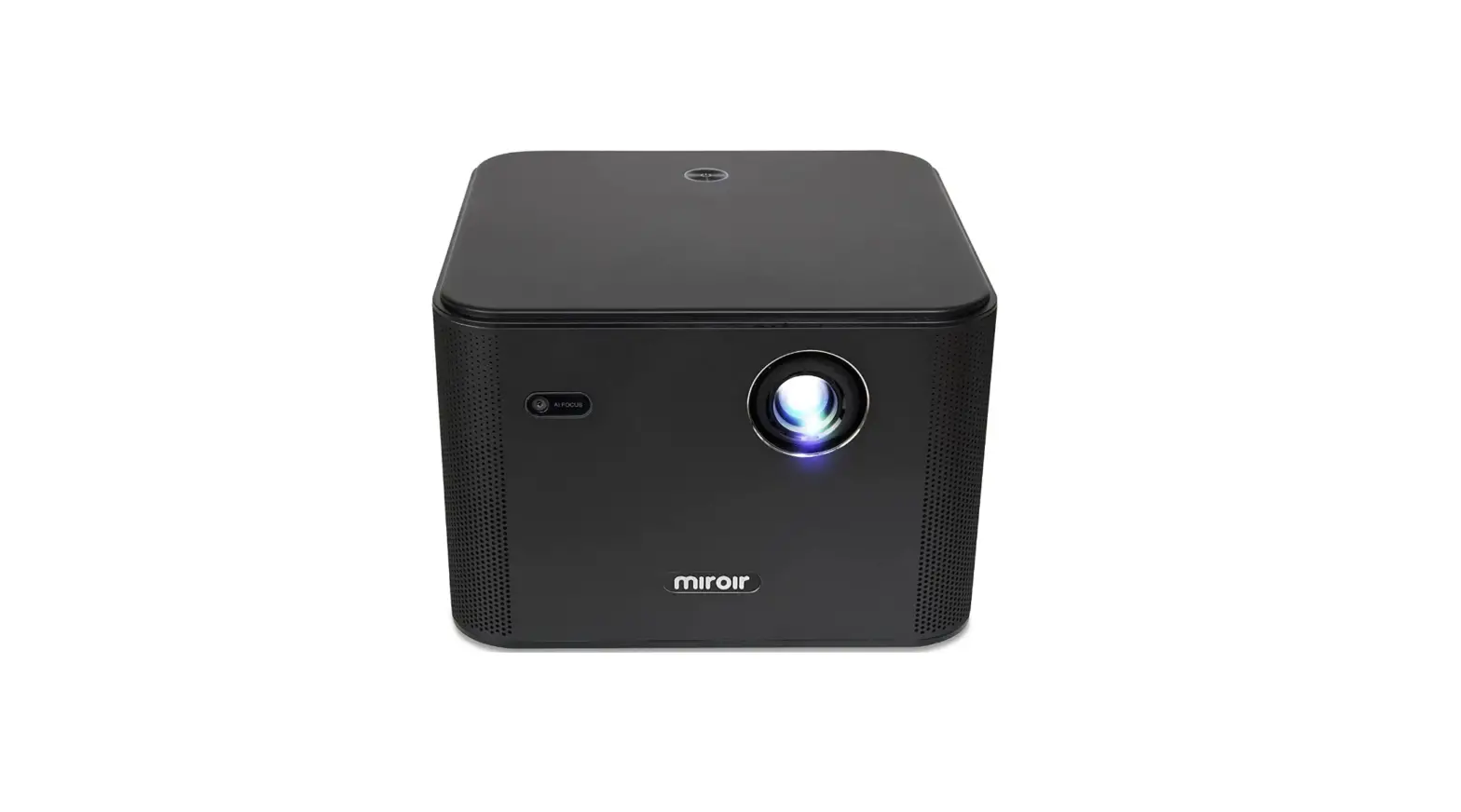
The Miroir M700S Projector is a portable, high-quality projector
that allows you to enjoy movies, share pictures, and connect to the
internet. It offers various connectivity options, including HDMI
and audio output, making it compatible with a wide range of
devices.
Product Features
- Audio Out (3.5mm) – Connect an external speaker or headphones
for enhanced audio experience. - HDMI Video Input – Connect an HDMI cable to a device that
supports HDMI video output. - Reset Button – Reset the projector settings if needed.
- Power Port – Connect the included AC Adapter for power.
- RJ45 Connector – Connect to the internet for online content
streaming. - Power Button – Easily turn the projector on or off.
- Rubber Foot Pads – Provides stability and proper airflow to
cooling vents. - Kickstand – Adjust the image angle for optimal viewing.
- Tripod Mount – Mount the projector on a tripod for secure
placement. - Cooling Vent – Ensure proper airflow to prevent
overheating.
Remote Control
The included remote control allows you to conveniently operate
the projector. It features buttons for power control, volume
adjustment, focus adjustment, navigation, and accessing projector
settings.
Connecting Your Projector with a Cable
To connect your Miroir M700S Projector to your devices:
Connect To Your Laptop HDMI
- Use the included HDMI cable to connect the HDMI video input of
the projector to the HDMI output of your laptop.
Connect To Your Device HDMI
- Use the included HDMI cable to connect the HDMI video input of
the projector to the HDMI output of your device.
Connect To Your MacBook USB-C
- Use the included HDMI cable to connect the HDMI video input of
the projector to a USB-C Digital AV Multiport Adapter (not
included). - Connect the USB-C Digital AV Multiport Adapter to your
MacBook.
Connect To Your Apple Device Lightning
- Use the included HDMI cable to connect the HDMI video input of
the projector to an Apple Lightning Digital AV Adapter (not
included). - Connect the Apple Lightning Digital AV Adapter to your Apple
device.
Connect To Your Streaming Stick HDMI
- Use the included HDMI cable to connect the HDMI video input of
the projector to your streaming stick. - If required, connect the USB power cable to the streaming stick
for power.
Connecting Your Projector Wirelessly
You can also connect your Miroir M700S Projector wirelessly for
screen mirroring. Please note that Netflix and other streaming
services may not be supported due to DRM restrictions.
Adjusting the Projector Image
You can make adjustments to the projector image using the
following settings:
- Keystone – Adjusts the image shape to correct for trapezoidal
distortion. - Zoom – Zoom in or out to adjust the size of the projected
image.
Troubleshooting
If you encounter any issues with your projector, consider the
following troubleshooting steps:
- Ensure the projection surface is flat and suitable for
projection. - Check if the projector is properly connected to the wall outlet
for power.
Support
If you need further assistance or have any questions, you can
contact Miroir Support at 1-855-676-0972. You can also download the
complete user manual at www.miroirusa.com/M700S-manual.
For additional information and updates, visit the official
website at www.miroirusa.com.
M700S.11.2022
Miroir M700S Projector Quick Start Guide
Your Miroir M700S Projector
A
B
C DE F
G
H I
J
2
K
A Audio Out (3.5mm) – (Optional) Connect an external
speaker or headphones.
B USB Media Reader Jack Plug a USB stick into the port
and play movies, or share pictures.
C HDMI Video Input – Connect an HDMI cable to a device
that supports HDMI video output.
D Reset Button
E Power Port – Connect included AC Adapter for power.
DC In – [email protected]
F RJ45 Connector – To connect to the internet
G Power Button – Turn the projector on/off
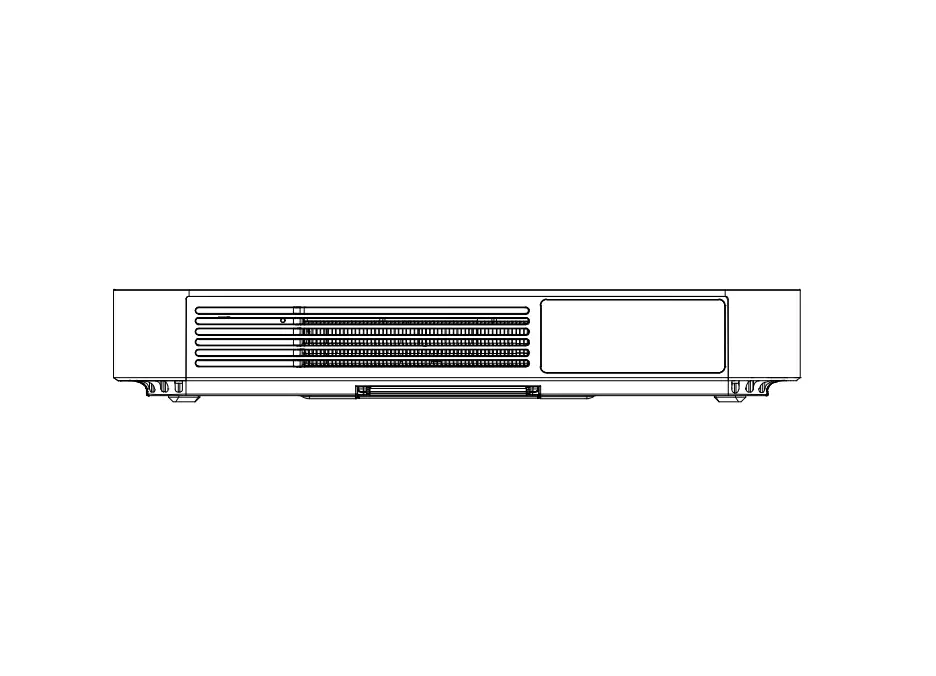
H Rubber Foot Pads – Provides stability and proper airflow
to cooling vents.
I Kickstand – To adjusting the image angle
J Tripod Mount
K Cooling Vent – IMPORTANT: Do not cover or block
airflow to the vent.
3
Remote Control
A
D
E F
G
B
H
C
4
A Power B Main Screen C Volume +/D Focus Adjust E Direction F Confirm G Back H Projector
Settings
Connecting Your Projector with a Cable
Connect To Your Laptop HDMI
Connect To Your Device
HDMI Cable (Included)
HDMI Cable (Included)
HDMI Adapter may be required for your device.
(not included)
Connect To Your MacBook USB-C
Connect To Your Apple Device Lightning
HDMI Cable (Included)
USB-C Digital AV Multiport Adapter (not included)
IMPORTANT! Not all USB C cables will support video.
Connect To Your Streaming Stick HDMI
HDMI Cable (Included)
USB Power Cable (if required)
Apple Lightning Digital AV Adapter is required for iPhone. (not included)
5
Connecting Your Projector Wirelessly
WIFI
· Connect the M700S to your WIFI network. Open Settings, and select WIFI and follow the instructions.
· Update the projector if prompted · Open the SYNQ TV App · Connect to the available streaming services (not included); a streaming service
subscription is required to stream with SYNQ TV · Once you’ve logged into your streaming account, start streaming! · Live TV and Apple TV + are not supported now; please check our website for
release dates.
Screen Mirroring
YouTube; TikTok is supported to play content. *Netflix and other streaming services are not supported
· Connect your iOS, Android, Laptop, or Tablet wirelessly via the device mirroring option.
· Netflix and other services do not support Screen Mirroring because of Digital Rights Management (DRM)
· Local photos and videos you have taken support Screen Mirroring. · Some Apps, such as YouTube and TikTok, will support screen mirroring because
they are not restricted by DRM.
Adjust the Projector Image
Keystone (under Settings)
· The projector will auto keystone to 6-points, or you can manually adjust under settings.
Zoom (under Settings)
· Depending on your projector’s distance from the wall, use the zoom feature to adjust the image size.
6
Troubleshooting
The image is blurry · Adjust the projected image’s focus using the remote under settings. · Check that the surface you are projecting on is smooth and non-reflective. · Check that the projector’s lens is clean and free of debris.
The image is not square · Check that the projector’s lens is parallel to your projection surface and that your
projection surface is flat.
No sound · Check the volume control on your source device to ensure the volume is turned up. · If you are using an adapter, verify that the adapter supports audio. · Check that the HDMI cable is fully plugged into the HDMI port.
No Signal Message · Check that you are using the required cable and/or adapter. · If you are using a digital AV adapter, check that the adapter is an authentic Apple
adapter and is compatible with your model phone or tablet. · If you are connected to a laptop or computer, check your computer display settings
to ensure a multiple display option is selected (such as “mirror these displays”). · Check that your source device supports HDMI video out.
Projector will not power on, or stay powered on · Check that the AC Power adapter is securely plugged into the projector and
the wall outlet.
Support
Text Miroir Support 1-855-676-0972 Download your manual at www.miroirusa.com/M700S-manual
7
www.miroirusa.com
M700S.11.2022
© 2022 Miroir USA, LLC. All rights reserved. Miroir and the Miroir Logo are owned by Miroir USA, LLC. All other trademarks are the property of their respective owners. Miroir USA, LLC assumes no responsibility for any errors that may appear in this manual. Information contained herein is subject to change without notice.
 Miroir Portable Projectors | Free 2 Day Shipping | Official USA Store