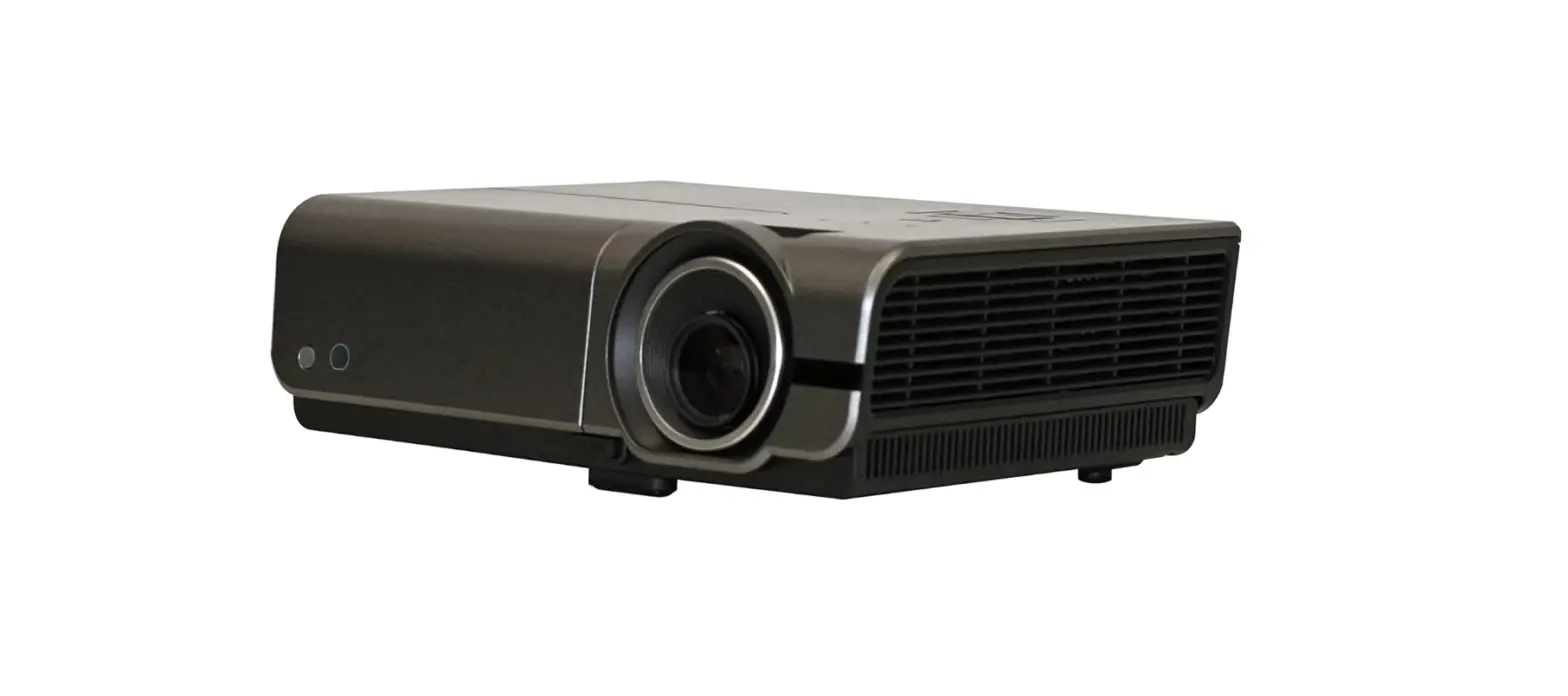
AYW502 Multimedia Projector
Product Information
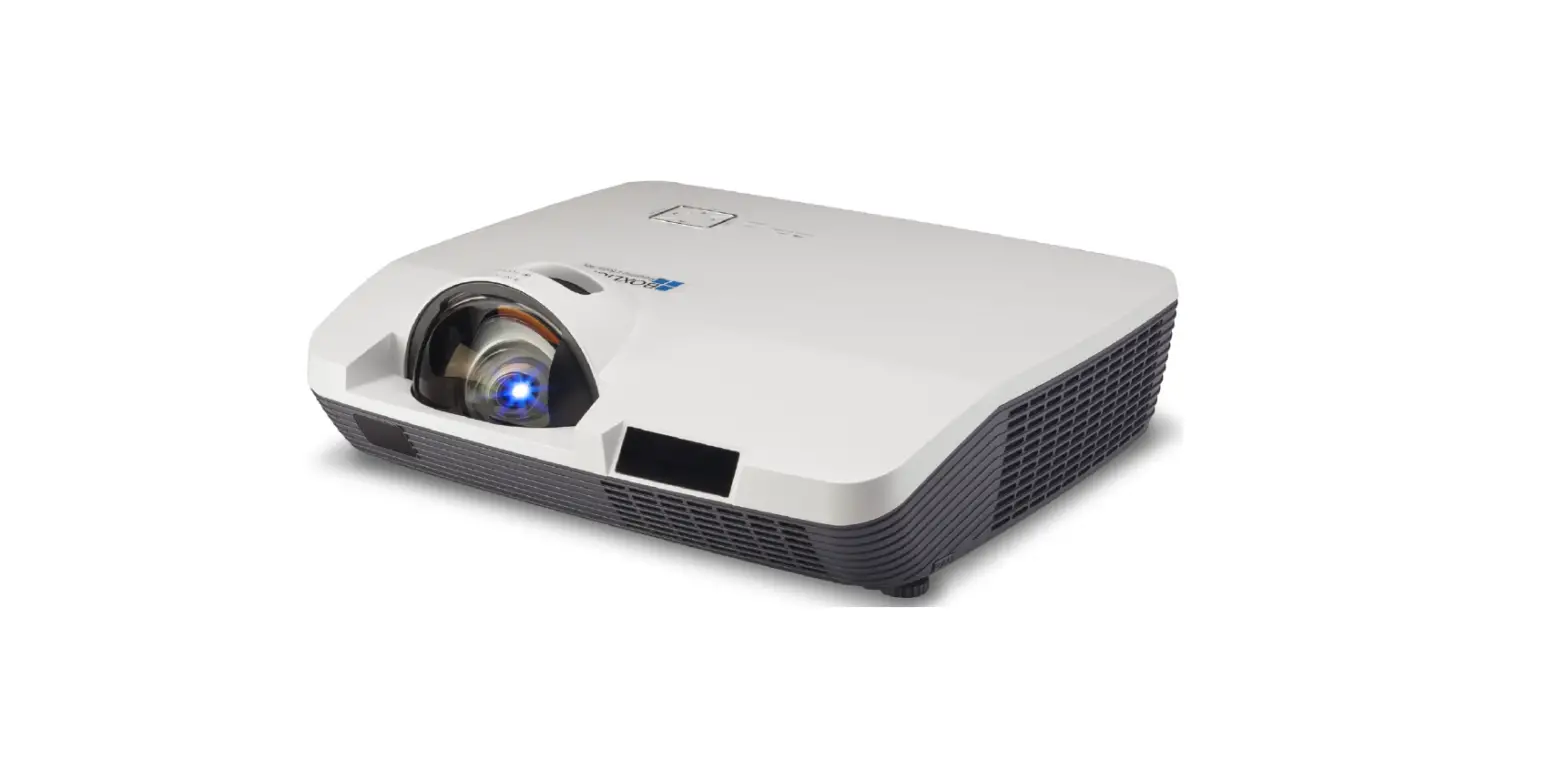
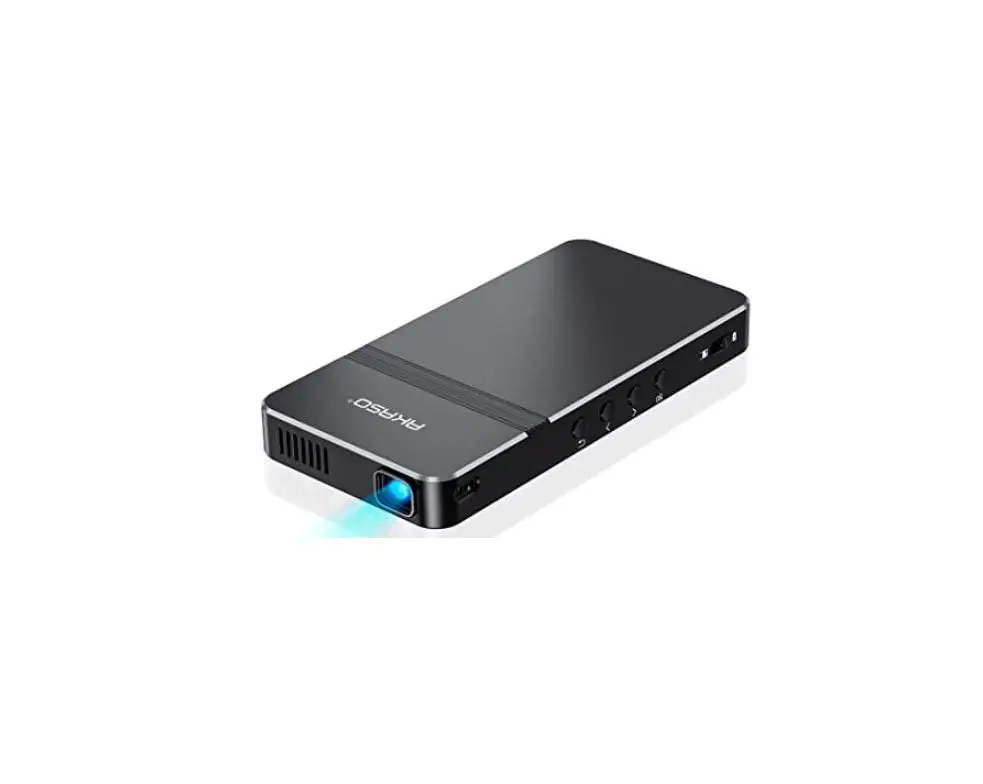
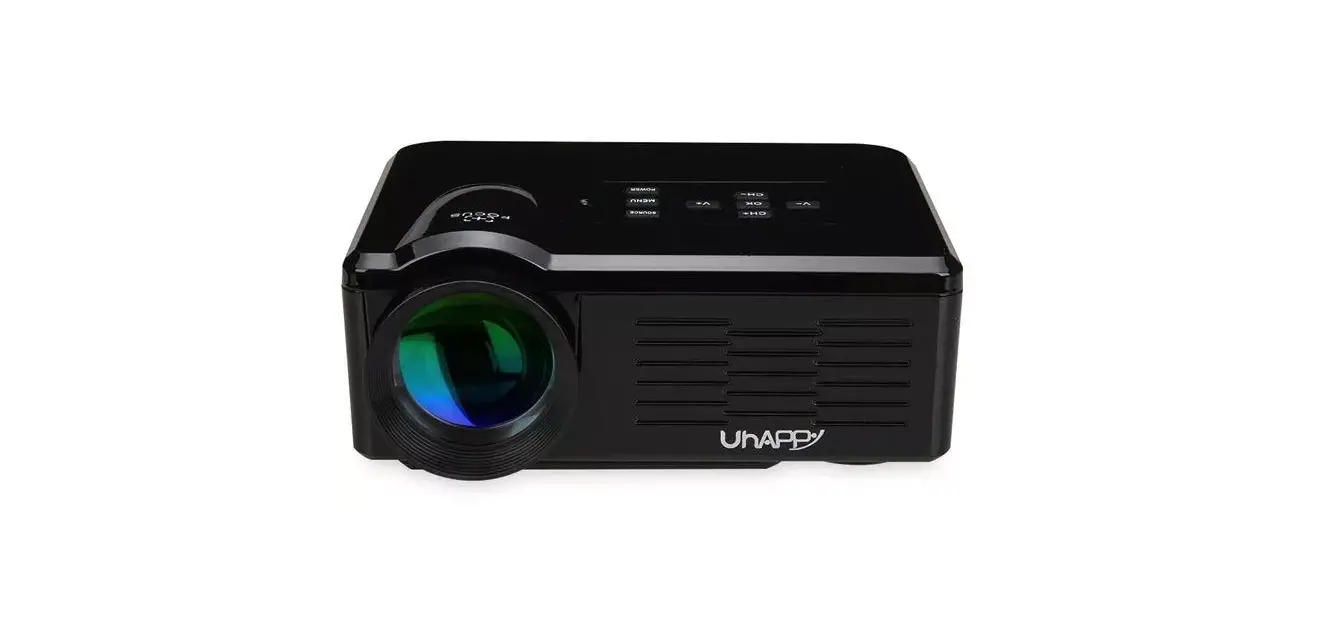
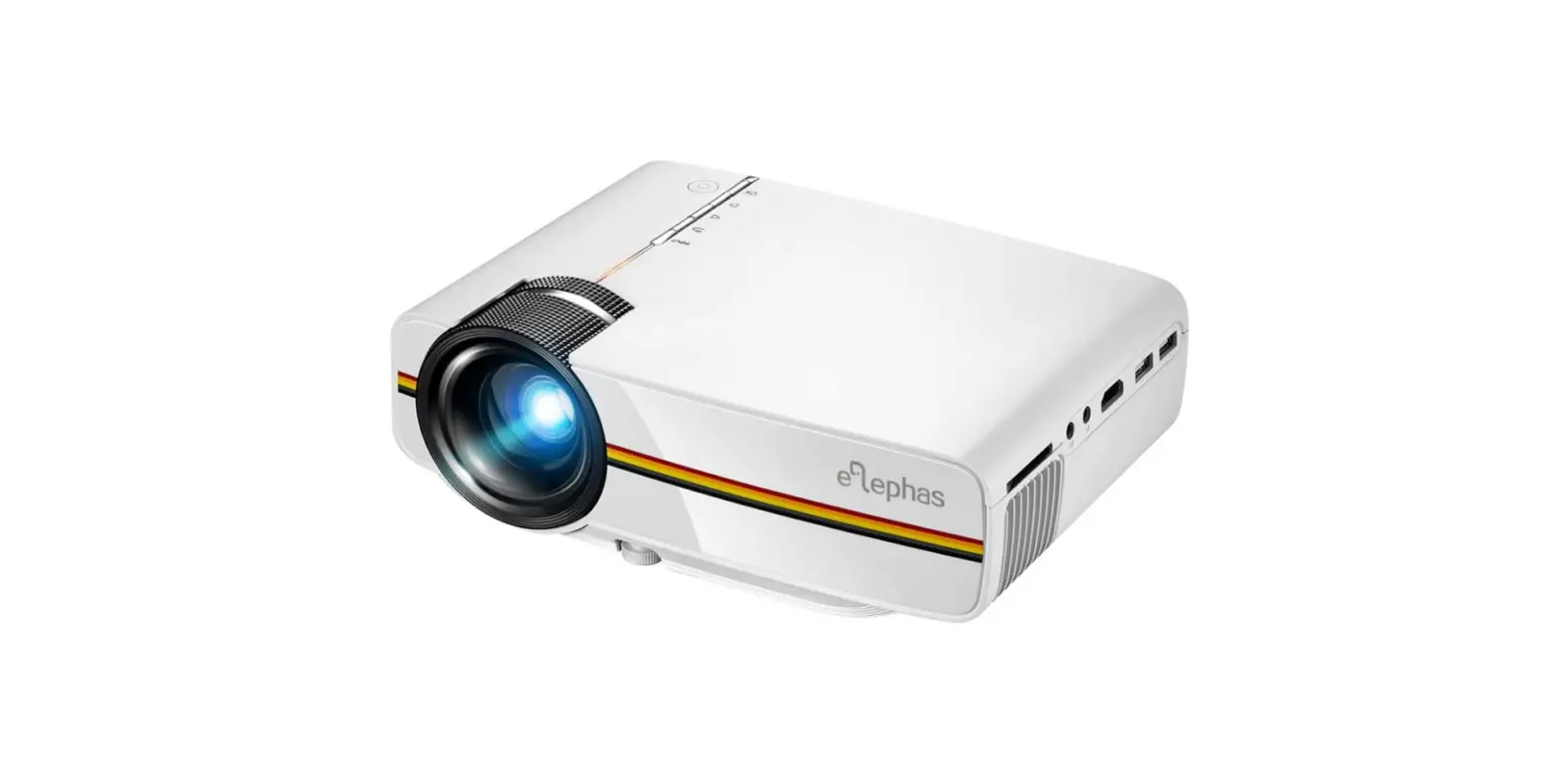
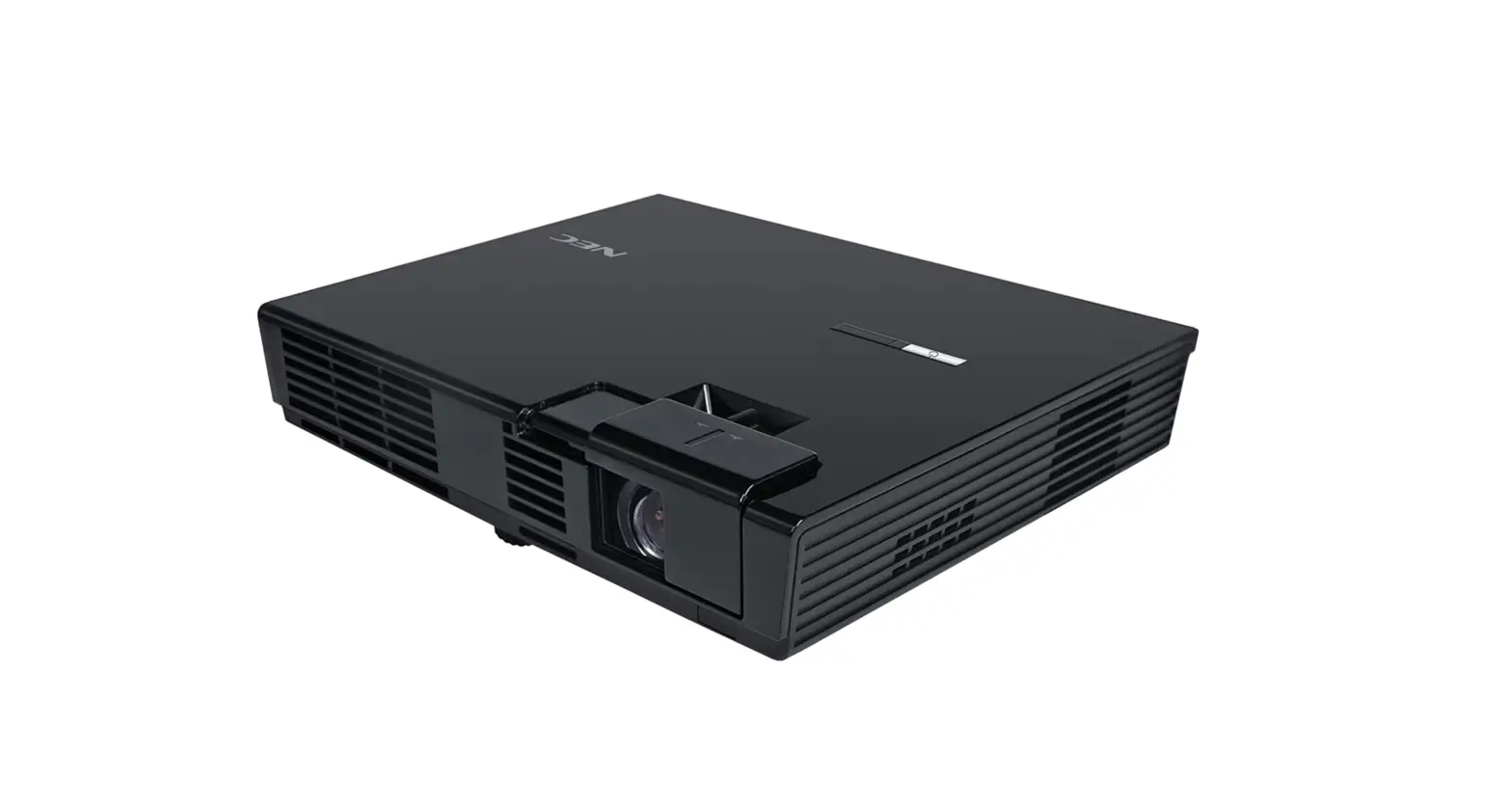
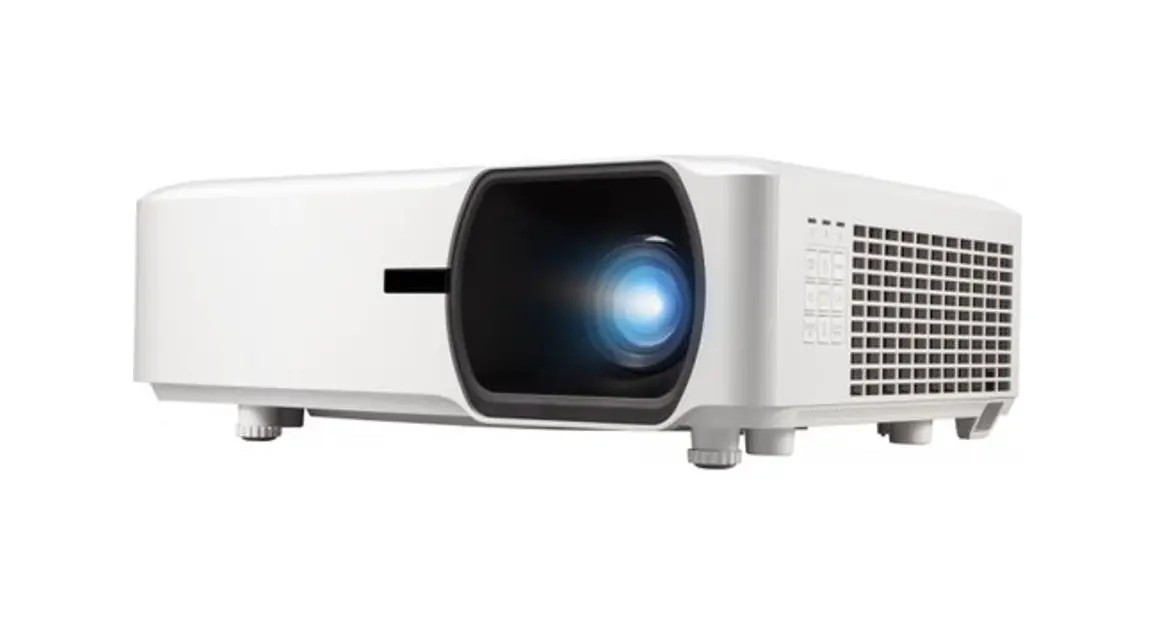
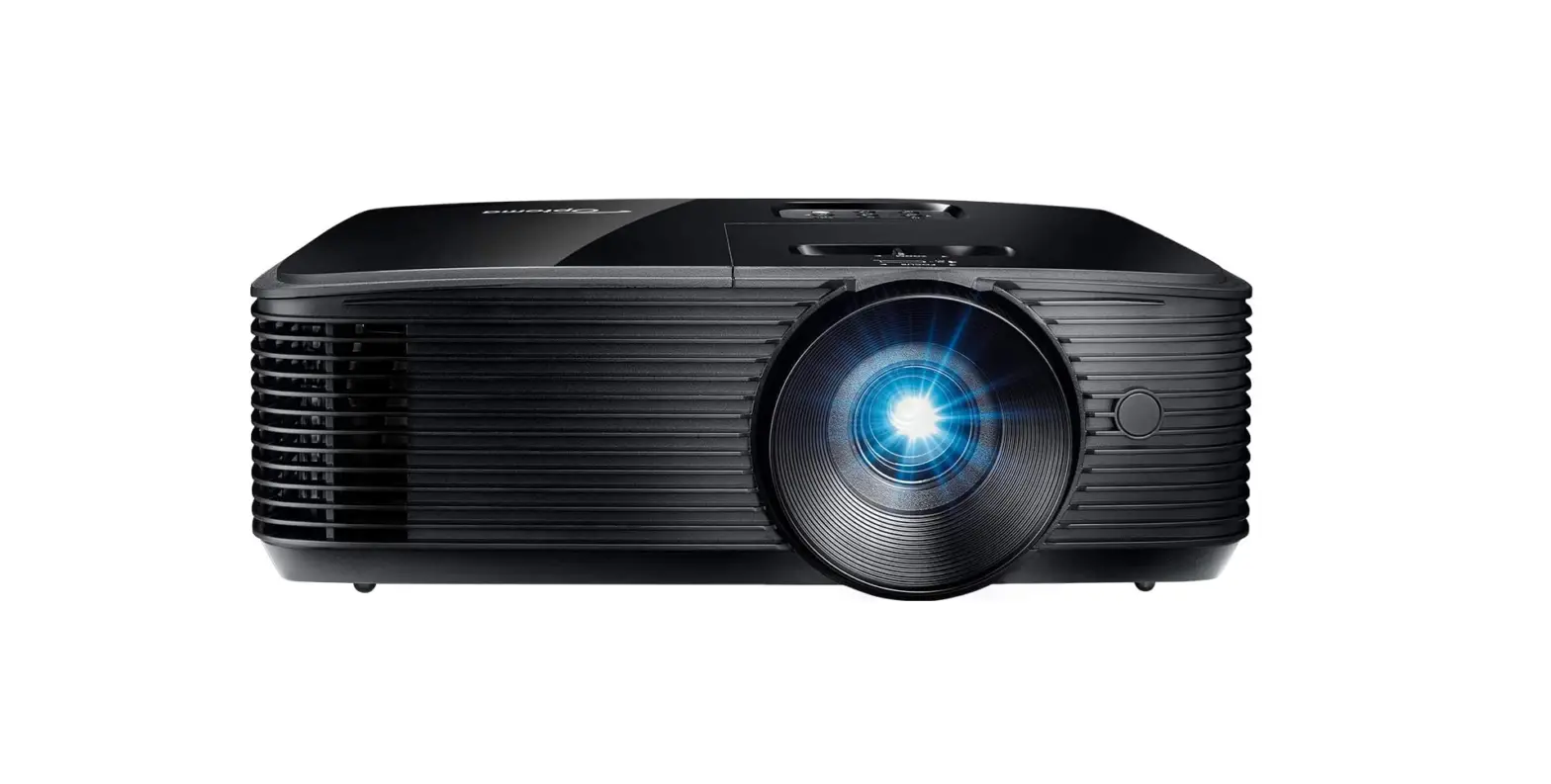
The Multimedia Projector is a device designed to project images
and videos onto a screen. It comes with various accessories
including an AC power cord, HDMI cable, remote control, and service
card. The projector features multiple input options and control
buttons for adjusting settings.
Accessories
| Item | Description |
|---|---|
| Projector | Main unit of the projector |
| AC Power cord | Power cable for connecting to an AC outlet |
| HDMI cable | Cable for connecting external devices using HDMI interface |
| Remote control | Control device for operating the projector |
| Service Card | Card containing service information |
Positioning the Projector
The positioning of the projector is important for optimal
picture quality. It is recommended to limit ambient lighting in the
room to achieve the best image. The user manual provides
approximate screen sizes and aspect ratios for different distances
from the projector.
XGA (4:3) Aspect Ratio
| Screen Size (WxH)mm | Maximum Distance | Minimum Distance |
|---|---|---|
| 0.610×0.457 | 0.888m | 1.071m |
| 2.032×1.524 | 3.017m | 3.629m |
| 3.048×2.286 | 4.537m | 5.456m |
| 4.064×3.048 | 6.058m | 7.283m |
| 6.096×4.572 | 9.099m | 10.937m |
WXGA (16:10) Aspect Ratio
| Screen Size (WxH)mm | Maximum Distance | Minimum Distance |
|---|---|---|
| 0.646×0.404 | 0.755m | 1.291m |
| 2.154×1.346 | 2.645m | 4.434m |
| 3.231×2.019 | 3.996m | 6.679m |
| 4.308×2.692 | 5.346m | 8.923m |
| 6.462×4.039 | 8.048m | 13.413m |
Product Usage Instructions
Turn on the projector
- Complete peripheral connections (with a computer, video, etc.)
before turning on the projector. - Connect the projector’s AC power cord into an AC outlet. The
POWER indicator will flash orange. - Press the POWER button on the top control or on the remote
control. The POWER indicator will flash orange and the cooling fan
will start working. The “ready” display will appear on the screen
and a countdown will begin. - Move the cursor to “Set” and press OK.
- If your projector is password protected, a password dialog box
will appear. - To enter a PIN code, press the OK button and use the WX button
to select a number. Press the OK button to enter the number into
the PIN code box. The entered number will be displayed as “*”, and
the cursor will automatically move to the next box. If you make a
mistake, press the MENU button to reset the number. Repeat these
steps to complete entering a three-digit number. - After entering the three-digit number, the cursor will
automatically move to “Set”. Press the OK button to start operating
the projector. If you entered an incorrect PIN code, the number
will turn red. The PIN code will be reset within one second
automatically. Enter the correct PIN code again.
Install remote control batteries
- Open the battery cover on the remote control.
- Install two (2) AAA or LR3 type alkaline batteries.
- Put the cover back on.
To ensure safe operation, please observe the following
precautions:
- Use two (2) AAA or LR3 type alkaline batteries.
- Always replace batteries in sets.
- Do not use a new battery with a used battery.
- Avoid contact with water or liquid matter.
- Do not expose the remote control to moisture or heat.
- Do not drop the remote control.
Multimedia Projector
Quick Start Guide
WARNING
Brfore using, read the ” Quick Start Guide ” and the owner’s manual to ensure correct usage through understanding. After reading, store them in a safe place for future reference. Do not look into the lens while the projector’s power is turned on. Do not put something close the lens when power on the projector, it may damage the projector or may cause fire hazard.
Accessories Please make sure that following items are in luded in the box, along with the main. If any items missing, contact your deale .
Projector
AC Power cord HDMI cable
Remote control
INPUT VGA VIDEO HDMI AUTO MENU
KEYSTONE IMAGE FREEZE PATTERN
SCREEN LAMP MUTE INFO.
D.ZOOM
VOLUME
BLANK TIMER
Service Card
Positioning the projector
The brightness in a room has a great influence on picture quality. It is recommended to limit the ambient lighting in order to get the best image. All measurements are approximate and may vary from the actual sizes.
300© 200© 150© 100© 30©
XGA(4:3)
Screen size (WxH)mm 4:3 aspect
ratio Maximum Minimum
30″
0.610×0.457 0.888m 1.071m
100″
2.032×1.524 3.017m 3.629m
150″
3.048×2.286 4.537m 5.456m
200″
4.064×3.048 6.058m 7.283m
300″
6.096×4.572 9.099m 10.937m
WXGA(16:10)
Screen size
30″
(WxH)mm
16:10 aspect 0.646×0.404 ratio
Maximum 0.755m
Minimum
1.291m
100″
2.154×1.346 2.645m 4.434m
150″
3.231×2.019 3.996m 6.679m
200″
4.308×2.692 5.346m 8.923m
300″
6.462×4.039 8.048m 13.413m
Turn on the projector
1.Complete peripheral connections (with a computer, video,etc.) before
turning on theprojector. 2.Connect the projector’s AC power cord into the AC outlet. The POWER
PIN Code
indicator flashes orange. 3.Press the POWER button on the top control or on the remote control. The
POWER indicator flashes orange and the cooling fan starts workingdo. The ready display appears on the screen and the countdown begins.
Move
Set Cancel OK Select
Esc Back
The POWER indicator and LIGHT indicator turn green.
Move the cursor to “Set”, and press “OK”.
4.If your projector is setting as password protected, the password dialog box displays.
Enter your password as instructed below.
Enter a PIN code Press the OK button, press WX button to select a number and press the OK button to enter it to the PIN code box, then number changes to ” * “, automatically move the cursor to next box. If you fixed an incorrect number, press MENU button to reset it again. Repeat the stepsto complete entering a threedigit number.
After entering the three-digit number, automatically move the cursor to “Set”, press the OK button then you can start to operate the projector. If you entered an incorrect “PIN code”, the number (***) turn red. PIN code will be reset within one second automatically, Enter the correct PIN code all over again.
Install remote control batteries
Open the battery cover.
Install new batteries.
Two AAA batteries For correct polarity (+ and ), be sure battery terminals are in contact with pins in the compartment.
Put the cover back.
To ensure safe operation, please observe the following precautions:
Use two (2) AAA or LR3 type alkaline batteries. Always replace batteries in sets. Do not use a new battery with a used battery. Avoid contact with water or liquid matter. Do not expose the remote control to moisture or heat.
Do not drop the remote control.
If the battery has leaked in the remote control, carefully wipe the case clean and install new batteries.
Risk of explosion if two batteries are replaced by an incorrect type. Dispose of used batteries according to the instructions on the battery or local
regulations or guides.
Operating range
Point the remote control toward the remote control receivers on the projector
(front and back) when pressing any button.
The maximum operating range of the remote control is approximately 20 meters
in front of the projector’s sensing remote control window, and approximately
7 meters at a 30° angle.
The projector will not respond if there are objects between the remote control
and the sensor, or if strong light falls on the sensor. Weak batteries will also
prevent the remote control from properly operating the projector.
S
q q
S
q q
S
S
S
q q
S
S q q
S
WUXGA(16:10)
Screen size
30″
(WxH)mm
16:10 aspect 0.646×0.404 ratio
Maximum 0.765m
Minimum
1.258m
100″
2.154×1.346 2.631m 4.273m
150″
3.231×2.019 3.964m 6.426m
200″
4.308×2.692 5.297m 8.579m
300″
6.462×4.039 7.964m 12.885m
Adjustable foot
The projector can be adjusted up to 18 mm (3.5 degree) with the adjustable foot. Rotate the adjustable foot to lift the projector to a certain height. During lifting, rotate the footclockwise.
To lower or retract the adjustable foot, rotate the foot counterclockwise. Keystone distortion of projected images can be corrected by auto settings, remote control operation or menu operation.
Adjustable foot
Installation
Unplug the power cords of both the projector and external equipment from the AC outlet before connecting the cables.
Connecting to computer (Digital and analog RGB)
HDMI cable
VGA cable *
RS232 cablecrossover type*
(*=Cables are not supplied with the projector)
Connecting to video equipment (Video, S-Video)
9LGHRFDEOH
(*=Cables arenot supplied with the projector)
VGA cable
VGA cable
HDMI cable
Serial cable
Video cable
Connecting to audio equipment
Audio cable* (*=Cables are not supplied with the projector)
External audio equipment
(R) (L)
Audio cable
! Note:
The left and right channels are combined when there is only the L(mono) is inserted.
Audio cable
Audio cable
(R) (L)
Connecting to USB device (USB-A, USB-B)
USB-B cable*
USB-A device*
(*=Cables are not supplied with the projector)
USB-B cable
USB-A device
Turn off the projector
1. Press the POWER button on the top control or on the remote control, and “Power off?” appears on the screen.
2. Then, press the POWER button again in 4 seconds. The POWER indicator starts to flash red, and the cooling fans keep running (You can select the fan noise and running speed). Now you can unplug the AC power cord after the fans stop running. Otherwise, the service life of the projector will be affected or the projector will can not be turned on or turn on abnormal.
Power off ? “Power off ? ” disappears after 4 seconds.
To maintain the lamp life, once you turn the projector on, wait at least 5 minutes before turning it off. Do not operate the projector continuously without reset. Continuous use may result in shortening the lamp
life. Turn off the projector and let it standby for about an hour in every 24 hours.
Indicator and projector state
*Check the indicator to know about the state of projector. * For more detail, please refer to the user’s manual.
Light indicator POWER STATUS LIGHT
Status of your projector
Projector is in Off status (without AC power supply). Projector is in standby status.
Projector is in normal status. Projector is in standby mode.
Projector is in cooling mode.
Projector is Keylock or RC ID dismatch
Projector detects temp abnormality. Projector detects fan abnormality.
Projector detects filter timer waring. Projector detects cover switch abnormality. Error with high altitude Projector is initialization.
…… Green
……Flashing green
……Red
……Flashing red
……Orange
…….. Flashing Orange
……Off
Troubleshooting
+LJKYROWDJHVDUHXVHGWRRSHUDWHWKLVSURMHFWRU’Rnot attempt to open the cabinet. :DUQLQJ ,ISUREOHPVVWLOOSHUVLVWDIWHUIROORZLQJDOORSHUDWLQJLnstructions, contact the dealer where you purchased the
projector or the service center.
Before calling your dealer or service center for assistance, check the items below once again
– Make sure you have properly connected the projector to peripheral equipment.
– Make sure all equipment is connected to the AC outlet and the power is turned on.
– If the projector does not project an image when it is connected to a PC, restart the PC.
Problems
Solutions
Problems
Solutions
No power
– Plug the power cord of the projector into the AC power outlet. – Check whether the POWER indicator lights red. – Only when the POWER indicator lights red you can power on the
projector again.
– Unlock the “Key lock” function.
Input signal switch – Make sure you have correctly set up the Input Search function. (or do not switch)
automatically.
No image
Indicators light or flash
– Check the connection between Computer or video equipment and the projector.
– Images can show up only about 10 seconds after the projector is powered on.
– If BLANK function is enabled, no image will appear on the screen. You can then press the BLANK button or other button on the remote control.
– Refer to Indicators and projector condition to check the status of the projector.
Image looks fuzzy
– Adjust the focus. – Set a more proper projection distance. – Check whether the lens needs to be cleaned. – When moved from a environment with low temperature to the one with higher temperature, water will be condensed on the lens. If so, you have to wait till the condensed water disappears.
PIN code dialog box appears at start-up
The remote control does not work
– PIN code lock is being set.
– Check the batteries. – Make sure no obstruction is between the projector and the
remote control. – Make sure you are not too far from the projector when using the
remote control. Maximum operating range is 5 m. – Unlock the Key lock function in the Setting menu for the remote
control.