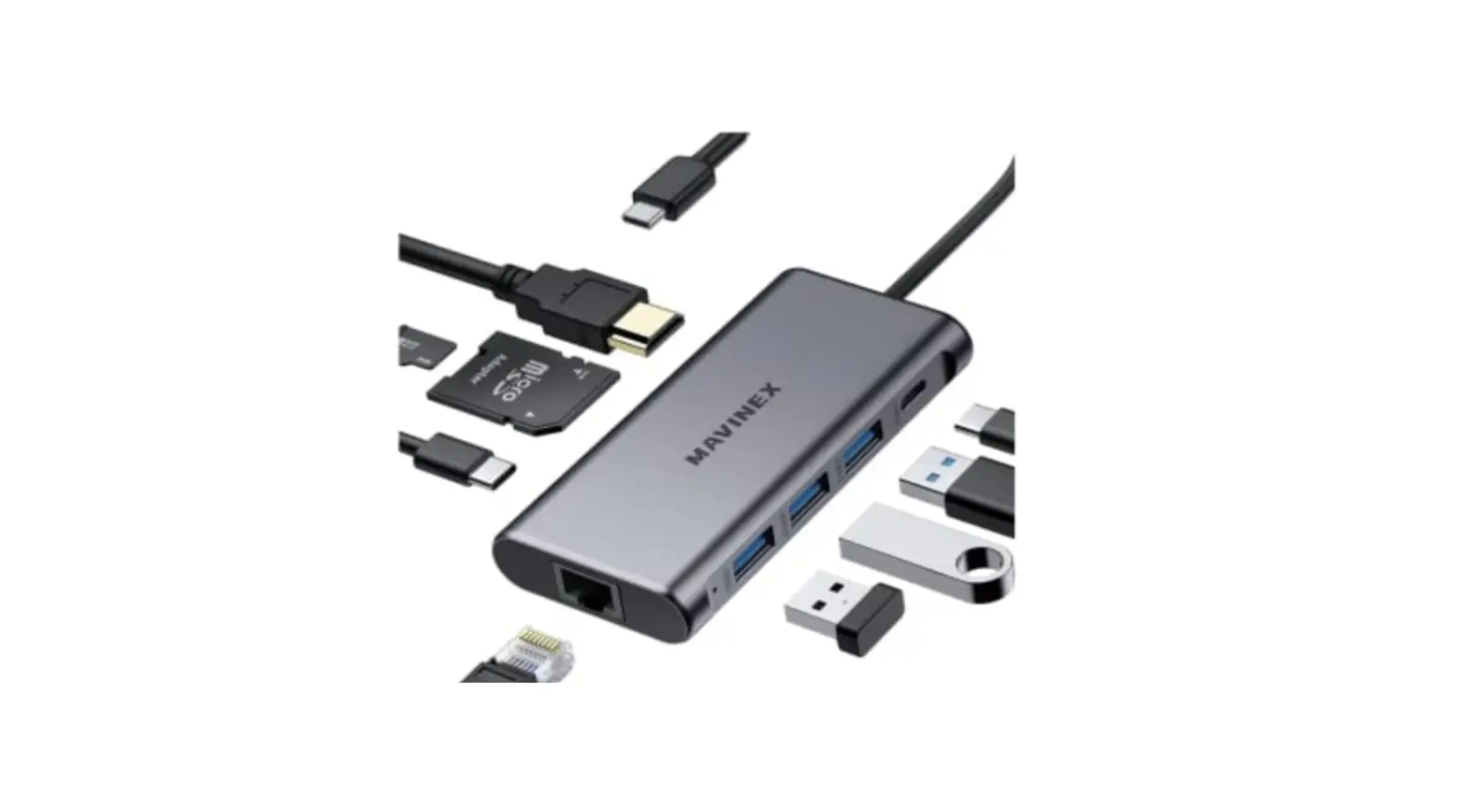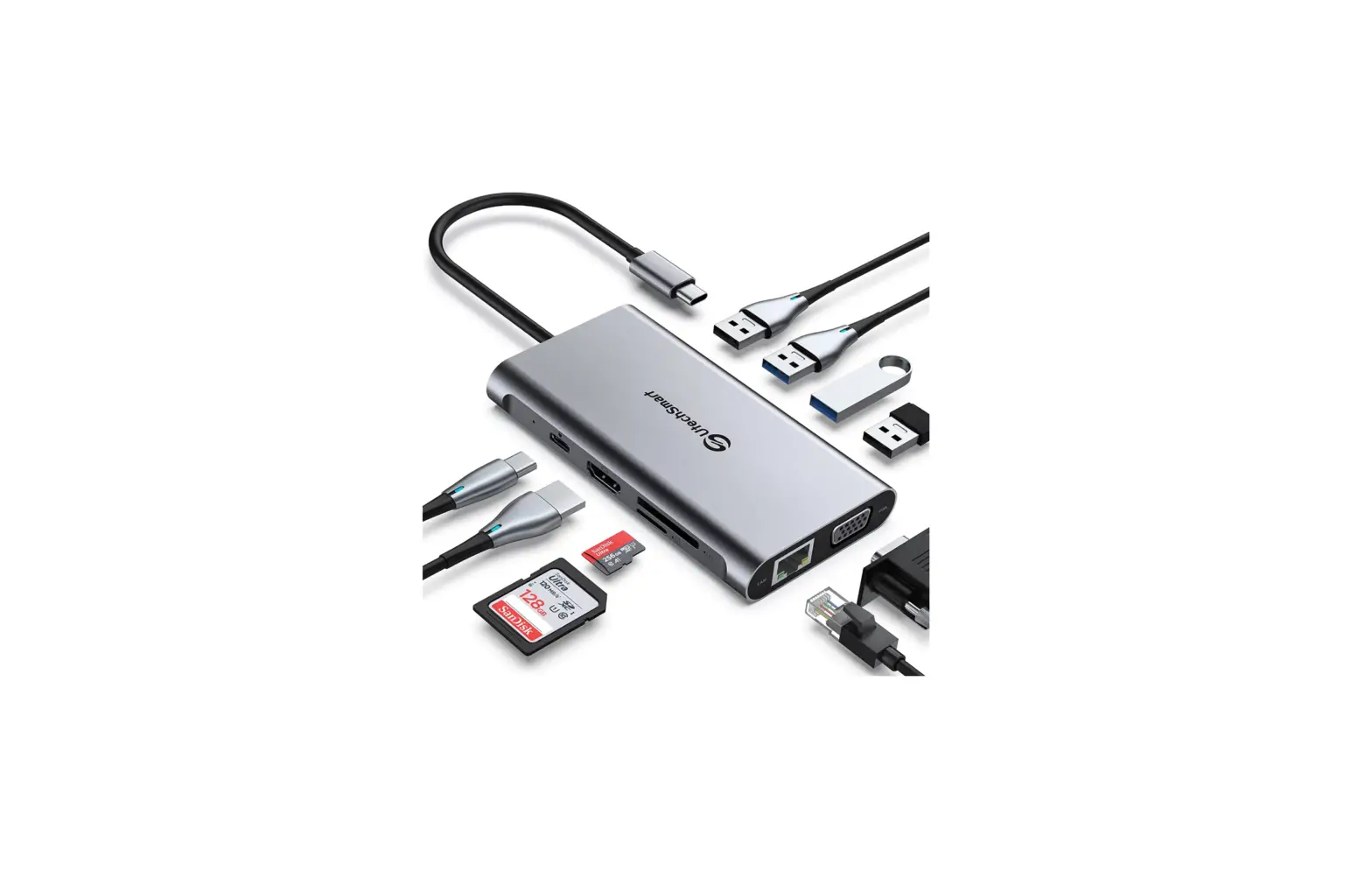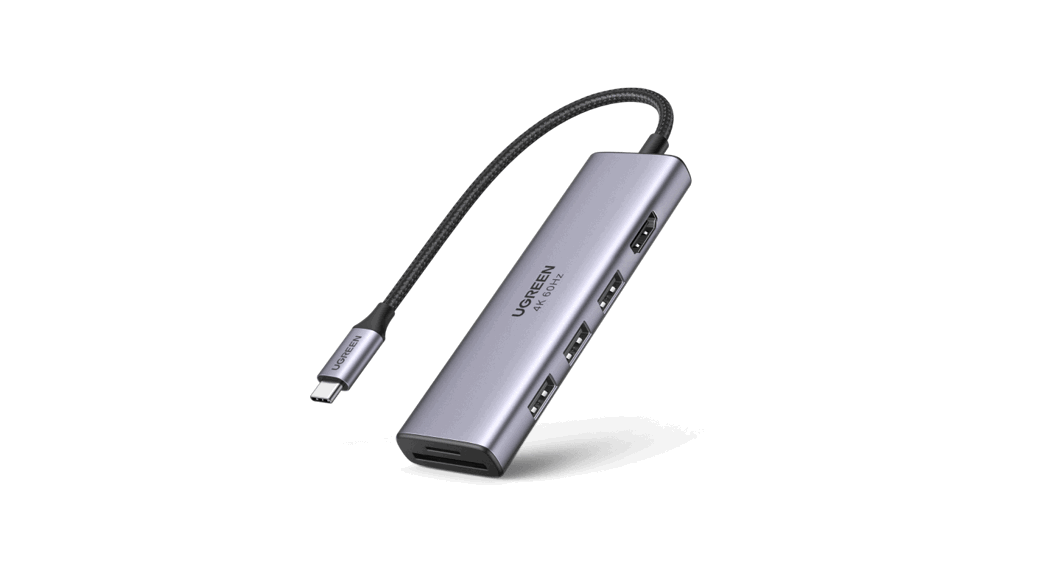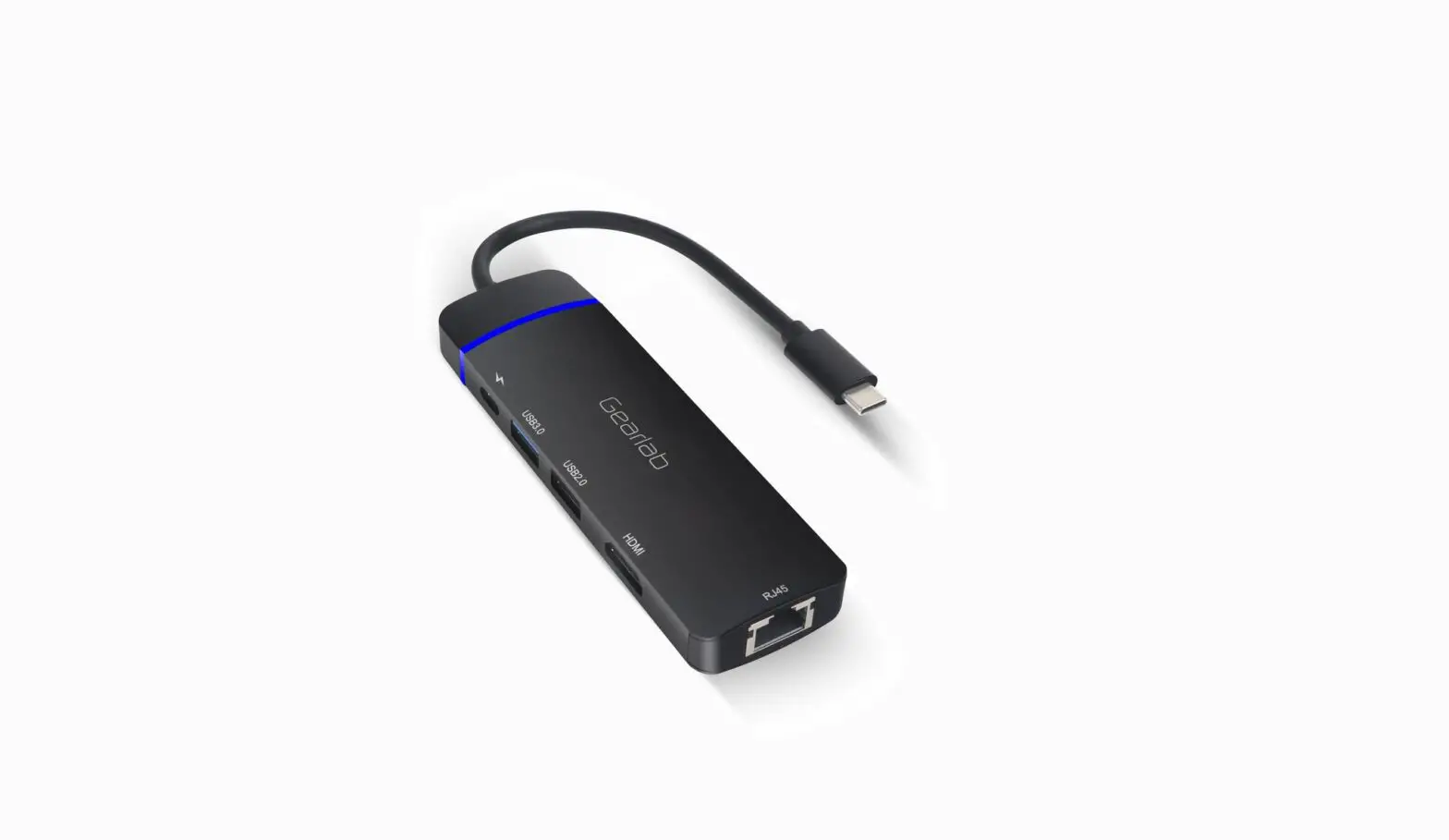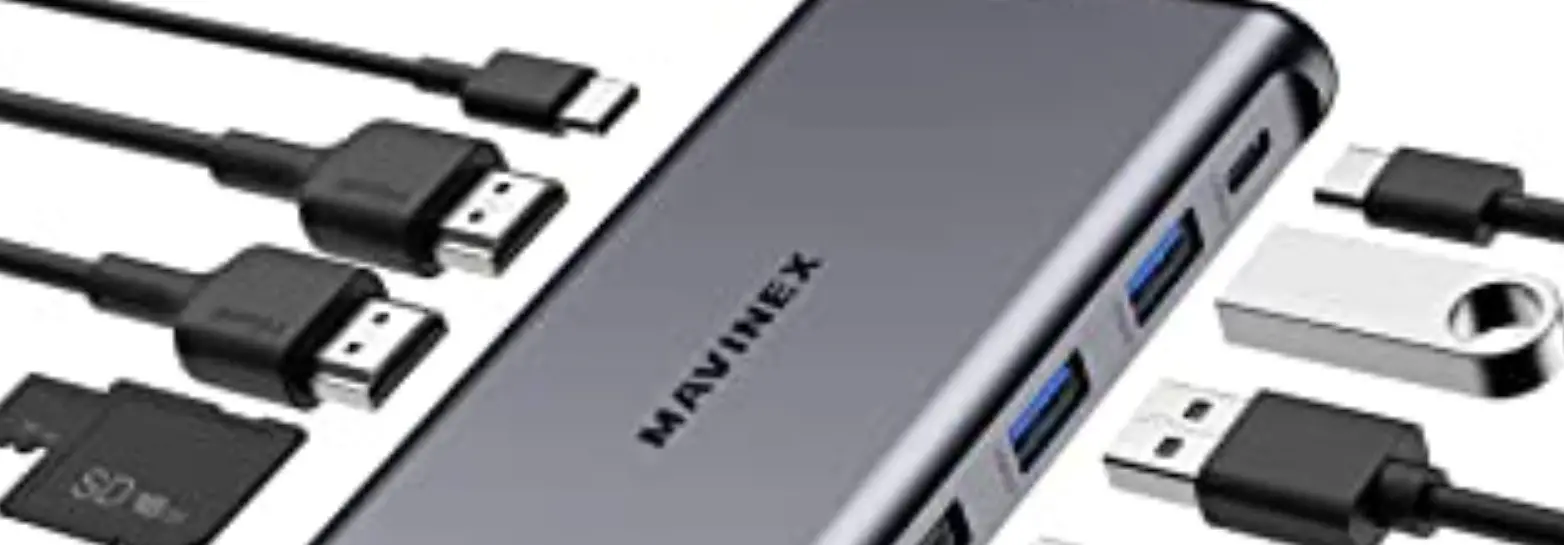

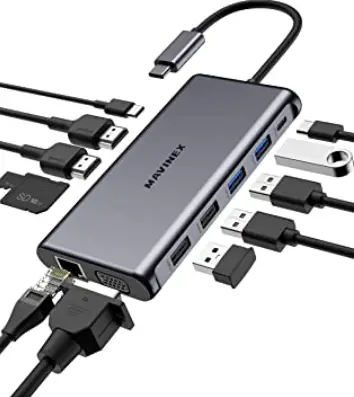
MAVINEX M05 12-in-1 USB-C Hub
 Thank you for purchasing the MAVINEX M05 12-in-1 USB-C Hub. Please read this user manual carefully and keep it for future reference. If you need any assistance, please contact our support team with your product model number and Amazon order number.
Package Contents
- 12-in-1 USB-C Hub
- User Manual
- Warranty Card
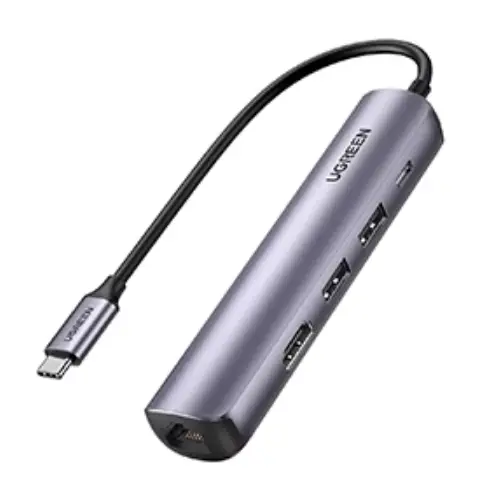
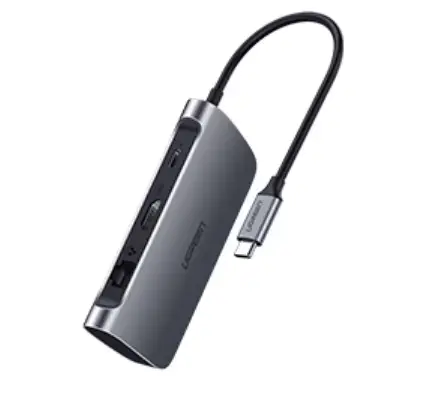
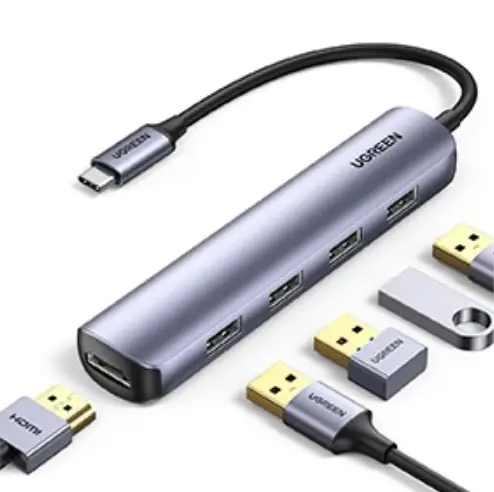
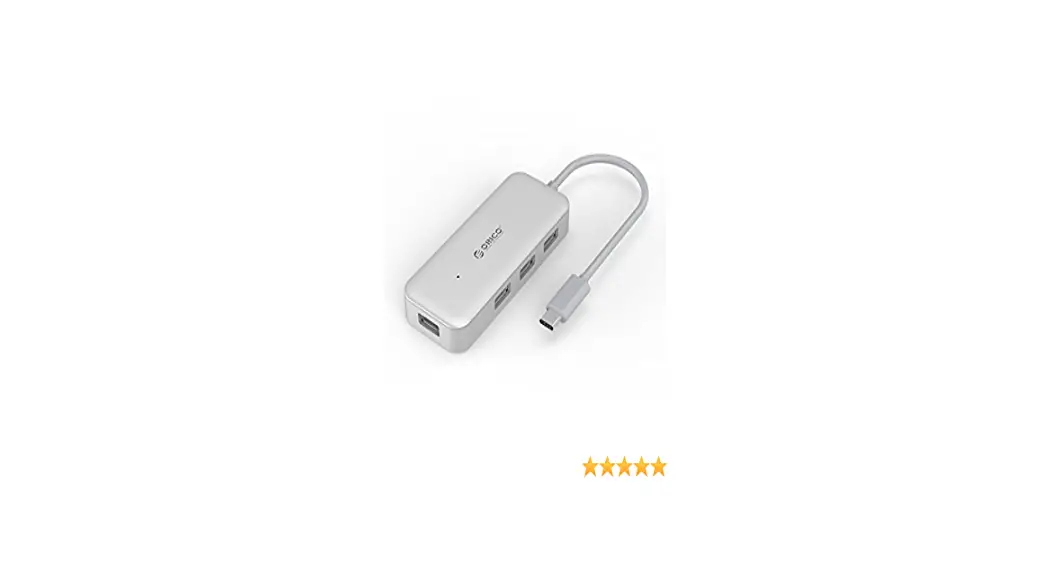
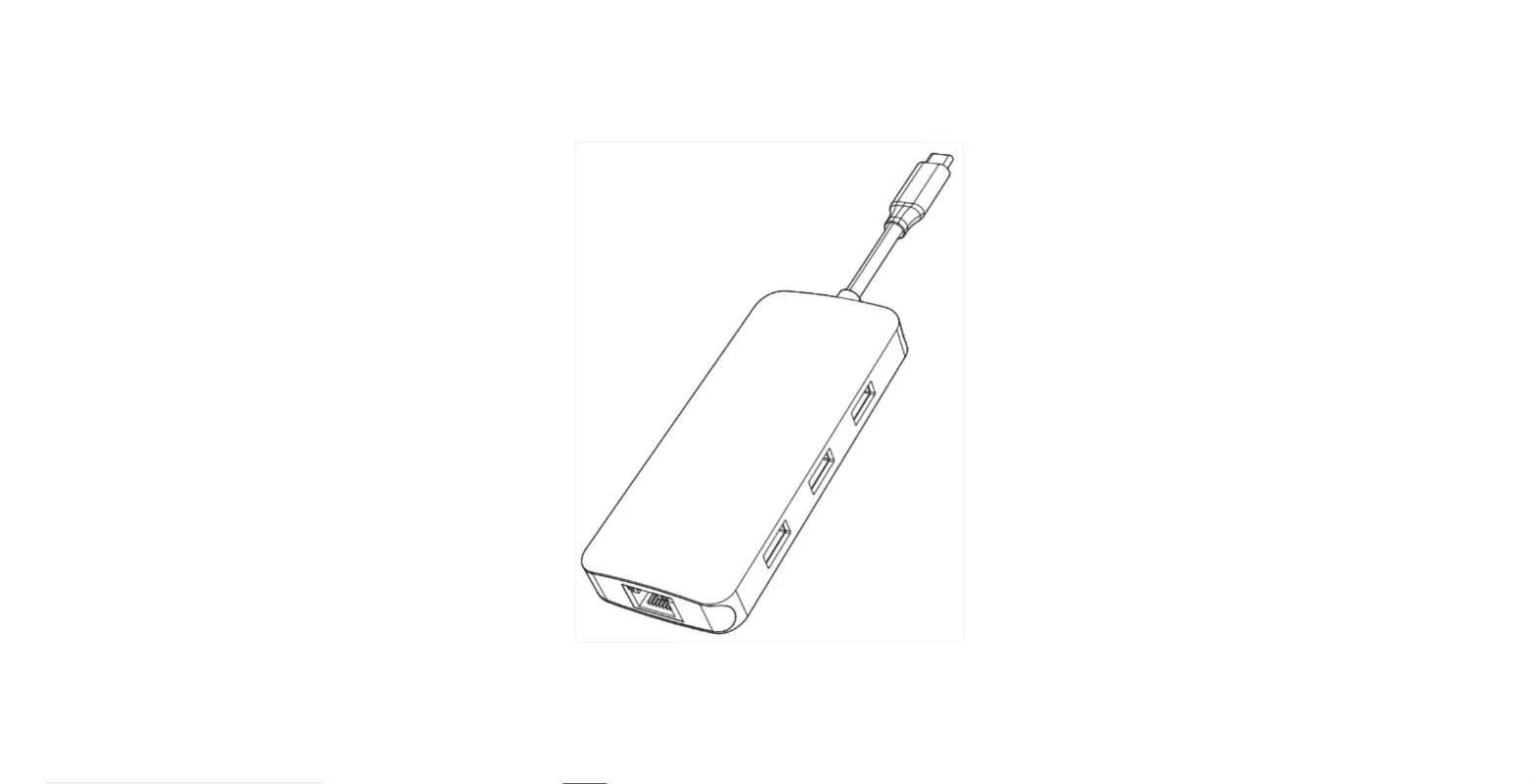
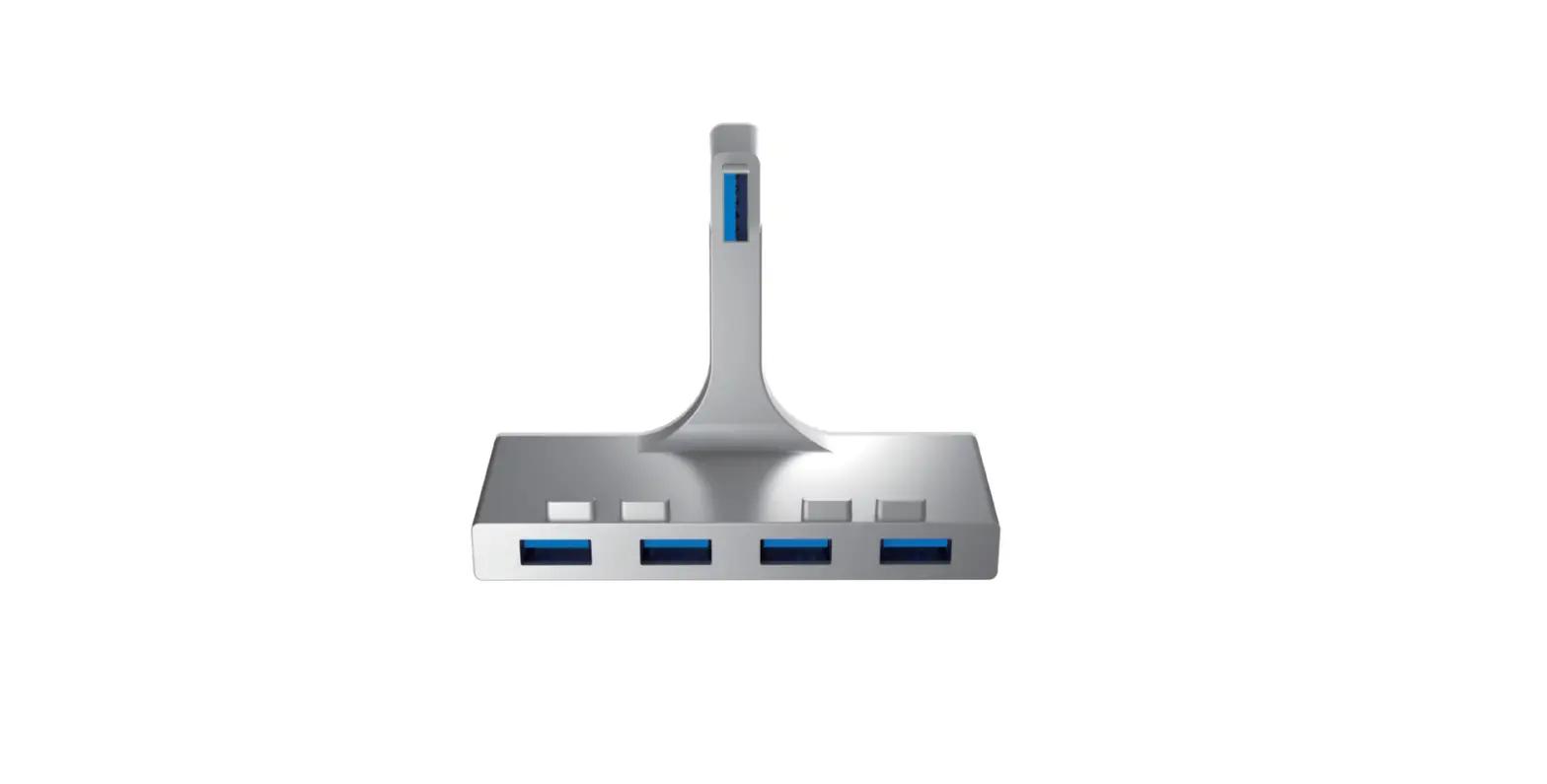
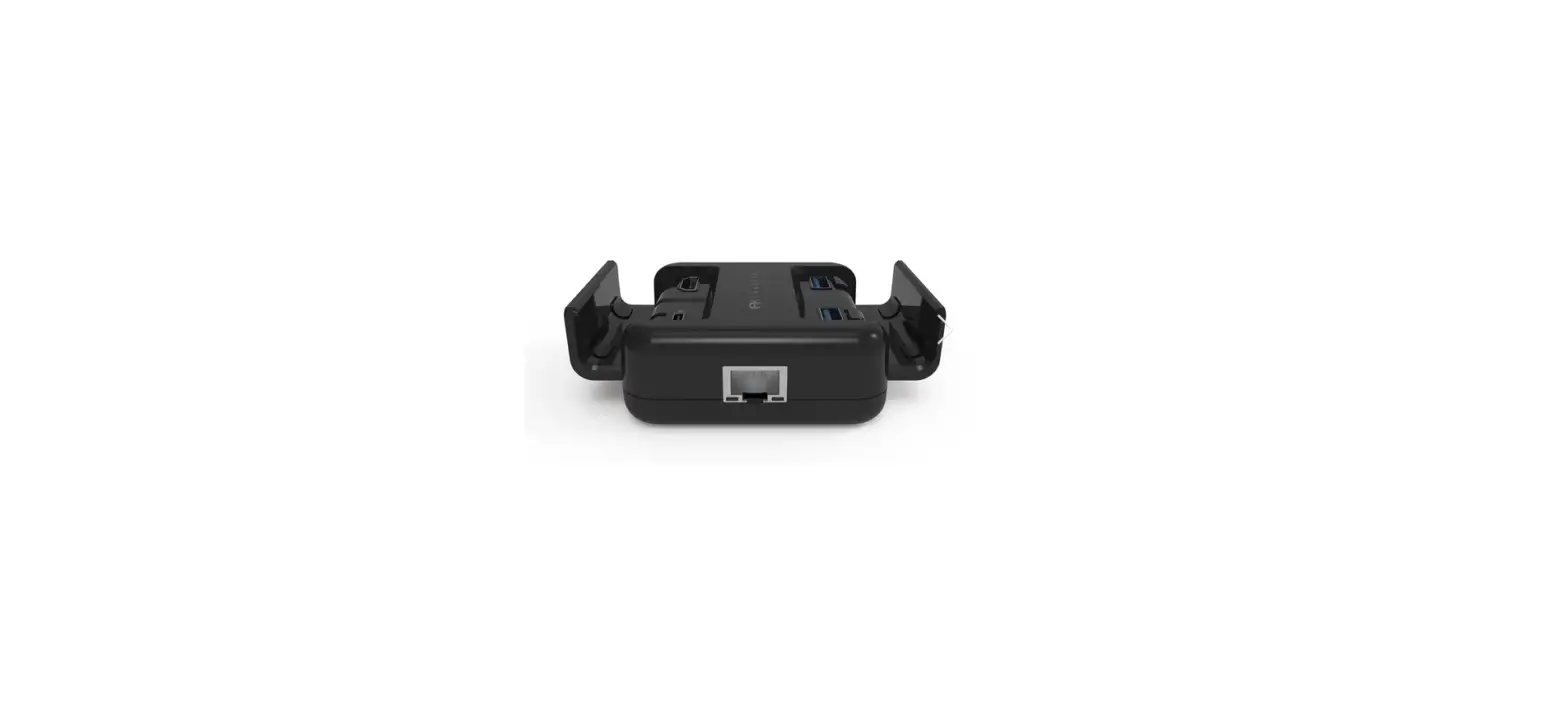
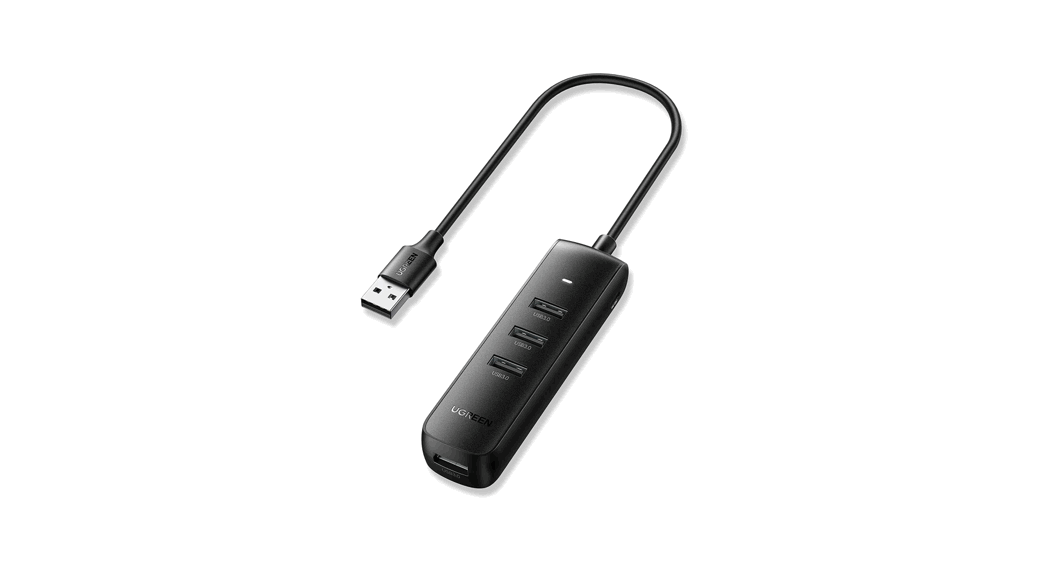
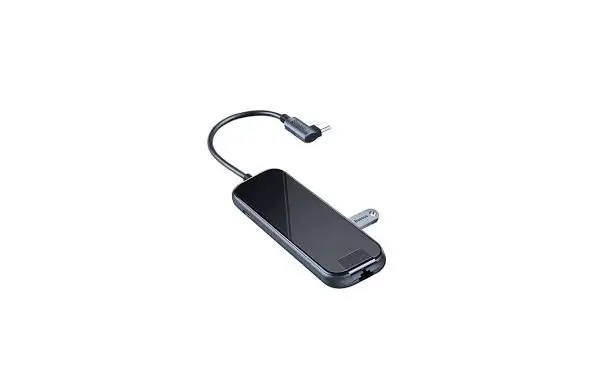
Product Diagram
Gigabit Ethernet Port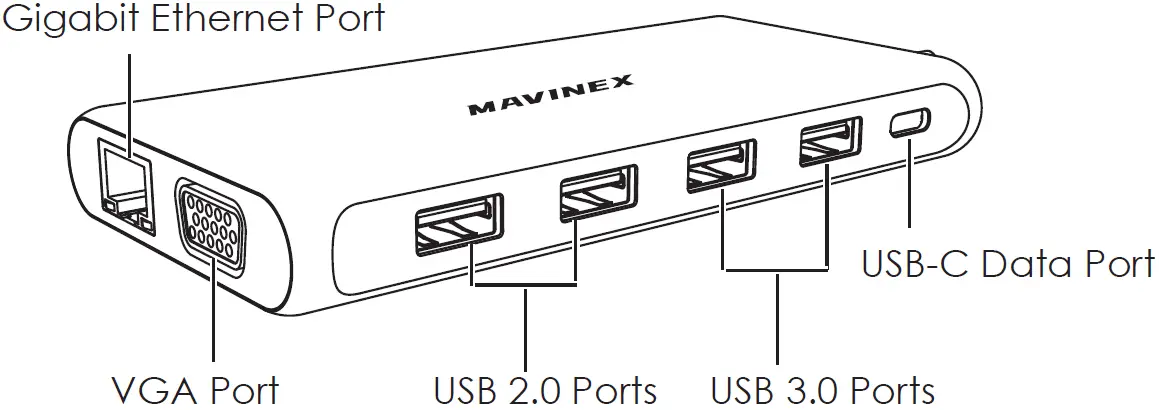
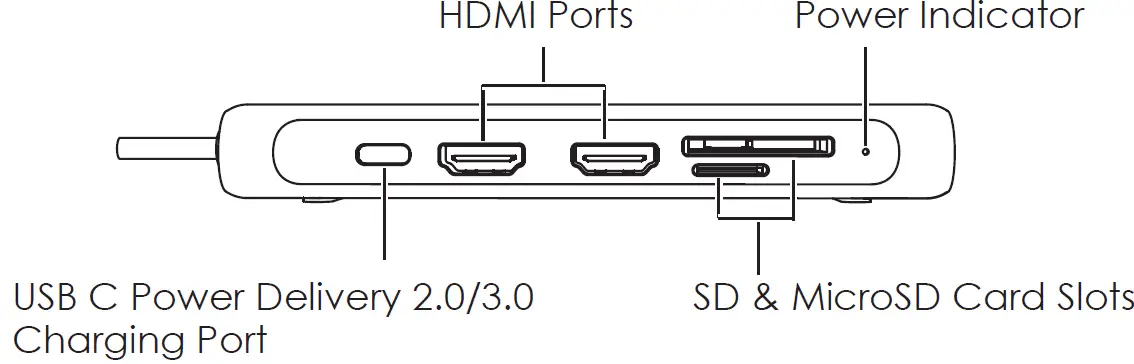
Specifications
| Model | M05 |
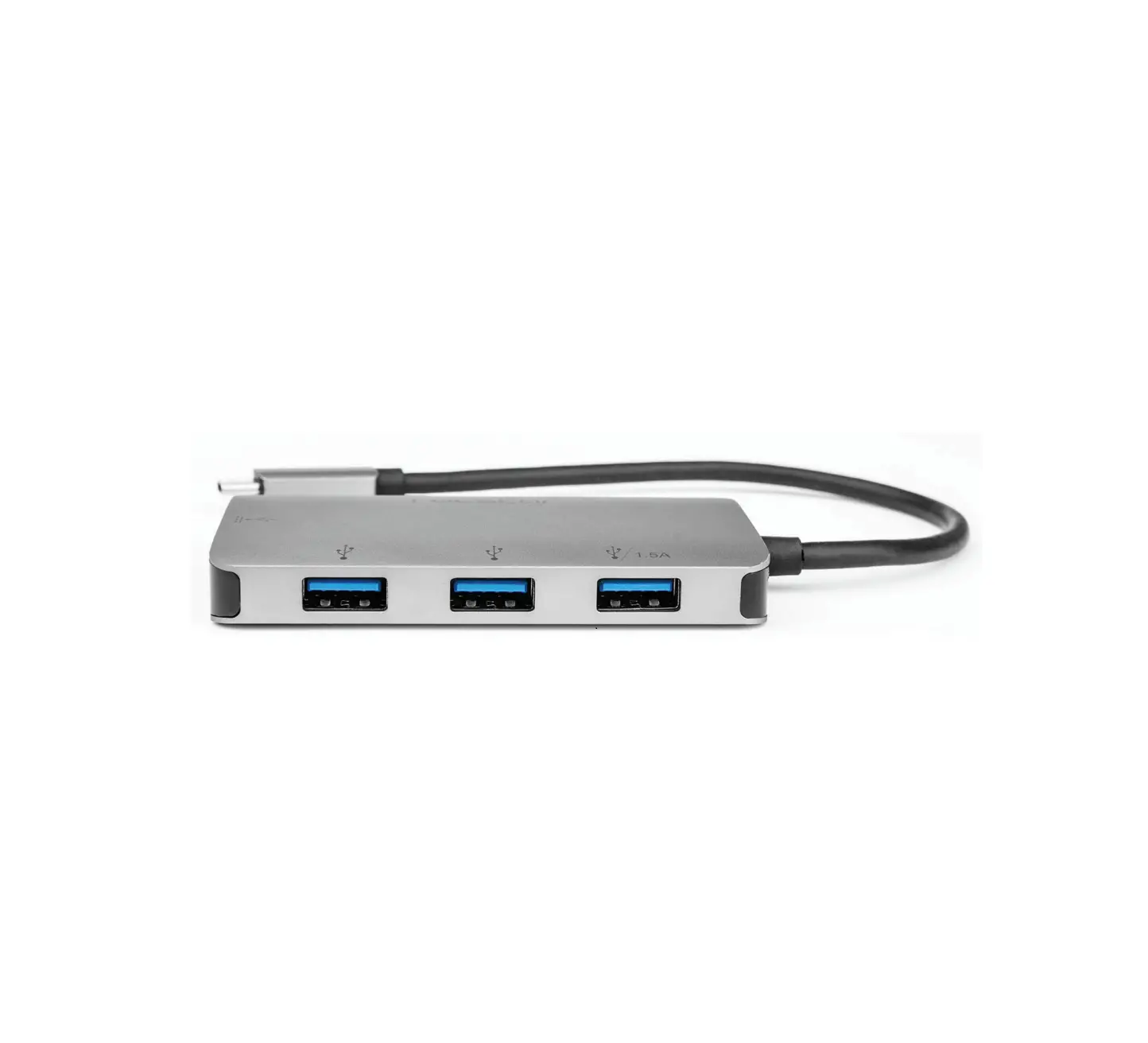
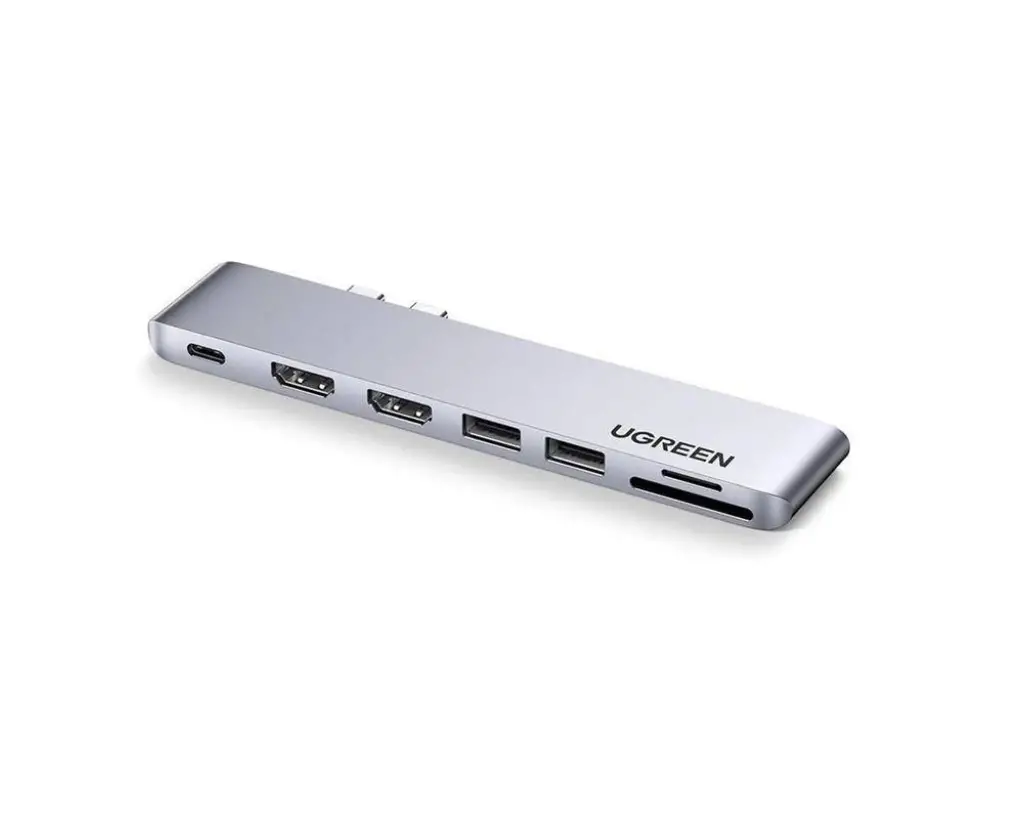
| Interfaces | 2 USB 3.0 ports 2 USB 2.0 ports USB-C data port USB C Power Delivery 2.0/3.0 Charging port 2 HDMI ports VGA port Gigabit Ethernet port SD & MicroSD card slots |
| Connector | USB-C |
| USB Power Delivery Input | DC 20V 5A (up to 100W) |
| USB 3.0 Data Transfer Speed | Up to 5Gbps |
| USB 2.0 Data Transfer Speed | Up to 480Mbps |
| HDMI Display Resolution | Up to 4K@30Hz |
| VGA Display Resolution | Up to 1080p@60Hz |
| Supported Network Speeds | 10/100/1000Mbps |
| Material | Aluminum alloy |
| Cable Length | 200mm / 7.87” |
| Dimensions | 127 x 62 x 17mm / 5” x 2.45” x 0.65” |
| Weight | 123g / 4.34oz |
Getting Started
- Plug the hub into a laptop USB-C port. The power indicator will light up white
- Connect the hub to a wall outlet with the USB-C power adapter and USB-C to C cable that came with your laptop
- Connect your memory cards, USB devices (like mouse, keyboard, flash drive), HDMI displays, VGA display, and Ethernet cable to the hub
Product Care & Use
- Connect this hub to your host device first before connecting other devices to the hub
- Use your laptop’s original power adapter to charge your laptop via the USB C Power Delivery 2.0/3.0 Charging Port on this hub
- When connecting an external hard drive or multiple devices to this hub, connect your laptop’s power adapter to the USB C Power Delivery 2.0/3.0 Charging Port first because your host device may not deliver the required power
- Only one external hard drive can be connected to this hub
- When the power adapter is connected or disconnected, the connected USB devices will be disconnected for a few seconds. To prevent data corruption or loss, avoid connecting or disconnecting your power adapter while transferring data
- The maximum current output of each USB 3.0 data port is 900mA, and of each USB 2.0 data port is 500mAh. These ports are not recommended for charging due to lower output
- USB 3.0 ports may interfere with 2.4GHz wireless devices (like wireless mice and keyboards)
- Keep away from liquids and extreme heat
Warranty & Customer Support
For questions, support, or warranty claims, contact us at the address below that corresponds with your region. Please include your Amazon order number and product model number.
Amazon US orders: [email protected]
- Please note, MAVINEX can only provide after sales service for products purchased directly from MAVINEX. If you have purchased from a different seller, please contact them directly for service or warranty issues.
 MAVINEX