Quick Start Guide
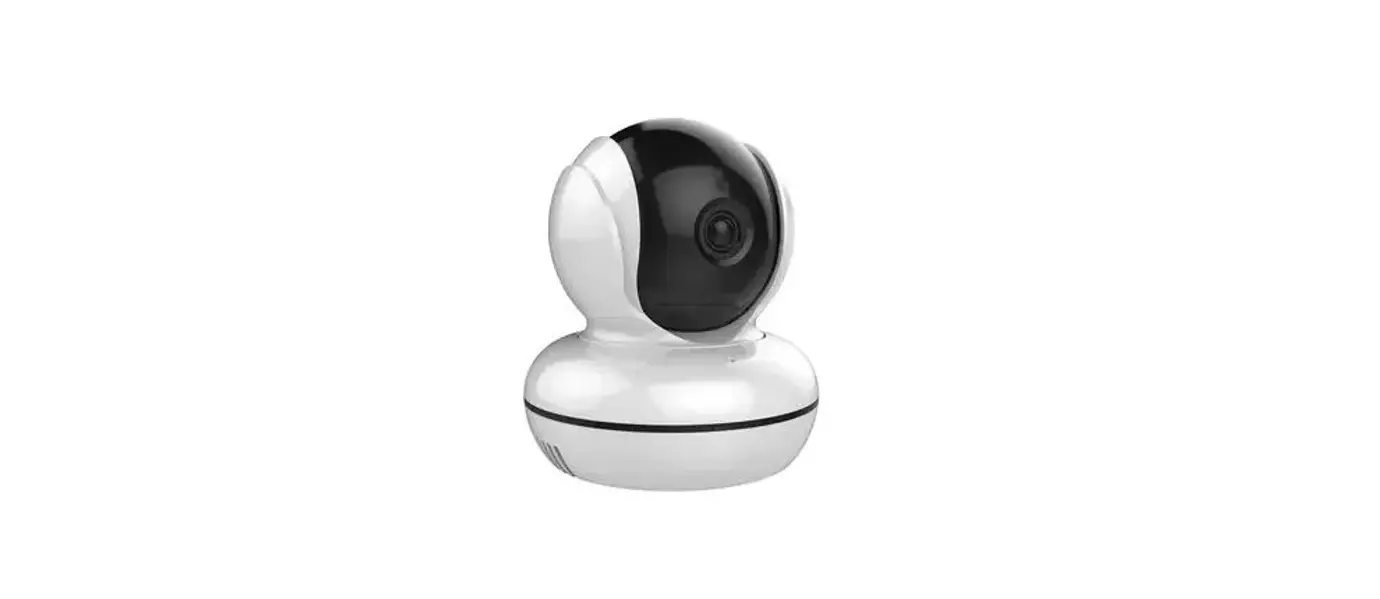
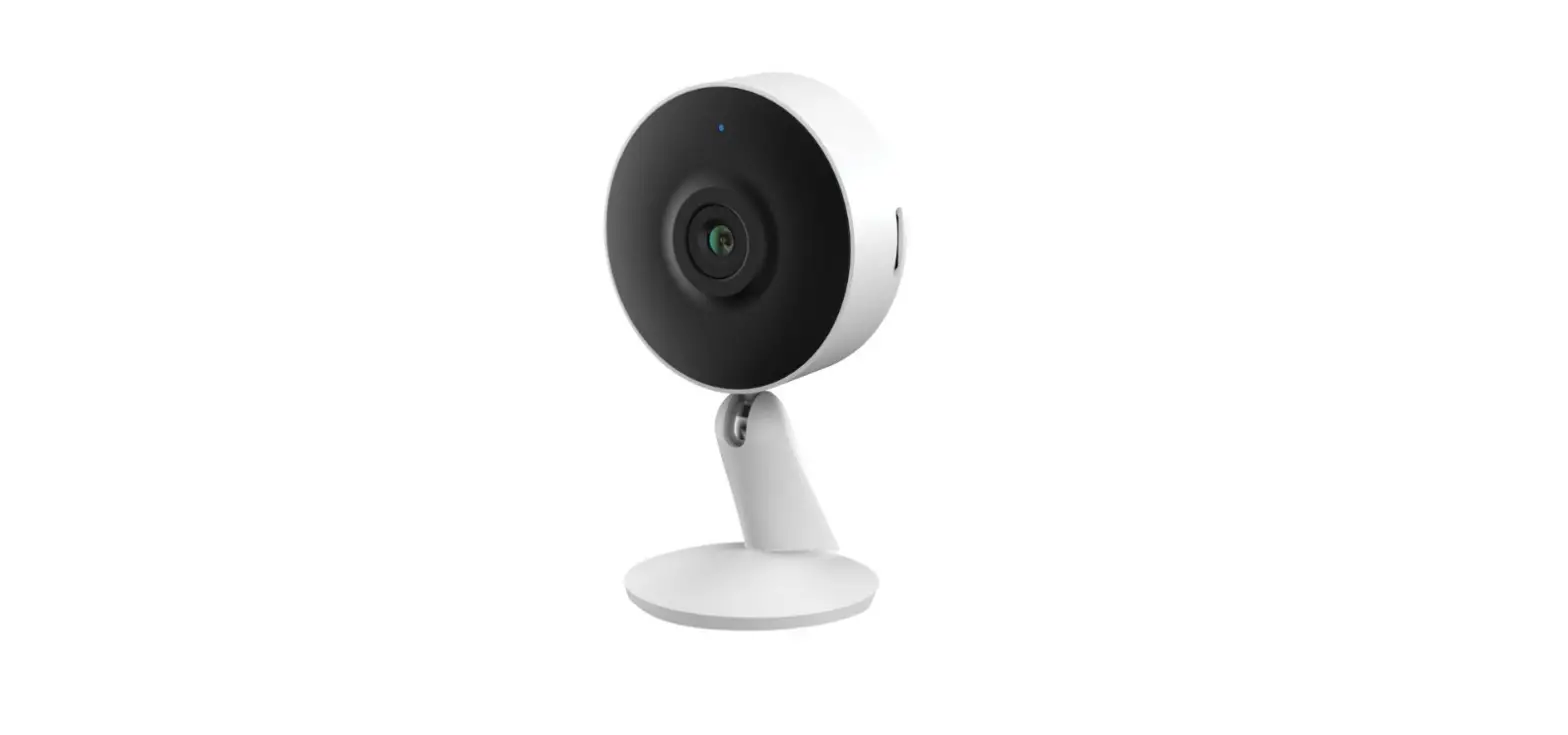
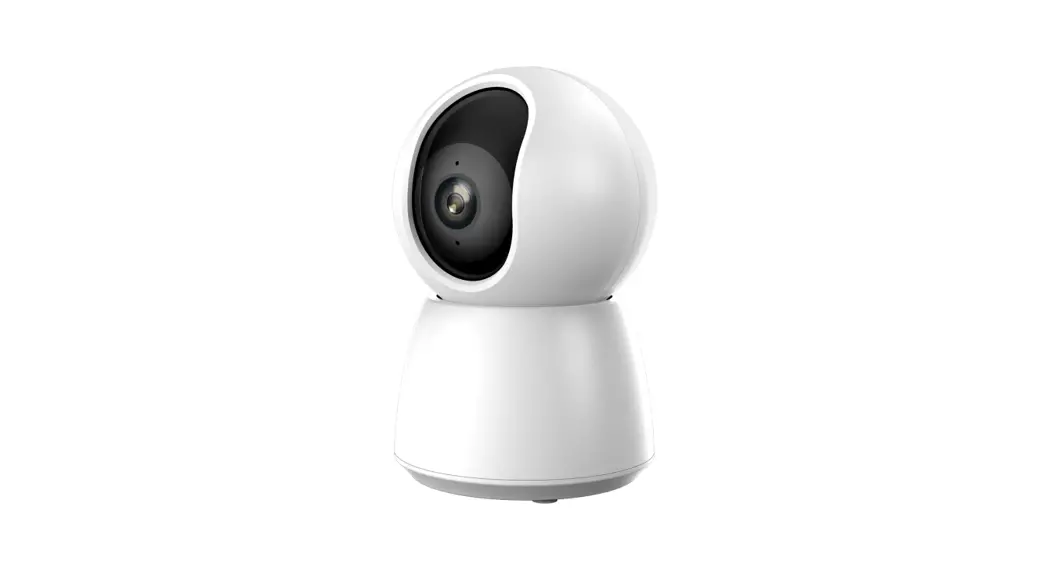
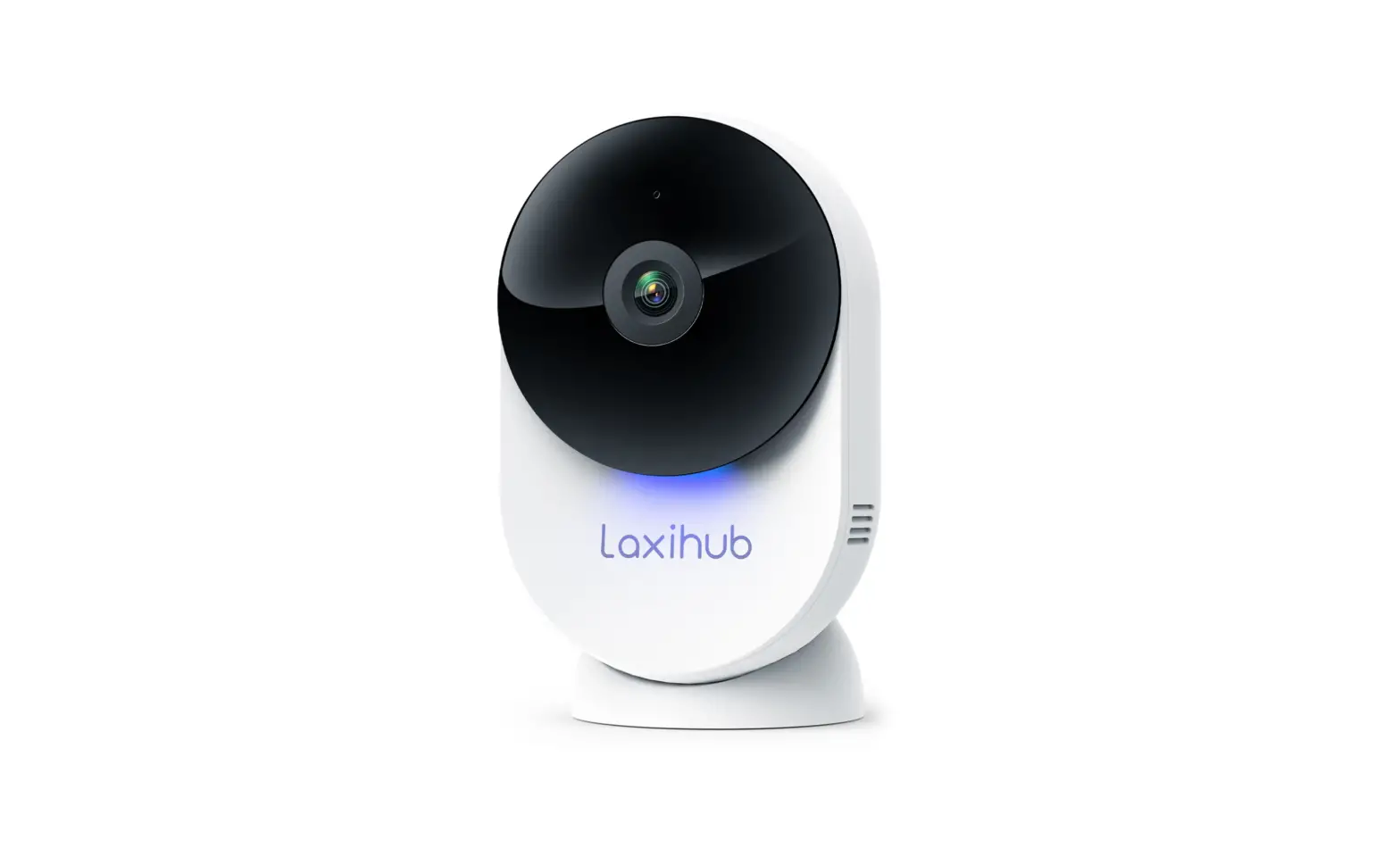
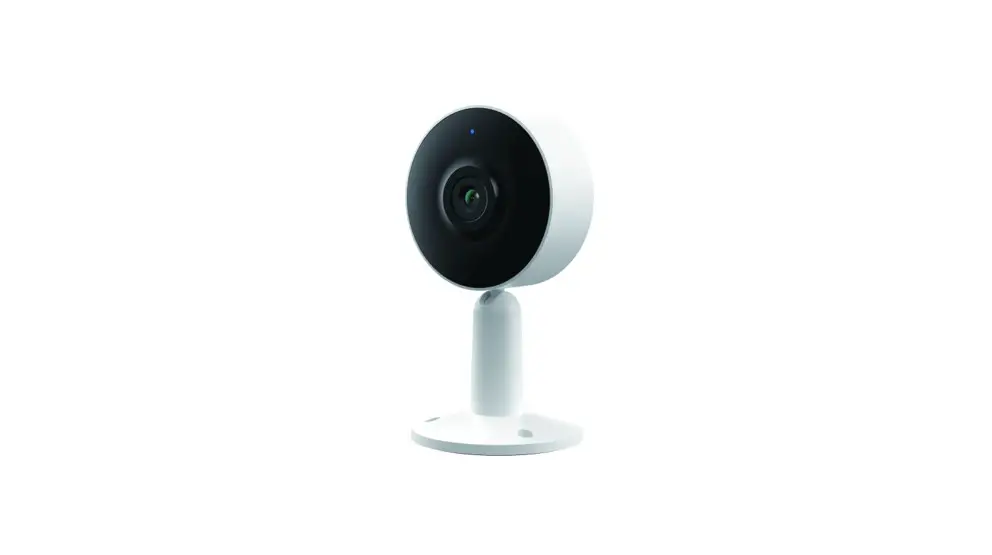
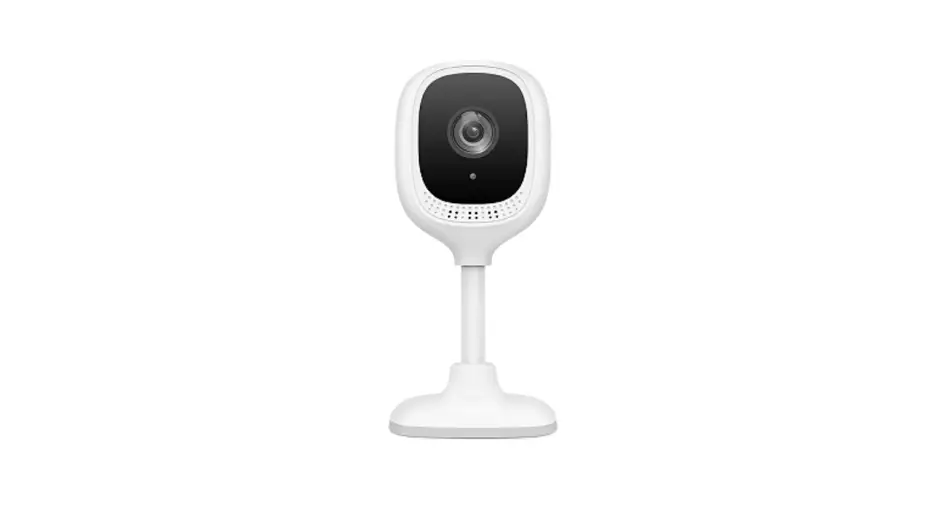
FULL HD Wi-Fi INDOOR CAMERA
Model: E96F
KEYCODE: 42988267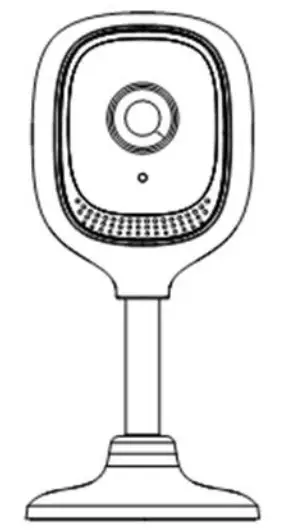
Welcome, Thank you for choosing our smart camera, getting started is easy.
What’s included
|  | 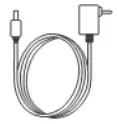 Power Adapter Power Adapter |  |
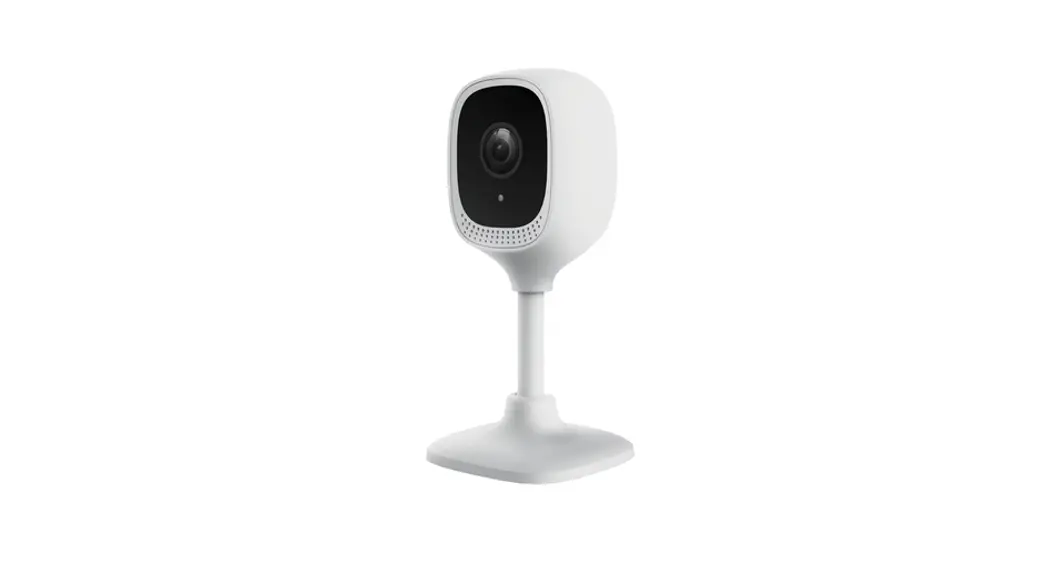
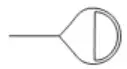
| Security camera | Reset Needle | double-sided Tape |
Product Details
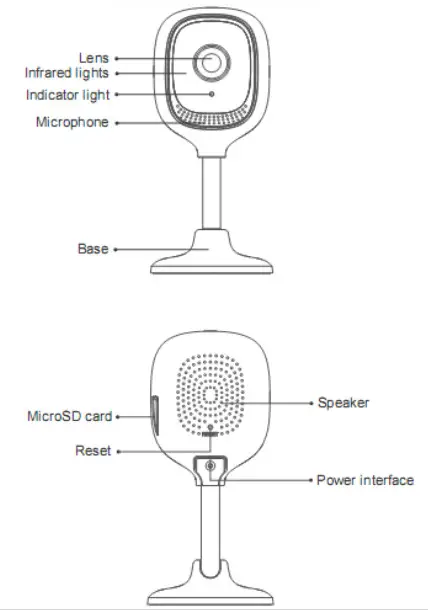
Connection Preparation
It is important that your phone is connected to 2.4Ghz Wi-Fi and not to the 5GHz network.
To verify your mobile device is set to a 2.4Ghz Wi-Fi network, navigate to the Settings menu and click on Wi-Fi. In this menu, you will see all the detectable networks in your area. Locate the SSID (the name of your network), and ensure that the Wi-Fi SSID does not end with a 5G / 5GHz.
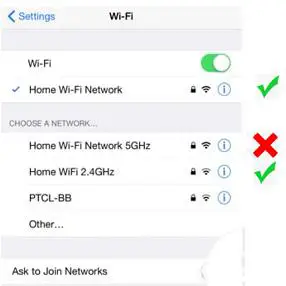
Check you have a strong WI-FI signal (at least two bars) in the location where the smart camera is to be installed.
If you don’t have at least two bars signal on your phone, then you may need to reconsider relocating the camera to a different location or obtain a Wi-Fi extender to boost the WI-FI signal strength.
Install the APP and register Account
For the best experience, download the “Mirabella Genio” APP to your smartphone from the App Store or Google Play, or you can also scan the QR code below, the Genio APP icon will be displayed after it has been installed successfully.
 http://www.mirabellagenio.com.au/smartapp
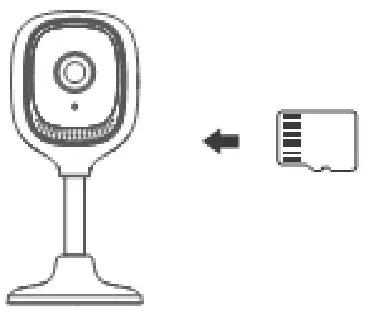
Insert the Micro SD card (Micro SD card not included)
The camera is able to work without a Micro SD card but it will not able to record any footage without a Micro SD card.
Micro SD card slot is located on the side of the camera, carefully insert the Micro SD card in the correct direction. Do not force it inside.
Micro SD card size needs to be greater than 8GB, Supports up to Max of 128Gb.
Pairing the camera using Mirabella Genio App
- Connect the power to the camera using the supplied DC 5V 1A power adapter then switch it on.
- Wait for 30-40 seconds, the indicator light will start blinking rapidly in RED (2 blinks per second) – The camera is now ready to pair.
- Launch the Mirabella Genio APP, then tap on “+” symbol, then choose
Security & Sensor, and select your camera from the menu.
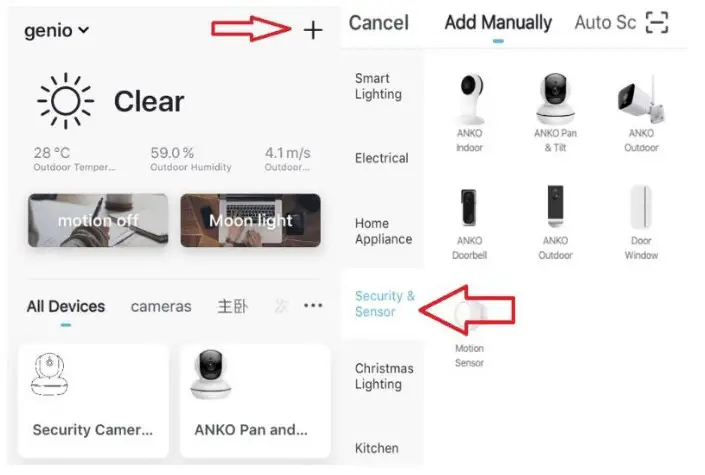
Follow the APP’s instructions carefully to complete the network pairing process.
Video instructions of the full pairing process are available at www.mirabellagenio.com.au If after scanning the QR code the indicator light changes from blinking Red to blinking Blue but fails to become a solid Blue, or if you have received a time out and/or device not found error, this is an indication of a communication error with the router, Please ensure
- That you have manually disabled the 5Ghz WIFI signal on the router setting.
- Make sure you enter the correct 2.4Ghz Wi-Fi name and password
If the led indicator light is not red and blinking rapidly when turned on (2 blinks per second), power off the camera, wait for 10 sec, power on and hold the reset button until the light starts to blink red rapidly and repeat the pairing process again.
Camera usage Tips (interface may change with software update) Tap on the pencil icon to access the camera’s settings page
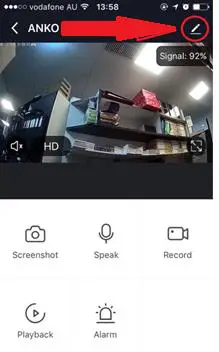 |  To take a snapshot of the screen and save it to phone’s camera roll To take a snapshot of the screen and save it to phone’s camera roll Tap to speak to the camera
|

 Access to the footage recorded on the Micro SD card
 To turn the motion detection alarm on / off
 To turn sound on/ off
 To change video quality, high definition or standard definition
 To access to camera’s settings page
 To switch to full-screen view mode
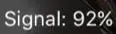 : Wi-Fi signal, if the signal is less than 60% you should consider changing the location or boost the Wi-Fi Signal using a Wi-Fi extender
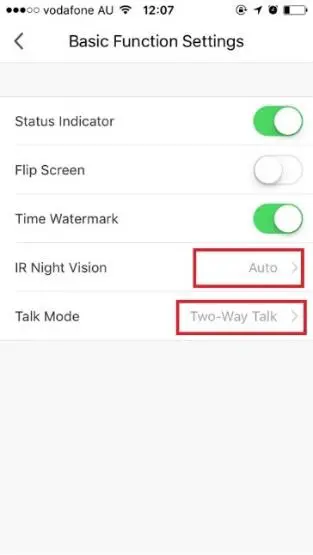
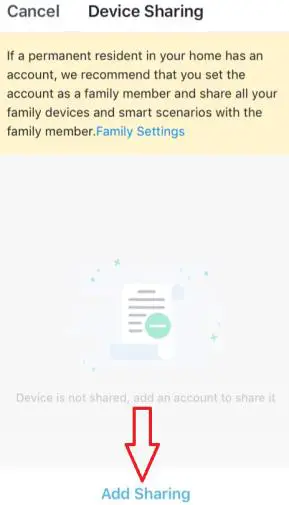
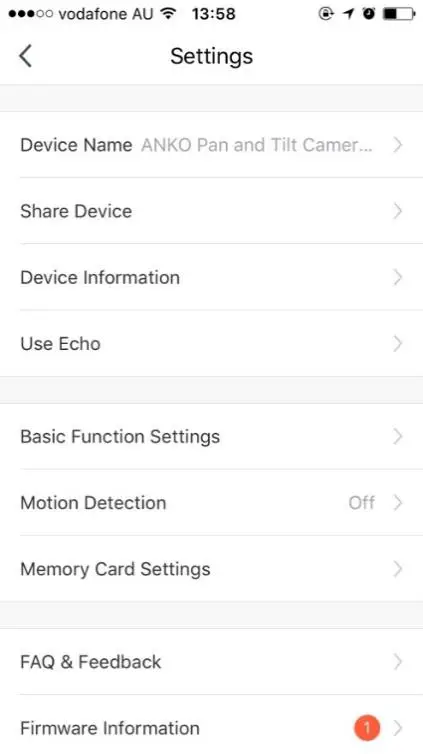 | Share Device: if you wish to share or remove sharing this camera with another genio APP user Device information: details information for this camera, owner information, Virtual ID, IP address, etc Use Echo: instruction on how to use with Amazon Alexa Basic Function Settings: Please ensure IR Night Vision is on Auto, and Talk Mode is on two-way talk Motion Detection: On/Off and detection sensitivity level setting Memory Card Settings: This will only appear when an 8GB-128GB Micro SD card is inserted Firmware information: When new firmware is released for this camera you will see this notification icon. Remove Device: Remove the device from the current account so you can repair it again or pair under a different account/router |
 |  |
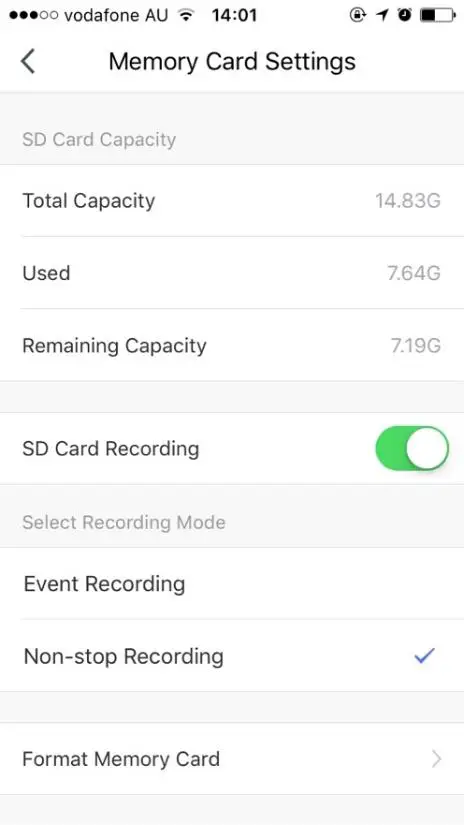 | SD Card Recording: This option must be turned on if you want to record footage onto an SD card and view it in playback mode Event recording: Only records if it detects movement, motion detection option must be on at the same time for it to work Non-stop Recording: The camera will start to record 24/7, when the SD card is full, the new footage will automatically overwrite the old footage without end-user action Format Memory card: Delete all content on the SD card and format the SD card into FAT32 format |
We recommend using Scandisk, Verbatim, Kingston, Samsung – Class 10 high-speed micro SD for best performance, When using non-stop recording a 32GB card can record up to 6 days of footage. Event recording can record up to 4 weeks of footage. | |
Remember the performance of a Wi-Fi camera relies heavily on the performance of your router, before considering buying a new router or Wi-Fi extender.
If you are using Telstra NBN or a dual-band router, you must disable the 5GHz Wi-Fi in order to make a successful connection and for best overall performance, as MOST smart products in Australia only work on the 2.4Ghz signal.
FAQ:
How to connect the camera to another router/genio account?
Go to the camera’ settings page, look for “remove device” Remove it and reset the camera, and pair it again through the APP.
Poor performance, take a long time to load the live footage?
Please check the Wi-Fi signal, if it is less than 60%, you will need to consider changing the camera location or purchasing a Wi-Fi extender to boost the signal.
The camera goes offline and doesn’t reconnect back after a power failure?
Go to the camera’ settings page, look for “remove device” Remove it and reset the camera, and pair it again through the APP.
Receive the Cannot find Device error?
Ensure the camera is in a location with strong Wi-Fi signal coverage
Manually disable the 5Ghz Wi-Fi signal on the router setting
Ensure that the 2.4Ghz Wi-Fi signal is on.
Ensure the indicator light is blinking RED rapidly as per the APP screen (2 blinks per second)
Please check you have entered the correct 2.4Ghz Wi-Fi SSID and password
I am using Telstra NBN, I disabled the 5Ghz and I still cannot get it to pair?
Please follow the Guest Network paring instructions on https://mirabellagenio.net.au/faqs
If you have done all of the above, ensuring that the 5Ghz is disabled and the light changed from blinking red to blinking blue, but failed to become a solid blue, then your modem could be incompatible with a smart device.

All trademarks are used for reference purposes only. Made in China
ANKO, HOME&CO, AND AUDIOSONIC® ARE TRADEMARKS OF KMART AUSTRALIA LIMITED.
MIRABELLA INTERNATIONAL PTY LTD
1 MIRABELLA DRIVE, TULLMARINE, VIC, AUSTRALIA 3043
TOLL-FREE: 1800 636 528, www.mirabellagenio.com.au