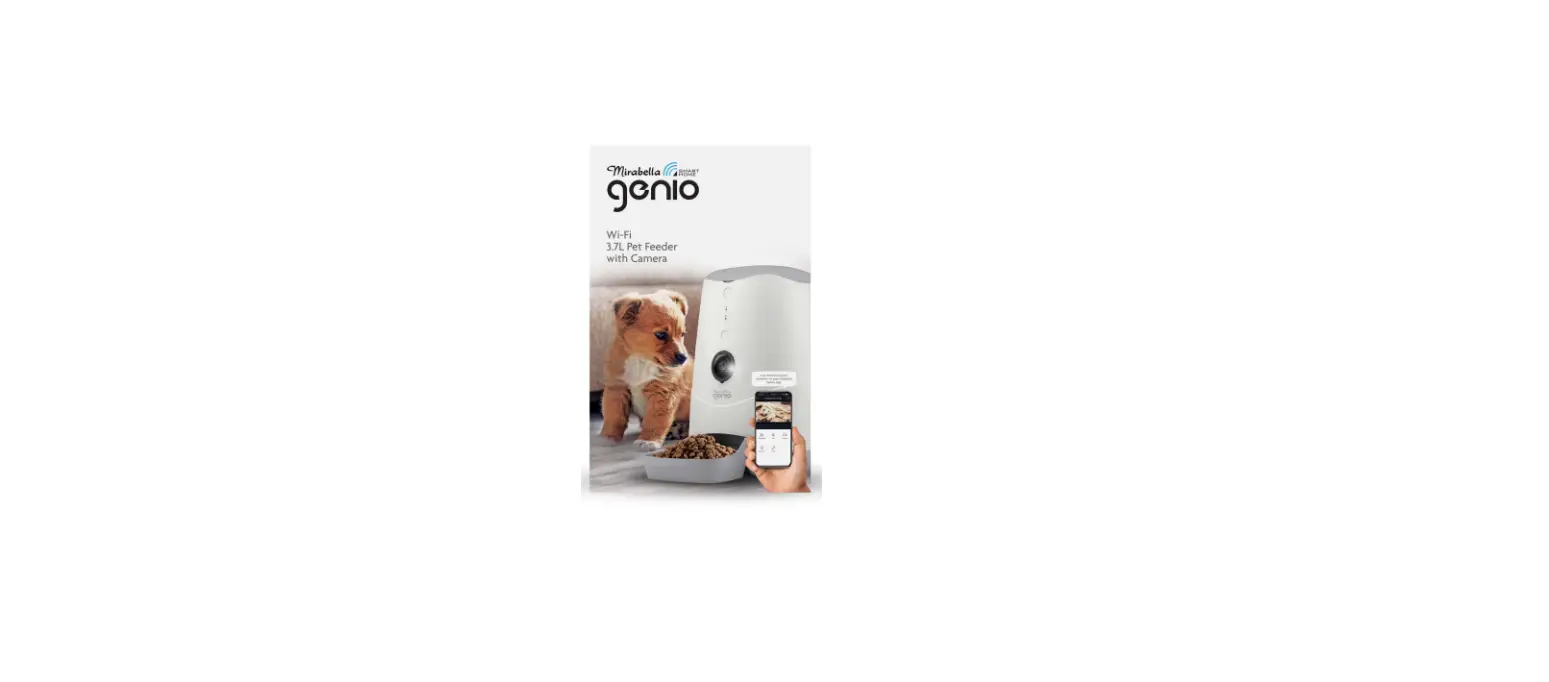
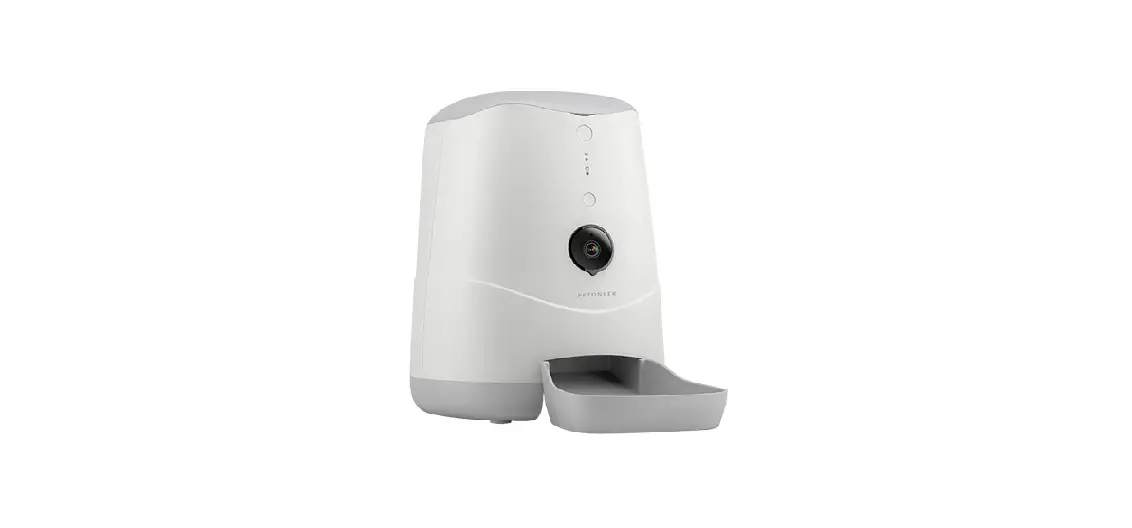
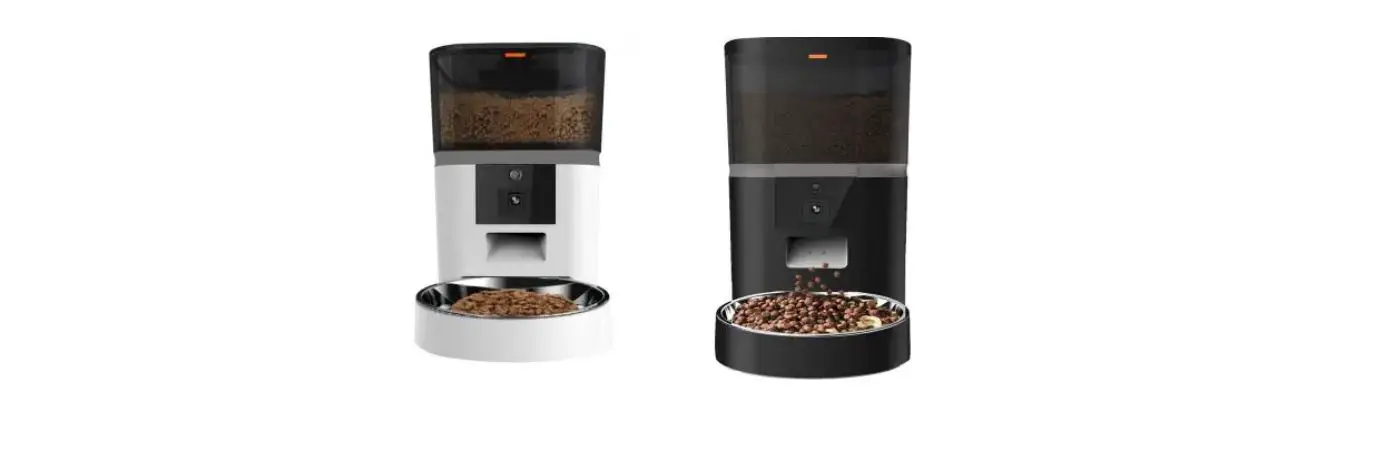
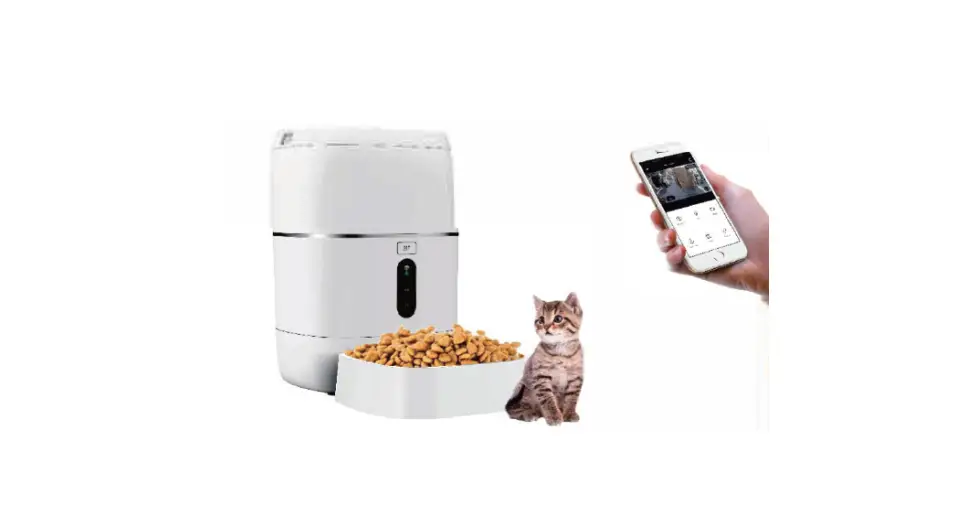
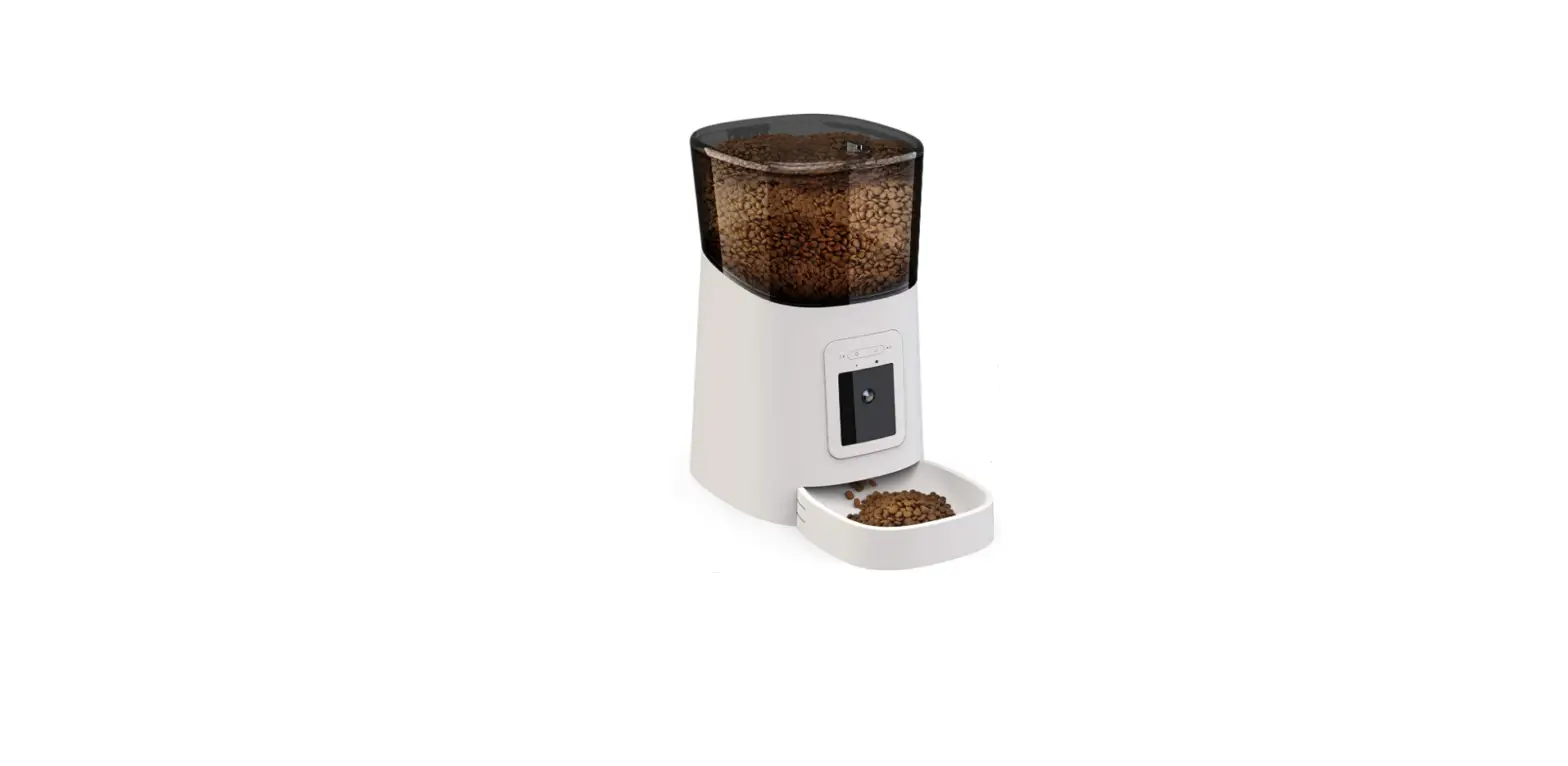
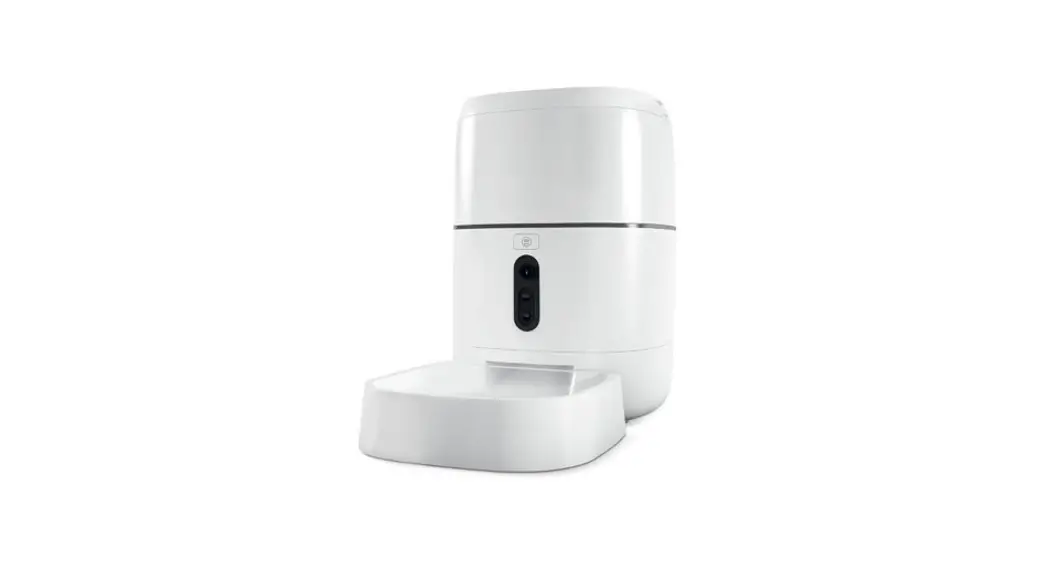
I005002 Genio WiFi 5L Pet Feeder with HD Camera
Product Details
- Product Name: Genio Wi-Fi 5L Pet Feeder with HD Camera
- Model Number: I005002
Indicator Status
- Blue light blinking slowly: Device is in pairing mode, ready to
scan QR code - Blue light steady on: Device is online
- Red light blinking slowly: Food jammed/low battery
- Red light blinking rapidly: Food shortage
- Green light blinking slowly: Pet feeder is powered by backup D
Cell battery
Note: When the pet feeder is powered by the D cell backup
battery, the camera liveview function is disabled to save battery
run time.
Product Usage Instructions
1. Install the APP and register Account
For the best experience, download the Mirabella Genio app from
App Store or Google Play. After successful installation, the Genio
app icon will be displayed on your smartphone.
2. Pairing the 5L pet feeder using Mirabella Genio App
- Remove the pet feeder from the box and connect the adaptor to
the pet feeder. Plug the adaptor into your wall socket. - Wait for the indicator light to start blinking blue (blinks
every 3 seconds) along with a startup sound. This indicates that
the feeder has booted up and is ready to be paired. - If the above prompts do not happen after 5 minutes, manually
set your feeder into pairing mode by pressing down the Wi-Fi
pairing button for approximately 10 seconds until the feeder
reboots. - Launch the Mirabella Genio App and tap on the “+” button to add
a device. Choose “Pet Care” and select “Genio 5L Pet Feeder”. - Confirm that the LED indicator light is blinking BLUE slowly,
then tap “confirm”. Enter your home network 2.4GHz Wi-Fi name and
password. Tap “next” and a QR code will appear on your phone
screen. - Place the QR code in front of the feeder’s camera at an
approximate distance of 15-20cm. Hold it steady until you hear a
confirmation beeping sound. The blue indicator light will then
change to a steady solid blue light. - Tap on “Beeped indicator switched” to start connecting your
device. - Once the countdown ends, the pet feeder camera has successfully
been paired to your app.
Manual Feeding
To release the food manually, press and hold the manual feeding
button for 5 seconds.
Pet Feeder Usage Tips
- To take a snapshot and save it to your phone’s camera roll, use
the snapshot feature. - Press and talk to your pet using the built-in microphone and
speaker. - Record live footage into your phone’s internal storage by using
the recording feature. - Set a schedule to feed your pet using the scheduling
feature. - To release food from the food hopper, tap the feed button.
- You can turn on/off the sound, change video quality (HD or SD),
access the pet feeder’s settings page, and switch to full-screen
view mode using the respective buttons on the app interface.
Quick Start Guide
Genio Wi-Fi 5L Pet feeder with HD camera
I005002
1|Page
Product Details
Indicator light
Indicator status Blue light blinking slowly
Blue light steady on Red light blinking slowly Red light blinking rapidly Green Light blinking slowly
What it means Device is in the pairing mode, ready to scan QR code Device is online Food jammed/low battery Food shortage Pet feeder is powered by backup D Cell battery
Note: when the pet feeder is powered by the D cell backup battery, camera liveview function is disabled in order to save the battery run time.
2|Page
1. Install the APP and register Account For the best experience, download the “Mirabella Genio” app to your smartphone from App Store or Google Play, the Genio app icon will be displayed after installed successfully
Safety & Warnings, please read before using the pet feeder
· Only suitable for indoor use. · Do not drop anything other than dry pet food into the food hopper. Failure
to do so may cause malfunction. · It is recommended the pet feeder be placed in a corner or up against a wall. · Please shield or organise the power cord well to prevent your pet from
biting the cable which can cause electric shock. · Do not disassemble or modify the device yourself. · This feeder is only suitable for dry food and is not suitable for wet food. · This feeder is suitable for cats or small to medium-size dogs. · The pet food’s shape and density will cause some deviations from the food
hopper’s capacity and the feeding unit’s quantity. · After each fill-up of the hopper, the portions may be different for the initial
feeding. It is recommended to calibrate the feeder manually. (Click the manual feeding button until food is dispensed). recommmed food size is between 5mm -15mm
3|Page
2. Pairing the 5L pet feeder using Mirabella Genio App Remove the pet feeder from the box, connect the adaptor to the pet feeder and plug adaptor into your wall socket. Wait for the indicator light to commence blinking blue (blinks every 3 seconds) along with a startup sound. Once the feeder has booted up, you will hear a double beep every 10 seconds meaning your device is ready to be paired.
If any of the above prompts do not happen after 5 minutes, you will be required to manually set your feeder into pairing mode. To do this, press down the Wi-Fi pairing button for approx 10 seconds until the feeder reboots.
*Please note, if the pet feeder does not boot up with the start-up sound, is not blinking blue (one blink every 3 seconds) and does not double beep every 10 seconds, it is not in pairing mode and you will be required to repeat step above. Launch the Mirabella Genio APP, tap on +, add device then choose Pet Care, select Genio 5L Pet Feeder
Confirm that the LED indicator light is blinking BLUE slowly, tap “confirm Indicator light Is blinking BLUE slowly”, then tap “next” and enter your home network 2.4GHz Wi-Fi name and password. Tap next and the QR code will appear on your phone screen, place this QR code in front of the camera at an approximate distance of 15-20cm, hold it steady in front of the camera until you hear a confirmation beeping sound, the blue indicator light will then change to steady solid blue light.
4|Page
Tap on “Beeped indicator switched” It will then start to connect your device. (refer to the image below).
Once the countdown ends, the pet feeder camera has now successfully been paired to your APP. Manual Feeding: press and hold the manual feeding button for 5 seconds to release the food
5|Page
Pet Feeder usage Tips (The interface may change subject to software updates)
to take snapshot and save it to phone’s camera roll
press and talk to your pet
record live footage into your phone’s internal storage
set a schedule to feed your pet
tap feed button to release food from the food hopper
turn on/off the sound on change video quality , high definition HD or Standard definition SD access to pet feeder’s settings page switch to full screen view mode
: Wi-Fi signal, if signal is less than 60% you should consider change the location or boost it the WI-Fi Signal using WiFi extender Tap on the pencil icon you can access the pet feeder’s Settings page;
6|Page
Share Device: sharing this pet feeder with other Genio end user
Device information: detail information for this pet feeder, owner information, Virtual ID, IP address etc
Basic Function Settings: access to Flip screen, IR Night Vision: on/off or Auto please make sure Talk Mode is TwoWay talk
Motion Detection: you can turn off the motion detection or change the sensitivity level
FAQ & Feedback: read FAQ or sending improvement suggestion or product issue via online feedback system
Device Update when there is new firmware for this pet feeder, you can update it via this option
Remove Device: remove the device from current account so you can repair it again or pair under different account
7|Page
FAQ:
How to connect pet feeder to another router? Go the pet feeder’ settings page, look for “remove device” Remove it and reset the pet feeder and pair it again through the app.
Poor performance, taking long time to load the live footage? Please check the Wi-Fi signal, if it is less than 65%, you will need to consider changing the pet feeders location or improving your modem/router
Pet feeder went offline and doesn’t reconnect back online by itself? Go the pet feeder’ settings page, look for “remove device” Remove it and reset the pet feeder and pair it again through the app.
Followed the pairing process, went to 100% and received error `Cannot find Device’, device time out 1.Disable the 5Ghz network or create a Guest 2.4Ghz account in your router settings. Contact your service provider for further details 2. Ensure Wi-Fi LED indicator light is blinking slowly 3. Ensure phone is on the 2.4Ghz Wi-Fi network and not 4G mobile data or 5Ghz Need further assistance from Mirabella technical support? In the genio app home screen, tap on, Me, -> FAQ & Feedback -> Report issue Fill in the fault information or suggest for the app/product, then submit
8|Page
Mirabella International Mirabella Drive
Tullamarine VIC. 3043 Australia P.O. Box 319, Tullamarine VIC. 3043 Australia
t: 1800 636 528 e: [email protected]
9|Page