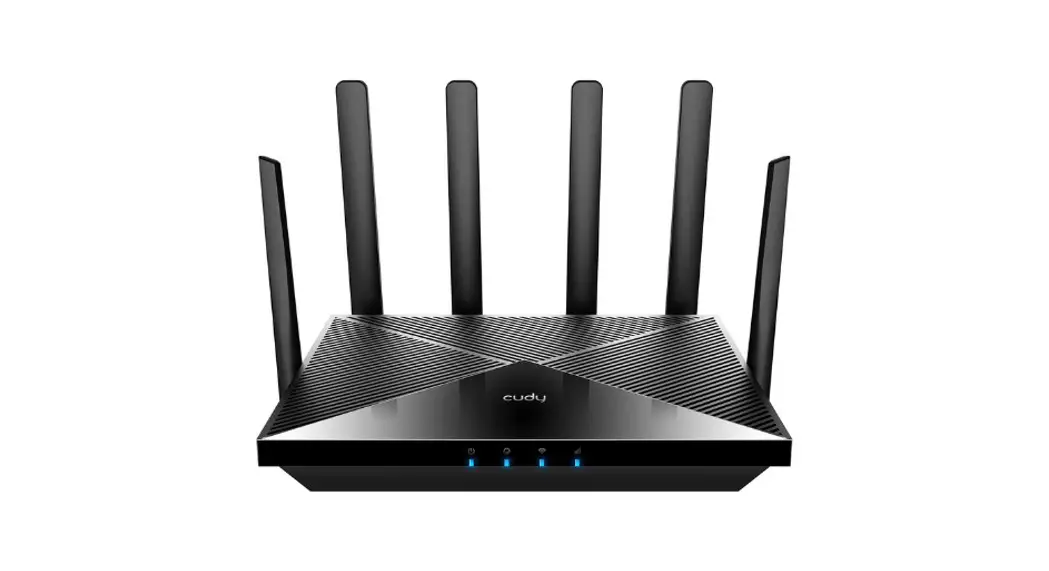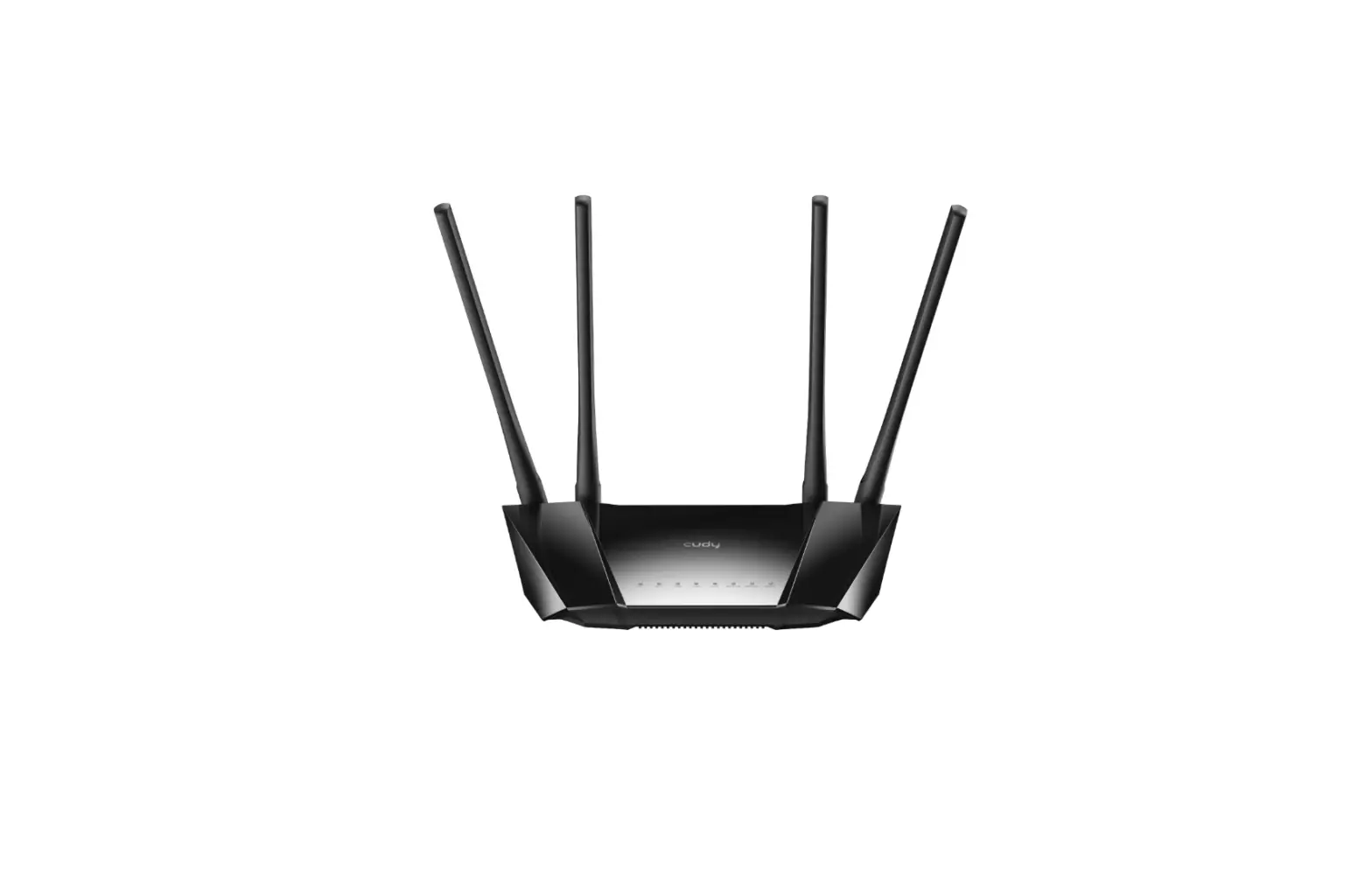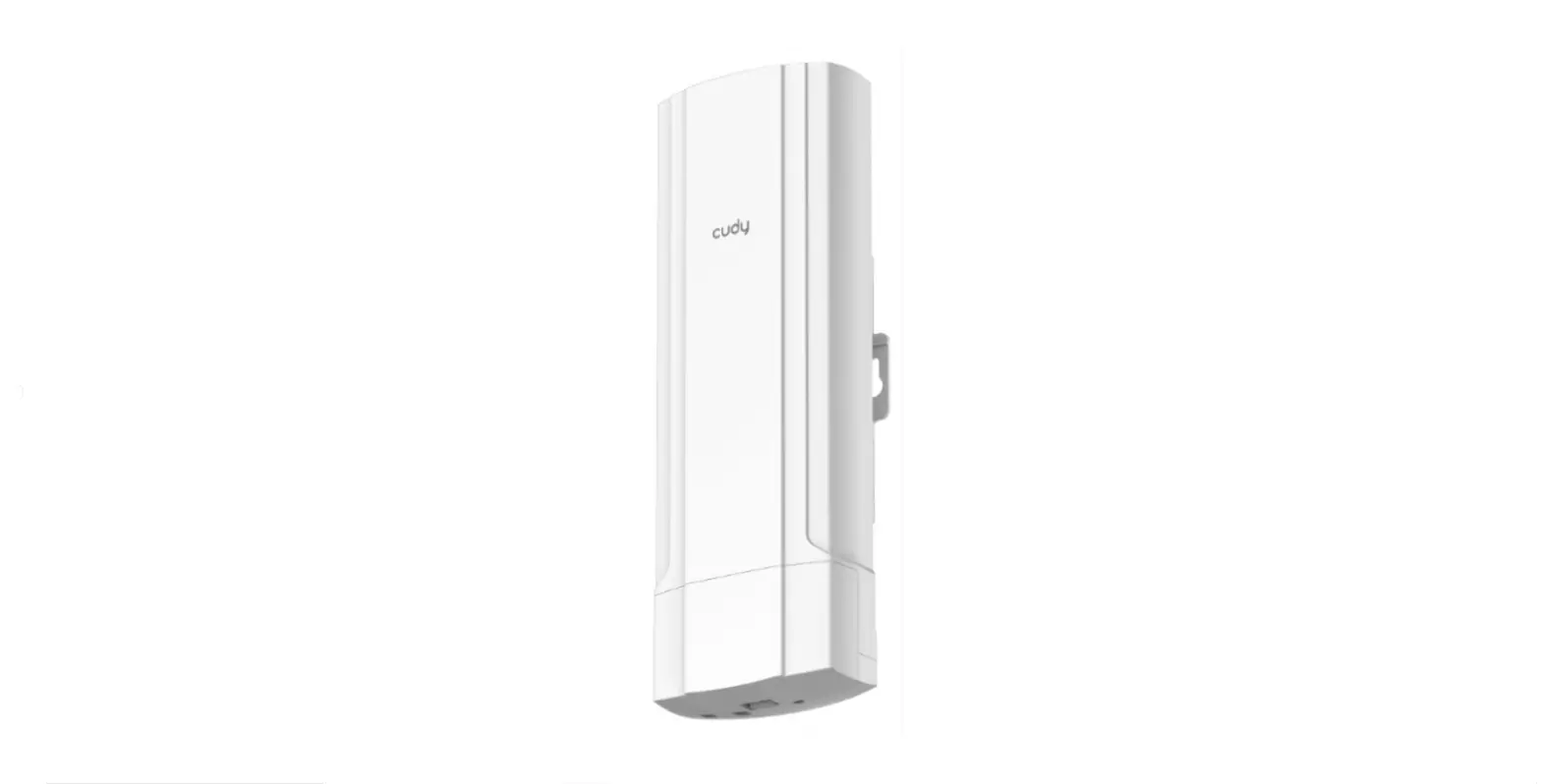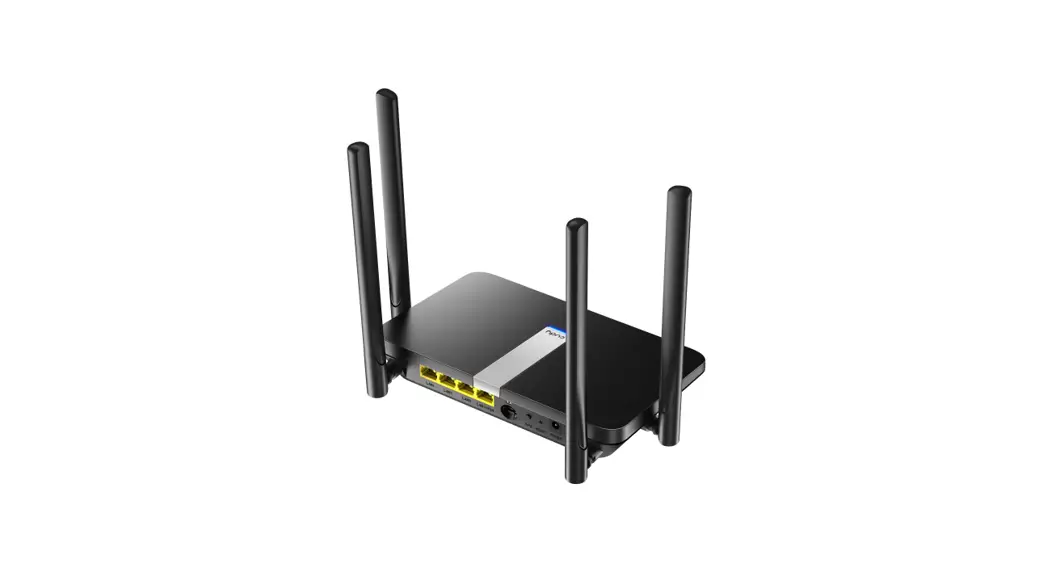

LT500D Dual Band
Unlocked 4G LTE Modem Router
Installation Guide
LT500D Dual Band Unlocked 4G LTE Modem Router
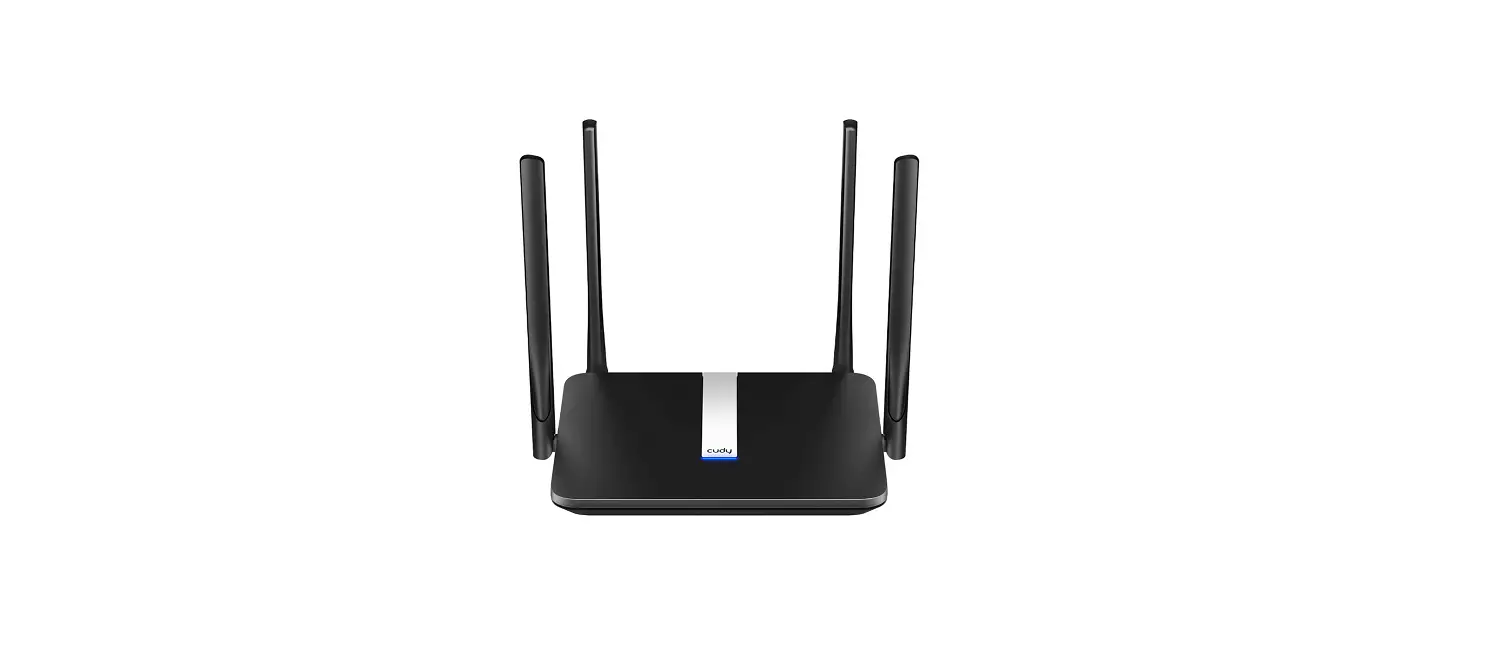
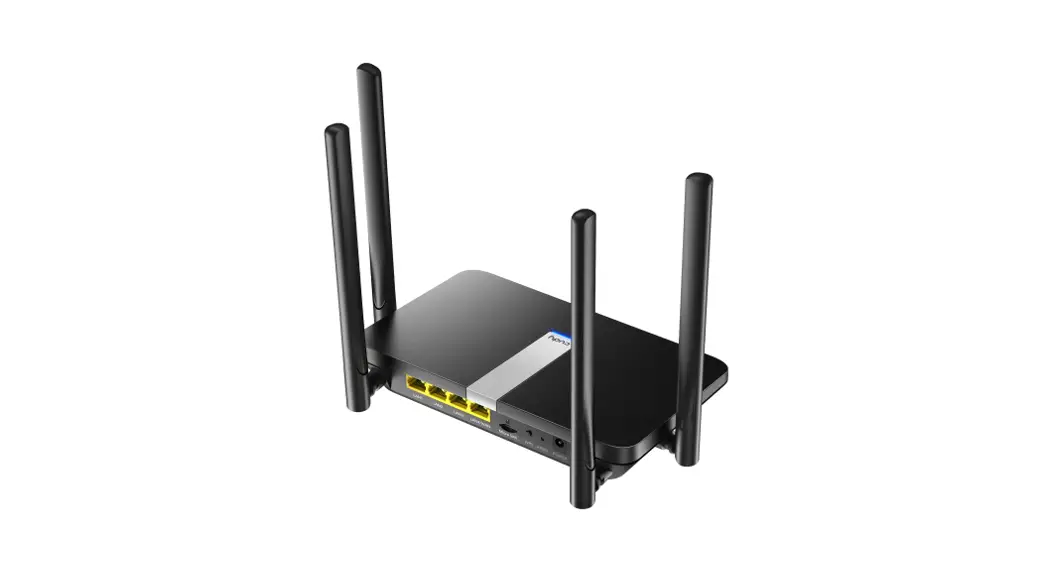
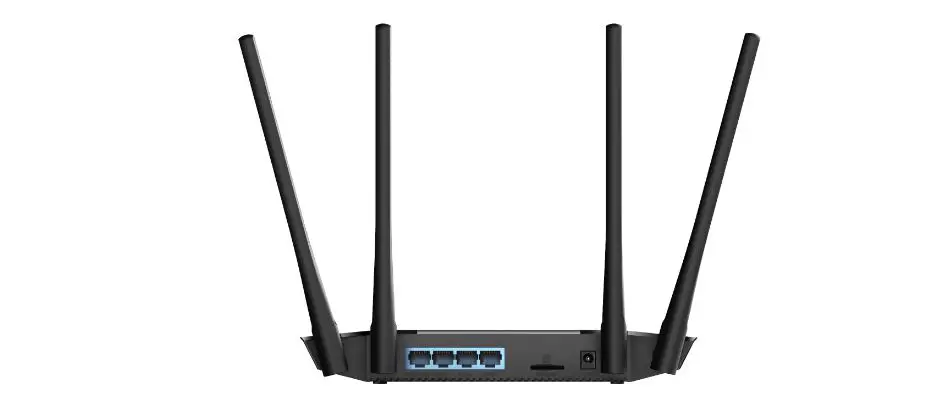
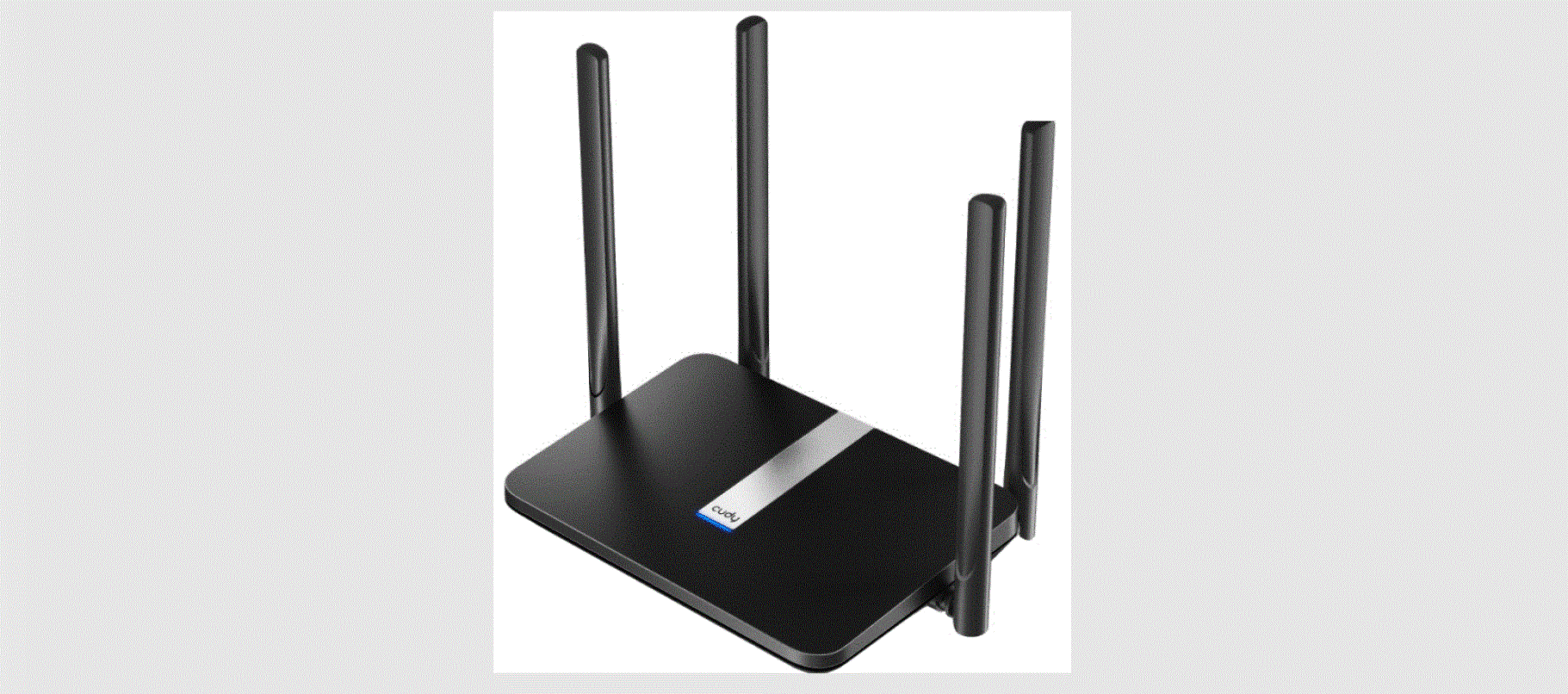
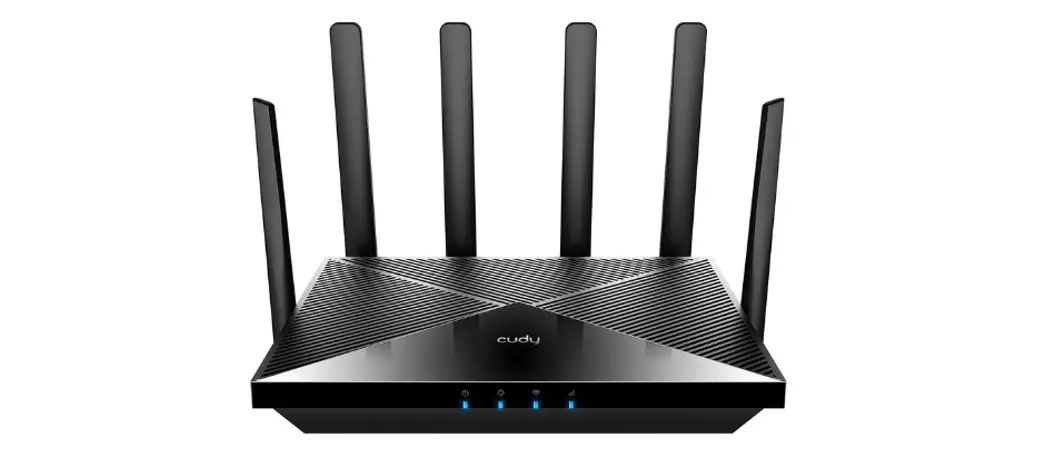
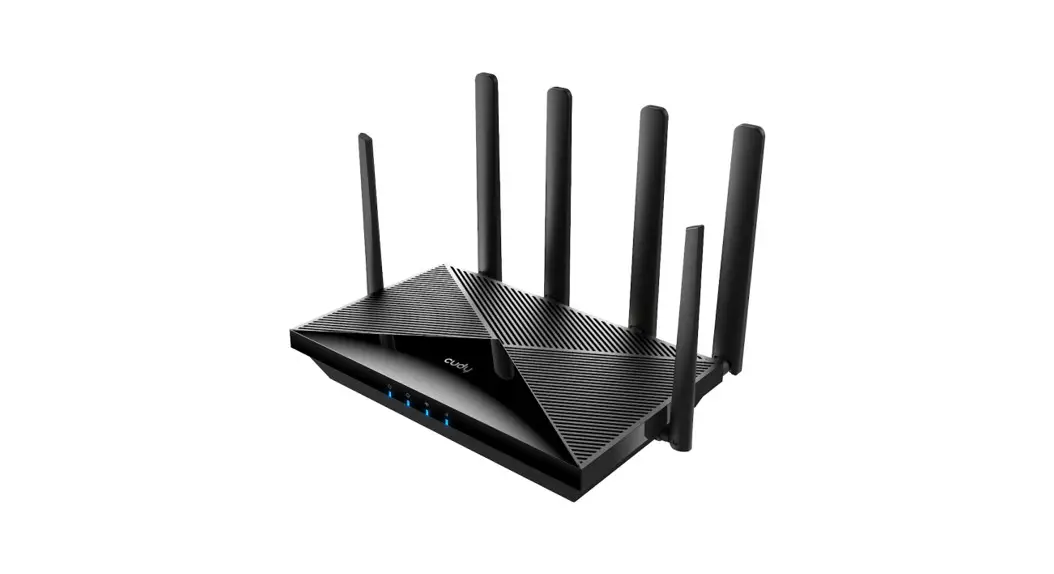
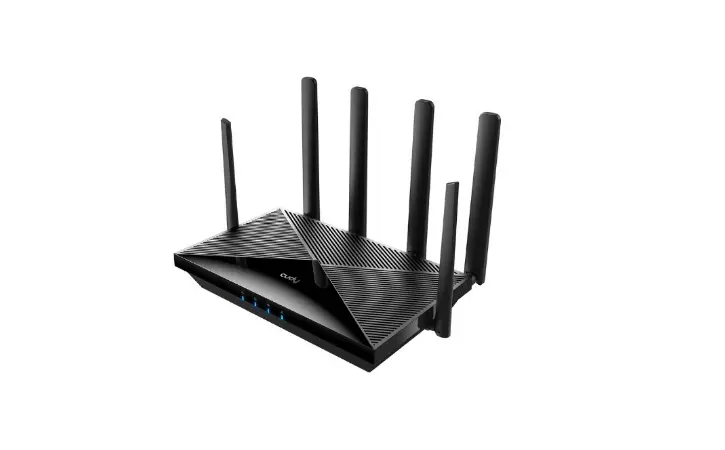
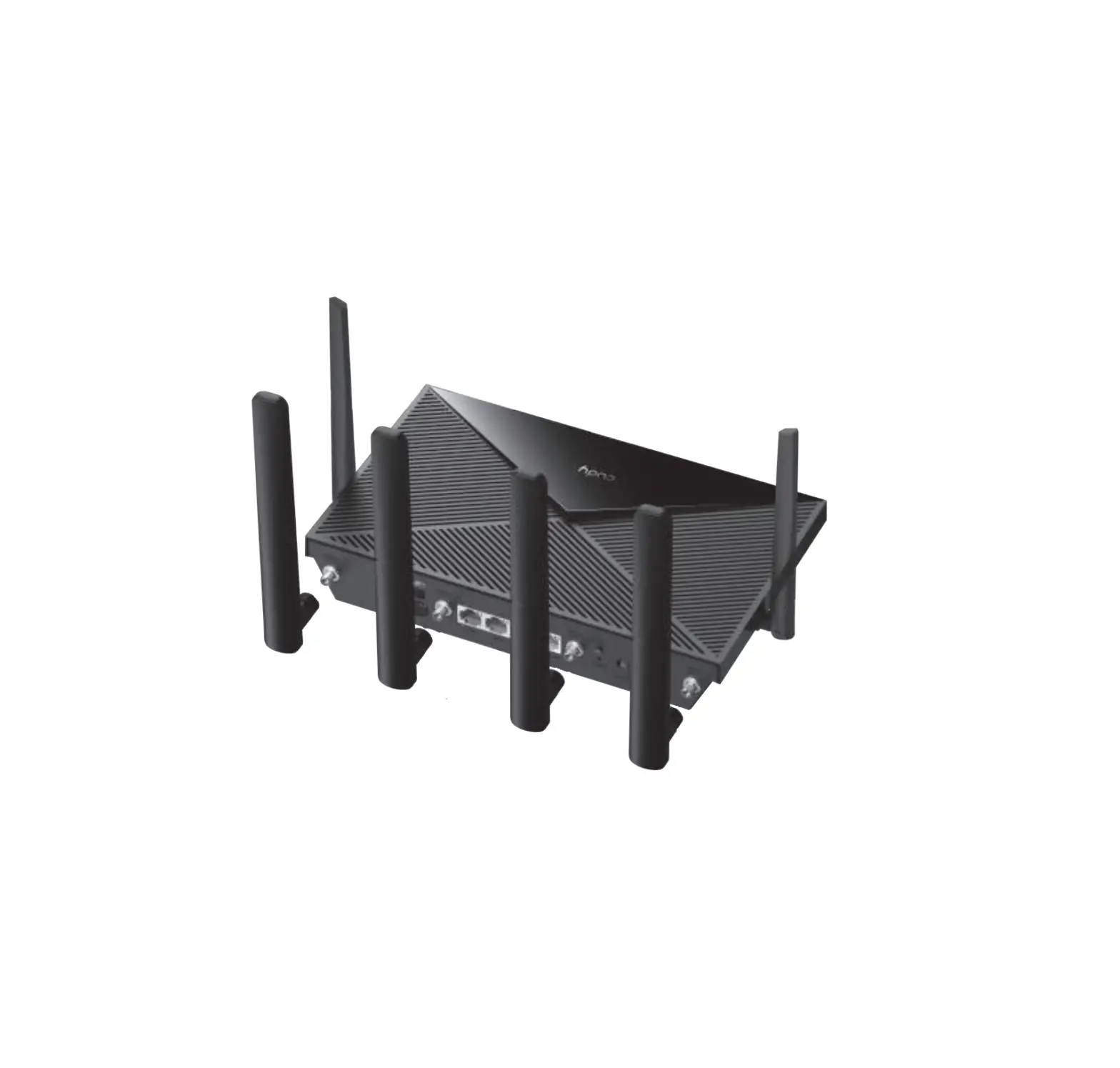
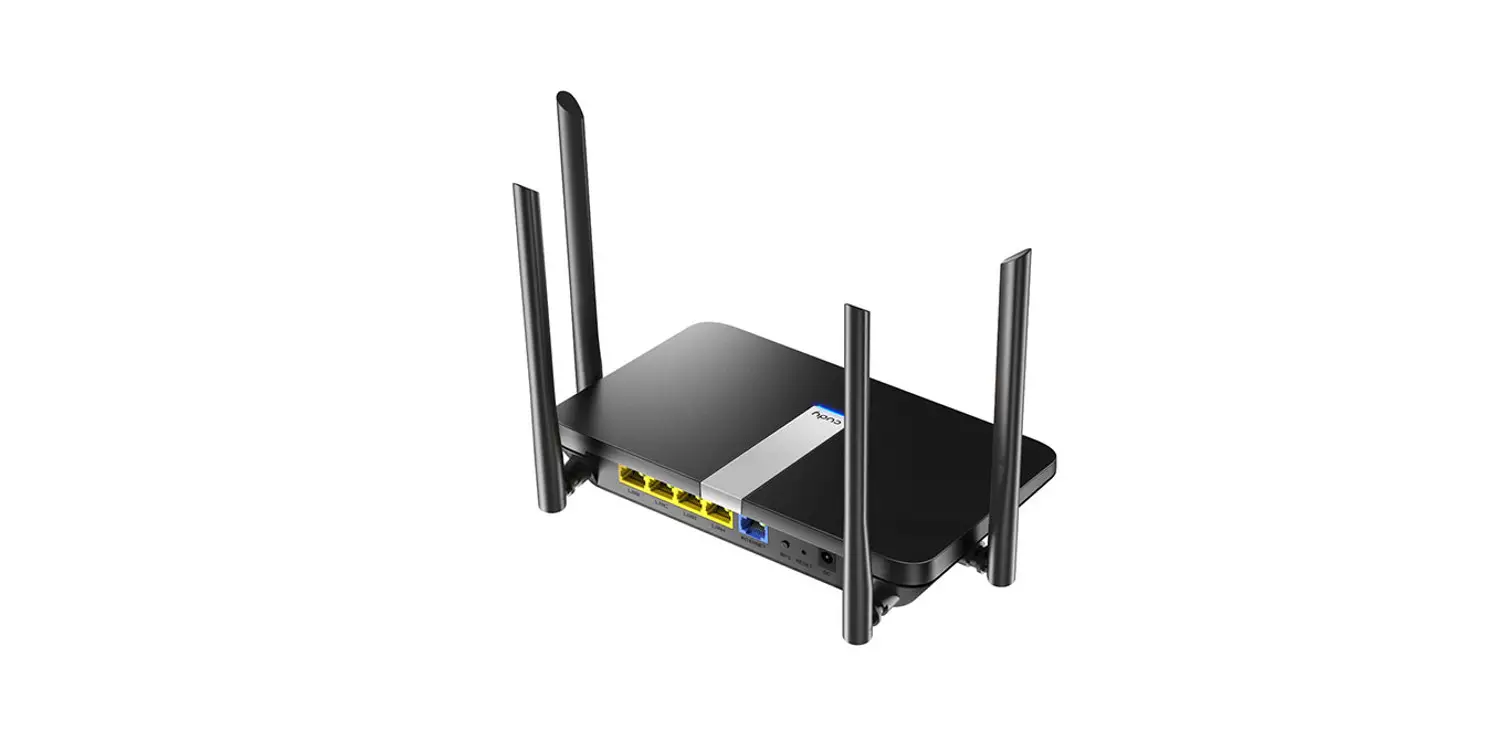
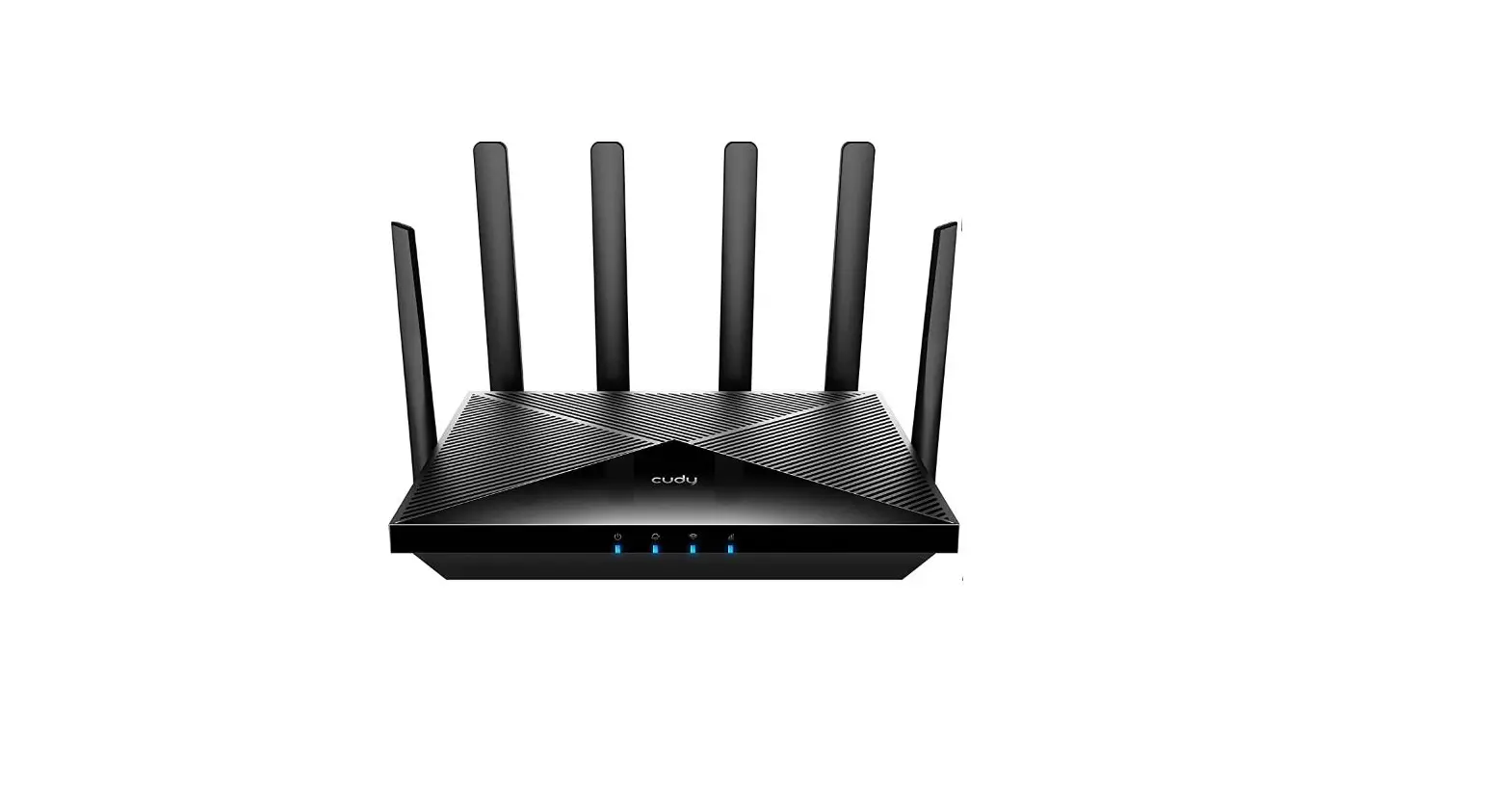
- Make sure the antennas are installed properly and place vertically as the picture below.

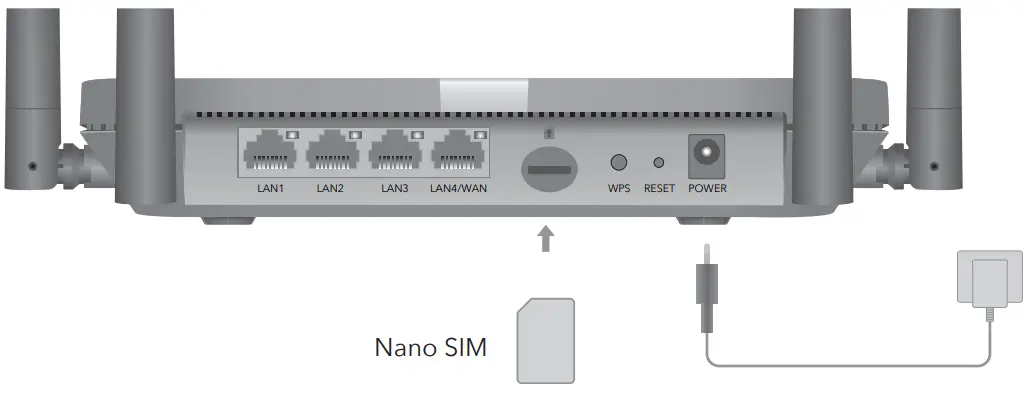
- With the gold contacts facing down, gently slide the nano SIM card into the slot until you hear a click sound.
- Connect power adapter and turn on the router. Waiting for 2 minutes for it to start.
- Check the status of the system LED.
When the system LED turns solid blue, it means the router is connected to the 4G cellular network.
If the system LED turns to solid purple, it means the router is connected to 2/3G cellular network.
If the system LED turns to solid red, please follow the instructions of Customize the 4G Router.
| Name | Status | Indication | |
| System LED | Solid On | Red | Internet is not connected |
| Blue | 4G or WAN Internet is connected | ||
| Purple | 2/3G is Connected | ||
| Flashing | Red | System is starting up | |
| Blue | WPS is in progress | ||
| Red-Purple-Blue | Software Upgrading | ||
| Ethernet LED | Off | Power adapter is not connected to the device. | |
| On | The corresponding Ethernet port is connected. | ||
| Off | The corresponding Ethernet port is not connected. | ||
| Button | WPS | Press and hold 1 second to enable the WPS function. | |
| Reset | Press and hold this button for about 6 seconds to reset the router to its factory default settings. |
Customize The 4G Router
- Connect the router via an Ethernet cable or Wi-Fi. Network name and password is printed on the bottom of the router.
Note: For LT450 and LT500, the device will create two WiFi signals, 2.4GHz WiFi network name is Cudy-XXXX, 5GHz WiFi network name is Cudy-XXXX-5G.
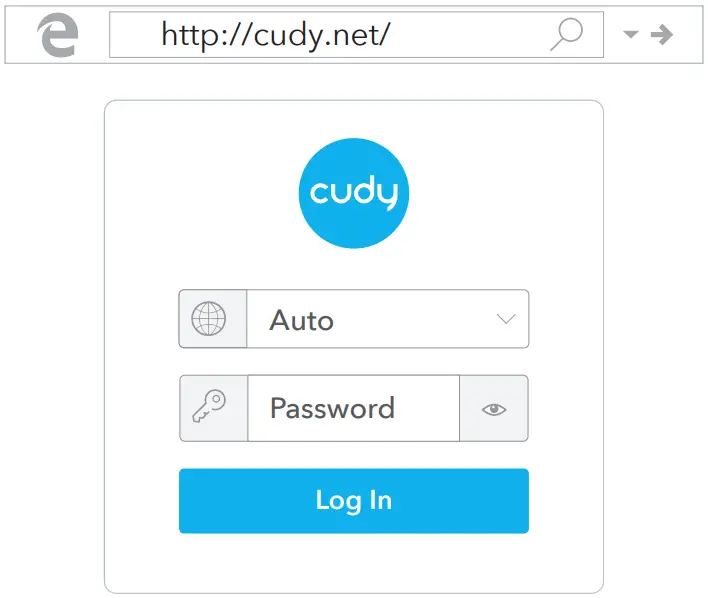
- Launch a web browser and enter http://cudy.net/(or http://192.168.10.1/) in the address bar, use admin as password to login.

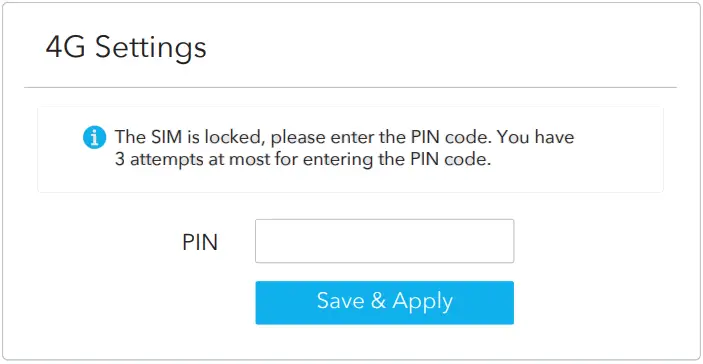
- The page below would pop up if your SIM card needs PIN to unlock. Please enter your PIN and click Save & Apply, then wait 15 seconds to connect to the Internet.

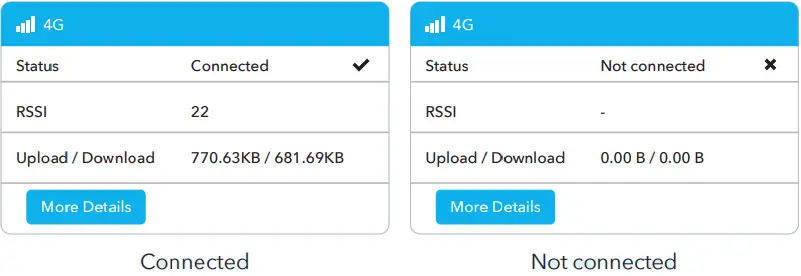
- Then please check 4G information card of the status page. If the status is connected, means connected to the internet successfully.

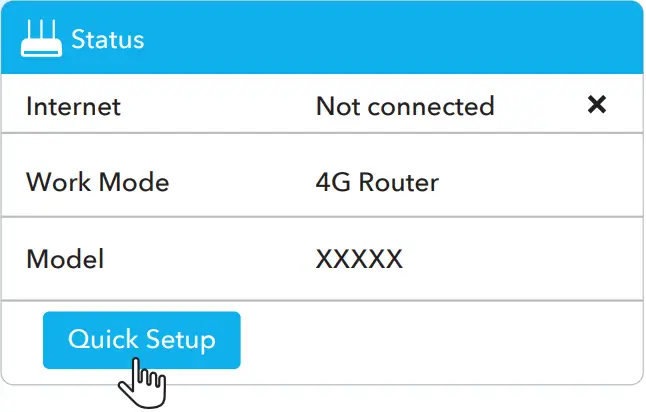
- If 4G is not connected, or if you want to customize the router yourself, click “Quick Setup” and follow the step-by-step instructions to configure the router.


Note
- If you are not sure about APN parameters, please contact your internet provider.
- If you meet any other problems, don’t hesitate to contact our technical support team: [email protected]
Need Help?(EN)
– A1: If the computer is set to a static IP address, change its settings to obtain an IP address automatically.
– A2: Make sure http://cudy.net/ or http://192.168.10.1/ is correctly entered in the web browser.
– A3: Use another web browser and try again.
– A4: Reboot your router and try again.
– A5: Disable and enable the active network adapter in use.
– A1: With the router powered on, press and hold the RESET button for 6 seconds and then release it, Wait the router to reset.
– A2: Log into the web management page of the router, and go to Advanced Settings >Reset , click Perform Reset and wait until the reset process is completed.
Declaration of Conformity
Cudy hereby declares that the device is in compliance with the essential requirements and other relevant provisions of directives 2014/53/EU, 2009/125/EC and 2011/65/EU.
The original EU declaration of conformity may be found at http://www.cudy.com/ce.

 Email: [email protected]
 Website: www.cudy.com
 Cudy Official Website