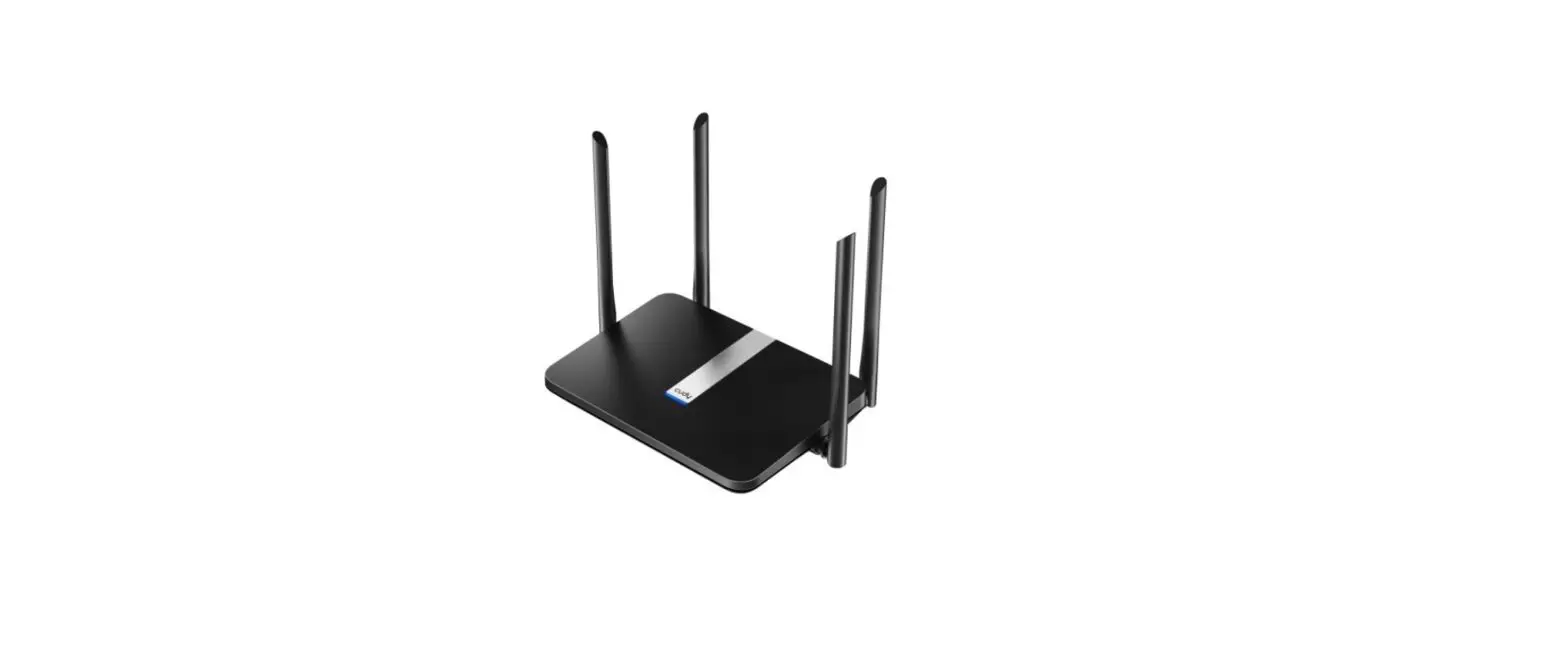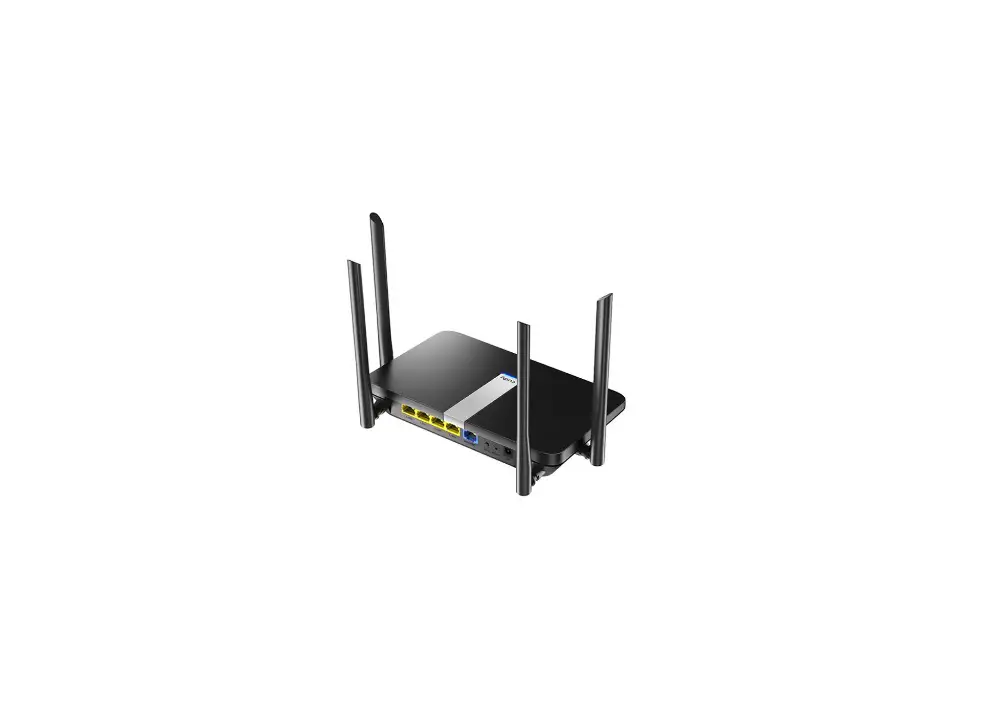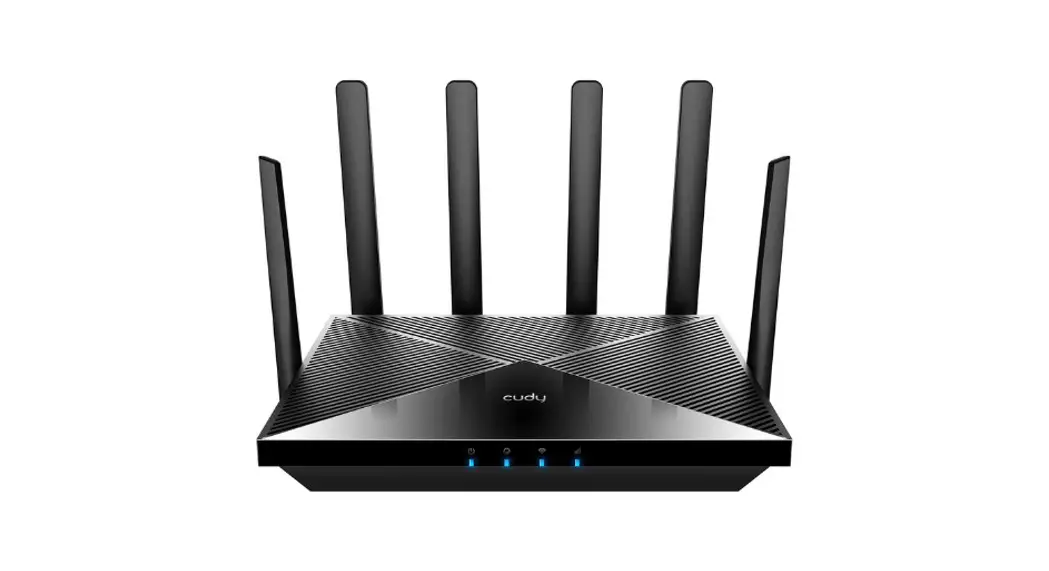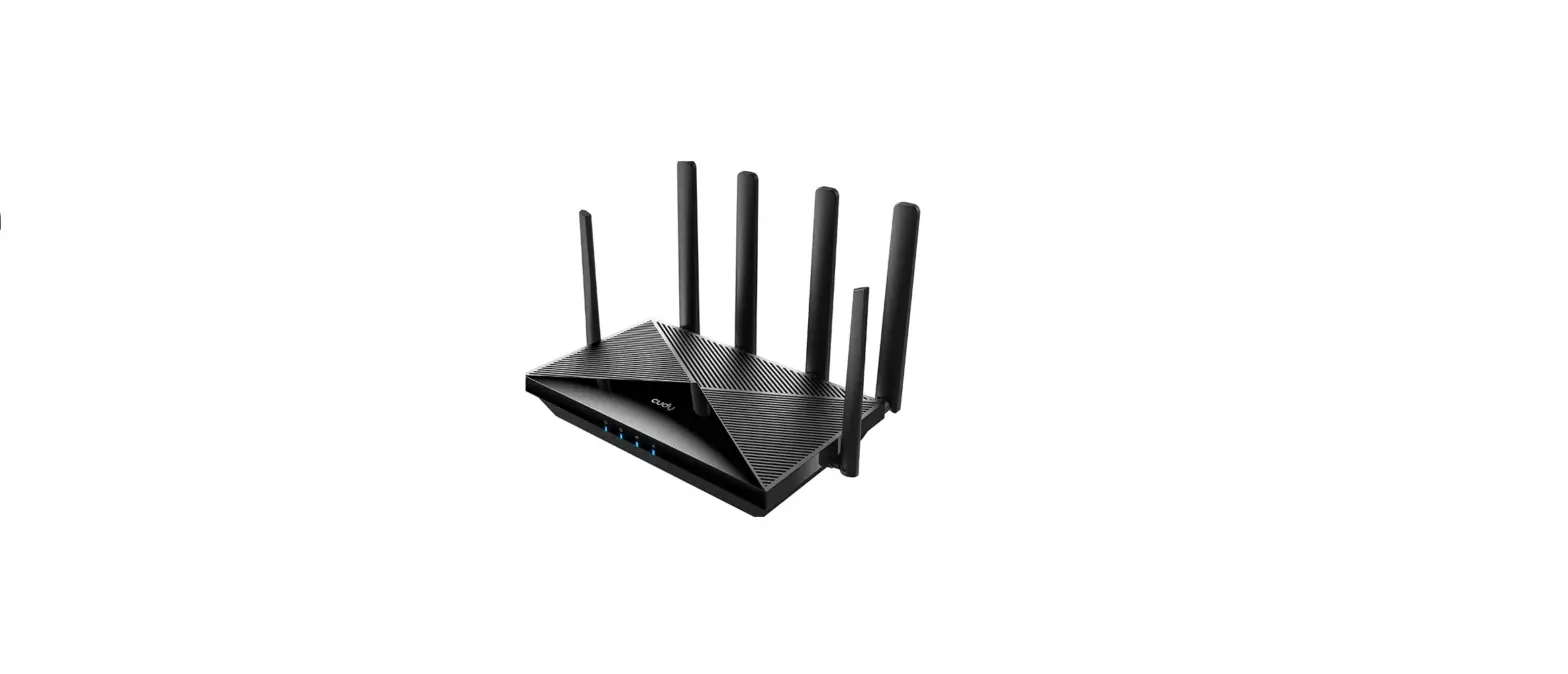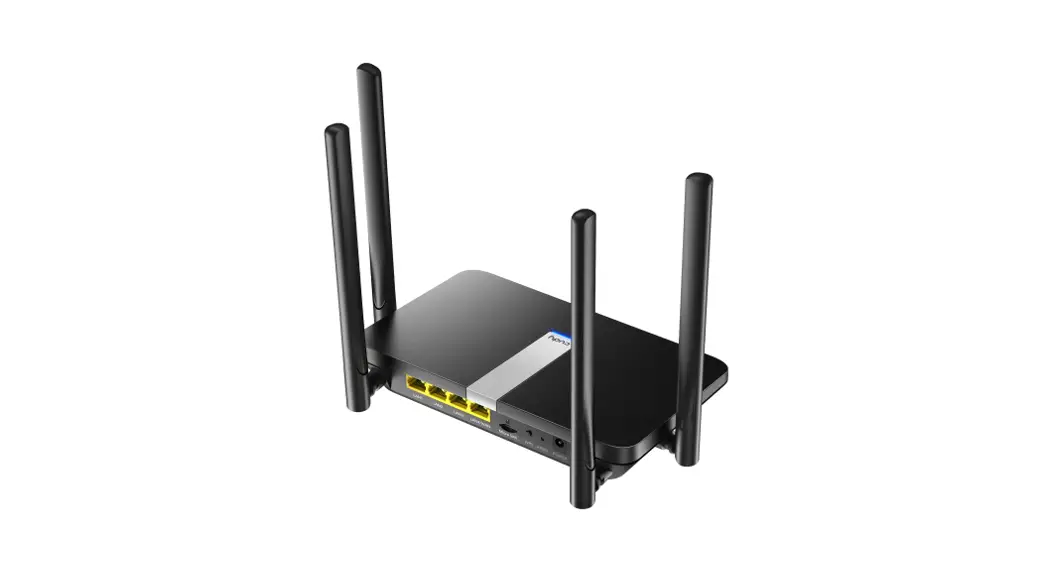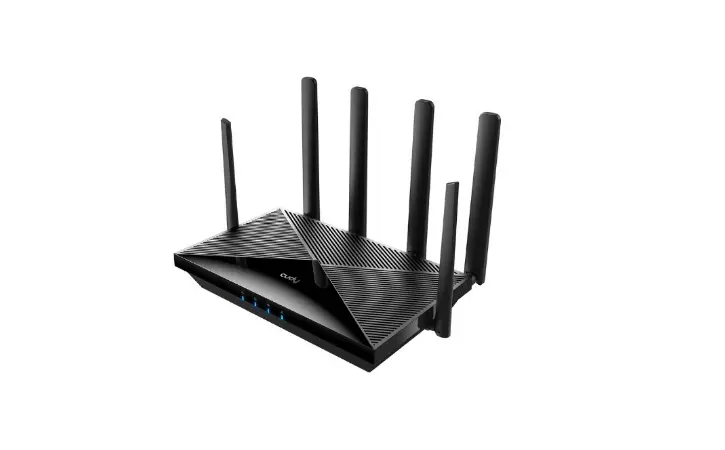
 X6 AX1800 Gigabit Dual-Band Wi-Fi 6 Router
Installation Guide
 | Email: [email protected] |  | Website: www.cudy.com |
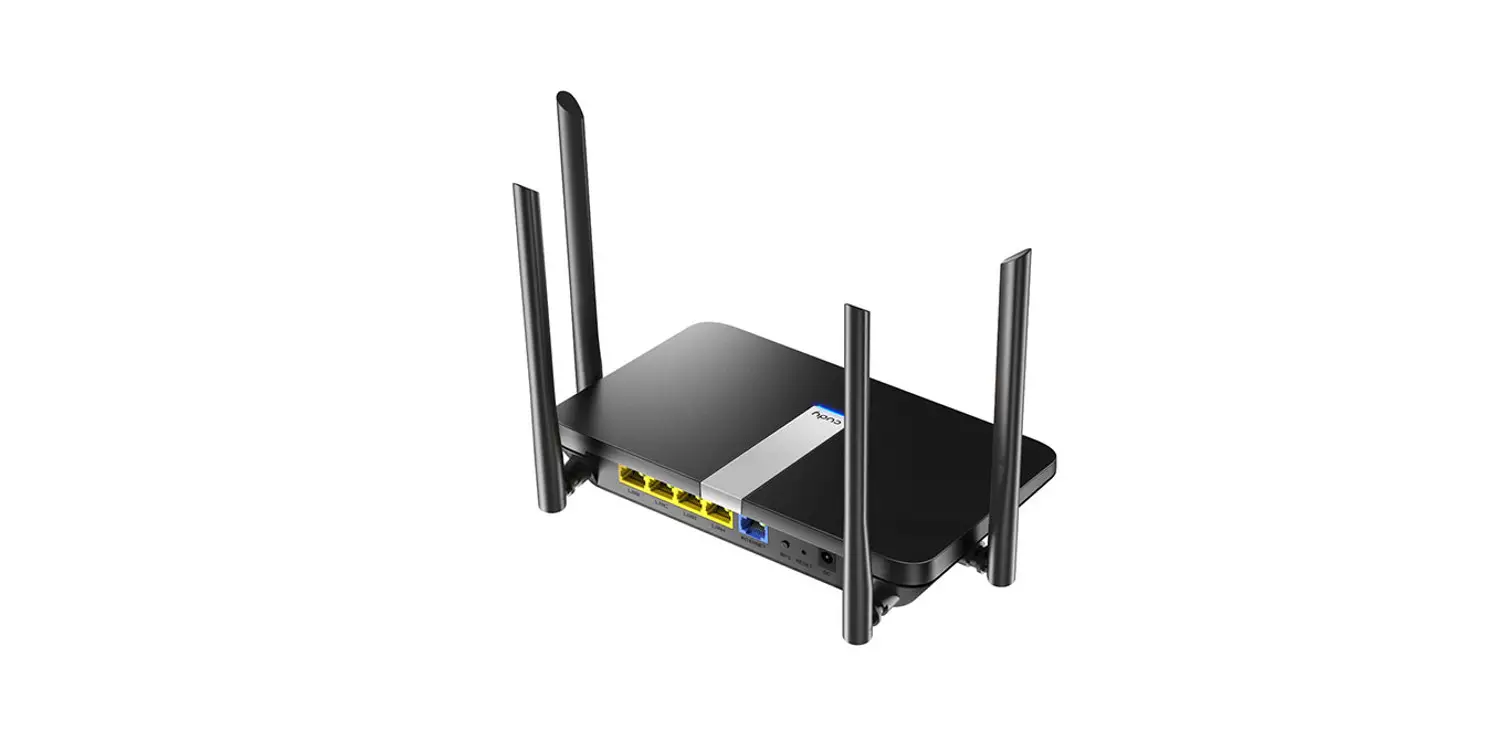
If your internet connection is through an ethernet cable directly from the wall instead of through a DSL/Cable/Satellite modem, connect the ethernet cable to the router’s WAN port, and skip steps 1, 2,3.
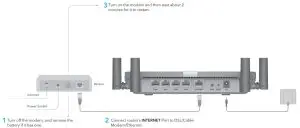
Connect the power adapter to the router, and wait 1 minute until the system LED changes from flashing to solid on(red or blue), which means that the system startup is completed.
Connect your computer to the router (Wired or Wireless)
Wired
Turn off the Wi-Fi on your computer and connect it to the router’s LAN port via an ethernet cable.
Wireless
Connect your device to the router’s Wi-Fi using the SSID (network name) and Password printed on the bottom of the router.
| cudy 5GHz Wi-Fi: Cudy-XXXX-5G 2.4GHz Wi-Fi: Cuddy-XXXX Password: XXXXXXXX |
Launch a web browser, and enter http://cudy.net/ or http://192.168.10.1/ in the address bar. Use admin for a password to log in.
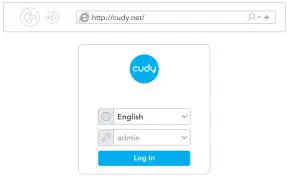
Note: If the login window does not appear, please refer to FAQ > Q1.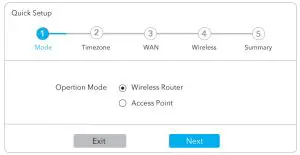 Note: If the pop-up window does not appear, please click Quick Setup on the status page.
 Enjoy the internet!
LED and Button
| Name | Status | Indication |
| System LED | Solid On | Red Internet is not connected |
| Blue Internet is connected | ||
| Flashing | Red System is starting up | |
| Blue WPS is in progress | ||
| Red-Purple-Blue Software upgrading | ||
| Off | The power adapter is not connected to the device. | |
| Ethernet LED | On | The corresponding Ethernet port is connected. |
| Off | The corresponding Ethernet port is not connected. | |
| Button | WPS | Press and hold 1 second to enable the WPS function. |
| Reset | Press and hold 6 seconds to reset the router to its factory default settings. |
Support
For technical support, the user guide, and more information, please visit:
http://www.cudy.com/support
[email protected]
FCC Statements:
This device complies with part 15 of the FCC Rules. Operation is subject to the following two conditions: (1) This device may not cause harmful interference, and (2) this device must accept any interference received, including interference that may cause undesired operation.
This equipment has been tested and found to comply with the limits for a Class B digital device, pursuant to Part 15 of the FCC Rules. These limits are designed to provide reasonable protection against harmful interference in a residential installation. This equipment generates, uses and can radiate radio frequency energy and, if not installed and used in accordance with the instructions, may cause harmful interference to radio communications. However, there is no guarantee that interference will not occur in a particular installation. If this equipment does cause harmful interference to radio or television reception, which can be determined by turning the equipment off and on, the user is encouraged to try to correct the interference by one or
more of the following
Measures:
- Reorient or relocate the receiving antenna.
- Increase the separation between the equipment and receiver.
- Connect the equipment into an outlet on a circuit different from that to which the receiver is connected.
- Consult the dealer or an experienced radio/TV technician for help.
Note: Changes or modifications not expressly approved by the party responsible for compliance could void the user’s authority to operate the equipment.
RF Exposure Statement:
The distance between user and products should be no less than 20cm
Frequently Asked Questions (FAQ)
Q1: What can I do if the login window does not appear?
A1: If the computer is set to a static IP address, change its settings to obtain an IP address and DNS server address automatically.
A2: Verify that http://cudy.net/ or 192.168.10.1 is correctly entered in the web browser.
A3: Use another web browser and try again.
A4: Reboot your router and try again.
A5: Disable and then enable the network adapter being used.
Q2: What should I do if i can not find Wi-Fi signal?
A: Please make sure the router is connected, power and broadband interface has no loose. If everything is normal but still no signal, please try to use a computer to set, up or restore the router to factory settings. If after restoring factory settings but still no signal, you can restart the router, if it still doesn’t work, maybe the router has a fault.
Q3: How to Reset to defaults?
A: While the power is still on, keep pressing the reset button for 6 seconds, and wait for 1-2 minutes and it will restore to factory settings.
Q4: Why can’t my mobile phone enter the Setting Page of Router?
A: Please make sure your mobile phone is connected to the Cuddy Router Wi-Fi(default name is printed on the bottom of the router), and make sure you enter the right site in the browser. (Please follow instructions FAQ -> Q1)
Q5: Why can’t I enter the setting page after restarting the Router?
A: After restarting the Router, maybe your phone or computer connects automatically to other Wi-Fi, please make sure your phone or computer is connected to Cuddy Router Wi-Fi. (default name is printed on the bottom of the router)
 810600088