 Quick Installation Guide
Package Content
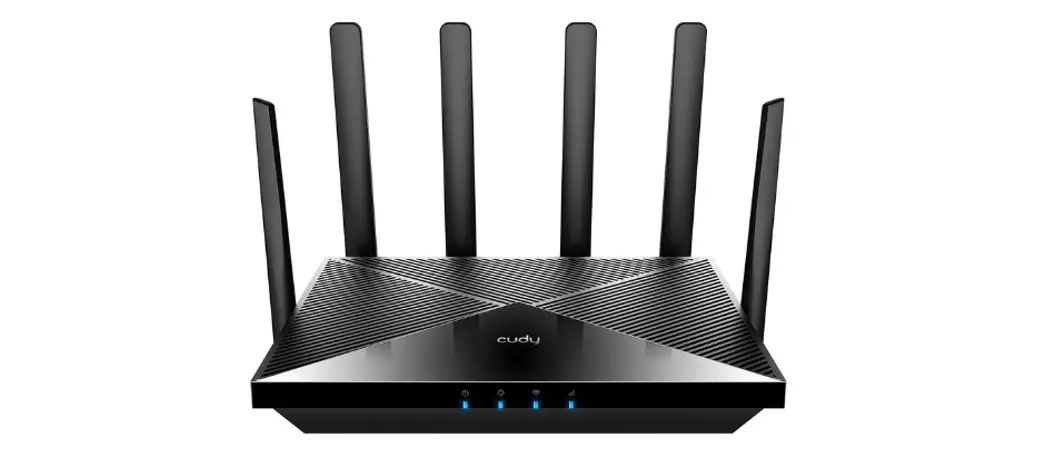
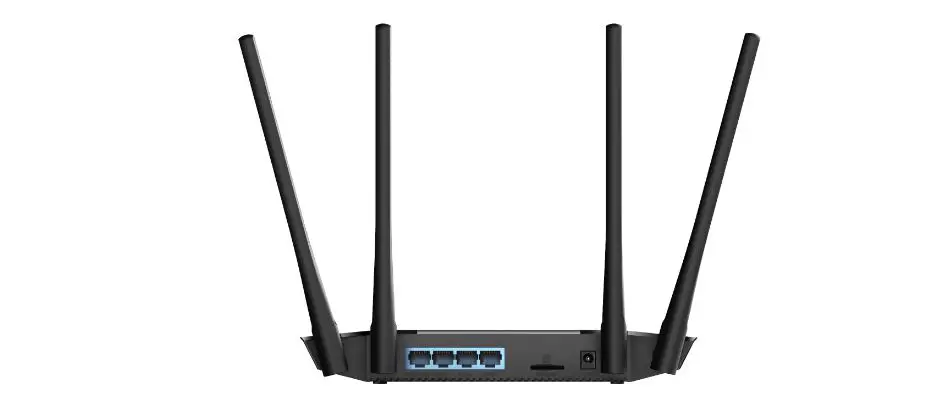
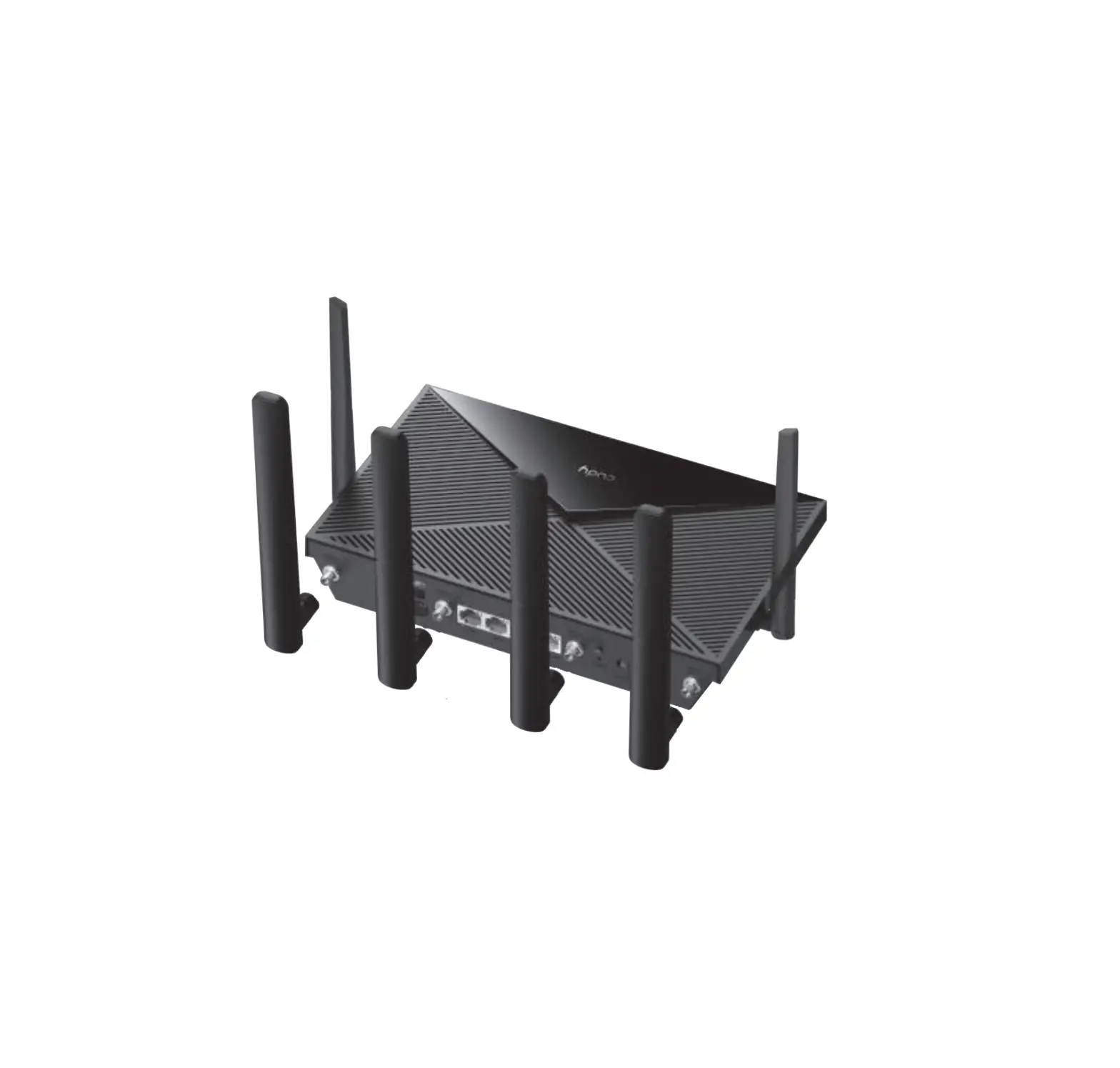
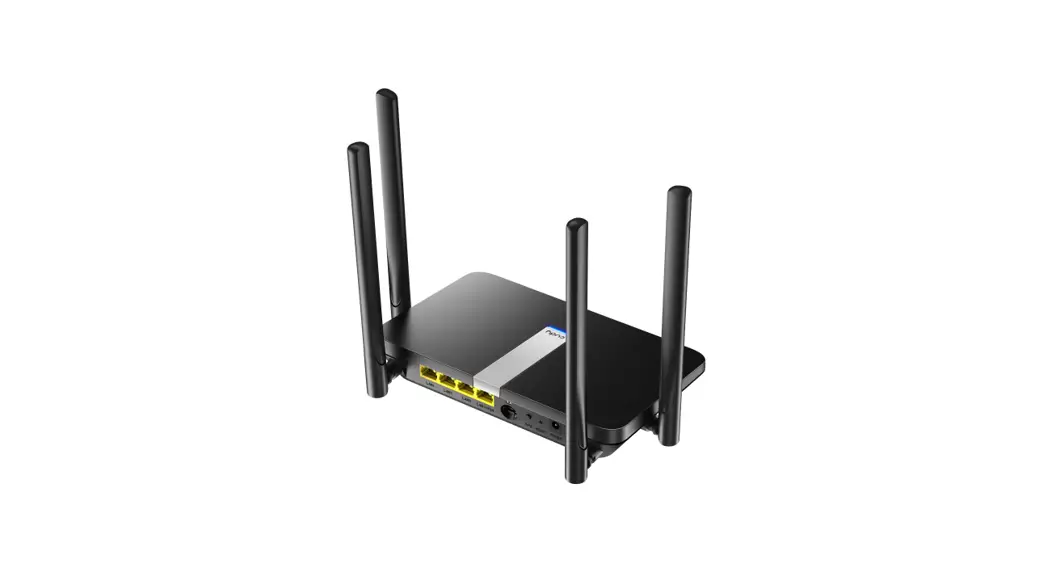
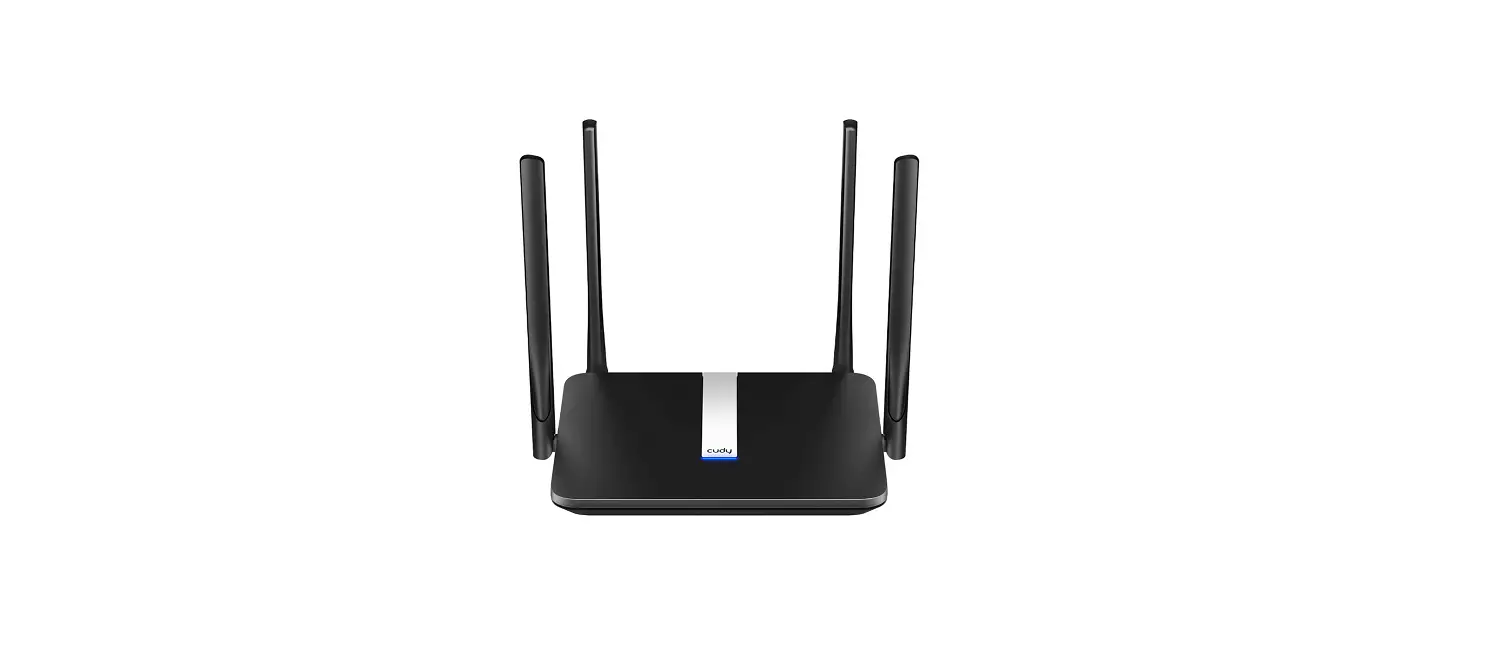
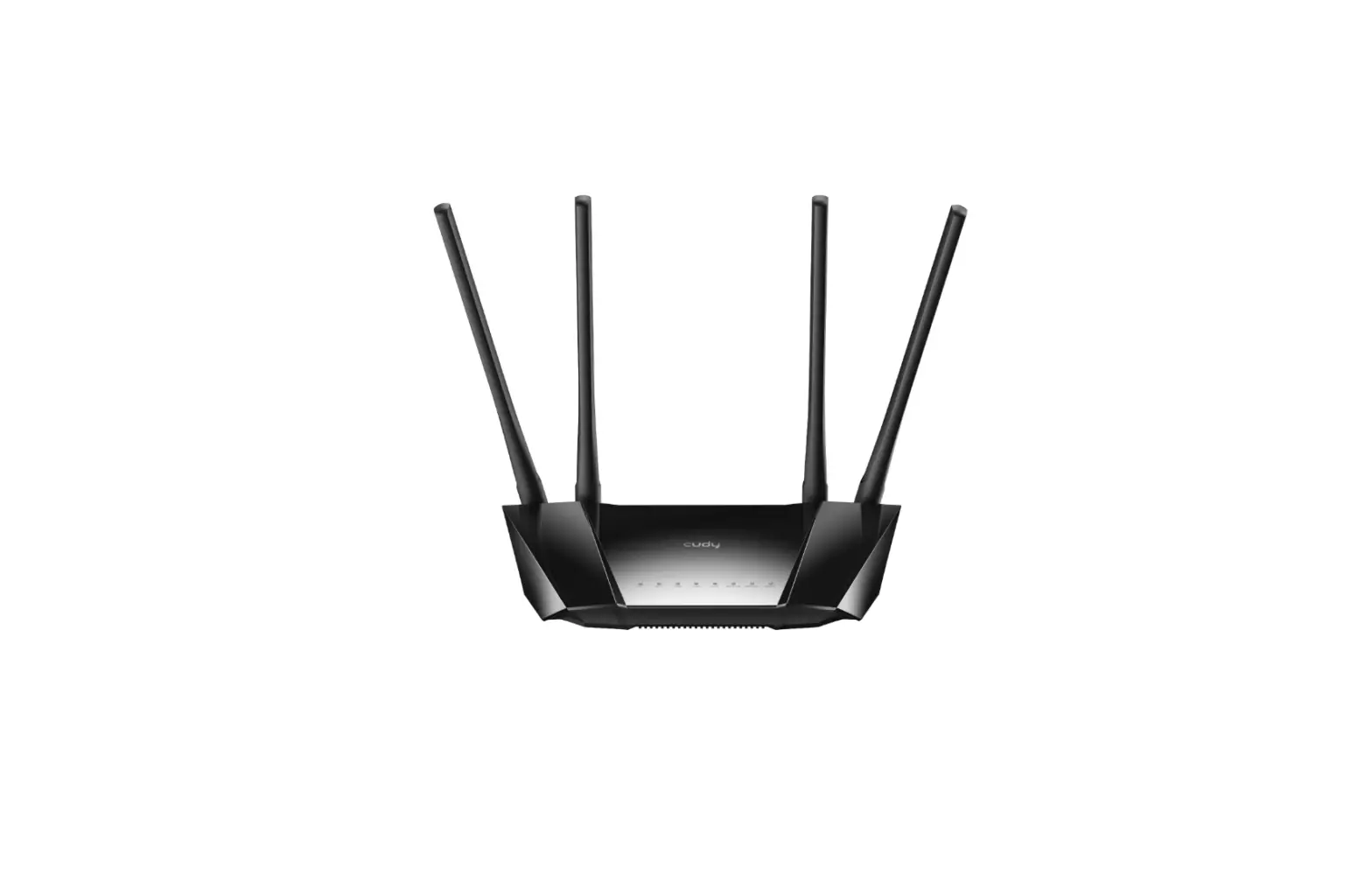
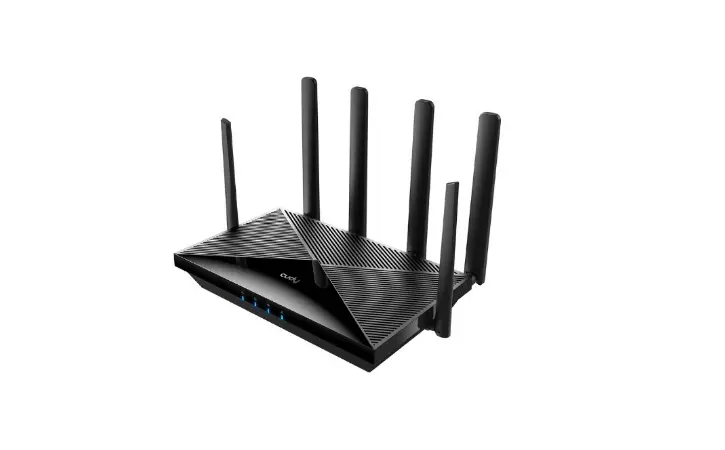
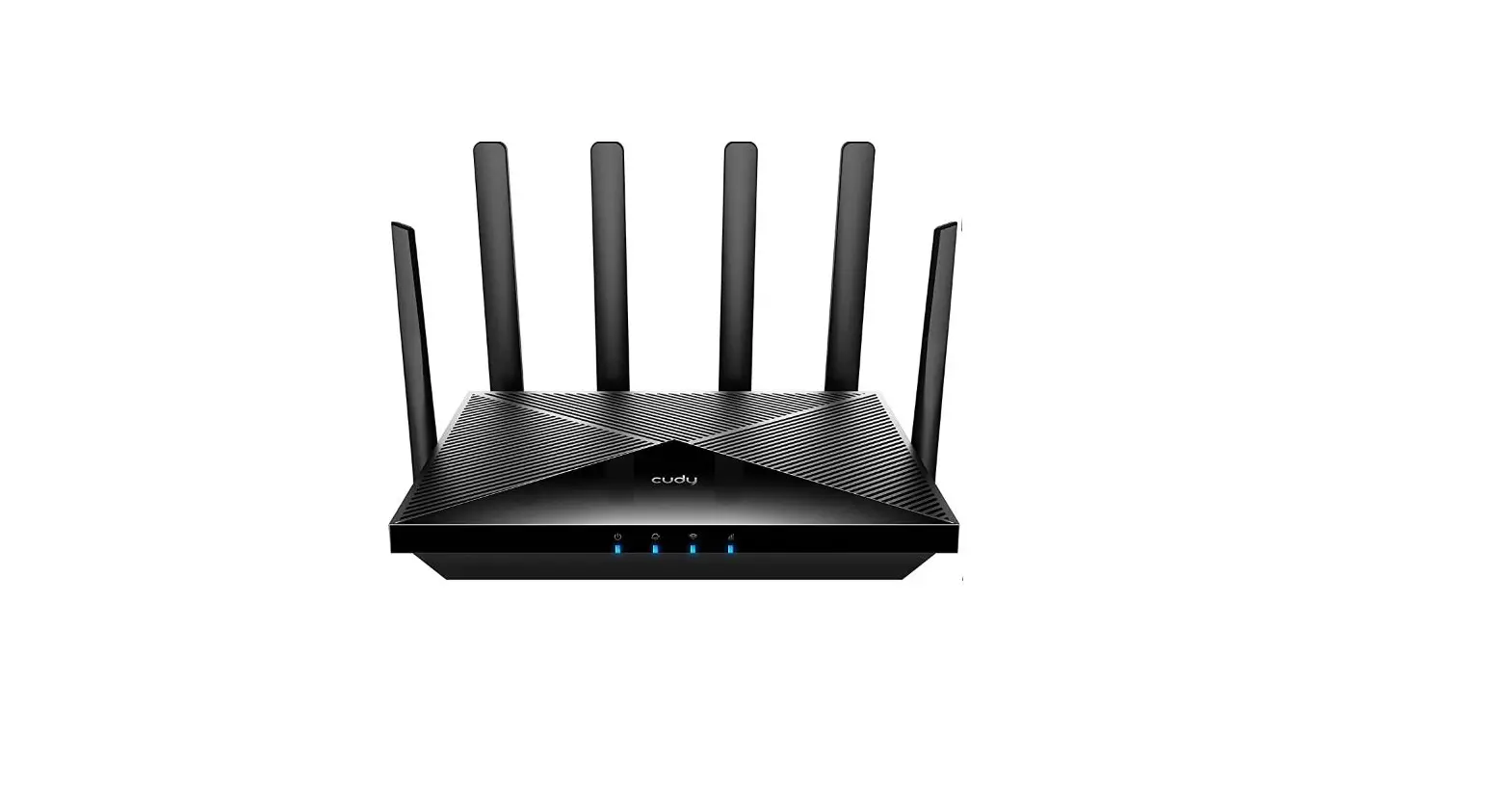
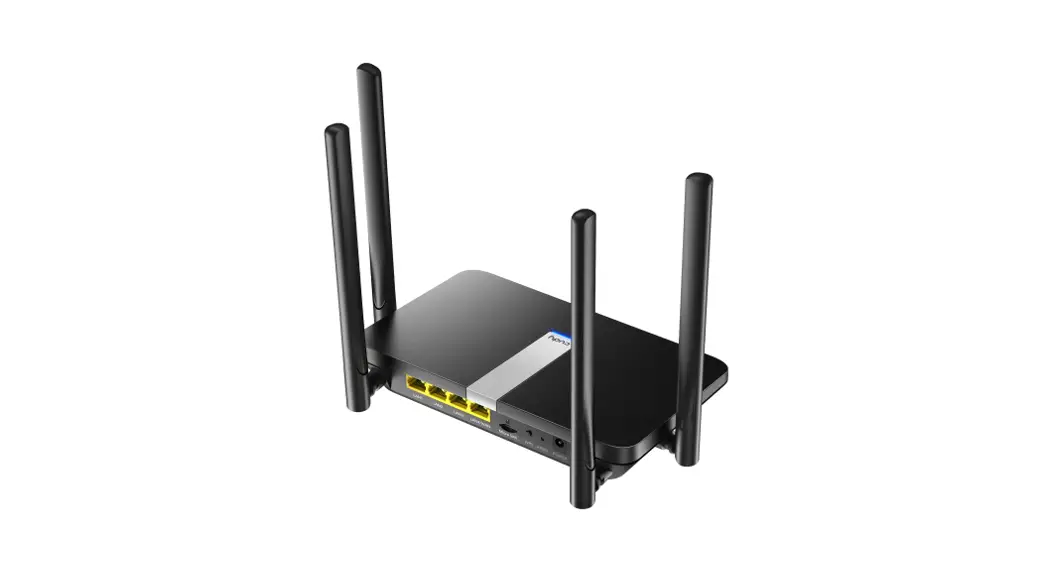
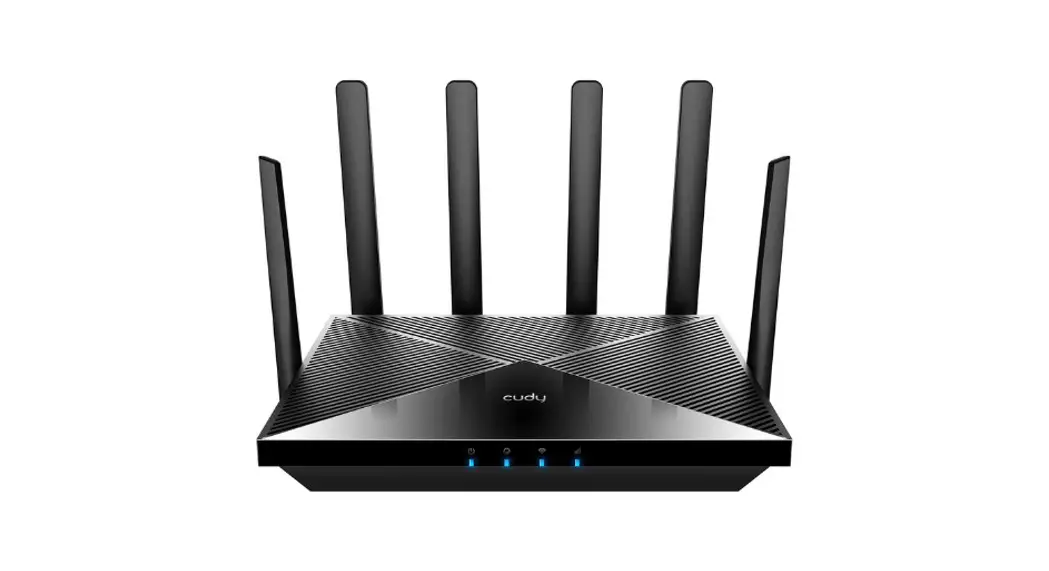
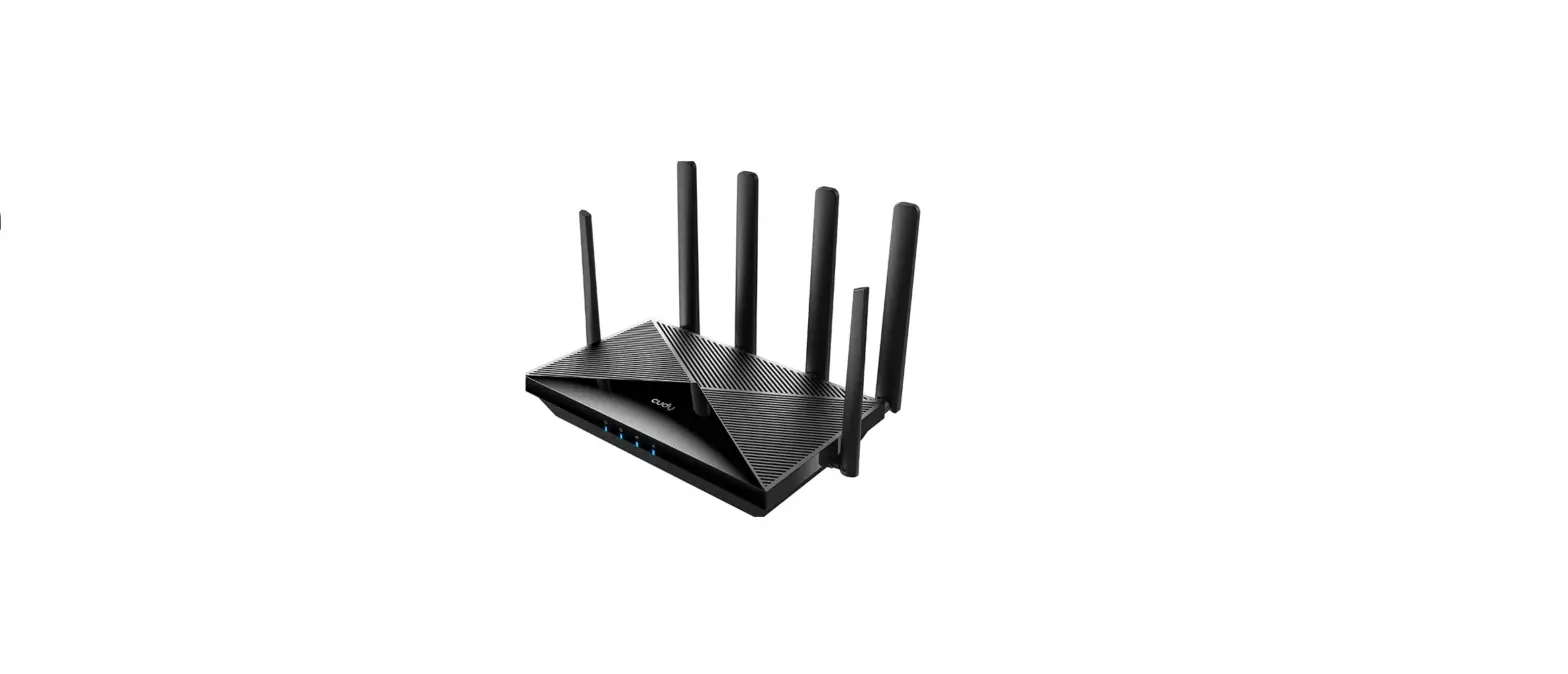
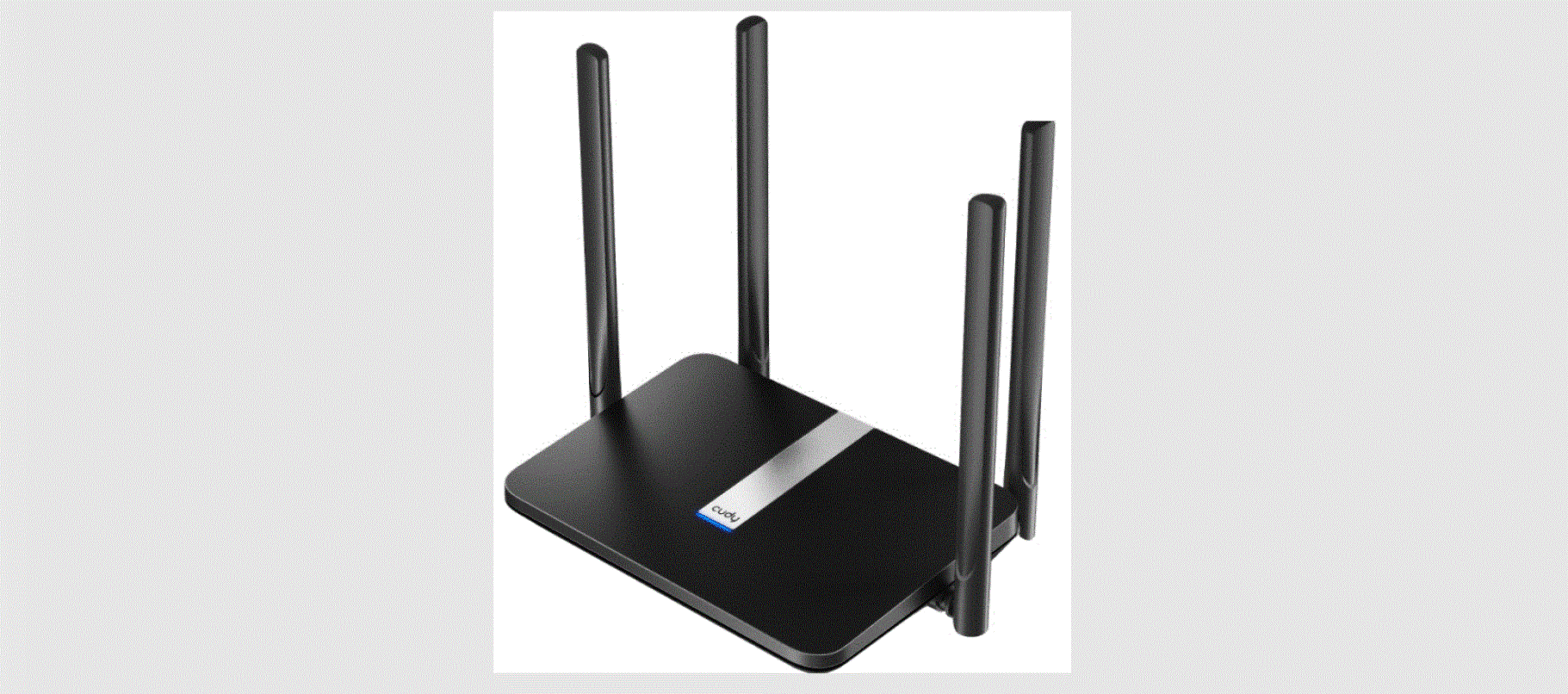
1x 4G LTE Router
1 x Power Adapter
1 x Quick Installation Guide
1 x Ethernet Cable
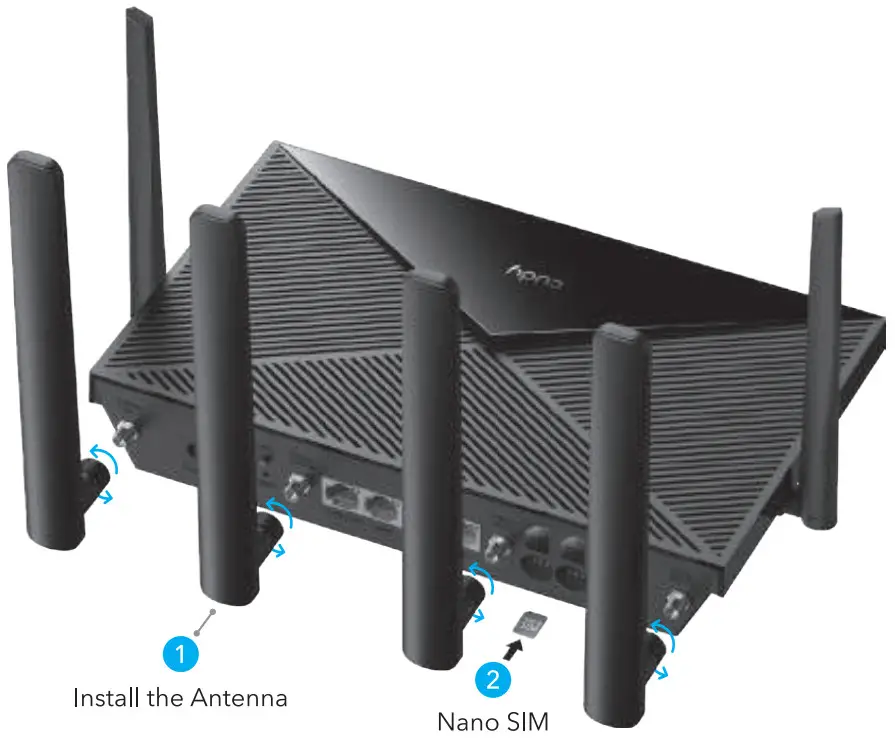
- Install the cellular antennas.

- Insert the Nano SIM card into the SIM1 slot until you hear a click.
SIM card requirement Direction: With the gold contacts facing down, gently slide the SIM card into the slot.
Note:
If both SIM1 and SIM2 card slots are inserted with SIM cards, the router will automatically choose which SIM card to use. Since this automatic selection mechanism is time-consuming, it is strongly recommended that only one card is inserted for the first use. - Connect the power adapter to the router.

- Turn on the router. Waiting 2~5 minutes for it to start.
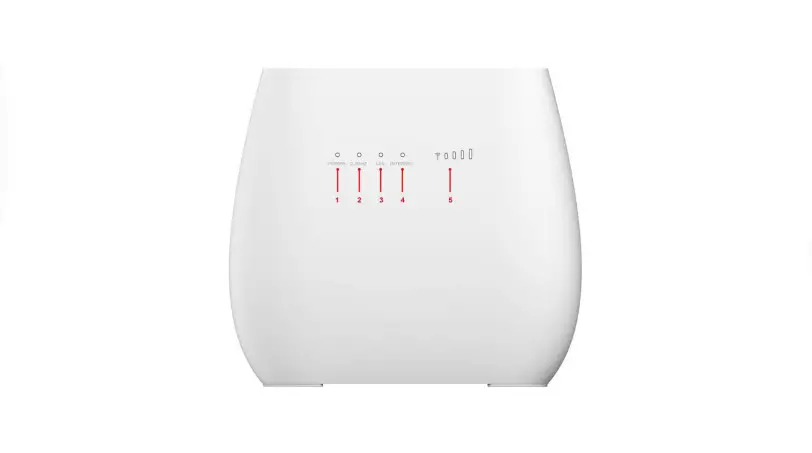
- Check the status of the
 LED.
LED. If the LED turns to solid blue, means connect to cellular network and signal is strong. If the LED turns to solid purple, means connect to cellular network and signal is average.
 If the LED turns to solid red, please follow the instructions of Customize the 4G Router.
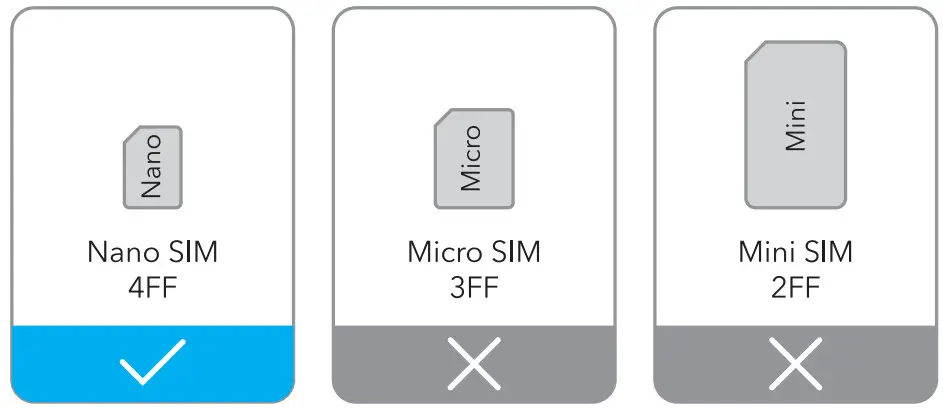 Direction: With the gold contacts facing down, gently slide the SIM card into the slot.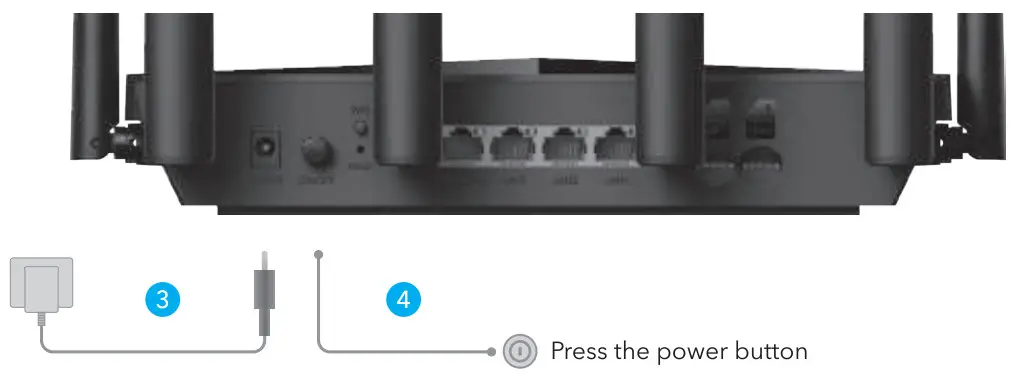
 If the
 If the
 If the
Note:
For some ISP’s SIM card(such as verizon), it may takes longer to connect to the internet. Please kindly wait another 2~5 minutes.
Customize The 4G Router
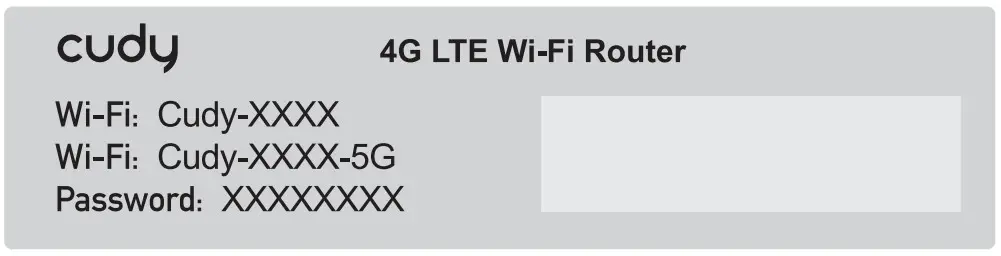
- Connect the router via ethernet cable or Wi – Fi. Network name and password is printed on the bottom of the router.

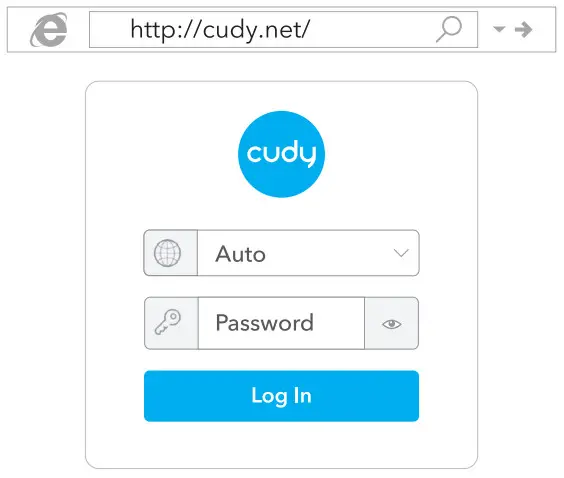
- Launch a web browser and enter http://cudy.net/ (or http://192.168.10.1/) in the address bar, use admin as password to login.

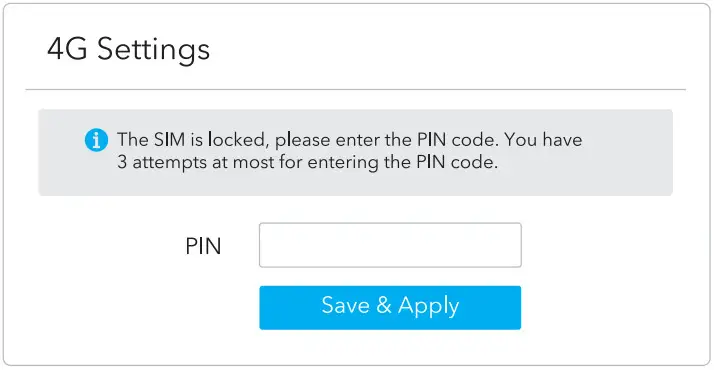
- Below page would pop up if your SIM card needs PIN to unlock. Please enter your PIN and click Save & Apply, then wait 15 seconds to connect to the Internet.

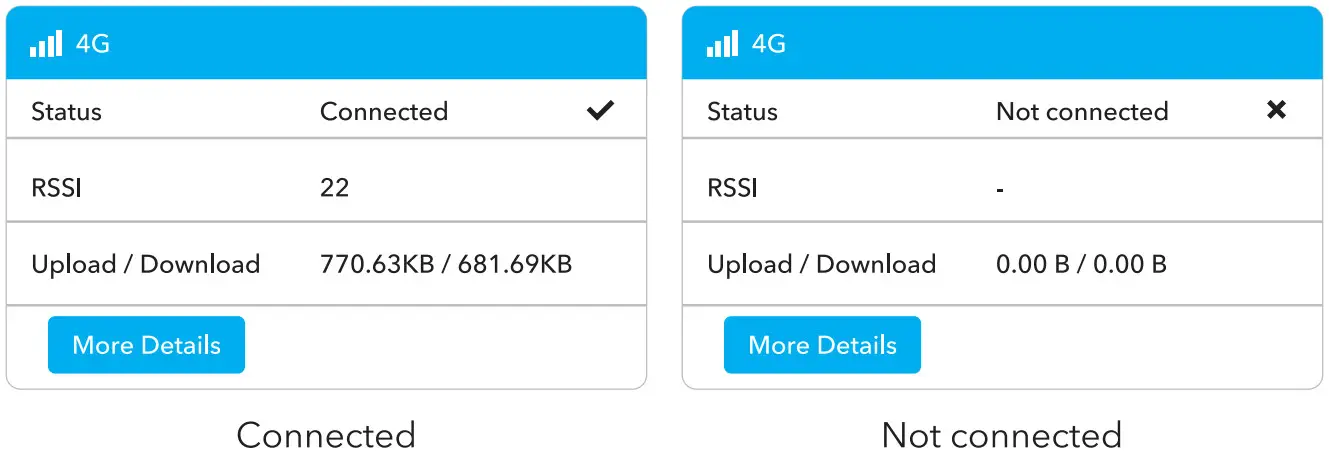
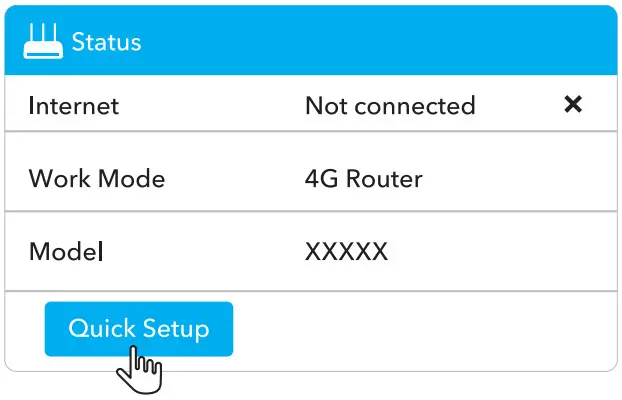
- Then please check 4G information card of the status page. If the status is connected, means connected to the internet successfully.

- If 4G is not connected, or if you want to customize the router yourself, click “Quick Setup” and follow the step-by-step instructions to configure the router.

Note:
- If you are not sure about APN parameters, please contact your internet provider.
- If you meet any other problems, don’t hesitate to contact our technical support team: [email protected]
- Frequently Asked Questions: Find answers on https://www.cudy.com/faq
 Enjoy the internet!
| Name | Status | Indication |
 | Off | Not powered on |
| Flash | System startup process or upgrade process | |
| Solid | System startup is complete | |
 | Off | Not powered on |
| Red | No Internet connection | |
| Purple | 2G/3G connected | |
| Blue | 4G connected | |
 | Off | Wi-Fi is disabled |
| Flash | WPS pairing | |
| Solid | Wi-Fi is enabled | |
 | Off | Not detect the SIM card |
| Red | Not connected to 4G network | |
| Purple | 4G LTE signal is average | |
| Blue | 4G LTE signal is strong | |
| LAN LED | Off | No connection |
| On | Connected | |
| Button | Power | Press for “Power ON”, bounce for “Power OFF” |
| WPS | Press to take effect. | |
| Reset | Long press for 2s to take effect without releasing it. When it takes effect, all LED lights flash 3 times, and then enter the restart process. |
How to upgrade firmware?
How to upgrade firmware?
- Download the latest firmware from https://www.cudy.com/download
- Unzip the file you download
- Connect to Cudy’s network via WiFi or Ethernet.
- Open a web browser and go to http://cudy.net/ or http://192.168.10.1/
- log in the web management page.
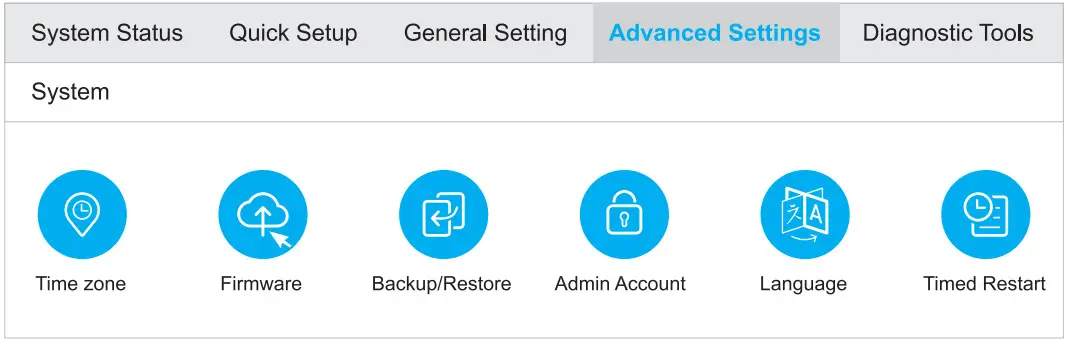
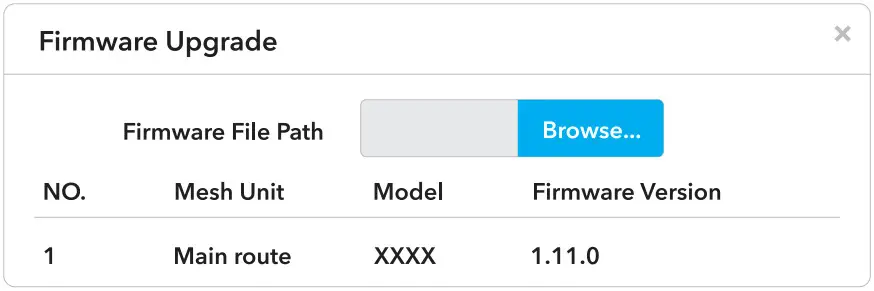
- Click Advanced Settings – > Firmware.

- Choose the firmware you unzipped to upload.

- Waiting 2~5 minutes for the router restart.
- Done
Need Help?
Q1. What should I do if I cannot access the web management page?
– A1: If the computer is set t o a static IP address, change its settings t o obtain an Iaddress automatically.
– A2: Make sure http://cudy.net/ or http://192.168.10.1/ is correctly entered in the web browser.
– A3: Use another web browser and try again.
– A4: Reboot your router and try again.
– A5: Disable and enable the active network adapter in use.
Q2. How do I restore the router to its factory default settings?
– A1: With the router powered on, press and hold the RESET button for 6 seconds before release. Wait the router resets.
– A2: Log in to the web management page of the router, and go to Advanced Settings >Reset , click Perform Reset and wait until the reset process is complete.
Q3: What can i do if i meet other problems?
– A1: Find answers on https://Awww.cudy.com/faq
– A2: Contact cudy technical support team via email: [email protected]
– A3: Contact cudy technical support team via Skype: [email protected]
EU Declaration of Conformity
Cudy hereby declares that the device is in compliance with the essential requirements and other relevant provisions of directives 2014/53/EU, 2009/125/EC and 2011/65/EU.
The original EU declaration of conformity may be found at http://www.cudy.com/ce.
FCC Statement
This equipment has been tested and found to comply with the limits for a Class B digital device, pursuant to part 15 of the FCC Rules. These limits are designed to provide reasonable protection against harmful interference in a residential installation. This equipment generates, uses and can radiate radio frequency energy and, if not installed and u s e d in accordance with the instructions, may cause harmful interference to radio communications. However, there is no guarantee that interference will not occur ina particular installation. If this equipment does cause harmful interference to radio or television reception, which can be determined by turning the equipment off and on, the user is encouraged to try to correct the interference by one or more of the following measures:
- Reorient or relocate the receiving antenna.
- Increase the separation between the equipment and r eceiver.
- Connect the equipment into an outlet on a circuit different from that to which the receiver is connected.
- Consult the dealer or an experienced radio/TV technician for help.
Caution: Any changes or modifications to this device not explicitly approved by manufacturer could void your authority to operate this equipment.
This device complies with part 15 of the FCC Rules. Operation is subject to the following two conditions: (1) This device may not cause harmful interference, and (2) this device must accept any interference received, including interference that may cause undesired operation.
RE Exposure Information
This equipment complies with FCC radiation exposure limits set forth for an uncontrolled environment. This equipment should be installed and operated with minimum distance 20cm between the radiator and your body.

 Email: [email protected]
 Skype: [email protected]
  Website: www.cudy.com
 Download: www.cudy.com/download
www.cudy.com
[email protected]
Company: Shenzhen Cudy Technology Co., Ltd