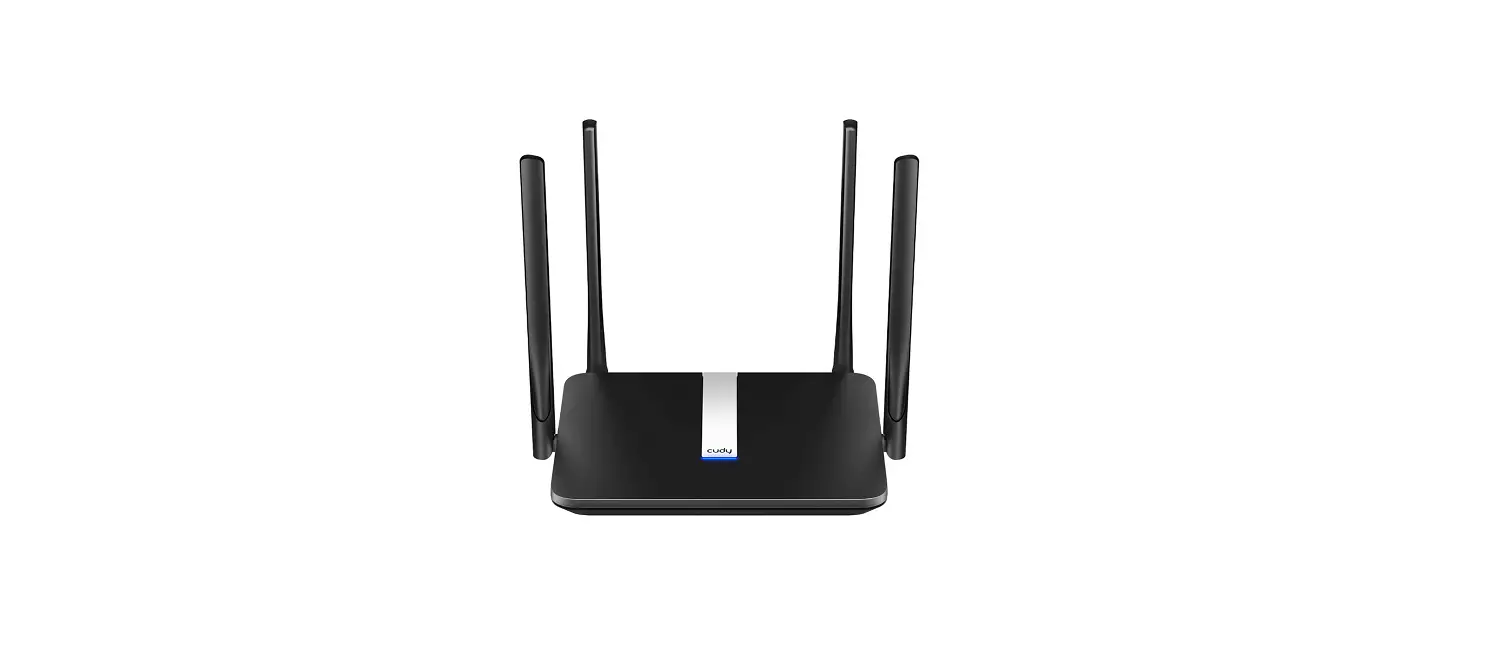
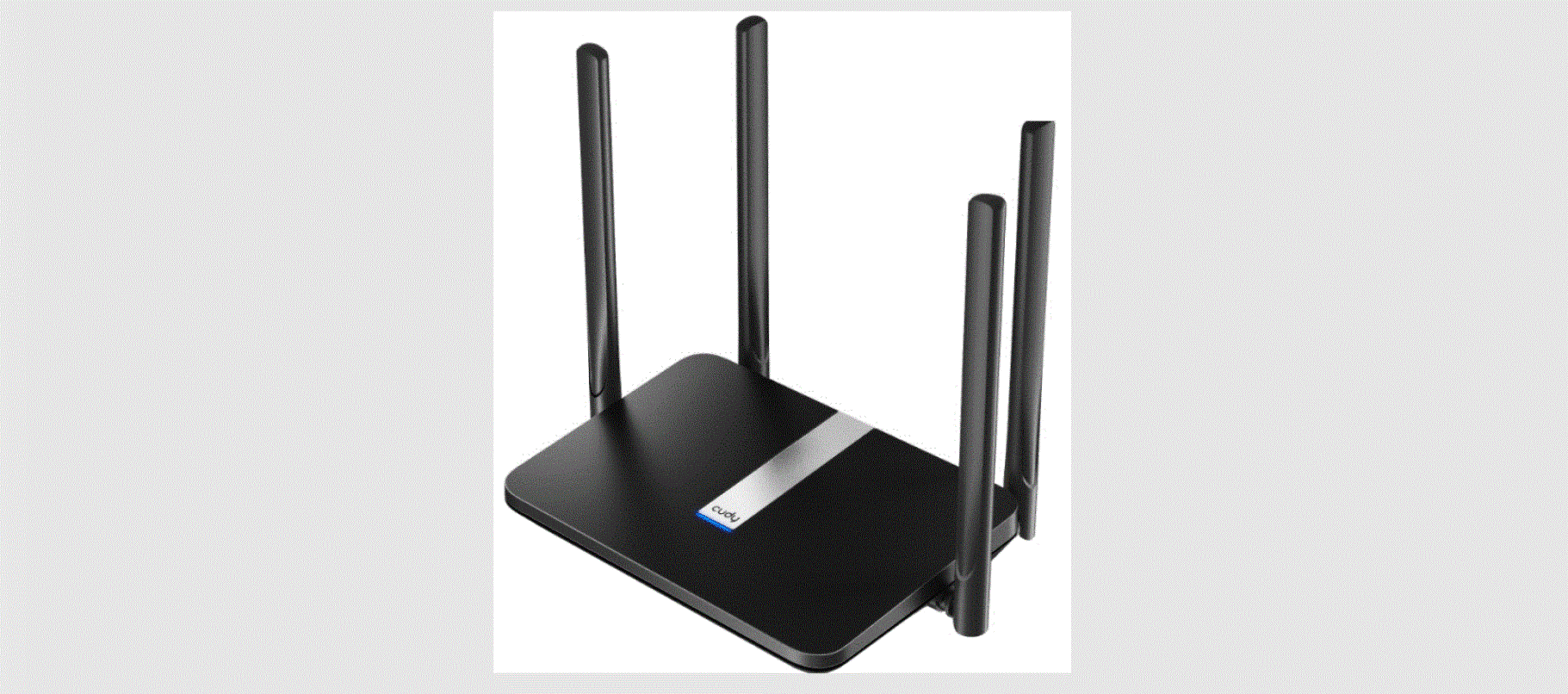
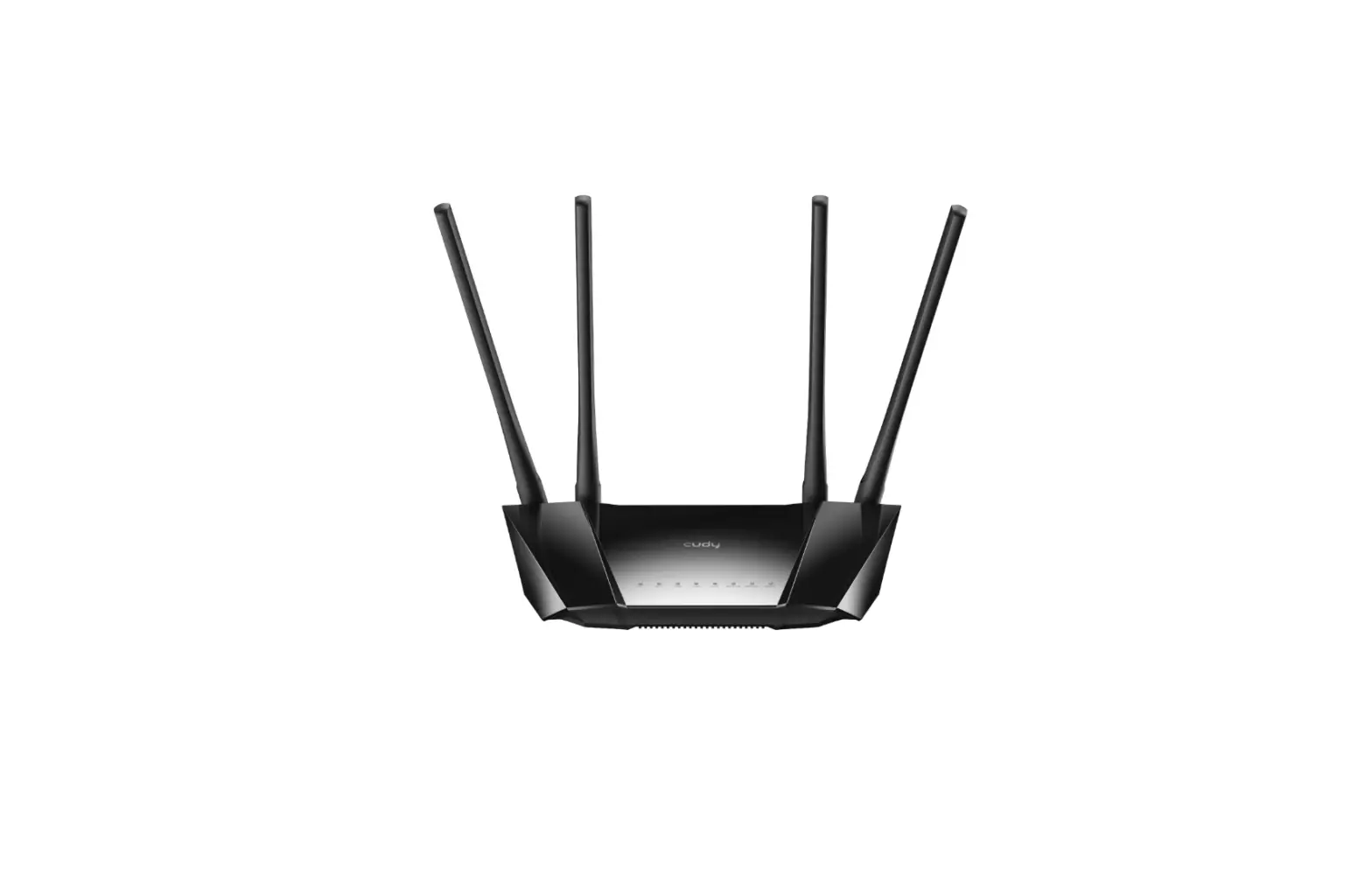
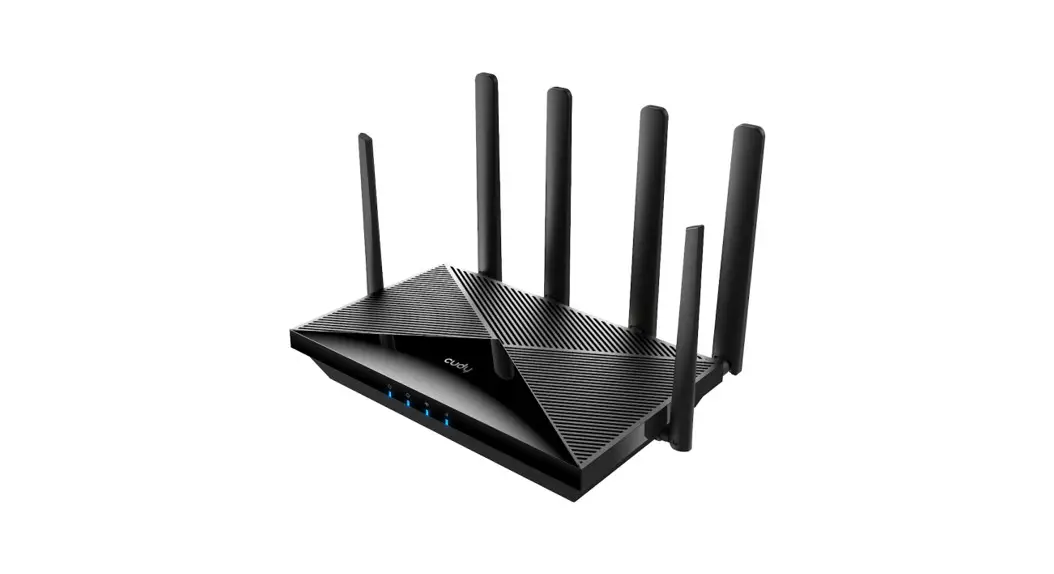
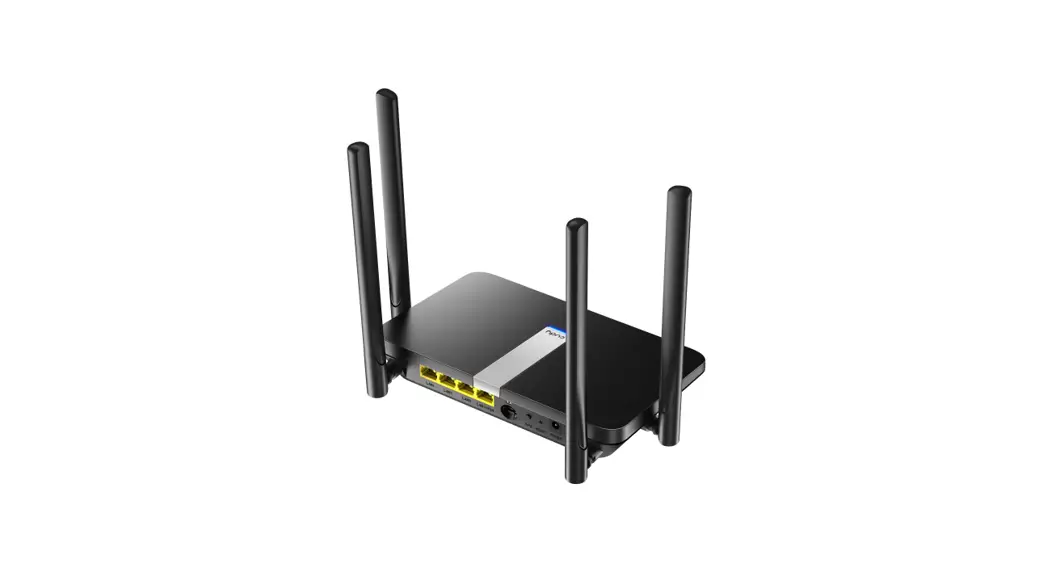
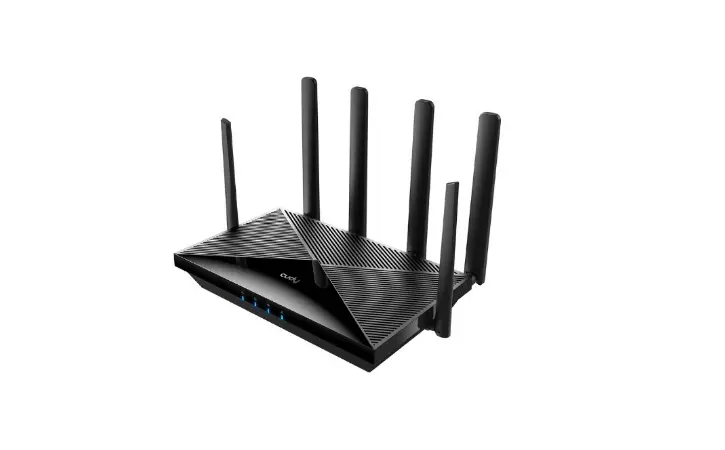
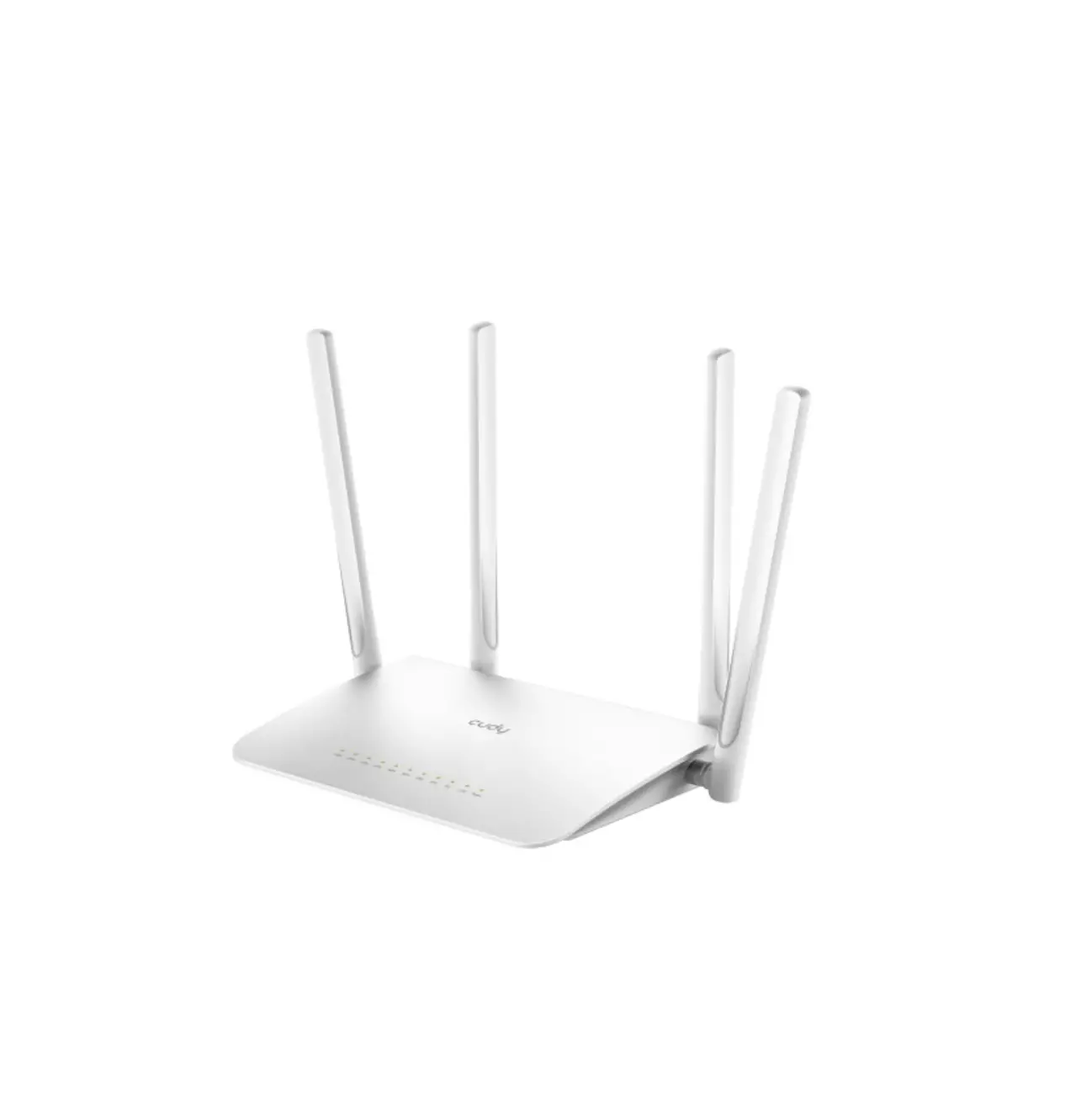
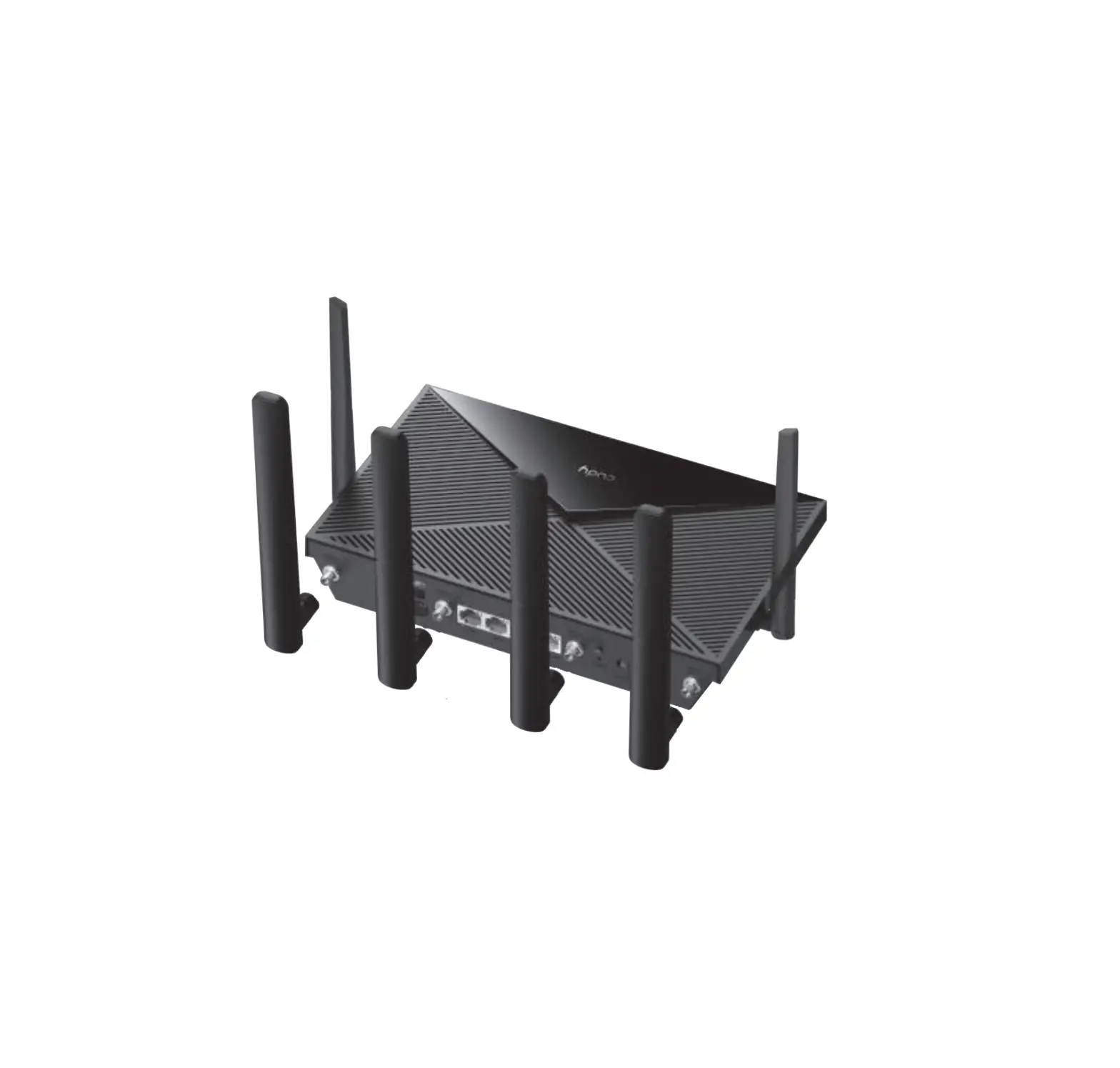
Cudy AC1200 4G/LTE Router
Product Information
The Cudy AC1200 4G/LTE Router is a rental equipment designed to
provide wireless and wired connectivity in various settings. It
comes with a protective case, a 4G LTE router, and a power
adapter.
Product Usage Instructions
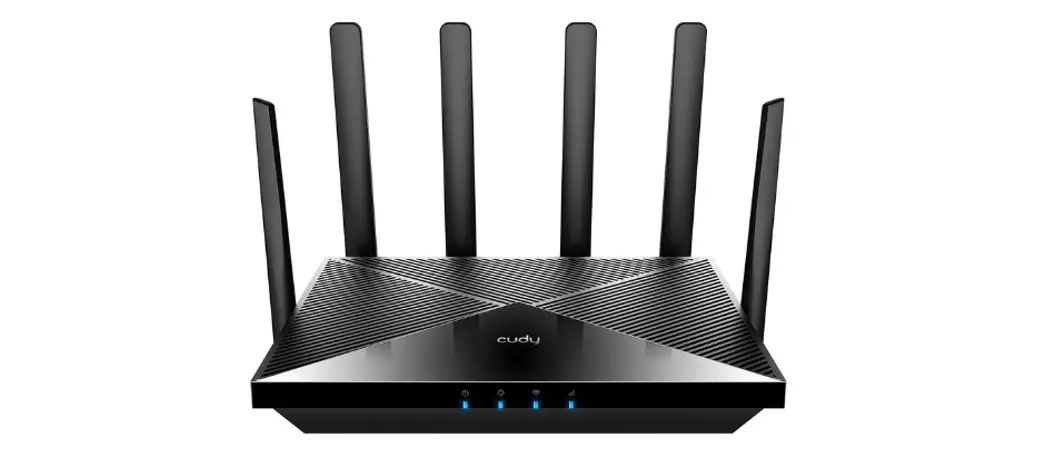
- Plug in the power cable provided to turn on the router. Allow
2-5 minutes for the center LED to light up solid blue, indicating a
4G connection. If the LED lights up solid purple, it means the
router is connected to 3G. - Important: Do not touch the SIM card or reset
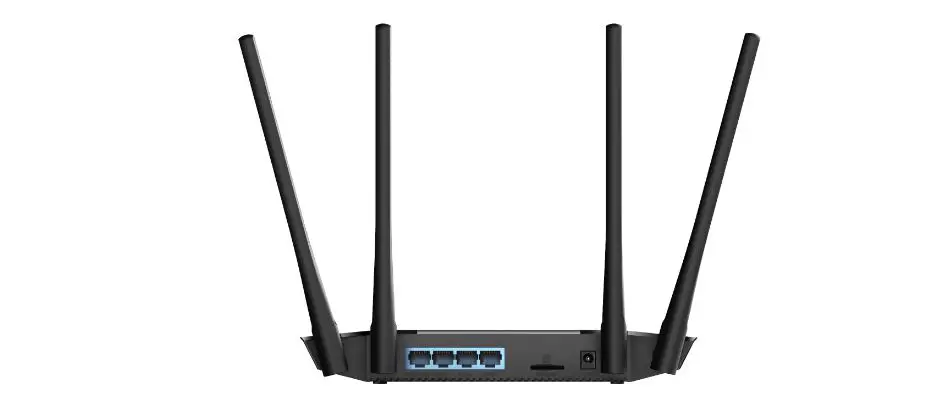
button. - To connect wired devices, such as an Ethernet-enabled printer,
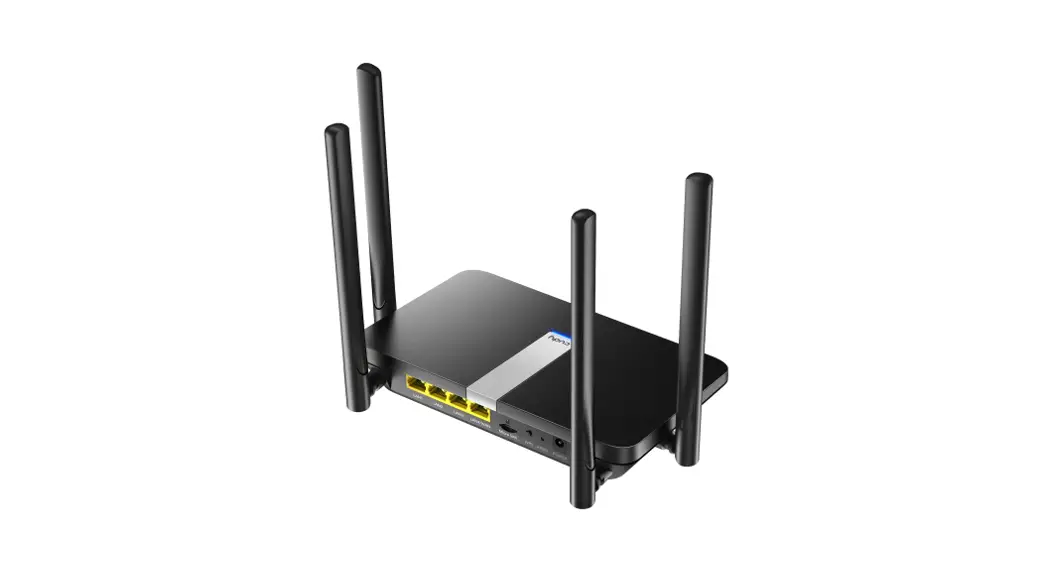
plug in an Ethernet cable (RJ45) into any of the LAN ports (1-3)
located at the back of the router. Connect the other end of the
cable to the printer or PC. The router supports connection to up to
3 wired devices via Ethernet. - If you have a DHCP hard line from the venue, plug it into the
router’s LAN4/WAN port. Skip this step if you are using mobile
internet from the provided SIM card. - Place all 4 antennas in an upward position for optimal wireless
signal reception. - To connect wireless devices like tablets or PCs, search for the
SSID (Wireless Network Name) located at the bottom of the router.
Use the password provided in your Important Documents Folder to
connect wirelessly.
Troubleshooting
- If the router does not power up: Make sure the
power cable is properly installed on both ends. - If you want to change to a hardline DHCP
connection: Plug in the venue’s DHCP hard line into the
LAN4/WAN port. - If you want to change to 4G LTE instead of
DHCP: Please follow the instructions provided by the
support team. - If your connected device (e.g., printer, PC) is not
getting an IP address: Please follow the instructions
provided by the support team. - If the status light is blinking red: Unplug
the DHCP hardline from port WAN/LAN4 and allow the router 2-5
minutes to establish a connection to cellular data. Make sure no
devices are connected to Port 4 and verify the connection on both
ends. The status light should be blue or purple. If the problem
persists, power cycle both units. The router is starting up, so
please give it some time to connect. - If the router light is solid red: The router
is not connecting to cellular data. Please make sure you have
waited at least 2-5 minutes for a connection to be made. Confirm
that the SIM card is properly installed. Try relocating the router
closer to the outside for better reception.
Contact Information
Contact our Support Team:
- Website: www.choose2rent.com/help
- USA: +1 (800) 622-6484 Ext. 3
- Europe: +49 40 226 360 – 590
RENTAL EQUIPMENT SETUP GUIDE Cudy AC1200 4G/LTE Router
Shipment Content: 1 x Protective Case 1 x 4G LTE Router 1 x Power Adapter
Quick Setup:
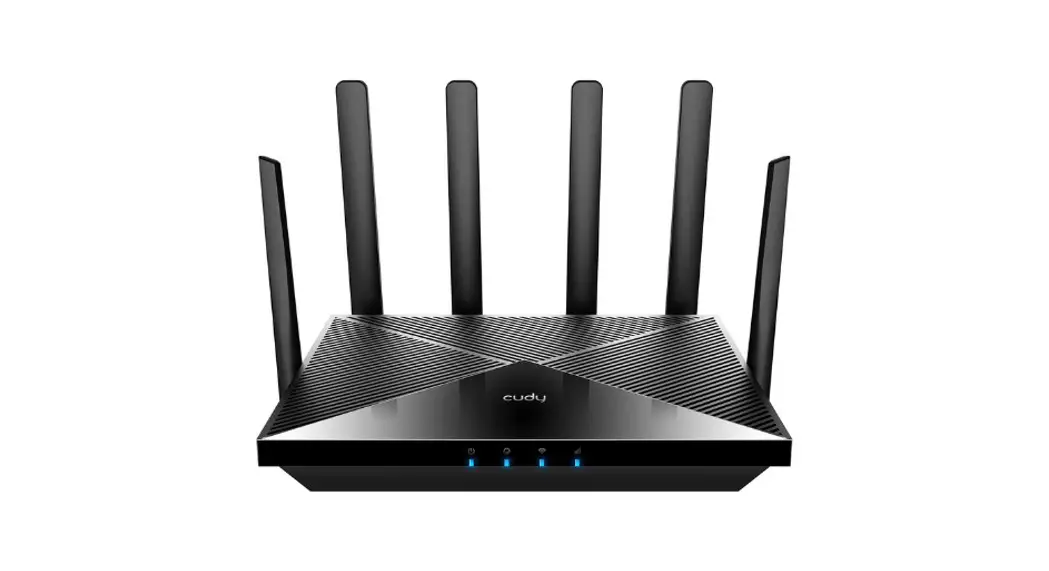
1. Plug in the Power cable and the router will turn On. Allow 2-5 minute for the Center
LED to light up solid blue when connected to 4G (pictured below). If the LED lights up solid purple, it is connected to 3G.
Do Not Touch the SIM Card or Reset button.
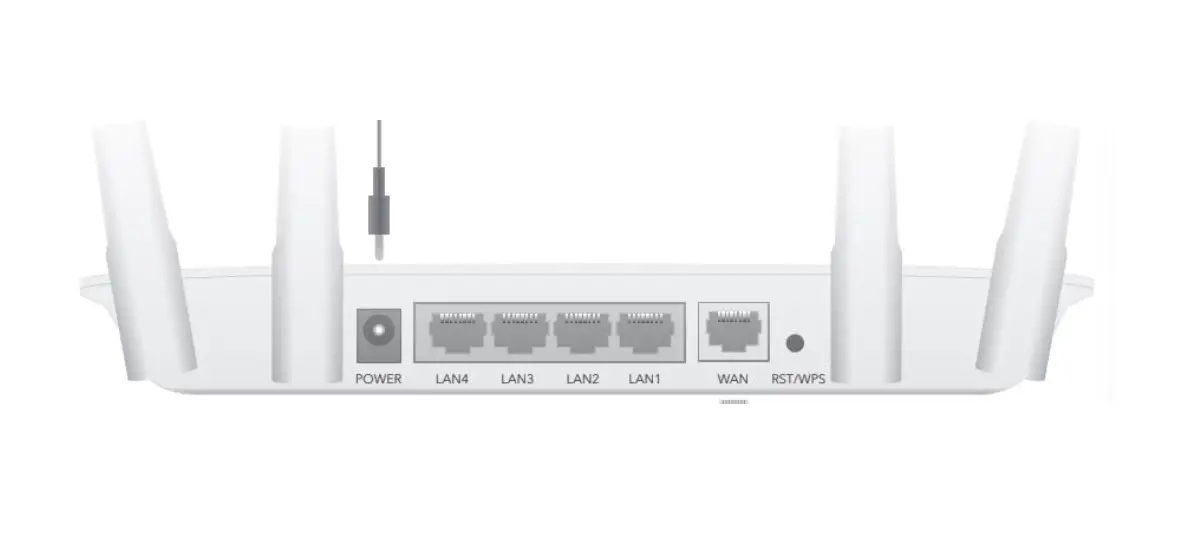
4. Connect your wired devices. (e.g., Ethernet enabled Printer) Plug in the Ethernet Cable (RJ45) to the back of the router into any of the LAN ports, 1- 3. Plug the other end of the cable into a printer or PC. This device allows you to
connect to 3 wired devices via Ethernet.
2. Plug in a DHCP hard line from the venue into the router’s LAN4/WAN port. Skip this
step if using Mobile Internet from the provided SIM Card.
3. Place all 4 antennas in an upward position.
5. Connect your wireless devices (e.g. Tablet / PC) Search with your device for the SSID (Wireless Network Name) on the bottom of the router along with the password in your Important Documents Folder to connect wirelessly.
Contact our Support Team: www.choose2rent.com/help +1 (800) 622-6484 Ext. 3 (USA) +49 40 226 360 – 590 (Europe)
RENTAL EQUIPMENT SETUP GUIDE Cudy AC1200 4G/LTE Router
Troubleshooting:
What if…
…the router does not power up?
Please make sure the power cable is properly installed on both ends.
…I want to change to a hardline DHCP connection?
Please make sure to plug in the venue’s DHCP hard line into LAN4/WAN.
…I want to change to 4G LTE instead of DHCP?
…my connected device (e.g. printer, PC) is not getting an IP address?
…the status light is Blinking Red?
Please unplug the DHCP hardline from port WAN/LAN4 and allow the router 2-5 to establish a connection to cellular data. No devices should be connected to Port 4 and please verify the connection on both ends. Verify the status light is blue or purple. If problem persists power cycle both units. The Router is starting up, please give it some time to connect.
…the router light is Solid Red?
The router is not connecting to Cellular; -Please make sure you waited 2-5 minutes at least for a connection to be made. -Confirm the SIM card is properly installed. -Try relocating the router closer to the outside for better reception.
Contact our Support Team: www.choose2rent.com/help +1 (800) 622-6484 Ext. 3 (USA) +49 40 226 360 – 590 (Europe)
 Choose 2 Rent Help and Support for Event Rental Equipment