BLOCKCHAIN Bangtan TV 1000 User Guide
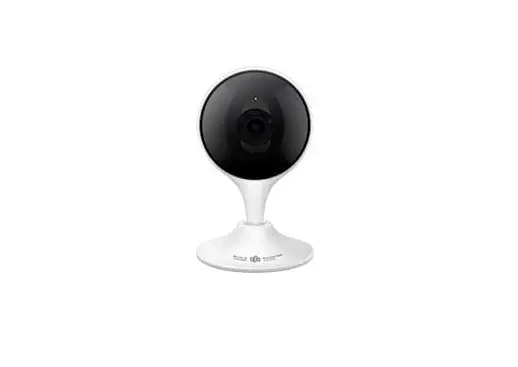
Camera Introductions
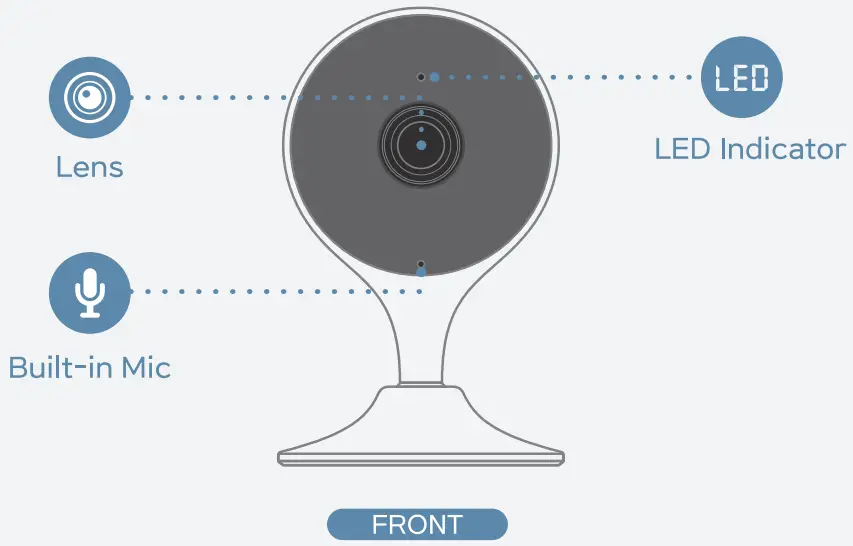
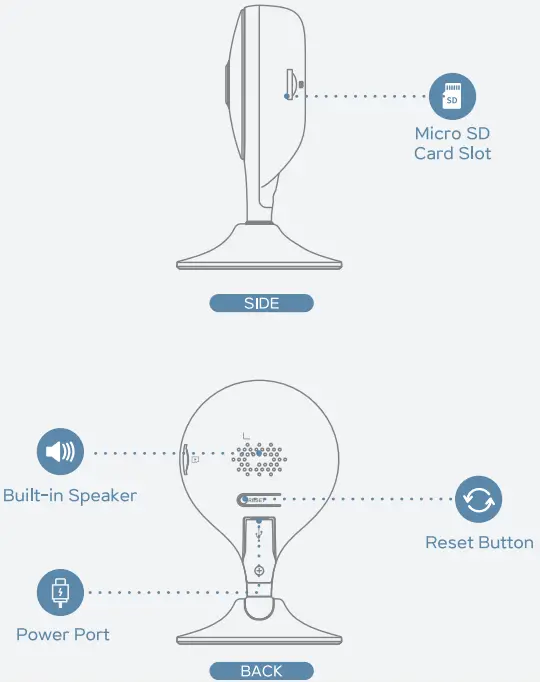
Note. Press and hold the reset button for 10 s to reset the camera.
The pattern of the LED indicator is included in the following table.
| LED Indicator Status | Device Staus |
| Off | Powered off/LED turned off Rebooting after reset |
| Red light on | Booting Device malfunction |
| Green light flashing | Waiting for network |
| Green light on | Operating properly |
| Red light flashing | Network connection failed |
| Green and Red light flashing alternately | Firmware updating |
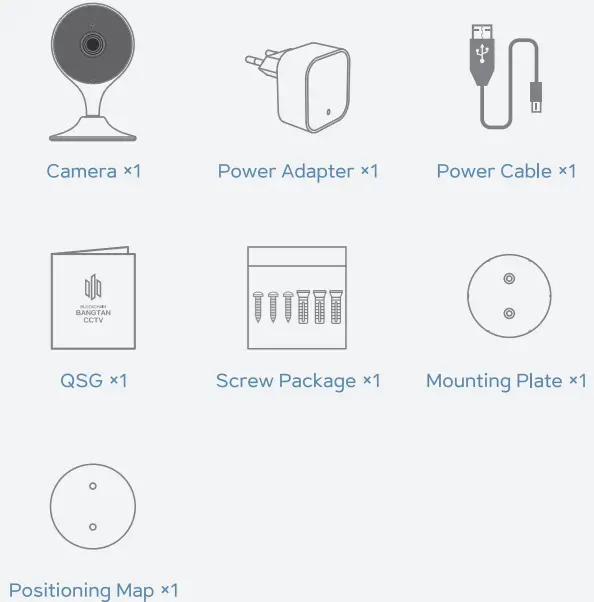
Packing List
Troubleshooting
| Problem | Solution |
| Cannot set up camera | Ensure your mobile device and the camera are within range of your Wi-Fi router. Ensure the LED indicator on the camera is flashing green before beginning setup. |
| The APP says “Failed to configure device network” | Reset your Camera and connect it again. Some cameras only support 2.4GHz, while some routers have dual band, 2.4G/5G. Make sure you are connecting 2.4GHz only. |
| The app says “Failed to bind” | The camera is already connected to Wi-Fi, but the router is : Not connected to Internet Poor network status The Wi-Fi signal is not stable due to obstacles or electronic interference |
| No picture / signal | Ensure the LED indicator on the camera is flashing steady green. See ‘LED Status’ section for details if otherwise. Ensure the camera is properly connected to power using the included USB power adapter. Try repositioning the camera, router, or both to improve signal strength. |
| Picture is not clear | Check the camera lens for dirt, dust, spider webs. Clean the lens with a soft, clean cloth. Remove the vinyl cover on the camera lens. |
| No audio | Ensure audio function on camera is turned on Ensure audio is turned up on viewing device. |
| Human detection not working | Ensure you have enabled “Human Detection” in the Device Settings screen of the Bangtan CCTV App. |
| Camera stuck downwards | Turn off Camera Shielding in Device Settings on the Bangtan CCTV app. |
| Phone is not reading QR code | Clean the camera lens of your Smartphone Ensure that there is enough light on the QR code Don’t hold the QR code too close to the camera |
Installing Camera
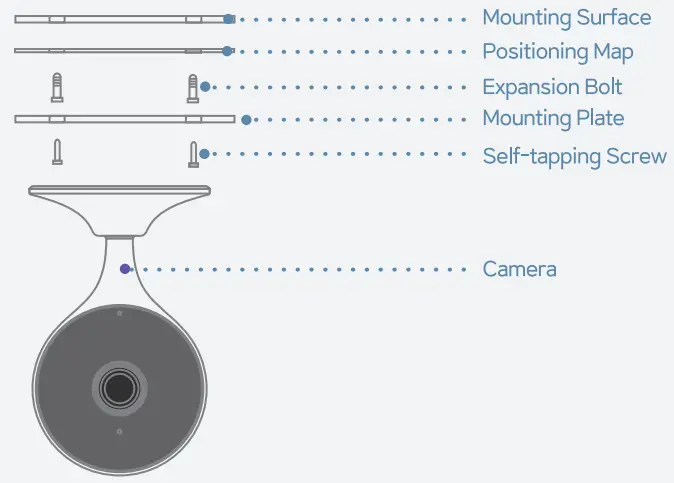
Note. Make sure the mounting surface is strong enough to hold at least three times of the device weight.
“BANGTAN CCTV” on Google Play / Apple Store Search and download the app.
 BANGTAN CCTV
BANGTAN CCTV website (http://www.bangtan24.com) app user manual You can download it.


Precautions

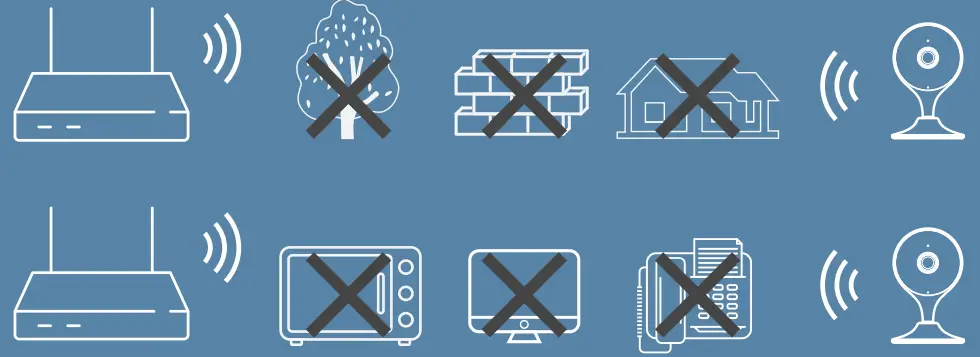
To ensure the best possible wireless performance, please make sure there are no obstacles and electromagnetic interference between the camera and router.
Pushpull system 71-96, Taesan-ro, Yeondong-myeon, Sejong-si, 30067 Korea
E-Mail [email protected]
Tel +82-1670-4519