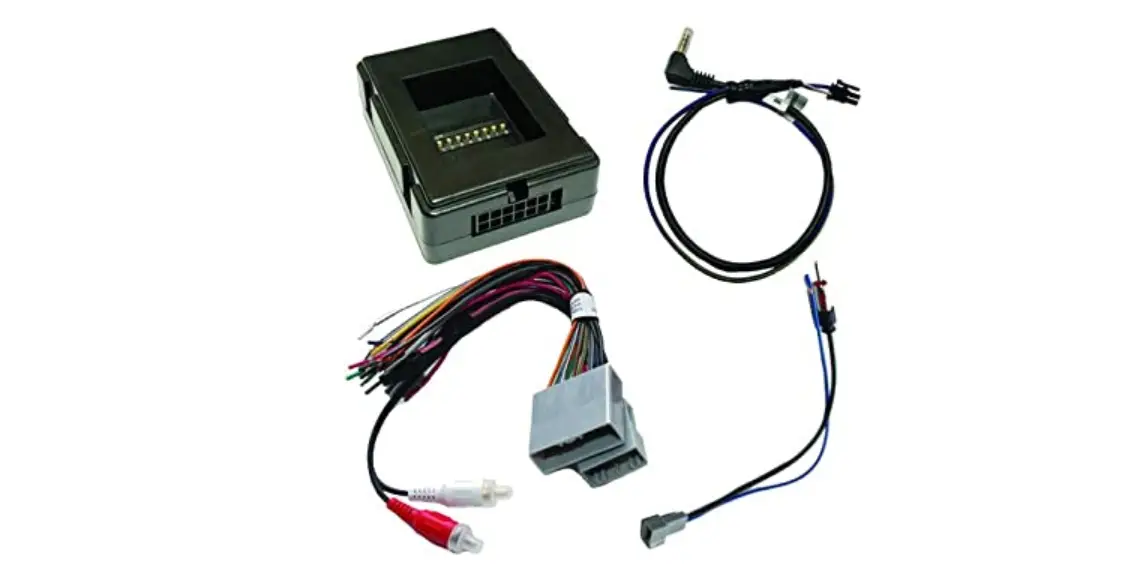
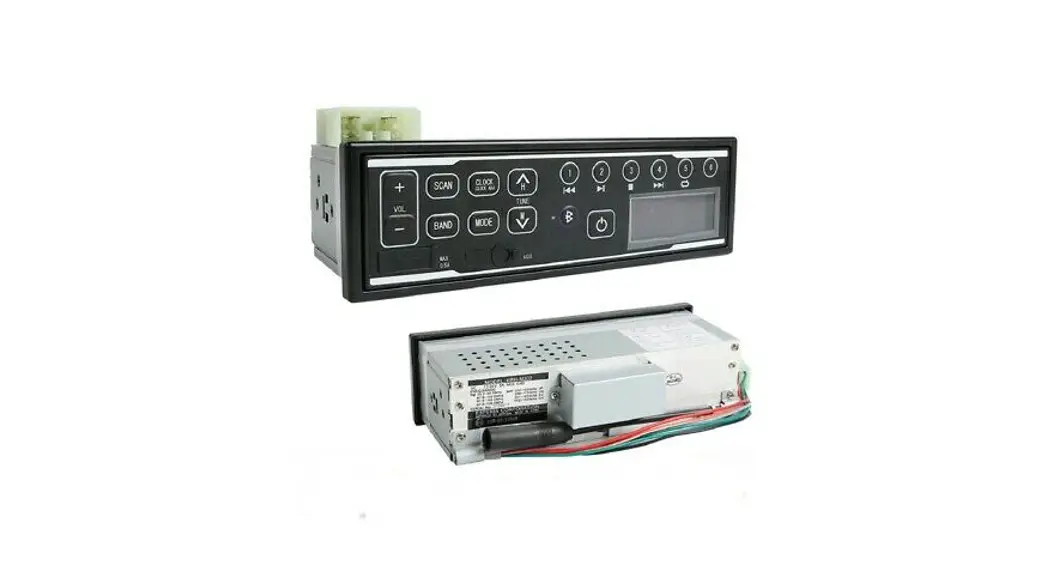
AMHRA2K Radio Replacement Kit
Product Information
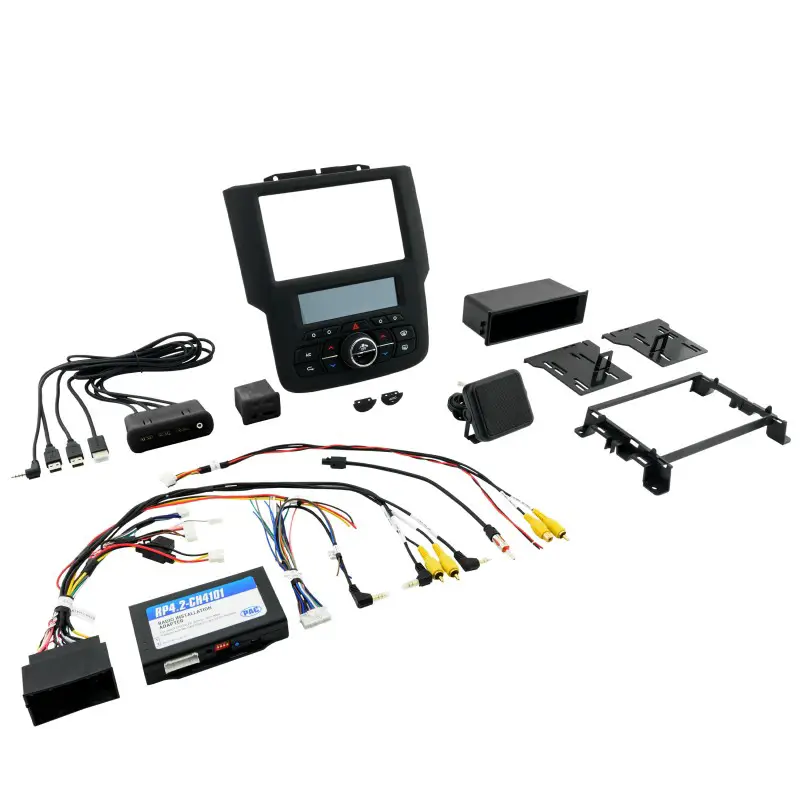
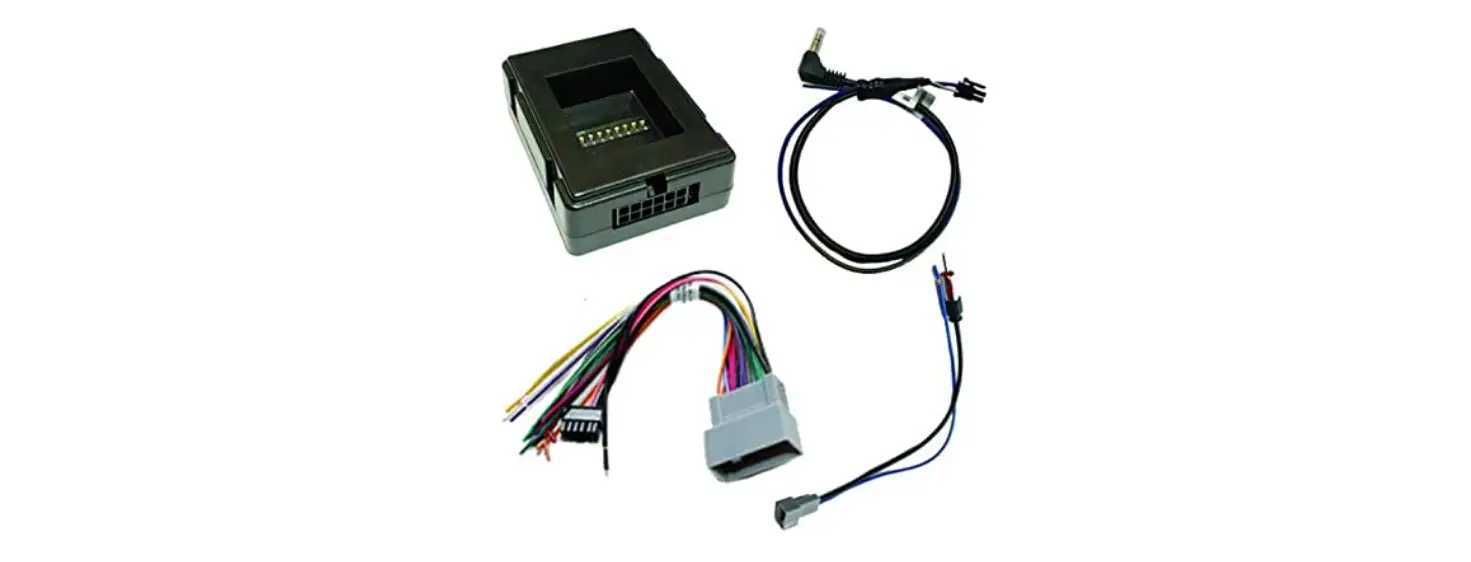
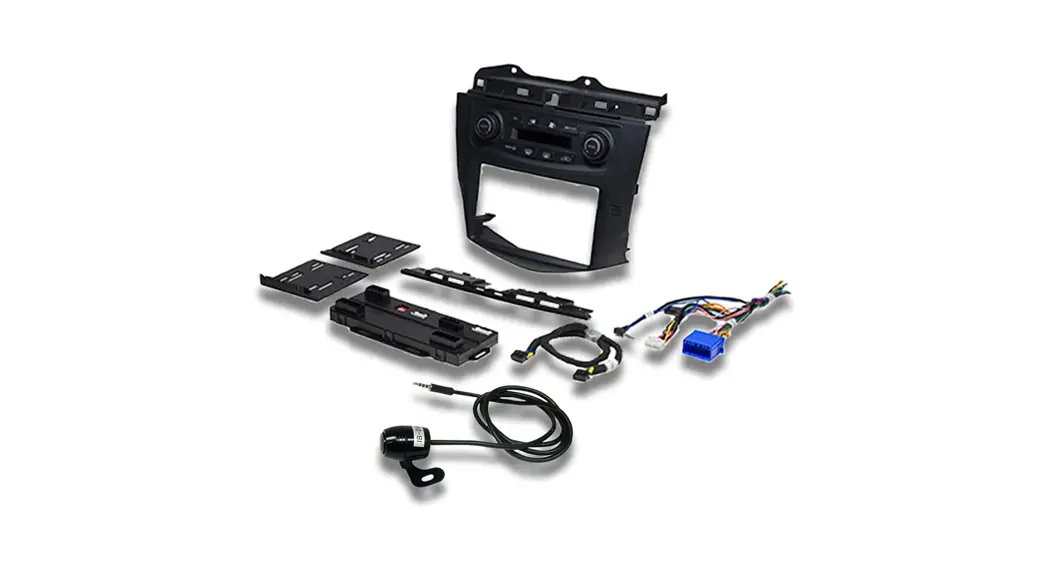
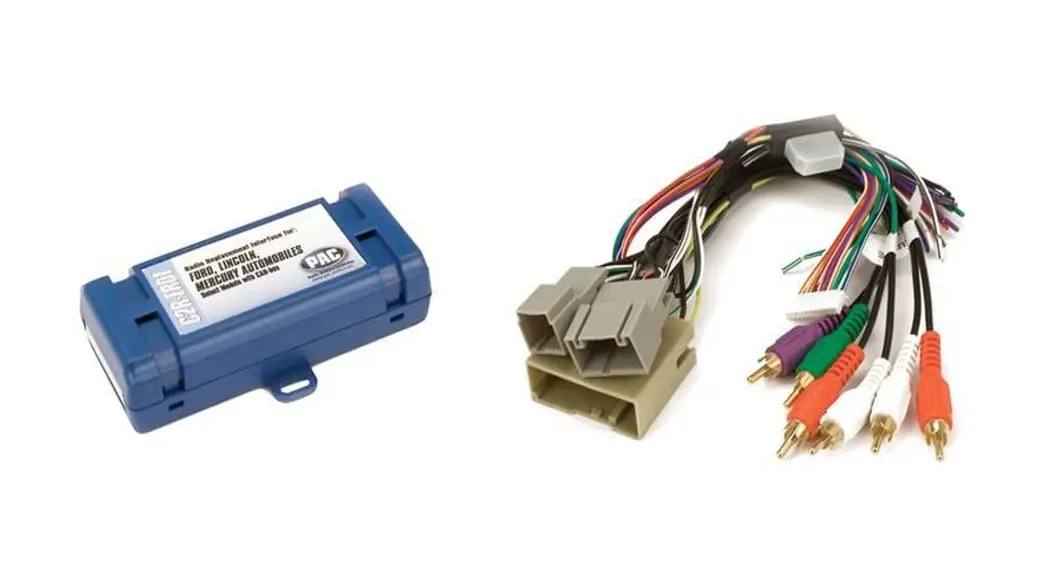
The AMHRA2K is a complete radio replacement kit with integrated
climate control retention designed for select RAM trucks. It
includes all the necessary modules and cables to retain important
features of the factory system, such as steering wheel-mounted
radio controls, factory reverse camera, USB ports, and AM/FM
reception. The kit also allows for data integration with the
vehicle and the Aerpro AERA10D radio, enabling the retention and
addition of features like vehicle performance gauges and
information, climate controls, vehicle settings, factory amplifier
control, and forced camera activation. The installation process is
simplified with direct programming options for camera triggers,
steering wheel controls, and other settings of the radio CH4A-SRK
interface.
Important Notes
- It is recommended to thoroughly read the manual before starting
the installation. - The kit does not retain certain features.
- Ensure that the CH4A-SRK and PL1 modules have the latest
firmware version before installation. Refer to the Updating
Firmware section at the end of the manual for instructions. - The vehicle should be turned off and the key should be removed
throughout the entire disassembly and installation process to avoid
error codes or check engine light.
Recommended Tools
- Plastic Panel Tool
- 7mm Socket Ratchet
- Phillips Screwdriver
- T20 Torx
- Flush Cutters
Included Components
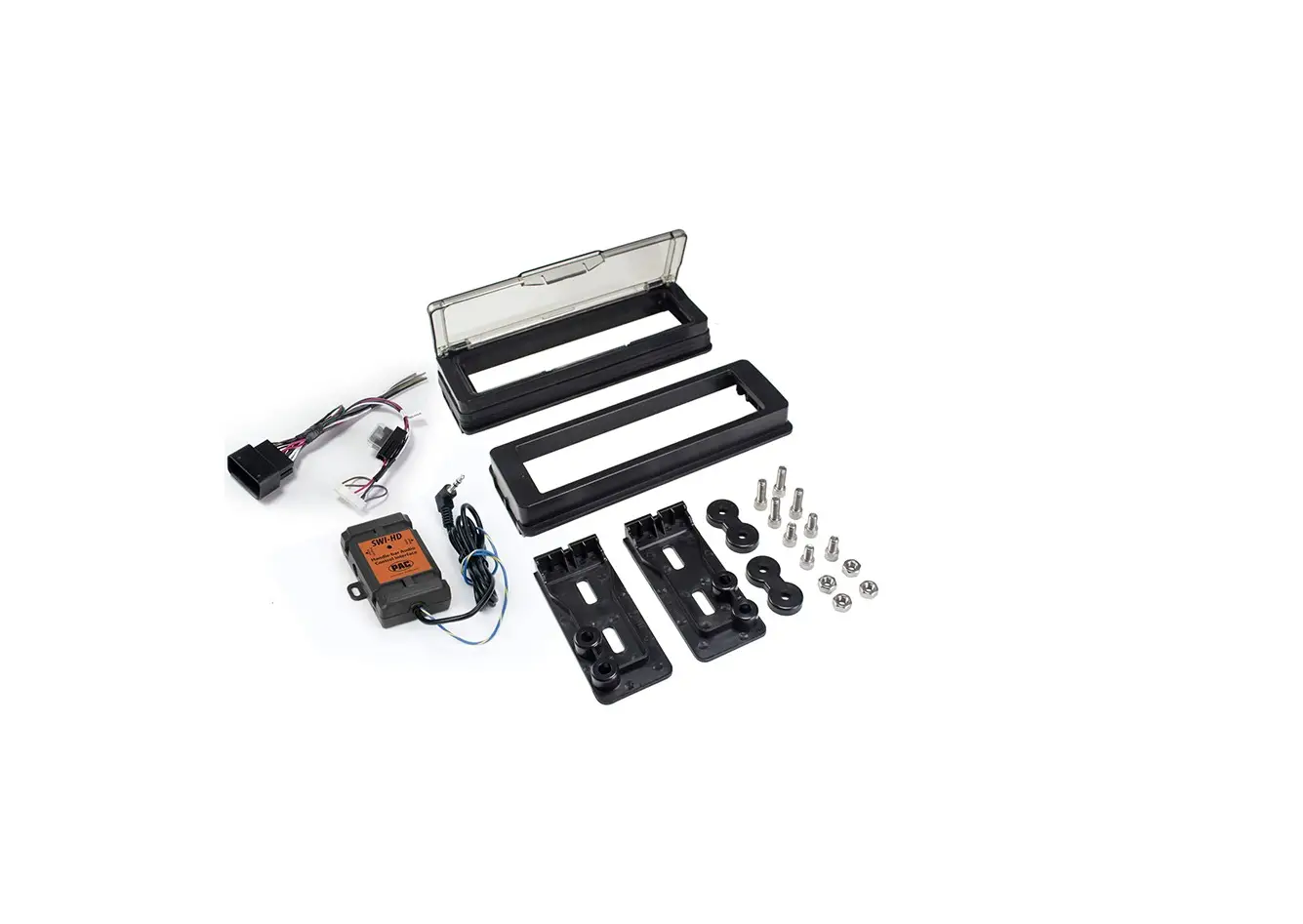
- AERA10D Display Mounting Panel
- Radio Module Mounting Brackets
- External Chime Speaker
- Media Hub Replacement (USBHUB-CH1-RCA)
- AM / FM Antenna Adapter (BAA22)
- PAC-LINK Interface Module (PL1)
- CAN-Bus Connection Harness (MQS4PT-CANC)
- Differential/Composite Video Modules x2 (RPA-VA1)
- Main Wiring Harness (SRK-RAM13-HAR)
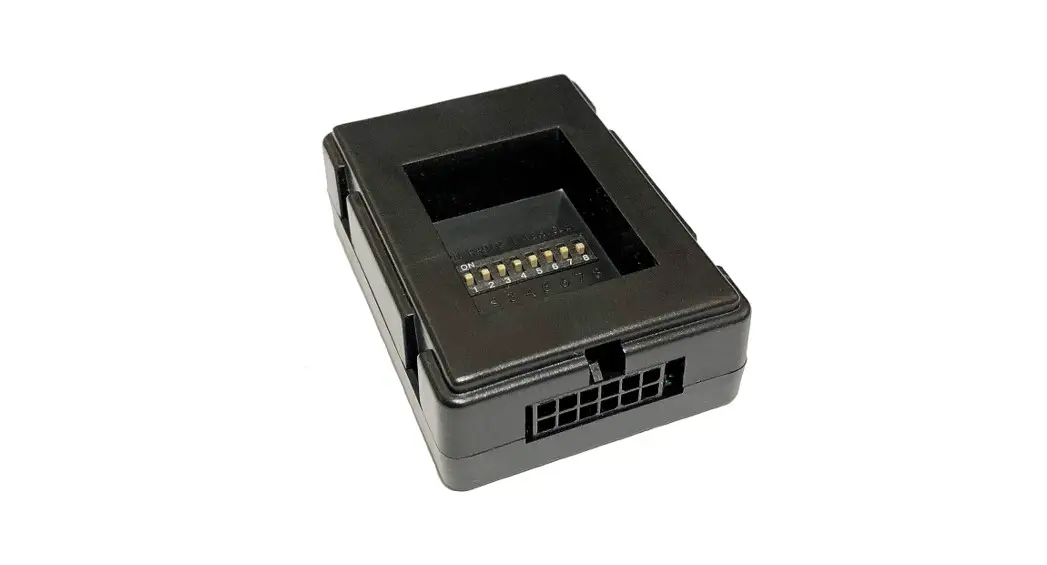
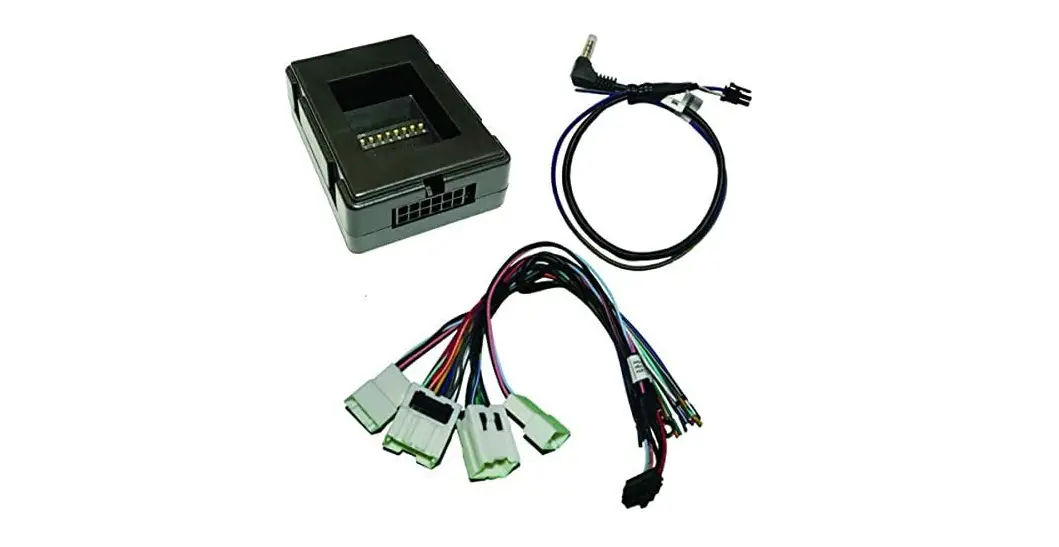
- RadioPRO Replacement Interface Module (CH4A-SRK)
- 6 Data Harness (10P-2-10P-6-HAR)
- Satellite Antenna Adapter (SAT-01)
Note: Additional hardware and wire harnesses
from the AERA10D (UN1810E) kit will also be used in the
installation. Refer to the AERA10D Installation Guide for
reference.
Product Usage Instructions
This installation manual provides step-by-step procedures for
efficient installation and to avoid repeating any steps. The order
of procedures is as follows:
- Disassembly: Follow the instructions for
disassembling the necessary components. - In-Vehicle Harness Connections and
Preparation: Connect the in-vehicle harnesses and prepare
for further connections. - Interface and Main Harness Connections:
Connect the interface module (PL1), main wiring harness
(SRK-RAM13-HAR), and other required connections. - Display and Radio Unit Mounting Panel
Preparation: Prepare the display mounting panel and radio
unit mounting brackets. - Radio Unit Installation: Install the radio
unit using the prepared mounting panel and brackets.
AMHRA2K
Aerpro AERA10D® Radio Replacement Kit for 2013-2019 RAM (Classic) Truck
Introduction and Features
The AMHRA2K is a complete radio replacement kit with integrated climate control retention for select RAM trucks. All modules and cables are included to retain important features of the factory system, including: steering wheel-mounted radio controls, factory reverse camera, USB ports, and AM/FM reception.
Data integration with the vehicle and the Aerpro AERA10D radio allows for the retention and addition of the following features: vehicle performance gauges and information, climate controls, vehicle settings, factory amplifier control, and forced camera activation. Simplified installation and setup menus allow direct programming of camera triggers, steering wheel controls, and other settings of the radio CH4A-SRK interface.
Important Notes
We recommend reading this manual thoroughly to familiarise yourself with the entire process prior to beginning the installation.
1. Does Not Retain:
Cluster Display Features · Compass (when equipped with 7″ or 8.4″ screen) · Clock · Phone pop-ups · Navigation pop-ups Factory Amplifier Features · Speed Controlled Volume
Uconnect Features · Uconnect Access Remote Start / Lock / Unlock · SOS / Assist · Vehicle Location Service · WiFi-Hotspot
2. Ensure that the CH4A-SRK and PL1 modules have been updated to the latest version of firmware before installing into the vehicle. Refer to the Updating Firmware section at the end of the manual for firmware update instructions.
3. The vehicle should be OFF and key removed during entire disassembly and installation. Turning on the vehicle during the installation may cause error codes / check engine light.
Recommended Tools
Plastic Panel Tool 7mm Socket Ratchet
Phillips Screwdriver T20 Torx Flush Cutters
Included Components
1. AERA10D Display Mounting Panel
2. Radio Module Mounting Brackets
1
3. External Chime Speaker
4. Media Hub Replacement (USBHUB-CH1-RCA)
5. AM / FM Antenna Adapter (BAA22)
3
6. PAC-LINK Interface Module (PL1)
7. CAN-Bus Connection Harness (MQS4PT-CANC)
2
8. Differential/Composite Video Modules x2
(RPA-VA1)
6
9. Main Wiring Harness (SRK-RAM13-HAR) 10. RadioPRO Replacement Interface Module
(CH4A-SRK)
7
5
12
11. 6″ Data Harness (10P-2-10P-6-HAR)
4
12. Satellite Antenna Adapter (SAT-01)
11
NOTE: Along with the AMHRA2 components, additional hardware and wire harnesses from the AERA10D (UN1810E) kit will also be used in the installation. There is a component list, hardware guide, wire harness descriptions and illustrations in the AERA10D Installation Guide for reference.
9
10
8
Page 1
AMHRA2K
Wiring Diagram Overview
Aerpro AERA10D® Radio Replacement Kit for 2013-2019 RAM (Classic) Truck
RPA-VA1 RPA-VA1
REVERSE CAM VA1 CARGO CAM VA1
SRK-RAM13-HAR
CARGO CAM
REVERSE CAM
CHIME
RadioPRO ADVANCED
CH4A-SRK
PAC-LINK PL1
Connects to SXV300 Satellite
Radio Tuner (sold separately)
REVERSE CAM A/V IN 16PIN RADIO SWI
PAC LINK CAMERA 2
Chime
Speaker*
GPS
*Only required in vehicles with Safety Group features
HDMI
GPS 24PIN 16PIN USB1 USB2 6PIN 10PIN
GRAY BLACK AM/FM ANT.
AERA10D
Main Harness Connection Aerpro Connection ConPnAeCction
Connections shown are all required for full functionality of the kit and radio. If adding additional components, additional connections will be needed.
Page 2
AMHRA2K
Aerpro AERA10D® Radio Replacement Kit for 2013-2019 RAM (Classic) Truck
This installation manual will cover the necessary order of procedures to complete the installation efficiently and to avoid redoing any steps along the way. The order will be as follows:
Disassembly, In-Vehicle Harness Connections and Preparation, Interface and Main Harness Connections, Display and Radio Unit Mounting Panel Preparation and Radio Unit Installation.
Section 1: Disassembly
Part One: Dash Disassembly – With Floor Mounted Center Console
If equipped with a floor mounted center console, begin here. If not, skip ahead to PartTwo on page 4.
Step 1
Remove the circled rubber inserts to gain access to the screws
securing the dash and console in place.
Step 2
Remove the two T20 Torx screws from the top of the dash.
Step 3 If present, remove the T20 Torx screw from the back of the small pocket on the right side of the
dash.
Step 4
Remove the two phillips head screws in the tray at the bottom of the dash
panel.
Step 5a
2013-2015 models: Remove the chrome trim ring around the center
console storage compartment.
Step 5b
2016-2021 models: Remove the rubber insert in the bottom of the center console storage compartment. Remove the 7mm screw from the bottom of the storage compartment.
Page 3
AMHRA2K
Section 1: Disassembly (cont.)
Aerpro AERA10D® Radio Replacement Kit for 2013-2019 RAM (Classic) Truck
Step 6
Remove the center console by pulling straight up from the back and then pulling
outward toward the back of the truck.
Step 7
Remove the dash panel by gripping firmly and pulling straight out on the
top portion of the panel.
Part Two: Dash Disassembly – Without Floor Mounted Center Console
Step 8
Disconnect all the harnesses from the back of the dash panel and remove the dash panel from the truck.
Step 1
Remove the circled rubber inserts to gain access to the screws securing
the dash panel in place.
Step 2
Remove the two T20 Torx screws from the top of the dash.
Step 3
Remove the T20 Torx screw from the back of the small pocket on the right side of the dash (not always present).
Step 4
Remove the dash panel by gripping firmly and pulling straight out on the
top portion of the panel.
Step 5
Disconnect all the harnesses from the back of the dash panel and remove the dash panel from the truck.
Page 4
AMHRA2K
Section 1: Disassembly (cont.)
Part Three: Radio Display Removal
Aerpro AERA10D® Radio Replacement Kit for 2013-2019 RAM (Classic) Truck
Step 1
Remove the four 7mm screws securing the radio display in place.
Step 2
Disconnect all the connectors from the back of the radio (the number of connections will vary based on the
vehicle’s available features).
Step 3
Remove the display from the dash (dash appearance may vary
according to model year).
Part Four: Floor Mounted Center Console Disassembly
If equipped with a floor mounted center console, proceed with the console disassembly steps listed below. If equipped with a center seat mounted storage console, skip ahead to Part Five on page 7.
Step 1
Open the upper console storage and remove the rubber mat. Remove the seven inner tray T20 TORX screws.
Remove the inner tray enough to access the wire harness connectors
for the factory USB hub.
Step 2
Disconnect the two connectors from the factory USB hub. Compress
the four retaining tabs on the USB hub to release and remove the hub
assembly from the inner tray.
Step 3
Using a plastic trim tool, remove the center console rear panel by releasing the four retaining clips. Note: The rear power outlet can remain connected and the rear panel
laid on the floor.
Page 5
AMHRA2K
Section 1: Disassembly (cont.)
Part Four: Floor Mounted Center Console Disassembly (cont.)
Aerpro AERA10D® Radio Replacement Kit for 2013-2019 RAM (Classic) Truck
Step 4
Remove the five Torx T20 screws from the upper lid bracket and remove the upper console lid.
Step 5
At the rear of the console, remove the three 7mm screws from the lower lid bracket. Loosen the two
lower 7mm screws. Unplug the two connectors and remove the upper
console assembly.
Step 6
On the backside of the upper console, remove the five Torx T20 screws securing the hinge. Unclip the console wire harnesses from the
hinge and remove.
Step 4A
Step 4B
2016-2021 models:
2013-2015 models: For trucks equipped with a 12V
Unclip and remove the factory
receptacle in the upper console, the factory wire harness
USB wire harness from the upper
OR
will need to be reconnected. To allow space for routing the
console to allow room to route the
replacement hub cables, the plastic ribs will need to be
replacement hub cables.
trimmed flush in the area next to the factory wire harness.
Page 6
AMHRA2K
Section 1: Disassembly (cont.)
Part Five: Seat Mounted Storage Console Disassembly
Aerpro AERA10D® Radio Replacement Kit for 2013-2019 RAM (Classic) Truck
Step 1
Using a plastic trim tool, remove the trim panel surrounding the cup
holders.
Step 2
Step 3
Starting on either side, pull and remove the spline attached to the fabric from the groove in the console.
Continue to remove the fabric spline around the entire console.
Step 4
Tilt up the console and pull back the fabric to expose the foam padding.
Step 5
Pull back the foam padding to access the back side of the USB hub.
Step 6
Unplug the two connectors from the factory USB hub. Compress the four retaining tabs on the hub to release and remove the hub assembly from
the console.
NOTE: If the truck has an aftermarket leather interior installed, there may be spray adhesive holding the OEM fabric to the bottom of the console. This will need to removed and then reattached with spray adhesive.
Page 7
AMHRA2K
Section 1: Disassembly (cont.)
Part Five: Seat Mounted Storage Console Disassembly (cont.)
Aerpro AERA10D® Radio Replacement Kit for 2013-2019 RAM (Classic) Truck
Step 7
Remove the Torx T45 screw from the passenger side hinge cover and
remove cover.
Step 8
Step 9
On the backside of the hinge cover, remove the rib by scoring with a utility
knife and snapping the rib off.
For access under the carpet, remove the passenger side door sill panel.
NOTE: The replacement media hub cables will be ran under the carpet from the center seat console to the radio opening. Removing the passenger seat will make this easier and provide more cable length at the radio opening, but is not necessary.
Part Six: Lower Knee Panel Removal (Optional)
NOTE: Removal of the lower knee panel is required for all 2018-2021 Classic model trucks and/or any truck equipped with Safety Group features (parking sensors).
Step 1
Remove the two 7mm screws from the bottom edge of the knee panel.
Step 2
Pull the panel to release the retaining clips and carefully lay the panel on the floor board. Note: Disconnecting the OBD port and hood release attached to the panel is not required.
Page 8
AMHRA2K
Aerpro AERA10D® Radio Replacement Kit for 2013-2019 RAM (Classic) Truck
Section 2: In-Vehicle Harness Connections and Preparation
Part One: Media Hub Installation (Floor Mounted Center Console)
If equipped with a floor mounted center console, proceed with the installation steps listed below. If equipped with a center seat mounted storage console, skip ahead to Part Two on page 9.
Step 1
Step 2
Step 3
Select the correct media hub plastic assembly for the vehicles console type and assemble the media hub.
Feed the cables through the console tray opening and install the hub into
the console inner tray.
Zip tie and route the cables to the rear of the console following the channel in the bottom of the console.
Step 4
With the media cables routed through cut-outs on the bottom of the upper console, reinstall the hinge using the five Torx T20 screws removed in disassembly.
Step 5
Position and reattach the upper console to the lower console
using the 7mm screws removed in disassembly. 2013-2016 models: Connect the factory connectors to the
upper console wire harness.
Step 6
Following the factory wire harness, route the four media cables forward under the lower console into the area under the cup holders and then up
into the radio opening.
Page 9
AMHRA2K
Aerpro AERA10D® Radio Replacement Kit for 2013-2019 RAM (Classic) Truck
Section 2: In-Vehicle Harness Connections and Preparation (cont.)
Part Two: Media Hub Installation (Seat Mounted Storage Console)
Step 1
Select the correct media hub plastic assembly for the vehicles console type and assemble the media hub.
Step 2
Feed the cables through the factory opening and install the hub into the
console inner tray.
Step 3
Following the factory harness, route the media cables down under the passenger seat. Zip tie securely to
the factory harness to ensure console hinge cover will fit properly when reinstalled.
1
Step 4
Feed the cables under the carpet; either using the pre-existing hole for the air bag harness or cutting a new hole closer to the center of the
vehicle.
Step 5
Remove the lower panel under the center storage drawer (1). Route the cables (under the carpet) to the opening at the base of the center
dash area.
Step 6
Route the media cables up into the lower radio opening, below the metal
bracket.
Page 10
AMHRA2K
Aerpro AERA10D® Radio Replacement Kit for 2013-2019 RAM (Classic) Truck
Section 2: In-Vehicle Harness Connections and Preparation (cont.)
Part Three: GPS Antenna / AM/FM Antenna Adapter (BAA22)
Step 1
Step 1
From the AERA10D box, position the magnetic GPS antenna on the metal bar running across the back of the sub-dash at the rear of the radio opening.
Step 1
Step 2 Route the blue GPS antenna connector below the metal support bracket. Bundle and secure the excess cable in the rear of the
radio opening.
Step 1
Step 3
From the AMHRA2K components, connect the BAA22 antenna adapter to the white factory antenna connector.
Part Four: Chime Speaker (Optional)
Note: Installation of the chime speaker is only required in trucks equipped with Safety Group features (parking sensors).
Step 1
To the right of the steering column, locate the indicated hole on the metal brace.
Remove the knobs from the chime speaker and separate it from the
mounting bracket.
Step 2
Using the existing hole, mount the chime speaker bracket to the metal brace using one of the supplied mounting bolts and wing nuts. Drill a second hole and install the other bolt and wing nut.
Step 3
Reattach the speaker to the mounting bracket.
Route the chime speaker cable up to the radio opening leaving enough slack to connect to the
SRK-RAM13 main harness.
Page 11
AMHRA2K
Aerpro AERA10D® Radio Replacement Kit for 2013-2019 RAM (Classic) Truck
Section 2: In-Vehicle Harness Connections and Preparation (cont.)
Part Five: CAN Connection Harness – MQS4PT-CANC (Optional)
Note: Installation of the CAN Harness is only required for 2018 and newer trucks.
Step 1
To the left of the steering column, locate the green CAN connection
blocks with white plugs. Route the white 2-pin connector end of the MQS4PT-CANC harness from the radio opening to the CAN
connection block.
Step 2A
OR
Step 2B
Plug the male white connector from the MQS4PT-CANC harness into any open spot on the green CAN junction block. The female connector on the MQS4PT-CANC will not be used.
If there are no open ports on the CAN junction block, unplug one factory male connector and insert it into the female connector on the MQS4PT-CANC harness, then insert the male connector on the MQS4PTCANC harness into the now empty port on the CAN junction block.
Section 3: Interface and Main Harness Connections and Preparation
Part One: CH4A-SRK Radio Interface Connections
2
3
1
Step 1
Connect the three connectors from the SRK-RAM13-HAR Main Harness to the indicated ports on
the CH4A-SRK module.
4
Step 2
Referencing the sticker on the back, connect the fourth connector to the appropriate port. Amplified if the truck has a factory amplifier,
Non-Amplified for base audio.
Step 3
Connect one end of the 6″ Data Harness (10P-2-10P-6-HAR) to the
CH4A-SRK Expansion Port and the other end to either port on the
PAC-LINK (PL-1)
Page 12
AMHRA2K
Aerpro AERA10D® Radio Replacement Kit for 2013-2019 RAM (Classic) Truck
Section 3: Interface and Main Harness Connections and Preparation (cont.)
Part Two: Main Harness Connections
Step 1
From the AERA10D wire harnesses, connect the 3-pin PAC-Link lead on the 10-pin Multi Camera Harness to the
PL-1.
Step 2
Connect the pink SPEED SEN lead on the Main Harness to the pink SPEED SEN lead on the 10-pin Multi Camera Harness.
Step 3
Zip tie the PAC-Link (PL-1) to the main harness.
Step 4
Connect the male and female ends of the Light Green leads together. If factory equipped, connect a RPAVA1 to REVERSE CAM VA1 and
CARGO CAM VA1.
Step 5
The SRK-RAM13H-HAR Main Harness also provides Aftermarket Camera Power/Ground, Amp Turn
On and Power Antenna leads if needed.
Page 13
AMHRA2K
Section 4: Display & Radio Unit Mounting Preparation
Part One: Display Mounting Panel
Aerpro AERA10D® Radio Replacement Kit for 2013-2019 RAM (Classic) Truck
Step 1
From the SRK-RAM13H kit, choose the appropriate mount plate. RAM13H-8.4 is used when replacing an 8.4″ factory display and RAM13H-B is used for all others.
Step 2
Position the mount plate on the backside of the dash panel opening
with the cut-out on the left side. Align the two locator pins on main frame to the mount plate and push
to snap together.
Step 3
Place the AERA10D display into the main frame. While holding the
display, carefully turn over the panel and place it face down on
a soft surface.
Step 4
Install six M4x12 Philips screws from the SRK-RAM13H kit to secure the mounting plate and main frame to the dash panel.
Step 5
Install four M4x10 screws from the AERA10D hardware pack to
secure the display in the mounting panel.
Page 14
AMHRA2K
Section 4: Radio Unit & Display Mounting Preparation (cont.)
Part Two: Attaching Side Brackets
Aerpro AERA10D® Radio Replacement Kit for 2013-2019 RAM (Classic) Truck
Step 1
With the radio module facing up, loosely attach a side bracket using two M5x10 screws from the SRK-RAM13H hardware. Slide the bracket as far down as it will go
and tighten the screws.
Step 2
Attach the other side bracket using two M5x10 screws. Ensure the bracket is positioned as far down as possible.
Section 5: Radio Unit Installation
Part One: Harness and Cabling Connections
Step 3
From the AERA10D harnesses, plug in the blue LVDS and 10pin display harnesses into the
radio module.
Step 1
Using the long zip tie from the AMHRA2K hardware, mount the CH4K-SRK module to the metal bar and wire harness at the rear
of the radio cavity.
Step 2
Connect the 52-pin dock-and-lock connector on the SRK-RAM13HAR Main Harness to the OEM radio connector in the vehicle.
Step 3
If installed, connect the 2-pin Chime Speaker connector to the 2-pin connector labeled CHIME on the SRK-RAM13-HAR Main
Harness.
Page 15
AMHRA2K
Section 5: Radio Unit Installation (cont.)
Part One: Harness and Cabling Connections (cont.)
Aerpro AERA10D® Radio Replacement Kit for 2013-2019 RAM (Classic) Truck
Step 4
2018+ Models Only: Disconnect the 4-pin connectors on the SRK-RAM13-HAR Main Harness. Connect the MALE
4-pin connector on the MQS4PTCANC harness into the FEMALE 4-pin connector and the MALE
connector into the FEMALE.
Step 5
If equipped with an OEM rear camera, connect the REVERSE CAM RCA on the SRK-RAM13HAR to the REVERSE CAMERA IN RCA on the AERA10D’s 24pin AV Harness. Or alternatively, connect an aftermarket camera to
REVERSE CAMERA IN.
Step 6
If equipped with an OEM cargo camera, connect the CARGO CAM RCA on the SRK-RAM13HAR to the CAMERA 2 input on the AERA10D’s 10-pin Multi
Camera Harness.
Step 7
Connect the Red,White and Yellow RCA’s from the media hub to the AUX IN inputs on
the AERA10D’s 24-pin AV Harness.
Step 8
Plug the two USB cables into the AERA10D USB ports. Connect the GPS antenna connector.
Step 9
Connect the AM/FM antenna lead to the AERA10D antenna input. Plug in the HDMI cable.
Page 16
AMHRA2K
Section 5: Radio Unit Installation (cont.)
Part One: Harness and Cabling Connections (cont.)
Aerpro AERA10D® Radio Replacement Kit for 2013-2019 RAM (Classic) Truck
Step 10
From the SRK-RAM13-HAR, plug in the AERA10D 10-pin Multi Camera Harness, 6-pin SWC/IR Harness and 16-pin
Main Radio Harness.
Part Two: Radio Unit Mounting
Step 11
These are the connections for the basic installation. If adding additional components, those connections should be made at this point, before mounting the
radio module.
Step 1
With the two display cables routed out towards the front, position the radio assembly in place and install
the four 7mm screws removed from the factory radio display.
Step 2
Plug the two display cables into the back of the AERA10D
display. Reconnect all the factory connectors removed from the back of center dash panel.
Step 3
Align the center dash panel in place and push around entire panel to fully seat all retaining
clips.
! Before turning on the ignition, close all the doors and lock the truck with the key fob. Wait five minutes and then unlock and start the vehicle. The initial boot up may take up to 30 seconds before the display is active. Do not press the power button or turn off the vehicle during this time. Once powered up, refer to the AMHRA2K Installer Set-Up Guide for access to the Installer Settings.
Page 17
AMHRA2K
Aerpro AERA10D® Radio Replacement Kit for 2013-2019 RAM (Classic) Truck
Troubleshooting
1. Vehicle Info icon not showing on main menu – After updating the Radio System Firmware, perform a master reset on the radio by tapping “Master Reset” in the “Installer Settings”; then, update the PAC Application APK firmware in that order. If the Vehicle Info icon still does not show, turn off the vehicle, open the driver door, and let it sleep for about 5 minutes, then restart the vehicle and check for the Vehicle Info icon again.
CH4A-SRK Interface Module LED Diagnostics
LED Pattern LED 2 solid red LED 2 flashing green LED 2 flashing red LED 1 solid green LED 1 flashing amber
Off
State
Action
Vehicle RAP / ACC Output Is On
N/A
SWC Activity
N/A
Module Resetting / Initializing
N/A
Module Powered and Operating
N/A
USB Connected
N/A
No Activity
Verify key is in ignition position. Verify that there is 12v on the yellow wire and ground on the
black wire.
PL1 Adapter Module LED Diagnostics
LED Pattern LED flickering green or red
Off
State
Action
Data Communication / Normal Operation
No Activity
N/A Verify 10pin harness connections and key position
Product Updates (Firmware)
Firmware Updates (RadioPRO and PL1 Interface Modules) The RadioPRO PC app will allow you to update the interface modules with new firmware as it becomes available. Please visit www.PAC-audio.com/firmware to download available updates.
To update an interface module, open the RadioPRO PC app, connect the interface to your PC via a micro USB cable, and select “Firmware” and then “Update Firmware”.
Now, select “Select File”. Finally, browse to the place where you saved the file, and select it. This will begin the updating process. Once finished, disconnect the interface from the PC. Repeat for each module: CH4A-SRK and PL1. Firmware Updates (AERA10D Radio and PAC Application APK) To update the AERA10D radio firmware and PAC Application APK firmware, refer to the Installer Setup Guide for an indepth walk-through on how to perform these updates on your AERA10D radio unit.
Reset / Restoring Interface Factory Settings
You can restore the RadioPRO interface module to factory default settings by pressing and holding the programming button on the side of the module until the status LED starts blinking red. Once the LED starts blinking red, release the button. You must release the button while the LED is blinking red in order to perform the reset. This reset will restore all settings to factory defaults.
Technical Support
If you need assistance setting up or using your Aerpro product now or in the future, call Aerpro Support Australia TEL: 03 8587 8898 FAX: 03 8587 8866 Mon-Fri 9am 5pm AEST. If you would like to download a digital copy of this
manual, or other Aerpro manuals/software, please visit the http://aerpro.com website.
Page 18
 Home | Aerpro
 Firmware Updates – PAC